Home Blog Page 449

The Sims Blog: How to create an Amazing Bedroom in The Sims 4

0

Lay Them Down to Sleep

If you’ve opened up the Gallery, you’ve likely seen some amazing creations, from absurd mansions to mind-bending homes. And we often see the same question: how do they do that?! That’s what inspired us to invite members of the community to teach you how they build the amazing things you can find on the Gallery.

Today, we asked popular builder Zita1966 to write up some tips on creating an amazing modern bedroom in The Sims 4. Below is her guide*!

Thanks! I enjoy creating my bedrooms in the same way I enjoy building bathrooms: realistic in size, easy accessible and playable. Black and white is the go-to combination for a modern bedroom.

bedroomfinal

I created this bedroom in five easy steps:

Step one: Start with a medium size room. Bedrooms don’t have to be very big – in fact, making them a more realistic size can have a better effect than having a large room with open spaces staring at you. We are building a room with slots for a build-in closet, dressing table (dresser) and, of course, a bed. After building the frame for the bedroom, color the walls and floor. Insert doors and windows. This will help you to coordinate the color scheme for your bedroom.

ZitaBedroom1

Step two: Make use of barriers and walls. After you’ve build the shape itself, you’re going to start dividing it up into different sections for your closet space. You already created a spot for the dresser, so we will focus only on the closet space for now. Place two tall BlandCo Contemporary Cabinets in each corner of the wall, as shown on the illustration below. (These cabinets can be found under the kitchen cabinet tab) Draw a 2×2 wall between them, separating them and cover the front wall with 1 or 2 glass doors.

3

Step three: Put the finishing touches on the closet and dresser. We want to create the illusion that there is a real life build-in closet in the room, so now we have to use the Move Objects Cheat (if necessary) and clutter to “dress” the closet. Go to decorations and select wall decorations – there, you will find the storage units with hanging clothes for him and her. Hang them in the glass door closet against the inside wall. You may also choose to place a shoe rack there. I opted to place the smallest BlandCo Contemporary Cabinet inside my closet, instead of shoes. This creates the illusion of more space for storage inside the “closet,” but you can really just decorate at free will.

4

For the dresser, I opted to again go for something small. The BlandCo Contemporary Cabinet did the trick, but this time I put it on top, so that it frames the dresser for when I’m going to place the mirrors.

5

Handy tip: When using the Straight-up Wall Mirror like I have done here, you can overlap them when placing on a wall. This way you create a smooth bigger mirror without the gap that normally shows between them.

Step four: Choose and place the rest of the bedroom furnishings. Here’s where you need to fill in the rest of the room. Place the bed and side tables, and your modern bedroom will start to look complete. At this point, you’re almost done, and your room should now look something like this:

67

Step Five: Personalize your bedroom. Now the real fun starts. Decorating and placing little trinkets all over your room to make it beautiful and lived in. Paintings, rugs, plants – these will help make your bedroom look more realistic.

8

If you’re comfortable using the Move Object Cheat, you can do cool things like the plant in the picture below. I used the “Glaze and Grace” Glazed Vase with a house plant MOO’d into it.

9

Place items and objects on your dresser to make it look like a dressing table. Perfumes, plants and ornaments can be used to create that special effects. Cover the windows with modern blinds and your room is all set.

0

And there you have it, a perfect sensible and realistic, yet modern bedroom! You can find this bedroom along with all my creations in The Gallery under ID: Zita1966. Happy Simming!

Via TheSims.com!

The Sims 4: Playing with Emotions

Setting the mood just right

It takes a lot of time and simoleons to decorate your rooms to fit the right emotion. Emotional Auras do have an effect on Sims, but they’re usually not that powerful, especially if your Sim already has some buffs.

That’s why Zerbu has come up with the perfect solution! His latest Environment Emitters Mod lets you place invisible Emitters in any room that will affect your Sim’s emotion by adding certain buff points.

After downloading the Mod, extract the .zip in Documents > Electronic Arts > The Sims 4 > Mods. Each emitter is treat as one .package file, so don’t worry over the count of emitter files.

After loading up your game, open Build Mode and enter the bb.showhiddenobjects cheat in the cheat console (CTRL + Shift + C). The easiest way to find these emitters is by going to Lighting > Misc section.

TS4 2015-10-17 13-17-24-80 TS4 2015-10-17 13-18-11-84

Each Emitter has 3 levels of Emotion Buff Strenght that go from 1 Point to 3 Points. After selecting an Emitter of your choice, place them in any room you want. They’ll only be visible in build mode with a square of a certain color, depending on the Emitter you’ve chosen.

TS4 2015-10-17 15-20-43-01 TS4 2015-10-17 15-18-55-24

You can also give a boost to positive Buffs with General Emitters that function as Happy Emotional Auras.

TS4 2015-10-17 15-34-26-63 TS4 2015-10-17 15-34-49-90

These Emitters even work when you place them outdoors!

TS4 2015-10-17 13-22-38-65 TS4 2015-10-17 13-23-26-12

You can create themed rooms that will each affect your Sims differently. For example: you send your Sim to the bathroom and the Sim will get bored. Then you send your Sim to the Study room and the Sim will get focused and so on. There are a lot of Storytelling possibilities with this Mod!

TS4 2015-10-17 15-30-29-60

Note: as these Emitters functional similarly to Emotional Auras, they’ll only have an affect on your Sim in a radious of few blocks. You can cover the entire room or outdoors by placing multiple Emitters that are the same.

The Sims 4 CAS Demo: Minor Update

0

If you still have The Sims 4 CAS Demo installed, you probably wonder why Origin updated it. SimGuruDrake confirmed that it’s a minor update with Gallery updates and fixes.

casdemoupdate

You can get your free copy of The Sims 4 CAS Demo HERE!

RUMOR: The Sims 4 Star Wars Stuff Pack coming soon? (PROVEN FAKE)

4

UPDATE: SimGuruDaniel confirmed this rumor as FAKE!

Capture

One of our readers Lucas has found a listing for The Sims 4 Star Wars Stuff Pack which is allegedly releasing on December 15th, 2015. According to Lucas, the listing has had been up and removed just a few minutes ago. Luckily, he saved a screenshot for us!

Last night I stumbled across a listing for “The Sims 4 Star Wars Stuff” on Amazon. It was getting late, so I had to go to bed. But I resolved to link you guys the listing as soon as I got home from work. To my surprise (or maybe not, considering how fast EA takes down leaks :P), the listing was removed as of five minutes ago.

Here’s where the listing would have been: http://www.amazon.com/gp/product/B01713KNML/

Screen Shot 2015-10-15 at 9.14.09 PM

As I don’t have enough evidence about this story to prove it’s veracity, I’m putting it as a simple rumor until proven otherwise.

Simmers Q&A: Five Minutes with Galaxy Simmer

1
Welcome back to another Simmers Q&A, each week I take time to get to know another awesome simmer from the community and this week we are talking to the lovely Galaxy Simmer, best known for the wide range of CAS videos featured on YouTube (you can find a link to Galaxy Simmers awesome channel at the end of this Q&A) So I took five minutes to get to know who’s behind Galaxy Simmer and what started their simming journey:

Hello there! Firstly a warm welcome to The Sims Community Simmers Q&A, we love getting to know another member of our community, now we always kick things off by asking, what started your Sims journey and how long have you been playing?

I first played Sims: Bustin’ Out with my older sister on the Playstation 2 and it really loved that! But I started to become a Sims addict ever since Pointless Blog and Zoella started their Sims 3 Let’s Play, and then now I’m here!

Sounds great! Now we have been taking a look at your YouTube channel which hosts some fantastic content for sims lovers out there, tell me what inspired you to begin recording your gameplay?

I started YouTube as I realized it was really easy to make videos! I really didn’t care about subscribers, but I wanted to have a blast and show my gameplay and myself to the interwebs! I think it was because I was really getting into watching YouTube, so I thought “Heck, why not!” And I started my YouTube channel, I’m improving everyday and I’m having fun!

09-17-15_7-43 PM
It’s great to hear your having fun! So the latest release from The Sims 4 is the spooky stuff pack, what do you think of it’s content and do have you held any spooky parties so far?

I love the stuff pack! It was really just heaven! You can tell the Sims team put a lot of effort into this one. I feel like the Sims team have been getting a considerable amount of hate, so I think they made this stuff pack to really impress the fans! It is definitely one of my top three add-ons we have got for the Sims 4! Also, I’m yet to play around with the new Spooky Party type, but I’m going to do that in a upcoming part of my Girl Meets World Let’s Play!

We like the sound of that! Now The Sims 4 has brought us some fantastic content so far, Is there anything you would personally like to see in The Sims 4 and why?

Probably, University! I’m loving playing that in my Sims 2 University Let’s Play, so I think it would be really cool in the Sims 4! I think it would be really interesting as well how they improve the University gameplay, and to compare it to Sims 2: University and Sims 3: University Life!

Finally we have to ask if you are excited about the brand new expansion pack Get Together? Is it something you will be getting and if so what are you most looking forward to?

I’m most certainly buying the expansion pack! I’m really excited for just the atmosphere of Windenburg, and all the things you can get up to! Especially the nightlife vibe I’m getting from it! But I feel like this expansion pack could be a hit-or-miss! So, I think more information is needed, but I’m excited as it is something very different to the Sims, so I’m looking forward to it immensely!

Galaxy Simmers Quick Fire Questions

Night or Day – Day
Tea or Coffee –  Tea
City Break or Beach Holiday – City Break!
DVD or Cinema – DVD
Pink or Blue – Blue

A
If you haven’t already, be sure to check out Galaxy Simmers YouTube Channel HERE and also on Twitter by clicking HERE
A
 We hope you enjoyed this Q&A and if you are a long time simmer and fancy taking part in a future Q&A be sure to contact me by leaving a comment below or via my twitter page: https://twitter.com/serendipity_sim

The Sims Video Spotlight: #5

1

scplaylogo

Welcome back to another week of The Sims Video Spotlight! I hope you enjoy the videos featured, we have a few builds, Create A Sim videos and a Let’s Play.

The Sims 4: Build | Newcrest Condo

By Simified

First up is a beautiful modern condo created for the world of Newcrest. This house is gorgeous, inside and out. Simified such a talented creator and keeps his builds very play-friendly, which great thing in my eyes – this is definitely worth watching!

[vc_video link=’https://www.youtube.com/watch?v=72oB27kj6yA’]

The Sims 4: Speed Build | Japanese House

By DutchSims4Master

This series, Around the World, is possibly my favourite build series’ yet. It’s so creative and each house is different, this Japanese style house is wonderful and gives me so much hope for a pack in the future similar to World Adventures. DutchSims4Master is just that – a master, at building beautiful houses for our sims to enjoy. It’s very inspiring to watch and makes me want to build outside the box!

[vc_video link=’https://www.youtube.com/watch?v=UBV5oOahSnY’]

The Sims 4: House Renovation Collab w/CharXP

By MaiSims

For the final build themed video we have a renovation collaboration. In this part, MaiSims redecorates the living/entry room of an existing house. I love the idea of this, and it’s interesting to watch rooms transform and how much difference it can make to a house without changing its shape.

[vc_video link=’https://www.youtube.com/watch?v=bs_tGS_dJrU’]

The Sims 4: Create A Sim | Spooky Ghost

By GamingMermaid

Now as it is, after all getting closer to Halloween, I spotted this spooky looking sim and just had to watch her being made. There is a lot of custom content used in the creation of this beautifully creepy ghost, so much that I wish she had listed the links but it is still a great video and fun for the month of October.

[vc_video link=’https://www.youtube.com/watch?v=z3kg8I0riEM’]

If Disney Characters Had Children in The Sims 4: Jane and Tarzan

By Sims Wishes

I have seen this tag floating around for a while now and I really adore it. It’s fun and different, with a little nostalgia thrown in. Here are the details she lists in her description box:

In this series, I will be generating the offspring of two Disney Characters in The Sims 4 Create A Sim, to see what they would look like. The results are quite interesting!
I generate two males and two females. Every fifth sim generated using genetics in Create A Sim, will be chosen as the Disney couple’s offspring.
In this episode, I am generating the children of Tarzan and Jane – who I downloaded off The Sims 4 Gallery from user ‘paunda96’.

[vc_video link=’https://www.youtube.com/watch?v=-zNxD-Bx1Ss’]

Let’s Play | The Sims 3: Generations and Pets

By StellaSims101

Finally we finish this weeks spotlight with a Sims 3 Let’s Play, based around Generations and Pets. These two expansions are many peoples favourites, especially Generations, so I think this is a great series to watch if you’re missing these features. I think StellaSims101 did a great job with this Let’s Play so far, and I’m definitely going to keep up with it!

[vc_video link=’https://www.youtube.com/watch?v=itT1JZqb6iI’]

That is all for this week, as always I hope you found something you enjoy watching and feel free to mention any that you have been liking too!

Get Together: This is what the map of Windenburg will look like!

2

The Sims 4 Get Together’s latest blog post got us all pumped up for it’s December release. With some other concept art pieces we got, there’s also this concept art image that appears to be showing Windenburg’s entire map!

09_WORLD_MAP_revised5

What once used to be an assumption is now a confirmed fact! Thanks to SimGuruHouts, we now know that the Map of Windenburg will pretty much look similar to the concept piece above.

mapwindenburg

The Sims 4: Grim Reaper Fantasies and Ideas

2

With the recent release of the Sims 4 Spooky stuff and Halloween only right around the corner, I couldn’t help but jump into the spirit of the scary and creepy, and who’s scarier than the Grim Reaper himself? Many of us have heard about Simmers either forcing the Grim Reaper to join their family (if you’ve never tried to add the Grim Reaper to your family, read this article), having his babies, and watching him enjoy the pleasures of our homes, like watching tv after taking a loved one’s soul, but how many of us have ever played as the Grim Reaper? None of us, but I surely wish we could!

Whenever I saw the Grim Reaper appear on the same lot, I always wondered what it would be like to control his life. Unfortunately, the game doesn’t allow you to play as the Grim Reaper without cheats and if you do get him to join your family, he sadly does not get to keep his job. I’ve always dreamed of all the cool things I would do if I could be the Grim Reaper and still have his powers. When Sims die, I would let them live only if their family pleaded for their life, but if it was the third time they’ve died, then it’s time for that soul to go. Of course being the evil person I am when I play the Sims, I wouldn’t let any of my enemies live.

grim reaper

Actually, if the Grim Reaper had the power to kill Sims of his own free will, I would kill anyone I pleased. If I had complete control of the Grim Reaper, I would make a new job out of it. As of now when Sims die, the Grim Reaper never gets paid to clean up the mess, but if it were my way, I would hire myself as a hitman. There are many Sims out there that have affairs and secretly wish their husband or wife would die.

Maybe in your stories, the eldest child gets the family inheritance but the youngest could want that inheritance just a little bit more. The cheating spouse or jealous sibling could hire the Grim Reaper to do the dirty work for them. I know I wouldn’t be using my powers for good at that point, but that’s ok. It would be amazing if his powers could be passed down to different generations like in the Supernatural expansion pack for the Sims 3. This could easily become a family business and with the Get to Work expansion pack for the Sims 4, I could build a store just for this sort of thing, and for the little good I have left in me, my store could also specialize in funerals. It’s an interesting fantasy nonetheless, but it’s a concept I wanted to share with my fellow Simmers. What would you do if you could harness the powers of the Grim Reaper? Leave your ideas in the comments below.

The Sims 4 Get Together: How Windenburg was built!

1

Mid-Century Tudor Modern

The Sims 4 Get Together Expansion Pack* introduces Windenburg, a European-inspired world complete with ancient ruins, Cafés, and discotheques that look nothing like what you’ve seen in The Sims 4. We knew really early on in the development of the expansion that we wanted to go with something more Euro, but it took a lot of experimentation to get from those early discussions to the version that’ll ship with the game in December.

TS4gettogetherconcept

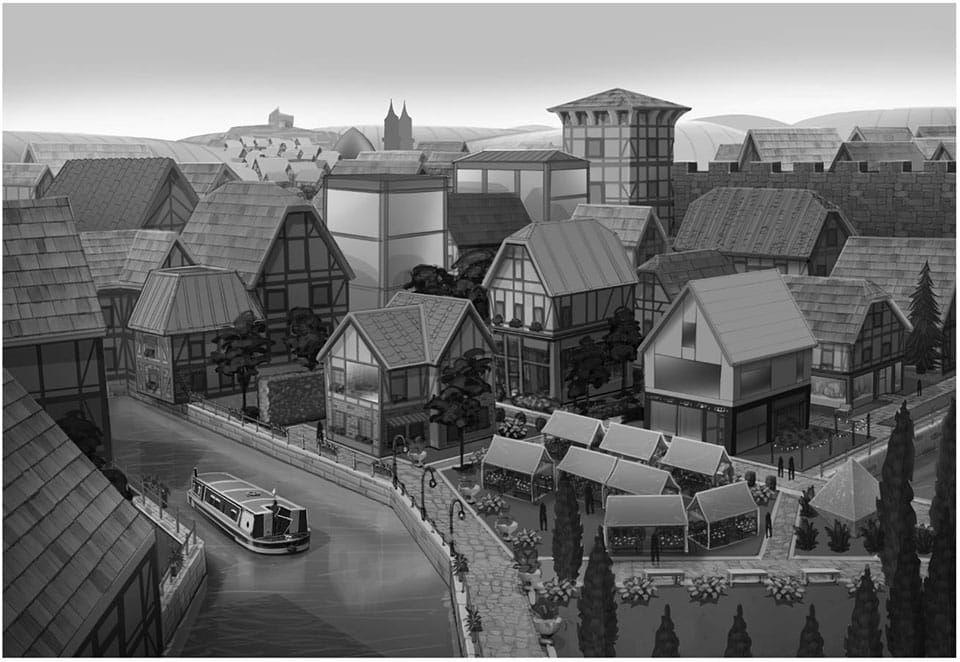
Europe is a huge continent with countless architectural styles and sub-cultures, so we realized we needed to create something unique, but still authentic. We want Windenburg to feel like it could be found in many different parts of Europe while still feeling like its own, distinct location. We gathered some concept art that shows how we ended up where we are, from first sketches to fairly complete images. Not everything in the concept art is going to end up in the final game, but we want to show you the whole process.

01_EP02_exploration01

Early on, our concept artists explored a bunch of different ideas to figure out how Windenburg should really look. Maybe it should have an “Old Town” area, or maybe there should be a traditional open countryside. Maybe part of it should be on hills? Maybe it should have all of the above?

02_OldTown_explore_03_bobbyd

As we started to flesh out this entirely new place it became very clear that the rules of architecture in classic Europe are very different then the things our Sims worlds have been filled with before. Namely, the variety – since many of the cities we referenced are centuries old, many of the buildings date back hundreds of years. Peppered between old buildings are new ones, creating an incredibly unique aesthetic that we really wanted to embrace. This mixture of old and new feels distinctly European, and we wanted to make sure we captured it in Windenburg.

03_residental-house-lineups

To embrace this mix of styles we needed to bend the classic rules of architecture and find a way to merge those disparate pieces. Our artists began to experiment with different styles of residential architecture, playing with different motifs to see how they could work together. In the end, we went with something that was sort of a Tudor Modern – a mix of contemporary construction and the kind of buildings built during the 16th century in England.

09_WORLD_MAP_revised5

Once we’d decided on the aesthetic and how it’d look on a small scale, we had to take a few steps back and think big-picture. Here’s a look at what we wanted the map to look like – and this is actually pretty close to the layout you’ll see in game! There’s a lookout spot on the Pier in the Business District where you can see indications of every distinct neighborhood, from the Countryside with rolling pine-covered hills and electric windmills in the distance, the Old Town with quaint Tudor buildings and repurposed fishing canneries, and the high-end residential Island that sits in the middle of the Windenburg Lake.

islands

On one side of the island, sandy flat areas with fishing docks. On the other, a mansion overlooking the sea (and if you’re lucky, you might catch a view of Windenburg’s elusive sea monster).

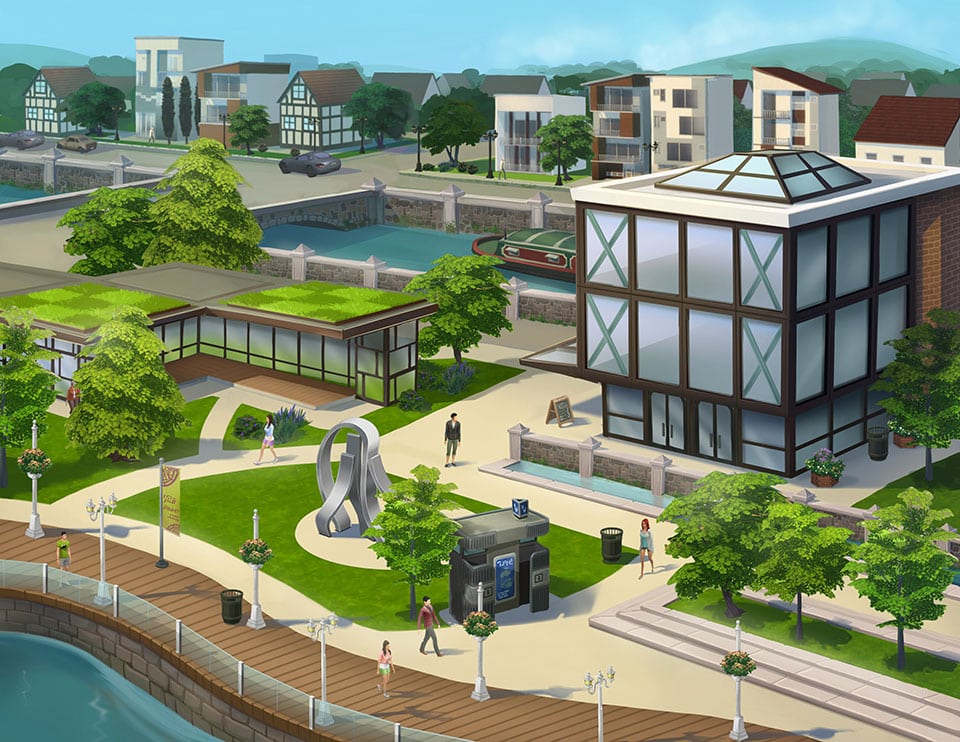
07_EP02_ModernDowntown

Once we’d finished sketching maps and architecture, we started to create some visual snapshots to really show off the districts. There’s one here (and one in the opening of the blog) that serve both as explorations as to how these places could look with Sims living in them, and also provide a visual target to the team responsible for building them in game. We’re really happy with how closely we were able to recreate these in game and even more excited about the different elements we were able to build out as development went on – even that statue made it!

We hope you enjoyed this peek behind the curtain of The Sims 4 Get Together’s Windenburg. We can’t wait to see your Tudor Modern buildings fit alongside ours this December!

Source: The Sims Blog

The Sims 4 Gallery Mobile App Update Today!

0

header_logo_en

An update to The Sims 4 Gallery Mobile App is coming today! How excited are you for improved gallery browsing on the go?

Update via Google Play / App Store

Today an update will be going live for The Sims 4 Gallery Mobile App which will introduce a new News Feed section. This section will also feature new videos we put out 30 mins before they go live on our social channels.

We hope you enjoy this new update and Happy Simming!

How to create a Pose Pack for The Sims 4

sryjsry
In this tutorial I will be teaching you how to create your very own ‘Pose Pack’ poses for in game use. Thanks to the amazing Andrew over at Sims 4 Studio we can now create non-default poses for the game.
What are non-defualt poses?
Non-default means that they will not override any other animations in the game. Like the poses before ‘Pose Player’, they would override animations such as push-ups.
If you have any questions, feel free to post in the Forum and I will help you as best I can.
Programs you will need:
Mods you will need:
Be sure to download and install these programs, if you have any questions on installing please ask.
1
For this tutorial we will be creating a ‘Pose Pack’ that we can use in game. (Not CAS poses)
The first thing we need to do is ‘Open Sims 4 Studio’.
On the bottom right of the screen type in your ‘Creator Name’.
1. On the top left you will see ‘Animation’, under that you will see two options ‘Clip Pack’ and ‘Override’.
For this tutorial we will ‘Select Clip Pack’, after you have that box checked ‘Click Animation’.
1
2. A pop-up window will open asking you to save your new .package. Name it and save to your ‘Mods’ folder.
Mods folder location: Documents > Electronic Arts > The Sims 4 > Mods
3. Now you will see a new window with 3 tabs. The first tab is ‘Pose Pack’ this is where you will name your pose pack, give it a brief description, and add an icon.
47fe8fc766d93dfb57a076b626098619
The icon you will be adding on this tab will be the one you see first, I usually make this icon have a title or an image of one of the poses for preview.
The best size for the icon is 64×64, make sure you save it as DDS format.
22d2f35dd9cbf98ab246c9259ec99a11
2
1. Next we need to click the ‘Clips Tab’. You will see your original icon from the ‘Pose Pack tab’, don’t worry we will be changing this later.
2. First thing we need to do is export the rig we want to use. For this tutorial I will be doing Adult Female. Make sure you have
‘Clip.blend’ selected, and next to the word rig click export.
I recommend naming your clip as ‘Clip One’ and saving it to your desktop. (This will generate a .blend file)
What is the difference between clip.blend and EA Clip?
Clip.blend – is a empty rig, this means there is no poses or animations assigned to the “model/rig”.
EA Clip – is a pose or animation already created in the game that you can export to edit.
288705cf0bb0c29a43f6168f2eb9c1f0
3. Now go to your desktop and open up the .blend file that you exported.
Once it is open and you are in Blender you will see a standing female rig like pictured below.
There will be tiny black dots all over the model, these are the joints that you can move to create your pose.
To rotate the model hold in mouse wheel.
To rotate the entire screen hold shift + hold in mouse wheel.
To zoom in and out scroll the mouse wheel.
05fd541602a3a6870a6a3ff034db9c9f
4. Select the joint (black dot) you want to move first by ‘Right Click’ then press R to rotate.
(You will see a black arrow)
66267c966ec86f1a458c65104ac369c0
You can also press R twice to rotate freely.
(You will see a red and green arrow)
d81abec1c0ac1fac28debee0a2554a83
5. You can move all the joints until you have the pose you desire.
f09efc60febd5298bee4f4c0a35bd2db
3
1. Now that we have our pose, ‘Click A’ on your keyboard. This will turn all of the joints blue.
Then ‘Click I’ on your keyboard, a menu will pop up. ‘Select LocRot’, this will lock our rotation for the pose.
14555d234f7701b09c49ddeab336f1ce  
2. Now that we have locked our rotation we need to set the time on our pose.
On the bottom of the screen you will see ‘Start and End’, we want to change our end number to 80 (or higher).
This will create a green line on the “time line”. Move it toward the end, don’t put it all the way at the end anywhere between 75-79 is alright.
2eaf72e06b59d4a0231f56ae634ea069
3. Once you are done, you can ‘Save’ your pose.
File > Save as (you can save it as a new file or override the ‘Clip One’ file.)
4. Now that we have our pose saved, we need to go back to Sims 4 Studio.
‘Import’ your pose, give it a Name and Description.
You can also give it a icon, by importing a new icon on the left.
(Or you can just hit save and go in game to get a screenshot to make an icon as I did.)
If you want to add more poses to your pack, ‘Click Add’ in the top right corner. This will create a new “Clip”, and you can repeat the process to create more poses.
44329f7af9d36b917ea7b7384f7c1f56
5. Once you have your info set for your pose(s), ‘Click Save’ in the bottom right hand corner.
Now your pose is finished!
Now you can go in game and check out your pose!
10-12-15_10-40-53 AM
How to Use Pose Player:
To use the pose player once you are in game, ‘Click your Sim’ and you will see “Pose by Pack”. Click that then you will have a new window, scroll through that window until you see your pack. ‘Click your Pack’ then you will see a list of all the poses in your pack. To play a pose simply click on the one you want your sim to preform. Once you are done with the pose you can either click off the pose in the interactions queue on the left of the screen, or select your sim again and ‘Click Stop Posing’.

The Sims 4 Mod: Environment Emitters

Ever wanted more control over the emotional auras and environment scores of rooms without having to place specific decor? Well now you can, with the new Environment Emitters!

You can set emotional auras as well as the general environment score with emitters that are invisible in Live Mode.

You can download the emitters from here: http://zerbu.tumblr.com/post/131018547977/the-sims-4-environment-emitters

Screenshot 2 Screenshot 4 Screenshot 5 Screenshot 7

The Sims 4 Mod: Environment Effect Overhaul

By default, when you enter a room, you’ll immediately be given a “Decorated”, “Nicely Decorated” or “Beautifully Decorated” Moodlet, which will immediately go away when you leave the room. If there are objects with emotional auras in the room, you’ll also be given an emotional Moodlet based on it.

TS4_Bar_Sept9

With the new Environment Effect Overhaul mod, instead of just suddenly jumping between emotions when going between rooms, the effects will occur gradually.

When you enter a room, a Moodlet will gradually build up and get stronger the longer you stay in that room. When you leave, it will gradually fade.

The Environment score and number of emotional auras will still effect the speed it rises.

The general “Happy” Moodlets will rise glower than emotional auras, and require at least 80 Environment points (the amount usually required for the “Nicely Decorated” Moodlet) to have any effect.

You can download the mod here: http://zerbu.tumblr.com/post/130971916702/the-sims-4-mod-environment-effect-overhaul

Announcing the Sims Community Newsletter!

0

We understand the importance of staying in the loop with all the latest news about The Sims Franchise, and that’s why we’re super excited to announce our very own Newsletter!

newsletterlogo

Starting tomorrow, members of Sims Community Social will have their first Sims Community Newsletter delivered to their digital inbox. Each newsletter will contain the most important news, articles and other posts that were published during the previous days. Newsletters will be sent out each Sunday, starting 12AM CET time. If there’s an important announcement or a piece of news, we’ll be sending out the Newsletter immediately to everyone! In case there’s a new Pack announcement, a juicy rumor or something else that’s very special, you’ll be receiving the emergency Newsletter just a few moments after the post on our site.

Here are the 2 very simple steps that explain how to subscribe our Newsletter:

Capture

In case you can’t find your Newsletter, check your Spam/Junk section of your mail and/or search for e-mails from webmaster@simscommunity.info (this issue is typical for Hotmail/Outlook accounts). Make sure you put that e-mail under trusted e-mails to prevent this glitch!

Learn more about Sims Community Social memberships!

JOIN SIMS COMMUNITY SOCIAL!

The Community: Interview With XUrbanSimsX

1

Jenn

Today I am here with a very special post! I was lucky enough to spare a few moments of Jenn’s time in order to construct the perfect interview about her role in the simming community! If you are here wondering “who is XUrbanSimsX” (which I highly doubt) She is a well known Youtuber with over 140,000 subscribers! She creates exciting, drama-filled Let’s Plays and is the creator of The Sims 4 Bachelor Challenge.

Why did you start playing The Sims?

The reason why I started playing the sims is because I loved the idea of being able to play the life of another person. Experiencing and doing things I normally wouldn’t being 13, it appealed to me.

What inspired you to begin Youtube and Let’s Plays?

I was inspired to start doing Let’s Plays by AndrewArcade and Quxxn. Watching them connecting with people all over the world and sharing how they played the sims looked fun. I wanted to show the world how I played my game, by including rich story lines and detail.

Do you have any advice for anyone wanting to start their own Youtube channel?

I do! Start small, do one Lp at a time and get comfortable with being in front of the mic. Open up, and be yourself. Don’t hide your personality, just be you and play how you would off screen! Interact with members of the simming community. Put yourself out there – reach out. Most of all enjoy what your doing and the rest will follow.

Tell us about your new Runaway Teen Lets Play?

Well, its about a troubled teen age’d girl who is sick of her parents trying to tell her WHO she’s going to be. I am sure a lot of teens can relate. Millie just wants to explore and find herself in her own time. The pressure from her parents was too much to handle causing her to run away. Going on her own. In the LP you can see the struggles she faces, and the pain she has put her parents through. It’s quite interesting actually.

What are your top tips for adding drama and excitement to your videos?

Adding drama is easy, simmers tend to over think it. That’s just IT. DON’T THINK – Just do! When you have spent hours building up your family and they are so perfect, it can get boring. So what I do, is just ‘think’ whats the worse thing that could happen right now, and do it. It doesn’t have to always be cheating. It can be deaths, or money issues. Maybe a sibling that has to move in with his brother and wife and that causes tension. Think of real life situations and put them in game. Its that easy!

Do you enjoy any other games besides The Sims?

I play other games occasionally. Such a GTA – Huge fan of the series. Maybe because its a ‘harder’ version of human simulation, but its fun. I also love some indie games, and other simulation games such as SIMCITY, Roller Coaster Tycoon. To be honest, nothing has kept me as entertained as The Sims though because my imagination can run wild.

That is all from Jenn for now, but if you would like to see more of her you can check out her Youtube channel here! She also has a website where you can find all the latest information about her content and even purchase some merchandise!

[vc_video link=”https://www.youtube.com/watch?v=8NnJbBV3_b8″]
vr1WzM6i
[social_icons type=”circle_social” icon_pack=”font_awesome” use_custom_size=”no” size=”fa-lg” target=”_self” icon_color=”#ffffff” background_hover_color=”#00aaff” icon=”fa-twitter” background_color=”#00aaff” link=”https://twitter.com/XUrbanSimsX”][social_icons type=”circle_social” icon_pack=”font_awesome” icon=”fa-youtube” use_custom_size=”no” size=”fa-lg” target=”_self” background_color=”#00aaff” link=”https://www.youtube.com/user/XUrbanSimsX/videos” icon_color=”#ffffff”][social_icons type=”circle_social” icon_pack=”font_awesome” icon=”fa-instagram” use_custom_size=”no” size=”fa-lg” target=”_self” background_color=”#00aaff” link=”https://instagram.com/xurbanbellax/” icon_color=”#ffffff”]