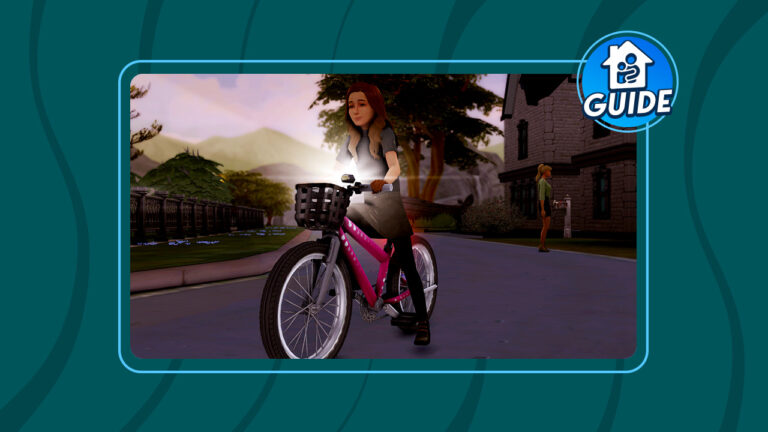
Learn how to ride a bike in The Sims 4 Growing Together!
You’ve heard the old expression. “It’s as easy as riding a bike!” Well, in The Sims 4 Growing Together, that’s very true! This expansion pack adds bicycles for children to use for both recreation and travel between lots. But just like real life, kids aren’t born already knowing how to ride a bike. They need to learn how, first.
We’re going to walk you through how to help your child Sims learn to ride a bike!
The Sims 4 Growing Together: Bike Riding
Of course, to start riding a bike, you must own one. You can purchase bikes from Build/Buy. They are listed under the Activities and Skills category. When selecting a bike for a child, make sure the object description says “Supports Children.” Children can only ride child-sized bikes.
To start, children won’t be able to use their bike to ride around the neighbourhood or travel to other lots. They have to learn how to ride the bike, first. Children can practice riding a bike on their own or they can have a caregiver teach them how to ride it. The caregiver will encourage the child and give pointers to help them master riding their new bike in The Sims 4 Growing Together.
Learning to ride a bike can take quite a while. Our Sim was outside with her daughter all day long helping her ride her bike before she learned how to ride it. It will take several practice sessions before the child can ride the bike with ease on their own.
A new milestone!
You will know your child Sim has learned to ride their bike in Sims 4 Growing Together when you see a purple popup called “Learned to Ride a Bike.” Your child Sim will gain the Learned to Ride a Bike milestone for this achievement. Once your child Sim has reached this milestone, they will be able to ride their bike around their home neighbourhood, travel to other lots on their bike, and even do tricks without adult supervision.
Riding a bike builds the Motor skill quite fast for children so it’s a good way to build this skill. Riding a bike also builds childhood confidence. Our Sim went from Neutral Confidence to High Confidence just from learning to ride a bike.
The next update for The Sims 4 is solving plenty of Bugs and Glitches. Learn more!
The Sims Team has just published a new Laundry List for The Sims 4. Covering Bugs, Issues and Glitches that are expected to be fixed within the next Patch drop for The Sims 4 Base Game!
In case you don’t know, the Laundry List contains player-reported Bugs and Issues that are expected to be fixed in the next Sims 4 Update. Featuring fixes across Base Game and Pack content!
Let’s take a look:
Hi Simmers!
Welcome to this month’s Laundry List, where we’re sharing our list of the top community concerns that we’re currently investigating and hoping to resolve in the next patch. This is only a list of upcoming fixes; there are more topics that have been reported by players that are not listed and are still being worked on.This list is reported by players on Answers HQ and helps us continue our work of improving the user experience on a regular basis.
Please note that some topics can be tricky and require an extended investigation on our end, so even though we are actively reviewing, it’s not a guarantee that we’ll have an immediate fix in the upcoming patch.
Here’s the list of the community concerns we’re investigating and aiming to resolve in the game update this month:
The Sims 4 just dropped their latest roadmap for the game and it looks like we’re getting a whole bunch of kits with the theme of “home.” Given that Growing Together launched not long ago and was a huge hit with Simmers, we can’t say we’re surprised to see The Sims Team continuing to build on that warm, cozy, taste of home feeling.
Let’s take a look at the roadmap!
Reclaim your space & surround yourself with things that feel like home this season with The Sims 🏡💚 pic.twitter.com/RijGwJWmmG
The Sims 4 roadmap shows some floral and wood wall paneling reminiscent of the 1970s. Then moving boxes with more information and clues about upcoming content. One box informs us we’ll be getting 4 “new and unique kits” and a “hot update” between April and June. It’s already April so we can likely look forward to either a kit or an update this month. The words “new” and “unique” are also capitalised, so we have high hopes these kits will offer something to players we didn’t have before.
More boxes appear and we begin to see previews of some clutter items being placed on top of them. TA plant, a stack of books, a hoodie, and what might be either gardening or home improvement tools (it’s hard to tell) are seen sitting on the boxes. The words “Take Me Home” pop up the end of The Sims 4 roadmap.
Let The Sims 4 roadmap speculation begin!
So what does this all mean? We can only speculate at the moment. If we had to bet, we’d be pretty confident betting on some kind of home improvement kit. The moving boxes, the “take me home” slogan, and the outdated 70’s décor in the background all make us think at least some of the content will be geared towards home renovations.
What did you notice in The Sims 4 roadmap that we missed? Tell us in the comments! Also, check out our news category for more Sims news just like this!
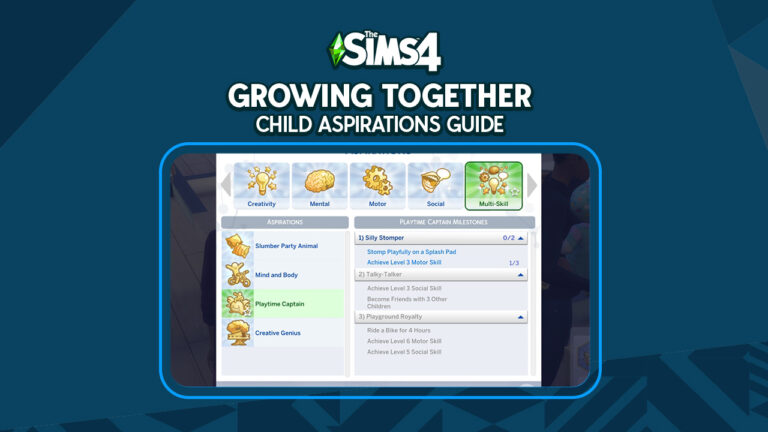
Exhaustingly, children have been stuck with the same 4 aspirations since the base game launched nearly a decade ago. Players have wanted children to get some new aspirations for a very long time and their prayers have finally been answered! Indeed, The Sims 4 Growing Together adds four new child aspirations! While the base game aspirations for children each focused on one child skill, these new aspirations focus on building multiple skills at a time.
Of course, here are the four new child aspirations and all the goals for each tier. Furthermore, all the new child aspirations can be found under the Multi-Skill category in CAS.
Slumber Party Animal
Pajama Wearer
Attend a Slumber Party
Achieve Level 3 Social Skill
Storyteller
Achieve Level 3 Creativity Skill
Tell 3 Stories from a Sleeping Bag
Exchange a Friendship Bracelet
Host with the Most
Achieve Gold in a Slumber Party Event
Achieve Level 6 Social Skill
Achieve Level 5 Creativity Skill
Mind and Body
Confident Kiddo
Become Confident
Achieve Level 3 Mental Skill
Super Bike Tyke
Achieve Level 3 Motor Skill
Learn to Ride a Bike
Master of Control
Go 12 Hours without a Negative Need Moodlet
Achieve Level 6 Mental Skill
Achieve Level 5 Motor Skill
Playtime Captain
Silly Stomper
Stomp Playfully on a Splash Pad
Achieve Level 3 Motor Skill
Talky-Talker
Achieve Level 3 Social Skill
Become Friends with 3 other Children
Playground Royalty
Ride a Bike for 4 Hours
Achieve Level 6 Motor Skill
Achieve Level 5 Social Skill
Creative Genius
Gifted Fledgling
Play Pretend in Treehouse
Achieve Level 3 Creativity Skill
Inspired Visionary
Achieve Level 3 Mental Skill
Stargaze
Best-in-Class
Sleep in a Treehouse for 6 Hours
Achieve Level 6 Creativity Skill
Achieve Level 5 Mental Skill
Which aspiration will your children be tackling first? Tell us in the comments! Also, it’s worth checking out our Slumber Party Event Guide!
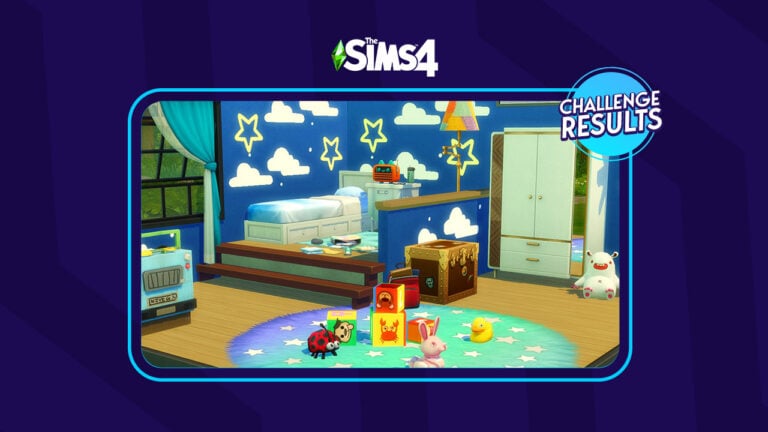
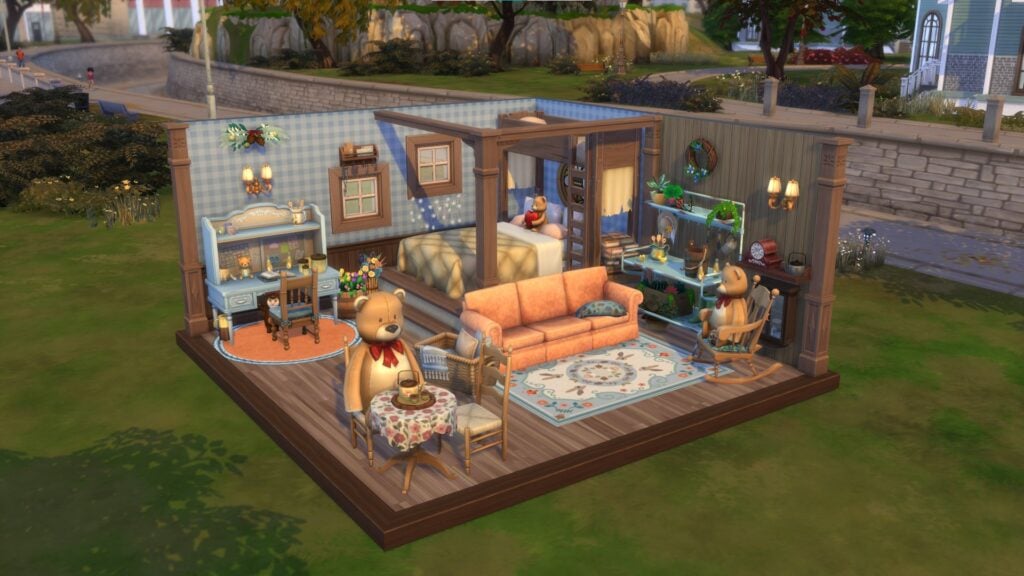
Our most recent Sims Community Challenge required players to create a Disney-inspired room. With the shell we created, so many of you took the opportunity to let your imagination run wild and create the room of your Disney Dreams.
We had an incredible amount of entries between both Twitter and our Discord server. It truly showed just how talented our community is when it comes to a good old-fashioned build challenge!
The Disney Giveaway
Of course, part of this challenge included a giveaway. Due to the overwhelming number of entries we received, we shortlisted our top three entries from both Twitter and Discord. It was tough as there were so many amazing entries. So without further ado, here is the results of the giveaway!
The winner of the Disney Build Challenge is OlaZet!
Lilo and Stitch by OlaZet
Lilo and Stitch Inspired Room by OlaZet
The Shell Challenge Showcase
With so many beautiful and detailed entries, we still wanted to showcase our top three from both Twitter and Discord!
From Toy Story to Tangled. Robin Hood, Coco, Beauty and the Beast, Marvel, and Star Wars, there was a wide range of Disney themes seen throughout entries. Everyone who took part took their idea and brought it well and truly to life in their shells! We’ve loved checking out each and every single entry across Twitter and Discord and wish we could showcase them all!
Alongside our winner, OlaZet, here are our other five favorite entries from the challenge!
Winnie The Pooh by pinkfantasyfan
Winnie the Pooh Inspired Room by Pinkfantasyfan
The Little Mermaid by Gothball1
The Little Mermaid Inspired Room by Gothball1
Tangled by Uhhhniamh
Tangled Inspired Room by Uhhhniamh
Luca by Indecisive_Llama
Luca Inspired Room by Indecisive_Llama
Alice in Wonderland by Ayaya
Alice in Wonderland Inspired room by Ayaya
Thank you again to everyone who took the time to enter! We loved going through each and every entry! With so many beautiful and detailed entries, we wish we could share them all! However, be sure to check out the #SCDisney hashtag over on Twitter!
Did you enjoy this Disney-themed challenge? Do you want to see more building and Create A Sim challenges in the future? Then keep your eyes peeled for our next challenge! Don’t want to wait, why not take a look at some of our previous Sims Community Challenges?
Instantly create a Sim with history using The Sims 4 Milestone Cheats!
Added with the Growing Together Expansion Pack, Sims 4 Milestones make an excellent addition to the game! We’ve written down all the milestones and how to add them manually using Sims 4 Milestone Cheats in case you want to add some past lore to your game!
[Updated by Callum Bowyeron 01/12/2026 to include All Packs]
Table of Contents
At the time of posting this, there is a bug that deletes all of a Sim’s Milestones when switching households. Using these cheats will allow the player to add back any Milestones that were deleted.
How to Use Sims 4 Cheat Codes
In order to use The Sims 4 Milestone Cheats, you’ll first need to pull down the cheats console in the upper left corner. Then, type in your cheat code!
To Open the Cheats Console: PC cheats: Press Ctrl and Shift and C Mac cheats: Press Ctrl and Shift and C
Sims 4 Milestone Cheats
Adding Sims 4 Milestones is easy! Just make sure to turn on testingcheats and install AllCheats by TwistedMexi. All you need to do is select the Milestone that you want to add and then use BOTH parts of the cheat code. Then, make sure to read the instructions at the top of each section for important information.
Infants were added in the Base Game Update before Growing Together! Although they were a cute addition to the game, Growing Together’s Milestone System helps bring those Infants to life!
To add these Milestones, make sure to use add developmental_milestones.unlock_milestone before each cheat. For example: evelopmental_milestones.unlock_milestoneinfantMilestones_FineMotor_Clapping
Don’t forget to turn on testingcheats and install AllCheats by TwistedMexi for the cheats to work.
Infant Milestone
Milestone Cheat
Clapping
infantMilestones_FineMotor_Clapping
Grabbing
infantMilestones_FineMotor_Grabbing
Pincer Grasp
infantMilestones_FineMotor_PincerGrasp
Reaching
infantMilestones_FineMotor_Reaching
Toe in Mouth
infantMilestones_FineMotor_ToeInMouth
Waving
infantMilestones_FineMotor_Waving
Birth
infantMilestones_Generic_Birth
Birth at Home
infantMilestones_Generic_BirthAtHome
Birth at Hospital
infantMilestones_Generic_BirthAtHospital
First Bath
infantMilestones_Generic_FirstBath
First Blowout
infantMilestones_Generic_FirstBlowout
First Bubble Bath
infantMilestones_Generic_FirstBubbleBath
First Finger Food
infantMilestones_Generic_FirstFingerFood
First Food Any
infantMilestones_Generic_FirstFoodAny
First Trip to Park
infantMilestones_Generic_FirstTripToPark
First Vacation
infantMilestones_Generic_FirstVacation
First Visitors
infantMilestones_Generic_FirstVisitors
First Visit to Family Member
infantMilestones_Generic_FirstVisitToFamilyMember
Pees on Parent
infantMilestones_Generic_PeesOnParent
Slept Through Night
infantMilestones_Generic_SleptThroughNight
Smile Age Up to Infant
infantMilestones_Generic_Smile_AgeUpToInfant
Crawl
infantMilestones_GrossMotor_Crawl
Creep
infantMilestones_GrossMotor_Creep
Dance
infantMilestones_GrossMotor_Dance
Lift Head
infantMilestones_GrossMotor_LiftHead
Pull to Stand
infantMilestones_GrossMotor_PullToStand
Roll Over to Back
infantMilestones_GrossMotor_RollOverToBack
Roll Over to Tummy
infantMilestones_GrossMotor_RollOverToTummy
Sit Up
infantMilestones_GrossMotor_SitUp
Babble
infantMilestones_Social_Babble
Blow Kiss
infantMilestones_Social_BlowKiss
Blow Raspberry
infantMilestones_Social_BlowRaspberry
Coo
infantMilestones_Social_Coo
First Word
infantMilestones_Social_FirstWord
Laugh
infantMilestones_Social_Laugh
Peek a Boo
infantMilestones_Social_PeekABoo
Toddler Milestones
Sims 4 might not have shipped with Toddlers, but it’s hard to remember a game without them! Growing Together added 20 new Milestones for Toddlers! Add any of them using Sims 4 Milestone Cheats!
To add these Milestones, make sure to use add developmental_milestones.unlock_milestone before each cheat. For example: evelopmental_milestones.unlock_milestoneinfantMilestones_FineMotor_Clapping
Don’t forget to turn on testingcheats and install AllCheats by TwistedMexi for the cheats to work.
Toddler Milestone
Milestone Cheat
Art Appreciation
lifeMilestone_Toddler_ArtAppreciation
Asked Why
lifeMilestone_Toddler_AskedWhy
First Friend
lifeMilestone_Toddler_FirstFriend
First Nightmare
lifeMilestone_Toddler_FirstNightmare
First Time Daycare
lifeMilestone_Toddler_FirstTimeDaycare
Learned to Climb Stairs
lifeMilestone_Toddler_LearnedToClimbStairs
Learned to Dance
lifeMilestone_Toddler_LearnedToDance
Learned to Run
lifeMilestone_Toddler_LearnedToRun
Learned to Talk
lifeMilestone_Toddler_LearnedToTalk
Learned to Walk
lifeMilestone_Toddler_LearnedToWalk
Max Communication
lifeMilestone_Toddler_MaxCommunication
Max Imagination
lifeMilestone_Toddler_MaxImagination
Max Movement
lifeMilestone_Toddler_MaxMovement
Max Potty
lifeMilestone_Toddler_MaxPotty
Max Thinking
lifeMilestone_Toddler_MaxThinking
Played With Others
lifeMilestone_Toddler_PlayedWithOthers
Read First Book
lifeMilestone_Toddler_ReadFirstBook
Studied Letters
lifeMilestone_Toddler_StudiedLetters
Studied Numbers
lifeMilestone_Toddler_StudiedNumbers
Studied Shapes
lifeMilestone_Toddler_StudiedShapes
Threw Tantrum
lifeMilestone_Toddler_ThrewTantrum
Child-Elder Milestones
Even the older Sims get to join in on the Milestone fun! Add these Milestones using Sims 4 Milestone Cheats to customize their Sim History.
To add these Sims 4 Milestones, make sure to use add developmental_milestones.unlock_milestone before each cheat. For example: evelopmental_milestones.unlock_milestoneinfantMilestones_FineMotor_Clapping
Don’t forget to turn on testingcheats and install AllCheats by TwistedMexi for the cheats to work.
Child – Elder Milestone
Milestone Cheat
Abducted By Aliens
lifeMilestone_AbductedByAliens
Adopted
lifeMilestone_Adopted
Adopted Pet
lifeMilestone_AdoptedPet
Adopted Sim
lifeMilestone_AdoptedSim
Beat Greg
lifeMilestone_BeatGreg
Became Mermaid
lifeMilestone_BecameMermaid
Became Non-Occult
lifeMilestone_BecameNonOccult
Became Plant Sim
lifeMilestone_BecamePlantSim
Became Spellcaster
lifeMilestone_BecameSpellcaster
Became Vampire
lifeMilestone_BecameVampire
Became Werewolf
lifeMilestone_BecameWerewolf
Began Puberty
lifeMilestone_BeganPuberty
Best Friend
lifeMilestone_BestFriend
Birthday
lifeMilestone_Birthday
Caught Cheating By Sim
lifeMilestone_CaughtCheatingBySim
Caught Sim Cheating
lifeMilestone_CaughtSimCheating
Childhood Phase
lifeMilestone_ChildhoodPhase
Defeated Mother Plant
lifeMilestone_DefeatedMotherPlant
Died
lifeMilestone_Died
Earned Degree-Art History
lifeMilestone_EarnedDegree_ArtHistory
Earned Degree- Biology
lifeMilestone_EarnedDegree_Biology
Earned Degree-Communications
lifeMilestone_EarnedDegree_Communications
Earned Degree-Computer Science
lifeMilestone_EarnedDegree_ComputerScience
Earned Degree-Culinary Arts
lifeMilestone_EarnedDegree_CulinaryArts
Earned Degree-Drama
lifeMilestone_EarnedDegree_Drama
Earned Degree-Economics
lifeMilestone_EarnedDegree_Economics
Earned Degree-Fine Art
lifeMilestone_EarnedDegree_FineArt
Earned Degree-History
lifeMilestone_EarnedDegree_History
Earned Degree-Language and Literature
lifeMilestone_EarnedDegree_LanguageLiterature
Earned Degree-Physics
lifeMilestone_EarnedDegree_Physics
Earned Degree-Psychology
lifeMilestone_EarnedDegree_Psychology
Earned Degree-Villainy
lifeMilestone_EarnedDegree_Villainy
Eaten By Cowplant
lifeMilestone_EatenByCowplant
Ended Romantic Relationship
lifeMilestone_EndedRomanticRel
Enemy
lifeMilestone_Enemy
Engaged
lifeMilestone_Engaged
Engagement Rejected
lifeMilestone_EngagementRejected
Fell in Love
lifeMilestone_FellInLove
First Bladder Fail
lifeMilestone_FirstBladderFail
First Day of Grade School
lifeMilestone_FirstDayOfGradeSchool
First Energy Fail
lifeMilestone_FirstEnergyFail
First Fight
lifeMilestone_FirstFight
First Fire
lifeMilestone_FirstFire
First Promotion
lifeMilestone_FirstPromotion
First Time Burning Out
lifeMilestone_FirstTimeBurningOut
First Time Possessed
lifeMilestone_FirstTimePossessed
First Woohoo
lifeMilestone_FirstWoohoo
Forgotten Grotto
lifeMilestone_ForgottenGrotto
Got Fired
lifeMilestone_GotFired
Got Job
lifeMilestone_GotJob
Got Laid Off
lifeMilestone_GotLaidOff
Had Affair
lifeMilestone_HadAffair
Had Sim
lifeMilestone_HadSim
Hermit
lifeMilestone_Hermit
High School-Dropped Out
lifeMilestone_HighSchoolDroppedOut
High School-Expelled
lifeMilestone_HighSchoolExpelled
High School-Graduated
lifeMilestone_HighSchoolGraduated
Learned to Ride Bike
lifeMilestone_LearnedToRideBike
Midlife Crisis-Adventure
lifeMilestone_Life_MidLifeCrisis_Adventure
Midlife Crisis-Create
lifeMilestone_Life_MidLifeCrisis_Create
Midlife Crisis-Relationship
lifeMilestone_Life_MidLifeCrisis_Relationship
Midlife Crisis-Success
lifeMilestone_Life_MidLifeCrisis_Success
Lost First Tooth
lifeMilestone_LostFirstTooth
Married
lifeMilestone_Married
Max Star Celebrity
lifeMilestone_MaxStarCelebrity
Mount Komorebi
lifeMilestone_MountKomorebi
Omiscan Temple
lifeMilestone_OmiscanTemple
Prom Royalty
lifeMilestone_PromRoyalty
Quit Job
lifeMilestone_QuitJob
Reached Top of After School Activity
lifeMilestone_ReachedTopOfAfterSchoolActivity
Reached Top of Career
lifeMilestone_ReachedTopOfCareer
Reputation-Atrocious
lifeMilestone_ReputationAtrocious
Reputation-Pristine
lifeMilestone_ReputationPristine
Resurrected
lifeMilestone_Resurrected
Resurrected By Sim
lifeMilestone_ResurrectedBySim
Resurrected Sim
lifeMilestone_ResurrectedSim
Retired
lifeMilestone_Retired
Retroactive Only-Had Sim
lifeMilestone_RetroactiveOnly_HadSim
Saved From Death
lifeMilestone_SavedFromDeath
Self Discovery
lifeMilestone_SelfDiscovery
Significant Other
lifeMilestone_SignificantOther
Sixam
lifeMilestone_Sixam
Smacked by Agnes
lifeMilestone_SmackedByAgnes
Struck by Lightning
lifeMilestone_StruckByLightning
Survived Haunted House
lifeMilestone_SurvivedHauntedHouse
Sylvan Glade
lifeMilestone_SylvanGlade
Werewolf Pack Leader A
lifeMilestone_WerewolfPackLeaderA
Werewolf Pack Leader B
lifeMilestone_WerewolfPackLeaderB
Widowed
lifeMilestone_Widowed
Won Lottery
lifeMilestone_WonLottery
Won Village Fair
lifeMilestone_WonVillageFair
Horse Ranch Milestone Cheats
With the release of Expansion Pack 14, Horse Ranch came with five new Milestone Cheats including Horse related milestones and also one for drinking too much nectar!
Horse Related Milestone
Adopted Horse
lifeMilestone_Life_AdoptedHorse
Birth of Foal
lifeMilestone_Life_FoalBirth
Had Too Much Nectar
lifeMilestone_Life_TooMuchNectar
Won Ultimate Champion at Horse Competition
lifeMilestone_UltimateChampion_HorseCompetition
Won First Victory at Horse Competition
lifeMilestone_FirstVictory_HorseCompetition
For Rent Milestone Cheats
In December 2023, For Rent was released and added an additional five Milestone Cheats. These include Rent related milestones including mold exposure and getting evicted!
For Rent Milestone
For Rent Milestone Cheat
First Time Winning Marbles
lifeMilestone_FirstMarblesWin
First Mold Exposure
lifeMilestone_FirstMoldExposure
Got Evicted
lifeMilestone_GotEvicted
Adopted Tiger
lifeMilestone_AdoptedTiger
First Break-In
lifeMilestone_FirstBreakIn
Lovestruck Milestone Cheats
Lovestruck Milestone
Lovestruck Milestone Cheat
Achieved Maximum Romantic Satisfaction
lifeMilestone_ObtainMaximum_RelSat
Achieved Minimum Romantic Satisfaction
lifeMilestone_ObtainMinimum_RelSat
Life & Death Milestone Cheats
Life & Death Milestone
Life & Death Milestone Cheat
First Funeral
lifeMilestone_Firsts_FirstFuneral
First Loss
lifeMilestone_Firsts_FirstLoss
Rebirth!
lifeMilestone_Life_Reincarnated
First Object Possession
lifeMilestone_Firsts_FirstObjectPossession
First Mark of Edith!
lifeMilestone_Firsts_FirstMarkofEdith
Made a Friend in the Crypt!
lifeMilestone_Life_CryptFriend
Unlocked The Ultimate Evil Ghost Power!
lifeMilestone_Life_TopEvilGhost
Finished Bucket List!
lifeMilestone_Life_FinishBucketList
Finished Unfinished Business!
lifeMilestone_Life_FinishUnfinishedBusiness
Had a Descendant of Grim!
lifeMilestone_Life_HadSimGrim
WooHoo’d with Grim!
lifeMilestone_Social_WoohooGrim
Businesses & Hobbies Milestone Cheats
Businesses & Hobbies Milestone
Businesses & Hobbies Milestone Cheat
Gave First Tattoo
lifeMilestone_GaveFirstTattoo
Got First Tattoo
lifeMilestone_GotFirstTattoo
Sold a Small Business
lifeMilestone_SmallBusiness_Sell
First Small Business Simoleon
lifeMilestone_SmallBusiness_FirstSimoleon
Registered a Small Business
lifeMilestone_SmallBusiness_Register
Enchanted by Nature Milestone Cheats
Enchanted by Nature Milestone
Enchanted by Nature Milestone Cheat
Manifested as a Fairy
lifeMilestone_BecameFairyOccult
Miscellaneous Sims 4 Milestone Cheats
Some additional Sims 4 Milestone cheats for people that are looking to make the perfect Sim without the work. Fastest SuperSim ever?
Don’t forget to turn on testingcheats and install AllCheats by TwistedMexi for the cheats to work
Description
Cheat
Unlock all Milestones
developmental_milestones.unlock_all_milestones
Reset all Milestones
developmental_milestones.reset_all_milestones
Want to Add Milestones Using a Mod?
Milestones Cheats Mod by Lumpinou
Lumpinou has a Milestone Cheats mod that allows you to add or delete milestones in any age! This is especially helpful because it allows you to add milestones for ages other than your Sim’s current age.
UI Cheats Extension by Weerbesu
Weerbesu’s UI Cheats Extension also allows Milestones to be added. They explain how to use the mod for milestones with the instructions below:
Simology Panel
Right click on a milestone category title bar to add milestones from the selected category of the current age.
Right click on an existing milestone to remove it, or change the Sim/object/location/career/death type/trait the milestone was unlocked with.
Milestones Panel
Right click on a milestone category title bar to add milestones from the selected category and age.
Right click on an existing milestone to remove it, or change the Sim/object/location/career/death type/trait the milestone was unlocked with.
A new feature from Growing Together has been placed in a time-out!
The Sims team has released a small patch that temporarily disables the option for a Sim to lose teeth. The Growing Together feature was causing players to see a change in their Sims appearance. This was mainly noticed in Sims skin tone, hairstyle, and clothing.
Initially, this patch has only been rolled out to players on PC and Mac devices with consoles seeing an update being released shortly.
SimGuruGraham shared a quick message over on The Sims forums regarding the update.
Hi Simmers,
Today’s update is releasing on PC/Mac platforms only. We are addressing an issue in The Sims™ 4 Growing Together Expansion Pack where Sims who lost a tooth were intermittently having their skin tone, hair style, and clothing changed. We are temporarily putting this feature in time out by disabling the ability for Sims to lose a tooth as we prepare a fix to the underlying issue. Keep an eye on @TheSimsDirect for updates on the return of this feature.
We are working to release this update to PlayStation and Xbox platforms as quickly as possible. In the meantime, check the guidance shared on Answers HQ on how to avoid this issue until this update becomes available on those platforms.
-SimGuruGraham
A Child Sim Losing a Tooth
A Workaround for Console Players
While Simmers on both Xbox and PlayStation await a patch to rectify this issue, there is a temporary workaround.
When a child Sim loses their teeth, they would normally receive an uncomfortable “Loose Tooth” moodlet. This would appear if the child Sim has just woken up or if they’ve taken part in physical activities.
Now, what should happen in Growing Together when you spot the moodlet on your Sim is to proceed to interact with them. The interaction in question is the “Pull Out Loose Tooth” which normally you would need to do fairly quickly.
What has been advised as a temporary fix is the following:
Avoiding the natural expiration of the “Loose Tooth” moodlet
Avoiding aging up your Child Sim into a Teen while the “Loose Tooth” moodlet is present.
There is currently no time frame for when Console players will see this issue temporarily disabled. However, for now, the workaround should assist players in stopping any further issues.
Moving Forward
Even though it is frustrating that players have experienced issues with Sims losing their teeth, this latest update and the workaround for console players are promising. We hope to see further updates about this feature from Growing Together soon!
While this feature has been placed in a time-out for now, stay tuned for more news, and information about The Sims 4 right here on Sims Community!
Learn all about how milestones affect your Sims throughout their lives!
One of the most exciting new features of The Sims 4 Growing Together is milestones! Milestones are a lot like memories from past Sims games, except milestones continue to affect your Sim in the long term. Additionally, their overall implementation is a lot less cluttered and messy than previous memory systems, too.
Let’s jump right into how milestones work!
The Sims 4 Growing Together: Milestones 101
All Sims from the infant life stage to the elder life stage can gain milestones. You don’t need to do anything specific to acquire milestones; they will naturally acquire them as they go through life and experience different things. Depending on your Sim’s age, their milestones will be focused on different aspects of life. For infants, their milestones revolve around learning how to do things for the very first time. They won’t be able to sit up in a high chair to eat until they hit the milestone for learning how to sit up, for example. For older Sims, milestones revolve around things like careers, love, and starting a family.
Of course, not all milestones are positive! The Sims 4 Growing Together milestones mark important events in your Sim’s life, both good and bad. Things like fires, divorces, and losing your job are also milestones that Sims can experience.
Some milestones continue to affect Sims throughout their lives. This is most notable during the infant life stage, where hitting a new milestone allows the infant to do more things. Older Sims will still be affected by their milestones, though. For example, experiencing their first fire may cause them to be tense in the area where the fire started.
Understanding the Milestone Menu
The Sims 4 Growing Together milestones can be located in your Sim’s info panel. It’s the same tab that contains their traits and preferences. On this tab, you will often see greyed out milestones. These icons are like hints or suggestions for what may be next for your Sim based on milestones they’ve already acquired. Hover over these milestones for a hint about how to get it. You don’t necessarily have to acquire these milestones; they’re just suggestions, but they can help give you a sense of direction if you’re not sure what to do next with your Sim. They are especially helpful for infants, who need to hit specific milestones in order to be able to do new activities. You can check this panel to see what milestone you should aim to hit next.
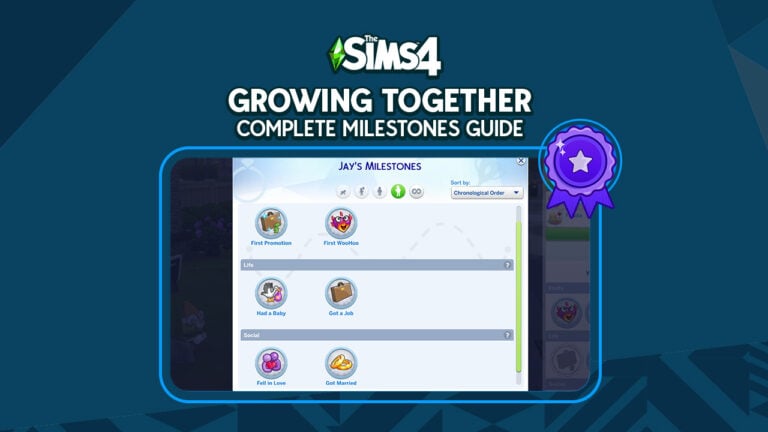
Also, to keep things organized, you’ll only be able to see milestones for your Sim’s current age in the Sim Info panel. To see all of your Sim’s milestones throughout their whole life, open up the milestone menu in this tab. From this menu, you can click through your Sim’s previous ages to see what milestones they got at that age. Additionally, milestones are further separated into sub-categories for each stage of life to help you find relevant milestones easier.
For players, our best advice is to try and do many different things with your Sims at all stages of life. Obviously, the more your Sim experiences, the wider variety of milestones you’ll unlock for them.
The Sims 4 Growing Together Milestones List
Additionally, below you will find the full list of Sims 4 Growing Together milestones available for each life stage across all packs. Of course, players who do not own the pack related to the milestone will not have this milestone available in their game. Moreover, please keep in mind that these are all the milestones we found in the XML files.There are a LOT of milestones in the game and it’s possible we missed some but we will continue to update the list as more are discovered.The wording may also be different in-game than in the XML files.
Also, some milestones are general milestones that can be acquired in multiple ages. For the sake of simplicity, these are also listed under adult milestones.
Help your little one reach all those important milestones for a great start in life!
If you played with infants prior to getting The Sims 4 Growing Together, you probably noticed that infant care suddenly became a lot more complicated. In fact, your infant can no longer sit up or crawl immediately upon aging up from a newborn. Of course, not being able to sit up means they can’t play with toys or explore foods in a high chair. They must learn these skills by hitting infant milestones. Additionally, you’ll have infant quirks to deal with as well, making raising infants in The Sims 4 Growing Together quite a challenge!
This guide covers additional information on infant care related to Growing Together. For information about tending to your infant’s basic needs, see our base game infant care guide.
The Sims 4 Growing Together Infant Milestones
Of course, if you want your Sims 4 Growing Together infant to start crawling around and playing with toys on their own, you’ll need to spend a lot of time with them reaching milestones. Milestones for infants are separated into Gross Motor, Fine Motor, Life, Social, and Firsts categories. The Gross Motor and Fine Motor categories are what you want to focus on to help your infant be a little more independent. However, the milestone panel is good at giving you hints for how to reach the next milestone.
This infant can explore foods in a high chair because he has reached the Sit Up milestone
Of course, your infant can’t just skip right to sitting up and crawling. Just like in the real world, infants slowly progress through simple milestones first, then gradually reach more and more advanced milestones. Your infant in The Sims 4 Growing Together is no different. Infants will often have a greyed out milestone in their info panel. This is the next milestone that your infant is on track to reach. Hovering over that greyed out milestone will tell you how they can reach it. Of course, players must put effort into helping their infant reach all their Gross Motor and Fine Motor milestones. However, the Life, Social, and Firsts milestones are not necessarily required for infants to gain new independence. These milestones will happen more naturally through regular gameplay.
An infant reaching the Put Toe in Mouth milestone
Below are the list of Gross Motor and Fine Motor milestones, along with how to reach them. Additionally, infants must progress through these milestones in order.
Gross Motor Milestones
Gross Motor milestones will help your infant grow into a toddler with some Movement skill already.
Lifted Head: Practice tummy time with your infant. Tummy Time can be found under Friendly > Activities.
Rolled Over to Back: Practice tummy time with your infant.
Rolled Over to Tummy: Practice tummy time with your infant.
Learned to Creep: Practice tummy time with your infant.
Learned to Sit Up: Practice sitting with your Sims 4 Growing Together infant. Practice Sitting can be found under Friendly > Activities. Reaching this milestone unlocks the Fun motive for infants. Also, it allows them to sit in a high chair to explore different foods.
Learned to Dance: Have music playing near your infant frequently or teach them to dance on a stereo. Unlike most milestones in this category, infants can skip this one and go straight to crawling from sitting up.
Learned to Crawl: Practice crawling with your infant. Practice Crawling can be found under Friendly > Activities.
Pulled to Stand: Practice standing with your infant. Practice Standing can be found under Friendly > Activities. Also, we recommend leaving your infant alone for a minute after each Practice Standing session. To reach this milestone, your infant will autonomously crawl to a nearby piece of furniture to pull themselves up. So if this interaction gets interrupted, they won’t reach the milestone.
Fine Motor Milestones
Fine Motor milestones will help your infant grow into a toddler with some Thinking skill already.
Learned to Reach: Use the infant play mat to look at toys or play with your infant.
Learned to Grab: Use the play mat and give your infants toys to hold. Reaching this milestone allows your infant to interact with the play mat toys.
Put Toe in Mouth: Play with toy box toys, dollhouses, blocks, or the play mat.
Learned Pincer Grasp: Explore different mashed baby foods in a high chair with your infant. Reaching this milestone allows your infant to start trying finger foods in a high chair.
Learned to Clap: Talk to and play with your infant frequently.
Learned to Wave: Clapping and waving can be learned in either order. Just keep interacting with your infant. They are likely to wave to a caregiver they feel close to.
Some Sims 4 Growing Together infant activities related to Fine Motor milestones cannot be done until the Sit Up and Creep Gross Motor milestones have been reached. So if you’re having trouble reaching some Fine Motor milestones, focus on Gross Motor milestones for a while!
Social Milestones
Social milestones will help your infant grow into a toddler with some Communication skill already. Like the Motor milestones, many of the social milestones need to be reached in order as your infant progresses from cooing to saying their first word.
First Smiled: Your infant will reach this milestone automatically upon aging up from a newborn!
Learned to Coo: Interaction from caregivers is key in developing most of the social milestones. Talk to your infant frequently to hear them coo at you in response.
Learned to Laugh: We found the best way to reach this milestone was to each the Grab milestone first then give them toys to play with. Our infants often laughed for the first time while playing with a toy box toy.
Learned to Babble: Infants learn to talk by hearing adults talk around them. Talk to you infant frequently and they will start to babble at you in response.
Learned to Blow a Raspberry: Our infant reached this milestone seemingly at random while playing on his play mat. However, continuing to talk to your infant or demonstrating this skill by blowing raspberries on their tummy may also help reach this milestone.
Said First Word: Continued socialization with your infant is key here. Our infant said his first word in his crib after his mother spent some time talking to him.
Learned to Blow a Kiss: This is another milestone our infant seemed to reach all on their own but we’d recommend helping this along by kissing them or blowing kisses at other Sims in front of them to demonstrate.
Learned Peek-a-Boo: Play peek-a-boo with your infant frequently!
Life Milestones
Life milestones are not as important for unlocking new activities for your infant. They are just a way to commemorate big moments in life.
Born/Born at a Hospital: This milestone will show up as Born if they were adopted or born at home. If they were born at a hospital, it will show up as Born at a Hospital. It’s not possible to have both versions of this milestone but they count as the same milestone.
Additional milestones like a sibling or a pet joining the family may be possible to get in this category as well but these milestones are not infant-specific.
Firsts Milestones
Firsts milestones don’t need to be reached in any particular order. They don’t come with any benefits, either. Like Life milestones, they are simply there to commemorate your infant’s first experiences in life.
First Visitors: Introduce your infant to a visiting Sim!
First Family Visit: Take your infant to a relative’s house and have them interact with their extended family.
First Trip to the Park: Take your infant to a park lot!
First Vacation: Take your infant on a vacation!
First Bath: Give your infant a bath.
First Bubble Bath: Give your infant a bubble bath.
First Baby Food: After reaching the Sit Up milestone, explore baby foods with your infant in a high chair
Slept Through the Night: Even if your infant does not like sleeping in their crib, continue trying to get them to sleep in the crib. You can soothe them to sleep or use the baby mobile on an upgraded crib to help lull them to sleep. Once they get used to it, they will eventually sleep through the night without waking up.
First Finger Food: After reaching the Sit Up and Pincer Grasp milestones, try some finger foods with your infant in a high chair.
First Diaper Blowout: This milestone is completely random! Your infant may experience a diaper blowout. Also, gassy infants are more likely to have diaper blowouts.
Peed on Caregiver: Another random milestone. Whenever your Sim attempts to change their infant’s diaper, there’s a chance the infant could pee during the diaper change. Our infant peed on his father while he changed him at a changing table.
The Sims 4 Growing Together Infant Quirks
Additionally, there are a total of 18 Sims 4 Growing Together infant quirks that infants can acquire naturally through gameplay. However, they are largely random; sometimes an infant may develop a quirk based on what they’re doing, sometimes they won’t. Also, infants can have up to three quirks at a time. So some quirks are just cute little habits your infant will do more frequently. However, others may make raising them more of a challenge for their parents!
This Snuggly Sleeper infant has a hard time sleeping unless he’s in his caregiver’s arms.
So, here is the full list of infant quirks:
Snuggly Sleeper
Early Riser
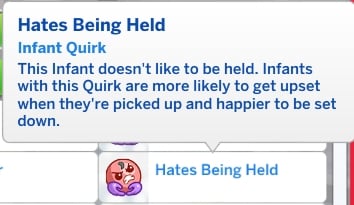
Hates Being Held
Loves Being Held
Gassy
Picky Eater
Good Appetite
Messy Eater
Happy Spitter
Frequently Hiccups
Frequently Sneezes
Loves Wakeup Time
Hates Wakeup Time
Loves Sounds
Little Babbler
Free-Air Tinkler
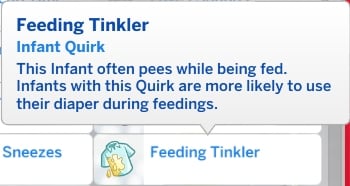
Feeding Tinkler
Self-Soother
Also, you can read the descriptions of each Sims 4 Growing Together infant quirk below:
Descriptions of all Infant Quirks
The Sims 4 Growing Together: Infant Activities
Additionally, The Sims 4 Growing Together adds some other new objects and activities for infants that are not in the base game, such as the infant play mat, changing tables, and infant back carriers! In fact, here’s a quick breakdown of these items.
Play Mat
Indeed, the play mat will help your Sims 4 Growing Together infant reach a lot of their Gross Motor and Fine Motor milestones. So we highly recommend having one for your infants. Also, they are quite versatile because your infants can sleep on them, play with the dangle toys, and have tummy time on them.
Changing Tables
We’re a little confused as to why changing tables are not in the base game but in any case, they are a Sims 4 Growing Together infant item. Of course, they work much the same as a dresser. Sims can change their infant’s outfits and change their diapers. Also, the changing table can be used to change outfits and diapers on toddlers. Furthermore, make sure to put a diaper bin next to it if you don’t want to clean up diaper waste on the floor. Additionally, there is a wall-mounted changing table designed for public bathrooms.
Infant Carriers
Additionally, infant carriers can easily transport your infant and take them out into the world. Of course, Sims can take walks and even go jogging with an infant on their back. Also, some infants, such as Snuggly Sleeper infants, sleep better when in a back carrier.
Moreover, for additional information on back carriers, see our guide.
Fix black photos from the Keepsake Boxes and prevent future black photos!
The Sims 4 Keepsake Boxes turn photos black
One of the many cute aspects of Growing together is the Sims 4 Keepsake Box, in three designs, that your Sim can use to store different mementos. Despite the Sims 4 Keepsake Being featured in the livestream, an EA bug that has been in the game for over a year breaks these boxes and causes them to turn photographs black when placed inside. There is a way to fix and prevent the The Sims 4 black photo bug.
What Causes Sims 4 Black Photos?
Black photos are caused when a Simmer puts photographs in a not-shared storage item and then exits and reopens the game. Evidently, doing this causes photos to lose their ownership causing them to turn black.
Sims 4 Black Photos in Keepsake Box Inventory
What Is a Not-Shared Storage Inventory?
A not shared storage inventory is an item that shares an inventory between two different objects with the same function. For example: a bookshelf is a shared inventory. If you place two bookshelves down, your Sim can retrieve the same books from either bookshelf.
Quick Fix: Recovering Black Photos
This is an EA bug caused by putting photos into not shared inventories. Not shared inventories include the Sims 4 Keepsake Box and Dorm Storage Chests. Many mods, including many by Ravasheen, use this storage type.
Try these two solutions to see which works for you!
Sims 4 Black Photo Solution 1
Straight away, exit the game without saving or retrieve a previous save.
To retrieve a previous save, load the main menu, click on the floppy disk, and pick the newest version of your save without Sims 4 Black Photos
Reset The Sims 4 to factory settings using this method. Thank you Crinrict for the instructions.
Make sure to add back saves, mods, and tray folders. (ConfigOverride and screenshots if you have files in those folders)
Thanks to SnarkyWitch for helping me develop this method.
Sims 4 Black Photo Solution 2
To start, click load game from the Game Front Menu Screen.
Secondly, click on the floppy disk
Load a previous save where the photos were not black.
Fourthly, place the photos on the wall in a small room.
Save the room to your library.
Afterwards, open your current save and place the room with the pictures onto your lot.
Collect the photos and delete the room.
Sims 4 Black Photos Prevention
Where can and can’t I store photos?
Generally, photos can be stored anywhere that is a shared inventory. Shared inventories are inventories where if you put two of them down, they would have a combined inventory.
How can I back up my photos?
In order to back up your photos, you can do any of these things.
Firstly, put all your Sim’s photos on the wall and save the room to your library.
Afterward, back up your save so you can retrieve them later. Save you game, then in the saves folder, sort by date. Copy the newest save and paste it somewhere safe on your computer or upload to a cloud service like Google Drive.
What is the safest place to store photos?
Generally, the safest place to store photos is in a Sim’s inventory.
Reminder: Do not use the Sims 4 Keepsake Box to store photos
Sims 4 Black Photo Bug Mods to Avoid
Unfortunately, there are certain mods that cause black photos to happen in storage types that are normally safe. In addition, there are cc that use inventory types like the Dorm Storage Chest that will cause photos to turn black as well.
Photos Storageable by LittleMsSam: This mod allows photos to be stored in Storage Chests, Toy Boxes and Craft Sales Table which causes them to turn photos black if those items have a not-shared inventory.
Inventory Not Sharedby SrslySims This mod makes the Bookcase, Toybox, and Flower Arrangement Table have not shared inventories. Photos normally do not go into these storage types, but sometimes mods allow them to accept photographs.
Objects Don’t Share Inventory by LittleMsSam: This mod creates not-shared inventories for Bookshelves, Chests & Toyboxes. Having a not-shared inventory will cause photos to turn black if stored in them.
Inventory Not Sharedby BrazenLotus: This mod changes the inventory type for the following items to allow them to be not shared inventories. Inventories of the Baking Warming Racks, Bookshelves, Flower Tables, Retail Fridges, Storage Chests, and Toyboxes become not shared inventories when the mod is installed.
Using Photographic Memory Mod by Ravasheen can help preserve and organize your photos. The mod protects photos from permanently turn black. Then, store the copy photos in any inventory. As shown above, there are other features of the Photographic Memory Mod.
To preserve and organize your photos using Photographic Memory Mod:
Firstly, copy all of your photos using the Photographic Memory Mod Spawner (For instance, the USB Drive, Floppy Disk, and Vintage Camera.
Afterward, leave the original photos in your Sim’s inventory
Finally, place the copies from Photographic Memory Mod in the not shared inventories.
Important note, do not put photographs inside the Photographic Memory Mod spawners. This will cause the black photo bug which will result in black photos.
Most importantly, thanks to Ravasheen for the background research on the cause of Sims 4 Black Photos.
Sims can now discover new traits or swap traits through gameplay!
For the longest time, our Sims were stuck with the same 3 traits we picked out for them in CAS for their entire lives. Regardless of the direction their life took afterwards, there was no personal growth to reflect those changes in habit. The Sims 4 Growing Together changes that in a big way. Sims can gain an entirely new personality based on the way they live their lives. Their personalities grow and change alongside these new life experiences. See how trait changes work in The Sims 4 Growing Together!
The Sims 4 Growing Together Personality Changes
As your Sims go through life, you may receive popups that give you the opportunity to add a new trait to your Sim’s existing set of traits. You might also get the opportunity to swap one of your Sim’s traits for its opposite! These Sims 4 Growing Together trait change popups are not entirely random; they trigger based on what your Sim is doing at the time. However, it can be tricky to deliberately trigger them. You’re not guaranteed to receive one of these popups every single time your Sim does a specific action. This creates a lot of variety in storytelling. No two Sims will have the exact same trajectory of character growth even if they lead mostly similar lives.
You are not forced to accept these personality changes. You can decline the opportunity to change your Sim’s traits if you wish. So you don’t need to worry about the game forcing your Sim down a path you don’t want. However, accepting these trait changes in The Sims 4 Growing Together at least some of the time can lead to more exciting gameplay you didn’t expect.
Trait Additions
You will periodically get the opportunity to add a new trait to your Sim’s existing traits. These are not reward traits; they are core CAS traits. This is exciting because additional CAS traits are normally not available to change or add to after you initially select them.
Each Sim can gain up to three additional CAS traits through gameplay. So in total, our Sims can actually have up to 6 CAS traits; 3 that you selected, and 3 gained throughout their life. You can really expand your Sims’ personalities in Live Mode using The Sims 4 Growing Together’s trait change feature.
For example, our Sim started out with the Loves Outdoors, Dog Lover, and Active traits. As she started learning new skills, she was quite clumsy at them. She would accidentally slice her finger while cooking and stumble while running on a treadmill. After a few of these incidents, we were asked if we wanted to give her the Clumsy trait. We said yes, giving her a fourth CAS trait. Later on, we had the opportunity to give her the Cheerful trait as well since she was frequently Very Happy.
One of our other Sims had the opportunity to add the Family-Oriented trait to their existing CAS traits because he was spending a lot of time caring for his children. Another cool Growing Together trait change!
Trait Swaps
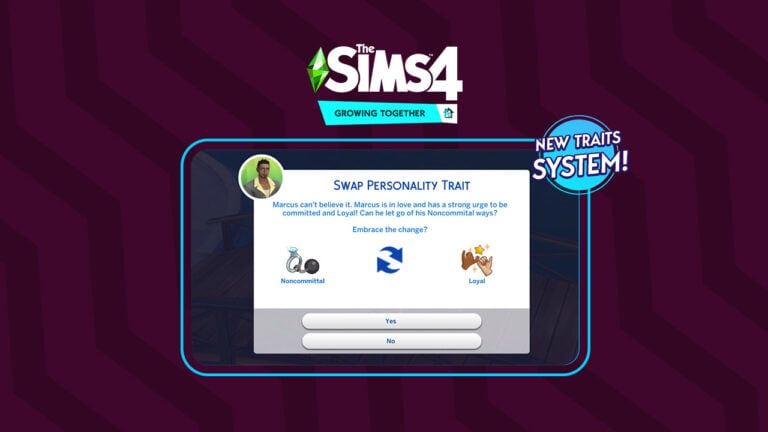
Additionally, Sims can have their traits swapped out for its opposite if their life is going in a direction that conflicts with one of their existing CAS traits. Our Sim met and fell in love with Marcus Flex, a premade Sim from the Get Together expansion pack. Marcus has the Noncommittal trait, so he is unlikely to want to settle down in a marriage. However, he and our Sim were extremely compatible and we thought she could be the one for Marcus. So we had him propose to her.
When he proposed, we received a popup asking us if Marcus should lose his Noncommittal trait and gain the Loyal trait, instead. We said yes and Marcus was a changed man thanks to the power of love!
This powerful feature allows for so many different types of storytelling and personal development in Sims.
What stories have you told through using The Sims 4 Growing Together’s personality change feature? Tell us about your Sims in the comments!
Everything you need to know about Slumber Parties in Growing Together!
Have you longed for your Sims to be able to experience slumber parties? Stay up all night telling stories, having snacks and playing games? Well, now’s the time for your Sims to experience the ultimate slumber party in the new Growing Together expansion pack!
Sleepovers are one of several new events that come with The Sims 4 Growing Together. The last time we saw any kind of sleepover was back in The Sims 3!
Story Telling at a Slumber Party
But how do my Sims host a Slumber Party? Well, we have you covered!
Planning a Slumber Party in Growing Together
“Gather your pals together to stay up late, tell stories, and eat snacks, Don’t fall asleep first or you may get pranked!”
Like with any event, simply head over to your Sims Calendar, located at the bottom left-hand corner of the screen alongside the cell phone.
Once you are in your Sims calendar, head down to the Add Event section of the calendar. From there, simply scroll through your events list until you find the event.
The Sims 4 Calendar Screen
It’s important to note that there are two versions of this event. A goaled and non-goaled event. The main difference is that the goaled one will allow you to earn rewards depending on what your overall result is.
Now you have chosen which type of event you want to complete, you can head over to the next screen.
Here you will select your host, guests, event time as well as the location of the Slumber Party. When it comes to choosing the location, you can select your current property or from selected community locations around the world, including the Recreation Center!
Once you’ve finished selecting planning, you’ll notice that the event will show on the calendar just like other events. You can also make edits to the event and even delete it if needed.
Slumber Party – Calendar Display
It’s Slumber Party Time!
Now that your Sims have finished planning the party, it’s time for the event itself to happen!
Make sure your Sims have a sleeping bag in their inventory ahead of time. You can find them by searching for Sleeping Bags in the search bar or in the Bed category.
Sleeping Bags from Growing Together
If you do forget to purchase a sleeping bag, you can quickly hop into Build Buy Mode and place down any that you need.
So, what can your Sims do during a Slumber Party? Well, it depends on if you are playing the goaled event or not.
If you are playing the goaled version of the event, you’ll be focusing more on those tasks to obtain a Silver or Gold medal and unlock the exclusive sleeping bags. If you are just hosting a standard Slumber Party, then you can do pretty much anything you want.
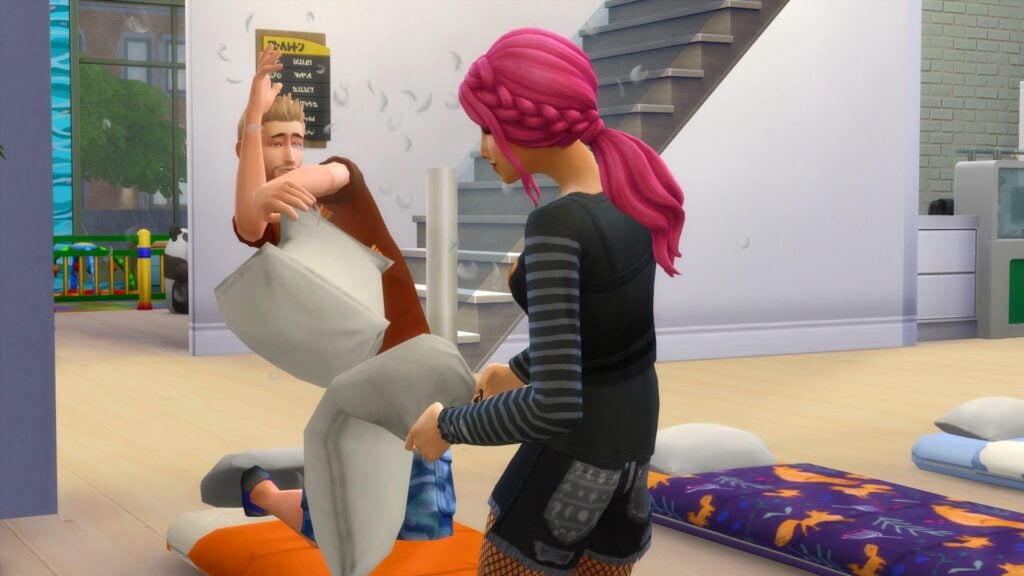
Pillow Fights at a Slumber Party
The sleeping bag also comes with some interactions such as Pillow Fight and Tell a Story. Additionally, you can sit, sleep and nap like normal with sleeping bags. Don’t forget, if your Sim is the first to fall asleep, your Sim could get caught up in a prank or two!
You can ask guests to set up their own sleeping bags as well. To do this, simply click on any Sim that is a gust and you’ll see the interaction appear in the pie-menu.
Example of Goaled Event Tasks
Here are some examples of tasks your Sims could be asked to complete during a Slumber Party in Growing Together.
Get Some Sleep
Have Sims Chatting at the Same Time
Have Sims Playing Games at the Same Time
Have Sims Eating at the Same Time
Dance to Music
Tell Stories on a Sleeping Bag
The Sleeping Bags
We briefly mentioned needing the sleeping bags for the event. There are a total of four that support your Sims from the age of Toddlers. Two that you can buy directly from the catalogue, and two that are unlocked through rewards.
Firstly, let’s take a look at the two sleeping back options that come as standard with The Sims 4 Growing Together!
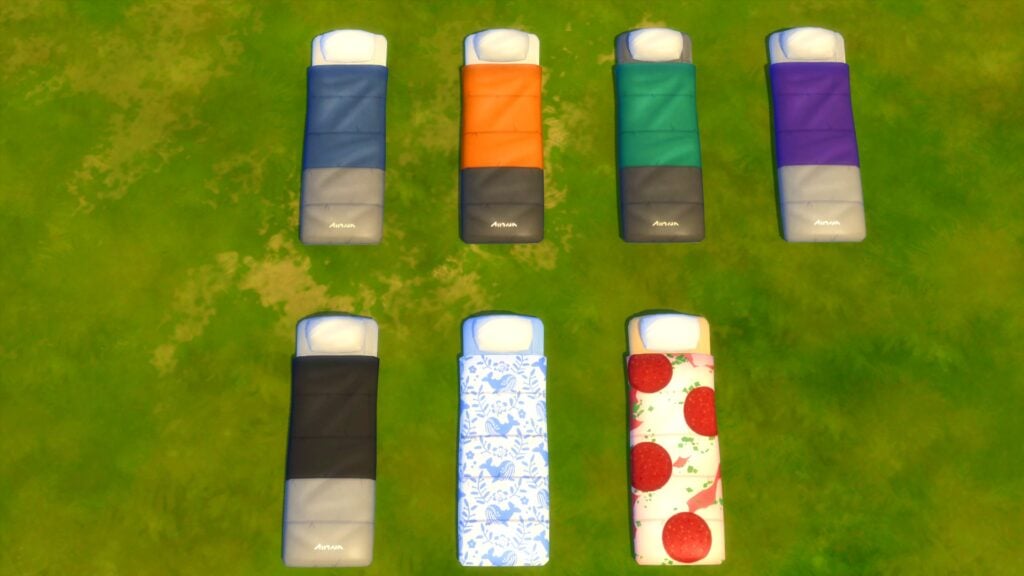
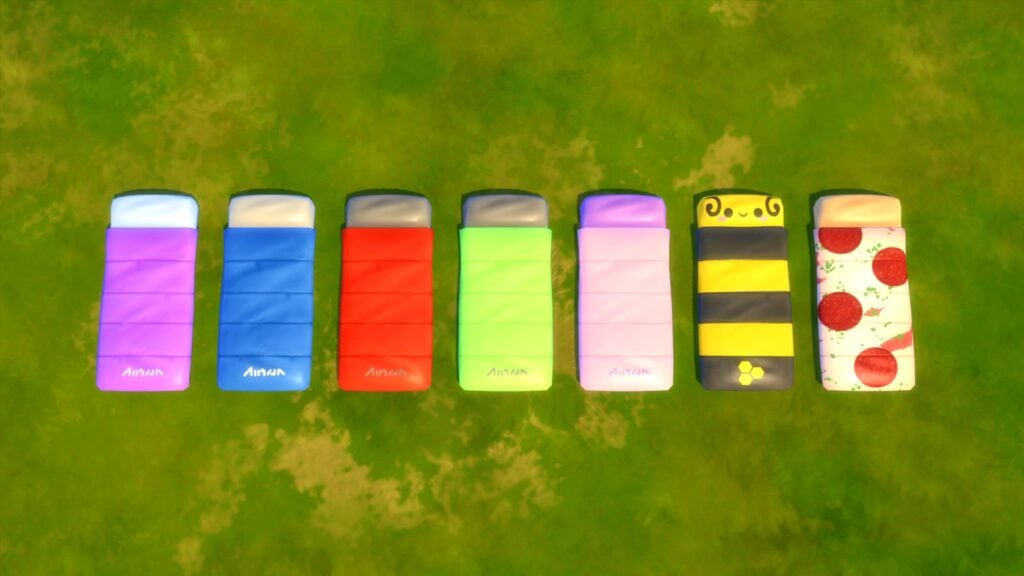
The Cosy Camper Sleeping Bag – $220
“Cocoon yourself in comfort like a caterpillar waiting to transform. Stay cozy while catching up on some Zzz’s, and emerge as a beautiful, well-rested Sim.”
All Available Swatches of The Cosy Camper Sleeping Bag
The Mini Camper Sleeping Bag – $140
“The Toddler Version of the well-loved Cozy Camper line. All the frills of the original but smaller!”
All Available Swatches of The Mini Camper Sleeping Bag
Do you want more sleeping bag options? Check out the ones that come as part of the Slumber Party rewards!
Slumber Party Rewards in Growing Together
Like most events, this event is no different for having a goaled version. To be able to unlock these rewards, make sure you tick the checkbox for the Goaled Event when you start setting it up!
Goaled Event Screen for Slumber Party Event
Silver Slumber Party Reward
For completing a Slumber Party and receiving a Silver Medal, you’ll unlock a cute new sleeping bag for your toddler Sims.
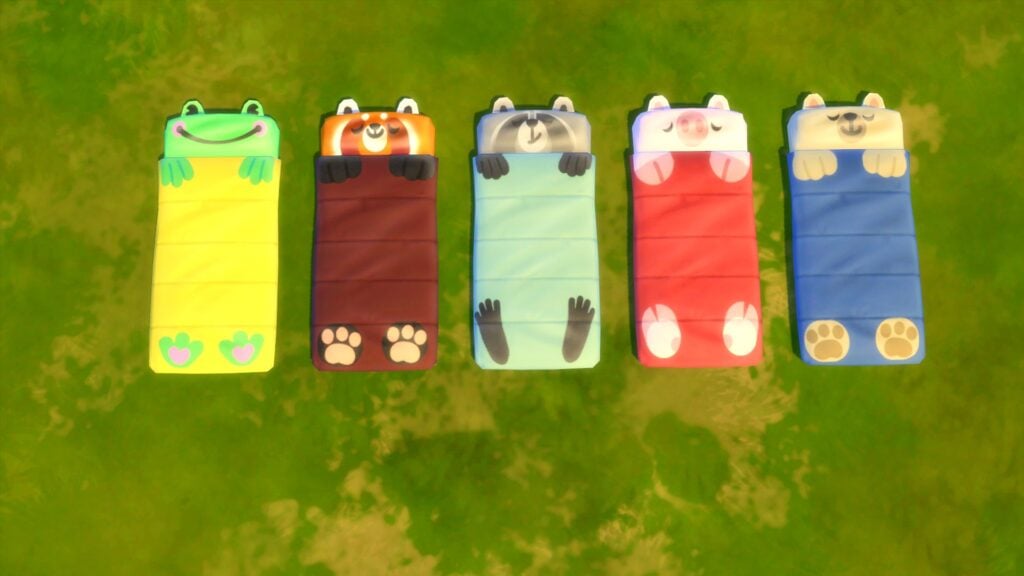
Sleepy Critter Sleeping Bag – $140
“Toddlers are sure to squeal in delight at the sight of this warm sleeping bag. They can sleep on the floor and look cute doing it!”
All Available Swatches of the Sleepy Critter Sleeping Bag
These swatches are so adorable, right!
Gold Slumber Party Reward
However, if you complete the Slumber Party and are awarded ta Gold Medal, you’ll unlock another sleeping bag suitable for all your Sims!
Whimsical Dreams Sleeping Bag -$180
“For the Sim who wants to be warm and fashionable, this bag is the way to go. Show your true colours in the great outdoors!”
All Available Swatches of the Whimsical Dreams Sleeping Bag
Tips, Tricks & More
Here are a few tips and tricks for the ultimate sleep over experience!
Why not get into the slumber party mood by having your Sims wear their best or favourite sleep outfit?
Make sure you place a sleeping bag in your Sims inventory ahead of time!
When choosing a location, lots which have proper cooking facilities will ensure that any food related tasks go more smoothly.
If you are having an outdoor event, beware of thunderstorms and rain!
Electronics won’t work in the rain – be warned!
Additionally, make sure any outdoor lot has suitable objects to help keep Sims needs topped up! If they are not on the lot, make sure they are nearby at least!
The Slumber Party event in Growing Together is great fun for Sims of all ages to take part in. Better still, the possibilities as to what can happen during that time is endless!
What do you think of the new events in The Sims 4 Growing Together? Let us know in the comments below, and stay tuned for more here on Sims Community!
A modder-driven life simulation that puts the world entirely in your hands!
The livestream for Rod Humble’s new life simulation game, Life by You, happened today! There was an almost overwhelming amount of information. Some of the most exciting new info revolves around all the built-in creator tools that will allow players to mod their games even if they have no modding experience. Much of the gameplay itself for Life BY You looks promising as well.
Let’s get into everything that was discussed in the Life by You livestream, including pre-order info and the early access release date!
Life By You Livestream Information
Here’s all the exciting information released during the Life By You livestream!
Open World
Life By You is a true open world game. Nothing in the game is a rabbithole. There are no loading screens anywhere. Every location your characters can visit is a real location you can see, explore, and control your character in.
Not only can you swap between different household members in different locations at any time in Life By You, you can also swap to a different household directly in-game without a loading screen.
Lots of transportation options; not just cars. There are skateboards, bicycles, motorbikes, and your characters can walk or jog anywhere they like as well.
Transport has two modes in Life By You; you can choose to send your character somewhere in a vehicle and they will navigate there on your own. Or, you can directly control the vehicle and drive it yourself. You can do this with your mouse and keyboard or with a compatible console controller.
There are lots of spawnables and collectibles throughout the world in Life By You for your characters to discover, such as seashells at the beach. Players can also add collectible spawners to the world if they wish.
The world is not just open spacially. It’s open in terms of time, too. Players can skip time forward a decade if they want to in Life by You.
Building Tools
The lot editor tools allow players to create and edit existing lots, including the size of the lot. You can choose a business’ working hours or designate a lot as a home workplace.
Everything in the world is customizable and editable. Players can also create their own buildings from the ground up.
Life By You’s regional editor allows players to place homes wherever they want in the world. Clump multiple homes together for a true suburban experience or just pick up your character’s workplace and plop it down next door if you’re tired of the long commute.
The World tool also allows you to add people to the world.
Socialization
Life By You uses full, real-language conversation. You will be able to read full conversations happening between your characters.
The conversations are generated in real-time based on the situation in Life By You, so no two conversations will be exactly alike. You can really respond to people the way you want and your responses will inform the direction of the conversation.
Where you are, who you’re talking to, and the type of relationship you have with that person all shape how conversations between the two of you play out in Life By You.
Almost every choice you make will affect the relationship in some way. You can be friendly, romantic, and antagonistic with people.
In Life By You, other characters you aren’t playing with will be out having their own conversations, too, and you can listen in on those conversations.
There are thousands of lines of conversation already in Life By You but players also have the power to write their own stories through the game’s built-in conversation tool. This is the same tool the developers used to quickly and easily create conversations for the game.
Players can edit existing dialogue in Life By You or create entirely new dialogue with their own choices and options, then share those stories they create with the community. Other players will be able to play through your stories.
Players who really love to write a lot of stories and dialogue in Life By You can batch import and export large groups of their custom conversations at a time.
Modding
Players have the power to easily make gameplay modifications to any object, even if they have no modding experience. Life By You has a built in script editor that allows players to quickly and easily make almost endless modifications to an object. This tool is very visual to make object modification easy for anyone in Life By You, regardless of their coding knowledge.
The livestream example showed how players can easily take a flower bush and make it function as a toilet with just a couple clicks of your mouse directly in-game.
The script editor is what the developers used to make Life By You and they wanted to make all the different tools they used to make the game available to players.
More editor tools will be revealed in the coming weeks and months for Life By You, including a model editor tool that will allow you to change the look and feel of objects.
All of the editor tools discussed in the livestream will ship with the game, directly in the game itself. No external programs required.
Rod Humble also mentioned things like a Quest Editor and Skill Editor in Life By You. However, more information on those is still to come.
Release Date & Preorder Info
Life By You is available for preorder right now on Epic Games. Players who preorder the game will get the Life Begins bonus content. This includes a vintage scooter, a fashion pack, and a décor pack.
Early Access begins on September 13th, 2023. Players who preordered will be able to play Life By You in early access before the full launch.
The first 100,000 early access players will also get a special invite to a private Discord server. They can share their feedback directly with the developers.
The early access of Life By You will not be the full, complete game. The early access period is intended to give players a chance to test drive the game so the developers can see what players enjoy, what they don’t enjoy, and how they can continue to build upon the overall experience. However, all the core features of Life by You are available in early access and should prove to be a very fun and immersive experience for players.
Trailer Screens
The screens shared above only scratched the surface of what we got to see in the livestream. The extended trailer shared at the beginning and end of the stream was full of plenty more to see. We’ve got all the best Life By You trailer screens right here for you!
I’ve already preordered my copy of Life By You! Will you be preordering the game, too? Share your thoughts in the comments.
The parent company of this game publisher “Paradox Tectonic” is announcing its new life simulation game called Life by You. Interestingly enough, the team behind the new game consists of several developers who previously worked for EA. Including several Sims Titles!
The team is lead by Rod Humble who lead The Sims Studio until 2010, having a lot of experience in the development of The Sims 2 and The Sims 3. Another developer who previously worked on The Sims 3 is King Choi, who confirmed that he’s now working for Life By You as a Director of Marketing.
Paradox Interactive has already shown first footage from Life By You, showcasing an Open World, House Building and more.
Preview of house building features in Life by You
Where to watch the Life by You Announcement?
The official livestream for the Life by You Announcement is set at 5PM CET / 9AM PT / 4PM BT. The livestream is being held on YouTube, which you can watch down below:
https://www.youtube.com/watch?v=7zmUQfTodoE
What to expect?
The announcement of Life By You will reveal the release date, supported platforms, gameplay features and so much more. It’s already speculated from the Paradox Showcase that Life By You might get a release date this year, but nothing’s been officially confirmed as of now.
There’s so much that we’re looking forward to from the Paradox Tectonic team. However, for now – let’s wait for the show start!
We’ll make sure to keep you posted on all the latest news about Life By You – right here on Sims Community!
Having trouble using infant carriers? We’re here to help!
So you just purchased The Sims 4 Growing Together and you can’t figure out how the infant carriers work. We don’t blame you; it’s not exactly intuitive and the game doesn’t really point it out to you. The good news is that using the infant carrier is actually very easy once you know where all the options are! This guide will show you how to use your new infant carriers in The Sims 4 Growing Together expansion pack and troubleshoot some common issues that might prevent players from using them.
Select Your Preferred Infant Carrier
Before you go running around the neighbourhood with your infant carriers in The Sims 4 Growing Together, you’ll want to choose which style of infant carrier you want to use. Your Sims will automatically use the infant carrier you selected as your preferred carrier whenever they put an infant in it.
To do this, click on your infant and under the Baby Care category, select Set Preferred Back Carrier. You may need to click More Options if you do not see it right away.
Select the carrier you want from the menu that pops up and you’re done! All players who purchase Growing Together by April 27th, 2023 will have access to the additional bonus PowerWalk Companion infant carrier. If you did not purchase the pack on or before this date, you will only see the Infant Wrangler carrier in a variety of different colour options.
Using the Infant Carrier
Once you’ve picked out a carrier that you like, you’re ready to take your infant on the go with you! Whenever you’d like to take your infant out into the big wide world beyond, just click on the infant and under Baby Care, select Put [Infant Name] in Back Carrier.
Of course, carrying an infant on your back is super handy for a wide variety of things! Infants love to sleep in their infant carriers in The Sims 4 Growing Together so it’s an easy way to help them catch a quick nap while allowing your Sim to continue on doing whatever they were doing. You can take your infant with you on walks, hikes, and even go jogging with them! You can carry them around public venues with ease and not have to worry about where they are. Also, you can even carry multiple children using an infant carrier. Having an infant in a back carrier frees up your Sim’s arms for carrying a second infant or a toddler.
The Sims 4 Growing Together Infant Carriers: Common Problems
A common problem many Simmers have is that they do not see the option to use The Sims 4 Growing Together infant carriers under the Baby Care options. This is caused by outdated mods. Here’s how to fix this problem:
Shut down the game and remove any outdated mods. Alternatively, you can just remove all of your mods to guarantee a working game. If you are not familiar with how to maintain and update your mods, see our guide for beginners.
Navigate to Documents > Electronic Arts > The Sims 4 and delete the following files. It is perfectly safe to delete these folders and files. The game will generate new ones the next time you launch the game, which is what you want.
The cachstr folder
The onlinethumbnailcache folder
The avatarcache.package file
The localthumbcache.package file
Launch your game. You should now see the option to use your infant carriers in The Sims 4 Growing Together.
If the above does not fix the issue, you still have outdated mods that you missed. In this case, the only effective, foolproof method of tracking it down is the 50/50 method. If you do not know how to do this, see our guide. Also, remember to delete the folders and files listed above each time you test a new batch of mods.
Additionally, looking for more information about infants? Why not check out our infant care guide?