Home Blog Page 168

First look at Customizable Pronouns coming to The Sims 4

26

The Sims Team has shared their first look at the customizable Pronouns coming to The Sims 4!

As you all may know, the team confirmed that they are working on including pronouns to the game with a better implementation in CAS. During the livestream developers SimGuruDuck, along with other developers and partners from It Gets Better organization have shared their current progress of adding Customizable Pronouns.

During the livestream they shared their work in progress screens that you can check out below. Everything shown below is Work in Progress and is subject to change!

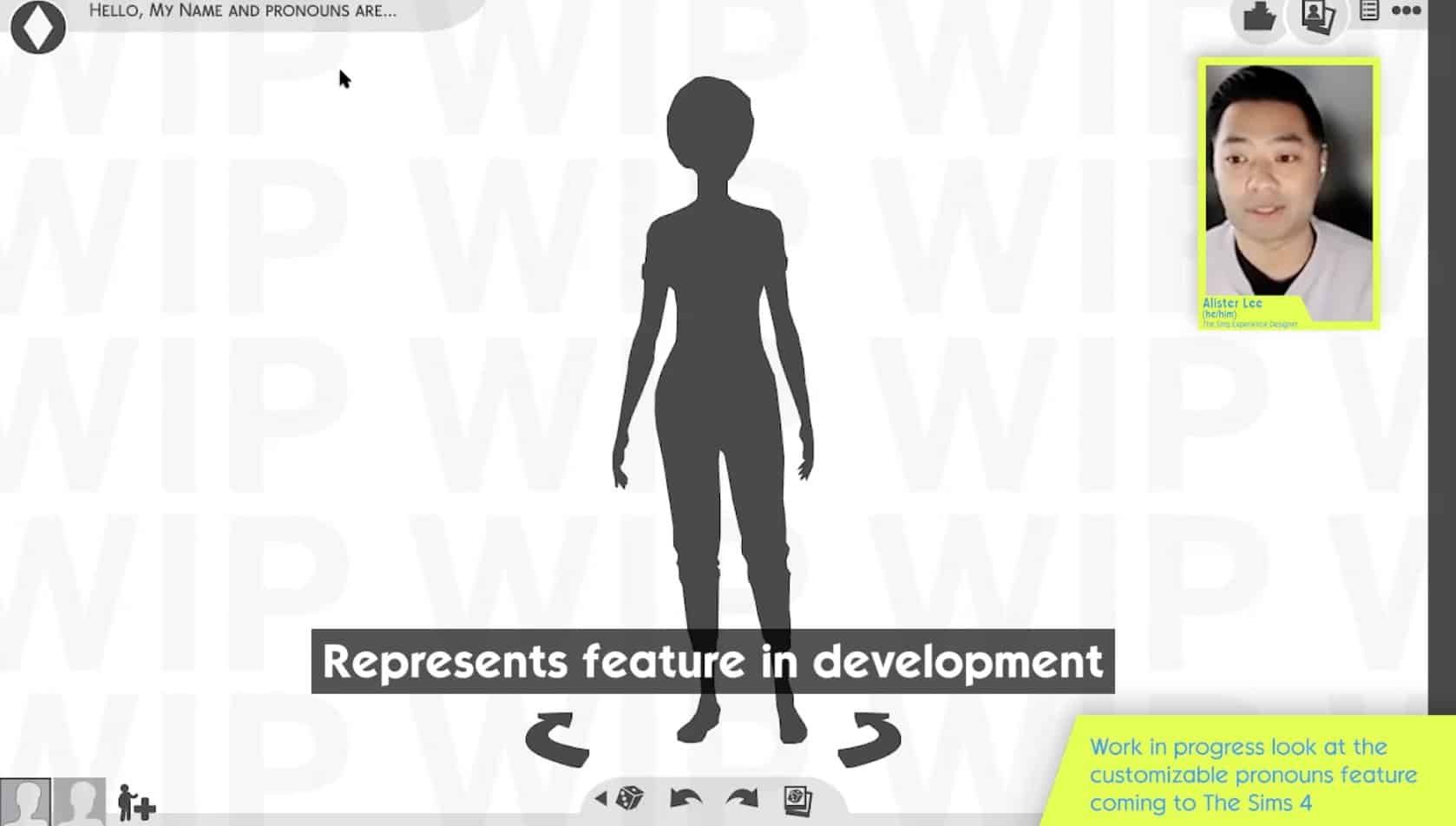
In the introduction part of creating a character in Create A Sim the screen on the top left corner will now say “Hello, My Name and Pronouns are…”.

First look at Customizable Pronouns coming to The Sims 4

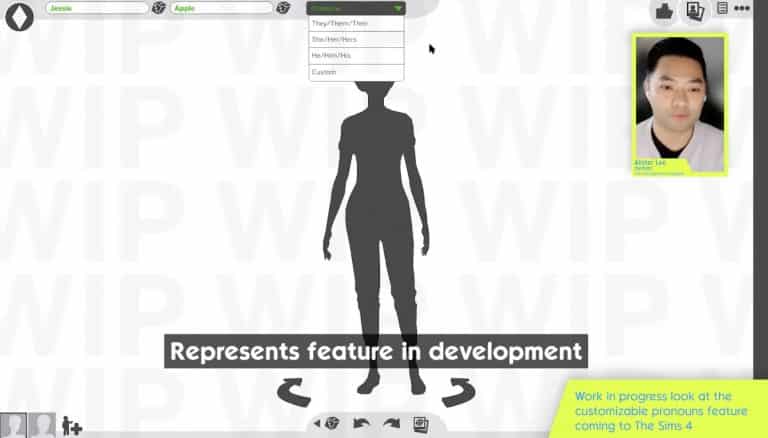
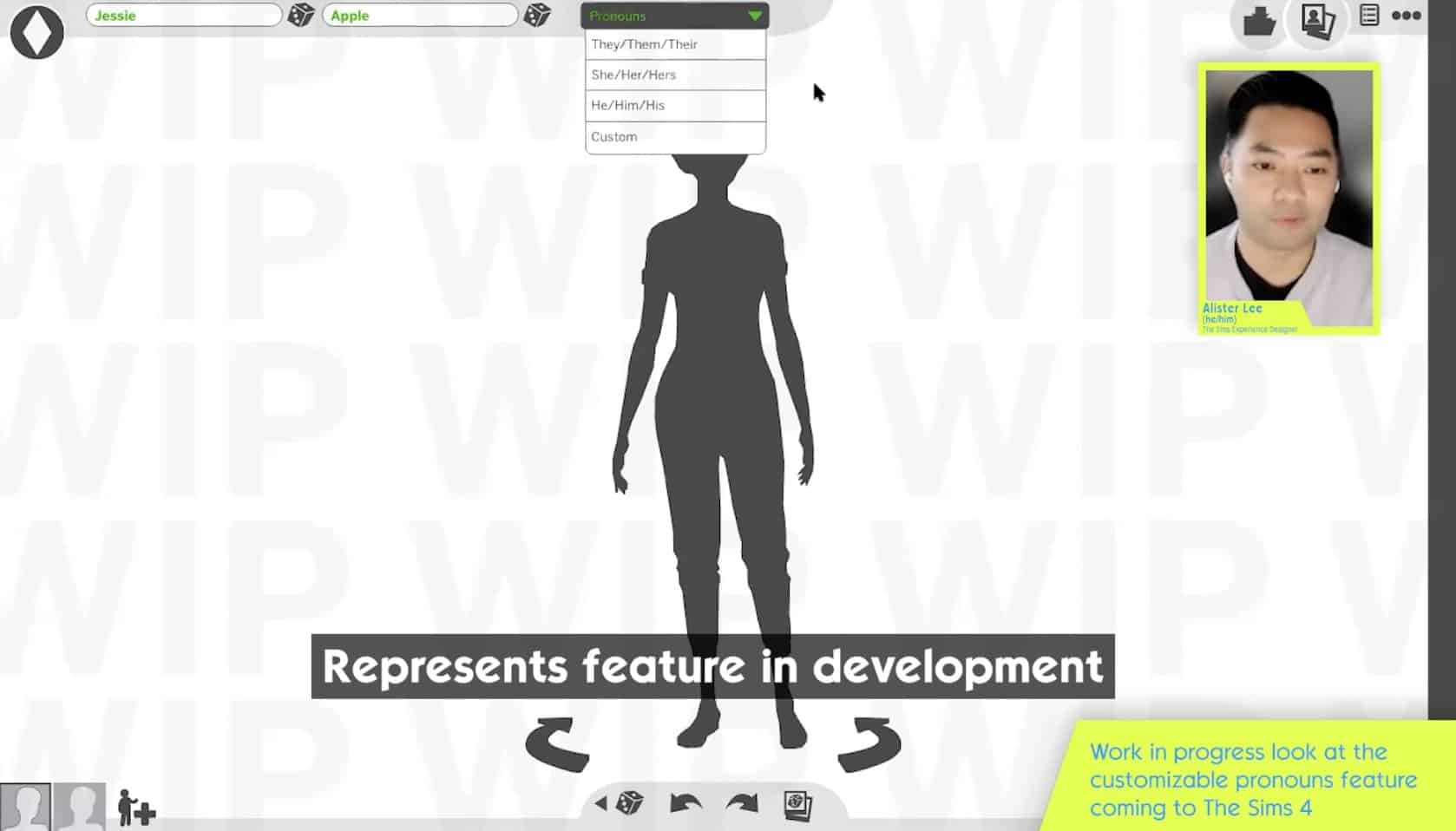
When clicking the name section of the user interface there is now a dropdown for custom pronouns that you can choose for your Sim character! This includes options for They/Them, She/Her and He/Him. Also, there is a special “Custom” option on the bottom part…

First look at Customizable Pronouns coming to The Sims 4

Adding Custom Pronouns of your choice is something that’s still new to the world of video games, but it seems that so far The Sims has made great progress with the options seen below. You can type ANY pronoun you want of your choice with examples in sentences shown below:

First look at Customizable Pronouns coming to The Sims 4

The team confirmed that this feature is still work in progress and is the first iteration.

During the stream they confirmed that, due to the game being translated into 18 different languages, the options for Custom Pronouns will come to players who play The Sims 4 in English first. However, Customizable Pronouns are coming to players of all different languages as well as soon as the team wraps up the logistics of translating different pronouns for different languages.

You can check out the full interview with producers about this upcoming feature in the livestream replay below!

This article is still a work in progress..

The Sims 4 Official Livestream Replay: Inside Maxis (January 18th, 2022)

1

The livestream has ended! You can catch the replay above.

The Sims Team has announced their first Inside Maxis Livestream for 2022! The livestream is set to start on January 18th – aka tomorrow.

The team has shared the agenda for tomorrow’s livestream, including:

  • Simthing to Celebrate Segment with ComplexSims
  • Hot Topics, including a Status Update on Customizable Pronouns coming to The Sims 4
  • Sneak Peek at the upcoming update for The Sims4

The Sims 4 Official Livestream Replay: Inside Maxis (January 18th, 2022)

The livestream is set to begin at 11AM Pacific Time. To make things easier we’ve included a countdown below that counts to the exact moment to the beginning of this stream!

The stream can be watched right below the countdown and should begin the moment when the counter turns zero. We’ll keep you updated with all the latest news and updates from the stream here on Sims Community so stay tuned!

[janky target_time=”1642532400″ color=”#065bff”]

new Twitch.Player(“twitch-embed”, {
channel: “thesims”
});

The Sims 4 Mod & Custom Content Manager Walkthrough

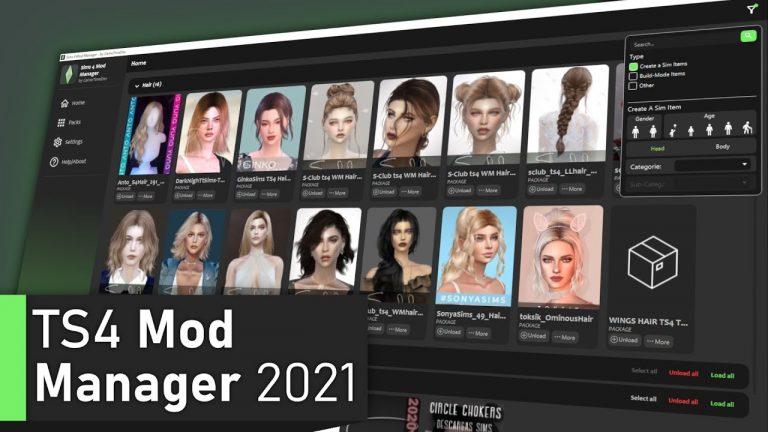
Anyone who uses Mods or Custom Content in The Sims 4, or even from any of previous The Sims games, will know that your Mods folder can sometimes feel a little overwhelming. However, GameTimeDev has created a program to help players keep their Mods folder organized.

The Mod & Custom Content Manager is described as a file explore with additional features which allows you to browse your files for The Sims 4 easily. You are able to delete and move files but also disable and enables files both on their own, in multiples or even whole folders. View files alongside thumbnails, which will help you distinguish content that is for Build Buy Mode or Create A Sim.

As the Mod & Custom Content Manager is still in a BETA phase, it is frequently being updated and more features planned to be added going forward. Some of the features planned for the future include a way to find broken and duplicated files, custom content files used in specific households and additional filters. There are also some more technical updates to be made for the program going forward, including making the code more efficient and reducing the programs overall file size.

How to Download

To download the Sims 4 Mod Manager, all you need to do is head to the program’s page over on Mod The Sims.

Note: At the time of writing this overview, the Sims 4 Mod Manager has been released on PC and a first test version of the program for MacOS has been released. Full updates can be found via the Sims 4 Mod Manager Discord Sever.

The Sims 4 Mod & Custom Content Manager Walkthrough

[mks_button size=”large” title=”Click here to Download” style=”squared” url=”https://modthesims.info/d/663086/sims-4-mod-cc-manager-2021-by-gametimedev-beta-v1-0-4.html” target=”_blank” bg_color=”#4e62ac” txt_color=”#FFFFFF” icon=”” icon_type=”” nofollow=”0″]

How to Install

Once your download is complete, go to the location where it has been downloaded and open the file. Open up the Zip file using a program like WinRar or 7Zip, and you’ll find the installation file that you need. Follow the installation process step by step, which takes a couple of minutes, and you’ll be ready to go.

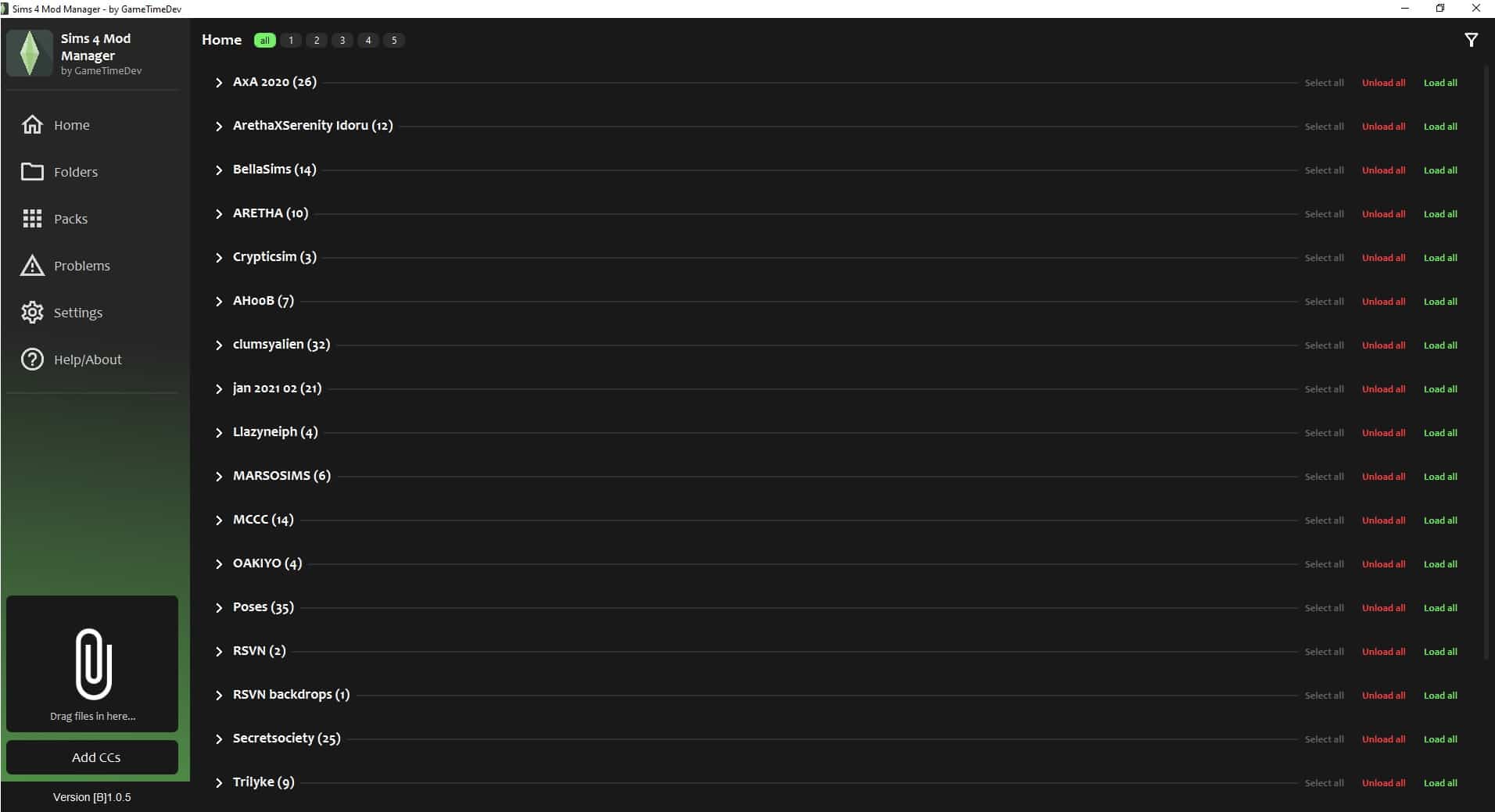
Upon loading the program for the first time, it will search for any existing Mods or Custom Content you already have installed. You’ll then be presented with a screen that looks like this.

The Sims 4 Mod & Custom Content Manager Walkthrough

Navigating the Sims 4 Mod Manager

  • Home – this is the default screen where you’ll find all the mods and custom content you have in game listed. Clicking on the arrow next to the creators name will allow you to view what creations you have from that creator

The Sims 4 Mod & Custom Content Manager Walkthrough

  • Folders – Folders is where you can quickly view any content that you have within your mods folder. Whether you have it organized by creator or the type of custom content or mod, you’ll be able to quickly and easily navigate each of those folders.

The Sims 4 Mod & Custom Content Manager Walkthrough

  • Packs – Packs allows you to make edits and add to the folders you have within your Mods folder.
  • Problems  – here you will find any files that may be weird or duplicated. Weird files may not actually be broken files but may not be loading correctly. However, you can send any peculiar acting files to GameTimeDev for further investigation. As for duplicated files, this is a work in progress feature at the moment but will show any files that you may have multiples of.
  • Setting – Find your program settings.
  • Help/About – Information about the program and helpful links.
  • Drag Files – Add Mods and Custom Content by dragging and dropping files to the paper clip icon.
  • Add CC – browse your computer for Mods and Custom Content files you are wanting to import to the game.

The Sims 4 Mod & Custom Content Manager Walkthrough

Tools

While navigating the Sims 4 Mod Manager, you’ll notice a number of different features you can use to manage your Custom Content and Mods.

  • Filters – In the very top right-hand corner, you will find the Filters Tab. Here you can search for files as well as filtering files by either CAS Items, Catalogue Objects or Other.
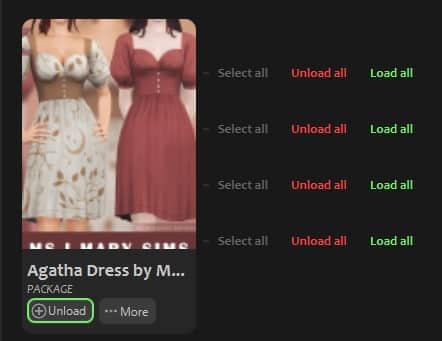
  • Load/Load All – This will add the mods & custom content to your game.
  • Unload/ Unload All – This will remove the mods & custom content from your game.

The Sims 4 Mod & Custom Content Manager Walkthrough

With both of these, you can either do this with individual files or whole folders. Unload/Load you’ll find under individual files, whereas Unload All and Load All you can find against the complete folder.

You’ll also notice, when viewing individual files, another tab called More. Clicking on this will present you with three new options.

  • Edit – Allows you to edit the Filepath, Filename and add any notes. You can view the file in Sims 4 Studio or within your Mods folder.
  • Move – Allows you to move the file to another folder
  • Delete – Deletes the file from your folder

The Sims 4 Mod & Custom Content Manager Walkthrough

Linking Sims 4 Studio

The Sims 4 Mod Manager allows you to link Sims 4 Studio to the program.

To do this, simply head over to Settings (General) > S4S Path (.exe) > Search Sims 4 Studio > Complete.

The Sims 4 Mod & Custom Content Manager Walkthrough

Once you have linked Sims 4 Studio to the Sims 4 Mod Manager, you’ll be able to directly load the file in the program and view any additional information that Sims 4 Studio displays.

Video Overview

GameTimeDev has also made a short yet handy overview video that also guides you through the Sims 4 Mod Manager.

Feedback

While the Sims 4 Mod Manager is still in its BETA phase, GameTimeDev is looking for feedback as well as any questions. You can do this by emailing developer.gametime@gmail.com or by joining the Discord Server by clicking here.

The Sims 4 Mod Manager by GameTimeDev is incredibly easy to start using and works well alongside Sims 4 Studio. Even with the program being in its BETA phase, there is still plenty to come and will be a great addition for many players wanting to get on top of and keep their Mod folders organized!

For more updates about the Sims 4 Mod Manager, be sure to join the Discord!

New to Mods and Custom Content for The Sims 4? Take a look at our Getting Started guide here.

COMMUNITY POLL: The Sims 4 Kits

5

2021 brought the introduction of a new DLC type for The Sims 4 that you’re all probably already familiar with – Kits.

In the past year The Sims Team has published 9 different Kits focusing on different aspects of the game – primarily on new Create A Sim and Build Mode items. There was only one Gameplay Kit (Bust the Dust) unfortunately, and after the leak of the upcoming Carnavale Streetwear Kit and a tease for the next one, it feels like we’re not seeing a Gameplay Kit anytime soon.

Below is a list of 4 questions regarding The Sims 4 Kits and your current opinions on each Kit type. Since it’s also been more than a year since we’ve had a new Stuff Pack for the game, there’s also a question regarding if you prefer the current method of Kit releases or ocassional Stuff Pack releases over Kits.

The last question is a list of all the Kits released for The Sims 4 so far in order of their release date. Considering we have more than one Kit type you can choose up to two of your favorite Kit releases for this iteration of the Kit Community Poll.

Want to drop in your vote on the favorite Expansion Pack, Game Pack and / or Expansion Pack or just want to see how others voted? Click the polls below:

[totalpoll id=”105413″]

The Sims 4: Four Lesser Known Facts About Aliens

3

Aliens have been around in The Sims 4 for quite a while now. They were introduced in the very first expansion pack released for the game, Get To Work. While later occults have put aliens to shame in the level of detail and gameplay they have, aliens do still have a few tricks up their sleeves that many players might not know about.

Here are four lesser known facts about aliens in The Sims 4!

Aliens Can Revive Dead Space Aliens

If you’re trying to complete the base game space alien collection, having an alien Sim in your household can come in handy. There are a total of 10 space aliens; 5 live aliens in a terrarium and 5 dead ones in a jar. Each alien in the collection has a live and a dead version. If you have duplicate dead aliens in a jar but are missing the live version of that alien, your alien Sim can bring one of the dead ones back to life for you!

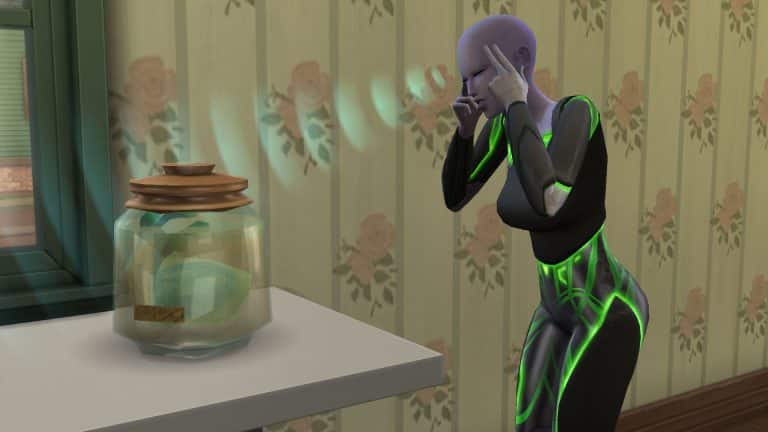
Just click on the jar with your alien Sim active and select Revive. Your alien will direct some psychic rays from their minds towards the dead alien and POOF! Your dead space alien is now a live space alien! Pretty cool, right?

There Are Hybrid Aliens! Well… Sort Of

With most occult and human pairings, the resulting offspring has a 50/50 chance of being either a human or the occult type of their other parent. You might assume this is the case for aliens as well, but not so! When an alien Sim and a human Sim have a baby together, the baby will never be an alien. They will always be human; however, they will be born with an alien skin tone. This is evident by the lack of alien bassinet or alien clothes on the baby when they are born. They also won’t have the signature alien baby echo-y cry.

Previously, “hybrid” aliens had a few limited alien interactions with aliens but like many other happy accidents in this game, the devs decided to “fix” this in an update rather than any real glitches that are actually annoying. So your human Sims with alien skin tones used to be kind of cool and hybrid-like. Now they’re just humans with alien skin tones. Thanks for “fixing” that, EA…

In fact, the only way to get a real alien child from a human/alien pairing is through alien abduction. Your played human/alien pairings will always have human children with alien skin tones.

Aliens Have A Secret Handshake

Aliens have a special handshake that they can only do with other aliens. The secret handshake interaction can be found under the Friendly social category. Your aliens will do an amusing little hand gesture that involves waving their palms in a circular motion and then touching the tips of their fingers with a funny little sound effect.

The handshake doesn’t have any kind of effect on the Sims but it will build friendship between the aliens like any other Friendly social. It’s also a fun little animation to watch. I definitely recommend seeing it for yourself at least once just for the novelty of it.

How to Spot an Alien in Disguise

The Sims 4: Four Lesser Known Facts About Aliens
This alien is wearing a human disguise but still glowing green from being Very Happy.

Aliens have human disguises to avoid being detected in public so you could be chatting up an alien at the bar and not even know! They look just like a human! However, these human disguises aren’t infallible; there is one tell-tale giveaway that aliens will sometimes display even while in their human disguise.

When aliens experience strong emotions, they start glowing in the colour of that emotion. Aliens that are Very Happy will glow green while aliens that are Very Angry will glow red and so on. This is one thing they cannot hide, even in their human disguise.

So next time you’re at the nightclub flirting with a cute Sim and all of a sudden, they start glowing pink… you’ll know you’ve caught an alien red-handed!


What other facts about aliens do you find interesting? Let us know in the comments or come chat with us on social media!

A Day In The Life of a Scientist Sim

0

Meet Colten, one of the newest residents to move to Oasis Springs.

Having completed university life at Foxbury Institute, it was time for him to take his first steps into the adult world.

Before settling on moving to Oasis Springs, Colten had considered city life in San Myshuno and living in an apartment there. While he loved the idea of living in the city, he decided that it wasn’t quite what he was after. Colten also considered moving to StrangerVille, but there was something peculiar that he just couldn’t put his finger on. However, with a job opportunity at FutureSims Labs as an Apprentice Inventor popping up, he took the chance and moved to Oasis Springs.

With a new home and a new career, things were coming together nicely.

A Day In The Life of a Scientist Sim

While  another Monday had rolled around again, it was now Colten’s first day at FutureSims Lab. Even though his shift doesn’t start until 10am, he wanted to make sure he gave himself plenty of time to get ready and commute to his job. With an alarm set for 6am, Colten eventually got up just before 6.30am. There was a weird sense of calm as the sun began to peek through the windows. It was also very quiet, which was a huge difference to how things were when living in the Foxbury Dorms.

Colten decided to take things slowly while he got ready for his first day. After a quick shower, it was time for some breakfast. Something he didn’t want to skip out on, as he wasn’t sure how his induction day was going to go. Sadly, breakfast wasn’t as good as Colten had hoped. With overcooked eggs and toast and a questionably tasting coffee, cooking definitely was something he needed to work on and soon too!

There was no point dwelling on breakfast, as it was time to focus on leaving for work and the day ahead.

A Day In The Life of a Scientist Sim

The walk to work was pleasant, it was a beautiful Fall day, and it was also the first time Colten had ventured further than the path leading to his house. It didn’t take too long to get to work, either, but it also allowed Colten to reflect on his move and his new career.

A Day In The Life of a Scientist Sim

After his induction to FutureSims Lab, Colten got started on his daily tasks. As he was working on his first experiment, he overheard some senior colleagues talk about how people believed Bella Goth was still missing in Strangetown. They were discussing how they seemed to be close to proving that she actually was and unravelling the secrets of Strangetown. This was a place Colten was led to believe never actually existed. There had been so many different reports, rumours and even conspiracy theories over the years that it was hard to tell what was the truth and what wasn’t. Was it actually all a lie after all this time?

After a quick break for lunch, Colten returned to his work. He couldn’t help but hear the same group of colleagues talk about similarities between Strangetown and StrangerVille. He tried not to dwell too much on what they were saying, but maybe that peculiar feeling Colten had about StrangerVille wasn’t so peculiar after all?

The day continued without any issues. Colten was getting used to his new surroundings at the lab, as well as getting to know his colleagues. It was still unclear what Colten would be working on in the long run, but for now, a series of smaller experiments and plenty of research projects would keep him busy.

A Day In The Life of a Scientist Sim

With his first work day coming to an end, Colten took some time to explore the rest of FutureSims Lab as well as tend the plants out in the greenhouse, tidy up and get ready to head home.

Overall, Colten’s first day seemed to go pretty well. Even though it is still early days, he’s excited to see what else is in store for him. Perhaps it won’t be long until he creates his first invention, who knows what it might be?

A Day In The Life of a Scientist Sim

Upon returning home, there is one moment that stood out in Colten’s mind from his first day at FutureSims Lab, and that was all that talk about Strangetown and StrangerVille. Maybe he could research more about it himself to understand what is already known about the two towns. Surely, there is no harm in doing so if no one knows? If not, he would have to try and get in on the project somehow, but who would even consider an Apprentice Inventor?

For now, it was clear what Colten needed to do, but first a good well-earned sleep was in order. After all, tomorrow is a new day!

The Sims 4: Walkthrough of the Easy Peasy Lumen Squeezy Lighting Mod

Have you ever noticed how dark everything is in The Sims 4? Do you find yourself sizing down those saucer lights and sticking them inside of other lights just so your Sims’ homes don’t look like a dimly lit dungeon? Me too! That’s why I was so excited when I saw that Ravasheen released a new lighting mod for the game and, of course, it has an adorably catchy name like all her other amazing mods; it’s called the Easy Peasy Lumen Squeazy Hidden Lighting mod!

This mod adds four new objects to your Sims 4 game; three different types of hidden lights and a light switch controller object you can use to control all of the hidden lights on the lot at once. The mod is also base game compatible!

Getting Started

Of course, you will have to install the mod, first. You can get it from Ravasheen’s website. The current version is in early access for patrons only but will be released to the public on January 29th, 2022. If you need help with installing mods, check out our article Getting Started With Mods and CC.

Once the mod is installed correctly, all you have to do is load up the game and go into Build/Buy. Searching the term “lumen” in the search bar will bring up the four custom objects that come with this mod; the Hidden Floor Spotlight, Hidden Ceiling Light, Hidden Under Shelf Light, and the Hidden Light Switch Controller.

Here’s a catalogue overview of each object included with the mod:

Using the Hidden Lights

Using the hidden lights is as simple as using any EA light. Just grab it out of the Build/Buy catalogue and place it wherever you would like to have a lit area on your lot. The lights are small and in the shape of a cone indicating the direction the light is facing. The ceiling and under shelf light have the light spreading out in a downwards cone. The floor light can be rotated to have the light facing any direction you want on the ground.

When you place the hidden lights, they will remain visible until you also place a light switch controller on the lot. This light switch controls all of the hidden lights on the lot. Click on the light switch in Live Mode to bring up new options. You can hide or unhide all the hidden lights. You can also control the intensity and colour of the hidden lights the same way you can with the EA lights.

Every time you load a lot with the hidden lights on them, the game runs a check to see if there is also a light switch controller on the lot. If there is, all the hidden lights will automatically be invisible. If there is not, the hidden lights will remain visible. So if you’re on a lot in Build/Buy without an active family there and would like to hide all the hidden lights, just place a light switch controller, exit and reload and all the hidden lights will now be invisible.

Why use the hidden lights instead of the EA lights? Well Ravasheen’s lights are much brighter and cast a more even level of lighting across a much wider distance. Instead of hiding multiple lights inside of each other to get the kind of brightness you want, all you need is one of these lights placed where you want them. The under shelf light is especially useful for illuminating the undersides of kitchen cabinets, which are always difficult to light properly.

Lighting Comparisons

Below you can see the comparison between Ravasheen’s lights and a similar EA light from the base game. All lights were compared in a bare 5×5 room with no other light sources to give you an accurate picture of the lighting level.

Remember, the lights are super bright because you can adjust the brightness. If you think the lights are too bright, you can dim them down but having a wider spectrum between dim and super bright gives you more freedom in how you want to light your space.

Our Thoughts

Yet another simple but brilliant mod from Ravasheen! She always thinks of even the smallest details to make our games more enjoyable. My personal aesthetic has always been very bright and colourful in my game so the lack of ultra bright lighting in the game drove me crazy. I was always sticking lights inside of other lights to try and brighten up my Sims’ homes but the lighting was never even so I’d end up with blinding white in some areas and not quite enough light in others. I could never find a perfect solution, even using the dimmers on the EA lights.

All it took was one of Ravasheen’s lights to light up an entire large room evenly and to my preferred brightness. And the light switch controller it comes with is so cute! It doesn’t look out of place in any home and I’m definitely going to be putting one in every room of my homes now. Not just for easier access to the lighting controls when I need them but just for a touch of realism in every room.

Guide to Rotational Play in The Sims 4

4

Try a brand new play of playing with Sims 4 Rotational Play!

Have you been looking for a different way to play The Sims 4? Have you ever found yourself scratching your head about what you want to do with the kids of your Sims when they grow up and leave the nest? Do you want to play with multiple families in the same save but you’re worried about the Sims you’re not playing with growing old and dying while you’re playing with another household?

If you answered yes to any of these questions, rotational gameplay might be for you!

What is Rotational Play in Sims 4?

Wishing Well in The Sims 4

Rotational play is a style of gameplay where you play multiple households for a scheduled length of time so that all Sims are aging and progressing in life at the same pace. The length of time spent in each household varies according to the player’s preference but it’s usually either one week or one season. Rotational play is ideal for generational players who want to be able to play multiple branches of the same family as it expands. It’s also a good option for people who want to create an MCU-style universe with many different Sims and households that are all interconnected with each other.

Rotational play has been around for a very long time. In fact, rotational play was the only way you could play The Sims 1 and The Sims 2 back during their hey days. It wasn’t until The Sims 3 that the gameplay shifted more towards playing a single family while the Sims around them went about their lives on their own. The good thing about The Sims 4 is that it’s perfect for playing either way. You can play with just one family forever or you can rotate between multiple families. It’s very versatile in this way.

Setting Up Your Game for Rotational Play

The Sims 4 can be played rotationally very easily but in order to maintain control over so many households, you will have to make some changes in the game settings. Keep in mind that I will be showing you how to set up your game for rotational play in a way that I feel works best. This means we will be setting the game up to work very similarly to The Sims 2, where Sims will not age or progress while you are not playing them. If you don’t agree with my recommendations, by all means set the game up to your own preference! There’s no right or wrong way to play rotationally as long as you are having fun. I just find I have more fun when things are organized in a particular fashion.

Before beginning this new style of play, open up the Game Options while loaded into your save and open up the Gameplay tab.

Guide to Rotational Play in The Sims 4

The most important setting in this tab is the Auto Age (Played Sims) setting. This determines whether or not your played Sims will continue to age while you are not playing in their household. If you are playing rotationally, it is best to set this to Only Active Household. This means that only the household you are currently playing with will age.

The next setting you will want to pay attention to is the Auto Age (Unplayed Sims) setting. This determines whether Sims in unplayed households will age or not. This is entirely up to you. If you only want to rotate between a handful of households and leave everyone else to their own devices, you should check this box. If you do not want any Sims in your world aging up without you at all, ever, uncheck this box.

Next, select your lifespan. This is also completely up to your own personal preference. If you disable aging completely, you don’t even need to worry about the previous two options at all. Just set aging to off and go. If you want Sims to age, the previous two options become important. Select the lifespan you want to play with and the game will take into account the auto-aging options you’ve just set.

Everything else on this page is optional so just do up the rest of the settings however you like. The only really important thing is to make sure that if aging is enabled, that you have your Played Sims set to Only Active Household.

Guide to Rotational Play in The Sims 4

Next, you’ll want to make sure that the right households are set as played/unplayed. Go into Household Management under Manage Worlds and find all the households you want to play with on rotation. Move them into the My Households tab if they aren’t already. Look at the plumbob icon in the top left corner of their thumbnail. If it is solid green, that household is a played household. If it is greyed out, that household is an unplayed household.

You want all your rotation households you plan to cycle through to be played so they won’t age while you’re not playing with them. Quickly go into all their households in Live Mode to mark them as played.

Guide to Rotational Play in The Sims 4

If you have households that are marked as played but you do not plan to play with that household in your rotation cycle, click on that household and click the plumbob icon to mark them as unplayed. Then move them into the Other Households tab so you don’t get them confused with your played households.

And now your game is all set up for rotational play!

Tips for Rotational Play

Keep to a Schedule

Guide to Rotational Play in The Sims 4

Chances are, you’ll want to play an even length of time in each of your households so that everyone is aging at the same pace. Remember, we disabled aging for inactive households to give us a chance to play everyone without them growing old and dying on us. It’s easiest to remember the schedule if you’re playing one week or one season in each household but pick whatever length of time works best for you. Just make sure you remember it and stick to it. If you don’t, you may end up with grown kids who are older than their parents and other odd things like that.

Keep Your Households in Order

Guide to Rotational Play in The Sims 4

Before you start playing your rotations, come up with an order for your households. It’s okay if you have to change the order as kids start moving out into their own households but make sure you are keeping the households in a specific order. It will make it easier for you to know who to play next. I also find it’s helpful for forcing you to play those households you don’t find as interesting as your current favourite. You can use any way that’s easiest for you to keep track of the order; a notebook, a word document, a spreadsheet.

I like to put a little tag at the end of the household bio in game that tells me which rotation and round I’m on. Rotation is the current household in the order I’m playing. Round is how many complete cycles I’ve done through all my households. [RT 1* | RD 0] means this is the first household in my rotation order and I have not yet completed a full cycle through all my households. The asterisk tells me this was my last played household so at the end of their rotational period, I should move on to the household marked RT 2.

Of course, that is just my personal way of doing it. If that makes absolutely no sense to you, disregard it. It’s important that it makes sense to you so any method you come up with for keeping track of your household order and your last played household is what you should use.

Pick a “Dead” Time to Switch Households

Guide to Rotational Play in The Sims 4

One issue with The Sims 4 is that if you switch households in the middle of a Sim’s work shift, all the Sims will be at home and they’ll lose work performance. To avoid this, pick a time to switch households when Sims are not likely to be at work. I find 3am or 4am is best because even the night jobs in the game usually end their shifts before this time. Just something to keep in mind.

Try to Time Your Pregnancies

Guide to Rotational Play in The Sims 4

Even though your Sims are not aging while you’re playing them, any pregnancies in progress will continue. So if your Sim gets pregnant on a Saturday and you switch over to a new household on Sunday, that pregnant Sim will give birth on Tuesday while you’re playing in a different household. When this happens, you don’t get to go to the hospital with your Sim if you own Get To Work, which means you won’t get a birth certificate for the baby. It also means you won’t get to name the baby. The game names the baby for you. To avoid this, make sure you plan your pregnancies for closer to the beginning or middle of the week. That way, all babies will be born while you’re in the household.

Don’t Let Uni Get You Down

Guide to Rotational Play in The Sims 4

A lot of rotational players were annoyed with Discover University when it came out because it greatly complicates their rotational play style. It doesn’t have to be complicated, though!

The thing you have to remember about university is that semesters don’t pause when you leave the household. This means when you come back, your uni students will be on academic probation or expelled because they weren’t completing their finals and homework or attending their exams while you weren’t playing with them. The only way to successfully play a Sim all the way through university is to only play that household from the first semester all the way through until graduation.

But what happens to all your other households while you’re busy getting your Sims through university? And what if you have multiple Sims you want to send to university at the same time? Here’s how I deal with this problem:

When I send my Sims to university, I make sure I don’t have more than one household in university at a time. I will either have multiple Sims as roommates in the same household if I have more than one Sim going to university at the same time, or I will stagger the order of households going to uni. One Sim goes to uni with their siblings and graduates, then the next household, etc. Of course, this also creates the problem of having ages wildly out of whack between your households because your uni Sims will be much older than everyone else by the time they graduate. So I pull somewhat of a Sims 2 move here; I temporarily disable aging for everyone while I am playing a Sim at university.

When the Sim returns home, they will be the same age they were when they left and so will everyone else. Your Sims will have their degrees and you won’t have any weird age skewing going on. Just remember to turn aging back on once they leave university if you do play with aging on normally.

Why All This Effort?

Guide to Rotational Play in The Sims 4

You might think rotational play is too complicated and you have a point; it can be a bit complicated, especially for new players who aren’t used to The Sims 2 and The Sims 1 but for us oldies, it’s the classic way to play. It’s the way we played growing up by default. Now we just have more options to customize that experience to our liking with The Sims 4.

So to answer the question of why all this effort, it can bring back pleasant feelings of nostalgia for many of us. It can also be a fun way to keep your game fresh and exciting even after many generations. You’re always moving on to the next household so you don’t get bored with day-to-day monotony that never really changes. Rotational play can also keep you invested in not just your main family but their entire extended family and all their friends as well. It’s a way for you to create a whole universe within the game and widen your bubble. And of course, it’s great for control freaks who cannot leave a single thing to chance and people who enjoy obsessively documenting and cataloguing their entire playing experience.

So give rotational play a try sometime if you ever feel like doing something different!

The Sims 4 teases 3 Upcoming Releases

3

And yes – it seems we’re definitely getting a Wedding Game Pack!

Just a few days ago The Sims Team published their roadmap for The Sims 4 releases from January to March. The roadmap gave a few vague teases of what we’re getting, including a new Game Pack and two Kit releases.

Today TheSims.com got updated with teasers for each paid release:

The Sims 4 teases 3 Upcoming Releases

It’s now certain that the upcoming Game Pack for The Sims 4 is themed around Weddings thanks to the teaser. We know that the “Party Everyday” Kit is probably the Carnaval Streetwear Kit that got leaked a couple of days ago. All that’s left is to find out what the “Extra to The Max” teaser is about.

Until then stay tuned on our website for all the latest updates on the releases of this Simthing to Celebrate season!

The Sims 4: Building With Modern Teen Room CC Pack

I’ve recently been inspired to create some new rooms which would perfect for any teen or tween Sim. It’s actually been a little while since I’ve sat down and done some room builds, and this seemed like the perfect opportunity to do so. Of course, for these room builds, I’ll be using Sixam’s latest Custom Content Pack, Modern Teen Room.

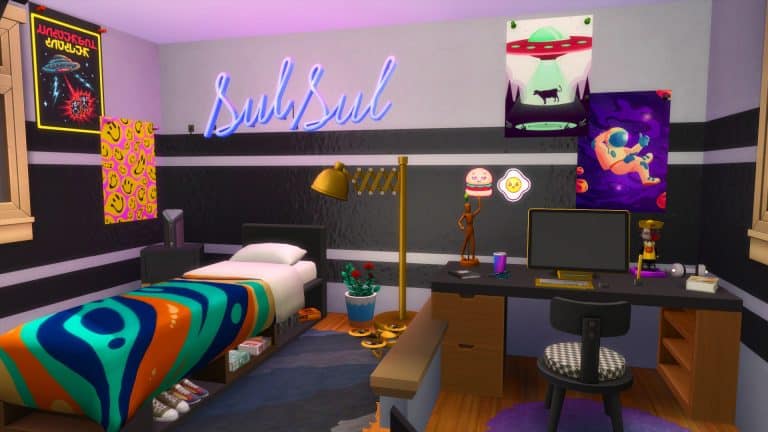
The Sims 4 Modern Teen Room Custom Content Pack is the latest creation from SixamCC. With over forty new items including new neon lights, beds and frames, two new computers, plenty of clutter and more, there are plenty of ways to create the perfect space for Teen Sims!

The CC Pack is currently set to Early Release on Patreon. Public Release is expected later this month.

The Sims 4: Building With Modern Teen Room CC Pack

The first room that I decided to create was for my Teen Sim, Spencer. A lover of sports and technology, this was bound to be pretty easy to create.

The Sims 4: Building With Modern Teen Room CC Pack

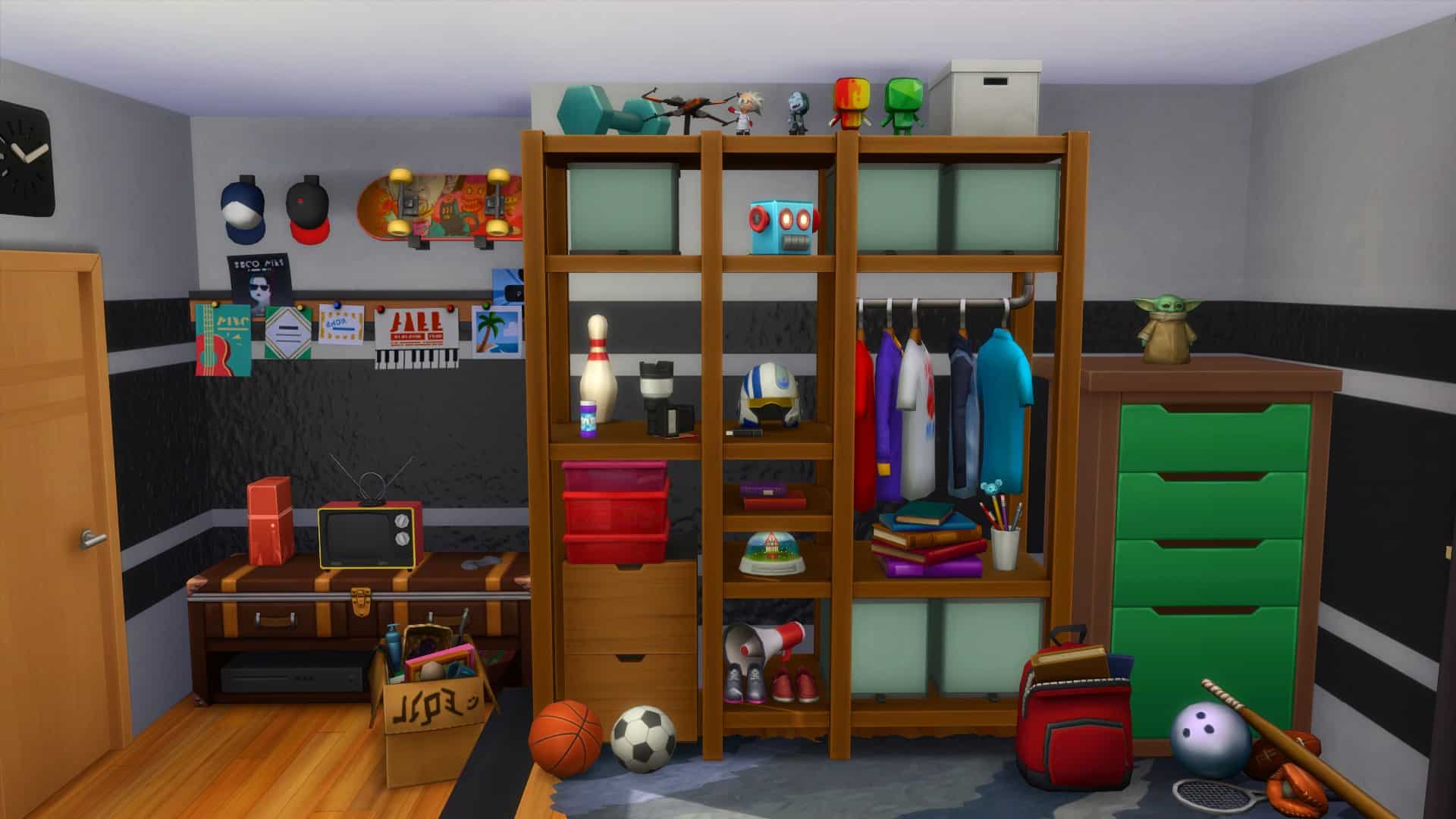
I wanted to use a lot of the new furniture from the Modern Teen Room Custom Content Pack to bring this room alive. The shelving unit actually worked really well on the platform, as not only does it double as a storage space for clothes, it also allowed me to fill it up with different items that you would typically find in a bedroom. The lower part of the bedroom focused more on the technology side of things, with a computer area and then a small television and games console area.  I really enjoyed using clutter to bring this half of the room together, and the MySims statues worked well to fill a few empty spaces.

The second room that I created was for Spencer’s sister Gina. She is creative and a quick learner, but also a lover of pink and a good book.


I had a lot of fun making this second room. I started off with creating a closet area, but after it didn’t work out as planned, I swapped over to using the modular items from Dream Home Decorator. Thankfully, that idea worked out perfectly, and it helped me shape the rest of the room. Having kept the platform, it gave a nice divide between the two areas of the room. With a little reading area, a shelf full of everything a girl needs as well as a space for a desk and computer, mirror and lots of plants. I really loved how this came together overall.

Altogether, I loved creating these rooms for my Sims and have ideas for more rooms to add into future builds soon. I loved exploring Sixam’s Modern Teen Room Custom Content pack and using a number of the items from the pack in these room builds. My favourite items would have to be the Plumbob and SulSul  neon lights, but overall all the items are brilliant and work well alongside the existing in game content.

You can find out more about the Modern Teen Room Custom Content Pack here but be sure to check out more of Sixam’s creations here.

EA might bring Cinematic Storytelling to The Sims

4

The Sims is working on adding significant new Cinematic Story aspects!

Now, before we begin with this post let me state the obvious – nothing is officially confirmed and it could take some time before we see the development of these features come to life.

The official EA Careers website has published a new Career Opportunity for the Maxis Studio. The latest published opportunity is looking for a Storyboard Artist who will help visualize everyday life moments into a video game. We of course presume it’s for The Sims considering that described scenarios that they’re looking for fit perfectly into gameplay and features that you would expect from The Sims.

The initial description of this job opportunity requires for a Storyboard Artist to visualize body language, relationship dynamics and timing and spacing between important characters.

Check out the full description below:

We’re looking for a gifted visual storyteller to help us visualize our designs, gameplay experiences, and technology solutions through animatics and storytelling. Maxis creates life simulations that tell stories through characters in every-day or extravagant situations. As such, we need someone who can help us explore body language, visualize relationship dynamics and play with timing and spacing between characters.

We’re interested to know:

  • How do a couple watch a romantic movie together when one is upset with the other?
  • How does a husband engage in a conversation with his wife, while he almost breaks a new record on his favorite video game?
  • How does a family cook together in the same kitchen while carrying out a conversation?

Our ideal candidate is someone who is thrilled to contribute visually and share ideas, in a collaborative environment with several disciplines, and who loves telling stories about every-day life.

The responsibilities for this opportunity share more about the potential Story-driven features for The Sims. The Storyboard Artist will have to bring to life characters with emotion, humor and dynamic actions and gestures for each character. Check out the full list of responsibilities below:

Responsibilities:

  • Creatively tackle challenges in story and explore ways in which to bring characters to life, visualize game dynamics and support story expectations.
  • Brainstorm and create storyboard panels against a specified vision or problem space.
  • Produce illustrations and sketches evoking the project’s style and aesthetic.
  • Apply emotion and humor to characters.
  • Apply dynamic action and exaggerated gestures.
  • Work within staging and composition of the scene.
  • Emulate character designs, from our character team, within boards.
  • Bring life to each character and emphasize on their personas.
  • Translate storyboards into Animatic sequences that highlight and bring the characters to life.
  • Edit and refine the timing of Animatic sequences to maximize emotional impact and convey appropriate audience response.
  • Partner with peers from different disciplines to understand challenges and suggest improvements.
  • Team up with creative supervisors on deliverable goals within the limitations of the story/script.

The Storyboard Artist will also have to bring in some examples and sketches of given scenarios, including:

Qualifications:

  • Excellent foundation in art production, and experienced in developing drawings and sketches that demonstrate:
  • Characters that portray emotion, humor, and appeal.
  • Clear storytelling with action, mechanics, and interaction.
  • Expert sense of camera, staging, perspective, and composition skills.
  • Expert sense of anatomy, dynamic motion posing and exaggerated gestures.
  • A high level of experience with digital editing software
  • Experience in hands-on timing and editing of focused animatics to create lively and dynamic story sequences that inspire gameplay implementation. For example:
  • A conversation between multiple characters
  • A dinner sequence involving an extended family
  • A lively sidewalk scene outside a store

So, what does this all mean for The Sims?

Last year in March we published an article how EA is planning Story-driven and Narrative Features for The Sims. Their job opportunity looking for a Senior Narrative Designer described that The Sims project that they’re working on is going to have a “narrative” aspect.

It’s been a while since this job opportunity was published and Maxis now finally has its Senior Narrative Designer, considering they now want to visualize and bring these Story-Driven aspects of the game to life.

This part is purely speculative as we don’t have any official information or confirmation yet – but all this preparation and development hints to features and game modes that we could expect from the next Generation Sims Game. Or as we call it (at least for now) – The Sims 5.

The Sims 4 already has its Scenarios which, compared to what EA is working on here, is nothing alike. Of course keep in mind that there are multiple studios within EA and Maxis working on multiple projects. The Sims 4 still has years of content planned out!

We’ve published plenty of news findings and reports on the next Generation Sims Game, including an official confirmation from EA’s CEO that the game is in the works. For more information catch up on all The Sims 5 News!

The Sims 4: Stepping Into The New Year Lookbook

Okay, maybe New Year’s Eve has come and gone but that doesn’t mean our Sims can’t still ring in the new year in their best party attire! Kick off 2022 with some of these ultra-fabulous party looks that will make sure your Sims greet the new year in style!

As usual, all our looks for this lookbook are CC-free and only use the base game and two other packs.

Happy New Year! Or, as they say in Simlish, SHASHOOBIE!

Making My Way Downtown

The Sims 4: Stepping Into The New Year Lookbook

Heading out to the club to dance the night away and ring in the new year with a glass of expensive champagne? You’ll turn heads with this stunning black dress accented with gold jewellery. Nothing says New Year’s Eve like black and gold and little black dresses so when you hit up the club, make sure all eyes are on you as the clock strikes midnight.

Hair: Side Part Afro (Base Game)

Body: Layered Mini Dress (Moschino Stuff)

Shoes: Strappy Heels (Luxury Party Stuff)

Accessories: Necklace (Luxury Party Stuff) / Earrings (Moschino Stuff) / Nails (Base Game)

Makeup: Eyeshadow & Eyeliner (Luxury Party Stuff) / Lips, Contour, & Highlight (Base Game)

It’s Called Fashion, Look It Up

The Sims 4: Stepping Into The New Year Lookbook

Is he trying too hard or is it high fashion? Who cares? It’s New Year’s Eve! Whether the stares you get in this flashy outfit are impressed or perplexed, there’s no doubt everyone will be looking at you at this year’s big bash.  And remember, it’s not what you’re wearing. It’s how you wear it. So strut into that New Year’s Eve party with confidence in all your shiny sequined glory.

Hair: Swept Back Volume (Get Famous)

Top: Shiny Sequined Suit Jacket (Get Famous – CAS Unlock)

Bottom: Shiny Sequined Suit Pants (Get Famous – CAS Unlock)

Shoes: Gold-Studded High Tops (Get Famous)

Accessories: Glasses (Seasons) / Necklace (Base Game – CAS Unlock) / Nails & Socks (Base Game)

All Grown Up

The Sims 4: Stepping Into The New Year Lookbook

Picture It: It’s your very first New Year’s Eve party. Your parents are finally letting you stay up until midnight and hang out with all the grown ups downstairs. You want to feel just as grown up as them, right? Your space cat tee and paint-splattered jeans just aren’t going to cut it for a milestone as important as this. Those grown ups won’t take you seriously at the party unless you look the part, so impress your parents and all their friends in this sophisticated black and white party attire.

Hair: Layered Comb Over (Vintage Glamour Stuff)

Top: Layered Suit Jacket over Vest and Tee (Vintage Glamour Stuff)

Bottom: Straight-Leg Slacks (Get To Work)

Shoes: White Sneakers (Get To Work)

Accessories: Glasses & Nails (Base Game)

Midnight Nap

The Sims 4: Stepping Into The New Year Lookbook

This poor lil munchkin wanted to stay up until midnight like her big siblings but her parents knew she’d never be able to make it to midnight without falling asleep so they put her in her comfy new PJs she just got for Winterfest and let her run around the party until she tired herself out. Sure enough, she rung in the new year napping on the couch. Oh well, maybe next year, little one!

Hair: Top Bun with Fringe (Snowy Escape)

Body: Winter Patterned Onesie (My First Pet Stuff)

Shoes: Slippers (Base Game)

Accessories: Nails & Socks (Base Game)


Credits

Don’t forget to show us your New Year looks over on social media!

LEAK: The Sims 4 Carnaval Streetwear Kit

13

This is the second time a Kit has leaked this way!

@Alumia_Italia, a reliable source who reported first on the leak for The Sims 4 Blooming Rooms Kit is back with another leak from the Microsoft Store database.

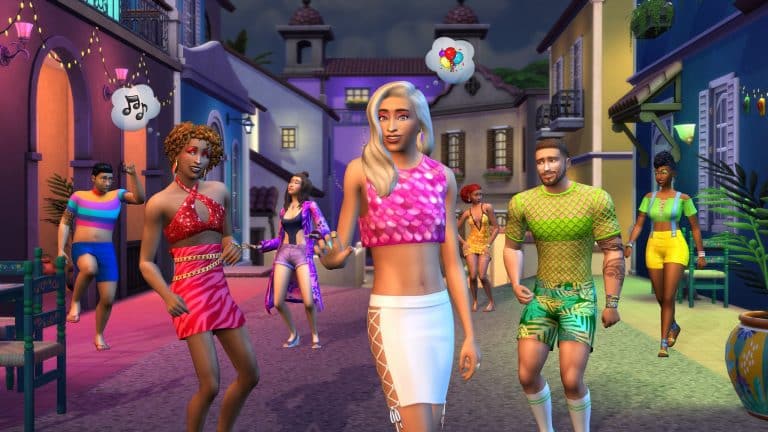
This time around it’s for the upcoming Kit titled The Sims 4 Carnaval Streetwear Kit!
According to the source the Carnaval Streetwear Kit is releasing on February 3rd, 2022. Check out the leaked screenshot down below featuring new Create A Sim items:

LEAK: The Sims 4 Carnaval Streetwear Kit

Shortly after we reported on the leak the tweet has since been deleted. When a twitter user asked if they know anything else regarding upcoming releases, they replied with this:

The leak fits perfectly with the official description from The Sims Team for their current roadmap, calling the next two Kits “Vibrant that Celebrate Fierce Design”.

What is the other Kit all about? We’ll just have to wait and see.

Until then stay tuned on our website for all the latest news and updates on future releases!

The Sims 4: Encanto Community Showcase

There is no denying the Disney’s latest animated movie, Encanto is everywhere! Even if you haven’t watched it, you have probably seen someone talk about it, posts online or possibly heard snippets of the incredibly catchy songs! After recently watching the movie myself, I can see why everyone loves it and why many players have been inspired to create content in The Sims 4 based around the movie!

Here is a selection of Encanto inspired content from the community!

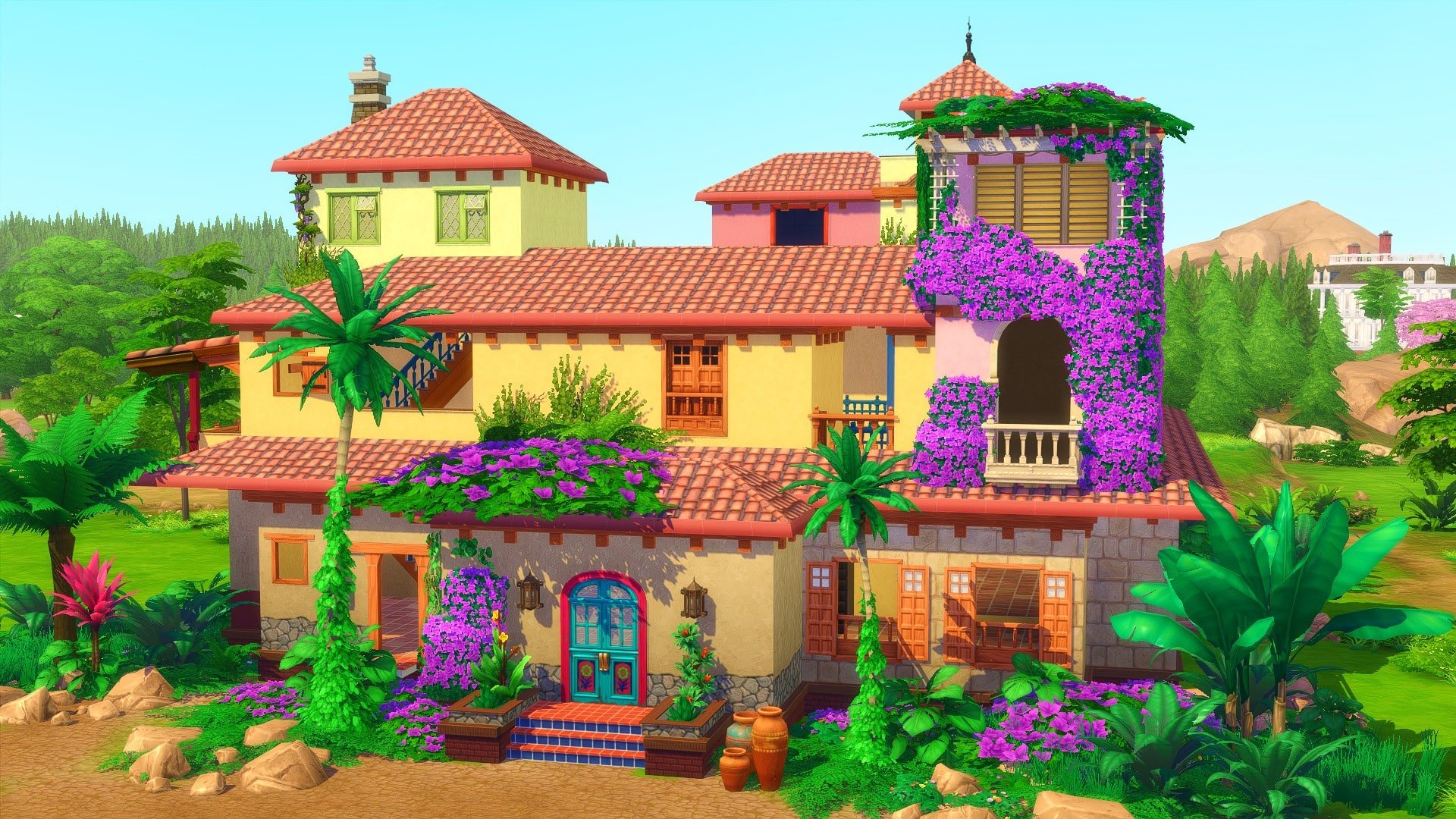
Inspired by the promotional posters for Encanto, PlumbobKingdom has recreated a beautiful fully furnished versions of Casa Madrigal!

The Sims 4: Encanto Community Showcase


Click here to view on The Gallery

Another fabulous recreation of the Madrigal’s home comes from PlaySimsWithDee! Not only have they created this beautiful shell of the Madrigal’s home that you can furnish, they has also created a number of the characters from the movie too!

The Sims 4: Encanto Community Showcase
Casita Encanto Shell


You can find all of PlaySimsWithDee’s creations on The Gallery here.

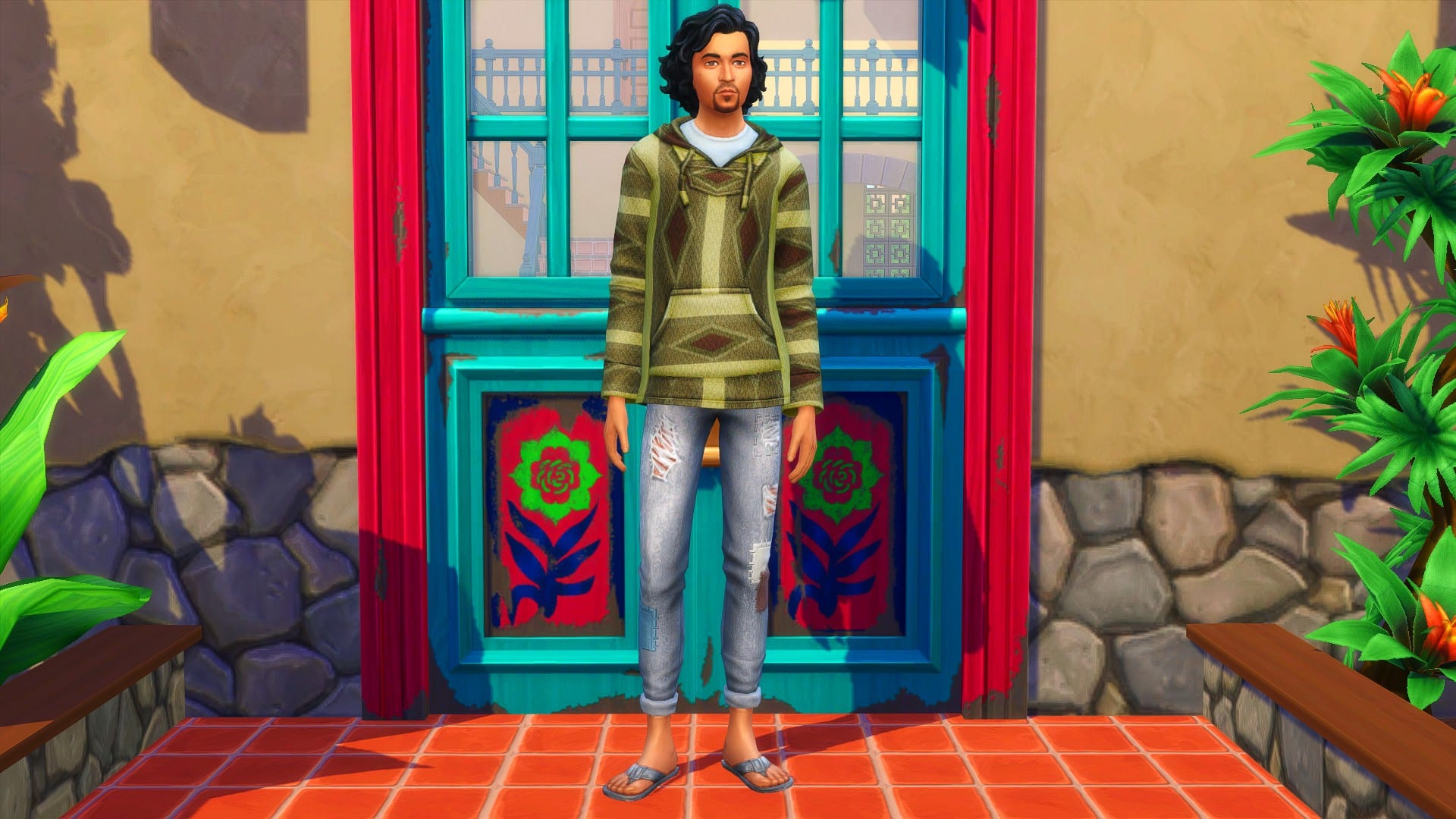
While we might not talk about Bruno, you can also find him on The Gallery!

Don’t see your favourite character here? Don’t worry! You’ll find all of your favourite characters from Encanto on The Gallery.

While many players have been uploading their creations to The Gallery, many were also sharing their creations on social media.

Are you looking for some Encanto inspired gameplay instead? Why not take a look at these gameplay challenges!

Have you created either the characters from Encanto or even the Madrigal’s home from the movie? Let us know in the comments below or over on social media.

The Sims 2 Revisited: 5 Things I Liked (And 5 I Didn’t)

9

Even though my first love is The Sims 4, I sometimes find myself wanting to revisit a simpler time in The Sims’ history. Maybe it’s the nostalgia of remembering what life was like back in 2004. Maybe it’s because The Sims 2 is still a solid game that holds up remarkably well even nearly two decades later. In reality, it’s probably both those factors combined.

I decided to put away The Sims 4 for a little bit and start a legacy in The Sims 2. I’ve been having a blast playing The Sims 2 again and wanted to share all my favourite parts of it with you guys. However, The Sims 2 is also… well, a product of its time. There are a multitude of little annoyances that drive me so far up the wall, I went on a mod hunt to fix them. I’ll be sharing some of those with you as well to hopefully help other lovers of The Sims 2 improve their experience.

Things I Love

Real Babies!

The Sims 2 Revisited: 5 Things I Liked (And 5 I Didn’t)

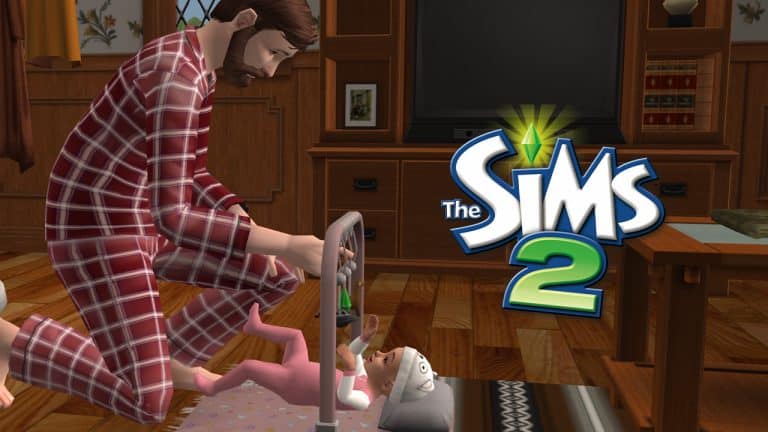
It seems downright ridiculous that I would be praising an 18-year-old life simulation game for having real babies in it while the newest installment of the series relegates babies to being objects, but here we are. Yes, babies in The Sims 2 are easily the best in the series. They have limbs, they can be carried around, be bathed in the kitchen sink, and they have plenty of objects to make this life stage fun. The Sims 2 Store had a baby bouncy swing and a baby play mat that can now be downloaded as free CC since the Store is no longer running. Adults can play with the dangly toys with the baby on the play mat, too. Babies and toddlers both also have real, proper cribs and changing tables! Whoah, so revolutionary! (cc link)

Milestone Events Camera

The Sims 2 Revisited: 5 Things I Liked (And 5 I Didn’t)

To be honest, I both love and hate this feature but the only reason I hate it is because I’m a storyteller and the events camera renders me unable to take nice shots of important moments in my Sims’ lives. However, from a general gameplay perspective, the events camera is fantastic. Whenever an important moment happens in your Sim’s life, like a first kiss, first woohoo, proposal, wedding, or the birth of a child, a cinematic cutscene plays. This makes all those important milestones feel that much more special.

Family Albums

The Sims 2 Revisited: 5 Things I Liked (And 5 I Didn’t)

This is a feature that my little storyteller heart loves! Every household in your neighbourhood has their own family album. Take a picture with the C key and then go to the family album to organize and sort through your photos. Add pictures to the album with captions. This lets you document your Sims’ entire lives directly in the game! I am obsessed with this feature. I only wish we could write longer captions to really let my imagination run wild with storytelling. While The Sims 4 attempted to reintroduce this with the Screenshot Manager, it’s really just a shallow copy of The Sims 2’s album system and doesn’t have the same kind of functionality.

Individual Bios

The Sims 2 Revisited: 5 Things I Liked (And 5 I Didn’t)

The Sims 1, 2, 3, and 4 all have family bios you can write in the household descriptions which is great, but The Sims 4 seems to have forgotten about individual bios. This was something I really enjoyed in previous games, including The Sims 2 so I felt its absence strongly in The Sims 4. Having the ability to write both a household description and a Sim description allows players to write more nuanced stories for their Sims. Instead of having to lump each household member together in a vague family bio, you can summarize everything in the family bio and then go into more detail with each individual Sim.

Attention to Detail

The Sims 2 Revisited: 5 Things I Liked (And 5 I Didn’t)

When I went back to The Sims 2 from The Sims 4, I felt like there wasn’t as much gameplay in terms of number of things to do but I did notice that there was a lot more detail in what was there. That kind of detail counts for a lot because in spite of not having as many things to do, I was still completely enchanted with this game and drawn into their world. Kids jumping on the bed, sliding down banisters, playing make-believe in the bathtub, teens giving their younger siblings noogies, I could go on and on. All of these little things that the Sims do plays a large part in the emotional connection you make with them. That’s something that I think later Sims games have really lost sight of.

Things I Don’t Love

Smelly Baby Bottles

The Sims 2 Revisited: 5 Things I Liked (And 5 I Didn’t)

I downloaded a mod to stop this nonsense SO fast. What sane human being proceeds to chuck an empty baby bottle on the floor after feeding their infant? I’m a family player, too, so my Sims’ houses would just be littered with these smelly baby bottles all over the floor. It may be a small thing to nitpick at, but if you’ve experienced this yourself, you’ll know what a massive annoyance it can be. I have a mod that causes the bottles to self-destruct after a few moments of being on the floor. (mod link)

Route Failures on the Stairs

The Sims 2 Revisited: 5 Things I Liked (And 5 I Didn’t)

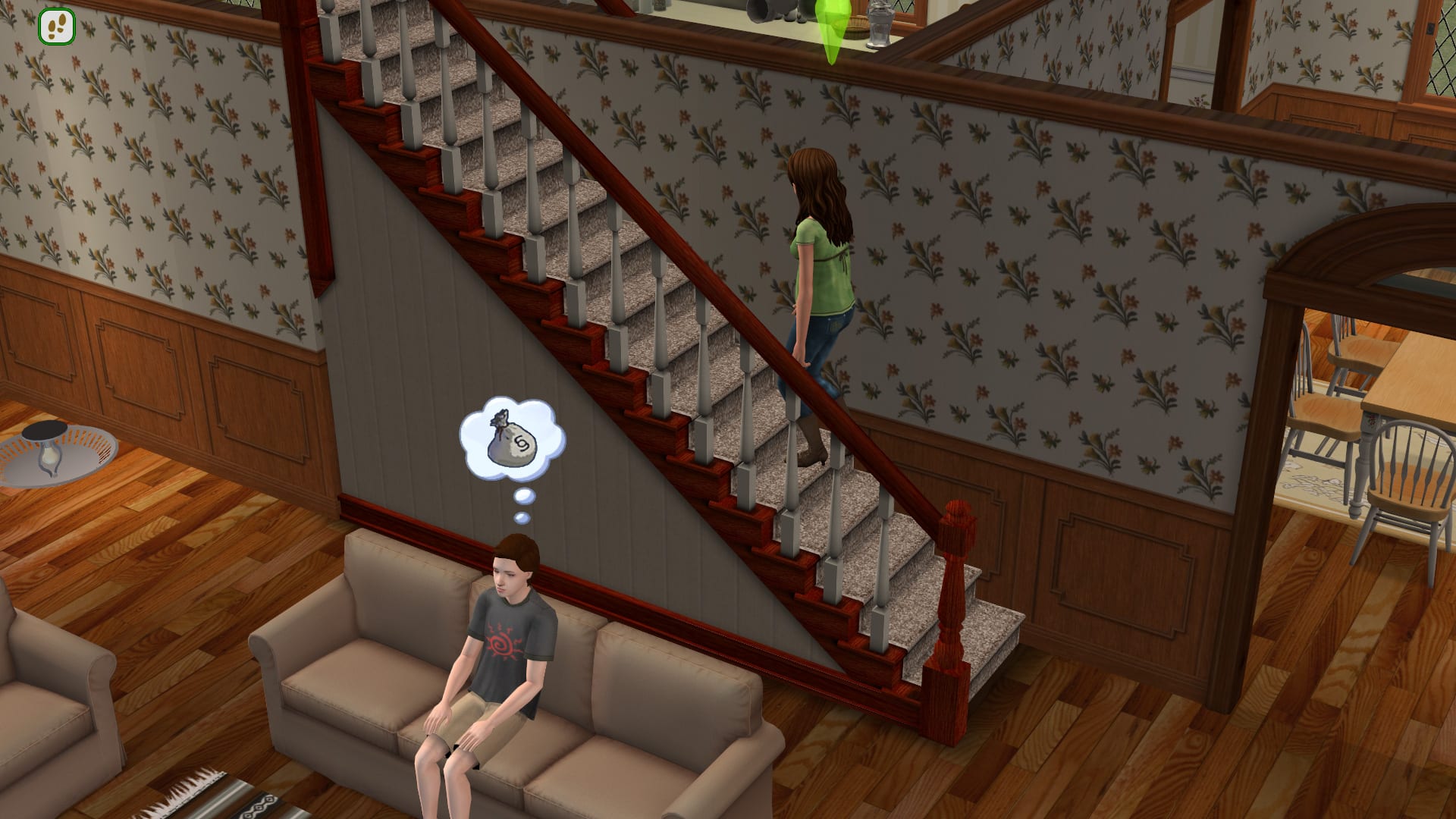
My current legacy family has 8 Sims, all child-aged and older so everyone inevitably needs to use the stairs at the same time to go downstairs in the morning when they wake up. This resulted in an absolute nightmare for me every day. While two Sims can use the stairs at the same time when going in opposite directions, only one Sim can be going up or down the stairs at a time. Everyone else trying to go up or down the stairs the same way has a route fail tantrum. Imagine this happening 8 times every single day. It makes no sense that you can’t just follow someone up or down the stairs and it made me angry enough to quit playing the game… until I found a mod to fix this. Now all my Sims can follow each other down the stairs each morning with no tantrums or issues. (mod link)

Less Travel Freedom

The Sims 2 Revisited: 5 Things I Liked (And 5 I Didn’t)

Some people might disagree with me on this one and I get it; it comes down to realism versus convenience. In The Sims 2, you can’t just travel to anyone’s house that you want. In fact, you can’t go to anyone’s house at all as a visitor. If there’s another Sim in town you want your Sims to meet, you have to hope they live close enough to you to show up during the welcome wagon or be lucky enough to run into them at random somewhere on a community lot. I’ll admit this is a more realistic way of meeting new people; you wouldn’t be likely to just knock on the door of a random house and be like “Hi stranger! Wanna be friends?” You’re far more likely to meet a new neighbour when you first move in or run into someone while out somewhere. Still, I kind of prefer the convenience of just being able to do what I want when it comes to this.

Lots Feel Confined

The Sims 2 Revisited: 5 Things I Liked (And 5 I Didn’t)

The Sims 2 and The Sims 4 both have loading screens in between lots but what really sets these games apart in this area is The Sims 4 also has neighbourhood space around the lot that loads. The Sims 2 does not. My Sims in The Sims 4 can take a jog around the neighbourhood, fish in the pond behind their house, or enjoy an afternoon playing at the nearby playground, all from their home lot. This makes the lots feel more open and I find myself forgetting that it’s a closed world since there is ample space to explore around every lot. In The Sims 2, the only thing you can access apart from the confines of your home lot is the sidewalk and the road directly in front of the lot. This creates a very confined, closed-in feeling and I’m constantly reminded that I’m trapped on this square of land unless I want to go through another load screen.

Clunky Sim Customization

The Sims 2 Revisited: 5 Things I Liked (And 5 I Didn’t)

This may be another instance of realism versus convenience and I guess I prefer convenience. I hated having to go to the store to buy new clothes for my Sims so much that I downloaded a modded coat rack that lets me “purchase” the entire clothing catalogue for free. I’m very big on customizing my Sims exactly to my liking and The Sims 2 makes it very difficult to do that. Without mods, I can’t dress my Sim how I want if they aren’t wealthy enough to afford the clothes. I can’t easily pop into CAS whenever I want to make all of my changes at once; I have to awkwardly queue up Plan Outfit interactions for every clothing category. Then I have to go to the mirror to edit their hair and makeup separately. It’s a whole ordeal I would just rather not deal with. I also can’t edit NPCs until they’ve moved into my house which means my Sims are stuck dating some ridiculous-looking townies. I’ve been spoiled with the convenience of having all of this stuff at my fingertips in The Sims 4. (mod link)


So what’s the final takeaway here? Do I love The Sims 2 or hate it? Well, in spite of its somewhat awkward and clunky mechanics and lack of things to do in comparison with later titles, The Sims 2’s charm and attention to detail really keep this game relevant almost 20 years later and that’s a difficult feat for a video game to accomplish. I’m nearing my 2nd generation in my current playthrough and I don’t intend to stop playing anytime soon. I say there isn’t as much gameplay as there is in later titles but that doesn’t mean there isn’t enough to still be fun and enjoyable. I still have plenty I want to do in the game. And truth be told, The Sims 2’s greatest strength is its ability to make you fall in love with your Sims without even trying. Those small everyday moments between Sims that happen spontaneously without you having to dictate every single interaction are what make The Sims 2 the most authentic life simulation experience even to this day.

The Sims 4 might be my #1 game now but I always have and always will love The Sims 2 with all my heart. It’s just… special.