
Home Blog Page 289

The Sims 4 Gallery Spotlight: Affordable & Luxury Homes

The Sims 4 Gallery Spotlight: Affordable & Luxury Homes

In this Spotlight we’re featuring both affordable and luxurious homes for your Sims that feature multiple packs of content.

Hover over the pulsing plumbobs to see screenshots of marked areas. Pulsing plumbob that’s on the left bottom corner contains all the info (and download link) of the lot.

To see more of our previous Gallery Spotlights, CLICK HERE!

[ult_hotspot main_img=”id^77963|url^https://simscommunity.info/wp-content/uploads/2018/08/08-25-18_12-54-57-AM.jpg|caption^null|alt^null|title^08-25-18_12-54-57 AM|description^null”][ult_hotspot_items icon_type=”custom” icon_img=”id^39525|url^https://simscommunity.info/wp-content/uploads/2015/09/plumbob2.png|caption^null|alt^null|title^plumbob2|description^null” img_width=”38″ tooltip_custom_color=”” tooltip_custom_bg_color=”rgba(255,255,255,0.01)” tooltip_width=”400″ tooltip_position=”right” enable_bubble_arrow=”off” tooltip_continuous_animation=”on” hotspot_position=”58.7950327510917,51.77914110429448″]

The Sims 4 Gallery Spotlight: Affordable & Luxury Homes

[/ult_hotspot_items][ult_hotspot_items icon_type=”custom” icon_img=”id^39525|url^https://simscommunity.info/wp-content/uploads/2015/09/plumbob2.png|caption^null|alt^null|title^plumbob2|description^null” img_width=”38″ tooltip_custom_color=”” tooltip_custom_bg_color=”rgba(255,255,255,0.01)” tooltip_width=”400″ tooltip_position=”right” enable_bubble_arrow=”off” tooltip_continuous_animation=”on” hotspot_position=”34.85262008733624,52.02453987730061″]

The Sims 4 Gallery Spotlight: Affordable & Luxury Homes

[/ult_hotspot_items][ult_hotspot_items icon_type=”custom” icon_img=”id^39525|url^https://simscommunity.info/wp-content/uploads/2015/09/plumbob2.png|caption^null|alt^null|title^plumbob2|description^null” img_width=”52″ tooltip_custom_color=”#1e73be” tooltip_custom_bg_color=”#ffffff” tooltip_width=”450″ tooltip_position=”right” tooltip_continuous_animation=”on” hotspot_position=”89.61858624454149,3.190184049079755″ tooltip_custom_border_size=”border-style:solid;|border-width:2px;border-radius:5px;|border-color:#81d742;”]

Let’s Start a Family (Download Here)

by CIMTHABESTB247

Value: §17,274
Size: 20×15
Lot Type: Residental Lot[/ult_hotspot_items][/ult_hotspot][ult_hotspot main_img=”id^77924|url^https://simscommunity.info/wp-content/uploads/2018/08/08-25-18_1-02-55-AM.jpg|caption^null|alt^null|title^08-25-18_1-02-55 AM|description^null”][ult_hotspot_items icon_type=”custom” icon_img=”id^39525|url^https://simscommunity.info/wp-content/uploads/2015/09/plumbob2.png|caption^null|alt^null|title^plumbob2|description^null” img_width=”38″ tooltip_custom_color=”” tooltip_custom_bg_color=”rgba(255,255,255,0.01)” tooltip_width=”400″ tooltip_position=”right” enable_bubble_arrow=”off” tooltip_continuous_animation=”on” hotspot_position=”53.05676855895196,48.466257668711656″]

The Sims 4 Gallery Spotlight: Affordable & Luxury Homes

[/ult_hotspot_items][ult_hotspot_items icon_type=”custom” icon_img=”id^39525|url^https://simscommunity.info/wp-content/uploads/2015/09/plumbob2.png|caption^null|alt^null|title^plumbob2|description^null” img_width=”38″ tooltip_custom_color=”” tooltip_custom_bg_color=”rgba(255,255,255,0.01)” tooltip_width=”400″ tooltip_position=”right” enable_bubble_arrow=”off” tooltip_continuous_animation=”on” hotspot_position=”28.404748908296945,49.4478527607362″]

The Sims 4 Gallery Spotlight: Affordable & Luxury Homes

[/ult_hotspot_items][ult_hotspot_items icon_type=”custom” icon_img=”id^39525|url^https://simscommunity.info/wp-content/uploads/2015/09/plumbob2.png|caption^null|alt^null|title^plumbob2|description^null” img_width=”52″ tooltip_custom_color=”#1e73be” tooltip_custom_bg_color=”#ffffff” tooltip_width=”450″ tooltip_position=”right” tooltip_continuous_animation=”on” hotspot_position=”89.61858624454149,3.190184049079755″ tooltip_custom_border_size=”border-style:solid;|border-width:2px;border-radius:5px;|border-color:#81d742;”]

The Water House 2.0 (Download Here)

by CIMTHABESTB247

Value: §188,885
Size: 30×20
Lot Type: Residental Lot[/ult_hotspot_items][/ult_hotspot][ult_hotspot main_img=”id^77926|url^https://simscommunity.info/wp-content/uploads/2018/08/08-25-18_1-05-54-AM.jpg|caption^null|alt^null|title^08-25-18_1-05-54 AM|description^null”][ult_hotspot_items icon_type=”custom” icon_img=”id^39525|url^https://simscommunity.info/wp-content/uploads/2015/09/plumbob2.png|caption^null|alt^null|title^plumbob2|description^null” img_width=”38″ tooltip_custom_color=”” tooltip_custom_bg_color=”rgba(255,255,255,0.01)” tooltip_width=”400″ tooltip_position=”right” enable_bubble_arrow=”off” tooltip_continuous_animation=”on” hotspot_position=”54.26787663755459,56.56441717791411″]

The Sims 4 Gallery Spotlight: Affordable & Luxury Homes

[/ult_hotspot_items][ult_hotspot_items icon_type=”custom” icon_img=”id^39525|url^https://simscommunity.info/wp-content/uploads/2015/09/plumbob2.png|caption^null|alt^null|title^plumbob2|description^null” img_width=”38″ tooltip_custom_color=”” tooltip_custom_bg_color=”rgba(255,255,255,0.01)” tooltip_width=”400″ tooltip_position=”right” enable_bubble_arrow=”off” tooltip_continuous_animation=”on” hotspot_position=”34.347707423580786,56.56441717791411″]

The Sims 4 Gallery Spotlight: Affordable & Luxury Homes

[/ult_hotspot_items][ult_hotspot_items icon_type=”custom” icon_img=”id^39525|url^https://simscommunity.info/wp-content/uploads/2015/09/plumbob2.png|caption^null|alt^null|title^plumbob2|description^null” img_width=”52″ tooltip_custom_color=”#1e73be” tooltip_custom_bg_color=”#ffffff” tooltip_width=”450″ tooltip_position=”right” tooltip_continuous_animation=”on” hotspot_position=”89.61858624454149,3.190184049079755″ tooltip_custom_border_size=”border-style:solid;|border-width:2px;border-radius:5px;|border-color:#81d742;”]

Modern Estate (Download Here)

by mwn2002

Value: §211,327
Size: 40×30
Lot Type: Residental Lot[/ult_hotspot_items][/ult_hotspot][ult_hotspot main_img=”id^77929|url^https://simscommunity.info/wp-content/uploads/2018/08/08-25-18_1-10-19-AM.jpg|caption^null|alt^null|title^08-25-18_1-10-19 AM|description^null”][ult_hotspot_items icon_type=”custom” icon_img=”id^39525|url^https://simscommunity.info/wp-content/uploads/2015/09/plumbob2.png|caption^null|alt^null|title^plumbob2|description^null” img_width=”38″ tooltip_custom_color=”” tooltip_custom_bg_color=”rgba(255,255,255,0.01)” tooltip_width=”400″ tooltip_position=”right” enable_bubble_arrow=”off” tooltip_continuous_animation=”on” hotspot_position=”52.234579694323145,47.11656441717791″]

The Sims 4 Gallery Spotlight: Affordable & Luxury Homes

[/ult_hotspot_items][ult_hotspot_items icon_type=”custom” icon_img=”id^39525|url^https://simscommunity.info/wp-content/uploads/2015/09/plumbob2.png|caption^null|alt^null|title^plumbob2|description^null” img_width=”38″ tooltip_custom_color=”” tooltip_custom_bg_color=”rgba(255,255,255,0.01)” tooltip_width=”400″ tooltip_position=”right” enable_bubble_arrow=”off” tooltip_continuous_animation=”on” hotspot_position=”37.54093886462882,46.62576687116564″]

The Sims 4 Gallery Spotlight: Affordable & Luxury Homes

[/ult_hotspot_items][ult_hotspot_items icon_type=”custom” icon_img=”id^39525|url^https://simscommunity.info/wp-content/uploads/2015/09/plumbob2.png|caption^null|alt^null|title^plumbob2|description^null” img_width=”52″ tooltip_custom_color=”#1e73be” tooltip_custom_bg_color=”#ffffff” tooltip_width=”450″ tooltip_position=”right” tooltip_continuous_animation=”on” hotspot_position=”89.61858624454149,3.190184049079755″ tooltip_custom_border_size=”border-style:solid;|border-width:2px;border-radius:5px;|border-color:#81d742;”]

Los Gallardos Villa (Download Here)

by blackrosemakridu

Value: §261,985
Size: 50×50
Lot Type: Residental Lot[/ult_hotspot_items][/ult_hotspot]
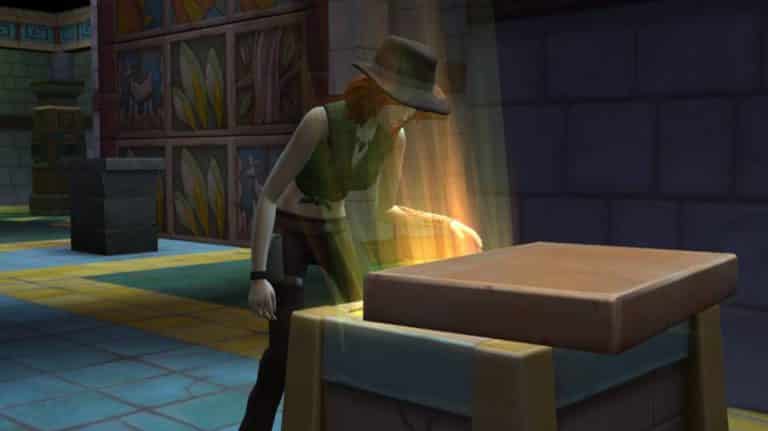
The Sims 4 Jungle Adventure: Conquering the Temple

The Sims 4 Jungle Adventure is packed with amazing new content. From a new, gorgeous destination world to new skills, foods, collectibles, and all new exploration features, it’s no wonder Simmers can’t get enough of Selvadorada, but any savvy jungle explorer knows that the best rewards lie far away from the bustling cantina. For the truly dedicated adventurers, there is only one place that will push their skills to the limit: the hidden temple.

The Sims 4 Jungle Adventure: Conquering the Temple

This ancient temple buried deep in the wild jungles of Selvadorada will challenge your Sims like nothing else in the jungle, but with great challenges comes great rewards. If your Sims can survive the perils that lurk inside the temple, incredible treasures await them. If not, the Grim Reaper may be making a trip to Selvadorada to collect your Sim.

Luckily, we’ve compiled a few tips and tricks to help you reach that coveted treasure chest that lies beyond the temple’s defences.

Come Prepared

The number one thing any good adventurer knows is that having the right supplies on you can mean the difference between life and death. You’ll be battling your way through hordes of dangerous pests, sharp brambles, and all manner of wild perils before you even make it to the temple in the first place. If you don’t have the right supplies, your adventure could be over before it even begins.

The Sims 4 Jungle Adventure: Conquering the Temple

Stock up on everything the vendors are selling before you head out into the jungle. Here is a list of must-haves to get you through the jungle and the temple.

  • Liquid Rush
    • This handy energy drink will help keep your Sims awake and alert. Perfect for overnight excursions into the jungle. It doesn’t replenish very much energy, however, so I recommend stocking up on as much of these as you can get your hands on. If you have Outdoor Retreat installed, you can also opt to bring a tent with you to catch some Zs on the go.
  • Grilled Cheese Ready to Eat
    • Don’t get caught in a trap because your Sim’s stomach was growling! Pack plenty of these ready-made preserved snacks to keep your Sims’ hunger at bay.
  • Waterfall in a Bottle
    • The jungle is big, and dirty, and full of things that will make your Sims stinky and sweaty. Pack a few of these to keep them feeling fresh on their adventures.
  • Omiscan Machete
    • Do you want to pull apart sharp brambles with your bare hands? Yeah we didn’t think so. That’s not very smart. You know what is smart? Hacking at those brambles with a machete! Buy a few of these, because they have a tendency to break.
  • Pest Repellents
    • There are many different kinds of repellents you can buy for different kinds of pests. Plasma Bat Bait (bats), Guzmania Pollenis Flower (bees), Drake’s Fire Quencher (fire ants and other insects that pack a hot punch), Dr. Parker’s Spider Repellent (spiders), Lightning Insulation Powder (fireflies and other electrical pests). Not all of these will be available for purchase at the same time so either wait around a while or just buy as many of these as you can and hope for the best.
  • Hazard Safeguards
    • Pests aren’t the only thing your Sims need to watch out for. There are plenty of other dangers to guard against, too. Faraday Fizz will cure electrocution effects and Fire Foam extinguishes a Sim that has caught fire. These are especially important inside the temple where electrical and fire traps lurk around every corner.

Look Before You Touch!

The worst thing you can do in the temple is rush ahead without paying attention to your surroundings. The ancient Omiscans put subtle clues in their traps for a reason; only the most inquisitive, careful Sims will be able to pass through these traps unharmed. Every time you enter a new room in the temple, before you do anything, examine everything that can be examined. With high enough archaeology skill, your Sim will be able to find the correct switch to activate to safely disarm the trap blocking the way to the next room.

The Sims 4 Jungle Adventure: Conquering the Temple

If your Sim isn’t very experienced with archaeology, examine everything anyway. Your Sim will build archaeology skill for next time and they’ll at least be able to eliminate a few of the bad options, increasing your odds of choosing the correct switch. If you still make a bad choice, well… you did stock up on supplies before heading out, didn’t you?

Learn to Adapt

The temple’s biggest mystery is its ability to completely rearrange its layout every time your Sims visit it. Each time you enter the temple, an entirely new set of challenges awaits you. This means that you won’t be able to go through the temple once, memorize all the correct switches and just repeat the same combinations over and over again. Traps reset randomly so you never know what to expect. The correct switches last time likely won’t be the right switches this time.

Don’t assume you know the way forward just because you’ve been to the temple once before. Always stay on your toes, be on your guard and don’t touch anything until you’ve thoroughly examined every switch possibility. Some temple layouts even require you to swim your way to the next room so keep your Sims fit, knowledgeable, and ready for anything.

Use the Buddy System

The Sims 4 Jungle Adventure: Conquering the Temple

While it’s certainly possible to conquer the temple with just one Sim, two heads are always better than one. If you take a friend or family member with you, you’ll have two people with differing skills who will be good at tackling different obstacles. Just like in real life, having someone else with different skillsets around can be a valuable asset to the whole team. In any case, if the worst happens and one of your Sims perishes inside the temple, you still have another Sim to press on and tell the story of their partner’s demise when they return home.

Collect that Bone Dust!

See all those piles of dust lying around the temple? They look pretty worthless, don’t they? Don’t be fooled! This seemingly useless dust could save your Sim’s life. If your Sim isn’t so lucky and ends up with a nasty curse or injury from the temple’s traps, they can take that bone dust back to the cantina and ask one of the locals to make an antidote for you using the bone dust. Most temple-caused illnesses, injuries and curses will take some time before they become deadly so do your best to press on and collect those riches at the end of the temple before you flee back to the safety of the cantina. Just keep an eye on those moodlets to gauge how long is too long.


Do you have any other helpful advice for Simmers taking on the hidden temple? Leave a comment below or tell us about it on your favourite social media platform!

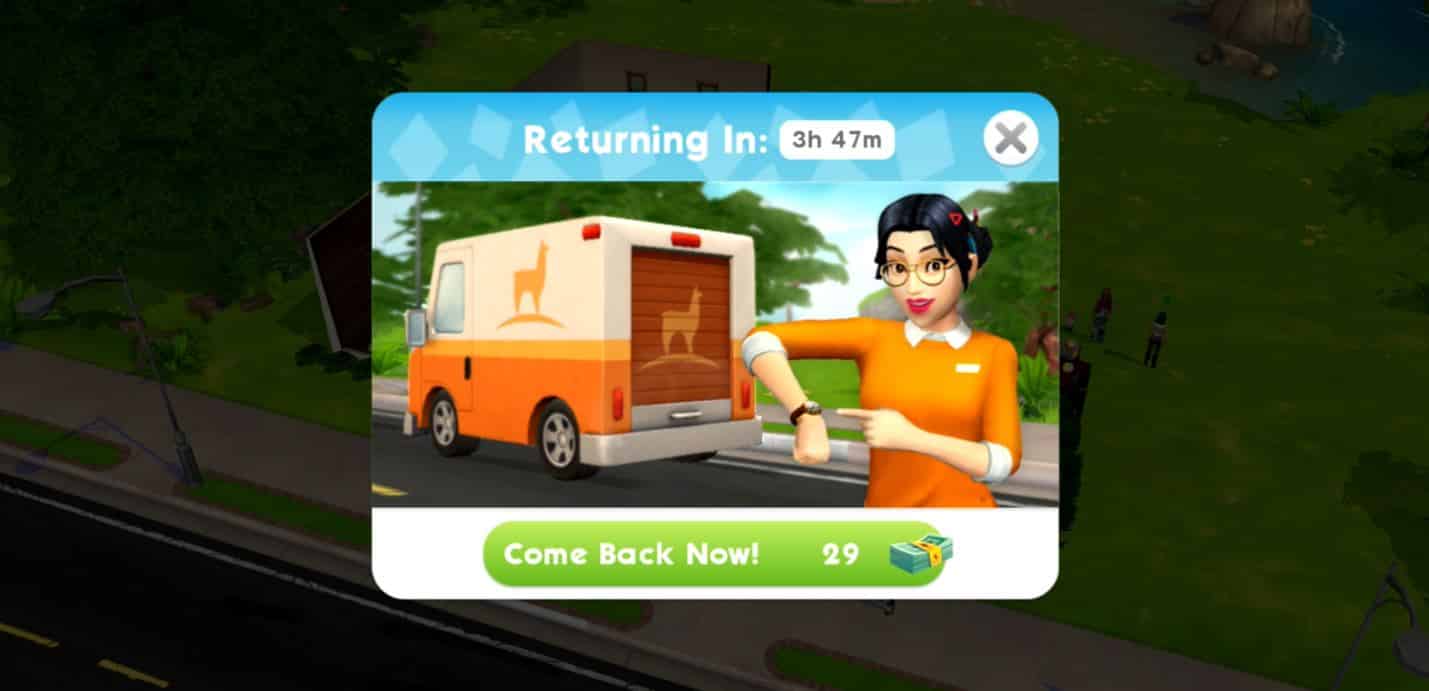
The Sims Mobile: All About LlamaZoom Tokens

If you’ve logged into The Sims Mobile today, chances are you’ve noticed some pretty big changes. For one thing, the waterfront is now open, bringing with it two brand new careers, but that’s not all. The ticket system has been completely overhauled!

Previously, the game was bogged down with so many tickets, players couldn’t even keep track of them all. There were 9 different types of tickets including super and luxe tickets. Players found it frustrating that they were often forced into doing things they weren’t interested in exploring just to get some of the rarer tickets to exchange for what they actually wanted.

The Sims Mobile: All About LlamaZoom Tokens

Take a look at all the tickets in the game previously:

  • Heirloom Tickets
  • Super Heirloom Tickets
  • Luxe Heirloom Tickets
  • Home Tickets
  • Super Home Tickets
  • Luxe Home Tickets
  • Sim Tickets
  • Super Sim Tickets
  • Luxe Sim Tickets

Having all these tickets just made the game more complicated than it needed to be. The latest update makes this clunky system a thing of the past, reducing the number of tickets in the game to just Heirloom Tickets and the new LlamaZoom Tickets.

All About LlamaZoom Tickets

LlamaZoom Tickets have now replaced the super and luxe Home and Sim Tickets. The regular Home and Sim Tickets have been replaced by the standard simoleon. You’ll also notice that the Daily To-Do List has been replaced by the LlamaZoom menu. That’s right, the To-Do List is no more!

The Sims Mobile: All About LlamaZoom Tokens

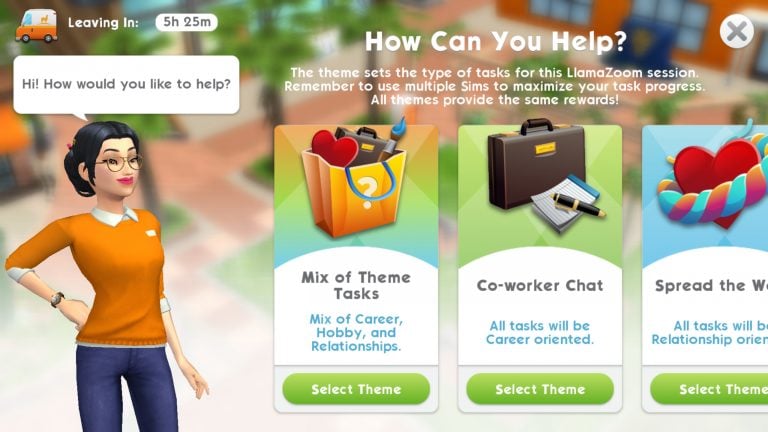
Instead of doing the same set of tasks over and over again every day, you now get to choose from a selection of tasks that will reward you with the new LlamaZoom Tickets. After playing through the LlamaZoom tutorial that introduces you to the new LlamaZoom NPC, Emily, you will be able to choose between four types of LlamaZoom quests:

  • Co-worker Chat
    • All tasks will be career oriented
  • Spread the Word
    • All tasks will be relationship oriented
  • Product Insights
    • All tasks will be hobby oriented
  • Mix of Theme Tasks
    • Mix of career, hobby, and relationships

This new selection of LlamaZoom tasks allows you to choose how you want to play instead of forcing you to focus on things you’re not interested in just to get the rewards. If you’re working on your Sim’s career, you might decide to do the Co-Worker Chat LlamaZoom tasks. If you’re working up the courage to propose to that special someone, the Spread the Word tasks might be of more interest to you. Or, if you like to explore a bit of everything, the Mix of Theme Tasks is always an option. This gives players much more freedom to play the game their own way while still enjoying all the rewards and benefits.

The Sims Mobile: All About LlamaZoom Tokens

The new LlamaZoom tasks also allow players to spend more time playing the game and less time waiting. The old To-Do List refreshed once every 24 hours. Once players completed the To-Do List, they’d have to wait until the next day to complete the To-Do List again, which was the same set of tasks every day. The LlamaZoom tasks refresh every 4 hours so players have the opportunity to complete tasks of their own choosing multiple times a day, but don’t worry; you have 8 hours to complete a set of LlamaZoom tasks. The tasks won’t refresh and erase your progress if you don’t finish them in 4 hours.

The LlamaZoom Tutorial

Does all of that sound overwhelming to you? Don’t worry, we understand that change can be tough, but thankfully you’ll be introduced to the new LlamaZoom system with a quick and easy tutorial. Once you play through the tutorial, you’ll see that the LlamaZoom system is a huge improvement over the old stale To-Do List and excessive tickets.

The first time you open your game after updating, your Sim will inform you that someone has parked a truck outside your house. They’ll suggest that you go see who it is.

When you tap on the truck, you’ll be introduced to a spunky new NPC named Emily. It’s Emily’s first day on the job, but her truck has broken down. She thinks she knows how to fix it, but will need your help to make the necessary repairs. What is Emily’s job? Why, she gives out LlamaZoom tickets, of course!

Emily will ask you to do a few simple tasks that can be completed from home. These tasks shouldn’t take you very long. It only took me a few minutes without using any cupcakes or SimCash. Once you finish these tasks for Emily, she will thank you for your help. She’s officially back in business because of you!

Now that Emily has things up and running again, she can offer you a set of tasks every four hours and reward you with LlamaZoom tickets for completing them. You’ll be able to choose your own set of tasks every four hours, but if you’re feeling impatient, you can use SimCash to speed things up.

How To Use LlamaZoom Tickets

So what do LlamaZoom Tickets do, exactly? Why is it worth your while to earn them? LlamaZoom Tickets replace the old Home and Sim tickets so they are used for the same things you used to use Home and Sim tickets for. You’ll need LlamaZoom Tickets to purchase certain high-end items in the Build/Buy Catalogue. You can also use LlamaZoom Tickets to open up new venues and careers.

Now that you’re a LlamaZoom expert, hop back into your game and introduce yourself to Emily! She’s always looking for people to offer her a helping hand and the LlamaZoom Tickets she gives out will be worth your while.


What do you think of the new LlamaZoom Tickets? Leave your thoughts in the comments or give us a shout on your favourite social media platform!

The Sims Mobile: Waterfront Update Walkthrough

After the long wait, Waterfront has been unlocked in The Sims Mobile’s latest update today. Considering this is a major update (360mb+ in-game) so make sure you will have good internet connection to not miss out new things.

The Sims Mobile: Waterfront Update WalkthroughThe Sims Mobile: Waterfront Update Walkthrough

Note that in this update, not only Waterfront is the main-focus but a brand-new feature LlamaZoom is also introduced.

What is LlamaZoom?

Guess what, no more Daily To Do List! Instead we have the LlamaZoom feature which will allow you to take on special challenges multiple times daily. See that LlamaZoom truck in front of your house? Click on it! (or other access would be the LlamaZoom button located on the bottom-right corner of the screen, in UI).

The Sims Mobile: Waterfront Update Walkthrough

A new character Emily will be the instructor in this new feature. She is the one giving you tasks to complete daily. You will earn extra Simoleons and XP within a timeframe, along with bonus rewards and LlamaZoom Tokens.

The Sims Mobile: Waterfront Update Walkthrough

Note: new quest will appear after you click on ‘Select Theme’.


LlamaZoom Tokens

Version 12.0.0 of The Sims Mobile is bringing us to a brand-new experience with the LlamaZoom Tokens which replaces all your Home and Sim Tickets. Instead of having different tickets like we used to have before, the new LlamaZoom Tokens can be used to purchase both home items and clothing. LlamaZoom Tokens is earned by completing LlamaZoom Tasks.

The Sims Mobile: Waterfront Update Walkthrough

Waterfront

Now to the most exciting part: WATERFRONT!

The Sims Mobile: Waterfront Update Walkthrough

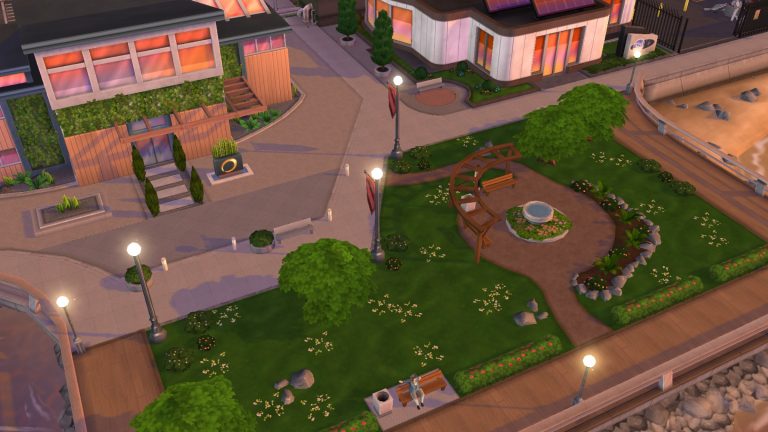
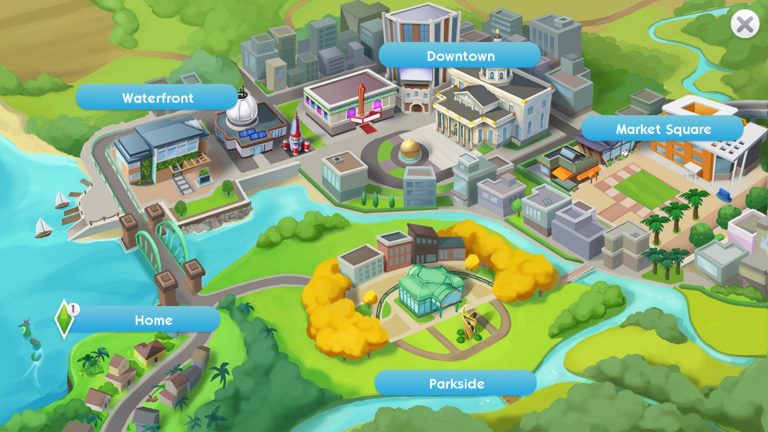
It finally happens. Waterfront after months remained as a locked district has now been released. It comes with a beautiful city theme right along the coast, and the two new venues which will unlock new career stories: The Wellness Center and The Science Center.

The Wellness Center

Discover the path to enlightenment as a wellness guru, and learn that not everything is what it seems on the surface….

To unlock The Wellness Center, you will need: 4 LlamaZoom Tokens + 11500 Simoleons. Unlock this venue will give you access to a new career story: Must Be Something in the Water.

The Sims Mobile: Waterfront Update Walkthrough

The Science Center

Dive deep into the world of a marine biologist, searching for a new species in a high-tech research lab. Will your research provide the next great breakthrough?

To unlock The Science Center, you will need: 4 LlamaZoom Tokens + 11500 Simoleons. Unlock this venue will give you access to a new career story: Rumblings from the Deep.

The Sims Mobile: Waterfront Update Walkthrough

Level Cap Increased

The max player level in the game has been increased to Level 50.

Unlocking Districts and Venues Changes

Unlock Venues in the order of your choice.

Collection Updates

This update also comes with better organisation and new thumbnails in Home Collection.

The Sims Mobile: Waterfront Update Walkthrough

The Sims Mobile: 2 Brand New Careers Confirmed

0

The Sims Mobile Team has confirmed in the update overview on the App Store page that, beside the 2 new careers that we get with Waterfront (Wellness Guru and Marine Biologist) there are going to be additional 2 new careers coming soon to the game.

Plus, skyrocket into the Space Explorer career and go full-out with the Dance Instructor career, both coming soon!

There’s no information when exactly are we going to get the Space Explorer and Dance Instructor career in the game but considering that the team teased them in the patch notes we can expect them to be delivered really soon.

The Sims Mobile: 2 Brand New Careers Confirmed

The Sims Mobile: Waterfront Update has begun rolling out

0

The Sims Mobile’s Waterfront Update has just started rolling out to App Stores and Google Play Stores!

Considering that the update roles out gradually for both platforms it may take a few hours for the update to be available on your area. We’ll make sure to update this post as soon as the update is fully available for everyone to download!

Make sure you stay tuned to our Sims Mobile News Category for all the latest news and updates!

The Sims Mobile: Waterfront Update has begun rolling out

The Sims Mobile: Waterfront Update Video Overview

0

Want to check out everything that’s been added with The Sims Mobile’s update? Check out our video featuring Waterfront, LlamaZoom, New Collections, Careers and a whole lot more!

The Sims Mobile Waterfront Update: Patch Notes (Version 12)

0

Presented by EA Game Changers!

The Sims Mobile is releasing a brand new Waterfront Update with a new area, new careers, new collections and a whole new LlamaZoom feature. There’s plenty of improvements and changes with the latest update so make sure you prepare for tomorrow’s update by checking out the patch notes!

The Sims Mobile Waterfront Update: Patch Notes (Version 12)

Introducing LlamaZoom

LlamaZoom is a brand new feature which is replacing the Daily To Do List. LlamaZoom allows you to take on special challenges multiple times per day, and can be accessed via the LlamaZoom truck at your house or the LlamaZoom button in the UI. Here’s how it works!

LlamaZoom is run by a new character named Emily! She will ask for your help with certain tasks which need to be completed in a set period of time. Completing these tasks will earn you extra Simoleons and XP within the time window. By completing all the tasks for a LlamaZoom session, you will earn bonus rewards along with a valuable new item, LlamaZoom Tokens!

LlamaZoom Tokens

We’ve been listening to all your feedback regarding the large variation of Tickets in the game, and have decided to merge some of these currencies. Upon updating to Version 12.0.0, all your Home and Sim tickets will be converted to a new, single currency called LlamaZoom Tokens.

LlamaZoom Tokens are earned exclusively from the new LlamaZoom feature, and can be used along with Simoleons to purchase items in both the Home and Clothing Catalogs.

Waterfront

After months of taunting you on the World Map, we are excited to finally unlock the Waterfront District! Waterfront is a whole new district which includes two new venues and brand new career stories. Here’s a breakdown of what to expect!

The Wellness Center

The Wellness Center will provide access to the all new ‘Must Be Something in the Water’ Career Story. Discover the path to enlightenment as a wellness guru, and learn that not everything is what it seems on the surface….

The Science Center

The Science Center will provide access to the all new ‘Rumblings from the Deep’ Career Story. Dive deep into the world of a marine biologist, searching for a new species in a high-tech research lab. Will your research provide the next great breakthrough?

Level Cap Increased

The max player level in the game has been increased to Level 50. Level up to earn rewards like SimCash!

Unlocking Districts and Venues Changes

You will now have more control over the order in which you unlock the Districts on the map. You will also have the freedom to unlock Venues in the order you choose. Explore the map to find the best path for you!

Collection Updates

We’re continuing our efforts to better organize the Home Catalog and give you more Collections, so be sure to check out these Collections in the Home Catalog!

  • On a Mission
  • Curbside Appeal
  • Tired Beats
  • Toddler Essentials
  • Colorful Copse
  • Bath Essentials
  • Sleek Sleep
  • Console Gamer
  • Bath Linen
  • Rustic Relaxation
  • Toasty and Cozy
  • Elegant Leftovers

Key Bug Fixes

  • Fixed an issue where some players on version 11.1.1 on Android were asked to update to the latest version on iOS version 11.1
  • Fixed an issue where the Fledgling Streamer station was disappearing from the Home Lot upon zone transition
  • Fixed an issue where the Surgeon Career would be set to Level 0
  • Fixed an issue where the Settings menu button was difficult to select
  • Fixed an issue where the fish in the aquarium were swimming backwards or sideways

The Sims Mobile: Waterfront Wallpapers

0

Presented by EA Game Changers!

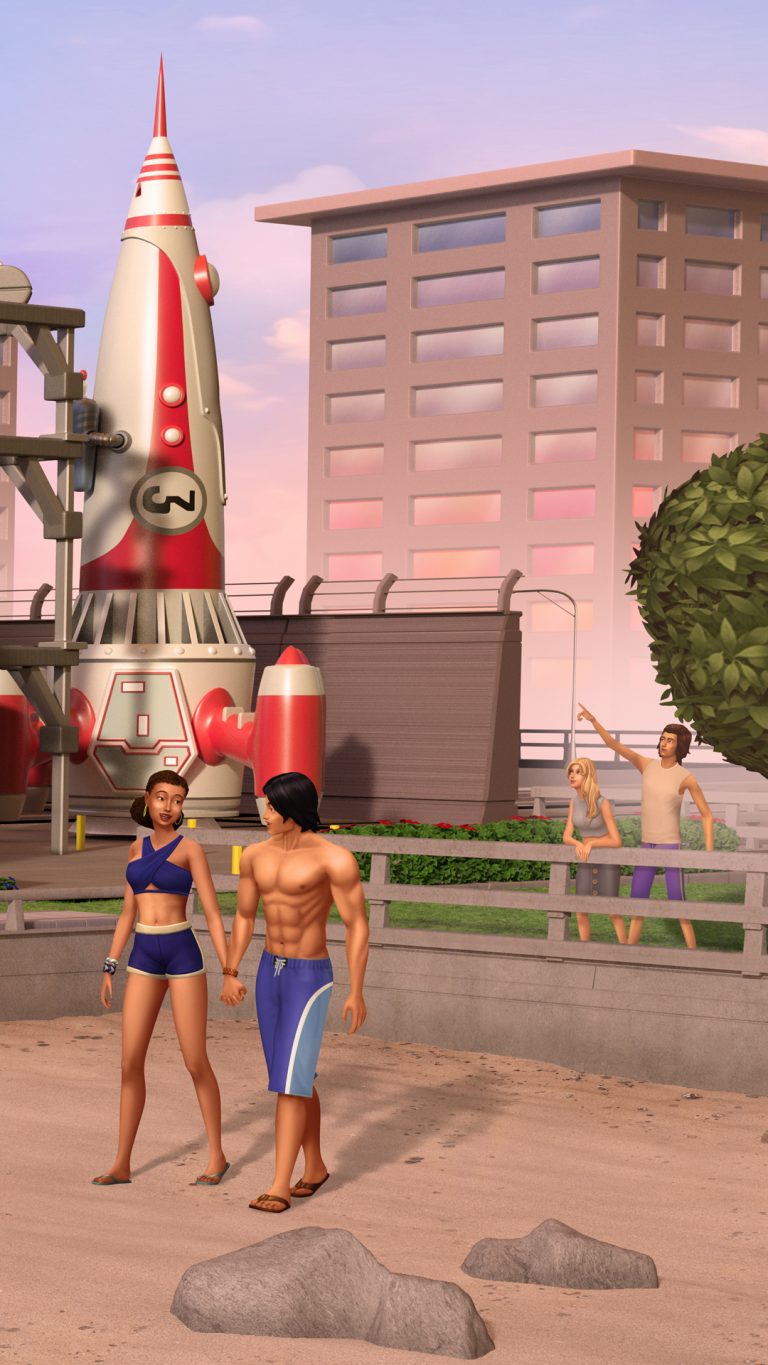
Want to celebrate the launch of Waterfront in The Sims Mobile? Why not refurbish your phone with the colors of the Waterfront Update?

We’ve put together 6 vertical wallpapers for you to download down below! Each wallpaper comes in 1080×1920 resolution and can be downloaded simply by selecting the image of your choice and selecting “Download” in the bottom left corner.

The Sims Mobile: Waterfront Wallpapers The Sims Mobile: Waterfront Wallpapers The Sims Mobile: Waterfront Wallpapers The Sims Mobile: Waterfront Wallpapers The Sims Mobile: Waterfront Wallpapers The Sims Mobile: Waterfront Wallpapers

The Sims Mobile: Waterfront Update is coming Tomorrow!

Presented by EA Game Changers!

After 1 year and 3 months of waiting The Sims Mobile is finally unlocking the Waterfront area!

The Sims Mobile: Waterfront Update is coming Tomorrow!

This exciting update brings a whole new area to play with as well as 2 new career venues – The Science Center and The Wellness Center!

These new careers revolve around becoming a Marine Biologist and a Wellness Guru.

The Sims Mobile: Waterfront Update is coming Tomorrow! The Sims Mobile: Waterfront Update is coming Tomorrow!

Watefront is a beautiful area with an eternal sunset scenery. Right now it’s the only area in The Sims Mobile that doesn’t offer a Special Event opportunity but that could change eventually.

The new update also brings LlamaZoom – an entirely new feature in The Sims Mobile that changes the way you play the game and encourages you to keep playing with Careers, Hobbies, Relationships or a mix of all those 3.

LlamaZoom replaces the To-Do List that we had since launch. Unlike the To-Do List LlamaZoom lets you start an event every 4 hours (if you manage to complete it in a matter of 8 hours that’s it). LlamaZoom is pretty simple to use and doesn’t force you to play the story that you don’t want to play.

Completing the LlamaZoom event will grant you XP + LlamaZoom Tokens. So, what is a LlamaZoom Token?

They’re an entirely new currency in The Sims Mobile that replace Home Tickets and Sim Tickets – simplyfing the economy of the game. Some items in The Sims Mobile now only require a certain amount of LlamaZoom Tokens + a certain amount of Simoleons instead of requiring multiple ticket types.

What happens to your Sim Tickets and Home Tickets? They immediately get converted into the LlamaZoom Token value. These tokens are quite powerful and most items don’t require too much of them in order to purchase that certain item that you want.

This new update also adds 10 new Home Collections in Build Mode. These have been added so that you can search for objects with the same theme more easily.


Are you excited about The Sims Mobile’s Waterfront Update?

The Sims Mobile Version 12 is set to release on August 21st on Android and iOS devices.

Want to see the new update in action? Check out our video overview down below:

The Sims Mobile: Waterfront Livestream

1


We’re having a very special livestream for The Sims Mobile presented by EA Game Changers tomorrow, August 20th at 7PM CET / 6PM BT / 10AM PT.

We can’t say just yet what the livestream is about but one thing is for certain – you don’t want to miss it!

The Sims 4 Tutorial: How To Create a Base Save

We all know the struggle. We spend hours and even days customising our Sims 4 saves just the way we like them. We make over all the premade Sims to suit our tastes. We build up Newcrest just the way we want it. We set up our clubs and edit our homes and community lots with the latest pack content. Then… we decide we want to start a new save file and have to start the whole tedious process all over again. Even if you save all your Sims and lots to your library to plop down, it can still take a long time to import everything.

What if I told you there’s a better way? What if you could have just one base save file already set up exactly the way you want it that you could use every time you want to start a new game? I’m here to show you how to do exactly that.

But First…

Before we get started, it’s important to understand something about how The Sims 4 saves your data. It jumbles all your save files into one folder. To make matters worse, these files have computer jargon names that make it impossible to tell which save files are which. This. Drives. Me. Insane. I hate having it all messily jumbled into one folder.

In order to have a base save, you will need to know which files belong to which save. There is no easy way to do this except by a lengthy process of elimination, which I will go over at the end of the tutorial, but for the immediate purposes of setting up our base save as quickly as possible, follow these steps:

  1. Make a folder in your Documents called The Sims 4 Backups
  2. Inside The Sims 4 Backups, make a folder called Starting
  3. Go to Documents > Electronic Arts > The Sims 4 > saves and copy everything in there
  4. Paste the files into your newly created Starting folder under The Sims 4 Backups
  5. Go back to Documents > Electronic Arts > The Sims 4 > saves and delete everything in that folder. Don’t worry about losing your saves, you just backed up all your saves in Step 4, remember?

Your backup folder should look like this, with all your save files inside the Starting folder:

The Sims 4 Tutorial: How To Create a Base SaveBuilding Your Base Save

Now that your saves folder is empty and all your saves are backed up somewhere else, we can begin with a clean slate. It’s time to create our base save. This is the longest, but probably the most fun part of the tutorial. It may take you days or even weeks to set up your base save exactly the way you want it, depending on how particular you are, but it will be worth it in the end when you have a save file you can always use instead of redoing everything all the time.

  1. Run The Sims 4
  2. You will only have the option to start a new game since your saves folder is currently empty
  3. Start a new game and begin setting it up exactly the way you want it. This is entirely up to you and your own personal preferences, but here are some ideas of things you might want to change or add:
    1. Build or place all the lots you want in the empty Newcrest world
    2. Give all the premade Maxis Sims makeovers to suit your personal taste. I recommend not using CC on these Sims. If you ever get rid of your CC or if it breaks, the next time you start your game, all your Sims will look strange. Same goes for your lots. This is a base save, remember. You want to be able to just load it and go without having to redo your Sims and lots all the time.
    3. Add pets to the premade Maxis households if you have Cats & Dogs installed
    4. Set up your clubs the way you want them if you have Get Together installed. Add whatever clubs you like and edit existing clubs to your liking.
    5. Edit existing lots to include content from later packs that you have installed. I have a laundromat in my game and have added pools and rock climbing walls to my gyms, for example. I’ve also put buffet tables in my clubs and bars.

I’m Finished! What Now?

Awesome! Now it’s time to put your newly created base save somewhere safe in your backups so you can always go grab it whenever you need it.

  1. Whenever you are finished setting up your save exactly the way you want it, save and exit the game. Go back to Documents > Electronic Arts > The Sims 4 > saves. All the files in this folder belong to your base save. Copy everything in this folder.
  2. Go to Documents > The Sims 4 Backups. Create a new folder called Saves
  3. Inside this Saves folder, make a new folder called Base Save
  4. Inside the Base Save folder, make a new folder and title it with the current date. Why date all the files inside your Saves folder? Two reasons: 1) As we get new pack content, you’ll want to edit your base save to include it. 2) Dating each version of your saves gives you multiple backups. If you ever run into trouble with your current version, you will always have a previous version you can fall back on.
  5. Inside your dated folder, paste all the files you copied from Documents > Electronic Arts > The Sims 4 > saves
  6. Whenever you edit your base save, save it in a new dated folder under your Base Save folder.
  7. Now that you have your new base save backed up, return to Documents >  Electronic Arts > The Sims 4 > saves and delete everything in that folder. No worries, you just backed up your base save in the previous step.

From now on, whenever you want to start a new game, instead of clicking New Game, copy the files from your most recent Base Save version and paste them into Documents > Electronic Arts > The Sims 4 > saves. When you run the game, select Load Game and select your base save.

Your new folders should be set up like this:

The Sims 4 Tutorial: How To Create a Base Save


HELPFUL TIP: Always copy, never cut! If you cut your base save files into your game, then you’ll lose the files in your backups which you will need to copy whenever you want to start a new game with your base save.


Dealing With Your Other Saves

The base save tutorial is effectively finished now, but I promised I’d show you how to separate all your saves in the future. This is important because if you don’t do this, your base save files will get lost in the mess of all your other saves, making all the effort of creating a base save in the first place pointless.

Do you remember how you made a folder called Base Save under your Saves folder in your backups? We’re going to do that for all of your saves now, but we’ll have to separate them first. This is a lengthy process of elimination.

  1. Copy (DO NOT CUT) all the files in Documents > The Sims 4 Backups > Starting
  2. Paste it into your empty saves folder under Documents > Electronic Arts > The Sims 4 > saves.
  3. Run the game. You should have all your old saves again when you select Load Game.
  4. Load one of your saves.
  5. ALT + TAB to minimize the game and open up Documents > Electronic Arts > The Sims 4 > saves
  6. Delete everything in that folder EXCEPT THE SCRATCH FOLDER. DO NOT DELETE THE SCRATCH FOLDER. Don’t panic, you have backups of all your saves in your Starting folder, don’t you? Of course you do.
  7. ALT + TAB back into the game and save it. Save it three times just for good measure. I’m paranoid about the game not saving stuff properly so I always save three times.
  8. ALT + TAB back out of the game. Open up Documents > Electronic Arts > The Sims 4 > saves. You should see significantly less files here now which means only the save you just loaded should be here. Copy everything in this folder, INCLUDING THE SCRATCH FOLDER!
  9. Go to Documents > The Sims 4 Backups > Saves and make a new folder for this save. Title it something you will easily recognise, like The Smith Legacy. Anything that will make it clear to you what save it is.
  10. In your new folder, make another folder with the current date and paste everything into that folder.
  11. ALT + TAB back into the game and exit the game, then go back into Documents > Electronic Arts > The Sims 4 > saves and delete everything in that folder since you just backed it up. The scratch folder should be gone now. This is normal. The game is supposed to “hide” this folder whenever the game is not running in order to prevent people from tampering with it. In case it wasn’t obvious yet, it’s a very important folder.

Repeat this entire process from step one for all your saves. By the time you have finished, you should have a backup saves folder that looks like this:

The Sims 4 Tutorial: How To Create a Base Save
These folders are just the names of my own saved games. Your folders will obviously be different. The only folder that should be the same here is the Base Save folder.

Whenever you want to play one of your saves in the future, copy all the files (and the scratch folder if it is there) from your most recent backup of that save and place it into your game. When you are finished playing, save and exit the game like normal, then copy all your save files (and the scratch folder if it is there, but it usually won’t be if the game is not running) to a newly dated backup in the appropriate folder. Go back and delete the save files in your game after backing them up.

If you want to start a new game, do the exact same thing, but with your Base Save folder.

If you do this whenever you want to switch saves or start a new game, you will always keep all of your saves separate from each other. You will always know which save is which and you will be able to use your base save easily whenever you start a new game.

YO SNARKY, WHY YOU SO OBSESSED WITH THE SCRATCH FOLDER? The scratch folder is ironically named. Even though its name suggests it’s just junk files, it is actually a crucial component of your saved games. This folder contains all of the data for your lots in your current saved games. If you were to delete this folder and then load your game again, all of your lots would be gone, replaced with the default Maxis lots. This can utterly destroy some people’s games and stories if they’ve spent a lot of time customising their own lots.


Thank You

Thank you to Tatiana for initially showing me how to separate all my saves and create a base save of my own. She has an older tutorial on Sims Community where she covers some of this, however, the main focus of that tutorial was keeping your Sims 4 folder organised in general. I decided to write up an article dedicated specifically to creating a base save since it was requested by someone in the the Sims Community Facebook Group.

If you’d like to check out Tatiana’s tutorial, you can find it here: Keeping Your The Sims 4 Folder Tidy: Saves. Although there is a lot of overlap in our tutorials, she covers some useful things that I do not. She also goes more in-depth into exactly how to organise all of your backups.

The Sims Mobile: SimGurus hint at the Upcoming Update

0

A few moments after The Sims Mobile Official Twitter Page has posted a mysterious screenshot showcasing a new area SimGurus have started hinting at the brand new update on their profiles.

The Sims Mobile: SimGurus hint at the Upcoming Update

The first SimGuru to post a hint about the new update was SimGuruMiriam, a Game Designer for The Sims Mobile. Her tweet was a picture of two water bottles standing in front of the camera. Water…in front of the camera…well, you get my point.

SimGuruGill, the Creative Director for the game posted a picture of him standing near water.

Beside the fact that he’s standing near water which is a dead giveaway, he also included a lab coat emoji which could hint at one of the unreleased careers for The Sims Mobile that have been uncovered last year.

Are you excited to find out what the hints are all about? Stay tuned to our Sims Mobile News Category for all the latest news and updates!

The Sims 4 Gallery: “MaxisCreator_01” becomes “Maxis”

4

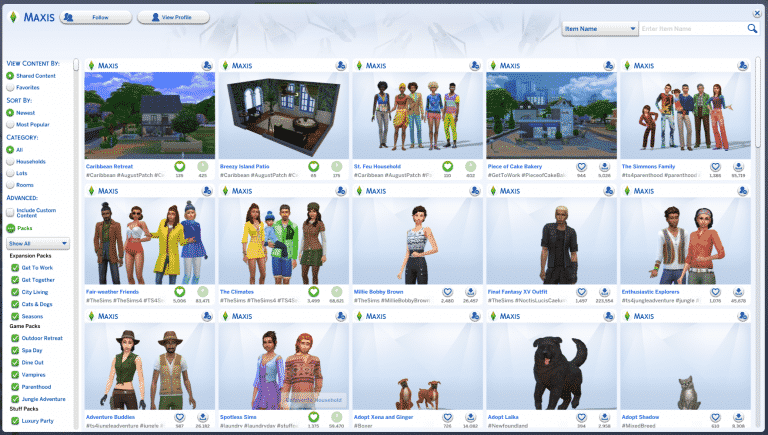
MaxisCreator_01, the EA Origin ID that contains all the official creations for The Sims 4 Packs including Households, Rooms and Lots from promotional material and livestreams has changed it’s name to Maxis!

If you’ve gotten used to searching for official creations under the MaxisCreator_01 name don’t worry – The Gallery will automatically redirect you to the Maxis account.

The Sims 4 Gallery: “MaxisCreator_01” becomes “Maxis”

The Sims 4: Caribbean Update Official Gallery Creations

0

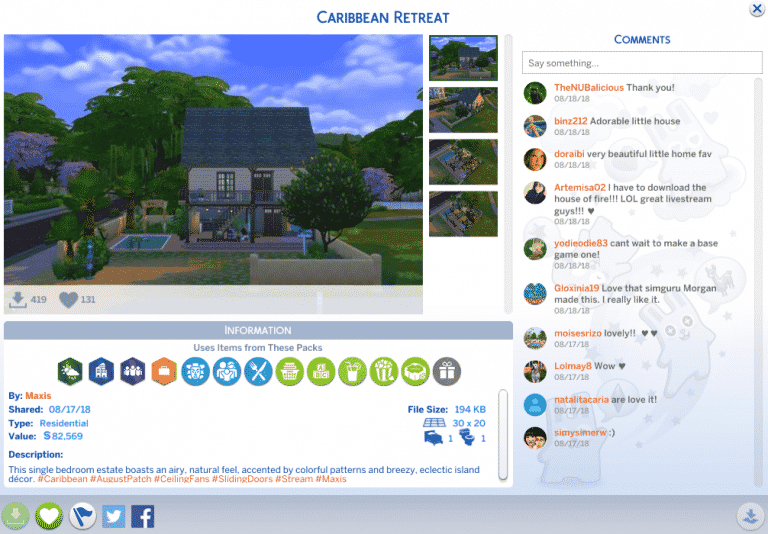
Have you watched the latest Sims 4 official livestream and thought about wanting that Carribean Retreat home built by one of the developers all for yourself? Don’t worry – now you can get it!

The Sims Team has uploaded 3 official creations that they’ve built including a Household, a Room with only Base Game items + Caribbean Update Content and a House which contains that room + items from multiple packs that you can check out below.

Want to download these creations? Click the download links below!