Every now and then my YouTube feed decides to throw a few surprises into my homepage, and recently it has been videos from the very start of The Sims 4’s era. Initially I thought it was just a one off as I had been watching the E3 Streams from this year and older announcement videos as well as my normal The Sims videos from various creators.
First up, I was given the E3 2014 Gameplay presentation for The Sims 4.
I actually remember watching this reveal live and was honestly so surprised at how different The Sims 4 looked at the time, but also how excited I was that there was a new game on the horizon. Even watching the reveal of The Sims 4 now, you can see some of the things that changed, mainly from when that was shown to when the game launched a few months later. The most notable changes was with the user interface.
Of course, the first time that we saw The Sims 4 was actually the previous year at Gamescom in 2013. This was when SimGuruJill showed us the pre-alpha version of The Sims 4 Create A Sim. Even now, it’s interesting to see just how far the Base Game has come since that moment.
After watching both of the presentations, I decided to take a look at a few more of the pre-release videos that were used to help promote the games upcoming launch. It felt somewhat nostalgic looking back at the videos prior to The Sims 4 release. For me, it was around the same time that I started to get back into The Sims properly again.
There was a real feeling of excitement seeing Sims becoming smarter and giving you the more ways to make your stories come to life and be just that little more weird than they were before.
The more I browsed through the pre-launch videos the more I remember thinking about what I would explore first in game and what I wanted to do. The feelings of anticipation and wanting the game to launch sooner than its September date were very real as well. I couldn’t wait to jump in and create my own weirder stories!
I really enjoyed looking back at all of the video but The Sims 4 Academy videos were my favourite ones. They were only short videos but covered a few not so much random topics, but not necessarily topics that would come to mind straight away when thinking about The Sims. However, they were always delivered in a way that really embraced the new weirder side of The Sims 4. Lesson 6 was the funniest one out of all the Academy videos in the way it was done.
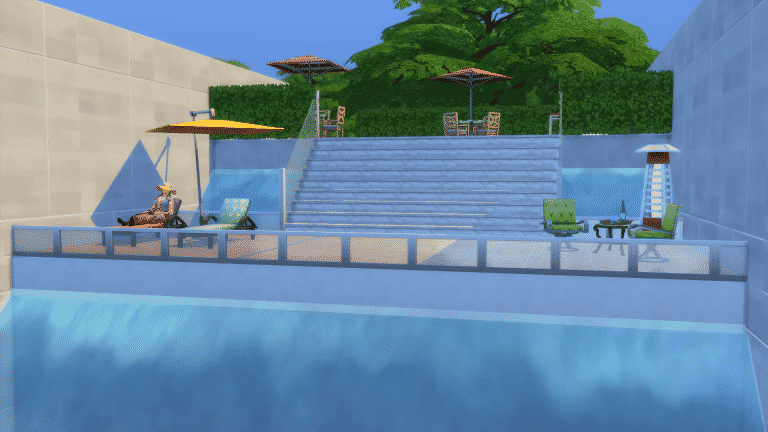
I couldn’t help but also think about how The Sims 4’s launch overall was pretty positive and well-received except we were missing Pools, Ghosts and Toddlers to start with. Now while these were added at a later date it did feel a little peculiar that there were missing at launch. Even now, looking back at each of the releases and updates we’ve had, it’s amazing to see just how far The Sims 4 has come since it was first revealed in 2013. While yes, there are still aspects of the game that need revisiting and there are still a number of features many Simmers would love to see added into the game The Sims 4 really has come a long way.
Let us know what you initial thoughts were from when you first discovered The Sims 4 in the comments below!
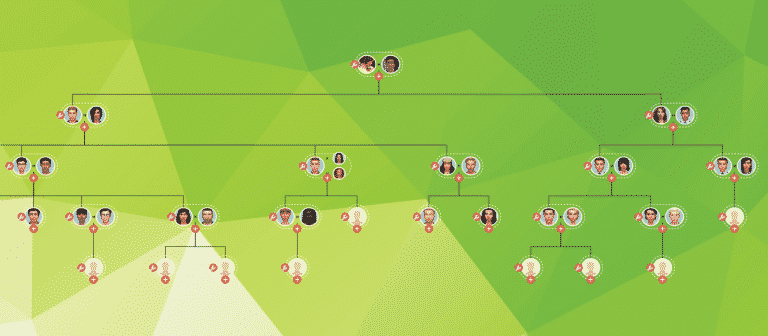
Those of us who love to play through many generations of Sims will know this frustration; after about four or five generations, the game starts deleting Sims from the in-game family tree, leaving you with no way to look back on your progress with your family. The in-game family tree also does not show the entire tree at once; it only shows the active Sim’s direct lineage.
I’m going to teach you how to use a really easy and intuitive family tree tool called The Plum Tree App to document your Sims’ family trees. The best part of this tool is that it’s designed for The Sims, so it’s much easier to use than a genealogy website designed for real people.
Even though The Plum Tree App is set up for The Sims 4, you can use it for any Sims game you want! Just manually put in your Sims’ traits and other info instead of using the preset ones for The Sims 4.
Just Getting Started
Navigate to theplumtreeapp.com and create a free account. You need to have an account to be able to save and keep track of your family trees.
Once you have your account set up, you will be able to start creating family trees. In the same section where you created your account, select Create Tree. As you can see in the screenshot below, I have many family trees already saved on my account, but we are going to start a new one for this tutorial so you can see how it all comes together.
When you create a new tree, you’ll be taken to the following screen where you will be able to name your family tree and give it a description. Be as creative or as straight-to-the-point as you like! Whenever you’re satisfied with what you’ve written, select Create Tree. Don’t worry, you can always go back and edit this later on, so don’t agonize over it too much.
Adding Sims and Their Partners
Okay, here’s where things might start to look daunting, but it’s really not, I promise! In very simple terms, your family tree is made up of nodes and people. The nodes are the empty circles you will see when you add a new spot on the tree for a Sim. When you first create your tree, you have one empty node on the screen.
Each node must be assigned a person. These are the actual Sims that make up your family. Click the Edit button and then click People in Tree to create your first person in your tree.
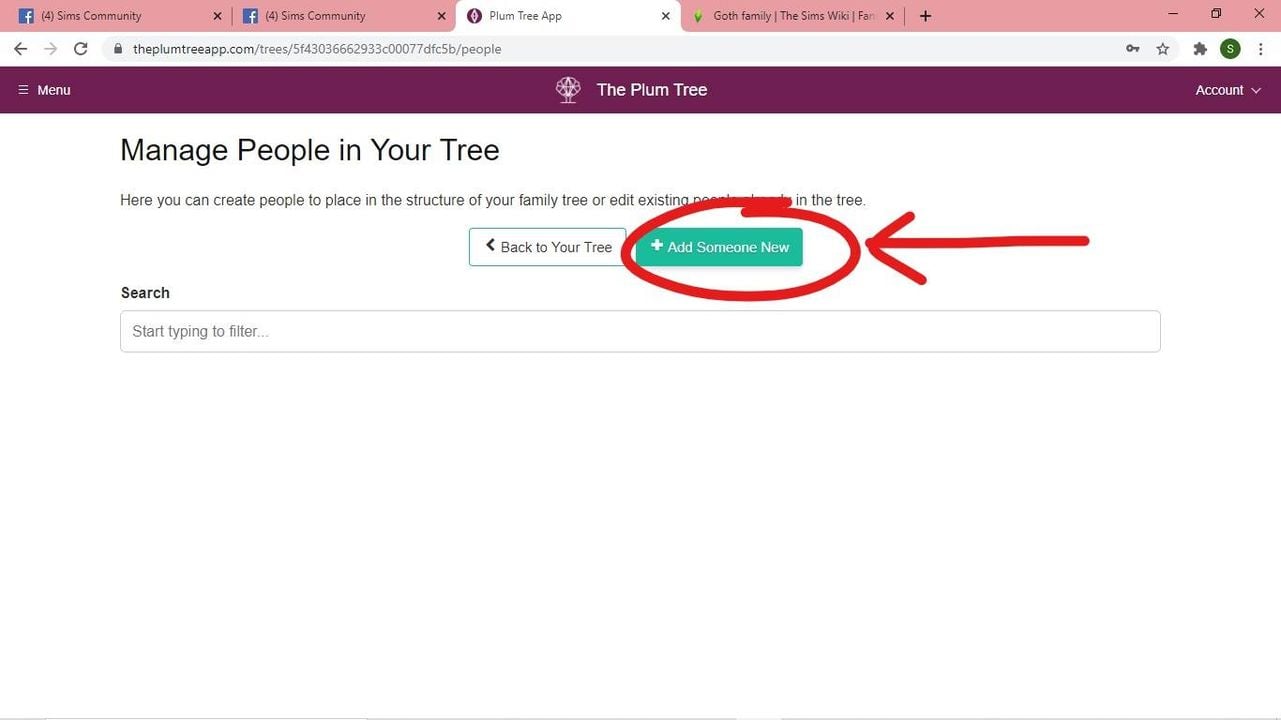
When you choose People in Tree, you will be taken to a screen that lists everyone in your tree. This is where you want to go whenever you need to add a new Sim to the family or when you need to update some info about an existing Sim in the tree. Right now, we don’t have anyone in our tree, so let’s select Add Someone New.
Whoah, there is a lot on the Sim creation screen, isn’t there? No worries, let’s break everything down by numbers.
118358551 1874317402704785 1207190680010725262 n
118366122 1874317676038091 1069062793919778900 n
Your Sim’s picture. This is the portrait that will show up on the tree. Click Upload Image to upload a picture of your Sim from your computer. After you’ve uploaded a picture, click Crop Image if you’re not satisfied with the placement and drag a square around the part of the picture you want displayed. You can also just leave the picture as-is if you like.
Type in your Sim’s full name here.
This is a bio section for you to write anything you like about your Sim. It’s not for factual info like traits and aspirations (those have their own sections). This is more for you to get creative and describe their life and the kind of person they are. You can also just leave this blank if you’re not interested in writing bios or if you have writer’s block. It’s optional.
List your Sim’s traits here. This section will auto-complete traits as you type, including reward traits and traits from DLC packs. If your Sims have custom/modded traits, you can add these in manually, too!
List your Sim’s aspiration here. This section will auto-complete aspirations as you type, including hidden aspirations and aspirations from DLC packs. If your Sims have custom/modded aspirations, you can add these in manually, too!
Put your Sim’s life state here. Are they a regular Sim? A vampire? Mermaid? Spellcaster? Alien? Servo? Ghost? That info goes here. You can even add your Sims’ cats and dogs to the family tree!
This section allows you to add any extra information you want to include. To give you some ideas, I like to use this section to list things like careers, degrees, maiden names, and occult powers/weaknesses (if applicable). It’s totally up to you how to use this section. You can also completely ignore it if you like!
Once you’re satisfied, click Create Person and voila! You have a new Sim to add to your tree! Let’s go back to the tree and assign them to a node!
Mortimer now appears in the list of people but he still needs to be assigned to a node to show up on the tree. Click Back to Your Tree.
Click the wrench icon beside the empty node to add Mortimer to the tree.
This next screen is simpler than the person creation screen, but it’s still important, so here’s another breakdown below.
Set Node Person. This is where you will assign a Sim to the node. Once a node has been assigned a person, that person’s portrait will show up on the tree and you will be able to click on them to bring up all the information you put in for them on the person creation screen.
Set Node Partners. This is where you will assign romantic partners of your Sim. You can add as many partners as you want for a Sim. You can also set each partner as a current partner, an ex, or a spouse.
Set Node Parents. This is where you can assign parents to your Sims. In most cases, you can already see a Sim’s parents by looking at the tree, but this section becomes important when your Sims have children with multiple partners, or when a Sim is adopted by a relative and it’s not immediately apparent by looking at the tree who is a child of whom. I’ll go over this in more detail later, but for now, make sure you are always assigning parents here and indicate whether they are biological or adoptive parents.
To sum it all up, add your Sim the way we just added Mortimer and assign them to a node using the wrench symbol. To add your Sim’s spouses and/or romantic partners, first create the spouse/partner on the People in Tree screen the exact same way we created Mortimer. Then click the wrench icon on your Sim’s node and use the Set Node Partners tool to add them. Adding a partner this way will create a new node on the tree next to your Sim with their partner’s portrait.
Adding Children
Adding children to your family tree is very easy and follows the same basic principles. First create the child from the People in Tree screen the same way we created Mortimer. Then assign them to a node.
I’ve gone ahead and added Bella as Mortimer’s spouse using the same steps detailed above for adding spouses/partners to the tree. Now I want to add Cassandra and Alexander.
The first thing I need to do is create Cassandra and Alexander’s profiles via the People in Tree screen. Every time you want to add a new person to the tree, you must add their profile first. Again, do this in the exact same manner we added Mortimer.
Next, I need to make sure there are nodes to assign them to. I am going to click the plus sign below Mortimer and Bella to create two new nodes for Cassandra and Alexander.
Click the plus sign to add children, then add them to the node using the wrench and the Assign Node Person tool as outlined previously.
Click the plus sign to add children, then add them to the node using the wrench and the Assign Node Person tool as outlined previously.
Now our Goth family tree is complete! Well, their Sims 4 version, anyway. Now that our family tree is looking good, we should save it and then share it for everyone to see!
Saving and Publishing your Tree
Saving your tree and publishing it is easy peasy! Just select the Actions tab at the top of your family tree and select Save Tree to save it to your account. You’ll be able to leave and come back to your tree anytime. Just make sure you don’t forget your account username and password!
To share your tree with the Simming world, select Publish Tree. On the next screen, make sure your tree is set to Public. If you would like to add your tree to the website’s gallery where other Simmers can browse for it, feel free to go ahead and enable that, too. Make sure to copy the link to your tree on this screen before you hit SaveSettings. Then you can post the link to your tree wherever you like!
Creating Non-Nuclear Families
But wait! We’re not finished, yet! I already know what you’re thinking: “Yo Snarky Witch, this ain’t the 1950s anymore!” You’re absolutely right.
Although the Goths are a pretty easy tutorial example because they are a traditional nuclear family, we all know that in both real life and in The Sims, families rarely follow a traditional nuclear family structure. How do you deal with things like divorces, step-children, and half-siblings? Well the good news is that The Plum Tree App is more than equipped to handle these things, too.
Since I’ve already covered how to add people to the tree and assign them to a node, as well as what all the tools on the node screen are for, I’m not going to go step-by-step in this section. Apply what you’ve learned previously in the tutorial to follow along here.
Divorces and Exes
Since the Plum Tree App allows you to add as many partners to a single Sim as you want, adding exes is pretty easy.
On the node edit screen for your Sim, open the Set Node Partners tool. Select Add Partner, then add exes and set them as such.
To add a current partner as well as ex-partners for the same Sim, just select Add Partner again and do the same, but set them as a current spouse or partner.
Step-Children
Step-children of your Sims can be added to the tree as well. They are added the same way any other children are added. You will just need to customize their parent details.
Click the plus sign below your Sim and their spouse’s nodes to add your Sim’s step-child. Click the wrench on the step-child’s node and select Set Node Parents. Add your Sim’s spouse as the child’s biological parent. Do not list your Sim in this section. The step-child should only have one parent listed here; your Sim’s spouse.
If your Sim has adopted their step-child, you can add your Sim as their step-child’s adoptive parent. If not, you can leave this blank.
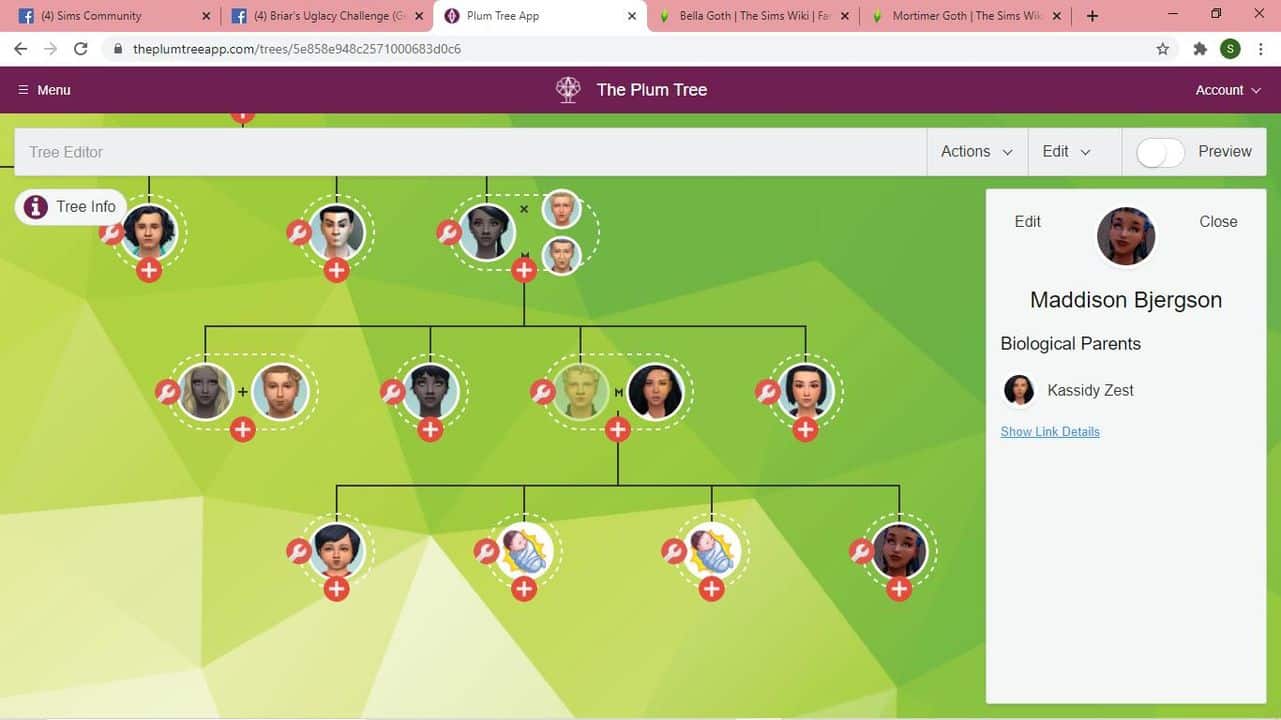
On the tree, step-children will show up alongside biological children, but if you scroll over any of the children, it will highlight their biological/adoptive parents and grey out everyone else. You can also differentiate which children belong to whom by clicking on their portrait. Their parents will be listed in their profile.
My Sim has a step-daughter. I have set his wife as her parent, but not my Sim. When I click her portrait, we can see that my Sim is her step-father by his greyed out portrait and by her parent details in her profile.
My Sim has a step-daughter. I have set his wife as her parent, but not my Sim. When I click her portrait, we can see that my Sim is her step-father by his greyed out portrait and by her parent details in her profile.
Half-Siblings
Half-siblings are also easy to do and work in a similar way to step-children. Make sure you have added all your Sim’s partners, then add all the children the way you normally would.
When you add the children, make sure to specify which two Sims are their parents in their parent details. When you view the tree, you will be able to see which children are half-siblings by clicking their portraits to see who their parents are.
An example of half-siblings from my 100 Baby Challenge. We can see this Sim’s father is Vlad. If we start scrolling over his siblings, it will highlight different Sims above as their father, so we know many of these children are half-siblings.
An example of half-siblings from my 100 Baby Challenge. We can see this Sim’s father is Vlad. If we start scrolling over his siblings, it will highlight different Sims above as their father, so we know many of these children are half-siblings.
Extended Family Trees
Okay, so we’ve covered traditional nuclear families as well as non-traditional families with multiple partners, step-children, and half-siblings, but what about extended family trees? What if you want to add the parents and grandparents of your Sims’ spouses, for example? Is there a way to connect different lineages into one giant family tree that covers all the spouses’ genealogy, too, as well as the genealogy of our own Sims?
Well, sadly… no. That is The Plum Tree App’s one and only limitation. You cannot add parents and grandparents of spouses/partners, so you can’t have different family trees connecting in that way, but as you can see, this is still a very versatile tool that will allow you to customize both your traditional and non-traditional Sims families exactly the way you want them.
And that’s everything you need to know to get started making amazing family trees to document those legacies! It’s also great for keeping track of which Sims are the parent of which children in those 100 Baby Challenges!
Did you find this tutorial helpful? Let us know in the comments or come chat with us on social media!
The Sims Team has published the latest Laundry List for The Sims 4. The laundry list addresses some of the most important bugs and issues in the game that the community have reported and that the team has prioritized to fix in time for the next game update.
Hi Simmers!
Welcome to the Laundry List where we’ll share a list of the top community concerns that we’re currently investigating and hope to have resolved in the upcoming patch.
These concerns were reported by players who help us continue our work of improving the user experience on a regular basis.
Please note that some topics can be tricky and require an extended investigation on our end, so even though we are actively investigating it’s not a guarantee that we’ll have an immediate fix for it in the upcoming patch.
Also note that this is just a list of the “top” concerns. There are more topics that we saw reported by players that are not listed and being worked on.
So, without further ado, here is a list of the top community concerns we’re currently investigating:
Thanks for all your patience and valuable help! Please continue telling us about any issues you’re experiencing on Answers HQ, we’ll continue to work on improving our transparency, and together we can make this game the best that it can be. Happy Simming!
It’s been a long time since I’ve done a Day in the Life segment for Sims Community but the time felt right to bring them back! Today, we’ll be following Piper on a typical day (or night, rather) working in the thrilling field of paranormal investigation! It’s about to get spooky up in here!
Sims Community brings you a day in the life of a Paranormal Investigator!
Piper has been fascinated with things that go bump in the night ever since she was a child sneaking downstairs to watch horror movies late at night after her parents went to bed. She’s been working in the field of paranormal investigation for a few years now and has established herself as a skilled and reliable medium. There’s no ghost problem too big for Piper to handle and she’s scheduled for what seems like a challenging one later tonight.
To prepare for her gig and keep her skills sharp, Piper does some communing with the dead at her own personal séance table. One reason why she’s so comfortable around the paranormal is because her own house is haunted! That’s how she got it so cheap. Well, that and the neighbours are a bit… toothy. It was the perfect place for Piper to put down roots.
She arrives at her gig at exactly 9:30pm that night. The door eerily creaks open despite no one being on the other side. Oh yeah. This house is haunted. Piper can feel the bad mojo in the air. No wonder the inhabitants of the home had sounded so panicked on the phone with her. Piper can handle it, though. By the end of the night, this place will be a boring run-of-the-mill suburban family home again.
She can see the problem as soon as she walks in. The entire home is littered with cursed objects. Demonic dolls, gnarled hands coming up out of the floor, mysterious glowing symbols on the floor, you name it. Piper shakes her head in disbelief. Sheesh, didn’t these people know they have to get rid of these things? Of course the paranormal activity is going to get worse if they just let this stuff pile up! Amateurs…
Oh well. That’s why they called in a professional, after all. It’s time for Piper to get to work.
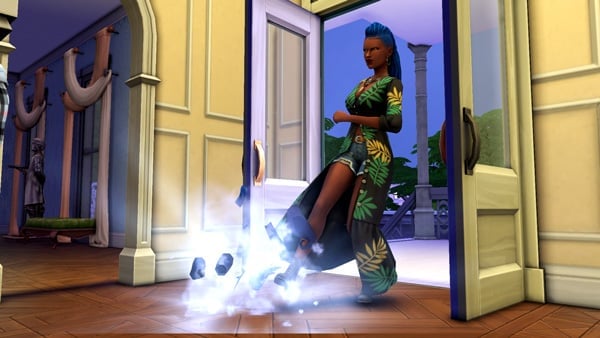
She starts by destroying all the cursed objects she can find in and around the house. There are a lot. The residents of the home tell her they wanted to get rid of them but they were too scared to go near them and the problem just got worse and worse. Good thing Piper has the Brave trait. With all her years of experience dealing with scary situations, not much scares her anymore.
But that doesn’t mean some gigs aren’t still a challenge. It soon becomes clear to Piper that this house’s ghost problem is much worse than she thought. Many homes can be cleansed just by getting rid of all the cursed objects in the home but every time Piper destroys one cursed object, two more pop up elsewhere on the property. This calls for more drastic measures.
She takes out her trusty chalk and draws a séance circle on the ground. This place needs a spiritual ceremony and fast! If she doesn’t hurry, this level of chaos is sure to attract Temperance, the one evil entity no one wants in their home. She can keep Temperance away if she works fast, though.
It takes a lot of time and energy but Piper manages the complete the ceremony without being interrupted. She can tell the ceremony worked immediately. The cursed objects are gone and the energy of the home feels lighter. This house is officially exorcised!
The home’s residents are delighted with Piper’s work. They thought they were going to have to move; calling Piper had been their last resort before just packing everything up and leaving. Now they can enjoy their family home for many years to come and if they ever have another haunting, they know who to call.
8
9
Piper calls her agency to let them know the house was no longer haunted. They’re overjoyed; apparently a few other rookie investigators had run out of the place screaming. They send Piper her payment and a few other goodies that Piper is much more interested in than simoleons.
As an avid paranormal enthusiast, Piper loves to collect more benign versions of some of the creepy crawly things she discovers on the job. This adorable Hello Dahlia doll and impressive hand sculpture will look lovely displayed on her desk at home and the deceptively friendly vines will feel right at home in her yard amongst the rest of Forgotten Hollow’s gnarled foliage.
And that is a day in the life of a Paranormal Investigator! Until next time! Dag-Dag!
Do you like our Day in the Life segments? Let us know in the comments or come chat with us on social media!
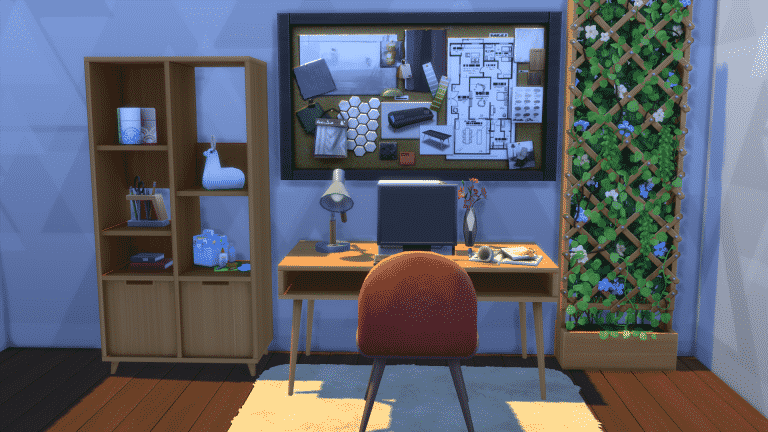
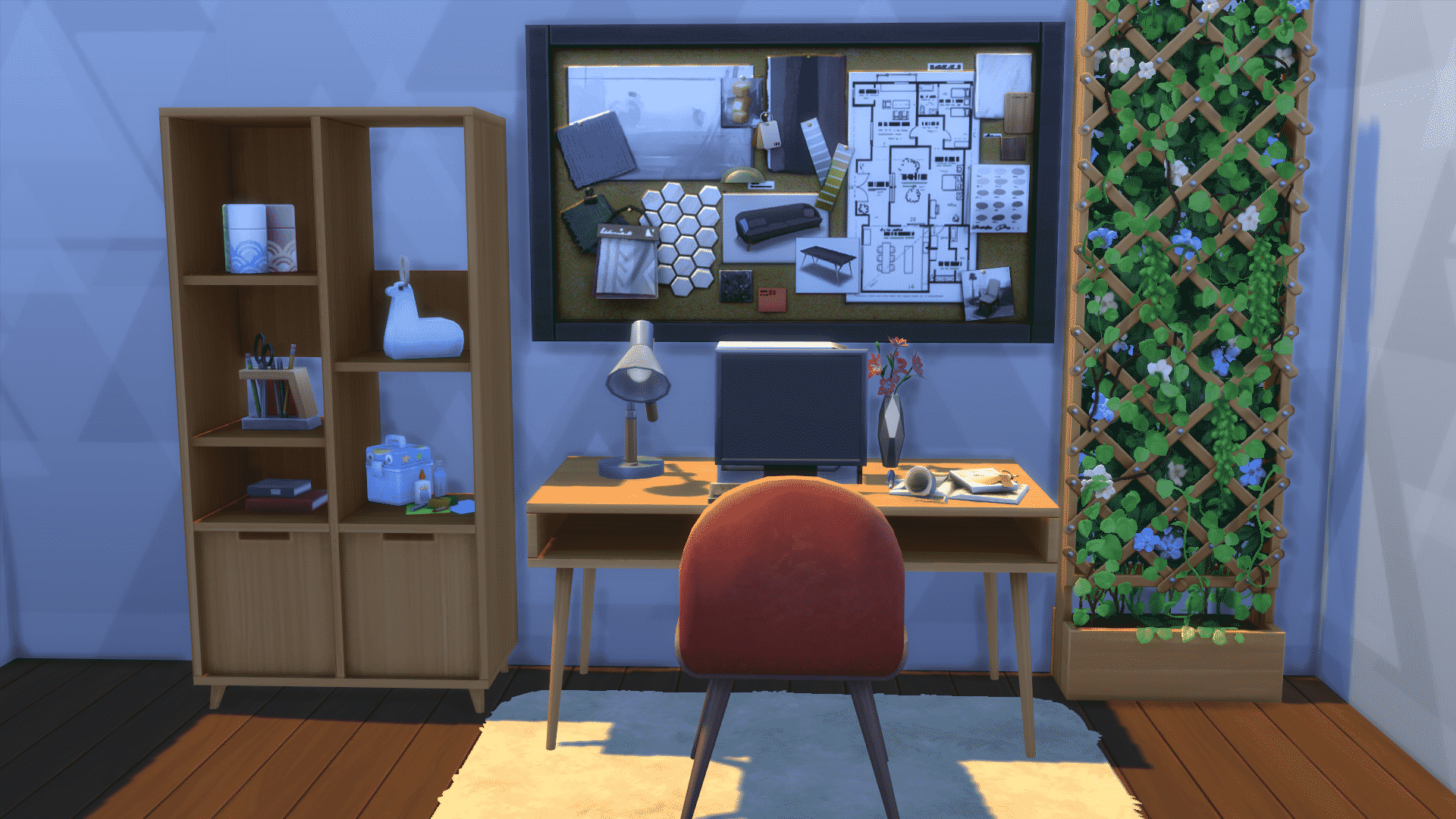
Myshunosun is a creator who creates a variety of different builds and custom content. Using The Sims to bring those ideas to life, she has been sharing her creations online. Recently, Myshunosun released a small custom content collection called Elle Office Surfaces.
The collection features two different size desks and a bookshelf that come in a variety of natural swatches.
Baby Office Desk & Bookshelf
Elle Office Desk & Bookshelf
You can download the Elle Office Surface Custom Content by clicking here.
Make sure you check out Myshunosun’s other creations and builds via the links below.
Sometimes it can feel difficult to know what to build in The Sims 4 or any of The Sims games for that matter. You might have an idea in mind, but when you go to build it in game, it doesn’t quite turn out how you thought it would. We all have times like these in game, and that is perfectly normal.
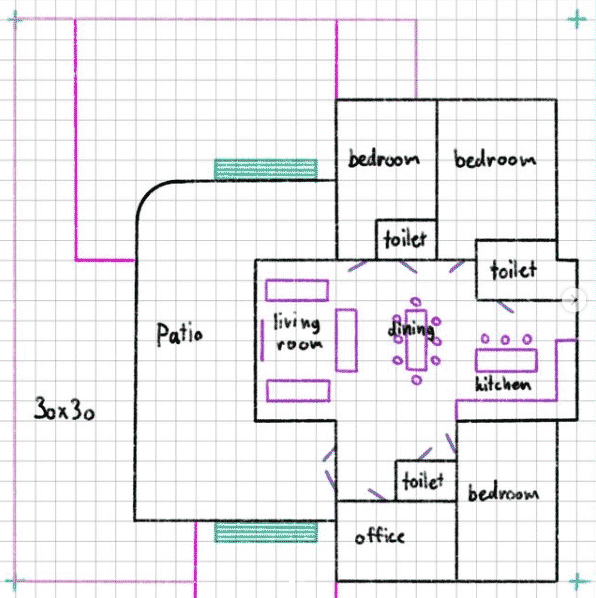
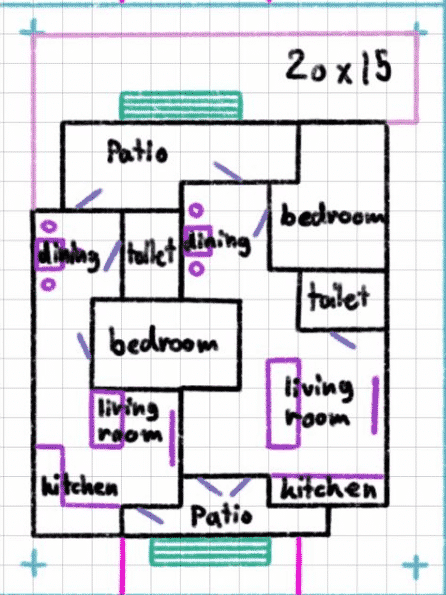
A couple of days ago, I came across Rollos_floorplans over on Instagram. A whole feed full of a variety of different floor plans for The Sims 4! Perfect for if you are looking for some building inspiration. There’s everything from smaller 20×15 lot floor plans, apartment floor plans and floor plans for mansion builds on 50×50 and 64×64 lots!
There is definitely a floor plan for everyone, so why not take a look at some of the floor plans below.
20x20HouseRollosFloorplans
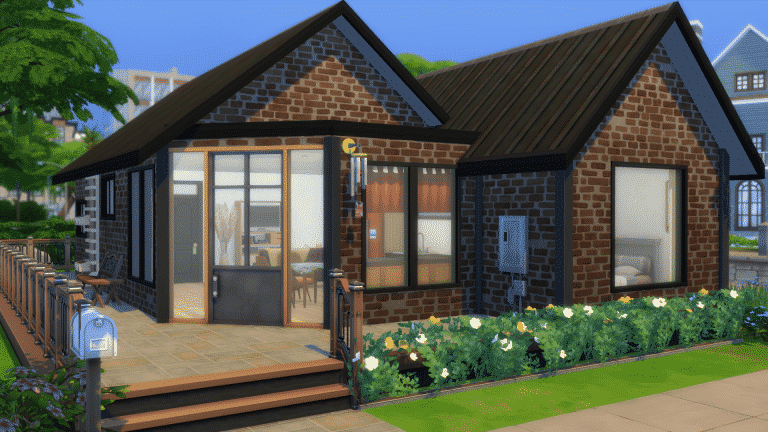
30x30HouseRollosFloorplans
30x20House2RollosFloorplans
40x30HouseRollosFloorplans
30x20HouseRollosFloorplans
20x15DuplexRollosFloorplans
You can find all of these floor plans and more by heading over to Rollos_floorplans Instagram here!
Don’t forget to use the hashtag #rollosfloorplans on The Gallery too!
Have you ever wanted to build a waterfall in The Sims 4 but had no idea how to go about it? Now you can with this handy tutorial from Malindesigns. The tutorial doesn’t require you to need mods or custom content, however you do need to own the Discover University Expansion Pack to have access to the Waterfall as well as Spa Day Game Pack.
The tutorial covers how to create the Waterfall on both PC/Mac and Console, as well as showing you which cheats are needed to find the objects used.
Plumbaleena is a Simmer with a love of pastel colours and French Country Homes who has been playing The Sims since it first came out back in 2000. Now in 2021, she is sharing her creations with the community on YouTube, Twitch and Instagram.
I first discovered Plumbaleena through a tweet that a friend of mine had liked that popped up on my feed one day recently. I decided to take a look at some of her creations and I actually ended up watching so many over the next few days.
Another video that was very insightful and helpful to watch was Plumbaleena’s Landscaping Tutorial. As someone who struggles with landscaping at times I’ve definitely learnt some new tricks to use next time I’m landscaping a build.
Why not take a look at the builds we have featured in this post and many more of Plumbaleena’s wonderful builds over on her YouTube channel!
With Sims Sessions in full swing and music on everyone’s mind, I started thinking about songs that fit some of my favourite premade Sims from different packs. The residents of StrangerVille were at the top of my list because I just knew their playlist would be unique. A town full of paranoid Sims either trying to cover up or unravel a huge government conspiracy? Sounds like a party!
So here is your StrangerVille playlist, inspired by none other than the residents of StrangerVille themselves!
Erwin Pries, “Somebody’s Watching Me” by Rockwell
Erwin has good reason to be so paranoid of everyone and everything but that doesn’t change the fact that he’s a little… eccentric because of it. Rockwell’s song about a guy who thinks he’s being watched everywhere he goes could honestly be Erwin’s theme song.
George Cahill, “God’s Gonna Cut You Down” by Johnny Cash
Johnny Cash’s soulful lament about working so hard just to be struck down by a higher power really resonates with George Cahill’s backstory. After all, he was literally struck down out of the air while flying over StrangerVille and now lives in the ruins of his beloved plane.
Ted Roswell, “Miss Murder” by AFI
Ted might seem like the man in charge in StrangerVille. He is the mayor of the town but he’s actually at the mercy of The Mother and is doing her bidding by protecting the lab’s secrets. He’s been infected with StrangerVille’s virus and it’s not hard to imagine that the Miss Murder figure AFI sings about is actually The Mother, controlling Ted.
Meredith Roswell, “Mad Woman” by Taylor Swift
Meredith might seem like the perfect little housewife to the mayor but Ted is hiding some pretty big secrets and even if Meredith is in on the scheme, I can’t help but think she’s probably pretty angry about being treated like a Stepford Wife in all of this madness. She just might snap one of these days and when she does, watch out!
https://www.youtube.com/watch?v=yUPmC99xlio
Jess Sigworth, “I’m So Sick” by Flyleaf
Jess works at the military base and has unfortunately been exposed to the toxic plants in StrangerVille. She’s infected with the virus and Flyleaf’s song, “I’m So Sick” feels like it suits her. She’s literally sick from doing her duty to StrangerVille and is probably pretty freaked out by what’s happening to her.
Dylan Sigworth, “(You’re The) Devil in Disguise” by Elvis Presley
Poor Dylan just wanted to be a stay-at-home dad and raise a happy family in a quiet town as a loyal military husband but he’s been completely blindsided by his wife’s bizarre behaviour lately. It’s like he doesn’t even know her these days and Elvis Presley’s song about being in love with someone who’s disguising themselves describes his situation pretty well.
Christie Sigworth, “Eva” by Nightwish
Christie is just an innocent kid who really doesn’t have any idea what’s going on in StrangerVille. This song by Nightwish about a child being born into a dark world that’s too cruel for her innocent nature fits Christie well.
Alice Martin, “White Rabbit” by Jefferson Airplane
Alice Martin and Alice in Wonderland have a lot in common apart from their names. Alice just wanted to be creative with like-minded friends in a town with an inspiring landscape but her roommate’s been acting odd lately and suddenly Alice has fallen down a dark rabbit hole of conspiracies and cover ups.
Mark Eggleston, “Get Out Alive” by Three Days Grace
Mark seems to be the only person who’s remained relatively untouched by the craziness in StrangerVille but it’s inching closer and closer to him, since his roommate, Leslie, is infected. This song by Three Days Grace describes someone who is watching the people around them fade away into the darkness and the only way for them to survive is to run far away from it. Maybe Mark should just run far away from StrangerVille.
Leslie Holland, “Disturbia” by Rihanna
Leslie just came to StrangerVille to live a peaceful, creative life with her friends in a scenic atmosphere but she’s been infected by StrangerVille’s toxic plants and she’s no longer in control of herself. Rihanna’s song about being frightened by the thoughts in one’s own head probably describes the confusion and paranoia Leslie is feeling.
Let us know if you liked this Sims-themed playlist here in the comments or come chat with us about it on social media!
Welcome to a brand new segment on Sims Community! The Storyteller Spotlight is designed to shed some light on talented storytellers in our community; more specifically, up-and-coming storytellers who may not have a large following but do have a large amount of talent! I’ll be showcasing both written stories and machinimas from some amazing storytellers in the community.
Our first Storyteller Spotlight is Play With Ali on YouTube!
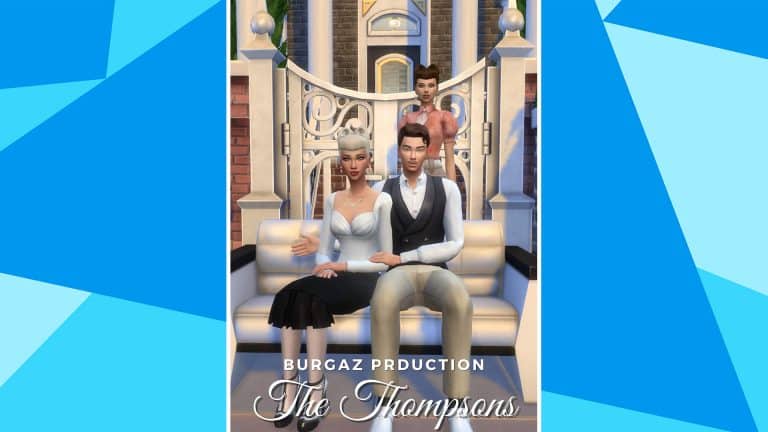
Play With Ali has just launched a new machinima called The Thompsons on their YouTube channel!
The Thompsons is a short drama film about a seemingly perfect couple who turn out not to be as perfect as their neighbours might think. My favourite thing about it is how Play With Ali doesn’t rely on a lot of custom animations or flashy video effects to tell the story. The whole film feels very organic and true to the spirit of The Sims but the soundtrack and cinematic transitions still create an exciting feeling of suspense.
Be sure to watch the video and subscribe to Play With Ali for more machinima coming in the future!
The Sims 4 got a personality improvement for Sims back in late May with the Likes & Dislikes Preference addition. This feature allows players to choose which Music, Colors, Activities and Architecture (with Dream Home Decorator) their Sims like or dislike.
We got a hint with the release of the update in the patch notes that the current categories added to the Base Game are only the first iteration:
Sims can now have Likes and Dislikes! For our first sweep of Like and Dislike categories added to Base Game, you can now define whether your Sims Like (or Dislike) various Colors, Music Genres, or Activities in Create a Sim near the Traits Molecule.
In the latest Inside Maxis livestream the developers revealed that next up they’ll be tackling new music preferences & activities for the future update:
Will the likes & dislikes system be expanded in the future?
Well we saw a very positive reaction from the community when we added the new likes & dislikes in the base game last month but we definitely don’t want to stop there! We definitely want to add new music preferences & activities as time allows.
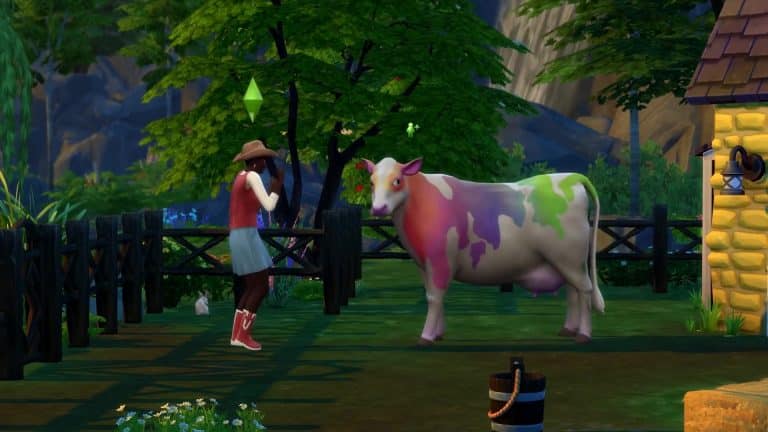
It’s here! The highly anticipated gameplay trailer for The Sims 4 Cottage Living has been released, and the community are loving it! There was so much packed into such a short amount of time that it was hard to keep up at times!
While Harold the Llama well and truly stole the show and kept us well-informed throughout the video, we couldn’t help but take a look at what the community thought of today’s gameplay trailer!
I just watched it! It’s so different to other gameplay trailers but I love it! it was so cute!!! I can’t wait have llamas in game!!😍
Now, there was one last tweet from a particular SimGuru that stood out to us. It has us curious, we have questions that now need answers! Seriously, we need to know if this is possible!
This is what I’m calling the 100 chicken challenge I want to make.
— 🐔🐮🦙SimGuruPopcorn🦙🐮🐔 (@SimGuruPopcorn) July 1, 2021
What was your favourite part of the gameplay trailer? Let us know in the comments below!
Have you ever wished you could make your own styled looks in The Sims 4? Well before now, it was thought to be impossible but of course the modding community has done it again and cracked the code! MizoreYukii has figured out how to create custom styled looks for the game and was kind enough to write a tutorial so others could do the same! It works with both CC and Maxis-only looks as you can see in the image below.
Thanks so much for being so helpful and sharing your knowledge, MizoreYukii!
This tutorial requires you to use The Sims 4 Studio so it’s recommended that you have some familiarity with creating CC beforehand but even if you don’t have any prior experience with Sims 4 Studio, MizoreYukii does a great job of carefully walking you through the process step-by-step, so don’t be afraid to try this out if you’ve never made any custom content or mods for the game before.
When The Sims 4 Cottage Living Expansion Pack was announced we had a few hints of the new feature called Lot Challenges coming to the game.
Today we’ve got new information and a special preview from the gameplay trailer for Cottage Living showcasing the new Lot Challenges!
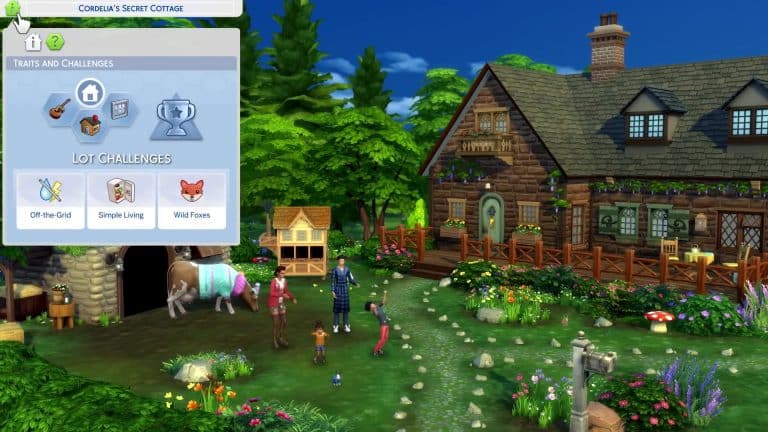
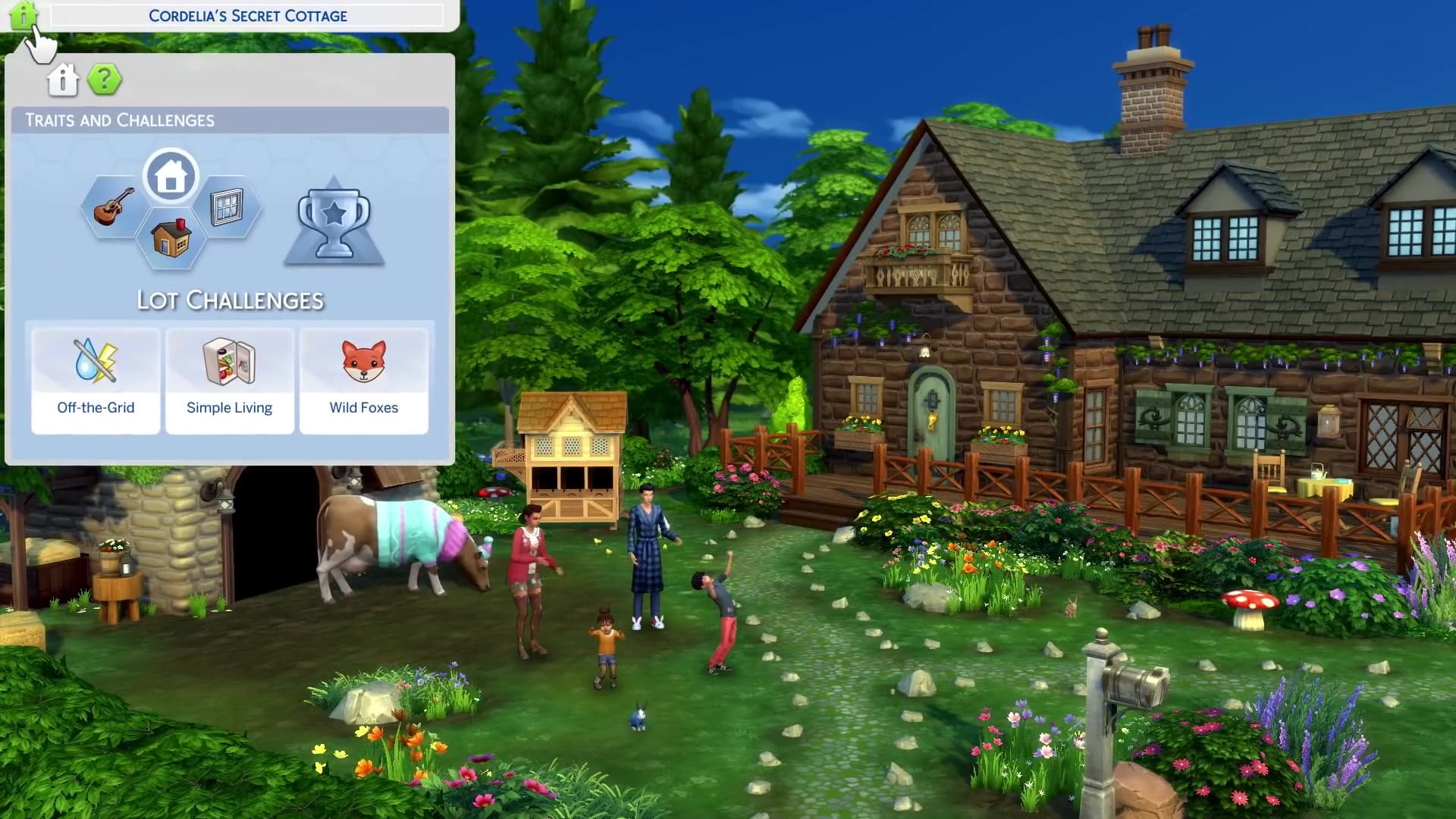
As you can see in the screen below the Lot Traits section in Build Mode has been updated with a new Challenges section on the right side where the trophy is.
Listed below are 3 challenges coming with The Sims 4 Base Game and Country Living, which includes:
Off-the-Grid (which seems to have been moved from the Lot Traits section)
Simple Living (Cottage Living EP)
Wild Foxes (Cottage Living EP)
We all know how Off-the-Grid works, and we’ve gotten a special preview of Simple Living from the first official blog post:
The Simple Living Lot Challenge makes cooking cheaper, but it also means recipes depend entirely on what you’ve got in your inventory. Forage in the nearby woods for mushrooms and berries, borrow some milk and eggs from your animals, and keep your garden full.
We can also assume that the Wild Foxes Lot Challenge might have something to do with Foxes spawning at your Lot at any given time, as shown in the trailer:
SimGuruRomeo also shared an insight on Lot Challenges, saying that you’ll be able to have as many Lot Challenges as you want. He also shared that “If you have more packs you will have more Lot Challenges” – which could mean that some Lot Traits from previous packs have migrated to Lot Challenges.
You can actually have as many Lot Challenges as you want. What you see in the video are the 2 Cottage Living Challenges and Off the Grid from Base Game. If you have more packs you will have more Lot Challenges.
TheSims.com has published a brand new blog post – sharing more exclusive details about Henford-on-Bagley – a brand new world coming with The Sims 4 Cottage Living Expansion Pack!
Learn all about the new world down below:
I’m in Henford-on-Bagley!
Sul Sul… Is this how it goes? No matter. Hey there, it’s me, Harold the Llama, and before you go about wondering how a llama like myself managed to prepare a blog, I’ll have you know these nails have been trimmed to perfection to reveal the capable keyboard connoisseur that I am. But my motor skills are not what this is about! It’s about my charming home of Henford-on-Bagley.
Sim legends of old say that Henford-on-Bagley was created from the perfect mingling of earth and water… but I’m pretty sure some Sims loved the nearby Cordelia Falls and that the River Bagley runs through it in all of its glory. Hmmm, majestic.
Finchwick is the home of the weekly – yes, weekly – fair in which locals put their skills to the test in creating the most sophisticated and delicious creations, such as pies, as well as show off their most prized animals *cough cough* myself included *cough cough* and oversized crops – trust me, the bigger the better – to be judged, as it is tradition, by the Mayor no less! Winning or just participation will get you a reward, but to be honest, it is all for bragging rights and what is better than bragging rights anyway, am I right?
This neighbourhood hosts the historic square which is also home to the busy marketplace – perfect if you love window shopping – and the village pub – ‘The Gnome’s Arms.’ The marketplace is where you’ll find Goldbloom’s Grocery Shop, home of the best produce! But don’t take it from me, try some yourself! I recommend their aubergines… that’s an eggplant for the non-locals.
Another iconic spot is the Crumplebottom’s Garden Shop, owned by Agatha Crumplebottom, and run by Agatha and Agnes! This shop will serve all of your gardening needs, as well as some extra things… not quite for gardening, but for enjoying nonetheless such as conserves and jams… mmm, jams. Now I want some crumpets and jam, the superior option to buttered crumpets – fight your chickens about it, not me. I should ask my keeper to make some… but who am I kidding, I can only eat feed for llamas (well, sometimes a treat) *sigh* A llama can dream after all. Just don’t tell Agatha if you make some, or she’ll send her gnomes to take them for sure as they are her favourites.
But, back to The Gnome! If you’re feeling quite curious or in need of a little drama for your llama, you can enter The Gnome’s Arms for a chance to listen in on the village’s gossip, history, and what is happening around it. Owned by the Scotts, Simon and Sara, this pub has been a dream come true, despite Simon running randomly into chickens – or me for that matter – along the way. This is where everyone knows everything about everyone, so take advantage of that as you visit! And their food is amazing, make sure to try their Bangers and Mash or their Beef Wellington; I hear it is fantastic. Enjoy the convivial mood by having a Henford Heart-to-Heart with or offering a Finchwick Favor to Sara, who should be minding the bar, for good measure. Sara can give you advice if you seek it, or maybe share some ghost stories if you want to know them.
If you’re in a helpful mood, you may also help Sims with village errands and learn more about their backgrounds, interests, and what they do around town! Or just for the good rewards, if that’s your bag.
Trotting along, we find Old New Henford. A fun piece of trivia for you all: it was originally named ‘Little Henford.’ However after some consideration, it was proposed that ‘New Henford’ would be better suited… more posh if you will. Unfortunately, there was a mishap with the national mapmakers and the town apparently ceased to exist for two whole weeks! Ha! Imagine that? Well, after that of course the town needed a new name and Old New Henford was picked, and here we are.
This part of the village is known for their lush estates, rolling hills, and their small – but beautiful – community garden. This neighbourhood used to be one giant property owned by the Watson family, who sold plots of it over the years. They still own a sizable estate perched at the top of the Olde Mill Hill – you can’t miss it.
You will find that this part of town is perfect to have a lot with a garden and space for livestock and oversized crops! You can always take notes as you stroll around the area and see how the townsfolk are doing with their gardens and plots.
Old New Henford is the perfect place for those that love animals like yours truly. In this neighbourhood you can find rabbits hopping about, wild birds you can sing to, and cheeky little foxen that you can befriend… but beware of their mischievous nature! They will want to surprise you and *mumbles* you’ll want to be sure your chickens are accounted for *mumbles.* This part of the town is also great for those who love to fish. Who knows, maybe someone finally will catch that wolf eel I keep hearing about.
You can even say that it is an idyllic place for a new start. Just ask Cecilia, one of our newest residents who moved in recently from the big city looking for a new life after having her heart broken. Now she shares her life with us living in a fab, refurbished barn. She loves keeping her garden, and her chickens! She is a lovely neighbour. I hope one day she finds true love. Unfortunately for Michael Bell, the local Creature Keeper, he is not her chosen one, but at least Cecilia has a long term commitment to all critters that visit for now.
Like Cecilia, if you welcome Wild Animals for visits, some can become your friends for life and even bring you gifts.
From the rolling hills of Old New Henford, we arrive at The Bramblewood.
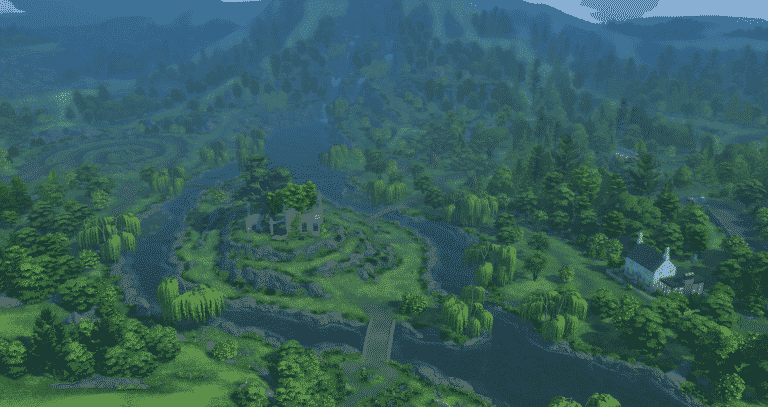
The Bramblewood is the natural beauty of Henford-on-Bagley.These woods have a storybook-like aura that delights anyone who visits. It has long provided a picturesque place for many wild birds, rabbits, and foxen to call home, so you may find yourself among friends here including our friend Michael, our Creature Keeper, who roams the woods on most days caring for animals and plants.
It is truly a wonderful place, where you can forage Chocoberries and mushrooms, including nightcaps – some say that you can only find them at night… aptly named! The Bramblewood can be full of surprises, especially if you encounter the Isle of Volpe, named after Lord Volpe, founder of Finchwick. The Isle of Volpe is one of the most iconic hallmarks of Henford-on-Bagley, not only because of the history reflected on its ruins, but also because it is the most romantic spot in town. Generations of Sims remember their first kiss in the Isle of Volpe *love sigh*, so if you are coming with your sweetheart, you should spend some time there to experience its splendor. Just be careful not to disturb the Creature Keeper’s home. He is a gentle but private Sim.
But if romance is not something you fancy, head out for a bit of adventure and visit the Isle of Volpe Park. Run through the path that leads you to Sophie the Snail, who is always happy to take a picture. If it is calm and serenity you seek, be sure to spend some time visiting Cordelia Falls. In the end, wherever you spend your time in this part of town, it is said that the Bramblewood can change your life forever, and so far there have been no truer words to live by.
And so you see, my friend, whether you decide to come for a visit or move here to my humble countryside town, there is always something happening, something to do, something to dream about, but most importantly, know that we welcome you with open … erhm… feet!