Home Blog Page 278

The Sims 4 Get Famous: Getting Started

Presented by EA Game Changers

The Sims 4 Get Famous is packed with so much incredible new content, it’s difficult to know where to begin. How do you get your foot in the door in Del Sol Valley? The best way to learn is by jumping right into the action. Get the rundown of how to get started through the eyes of my Sim, Cherish Perez, and her spoiled Yorkie, Paris.

Create Your Rising Star

The first thing you’ll want to do is create your future celebrity Sim. Deck her or him out in the hottest Del Sol Valley fashion. Take your time getting your Sim just right. You’ll be spending a lot of time with your Sim as you help her or him rise to fame. Make sure you create an interesting Sim you won’t get bored with anytime soon. Get Famous comes with a huge variety of hairstyles, clothes, and accessories to mix and match as you please. If you don’t want to spend ages picking out clothes, use the new Get Famous styled looks to quickly turn your Sim into a star.

The Sims 4 Get Famous: Getting Started

Here’s Cherish. She wants to be an award-winning actress and has the attitude to match. She’s ambitious, a dog lover, and self-absorbed, which is a hilarious new trait that comes with Get Famous. We have a diva in the making!

Moving Day

Your Sim doesn’t have to live in Del Sol Valley to become famous, but it sure is useful to be close to all the action. Mirage Park is the perfect neighbourhood for an up-and-coming star to get their foot in the door and make a first impression. Choose the starter home in this district or select the empty lot and build your own modest little abode.

The Sims 4 Get Famous: Getting Started

Cherish isn’t one to get her hands dirty with building. She’s impatient to get out there and start turning heads, so she moves into the starter home in Mirage Park. After a few pup-approved purchases, it’s the perfect home for her and Paris to start their lives in Del Sol Valley.

Choose Your Path to Fame

There are many ways to become famous in The Sims 4 Get Famous. The new acting and influencer careers are an obvious choice, but your Sims can become famous in any career or skill. You can even become famous for donating to charities. Just look for actions with a (+Fame) symbol next to them, highlighted in green. These actions will build your Sim’s fame.

The Sims 4 Get Famous: Getting Started

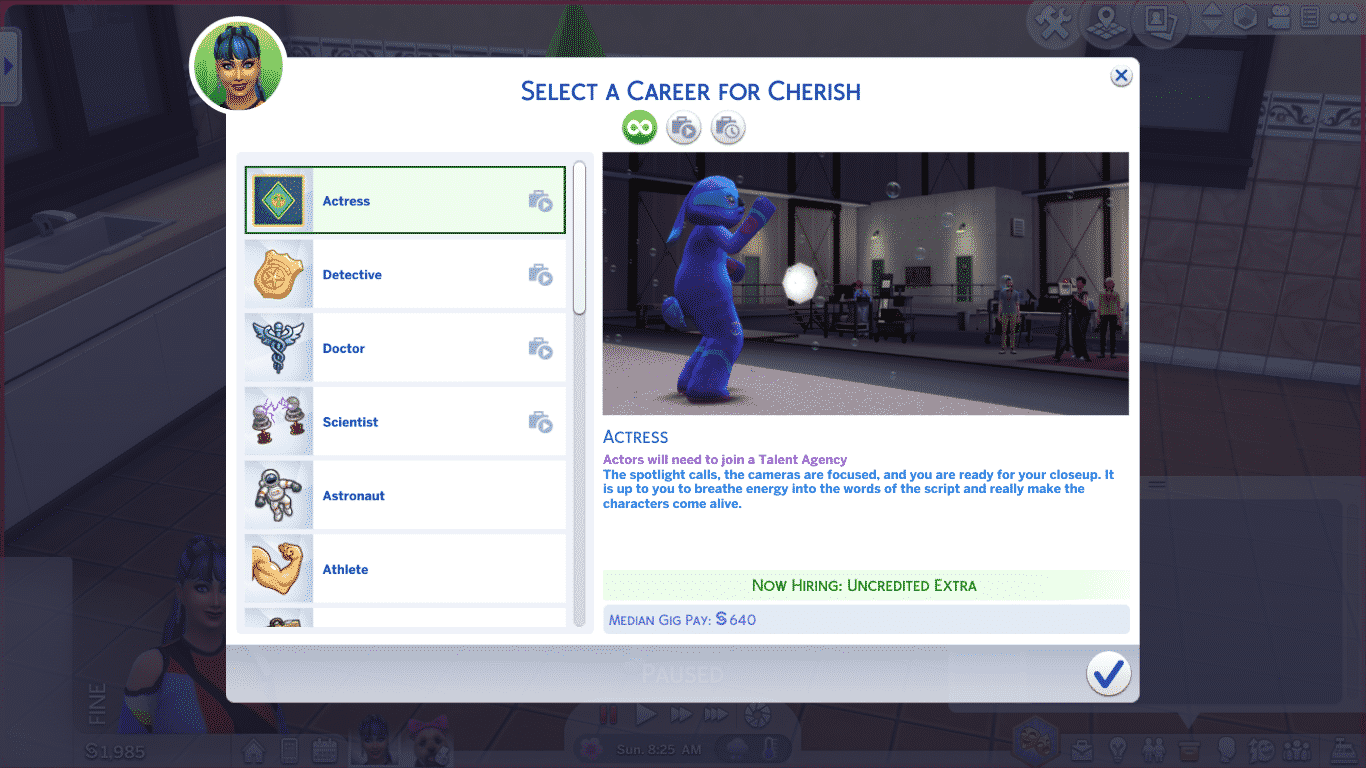
Cherish has big ambitions of becoming a world-famous actress, so I got her a job in the acting career by using her cell phone. For a more in-depth guide about the acting career, see our article: Getting Started with the Acting Career in The Sims 4 Get Famous.

She signs up with a talent agency and schedules an audition, but in the meantime, she’s free to explore the city.

Make an Impression

Cherish knows that being a hermit hiding inside her house is no way to get famous. She needs to get out there and be seen by other Sims. Your Sims won’t get anywhere by just minding their own business and living their day-to-day lives. They’ll need to interact with lots of Sims and put themselves in the spotlight. Both fame and reputation depend on your Sim getting noticed by other Sims.

Cherish hits the town with Paris at her side to go celebrity sight-seeing and meet new people. Starlight Boulevard is a great spot to look for celebrities and put on a few impromptu performances. Look out for Sims with a glow around them. These Sims are famous! If you don’t like the celebrity glow, you can toggle it off by clicking on the famous Sim.

The Sims 4 Get Famous: Getting Started

Cherish attempts to introduce herself to a few celebrities, but because she’s still a nobody, her inner fangirl gets the best of her. She’s too starstruck to put together a coherent introduction. She does manage to get a selfie with a handsome celebrity on the walk of fame, though!

Get Down to Business

However you choose to get famous, you’ll have to work at it constantly. Fame is fleeting and fickle. If you’re not constantly in the spotlight, you’ll find yourself fading away into obscurity. To avoid becoming one of those unfortunate washed up has-beens, continue doing things that will improve your fame. Upload videos, put on public performances, work on your careers and skills. However you choose to find stardom, make sure you’re getting noticed. Get out there and be seen!

The Sims 4 Get Famous: Getting Started

Cherish has the right idea. She’s constantly scheduling auditions and landing gigs. As soon as she wraps up one gig, she makes sure she has another audition lined up. Take a leaf out of Cherish’s book and make sure your Sims are always striving for the limelight on their chosen path to fame.

The Rundown

That was a lot of info. Let’s break it down into steps:

  1. Create your future star
  2. Move them into their new pad
  3. Get out there and meet new Sims
  4. Perform actions that boost fame
  5. Stick with it! A lazy star is a fallen star!

That’s all there is to it! Be a sociable Sim and keep doing fame-related activities and you’ll be walking the red carpet in no time!
The Sims 4 Get Famous: Talent Shows & Celebrity Awards

Footage that you see down below is presented by EA Game Changers

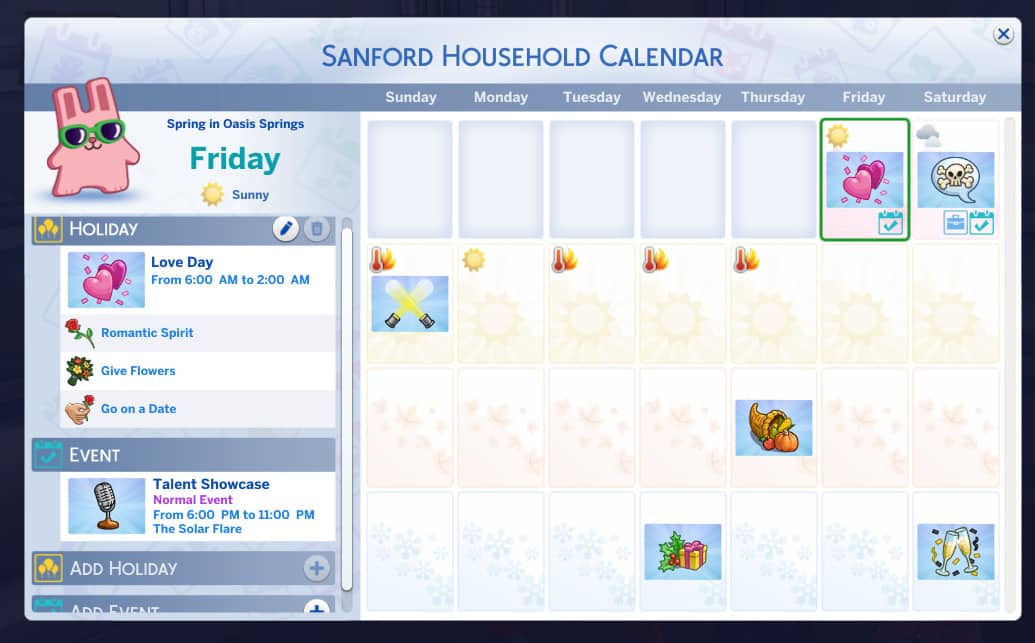
The Sims 4 Get Famous sees two new additions to events added which you can find in your Sims Calendars.

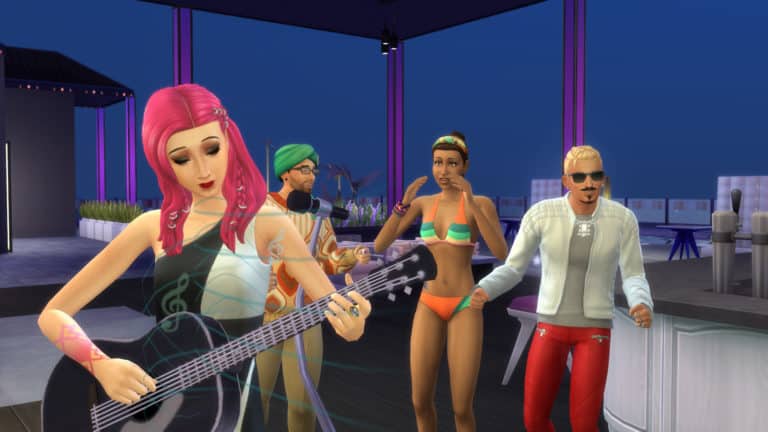
First up is the Talent Showcase. This can be held in various lounge venues across the game. This is the perfect opportunity for your Sims to show off their skills and get noticed by other celebrities.

The Sims 4 Get Famous: Talent Shows & Celebrity Awards

The event its self is simple and straightforward. Once your Sim arrives at the venue simply walk over to the bar and then “join open mic.” Once you have done that simply wait for your Sims turn to perform and then head for the microphone stand or an instrument. You’ll get a notification letting you know when it is your turn.

The Sims 4 Get Famous: Talent Shows & Celebrity Awards

Inbetween your Sims performance and the end of the event you can watch other Sims perform, socialize, interact with fans and more.  Once the event finishes at 11 pm you will receive a notification telling you that the event has ended.

The event pops up a couple of Sim days in a row and is then followed by the Starlight Accolades event that is held at Studio PBP in Del Sol Valley. At the star-studded Starlight Accolades, celebrities from across the world will gather to see who will be lucky enough to be given a Starlight Accolade Award.

The Sims 4 Get Famous: Talent Shows & Celebrity Awards
With every Sim who wins they will pop up to the microphone and give an acceptance/thank you speech. There are about four different accolades that Sims can be awarded including Best Video and 110% Starlight Accolade Award.

Although these are just two new events that come with the new expansion pack you can also create your own events including Meet & Greets (which also show up as its own event in the calendar and will guarantee your Sim a chance to meet another celebrity), Charity Benefit Party or create your own star-studded celebrity event!

But say you want to create your own venue to host a talent showcase or even the Starlight Accolades Awards or any celebrity event. Well, you can. Make it as extravagant as you want or even as minimalist. Whatever kind of Lounge venue you want to create. Create it! Just don’t forget to add the lot traits that you want.

The Sims 4 Get Famous, however, adds two new Celebrity venue specific lot traits.

The Sims 4 Get Famous: Talent Shows & Celebrity Awards

Hottest Spot In Town – A place for the Superstars, the VIPs, those who achieved victory over the commonplace! After all, who else could afford these hyperinflated prices? Not you… no. But at least, the Starlight Accolades can only happen on Lounges with this trait.


The Sims 4 Get Famous: Talent Shows & Celebrity Awards

Up-and-Coming Hotspot – At least your sims can say they ‘went here before it was cool.’ Also, cheap drinks and eats for the super famous! Even better, Meet a Celebrity events can only happen on Lounges with this trait.

For the talent showcase event, it appears as though the game will randomly select from any of the lounge venues that are in your game regardless of which world they are in.  As for the Starlight Accolades, the game will choose from only lots that have the Hottest Spot In Town lot trait.

Let us know what Starlight Accolade Awards you think your Sim will win and what celebrity events you will create for all the hottest celebrities to attend in Del Sol Valley! Also if you create any celebrity inspired venues share them with us on Twitter and on Sims Community Social!

Getting Started with the Acting Career in The Sims 4 Get Famous

In The Sims 4 Get Famous, there is so much to do and explore that learning the ins and outs of every feature can feel a bit daunting when you first dive into the expansion, but not to worry. Sims Community is here to help your Sims get that coveted star on Del Sol Valley’s walk of fame.

Your Sims can become famous in almost any way you can imagine, but one of the best ways to rise to the top is by becoming a world-class actress or actor! The brand new acting career is a fully active career with its own hidden career venue, but if you think the acting career is just a tired rehash of the careers from the Get To Work expansion pack, think again! The acting career provides a level of depth and detail never before seen in a career.

Without further ado, let’s dive in!

Becoming an Actress or Actor

It’s easy enough to get a job in acting. Just use the phone to find a job and select Acting from the job list.

Getting Started with the Acting Career in The Sims 4 Get Famous

Once you’ve joined the acting career, your Sim will need to pick an agency to represent them. As your Sim becomes more famous and gains promotions in the acting career, more agencies will become available to represent your Sim. To start out, you’ll only have two agency options to select from.

It’s important to select the right agency for you. Each agency provides a different benefit to your Sim. Hover over the different agencies to see what perks they give your Sim and base your choice on that.

You can switch agencies using the phone. You’ll want to do this whenever new agencies open up to your Sim. Bigger and better agencies will want to represent your Sim as they become more high profile.

Auditions

Unlike other careers, acting isn’t a 9-5 job. Your Sim will be working from gig to gig, but in order to land any gigs, your Sim will need to audition for those roles. Open up the job panel and select the clipboard icon to look for auditions. Auditions refresh daily.

In the auditions menu, you’ll be able to see the pay range of the gig and the date and time of both the audition and the gig. You’ll also see the recommended skills for the audition. It’s best to select an audition with a skill recommendation that your Sim can easily fulfill.

Getting Started with the Acting Career in The Sims 4 Get Famous

Once you’ve selected an audition, you’ll need to prepare for it. Make sure your Sim works on the recommended skills and attends the audition in a good mood. Confident is the ideal emotion for auditions, so spend some time psyching your Sim up using a mirror before they head out to their audition.

Your Sim will disappear off the lot for a few hours while they’re at their audition. If your Sim has met the skill recommendations and attends the audition in a good mood, chances are high that they’ll land their gig. If your Sim doesn’t meet the skill recommendations or attends the audition in a bad mood, they may fail the audition. If your Sim fails their audition, you’ll have to look for another audition to attend and start all over to prepare for it.

Gigs

When your Sim passes an audition, they’ve landed the gig. Now they need to prepare for the role. Look at the job panel to see what prep tasks your Sim needs to do before filming begins. Don’t ignore your prep tasks! They’ll determine your success in the gig. More on that a little later.

Getting Started with the Acting Career in The Sims 4 Get Famous

When it’s time for the gig, you can choose to send your Sim alone or join them on set. It’s more fun to join your Sim on set. When your Sim arrives on set, they’ll have a set of goals to complete in the upper left corner of the screen, just like other active careers we’ve seen in the past. Unlike the other active careers, it’s important for your Sim to complete all other goals before they begin filming the production. Once filming has started, all other goals disappear. If you didn’t complete them before, you may not be able to finish the gig at gold level.

Once your Sim has finished all other goals, send them to get their hair, makeup, and wardrobe done in preparation for the production. You’ll get a goal to tell the director you’re ready to start filming when your Sim is in full costume.

When filming starts, select props or your costars on the stage to film different scenes for the production. This is where your prep tasks come into play. When filming a scene, your Sim has the option to take risks or play it safe. If your Sim completed their prep tasks, the riskier options are much more likely to go well, boosting your overall performance. If your Sim neglected their prep tasks, these riskier actions are almost guaranteed to end in disaster, which will hurt their performance.

Cut! That’s A Wrap!

The cameras stop rolling after your Sim has filmed all the required scenes for the production. This will complete the main goal of filming the production. Your work shift will end shortly after.

When your shift is finished, you’ll be able to see how much money and fame your Sim earned. You can choose to send your Sim home or hang around the set for a while after. Sometimes it can be good to stick around and bond with your costars and the crew.

Getting Started with the Acting Career in The Sims 4 Get Famous

It may take a few gigs to earn enough fame to become a Notable Up-and-Comer and earn your first fame point, but you know what they say; that’s showbiz, baby.


What do you think of the new acting career? We want to hear from you! Share your thoughts with us here in the comments or on social media!

8 Features We Love In The Sims 4 Get Famous

Footage that you see down below is presented by EA Game Changers

It’s that time again! Another new and exciting expansion pack is just around the corner so we took a moment to check out some of the new features that are included in the expansion pack.

Del Sol Valley

While the world has received mixed reviews so far you can’t deny that the amount of detail The Sims team have put into the different neighbourhoods and the world, in general, is amazing! Also, why not take a look at the world in the new first-person camera mode too.

8 Features We Love In The Sims 4 Get Famous

Acting Career

Whether you want to send your Sim alone to their Acting job or join them the brand new active career has something for every Sim. Send your Sim to an audition of your choice and see how you get on. Of course, if your Sim passes their audition why not join them on set too!

8 Features We Love In The Sims 4 Get Famous

New Skills

The Sims 4 Get Famous comes with two new skills. The Acting skill and also Media Production skill. Both skills open up numerous opportunities as you level them up. This will also help your Sim progress in their quest for superstardom.

8 Features We Love In The Sims 4 Get Famous

Money Vault

Where else is your Sim going to keep all of their Simoleans? You can deposit as much or as little of their wealth as you want  but they can play with their money, take a quick little nap in their money or even Woohoo with another Sim in the money pile. Just don’t forget to lock the vault doors!

8 Features We Love In The Sims 4 Get Famous

Flaunt Wealth

Whether it is $100, $1000 or $10,000 you have in your account your Sims can now flaunt their wealth and make it trickle! They can even use the money phone for added effect as well.

8 Features We Love In The Sims 4 Get Famous

Bribing Bouncers

Is your Sim trying to get into the hottest venue in Del Sol Valley but isn’t famous enough? Well, you can always get your Sim to bribe the bouncer for a chance to get into the party!

8 Features We Love In The Sims 4 Get Famous

Paparazzi & Fans

The more your Sims fame level increases the more likely your Sim will run into Paparazzi and adoring fans. While sometimes this can be a quick pose for the camera it could end up with your Sim bribing the Paparazzi to leave or even signing a few autographs. Just be careful as to which options you choose.

8 Features We Love In The Sims 4 Get Famous

Exotic Water Garden

One of the new buy mode items is the Luminary’s Exotic Water Garden. Don’t be fooled though, as much as it looks lovely in your Sims garden but things might get a little snappy! Of course, you can add Koi, Sprites, Piranha or even sharks to your garden. Play with them, feed them or even if your Sim is feeling brave. Jump in!

8 Features We Love In The Sims 4 Get Famous

There is so much more to explore in the brand new The Sims 4 Get Famous Expansion Pack and this is just some of the many features we love that come with it. There is plenty more to discover!

Let us know what you are most excited to try out in The Sims 4 Get Famous when it is released!

The Sims 4: How to Access and Control the First Person Camera (Hot Keys)

There’s been a lot of questions on how to get into the First Person Camera with The Sims 4’s latest Update and how to control it. Although it’s very simple to get in the option is not presented to you anywhere in the User Interface.

The Sims Team has provided an official list of Hot Keys that you can use to both access and control the First Person Camera. Check it out down below!

  • Shift + Tab
    • Enter/Exit First Person Camera mode.
  • Left Arrow / Right Arrow
    • Change which Sim you’re currently controlling while in First Person Camera. (For those with The Sims 4 Cats & Dogs, you can even look through the eyes of your pets!)
  • Left Mouse Button
    • Interact with the world.
  • Right Mouse Button
    • Select the other side of doorways, walls, and floors. Allows traversal between rooms or across different floors.
  • Shift Key (Hold)
    • Control the mouse cursor and the User Interface while in First Person Camera.
  • Mouse Look
    • Move your view around, separate from where your Sim is currently looking.
  • Ctrl Key
    • Snap the camera back to where your Sim is looking.
  • Mouse Wheel
    • Adjust the Field of View settings (useful if you experience motion sickness.)

The Sims 4: How to Access and Control the First Person Camera (Hot Keys)

The Sims 4 Get Famous: Early Access Livestream

0

We are going LIVE with an Early Access copy of The Sims 4 Get Famous Expansion Pack!

Join us at 6PM CET / 5PM BT / 9AM PT as we dive deep into the gameplay of this expansion pack. We’ll also be answering some of the questions about this Expansion Pack as well as try to cover and showcase features requested by the live chat.

In case you don’t know we are also planning a 10-hour long Launch Party Livestream for this Expansion Pack which starts tomorrow, November 15th at 9PM CET / 8PM BT / 12PM PT as we countdown the final hours to the release of Get Famous in Europe and North America.

The Sims 4 November 2018 Update: Full Video Overview

0

The Sims 4’s latest November Update has arrived with a few additional surprises in store!

We went through all the new features, improvements and content additions that have been included with the update in the video above.

The Sims 4: Creating A Pond With Terrain Tools

The day has finally arrived, terrain tools have officially been added to The Sims 4. These are something we’ve waited since the launch, but something that has not seen a comeback is the pond tool, but that doesn’t matter because like many other things, there is a way around it.

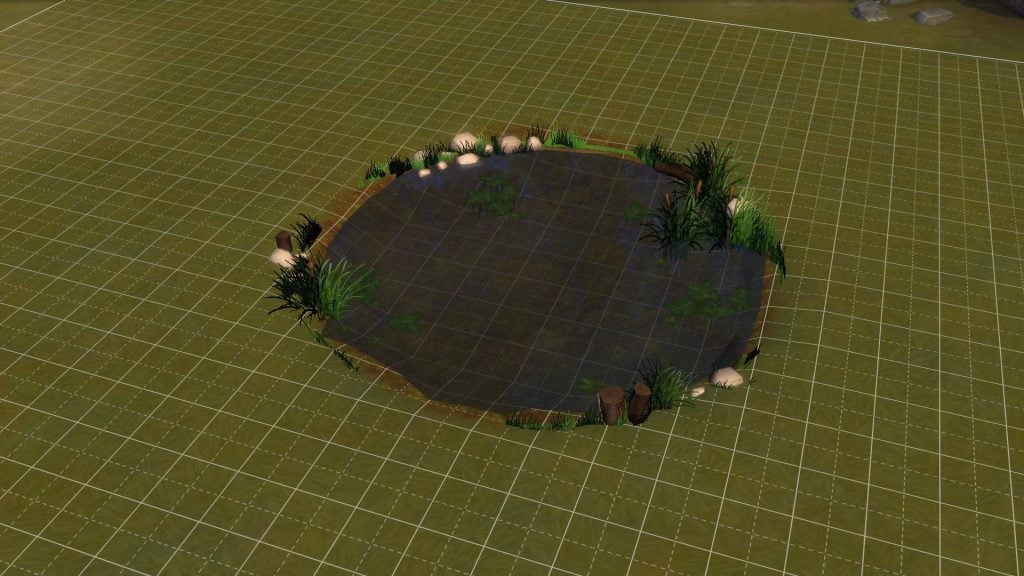
As many will be aware there are plenty of cheats for The Sims 4, one of those allows users access to objects that are used by sims and around the worlds, the cheat lets you place these various items and one of them is a pond. Now you can just place the pond down no problem and it looks okay, but there is only a grass and sand texture which doesn’t suit every terrain paint, so that’s where this solution comes in. The trick is to create a basement and place the pond inside it, raising it up enough for it to poke through the terrain above, giving it a great aesthetic. I’ll show you the process below.

You’ll need the following cheats:

testingcheats – Allows you access to a variety of cheats in the game.

bb.moveobjects – Allows you to place objects where they shouldn’t be able to go.

bb.showhiddenobjects – Allows you access to objects that you don’t normally get to use.

The Sims 4: Creating A Pond With Terrain Tools

Firstly you should load into an empty flat lot, make you’ve got plenty of space or it could be quite difficult.

The Sims 4: Creating A Pond With Terrain Tools

Next you should create the desired space for the pond using the new terrain tools, making a dip in the ground for the water to go. Keep in mind the pond is a set size, it can be scaled but the actual water portion remains the same size.

The Sims 4: Creating A Pond With Terrain Tools

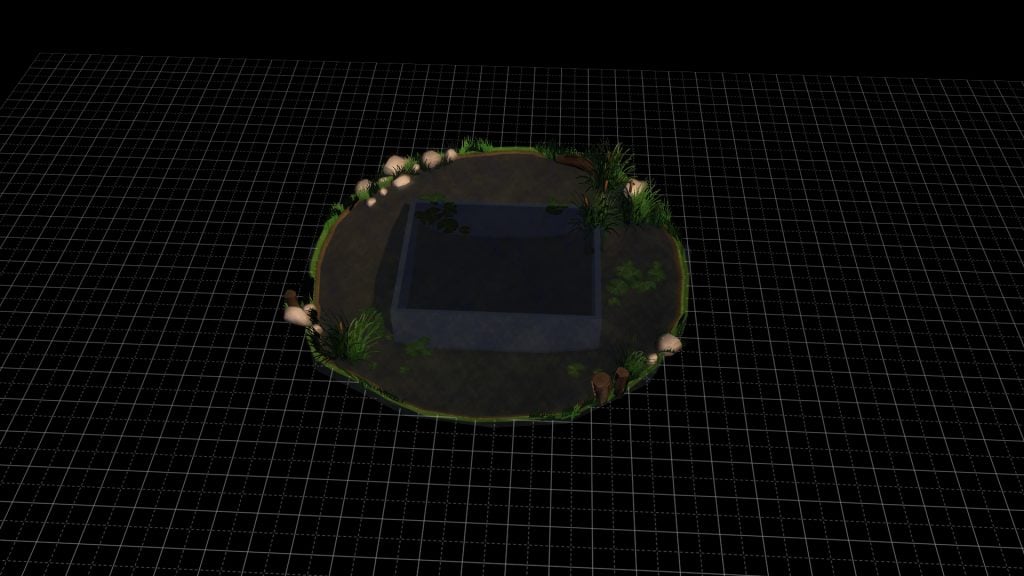
Next you should create a basement below the dip in the terrain, the size isn’t important, you can create one as small as 1×1, just make sure it is below the dip so it doesn’t flatten the terrain above it.

The Sims 4: Creating A Pond With Terrain Tools

You should then use the debug menu and find your desired pool, there are a couple of different styles with different grass around them and water texture. You should use the raise up and down tool to bring the top of the water above the top of the walls, this is so it will show through the ground above.

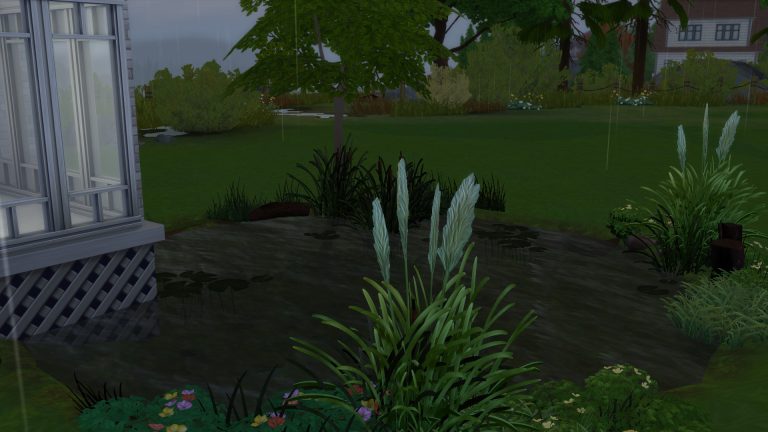
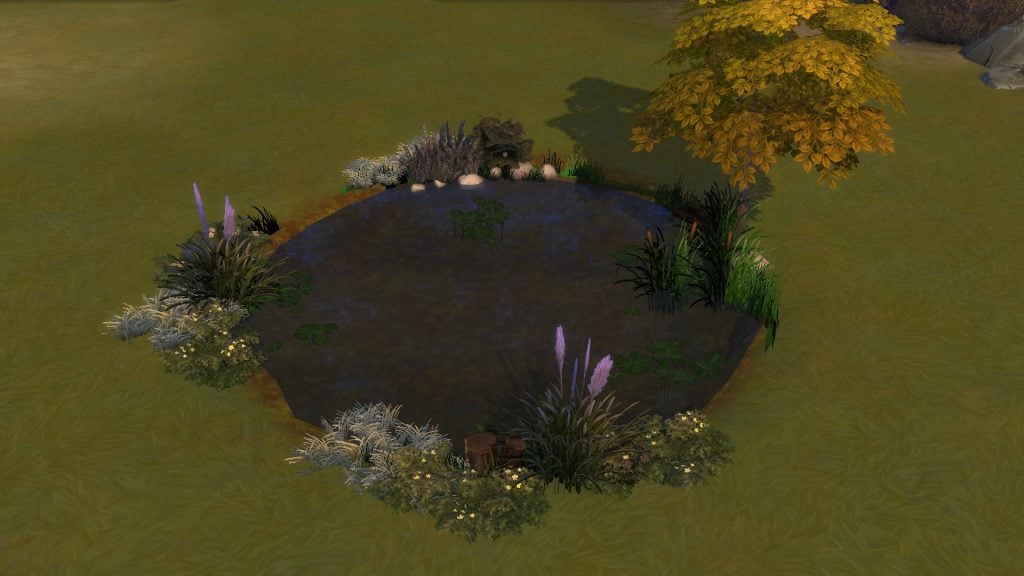
The Sims 4: Creating A Pond With Terrain ToolsAs you can see there is quite a lot of foliage visible, this can be changed depending on how high you raise the pond. You can change the height of the pond to find the perfect effect for your lot.
The Sims 4: Creating A Pond With Terrain Tools

Adding plenty of foliage around the pond will hide the ponds default grass and will make it look much more realistic.

The Sims 4: Creating A Pond With Terrain Tools

The pond can be created next to houses to make it feel like the house is built above the water.

The Sims 4: Positivity Challenge Walkthrough

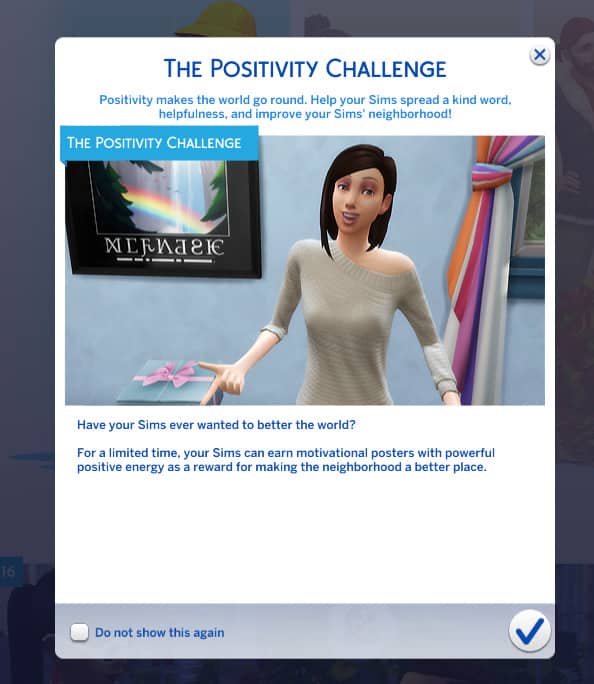
The positivity challenge came as a part of the November patch and features the one and only Millie Bobby Brown. When you first load up your game since updating you will be greeted with a little pop up giving you a brief overview of the challenge.

The Sims 4: Positivity Challenge Walkthrough

To kick off the challenge simply get your Sim to call the Event Coordinator and they will make their way over to your Sims location. Then simply talk to Millie. You can ask her about the challenge and then simply select “issue challenge.”

One final thing before you properly get started. Make sure you change your Sims aspiration to “The Positivity Challenge” and you are all set to go.

The Sims 4: Positivity Challenge Walkthrough

All you need to do is to complete each of the Aspirations requirements. This can be done by completing simple tasks such as brightening a Sims day or telling a funny story.

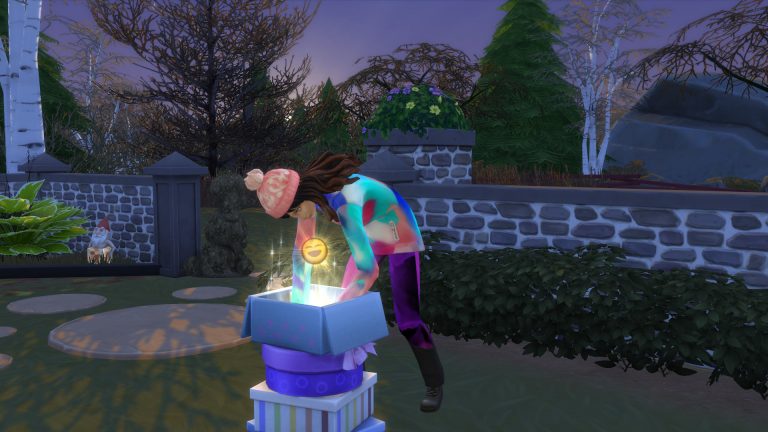
One thing you will have noticed at the start of the challenge is a small pile of pastel coloured boxes will appear on your lot from Millie. Once you have completed each of the tier’s make sure you go back and collect your reward!

The Sims 4: Positivity Challenge Walkthrough

Tier One – Meet one new Sim & perform one good deed.

Reward: Grin and Bear It

Tier Two – Perform five Good Deeds for acquaintances.

Reward: It Happened

Tier Three – Perform seven good deeds & become happy three times.

Reward: Paradise Falls

Tier Four -Perform eleven good deeds & make one new friend.

Reward: The Sealinicorn, In Repose

Once you’ve collected all the rewards you can then hang the pictures straight from your Sims inventory straight onto the wall and feel positive about the impact your Sim has made on the neighbourhood.

The Sims 4: Positivity Challenge Walkthrough

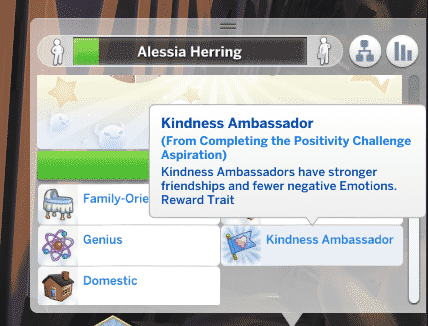
After completing each of the four tier’s call Mille back to your lot via your Sims phone and speak to her once again. Select “receive reward” and Millie will give your Sim the special trait Kindness Ambassador for completing all aspects of The Positivity Challenge and also to allow your Sim to continue to spread that kindness throughout the neighbourhood.

The Sims 4: Positivity Challenge Walkthrough

And that is The Positivity Challenge! A nice fun event that gets you interacting with the Sims around the neighbourhood and brightening a Sims Day.

You can also check out The Sims blog post about the challenge here and don’t forget to check out the November Patch Notes too!

The Sims 4: Players are experiencing issues with the First Person Camera

10

Plenty of Simmers have already reported an issue with the First Person Camera introduced with The Sims 4’s latest update.

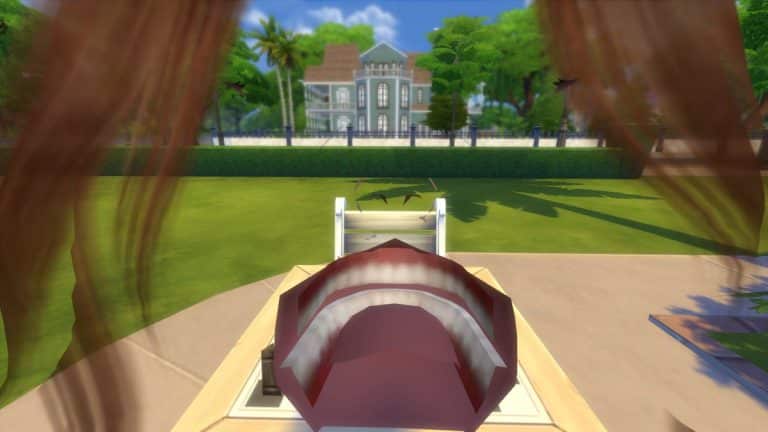
When entering the First Person View using Shift + Tab some players are seeing their Sim’s eyes, some are seeing mouth, eyelashes, hairstyles and some report that they can see all of that altogether in this mode.

This issue is mostly reported by players who are using the First Person Camera with a Sim that’s using at least one piece of Custom Content.

Screenshot by @adrian_kashanyy

The Sims 4: Players are experiencing issues with the First Person Camera

We know – freaky, right?

Here are a few more screenshots of this bug shared by other Simmers:

SimGuruNick has acknowledged the issue and stated that The Sims Team is already working on tracking down the source of this issue!

The Sims 4: Positivity Challenge Featuring Millie Bobby Brown

24

Today’s patch has not only come with some new building tools, a new career, bug fixes and more it has also come with a brand new in-game challenge.

The challenge is called The Positivity Challenge and it features none other than Millie Bobby Brown. Take a look at the blog post from EA about the new challenge below.

Simmers, our collaboration with Millie Bobby Brown continues with the Positivity Challenge!

The Positivity Challenge encourages your Sim to perform kind, generous, and sweet tasks for other Sims. Being friendly to others, performing helpful deeds for neighbors, or anything that spreads positive energy will unlock certain gifts. Plus, your Sim will make their (game) world a better place. Now that’s a win-win! From November 13 to December 4, 2018, your Sims can opt-in to this Aspiration.*

The Sims 4: Positivity Challenge Featuring Millie Bobby Brown

Here’s how it works:

  • Have your Sim call the Event Coordinator from the social tab (Wink! It’s MBB.)
  • When MBB shows up, accept the Positivity Challenge
  • Your Sim will then receive the Box of Kindness
  • Each time your Sim completes an objective, the Box of Kindness will gift your Sim with a decorative reward – viewing the reward, such as a motivational poster, will give your Sim a random positive moodlet or skill buff
  • Once your Sim has finished all the objectives, they’ll get a special reward trait
  • Sims will also be able to challenge other Sims to be kind

So, what Good Deeds are we talking about, exactly? Here are a few examples:

  • Brighten a Sim’s day
  • Tell a Sim a joke
  • Clean up trash or dishes
  • Repair a broken object
  • Read to a toddler or child
  • Help someone with homework
  • Send a Sim a gift
  • Give a pet a treat

Ready to make your Sims kinder and more fun to be around? You can also keep your social feeds more positive by following us on The Sims 4 Forums, following us on Twitter and Instagram, liking us on Facebook, and subscribing to our YouTube channel for all of the latest. Sign up for The Sims 4 newsletter to get updates, exclusive offers, and more (including other EA news, products, events, and promotions) by email and get Grim’s Goulish Guitar for free*!

*Requires The Sims 4 game (sold separately) and all game updates to play.

It’s as simple as your Sims picking up the phone and giving Millie a call! So what are you waiting for?

Don’t forget you can read the full patch notes from today’s update here and let us know what you think of the new Positivity Challenge too.

The Sims 4: New Update + Patch Notes! (November 13th, 2018)

The Sims 4: New Update + Patch Notes! (November 13th, 2018)

The Sims Team has released a brand new Update for The Sims 4 on PC and Mac!

To download the latest version of The Sims 4, simply open your Origin program and if the game doesn’t update automatically, right click on The Sims 4 and select ”Update”.

In case you have Mods or Custom Content, the game will automatically disable them for you after first launching The Sims 4 after the update. To re-enable all your Mods and Custom Content, select the Settings option in the Menu and select Settings. Under the”Other” section you’ll find the ”Enable Custom Content and Mods” option. Check it and restart your game in order for it to take effect!

Patch Notes

UPDATE: 11/13/2018 – PC 1.47.49.1020 / Mac 1.47.49.1220

Get ready Simmers; while my introduction here may be brief, you’ll find this update to be quite hefty. We’ve got a TON of fun, free, new additions for all owners of The Sims 4, along with plenty of tweaks, fixes, and updates for your game. Read on…

NEW & IMPROVED FEATURES

Terrain Tools

Terrain tools. Say it again. Terrain. Tools. Again! TERRAIN TOOLS!

They’re here! You can now build hills or dig ditches on your lot to your heart’s content. Your creative capabilities just received a massive boost, so get building! In Build Mode, simply navigate to where Terrain Paints previously existed, and click the shovel to get started. Need additional guidance? A new Build Mode lesson on Terrain Manipulation is available in-game to help explain the new tools step by step.

Foundation Updates

Previously, every building on a lot had to share the same foundation height. With today’s update, buildings that aren’t connected to each other can now have different foundation heights, or some may have no foundation at all!

We’ve also updated how you adjust the height your building’s foundation. Simply select any room and grab the new widget that appears in the center. By dragging it up or down you’ll find that it’s not only easier to use, but it’ll allow you to create buildings that soar to previously unattainable heights, or structures that are sunk down into the ground.

Additional Basement Levels

Were two basement levels two too few? You’re in luck; we’ve added two more! You can now build basements underneath your lot four levels deep.

Additional Half Wall Heights

We’ve added two more Half Wall heights. There’s the “Tall Half Wall – Medium Wall” and the “Tall Half Wall – Tall Wall”. Say that three times fast. What it really means, is that if you’re creating a building that uses Medium or Tall walls, these new Half-Walls will be perfect if you want walls that stop just short of the ceiling.

  • Getting philosophical for a moment… can these truly be called “Half Walls”? Maybe we should have called them “Partial Walls”.

First Person Camera

Ever wondered how your Sims view the world? Now you can play The Sims through their own eyes! It’s something you truly have to see to believe. The controls listed here provide everything you need to get started.

  • Shift + Tab
    • Enter/Exit First Person Camera mode.
  • Left Arrow / Right Arrow
    • Change which Sim you’re currently controlling while in First Person Camera. (For those with The Sims 4 Cats & Dogs, you can even look through the eyes of your pets!)
  • Left Mouse Button
    • Interact with the world.
  • Right Mouse Button
    • Select the other side of doorways, walls, and floors. Allows traversal between rooms or across different floors.
  • Shift Key (Hold)
    • Control the mouse cursor while in First Person Camera.
  • Mouse Look
    • Move your view around, separate from where your Sim is currently looking.
  • Ctrl Key
    • Snap the camera back to where your Sim is looking.
  • Mouse Wheel
    • Adjust the Field of View settings (useful if you experience motion sickness.)

New Career – Style Influencer

Terrain tools, a first person camera, and a new career?! You’re one lucky Simmer! Starting today you can live your fashionable Sim’s best possible life in the new Style Influencer career. You’ll start off small by observing fads and reporting on the latest trends, but it won’t be long before you’re defining new looks that are worn by Sims all around town, or giving makeovers to help other Sims look on fleek.

In addition, two brand new objects will help you progress through this career…

  • Sketchpad
    • The sketchpad is perfect for the artist on the go. Not only can you draw quick sketches when inspiration strikes, but it acts as a pocket canvas for painters. It’s the simplest way to go out into the world and create beautiful masterpieces that can be printed and hung on your wall.
    • Sims with level 2 Painting Skill can use the sketchpad to create a wide variety of new art. You’ll find it under the Illustrative Painting interaction on the sketchpad.
  • Style-Board
    • The style-board is your Sims’ collage of inspirational material. A collection of sketches, photos, patterns, and material comes to life as your Sim is influenced by the world around them. As your Sim refines their own personal style, the style-board can be updated to reflect the current looks you’re working to create.

New Clothing & Objects

We couldn’t simply release a Style Influencer career without offering some sleek new clothing and accessories to dress your Sims in. You’ll find the following new pieces available in Create a Sim*:

  • 2 jackets; one for women, one for men
  • 2 jeans; one adorned with rhinestones, and one that’s acid washed
  • 2 necklaces; one gold chain, and one bedazzled collar
  • 1 gold chain bracelet
  • 1 pair of fingerless gloves
  • 1 fiddler hat
  • 1 pair of women’s heels

*Some of these pieces require progressing in the Style Influencer career before they unlock.

And while we’re being so fashion forward, we also went ahead and added a brand new dresser to store these clothes in, and a new wall mirror to admire your trendy outfits in.

Positivity Challenge

Millie Bobby Brown has arrived in The Sims world to challenge your Sims to complete the Positivity Challenge! This limited time event is active right now, but won’t be around forever… You have until December 4th, 2018 to participate. Simply use your Sim’s phone to call the Event Coordinator (surprise, it’s Millie Bobby Brown), and she’ll provide everything you need to start making your Sim’s neighborhood a better place for everyone.

By issuing a positivity challenge, you’ll unlock a brand new aspiration for your Sim. Various rewards are up for grabs with each tier of the aspiration you complete, culminating in a powerful new Kindness Ambassador trait bestowed by Millie Bobby Brown herself.

Now get out there and perform some good deeds!

Name Your Own Career

Has your Sim ever experienced the awkward situation of having to say they’re unemployed, when in reality they’re leading a financially successful lifestyle? Perhaps they run their own retail store? Or maybe they’re the proprietor of a grueling painting factory, selling mass-produced artwork for maximum profit (let’s be honest, we’ve all been there before.) Now you can name and describe their job title, so that each and every Sims’ money-making scheme will get the recognition it deserves. Simply use your Sim’s phone to Register with the Ministry of Labor, and type in whatever suits you.

First Time User Experience

We’ve added something that we call a “First Time User Experience” to the game. If you want to sound in the know, you can pronounce this as fuh-too-ey in casual conversations with your friends. Really, it’s a fancy way of saying that we created a completely new tutorial for new players. If you’re reading these patch notes, this feature probably isn’t for you. That said, if you’d like to experience the dulcet tones of actress and comedian Jessica Williams explaining how to play The Sims 4, then we invite you to give it a try.

Gallery Profile Updates

We’ve made some changes to the layout of user profiles on the gallery. Each player’s profile now has four large images that cycle through the content that they’ve uploaded. Content from other players that you’ve favorited no longer appears in your own profile feed. Finding content from other players that you’ve favorited can be done by going to your profile page, clicking on “View Catalog”, and then changing the “View Content By:” filter to “My Favorites”.

Whim Updates

There’s a new “Show Whims” option in the Gameplay Options menu that allows you to enable or disable whims… at your whim.

Simology Panel Updates

To help manage all of the information stored within the Simology panel, individual sections of this panel are now collapsible and expandable. This allows you to curate the information on display to only show what’s currently important to you.

Relationship Panel Updates

The Relationship panel has a new filter that allows you to see just your Coworkers.

FIXES & UPDATES

The Sims 4

  • The default sort for the Gallery was changed back to Newest, due to popular demand.
  • Placing wallpaper or floor tiles in Build Mode will no longer cause the frame rate to drop.
  • Fixed frame rate drops that would occur when converting a wall into a fence, if that wall was attached to a roof.
  • Using the basement tool will no longer interfere with placing floor tiles on the surface of a lot.
  • If a rounded deck piece has been rotated, attempting to delete the deck piece will no longer trigger an error, and bulldozing a lot with them will no longer cause the game to hang.
  • A number of exceptions which were occurring in Build Mode have been cleaned up.
  • Sims will be more discerning over who they decide is worth mourning when an NPC Sim passes away.
  • Gardening plants will need to be watered and weeded on a regular schedule once again.
  • Directing a Sim to water plants in a garden will no longer cause the Sim to fixate on watering the same plants over and over again, but instead will share the H2O with every plant that’s in need.
  • Birds of Paradise plants that are acquired from rare seed packets will now successfully blossom.
  • It seems our Sims went through a phase of being introverted; please excuse them. They’ve resumed socializing in Cafes, Bars, and Lounge venues.
  • The game will no longer occasionally accidentally think that a Sim is in the middle of aging up, which had previously prevented players from traveling or saving during this time.
    • That said, you still (intentionally) can’t travel or save when a Sim really is aging up… happy birthday!
  • Toddlers using the “Bedtime Story…” interaction while sitting on a bed will no longer cause routing issues or clipping with the selected adult Sim.
  • You may now hire a caterer during a social event by clicking on a Refrigerator or Stove, even if you chose not to hire a caterer while setting up the event.
  • Glass windows will once again be rendered properly on low graphics settings.
  • Playing with custom content should no longer cause icons in the Create a Sim catalog to occasionally appear sideways.
  • Your Sims’ neighbor’s toddlers were occasionally being imbued with a desire to go fishing. This was causing the toddler’s caregiver to appear, and let themselves into your home uninvited. Don’t ask how the two are connected, just know that toddlers won’t want to go fishing anymore, which in turn keeps these uninvited strangers out of your home.
  • Two Sims WooHooing on a bed that another Sim has claimed will no longer cause that other Sim to no longer claim the bed for sleeping.
    • Ok, but seriously… this is just rude. We live in a society people.
  • The Tea Magic Personal Brewer was brewing worse and worse quality tea over time, until it could only produce poor tea. Not only did we fix that, but we discovered and fixed an underlying issue that was preventing Sims from ever brewing excellent quality tea. Enjoy your delicious tea!
  • Toddler’s portraits will no longer be grayed out and said to be “At Daycare” after an adult returns home.
  • Children can once again use their cell phone to take a photo of other Sims of different ages, and Sims of other ages can once again include children in their cell phone photos.
  • Screenshots for Mac users will no longer be upside down.
  • Removed the odd green tint in the outdoor lighting of two lots in Willow Creek.
    • We’ll just go ahead and blame that one on aliens.
  • The Match Hair option in Create a Sim will now correctly match eyebrows to the Sim’s hair color for children and toddlers.
  • Tuna Casseroles no longer have two Party serving sizes, and Vegetable Casseroles can now be cooked in a Family serving size.
  • The career hours of other Sims in your relationship panel will no longer disappear after your Sim travels.
  • Eating Semi-Firm Beet Noodles will no longer make vegetarian Sims sad.
    • (On a personal note – Eating Semi-Firm Beet Noodles would make me pretty sad.)
  • The dining table that can be crafted by Sims with the Woodworking Skill will now provide a Nicely Decorated moodlet.
  • Shadows cast by windows will now render properly on graphics settings lower than Very High.
  • The “Jog to Clear Mind” interaction will now successfully complete the “Go for a Jog” whim.
  • The “Include Custom Content” filter in the Gallery now has a proper tooltip explaining its functionality.
  • Sims can now order Medicine or Voodoo Dolls on computers that exist on lots other than their own home lot.
  • Plant Sims will no longer have their hairstyle change when their Water Need raises or drops.
  • Wall Cutaway view will continue to function properly when adding a Sim to your active household while visiting an NPC household’s home lot.
  • Twins that are born from this point forward will now share the same birthday.
  • All whims related to grilling can now be successfully completed.
  • Lowered the number of social media followers gained when a Sim with level 10 Charisma skill uploads a viral video.
  • Children who need help from another Sim to spray a monster under their bed could previously only select from Adult aged Sims. They can now select from Sims of other ages as well.
  • Foundations on buildings were previously lit upside down. Now they’re lit right-side up!
  • Fixed a hang that could occur when favoriting a piece of content in the Gallery, and then favoriting that same piece of content a second time in the News Feed.
  • The Winter Holiday Venue Wall Speaker now has all four color variants available for players who do not also own The Sims 4 Get to Work.
  • Stairs without drop walls will cast shadows once again.
  • Submitting a Book Copy to the Literary Digest will no longer cause two versions of the interaction to be queued up, one of which caused the Sim to route fail.
  • Fixed some clipping issues with the Men’s Caribbean Suit.
  • Updated the Caribbean t-shirt so that choker necklaces remain visible while wearing it.
  • Updated the Sim Idol Rug to have a diamond pattern.
  • Large diagonal double doors will no longer overlap each other while held on the mouse cursor in Build Mode.
  • Improved the shadows cast by a variety of objects.
  • The Simology panel will now retain whatever height it was manually resized to when switching between Sims.
  • Shiny wooden floor tiles will now appear to be shiny both indoors and outdoors.
  • Bringing another Sim to tears using a violin will now cause that Sim to actually become sad.
  • Objects in the Wall Decorations category within Build Mode will now count towards the Wall Decor lot requirement for Museum venues.

Get to Work

  • Retail counters that become dirty can now be cleaned once again.
  • The “Lice Cold Retail Freezer”, and the “Cat Loves Food Inc. Professional Grade Warming Rack” will once again update their appearance when food is placed inside them.
  • The Grim Reaper will no longer become frozen in place if a Sim activates a Neighborhood Hivemind effect via the Scientist’s satellite while the reaping of a dead Sim is in progress.
    • Makes you think… Scientists had unwittingly invented a world without death, only for those of us at Maxis to meddle and take it away.
  • Doctors will no longer be assigned a nurse’s outfit as their work clothes when reaching level 7 of their career.
  • As a detective, attempting to fingerprint a criminal that’s inside a jail cell will no longer cause the detective to idle in place.
  • Scolding a Sim for inappropriate behavior while on an owned retail lot will no longer cause your own Sim to become uninvited and unable to access the building’s interior on their retail lot.
  • Male Sims wearing steel toed boots paired with a skirt (It’s called fashion, look it up.) would previously have their legs disappear. Happily, we’ve fixed this.
  • Fixed an issue where changing the gender of an alien would cause the alien to appear naked.

Get Together

  • Baristas will now leave the Cafe lot once their work shift is over.
  • Updated some Windenburg neighborhood skyboxes so that clouds no longer visibly clip with the mountains.

City Living

  • Plants at festivals will grow harvestables that are ripe for picking once again.
  • Haggling over prices with vendors at stalls will now result in the correct price being displayed that the household will actually be charged.
    • This is also fixed in other packs that include vendor manned stalls.
  • Holiday decorations (requires The Sims 4 Seasons) that can’t be removed will no longer appear on apartment balconies.
  • Tricksy little gnomes will no longer spawn outside your apartment unit during the Holiday Gnomes tradition (requires The Sims 4 Seasons).
  • Made improvements to simulation lag in certain San Myshuno neighborhoods.
  • If a Sim is at an event, such as the Opera, a Concert, a Musical, or the Circus, having another Sim travel will no longer cause the Sim at the event to leave the event early.
  • Sims will once again animate properly when busking for tips while playing the electronic keyboard.

Cats & Dogs

  • The needs of cats or dogs that live in another household will no longer start off low when your Sim visits their household.
  • Bathing a dog in the “Trap’s Trapezoid Tub” (Requires The Sims 4 Fitness Stuff) will now correctly fill the bathtub with water.
  • Updated the women’s hairstyle that’s long with a straight middle part to no longer cause clipping with Sims’ faces.
  • Fixed a t-shirt that was causing Sims’ elbows to bend in a very odd manner.

Seasons

  • Sims will no longer have difficulty decorating the Ever Delightful Evergreen Holiday Tree when it’s placed adjacent to certain wall decorations.
  • If a Sim is at work or school on the day of a holiday, they will no longer return home from work/school early if another Sim in the household travels somewhere during the holiday.
  • Sims may now WooHoo in leaf piles that build up outside of a lot.
  • Mac users who play in Laptop Mode, your Sweet Treats nightmare has come to an end. Plants in certain neighborhoods will no longer be rendered in shades of pink and purple during the Fall season.
  • Trees with leaves should be casting shadows once again, for players who were observing issues with certain hardware configurations.
  • When raining, NPCs will now correctly put their umbrellas away when going indoors on venues.
  • The Santa hat will no longer cast shadows on your Sim’s eyeballs.
  • Gnomes will no longer break unbreakable objects.
  • Toddler’s foreheads will no longer cause clipping when wearing certain hats from The Sims 4 Seasons.
  • Father Winter will no longer choose to move into a home in your town.
  • Each color of the “Umbri Umbrella Rack” now costs the same amount of simoleons to purchase.
  • Sims will no longer spawn in the neighborhood and idle in place during the Fall if there are no large leaf piles in the open streets area of the neighborhood.
  • Lightning will no longer strike pool lights, which previously caused singe marks in pools that could not be removed.

Outdoor Retreat

  • When using Manage Worlds to edit a lot in a destination world, the Build Mode catalog will no longer show debug items without using a cheat.
  • Sims will no longer have their position jump when exiting a tent.
  • Sims will no longer route fail when attempting to sit in a loveseat that’s been slotted to a campfire.

Spa Day

  • Changing into a towel at the Gym or Spa will no longer cause a Sim to occasionally wear additional accessories.
  • Sims will no longer become stuck when a yoga class starts on a Gym lot.
  • After a long, hard day of beekeeping (Requires The Sims 4 Seasons), Sims will now fully remove their beekeeper suit when heading to the sauna or massage table.

Dine Out

  • Repairmen that are called to restaurants will now properly fix any broken objects on the lot.
  • The Jazz radio station is now available on all stereos.

Vampires

  • Vampires will no longer attempt to “break in” to venues, which was previously preventing players from traveling or saving their game during the break in.
  • Vampires who started burning in the sunlight while traveling away from home, will no longer continue to burn when returning home and retreating inside.
  • Adjusting a Vampire’s Dark Form can no longer occasionally cause issues with the Sim’s other outfits.
  • Vampires will no longer automatically help themselves to a plate of food after cooking a Family or Party sized meal.

Parenthood

  • Table settings will no longer disappear when Sims sit down to eat.
  • The low hanging “Mason Multi-Jar Lighting” will no longer cause Sims to route fail when placed in rooms using medium height walls.

Jungle Adventure

  • Sims will no longer receive invites to the bar in Selvadorada, which would previously leave them stranded in the jungle.
  • Only one protective item will now be consumed at a time when it’s used to save a Sim from various animal attacks while exploring the jungle of Selvadorada.
  • The Latin Music radio station is now available to select on cheaper stereos.
  • The Cantina venue in Selvadorada will continue playing festive Latin music, even if your Sim chooses to not pay their household bills on time.
  • Sims will no longer route fail when attempting to unpack their sack lunch while exploring the hidden areas of Selvadorada.
  • The explorer shirt will no longer cause oddly colored patches of skin to appear on the back of Sims’ necks.
  • Tooltips on relics should now correctly appear after a Sim has learned about the relic’s curse or blessing.
  • The value of a relic that has a crystal inserted into it will now display properly in the relic’s tooltip to include the value of the crystal.
  • We tightened up the graphics on the Selvadorada map icon.

Movie Hangout Stuff

  • The “Projectotron Indoor & Outdoor Movie Screens” can no longer be placed on top of coffee tables or TV stands.

Kids Room Stuff

  • Songs on the Tween Pop radio station are now labeled with the correct artist and song title.

The Sims 4 Seasons: Out Now For Console

0

The wait is over! The highly anticipated expansion pack for The Sims 4 is out now on Xbox One and PlayStation 4.

Don’t forget you can find out more about the new expansion pack by checking out our Seasons articles here!

LIVESTREAM: The Sims 4 November Update Countdown + Walkthrough

11

UPDATE: We have already gone live! Join the countdown by pressing play above.


We are going LIVE with The Sims 4! Join us  as we start the countdown to The Sims 4’s November Update Release. We’ll also be doing a detailed live walkthrough of the update as soon as it goes live.

In case you don’t know the November Update for The Sims 4 has been scheduled for release today, November 13th at 7PM CET / 6PM BT / 10AM PT.

The Sims Mobile: Harvestfest Event Coming Soon

0

The Sims Mobile Team have posted a teaser for, what seems to be, an upcoming event coming soon to The Sims Mobile!

They didn’t mention anything else than the fact that the potentional event could be called Harvestfest. They’ve also provided this render:

The Sims Mobile: Harvestfest Event Coming Soon