Home Blog Page 279

The Sims 4 Official Blog: Get Ready to Patch!

14

TheSims.com has published a new blog post talking all about tomorrow’s big content update for The Sims 4 Base Game!

Updates, updates, and more updates for you. And the best part is, they now come with The Sims™ 4 base game. Read on for more details about this patch*, which will be available tomorrow, November 13, 2018.

Terrain Update

In case you missed it, check out the livestream that takes you through one of the most manipulative things you can do in the game. When it comes to building, that is!

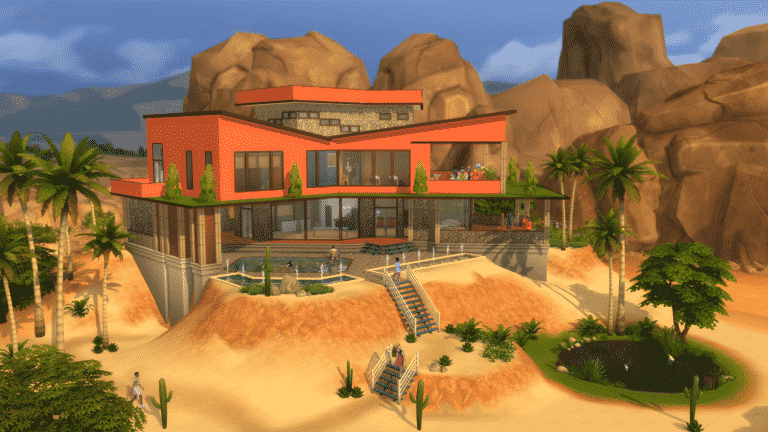
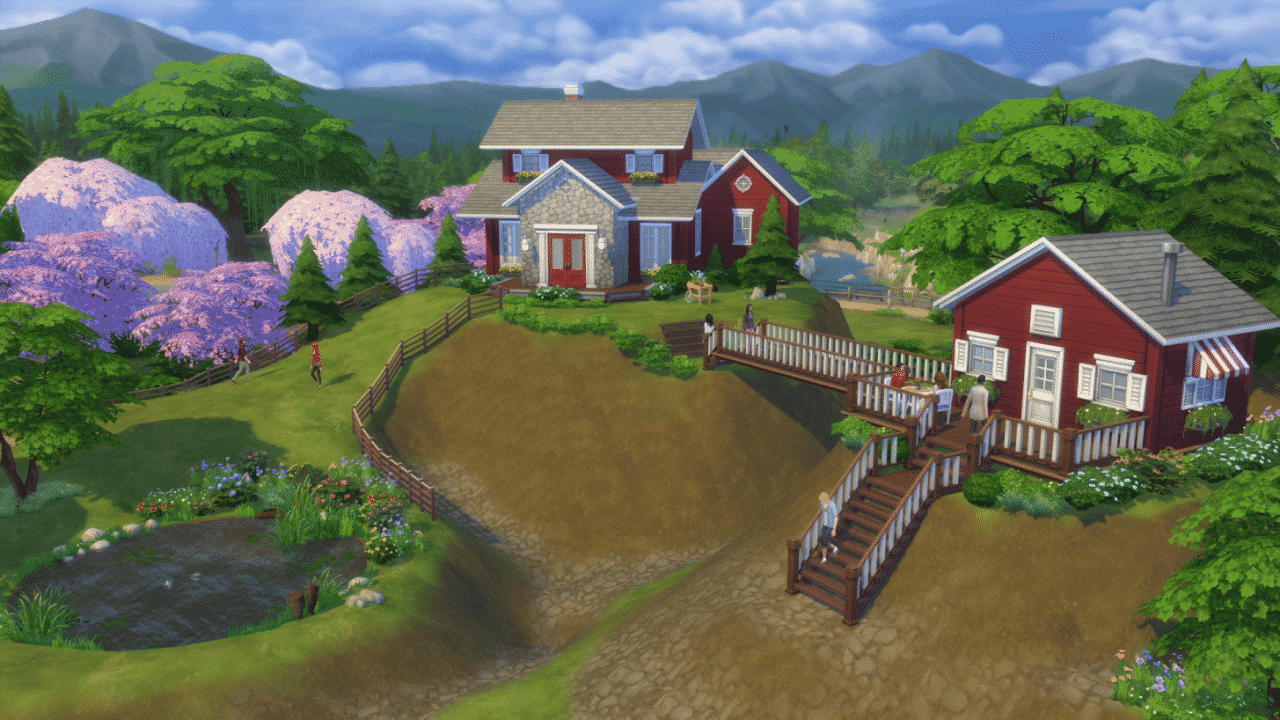
Terrain manipulation will provide more ways for you to be creative, giving you the freedom to build and customize your worlds in unique ways. You’ll be able to expand landscape features and building options, and adjust heights to create hillsides or ditches.

sims base game updates nov18.png.adapt .crop16x9.1455w

You can also:

  • Construct a house above ground or under a crafted hill
  • Build pools and foundations that can be adjusted by height
  • Line stairs along elevated terrain
  • Experiment with a new half-height wall

There will be specific tools to help bring your vision to life, as well:

  • Raise / Lower Terrain (Brush Tool)
  • Smooth Terrain (Brush Tool)
  • Flatten Terrain (Rectangular Area Tool)
  • Flatten Lot (One-Shot)

Additionally, The Sims 4 will have a “Flatten to Height” tool that combines the functionality of Flatten Terrain with Raise / Lower Terrain at defined foundation increments. A slider or hotkeys can be used to jump to height levels. The Flatten-To-Height tool should display an arrow that auto flips depending if the terrain is going up or down.

So, what we’re trying to say is, you can now raise the roof.

sims base game updates nov18 2.png.adapt .crop16x9.1455w

More Updates and a Big Surprise

For newer players, there will be an updated tutorial to help you get into the game faster. Plus, you can:

  • Receive extra assistance with a voiceover narrator
  • Have a Guided Entry when selecting Aspirations
  • Get custom homes designed for your story
  • Experience an updated World Select screen

You’ll also get to choose the name of a Sim’s career, as well as a description of the job that your Sim is performing. Now when other Sims ask what their career is, they won’t reply that their unemployed.

Plus, if you ever wanted to see the world through the eyes of your Sims . . .

WE’RE INTRODUCING A FIRST-PERSON CAMERA OPTION!

Please excuse the all-caps, but this. Is. Huge. We’re so excited to see how this will change the way you play.

Style Influencer Career

Another day, another livestream. But this time, it was introducing the new Style Influencer career!

Start as a Rag Reviewer, developing the Writing Skill and interviewing other Sims. Then, advance your Sim by working on Photography and Painting Skills. With new objects, like the digital sketchpad, you can take their career on the go. Your Sim can work from home, write some articles, and slowly but surely, work their way up.

In this career, your Sim can become a stylist and makeover other Sims with their own creativity. Once your Sim progresses even further, they can start fashion trends for the entire world!

The Sims 4: How to Update your Script Mods for the November Update

22

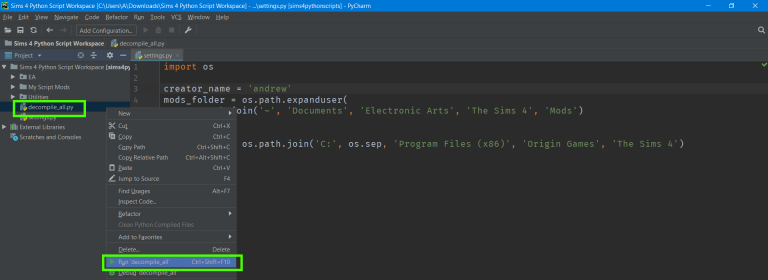
Sims4Studio’s Tech Lead Andrew has posted a very useful tutorial on how to update all of your Script Mods for the upcoming update release for The Sims 4.

As warned by SimGuruModSquad about a month ago, the upcoming update for The Sims 4 will be upgrading the programing language used for some of the game’s basic functions from Python 3.3.5 to Python 3.7.0. This means that every single script mod created for the game will be completely obselete and won’t even be recognized by the game’s engine considering that the file extensions will switch from .pyo to .pyc.

Luckily, this tutorial will teach you how to easily upgrade your Script Mod and prepare it for the upcoming update.

Introduction:

This tutorial will show you how to install the required tools, extract EA python scripts, edit custom python scripts, and compile them to share as a mod. You will be using a free program called PyCharm to edit the python files. Please note, this tutorial assumes some familiarity with python and is not meant as a substitute for lessons/tutorials in python coding. It will show the Sims 4-specific steps of making a script mod.

The Sims 4: How to Update your Script Mods for the November Update

Full Tutorial

The Sims 4 Get Famous: SimGuru Q&A Part 3

0

SimGurus are still answering a lot of questions by the community about The Sims 4 Get Famous Expansion Pack!

We’ve compiled a list of all the relevant answers that SimGurus have provided down below. We’ll make sure to update the post with new informations and tweets by the gurus as they surface.

You can find the first part of the SimGuru Q&A HERE! and the second part HERE!

The Sims Mobile: First Details about the Winter Update Have Leaked

0

Oops?

Looks like The Sims Mobile has accidentally revealed some interesting information about the upcoming event.

The game recently released a new software update which seems to do nothing more but revert the game icon back to its original state. However, it seems that some juicy details have accidentally been published and deleted afterwards on Google Play.

@gingethatsims has managed to capture the patch notes talking about Winterfest in The Sims Mobile before they got pulled down.

The notes talk about many things including the refurbishment of all the neighborhoods we have, a pre-holiday quest and the major Winterfest Holiday quest. The notes also revealed that the update would bring ice skating to the game.

The Sims Mobile: First Details about the Winter Update Have Leaked

In case you don’t know The Sims Mobile already had a Holiday Update back in its pre-release days, bringing a layer of snow and the Winter Wonderland Event which lasted for around 16 days.

Preparing for The Sims 4 Get Famous

The Sims 4 Get Famous Expansion Pack is only a week away from its worldwide release (November 16th)! We know that you may get lost in all the gameplay possibilities the moment you install this pack considering that Fame and Reputation will completely change the way Sims live their life. Not only that, but the patch that we’re getting for The Sims 4 Base Game on November 13th will add a lot of things, as well as break them (script mods).

Here are some gameplay and technical tips to help you prepare for the release of The Sims 4 Get Famous Expansion Pack, as well as its free update which is coming out a few days before.

Create (and develop) a Household

Think of a household you want to play with and all the possible ways you can make the members of that household famous. I recommend that you start small with only a Sim or two so they can comfortably begin their lives in Mirage Park – a low end neighborhood that comes with Del Sol Valley.

Sims can become famous through many aspects in The Sims 4 including Relationships, Careers, Skills and more. You can already start working on your Sim’s Career if you want to so you can get a head start with the fame aspect once you install Get Famous. Becoming a famous singer or a famous athlete will be much easier if your Sim is a few levels deep in a certain career. Don’t worry – you won’t make a mistake with any career considering that every career in The Sims 4 will open a path to becoming famous.

Revisit your old Households

If you’ve played with a few Sims before then think of all the possibilities that they have to become famous. If you already have a Sim who is prone to being Evil and Mischevious then make sure you revisit that Sim with Get Famous as well so you can give them the baddest reputation possible.

Start planning a huge house

The Sims 4 Get Famous comes with some of the most luxurious objects in the franchise. You can already start working on a house shell for your Sim that can be easily expanded as your Sim progresses in Fame and earns more money during the process.

The Sims™ 4 Get Famous Celebrity Life Trailer 335

Challenges

Rags to Riches never sounded more interesting! Get Famous opens a door to plenty of new challenge ideas as well as the possibility to revisit old challenges.

We already have a lot of challenges created on our Challenge Forums. You can revisit some of the old challenges or think of a brand new challenge to spice up the gameplay.


Let’s Get Technical

To prepare the game for the release of The Sims 4 Get Famous The Sims Team will be releasing a huge update for The Sims 4 Base Game on November 13th. The update will come with a lot of features including Terrain Tools, First Person View, Style Influencer Career and a lot more that you can check out HERE!

However, the update will also upgrade the version of Python which is used to code some parts of The Sims 4. Here’s how that’ll effect you:

Script Mods

After the update every single script mod that you currently have installed will completely stop working. In case you don’t know what script mods are they are essentialy mods which fundamentally alter the gameplay of The Sims 4. MC Command Center for example is one of the script mods that will completely stop working with the update. However, considering that The Sims Team put out this warning a month ago we can expect active modders to update their script mods a few moments after the update for The Sims 4 goes live.

Prepare your Mods / CC

Although regular Mods and Custom Content are not expected to be affected by the latest update you never know what could happen considering that this game update is pretty big.

To make sure your game doesn’t break with all the Mods / CC that you might have, regularly check on the original sources of your mods and see if they’ve been active recently to make sure they’ll be putting out an update for their mods / checking if their mods are compatible for the upcoming Sims 4 patch.

The Sims 4 will automatically disable your mods after the update but it’s best if you check if every mod will be functional after the upcoming Sims 4 update.

Back Up your Save Game

The Sims 4 Base Game Update that’s scheduled for November 13th could bring a lot of unexpected issues. Before installing the upcoming game update or the expansion pack itself it’s best if you back up your save game in case things go wrong.

Make sure you meet the System Requirements

PC SYSTEM REQUIREMENTS

MINIMUM SPECS:
OS: 64 Bit Required. Windows 7 (SP1), Windows 8, Windows 8.1, or Windows 10
CPU: 1.8 GHz Intel Core 2 Duo, AMD Athlon 64 Dual-Core 4000+ or equivalent (For computers using built-in graphics chipsets, the game requires 2.0 GHz Intel Core 2 Duo, 2.0 GHz AMD Turion 64 X2 TL-62 or equivalent)
RAM: At least 4 GB RAM
HARD DRIVE: At least 3 GB of free space (15 GB if installing with The Sims™ 4) with at least 1 GB additional space for custom content and saved games
VIDEO: 128 MB of Video RAM and support for Pixel Shader 3.0. Supported Video Cards: NVIDIA GeForce 6600 or better, ATI Radeon X1300 or better, Intel GMA X4500 or better.
DIRECTX: DirectX 9.0c compatible
SOUND CARD: DirectX 9.0c Compatible
INPUT: Keyboard and Mouse
ONLINE REQUIREMENTS: Internet connection required for product activation

RECOMMENDED SPECS:
OS: 64 Bit Windows 7, 8, 8.1, or 10
PROCESSOR: Intel core i5 or faster, AMD Athlon X4
VIDEO CARD: NVIDIA GTX 650 or better
MEMORY: 4 GB RAM
HARD DRIVE: 18 GB of Hard Drive space

MAC SYSTEM REQUIREMENTS

MINIMUM SPECS:
OS: Mac OS® X 10.7.5 (Lion)
CPU: Intel Core 2 Duo 2.4 GHz Processor or better
RAM: At least 4 GB RAM
HARD DRIVE: At least 3 GB of free space (15 GB if installing with The Sims™ 4) with at least 1 GB additional space for custom content and saved games
VIDEO: NVIDIA GeForce 9600M GT, ATI Radeon HD 2600 Pro or better. Video RAM of 256MB or better.
INPUT: Keyboard and Mouse
ONLINE REQUIREMENTS: Internet connection required for product activation

RECOMMENDED SPECS:
OS: Mac OS® X 10.9 or later
PROCESSOR: Intel Core i5 or better
VIDEO CARD: NVIDIA GTX 650 or better
MEMORY: 8 GB RAM
HARD DRIVE: 18 GB of Hard Drive space

The Sims Mobile: Dance Instructor Rerun Event Tips & Tricks

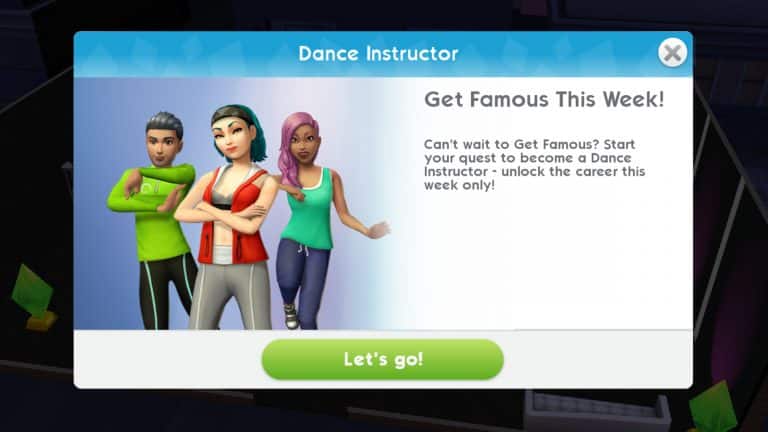
In recent months, The Sims Mobile has been bringing back some older time-limited quests like the Space Explorer career and Internet Icon hobby. The latest rerun quest for the game is the Dance Instructor career. Players who did not get this career heirloom the first time around have a second chance to grab this career for their Sims.

Players who already have the Dance Instructor career will get the Athletic trait, along with some new fitness clothes for finishing this rerun quest. Thank you to David H. from our Sims Community Facebook group for this information and the athletic trait screenshot.

To begin the quest, update your game and log in. You’ll see a new time-limited quest called Dance Magic that just has one part. Complete this quick and easy quest to start the main quest which has 19 parts. Players will have just under 4 days to complete the main quest.

The Sims Mobile: Dance Instructor Rerun Event Tips & Tricks

Some Tips to Help

Wondering how to make the most of this quest? As always, Sims Community has your tips and tricks right here!

Anticipate Emily’s LlamaZoom Requests

Emily is adorable, but she is also extremely demanding. You can bet you’ll be asked to complete her LlamaZoom tasks several times throughout the duration of this quest. Emily will often ask you to complete at least one long event, which eats up a lot of time you can’t afford to waste. Make sure you have one Sim doing long events in anticipation of Emily. When she does ask you to finish a long event, you’ll already have a Sim who’s almost finished with it so you can save 7-8 precious hours and complete that task instantly.

Set Timers

Most short events take one hour to complete. It takes an hour and a half for a Sim to fully replenish their energy. Keep these time frames in mind and set a timer on your phone whenever you’re able to. This will remind you to check back with the game frequently so you can speed through the quest without worrying that you may have left your Sims doing a one hour event for the past eight hours.

Use Your Cupcakes and SimCash… but Only When Needed

Your cupcakes and SimCash are there to be used, but be sparing and smart about how you use them. If time is running out and you’re still several steps away from finishing the quest, it might be time to break out that emergency cupcake stash you’ve been saving up, but don’t throw away these precious resources too early. Save them for when you really need them.

Schedule Schedule Schedule

Work the quest around your real-life schedule as much as possible. Anticipate when you’ll be busy with work, school, or social engagements and plan your gaming sessions around them. If you know there’s a quest step that’s going to take 7-8 hours, try to get your Sims started on it before bed, work, or school. If you have some free time, try to speed through the shorter quest steps and one-hour events.

Relationships are King

Selecting the relationship tasks when you need to complete a LlamaZoom request is to your benefit because you can get those three short relationship events out of the way in minutes. Just find a Sim your Sim doesn’t already know, start a friendship event and breeze through it. When you’re prompted to select a relationship story for them, don’t choose one! Select Choose Later instead. Then continue doing those quick and easy intro events instead to complete Emily’s request. Relationships go much faster than hobbies and careers.

Breathe!

We know these events can get pretty intense and sometimes stressful, but it’s important to remember that The Sims Mobile is a game and games are meant to be fun. If you find yourself feeling frustrated by your progress, just remember that you did your best and had fun trying. Who knows? You might have another opportunity to get the rewards later on if The Sims Mobile continues to bring back older limited-time quests periodically.

How far are you in the Dance Instructor quest? Let us know in the comments or share your progress with us on social media!


Don’t see any changes? Update your game! Go to the app page in the Google Play Store (Android) or the App Store (iOS) and select Update.

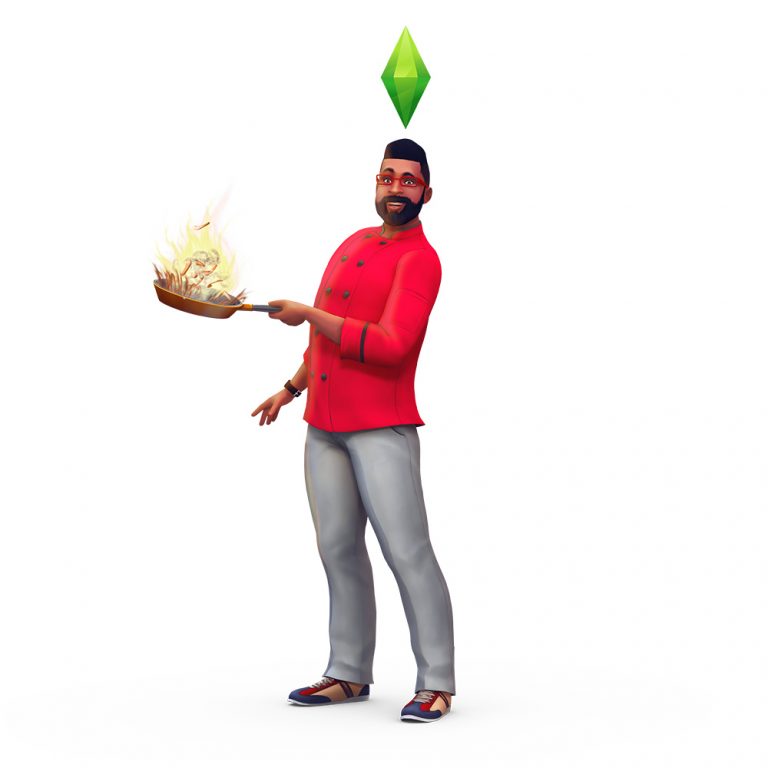
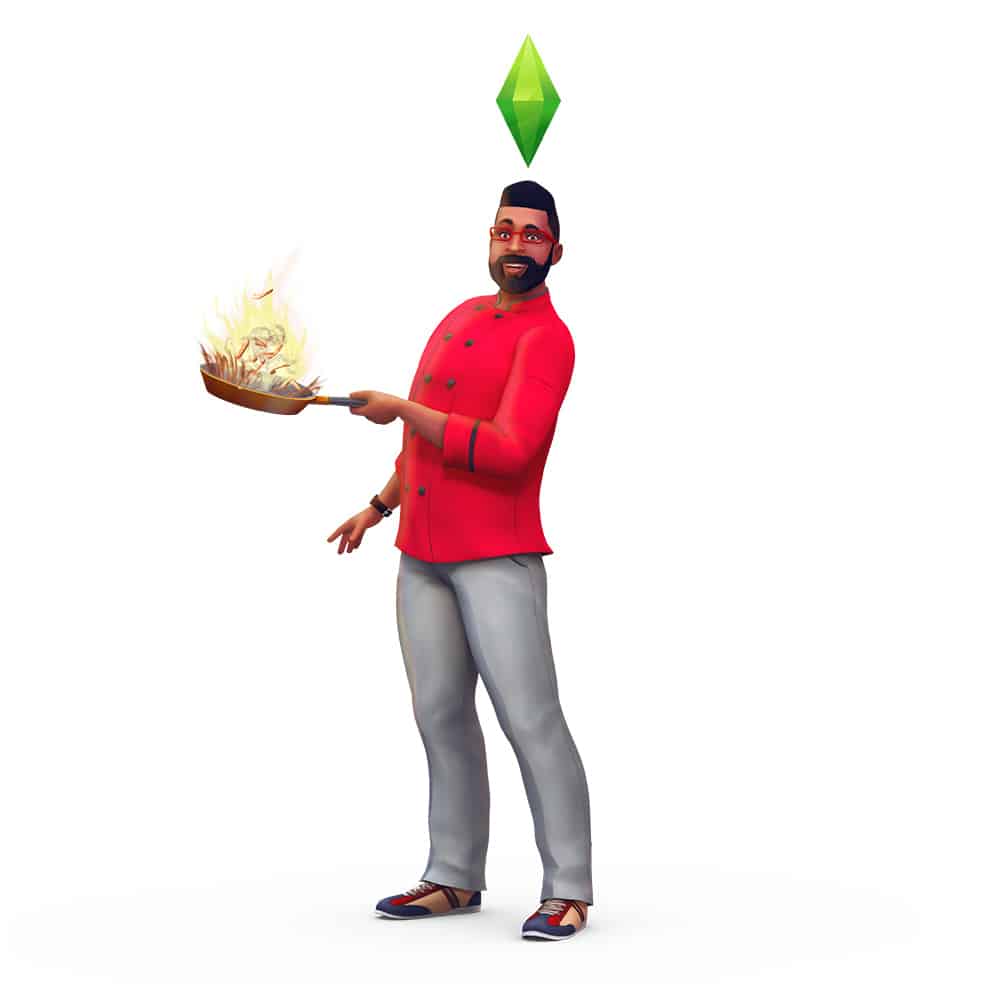
The Sims 4 Get Famous: Celebrity Musician and Chef Renders

6

The Sims Team have published a brand new “How Will You Become Famous” quiz to help promote The Sims 4 Get Famous Expansion Pack.

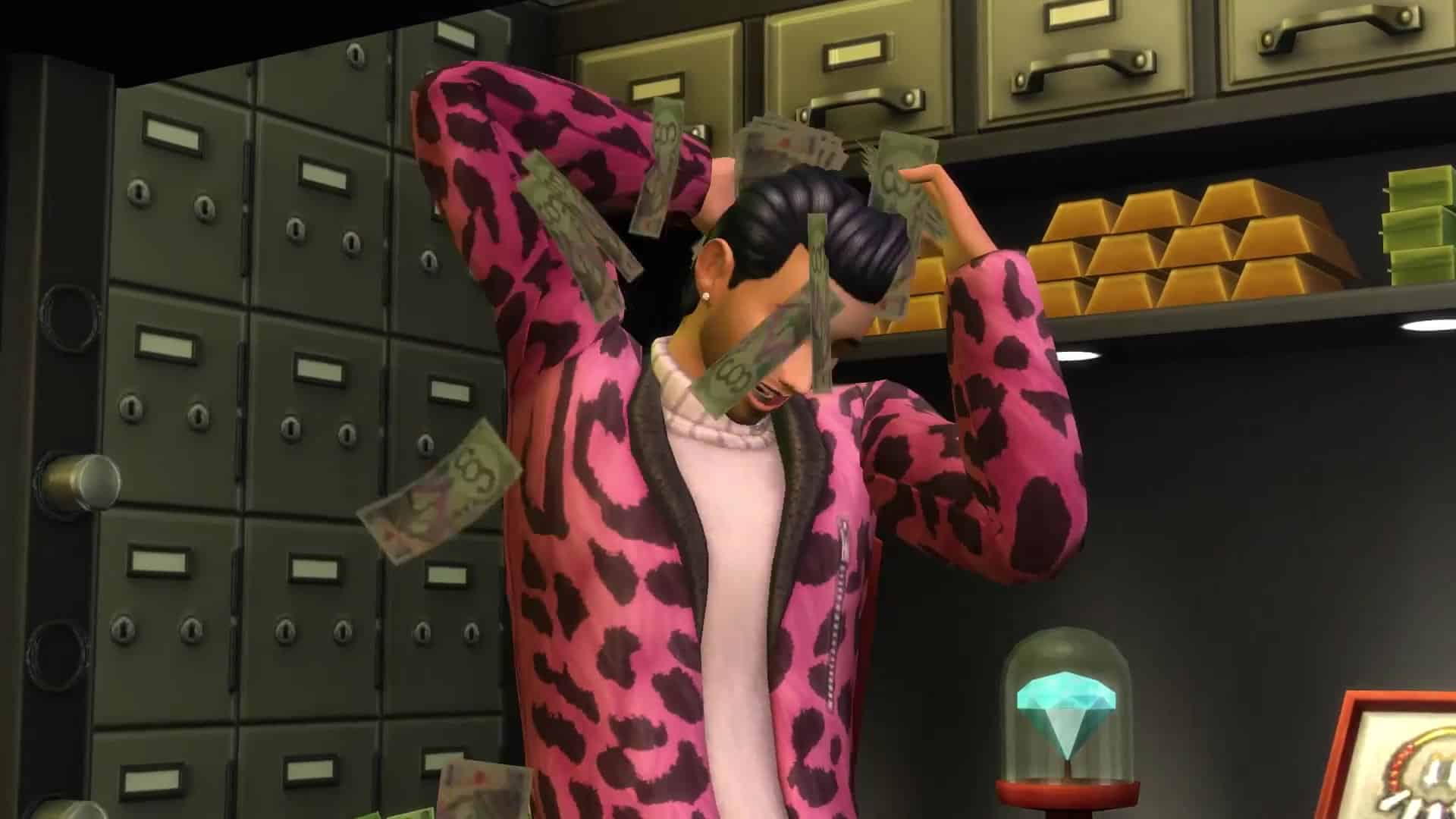
With this quiz they’ve also published 2 new renders, showcasing a Celebrity Musician and a Celebrity Chef.

The Sims 4 Get Famous: Over 130 Screens from the Celebrity Life Trailer

0

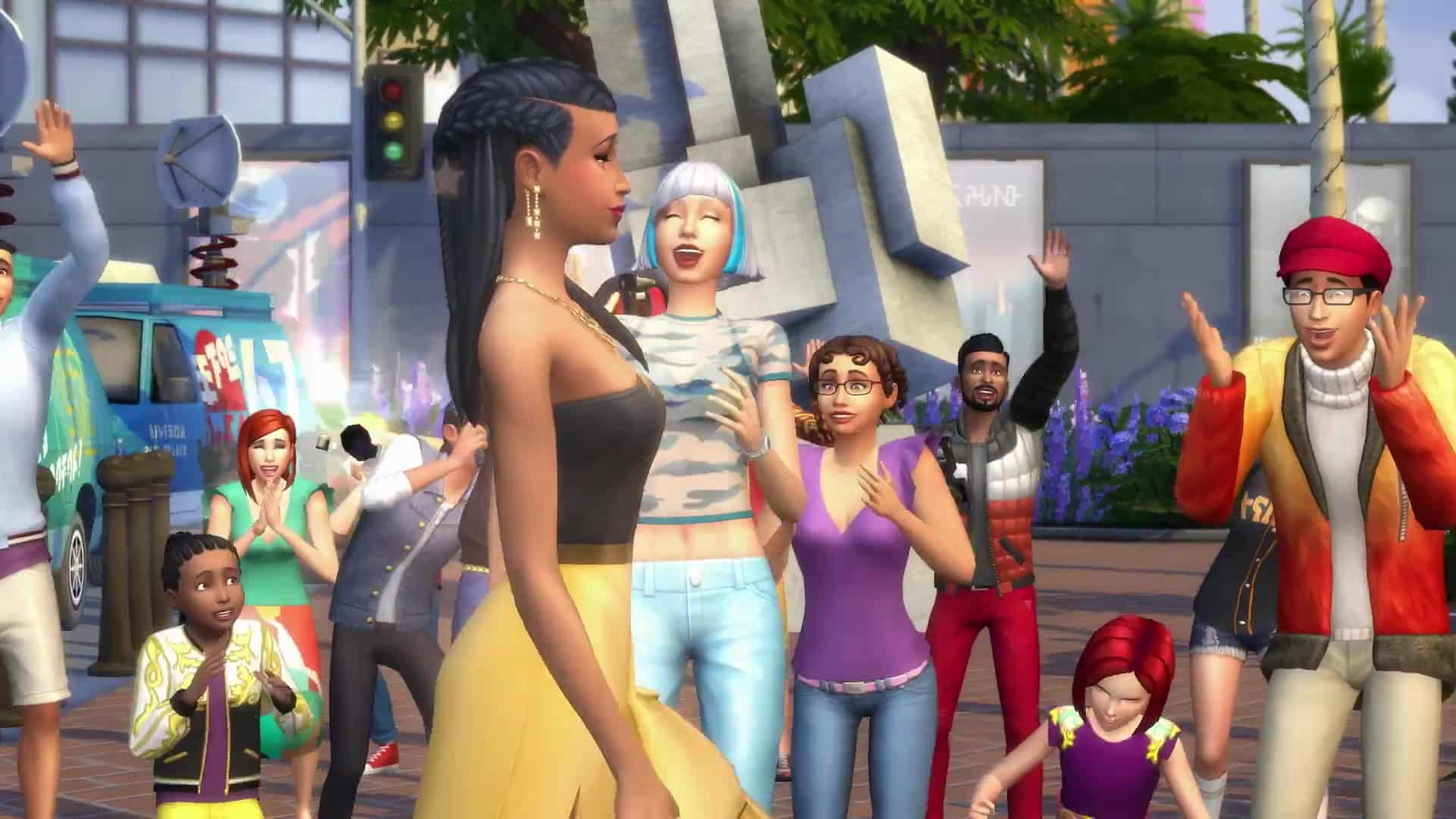
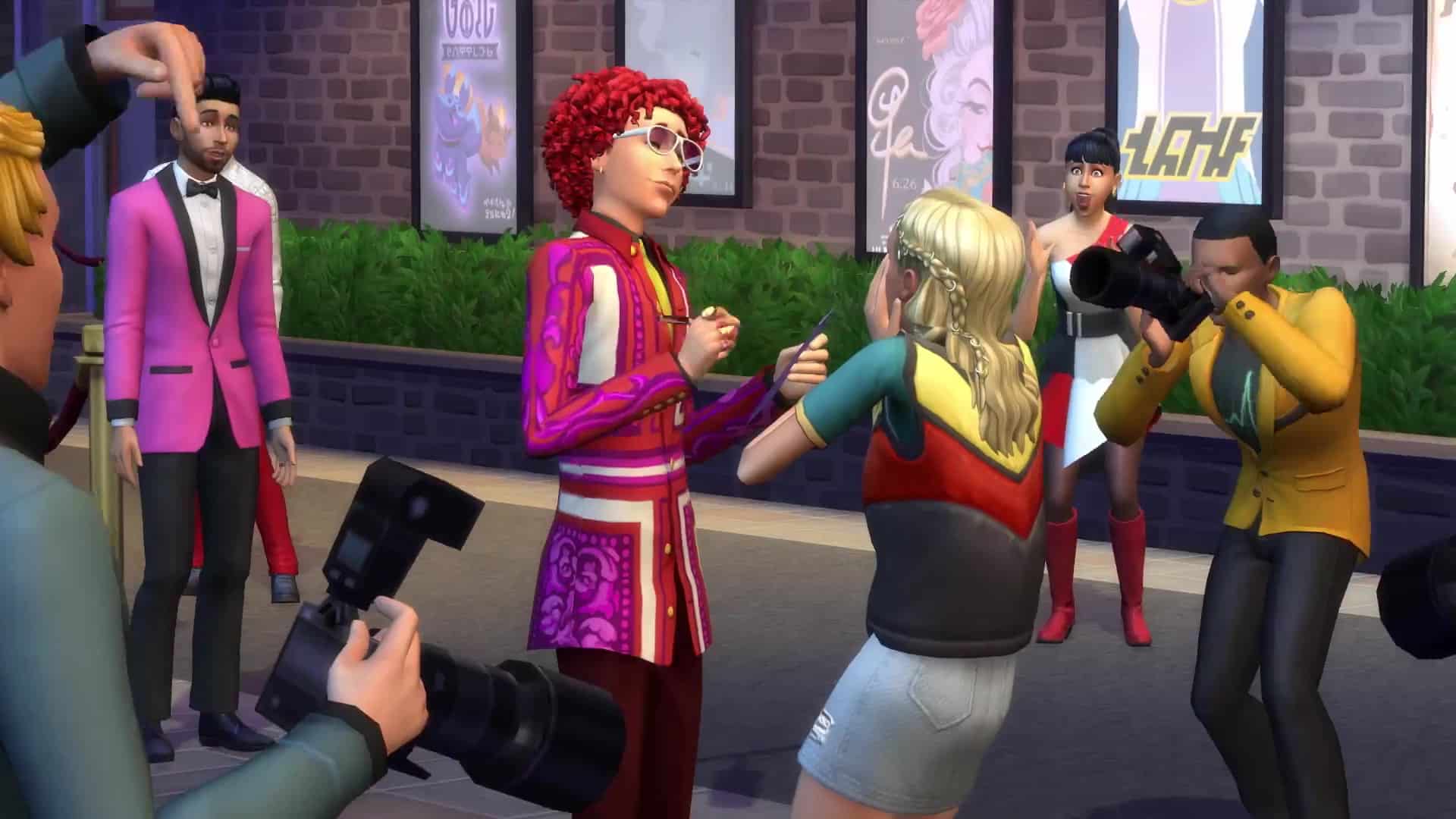
We have extracted over 130 screens from the official gameplay trailer for The Sims 4 Get Famous Expansion Pack so you can spot all the little details and features found in each frame!

To enlarge an image simply click on an image of your choice.

The Sims 4 Get Famous: Celebrity Life Official Gameplay Trailer

0

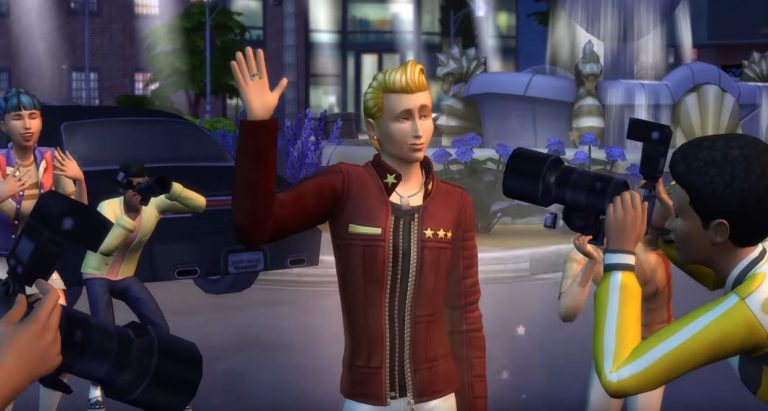
The Sims Team has released a brand new trailer for The Sims 4 Get Famous Expansion Pack, showcasing some of the features, perks and quirks of being a celebrity in Del Sol Valley!

The Sims Mobile: The Dance Instructor Career Quest is back!

2

The Sims Mobile has just started a rerun event for the Dance Instructor Career Quest which went live a few months ago after the release of the Waterfront update!

The Sims Mobile: The Dance Instructor Career Quest is back!

Those who haven’t had a chance to unlock the Dance Instructor Career the first time this quest went live will be able to unlock it. However, those who already unlocked the career are now able to complete the Advanced Dance Instructor Quest which is going to unlock the Athletic 1 Heirloom.

Screenshot 20181108 153013 The Sims

The quest is now live! If you start the first part of the quest in less than 3 days then you’ll be able to trigger a series of quests which will last around 4 days in total.

The Sims 4 Get Famous Footage Rundown + Q&A

2

UPDATE: The livestream has ended! You can catch the entire replay above.


We are going LIVE with The Sims 4 Get Famous Expansion Pack!

Join me as I showcase all 4 hours of unedited footage of this pack that I captured during Sims Camp 2018. I’ll also be answering any questions you might have about this Expansion Pack so make sure you join the livestream!

The stream begins at 9PM CET / 8PM BT / 12PM PT. You can find an exact countdown to the stream’s beginning by choosing to play the stream above – there’s a countdown on the bottom left corner!

The Sims 4 Seasons: Patchy The Scarecrow Concept Art

0

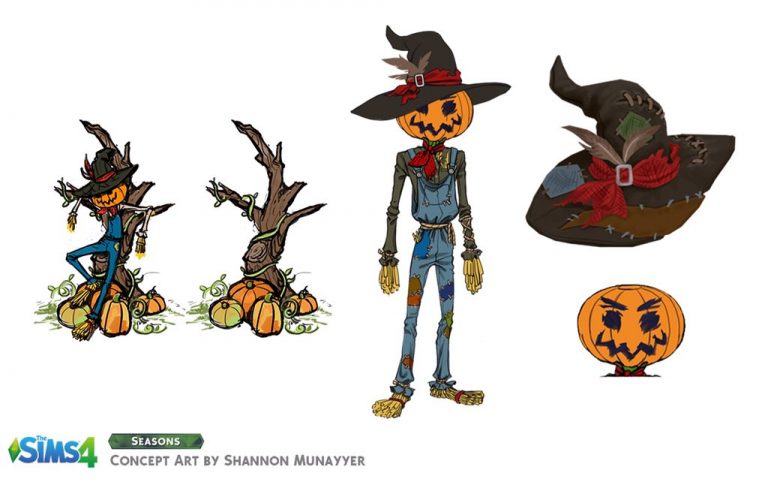
SimGuruSalo has posted a concept art piece of Patchy The Scarecrow – an NPC that’s featured with The Sims 4 Seasons Expansion Pack!

The concept art piece that you can see down below is created by Shannon Munayyer, one of the concept artists working on the game.

The Sims 4 Seasons: Patchy The Scarecrow Concept Art

The Sims 4 Get Famous Official Blog: Tour Plumbob Pictures

0

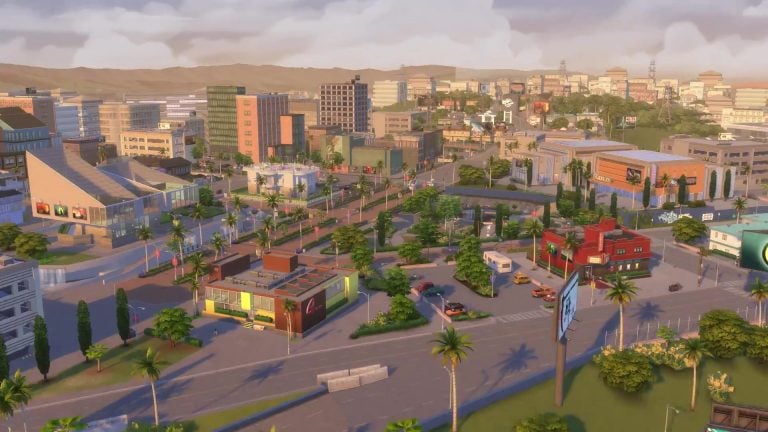
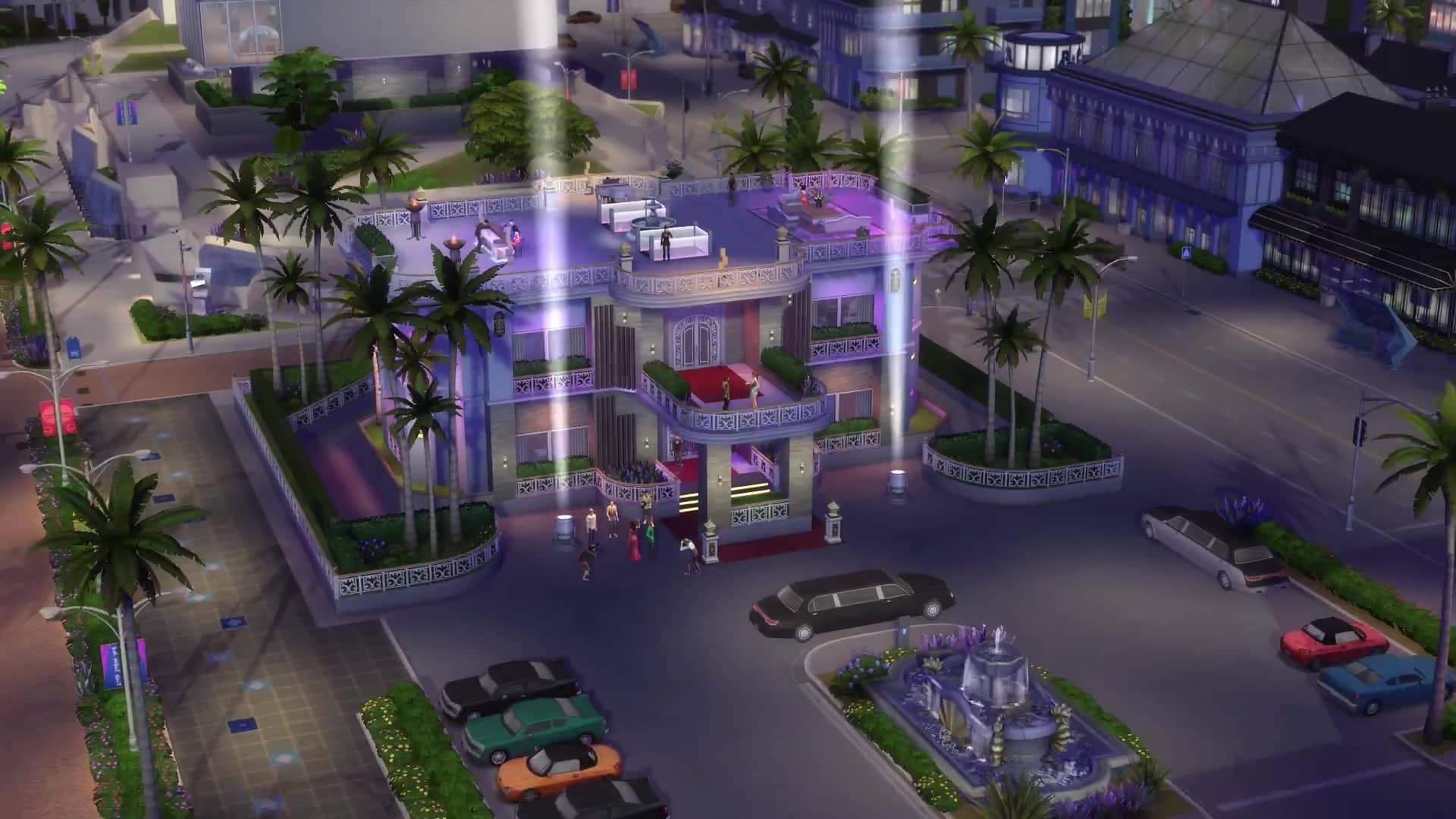
TheSims.com published a new blog post about The Sims 4 Get Famous Expansion Pack talking about the Plumbob Pictures Venue and its neighborhood!

The Sims™ 4 Get Famous Expansion Pack* releases very soon, people, so let’s take a tour of Del Sol Valley’s neighborhoods!

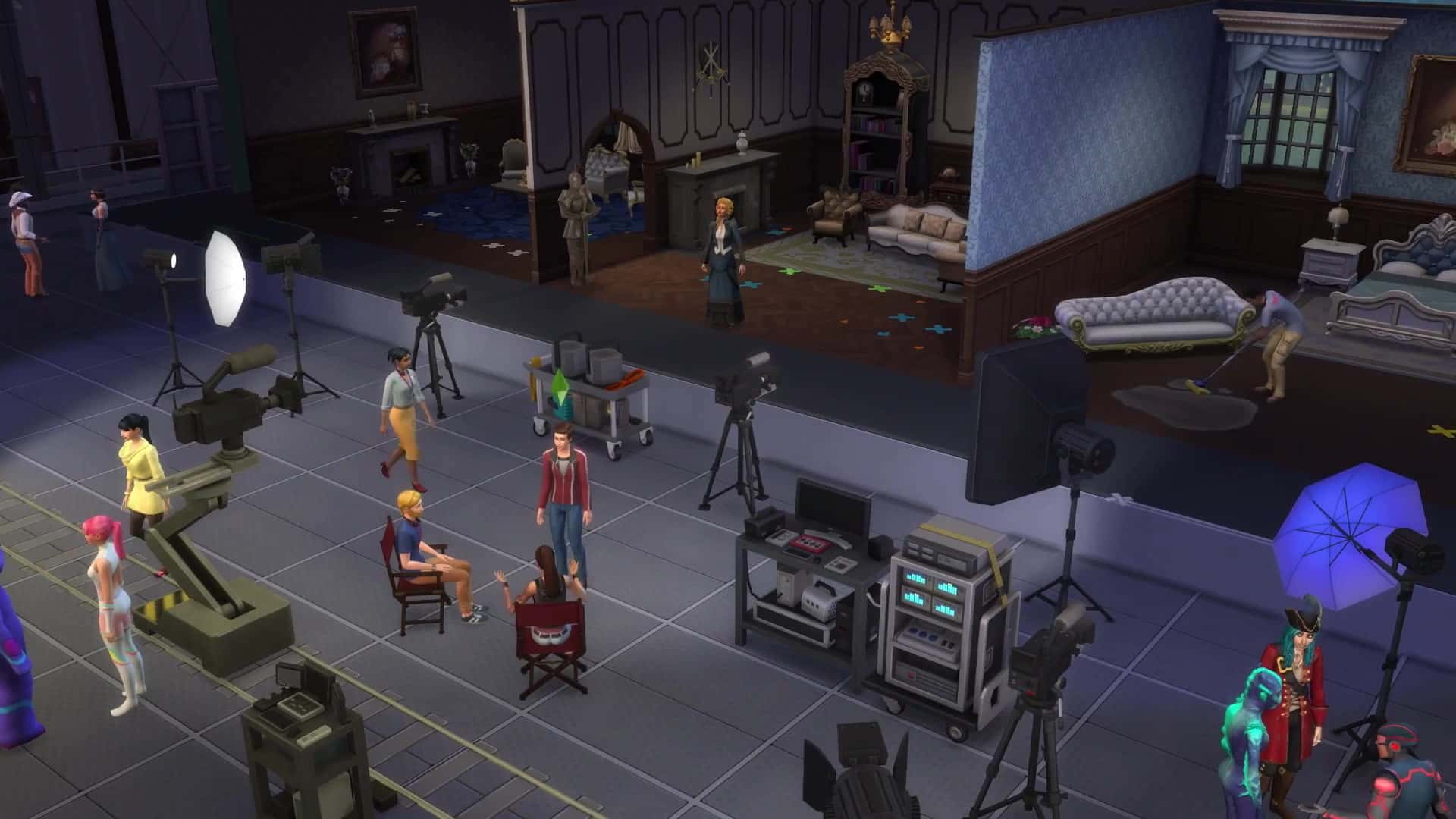
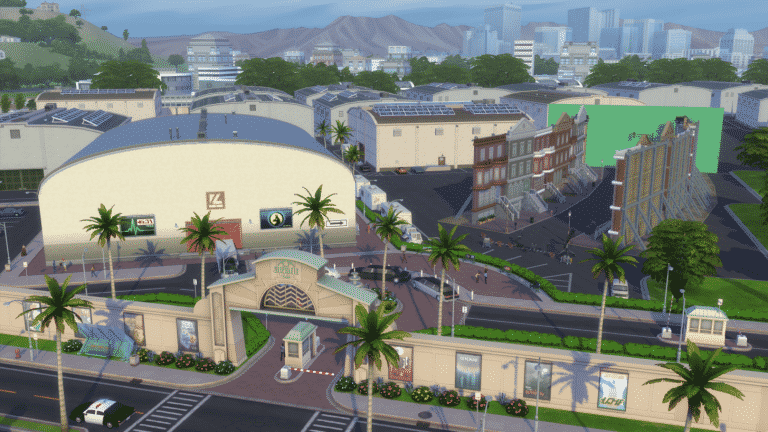
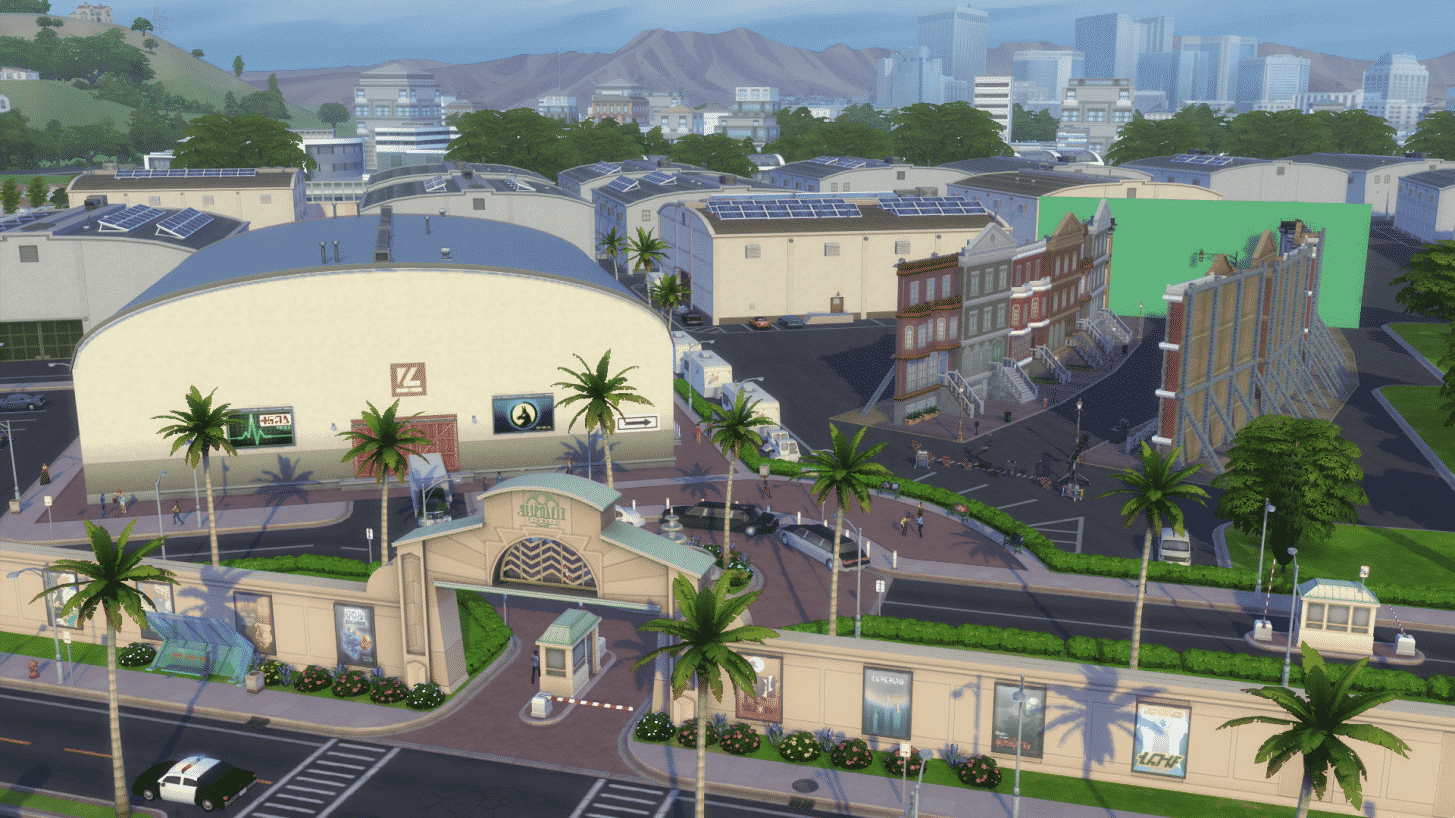
First up, Plumbob Pictures. Where dreams are made, and put on camera! Once your Sim chooses the Acting career, finds a talent agency, and passes their audition, they’ll be headed to film a fantastic commercial or movie. And, of course, you can join them on their journey. When your Sim arrives, they’ll see the inner workings of a real film set. It’s not all glamorous, but hey, that’s movie magic for ya.

The Sims 4 Get Famous Official Blog: Tour Plumbob Pictures

So, let’s get to the important things, like food. Sims can peruse the craft table and get some eats. They’re free, and since your Sim is just starting out, this is a great place to fill up.

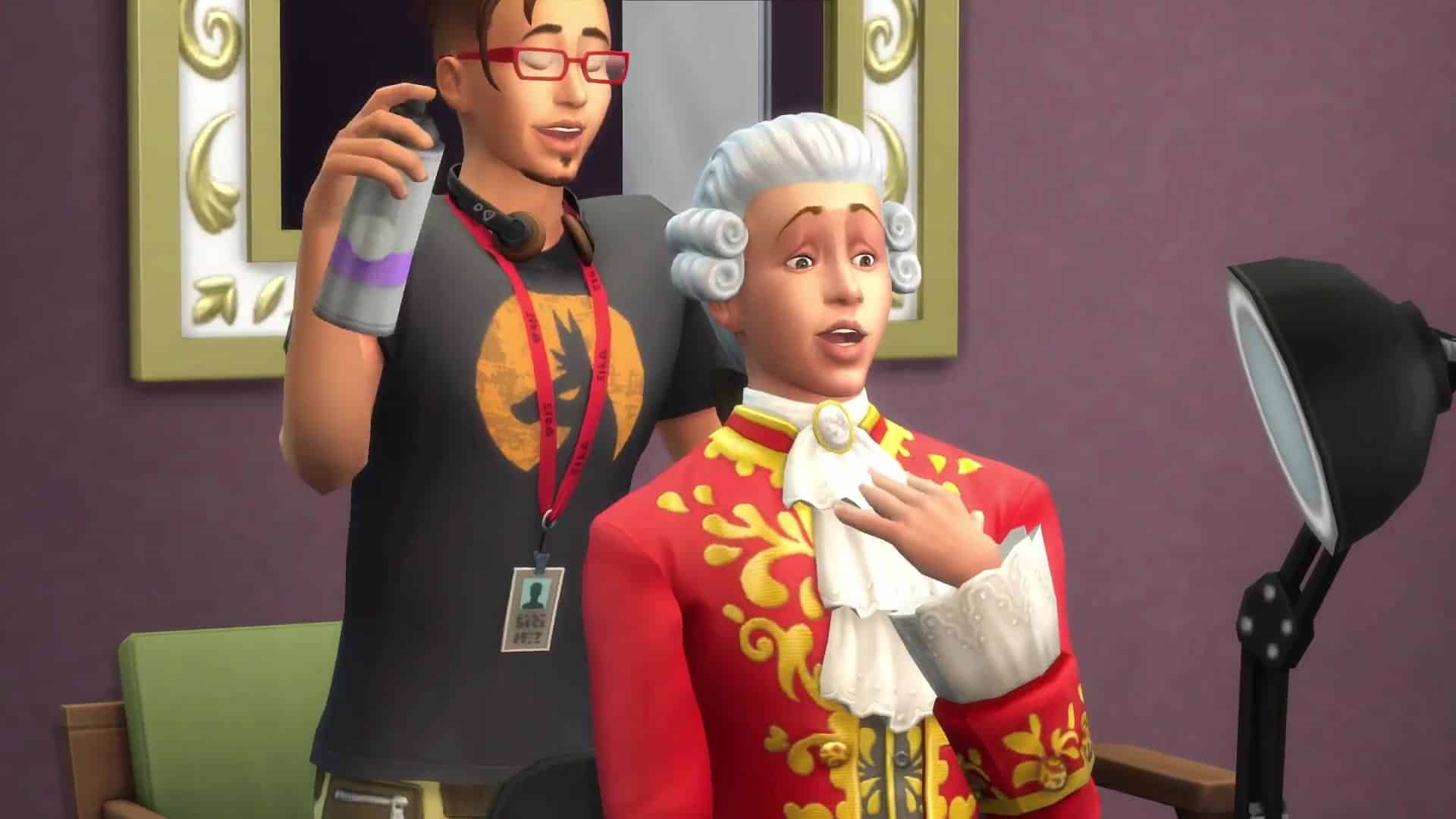
Mosey over to the hair and makeup station, where Sims can get dolled up for their latest part. Who knows what Sims will end up looking like, but the stylist is a professional, right? Next comes wardrobe, where your Sim will get fitted for their costume. Oh yes, the look is finally coming together.

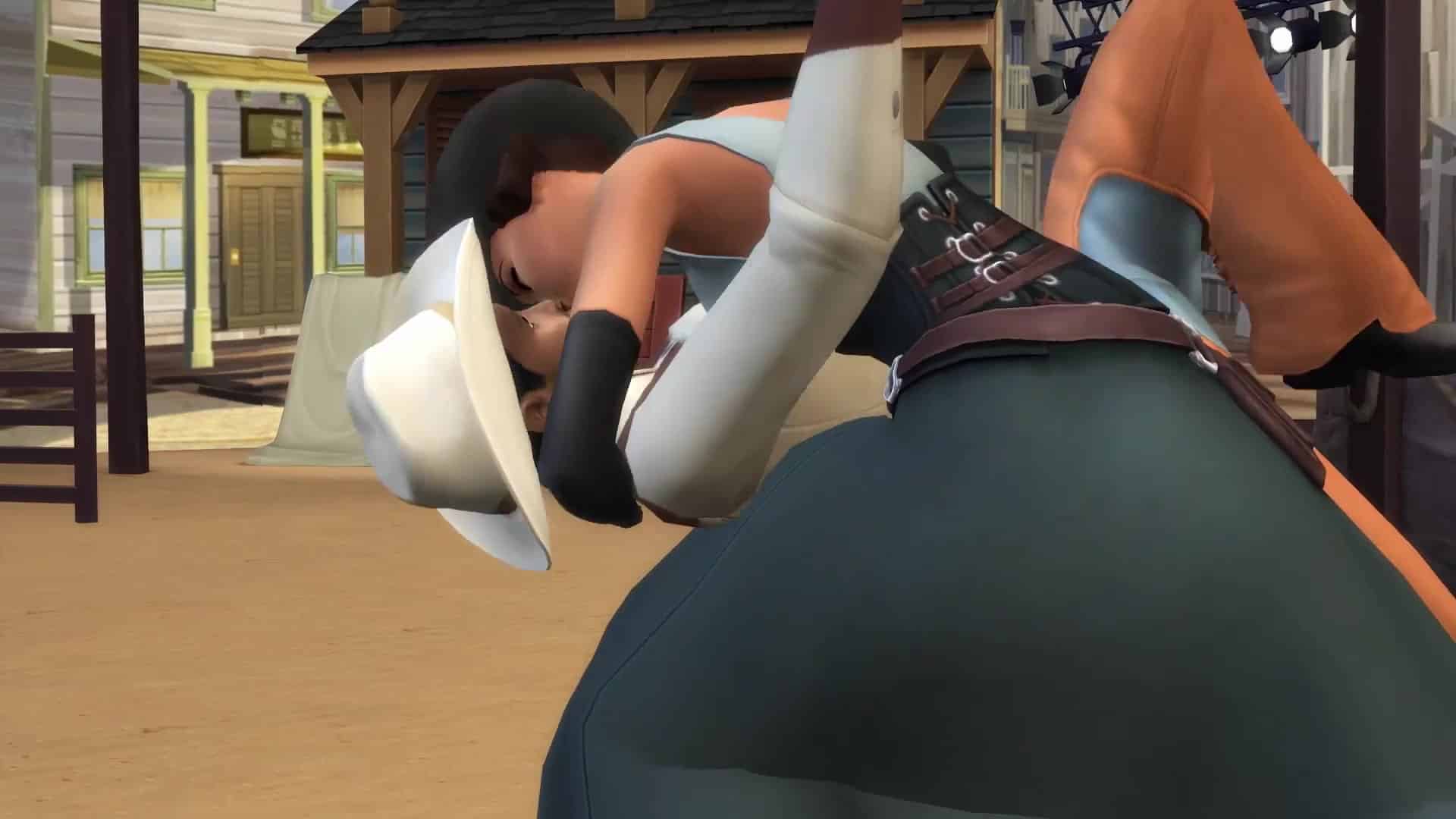
Plumbob Pictures is a unique part of Del Sol Valley, and of any world in The Sims 4. What makes it extra special is the sets themselves, because they change depending on the gig. It could be a pirate ship set, a cowboy-themed Western, or even a children’s show. It all depends on your Sim’s career choices. Not to mention, a set just might give you building and home-decorating inspiration.

There’s lots to see, of course, but here, Sims can also meet camera operators, background actors, producers, and the director. And when the lights dim, it’s time to perform! Assuming your Sim has rehearsed and prepared for this moment, they’ll be ready to roll when the director yells something in Simlish that means “ACTION!”

Upcoming Official Livestreams and 2 Maxis Monthly Dates Revealed

0

As SimGuruKate has wrapped up The Sims Team’s second Maxis Monthly Livestream, she later revealed on Twitter the upcoming plans for Livestreams for the end of 2018 / beginning of 2019, as well as shared dates for the next two Maxis Monthly Livestreams.

The next official livestream that we can expect is for The Sims 4 Get Famous that’s happening this Friday – November 9th at 11AM PT where The Sims Team will be covering the new Del Sol Valley World as well as some of the gameplay objects.

Next, she revealed that there’s going to be another Maxis Monthly Livestream happening on December 4th. After that, there won’t be any more official livestreams for the end of the year as The Sims Team will be doing some stream setup upgrades.

The 4th Maxis Monthly Livestream is scheduled on January 8th, 2018 which will also commence the biweekly schedule of Guru Garage Livestreams. If you’re looking to know what each of these livestreams could bring CLICK HERE!

The Sims 4: First Person Camera Feature Overview

Presented by EA Game Changers

The Sims Team is releasing a brand new camera mode for The Sims 4 Base Game – the First Person Camera Mode!

With the First Person Camera you are able to jump straight into your Sims’ eyes and see exactly what they see, allowing you to move around through commands and interact with your surroundings in the 1st person view!

To access the First Person Camera all you have to do is press Shift + Tab on your keyboard and the camera will right away shift to first person view.

You’ll be able to control your Sims and move them through space by clicking the ground and selecting “Go Here”. There’s also a new UI addition which will appear every time you hover over the ground, giving you more sense about the space that your Sim may want to walk to.

The Sims 4: First Person Camera Feature Overview

Closed rooms won’t be a problem to get out of! All you have to do is press Right Click and select the outside area that you want to approach. You also have an option to press Shift + Select a Door to exit the room that you’re currently in!

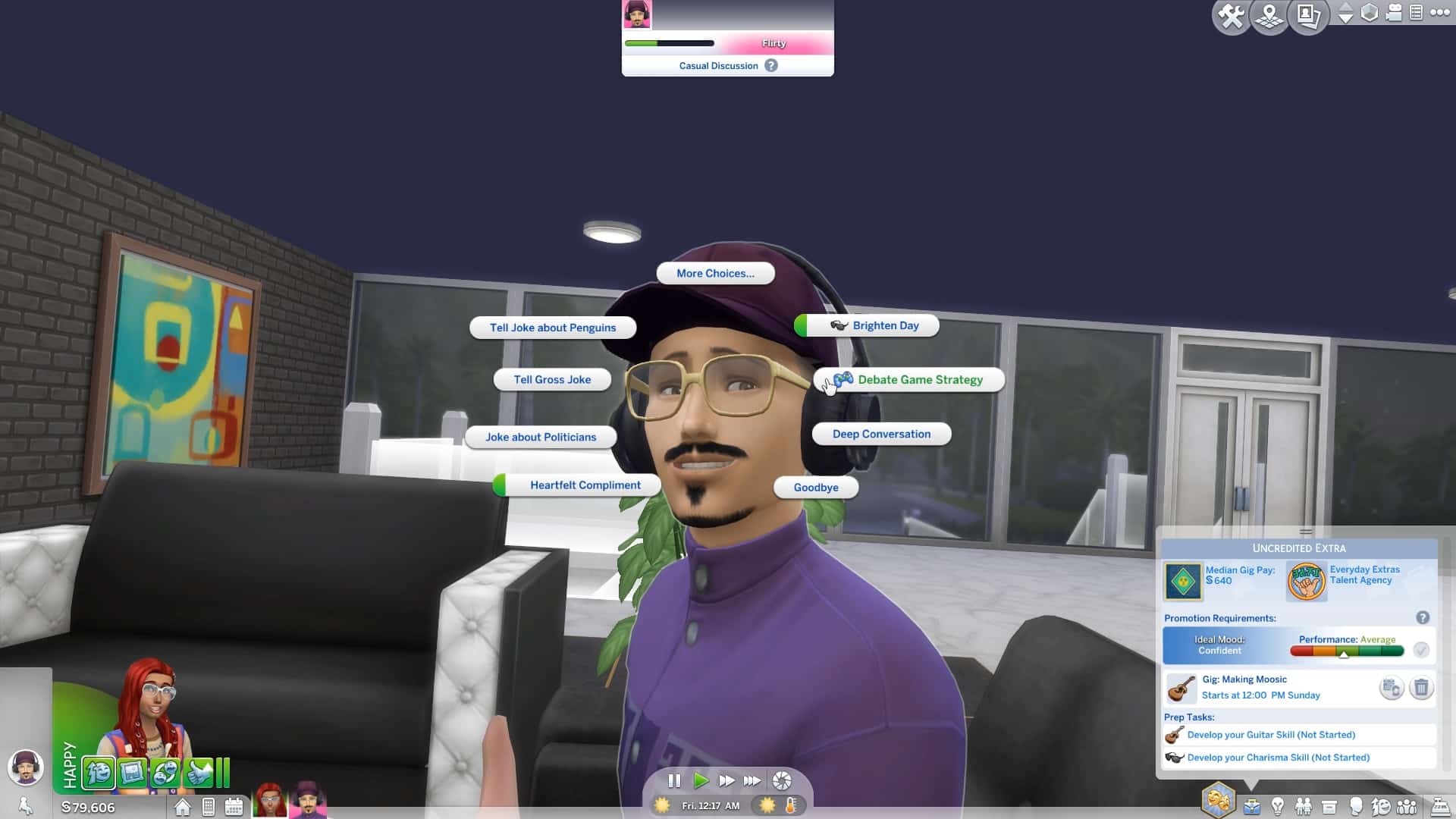
Interacting with Sims and objects is easy! Simply move around your Sim’s head using your mouse until the center of the camera points to the item you want to interact with. You’ll be able to perform all interactions and actions that you normally would in the regular “Dollhouse” Camera Mode.

While selecting an interaction of your choice you’ll also bring up the mouse, which will allow you to interact with the user interface. You can fully switch to controlling the user interface by holding the Shift key.

The Sims 4: First Person Camera Feature Overview

The first person camera mode will also influence your Sim’s head movements! If you turn the camera around and observe your Sim in the mirror you’ll notice that they’ll move their head according to your camera movements.

The Sims 4: First Person Camera Feature Overview

Beside being able to jump into the perspective of all Sims including Toddlers and up you’ll also be able to see what your Cats and Dogs see! You can do so by jumping into the First Person Camera mode and switching between household members using the left <- and right -> navigation keys on your keyboard.

You won’t be able to control your pets (at least not without the Active Pets Mod) but you will be able to move around the camera and see the things they see!

Being inside of a room and switching into First Person Camera will automatically bring up all the walls and stories to the max so that you’ll get a full feeling of living inside of a home!

The Sims 4: First Person Camera Feature Overview

Taking screenshots and / or videos won’t be a problem in first person mode. If the User Interface is getting in your way and you want to capture a moment without it simply press the Tab key to eliminate the UI.

Interactions such as WooHoo and Rabbit Holes that your Sim disappear into for a specific moment will automatically bring back the regular camera mode. For example in the screenshot below my Sims were about to WooHoo but just in the right moment the camera switched back to the regular mode.

The Sims 4: First Person Camera Feature Overview


The First Person Camera Mode is coming to The Sims 4 along with all of the other features such as Terrain Tools, Style Influencer Career and more in a Free Game Update on November 13th, 2018.