Home Blog Page 132

Guide to Sexual Orientation in The Sims 4

Powerful new tools to control who your Sim is and is not interested in being intimate with!

In yesterday’s free base game update, players got several big new features, including a new sexual orientation feature in CAS! This new tool will allow you to control who your Sims are and aren’t interested in both romantically and sexually. These settings will determine how that Sim interacts with others during gameplay.

CAS

Guide to Sexual Orientation in The Sims 4

Deciding your Sim’s sexual orientation begins in CAS. Open up the gender settings to see a new tab to the right called Sexual Orientation. Click that tab to be presented with options regarding your Sim’s preferences.

By default, all Sims you create will have the same settings that Sims always operated on previously; they will be interested in anyone and willing to explore sexual and romantic options with anyone. You can keep these settings if you like, but if you’d like to customize these preferences further, you now have the freedom to do so.

The menu is broken down into the following categories:

This Sim is romantically attracted to:

  • Men
  • Women

This Sim is exploring romantically

  • Yes
  • No

This Sim is interested in WooHoo with:

  • Men
  • Women

You can select one, both, or no genders for all options. Separating romantic attraction from sexual attraction allows players to create more diverse Sims. These settings will allow you to create Sims across a wide range of sexual orientations, including asexual and aromantic Sims.

The Yes/No option for whether your Sim is exploring romantically will determine whether or not they’ll reject romantic advancements from Sims who do not fit their preferences. If you select Yes, your Sim may be open to romance with Sims who do not match their preference settings. If you select No, your Sim will always reject romantic interactions from Sims they don’t have a preference for.

Gameplay

Guide to Sexual Orientation in The Sims 4

You’ll see these settings take effect in Live Mode as you play and begin interacting with other Sims. If you are on friendly enough terms with another Sim, you can ask them about their WooHoo preferences and their Romantic preferences under the Romance social tab. Make sure you are quite close with that Sim, first! Most Sims won’t feel comfortable discussing their sexual orientation with an acquaintance.

Guide to Sexual Orientation in The Sims 4

When you ask about a Sim’s Romantic preferences, they’ll also tell you whether their preferences are set in stone or whether they’re open to exploring different options.

Guide to Sexual Orientation in The Sims 4

Once you’ve discovered a Sim’s Romance and WooHoo preferences, you’ll be able to see that information in their Sim profile under the new Sexual Orientation tab. An icon next to their portrait tells you whether they are open to exploring different preferences or not.

Guide to Sexual Orientation in The Sims 4

You might be wondering how it’s possible to pursue WooHoo with Sims without first building up a romantic relationship. Well, there is a new interaction under the Friendly social category called Ask to be WooHoo Partners. If two Sims are good enough friends with each other, they can Ask to be WooHoo Partners without needing to have a pre-existing romantic relationship. WooHoo Partners will be able to WooHoo (or Mess Around for Teens) but will not gain Romance points from doing so and won’t be in any kind of committed relationship.

Other Notes

  • The Sims Team acknowledges the issues around making sexual orientation binary and have promised that this feature is still being worked on and added to in order to make it even more inclusive in the future.
  • The Sims Team did not go back and adjust the sexual orientation of all the pre-existing households. They are all still pansexual by default but the player can change this themselves if they want to.
  • Sexual Orientation is not a feature that can be opted out of. You can’t turn it off, just like you can’t turn off someone’s sexual orientation in real life. However, as previously mentioned, Sims will continue to act the way they always have if you choose not to customize the default settings.
  • While we did find this new feature quite powerful, we also ran into a couple issues with it. Most notably, WooHoo Partners still get jealous and gain the Furious About Cheating sentiment if they catch their WooHoo Partner being intimate with someone else. This seems to defeat the entire point of a no-strings, no-commitment sexual relationship in the first place.
Small Additions New to The Sims 4

New Features to the Game that you possibly missed out!

Yesterday’s free base game update added a lot of big changes, like Sexual Orientation and Wants and Fears, but The Sims Team has snuck in quite a few smaller additions they didn’t mention. These smaller game additions might not be immediately obvious, so we wanted to point them out to our readers!

Sim Profiles Now Show High School Education

Small Additions New to The Sims 4

Previously, the Education tab was exclusive to the Discover University expansion and only displayed which university degrees your Sims had completed. This tab is now in the base game and displays your Sim’s high school education. This is likely due to the fact that teens are no longer guaranteed to graduate high school.

Video Calls Have Been Added to the Phone

Small Additions New to The Sims 4

It might have been easy to miss, but we noticed a new video call interaction on the phone! Video chats are becoming a lot more commonplace than phone calls so this feels like a fresh, contemporary addition to the phone.

Sims Can Sit on the Ground

Small Additions New to The Sims 4

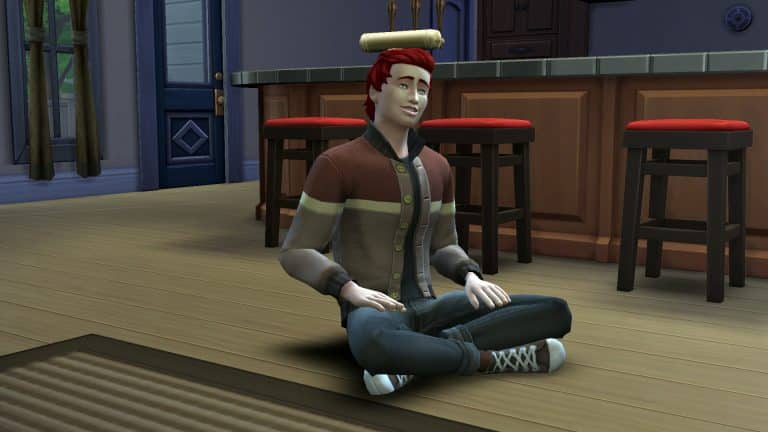
Apparently, this isn’t exclusive to High School Years! The base game now allows your Sims to sit cross-legged on the floor via a self-interaction.

Build/Buy Has a Lock Icon on Reward Items

Small Additions New to The Sims 4

Certain reward objects in the Build/Buy catalogue have always had a greyed out background to indicate they are locked but it appears there is also a tiny lock symbol in the centre of these object icons in the catalogue to make it more obvious that they need to be unlocked through gameplay.

The Phone Has New Selfie Poses

Small Additions New to The Sims 4

There are a few new selfie poses on the phone camera! We’re happy this wasn’t exclusive to the new expansion because the same three poses we had before were getting very stale.

Countdown to the release of The Sims 4 High School Years

0

The latest Expansion Pack is releasing to PC and Consoles VERY Soon. Find out EXACTLY when!

It’s been a year since The Sims 4 had an Expansion Pack release. But here we are – it’s finally time for another big EP release!


Now hold on, before we get to the Countdown, it’s worth noting that The Sims 4 Base Game is in a critical condition with its Auto-Aging Issue. Don’t worry, there’s an Official Workaround for it! However, will The Sims Team be able to deliver the newest Expansion Pack AND fix the critical issue? We’ll just have to wait and see. Stick around!


The Sims 4 Expansion Packs have a new form of rolling out Packs. Just a year and some months ago there would be staggered release on a Friday. However, the High School Years Expansion Pack is different (just like with Cottage Living) and will be released on a Thursday. July 28th at 7PM CET / 10AM PT / 6PM BT. Wait, was that too many time zones?

Let us simplify with a handy countdown!

PC & Console Worldwide Release

[janky target_time=”1659027600″ color=”#0aa6b6″]

The Sims 4 High School Years is retailed at $39.99USD, or a price similar to your local currency. The Expansion is hitting both digital and retail shelves. The official links will be posted here after the release of the Pack!

Countdown to the release of The Sims 4 High School Years

Pre-Order Bonus for The Sims 4 High School Years

If you Pre-Order The Sims 4 High School Years by September 8th you get exclusive access to 3 items in the game! MORE INFO HERE

Our Team is getting ready for the big coverage of Articles, Overviews, Guides and Reviews for High School Years. You’ll be the first to know the ins and outs of this Expansion Pack, so stay tuned!


Are you excited (or not) about the upcoming Expansion Pack release? Let us know and join the Conversation!

The Sims 4: Fixing The Dark Windows Glitch on Curved Walls

Round Walls are here. And so are the first version glitches!

Round walls are officially in the Sims 4!

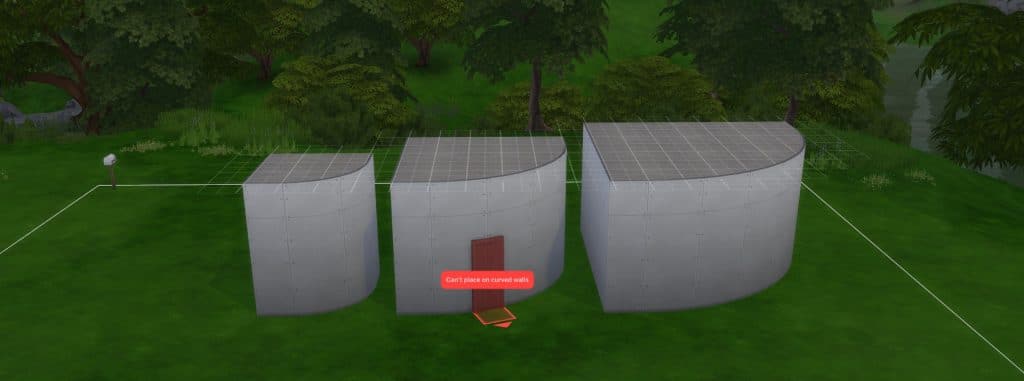
The latest base game patch just gave us three sizes of curved walls that work similarly to the round floor pieces that we already have in-game. Most windows and doors that we already have will fit flawlessly to these curves, especially one-tiled build items.

There’s just one (not so) teeny tiny problem…this:

Slide1 2

With the move objects cheat on, some two-tiled and three-tiled windows dim out when placed on a tight curve. It’s because most of the window is technically indoors. If you add lights inside, the same lighting will apply to the window outside. And we hate when objects have the wrong lighting.

The Sims 4: Fixing The Dark Windows Glitch on Curved Walls

Fret not, builders! With some patience and skill, we have three fixes to this annoying bug. Each fix depends on what building tools you’d want to use that are available in your game!

#1 Fix: Add lights outside

It’s simple and fast: just add a light right outside the dark window. You can grab the small saucer ceiling light from Base game and size it down with the ’[’ key. Or you can integrate outdoor lights into the exterior design of your build.

Slide2

But out of all these fixes, this is the least recommended one because the lighting gets weird and uneven throughout the day. Also, it’s still kinda obvious your windows are not lit outdoors.

Slide3 2
Fixed windows during the morning, afternoon, evening, and night

#2 Fix: Double up your windows

After putting a window on a curved wall, add another one of the same kind right on top of it. Now delete the curved wall and any nearby walls by clicking on it and selecting ‘Remove Wall’.

Slide4

With the Alt key, grab one of the windows and drag it slightly away from the outline of the room. When you add back the curved wall, make sure this window will have outdoor lighting.

Slide5 1

If you’re wondering why can’t you just have one window, it’s because this will happen. Once you drag away the window and put back the wall, there would be no cutout on the wall. You need one window on the wall to make a cutout and one outside to have outdoor lighting.

Slide6
Using two windows vs using only one window

This fix may be the most tedious (and expensive) fix but it works better than the first!

#3 Fix: Use the TOOL mod

If you don’t want bad lighting and doubled windows, the TOOL mod is the best way to go if you have it. Toggle the dark window with TOOL until it turns into a translucent green. While holding Alt, click somewhere outside not too far from the room. This will slowly drag your window away from the room until it is properly lit. Click on the window again to release the toggle.

Slide7 1

This is how it would turn out!

The Sims 4: Fixing The Dark Windows Glitch on Curved Walls

Three fixes, one goal: we just want our windows to be normal.

Let us know if this worked for you!

Guide to Wants and Fears in The Sims 4

A breakdown of the new Wants and Fears system, plus every Fear, how to trigger them, and how to overcome them!

The Sims 4 got a huge content update yesterday, adding plenty of new features to the base game. One of the biggest features all Sims 4 players got for free today was a new Wants and Fears system. The Wants and Fears system is a replacement for the now-abandoned Whims system, which was for the most part, random and entirely pointless. Wants are now more in line with your Sim’s personality and Fears are developed over time through gameplay. Unlike past Sims games, Sims can overcome their Fears by facing them head-on.

So let’s get into Wants and Fears!

Wants

Guide to Wants and Fears in The Sims 4

Sims now have a set of Wants that are much more intuitive and better based on each Sim’s unique personality. Sims can have up to three Wants at a time; one long-term Want, one short-term Want, and one reactionary Want.

Long-term Wants are things that take some time to achieve. These Wants don’t change as often as the other Wants. Short-term Wants are things that can be done quickly, like making a phone call or chatting with someone. Short-term Wants may change more often. Reactionary Wants are based on what your Sim is currently doing. For example, if your Sim visits the park, they are likely to get a reactionary Want to play chess at the park. If their motives are low, they may get reactionary Wants to solve those motives.

When you complete a Want, your Sim is rewarded with satisfaction points to spend in the rewards store. In this respect, Wants are very similar to Whims, except Wants are a lot smarter than Whims. You won’t be rolling a lot of Wants for things that are completely unrelated to your Sim’s personality or lifestyle but that doesn’t mean you’ll never be surprised by a new Want! We noticed that our Sims would sometimes roll Wants to flirt with Sims they are merely acquaintances with; no pre-existing romantic relationship was needed to roll this Want. This is something that wouldn’t happen before and opens up new stories and gameplay for you that you might not have planned. Of course, if flirting with the mailman isn’t something you want to do, you can always ignore that Want.

Wants cannot be clicked away like Whims could, so there’s a bit of a gameplay challenge there, but don’t worry about getting stuck with the same Want forever; they can and do change on their own. You can also complete a Want to get rid of it and make room for a new one. Wants can be pinned so if your Sim rolls a Want you really want to complete but don’t have time for right now, click the pin button on it to lock it in. Pinned Wants won’t disappear until you complete them. Don’t worry if you can’t complete a Want; the only penalty we saw for not fulfilling Wants is developing a Fear of Unfulfilled Dreams, which can be overcome!

That brings us to Fears…

Fears

Guide to Wants and Fears in The Sims 4

While Wants are a big improvement over Whims, Fears are brand new to The Sims 4 and are better than Fears from previous The Sims titles. Those who remember Fears from The Sims 2 will know that Sims had a set of Fears alongside a set of Wants but there wasn’t a whole lot you could do about your Sim’s Fears except avoid them.

Now, Sims don’t start out with Fears. Instead, they develop them over time through lived experiences. If your Sim experiences a house fire, they may develop a fear of fire. Sims in relationships may develop a fear of being cheated on. Fears display as traits in your Sim’s info panel. Hovering over that trait will explain the Fear in more detail and offer a tip on how your Sim might be able to overcome it.

Some Sims are more or less likely to develop certain Fears than others. For example, Sims with the Jealous, Paranoid, and Commitment Issues traits will be more likely to develop the Fear of Being Cheated On. Sims who have the Gloomy and Brave traits, or Sims who are vampires will not develop a Fear of the Dark.

Guide to Wants and Fears in The Sims 4

If your Sim currently has a Fear, you may see a fourth “Want” pop up next to their other three Wants. This one will have a jagged outline. This means that your Sim wants to do something to try and get over their fear. Hover over it for details on how your Sim can try to face their Fear and ultimately overcome it.

Guide to Wants and Fears in The Sims 4

Our Sim was afraid of being cheated on and wanted to Discuss Relationship Fears with her boyfriend to try and ease her anxieties about him cheating. We decided to be a little mean, however, and chose to have her walk in on him WooHooing with someone else, instead. Because her worst fear actually came true, she was slapped with a very powerful Angry moodlet. Since she had already witnessed him cheating on her and was furious with him, when we tried to have her overcome the Fear by Discussing Relationship Fears, the conversation didn’t go well and they both got Angry moodlets.

However, if your Sims do successfully confront what they’re afraid of, they will no longer have that Fear. Confronting your Fears is a good way to get rid of a particularly annoying Fear that’s getting on your nerves in gameplay.

List of All Fears

Thanks to our junior writer, @thatsimslady digging through the tuning files for us, we have a list of every new Fear, how to obtain it, and how to overcome it!

Keep in mind that the listed triggers are only potential triggers. There’s a chance your Sim may develop a fear after experiencing a fear trigger but there’s a chance they might not. Other factors like your Sim’s traits will influence how likely your Sims are to gain certain Fears.

All Fears are for the base game but there will be new Fears related to High School Years that will come with the expansion.

[table id=106 /]

Hate this new feature for whatever reason? No problem. Just disable them in the Game Options under the Gameplay tab!

The Sims 4: Official Statement and Workaround on the Auto-Aging Glitch

0

If you unfortunately updated your game, there’s a way to prevent the Aging Glitch before the Hotfix.

Yesterday we reported on a huge glitch that surfaced right after The Sims 4’s latest Update. Sims aging up automatically!

The issue has been reported by many community members across PC and Consoles.

Today, The Sims Team has confirmed through Twitter that they are working on a Hotfix. Until then, there’s a way to prevent the issue from happening. Simply choose the Normal Lifespan in your Game Settings if you are using Short or Long, as they are broken. This applies for both Old Save Games and New Save Games!

Hey Simmers! We are currently investigating instances involving Sims auto-aging up in saves using the Short or Long lifespan. We recommend temporarily playing in or creating new saves with the default/“normal” lifespan, as we work towards a solution.

Well that settles it. If you updated your game, DON’T play The Sims 4 with Long or Short Lifespans until the Hot Fix comes up.

We will keep you posted when it goes live!

All About Round Walls in The Sims 4

Everything you need to know about the big new Build Mode Feature!

Towers? Silos? Movie Theaters? Think of all the buildings that can now be created with the new curved wall tool in Build Mode! Announced during the Deep Dive Livestream for The Sims 4 High School Years, curved walls are a much awaited for feature. Although more difficult than regular walls, curved walls seem to be easy to use once you know a few tricks.

All About Round Walls in The Sims 4

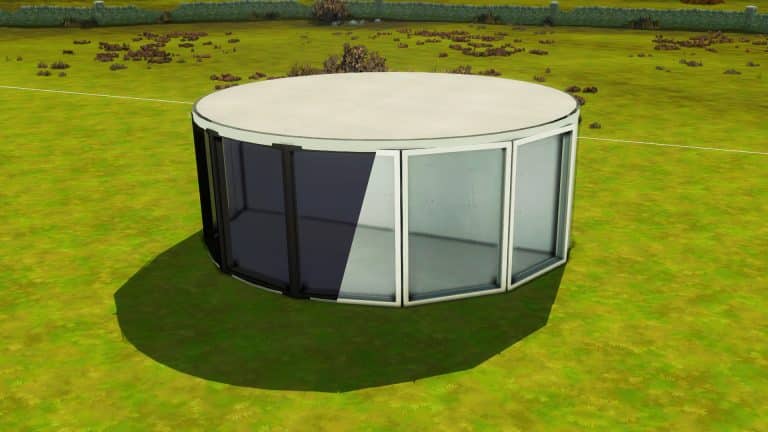
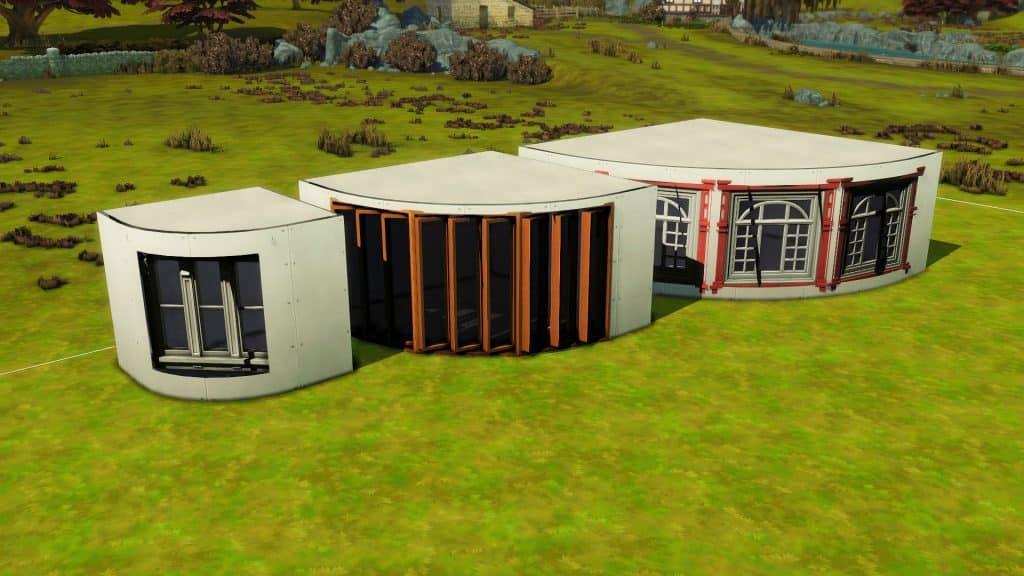
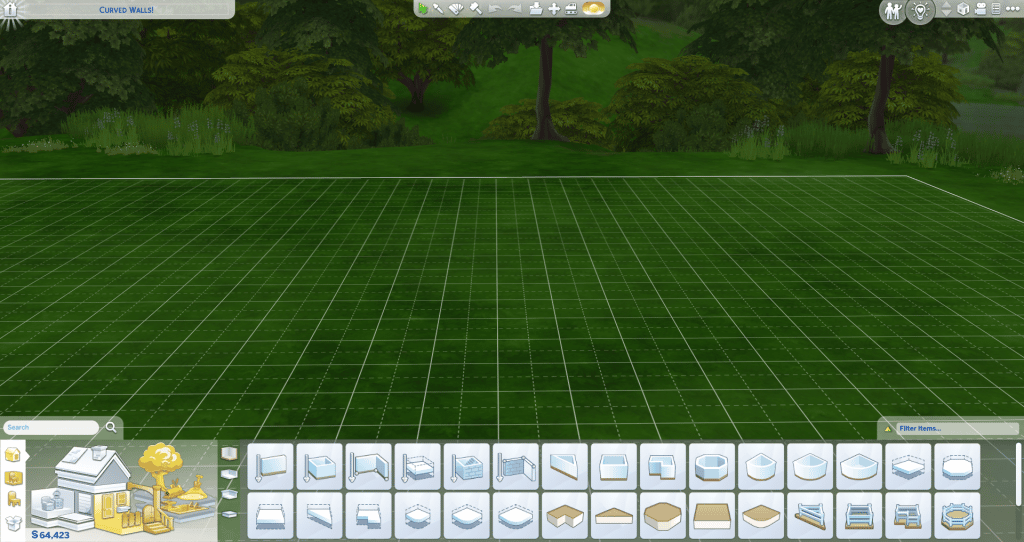
Curved walls are located in the walls section of the build catalog. Within the wall selections, there are three different sizes of curved wall pieces. They function similarly to curved, fenced foundation pieces. You can use alt to freely place both the doors and windows. Move Objects On does work, but some doors and windows will turn into a black cutout if it isn’t possible for them to fit on the curved wall.

All About Round Walls in The Sims 4

Connect four of the same curved wall piece together to make a rounded shape. If you want a circle, you can delete the extra wall pieces and adjust the foundation piece, then copy the small shape and connect them to the original piece to make a round room.

Also, there is no way to put fence around the ceiling of a build. So the only way to do this is to create a round foundation piece using the same steps as making the round room. Then, moving the foundation piece on top of the round room. You can then add any fencing to the ceiling.

Custom Content Doors and Windows

Unfortunately, as of writing this, CC doors and windows do not work with curved walls without move objects on. We will have to wait for a batch fix from Sims 4 Studio or for each individual creator to update their doors and windows.

All About Round Walls in The Sims 4

Curved Wall Bugs

Unfortunately there are bugs with the curved walls! Kate Emerald showed off on Twitter the problems with trying to put curved walls inside to create a rounded room. Luckily, she was able to find a workaround that she posted in the tweet below!

https://twitter.com/TheKateEmerald/status/1552033800510636035?s=20&t=i8-zbPG1WLNh4s2kpdEPag

Also, PlumbobKingdom showed what happens when you put a raised curved foundation inside a room. And KawaiiFoxita posted about stacking round rooms slightly off center from each other. These are only a couple of the examples of (mostly) cosmetic problems with the curved walls. Hopefully EA addresses the problems quickly and makes the walls more functional.

https://twitter.com/PlumbobKingdom/status/1552057592695984128?s=20&t=i8-zbPG1WLNh4s2kpdEPag
https://twitter.com/KawaiiFoxita/status/1551989991399739393?s=20&t=i8-zbPG1WLNh4s2kpdEPag

Community Builds!

Already, the community has been building some amazing builds using the new curved walls. From fair tale towers to Art Deco buildings to farms, people’s creativity has already started to show on Twitter. Here are five of our favorite builds that we’ve seen so far! They’re from KawaiiFoxita, uberstevo, arelladia, SimmerWill, and AngelsWay11.

https://twitter.com/KawaiiFoxita/status/1552043179041607680?s=20&t=i8-zbPG1WLNh4s2kpdEPag
https://twitter.com/uberstevo/status/1552009909218197512?s=20&t=i8-zbPG1WLNh4s2kpdEPag
https://twitter.com/SimmerWill/status/1552035001193177094?s=20&t=i8-zbPG1WLNh4s2kpdEPag

What did you create using Round Walls? Upload your Screenshot in the Conversation below!

You Decide The Future of Sims Community

0

ROUND ONE: The Sims Community Crystal

We cannot say much. Nor we will. Yet!

All we can say is that our previous symbol – the Sims Community Plumbob, has went through very unfortunate burnout. Therefore, the SC Plumbob has decided to fully retire.

Thank you the Sims Community Plumbob for your service! <3

You Decide The Future of Sims Community

Sims Community’s Plumbob

June 2022 – July 2022

Having a symbol predetermined by us carried a lot of weight in itself. We shouldn’t be the ones setting the look for our Community. THE COMMUNITY should be the one who gets to choose, right?

The power is now in your hands. It’s time TO VOTE!

[janky target_time=”1659290400″ color=”#2b2274″]

[totalpoll id=”115273″]

The Sims 4 Update Gives Smartphones an Upgrade!

Smart phones that look like… smart phones! Whoah!

The latest free base game update for The Sims 4 gives the outdated cell phone interface a much-needed makeover. The phone menu looks more like an actual smart phone home screen now, with sleek app icons and new app categories to improve organization.

The Sims 4 Update Gives Smartphones an Upgrade!

The new app categories are Entertainment, Shopping, Home, Travel, Business, Social, and Camera. It’s pretty easy to find your way around the new layout, especially with the ability to flip back and forth between different apps as you navigate the menus.

The Sims 4 Update Gives Smartphones an Upgrade!

If you noticed something new while flipping through the new phone options, your eyes aren’t deceiving you. Sims can now video call people! It’s mostly the same as just calling them the old fashioned way but your Sim will hold their phone in front of them and chat to it, instead.

The Sims 4 Update Gives Smartphones an Upgrade!

You can also customize you phone with different skins! Technically, this was always a thing but it wasn’t great. The colours would only show up on the interface. Your phone’s physical appearance wasn’t affected but now you can walk around video calling folks on your hot pink smart phone if you want! More colours have been added and even more will come with the High School Years expansion.

The Sims 4 Update Gives Smartphones an Upgrade!

Oh and the Camera app? There’s new selfie poses. Neat!

Latest Sims 4 Update Has an Aging Glitch

0

The Sims 4’s Latest Update is Aging Up Sims Involuntarily!

Sims are being directly hit with the new Patch for The Sims 4!

The latest update has brought in a ton of changes to the game. Along with it – an Aging Glitch that is affecting lots of people’s Save Files!

First reported by absadot on EA AHQ, the issue, describing it as Sims off and on lot are all being aged up automatically. Right after using Create A Sim. (through actions like Change Appearance, Plan Outfit etc)

I can only find reports that this bug was fixed with a previous patch, but it seems with today’s (7/26/22) update it is back. After using CAS in-game, Sims that are off the lot come back and immediately age up. It does not seem to affect sims that are still on the lot when their appearance is being changed. I am playing on the “long” lifespan option and have most add-ons to the game. I am guessing it has something to do with today’s update.

Update: It is not just for Sims that are off the lot, it has also happened with sims on the lot as well.  

The report was followed by MANY in the community. From our comments section to players on Twitter – everyone started noticing this weird aging issue:

Big issue here. I opened up a household and played for about 10 minutes and when I got back to my manage household and everyone is aged up. Kids are teens and Young adults are almost elders. None of their birthdays where coming up. What can I do to fix this? I already saved 🙁

@windyroses_

The Sims Team’s SimGuruNick has quickly answered that the issue is currently being investigated internally. Guess we’ll have to just wait and see how soon the Hotfix Update for The Sims 4 is out.

Until then, crinrict has posted a handy list of useful tips to get through this:

Latest Sims 4 Update Has an Aging Glitch
  1. Do not play any save games that you play on long until EA fixes this bug. Play a new save instead and choose normal length. This is the safest option as there might be more hidden issues with this.
  2. Disable aging on this save. Make sure to load the game through the Load button and then change the setting in your options before loading the household. Make sure the the aging is set to normal and then turn it off.
  3. Play on normal lifespan. The Sims won’t live as long but at least you’re not affected by the bug.
  4. I don’t recommend playing on short lifespan.

crinrict

We should be expecting a Hot Fix Update soon enough. Stay tuned for latest information on the Fix!


Have you experienced this glitch? Or something entirely else? Let us know!

The Sims 4: Mod Issues & Troubleshooting

The latest Update for The Sims 4 adds a lot. But it also breaks Mods!

As we all know, with every new patch comes the task of ensuring all of our favourite game mods are kept up to date.

For the most part, ensuring your mods are up-to-date is easy and straightforward. It can sometimes feel a little overwhelming when you have multiple mods from different creators.

However, don’t worry, as we are here with some handy tips and resources to ensure the updating process goes smoothly and stress-free!

Are you new to the world of mods in The Sims 4? Take a look at our Getting Started guide.

Resources

Here are some handy guides that will help you make the updating process for mods easy, keep your game running smoothly, and help overcome any issues you may come across.

Helpful Tips

  • Keep your game running smoothly by following our healthy game guide!
  • Bookmark your favourite mods and creators to make it easy to find the mods when updating
  • Follow mod creators via their social media channels
  • Join the Discord Server for any mods or creator’s content that you use

There are a handful of mods that are ones that many players will have in their game. We’ve listed some of the most common and popular ones in a handy list below!

While this is not an extensive list of all the mods that are available for The Sims 4, rest assured that creators will be working hard to make sure their mods are compatible with the latest patch!

Make sure to take a look at the tips and resources above to help troubleshoot any potential issues you may have come across!

Don’t forget, you can let us know if you have experienced any issues or glitches since the latest game update or mods update in the comments below.

Have you come across any issues with mods since updating? Let us know in the Conversation below!

Preview of ALL New Items coming with The Sims 4 High School Years

0

A Preview into all Create A Sim and Build Mode Objects coming with the new Expansion Pack!

Today’s latest update for The Sims 4 Base Game brought in plenty of new Features that we are covering at the very moment!

Until then, there is important information that we have to share about The Sims 4 High School Years. With the latest update, the Object Previews in the Main Menu have also been unlocked, allowing you to take a peek into the new objects.

The images down below have all been uncovered by Simmatically! Check out the Previews:

Create A Sim Items

FYnF14BXoAQHEu4

Build Mode Objects

FYnF14DXkAAiL L

What do you think about the preview of the new items coming to The Sims 4 High School Years? Let us know in the conversation below!

The Sims 4: NEW UPDATE! (July 26th, 2022)

0

The BIG new Update is here. Check out the Patch Notes!

The Sims 4: NEW UPDATE! (July 26th, 2022)

The EVERYTHING Update

The Sims Team has released a brand new update for The Sims 4 on PC, Mac, Xbox One and PS4! The latest update for The Sims 4 introduces so many things, including:

And more, revealed down below!


To download the latest version of The Sims 4, simply open your Origin program and if the game doesn’t update automatically, right click on The Sims 4 and select ”Update”. If you play on Xbox and Playstation, you should Check the Game for Updates in case Automatic Updates are off.

In case you have Mods or Custom Content, the game will automatically disable them for you after first launching The Sims 4 after the update. To re-enable all your Mods and Custom Content, select the Settings option in the Menu and select Settings. Under the ”Other” section you’ll find the ”Enable Custom Content and Mods” option. Check it and restart your game in order for it to take effect!

Patch Notes incoming…but first

We have a new screen!

The Sims 4: NEW UPDATE! (July 26th, 2022)

Patch Notes

From The Sims Forum

Update 07/26/2022
PC: 1.90.358.1030 / Mac: 1.90.358.1230
Console: Version 1.61

Hello Simmers!

As summer moves on, it is time to get excited for your teenage dreams and back-to-school adventures with The Sims 4 High School Years Expansion Pack. To get ready for this experience, we have a collection of Base Game updates and bug fixes in this update. There is something for the Sim Creators, Home Builders, and Storytellers alike.

Thank you for the continued support. We truly appreciate it!

-SimGuruGeorge

What’s New?

You’ve been hearing all about the amazing features coming with High School Years. Let’s take a moment and look at what is coming to everyone as part of today’s Base Game Update!

The Phone has gone through a bit of an OS update to a sleek, new interface. All of the previous functionality still is there and customizing the background and case color options for each Sims’ phone is easier than ever.

Body Hair is here and no lycanthropy is required. You will find a selection of arm, leg, torso, and back hair now available for all of your teen Sims and older. Find these new options in the Body section of Create a Sim. Proudly show off those distinct mammalian features.

Create a Sim now offers more options to support the Sexual Orientation of the Sims. Located in the “More Details” section of “Customize Gender,” you can now select the gender identities a Sim is romantically attracted to, whether the Sim is exploring romantically, and the type of Sim they are interested in WooHoo or Messing Around with if they are even interested in Woohoo or Messing Around.

If you do not change these settings, your Sim will maintain the default orientation settings known to The Sims, meaning they’ll have no inherent attraction to a specific gender, their attraction can shift through gameplay, and they will WooHoo or Mess Around with any gender.

Check out SimGuruJessica’s deep dive blog about this system to learn the specifics on how each of these options affect the gameplay.

Are you ready to tackle your Sim’s Wants & Fears? This base game update replaces whims and includes a large selection of Wants that your Sims will want to achieve or Fears they want to overcome. This feature is on by default and you can toggle them off in the “Gameplay” options menu.

Builders who feel limited by sharp 90° corners can round out their creativity with this update: Curved Walls are coming to your collection of Build tools! Place and adjust medium, large, and extra large curved rooms. Builders who are familiar with curved decks, fences, and platforms will find familiar controls for these new walls. Some doors and windows fit better than others, so to find the ones that do work well on these walls, use the new “Supports All Curved Walls” and “Supports Large and X-Large Curved Walls” filters within Build Mode.

kikioypzp9qn.png

Bug Fixes

Consoles

  • On some PlayStation®4 systems, Eco Lifestyle’s Evergreen Harbor had a lot of objects flickering in the environment. We think we have squelched the problem. If you see it, please let us know and provide information about the model of PlayStation and OS version.
  • On Xbox, interacting with Cottage Living’s Chicken Coop no longer causes the cursor to vanish.
  • Closing the Notebook interface now hides its controller legend as well.

The Sims 4

  • Sims can, once again, scoot over to an open side of the bed that is pushed up against the wall.
  • Sims deliver food reliably to toddlers via the “Grab Serving for <toddler>” interaction.
  • Throwing a birthday party for a toddler? Sims now can “Compliment the Birthday Sim” to complete the party if that goal appears.
  • Did you know that your Sims can take care of a Need on their own if you click on the Need in the Needs panel? Give it a whirl! Sims with the Neat Trait now clean themselves when you click on “Hygiene” instead of cleaning their home.
  • Vault Modular Counter maintains its color underneath the dirt when it gets dirty.
  • Sims jog once again when using The MotionMonitor Gaming Mat and PrioPerfection Motion Sensor Game Mat.
  • The “Save” and “Delete” buttons now both appear when mousing over a save slot on the “Save Game” screen.
  • Sims can ask about these Likes and Dislikes without having their own preferences for them: Décor, Color, Hobbies & Skills, and Music.
  • Since Sims in the same household know each other already, they no longer have the option to ask about various Likes and Dislikes. “Ask about Career” is the one exception.
  • When socializing with another Sim, questions related to “Likes and Dislikes” now are grouped together under a category with that name.
  • Your Sims went on a vacation with another household. You just heard through a Neighborhood Story notification that they adopted! That notification now has the name of that household’s home world rather than the vacation world.
  • Placing a Lot from the Gallery defaults to its Lot type instead of asking to change to the location’s Lot type.
  • When you have a window that aligns to the dotted half-tile mark and the window is as wide as its footprint, you now can place another window like that right next to it.
  • Placing a rounded platform within another room now fills in the floor tiling around the curve.
  • Placing Dragonfly Swarm and Mosquitos on ponds now results in dragonflies and mosquitoes, respectively. Bzzzzzzz bzzz….
  • Cars viewed from a distance on low-end computers now look more like cars and less like a newbie woodworking project.
  • That screen that appears when you can choose which Sim to do something with the active Sim… we adjusted the header so longer text does not overlap with the portrait of your Sim.
  • That screen also consistently shows the “Everyone” category now when it pops up.
  • Behind-the-scenes pregnancy tracking has some improvements for better performance and stability.
    We fixed three types of crashes:
    • [PS4-only] One sometimes happened on PS4 when saving a Lot to My Library.
    • One was related to graphics.
    • And the peskiest one sometimes happened when placing a Retail Lot that had mannequins. Take that, crashes!
  • Promotion Requirements in the Career panel now has a helpful hover-tip.
  • The Lot Challenges icon now has a helpful hover-tip.

Cats and Dogs

  • These curtains now can be placed around windows: Casual Country Curtains, Cozy Country Curtains, and Charming Country Curtains.

Seasons

  • Gnomes placed from the Inventory no longer continue generating seed packets after the Harvestfest ends.

Island Living

  • Children make progress for their Outdoor Adventurer badge when they catch fish or frogs.

Discover University

  • After switching specialization branches in a career, your Sim now earns their well-deserved rewards from that new career.
  • The button to “Go to Class Early” now appears one hour before University classes start.
  • Sims go to University classes early when directed to if they are at their campus.

Eco Lifestyle

  • What, you don’t want to see books among available ingredients for the Juice Fizzing station? Well, okay. Loading ingredients now shows only proper, edible ingredients.
  • Idle animations for enjoying a fizzy drink while seated at a table now play appropriately.
  • Sims can wash off the “Dyed In An Explosion!” moodlet with a good shower or bath.

Snowy Escape

  • Sims in the Salaryperson career can complete the “Host Phone Conference” task consistently.
  • Drinking the Lifestyle-Go-Poof Potion now actually removes Lifestyles. Go forth and discover your new you!
  • Sims now correctly gain up to three active Lifestyles.
  • Mountain Climb Excursions now start instead of automatically canceling. Let’s go conquer those climbs together!

Cottage Living

  • Specific Chicken Coop variants remain the same color when becoming dirty.
  • Chickens no longer prevent the Egg Hunt Holiday tradition from completing . Rumor is they were collecting all the decorative eggs for themselves.
  • Verdant Mushroom Soup now shows up properly when choosing it from the list of recipes to cook with other Sims and grabbing servings.
  • The color swatches for the long hair with bandana(ymHair_EP11LongBandana) now match the hair color.

Parenthood

  • Taking anger out on stuffed animal toys now decreases the teen Sim’s Empathy. Meanness has consequences!

Strangerville

  • Error Code 106:7f97032:aa761f01 no longer happens sometimes when traveling to StrangerVille’s Secret Lab.

Journey to Batuu

  • The “Hot Tip” mission for Scoundrels now appropriately asks for five information fragments to be collected.

Dream Home Decorator

  • The capri pants yfBottom_GP10Capri_Solid now appropriately appear as brown when selecting the brown color swatch.

Werewolves

  • Werewolf and Vampire Sims now exit the appropriate tunnel entrances after choosing to ”Explore Underground Tunnels”.

Tiny Living

  • The remote control for Murphy Beds now has the appropriate texture.

Bust The Dust

  • Don’t want to deal with repairing your broken vacuum cleaner yourself? It now has interactions to replace it with a new one or hire a Sim to fix it.
    Dusty Chaperone Upright Vacuum now sparks when broken.

Details of Fashion Preferences coming with The Sims 4 High School Years

0

Close look into the brand new Likes and Dislikes!

The Sims 4 High School Years Expansion Pack is just around the corner!

The Pack is bringing lots of new features. There is actually a whole set of features dedicated to Fashion within this Pack. Allowing people to go Thrifting, getting Fame and setting the Fashion Trends and more!

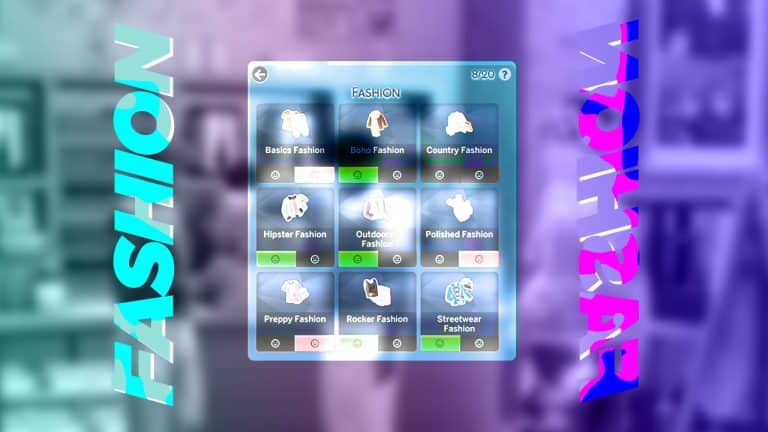
Oh, and there’s also now a whole new set of Fashion Likes and Dislikes, coming exclusively with The Sims 4 High School Years.

Check out the preview!

Details of Fashion Preferences coming with The Sims 4 High School Years
Huge thanks to The English Simmer for the screen! <3

The Sims 4 High School Years is bringing 9 new Fashion Preferences that you can choose to Like or Dislike for your Sim. At least within the scope of the 9 Fashion Categories that High School Years brings!

Those include:

  • Basics Fashion
  • BoHo Fashion
  • Country Fashion
  • Hipster Fashion
  • Outdoorsy Fashion
  • Polished Fashion
  • Preppy Fashion
  • Rocker Fashion
  • Streetwear Fashion

We can speculate that these Preferences will also develop naturally in Live Mode as you develop further your personal style. We do know that there are specific Moodlets that your Sim will get depending on if they’re wearing a Fashion Style that they like or dislike!

However, nothing is certain yet. We’ll keep you posted right here on Sims Community with a Full Guide soon after the Pack drops!

What are your thoughts on the new Fashion Preferences? Let us know in the conversation below!

If The Sims 4 Werewolves had a Kitchen Set

Custom Counters and Cabinets to complete the Werewolf House aesthetic!

Unfortunately, most Expansion Packs and Game Packs don’t come with counters, matching cabinets, or islands. This is because there are five counter types, seven islands, and seven cabinet types in addition to the numerous swatches that need to be created for a single counter, island, or cabinet to be added to the game. Instead of making 1 item, they need to make five or seven items.

Previously, we have received counters in Expansion Packs or Game Packs, but no cabinets and/or islands like in Realm of Magic or the original release of Island Living. With The Sims 4 Werewolves, we received no counters, cabinets, or islands. Comparing the current cabinetry to the style of The Sims 4 Werewolves Game Pack, there just are not any counters that really match the aesthetic for werewolf-themed builds. That’s where LxN comes in!

If The Sims 4 Werewolves had a Kitchen Set

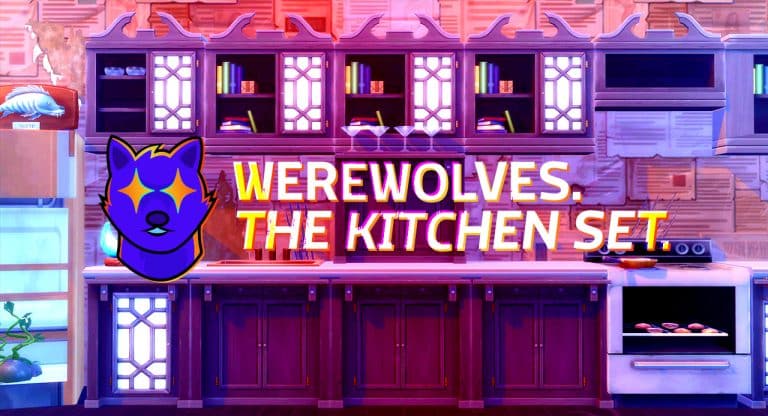
Using the Worn Secretary Desk, LxN made a whole set of upper and lower counters with enough variety not to get too repetitive but still look cohesive. This kitchen add-on includes nine swatches including rough, peeling swatches and smooth, clean swatches. The tall cabinet has a shelf with cocktail glasses on it. And many of the upper cabinets have glass, ornate doors that are the same as the original desk’s door. Some of the shelves have several books like the original desk.

Below are examples of how the nine different swatches look inside the game and many of the different counter and cabinet versions.

It is impressive the number of unique pieces LxN was able to create out of the Worn Secretary Desk. We love the versatility of these cabinets, especially how great they will look in our Werewolves builds! Hopefully, we’ll see more great Werewolf build/buy add-on sets soon!

If The Sims 4 Werewolves had a Kitchen Set

You can download the set from LxN’s Tumblr for free.

What are your thoughts about this Free Set? Let us know in the Conversation below!