

The Paralives’ Build Mode brings incredible ways to create stunning houses for our Parafolks. Adding highly requested features in the life simulation games genre, the game surprised us with a huge number of tools and customization options to create homes that truly reflect each family’s personality and lifestyle.
From fully customizable furniture to advanced building tools that feel intuitive and flexible, Paralives encourages players to experiment with creativity without feeling limited. Whether you want to build a cozy countryside cottage, a modern apartment, or a colorful family home, the Build Mode offers plenty of possibilities for both beginners and experienced builders alike.
With this guide, learn everything you need before starting your adventure in Paralives Build Mode!
💡 Looking for tips and knowledge on Object Customization and Custom Style Creation? We got you covered right here!
Table of Contents
How To Start a New House in Paralives
First of all, you’ll need to choose whether you want to build a home in Melino, the town featured in Paralives, or in an empty flat world created specifically for building. In Melino, you’ll have to choose an empty lot to start building your house. There’s a wide variety of locations available, from beachside lots and farms to residential neighborhoods and canyon views. Choose the place that best matches your Parafolk’s personality and lifestyle before starting your build.
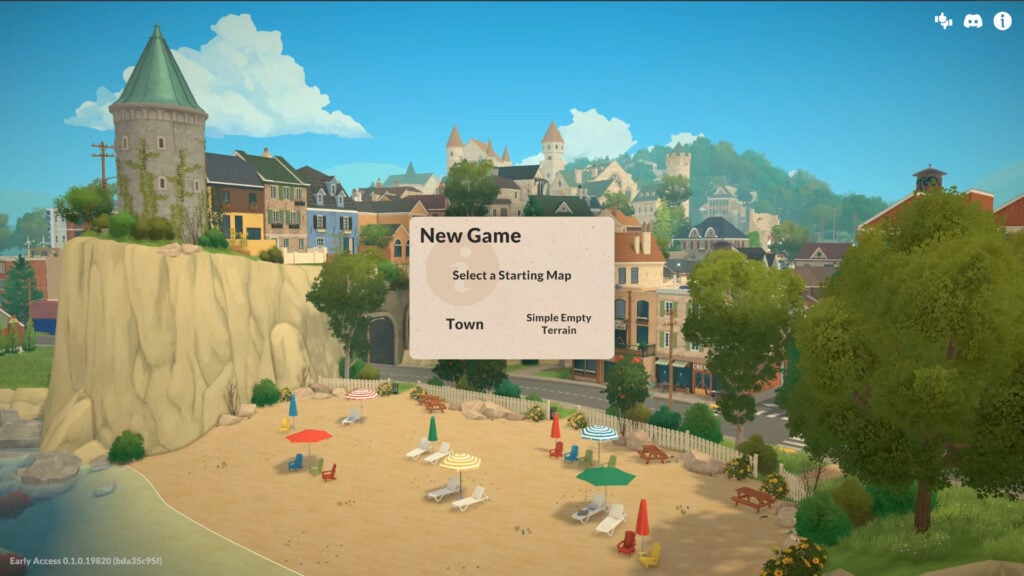
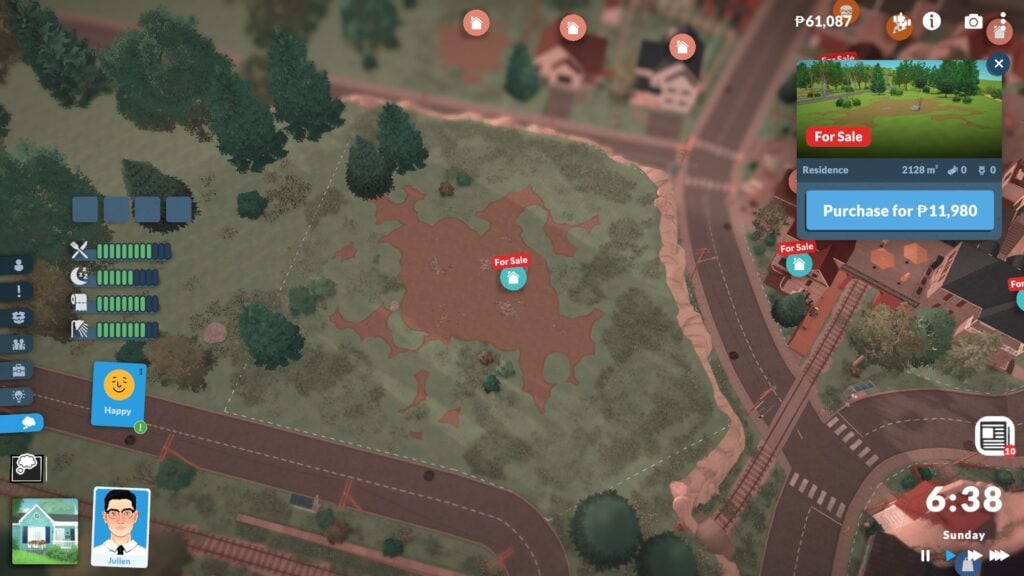
Once you’re on the lot, click on the house icon in the bottom left corner, or press TAB, to enter Build Mode. Don’t worry if it feels overwhelming at first — we’ll guide you through everything you need to know so you won’t miss any details while bringing your ideas to life in the game.
UI Guide: Every Icon in Paralive’s Build Mode
When you enter Build Mode, you’ll notice a ton of new UI icons that may seem a bit confusing at first, so we’ll explain what each one does to help you get familiar with the tools available.
In the top left corner, you’ll find the icons divided into three categories: Build Mode, Buy Mode and Terrain Tools. Plus a search option.
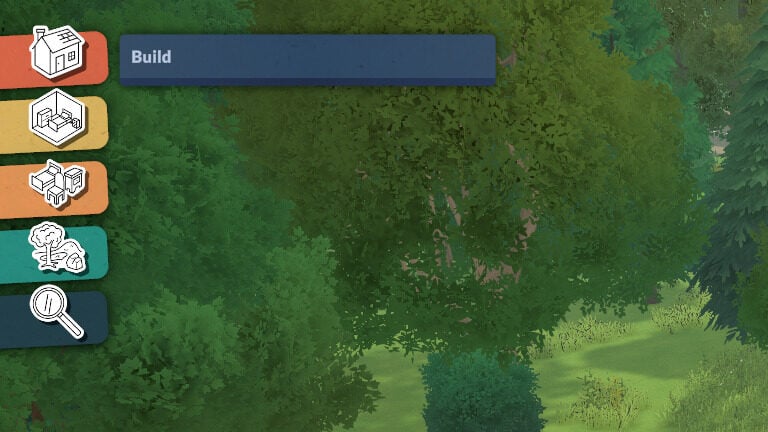
- Build Mode: Contains all the architectural tools you need to build and shape your house.
- Room Tool: Includes every Buy Mode object organized into traditional room categories.
- Furnishing: Displays all objects divided into more specific categories for easier browsing.
- Terrain Tools: Here you’ll find everything needed to decorate and customize your lot, including nature objects, terrain sculpting, and terrain painting tools.
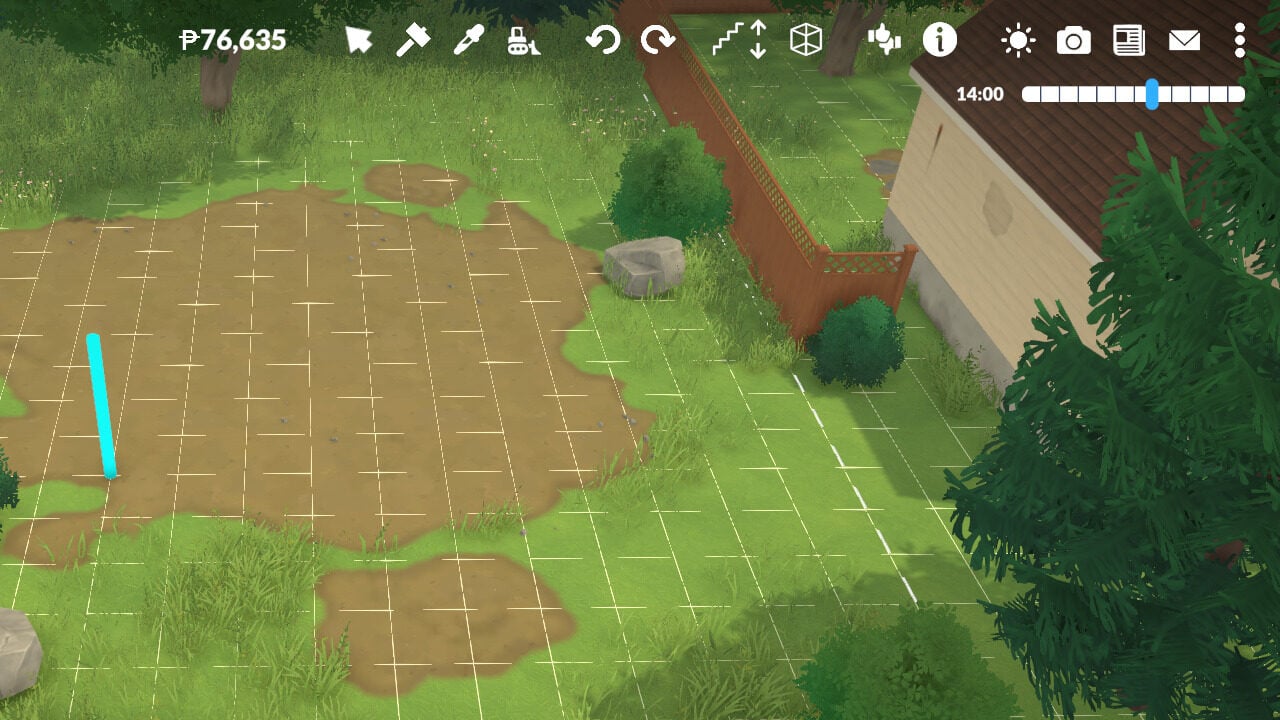
In the top right corner, you’ll find more specific tools designed to help you while building your house.
- Paradimes balance. The total amount of money your household has.
- Cursor Mode.
- Sledgehammer
- Pipette
- Bulldoze: Remove the entire lot
- Undo
- Redo
- Move Up or Down One Floor
- Wall Visibility
- Send Feedback
- Help Guide
- Lighting: Lets you choose the time of day in your city to help while building.
- Photo Mode
Building Your Home
Now that we’re in the center of our architectural designs, it’s time to start building. The Build Mode category is divided into eight subcategories: Walls, Paint, Doors, Windows, Stairs, Roofs and Chimneys, Architectural Details, and Fences.
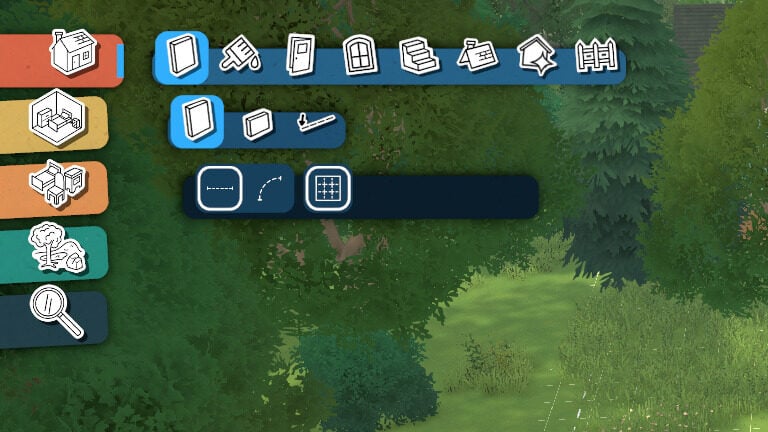
Before we begin, keep in mind that almost every tool includes its own color and texture customization options. Thanks to the full color wheel system, you can freely choose the exact style, tone, and finish for nearly everything you place in your build.
Walls Tools
Within this tool, you’ll find three options: create a standard wall, a half-wall, or an invisible wall. All three wall types can be built in both straight and curved shapes, and you can even customize the height of the half-wall. It’s also useful to know that if you hold Shift while dragging a wall, you can build using half-grid placement for more precise designs.
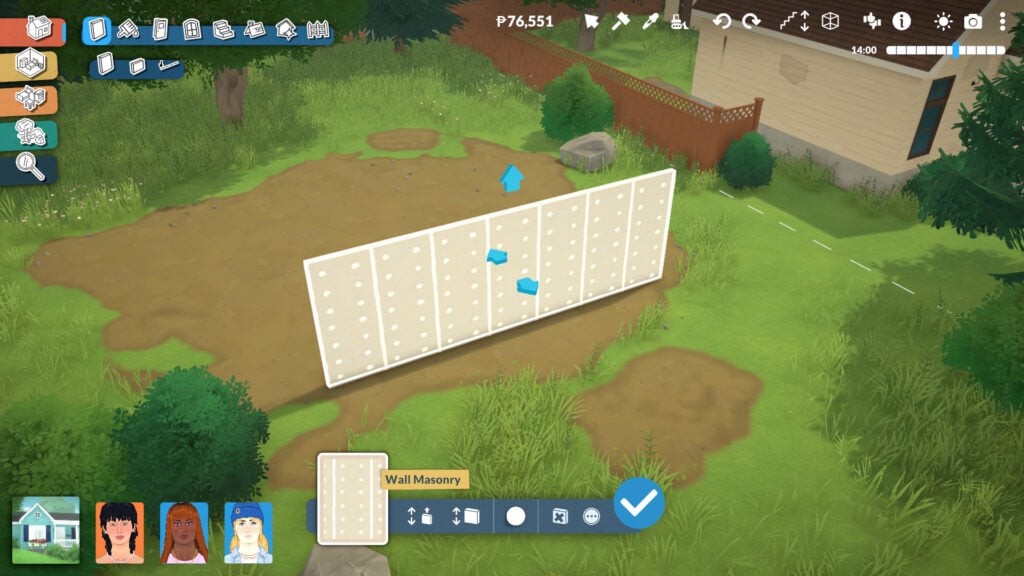
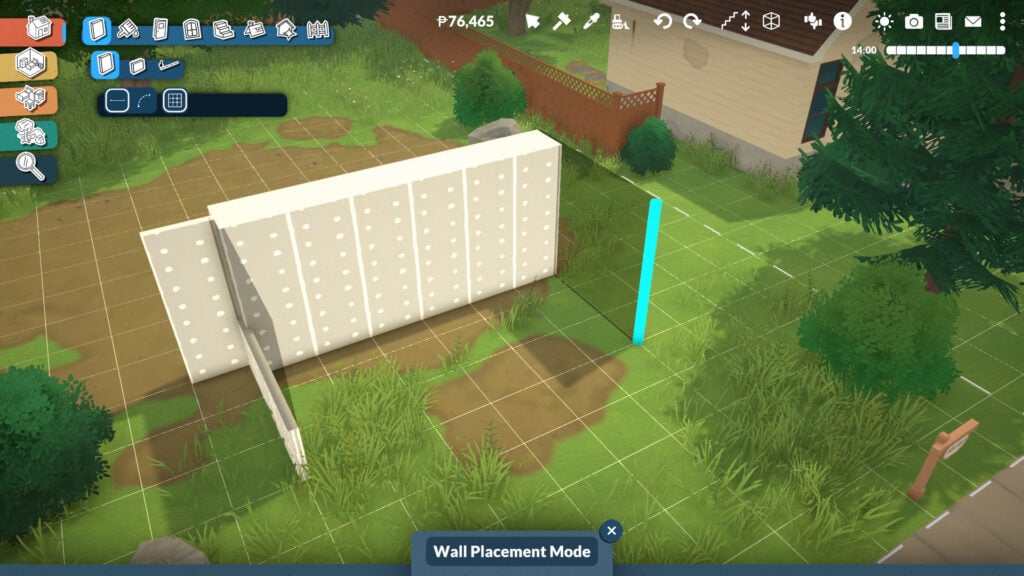
When selecting either the wall or half-wall tool, even more options will appear. At the bottom center of the screen, you can adjust the wall height, although you can also do this by clicking and dragging the arrow directly on the wall itself. You can also change the wall thickness, opening up many more creative possibilities for building massive classical structures, detailed interiors, or sleek modern houses. And even change the default wallpaper color.
You’ll also find extra options by clicking the three dots icon, including turning the wall into a separator wall or aligning new walls to its grid placement. These tools make it much easier to create detailed layouts and more precise architectural designs.
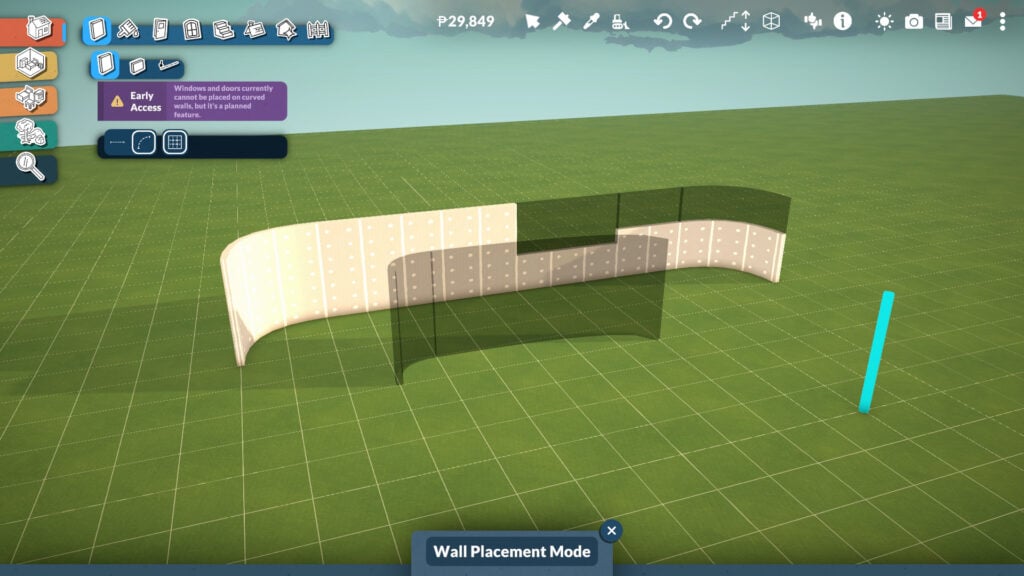
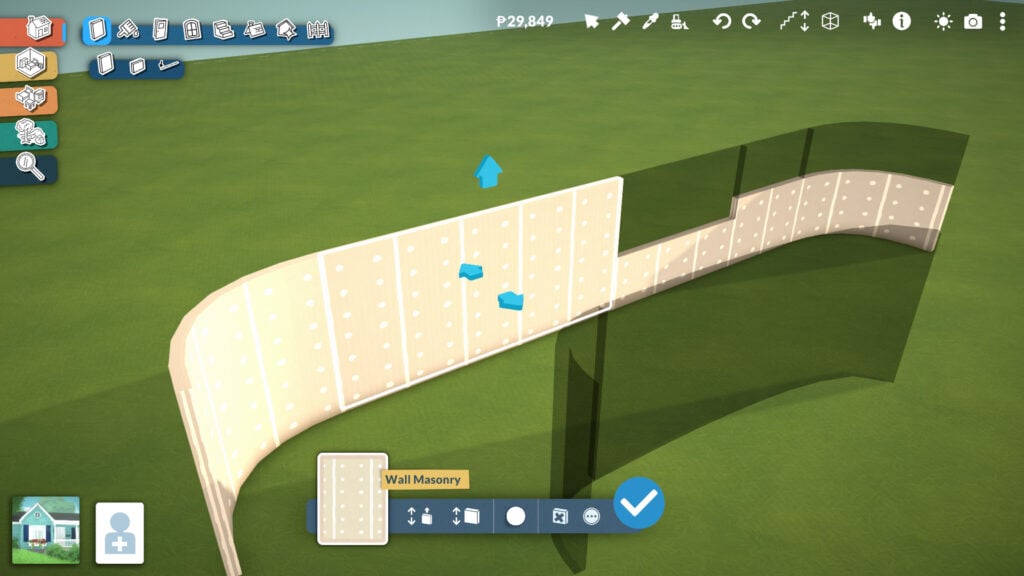
Careful: in this Early Access version of the game, you currently can’t place windows or doors on curved walls.
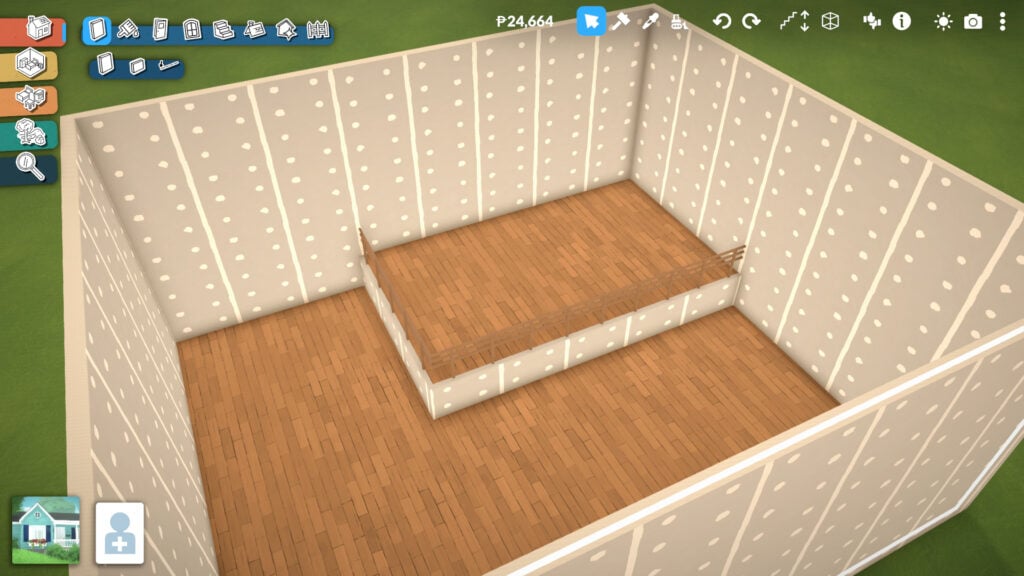
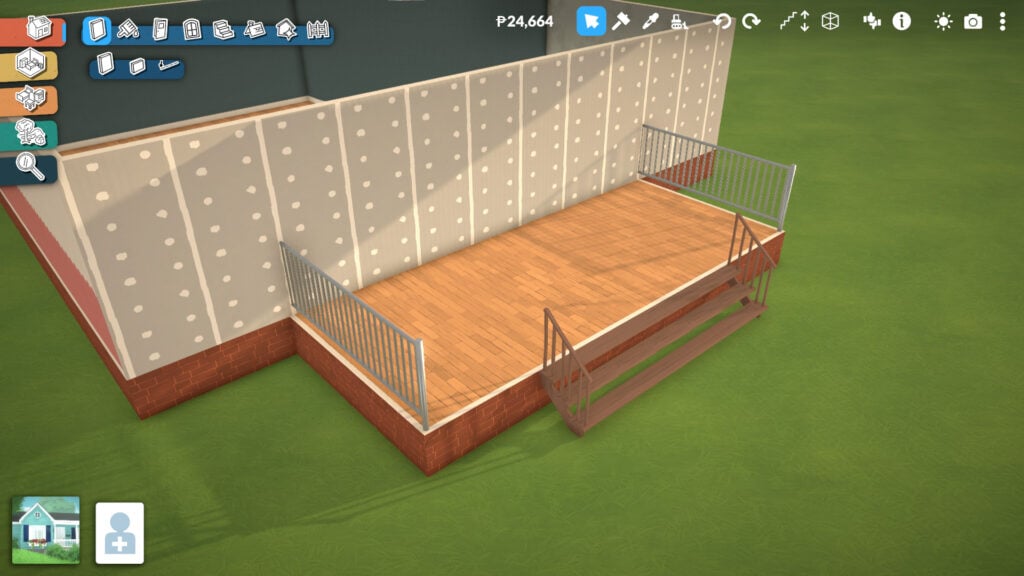
Another important feature when building walls and rooms is the platform system. Whenever you create a room, you can adjust the floor height to create raised or lowered sections within the same space, adding much more depth and dynamism to your builds.
This tool is also what allows players to create houses with foundations, although it’s not limited to that purpose alone. Platforms can be used in many creative ways, from split-level living rooms and indoor stages to elevated kitchens, sunken lounges, or detailed entrances.
Paint Tools
In this category, you’ll find tools to paint walls, floors, ceilings, and roofs. Inside the Wall Paint section, there are plenty of categories featuring different textures, including rocks, bricks, plain walls, paneling, tiles, and wallpaper styles.
At the bottom of the category menu, you can also choose whether you want to paint one wall at a time or apply the selected texture to the entire room on the same floor.
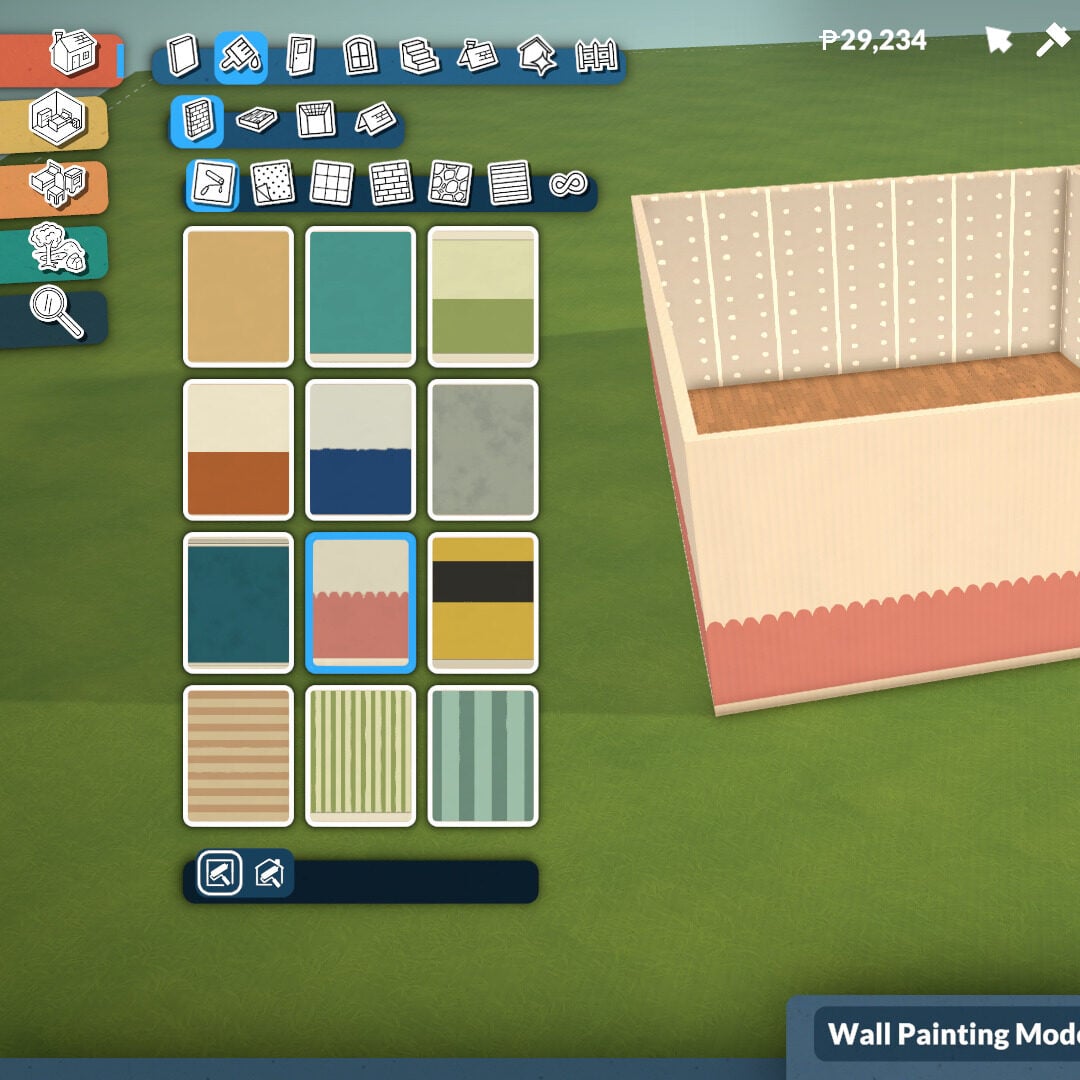
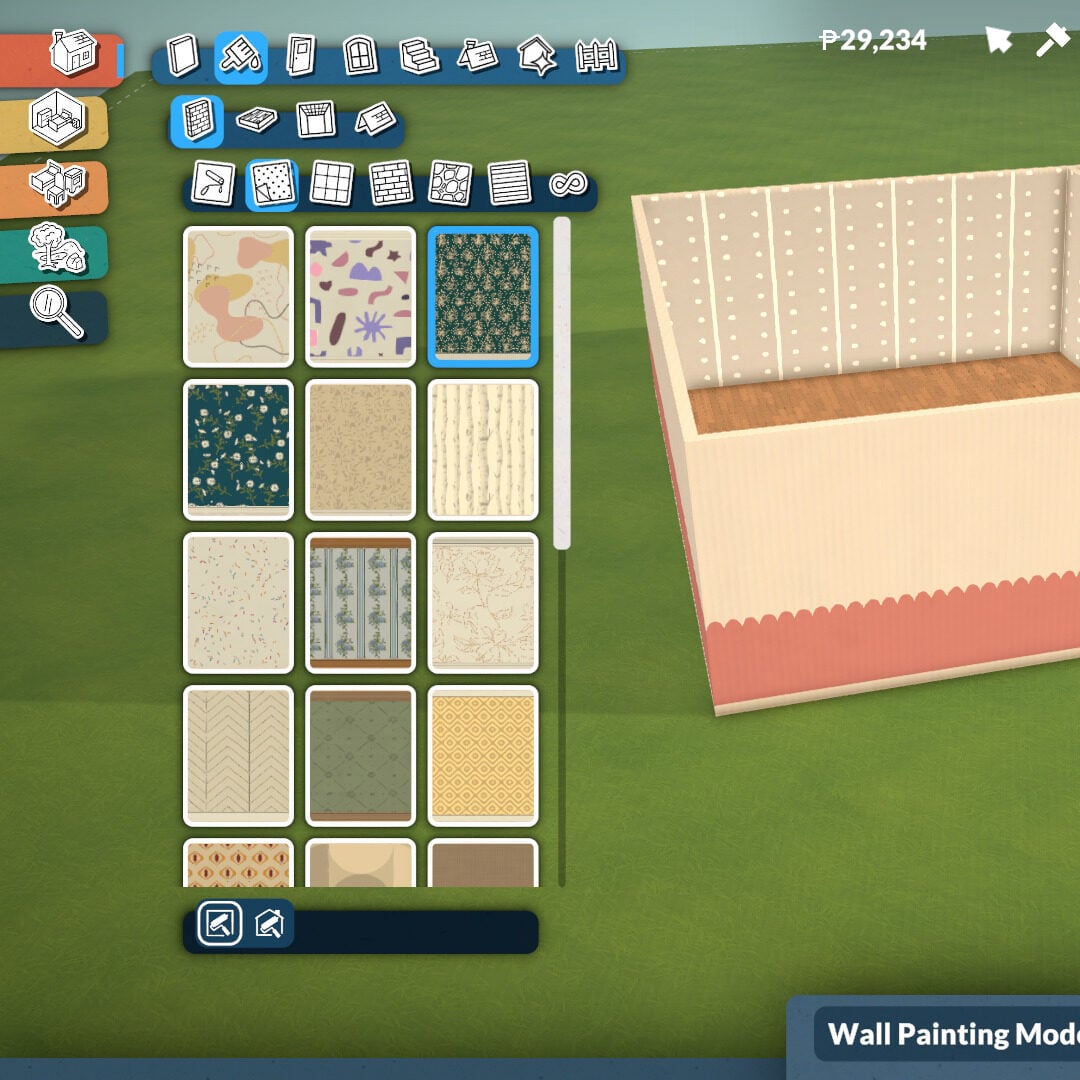
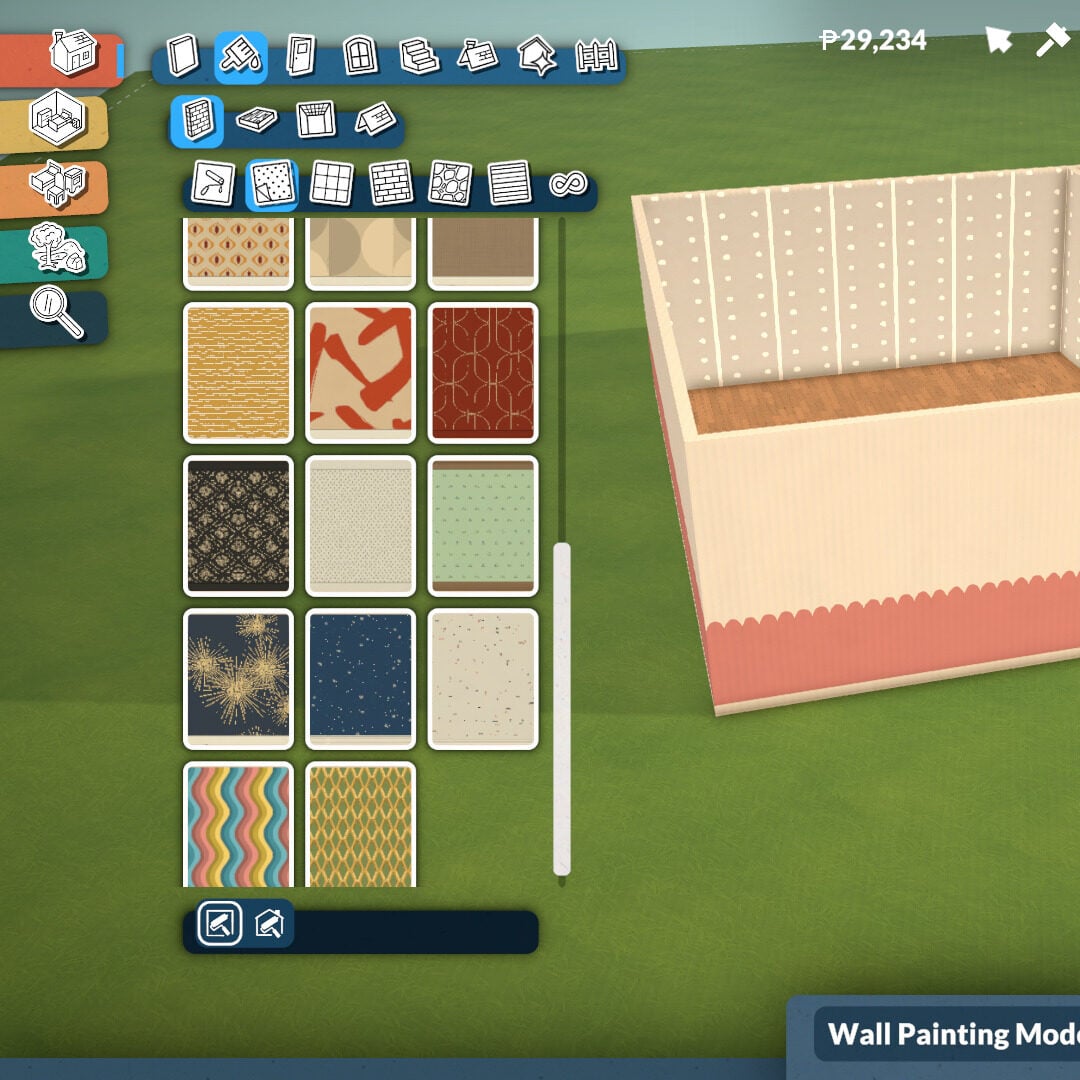
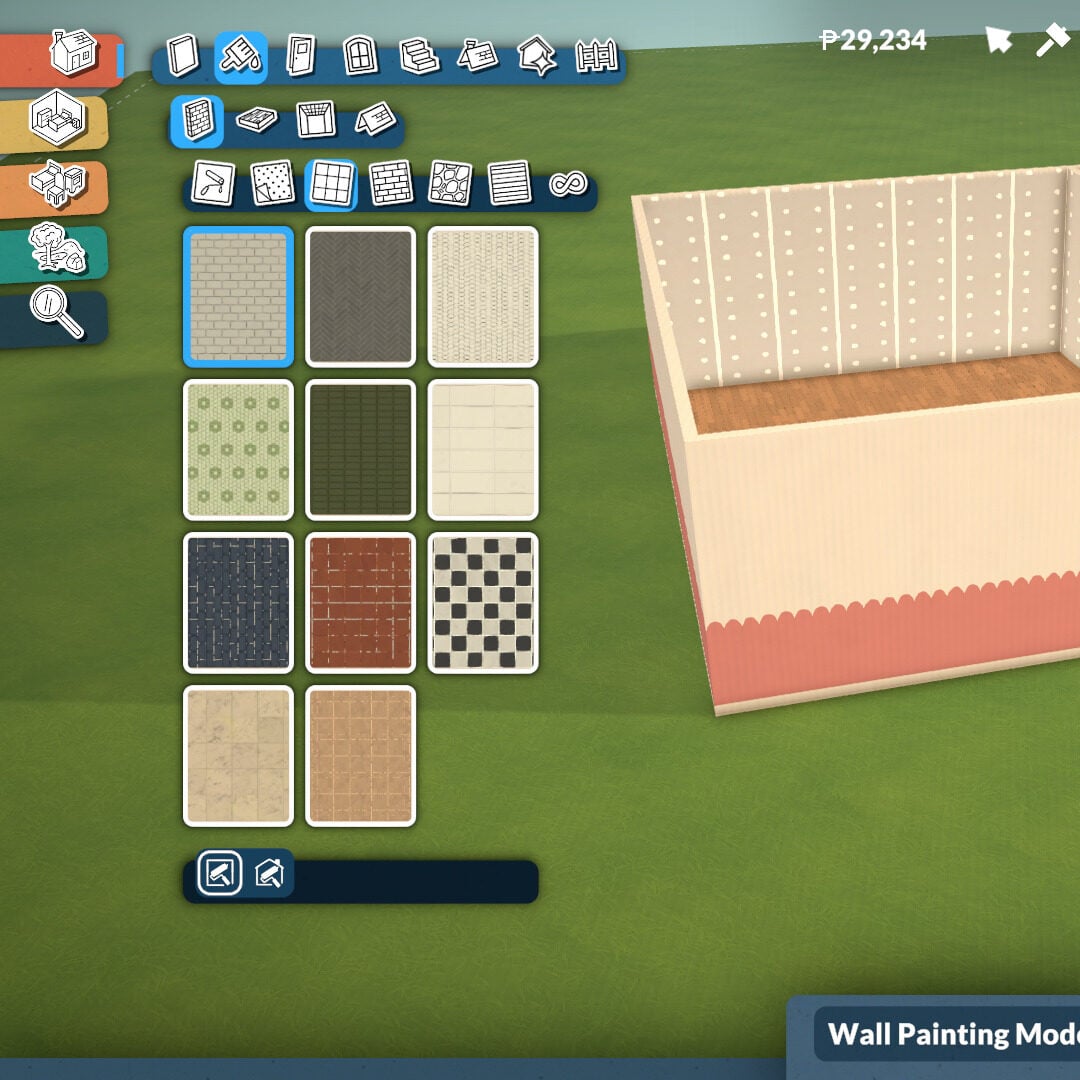
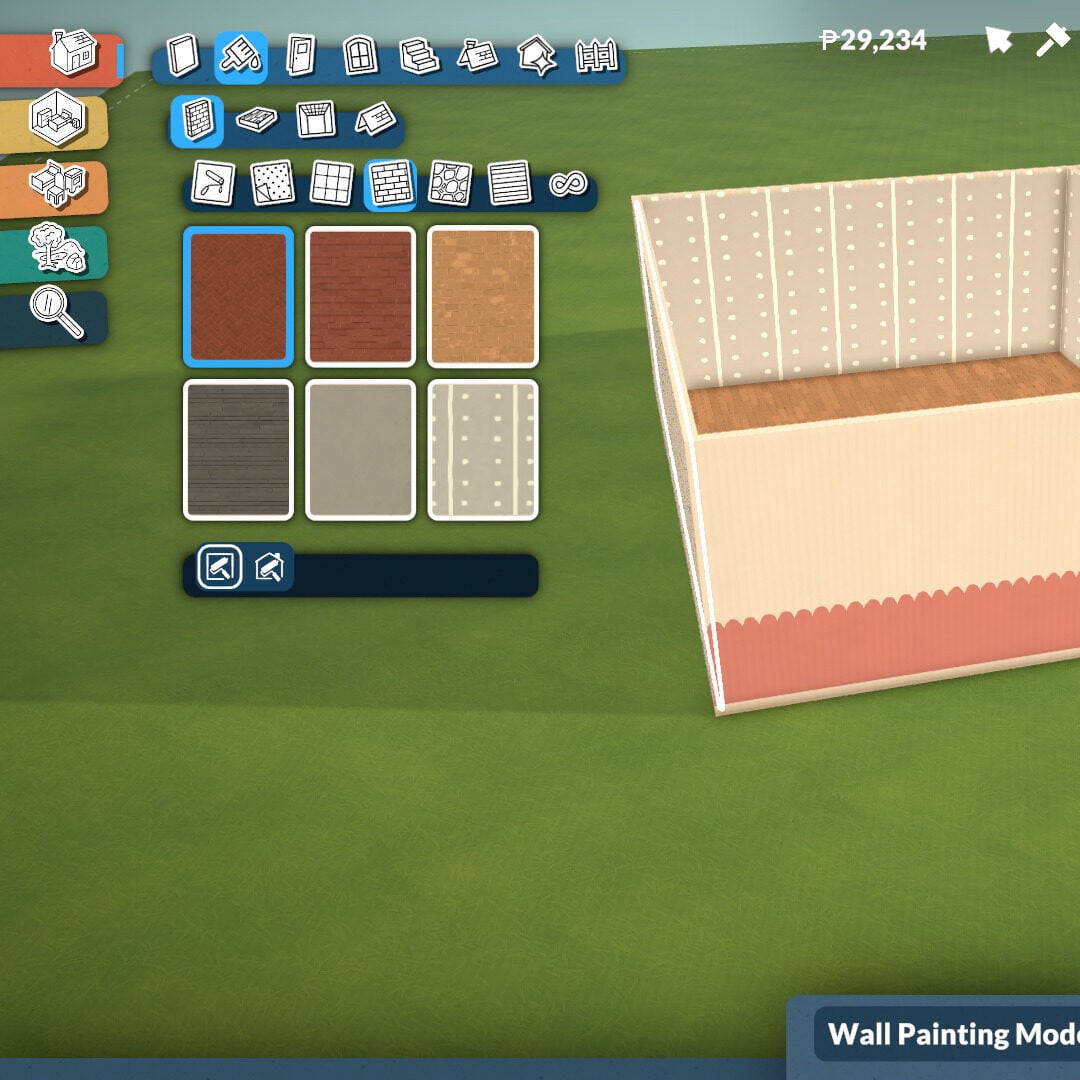
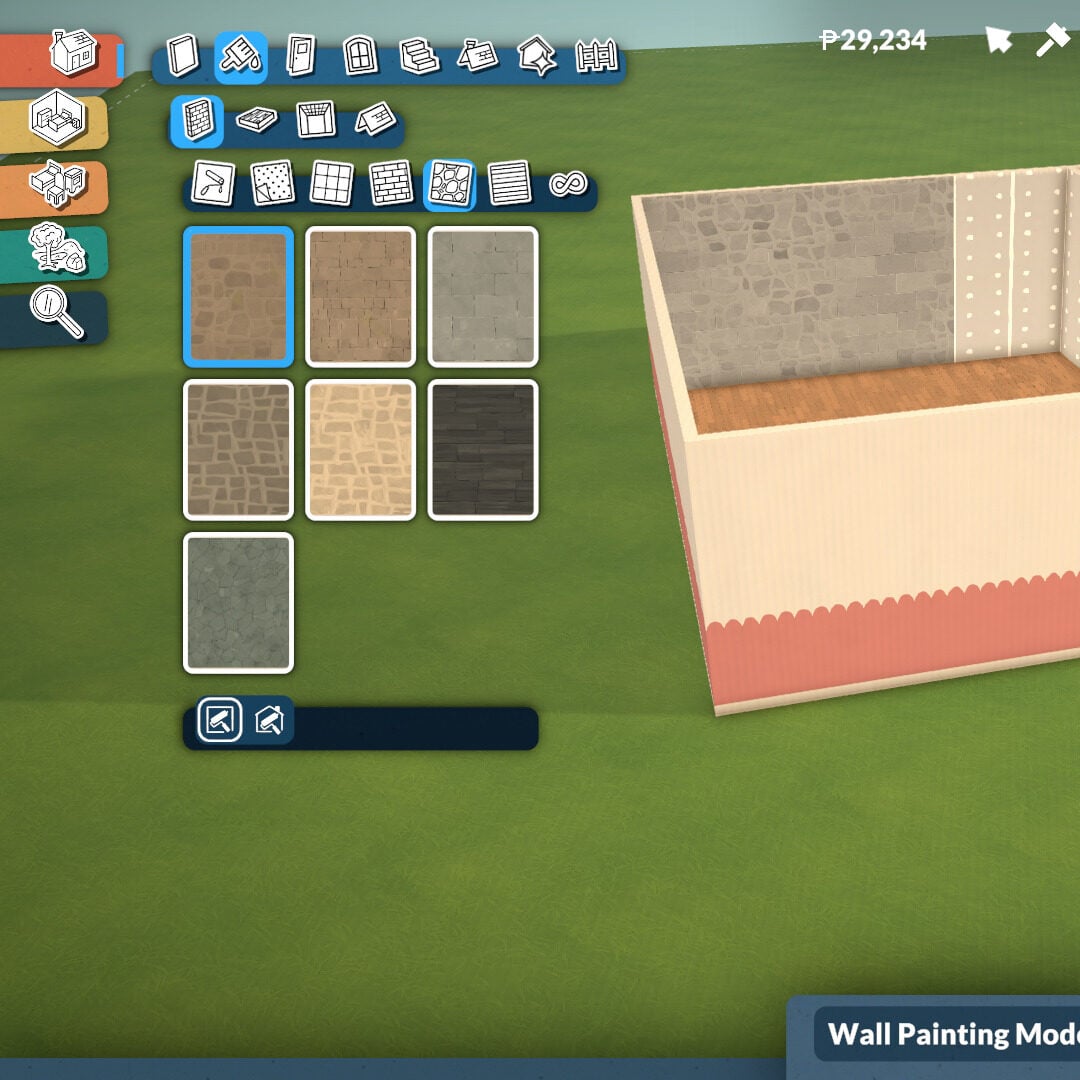
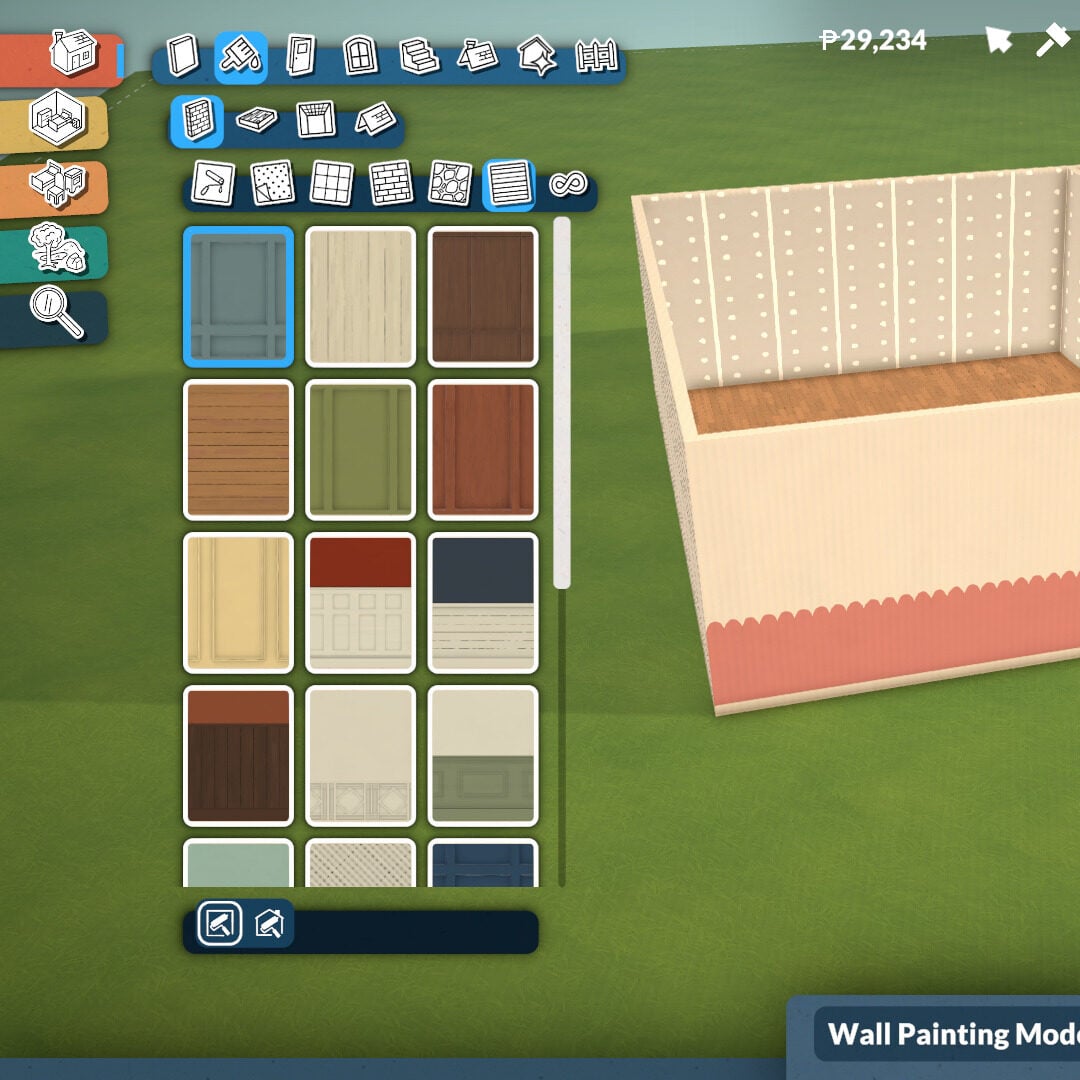
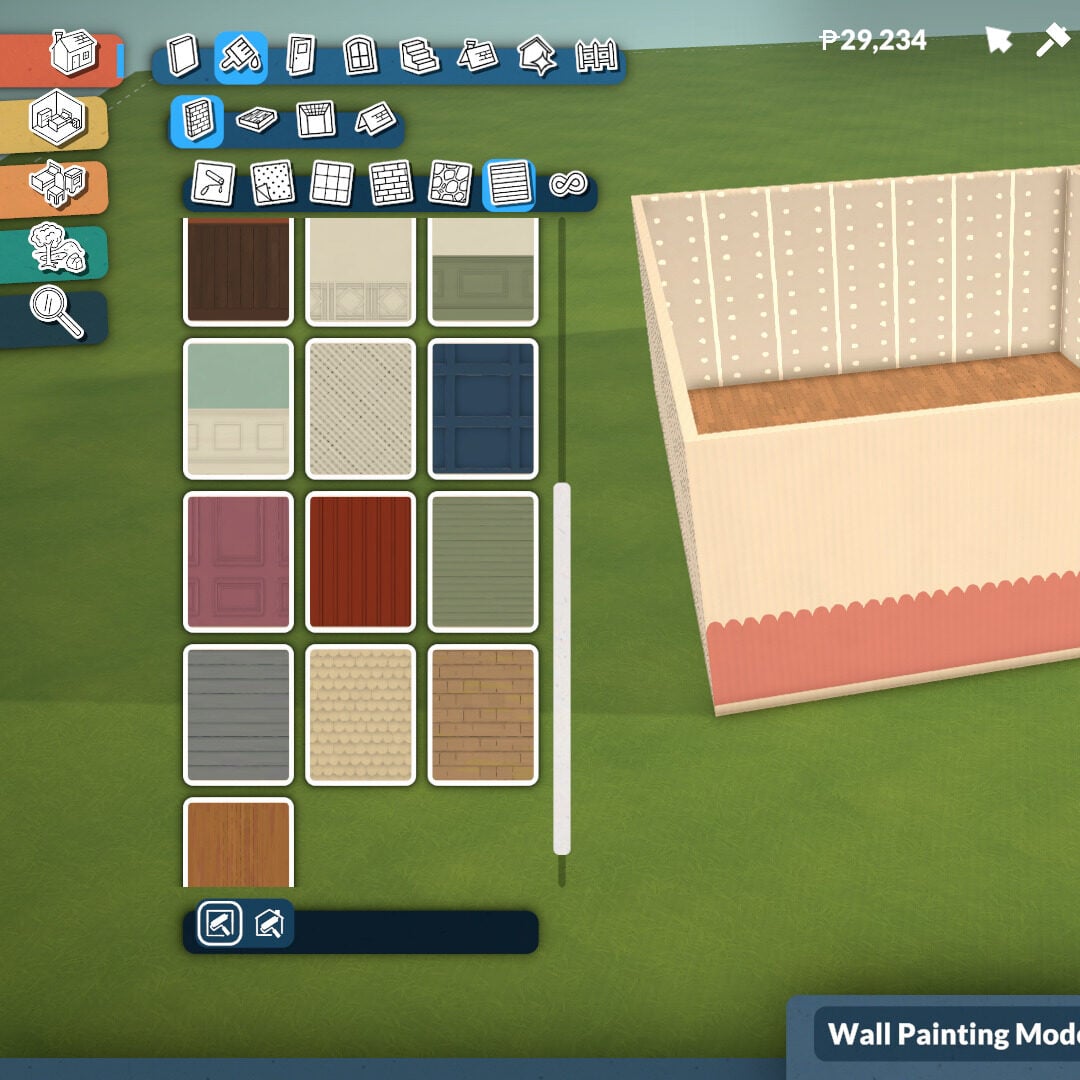
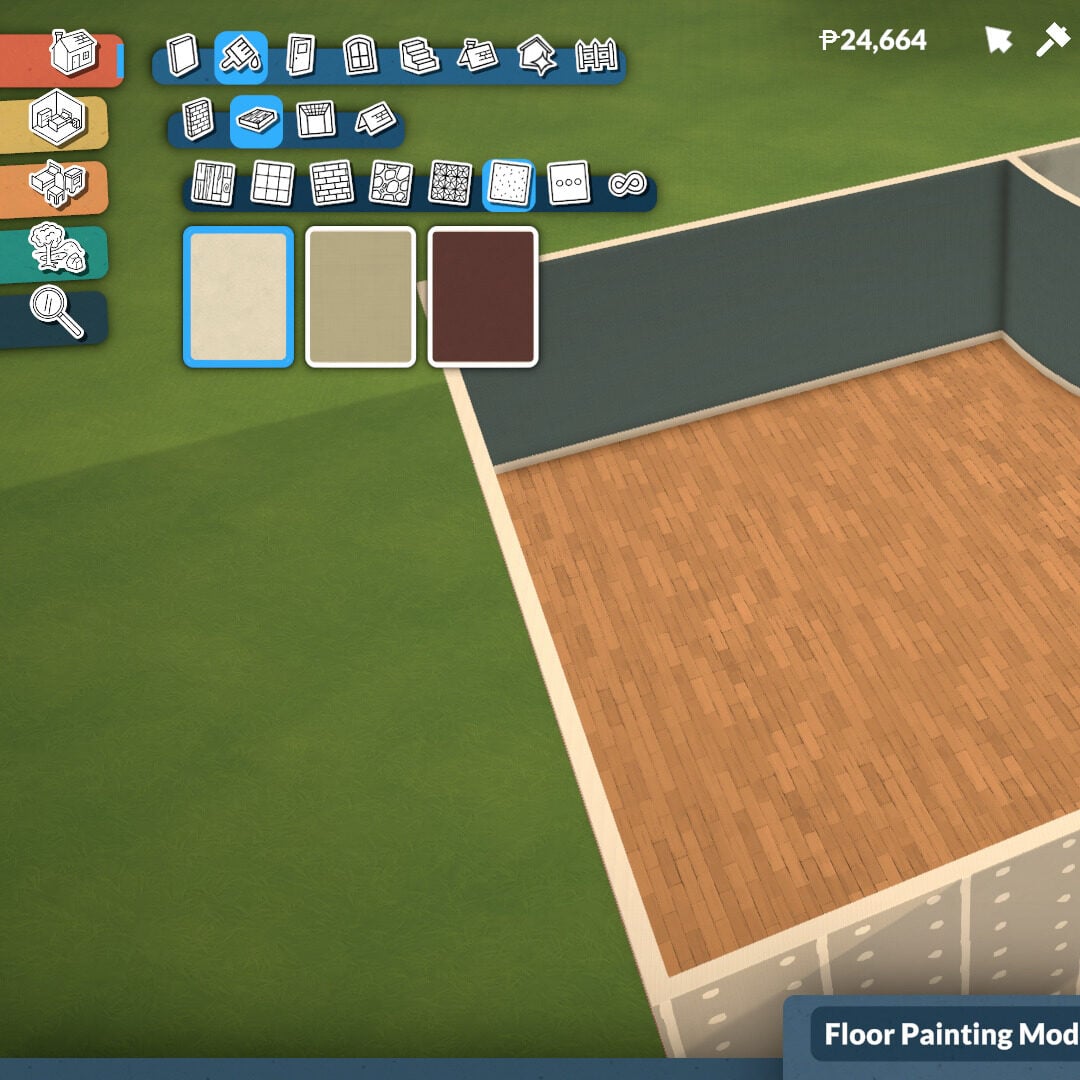
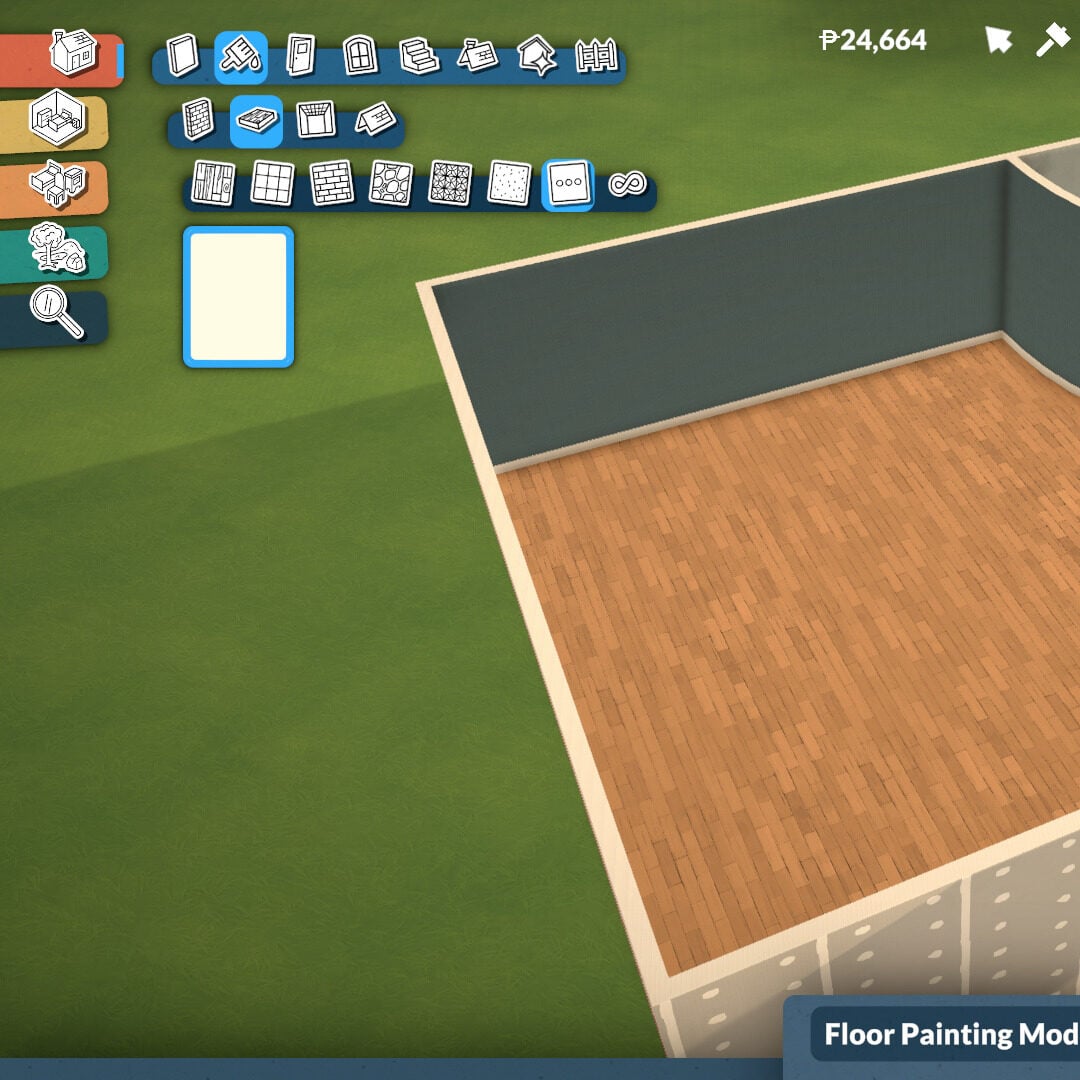
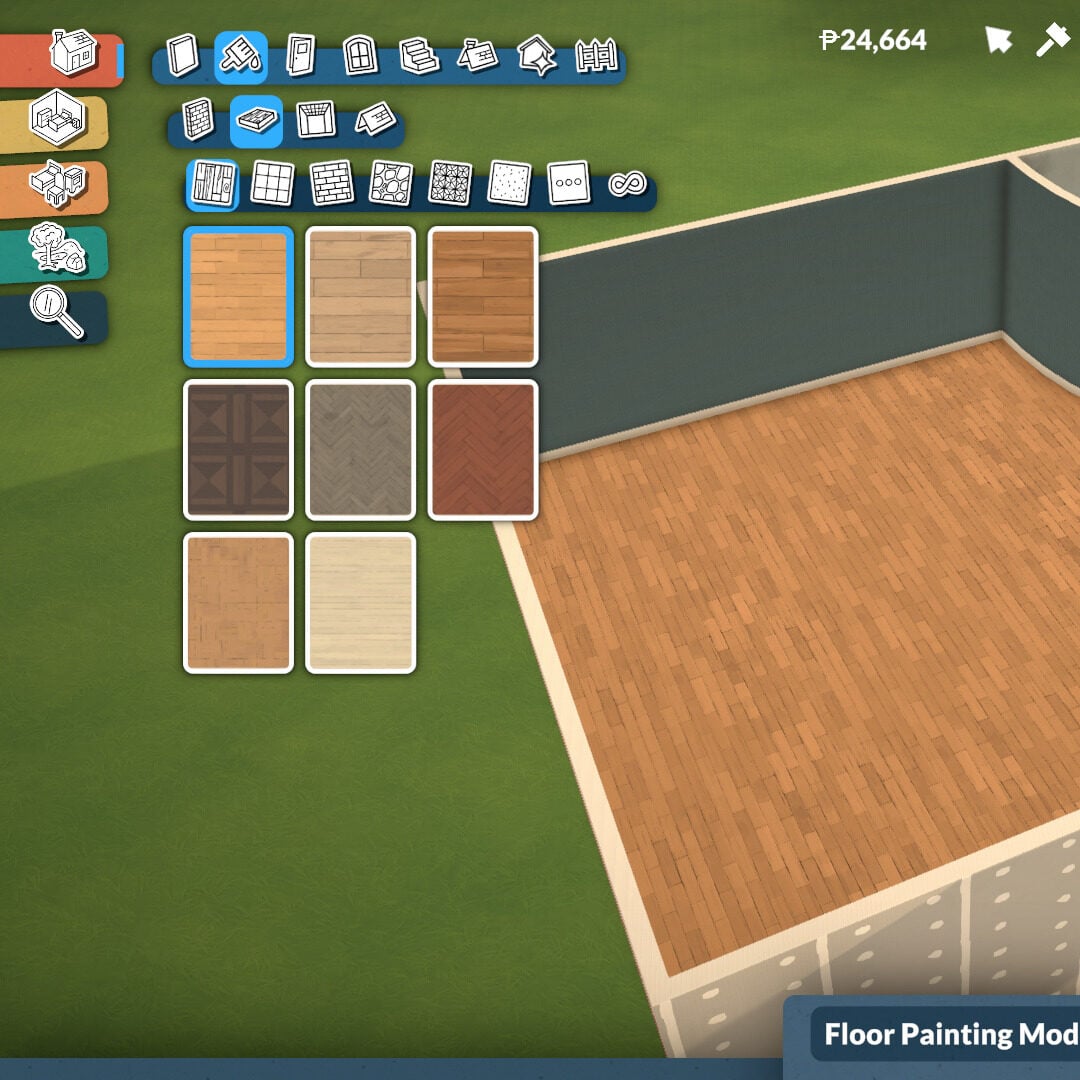
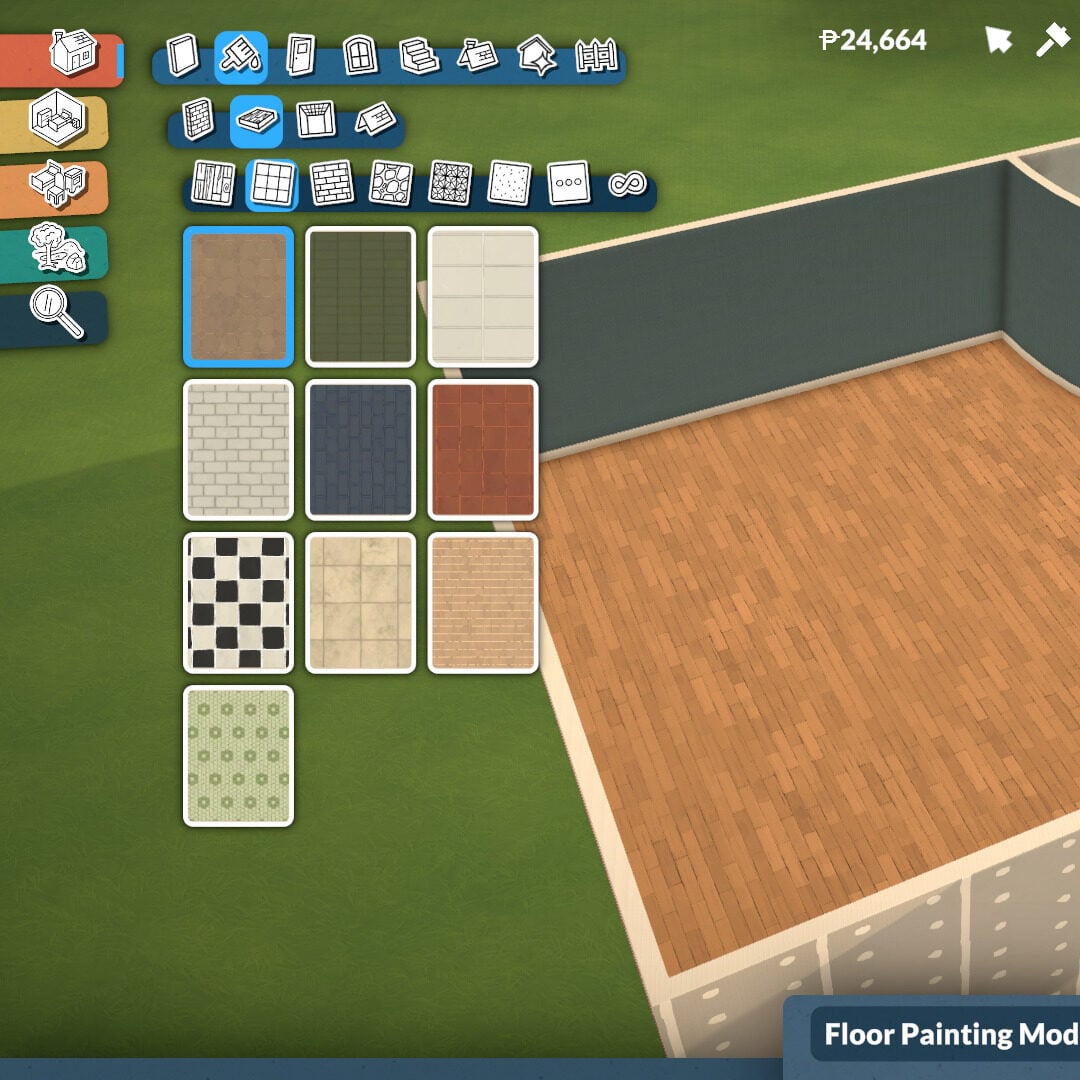
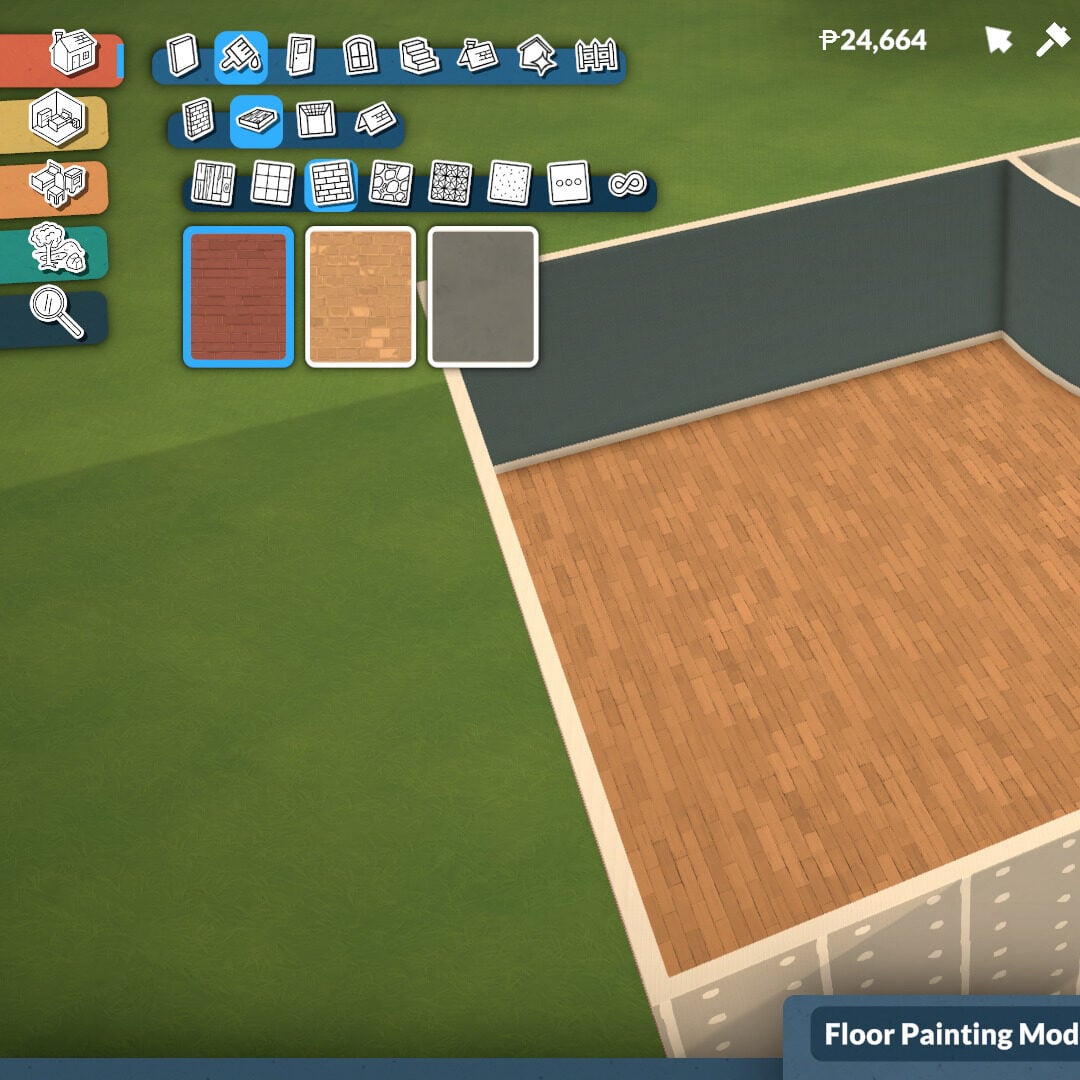
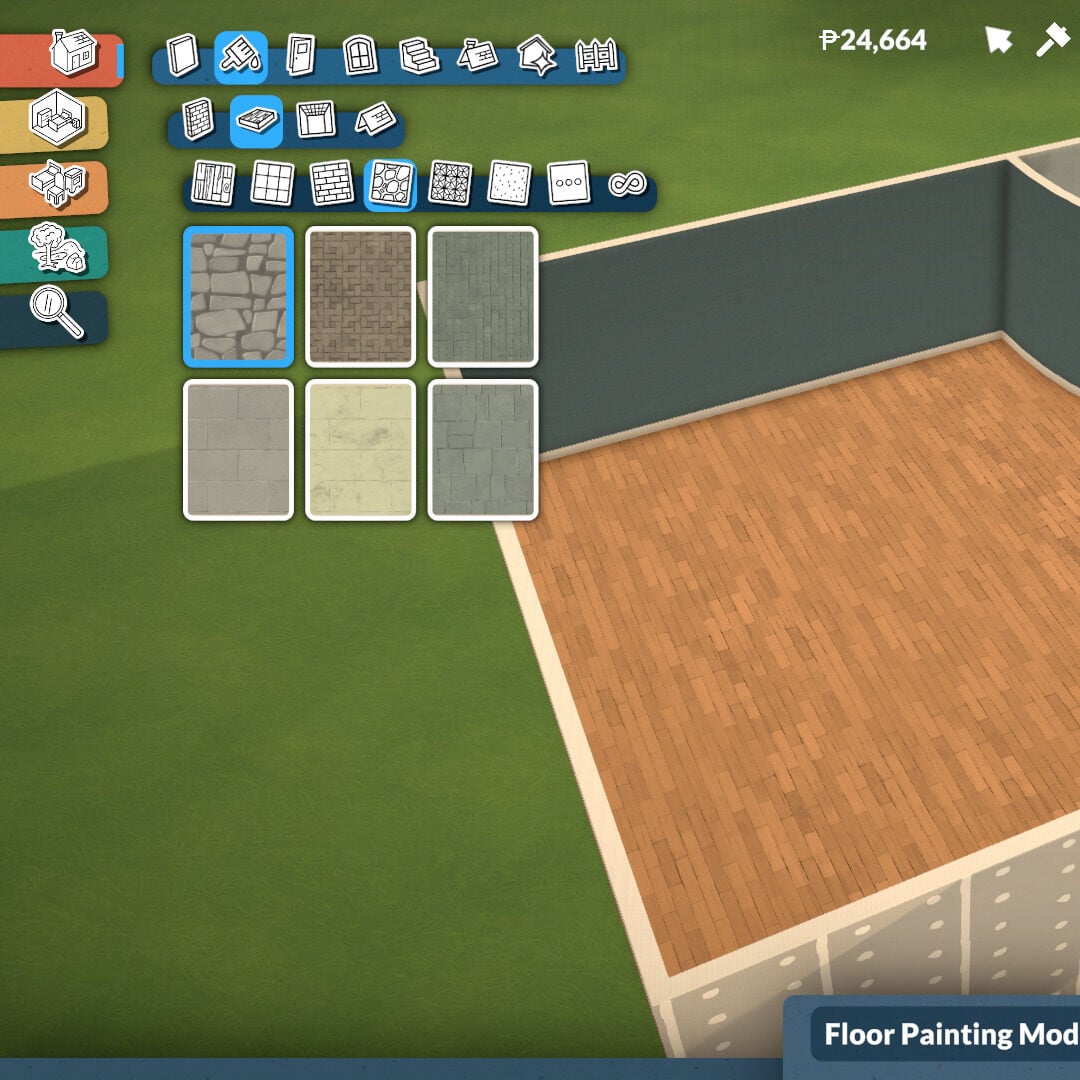
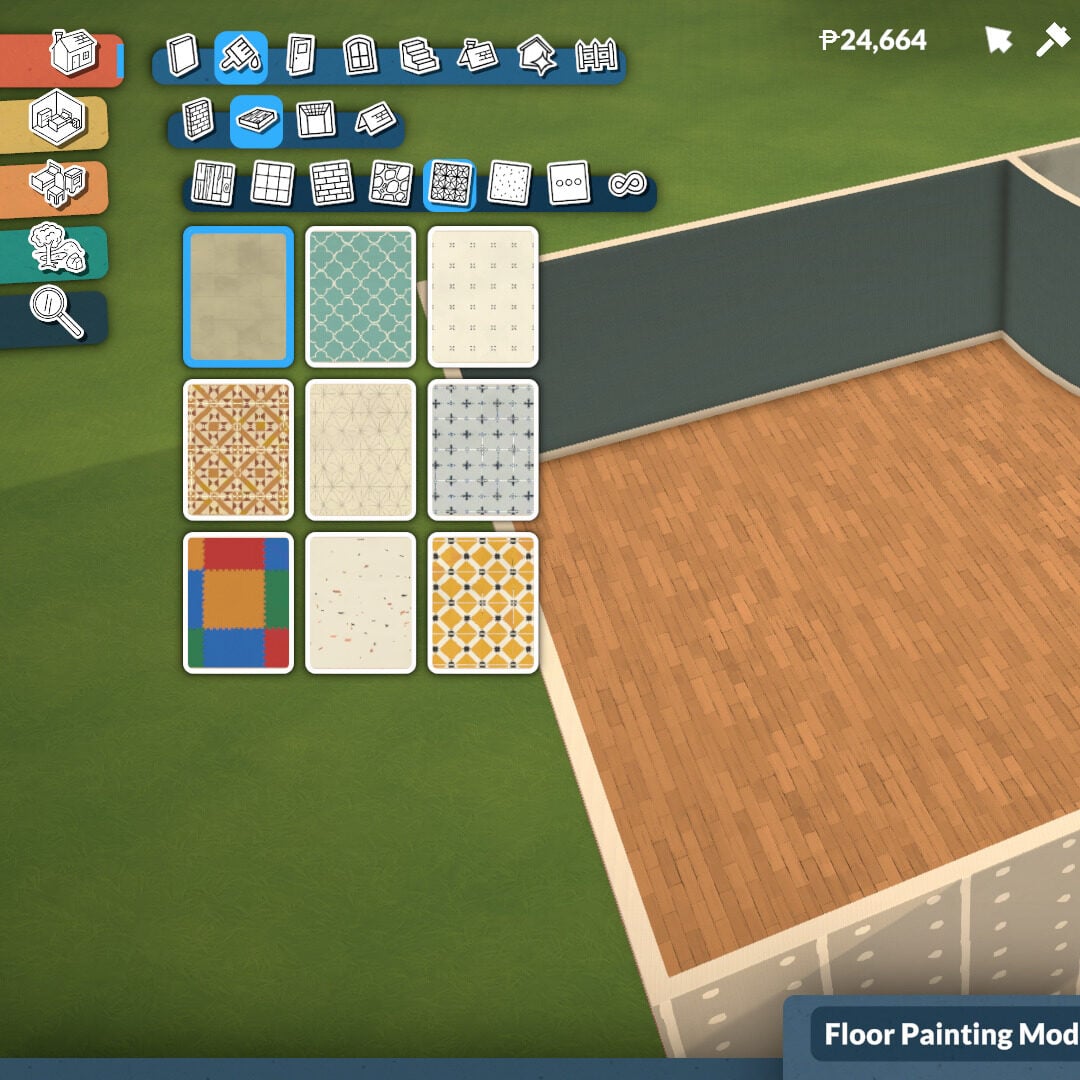
Floor painting works in a very similar way, although you can’t paint tile by tile. Instead, the selected floor style will apply to the entire room or platform level. There are many texture categories available, including wood, tiles, masonry, rocks, linoleum, carpeting, and miscellaneous materials.
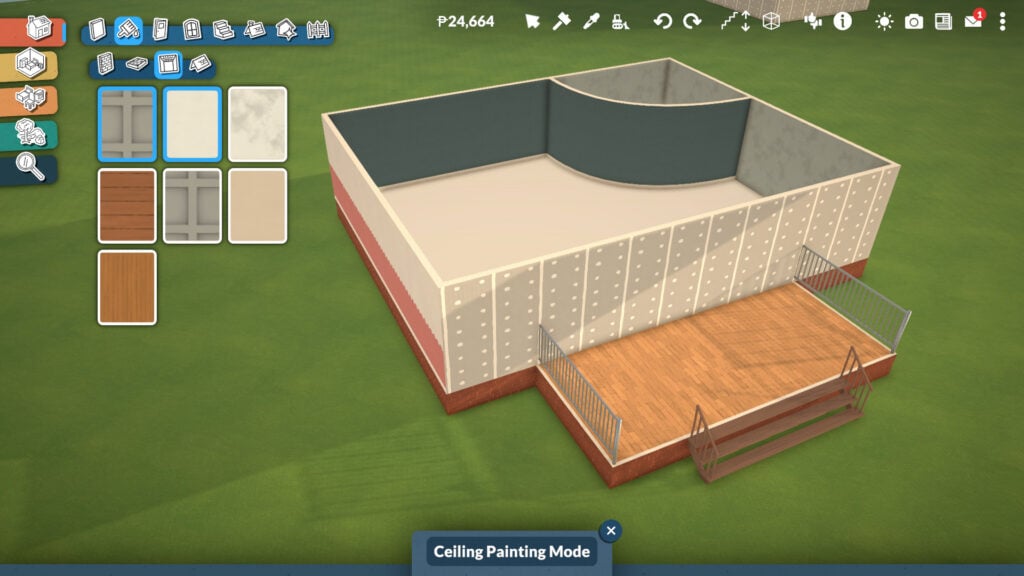
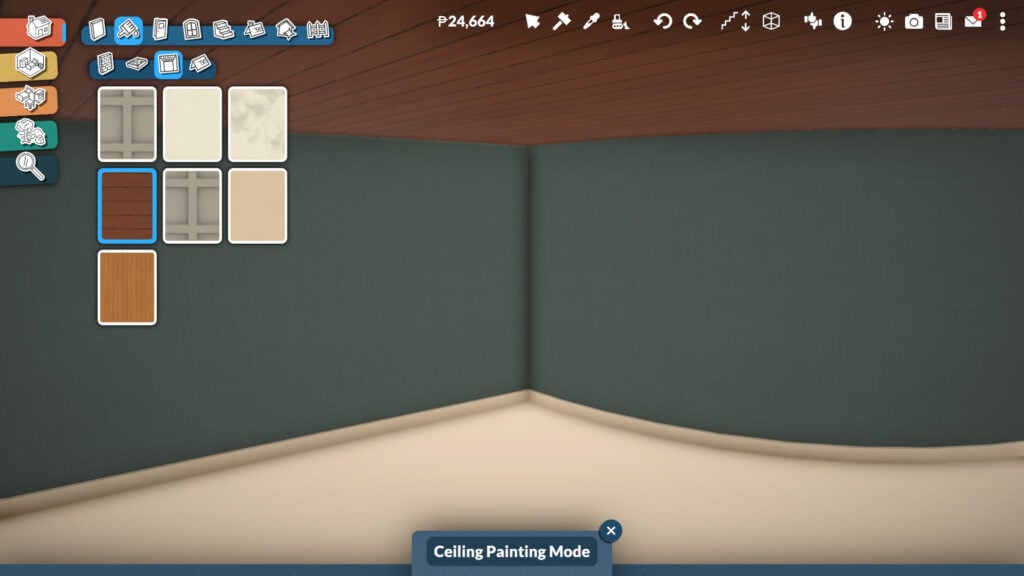
The Ceiling Paint mode adds even more depth and personality to your builds. With industrial, wooden, and simple texture options, you can find the perfect ceiling style for every room in your house.
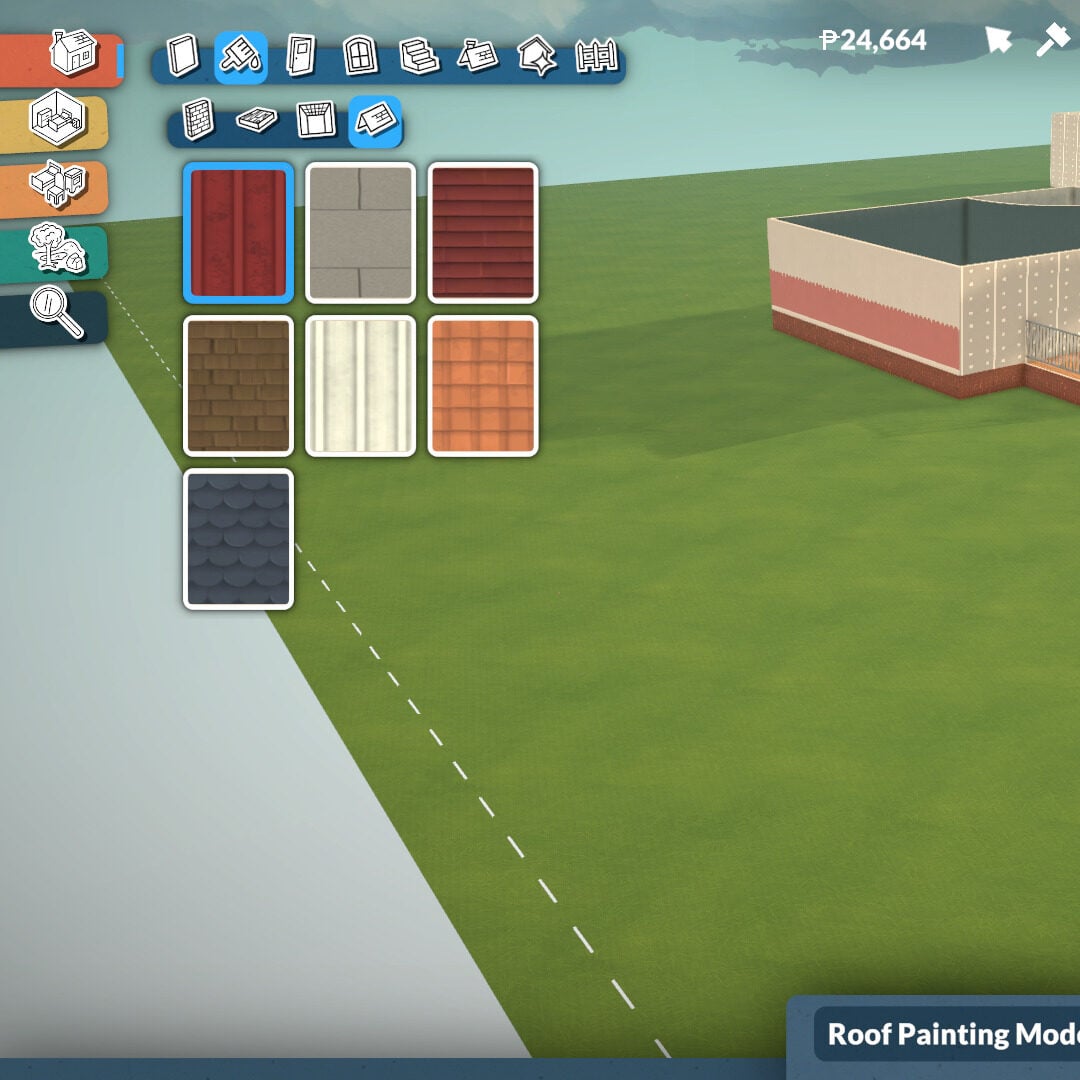
Finally, the Roof Paint tool includes seven different roof textures in this Early Access version of the game. Even at this stage, there’s already plenty of customization available, and you can learn more about the different roof shapes later in this guide.
Doors Tools
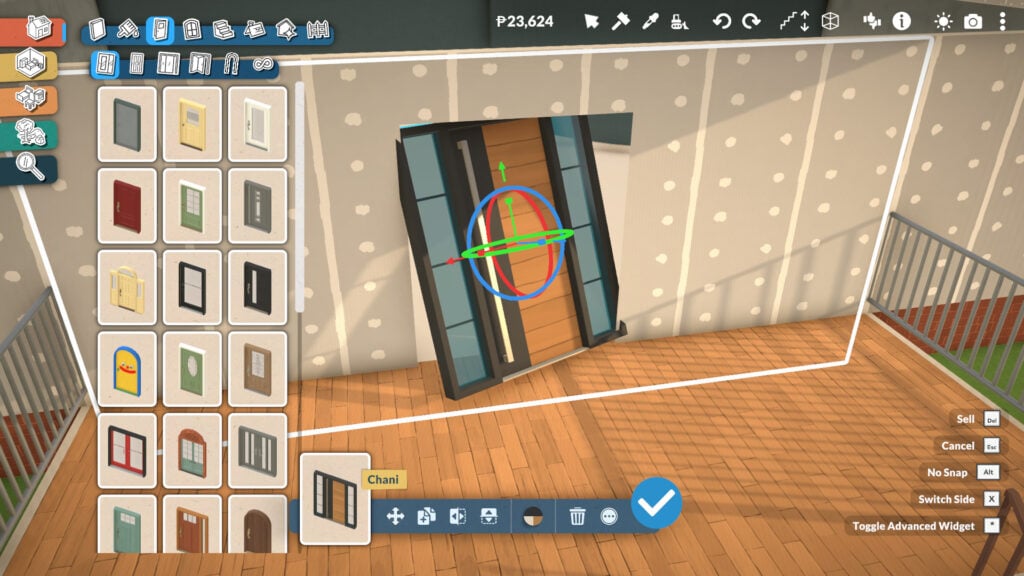
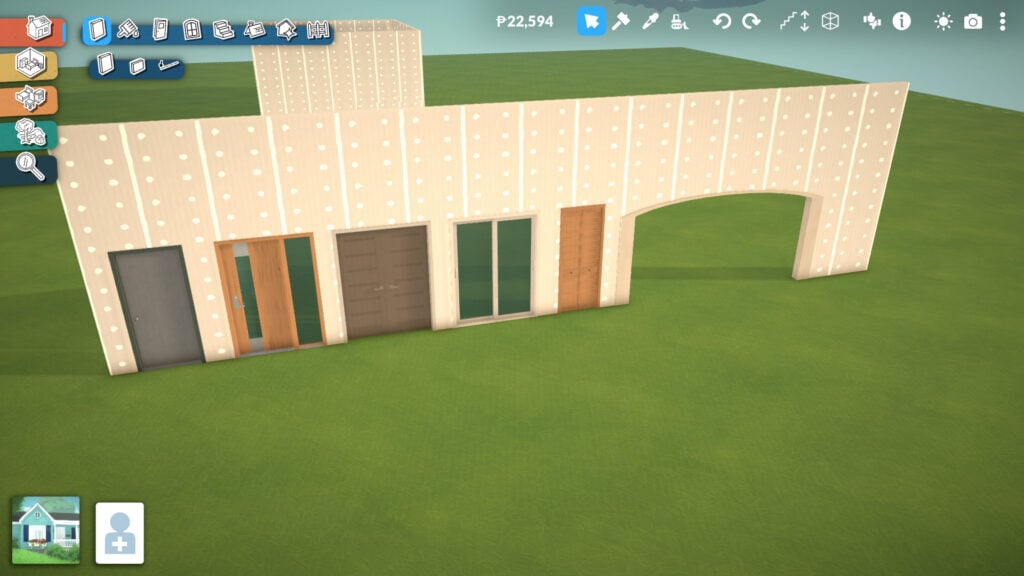
There are five different door categories available: exterior doors, interior doors, patio doors, closet doors, and arches. Each category offers a lot of depth and customization options, allowing players to match different architectural styles and interior designs.
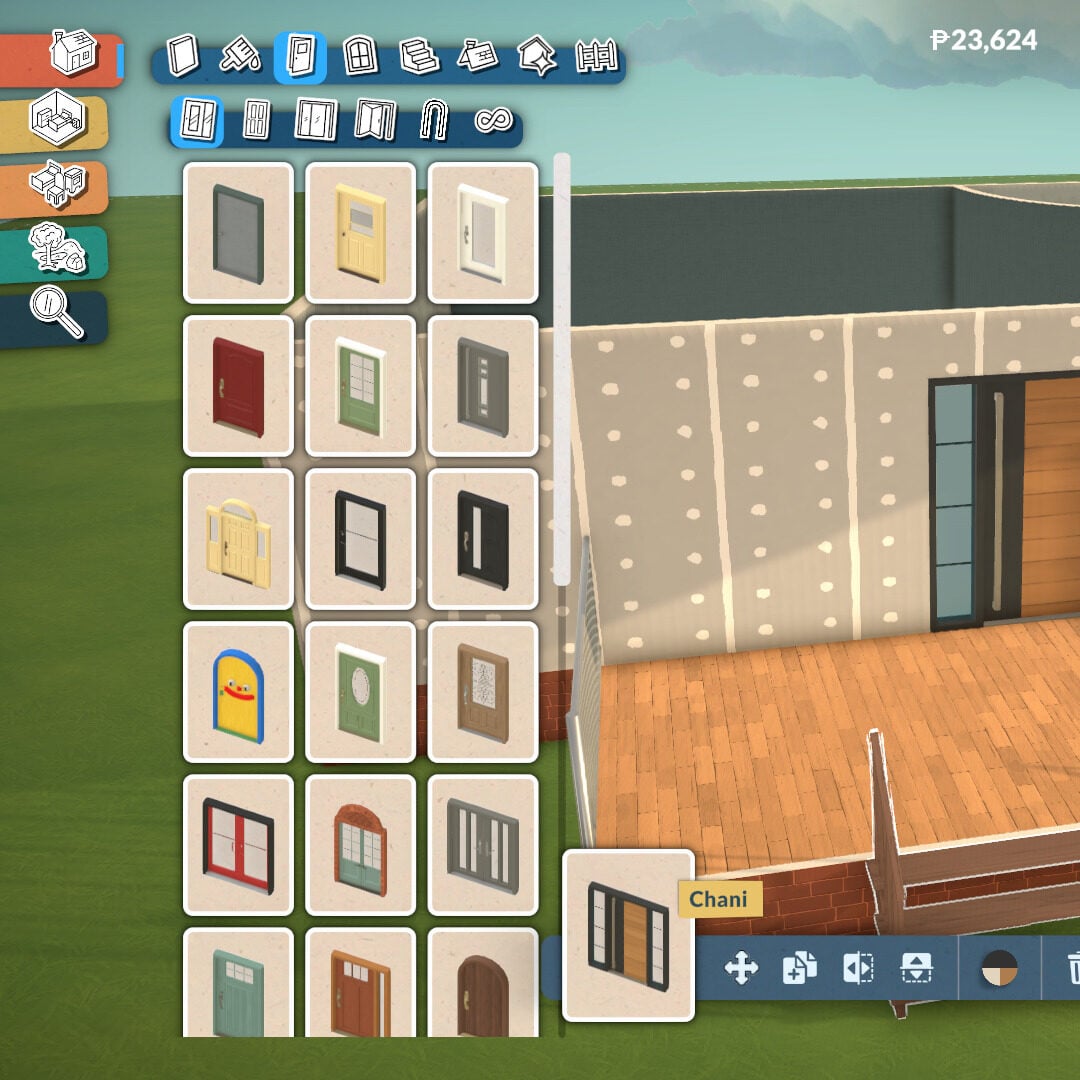
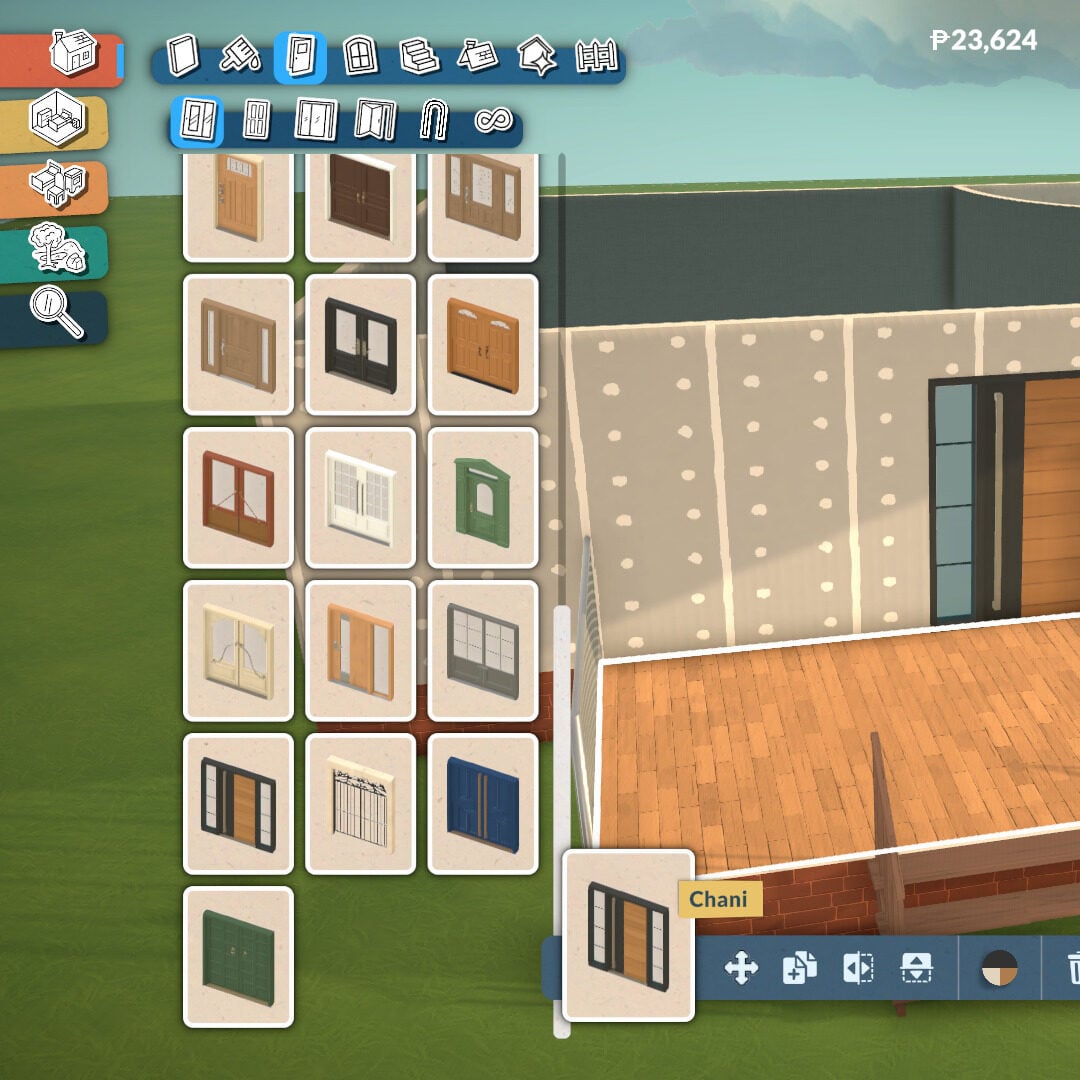
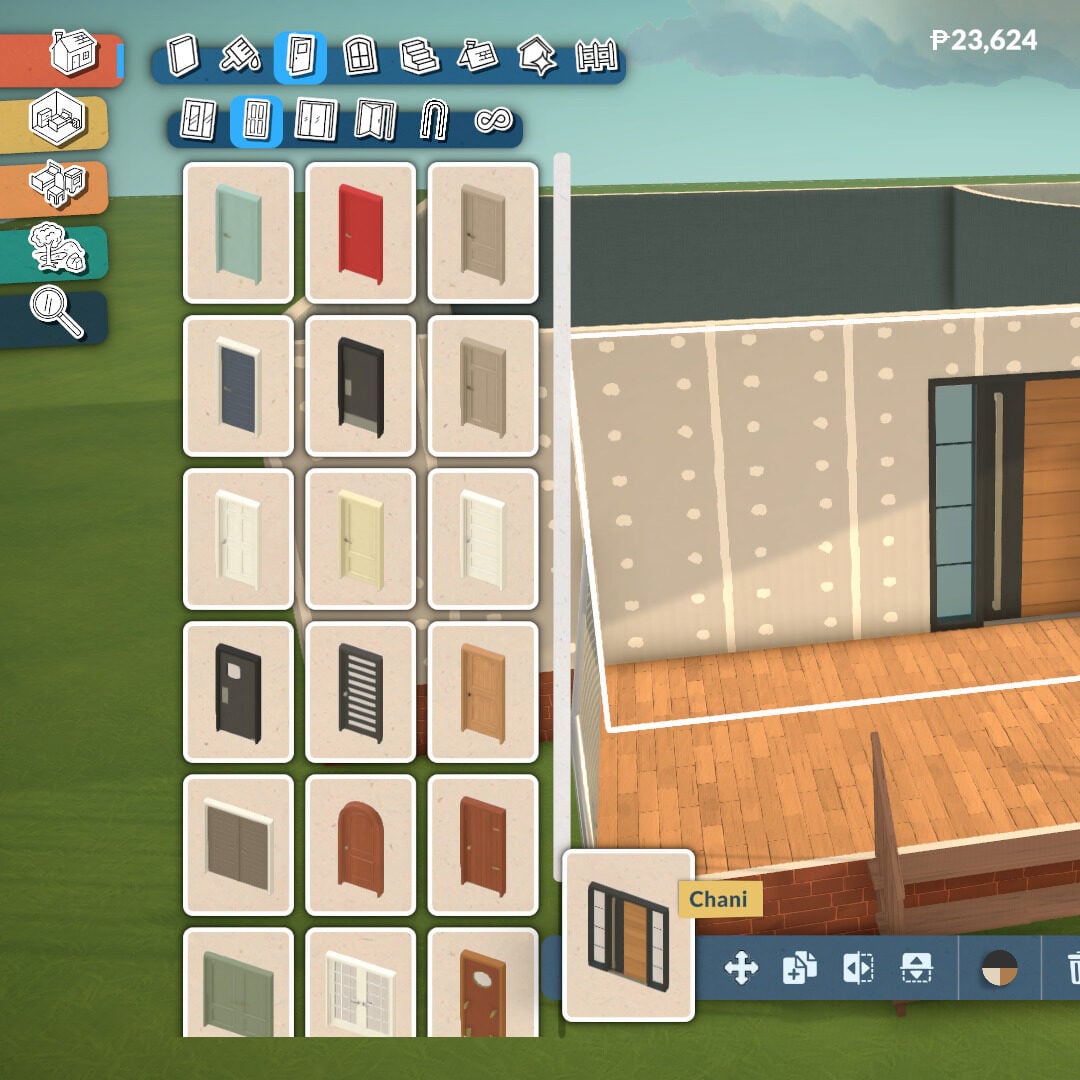
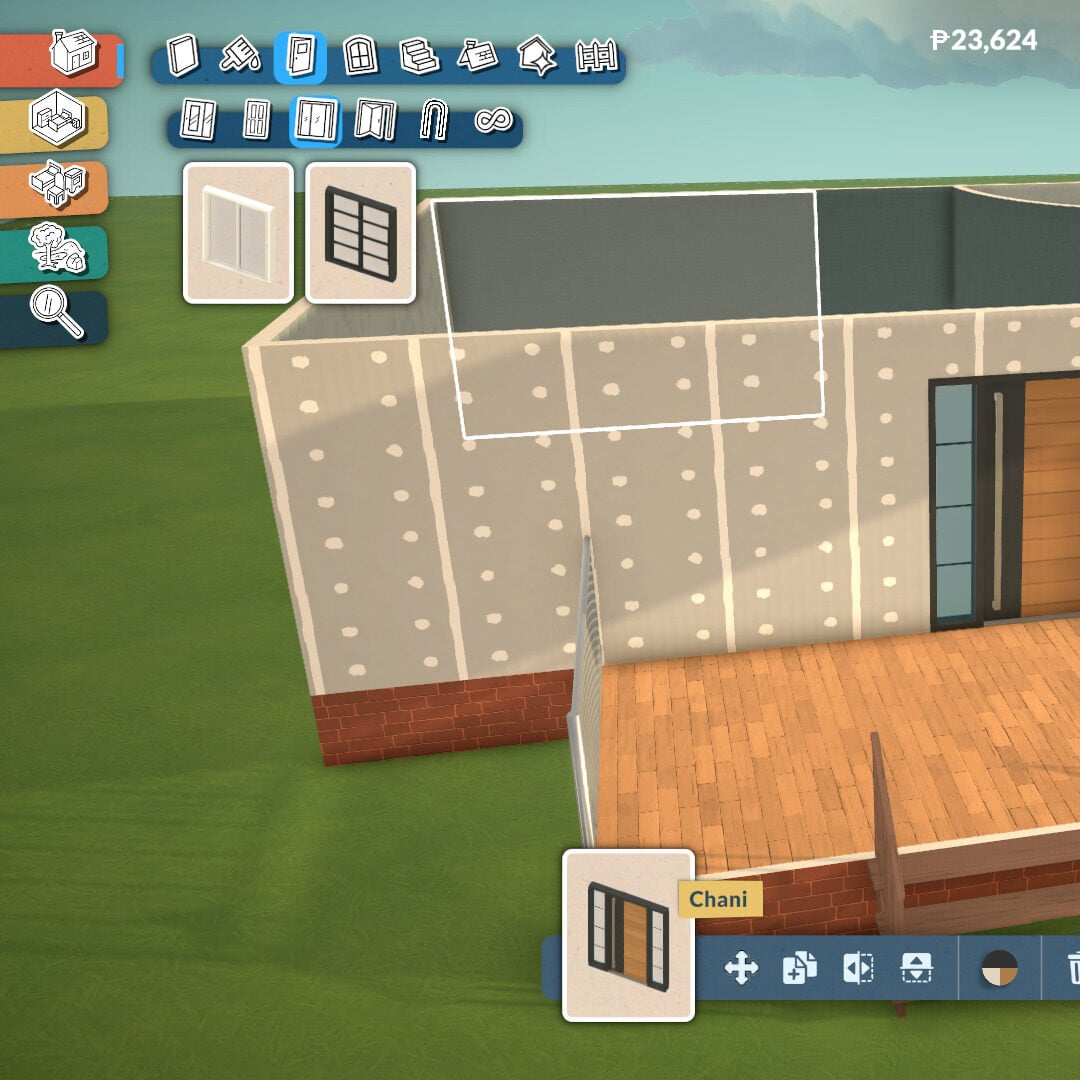
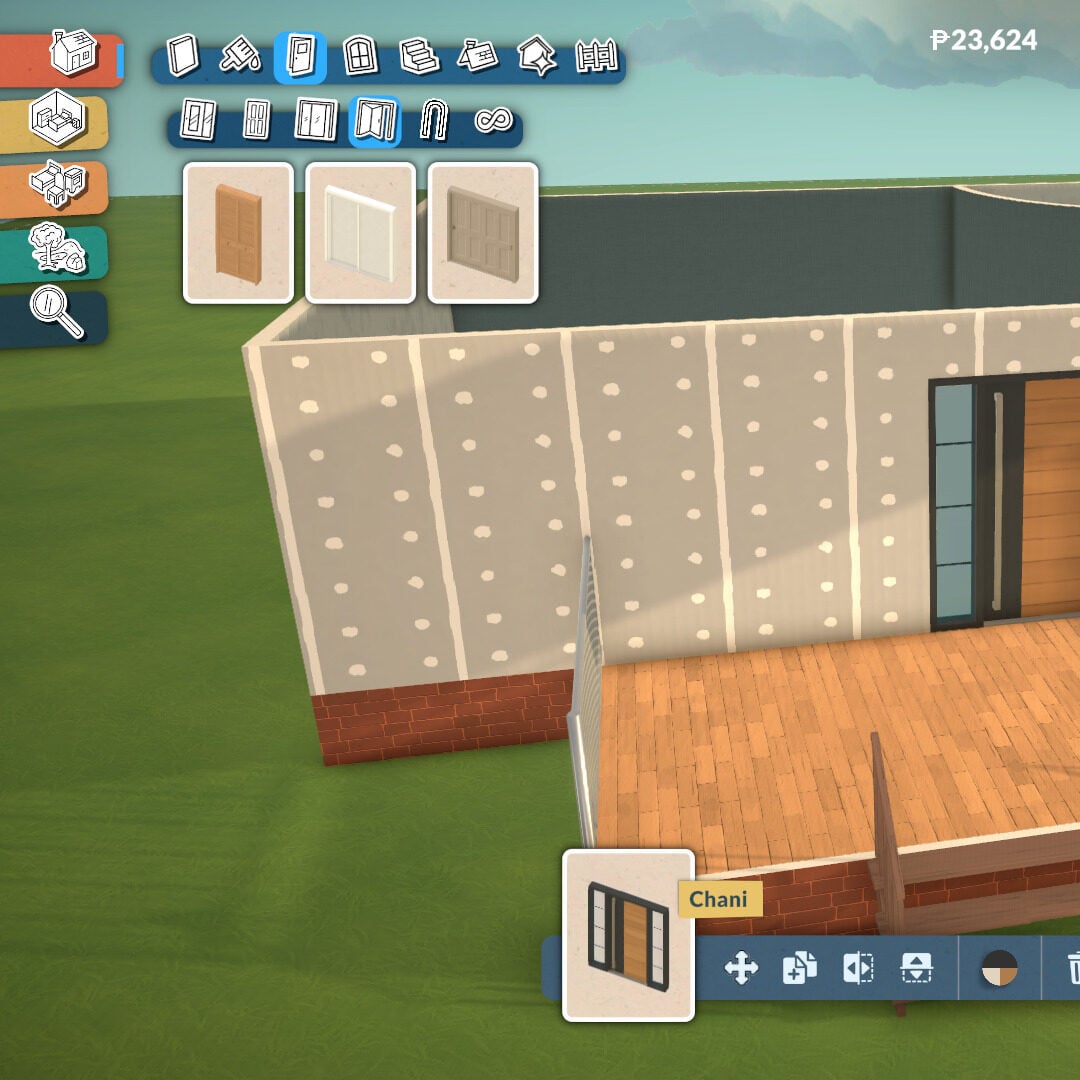
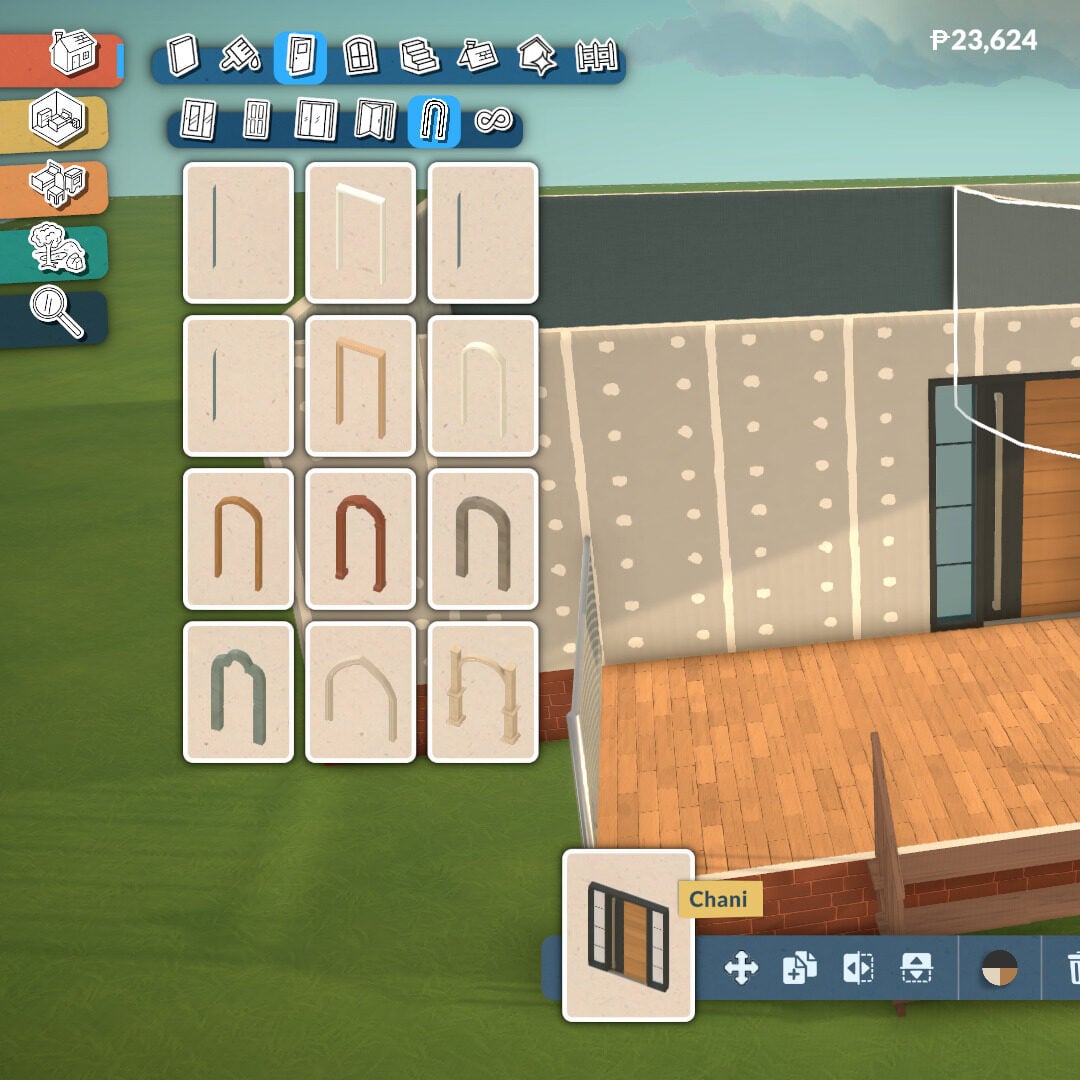
When placing a door, you’ll find different tools to help it fit better within your house design. You can customize colors and textures, choose which side faces the exterior, and even flip the door’s direction, which is one of the most useful features for interior planning. By clicking the three dots option, you’ll also access more advanced placement settings.
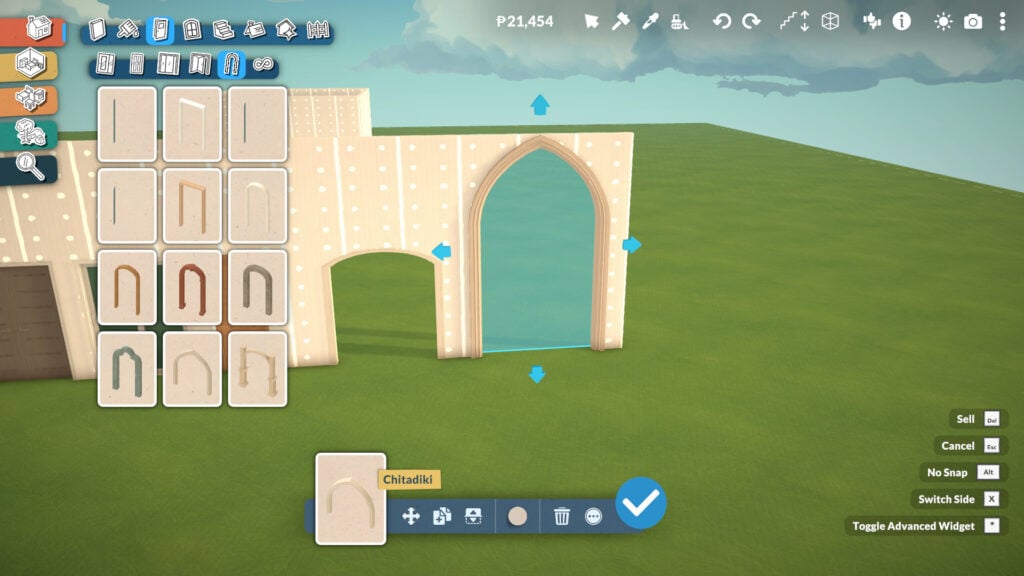
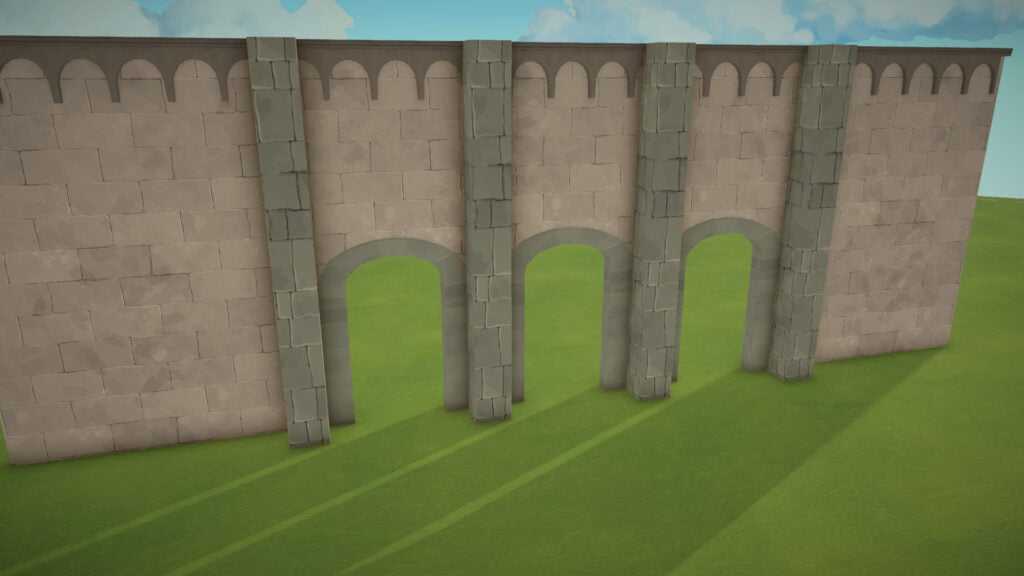
Arches are even more flexible, since you can drag them to adjust their width instead of being limited to a single fixed size. Some of them can also be adjusted in height, opening the door to much more ambitious architectural designs. Honestly, it already makes me want to build a huge cathedral-style structure.
Windows Tools
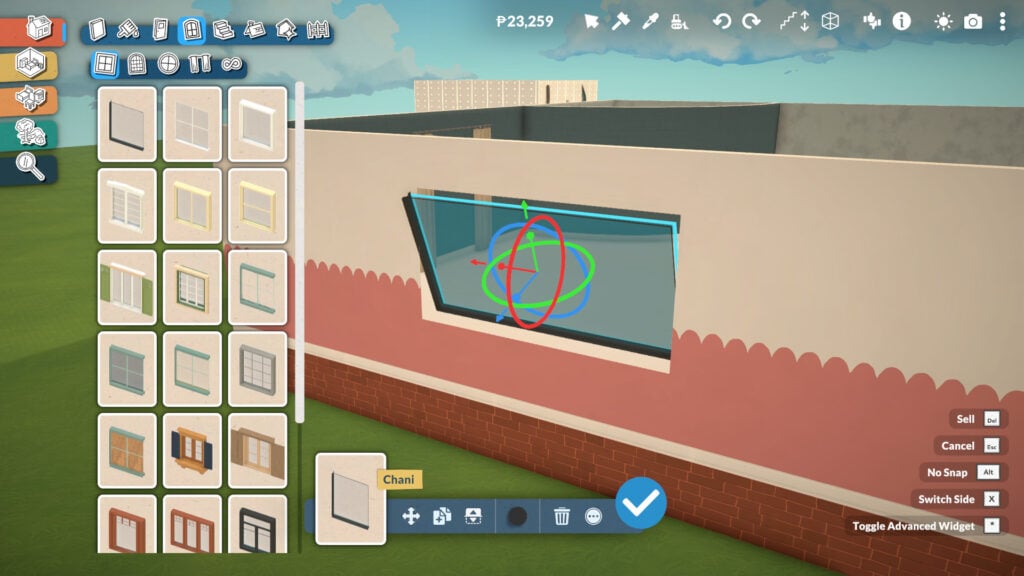
Windows in Paralives bring a huge amount of depth and customization, with many of them offering their own unique shape adjustments and design options. There are three main categories available: angular windows, arched windows, and decorative windows, alongside a separate section for curtains and blinds decoration.
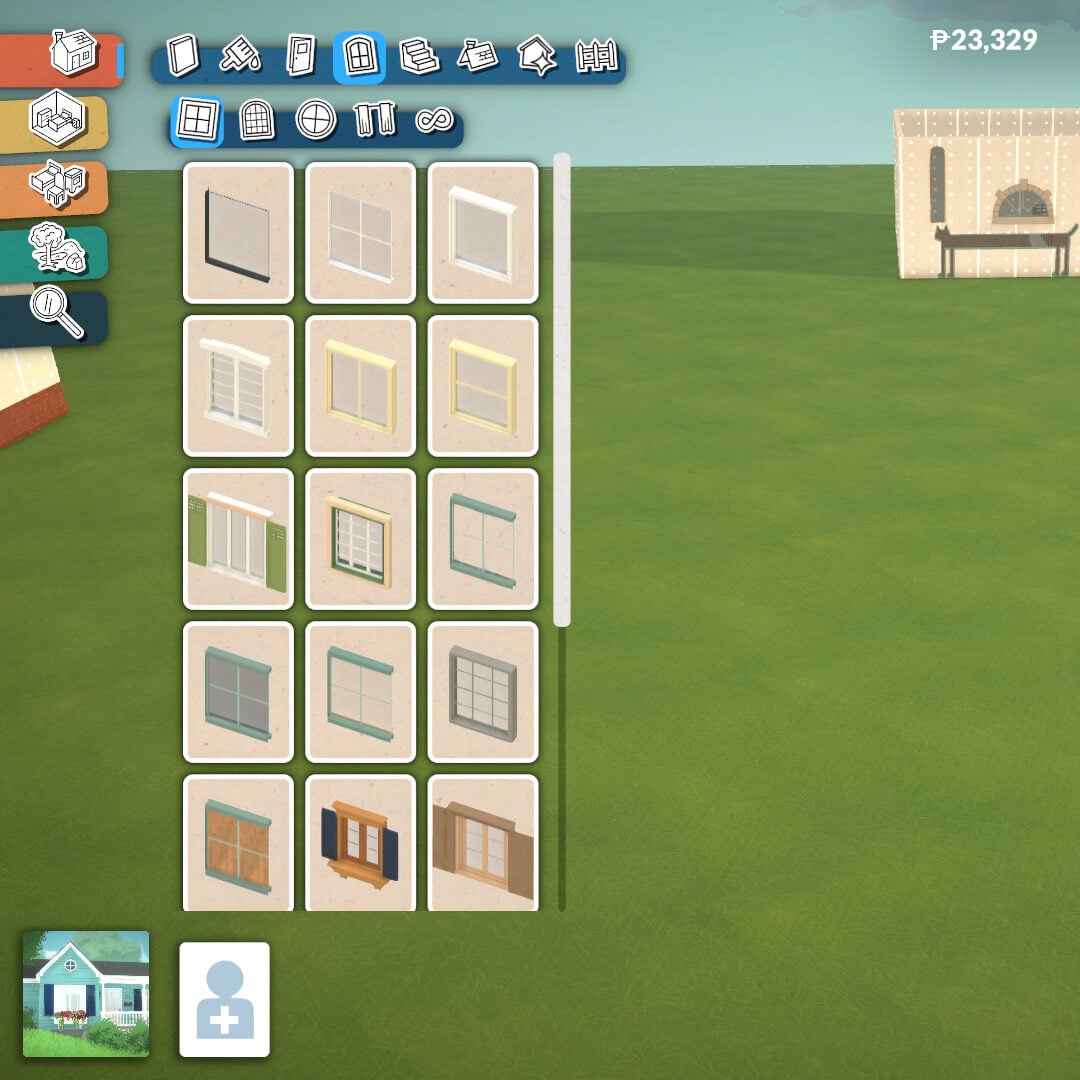
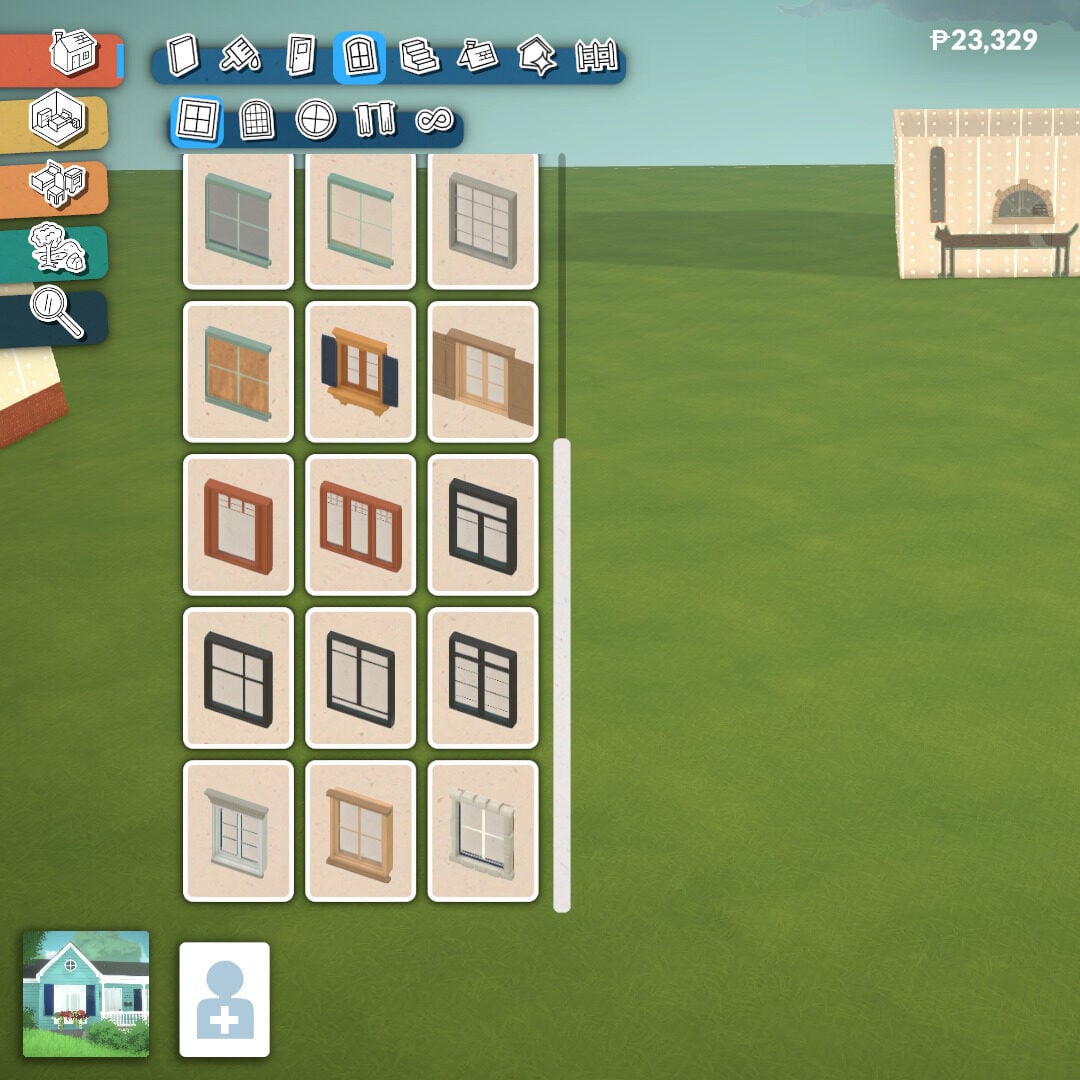
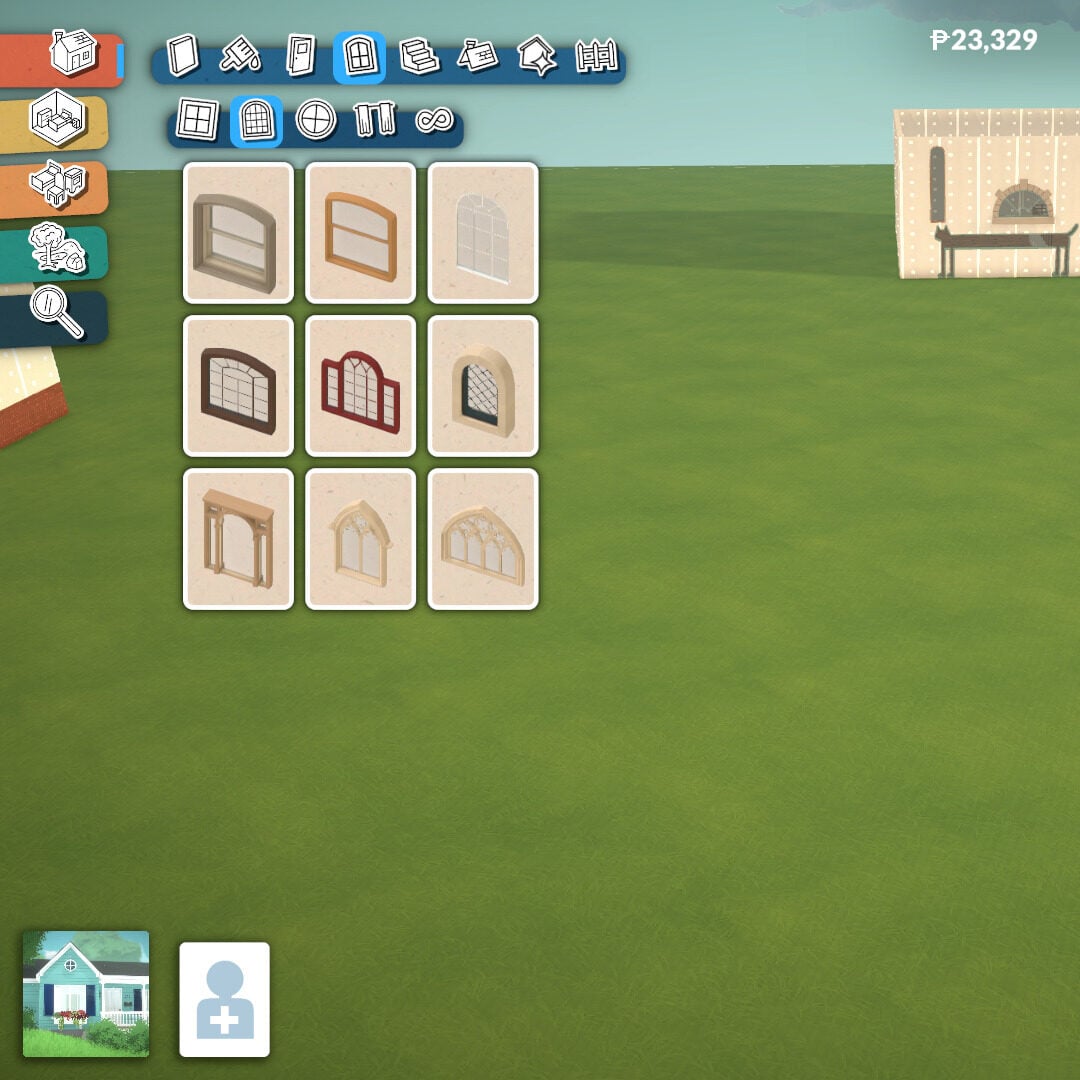
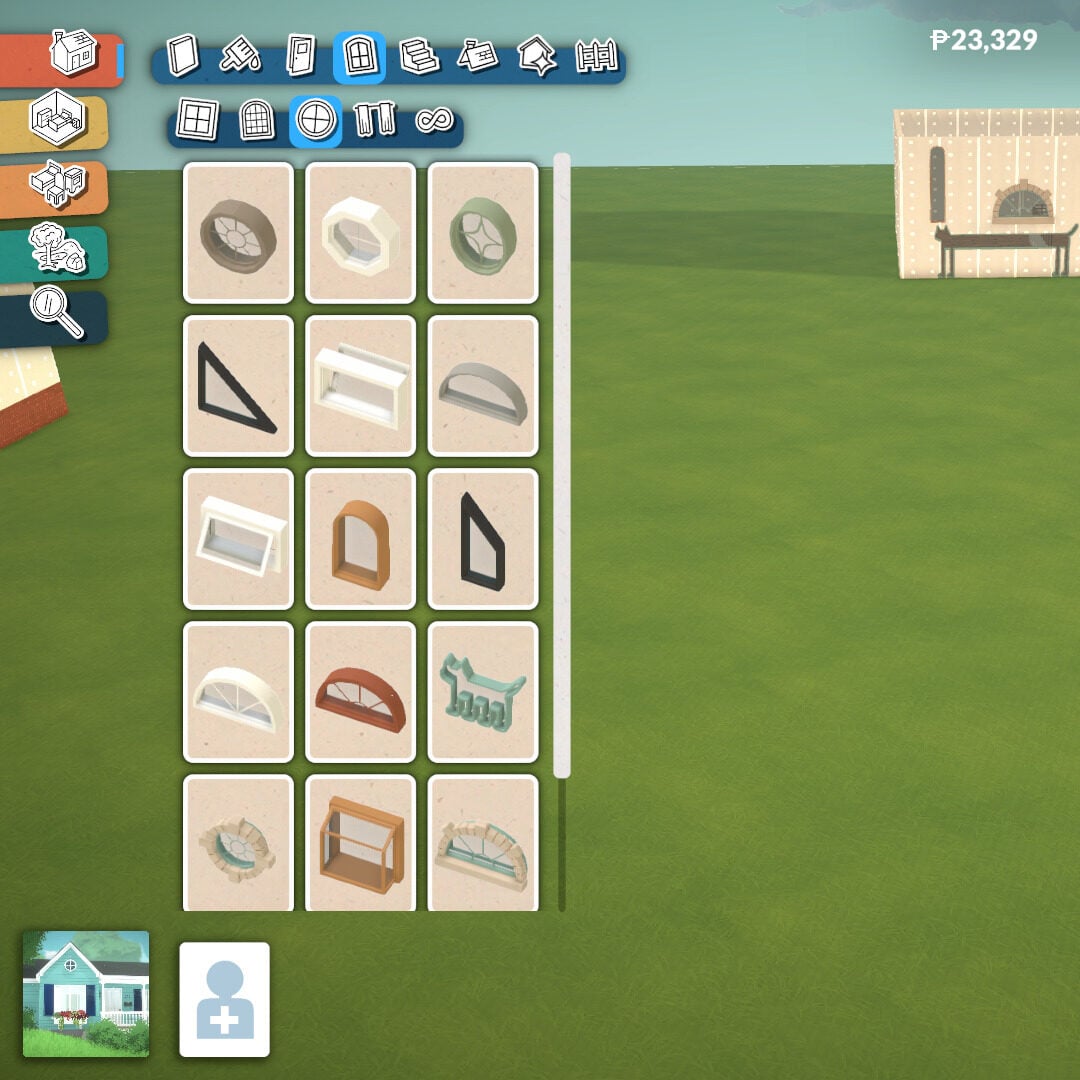
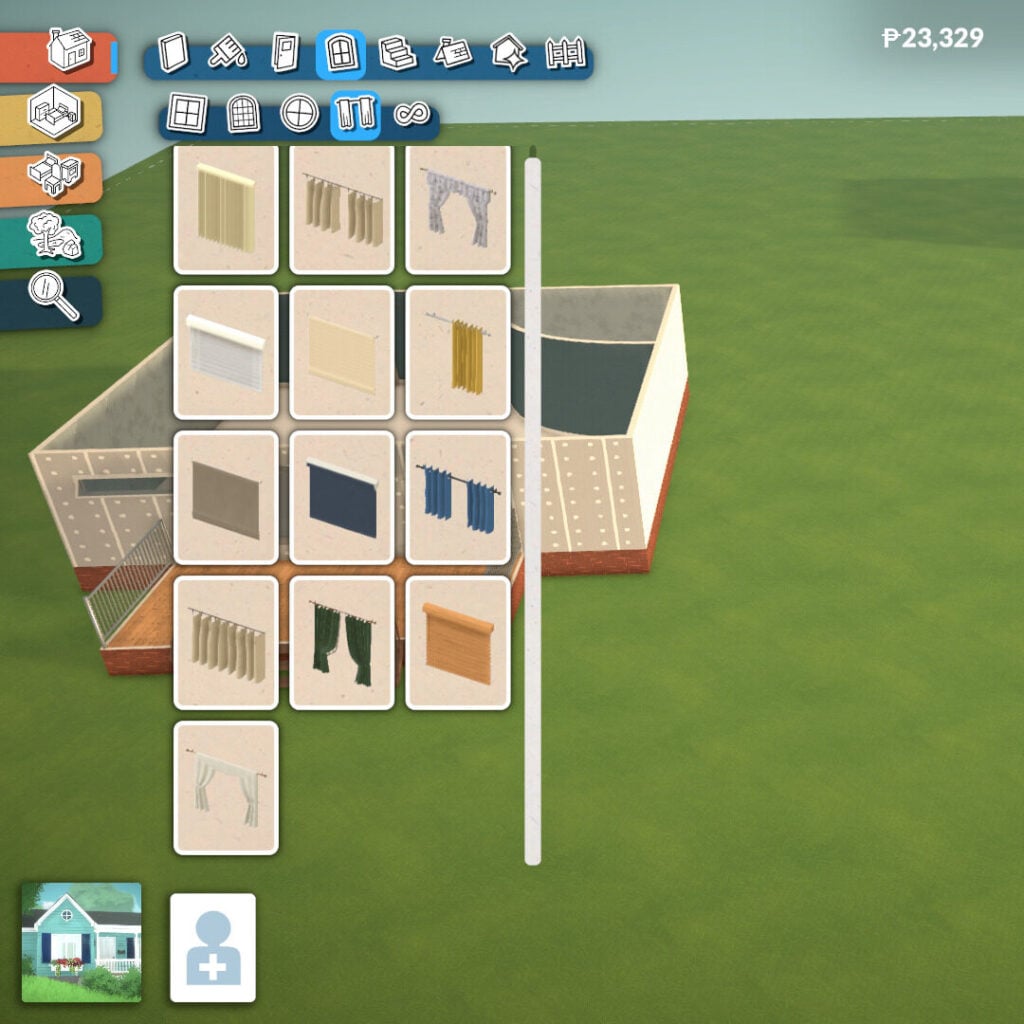
Many windows can be resized and customized to better fit your architectural style, making it easier to create anything from cozy family homes to modern mansions or classic buildings with detailed facades. They also include the same tools available for doors, allowing you to flip them, choose which side faces the exterior, and access more advanced placement options.
Stairs Tool
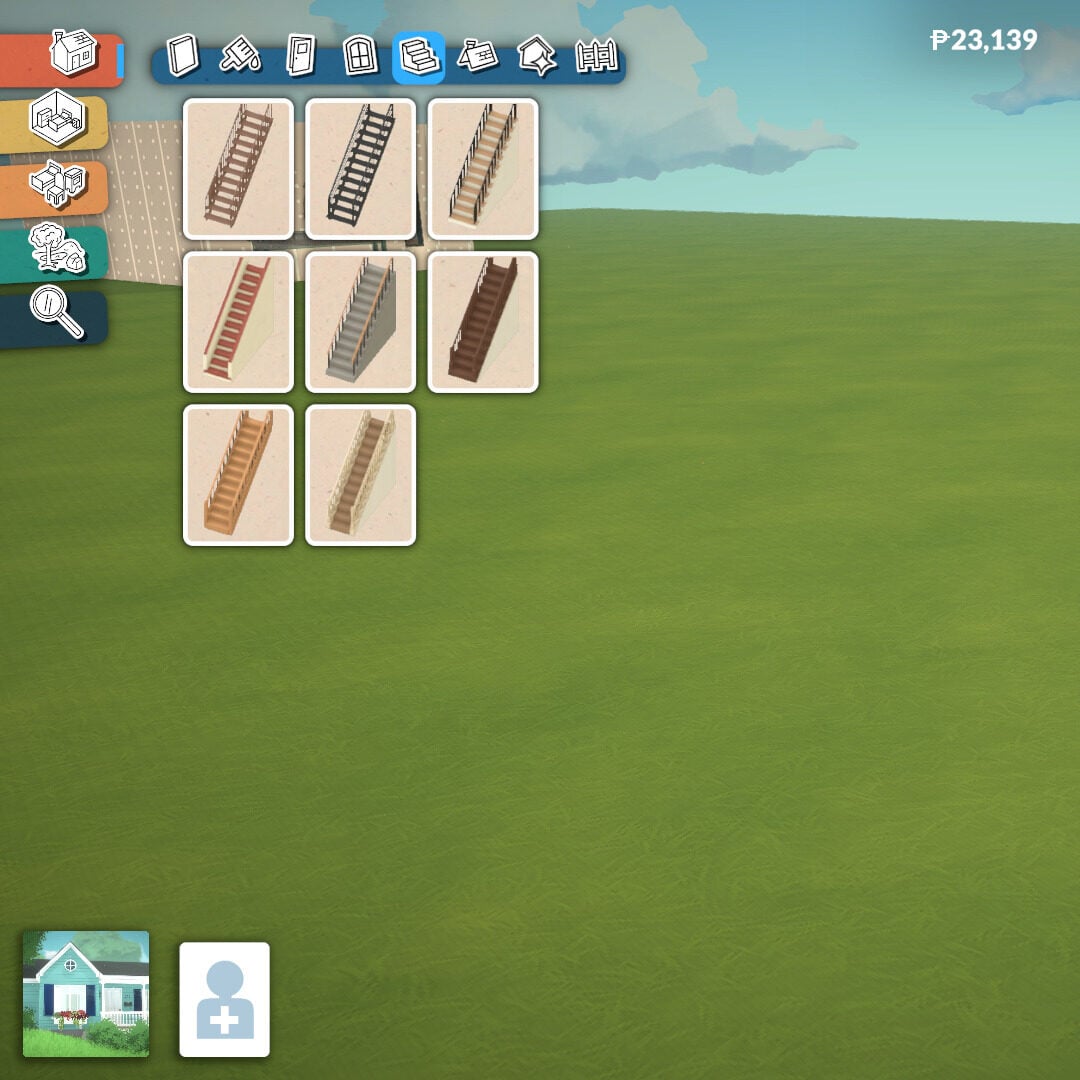
The Stairs tool is very easy to use. There are eight different staircase styles to choose from, and they can be placed almost anywhere you want. Once placed, you can click on them and drag the arrows to adjust both their width and height, allowing you to create everything from compact staircases to massive grand stairs for larger builds.
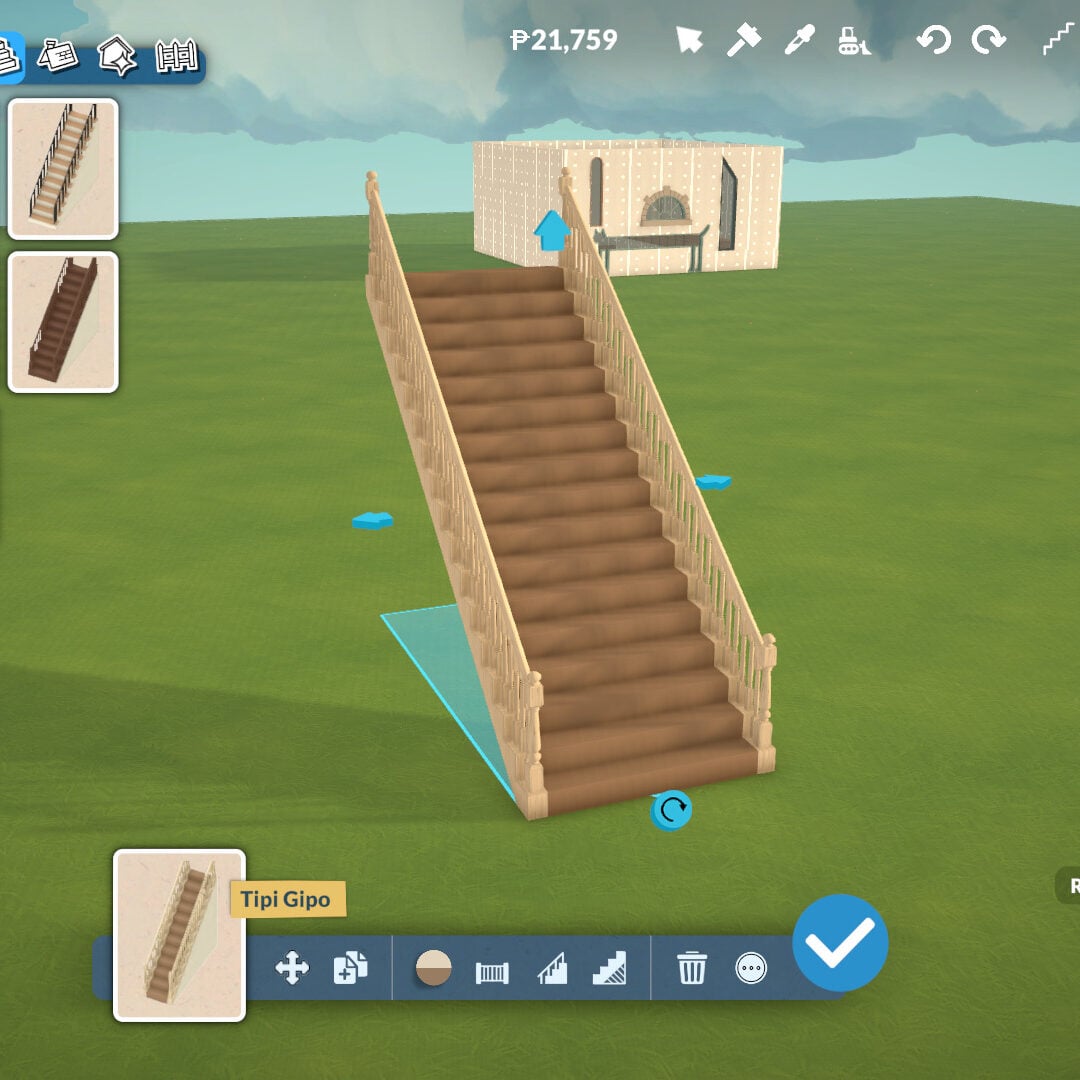
At the bottom of the screen, after selecting your desired staircase, you’ll find even more customization tools. You can remove the wall underneath the stairs to create extra decorative space, and choose whether the staircase has railings on both sides, only one side, or no railings at all.
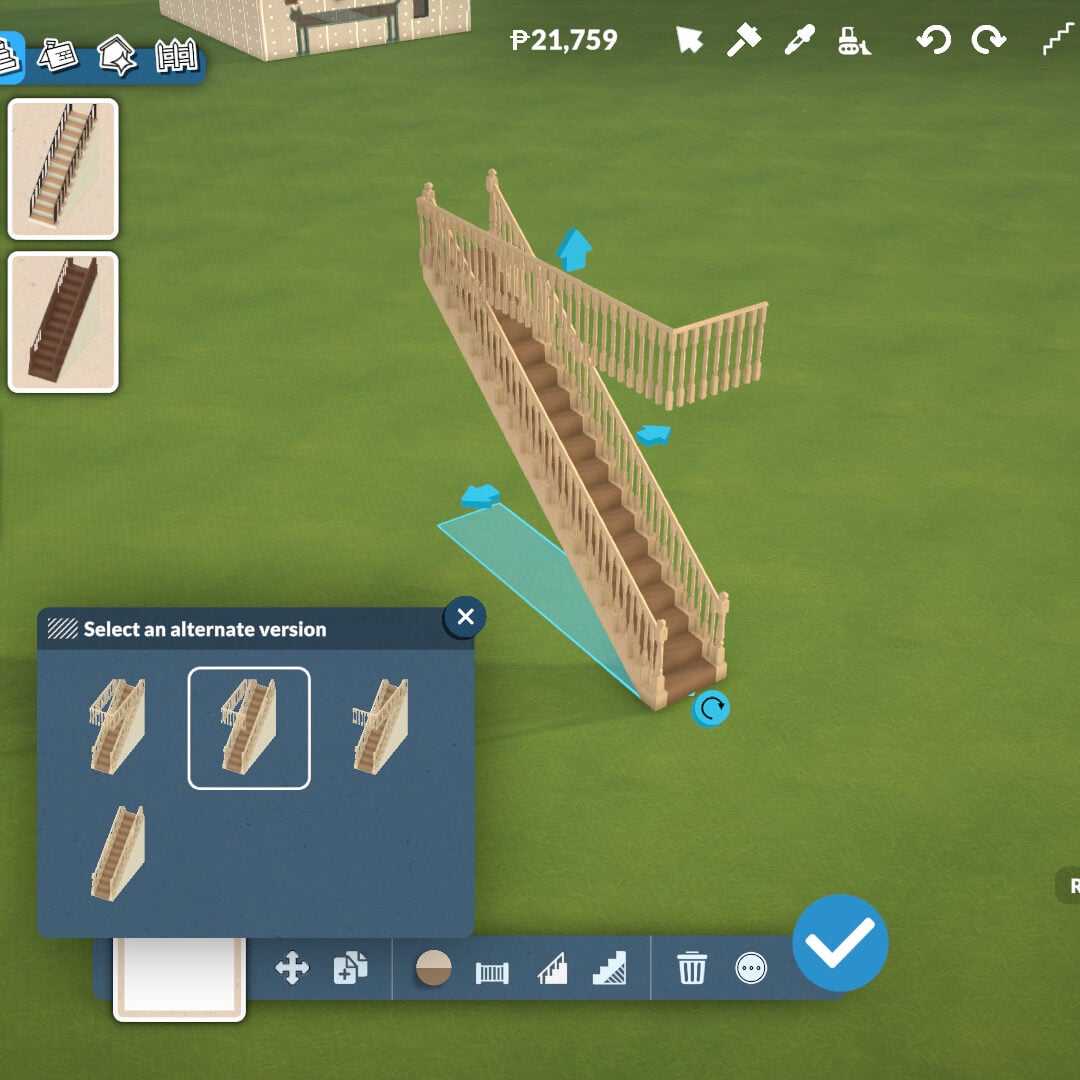
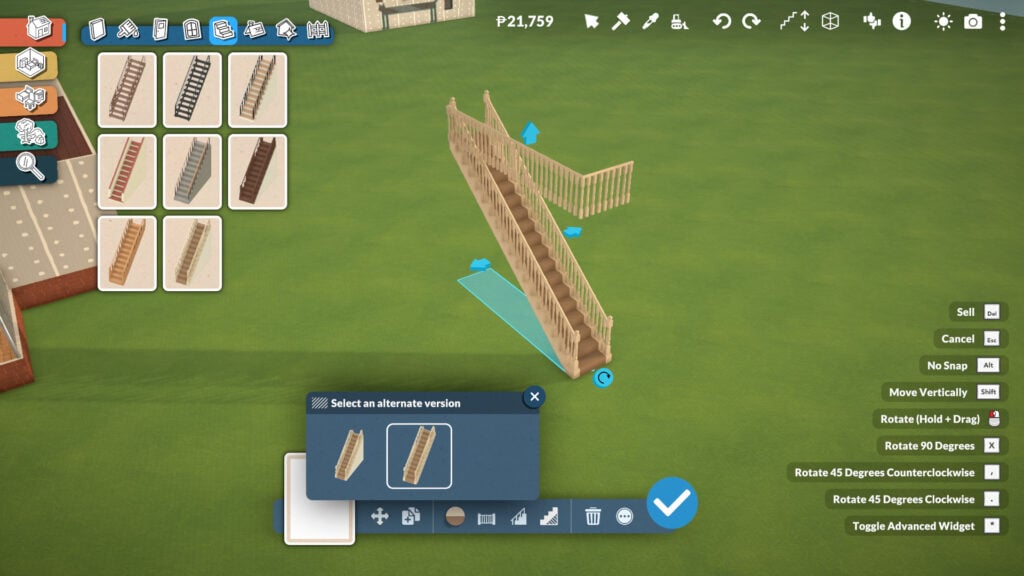
There’s even a tool that automatically places a fence around the floor opening upstairs, preventing your Parafolks from falling while also helping your build look more realistic and polished. And yes, stairs can also be placed diagonally.
Roof Tools
This is one of the biggest features in Paralives’ Build Mode, even if it’s still unfinished. The game itself warns players that the roof system is currently incomplete, meaning some roofs may not perfectly match the exact shape of your floor plan. Even so, the tool already offers an impressive amount of freedom and customization.
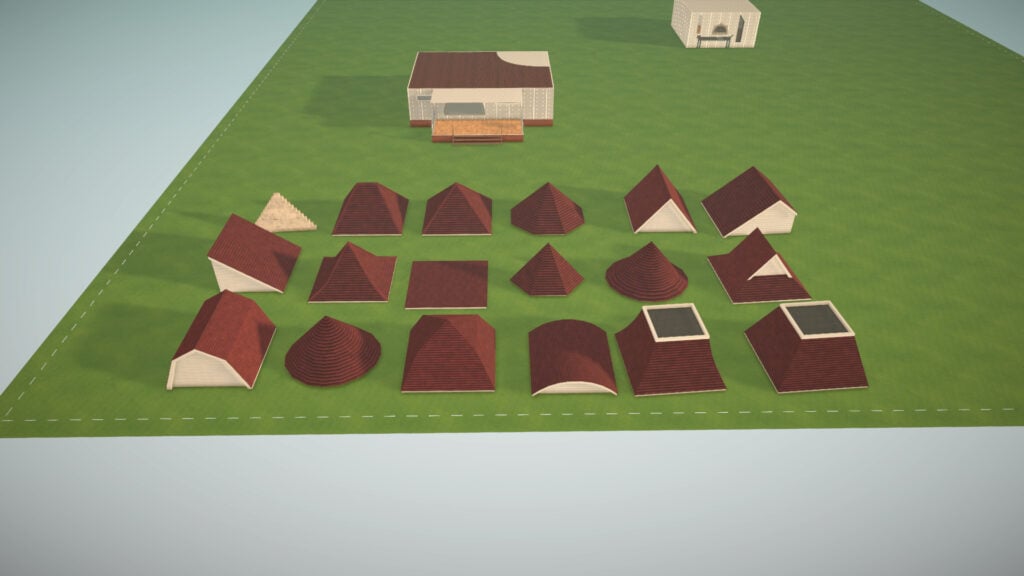
There are 18 different roof styles available, and each one can be adjusted in height, width, and color using the Roof Paint tool mentioned earlier. This allows players to create highly detailed exteriors and experiment with many different architectural styles, from cozy suburban homes to massive classical mansions.
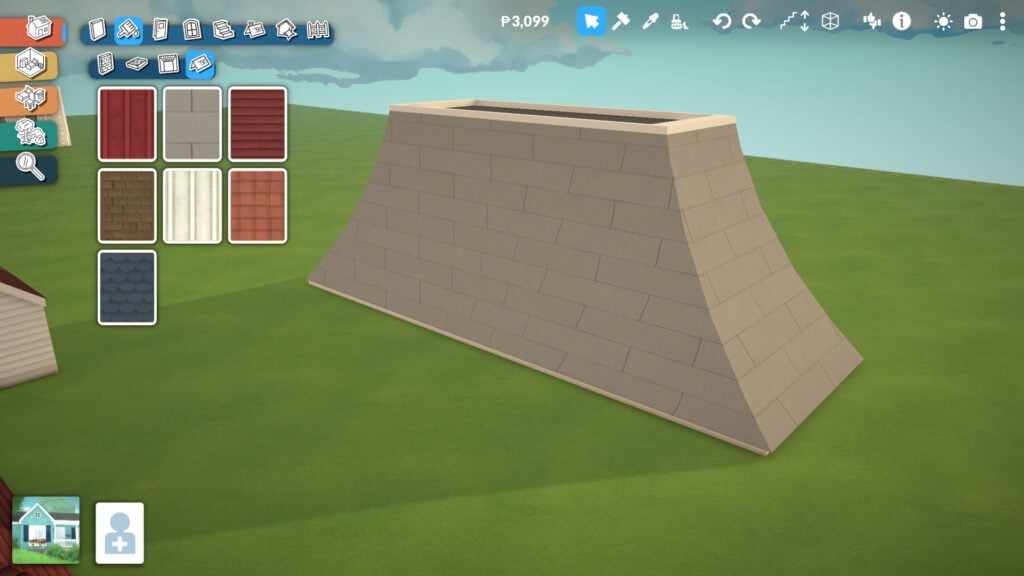
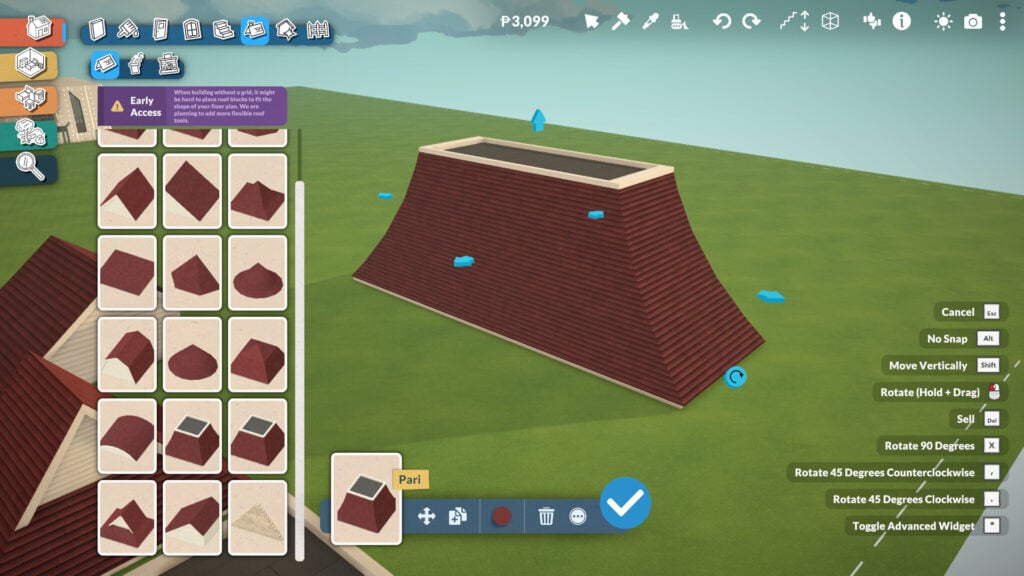
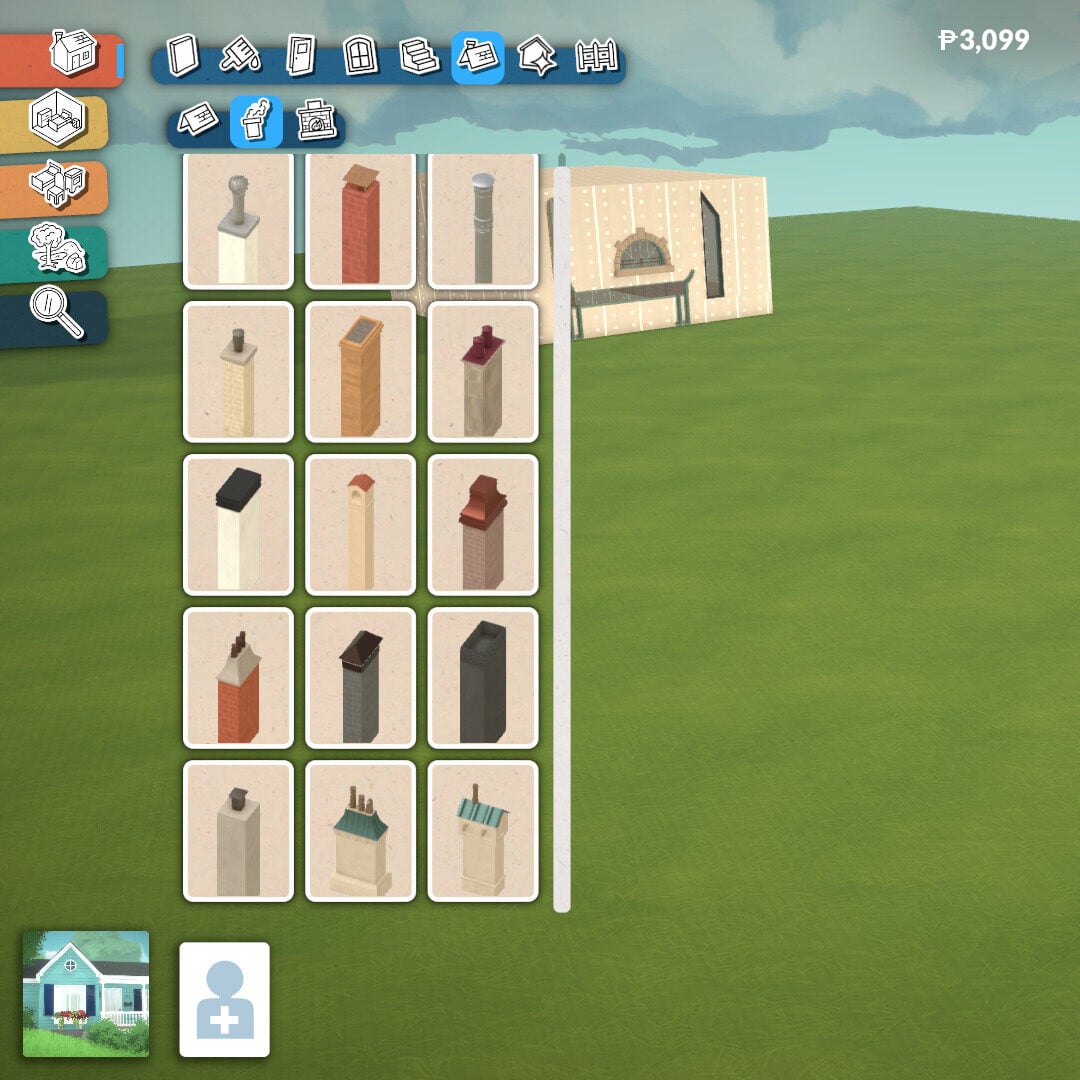
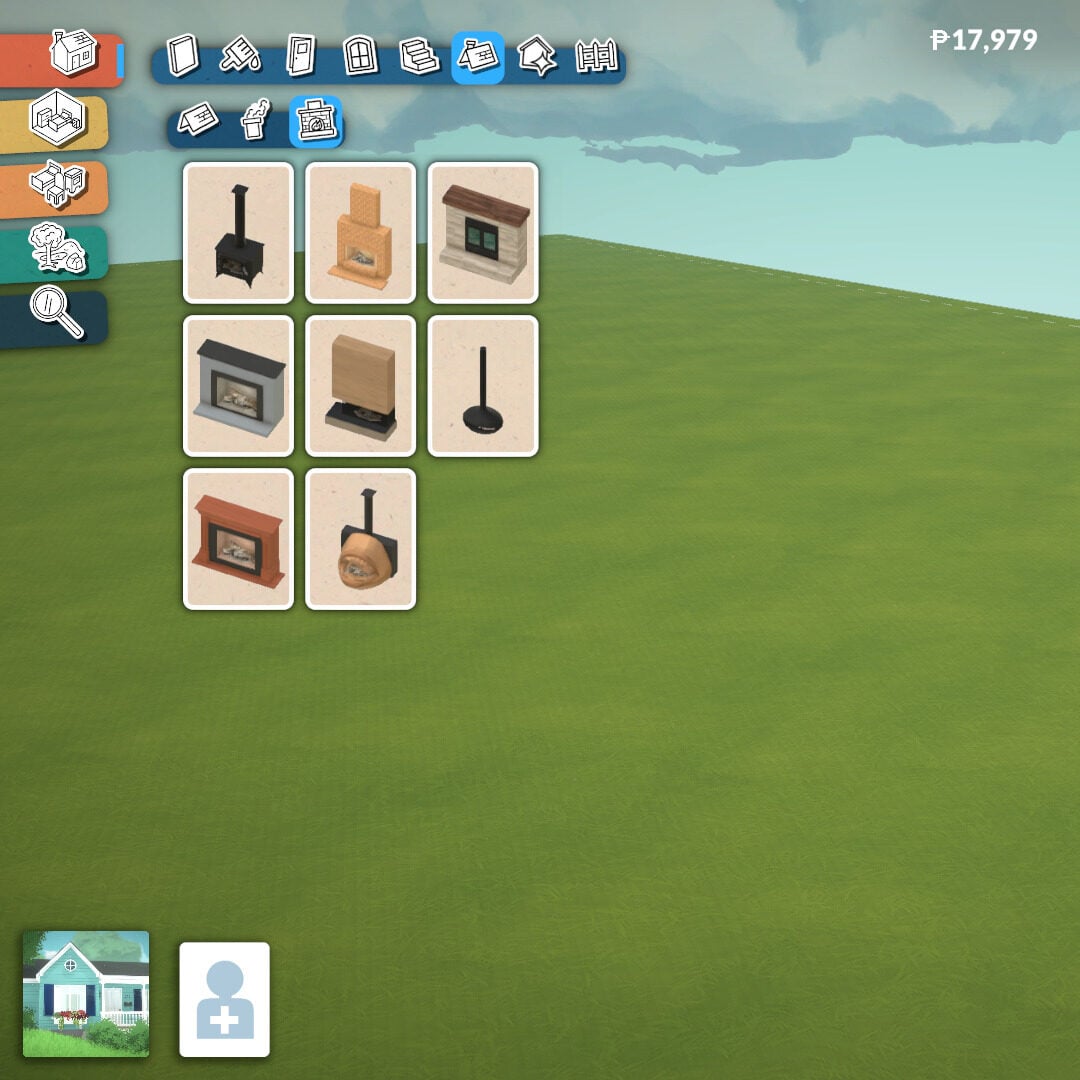
Inside the same Roof category, you’ll also find chimneys and fireplaces to help create warm and cozy environments. Just like roofs, many of these elements can also be adjusted in height for even more customization possibilities.
Architecture Details
Once your main structure is complete, it’s time to start placing extra details to enhance the overall look of your building. In this category, there are four additional subcategories: Molding, Columns, Details, and Miscellaneous.
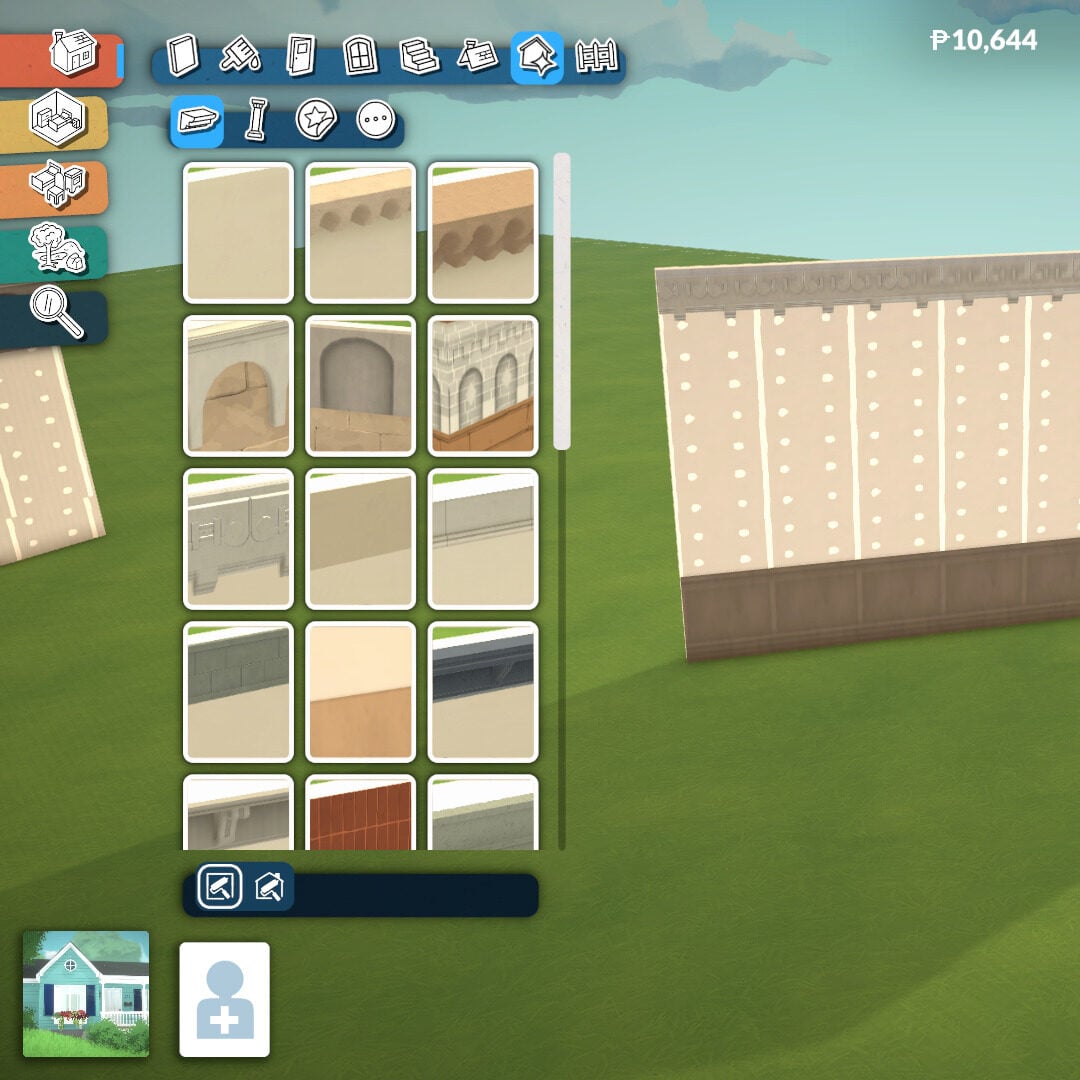
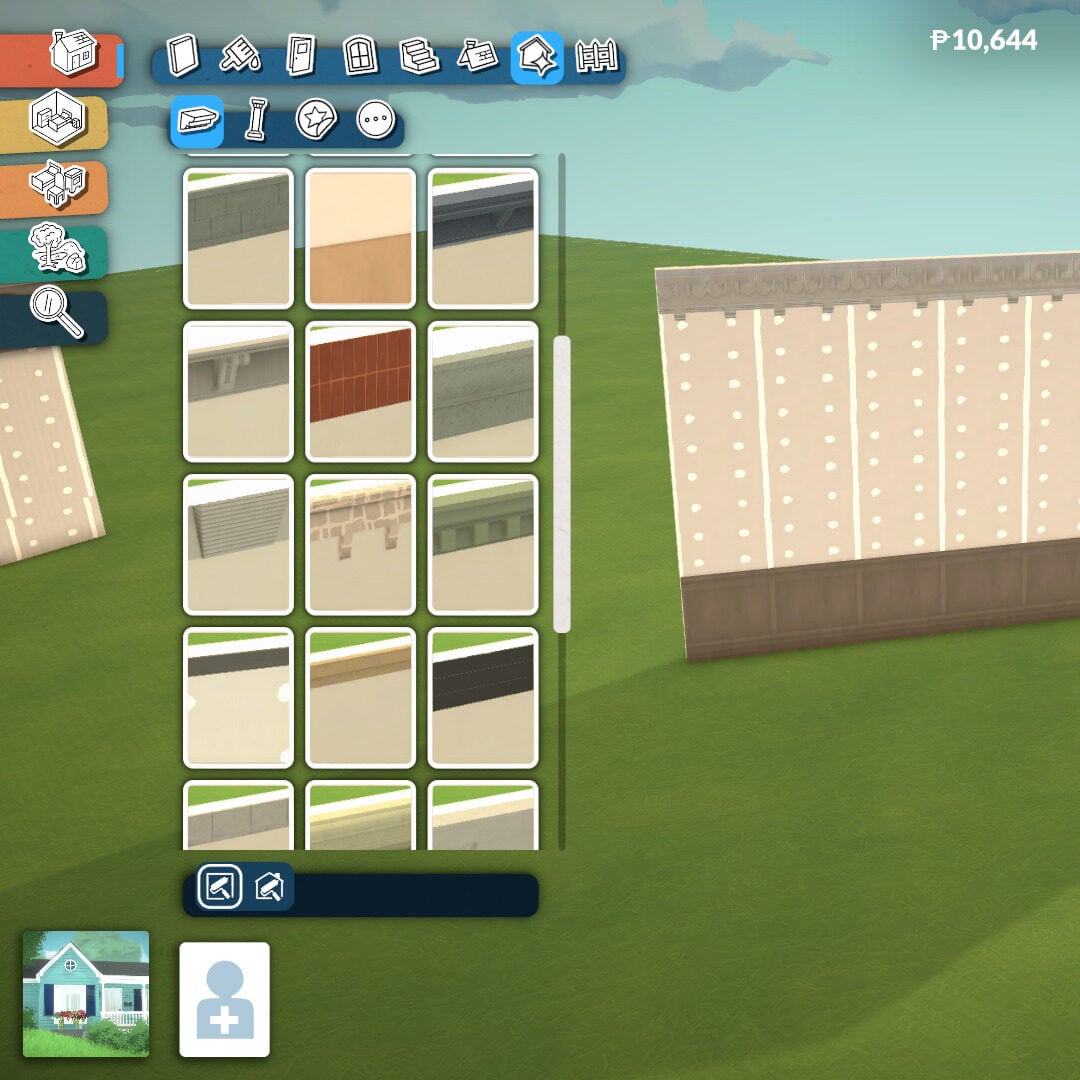
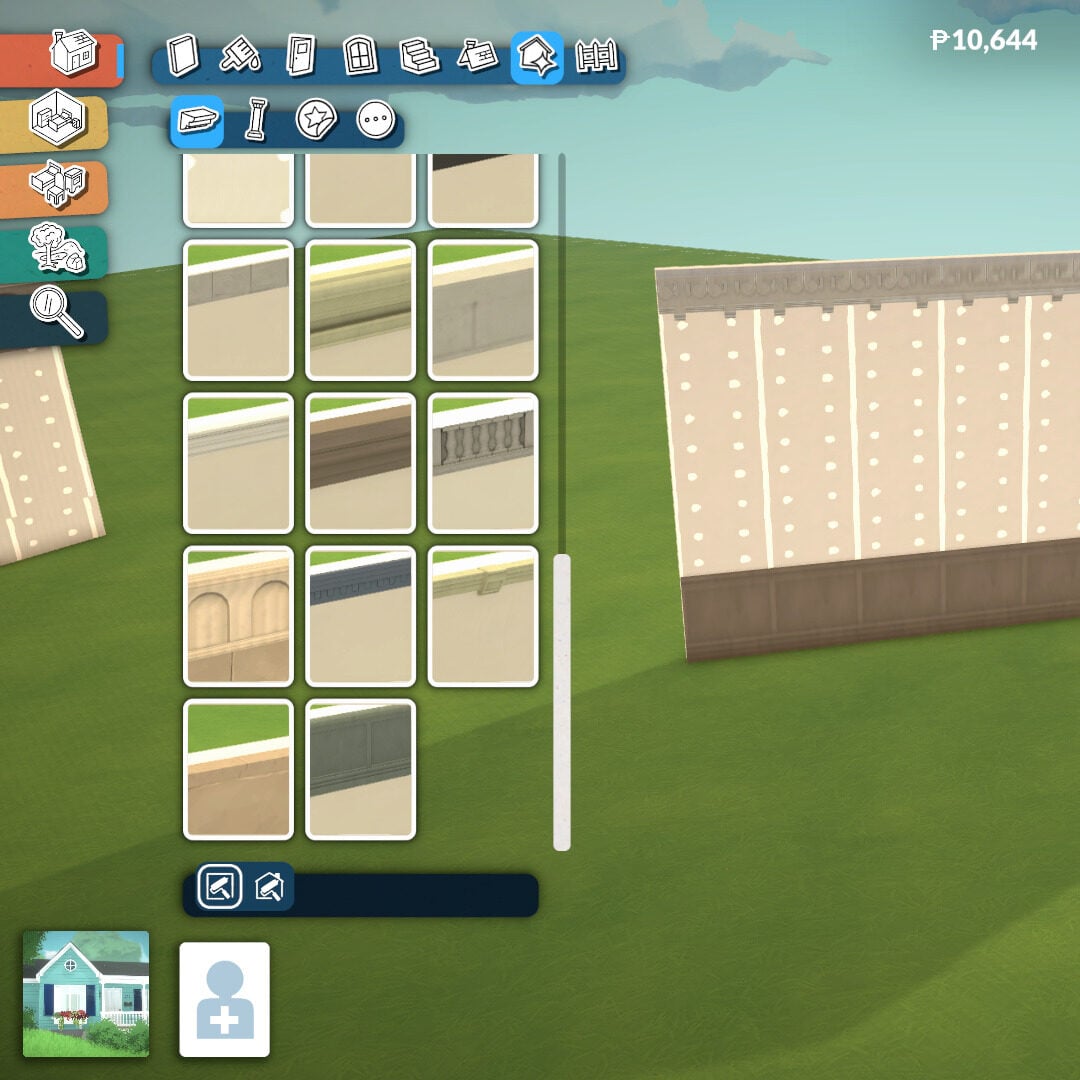
The Molding tool adds much more depth to both exterior and interior walls. It’s especially useful for creating elegant classical mansions or enhancing facades with decorative trims and friezes, helping buildings feel more realistic and architecturally detailed.
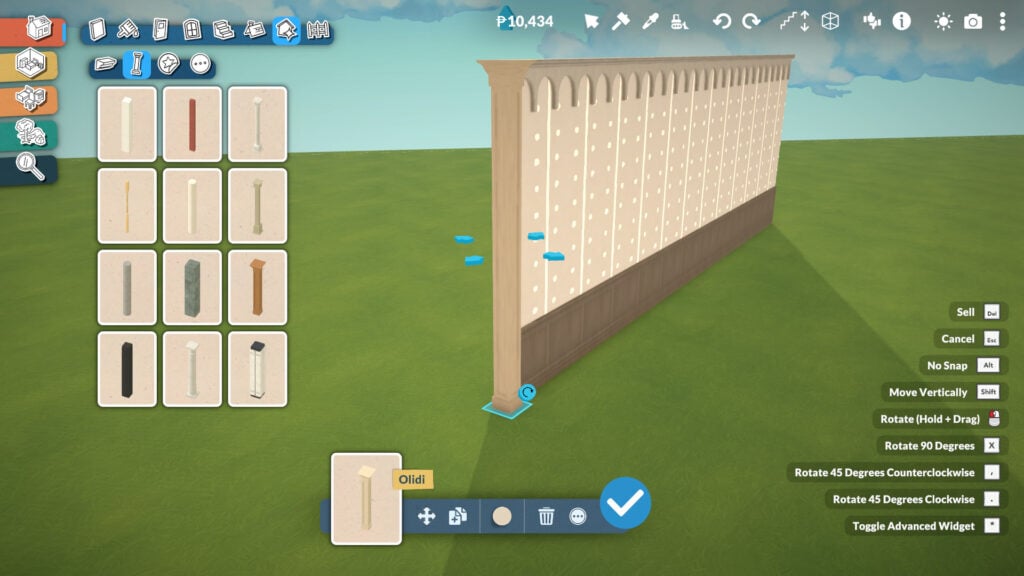
Just like many other objects in Paralives, columns can be adjusted in both height and width to better fit your designs, allowing for even more flexibility and dynamism when shaping walls, porches, or large entrances.
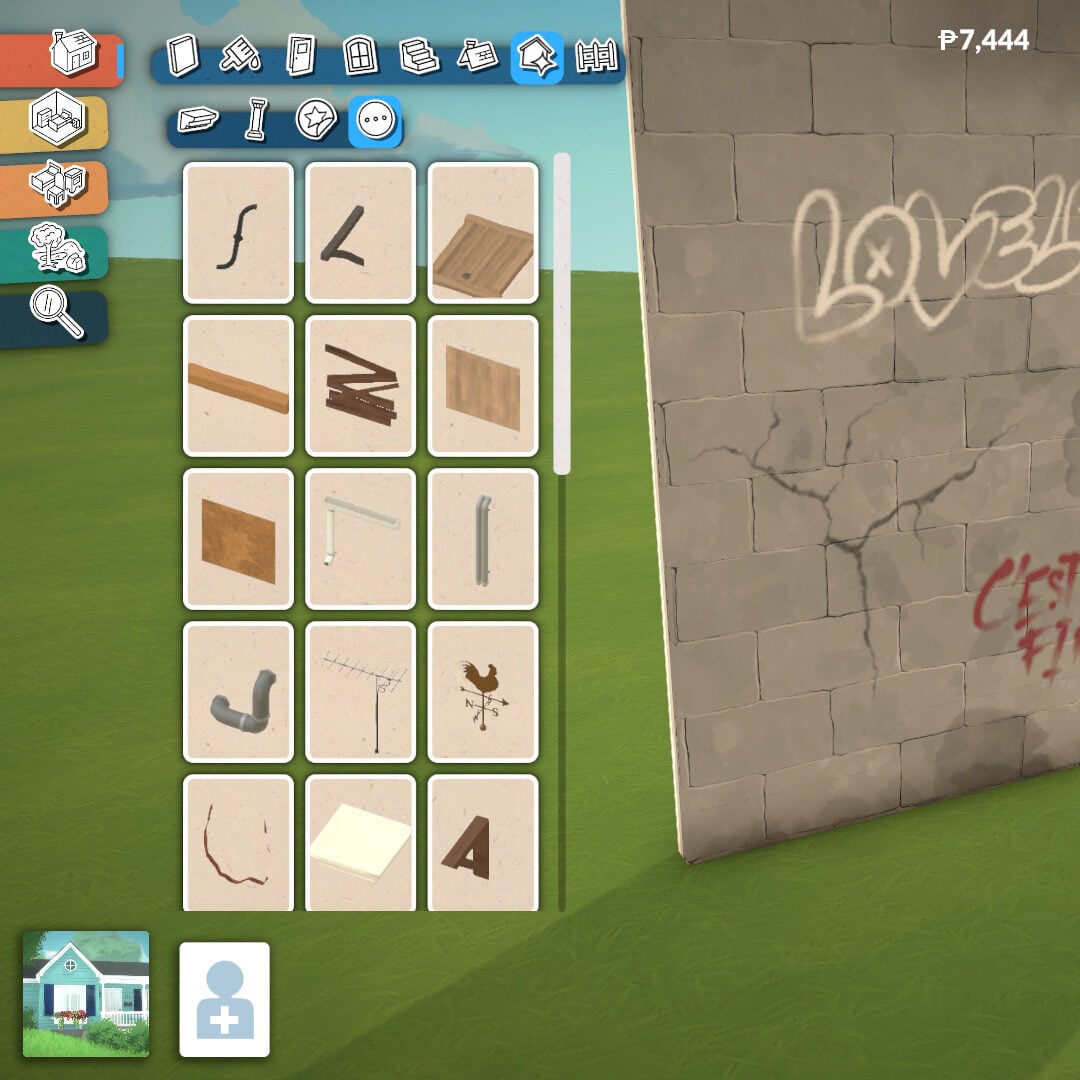
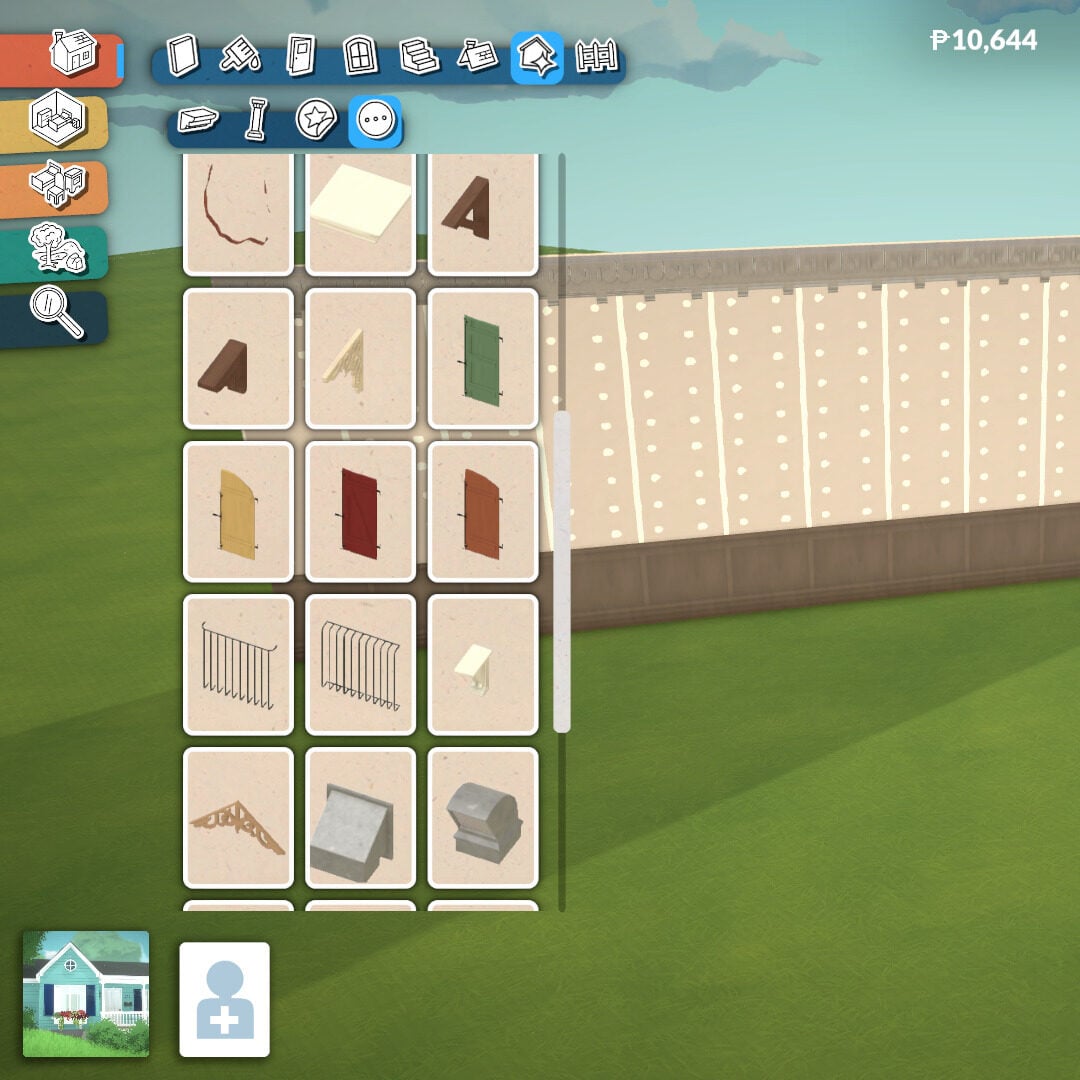
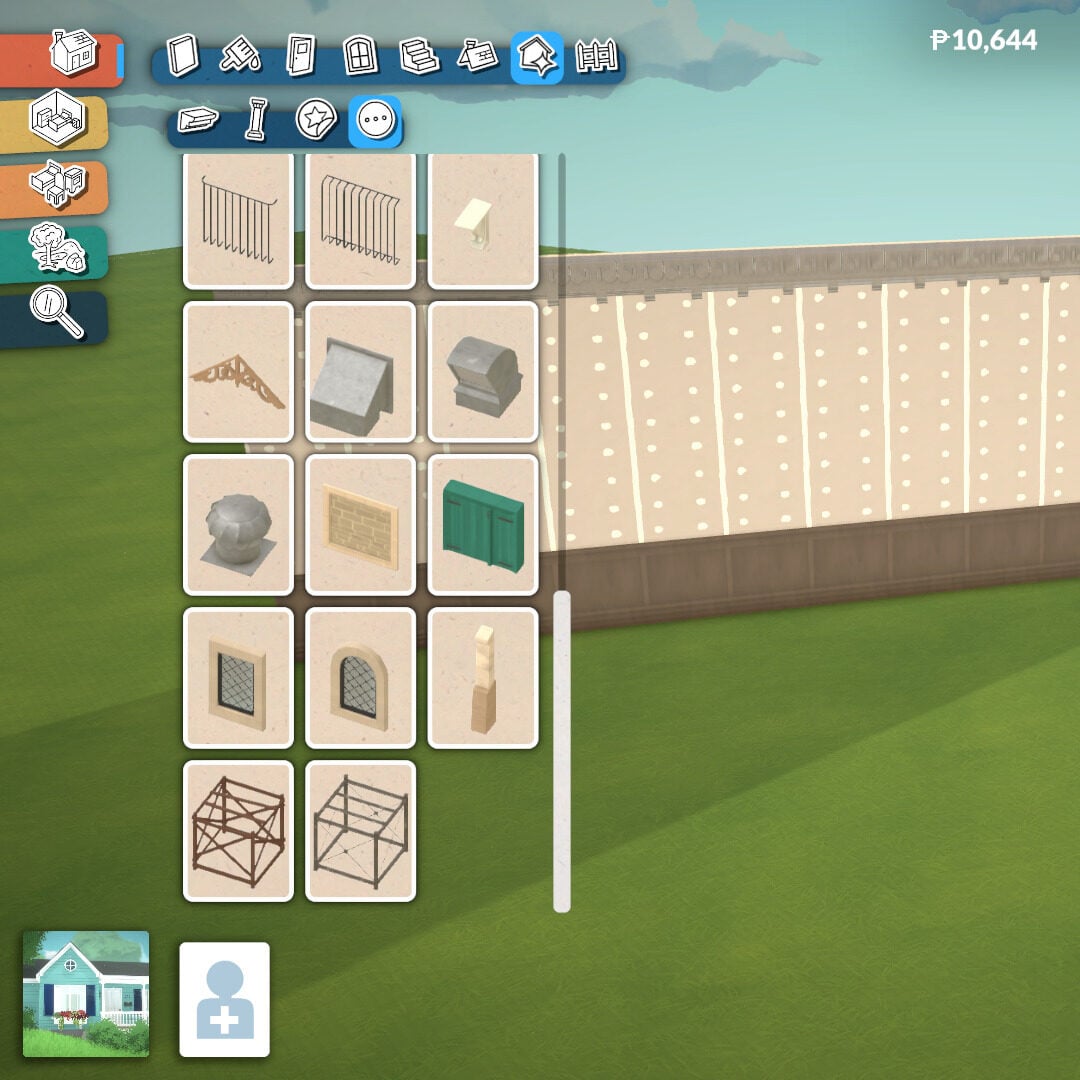
The Details and Miscellaneous sections include extra decorative elements for walls and structures. Here you’ll find graffiti, stains, cracks, boarded-up sections, unique architectural pieces, wall openings, and many other objects that help contextualize your build and give it more personality and storytelling.
Fences
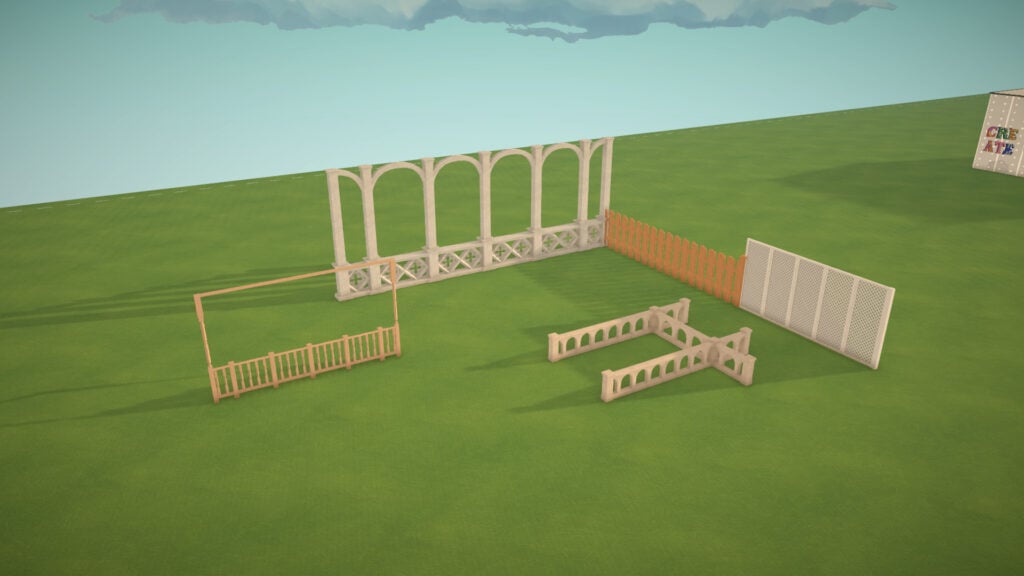
Fences work similarly to walls, although they currently can’t be placed in curved shapes. There are plenty of different styles available, allowing you to add extra decoration and better match the overall aesthetic of your house and lot.
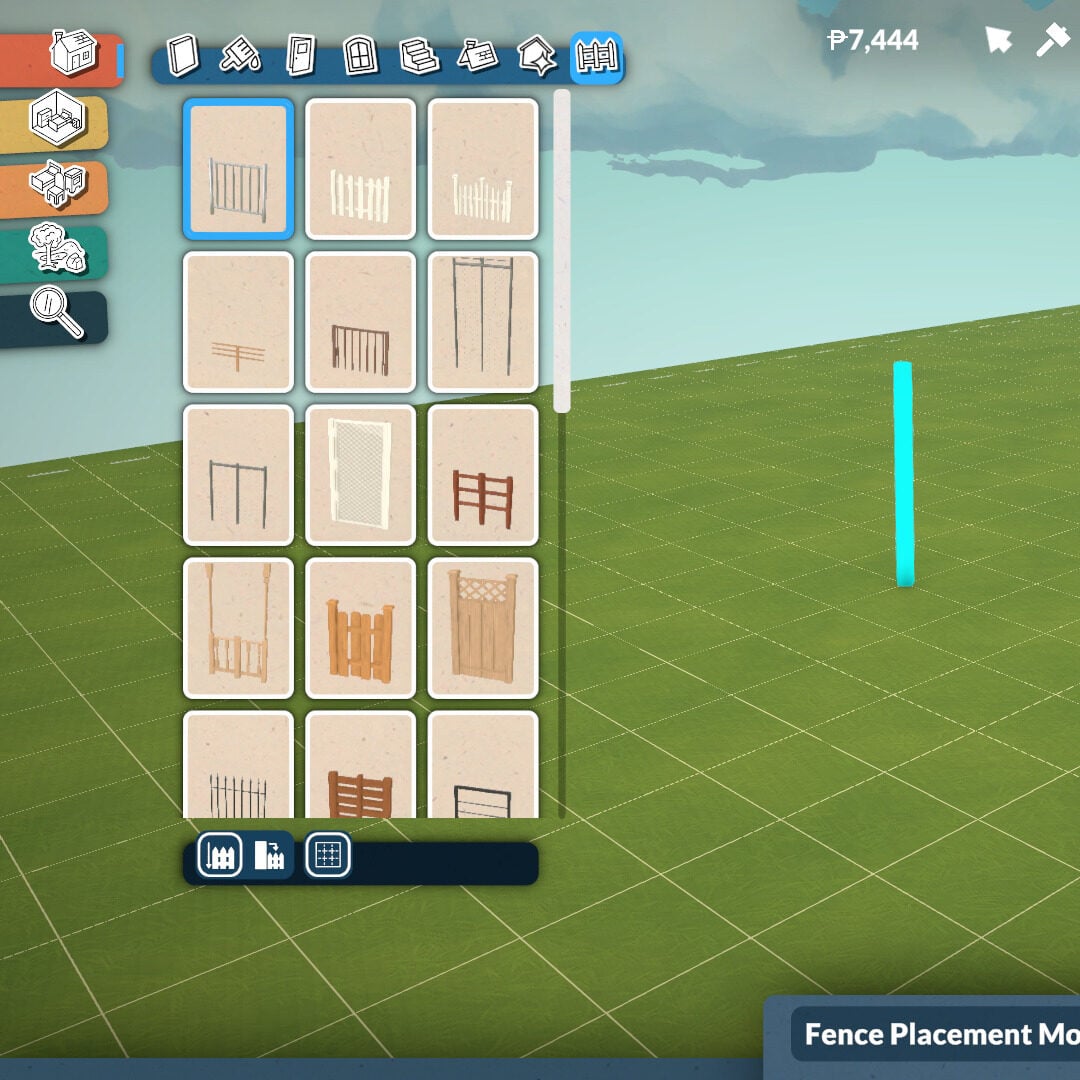
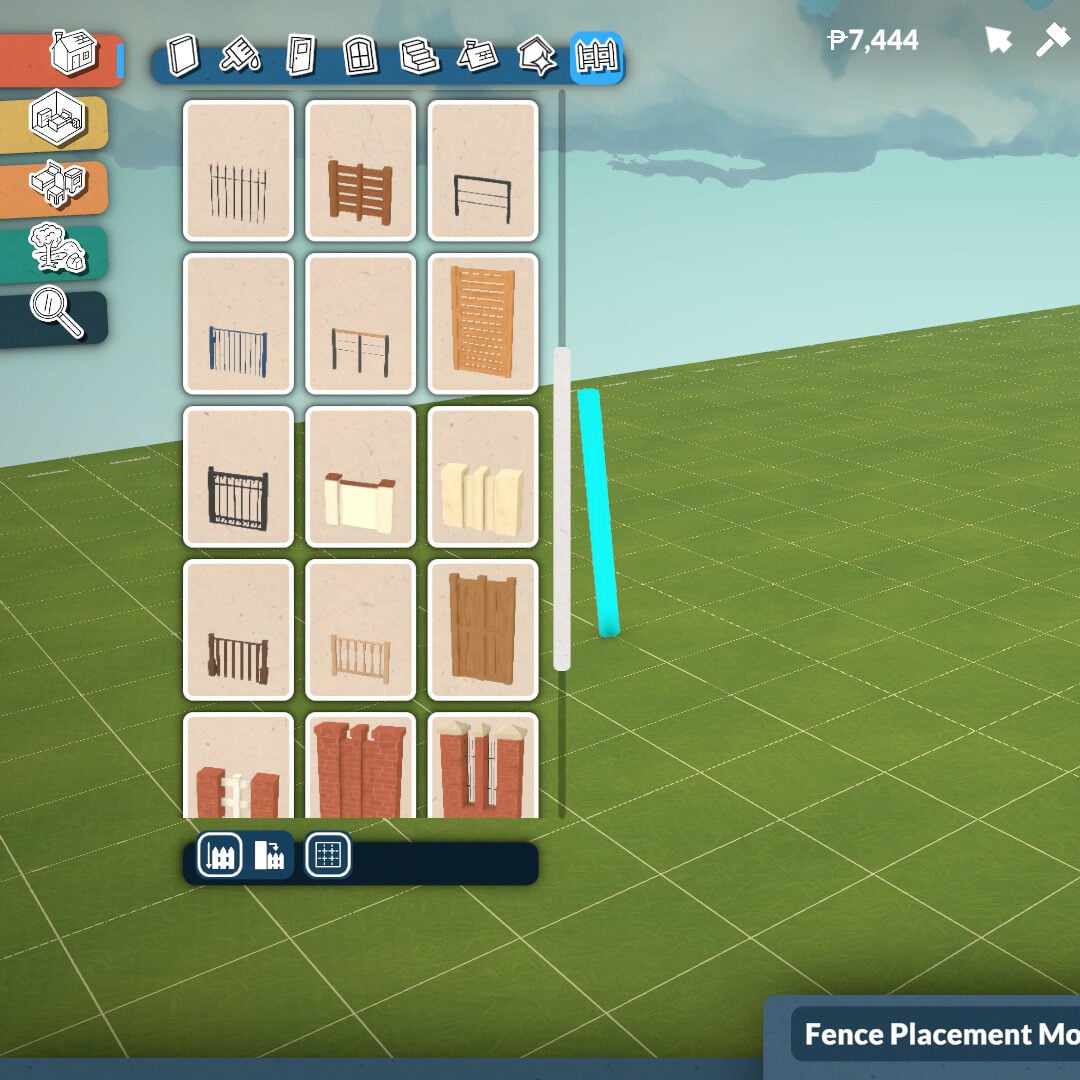
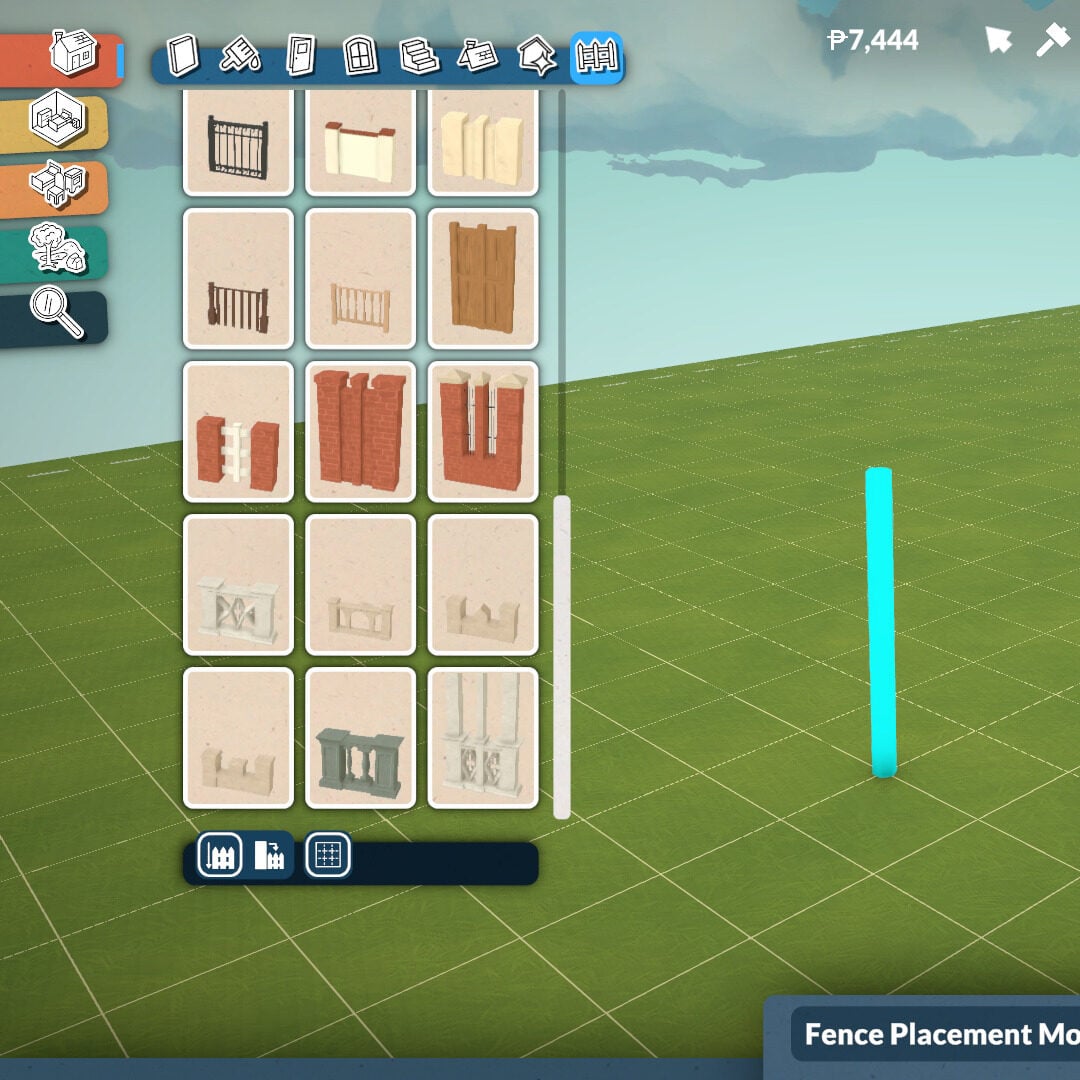
Just like walls, fences can also be adjusted in height to better fit the scale and style of your build. At the moment, there are no functional fence gates available in this Early Access version, but you can still place fences around the edges of your lot to create gardens, patios, private areas, or decorative outdoor spaces.
Terrain Tools
Paralives offers a wide range of customization options for your lot’s terrain, including several plants, rocks, and terrain paints that can completely transform the atmosphere of your build. The Terrain Tools category is divided into three subcategories: Plants, Terrain Sculpting, and Terrain Painting.
Plants
There are seven different plant categories available in Paralives’ Build Mode: trees, shrubs, flowers, weeds, vines, rocks, and planters.
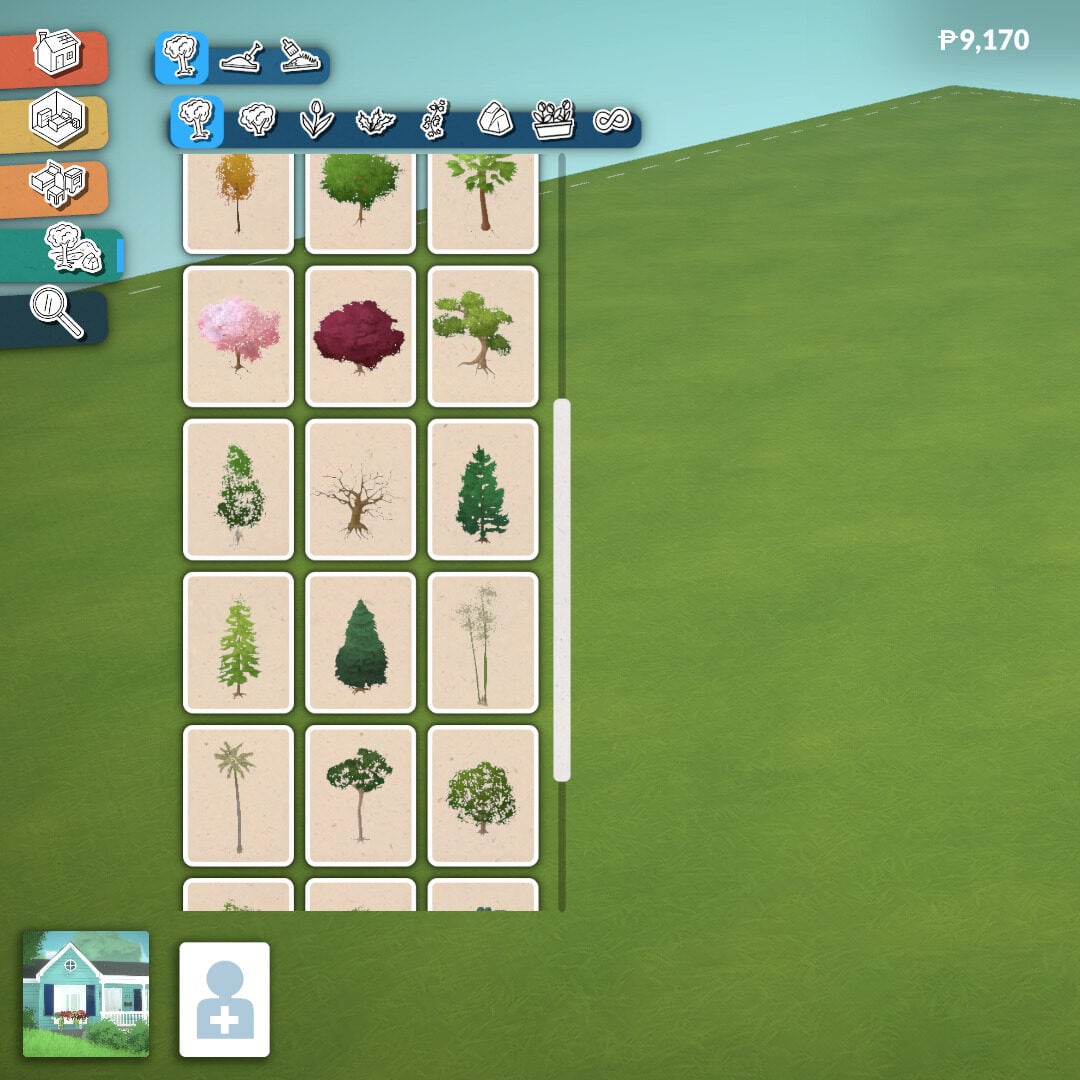
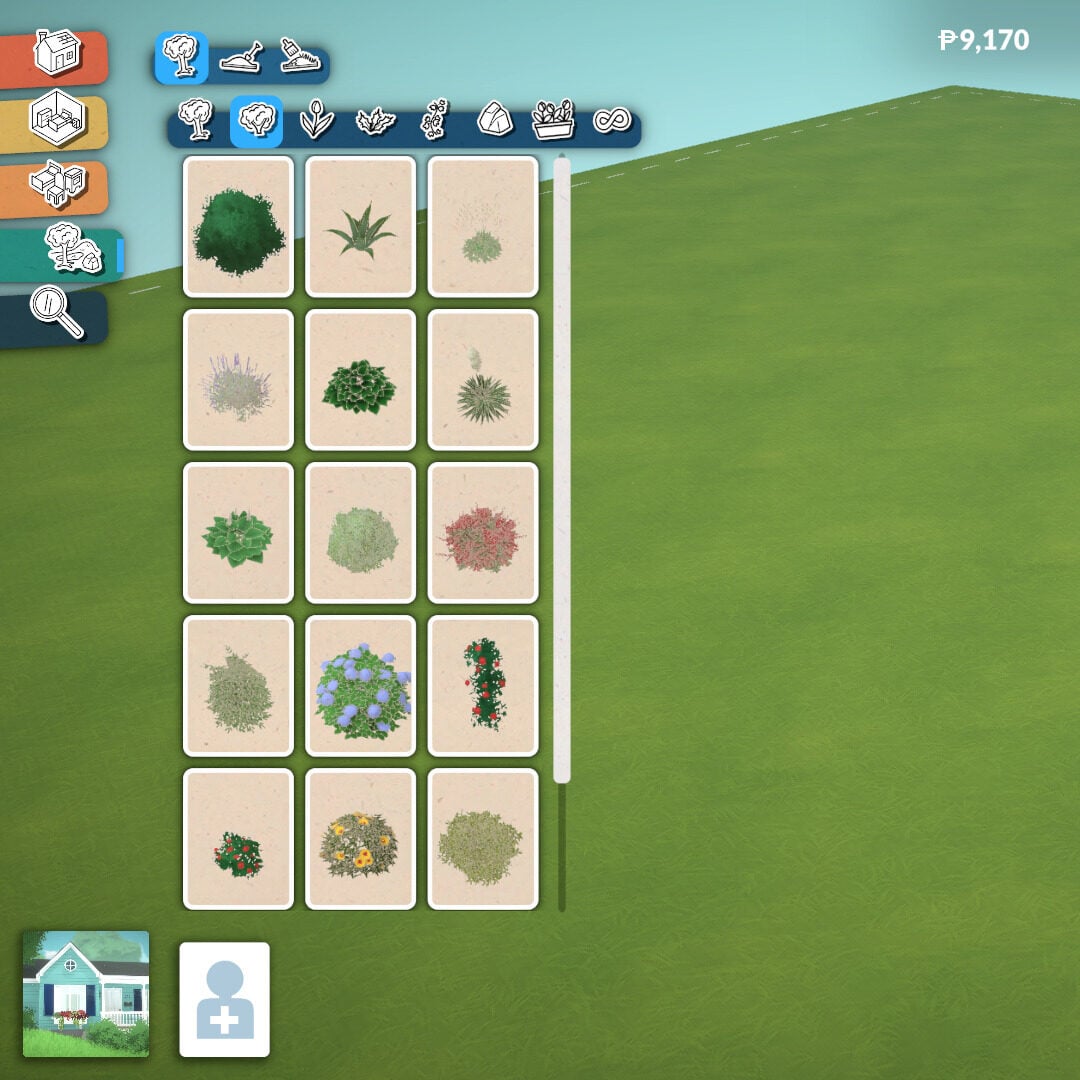
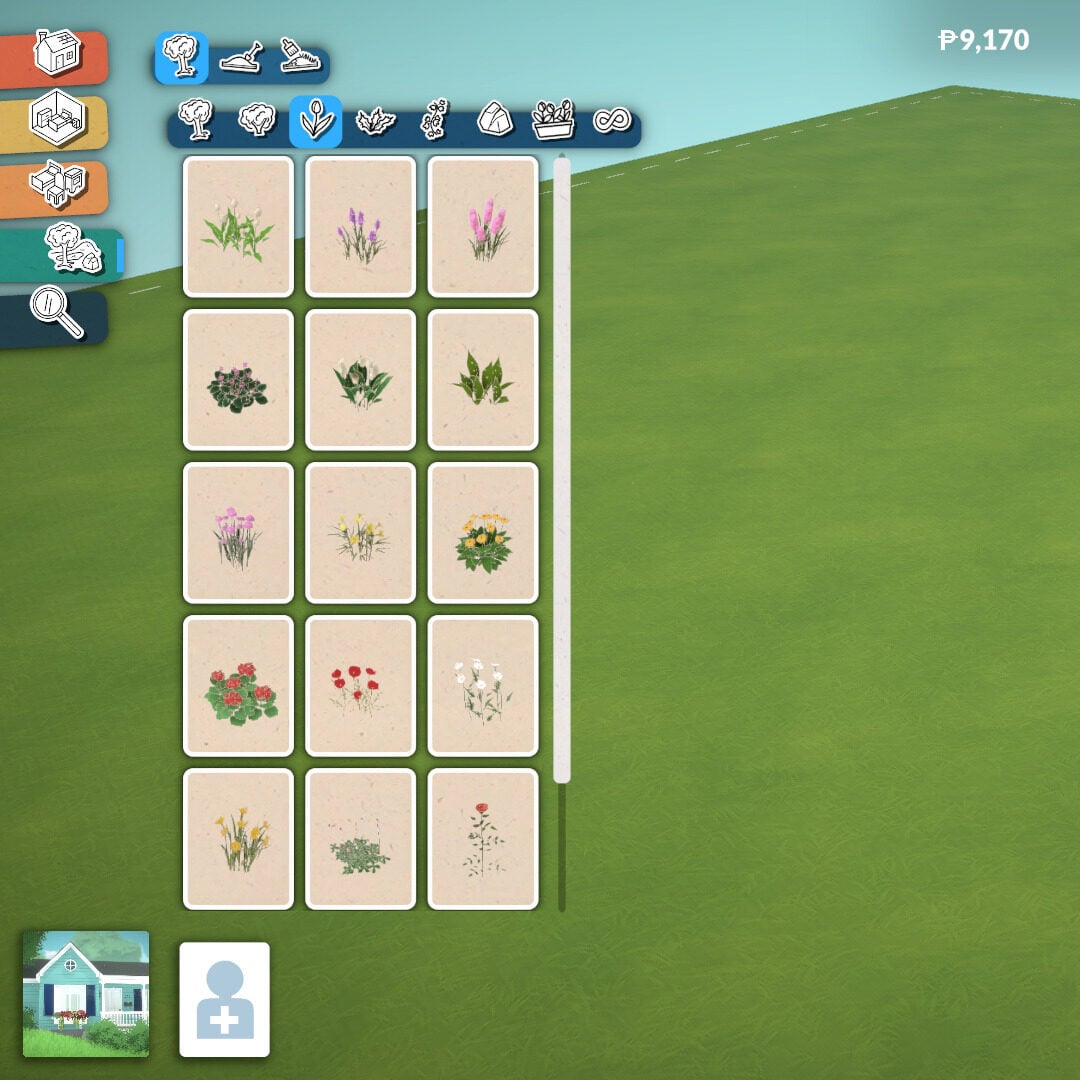
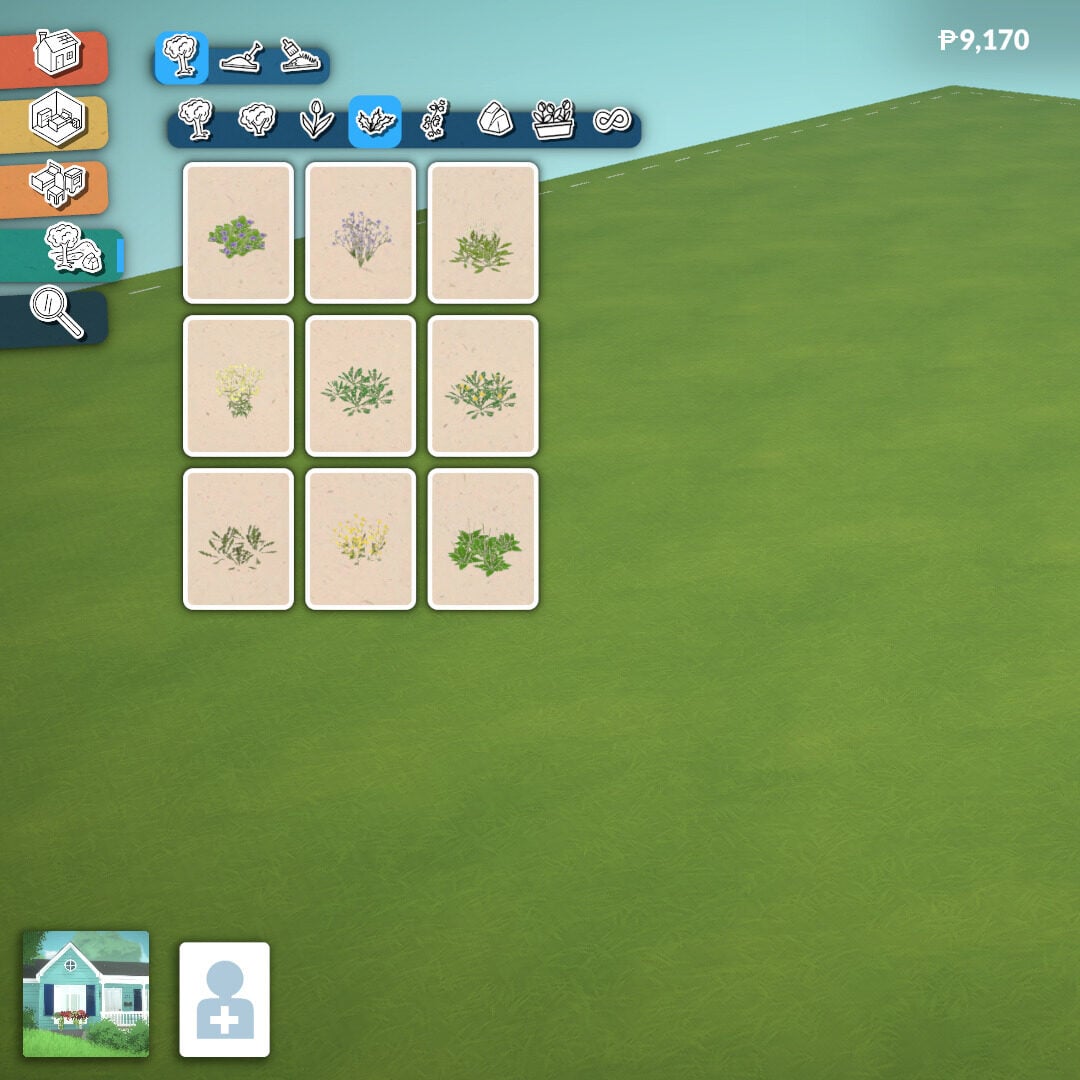
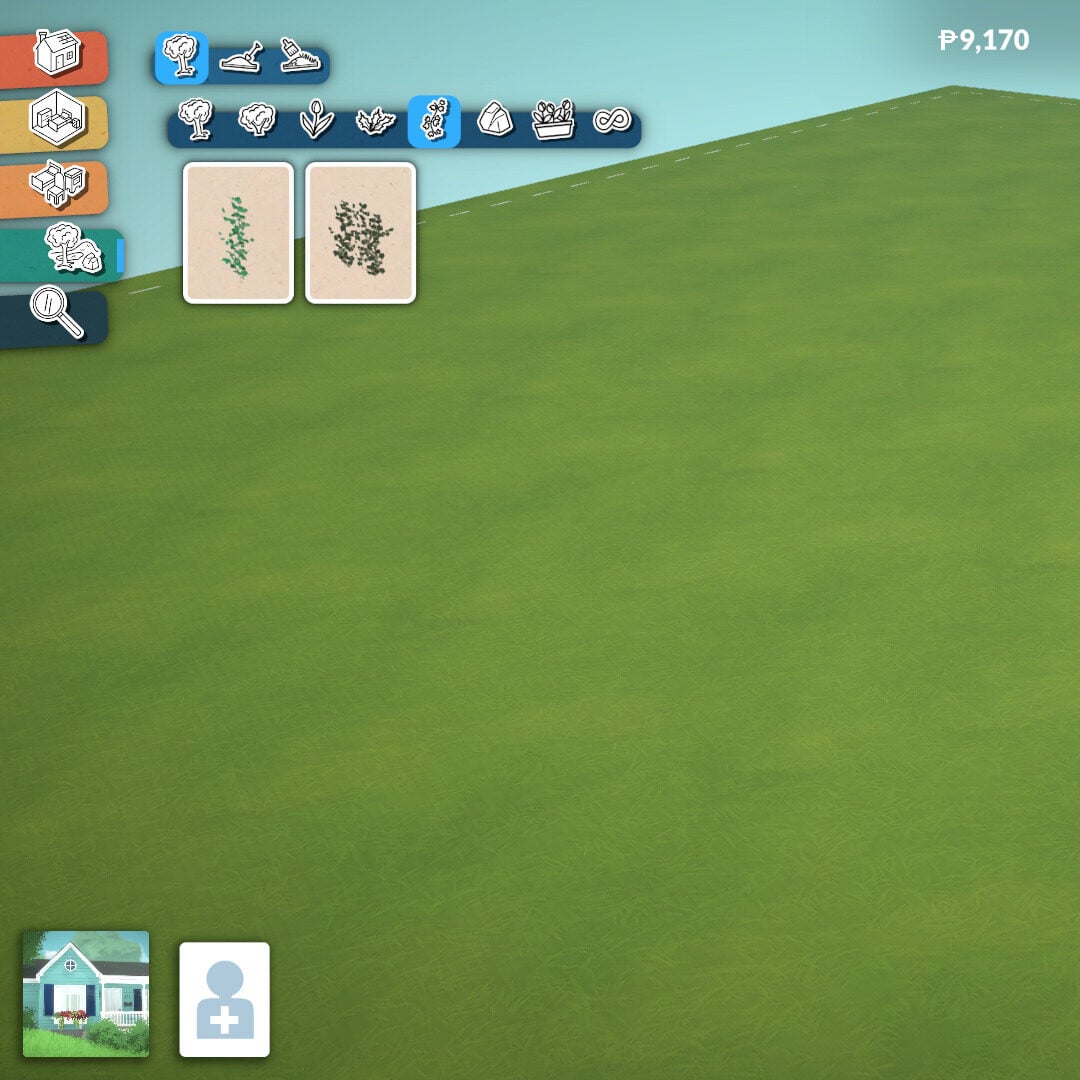
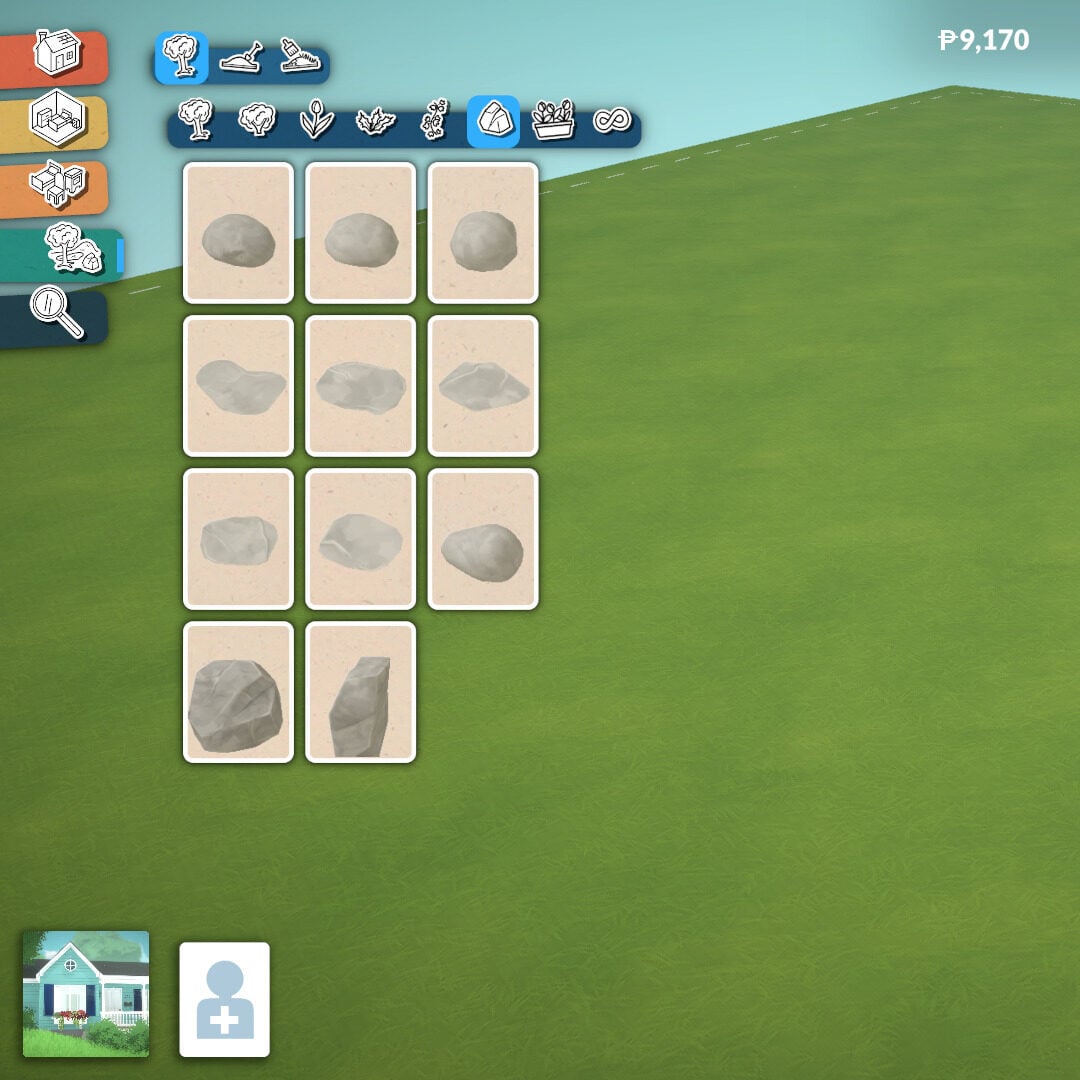
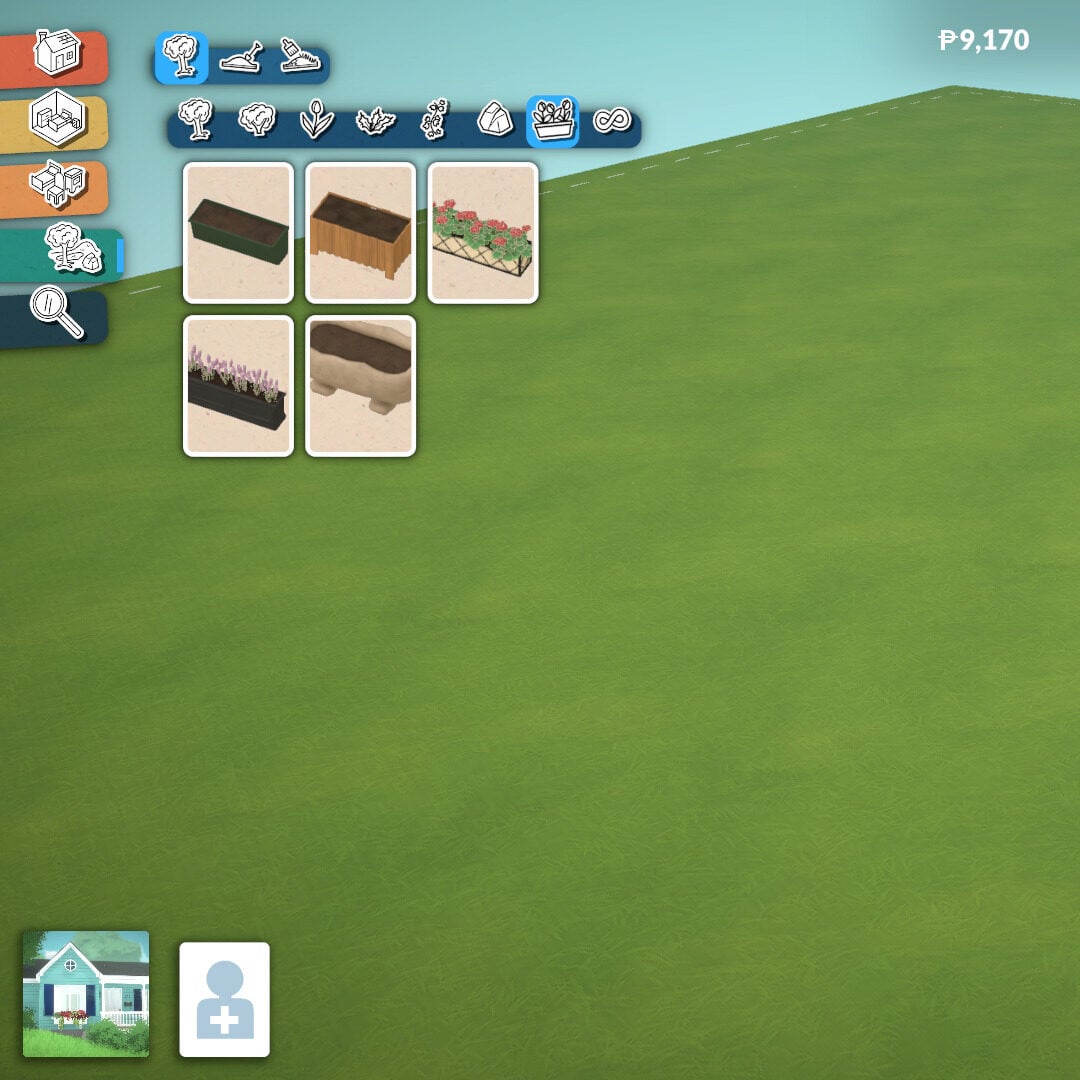
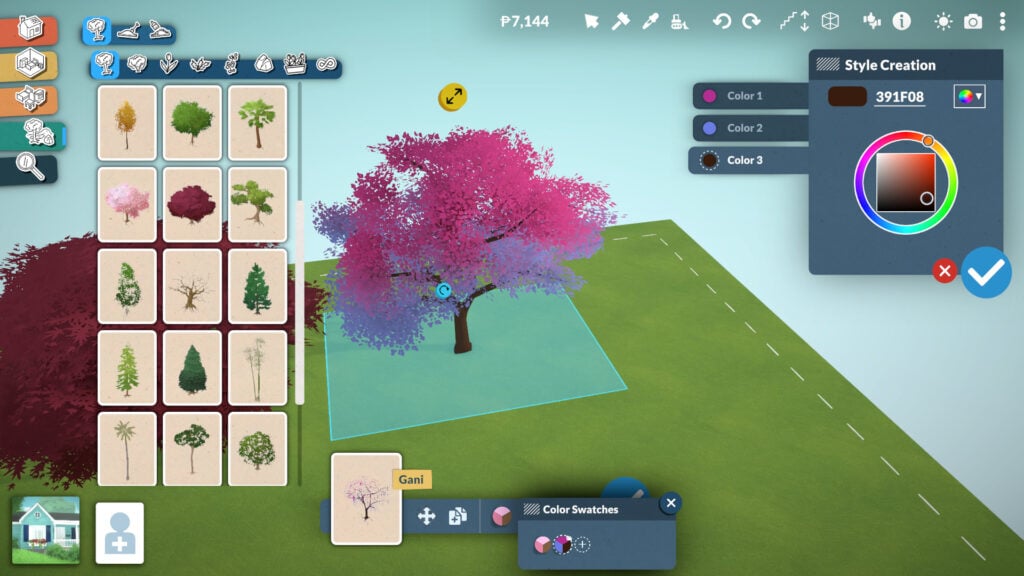
And just like many other objects in Build Mode, plants and rocks can be resized freely. You can also change the colors of most plants, allowing players to create unique combinations and better match the style and atmosphere of their builds.
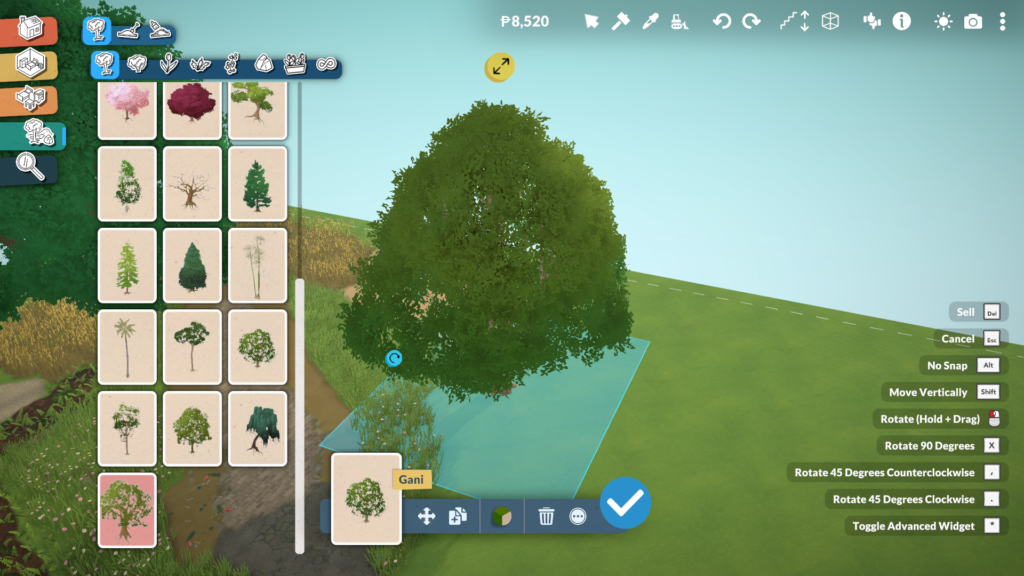
The Creation Style system in Paralives allows players to create almost any kind of plant imaginable, from realistic Earth vegetation to more fantastical and alien-looking designs.
Terrain Sculpting
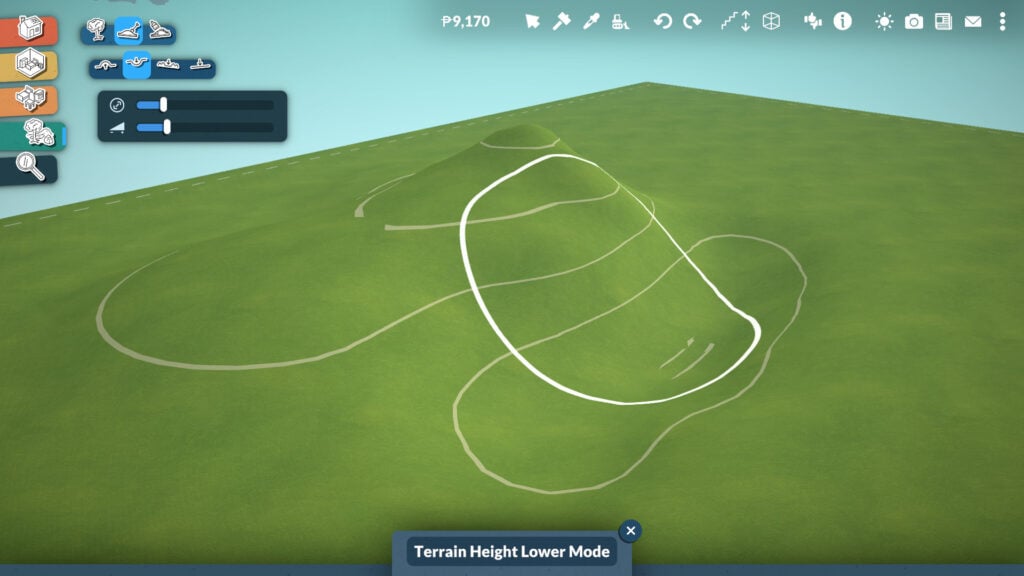
The Terrain Sculpting tool is very easy to use, just like the rest of Paralives’ Build Mode. Players can adjust two main settings while sculpting: size and intensity. There are also four different sculpting tools available: Elevate, Lower, Smooth, and Flatten, allowing you to easily shape the terrain and create hills, paths, cliffs, or completely flat building areas.
Terrain Painting
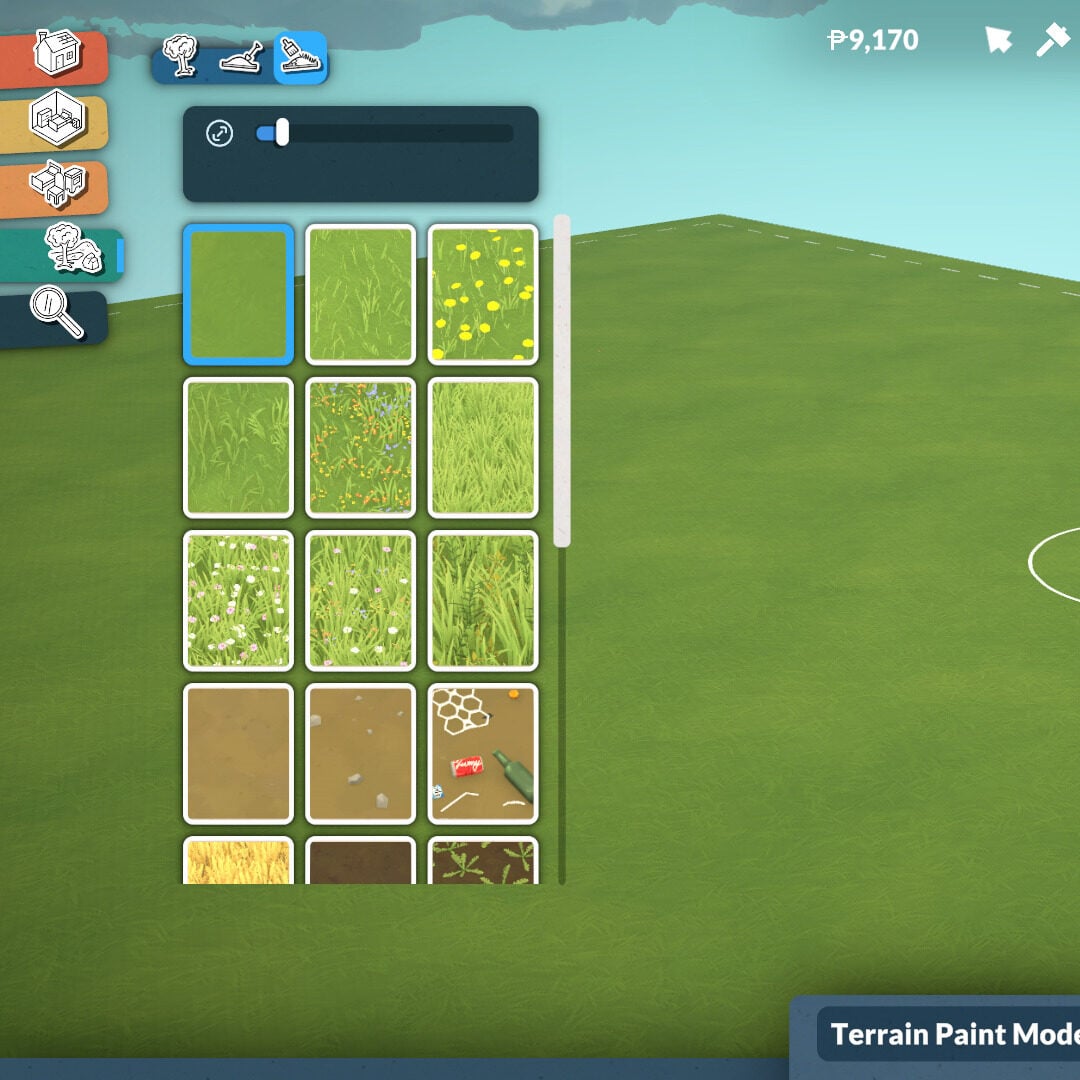
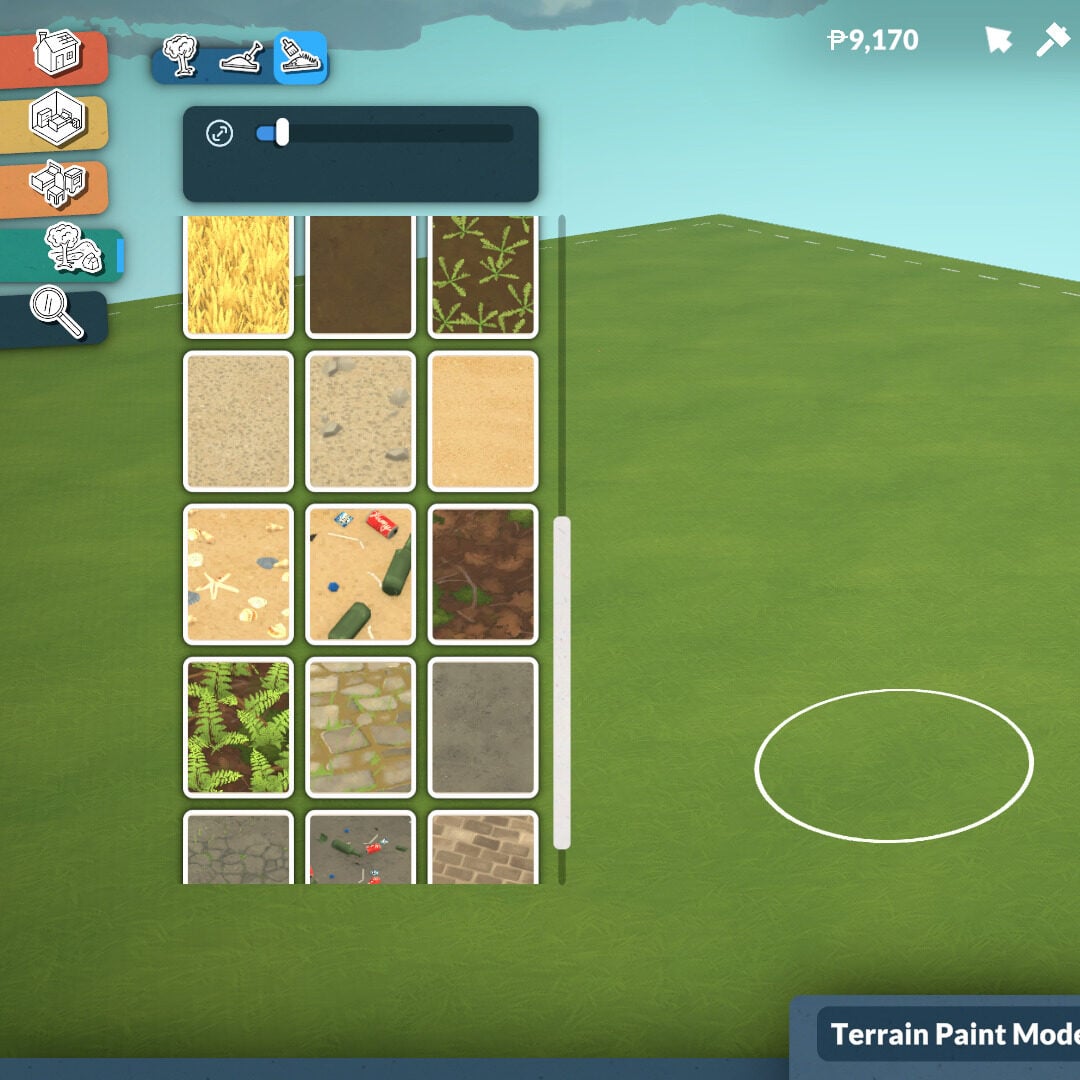
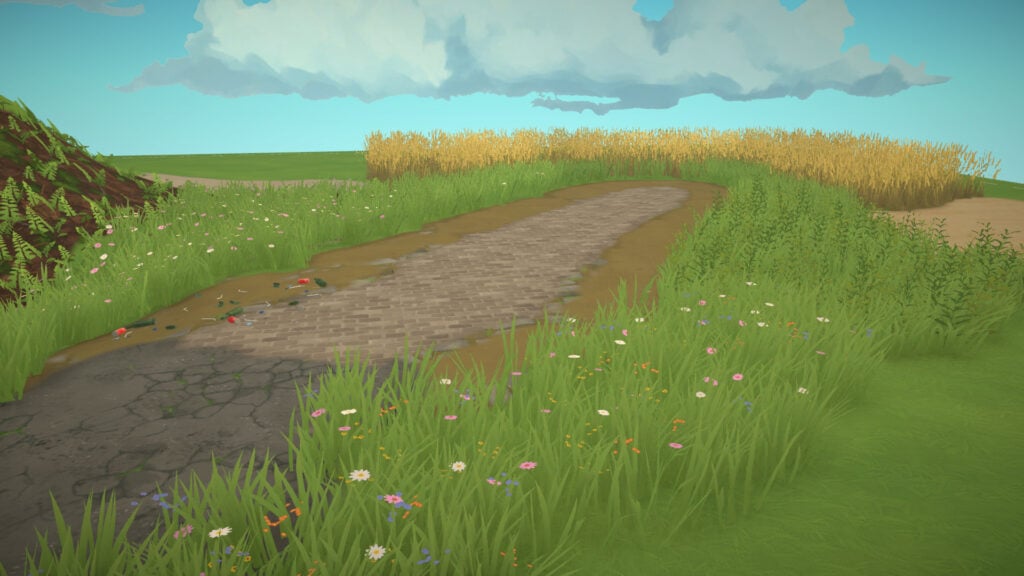
Just as the name suggests, the Terrain Painting tool allows players to color the ground using a variety of textures to create the exact atmosphere they want for their lot. One of the coolest features is that these textures use a 3D resolution system, meaning the terrain has real depth and detail instead of looking like flat 2D paint.
Houses You Can Build With The Build Mode Tool
Paralives’ Build Mode already offers an impressive amount of customization in its Early Access version. Almost every tool includes options to adjust height, width, thickness, colors, textures, and placement, giving players much more freedom than what we usually see in life simulation games. From curved walls and adjustable arches to customizable roofs, platforms, and resizable windows, every category encourages creativity and allows builders to create homes with completely different personalities and architectural styles.
What makes the system even more exciting is its future potential. Even at this stage, the amount of flexibility available already allows players to create highly unique and detailed houses, whether they prefer cozy suburban homes, realistic apartments, classical mansions, or experimental modern builds. Looking ahead, it’s easy to imagine how future additions like pools and new building tools could expand these possibilities even further. If the current level of customization is already this deep in Early Access, Paralives’ Build Mode has the potential to become one of the most creative and versatile building systems in the life simulation genre.
What do you think about this Build Mode? Are you excited to try all these tools and customization options by yourself? Don’t forget to check out more of our Paralives guides, news, and articles here at Sims Community for even more tips and coverage about the game’s Early Access journey.






3 Comments
looks great. but i wonder if you can make angled stairs or winding stairs?
I really can’t look past there being no interior lighting system. The inside of buildings is lit like it’s outside, as if there’s no ceiling or roof on top.
Reply to Zophorax
In the settings, you can apply “Ceiling Cast Shadows.” Not sure why this isn’t the default
Welcome to Sims Community!
Our community is about connecting people through open and thoughtful conversations. We want our readers to share their views and exchange ideas in a safe space.
In order to do so, we've created a simple set of rules that will improve your experience. Simply put, keep it civil.
Your post will/might be rejected if it contains:
User accounts will/might be blocked if we notice:
So, how can you be a power user?
Thanks for reading our community guidelines. Please note that we're aware of certain issues with Sign In / Log In and Create Account / Email Confirmation issues. We're working behind-the-scenes on a new Account Creation process. Thank you for your patience and remember - freedom of speech is not freedom of reach