Home Blog Page 123

The Sims 4 Bugs: What’s Fixed and What’s Still Broken?

What’s been fixed and what’s still broken? We break down some of the major issues for you!

The Sims 4 Bugs: What’s Fixed and What’s Still Broken?
An accurate representation of the current state of The Sims 4

The Sims 4’s stability has been… shaky in recent months, let’s just come right out and admit that. While many game breaking bugs are due to improper mod use, there are still many other issues with the game that almost all players have experienced regardless of whether or not they use mods. For example, issues that affect console players are clearly not the fault of broken mods; consoles do not support modded content so console players can’t play the game with any mods or custom content.

In response to growing player concerns about the bugs piling up, The Sims Team has released three updates in August and September of 2022 to try and get some of the more pressing bugs under control.

Namely, the aging glitch and the groundhog day glitch, among many other problems that have been plaguing players.

We decided to look through the patch notes from the last three hotfix updates and compare some of the larger bug fixes to see what’s been fixed and what is still a problem for players.

What’s Been Fixed

The Sims 4 Bugs: What’s Fixed and What’s Still Broken?

The following is a list of things that seem to be resolved for most players; however, some of these might still be broken for some players. We’ll go over those in the next section.

Base Game

  • Sims no longer arbitrarily age up upon exiting CAS, Build/Buy, or traveling to another lot
  • Adults no longer inappropriately tag teens in flirtatious Social Bunny posts
  • Sims no longer inappropriately ask children to be their boyfriend or girlfriend
  • All Sims can be selected for travel again regardless of whether they are on the active lot or not
  • PlantSims can once again transfer items from their inventories to fridges and storage chests and vice versa without the game throwing an error
  • Children, teens, young adults, and adults can now be reliably aged up using the birthday cake

DLC

  • (GF) Sims who are not famous should no longer have a fame marker when hovering over them
  • (GTW) Doctors should not T-pose when using the surgery machine anymore
  • (HSY) High school graduates should now wear their graduation robes to the graduation ceremony, even if they arrive late. All other graduates in attendance will also keep their graduation robes on.
  • (HSY) Sims who graduate from high school early now receive a diploma and do not get a notification incorrectly informing them that they have dropped out
  • (HSY) Sims will ask the correct Sim to prom instead of whichever Sim the player happens to be controlling at the time
  • (HSY) Sims should not use their phones as often; however, teens will still be on their phones constantly
  • (DHD) Sims now can add rooms for Room Addition gigs.
  • (HSY) The “groundhog day” bug causing players to go back in time several days when exiting CAS or traveling has been fixed for some players. Players who were affected by this bug due to incorrectly tagged custom content should no longer have this bug. The Sims Team is still investigating how and why this bug happens for players who do not use custom content.
  • (EL) Freelance Crafters can now send fabricated items via “Send to client for approval…” from computers to complete the “Send your finished work to the client” career task
  • (GF) DJs and Mixologists no longer leave their booth unattended when a Celebrity attempts to build up Fame through “Perform <scene> for Tips” or Dance Battles.

What’s Still Broken

The Sims 4 Bugs: What’s Fixed and What’s Still Broken?

Base Game

  • While children-elders can now age up reliably using the birthday cake, the issue still persists for toddlers. The Sims Team is aware of this and still investigating the problem.

DLC

  • (HSY) As mentioned above, not every player will see the groundhog day bug resolved after the September 13th patch. Only players who were experiencing this glitch due to poorly tagged custom content will have the problem resolved now. Vanilla players who had this problem will not see any improvement in this area at the moment. The Sims Team is still investigating the matter.
  • (HSY) While The Sims Team claims that young adult-elder Sims should no longer be as glued to their phones as teenagers are, many players (myself included) have not noticed any significant decrease in the amount of phone usage in older Sims.
  • (GF) DJs and Bartenders no longer becoming distracted by celebrities is great and all, but it doesn’t address the persisting problem of celebrities disrupting literally everything else in the game. Many venues cease to function as soon as a celebrity appears on the lot because they distract everyone, most notably restaurant staff.
  • (DO) While we’re on the subject of restaurants, we would certainly like to know if and when The Sims Team is ever going to acknowledge that the Dine Out game pack is completely unplayable. It’s been out for seven years now and it has never been functional in any way whatsoever. It’s as broken as My Wedding Stories was when it launched. Come on guys, if you could fix My Wedding Stories in a month, you could have fixed Dine Out at any point in the last seven years. Why is Carl fixing this pack by himself when he doesn’t even work for Maxis?

The Sims 4 Bugs: What’s Fixed and What’s Still Broken?

Reporting Bugs

Please remember to let The Sims Team know if you are having issues, too! They can’t fix problems if they don’t know about them and the more players providing information, the better! You can report game bugs at Answers HQ, including:

We Want to Hear from You!

Are you still experiencing any of the bugs mentioned in this article, either as a mod user or a vanilla player? Let us know in our poll!

[totalpoll id=”119444″]
Best of Both Worlds: The Sims 2 CAS Redesign for The Sims 4

Put some The Sims 2 nostalgia back into The Sims 4 Create a Sim!

Plumbobber 13
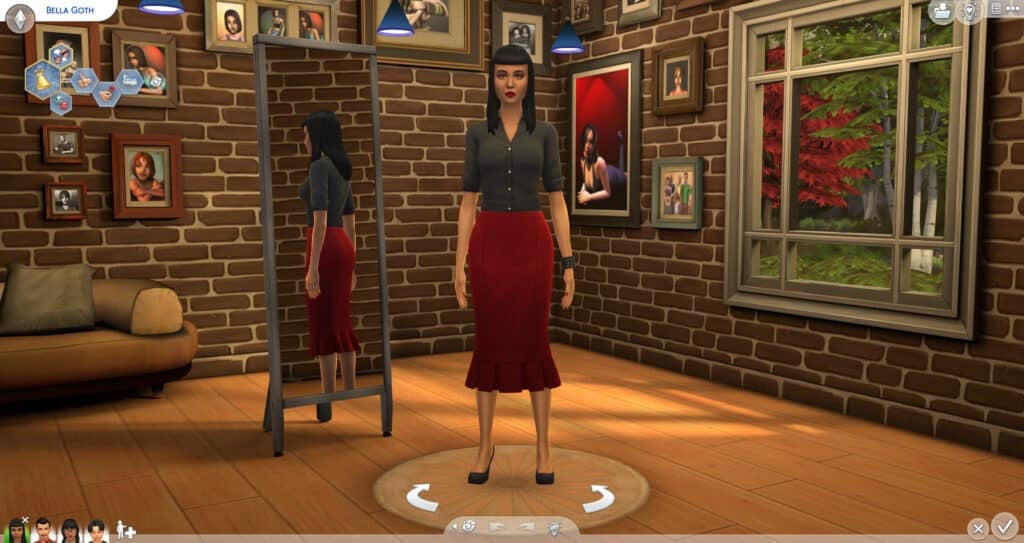
Credit: Bella Goth is from Needlework Reverie’s The Sims 2 in The Sims 4 Megahood Save

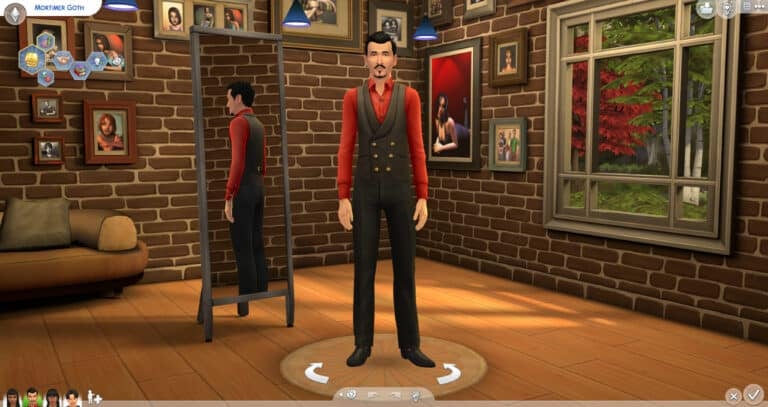
You’re entering Create a Sim. The blue background is unremarkable in comparison to its predecessors. But don’t worry, simsi45 has brought back The Sims 2 background to The Sims 4!

Introducing TS2 CAS Background Room Replacement! The background is a 3D model made to resemble The Sims 2 Create a Sim Background with a mirror and couch. There are pictures of iconic The Sims 2 Sims on the wall and a window with a tree scene outside it.

TS2 in TS4 1
TS2 in TS4 3

Optional Lighting Mod

While creating the new 3D background, simsi45 says the default lights didn’t match the environment of The Sims 2 Background. The game’s lights have a blue/green hue that made Sims look out of place. To fix the lights, simsi45 adjusted the hue to create a slight golden tone and moved the light position to better work with the room.

simsi45 made every effort to create a good balance between the whites and yellows so there wouldn’t be too dramatic of a shift between colors when switching into Live Mode.

Don’t like how the new lights look or maybe you use a different CAS lighting mod? Then, make sure not to download the simsi45_TS2_GoldenLighting.package file and ONLY download the simsi45_TS2_CAS_Room.package file.

TS2 in TS4 6
Photo Credit: simsi45
TS2 in TS4 5
Photo Credit: simsi45

Notes From Creator

1) The original background consisted of just 1 simple plane, while this background is an actual 3D model. The polygon count is 12284 (relatively low for a whole room) however depending on your system you might see a small 2-3 second increase when loading into CAS mode. Very minor difference but figured I’d let you know either way.

2) Thanks to the talented Littledica, as I studied his own CAS room to figure out how to properly structure my own!

TS2 vs TS4

Want to see how the two Create a Sim Backgrounds compare?

See it in Action!

Video Credit: simsi45
Best of Both Worlds: The Sims 2 CAS Redesign for The Sims 4

TS2 CAS Background Room Replacement by simsi45 is available NOW on Patreon!

Are you going to use this nostalgic The Sims 2 CAS background?

The Sims 4: NEW UPDATE! (Sep 13th, 2022)

0

There’s a brand new Patch for The Sims 4 on PC and Consoles. Check out the Patch Notes!

The Sims 4: NEW UPDATE! (Sep 13th, 2022)

The Fixing Update…Part 3

The Sims Team has released a brand new update for The Sims 4 on PC, Mac, Xbox and Playstation.

To download the latest version of The Sims 4, simply open your Origin program and if the game doesn’t update automatically, right click on The Sims 4 and select ”Update”. If you play on Xbox and Playstation, you should Check the Game for Updates in case Automatic Updates are off.

In case you have Mods or Custom Content, the game will automatically disable them for you after first launching The Sims 4 after the update. To re-enable all your Mods and Custom Content, select the Settings option in the Menu and select Settings. Under the ”Other” section you’ll find the ”Enable Custom Content and Mods” option. Check it and restart your game in order for it to take effect!

The Sims 4: NEW UPDATE! (Sep 13th, 2022)

Patch Notes

PC: 1.91.205.1020 / Mac: 1.91.205.1220

Console: Version: 1.64

Hello, Simmers! 

This update resolves a few issues including the one of the game not saving under certain circumstances. Happy Simming!

– The Sims Team

BUG FIXES

The Sims 4
  • Children, teens, young adults, and adult Sims who blow out the candles on their cake now should age up reliably. Happy birthday! We still are investigating the problem for toddlers.
High School Years
  • Feel like you are going backwards in time after visiting the Thrift Shop? It turns out that some mods were preventing the game from saving. We’ve made the store more accommodating to external content. We have seen some of you who do not play with mods reporting this problem. If you continue to encounter the issue, please let us know on AnswersHQ
Eco Lifestyle
  • Freelance Crafters can now send fabricated items via “Send to client for approval…” from computers to complete the “Send your finished work to the client” career task. 

Seasons
  • Sims trying to get indoors during a blizzard now walk appropriately. Stay warm!
Get Famous
  • DJs and Mixologists no longer leave their booth unattended when a Celebrity attempts to build up Fame through “Perform <scene> for Tips” or Dance Battles. As they say, “Starve your distractions; feed your focus.”

SITE NEWS: Introducing the Day & Night Toggle!

0

Flip the switch and try it for yourself!

The Sims Community Website now finally has a Day and Night Toggle!

That’s right, you can now use the brand new Switch Tool on Sims Community to switch between a Light and Dark Background. We’ve also introduced the new Day & Night Mascots for Sims Community to keep you company while you stay up to date on the latest News and Original Content.

SITE NEWS: Introducing the Day & Night Toggle!

There’s also a new Trending Page that highlights the Trending Topics within the Sims Community.

SITE NEWS: Introducing the Day & Night Toggle!

We’ve been carefully developing the Sims Community Website and Design for months and can’t wait to show you more.

Let us know what you think about the Day & Night Toggle in the comments below and how we can improve it. We’d love to hear from you!

Play The Sims 4 Pro Mode with The Plumbobber Program!

Create and track unique storylines with The Plumbobber App! Check out the full guide.

Rotational Gameplayer? Super controlling watcher? We’ve all been there and wanted to micromanage every little detail of our Sims’ lives. But now, we can do that easier and we can also randomize their lives!

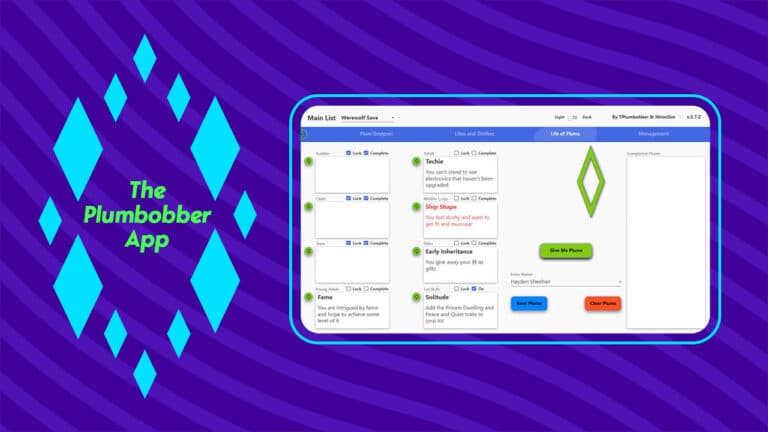
Introducing The Plumbobber App!

This App intrigued us because it resembled many family history preservation programs. And it’s FREE! Plus, the ability to randomize many aspects of a Sim’s life that can’t be randomized already or the randomizer isn’t efficient was intriguing. Here’s what the App does!

Plum Designer

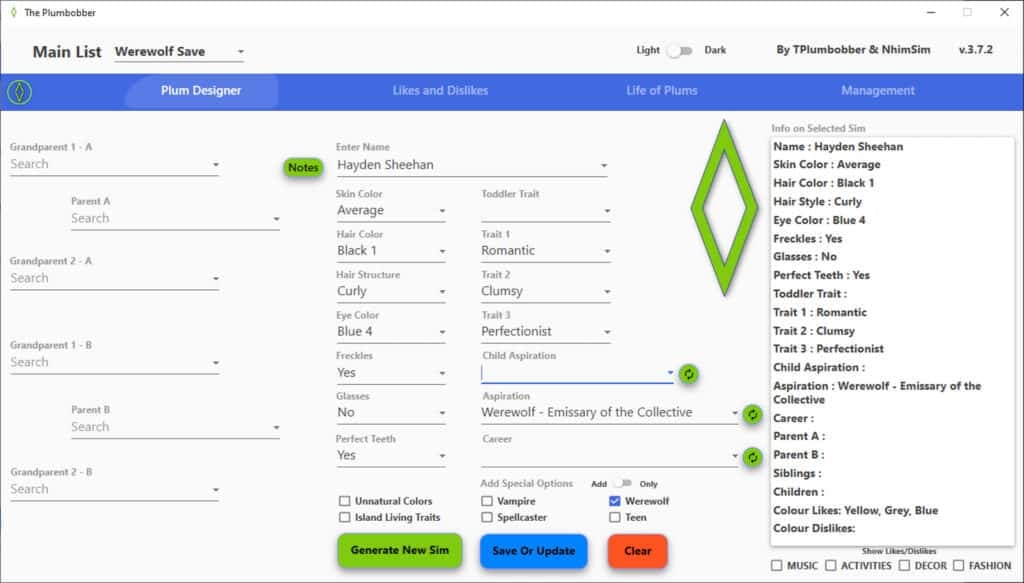
The Plum Designer is the first page that you will see. It allows you to create the family history and the main details for your Sim. At the top left, you can choose the list you want your Sim to be a part of, then you can create Sim.

If you need a boost to your creativity, you can always click the “Generate New Sim” button and it will randomize all the options from Skin Color through Career to create a new Sim. It does not randomize a name, unfortunately.

Plumbobber 01

By clicking the Notes button by the Sim’s name, you can edit the Notes about the Sim. In the Notes, it will not only list the basic information about your Sim, but also you can also upload a picture and write any information you would like about your Sim. It has formatting options which is very convenient.

Play The Sims 4 Pro Mode with The Plumbobber Program!

Genetics

(From The Plumbobber website)

Plumbobber Genetics – very simplified play with genetics – yet better than what the game gives you. Add Parent A and Parent B – if one or both of these have parents of their own, they autofill in their respective spots. Then hit Generate New Sim – You will now have a child Sim with looks based on parents and grandparents. Name them and adjust the kid in CAS according to your rolls. If there are no grandparents, the app will draw random genetics in their place.

We have made it so that the look of grandparents play a role in the outcome. The game only take hair- and eye color of parents into consideration.

We wanted to add more diversity via hair- and eye color of grandparents. It works on a simple principle of 1/8s and has nothing to do with how real genetics work. It is just for fun and to make grandma’s ginger hair have a chance of popping up on her grandkids. Parameters that have ‘genetics’ are hair color and hair structure, eye color, freckles, glasses, teeth and traits.

However, traits only draw ‘weight’ from parents – no chance of inheriting grandpa’s slobby trait unless by chance. You will notice that Skin Color does not fill when using Plumbobber Genetics. This is because we let the game determine that outcome. The system might be flawed in game, but it’s probably still better than what we could make with this app.

Likes and Dislikes

The Likes and Dislikes tab allows you to “Opinionate Sim,” which is another way to say randomize. We love the term Opinionate Sim because makes it seem like you’re bringing every sim’s “Opinions” to life by pressing the “Opinionate Sim” button.

It also allows you to remove and add Likes and Dislikes manually, too, if you don’t like one or two of the options that were randomized. Or you can just add the likes and dislikes that you choose yourself. Right-click whatever like or dislike that “doesn’t fit your Sim’s personality” and choose delete.

Use the bottom left section to add likes and dislikes. First, pick the category, then choose the specific option. To cement their personality, choose from the like or dislike buttons below and it will add them to your Sim’s list.

Plumbobber 10

Life of Plums

These Plums are amusing and unique. We can imagine ourselves playing a lot of unique games with many twists and turns based on Plums!

The main area allows you to choose which Sim you are assigning Plums to, a “Give Me Plums” button to randomize, and then the Save and Clear Plums buttons.

You can continuously use these Plums throughout your Sim’s life. There is a Lock option so you can use the “Give Me Plums” without that box randomizing. If your Sim completes a Plum, you can mark it as Complete and it will show up in the Complete Plums box.

The Lot Rolls Section needs to be turned on for it to randomize with the Give Me Plums button.

Plumbobber 09

Management

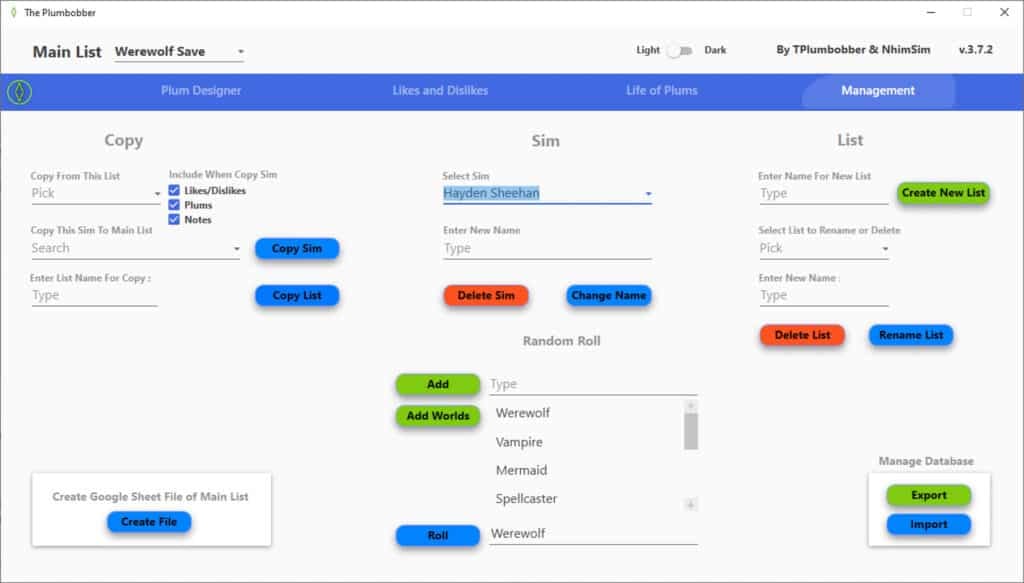
Finally, we have the management page. This page is where all the management happens.

Copy

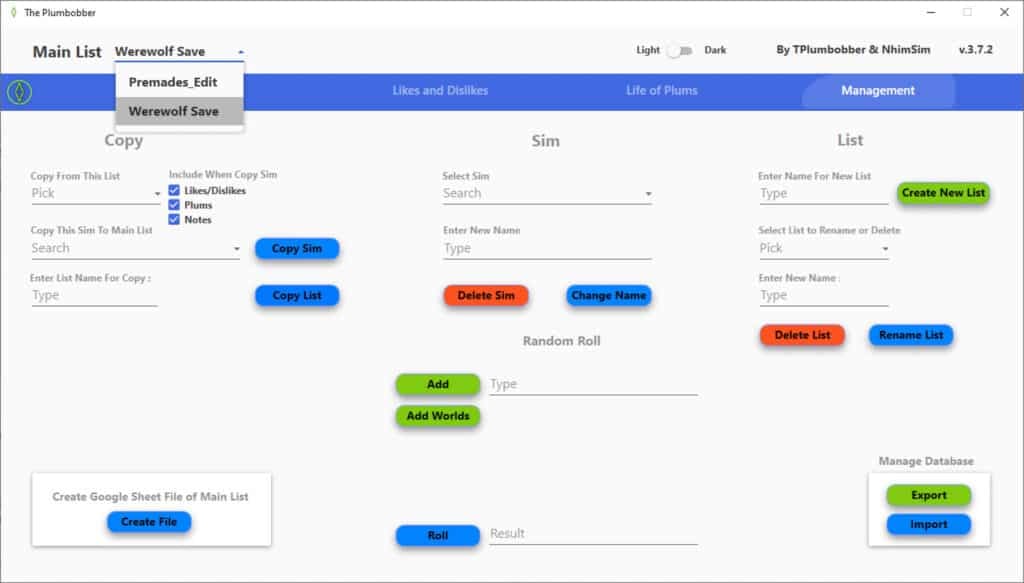
Corrupt Save? Want to give your Sim a Whole New Life? This section allows you to copy Sims between lists or to Copy entire Lists to other Lists.

Sim

Need to delete a Sim? Does your Sim want to change the horrible name their Mother gave them at 18? This is the section to do that at.

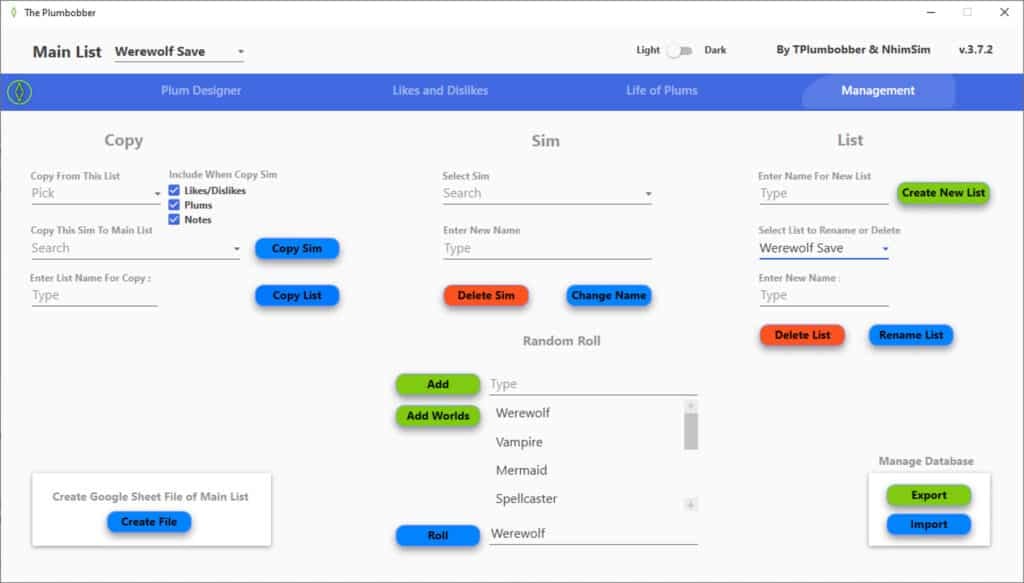
List

Need to rename your list? Or did your last Sim die and you want to delete your list? You can do that under the List section.

Random Roll

Random Roll is my favorite part of Management. You can type your own options and click Add or the option Add Worlds is there to add all the worlds to the list. Then, choose Roll and it will choose an option for you! This is great to randomize things that have not yet been added to The Plumbobber App.

Updating Plumbobber

Exporting the Database is VERY important when updating the app. It allows you to transfer your Lists to the next version.

When uninstalling, visit the Management Tab and go to the bottom right corner. Click Export. It will export a file named PlumbobberBackUp.db to your Desktop. Uninstall Plumbobber. Install the new version. In Management’s bottom right corner, click the Import button.

Plumbobber 03
Plumbobber 05
Plumbobber 02

Dark Mode

There are many people who dislike light mode so you’re in luck! Plumbobber has Dark Mode available with an easy flip of a switch. It is located at the top, center-right of the App.

Plumbobber 07

Installing

Note from TPlumbobber & NhimSim:

During installation, you’ll get a prompt asking whether you want to allow an app from an unknown publisher* to make changes to your computer.
You have to answer ‘Yes’ if you want to install The Plumbobber. Going forward this prompt will also pop up whenever you start The Plumbobber.

*Regarding the unknown publisher.
This is because we do not want to pay Microsoft for licensing for The Plumbobber

Play The Sims 4 Pro Mode with The Plumbobber Program!

REMEMBER: THIS IS A PROGRAM AND NOT A MOD

This does not go into your Mods folder. This needs to be installed.
The rest of the instructions are at the link below.

Play The Sims 4 Pro Mode with The Plumbobber Program!

Is This It?

There is so much more to The Plumbobber App! Make sure to visit their website’s guide page for more information about The Plumbobber App!

The Plumbobber App was created by TPlumbobber & NhimSim.
To keep up with the App’s creation, you can follow them on Twitter!

Play The Sims 4 Pro Mode with The Plumbobber Program!

Want an easy way to set up and track the Sims in your saves?
The Plumbobber App is free on their website!
Download at the link below!

The Sims 4 is getting another Important Update!

0

Plus, The Sims Team announces a new way of Communication!

Today The Sims has announced on their Twitter profile that they’ve opened a new Twitter profile. All about the direct approach and communication with the players about The Sims’ current state of the game.

Over the last few months The Sims 4 had a rocky period of Bugs, Issues and Errors that kept popping up. The Sims Direct Communications is a new way of communicating with the players in terms of the game’s stability, server performance and more. Welcoming a better way of transparency from the team to the players.

https://twitter.com/TheSimsDirect/status/1569368714390142977

They’ve also revealed that tomorrow, September 13th there will be a new Game Update for The Sims 4, resolving issues such as Groundhog Day, Aging and more.

The Sims 4 is getting another Important Update!

Sul Sul!

Tomorrow, Sept 13, we have a game patch @ 10 AM PT resolving a few issues, including groundhog day & an aging bug.

In preparation for the patch, please remember to remove any game mods & custom content as the update may conflict with externally created content.

We are still investigating cases of the aging bug with toddlers, but we appreciate your patience as we continue working towards a solution.

[totalpoll id=”119204″]

We’ll keep you posted on all the latest info about The Sims 4’s Upcoming Update. Stay tuned!

This Magical Lagoon is a Mermaid’s Paradise!

0

A shimmering palace fit for mermaid royalty!

This Magical Lagoon is a Mermaid’s Paradise!

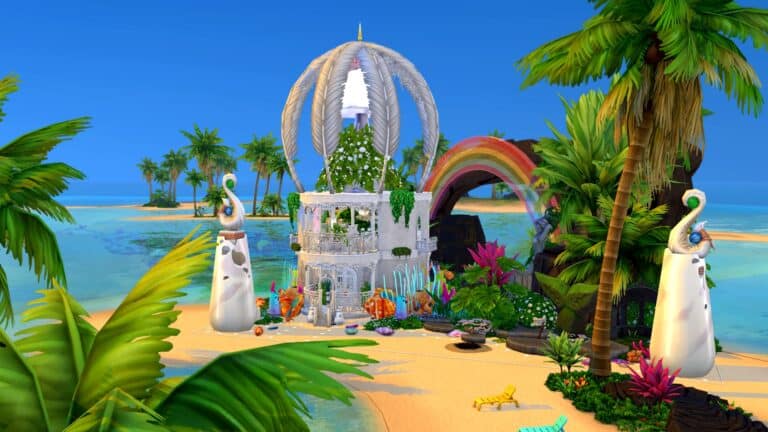
Occult players who enjoy playing with mermaids, rejoice! Your mermaids now have a shimmering water palace to call home! Witching_Mermaid has shared this truly stunning mermaid lagoon on Twitter and in her Gallery for the whole community to enjoy.

This Magical Lagoon is a Mermaid’s Paradise!

Witching_Mermaid says she was inspired by the mermaids from Peter Pan. The actual structure itself is small but highly luxurious which is perfect for a mermaid who wants to live in style but also spends a lot of time out in the ocean rather than indoors. The first floor has a beautiful fountain with steps leading down on either side. There is a washroom on one side and seating on the other. A lattice ladder leads up to the second floor where a gorgeous suite overlooks the whole lagoon. There is a bed and a buffet table here. Balconies give sweeping views of the exterior which is equally stunning.

A bright, cheerful rainbow shines over the whole lagoon and there is detail everywhere you look. The water is teeming with marine vegetation and the rocks provide your mermaids with a path to swim inside from the archway in the back.

This Magical Lagoon is a Mermaid’s Paradise!

This Magical Lagoon is a Mermaid’s Paradise!

This build is a must-have for any mermaid lover! It looks best when placed on the Sand Simoleon Beach lot in Sulani. Witching_Mermaid’s Mermaid Lagoon has no CC and you can download it from her Gallery right now!

Guide to Occult Preferences Mod for The Sims 4

Most Simmers have a favorite Occult and now so do our Sims with SpinningPlumbob’s Occult Preference Mod!

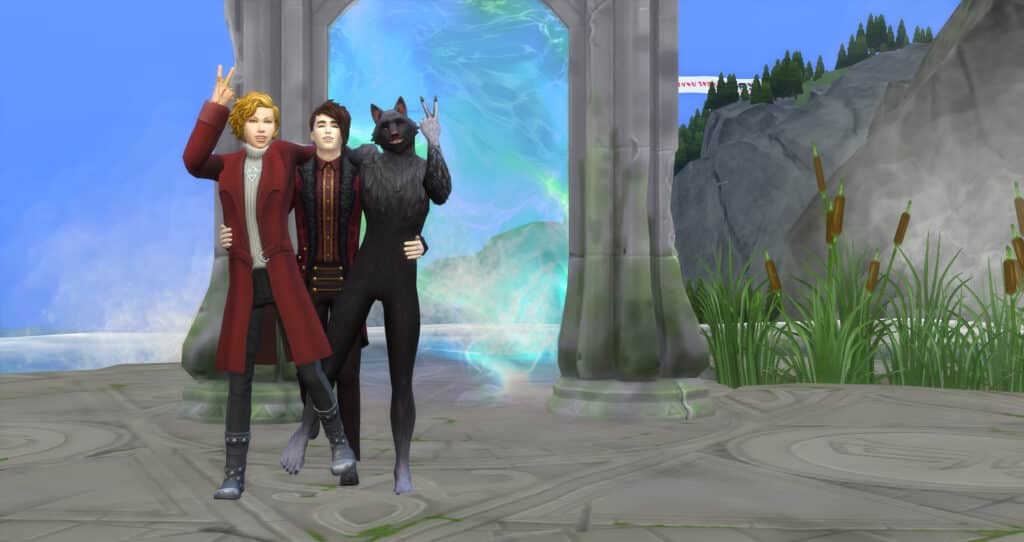
A Werewolf that doesn’t like Werewolves? A Vampire that likes Werewolves? A Spellcaster who doesn’t like any other Occult? There are so many stories you could make out of the 7 Occult Types (+Human) through preferences!

We have been so excited to try out this mod! It introduces likes and dislikes of the different Occults within EA’s numerous packs. This includes Humans, Aliens, Vampires, Spellcasters, Ghosts, Mermaids, PlantSims, and Werewolves. Plus, it adds interactions and moodlets to further add depth to your Sim’s Occult likes and dislikes.

Guide to Occult Preferences Mod for The Sims 4

In CAS, you will see a new preference section between Activity and Decor named Occult Type. Click on it and it will open the options for Occult Likes and Dislikes.

Guide to Occult Preferences Mod for The Sims 4

Each Like or Dislike chosen in the Occult Type category counts towards the twenty Likes or Dislikes that the Sim can have.

Guide to Occult Preferences Mod for The Sims 4

New Moodlets

According to SpinningPlumbobs the mod includes several social interactions. These include talking about topics related to Occult Creatures, specific interactions directed at Occult Sims themselves, and also some new interactions that reference the Sim’s likes or dislikes directly.

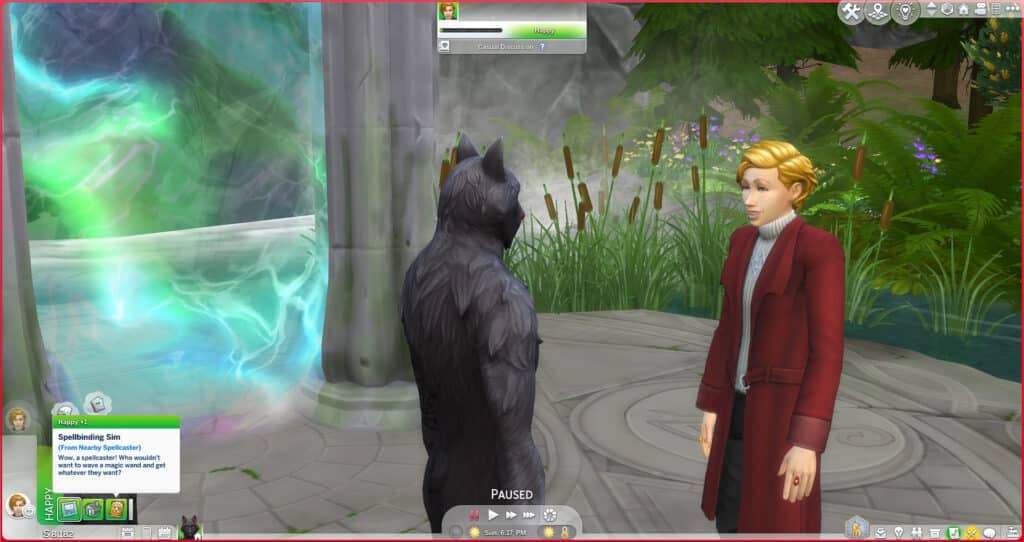
There will be numerous buffs (also known as moodlets) added through the mod. These buffs will pop up in special circumstances. For example, seeing vampires feeding on Sims, when flirting with Occults, or when an Occult actually dislikes their own Occult!

Here are a couple of examples of the new moodlets that are included within the Occult Preferences Mod.

Guide to Occult Preferences Mod for The Sims 4
Spellbinding Sim
(From Nearby Spellcaster)
Wow, a spellcaster! Who wouldn’t
want to wave a magic wand and get
whatever they want?
Guide to Occult Preferences Mod for The Sims 4
Immortal Intrigue
(From Nearby Vampire)
Such a fascinating creature, the
vampire. Not alive, but not dead…
Powerful, but graceful… Immortal
and nearly indestructible…

New Interactions

When in a conversation, your Sim will have new interactions. Some of the options that we saw included “Vent About Eco-Friendly Ignorance,” “Praise Mother Nature,” “Exchange Tips for Planting Magic Beans”, “Talk About Mooncasters”, “Speak Highly of Sages,” and “Debate Theory of Atlantis.”

09 09 22 5 38 59 PM
09 09 22 5 39 57 PM

Some examples of other interactions that can happen due to the Occult Preferences Mod include:

Sims who dislike their partner’s Occult status are able to request that they give up their Occult abilities. The partner will then accept or decline which will affect their relationship. SpinningPlumbobs indicates that this does only apply to Mermaids, Plantsims, Spellcasters, Vampires, and Werewolves since it’s already part of the game that they are able to remove their abilities.

SpinningPlumbobs altered several interactions reflecting the outcome due to Sim’s likes/dislikes. Some examples given were “Sims who like vampires will always agree to feed vampires plasma AND can even offer their plasma willingly.” Another example he included is that Werewolves that don’t like their own Occult will not be able to turn others into Werewolves because they “don’t want to pass on their affliction.” And Sims who dislikes ghosts will always react negatively to items being possessed or when they are scared by a ghost.

A much-needed change is that Sims will now react to Occults based on their preferences. For example, if a Sim likes Werewolves, they won’t run in fear away from rampaging Werewolves, and disliking PlantSims will cause Sims to be irritated by their presence.

Future Plans

SpinningPlumbob indicates that this mod will continue to develop. It will start to include preferences for his own Occults as well as EA’s. He plans to add “interactions, buffs, gameplay, possible relationships, etc. to the mod and incorporate this mod into my other occult mods.” And finally, any future Occults will be added to the mod as well.

We are enjoying this mod so far and are excited to see where it goes next!

Guide to Occult Preferences Mod for The Sims 4

Want to download the Occult Preferences Mod by SpinningPlumbobs? It’s available on Patreon for FREE!

What would your Occult preferences be?

Build your Dream Bedroom in The Sims 4 with Pull-Out Beds

0

Plus – it’s functional on all sides!

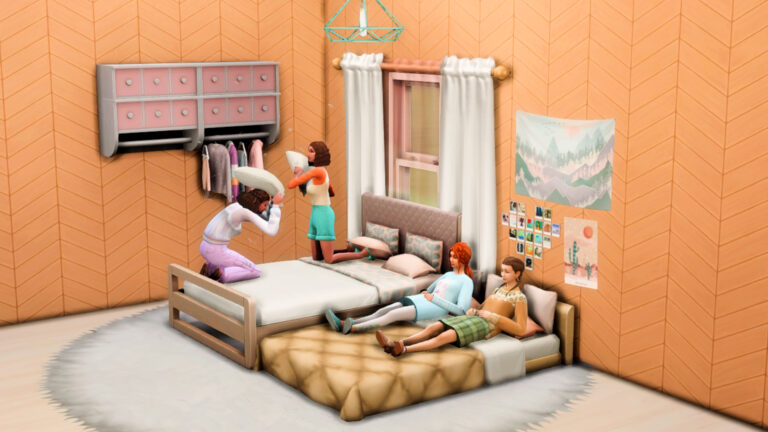
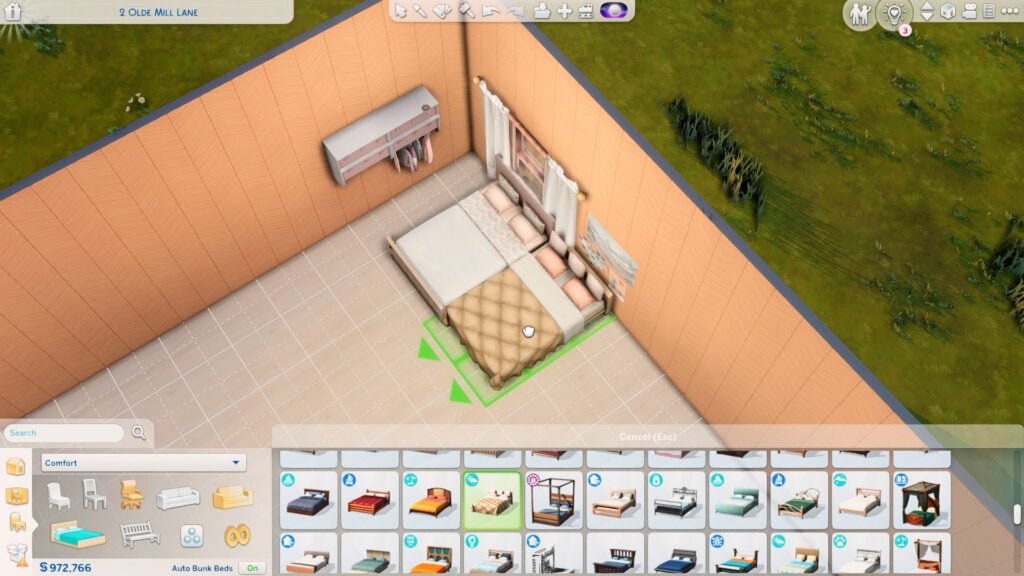
Here’s a nifty trick you should try on your next build: pull-out beds! It doesn’t require any mods or CC to make plus you could do it in less than a minute.

Build your Dream Bedroom in The Sims 4 with Pull-Out Beds

As usual, make sure the bb.moveobjects is on.

The first step is to choose the right beds for the looks. The main bed should have some space underneath it as if it can fit another mattress below. The pull-out must have a short headboard or no headboard at all.

Build your Dream Bedroom in The Sims 4 with Pull-Out Beds

Here’s some bed options you could use for the pull-out:

If these options don’t look right in your build, you can just hide the headboard behind the wall or cover it with wall decor.

After choosing the beds, place the main one first and use Alt to place the pull-out bed right next to the main bed.

Build your Dream Bedroom in The Sims 4 with Pull-Out Beds

Next is to build at least a 2×1 room anywhere near the pull-out. It can be by the foot of the bed or by the headboard as long as the room doesn’t touch the main bed.

Build your Dream Bedroom in The Sims 4 with Pull-Out Beds

Click on the room and lower its platform 1 time. Doing so will bring down your pull-out bed to the ground. Then delete the walls of the 2×1 room afterward.

Note: If both beds sink to the ground, just grab and adjust the main bed back later.

To fill the hole on the floor, select the platform tool and draw out a platform tile one by one. It’s important to do this so that your pull-out bed doesn’t jump back up. Then just add back the flooring.

That’s basically it! To use it properly, select the inner sides of the beds first so your Sims can scooch over before you let a different Sim use the outer side of the beds.

Build your Dream Bedroom in The Sims 4 with Pull-Out Beds

Note: There should be at least a half-tile space beside both beds to make this functional, so you can’t place either bed against the wall.

This works even better on single beds since no scooching is required!

Build your Dream Bedroom in The Sims 4 with Pull-Out Beds

Most bed functions should work on either bed! They can sleep, nap, relax, sit, put children to bed, and even have a pillow-fight. Except for woohoo of course…

If you don’t want the pull-out bed to be there all the time, go back to Build mode and just place it in your household inventory by clicking Backspace. Do the previous steps again if you want to add it back.

This trick is perfect for slumber-party rooms or guest rooms that can accommodate up to 4 Sims. Or you could add it in dorm rooms and rentals when using single beds.

Build your Dream Bedroom in The Sims 4 with Pull-Out Beds

Watch this short video to see how it’s actually done!

Now that you read this, how will you use pull-out beds in your game?

This Moonwood Garden Custom Content is a Gardener’s Dream!

Spend even more time in your Sims’ gardens with this beautiful set of garden décor!

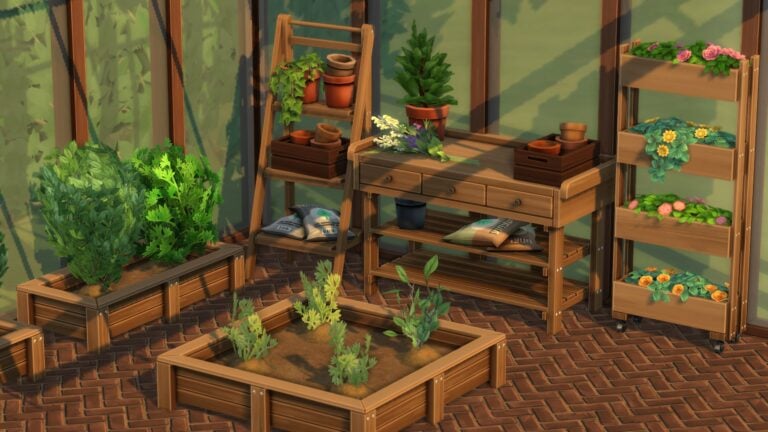
Avid gardeners are going to love this one! The Moonwood Garden CC Collection by myshunosun adds 13 new Maxis Match objects to the game to decorate your perfect green space! It includes a flower arranging table and two new planter boxes as well!

This Moonwood Garden Custom Content is a Gardener’s Dream!
Image Credit: myshunosun

All the objects except for the flower arranging table are base game compatible. The flower arranging table requires the Seasons expansion pack.

You can check out the previews of each object down below!

This Moonwood Garden Custom Content is a Gardener’s Dream!
Image Credit: myshunosun

Our personal favourite new object out of the whole set is the adorable rectangular planter box which can have up to two small plants planted in it. We would love to line all our garden pathways with these cute little planter boxes and fill them with all kinds of colourful flowers!

This Moonwood Garden Custom Content is a Gardener’s Dream!
Image Credit: myshunosun

And speaking of flowers, we’re also obsessed with the decorative sprig of wildflowers and the decorative upright planter boxes literally overflowing with bright, vibrant blooms! The stacked pots and fertilizer bags are going to look fantastic in our gardens, too, and give them that touch of realism they desperately need.

This Moonwood Garden Custom Content is a Gardener’s Dream!

You can download the full set right now for free from myshunosun‘s Patreon! Just click the button below to be taken directly to the download page!

Please note that custom content is not supported on consoles.

SOS! How to 50/50 Your The Sims 4 Mods Folder

Make the 50/50 method simpler, faster, and not Painful.

It is one of the most dreaded terms in the Sims community: 50/50. But, do you know how to 50/50 your folder? Or if you do, do you know how to do it effectively? 50/50 is not as difficult as most people think it will be. There are tips to make it simpler and faster!

If you leave MC Command Center in your folder while checking, you will be notified if you get a last exception. You will get a last exception without MC Command Center, but you will not be notified. Before doing a 50/50, if you have a last exception, it might be faster to get help reading it.

Mods Folder Organization

Divide your folder into sections so that you can remove them if you believe they have nothing to do with the problem. For example, CAS and BuildBuy folders are nice to have and separate.

For script mods and any mods that have more than one file, keep all files together in one folder so they don’t get separated when you 50/50. Make sure they are not too deep. Script mods can only be one folder deep and package files can only be 5 folders deep. If the instructions tell you to install something a specific way, ALWAYS install them that way.

Keep your tuning mods separate from your script mods.

Know which of your mods are UI mods in case you have UI problems in your game. Then, you can start by doing a 50/50 on just those mods.

SOS! How to 50/50 Your The Sims 4 Mods Folder

The 50/50 Method Instructions

Remove any folders that possibly aren’t causing it (you can 50/50 those folders later if the problem ends up not being part of the remainder of your folder.) These typically are CAS and BuildBuy. ONLY do this if you are certain that these items are not part of it.

  1. Divide your mods folder in half and put one half into a To Test folder. Start your Game.
    • If the bug doesn’t happen, put the mods in your Mods folder into a Fine folder. Then, test half of the To Test folder.
    • If the bug does happen, divide your Mods folder in half and put half of it in the To Test folder. Start the process again.
  2. Keep dividing/testing the contents of your Mods folder until it’s empty. Then put half of the To Test folder inside your mods folder and start again.
  3. Eventually, you will be left with an empty To Test folder and only a mod in your Mods folder that is causing the problem.
  4. When both your Mods folder and your To Test folder are empty and you’ve removed the broken mod, you can put your Fine folder into your Mods folder for a final test to ensure those mods work.

Note: Make sure to delete your cache every time you delete and add mods. Depending on the error, you might need to start a new game every time you load your game. Otherwise, the bug might still be active in the save and you won’t be able to tell if it was removed.

The 50/50 Method Flow Chart

Below is a flow chart from The Sims Wiki that explains the process. (Hint, it is not necessary to put the folder containing the suspect files in your Downloads folder. You can also put it, for example, on your desktop.)

SOS! How to 50/50 Your The Sims 4 Mods Folder

What to Do If It’s Not Working?

If the method not working, one of the main reasons could be a mod conflict. Read the information provided by each Modder. Often, Modders will provide a list of mod conflicts for their mods in the information on their website, Tumblr, or Patreon. If not, try to get as few as possible mods while the bug is still happening and then remove mods one by one.

This only needs to be done if the method is not working otherwise.

Another possibility is that the error that you are receiving could not be triggered every time you open the game. This makes the 50/50 method very difficult. If this is the case, I would highly recommend going over all the literature provided with your mods, making sure you have only one of each mod installed and that it is the most recent version, and that you have any Last Exceptions looked at by someone that can read them.

Need to Know What Mods Broke?

Check our Discord Server! We have a channel with the Deaderpool Mod News feed that will let you know about most of the mods that have broken recently. Join Here!

Do You Use the 50/50 Method and Has It Been Helpful to Solve Your Mod Bugs?

You have to get this Rock Café in The Sims 4!

0

…but no strings attached.

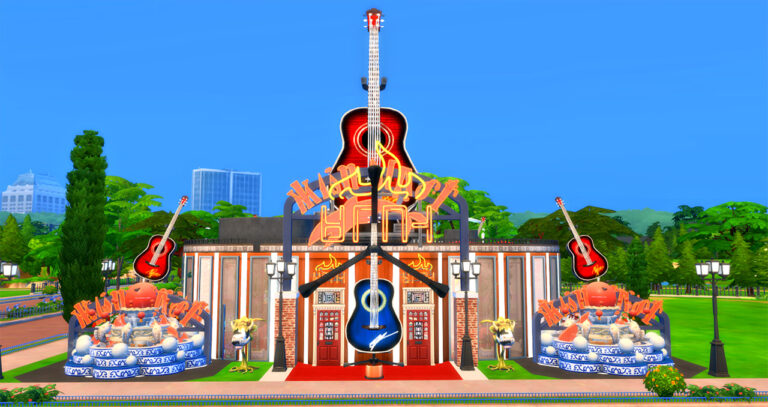
And by serving drinks, apparently. This build is truly unique. It uses guitars as its main inspiration. Not only are there guitars as actual decoration pieces, both normal size and sized up, but the building is shaped like a guitar with a fingerboard on both the inside and outside of the building. Bathrooms represent the tuning pegs at the top of the guitar.

You have to get this Rock Café in The Sims 4!

On the inside of the nightclub, there are seating areas, a bar, and a place to dance. Custom (No CC) paintings of various rock-related topics are placed around the building. On the outside, there are decorative features that included sized up guitars and other decorative items like fountains.

Gallery Lot Name: Guitar Rock Café
Creator: BabethPastyrik
Lot Price: 331,373
Lot Type: Nightclub
Facilities: 6 bathrooms
Lot Size: 40 x 30
Lot Traits: Convivial, Great Acoustics, Up-and-Coming Hotspot

Important Information

This build has No CC but it does have Custom Paintings. These can be downloaded without having them in your game. This is still a No CC builds.

Make sure to have bb.moveobjects on when you place the building.

Description:

A splendid guitar-shaped nightclub, bar, café, dancing, you can dance on the roof or inside, you can play the guitar, the piano, sing karaoke, play cards, and bask in the jacuzzis on the roof, play ping pong and more activities,!, it’s party time! (the pianos were kindly donated by the Piano Bar) #cafe #hardrockcafe #pub #club #disco #dj #gettogether #getfamous #karaoke #bar #guitar #dancing #fountains #piano #smallpiano #cowplant #babethpastyrik paintings are from #juwels64 #jlewi38 #koaleigh

You have to get this Rock Café in The Sims 4!

You can download the Guitar Rock Café by BabethPastyrik on the Gallery! Download today!

Do you have any current Sims that will visit the Guitar Rock Café?

How The Sims and Dreamlight Valley are Similar (and Different)!

Eliza Pancakes VS Ursula: ROUND 1!

ddv key art 3840x2160 e059989506

Disney Dreamlight Valley is the latest officially licensed Disney game by Gameloft to come onto the life simulation scene. It launched in early access on September 6th for people who purchased a founder’s pack but will eventually launch as a free-to-play game sometime in 2023.

I purchased the ultimate edition founder’s pack because I have zero self control and had the pleasure of being one of the first to play it yesterday. I became obsessed almost immediately and I attribute a lot of that obsession to the fact that it scratches my Sims itch and provides other gameplay that The Sims doesn’t have. So to me, it’s the best of both worlds!

So let’s talk about what makes Disney Dreamlight Valley similar and different from The Sims! This article is not meant to compare the two in any competitive way. It’s simply an exploration of two similar games that I happen to enjoy!

And yes, I know Animal Crossing can also be compared to Dreamlight Valley; however, this is a Sims fansite, not an Animal Crossing fansite so I’ll be focusing on The Sims here.

Character and Home Customization

Dreamlight Valley and The Sims both feature pretty powerful customization tools! We can design our avatar/Sim the way we envision them and dress them in a wide array of beautiful clothes, accessories, and makeup. Likewise, we can also furnish and decorate our home to make it truly ours.

Dreamlight Valley takes customization a step further by allowing us to add our own custom designs to our clothes and allowing us to customize the entire town we live in; both things that we cannot do in The Sims 4 but The Sims 4 does have an edge over Dreamlight Valley with more powerful body and face customization options and the freedom to build our dream home from the ground up instead of just decorating an existing space.

Recognizable Characters

Just like Mickey Mouse is an icon in the world of Disney, so is Bella Goth in the world of The Sims. Diehard fans of both Disney and The Sims will instantly recognize many familiar faces from past titles when exploring The Sims 4 and Dreamlight Valley. For new players, it’s an opportunity for the player to discover new faces; for veteran players, it’s a delightful reunion of all your favourite fictional people.

Both Dreamlight Valley and The Sims 4 are alternate universes, too! So you’ll find Disney characters from many different films and series all in one place, just like you’ll find well-known Sims from previous Sims titles all in The Sims 4 despite chronological timeline discrepancies.

Lucrative Hobbies and Sandbox Play

Fishing and gardening are guaranteed ways to get rich in The Sims 4 without ever actually having to hold down a job. The same is true in Dreamlight Valley which is an especially good thing because… there are no jobs in Dreamlight Valley. Everyone spends their days tending their gardens, fishing, and foraging for what they need and when they have too much of something, Goofy’s always willing to buy your goods from you at his stall for some star coins to spend on valley upgrades and neat stuff in Scrooge McDuck’s store.

Even though there is a storyline to follow in Dreamlight Valley, there is nothing stopping you from just taking a break to do whatever you want for as long as you want. It can be as much of a Sims sandbox experience as you want it to be once you’ve played through the first few quests to get the essentials up and running.

As for your job? Well, your only job is to save the Valley from the Forgetting, which brings us to our next point.

Questing!

How The Sims and Dreamlight Valley are Similar (and Different)!

This is where The Sims and Dreamlight Valley diverge from each other in a very significant way. While The Sims 4 does have optional scenarios and certain DLC packs that are more story-based with specific tasks you need to complete in order to advance the story, it has always been and remains to this day, primarily a sandbox experience.

Not so in Dreamlight Valley. As mentioned, you can certainly play in a sandbox style. Nothing forces you to continue the story. I spent hours doing nothing but fishing and tending crops to sell to Goofy yesterday, but you’ll get the most out of the game if you participate in the monthly events and complete quests. In fact, it’s necessary to unlock certain essentials, like Remy’s restaurant and Scrooge McDuck’s store. You’ll also need to play through the quests to unlock new areas in the game and meet new characters.

So while Disney Dreamlight Valley can be a sandbox if you want it to be, you’ll probably find yourself doing some questing to open up new things in the game.

Family Life

How The Sims and Dreamlight Valley are Similar (and Different)!

Since Disney is a family-friendly franchise that caters to small children as well as adults, it’s safe to say that Disney Dreamlight Valley does not allow you to build romantic relationships, get married, or have children. This is an aspect of The Sims that is completely nonexistent in Dreamlight Valley.

Because of The Sims 4’s T rating, it has more freedom to explore more adult themes. Therefore players can fall in love, WooHoo, get married, and raise a happy or dysfunctional family as they please.

As a huge family player, I think I will always want to play The Sims for this reason alone; however, I’m not disappointed by its exclusion in Dreamlight Valley. It makes sense for the type of game it is and its target demographic, plus its emphasis on building friendships is equally as fulfilling and rewarding for me as a player.


So which game is better?

Neither, silly! It’s not a competitive comparison, remember? They’re both awesome in their own right. Their similarities make them both an enjoyable playing experience for the same type of gamers, and their differences are just a really good reason to continue playing them both!

Have you played Disney Dreamlight Valley yet? What would you add to this list? Let us know in the comments but remember; it’s not a competition! Just an exploratory discussion.

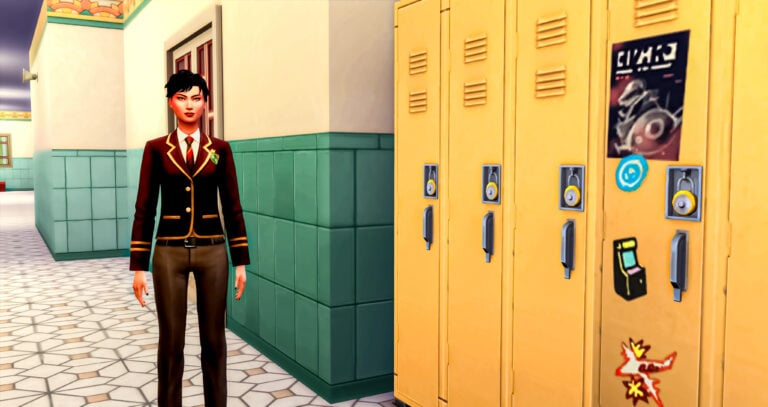
Choose Your Own School Faculty in The Sims 4 High School!

Customize your save… right down to the faculty!

We’ve told you how to make your own Principal’s Desks, but this time we’re explaining how to design your own faculty lineup! Janitor, Cafeteria Worker, Principal, and both Teachers included!

One thing that has been frustrating from the beginning about High School Years is the lack of customization. Although modders have done a lot to customize the school day, it’s sometimes nice to be able to customize a save without the use of mods. Here is how to replace the current faculty with Sims that you choose. Note: These sims do need to be the correct age for this trick to work.

Choose Your Own School Faculty in The Sims 4 High School!

Adding New Faculty

  1. Place the faculty you want in either one household, the easiest way, or in multiple households.
  2. Through manage worlds, enter each household and enter a cheat for each faculty member.
    • Cafeteria Worker: traits.equip_trait trait_Hidden_HighSchool_NPC_CafWorker
    • Janitor: traits.equip_trait trait_Hidden_HighSchool_NPC_Janitor
    • Principal: traits.equip_trait trait_Hidden_HighSchool_NPC_Principle
    • Teacher 1: traits.equip_trait trait_Hidden_HighSchool_NPC_Teacher1
    • Teacher 2: traits.equip_trait trait_Hidden_HighSchool_NPC_Teacher2Note: Principal is spelled wrong in the cheat. This is how it needs to be spelled.
  3. Do not travel with these sims. Go back to Manage Worlds and remove them from your favorites by selecting them in My Households within Manage Households. Then, click the Plumbob on the bottom of the pop-up screen. Finally, press the heart in the family’s box inside My Households so they’re no longer a favorite. This marks the household no longer as an NPC.

Choose Your Own School Faculty in The Sims 4 High School!

Removing Previous Faculty

  1. To stop the previous faculty from showing up in rotation, you’ll need to use those same cheats, but with remove instead of equip.
    • Cafeteria Worker: traits.remove_trait trait_Hidden_HighSchool_NPC_CafWorker
    • Janitor: traits.remove_trait trait_Hidden_HighSchool_NPC_Janitor
    • Principal: traits.remove_trait trait_Hidden_HighSchool_NPC_Principle
    • Teacher 1: traits.remove_trait trait_Hidden_HighSchool_NPC_Teacher1
    • Teacher 2: traits.remove_trait trait_Hidden_HighSchool_NPC_Teacher2
  2. Once again, leave the household without traveling through Manage Worlds.
  3. Remove the families from My Favorites. (As outlined previously.)
  4. After following these steps, your faculty will now consist of your chosen faculty!
    Note: It is also possible to accomplish this by deleting the Sims.

What kind of Sims do you want to have as faculty at Copperdale High School?

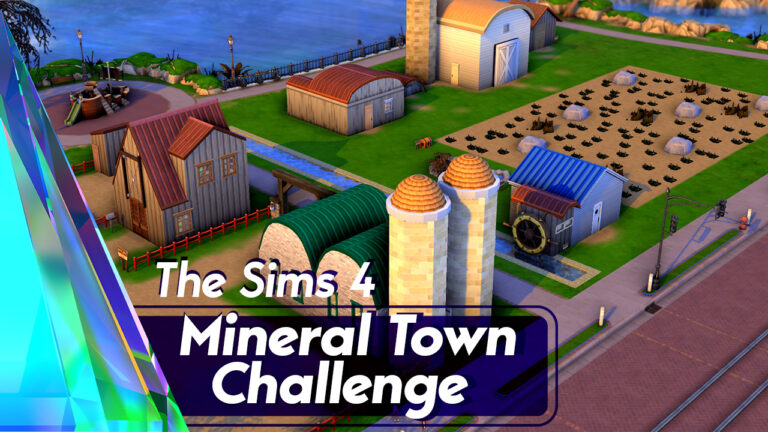
The Sims 4 Mineral Town Challenge

0

Experience the classic GBA game all over again… in The Sims 4!

Does anyone remember Harvest Moon? The adorable farming game series where you could find a spouse and raise a family all while building up a successful farm? No, I’m not talking about Stardew Valley. I’m talking about the series that inspired Stardew Valley. Specifically, I’m talking about Harvest Moon: Friends of Mineral Town, originally released on the Gameboy Advance back in 2003. It’s since been remade on the Nintendo Switch and PC as Story of Seasons: Friends of Mineral Town.

I’ve loved Harvest Moon since its inception back in the 1990s. I’ve grown up with the series and then made the switch to Story of Seasons after Harvest Moon’s developer split from its North American producer to continue the series under a new name. Friends of Mineral Town was always one of my favourite titles but like with a lot of my other favourite games, I find myself wishing for more freedom. More customisation, more choices when it comes to marriage candidates, just more ways to live my farm life the way I want.

That’s when I usually decide to recreate my favourite games in The Sims. Sometimes, I even make new saves and write challenges to go along with them. Like now!

If you’ve ever wanted to turn The Sims 4 into a Harvest Moon/Story of Seasons game, then oh boy! This challenge is for you!

The Sims 4 Mineral Town Challenge
Welcome to Mineral Town!
The Sims 4 Mineral Town Challenge

Objective

Move into the empty, run-down farm in Mineral Town and turn it into a thriving, profitable farm with a fully cleared out field, a minimum of 5 animals (or 1 cow, 1 llama, 8 chickens if you are playing with Cottage Living), and an upgraded house with a full kitchen and two bedrooms. Marry someone from Mineral Town and have at least one child.

The Sims 4 Mineral Town Challenge

Starting Out

  • Download and install my CC-free Mineral Town save. If you are playing on console, all the builds and characters are also in my Gallery to place in Newcrest individually. My ID is SnarkyWitch.
  • Cats and Dogs OR Cottage Living (you don’t need both, just one or the other) are required to play the challenge. All other packs are optional; however, the builds do use content from quite a few packs. You may replace any missing content in the save with stuff you do own.
  • Load up the Mineral Town save and create one starting Sim and either one dog or one cat to start with. Your Sim and pet can have any appearance, traits, voice, walk style, and gender settings you like. Your Sim’s gender identity will not limit your spouse selection or prevent you from completing the challenge. You may not use the CAS stories to pre-assign skills, money, or careers.
  • Use the cheat “freerealestate on” to purchase the Mineral Town Farm. Then use the cheat “money 1500” to lower your starting funds to 1,500 simoleons.
  • You will need to either put market tables with seeds at the Supermarket or turn the Supermarket into a retail lot owned by Jeff and Sasha. You can move/change anything you like in the Supermarket to make it functional for customers but don’t delete the seed packets (you may move them around; I think I used debug cheats to place them in straight lines which may not be good for retail functionality). Your Sim will need them for the challenge.

The Sims 4 Mineral Town Challenge

General Rules

  • No cheats except when the challenge tells you to use cheats.
  • Your farmer cannot have a job, but can register as a self-employed farmer. All their income must be from their farm. They cannot play the Lottery.
  • You cannot hire any NPCs. No maids, nannies, food delivery, caterers, gardeners, butlers, or repair technicians. This challenge is all about doing the hard work yourself.
  • You cannot replace broken stuff. You must repair it yourself.
  • You cannot purchase seeds from planter boxes or the build/buy menu. You must go to the Supermarket to purchase what’s in stock.
  • You cannot build a greenhouse or shelter your crops. You must plan out your fields according to the season and work with the weather.
  • You may not use the auto-feeding dishes or auto-cleaning litter boxes for your animals. You must feed and clean up after your animals yourself every day.
  • If you own Eco Lifestyle, you may use dew collectors, wind turbines, solar panels, and other eco-friendly objects to create a green farm.
  • If you own Cottage Living, you’ll be playing with slightly different rules; instead of owning 5 cats/dogs painted to look like farm animals, you must own a minimum of 1 cow, 1 llama, and 8 chickens to satisfy the animal requirement.
  • Mods like KawaiiStacie’s My First Farm Animal, icemunmun’s chicken coop, and the increase household limit function in MCCC are allowed, but optional. They’re not required for the challenge.

Reviving Your Farm

  • When you first arrive at the farm, you’ll see an overgrown field full of weeds, stumps, and rocks. You may delete all the weeds right away on your first day to make room for crops, but stumps cannot be deleted until your farmer reaches 3 Handiness skill and rocks cannot be deleted until your farmer reaches 4 Handiness skill.
  • The chicken coop and barn you start out with is just barely suitable to house animals and there is no fenced-in outdoor area for them to roam around in. You will need to upgrade the chicken coop to have enough pet dishes, litter boxes and beds for every small bird you own and they must have a fenced in area outdoors near the coop with toys, a scratching post, and a cat tower. The barn must be upgraded to have enough pet dishes and beds for every large farm animal you own and they must have a fenced-in outdoor grassy area near the barn with toys and obstacle course equipment. If playing with Cottage Living, you may replace the default coop and barn with the Cottage Living coops and barns but all animals must still have a fenced in area to roam around and be kept happy and healthy.
  • It’s up to you whether you want to remove crops that are out of season and replant them the following year or whether you want to let them stay dormant. Both offer pros and cons. You can keep fertilizing the same crops to increase their quality over time (and their profitability), but having so many dormant plants in your field takes up valuable space you could use for crops that are in season and producing goods. You may plant and sell overgrown crops if you own Cottage Living.
  • You will need a minimum of 5 animals on your farm before you can get married. They can be any combination of cats/dogs that have been painted to look like farm animals. Cows, horses, chickens, ducks, sheep, pigs, any livestock you can find in the Gallery, you can have on your farm. If you own Cottage Living, you need 1 cow, 1 llama, and 8 chickens instead.
  • You cannot add new animals to your farm directly from the Gallery for free. To “purchase” new animals for your farm, you must add them either to the Poultry Farm or Yodel Ranch, then transfer the animal to your farm using the split and merge tool in Manage Worlds. When you do this, transfer the appropriate household funds to the Poultry Farm or Yodel Ranch as your payment for the animal.
    *** Chickens and other small birds – 1,000 each
    *** Sheep, pigs, goats, and other medium sized livestock – 2,000 each
    *** Cows, horses, and other large livestock – 3,000 each
    *** Exotic animals (llamas, alpacas, emus, ostriches, etc) – 4,000 each
    If you own Cottage Living, you can just purchase the chickens and barn animals from their shelters as normal.
  • If you’ve purchased a male and a female of an animal, you may also breed them yourself on your farm to save money. You may only breed animals of the same type (a hen and a rooster, a cow and a bull, a mare and a stallion, etc) so even if both animals are “dogs” or “cats,” they must still be the same type of livestock in order to breed. No breeding a cow with a horse or a chicken with a duck, for example.
  • There are two ways you can make money off of animals. 1) Using the My First Farm Animal mod to have them produce milk, eggs, and wool. 2) Breeding and selling animals for profit. With Cottage Living, you may sell the milk, eggs, wool, and any other products made from your animals’ byproducts.
  • If your animals get sick, you must take them to the vet and pay for the most expensive treatment. If you cannot pay for the most expensive treatment, you fail the challenge. If you own Cottage Living, you fail the challenge if any of your animals leave due to neglect. Animals that die of old age do not count against you.
  • If any of your cats/dogs get taken away for neglect, you fail the challenge. Runaway cats/dogs do not count for this. Animals that die from old age don’t count, either.

Marriage

  • You are not limited to the marriage candidates from the original game. You may marry anyone in town who catches your fancy, but they must be a Mineral Town character. You cannot marry a townie or a Sim you created yourself.
  • You can marry anyone of either gender, regardless of your farmer’s gender.
  • You cannot get married until the following requirements have been met:
    1) Your home has been upgraded to have a full kitchen and a bedroom with a double bed.
    2) Your field has been fully cleared of weeds, stumps, and rocks.
    3) You own a minimum of 5 animals and your coop/barn have been upgraded to accommodate all of them as well as fenced-in outdoor areas for them as outlined in the Reviving Your Farm section.
    4) You are dating the person you want to marry and have maxed out romance and friendship with them.
    5) You have maxed out friendship with all of your future spouse’s family members (or closest friends if they have no family).
    6) You have gone on a minimum of 4 gold level dates with the person you want to marry.
    7) You have received a blessing from the Harvest Goddess. To do this, simply become friends with her and give her a hug. If she casts a positive spell on you, this will also satisfy this requirement. If you choose to marry the Harvest Goddess, you must get a blessing from Kappa, instead.
  • Your spouse can have a job and can help you on your farm and around the house.
  • You cannot divorce your spouse during the challenge but once you’ve finished the challenge, feel free to cause all the marital drama you want.
  • If your spouse dies, you must remarry and satisfy all the marriage requirements over again for the new spouse. You must have a child with the new spouse and raise him/her to the child age, even if you already have a child with your previous spouse.

Children

  • You must have at least one child with your spouse to complete the challenge. If you have twins or triplets, all the rules in this section apply to all children. You cannot cheat to reduce the number of children you’re having! You get what you get!
  • You cannot have a child until you are married and have upgraded your house again to add a second bedroom.
  • You can have a child either through Try for Baby or adoption. Adopted children must be adopted as babies.
  • Your child must age up naturally. No shortening the lifespan or manually aging them up when they get annoying.
  • To finish the challenge, you must successfully raise your child from a baby to a child.
  • Your child can help you feed and care for the animals when they become school-aged.
  • If your child is taken away by social services for any reason (either poor grades or neglect), you fail the challenge.
  • If your child dies, you must have another child.

Completing the Challenge

You are officially finished the challenge when:

  • Your field is cleared of all weeds, stumps, and rocks.
  • You own a minimum of 5 healthy animals. (Or 1 cow, 1 llama, and 8 chickens if you own Cottage Living)
  • Your chicken coop has enough litter boxes, beds, and pet dishes for each small animal you own and you have a fenced-in outdoor area for your small animals with toys, a scratching post, and a cat tower. This is not needed for Cottage Living animals.
  • Your barn has enough beds and pet dishes for each large animal you own and you have a fenced-in outdoor area for your large animals with toys, grass, and obstacle course pieces. This is not needed for Cottage Living animals but they do need a fenced in area and to be kept fed and happy.
  • Your house has been upgraded to have a full kitchen and two bedrooms, one with a double bed.
  • You are married.
  • You have at least one school-aged child with your current spouse.

The Sims 4 Mineral Town Challenge

Failing the Challenge

You fail the challenge if:

  • Your farmer dies.
  • Any of your animals are taken away due to neglect.
  • Any Cottage Living animals leave due to neglect.
  • You cannot pay for the expensive treatment for a sick animal.
  • Any of your children are taken away due to neglect or poor grades.
  • You break a challenge rule and cheat or do things before you’re allowed to.

I will not answer questions about whether you’re allowed to do this or that in the challenge or questions asking me to update for new packs. It’s your game and I’m not the challenge police. Just use your best judgement and have fun! I won’t be updating the challenge unless I feel there’s been enough significant additions to the game that would drastically affect this challenge.

This challenge was created before the remake came out so all builds and characters are based on their original designs from Harvest Moon: Friends of Mineral Town on the GBA.