Want to Resume right where you left off and skip through an additional Loading Screen? Now you can!
The Sims 4 had a brand new update yesterday for PC and Mac. The Main focus of this update was to breathe in some new life into the game’s Main Menu.
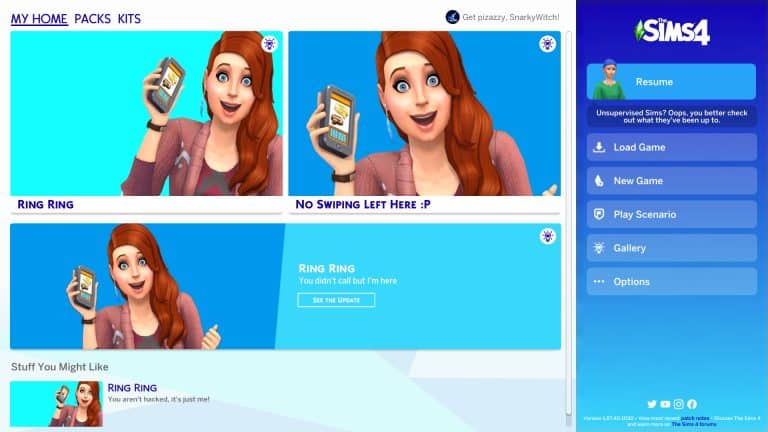
As you can see in the preview below, the Main Menu now features promotional graphics and text that open up through a hover dropdown. However, the important change done with this update was on the right side of the Main Menu.
It features all of the same elements as the game did before including New / Load Game, Scenarios, The Gallery and Options.
The novelty in this update lies within the “Resume” button:
See the Katy Perry Sim on the top? Well, that’s my last played Household – and the last Sim I interacted with before I opened up my game!
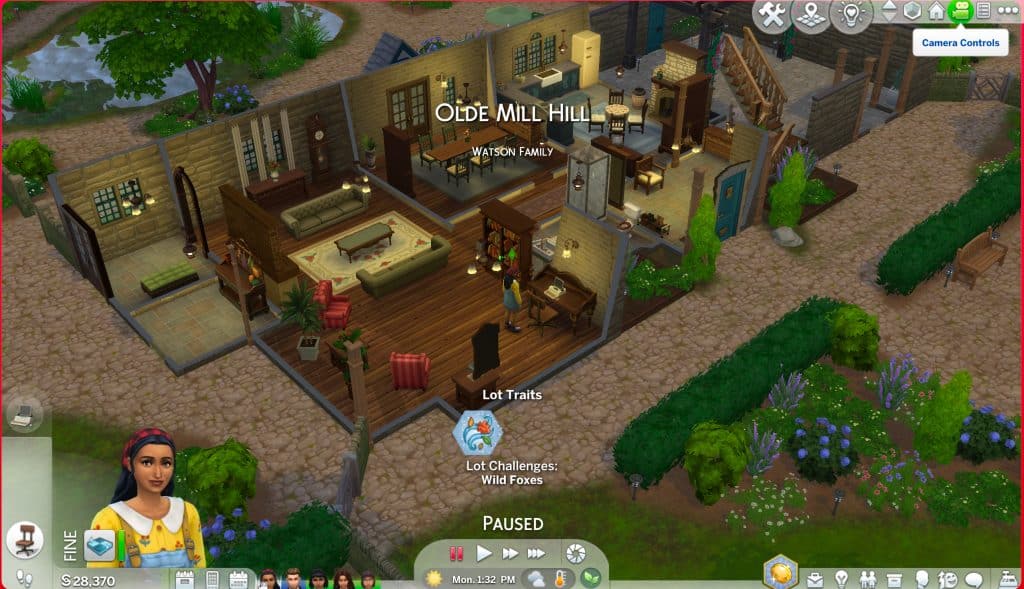
In the preview from the Featured Image I played with a different Household – the Watson Family from Henford-on-Bagley. After last playing with Rahmi Watson I saved the game and went back to the Main Menu. The Sim that was last showing on the Resume button was Rahmi.
After clicking the Resume button you’ll now be immediately loaded into the last Sim you played during your last play Session you saved. This will trigger a loading screen…
…Which will then immediately take you to the Sim you last played!
The Resume button lets you jump straight into your last session. This cuts down the extra loading step you get from Loading a Game that loads up Manage Worlds, makes you select your last Household you played and then load up the game again until you’re in Live Mode.
The functionality that takes you to Manage Worlds first remains the same when choosing “Load Game”. The Resume button is a new functionality that lets you jump straight into Live Mode. Which is really useful for both PC, and especially Console players.
The Dos (and Don’ts) of having twins and triplets in The Sims 4!
Players who like playing with big families may find themselves wanting to speed the process along by having their Sims give birth to twins or triplets. The trouble is, twins and triplets are almost as rare in The Sims as they are in real life. Your chances of conceiving multiples naturally are rather low.
The good news is that there are a few different ways you can greatly increase the chances of having twins or triplets and they don’t involve cheats or mods. We’re going to break them down for you today. We’re also going to bust a bunch of myths about how to conceive multiples. There are several rumours floating around that are completely false so we’ll save you the effort of bothering with methods that don’t work.
The Fertile Reward Trait
The Fertile reward trait is available in the base game so players don’t need any packs to use it. Any young adult or older Sim can purchase this trait from the rewards store for a hefty 3,000 satisfaction points. Sims with this trait have higher conception odds when Trying for a Baby and a higher chance of conceiving multiples. If both parents have this trait, those odds are further increased; the effect stacks.
We’ll warn you that while the Fertile trait does increase the odds of multiples, the difference is not massive. It’s only a slight increase in odds at best which is rather disappointing considering how much it costs. If you only own the base game, it’s your best bet but if you have other packs with ways to increase fertility, then the Fertile trait isn’t really worth the points you’d spend on it.
On Ley Line/On a Dark Ley Line Lot Traits
Players who own either City Living or Vampires can virtually guarantee twins with these lot traits. The On Ley Line trait comes with City Living and the On a Dark Ley Line trait comes with Vampires. If you add this lot trait to your home lot, your Sims will have twins almost 100% of the time. In our experience, these lot traits seem to only produce twins the vast majority of the time so getting triplets using these lot traits is very unlikely.
But beware! Using the On a Dark Ley Line lot trait has a high chance of resulting in the babies being born vampires even if both parents are human.
Fertility Massages
Fertility massages come with the Spa Day game pack. Your Sims can visit the spa and purchase a Fertility Massage from one of the spa specialists working there. Getting a Fertility Massage will give your Sim a Flirty moodlet which will increase their chances of conceiving and moderately increase their chances of conceiving multiples. We tested the Fertility Massage more times than we can count and our Sim wound up pregnant with twins maybe 30% of the time and conceived triplets once or twice.
The Wishing Well
The wishing well comes with the Romantic Garden Stuff pack. It has the power to grant your Sims all kinds of wishes but it also has the power to torment your Sims and even kill them, so use with caution.
Sims can wish for a child at the wishing well with several possible outcomes ranging from overwhelmingly negative to overwhelmingly positive. You of course don’t want the negative outcomes but the positive outcomes won’t be of use to you, either. The positive outcomes are a free adoption or a child-aged Sim magically appearing in your household. It’s the neutral outcome that you actually want. The neutral outcome will give your Sim a moodlet that will boost their fertility.
To ensure a neutral outcome, make sure you’re making a wish on a brand new wishing well when the face above it has a neutral expression. Do not give an offering to the well, as that will change its expression (and potential outcomes). You should get the fertility moodlet.
Like the fertility massage, the odds of multiples are only moderately increased so don’t expect to be guaranteed twins or triplets.
Myths Busted
We’ve shown you how to increase the odds of having twins or triplets. Now it’s time to debunk some of the myths out there. We personally tested all of these methods extensively dozens upon dozens of times with the exact same result every time so we can bust these with 100% confidence.
Listening to Kids Radio/Watching Kids Network
This myth probably arose due to The Sims 3, in which listening to kids music or watching kids TV would greatly increase your chances of having twins or triplets. Not so in The Sims 4. You can do nothing but listen to Kids Radio and watch the Kids Network (even at the same time) 24/7 throughout your entire pregnancy and it will not change the number of babies your Sim will have.
If you tried this and your Sim happened to have twins or triplets… it was definitely a lucky coincidence.
Listening to Kids Radio While Reading
This is a weird one and we’re really not sure where it came from but this doesn’t work, either. For good measure, we read a children’s book while listening to Kids Radio nonstop for 24 in-game hours straight while pregnant. Single baby every single time.
Consider this myth busted.
Eating Strawberries or Carrots
We can see where people might have gotten this idea. Strawberries and carrots do play a role in determining your baby’s gender in The Sims 4… but not the number of babies your Sim will have.
For those interested, eating strawberries during pregnancy increases the chances of having a girl. Eating carrots increases the odds of having a boy. If you want your baby to be born a specific gender, this is an excellent way to influence that.
But as for encouraging twins and triplets? No effect whatsoever.
You might be familiar with Callia Maebey (haha very punny), better known as Ring Ring Girl. She is the terrifying figure on the main menu screen holding a cell phone with an absolutely possessed expression on her face. Her soulless eyes bore into your very core, feeding on all your deepest darkest fears. Her maniacal grin is something out of a paranormal movie… or StrangerVille.
In fact, Ring Ring Girl is so unsettling, players have been begging the Sim Gurus to remove her from the main menu.
How did The Sims respond to our desperate pleas? With violence.
Today, Maxis uploaded this demon from the depths of the underworld to the Gallery so she can haunt not just our nightmares, but our virtual world as well. As if this wasn’t cruel enough, they then proceeded to laugh in the face of our suffering by plastering the face of evil all over the new main menu screen in a surprise game update today (which otherwise looks very nice, by the way).
Oh, and it’s not just in the game. Ring Ring Girl has taken over The Sims’ social media.
What provoked this unwarranted display of aggression from our beloved Sim Gurus? We’d like to know. We just logged on to have a good time today and we’re honestly feeling so attacked right now. Truly, the audacity is a spectacle to behold. Unless Ring Ring Girl is holding them hostage and they, too, are victims of her evil plans. Are you okay, Sim Gurus? Blink twice if you need us to rescue you!
Anyway, in case you wanted to get up close and personal with the demon from your nightmares, Ring Ring girl can be yours to run in terror from forevermore.
[mks_button size=”medium” title=”Download Ring Ring Girl. (Why?)” style=”rounded” url=”https://www.ea.com/games/the-sims/the-sims-4/pc/gallery/71337B31C57B11EC8F4C7A088609793C” target=”_blank” bg_color=”#4aa500″ txt_color=”#FFFFFF” icon=”fa-arrow-down” icon_type=”fa” nofollow=”0″]
The Sims Team has released a brand new update for The Sims 4 on PC, Mac, Xbox One and PS4!
To download the latest version of The Sims 4, simply open your Origin program and if the game doesn’t update automatically, right click on The Sims 4 and select ”Update”.
In case you have Mods or Custom Content, the game will automatically disable them for you after first launching The Sims 4 after the update. To re-enable all your Mods and Custom Content, select the Settings option in the Menu and select Settings. Under the ”Other” section you’ll find the ”Enable Custom Content and Mods” option. Check it and restart your game in order for it to take effect!
Patch Notes
PC: 1.87.40.1030 / Mac: 1.87.40.1230
Console: Version 1.58
Hello Simmers!
Can you believe that we are already approaching the end of the first quarter of 2022? Where does the time go? We hope you have been enjoying Neighborhood Stories and are looking forward to everything that is coming through the rest of the year.
To round out the first four months of the year, this update brings with it a number of bug fixes including some which have been high on your lists, and a new Main Menu which is more focused on you and your Sims.
Let’s take a look and see what’s been updated with this release.
– The Sims Team
New look Main Menu
We have a new look Main Menu and it isn’t just aesthetics.
First thing you will probably notice is the new launch panel on the right, not only does it look different, it has new modular features built in to personalize your experience.
If you are a new Simmer, you’ll notice that the New Game button includes some motivational messages underneath it to help you with your first game experience.
If you have been with The Sims 4 for long enough to create a Saved Game then you’ll notice the Resume button is no longer a giant play icon and instead displays a profile picture of your last active Sim from your last saved session. Your Sim will have a little something to share or say!
Surveys
These little surveys will appear periodically on the Main Menu and can be completed without leaving the game. Some of these surveys will be fun while others could help shape the future of The Sims 4 based on your feedback.
If you prefer to control when you see or don’t see surveys in-game, you can toggle your setting in Game Options > Other under the “Enable in-game surveys”
New Packs Filters
On occasion, when checking out the latest Packs, you might notice a new entry in the Pack filters at the top of the screen. Be sure to check these out when you see them, there could be something new to discover that you might have otherwise missed.
Dynamic Main Menu Panels
Some of the information panels on the Main Menu come with expanding information panels. Simply hover over a panel and the details will present themselves, move off the panel and the information box will collapse down again.
BUG FIXES
The Sims 4
Starting a Scenario and attempting to move your household in with an existing household will no longer silently end your Scenario. Now, you will need to complete or cancel your active Scenario before merging households.
Fingernails should no longer clip into the fingers and look distorted while creating a Young Adult Female Sim in CAS. We are continuing to review distorted nails in other situations so keep an eye out for additional fixes in this area in future updates.
For Simmers on PlayStation and Xbox running into an issue with dropping walls and moving between floors with the D-Pad, we have good news! We have implemented a fix which should restore your D-Pad functionality. If you continue to run into issues please reach out to us on Answers HQ.
Simmers that chose to cancel the process of saving a built up lot to My Library while the Lot thumbnails were being generated could find themselves temporarily locked out of navigating the Lot or would experience graphical flickering. This performance impact should now be resolved and the thumbnails will no longer generate behind the scenes after canceling the Save Lot process.
We have tidied up the Game Options menu a little by removing the Fill In Empty Lots option. This particular option has been superseded with Neighborhood Stories and the “Move In” functionality.
Pulling a prank and breaking the toilet is all fun and games, until you can’t repair it which is exactly what happened to the Sweet Escapes Country Toilet. The toilet is now repairable by your skilled Sims or by calling in a repair service.
While planning an event, jumping between Invite Sims and Select a Place tabs will be accurately reflected in the tab icons.
The Origin In-Game overlay on PC should resize to the correct resolution if it was open during game client resolution changes.
Selecting the button on a video window before the video finished playing was leaving some players with a gray screen. This should no longer happen.
Discover University
University can be tough but re-enrolling after being suspended shouldn’t be one of those difficulties. Now when you get your acceptance letter in the mail your Sim will be able to head back and complete their higher education journey.
Outdoor Retreat
NPC’s were getting so stressed that they would make the De-stressing Decoction on the grill and then finish it on the stove. Now, they will no longer split their creation of this concoction between grills and stoves.
Décor to the Max
The Circle of Infinity wall sculpture comes with plenty of warnings, but after getting lost staring into the circle of infinity, we went and sorted out that infinity frame, which didn’t accurately represent the lighting from the environment around it.
Here’s a Preview of what the Main Menu looks like now!
Bring back retro PlantSims or add new spins with this Custom Content!
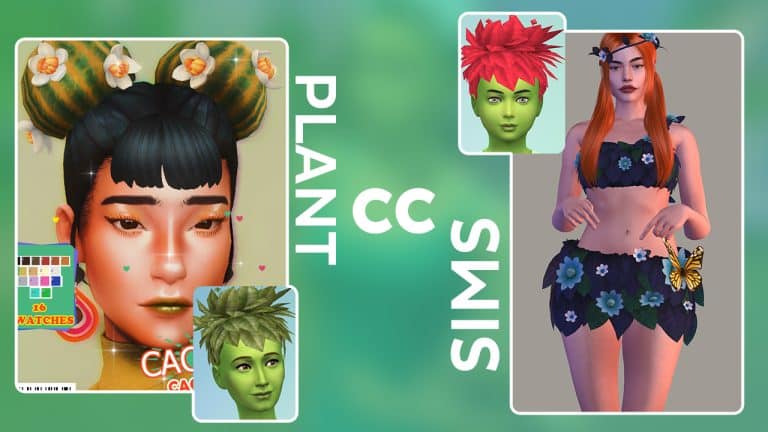
Since the Plant-A-Sim scenario was added to The Sims 4 in a recent SDX drop, PlantSims have seen a renewed interest from Simmers. Many Simmers want to see PlantSims get an overhaul and become a fully fleshed out life state like other occult Sims (we second this!) but for now, we’ll have to be content with community creations to at least give our PlantSims a more plant-like appearance.
Here’s some fantastic PlantSim CC from the community to improve your PlantSims!
All the listed Custom Content for PlantSims shown down below are linked in the heading title of each one.
This cute ruffled two piece made of leaves, flowers, and butterflies will give your PlantSims a dreamy, ethereal look. The download also includes a flower crown.
If you plan to download any custom hair for PlantSims, make sure you download this mod, too. I’ve been using it in my own game and can confirm it’s still working as of April 2022.
Making the Debug Chairs from The Sims 4 My Wedding Stories usable!
When the My Wedding Stories game pack came out, one particular build item caught the eye of builders: this chair from the debug menu.
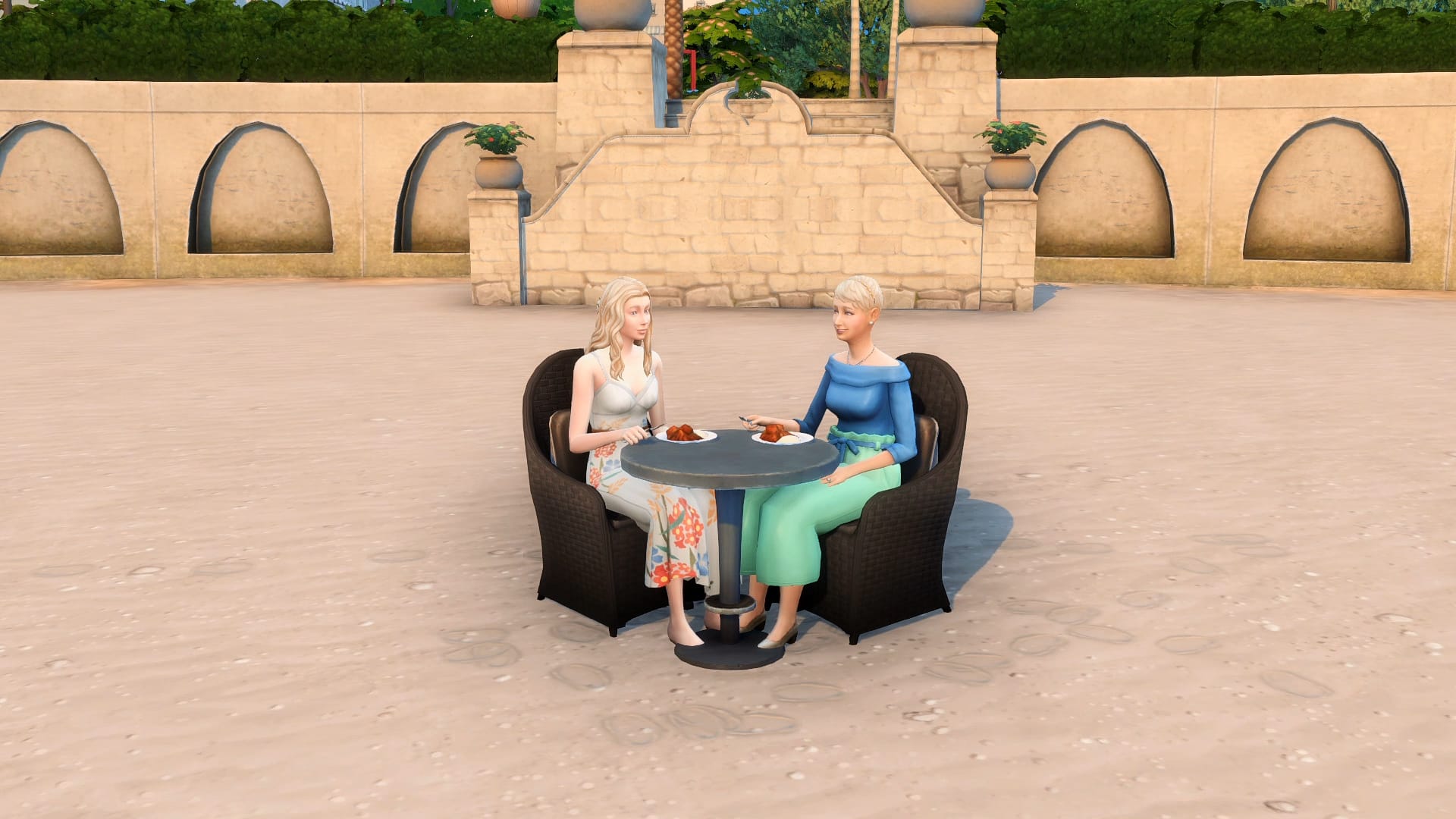
It sits in the middle of the Tartosa town square surrounded by charming Mediterranean apartments. So what’s the catch? You can’t sit on them.
A lot of players expressed their dismay over this unplayable item. Some have tried to find a workaround to make it functional by placing a chair over it or turning it into custom content.
However, there’s only one foolproof method to make it work and it’s this tutorial! You don’t need any custom content, just the new game pack and base game.
Make sure you type in the cheat ‘bb.moveobjects’ before getting started!
First off, debug items like these still block your Sims’ path. The only way to clear out these obstructions is to cheat the game by putting it on a different floor level.
Place the debug chair and a normal dining chair on the same spot. Avoid free placing them with the Alt key since you will have a hard time adjusting them later. If the limited grid placement doesn’t work for you, click on Shift + F5 to unlock more precise grid slots.
Size down the dining chair with the ‘[’ key once. Make sure that the dining chair you use has a cushioned backrest to act as a pillow. If you don’t want that sticking out, you can size it down another time as long as a part of the chair is seen and clickable.
Second, make a room directly below your chair. It can be a basement or just one floor level down.
Now drag the debug chair to that lower level. Raise it with Ctrl+9 until the green square of the item shows at the top of the room.
Take note of where you originally put the dining chair since it has to be aligned with the debug chair. If a part of the dining chair sticks out oddly, you can now use the Alt key to hide it and scooch it over.
Once they are aligned to your liking, you can delete the room below by using the arrow sliders to minimize the room. Don’t just select and click Delete because it will also delete the debug chair you placed!
You could also make a complete dining set with both the debug chair and debug table. Start by placing the debug table on a grid slot. Find a dining table with a single middle leg and size it down to the smallest possible size. Place it in the middle of the debug table. Add the dining chairs and repeat the process of placing the debug chairs on a lower floor.
Go to Live mode to playtest it and it should work perfectly! This works on any kind of chair, including living room chairs. Different kinds of chairs look like different swatches of pillows on this debug chair which you can place outdoors by the beach or inside your home.
Now that you know this trick, where do you plan to use this gorgeous piece of furniture?
You can check out a video tutorial on this Chair Hack here!
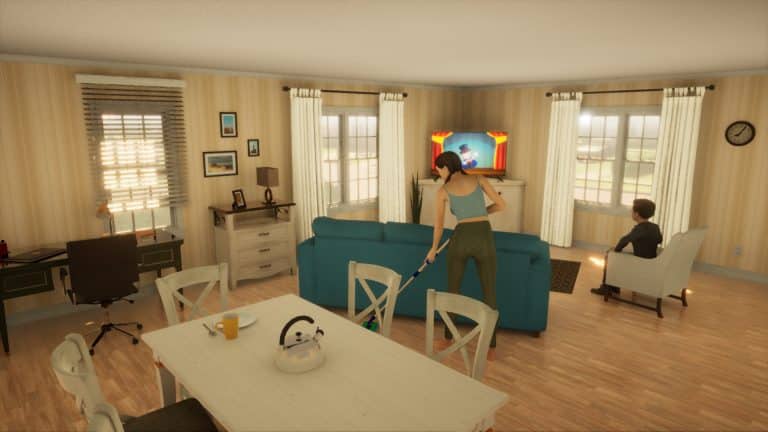
Will Vivaland be able to deliver the promised features and meet the players’ expectations?
As many of us know, The Sims franchise has continued to lead the way when it comes to life simulation games. Over the years, we have seen a number of different life simulation games aim to take what we know and love and put a new, fresh twist on it.
Now, while not all the proposed games reach an actual release, we have seen the likes of Paralives most recently gain notability within the community. There was also Project Vie but, yeah… We don’t talk about Project Vie anymore.
Now a new life simulation game is starting to get some attention. This latest in-development life simulation game comes under the name of Vivaland.
What is Vivaland?
Vivaland has been described as the first simulation game built with multiplayer in mind from the very start. Each and every household in Vivaland in controlled by players from around the world.
Curious to know more? Take a look at reveal trailer below!
Features
Multiplayer Gameplay for up to eight people.
Unique Viva characters
Explore and create your own stories in Vivaland
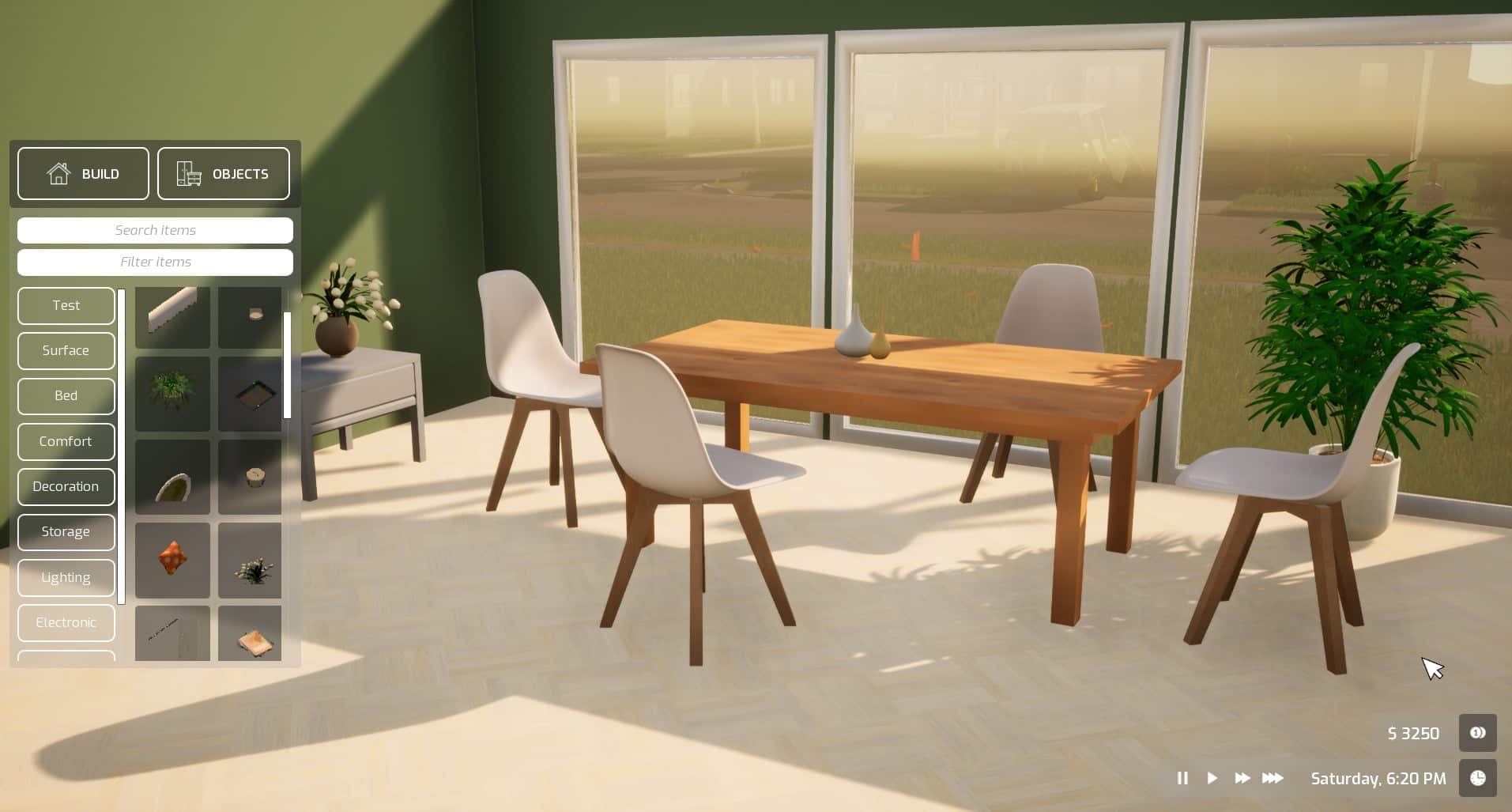
Design your dream home with powerful customization tools & features.
Create unique characters
A variety of virtual humans (we call them Vivas) are yours to personalize! Create their appearances, style of clothing, and even their unique personality traits & life goals.
Experience life in Vivaland
Turn your hobbies into fruitful careers as a writer, artist, or gardener. Explore a wide range of unique relationships, bond over hobbies by having a buddy or a mentor, find true love, or get a frenemy. Create your family to raise generations, party, socialize, develop your skills, and much more. You’ll have plenty of freedom to simulate the story of your dreams.
Build your dream houses and worlds
Design your home together with friends in real-time multiplayer, change the color of objects, use our mood board feature and forget the grid forever! With the powerful customization features, you will feel like an architect or interior designer who brings imagination to life.
Improve your skills, find your calling
As you make your way from a toddler to adult Viva, you’ll develop your skills and find your Viva’s favorite hobbies, like painting, writing, gardening, cooking, playing instruments, repairing objects, and more. You might even discover their unique talent along the way. As you progress, you’ll learn new cooking and crafting recipes, unlock new actions to explore, and discover new objects in-game.
What does a multiplayer life simulation game look like, though? How does it work? Trust us, we have many questions too! Take a look at the most recent video from the Vivaland team for a closer look at what the multiplayer aspect of the game looks like.
What else do we know about Vivaland?
While the team have not revealed all the features and tools coming in Vivaland, here are some more things that we spotted from the two YouTube videos.
Freeplacement of all objects
Seamless and smooth building
In depth Object menu
Colourwheel
Multiple players can work within the same room at the same time
The game has been created using Unreal Engine
Vivaland1
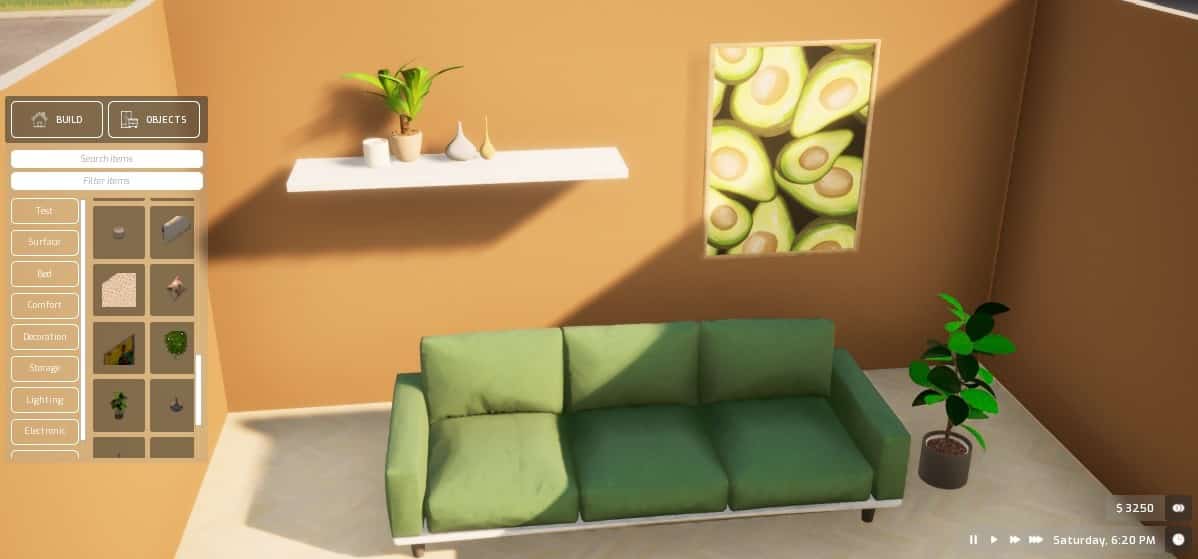
Vivaland 2
Vivaland 3
Vivaland 4
Vivaland 5
It appears to be early days for Vivaland, and it will be interesting to see how the game progresses over the coming months!
Vivaland has a planned release for 2023. However, to find out more about Vivaland follow the links below!
This player turned The Sims 4 into an astonishing Dragon Age playground!
It always blows me away with just how talented our community is, and this selection of Dragon Age inspired builds from KawaiiFoxita are no exception!
Now, if you haven’t heard of Dragon Age before or aren’t too sure what it’s about, the game is a fantasy role-playing game that is developed by BioWare and published by EA.
Want to know more about the Dragon Age games? Take a look at the trailer for Dragon Age Inquisition here!
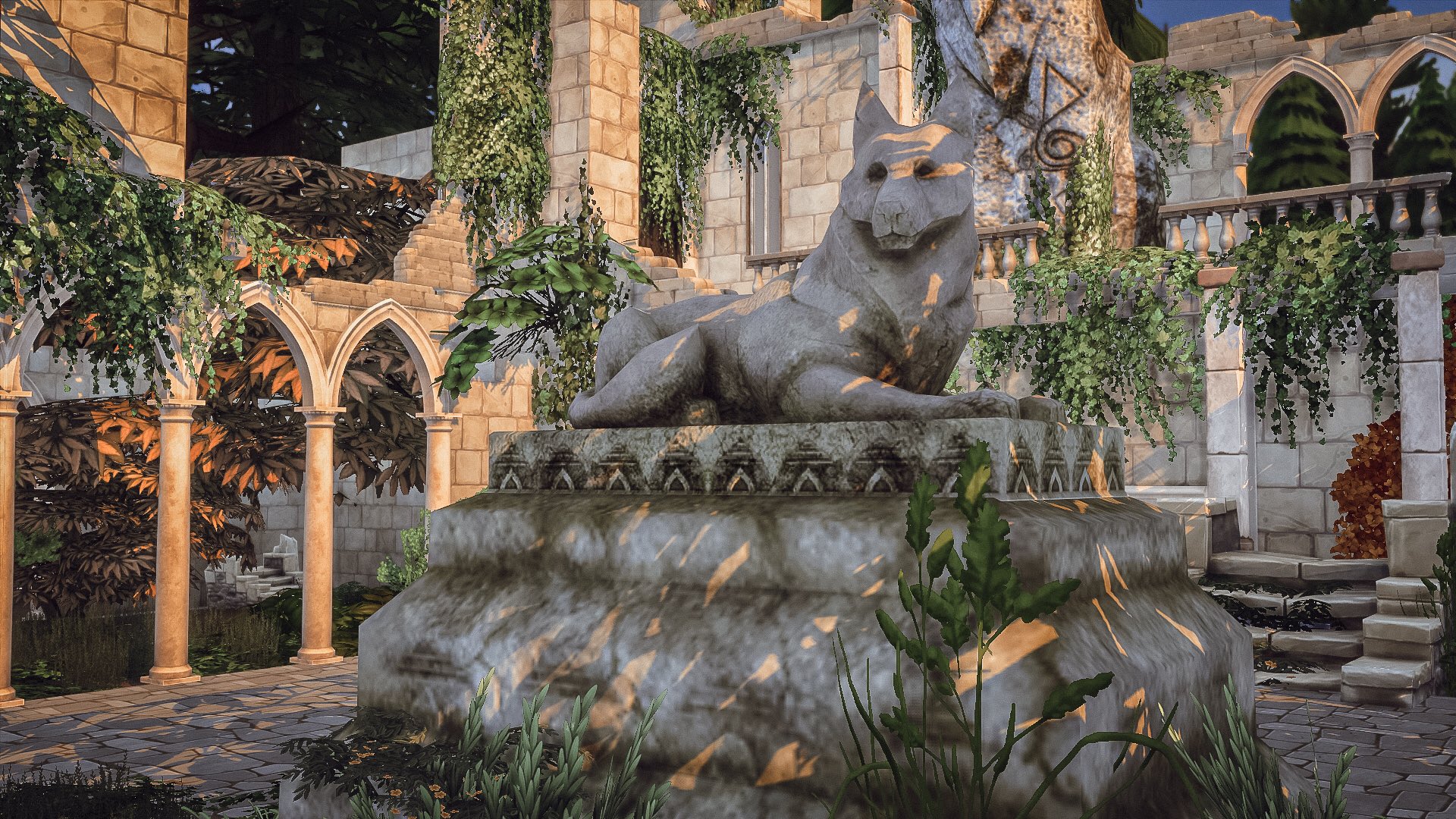
KawaiiFoxita has shared a variety of screenshots on social media that are full of detail and inspired by different locations from the Dragon Age games. They are honestly beautiful and makes us want to explore more of the world of Dragon Age in The Sims 4!
The amazing recreation of a 10-year old Limited Stuff Pack is now available for everyone!
A couple of weeks ago history was made. At least in my eyes. All with the announcement from the Custom Content creator Littledica about the community project to bring The Sims 3 Katy Perry Sweet Treats Stuff Pack into The Sims 4!
The Custom Content Collection released by the creator has been in the Early Access period for 3 weeks now. Which means that as of today, everyone who plays The Sims 4 on PC and Mac can momentarily download this Custom Content collection.
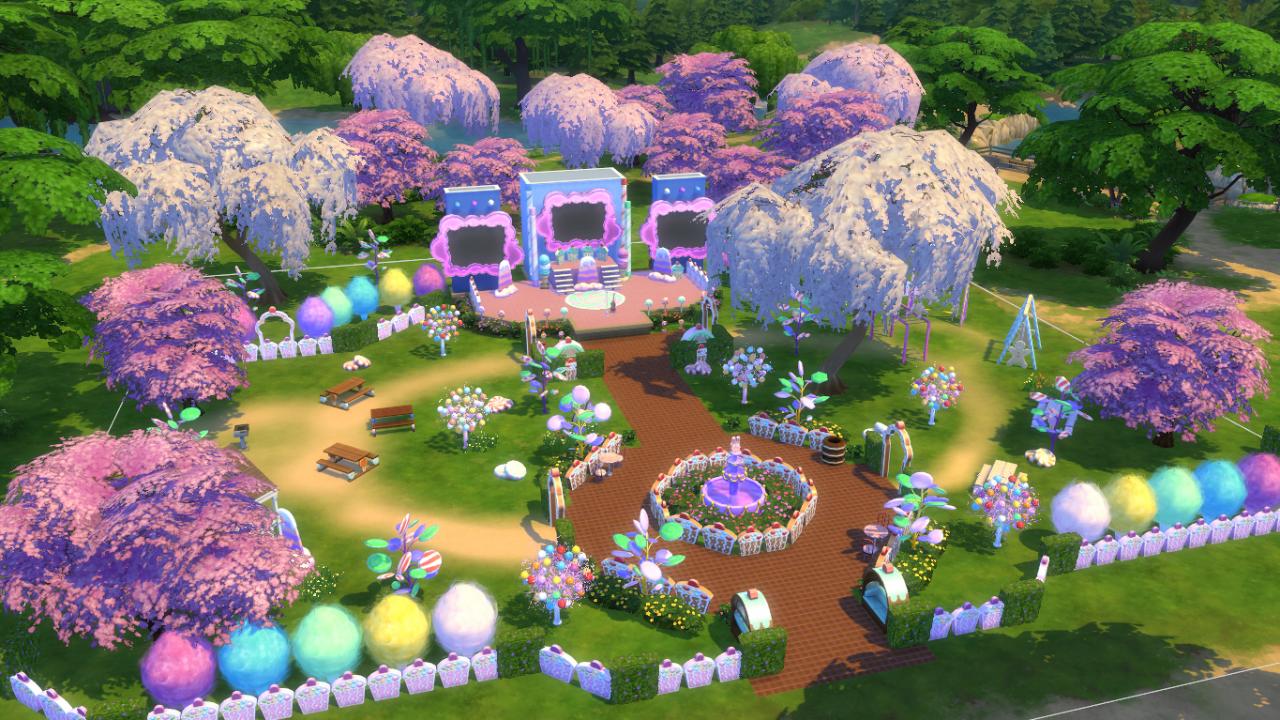
If you’re wondering what’s included with The Sims 4 Katy Perry Sweet Treats CC, we have an extensive Overview of the CC Pack. Yup, that also includes the official Lots and Sims featured in the promotional images from the creators!
This Community CC Stuff Pack has been made in collaboration between Littledica, who initiated the project and designed most of the items. With the help of other community members such as:
LuddySimmer created the art for some of the objects (bed candy drawing, bookcase drawing ecc) the pack promotional material and designed some new items concept art.
Simmatically did the album covers in simlish for the stack of CDs object
Ravasheen created the tuning (the code) of some of the objects including the Functional candy jars with new candy, the Kitty Purry and gingerbread man statue working as toys that you can talk to and made the microphone functional
The Custom Content Pack is now available to download right away from the creator’s Patreon Page. Simply select the .zip file of your choice and extract the contents to Documents > Electronic Arts > The Sims 4 > Mods folder. Also, ensure you have Mods and CC enabled in your Game Options!
Will you be able to overcome all the obstacles and turn this Wedding into a success story?
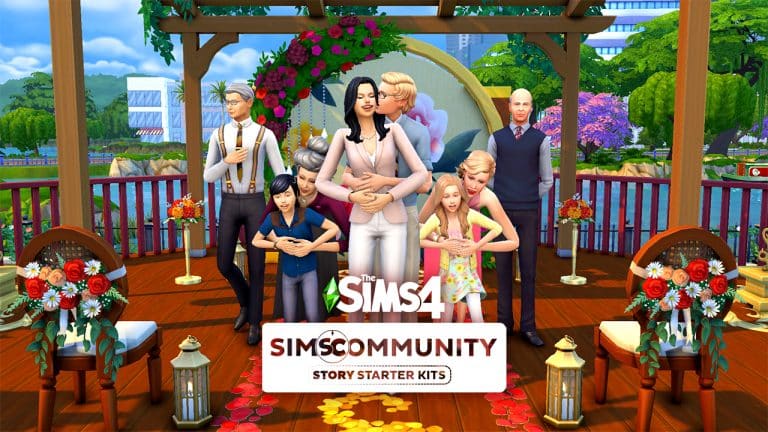
Welcome to our seventh entry in our Story Starter Kits series! If you missed all the info on Story Starter Kits, you can read more about what they are and how they work in our introductory article!
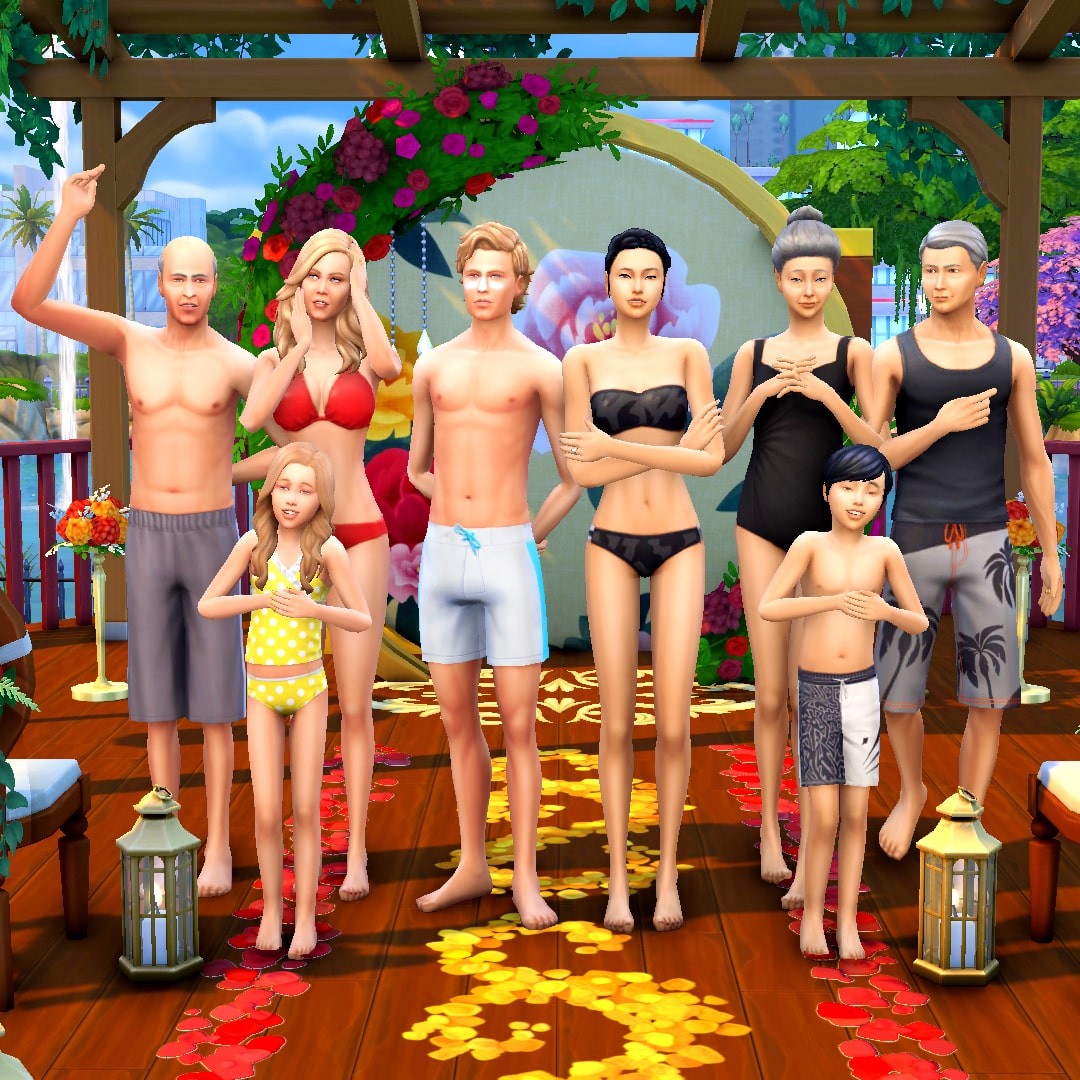
This month, we’re bringing you a newly engaged couple who can’t wait to plan their wedding… if they can wrestle control back from their overbearing families.
Backseat Wedding Planners
Hugh and Hao have been fierce rivals in the competitive world of business for many years now. Despite the rivalry, they’ve always gotten along just fine in their professional relationship so when a possible merger was put on the table, Hugh and Hao weren’t so quick to dismiss the idea. Merging their highly successful companies together could give them the funds and resources they needed to acquire smaller businesses and ultimately take a large portion of the market for themselves but the shareholders weren’t convinced it was a viable long-term move. After all, Hugh and Hao are elderly and about to retire. Who will run such a huge company in the future?
That’s when they came up with a brilliant idea: Hao’s daughter, Jun, and Hugh’s son, Sean, were both being prepared to take over their parents’ companies. They each had intimate knowledge of the inner workings of their respective companies. Together, they could co-run the merged company, but a strictly professional relationship could prove flimsy over time. They needed to cement Jun and Sean as lifelong partners to make such a risky business move work. A marriage between the two would surely accomplish that! Well… if Jun and Sean ended up liking each other, of course.
To their parents’ delight, Jun and Sean did like each other from the moment they were introduced. In fact, they fell completely in love with no extra encouragement from anyone. When Sean proposed to Jun, business strategy was the furthest thing from his mind. He knew Jun was the person he wanted to raise a family and grow old with. Jun felt the same about Sean and accepted his proposal without a moment’s hesitation. She knew she’d found her forever partner, too.
Both families were thrilled with the news but the warm fuzzy feelings eroded fast when the wedding planning got underway. Two very different cultures clashed; Jun’s parents insisted upon a traditional Chinese wedding with a formal tea ceremony. Sean’s parents wanted a big, flashy, North American style wedding. Jun’s mother, Meng, wanted to make the cake and food for the wedding but Sean’s mother, Elsie, wanted to go with the most expensive catering business in town that routinely did celebrity weddings. Elsie insisted she be the one to design Jun’s wedding gown and the whole wedding party’s attire; her vision was high end couture. Meng was appalled by Elsie’s tacky taste. To make matters worse, Sean’s little sister, Delilah, has made it her mission to be the most badly behaved brat in existence; she’s always been spoiled and is jealous of all the attention her brother’s getting. And Jun’s brother, Jian, keeps trying to sneak his Nintendo Switch into all the wedding events.
Sean and Jun don’t even feel like this is their wedding anymore. It’s become a war between tradition and spectacle, not a celebration of love. They still want to get married but neither of them want to walk down the aisle in the middle of all this conflict. That’s no way to begin a marriage. Can the soon-to-be-newlyweds talk sense into their squabbling families and take back control of their own wedding or would they be better off eloping at City Hall?
TS4 x64 2022 04 23 00 46 39
TS4 x64 2022 04 23 00 48 27
TS4 x64 2022 04 23 00 49 48
TS4 x64 2022 04 23 00 51 14
TS4 x64 2022 04 23 00 52 44
TS4 x64 2022 04 23 00 54 28
TS4 x64 2022 04 23 00 55 54
TS4 x64 2022 04 23 00 56 59
Other Info:
Sean Jameson
Age: Young Adult
Traits: Ambitious, Family Oriented, Outgoing, Domestic
Packs Used: Get Famous, My Wedding Stories, Romantic Garden Stuff, Vintage Glamour Stuff
Household Notes:
Since this story kit does not come with a residential lot, the Jamesons and Chens have a total of $2,000,000. You can split them off into two households with $1,000,000 each to purchase any nice home of your choosing.
In Perfect Unity
TS4 x64 2022 04 22 23 48 08
TS4 x64 2022 04 22 23 47 52
TS4 x64 2022 04 22 23 45 16
TS4 x64 2022 04 22 23 45 43
TS4 x64 2022 04 22 23 46 14
TS4 x64 2022 04 22 23 46 53
TS4 x64 2022 04 22 23 47 33
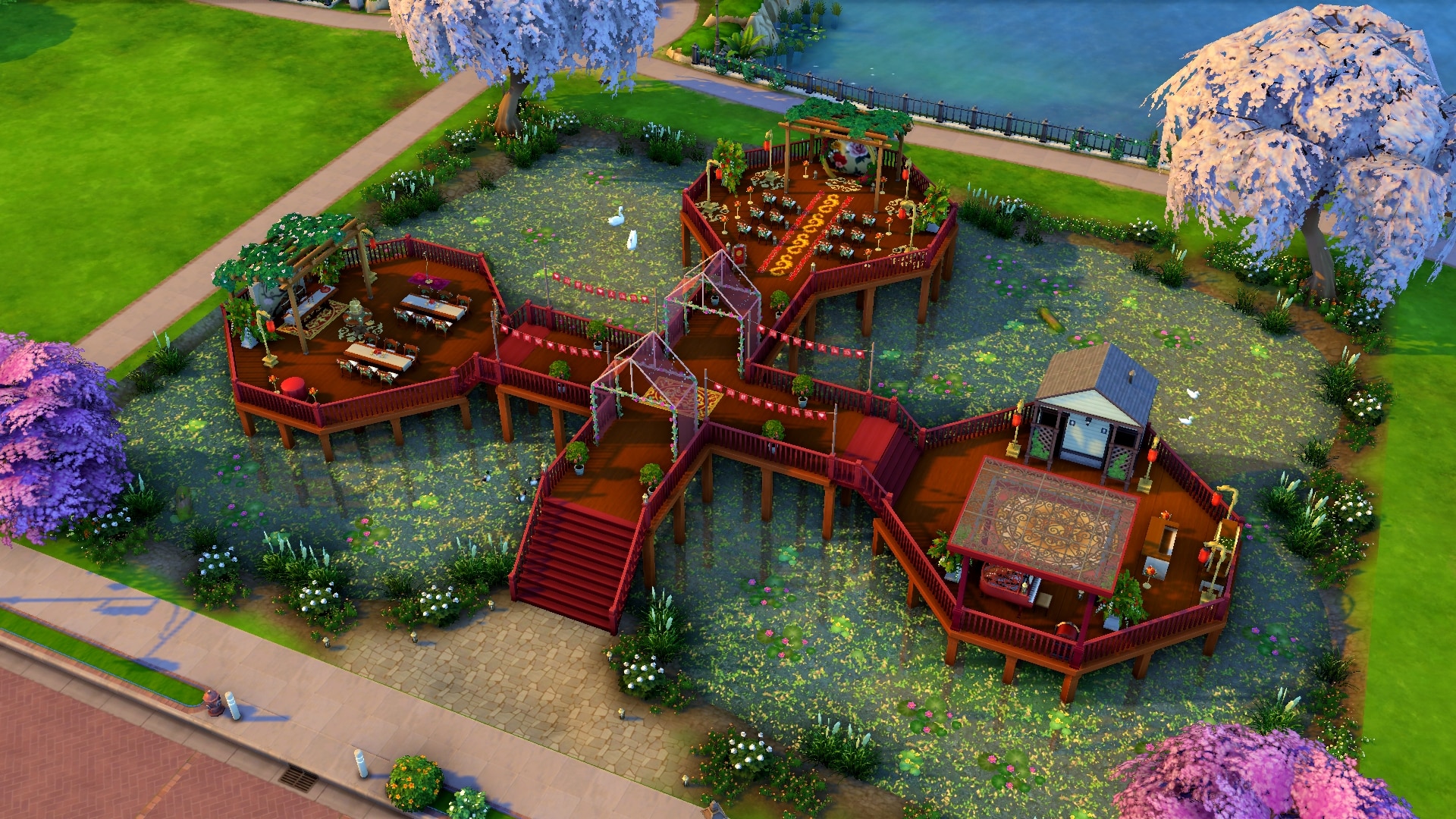
This serene, tranquil wedding venue sits on a two-tiered deck overlooking a natural pond brimming with picturesque wildlife. Red and gold flowers and décor create a rich, colourful atmosphere to say your vows and three distinct platforms for each portion of your special day create a sense of harmony and unity. This kind of peace and balance is the ideal way to get a lifelong marriage off to the right start.
Lot Info:
Lot Type: Wedding Venue
Price: §67,636
Size: 50×40
Beds: 0
Baths: 1
Lot Traits: Convivial
Packs Used: Get Famous, My Wedding Stories
Your Story Starter Kit is waiting for you! Get The Household and The Lot by downloading them from the official Gallery Website linked on the buttons below. Or, follow SnarkyWitch in the Gallery and look for Backseat Wedding Planners and In Perfect Unity!
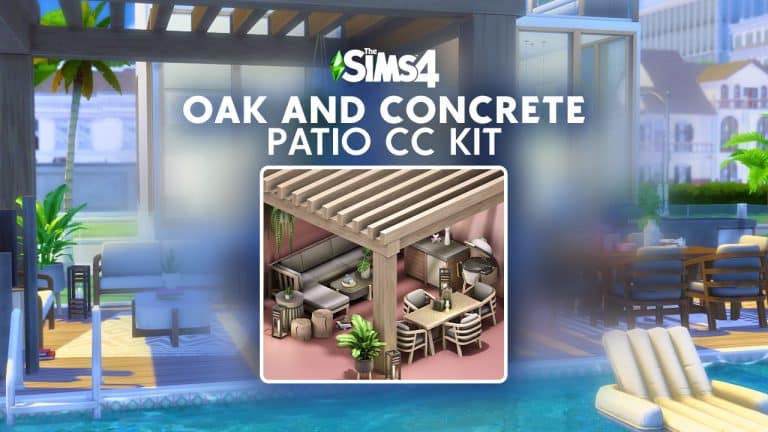
Today we’re showcasing a new CC patio set for your Sims’ homes! Or any lot type, in fact! The Oak and Concrete Patio Kit was created by S-imagination and comes with a total of 26 objects to add a trendy industrial look to your patios.
What really stood out to us about this kit is that all items are base game compatible, including the heat lamp and sectional sofa! Players who don’t own Dine Out or Dream Home Decorator can still download and enjoy the heat lamp and sectional seating that comes with this CC patio kit.
6
4 1
As the title suggests, the Oak and Concrete Patio Kit is a collection of patio furnishings made from oak and concrete. There are many different swatches to customise the shade of both the wood and concrete of all the objects and there is lots of trendy décor to supplement the furniture. There are a wide variety of different plants, candles, sculptures, and other clutter, such as magazines with a wide-brimmed hat on top of them and a pitcher serving set.
As you can see from the photos taken by S-imagination, there are a lot of ways to use these items to decorate the perfect patio for your Sims! You can download the set for free from S-imagination’s Patreon by clicking the download button below!
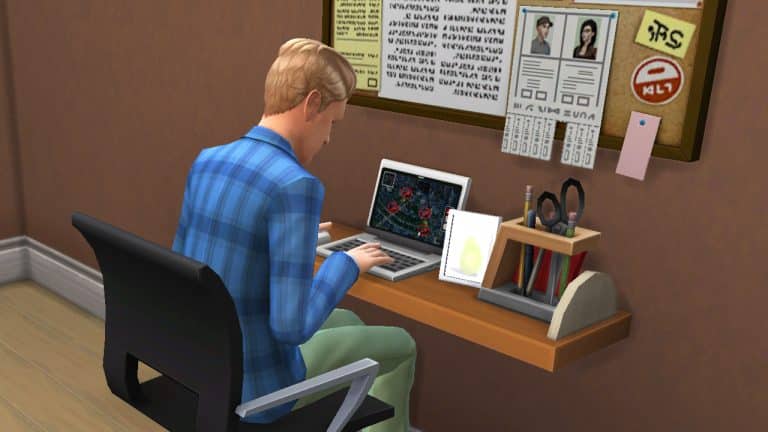
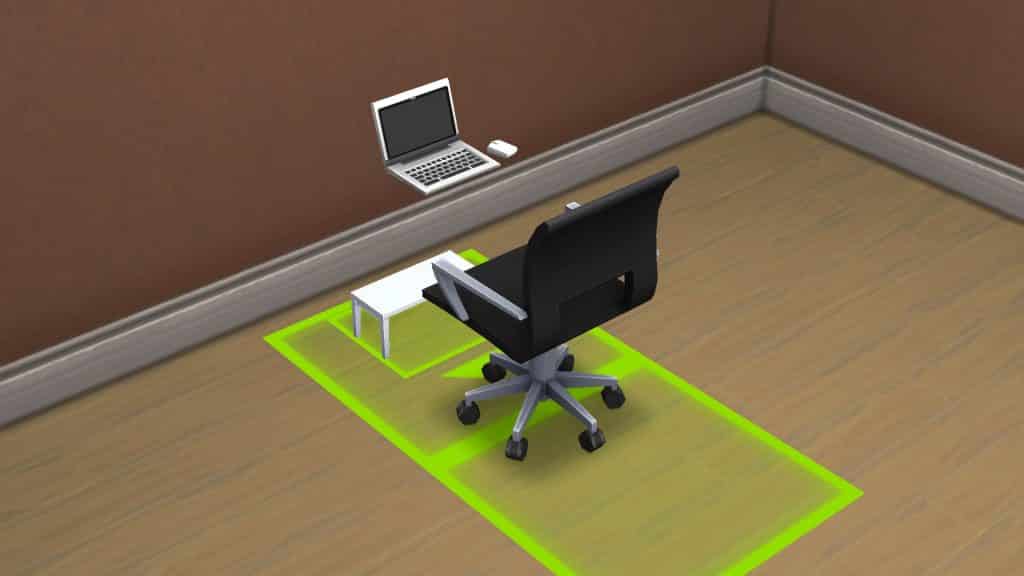
Hi Simmers! I’m here today with a bite sized mini-tutorial for you today that’s going to walk you through how to build your own custom desk setup using some build cheats and shelves. This setup is completely functional and requires no custom content or mods. You can use any combination of computer/chair/desk/shelving you like but I’ll be using base game objects to show that this can be done with just the base game.
For console players, you can safely use these build cheats without disabling your trophies/achievements.
To start, find a desk, desk chair, and computer you like and place them against a wall, snapping the computer and chair to the desk like normal.
Enter the cheat bb.moveobjects on
Select the desk and press the [ key to size the desk down to its smallest size. For consoles, press both triggers and left on the d-pad.
Choose a wall shelf you like and press Alt while placing to match it to the height of the computer. For consoles, toggle between full tile, half tile, and free placement with L2/LT. You may need to move the original desk forward so the computer rests on the shelf. You can also do this with Alt/LT/L2. Make sure you’re moving the desk, not the chair or computer.
To cover up the small desk underneath, you can either pull it forward to hide it in the wall or size down small cabinets/decor to cover it up. I chose to hide it in the wall.
Decorate the rest of the shelf and surrounding area however you like! You now have a custom desk setup that looks unique and saves some space.
This setup is functional but has a small catch; you need to tell your Sim to sit first, then use the computer.
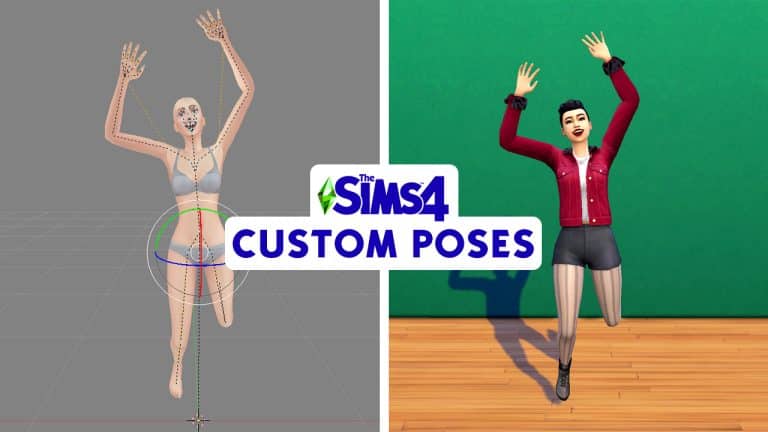
Bring your unique vision to life by making your own custom poses!
Have you ever wanted to learn how to make your own custom poses for The Sims 4? Today, I’m going to show you how to make a simple pose for a single Sim. Making single Sim poses is a good way to get started before you start tackling more complicated poses with multiple Sims. This tutorial should be relatively easy for a beginner to follow but I still recommend taking some time to familiarize yourself with the basic controls of all the programs we’ll be using, first.
I’m going to give a brief rundown of some of the more common Blender controls you’ll be using but this isn’t an exhaustive list of tools by any means. It’s just enough to let you follow along with the tutorial.
HotKeys
A – Select/deselect all points
CTRL+4/6/2/8(Numpad) – Pan left, right, down, and up
Hold Scroll Wheel + Move Mouse – Rotate the view angle freely
Right Click – Select a single point
SHIFT+ Right Click – Select multiple points
Right Click + Drag – Freely move a point in any direction
Right Click + G – Allows you to freely move a point just by moving the mouse. Ideal for facial expressions.
CTRL+Z – Undoes the last action. Can be used again and again to undo the last several actions.
Tools
Move – Moves the selected points along a horizontal or vertical axis
Rotate – Rotates the selected points
Pivot Centre – You will pretty much always be using either Median Point or Individual Origins. For the purpose of this tutorial, always have the pivot centre set to Median Point unless I instruct you to switch to Individual Origins.
Object Interaction Mode – Always make sure this is set to Pose Mode. The only time you’d use Object Mode while making poses is when saving group poses. We won’t be going over that in this tutorial.
If all that looks like mumbo jumbo to you, don’t worry! It will begin to make more sense as you go through the rest of the tutorial. Just keep these hotkeys and tools in mind and refer back to them whenever you need to.
Posing the Body
Open up your EA rig you downloaded in Blender. We’ll be using an adult female rig but you can use an adult male rig if you like. There’s not much difference between the two.
Now it’s all up to you and how you want to pose your Sim. I’m going to make this Sim jumping in the air excitedly waving both arms. You can pose your Sim however you like but I recommend something simple to start with. To pose your Sim, you will be selecting different points on the rig (the dots connecting the dashed lines) and either using the Move or Rotate tools to move them to the position you want. Generally speaking, you’ll be using the Rotate tool much more often than the Move tool. The Move tool is good for moving the entire rig up, down, or side to side. The Rotate tool is what will move the individual limbs.
Screenshot 1999
Screenshot 2000
To rotate a point, select the point with the Rotate tool selected. Then click on the blue, red, or green circles to rotate it in that direction. To move a point, select the point with the Move tool selected and drag it along the red, blue, or green lines.
To move the entire rig, make sure all points are selected by hitting A twice before you use the Move tool. To rotate the entire rig, do the same before you use the Rotate tool but make sure your Pivot Point is still set to Median Point. If the Pivot Point is set to Individual Origins, you’ll end up with a contorted, scary looking pretzel Sim.
To freely move a point in any direction outside of the rotation wheel or horizontal/vertical axis, you can select it and then drag it in any direction. This can be useful sometimes but more of a pain than anything else at other times. Still, feel free to play around with it and find what’s easiest for you.
Move points freely in any direction by selecting the point and dragging it
Spend some time playing around with the different points and moving them in different ways (even strange ways that look wonky). You can always hit CTRL+Z to undo a mistake so don’t worry about messing things up. Just explore how the different body parts move and get a feel for rotating limbs in different ways. The more you do this, the more you’ll begin to understand how to move the joints in a way that looks realistic. It’s just time, practice, and experience. You can also look at reference pictures online and study how each individual muscle moves to create that position. You’ll find that even a simple wave utilizes much more than just the arm muscles. In fact, the entire body shifts to make such a movement. You’ll need to practice how to replicate this in Blender by rotating multiple parts of the body.
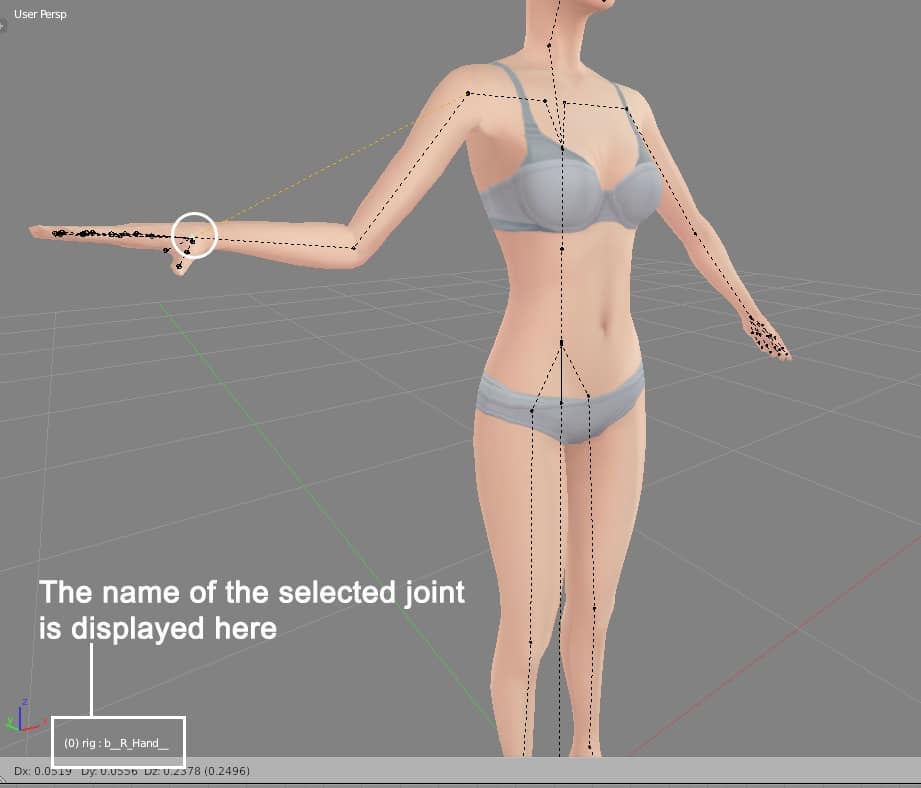
You’ll notice as you select different points, you’ll see the name of it in the bottom left corner of the view screen. This is a good way to tell which part of the body you have selected, especially when you’re selecting points in a tight area with a lot of other points nearby, like the hands or head.
To create my pose, I selected all points, then used the Move tool to raise the Sim slightly in the air. Then I used the Rotate tool wherever I wanted to rotate a limb until I had my Sim in the position that I wanted. Notice how I’ve made many adjustments to different parts of the body, not just the arms and legs. The Sim is leaning back slightly. I did this by rotating the spine points. She also has her shoulders raised. I did this by rotating the clavicle points. Her body leans to one side slightly and her head is tilted a bit, too. All of these smaller micro-adjustments are what will make your pose look lifelike and not stiff or robotic.
Creating the Facial Expression
Chances are, you’ll want your Sim to have some kind of expression on their face so they don’t look like an emotionless robot. The good news is facial expressions are (mostly) much more simple than posing the rest of the body. This is because a lot of it can be done by freely moving the face points with Right Click + G.
The best areas to use the G shortcut are the lips, eyebrows, and the squint points (located on each cheek). Select the point by right clicking, then hit G to freely move it any way you want just by moving your mouse around. You can make your Sim look happy, sad, angry, surprised, scared, etc, just by moving the lips, squint points, and eyebrows.
But what if you want to open your Sim’s mouth or close their eyes or have them looking in a different direction? You can do all of that, too, just with some different tools.
To open your Sim’s mouth, find the jaw point located in the back of the head and use the Rotate tool to rotate it to an open position.
To open or close the eyelids, first make sure your pivot point is set to Individual Origins. Then search for “lid” in the scene panel, as shown in the image below. Select b_L_UpLid and b_R_UpLid (left and right upper lids) simultaneously by holding SHIFT while right-clicking. Then move your mouse curser back to the view panel (where your Sim is) and press R twice. Then just drag the eyelids down to close the eyes and left-click to confirm. To make a Sim wink, do the same thing with just one eyelid selected.
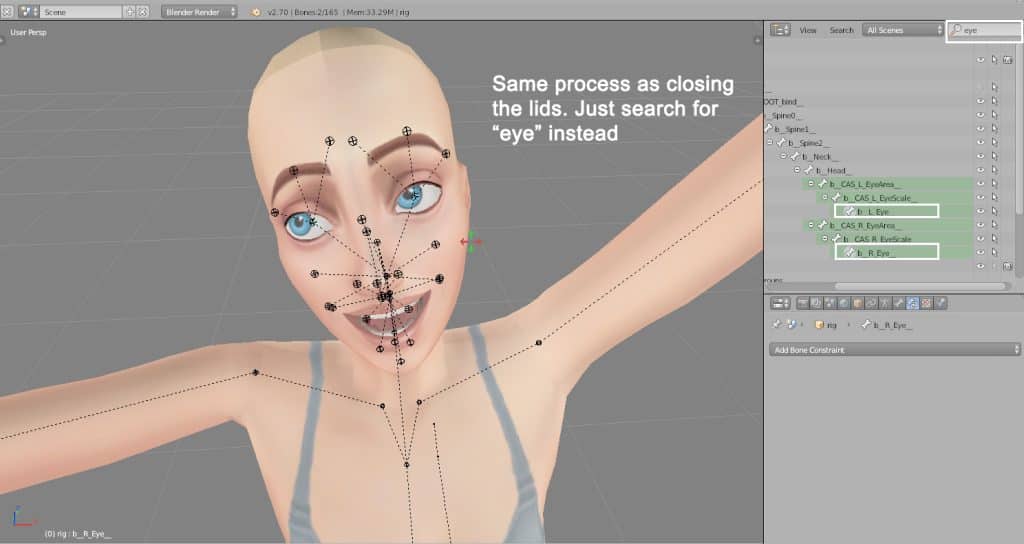
To change the direction of the eyeballs, first make sure your pivot point is set to Individual Origins. Then search for “eye” in the scene panel. Select b_L_Eye and b_R_Eye (left and right eyes) simultaneously by holding SHIFT while right-clicking. Then move your mouse curser back to the view panel and press R twice. Then just drag the eyes to whatever position you want and left-click to confirm.
Finalizing Your Pose
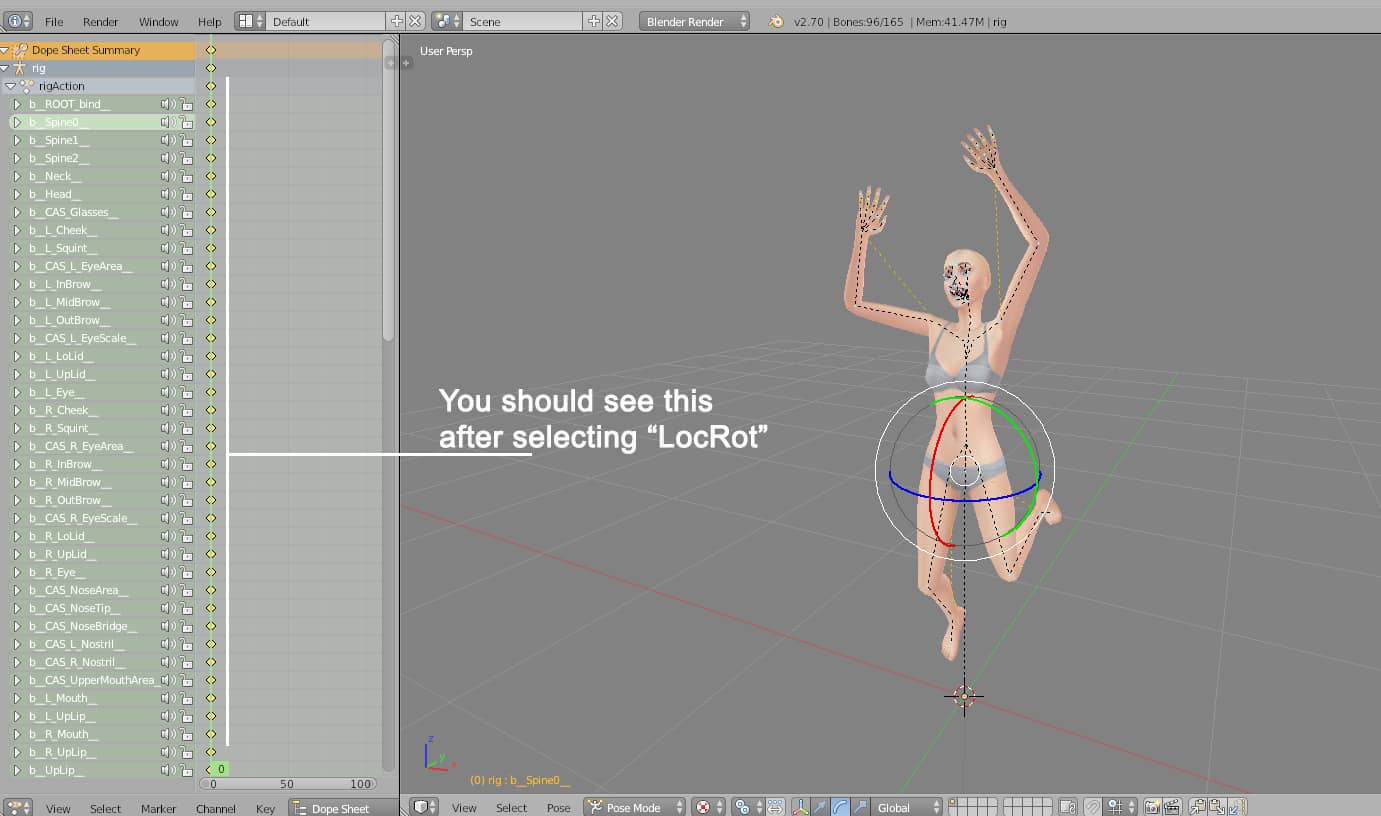
When you’re satisfied with the pose you’ve created, hit A twice to select all points, then hit I (not L) and select LocRot. This will lock all the joints in place. You should see a long list of joint names highlighted in green show up in the left hand panel when you do this. If nothing shows up or if only a few joint names show up, you did not lock the joints correctly. Try again by making sure all points are selected before you LocRot the joints.
Screenshot 1982
Screenshot 1983
After locking in the joint rotations, save it as a .blend file anywhere you can easily find it on your computer. Then close Blender and open up Sims 4 Studio.
Enter your creator name and choose Animation > Clip Pack. Name the .package file something easily recognisable and save it to your Mods folder. Once you’ve named and saved the .package file, the clip pack screen will open up for you to edit. In the Pose Pack tab, enter the name and description of your pose pack in the provided fields. I’m working on a waving pose pack so I put in those details.
Switch to the Clips tab and hit Import at the bottom. Find the pose you just made and import that. The name should change from Blank Clip to whatever you named your .blend file when you saved it. Then hit Save! It’s time to test your pose!
Screenshot 1987
Screenshot 1989
Close Sims 4 Studio and open up The Sims 4. I will assume you already know how to use poses if you are learning how to create your own so I won’t go over how to use Pose Player or the Teleporter here. Teleport a Sim where you want them to pose and find your pose pack you just created in Pose Player.
If your Sim does the pose properly, congratulations! You made your first custom pose! Make sure to take a screenshot for the thumbnail. If the Sim did not pose correctly, open your .blend file again and make sure you locked all the joints correctly and that you were in Pose Mode when you made the pose.
The Finishing Touch
All that’s left to do is create the thumbnail! To do that, open up the picture you took in-game of your pose and open it in any photo editor you like. I’m using Photoshop CS6 but whatever you want to use is fine as long as it can crop and resize images.
Pose thumbnails must be 64×64 pixels and a .png image file. Crop your screenshot with a 1:1 ratio (a perfect square), then resize it to 64×64 pixels. I also recommend sharpening the image a little before saving. Save it and open up your pose pack again in Sims 4 Studio.
On the Clips tab, hit Import next to the blank thumbnail and select your thumbnail you just saved. If you have multiple poses in your pose pack, you’ll need to make individual thumbnails for each of them and import them into each clip.
Screenshot 1992
Screenshot 1994
When you are finished adding thumbnails to your individual poses, pick your favourite thumbnail out of the bunch and import it on the Pose Pack tab. This is the thumbnail for the entire pose pack that people will see when scrolling through their list of pose packs.
More Resources
If you’re more of a visual learner and don’t follow written tutorials well, Katverse has a whole range of pose tutorials on her YouTube channel. She is the Queen of Poses and I actually learned how to make poses by watching her tutorials! She will also teach you how to make poses with more than one Sim, poses with objects and accessories and all kinds of neat tricks to help make posing easier for you. So check out her full playlist on her website!
Although Simmers were thrilled to be able to follow their pregnant Sims to the hospital to give birth on an active lot for the first time in the franchise’s history when Get To Work came out, the actual childbirth process remains rather… cartoonish. Some Simmers might go so far as to say the huge birthing contraption in the game is more terrifying than the real deal!
Now the goofy manner of childbirth makes sense given the game’s efforts to appeal to a younger audience but there are those who feel that realistic childbirth is nothing taboo at all and that kids don’t need to be sheltered from a natural part of life. If you’re a PC player who feels this way, you’ll be very interested to know there is a mod out there to bring a more realistic version of childbirth to The Sims 4.
The Realistic Childbirth mod by PandaSama allows your Sims to give birth naturally as well as deliver via c-section, complete with epidurals, heartwarming moodlets, companion Sims who will join your Sim for the birth, and more!
We’re going to walk you through the whole mod and all its features!
Getting Started
Before anything, you will need to install the mod, first. Make sure script mods are enabled in your game settings, then download and unzip the mod from PandaSama’s Patreon. Place the two files into your Mods folder and make sure it is no more than one subfolder deep inside the Mods folder. And that’s it! The mod is installed! If you are new to mods and CC and need more help, see our article Getting Started with Mods and CC.
The Realistic Childbirth mod requires the Get To Work expansion pack and is currently free for the public to download!
Preparing for Delivery
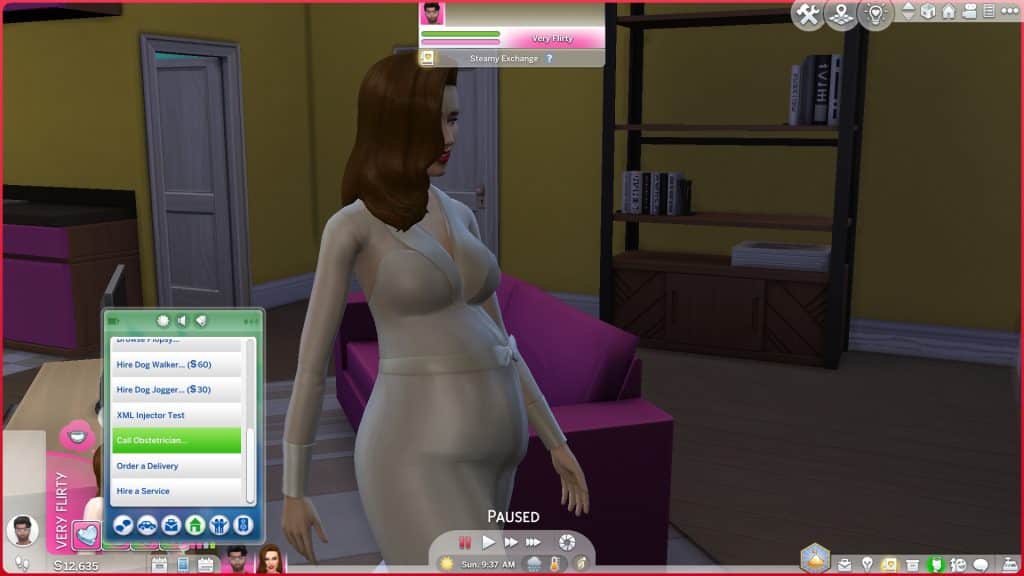
Before your Sim goes into labour, you will have to call your obstetrician and choose what type of birth you would like to have. Call Obstetrician is an option on the Cell Phone under the Household tab.
When you call your obstetrician, you’ll get an information menu going over all the different types of births you can have. Click on any of them to read more about what that birth type will entail. You can back out of it and choose something else if you don’t like the process for that type of birth.
TS4 x64 2022 04 20 14 34 49
TS4 x64 2022 04 20 14 35 26
TS4 x64 2022 04 20 14 35 41
TS4 x64 2022 04 20 14 35 54
There are three different styles of birth your Sims can choose from:
Surgery Table: This is the standard EA childbirth process. You go in, get into that birthing contraption and voila! You have your baby with no fuss or pain or anything.
Natural Birth: This is the old fashioned way of giving birth and just like in real life, the process can take anywhere from a few hours to several days. Your Sim will arrive at the hospital in early labour and will have to wait it out until they’re 10cm dilated. In the meantime, they can take walks and use an exercise ball to try and encourage active labour to start sooner.
C-Section: The c-section option is great if you want a realistic birth experience but don’t want to spend days at the hospital. Your Sim will arrive at the hospital, receive an epidural, and as soon as it kicks in, they’ll be prepped to have their baby surgically delivered.
If you change your mind later, you can always call your obstetrician again anytime before labour starts to change your preferred childbirth method.
If you would like someone to accompany your Sim when they give birth, you can ask any Sim that your Sim is close with to be their companion during the birth. That companion will be present during the birth and watch your Sim deliver the baby.
Natural Birth
If you selected natural birth as your preferred birthing method, you will receive a little notification to greet you when you arrive at the hospital which explains that you will give birth once you’re 10cm dilated. This may take a couple hours or several days; your Sim and their companion (if they chose to have one at the birth) will just need to be patient and wait things out.
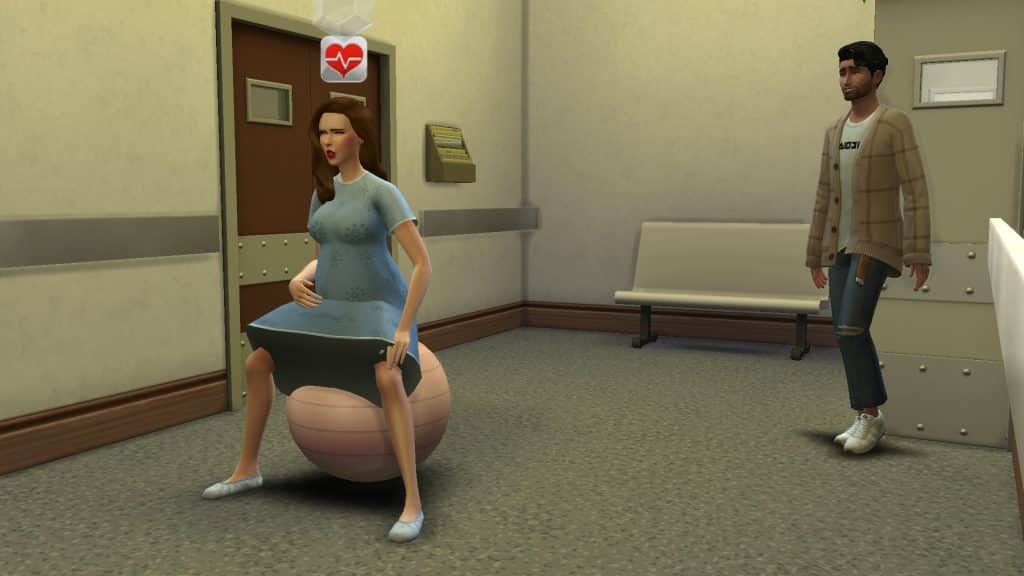
While your Sim is waiting out the early labour process, there are a couple things they can do to encourage active labour to start sooner. They can take a walk around the hospital, or they can do pre-birthing exercises on a yoga ball to try and speed things along. To have a yoga ball at the hospital to exercise with, you will need to enter the cheat bb.enablefreebuild at the hospital and select the CC yoga ball that comes with this mod from the hospital items menu in Build/Buy. Place it anywhere in the hospital and have your pregnant Sim exercise with it. The yoga ball comes with its own custom animations.
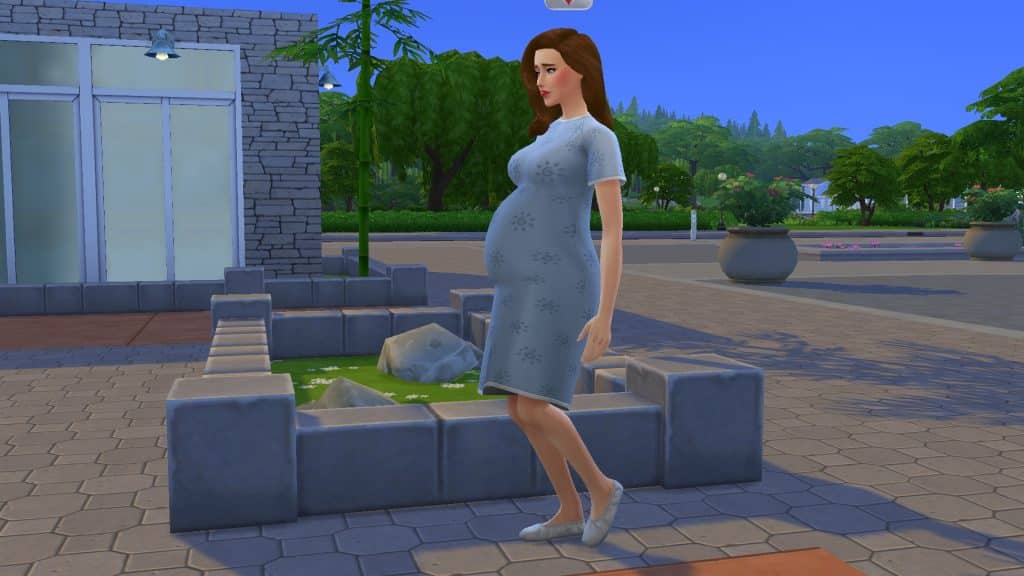
To take a walk, simply click on your pregnant Sim and select Take A Walk. They will walk around the inside and outside of the hospital for a while. Even when doing these activities, it can still take quite a long time for your Sim to be fully dilated and give birth. Our Sim was there for over 24 in-game hours in total but some natural births can take even longer.
During the early labour process, your Sim’s water may break, leaving a puddle on the ground and an uncomfortable moodlet that lasts for a few hours. At around 6cm dilated, they will get a moodlet saying that the contractions are getting closer together and more intense. The moodlet advises that now would be a good time to ask for an epidural if your Sim plans to have one.
TS4 x64 2022 04 20 15 01 40
TS4 x64 2022 04 20 14 44 45
TS4 x64 2022 04 20 15 05 51
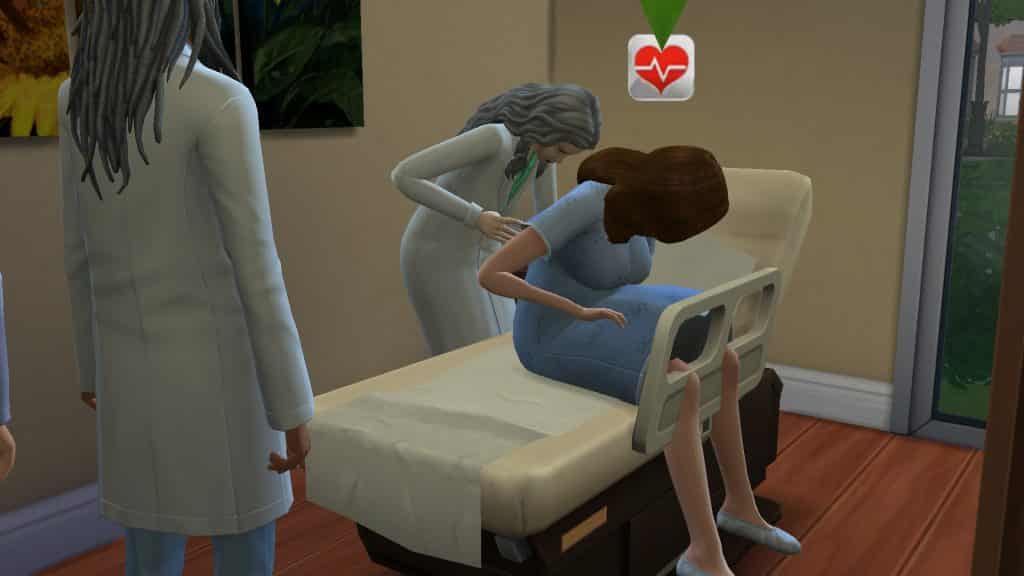
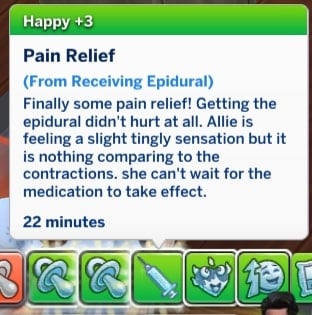
Your Sim does not need to get an epidural but they can choose to receive one for pain relief. To receive an epidural, click on an exam bed and choose Ask for Epidural, then select the doctor that you would like to have administer the epidural. Beware! The epidural does not always take properly! Sometimes it doesn’t fully set in and your Sim only becomes numb on one side but still feeling pain. Yep, this an another highly realistic aspect of this mod. When this happens, you can click on the exam bed again to ask to have the epidural redone but that’s no guarantee the second one will work, either. When the epidural does go smoothly, your Sim will get a strong happy moodlet talking about the pain relief.
TS4 x64 2022 04 20 14 14 58
TS4 x64 2022 04 20 14 16 55
At any time during the early labour process, you can also click on an exam bed to have your Sim’s dilation checked. A doctor will come over to see how far your Sim is dilated and you’ll receive a notification informing you how many centimetres your Sim is dilated.
At 9cm dilated, your Sim will get a very strong uncomfortable moodlet talking about unbearable pain (if they did not get an epidural or if their epidural didn’t set in correctly). You can continue to walk around and use the exercise ball to get to 10cm sooner. At 10cm dilated, your Sim is finally ready to give birth! Click on any doctor in the hospital and select Give Birth.
TS4 x64 2022 04 20 15 16 21
TS4 x64 2022 04 20 15 19 44
Your Sim and their companion will make their way over to the Get To Work surgery table in the operating room. If your Sim floats awkwardly in the air above it for a moment, don’t worry! The surgery table is about to magically transform into a birthing bed! Neat! Once the doctor and companion are both with the pregnant Sim in the delivery room, your Sim will start pushing with encouragement from both the doctor and their companion if they chose to have one.
The actual delivery won’t take longer than an hour or two. When the baby is born, you’ll be prompted to name the new family member and the doctor will give the baby to the new parent for skin-on-skin contact. Both the Sim who delivered and the companion will receive powerful happy moodlets from the birth.
TS4 x64 2022 04 20 15 20 42
TS4 x64 2022 04 20 15 22 22
C-Section
If you chose to have a C-section delivery, you’ll have a much quicker and smoother experience at the hospital. When your Sim arrives at the hospital with their (optional) companion, you’ll get a little notification welcoming you to the hospital and instructing you on how to proceed with the delivery.
Unlike the natural birth option, there’s no need to wait for your Sim to be 10cm dilated. As soon as you arrive at the hospital, click on any exam bed to ask for an epidural. A doctor will come over and administer one. Then just lie back and wait for the epidural to kick in. It won’t take any longer than a few minutes to take full effect. You’ll be informed when the epidural has taken effect via your Sim’s moodlets.
TS4 x64 2022 04 20 15 31 25
TS4 x64 2022 04 20 15 31 55
Once the epidural has kicked in, click on the surgery table to have your baby delivered! Your Sim and companion will head over to the surgery table with the doctor and once everyone is in the operating room, a sheet will be put up between the delivering Sim and the doctor and the surgical delivery will start! The companion may feel a bit woozy while watching the procedure but the surgery won’t take long at all and soon enough, the doctor will be removing the baby and giving it to the parents to bond. Both the delivering Sim and the companion will get powerful happy moodlets from the birth.
TS4 x64 2022 04 20 15 33 05
TS4 x64 2022 04 20 15 34 28
TS4 x64 2022 04 20 15 33 34
TS4 x64 2022 04 20 15 34 46
TS4 x64 2022 04 20 15 35 26
Other Info
There’s no need to select your birthing method and companion again for every pregnancy. The companion and birthing method you initially chose for your Sim’s first pregnancy will be remembered by default. However, you can still call the obstetrician again to change the birthing method for future pregnancies. You can also ask your initial companion to not be involved in future births and ask a different Sim, instead.
If your Sim and their companion do not live together, your Sim can call them and ask them to come to the hospital for the delivery. Just click the Social option on your Sim when they are at the hospital and choose which Sim you’d like them to call.
When a Sim gives birth to twins or triplets, only the first baby to be born will be given to the parents for skin-on-skin contact but rest assured, the other little ones will be waiting for your Sims at home, happy and healthy as can be!
Sims will gain a significant amount of weight after giving birth. Hey, you said you wanted a realistic birth experience, didn’t you? Well, you got it!
Make sure you do not have any CC surgery tables with this mod. They will not work with this mod. You must only use the Get To Work surgery table.
Our Thoughts
We were really impressed with this mod! We understand this level of realism may not be every Simmer’s preference and that’s perfectly fine, but for Simmers who do want that realistic childbirth experience, this is really going to take their gameplay to another level. The animations are very smooth and well-done and we appreciate having different options for different types of births. In the real world, each birth experience is different. The different moodlets Sims can have and the differing efficacy of the epidural really helps to tell that unique story.
We’d love to see home births with midwives and water births added to this mod in the future for even more ways to customize our Sims’ birthing experience but even in its current form, this mod is really well thought-out. We had a great time playing with it and this is definitely staying in my Mods folder for good. I honestly don’t think I could go back to those weird Maxis births after experiencing this mod. I’m so much more emotionally invested in the whole childbirth process.