Home Blog Page 178

The Sims Community Challenge: October Showcase

Welcome to a spooky edition of The Sims Community Challenge Showcase!

With Halloween fast approaching, we tasked the community with creating their best spooky screenshot, and we were not disappointed!

Click here to take a look at what was involved for the October challenge otherwise, you can jump straight in and take a look at all the spooktacular screenshots below!

To enlarge a screenshot, simply click on the image of your choice!

Thank you to everyone who shared their spooky Sims for our October Challenge. Stay tuned as our November Challenge is right around the corner!

Don’t forget to join in the conversation over on our Discord, where you will also find a variety of Build and Create A Sim Challenges throughout the week alongside our monthly Sims Community Challenge!

Click the button below to join The Sims Community Discord 

[mks_button size=”large” title=”Sims Community Discord” style=”squared” url=”https://discord.gg/6kRVv4h2je” target=”_blank” bg_color=”#4e62ac” txt_color=”#FFFFFF” icon=”” icon_type=”” nofollow=”0″]

The Sims 4 Official Livestream: Inside Maxis (October 26th, 2021)

0

The Sims Team is doing an official Inside Maxis Livestream today – October 26th, 2021!

As you can see in the agenda below, the team will be covering multiple segments during the stream, including special appearances from Creators, Hot Topics and a Sneak Peek at what’s to come in the upcoming update for The Sims 4!

The Sims 4 Official Livestream: Inside Maxis (October 26th, 2021)

The livestream is set to begin at 11AM Pacific Time. To make things easier we’ve included a countdown below that counts to the exact moment to the beginning of this stream!

You can find the official livestream right below the countdown. We’ll also be covering all the information shared from the stream right here on Sims Community so stay tuned!

[janky target_time=”1635271200″ color=”#065bff”]

new Twitch.Player(“twitch-embed”, {
channel: “thesims”
});

The Sims 4: Haunted House Showcase

Beware of things that go bump in the night!

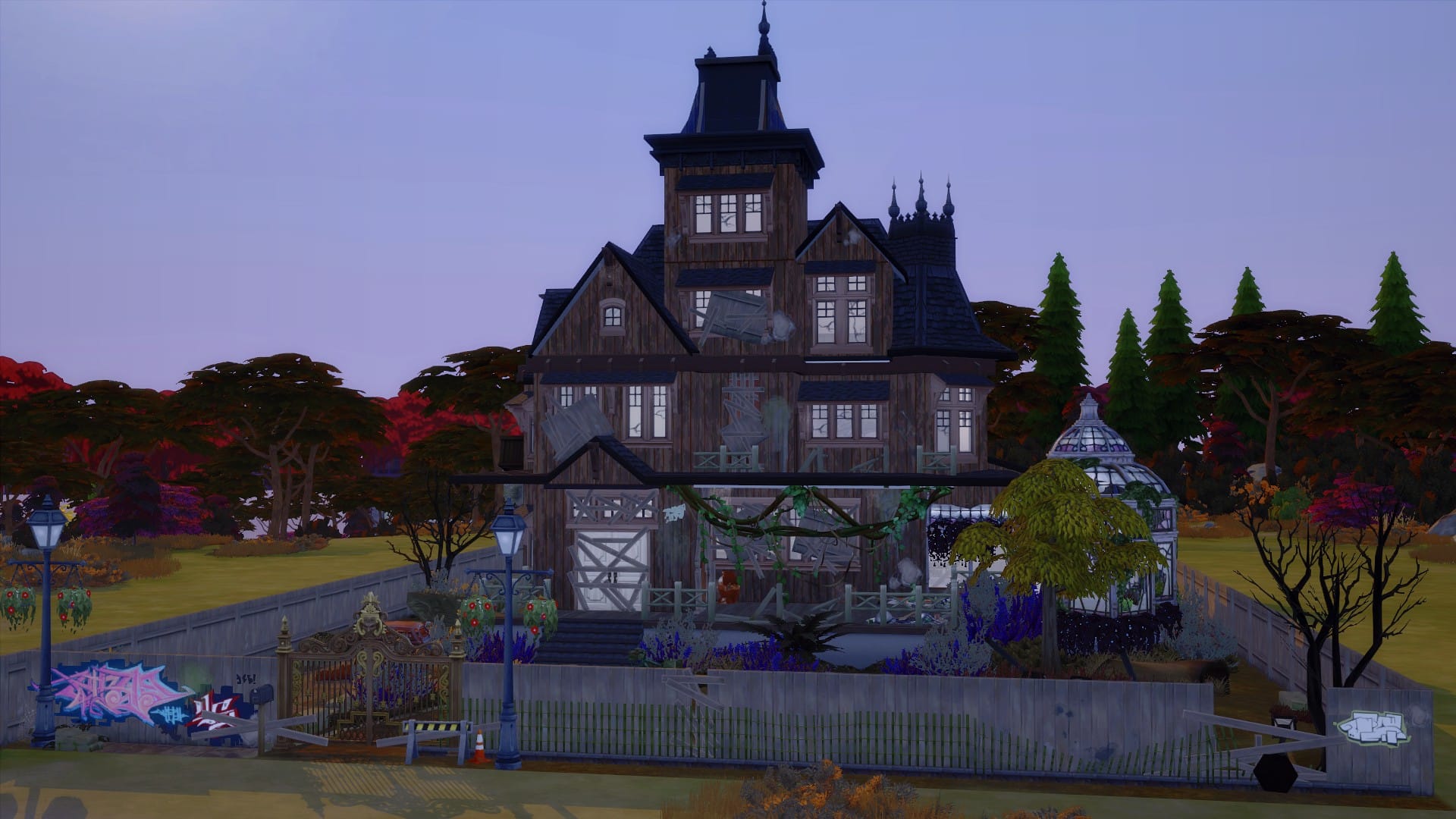
Halloween is creeping up fast, and what better way to prepare your Sims then adding a Haunted House to your game? Whether your Sims are just going Trick or Treating or actually living in the Haunted House, here are five spooktacular builds you can download from The Gallery right now!

Gothic Haunted House by Bonnibelle_Blue

The Sims 4: Haunted House Showcase

  • Lot Size: 30×30
  • Lot Value: $375,554
  • 3 Bedrooms, 3 Bathrooms
  • Click here to download from The Gallery

Halloween Haunted House by Solistra00

The Sims 4: Haunted House Showcase

  • Lot Size: 40×30
  • Lot Value: $209,574
  • 2 Bedrooms, 2 Bathrooms
  • Click here to download from The Gallery

Abandoned Haunted House by SimmerJet

The Sims 4: Haunted House Showcase

  • Lot Size: 40×30
  • Lot Value: $66,869
  • 3 Bedrooms, 2 Bathrooms
  • Click here to download from The Gallery

Head over to the next page for more haunted houses!

The Sims 4: Eloping in a Destination World

0

Are you tired of planning elaborate weddings in The Sims 4? Are you done with spending hours planning outfits and decorating and hiring caterers and entertainers just to have all the guests dancing in the aisle during the vows and the hired staff stand around doing nothing for the entire event? Yeah, me too. Weddings in The Sims 4 kind of… suck, to put it bluntly.

Of course, you could always just have your Sims elope immediately wherever they happen to be standing in whatever clothes they’re in. No event planning, no hassle. Just boom! Married! But that’s always felt a little anticlimactic to me. It doesn’t feel very special or romantic to exchange a pair of rings in a flooded bathroom in your underwear. Just saying.

I wanted a no-stress, no-hassle wedding for my Sims that still felt special and romantic. That’s when it hit me; a destination wedding!

The Sims 4: Eloping in a Destination World

While we cannot hold a wedding social event while on vacation, our Sims can elope anywhere. Wouldn’t it be romantic to run off somewhere secluded on a trip and tie the knot in secret? Well, that’s exactly what my Sims did! It was super easy and stress-free with no annoyingly useless staff or rude guests. Just my Sims saying their vows somewhere idyllic and peaceful. I was able to have the romantic and special moment I wanted for my Sims without all of the hassle of a big formal event, which was perfect for these two.

The Sims 4: Eloping in a Destination World

Getting things started was as easy as booking a vacation. I opted to take a short trip to Granite Falls where my Sims rented a cozy and romantic honeymoon cabin. If you’d like to read about how I built the cabin, check out my other article, Let’s Build a Romantic Getaway Cabin.

Once my soon-to-be-married couple arrived at their cute little cabin, the hot tub was the perfect place to get cuddly and put them both in the mood for romance. This wedding was not planned in advance; it was supposed to be just a small weekend trip to alleviate some stress going on at home but one thing leads to another and my Sim gets down on one knee to propose! The proposal is eagerly accepted and still on that vacation high, these two lovers run off into the woods together to get married in secret.

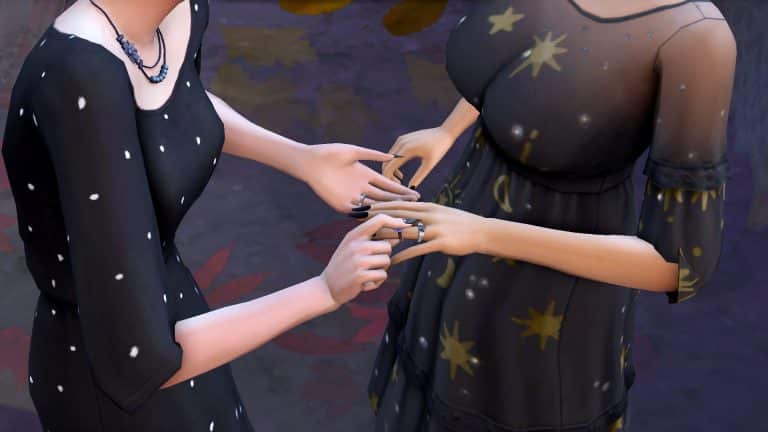
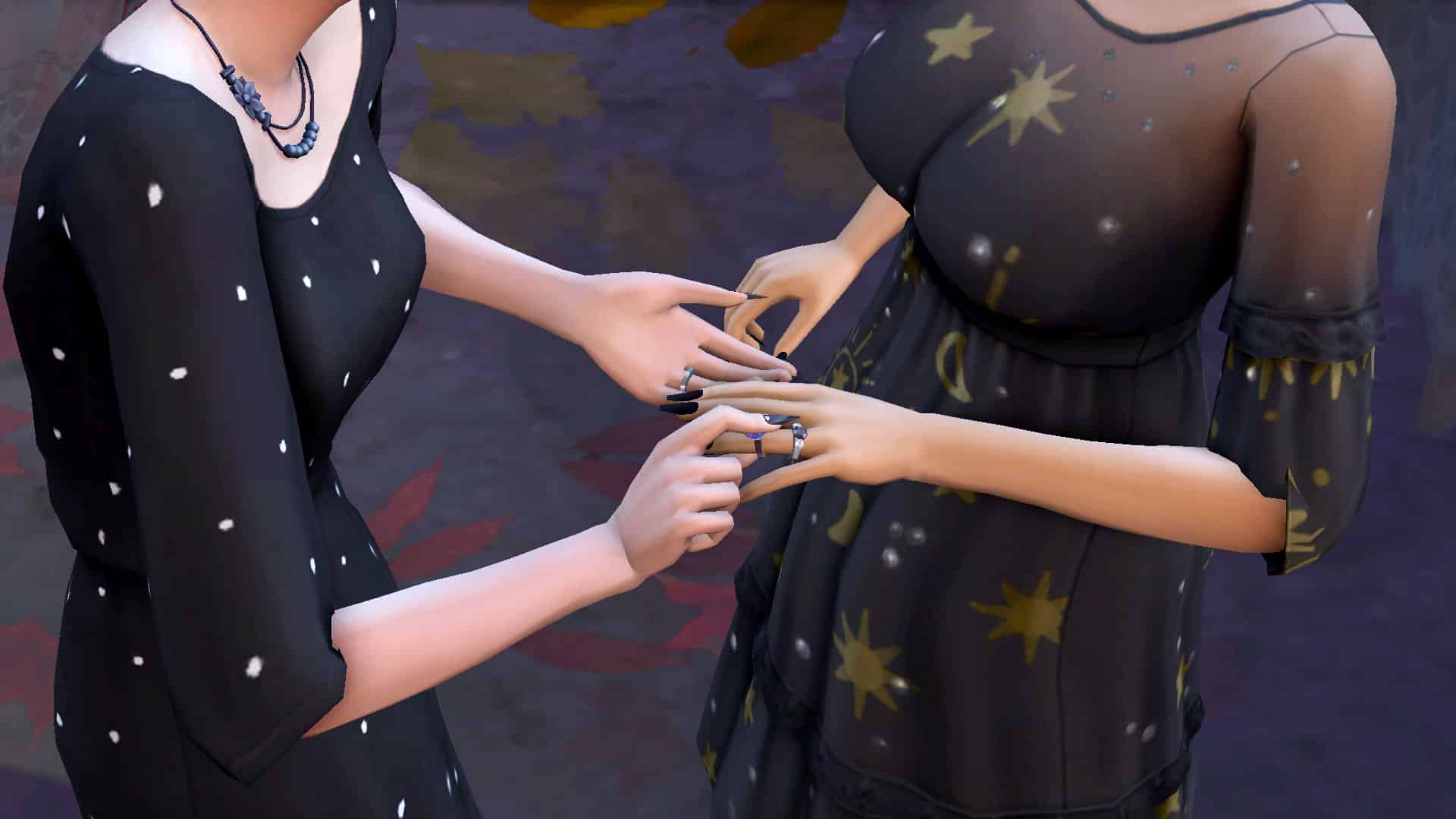
I gave them some flowery veils that I imagine they made from picking wildflowers in Granite Falls and put them in semi-casual dresses they might have already had packed for their trip and sent them deep into the woods where the hermit lives. They picked a beautiful spot by the waterfall at night underneath twinkling stars and that’s where I picked the Elope Immediately option.

The Sims 4: Eloping in a Destination World

It’s amazing what something as simple as a change of location can do to elevate a moment and make it feel more meaningful. It was one of the most intimate, romantic wedding ceremonies I’ve ever held in The Sims and there wasn’t a single wedding guest anywhere. In fact, there wasn’t a single Sim at all in the area except for my two Sims. Just them by a beautiful waterfall underneath the stars and their love for each other. It was truly a special moment. Absolutely perfect in every way and zero stress involved.

Well… perfect apart from a few mosquitos.

The Sims 4: Eloping in a Destination World

So if you’re like me and have grown tired of traditional weddings but still want a special and meaningful ceremony for your Sims, give an impromptu destination wedding a try!


CC Credits

  • Poses by Mystelise and SnarkyWitch
  • Hair by MLys
  • Veils by candycottonchublack swatch added by me but not released as I did not get permission to share it; it was just for my own personal use
  • Cabin Gallery art (no CC) by FruitLoops40
  • Reshade by sunflowersyrup

The Sims 4 Cottage Living Has Been Nominated For A Golden Joystick Award!

The Sims 4 Cottage Living has been nominated for Best Game Expansion in this year’s Golden Joystick Awards! It is nominated alongside DOOM Eternal: The Ancient Gods – Part Two, Super Mario 3D World + Bowser’s Fury, The Outer Worlds: Murder on Eridanos, Ghost of Tsushima: Iki Island Expansion and Final Fantasy 7 Remake: Intergrade – INTERmission.

Voting is open right now and ends on 5th of November 2021!

To find out more about the Golden Joystick Awards and to vote for The Sims 4 Cottage Living, click the image below!

The Sims 4 Cottage Living Has Been Nominated For A Golden Joystick Award!

Click here to vote for the Golden Joystick Awards

The Sims 4: Let’s Build a Romantic Getaway Cabin!

I have a lot of Sims getting married and going on honeymoons lately, so I’ve been on a bit of a romance kick when it comes to my builds. This time, I’ll be showing you how I built a romantic getaway cabin for Granite Falls that’s suitable for a couple to enjoy in all seasons and in any type of weather. I even went way outside of my comfort zone and utilized the terrain tools!

I started by sculpting the terrain in roughly the shape I wanted it. I knew I wanted the cabin to sit on a little hill and have a large back deck with a view of the surrounding forest. It was hard to visualize the exact shape I would need without anything built yet but I just focused on getting some kind of hill formed. No easy task when you rarely ever touch the terrain tools. Once I had a shape I was mostly happy with, I constructed the basic shape of the cabin on top. Then I did some adjusting with the surrounding terrain as needed. I would go back and smooth out or level parts of the terrain frequently as I continued this build to make sure things were situated on it correctly.

The Sims 4: Let’s Build a Romantic Getaway Cabin!

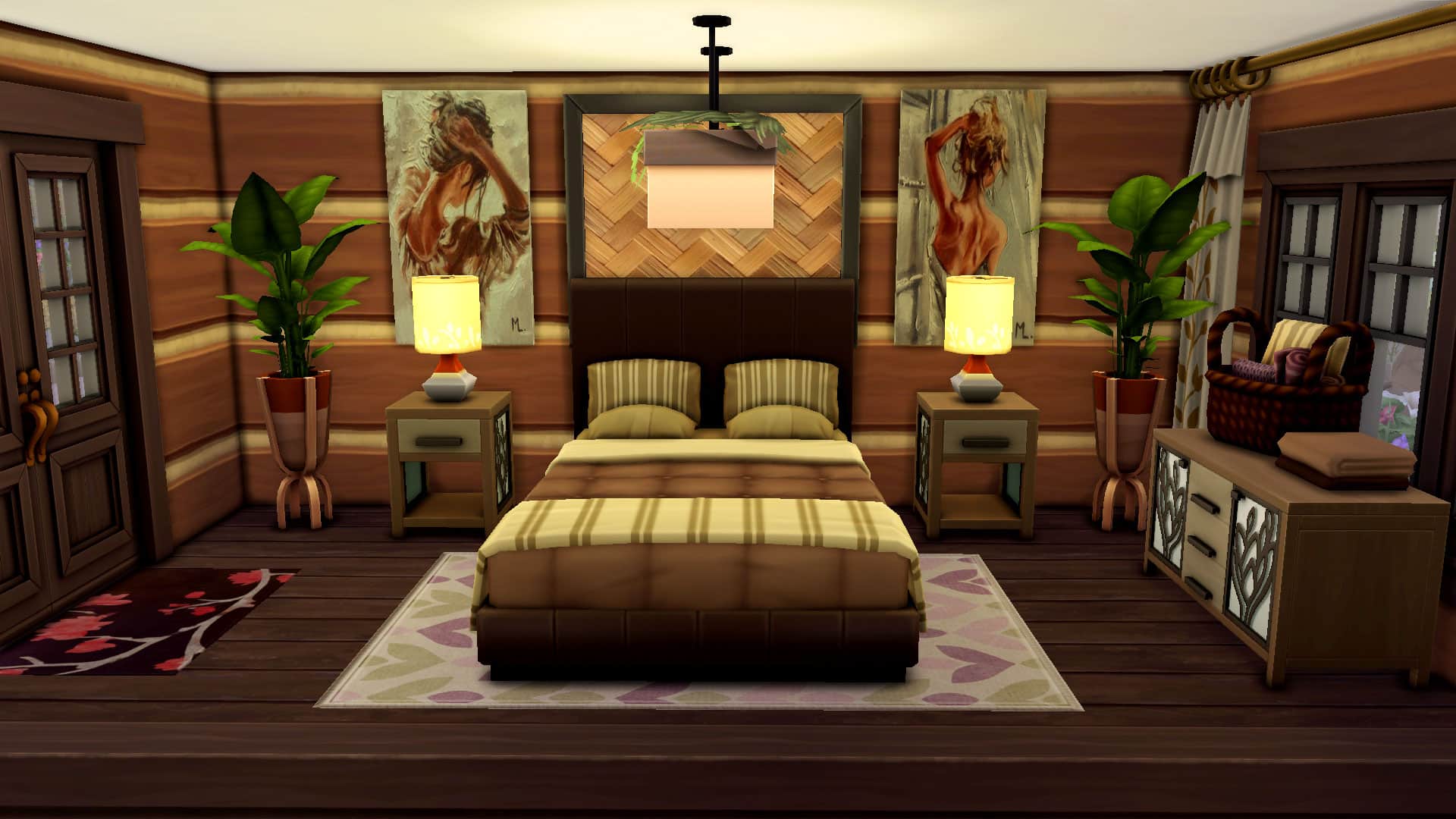
For the cabin itself, I wanted it to be very small and intimate. A cozy and rustic place that wasn’t too fancy but still warm and romantic. You might know from my previous build articles that I’m a big fan of beds on platforms and beds with a second set of pillows against the headboard. I used those features here as well but kept it to a small one-step platform with no headboard embellishments. This isn’t supposed to be a super luxurious build. It should still feel like a woodsy cabin. I used a matching set of nightstands and dresser from Seasons but sized down the dresser once so it wouldn’t look so huge and bulky in such a small space. To add the decor on top, I used the bb.moveobjects on cheat, the Alt key, and the 9 key to raise the objects to the desired height and place them where the dresser would be first. Then I slid the dresser underneath after. Otherwise, they would have snapped to the dresser and float in mid-air since I sized down the dresser. Some cozy rugs, a pine branch ceiling light, and Gallery Art by FruitLoops40 completed the space.

The Sims 4: Let’s Build a Romantic Getaway Cabin!

After doing the bed area, there wasn’t much space left inside for other amenities but that was perfect for me. I wanted this place to be as small and cozy as possible. After squeezing in a tiny but rustic-chic bathroom, I was left with only a small amount of space to fill. I put in a stone fireplace to keep the happy couple warm during Granite Falls’ harsh winter months and put in some loveseats with a tiny coffee table and a rug skewed diagonally for visual appeal. I finished off the space with some Gallery art by roseymow.

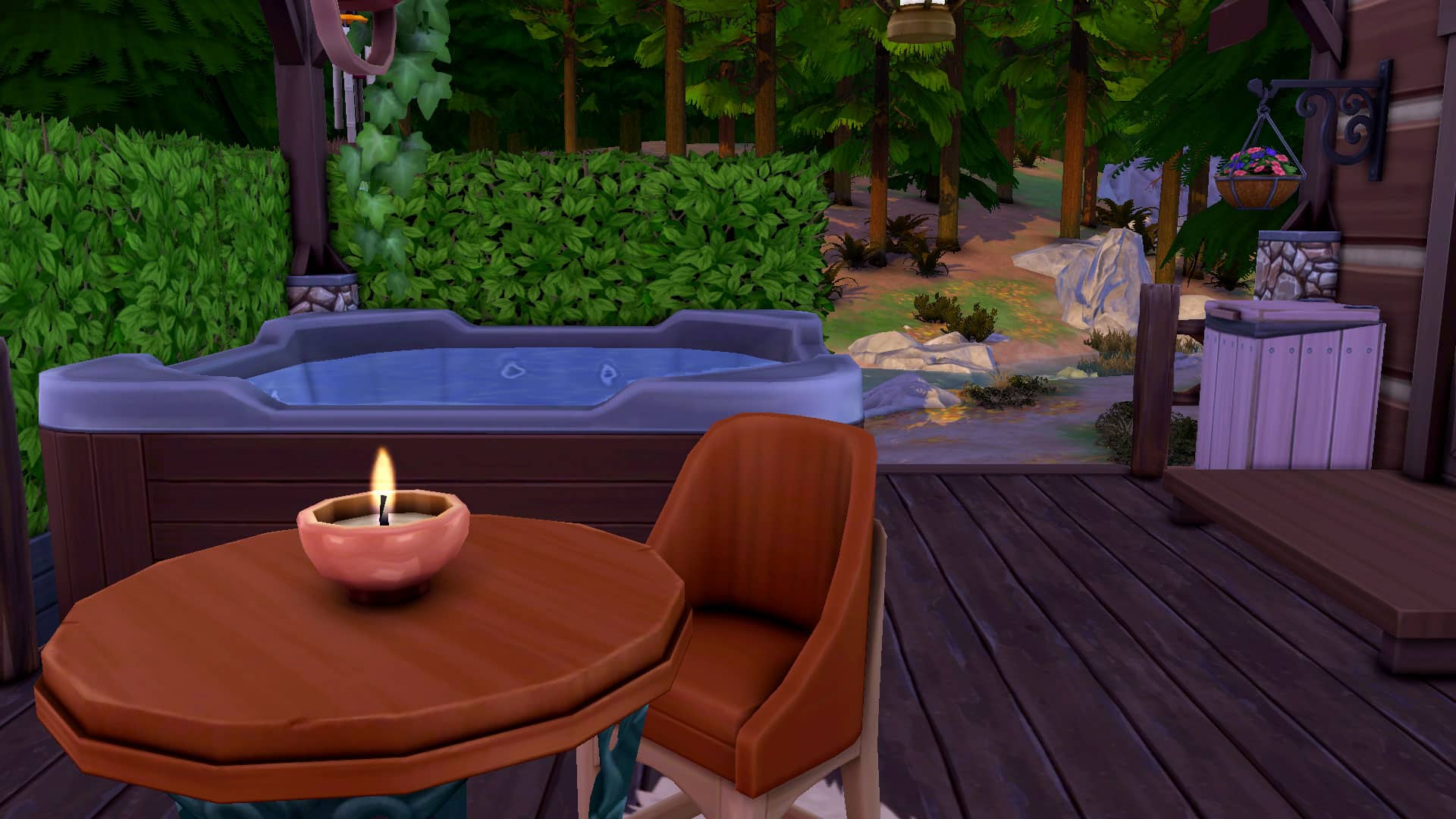
At this point, you might be asking me where on earth the kitchen is. How are Sims supposed to eat in this cabin on vacation? Well, that’s where the large back deck comes into play. I opted for an outdoor kitchen on the back deck to fully enjoy all nature has to offer in Granite Falls. I put in a fridge, sink, and some counter space along with a BBQ so Sims can enjoy the great outdoors while they grill up something delicious. Another reason I wanted a large back deck was because I wanted to have space for a hot tub with decorative privacy hedges. Nothing is more romantic on holiday than enjoying a hot tub on a private deck in the middle of nature. I also put in some seating here for Sims to sit down and enjoy their meal. Since Granite Falls can have some unpredictable weather, I opted to cover the back deck with roofing. I didn’t want rain or snow to stop Sims from being able to enjoy a meal or the hot tub outside.

The Sims 4: Let’s Build a Romantic Getaway Cabin!

While I wanted this cabin to be a place where Sims spent a lot of time indoors or on the deck, Granite Falls is still a camping world. I didn’t want to completely ignore that, so I added a few outdoorsy things in the yard for Sims to enjoy when the weather is nice. A firepit with some seating and a snack cooler, a picnic table complete with picnic basket, and horseshoes are all available on the lot as well.

The Sims 4: Let’s Build a Romantic Getaway Cabin!

Then it was just a matter of adding in all the greenery and painting the terrain. I kept the foliage to Granite Falls plants so it would blend in with the surroundings and added dirt or stone to the ground wherever there was pathing or activities. Then I painted over all the grassy parts with a deeper shade of forest green from the Outdoor Retreat game pack. I took these photos at the tail end of autumn which looks lovely with all the leaves scattered everywhere but in the summer, the yard springs to life with lots of colour and rich green tones.

And my romantic getaway cabin is all ready for Sims to rent out! If you’d like to add this cabin to your own game, it’s called Romantic Cabin Getaway and my Gallery ID is SnarkyWitch! It uses no CC but does make use of a lot of different packs.


Credits:

Cottage Living will be the only Sims 4 Expansion Pack for 2021

7

The initial announcement of The Sims 4 Kits back in March had everyone wondering how is this going to impact the release schedule of future packs. Sure, there’s never been an official schedule of Pack releases for The Sims 4 but over the years players have gotten used to a similar pattern: 2 Expansion Packs, 1-2 Game Packs and 2-3 Stuff Packs.

With the announcement of Kits it’s been confirmed that this new DLC type will have zero impact on the release of other Packs. That of course made many players believe that the pattern of 2 EPs a year that began since 2018 will continue throughout this year. However, it’s just been confirmed by @SimGuruFrost that the current Season of Selves – which brings Sims 4 Content Updates and 4 new Kits, will last until the end of 2021.

That means that Cottage Living will be the only Expansion Pack for this year. That all totals to these DLC numbers for 2021:

  • 1 Expansion Pack
  • 1 Game Pack + Game Pack Refresh
  • 1 Stuff Pack
  • 9 Kits

Of course that’s not the first year for The Sims 4 when we got one Expansion Pack. In 2016 we got City Living and followed next year was Cats & Dogs.

So, did Kits really impact on the number of larger packs for The Sims 4 or is the team trying to focus more on the development of what we currently have? There are still two major content updates planned for The Sims 4 Base Game this year. Personally, I’m just hoping the team is finally delivering some gameplay…

New Inside Maxis Livestream Announced for Next Week!

1

The Sims Team has announced a new Inside Maxis Livestream for next week!

Just like with previous Inside Maxis Livestreams this one will focus on highlighting certain creators, answering some of your top questions regarding the game and oh – announcing something new for The Sims 4!

On their Twitter The Sims Team has shared that they’ll be sharing information about the latest update for The Sims 4.

The livestream is scheduled for October 26th at 11AM Pacific Time. You can check out the full agenda of the livestream below:

New Inside Maxis Livestream Announced for Next Week!

We’ll keep you updated on all the important things from the livestream right here on Sims Community!

The Sims 4: Overview of the Llamazon Instant Shopping Mod

There are lots of different ways to shop in The Sims 4; your Sims can order things from the phone, the computer, or go out to a retail lot to grab what they need. They can purchase from vendors, kiosks, and market tables as well, but have you ever wished you could get everything you needed from one place? Or maybe that specific item you’re looking for is a hassle to find anywhere?

Welcome to Llamazon, your one-stop-shop for anything and everything your Sims could ever want! I’ll be giving an overview of Ravasheen’s new Llamazon instant shopping mod and showing you all of its features. Can we just take a moment to appreciate that all of Ravasheen’s mods have the most adorable punny names? Cool? Cool. Moving on…

Of course, you will have to install the mod, first. You can get it from Ravasheen’s website. The current version is in early access for patrons only but will release to the public on November 6th, 2021. You can also follow Ravasheen on Patreon (no subscription needed to follow Patreon creators) to find out more about other early access mods if you’re interested. If you need help with installing mods, check out our article Getting Started With Mods and CC.

The Sims 4: Overview of the Llamazon Instant Shopping Mod

Once the mod is installed correctly, your Sims are ready to get their brand new Llamazon membership card! To find it, just search “llamazon” in the search field in Build/Buy. It will pop right up. To begin with, you’ll have to drag the Llamazon card onto a wall but once you’re back in Live Mode, the Llamazon card can be dragged into a Sim’s inventory. You can purchase as many Llamazon membership cards as you want. This allows every Sim in the household to have their own Llamazon membership. Yes, even children and toddlers! The only thing I noticed children and toddlers couldn’t buy from the Llamazon cards was fireworks. Which… is probably a good thing if you think about it.

Click on your new Llamazon card to bring up a menu of everything you can buy. There is an almost unfathomable number of things you can buy, ranging from groceries to collectibles. The mod is base game compatible but the more packs you own, the more things you’ll be able to buy. Ravasheen has integrated all currently released packs with this mod. She’s even taken the liberty of sorting everything into subcategories so it’s easy for your Sims to find exactly what they’re looking for. Here’s the full breakdown below:

  • Ingredients & Produce
    • Fruits & Vegetables
    • Ingredients
    • Grocery
  • Gardening
    • Seeds
    • Flowers
    • Fertilizer
  • Collectibles
    • Ancient Artifacts
    • Creature Collectibles
    • Decoration Collectibles
    • Gardening
    • Magic Objects
    • Natural Collectibles
    • Other Collectibles
  • Pets
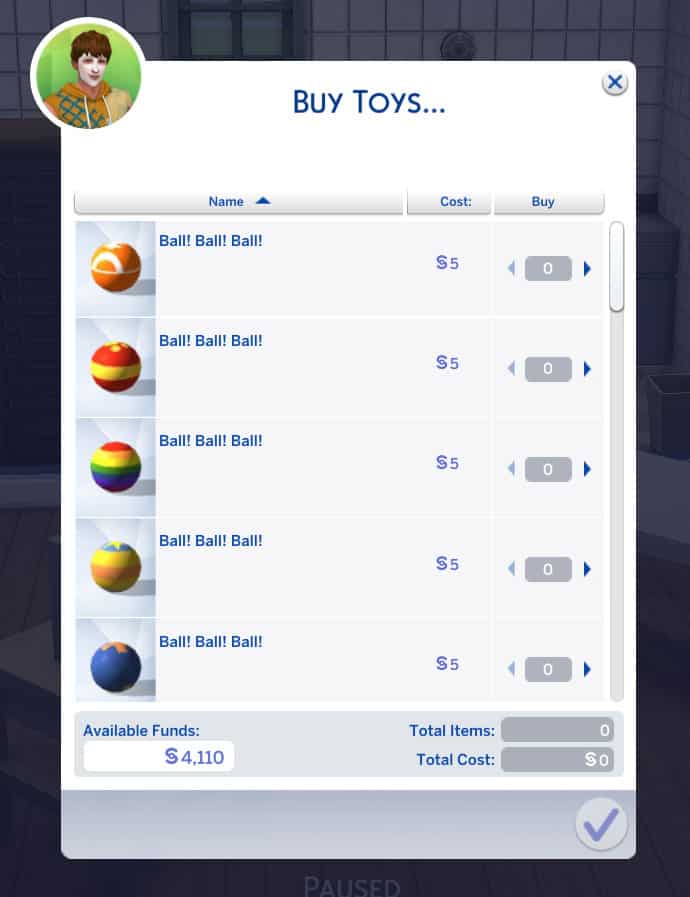
    • Toys
    • Pet Care
  • Entertainment
    • Fireworks
    • Holiday Crackers
    • Books
  • Livestock
    • Feed
    • Animal Clothing
  • Supplies
    • Upgrade Parts
    • Crafting
    • Voodoo Doll
  • Wellness
    • Health
    • Herbalism
    • Facial Masks
    • Plasma Packs

Click on any category to browse through a shopping menu of those items. Once you’ve made your purchase, the items will be immediately added to your Sim’s inventory! No waiting for things to be delivered via the mail or a delivery person. No NPCs. No restrictions at all. It’s as easy as just selecting what you want to buy and boom! Your Sims immediately have it.

The Sims 4: Overview of the Llamazon Instant Shopping Mod

Since the Llamazon cards can be carried around and interacted with inside your Sim’s inventory, you can purchase from Llamazon anywhere your Sims are. There are no lot restrictions and no time restrictions, either. Llamazon is always available 24 hours a day, 7 days a week, anywhere your Sims are as long as they have their Llamazon membership card on them!

This mod is very simple in concept and also very simple to use but adds a huge amount of convenience and functionality to your Sims’ busy everyday lives. The only negative thing about it I can possibly think of is perhaps the mod is a little too good in the sense that your Sims can buy a lot of things that are meant to be earned through gameplay, like collectibles. So some players might consider it cheating to be able to purchase these things outright so easily.

While I definitely see that side of it, I also see a lot of amazing and practical uses for this mod. I am not a player who likes to cheat so I don’t think I’ll be using the Llamazon cards to purchase some of the items, such as the collectibles, but for other things like groceries and pet supplies, I have a feeling I’ll be using this mod all the time to make buying those things less of a hassle. After all, why the heck shouldn’t I be able to buy pet toys and healthy treats for my pets online? People do all the time in real life. This mod adds a lot of realism and convenience to any player’s gameplay. If you don’t like to cheat, it’s easy to just not purchase the things you would rather earn yourself the hard way.

Be sure to grab the mod now if you’re a patron of Ravasheen or bookmark her website to come back and download the public release on November 6th!

The Sims 4: How to Make Money as a Spellcaster

The Sims 4 has a huge variety of careers your Sims can embark on to start making simoleons. From regular 9-5 jobs to freelance careers and even odd jobs, there’s no shortage of ways for Sims to get rich. And we all know hobbies like gardening, painting, and writing can all be very lucrative, too. But what about your occult Sims who don’t seem to fit with any particular hobby or job? What if they need a way to make money that doesn’t cut into their time to hone their abilities?

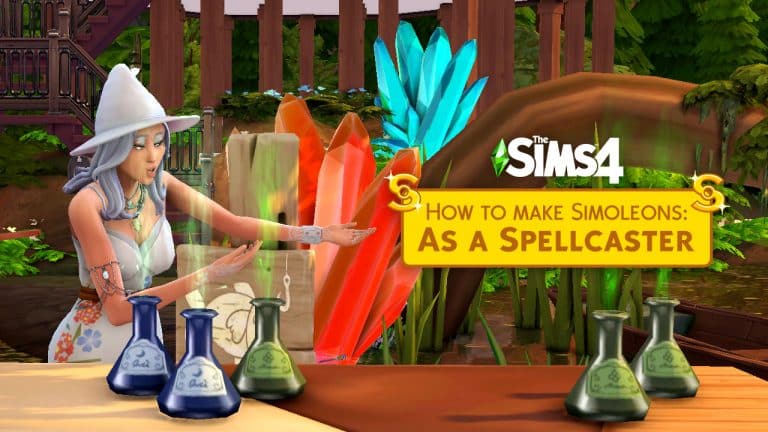
Today, we’ll be giving you some tips on how to make simoleons as a spellcaster!

There are three main ways to make money as a spellcaster; potions, artifacts, and the copypasto spell. Let’s get into each one!

Potions
The Sims 4: How to Make Money as a Spellcaster

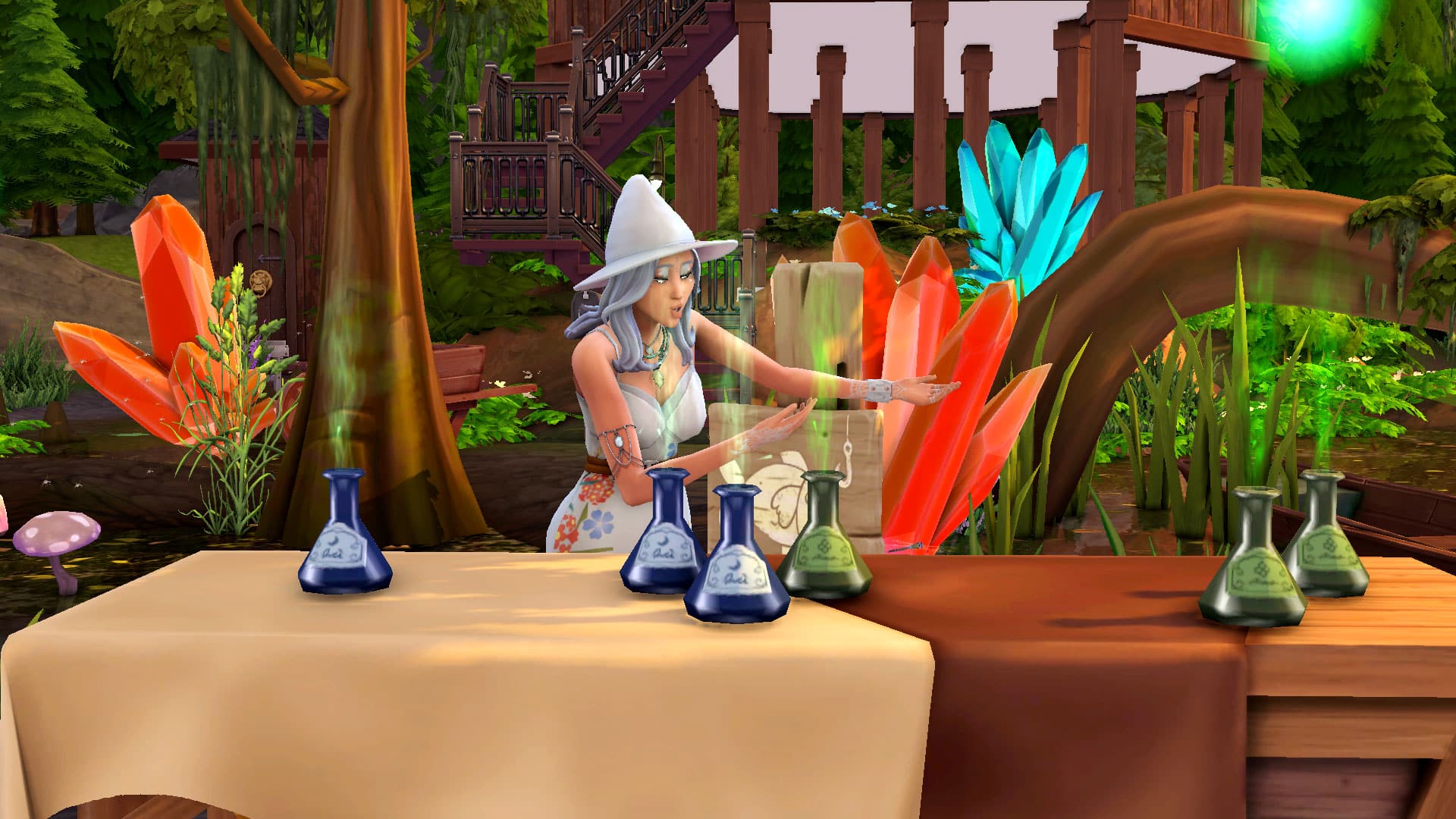
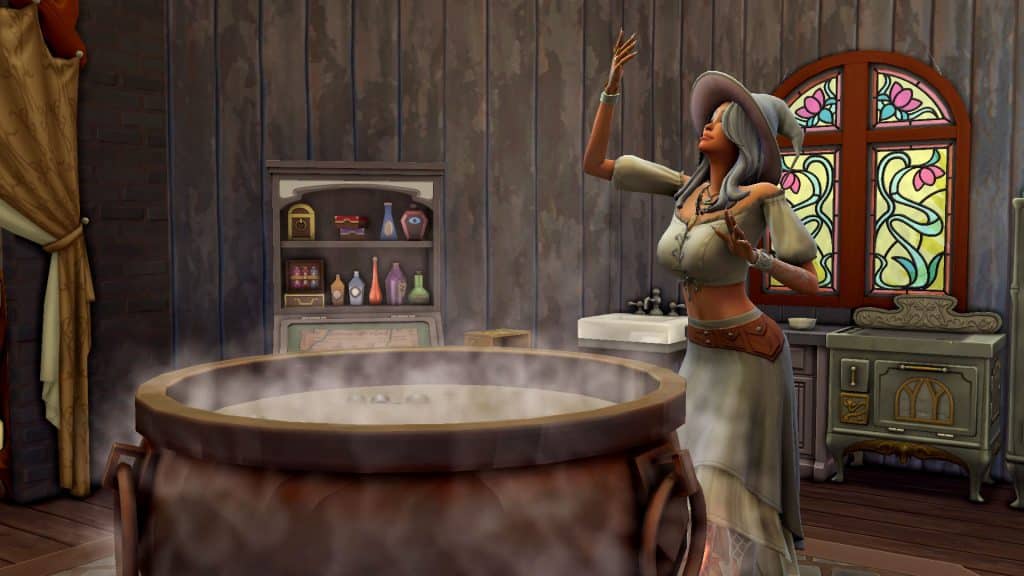
Potion brewing is a valuable skill for any spellcaster to develop, not just for their many uses but also for profit! To start, you’ll need to learn how to brew some potions, so have your spellcaster begin experimenting on a cauldron. They can also learn new potions from tomes found in bookcases at Magic HQ or purchased from Caster’s Alley and by asking any of the Sages to teach them a new potion recipe.

Once your spellcaster knows how to brew a variety of potions, it’s time to brew up a few batches to sell! So stock up on potion ingredients. You’ll need plenty in order to create plenty of inventory.

The Sims 4: How to Make Money as a Spellcaster

There are a few different ways to sell your hard-brewed potions. The quick and easy method is to just sell them from directly within the inventory for a quick, no-hassle payout. If you want an approach more integrated into gameplay, there are options for that as well.

Market tables came with the City Living, Jungle Adventure, and Eco Lifestyle packs, so if you own any one of those packs, you will have access to a market table in Build/Buy. If you don’t own any of these packs, you can still use a market table to sell your potions but it’s hidden in the debug menu. It was part of the limited-time Sims Sessions event back in the summer of 2021 but can still be accessed using the bb.showhiddenobjects and bb.showliveeditobjects cheats. The market tables are convenient because you can place them anywhere and you don’t have the huge commitment of running a retail store. Just sell whatever you have whenever you want.

The Sims 4: How to Make Money as a Spellcaster

To use the market table, just place one down and drag your potions onto it to add it to the table’s inventory. Once the table has some potions in its inventory, have your spellcaster stock the table and tend it. While tending the table, you can start a Yard Sale. A yard sale is a short, timed event where lots of Sims will show up on the lot to browse your Sim’s wares for a short period of time. Sims tend to buy more during yard sale events so they’re a good way to get rid of lots of inventory quickly. Remember to set the markup or your Sims will be selling all their potions at cost!

The Sims 4: How to Make Money as a Spellcaster

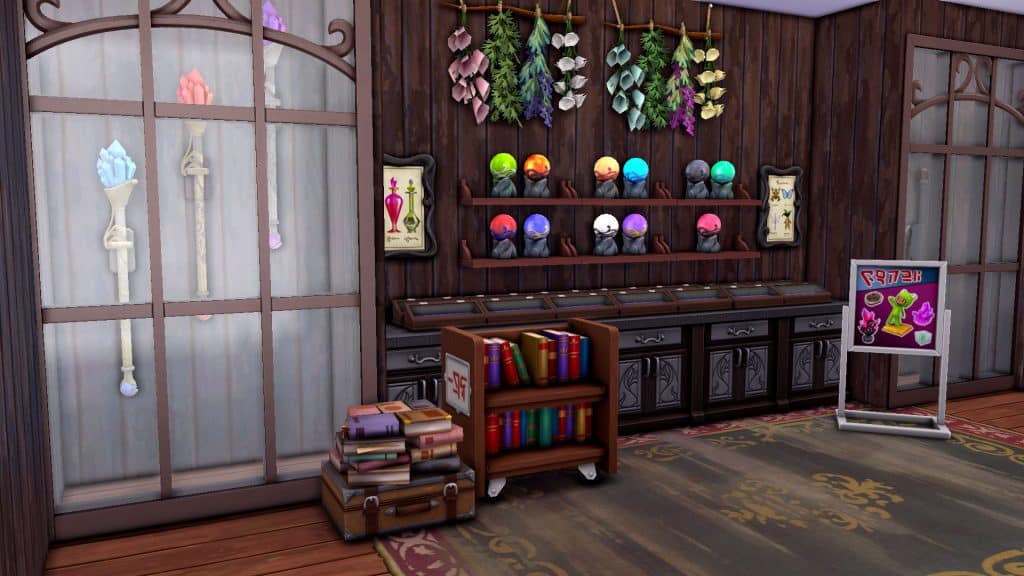
If you own the Get To Work expansion pack and your spellcaster is particularly ambitious, they can open up their own apothecary as a retail lot to sell their potions! Retail lots are a much bigger investment and involve more work than a market table but it can be a great way to keep your spellcaster busy. Hire employees to help you clean the store, deal with customers, and keep shelves stocked. Launch marketing campaigns to drum up more business. Purchase business perks to make your apothecary successful. It adds a whole new level of depth and interest to making money as a spellcaster.

Artifacts

The Sims 4: How to Make Money as a Spellcaster

Potions are not the only thing your spellcasters can make a good living off of. If your spellcaster is somewhat of an oddity collector, selling magical artifacts can be very lucrative, especially if you can get your hands on some of the rarer artifacts. Start building up your magical artifact collection by making frequent trips to Caster’s Alley to purchase all the wands, brooms, and familiars they have available. The stock rotates. Most of the rarer artifacts can only be won through spellcaster duels, however.

To start winning magical artifacts in duels, introduce yourself to any spellcaster and then choose Duel for Artifacts under the Magic social category. As long as there’s enough space nearby, the two spellcasters will engage in an epic magic battle! You can also choose to duel at the Dueling Grounds if you’re in The Magic Realm. You have a better chance at winning duels if your spellcaster is of a higher rank than their opponent. Keep an eye on your magical charge as well. Being charged can amplify your power but being overcharged is dangerous.
The Sims 4: How to Make Money as a Spellcaster

If you win the duel, you’ll be rewarded with wands, brooms, or familiars for your victory but don’t worry about losing. The other spellcaster won’t take any of your artifacts you have on you. It’s a risk-free way to obtain rare artifacts! Don’t forget; the Sages are the only way to obtain some of the rarest artifacts in the game but they are all virtuoso spellcasters so they are tough opponents. Build your magical prowess until you’re ready to challenge the Sages to an artifact duel. The payout if you win will be worth it!

Once you have some artifacts to sell, they can be sold the same way as the potions. Sell them directly from your inventory for quick cash, use the market tables to sell some of the smaller artifacts, or go all-in and invest in a retail business dedicated to selling magical trinkets and oddities.

Copypasto

The Sims 4: How to Make Money as a Spellcaster

While potions might be easy to replenish provided you have easy access to the required ingredients, artifacts are a bigger ordeal to obtain. This is no problem for a spellcaster, though. They can learn a nifty spell called Copypasto. The Copypasto spell lets them duplicate almost anything their heart desires! This makes it easy to create larger stocks of items to sell whenever you run low. Never worry about running out of inventory again! Your restocking troubles will be solved as long as you keep at least one of all your potions or artifacts for you to replicate.

To learn the Copypasto spell, practice Practical magic, look for the Copypasto tome at Caster’s Alley or in Magic HQ bookcases, or ask Simeon Silversweater to teach you new Practical spells. The Copypasto spell is a somewhat advanced spell that requires your spellcaster to be Adept rank or higher, so make sure you’ve been brushing up on your magical studies.


Between selling potions, magical artifacts, and using the Copypasto spell to create infinite inventory, your spellcasters will spend less time scrounging around for simoleons and more time doing what they actually want to do; becoming a great spellcaster!

How do your spellcasters make money? Let us know in the comments or come hang out with us on social media!

Credit: reshade by sunflowersyrup

The Sims 4 Fixer Upper: Challenge #1

Are you looking for a bit of a building challenge but don’t know where to start? Well, we may just have the perfect thing for you!

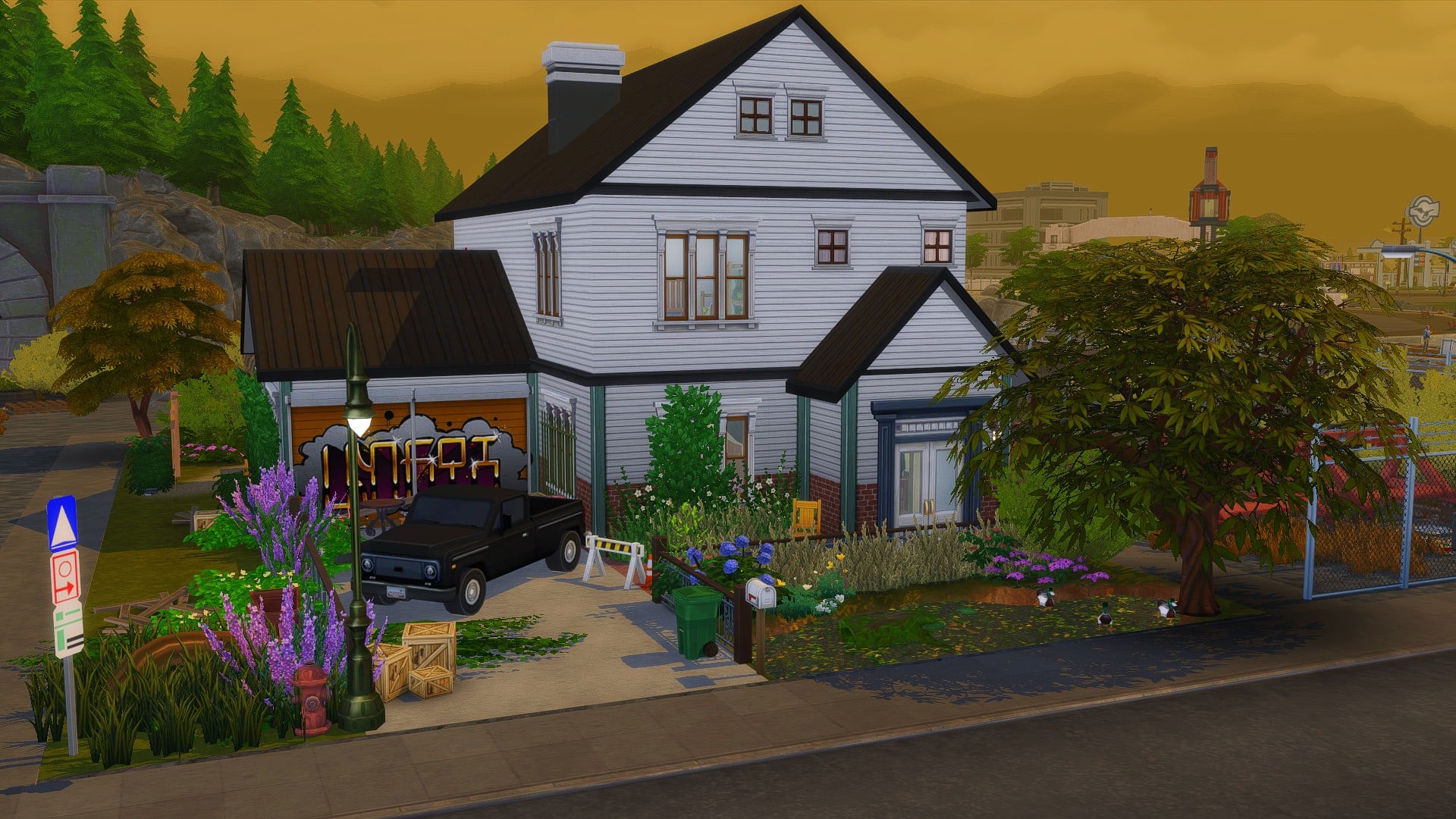
This once modern and cosy family home has definitely seen better days. After being left to gather dust for a number of years, it is in desperate need of a fresh coat of paint and a new lease of life!

Are you up to the challenge?

The Sims 4 Fixer Upper: Challenge #1

Build Gallery


Challenge Guidelines

  • Total Budget of §62,000
  • Must be placed on any available 30×20 Lot you have free in your game
  • You can not change any of the existing internal or external walls. You may add additional walls if you wish
  • It must be kept as a family home
  • You can use any packs you own, but please do not use any Custom Content
  • T.O.O.L & DEBUG allowed
  • Have fun and get creative!

Lot Information

  • Lot Size: 30×20
  • Lot Value: §53,176
  • Lot Type: Residential
  • Packs Used: Base Game & City Living
  • DEBUG items used

Gallery Information

  • Username: LeeksEverywhere
  • Build Name: SC Fixer Upper

[mks_button size=”medium” title=”The Lot” style=”rounded” url=”https://www.ea.com/games/the-sims/the-sims-4/pc/gallery/2800583B30BA11EC88A62E2CE62140A4?” target=”_blank” bg_color=”#4aa500″ txt_color=”#FFFFFF” icon=”fa-arrow-down” icon_type=”fa” nofollow=”0″]

Once you have renovated our Fixer Upper Build, upload it to The Gallery and use the hashtag #SCFixOurBuild as we will be showcasing some of our favourites in a future article!

We can’t wait to see how you fix our build! Be sure to tag us on social media, so we can see any videos or screenshots you share!

Note: This build is not a part of our monthly Sims Community Challenges. To find out more about the Sims Community Challenges click here.

The Sims 4 Incheon Arrivals Custom Content Showcase

The Sims 4 Incheon Arrivals Kit has been out for around a couple of weeks now, and creators have already been busy creating a variety of Custom Content inspired by the Kit. So, if you are looking to expand your Custom Content collection as well as have more options available to your Sims, check out the creations below!

Trillyke

While The Sims 4 Incheon Arrivals Kit came with two new sneaker options, Trillyke has added platforms to each variant and taken them to the next level! While both the original and these by Trillyke are excellent, that added platform really brings your Sims outfits alive.

Incheon Sneakers – Revamp (Base Game Compatible)

Click here to download

Simiracle

Simiracle has created several pieces of custom content inspired on by The Sims 4 Incheon Arrivals Kit. First up is the Male Full-Body outfit converted for Kids. This comes in a variety of different swatches, including solid colours and patterns.

Loose Fit Full Body for Kids (Kit Required)

The Sims 4 Incheon Arrivals Custom Content Showcase

Click here to download

Next up is the Fashion Sneakers that have been converted from Adults for Kids and Toddlers. They come in fifteen different swatches and work well with a number of different outfit combinations.

Fashion Sneakers for Kids and Toddlers (Kit Required)

The Sims 4 Incheon Arrivals Custom Content Showcase

Click here to download

The super comfortable looking fleece jacket has also been converted for Kids and comes in fifteen different swatches. Perfect for venturing out in the Autumn and Winter weather!

Fleece Jacket (Kit Required)

The Sims 4 Incheon Arrivals Custom Content Showcase

Click here to download

Lastly is the Distressed Denim Jeans. These jeans come in a selection of distressed and non-distressed swatches and are certain to go well with any of your Child Sims’ outfits!

Distressed Denim Jeans (Base Game Compatible)

The Sims 4 Incheon Arrivals Custom Content Showcase

Click here to download

Nucrests

There’s no denying that the clothing from The Sims 4 Incheon Arrivals is brilliant. However, Nucrests went above and beyond to create the Incheon Arrivals Addons Pack. The pack that is aimed at masculine framed Sims is fully compatible with the Base Game too! Features eight tops and five bottoms, you’ll be able to create even more stunning looks for your Sims.

Incheon Arrivals Add Ons (Base Game Compatible)

Click here to download

Be sure to check out the creators showcased in this post below for even more brilliant Custom Content!

Credits

Poses by Katverse & Helgatisha

When The Sims 4 Meets Squid Game

0

The latest Netflix series, Squid Game, has been taking the world by storm recently. The Korean drama focuses around a number of contestants taking part in numerous challenges, with some being games many of the players would’ve played as children. Of course, there is also a large amount of money at stake too. Now, the actual Squid Game is not as simple or straight forward as you would think, but I’ll leave you to think about what could happen along the way especially if you have not watched the series yet.

Note: the show itself contains a degree of  violence, blood, gore and other sensitive topics. However, in this post, we will not be discussing those topics. If you have not seen Squid Game yet, you can watch the trailer here.

When The Sims 4 Meets Squid Game

After watching a handful of episodes the other evening, I had jumped onto The Sims 4 to play for a while before heading off to bed. While I was playing, I had a thought pop into my head, and it was along the lines of “what if Squid Game was set in The Sims 4 Universe?” I initially just laughed to myself at the possibility of there being a Squid Game inspired challenge for The Sims 4. At the time, I didn’t think it would work or would just seem strange. With that said I pushed the thought to the back of my mind and went to bed.

Of course, the idea just kept popping back into my mind. I found myself  not only thinking about the possibility of how Squid Game could be a part of my own game but also what the community had been doing, be that creating builds, custom content and more!

When The Sims 4 Meets Squid Game

For my own game, I was thinking of creating little in game challenges for my Sims to compete in. Maybe create a maze on a 64×64 lot and watch as the chaos unfolds in some way. Alternatively, it could be something being based around things I could easily replicate using the features of the game already or by using some mods. Even though in principle it seemed like a good idea, I definitely needed to spend some more time thinking that through. Instead, I turned my attention to the community.

Initially, I took a look at some Custom Content. I came across a couple of different Squid Game inspired pieces. Mainly the outfits that you see many of the characters wearing during the show. The first piece of Custom Content I found was the Jacket and T-shirt combo by PizzuhQveen.

When The Sims 4 Meets Squid Game

Click here to download

The other piece of Custom Content I came across was by the creator MICKLAYNE. They created several different version of the Squid Game outfits including the outfits you see the Masked Men wearing. 

Click here to download

After searching for Custom Content, I took to The Gallery and found so many creations from the community. There was a good mix between different Squid Game inspired lots and rooms, as well as households which contained the individual characters and a mixture of the characters from the show.

Without giving too much away to the story line of the series or any spoilers, I went ahead and downloaded the Squid Game lot created by DreamingSims95. It features so many different aspects from the show, including rooms for each of the different games that the characters have to play. The amount of detail and unique use of some of the objects from The Sims 4 is amazing. I actually had to do a double take in some areas of the build just to figure out what items had been used to replicate parts of the show.

When The Sims 4 Meets Squid Game

Squid Game by DreamingSims95

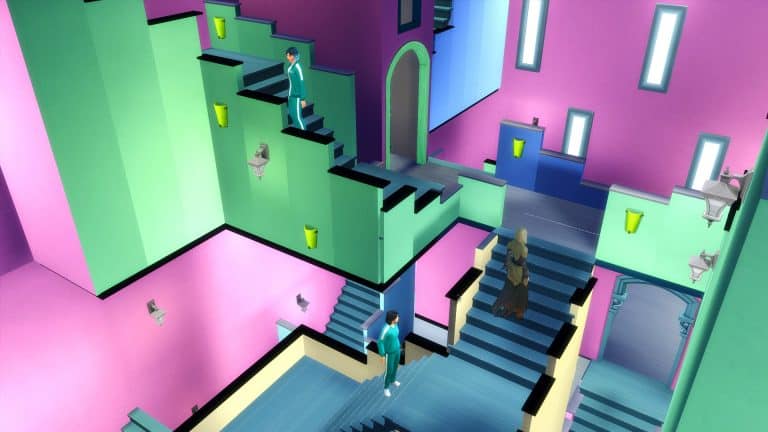
While some players focused on creating an overall build based on the show, others focused more on individual games and even the Squid Game Staircase.

When The Sims 4 Meets Squid Game

Squid Game Staircase by DanielleBuilds

While Squid Game is still highly popular around the world, I’m sure as a community we will continue to see more Squid Game inspired content over the next few months. Be that builds, households or custom content, who knows. I am intrigued to see if anyone creates a gameplay challenge inspired by Squid Game, if you do or see someone who does create one, make sure to let us know, so we can check it out!

One final question, which Sims would you think would be a part of the Squid Games if it was a part of The Sims 4 Universe? Let us know in the comments below!

The Sims 4: The Ultimate In-Game Photography Guide

As a generational and family player, I’m obsessed with taking beautiful family photos to display on the walls of my Sims’ homes. Weddings, graduations, first days of school, birthday parties, family vacations, it’s all captured in photo memories that make a house feel like a home. I’m always using the in-game camera tools to get the perfect shots of my Sims. A friend of mine asked me for a photography tutorial to help her learn the ins and outs of taking photographs in the game. I was all too happy to share my process!

So today, I’ll be walking you through how to take beautiful in-game photos that your Sims can hang up on the wall or display on surfaces. First, I’ll show you how to take photos with just the base game. Then I’ll introduce you to how you can enhance your photography using the Moschino Stuff pack! Lastly, I’ll point you to some optional mods that I find helpful for taking and organizing my photos.

Getting the Equipment

To start taking photos, your Sims will need either their cell phone or any camera found in Build/Buy. All the cameras are located in the Activities & Skills > Creativity category. There are three base game cameras you can purchase. The cheapest one isn’t any better than the cell phone for taking pictures; it only lets you take small photos and doesn’t have zoom capabilities. The mid-range camera allows you to take small and medium photos and does have zoom capabilities. The expensive camera takes small, medium, and large photos and has even better zoom capabilities.

On the cell phone, your photo options will be under the Entertainment tab. It’s the icon of a stereo speaker on the bottom far right of the phone menu. On the cameras from Build/Buy, you’ll have to drag them into a Sim’s inventory before any photo options will come up on them. In a Sim’s inventory, click on the camera to bring up photo options.

  • Take Selfie: This will allow your Sim to snap a picture of themselves! This option is only available on the cell phone.
  • Take Photo: This will let your Sim take a photo of anything from wherever they’re standing. This option is good for taking shots of landscapes, objects, or capturing candid moments between Sims.
  • Take Photo Of: This option lets you take nice posed portrait shots of other Sims.
  • Take Photo With: This will let your Sims take a picture of themselves with another Sim. Great for cute couple shots or best friend pictures!
  • Simstagram Pet: This option will only be available if you own the Cats & Dogs expansion pack. Your Sims can take photos of their pets to upload to Simstagram.

Getting the Perfect Shot

When you take a picture using the camera, there are several tools and options available to you. Not all options will be available on all cameras but below is an example picture of what the in-game photography screen looks like with the most expensive digital camera.

The Sims 4: The Ultimate In-Game Photography Guide

  • Filters: Click on the filters tab in the top left to bring up 11 different filters for your shots. If your Sim does not have high photography skill, choose your filter carefully; poor quality photos cannot have their filters changed afterwards.
  • Poses: This option is only available for players who own the Moschino Stuff pack and only appears when using the Take Picture Of option. Click through the bottom left tab to switch between different poses. There are eight different categories of emotions with a few poses to cycle through in each category. You can also click the group icon at the top of the pose tab to cycle through all the different pose categories.
  • Sizing: In the bottom bar on the left, you’ll see three rectangles in different sizes. This is where you can select the size of your photo. The cell phone and cheapest camera only allow you to take small photos. The mid-range camera allows you to take small and medium sized photos. The expensive camera has small, medium, and large photo sizing options.
  • Orientation: In the bottom centre tab on the left, the circular icon is your orientation. Click this to switch between landscape and portrait shots.
  • Take Photo: The camera icon in the centre is how you snap your pictures. You can take up to 5 pictures at once so don’t worry too much if you’re not 100% sure about your first few takes. If your Sim has low Photography skill, it’s always best to take all five shots, even if it’s all of the exact same picture. There’s a chance some of your photos might turn out blurry or with a gnome in it so it’s best to take as many shots as possible to ensure at least one looks okay.
  • Flash: I don’t use this option too much but it is available if you need it. It’s next to the camera icon on the right side of the bottom centre tab and it just turns the flash setting on and off. Turn this on when taking photos at night or in dim lighting. Turn it off for daytime photos in bright lighting.
  • Pan and Tilt: The directional arrows in the bottom right corner allow you to pan and tilt the camera around. I don’t like to use these; I find them clunky and hard to manage. I prefer to use the keyboard keys and mouse to have better control over my shots, but more on that later. For now, just know it’s there if you want to use it.
  • Zoom: On the right hand side is the zoom function. The cell phone and cheapest camera will not have zoom capabilities but the mid-range and expensive cameras will. Unlike the Pan and Pitch option, I actually prefer to use this slider bar rather than my keyboard and mouse. I can zoom in and out more precisely when using the slider.
  • X: The little X in the top right corner just exits out of the photography menu in case you change your mind or decide you’re done taking pictures before you’ve used up your five shots.

When you’re happy with all your settings, take your picture! The photos will be added to the photographer Sim’s inventory as well as to your Screenshots folder in Documents > Electronic Arts > The Sims 4. The photos can then be framed and displayed on a wall or surface to decorate your Sims’ homes.

Get Greater Control Over Your Shots

Like I mentioned, if you’re a PC player, you can make it easier on yourself to control the camera by using your keyboard and mouse.

  • Q + E Keys: Tilt the camera up or down.
  • A + D Keys: Pan the camera left and right.
  • Mouse Scroll Wheel or Z + X Keys: Zoom in and out.
  • Left Click + Drag: Freely move the camera in any direction.
  • C Key: Snap Picture

Personally, I pretty much only use the Left Click + Drag feature on the mouse to move the camera around. It gives me so much more freedom to get the exact angle I want. For Zoom, I do prefer the slider on-screen, however.

What To Do With Your Photos

The Sims 4: The Ultimate In-Game Photography Guide

Once you have some photos in your Sim’s inventory, drag them onto a wall or surface to display them! Photos have lots of different options available on them and the more packs you own, the more options you’ll have.

  • Add/Remove Frame: You can put a frame on your photos. There are eight different colours to choose from.
  • Update Frame: If you want to change the colour of your frame, you can do so with this option.
  • Rotate Photo: I find this option pretty useless, personally. All it does is switch the orientation between landscape and portrait. The result always looks wonky but hey, it’s there, I guess.
  • Set Filter: This option is not available on poor quality photos; you’re stuck with whatever filter you picked when you took your shot, but nicer quality photos can have their filter changed anytime.
  • View: Your Sim will admire the photo. Nothing really exciting about it but they may get a positive moodlet if it’s a good photo.
  • Create Copy: You can make copies of your photos to sell or gift to other Sims but it does cost some simoleons to do so.
  • List on Plopsy: This is only available with the Nifty Knitting Stuff Pack. Sims can list their photos for sale on the online marketplace, Plopsy. It costs a few simoleons to list a photo for sale.
  • Upload to Simstagram: This is only available with the Get Famous expansion pack. Sims can post their photos to Simstagram for fame.
  • Sell to Publication: This is only available with the Get Famous expansion pack. Sims can sell their photos to magazines for both fame and simoleons.

Other Tips for Taking Great Photos

  • Lighting is important! It’s best to take shots outside during the day in sunny weather but if you are taking indoor shots, make sure the room is well-lit to get the most clear and colourful pictures.
  • If you don’t own Moschino Stuff, you won’t be able to customize your poses when taking pictures of other Sims. They’ll pose according to their emotional state. So make sure your photo subjects are in a good mood if you don’t want sad, mopey, or bored-looking portrait shots.
  • Without Moschino Stuff, you cannot pitch the camera lower or higher. All photos will be taken at the height of the photographer Sim; you can only tilt the camera upwards or downwards from that starting height. A way to get around this is by using children as your photographer. If you’re taking a picture of a toddler or child and you want the camera closer to their height, have a child take the picture. Kids are short and will therefore take pictures from a lower vantage point.
  • Make use of the classic photography rule; The Rule of Thirds. There’s a lot to learn about this rule but for beginner photographers, all you really need to know is this; most of the time, your photo will look better when your subject is not dead centre of your shot. Photos usually look more pleasing to the eye when your subject is centred at the point where the grid lines meet. In my labeled diagram above, you can see I’ve centred the Sim’s nose on one of these points. The Rule of Thirds doesn’t always work so use your own judgement when taking your pictures but it’s a good rule of thumb for beginners to get a feel for photo layout.
  • Backgrounds really make a difference. Make sure your photos have a nice scenic background or a solid colour background. Dirty plates, trash, or a cluttered area that looks very busy will distract from your photo subject and ruin an otherwise lovely shot.

Enhance Your Photography Game with Moschino Stuff

Players who own the Moschino Stuff pack will find they have a much wider range of photography options available to them. Moschino Stuff is one of my favourite stuff packs because it gives me almost unlimited control over my photos and offers so many different options for getting the perfect shot and displaying my photos.

First, let’s check out all the photography-related stuff that comes with this stuff pack:

  • Fashion Studio Photography Tripod: This is your bread and butter when taking photos. The tripod can be equipped with any camera and put in your Sim’s inventory to be taken anywhere in the world you want to take a beautiful photo, even off of a lot! Not only that but the tripod makes any amateur photographer a professional; no matter the skill of the photographer or how cheap the camera, the tripod opens up all advanced photography options and takes Outstanding quality photos every time! You also have the freedom to pitch the camera to low or high angles to get more dramatic, cinematic shots. It’s just all-around more powerful and versatile than using a camera by itself. It also comes with extra photo options which I’ll go over in more detail soon.
  • Fashion Studio Subject Mark: These are incredibly useful for making your photo subjects stand exactly where you want them. I highly recommend using these when taking photos with pets and toddlers; for some reason, the Sims like to pose off to the side instead of directly in front of the tripod when taking pet and toddler photos. Using the subject mark stops that. They can placed in the world off a lot, too, so it helps make Sims stand where you want off of a lot.
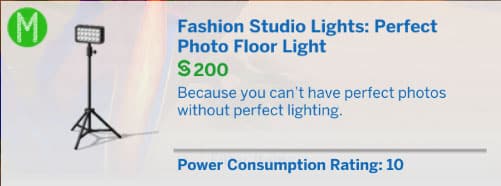
  • Fashion Studio Lights: You can technically use any lighting you prefer in the game to light up your scenes the way you want them but these are specifically designed for studio lighting so they’re my go-to for taking pictures. They’re also live draggable so it’s a lot easier to drag them around quickly in Live Mode when I’m doing long photoshoots. Don’t forget to adjust the colour and brightness for just the right mood lighting!
  • Photo Drape & Backdrops: These are awesome for a quick backdrop in a pinch! The photo drape comes in several colours and patterns and is very useful for nice, clean portrait shots. The only downside is that you have to go into Build/Buy to change the colour of it all the time. The curved and straight digital backdrops are my preferred backdrops. They can be connected for impressive wraparound backgrounds and you can select multiple different animated backgrounds in Live Mode. My personal favourite is the cityscape backdrop.
  • MixPix Digital Photo Frames: I love love LOVE these so much! They save a tonne of space on my Sims’ walls. I take literally hundreds of family photos and always run out of wall space so fast. Just drop all the photos you want into these frames’ shared inventory and they’ll cycle through all of your photos on a time schedule you can customise.
  • Collage Photo Frame: This collage frame lets you display three photos in a single frame. I love to use these to document my Sims’ kids as they age. Each child gets their own frame when they’re born and as they grow, their toddler, child, and teen portraits get added to them. Another great space saver! The collage frames only take small sized photos for the two left slots and medium sized photos for the right slot. Make sure they’re the right orientation, too, or they’ll look strange in the frame.
  • ClickShoot P10 Mirrorless Camera: This camera is a high end camera that you unlock via the freelance Fashion Photographer career that Moschino Stuff added. I don’t use it too often because I don’t play the Fashion Photographer career a lot but it is a very impressive, powerful professional camera.

Most of these items are self-explanatory to use but the tripod and subject mark do have some options that are worth breaking down.

In addition to all the same options available on the Crystal Clear Digital Camera, the Moschino Tripod also has a few other options and functions:

The Sims 4: The Ultimate In-Game Photography Guide

  • Take Picture Carrying: This option allows you to take adorable pictures of a teen or older Sim holding a toddler. There are a few different poses they do together and they’re all very heartwarming. I recommend making sure both the older Sim and the toddler are very close to where you’re taking the picture because toddlers are slow. If the adult has to walk a long distance to go get them and carry them back, the action can cancel itself on you.
  • Take Picture of Sim with Pet: This option is only available if you own the Cats & Dogs expansion pack. It allows you to take pictures of a Sim with your pets! Sims will hold cats and small dogs. They will pose low to the ground with big dogs. Again, all the poses are adorable.
  • Take Picture of Sim on Subject Mark: This option will be greyed out if you don’t have a subject mark placed down near the tripod with a Sim already standing on it. Click the subject mark to direct a Sim to stand there and wait for a photographer, then have your photographer Sim use this option on the tripod to take their picture.
  • Take Picture With: This is the same function as the other cameras, except the tripod has a timer so your photographer Sim will set the timer on the tripod and go pose with the other Sims.
  • Q + E Keys: This will actually pitch the camera up and down properly when taking pictures with the tripod, unlike just using the cameras by themselves, which will tilt the camera up or down from the same starting height.
  • Rotate Photographer: There will be an extra slider along the bottom when taking photos with the tripod. This will actually rotate your photographer around a full 360 degrees. This is helpful for when your Sim has placed down the tripod in the wrong direction off of a lot when you can’t easily just swivel the tripod around.

The Sims 4: The Ultimate In-Game Photography Guide

The Subject Mark that can be used with the tripod has a few different options as well:

  • Wait for Photographer: This is the option you should pick to have your Sim stand on the subject mark to get their picture taken.
  • Hire a Fashion Subject: This is useful for professional photographers who want to use different models for their photoshoots. It costs 100 simoleons to hire a fashion subject and a Sim will show up on the lot to be photographed.
  • Ask to Pose: You can have your photographer Sim direct a specific Sim to stand on the subject mark.

In addition to all the new photography options, Moschino Stuff also adds a whole new freelance career for your Sims to make a living as a fashion photographer. It’s just a really great pack all-around for players who are photography enthusiasts, I can’t recommend it enough.

For players who own the Get Famous expansion pack, there are additional stage lights and set pieces you can use for photography as well.

If you own Get To Work, there is an all-in-one photo studio you can use to take really nice shots, too.

Optional Mods to Elevate Your Photography

None of these mods are required to take beautiful photos in The Sims 4. This guide has given you all the tools in both the base game and packs that you need to take amazing photos with no third-party content. However, if you are a PC player who likes to use mods, these can really set your photos apart.

  • Andrew’s Pose Player: This mod lets you use an endless number of custom poses in the game so you aren’t limited by the game’s existing pose selection. You will also need the Sim Teleporter and some custom poses to use with the Pose Player.
  • Sim Teleporter: This object lets you teleport Sims where you want them easily with no hassle. It’s essential for custom group poses.
  • Custom Poses: There a wide number of custom poses available to download. This tumblr directory is a good place to start looking for some.
  • TOOL: The TOOL mod is intended for creative building purposes but it’s also a lifesaver for avid storytellers and photographers. Use this mod to move your Sims anywhere in the world for great photos or nudge them back into place without breaking their pose when they don’t pose in the right spot. I could not take pictures of large events without this mod to help keep all those pesky Sims where they’re supposed to be.
  • MCCC: I use this mod to swap out outfits easily without having to wait for my Sim to change into them. You can also use the teleport features of this mod to help put Sims in the right position for custom poses.
  • Photographic Memory: Holy moly, I love this mod. I love it so much, I wrote a walkthrough for it. You can read it here. This mod adds so many new options for customizing and cataloguing all your precious photos, it’s a total game changer and I can’t sing its praises highly enough. Seriously, go download it right now and never look back.

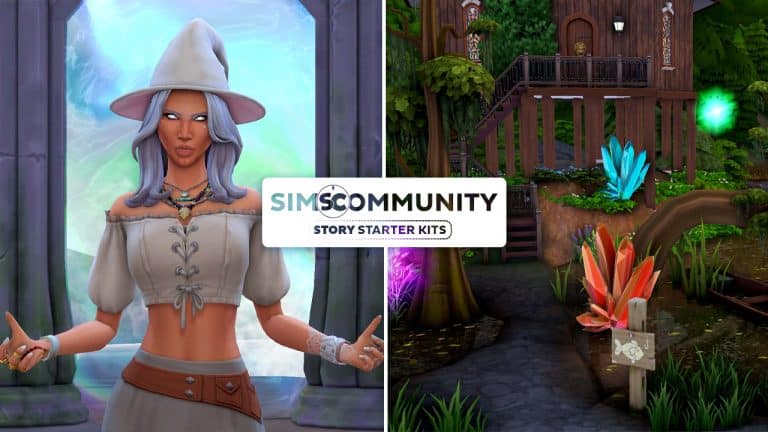
The Sims 4 Story Starter Kit: Yadira the Swamp Witch

Welcome to our very first entry in our new Story Starter Kits series! If you missed all the info on Story Starter Kits, you can read more about what they are and how they work in our introductory article!

In honour of spooky month, we thought it was only fitting to introduce you to a spellcaster with a dark backstory.

Yadira the Swamp Witch

The Sims 4 Story Starter Kit: Yadira the Swamp Witch

Centuries ago, Yadira was in love with a young man and trusted him with all of her magical secrets but he betrayed her when he had an affair with Yadira’s jealous stepmother, who wanted Yadira’s eyes for a spell of eternal youth. On her stepmother’s orders, Yadira’s beloved lured her out into the swamplands where he plucked out her eyes and left her for dead in the bog’s wilderness. But the bog spirits saw what happened and were enraged by such an act of cruelty. The spirits dragged the man and Yadira’s stepmother into the depths of the swampy waters, never to be seen again. Although they could not fully restore Yadira’s lost sight nor mend her broken heart, they granted her the ability to see one’s true character in place of their physical appearance.

Forever scarred by the cruelty of mankind but eternally grateful for the spirits’ aid, Yadira stayed in the swamplands to care for the spirits’ natural home. She spends her days fishing in the swamp, experimenting with her cauldron, and tending to the potted plants she uses for her potion ingredients but so many years of solitude has caused her to lose touch with the outside world. While she does not hate anyone for what was done to her once upon a time, she’s mistrustful of strangers and isn’t above a bit of mischief to keep them out of her swamp.

But with her uncanny ability to see beyond the physical and into someone’s soul, maybe Yadira will one day find another she can truly trust.

Other Info:
  • Age: Young Adult
  • Occult Type: Spellcaster (Neophyte)
  • Traits: Loner, Noncommittal, Loves Outdoors, Collector
  • Aspiration: Purveyor of Potions
  • Likes: White, World Music, Fishing, Gardening, Mischief, Storybook Décor
  • Dislikes: None
  • Skills: Fishing (3), Gardening (4), Mischief (5)
  • Career: None
  • Packs Used: Realm of Magic, Spooky Stuff, Paranormal Stuff, Vampires

Yadira’s Yurt

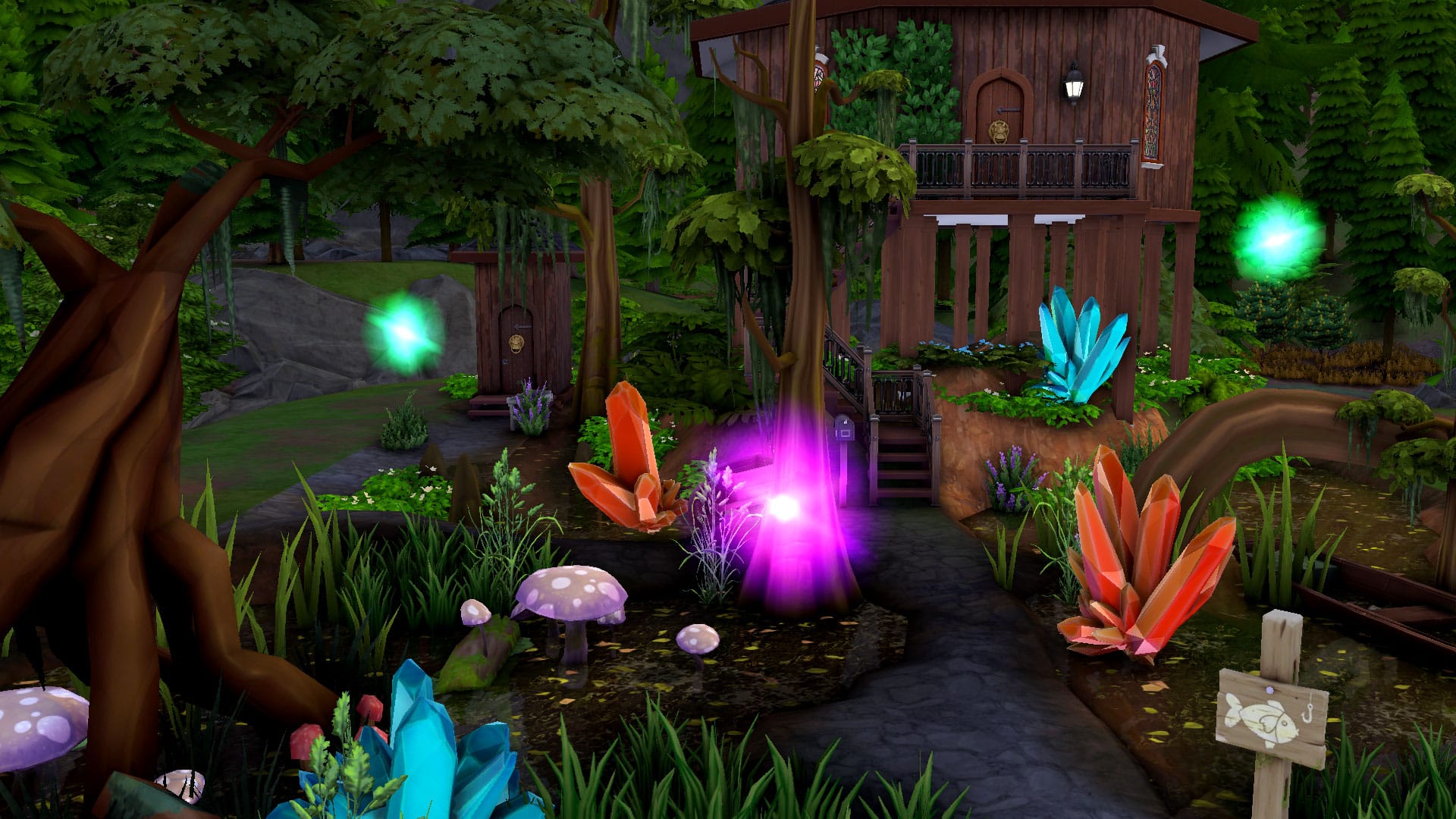
This is where the reclusive swamp witch, Yadira, spends her days and nights fishing, experimenting with potions, and tending to her potted plants. Brave visitors beware; the swamp witch is protected by the glowing spirits that surround the bog around her yurt and they will keep Yadira safe by any means necessary. Don’t take it personally; Yadira doesn’t hate people. She just likes her privacy.

Lot Info:

  • Price: §17,464
  • Size: 30×20
  • Beds: 1
  • Baths: 1
  • Lot Traits: None
  • Packs Used: Realm of Magic, Spooky Stuff, Paranormal Stuff

Your Story Starter Kit is waiting for you! Get The Household and The Lot by downloading them from the official Gallery Website linked on the buttons below. Or, follow SnarkyWitch in the Gallery and look for Yadira the Swamp Witch and Yadira’s Yurt!

[mks_button size=”medium” title=”The Household” style=”rounded” url=”https://www.ea.com/games/the-sims/the-sims-4/pc/gallery/1AEF908A2E2711EC88282E2CE62140A4″ target=”_blank” bg_color=”#4aa500″ txt_color=”#FFFFFF” icon=”fa-arrow-down” icon_type=”fa” nofollow=”0″][mks_button size=”medium” title=”The Lot” style=”rounded” url=”https://www.ea.com/games/the-sims/the-sims-4/pc/gallery/2FE2CE702D2B11EC86682E2CE62140A4?” target=”_blank” bg_color=”#4aa500″ txt_color=”#FFFFFF” icon=”fa-arrow-down” icon_type=”fa” nofollow=”0″]


Credits