Home Blog Page 280

Origin Black Friday Sale: Save up to 60% off on The Sims 4 Games!

28

Origin is having a huge Black Friday Sale which has just started allowing you to save up to 60% off on all The Sims 4 games – yes, even The Sims 4 Seasons is included with a 50% off discount!

The sale covers all Base Game Editions, Expansion Packs, Game Packs and pre-built Bundles. Here are the current offers:

  • The Sims 4 Base Game – 60% off
  • The Sims 4 Expansion Packs – 50% off (Get Famous excluded)
  • The Sims 4 Game Packs – 20% off
  • The Sims 4 Bundles – 20% off

The Sims 3 Expansion Packs are also up for sale for 50% off!

Make sure you take advantage of these offers before it’s too late – the sale ends on November 27th at 10AM PST.

Click below to start saving!

Origin Black Friday Sale: Save up to 60% off on The Sims 4 Games!

The Sims Official Merch Store has been updated with New Designs!

0

The Sims Team has just updated their official Merch Store with 5 new designs including:

  • Tasty Treats
  • The Sims 4 Expansion Packs Icons
  • Villain Llama Logo
  • The Sims 4 Logo
  • Hero Llama Logo

These designs are applied to multiple merch types including T-Shirts, Accessories, Phone Cases and more!

The Sims Team also has posted an update saying that some of the older designs will be retiring in January 2019. If you planned to purchase some of the Merch before now’s the right time to do it.

Don’t forget they also have FREE shipping on orders over $45 US and $80 for International. This offer ends at 11:59pm CST on 28th November 2018. (Exclusions apply)

Click here to check out the new designs!

The Sims Official Merch Store has been updated with New Designs!

The Sims 4 PC and Console Sale: Black Friday Deals Megapost

It’s Thanksgiving week in the United States and that only means one thing – Black Friday deals that occur worldwide!

Black Friday is that one period that gets celebrated every year at the end of November where all sorts of products go on sale for a specific period and this year won’t be different. Considering that there are going to be multiple retail and online stores all across the globe offering promotional prices for The Sims 4 games we’ve decided to create a Mega Post containing all of the trustworthy sites and their deals.

Down below we’ll be listing all the deals available for The Sims 4 games including both PC / Mac and Console versions. Please note that you can expect a few deals from retailers that are exclusive to a specific territory which is why we’ve categorized each deal properly.

Make sure you bookmark this post and check regularly as we’ll be updating it as soon as a new deal surfaces! We can also expect a special Black Friday sale from Origin.

If you stumble upon a good sale from a trustworthy retailer let us know in the comments!

PC / Mac

Worldwide

United Kingdom (With availability to purchase Worldwide)

  • HUGE DEAL: The Sims 4 Seasons – Amazon UK (50% off)
    • Click on the link above to be directed to Amazon UK’s page from where you can find different packs and deals including:
      • Expansion Packs (excluding Get Famous) – 50% off
      • Game Packs – 40% off

Console

Worldwide Deals

United States

  • The Sims 4 + Cats & Dogs Bundle – Walmart (25$ – deal is not live yet)

United Kingdom (With availability to purchase Worldwide)

The Sims 4 Get Famous: The Lifestyle Brand Perk Feature is broken

I’ve seen plenty of messages and reports saying that simmers about a particular big feature that came with The Sims 4 Get Famous Expansion Pack isn’t working… at all.

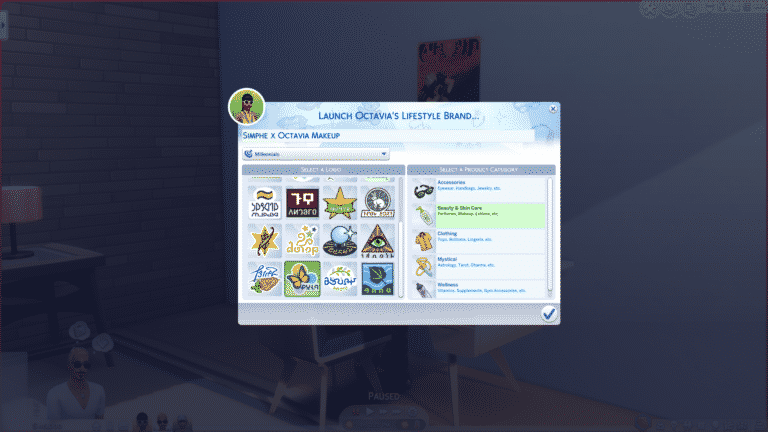
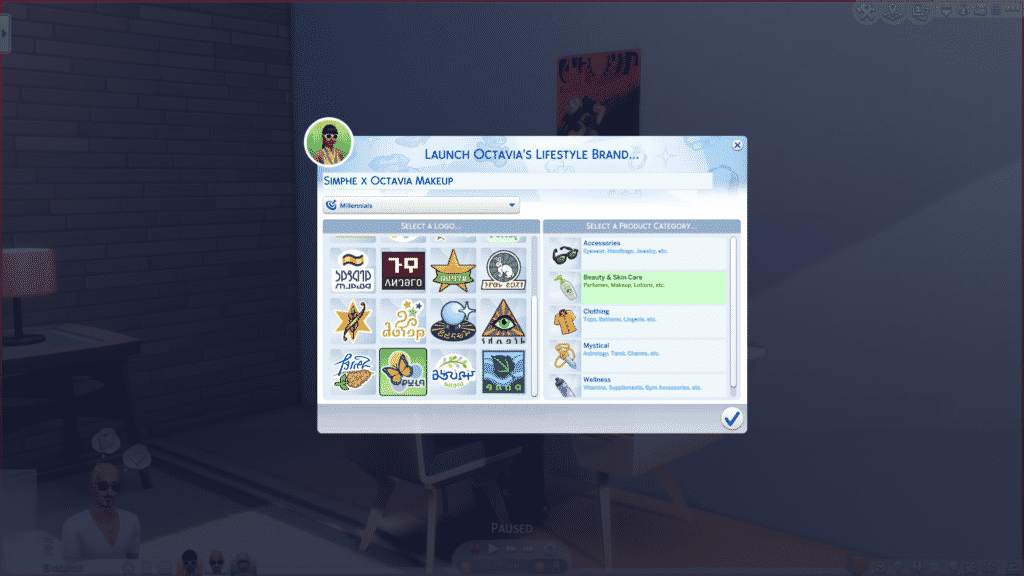
In case you guys are not aware, one of the Celebrity Level 5 perks is the ability to run your own Lifestyle Brand which lets you sell merch, accessories and other themed objects that you can select from the menu. You also have an option to give your Brand a name and an audience which you’ll be selling your Brand to.

After purchasing the top tier Lifestyle Brand Perk you have the ability to start off your brand using the computer for 300 Simoleons.

Screenshot 11

After spending your Simoleons you’ll be greeted with a special User Interface where you can fully customize your brand which will later bring you big bucks to your funds.

Screenshot 13

However, after doing all that and confirming that you are ready to launch your brand the game will completely ignore everything you’ve done. I’ve tried launching my brand several times but with no luck. I’ve also asked around on social media and it’s apparent that this is an issue with the game that almost everyone is experiencing.

Hopefully The Sims Team will come up with a hot fix to this solution in an upcoming update considering there are also some crucial bugs to be fixed in the game…

You can expect a full walkthrough article of this feature on our website as soon as there’s a fix to this issue.

The Sims 4 Get Famous: Video Overview of the New Cheats

0

We’ve made a new video explaining all of the cheats that come with The Sims 4 Get Famous Expansion Pack. Those include the new interactions that you can access through Shift + Click after entering testingcheats true cheat, as well as a wide array of cheats that you can enter in the cheat console.

Check out the video above explaining how you can enjoy the new Get Famous Cheats!

The Sims 4 Get Famous: Interactive Del Sol Valley Overview

The Sims 4 Get Famous Expansion Pack comes with a brand new world called Del Sol Valley.

Del Sol Valley is an LA / Hollywood themed world with 4 neighborhoods (one of them being a career neighborhood) and 11 lots in total.

Down below you can find Del Sol Valley’s World Map with details about each lot such as size, type and occupied Sims.

Del Sol Valley Map

[ult_hotspot main_img=”id^80527|url^https://simscommunity.info/wp-content/uploads/2018/11/Screenshot-15.jpg|caption^null|alt^null|title^Screenshot (15)|description^null”][ult_hotspot_items icon=”Defaults-map-marker” icon_size=”32″ icon_color=”#bf1e89″ icon_style=”advanced” icon_border_style=”solid” icon_color_border=”#bf1e89″ icon_border_size=”2″ icon_border_radius=”500″ icon_border_spacing=”50″ tooltip_custom_color=”#1e73be” tooltip_custom_bg_color=”#ffffff” tooltip_animation=”glow” tooltip_continuous_animation=”glow” glow_color=”#ffffff” hotspot_position=”20.52401746724891,25.398773006134967″ tooltip_custom_border_size=”border-style:solid;|border-width:2px;border-radius:3px;|border-color:#bf1e89;”]

Mirage Park

With reasonably priced homes and so close to downtown. Mirage Park is the perfect place for an up and coming star to start their rise to fame.[/ult_hotspot_items][ult_hotspot_items icon=”Defaults-map-marker” icon_size=”32″ icon_color=”#bf1e89″ icon_style=”advanced” icon_border_style=”solid” icon_color_border=”#bf1e89″ icon_border_size=”2″ icon_border_radius=”500″ icon_border_spacing=”50″ tooltip_custom_color=”#1e73be” tooltip_custom_bg_color=”#ffffff” tooltip_animation=”glow” tooltip_continuous_animation=”glow” glow_color=”#ffffff” hotspot_position=”9.149836244541484,79.87730061349694″ tooltip_custom_border_size=”border-style:solid;|border-width:2px;border-radius:3px;|border-color:#bf1e89;”]

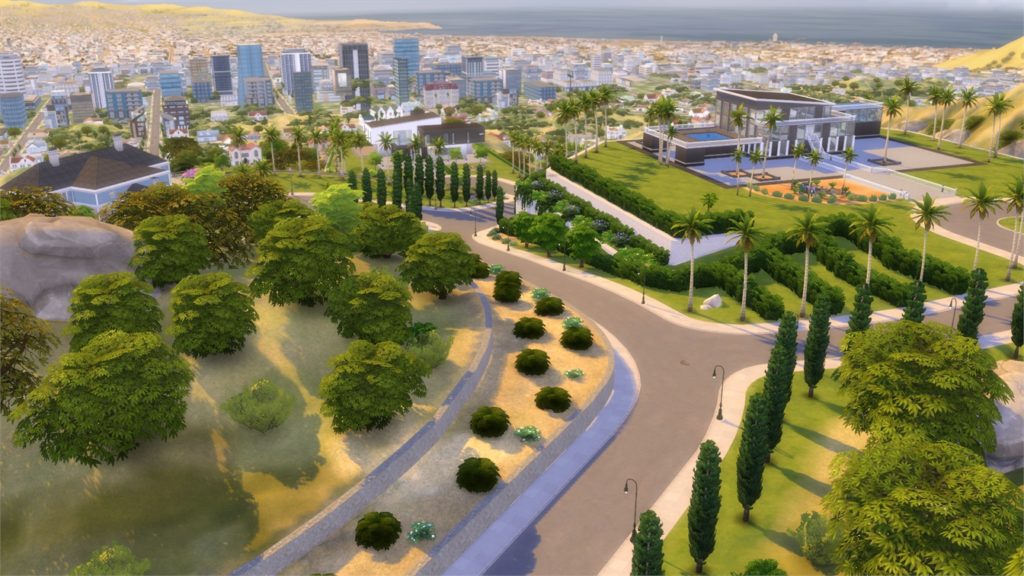
The Pinnacles

Fit for the rich and famous, The Pinnacles boast the most expensive homes in all of Del Sol Valley. If you want to live here you need to make it big![/ult_hotspot_items][ult_hotspot_items icon=”Defaults-map-marker” icon_size=”32″ icon_color=”#bf1e89″ icon_style=”advanced” icon_border_style=”solid” icon_color_border=”#bf1e89″ icon_border_size=”2″ icon_border_radius=”500″ icon_border_spacing=”50″ tooltip_custom_color=”#1e73be” tooltip_custom_bg_color=”#ffffff” tooltip_animation=”glow” tooltip_continuous_animation=”glow” glow_color=”#ffffff” hotspot_position=”47.22639192139738,21.472392638036812″ tooltip_custom_border_size=”border-style:solid;|border-width:2px;border-radius:3px;|border-color:#bf1e89;”]

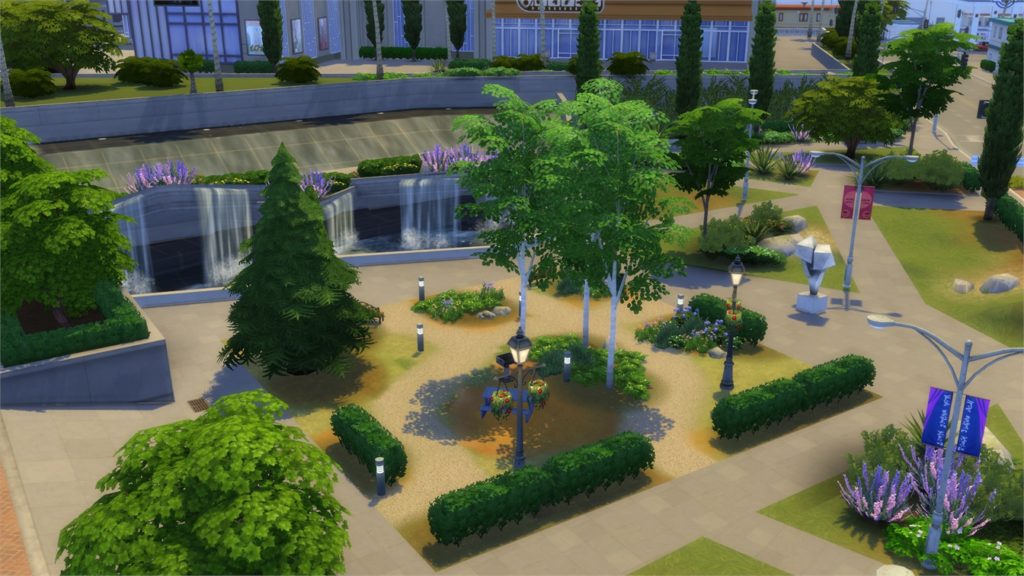
Starlight Boulevard

When it comes to night life Starlight Boulevard can not be beat. Where only the most famous Sims have access to the most exclusive night club in town. It is where the who’s who of the industry come to show off.[/ult_hotspot_items][ult_hotspot_items icon=”Defaults-map-marker” icon_size=”32″ icon_color=”#bf1e89″ icon_style=”advanced” icon_border_style=”solid” icon_color_border=”#bf1e89″ icon_border_size=”2″ icon_border_radius=”500″ icon_border_spacing=”50″ tooltip_custom_color=”#1e73be” tooltip_custom_bg_color=”#ffffff” tooltip_animation=”glow” tooltip_continuous_animation=”glow” glow_color=”#ffffff” hotspot_position=”74.75777838427948,63.80368098159509″ tooltip_custom_border_size=”border-style:solid;|border-width:2px;border-radius:3px;|border-color:#bf1e89;”]

Plumbob Pictures

This is a Career Neighborhood that can be accessed through the Acting Career. Sims can choose to spend their day in this Neighborhood after finishing their shift.[/ult_hotspot_items][ult_hotspot_items icon=”Defaults-map-marker” icon_size=”18″ icon_color=”#bf1e89″ icon_style=”advanced” icon_border_style=”solid” icon_color_border=”#bf1e89″ icon_border_size=”2″ icon_border_radius=”500″ icon_border_spacing=”25″ tooltip_custom_color=”#1e73be” tooltip_custom_bg_color=”#ffffff” tooltip_width=”” tooltip_animation=”glow” tooltip_continuous_animation=”glow” glow_color=”#ffffff” hotspot_position=”55.543804585152834,41.104294478527606″ tooltip_custom_border_size=”border-style:solid;|border-width:2px;border-radius:3px;|border-color:#bf1e89;”]

Name: Orchid A Go Go
Lot Type:
 Lounge
Size: 30×30

[/ult_hotspot_items][ult_hotspot_items icon=”Defaults-map-marker” icon_size=”18″ icon_color=”#bf1e89″ icon_style=”advanced” icon_border_style=”solid” icon_color_border=”#bf1e89″ icon_border_size=”2″ icon_border_radius=”500″ icon_border_spacing=”25″ tooltip_custom_color=”#1e73be” tooltip_custom_bg_color=”#ffffff” tooltip_width=”” tooltip_animation=”glow” tooltip_continuous_animation=”glow” glow_color=”#ffffff” hotspot_position=”50.620906113537124,32.26993865030675″ tooltip_custom_border_size=”border-style:solid;|border-width:2px;border-radius:3px;|border-color:#bf1e89;”]

Name: Ward Park
Lot Type:
 National Park
Size: 20×20

[/ult_hotspot_items][ult_hotspot_items icon=”Defaults-map-marker” icon_size=”18″ icon_color=”#bf1e89″ icon_style=”advanced” icon_border_style=”solid” icon_color_border=”#bf1e89″ icon_border_size=”2″ icon_border_radius=”500″ icon_border_spacing=”25″ tooltip_custom_color=”#1e73be” tooltip_custom_bg_color=”#ffffff” tooltip_width=”” tooltip_animation=”glow” tooltip_continuous_animation=”glow” glow_color=”#ffffff” hotspot_position=”64.86421943231441,19.631901840490798″ tooltip_custom_border_size=”border-style:solid;|border-width:2px;border-radius:3px;|border-color:#bf1e89;”]

Name: Studio PBP
Lot Type:
 Lounge
Size: 40×30

[/ult_hotspot_items][ult_hotspot_items icon=”Defaults-map-marker” icon_size=”18″ icon_color=”#bf1e89″ icon_style=”advanced” icon_border_style=”solid” icon_color_border=”#bf1e89″ icon_border_size=”2″ icon_border_radius=”500″ icon_border_spacing=”25″ tooltip_custom_color=”#1e73be” tooltip_custom_bg_color=”#ffffff” tooltip_width=”” tooltip_animation=”glow” tooltip_continuous_animation=”glow” glow_color=”#ffffff” hotspot_position=”73.37950327510917,33.49693251533743″ tooltip_custom_border_size=”border-style:solid;|border-width:2px;border-radius:3px;|border-color:#bf1e89;”]

Name: Plumbob Pictures Museum
Lot Type:
 Museum
Size: 40×30

[/ult_hotspot_items][ult_hotspot_items icon=”Defaults-map-marker” icon_size=”18″ icon_color=”#bf1e89″ icon_style=”advanced” icon_border_style=”solid” icon_color_border=”#bf1e89″ icon_border_size=”2″ icon_border_radius=”500″ icon_border_spacing=”25″ tooltip_custom_color=”#1e73be” tooltip_custom_bg_color=”#ffffff” tooltip_width=”” tooltip_animation=”glow” tooltip_continuous_animation=”glow” glow_color=”#ffffff” hotspot_position=”73.37950327510917,33.49693251533743″ tooltip_custom_border_size=”border-style:solid;|border-width:2px;border-radius:3px;|border-color:#bf1e89;”]

Name: Pectoral Fitness
Lot Type:
 Gym
Size: 30×30

[/ult_hotspot_items][ult_hotspot_items icon=”Defaults-map-marker” icon_size=”18″ icon_color=”#bf1e89″ icon_style=”advanced” icon_border_style=”solid” icon_color_border=”#bf1e89″ icon_border_size=”2″ icon_border_radius=”500″ icon_border_spacing=”25″ tooltip_custom_color=”#1e73be” tooltip_custom_bg_color=”#ffffff” tooltip_width=”” tooltip_animation=”glow” tooltip_continuous_animation=”glow” glow_color=”#ffffff” hotspot_position=”33.47775655021834,29.570552147239265″ tooltip_custom_border_size=”border-style:solid;|border-width:2px;border-radius:3px;|border-color:#bf1e89;”]

Lot Type: Occupied Residental Lot (Jeong Household)
Size: 40×30

[/ult_hotspot_items][ult_hotspot_items icon=”Defaults-map-marker” icon_size=”18″ icon_color=”#bf1e89″ icon_style=”advanced” icon_border_style=”solid” icon_color_border=”#bf1e89″ icon_border_size=”2″ icon_border_radius=”500″ icon_border_spacing=”25″ tooltip_custom_color=”#1e73be” tooltip_custom_bg_color=”#ffffff” tooltip_width=”” tooltip_animation=”glow” tooltip_continuous_animation=”glow” glow_color=”#ffffff” hotspot_position=”21.138100436681224,33.86503067484662″ tooltip_custom_border_size=”border-style:solid;|border-width:2px;border-radius:3px;|border-color:#bf1e89;”]

Lot Type: Unoccupied Residental Lot
Size: 50×40

[/ult_hotspot_items][ult_hotspot_items icon=”Defaults-map-marker” icon_size=”18″ icon_color=”#bf1e89″ icon_style=”advanced” icon_border_style=”solid” icon_color_border=”#bf1e89″ icon_border_size=”2″ icon_border_radius=”500″ icon_border_spacing=”25″ tooltip_custom_color=”#1e73be” tooltip_custom_bg_color=”#ffffff” tooltip_width=”” tooltip_animation=”glow” tooltip_continuous_animation=”glow” glow_color=”#ffffff” hotspot_position=”25.49126637554585,42.69938650306748″ tooltip_custom_border_size=”border-style:solid;|border-width:2px;border-radius:3px;|border-color:#bf1e89;”]

Lot Type: Unoccupied Residental Lot
Size: 40×30

[/ult_hotspot_items][ult_hotspot_items icon=”Defaults-map-marker” icon_size=”18″ icon_color=”#bf1e89″ icon_style=”advanced” icon_border_style=”solid” icon_color_border=”#bf1e89″ icon_border_size=”2″ icon_border_radius=”500″ icon_border_spacing=”25″ tooltip_custom_color=”#1e73be” tooltip_custom_bg_color=”#ffffff” tooltip_width=”” tooltip_animation=”glow” tooltip_continuous_animation=”glow” glow_color=”#ffffff” hotspot_position=”24.426855895196507,73.9877300613497″ tooltip_custom_border_size=”border-style:solid;|border-width:2px;border-radius:3px;|border-color:#bf1e89;”]

Lot Type: Occupied Residental Lot (Ward Household)
Size: 50×40

[/ult_hotspot_items][ult_hotspot_items icon=”Defaults-map-marker” icon_size=”18″ icon_color=”#bf1e89″ icon_style=”advanced” icon_border_style=”solid” icon_color_border=”#bf1e89″ icon_border_size=”2″ icon_border_radius=”500″ icon_border_spacing=”25″ tooltip_custom_color=”#1e73be” tooltip_custom_bg_color=”#ffffff” tooltip_width=”” tooltip_animation=”glow” tooltip_continuous_animation=”glow” glow_color=”#ffffff” hotspot_position=”22.69718886462882,58.40490797546012″ tooltip_custom_border_size=”border-style:solid;|border-width:2px;border-radius:3px;|border-color:#bf1e89;”]

Lot Type: Occupied Residental Lot (Bailey-Moon Household)
Size: 50×40

[/ult_hotspot_items][ult_hotspot_items icon=”Defaults-map-marker” icon_size=”18″ icon_color=”#bf1e89″ icon_style=”advanced” icon_border_style=”solid” icon_color_border=”#bf1e89″ icon_border_size=”2″ icon_border_radius=”500″ icon_border_spacing=”25″ tooltip_custom_color=”#1e73be” tooltip_custom_bg_color=”#ffffff” tooltip_width=”” tooltip_animation=”glow” tooltip_continuous_animation=”glow” glow_color=”#ffffff” hotspot_position=”18.330376637554586,66.99386503067485″ tooltip_custom_border_size=”border-style:solid;|border-width:2px;border-radius:3px;|border-color:#bf1e89;”]

Lot Type: Unoccupied Residental Lot
Size: 64×64

[/ult_hotspot_items][/ult_hotspot]

Down below you can check out each neighborhood individually. Simply hover over a plumbob to check out the area of your choice!

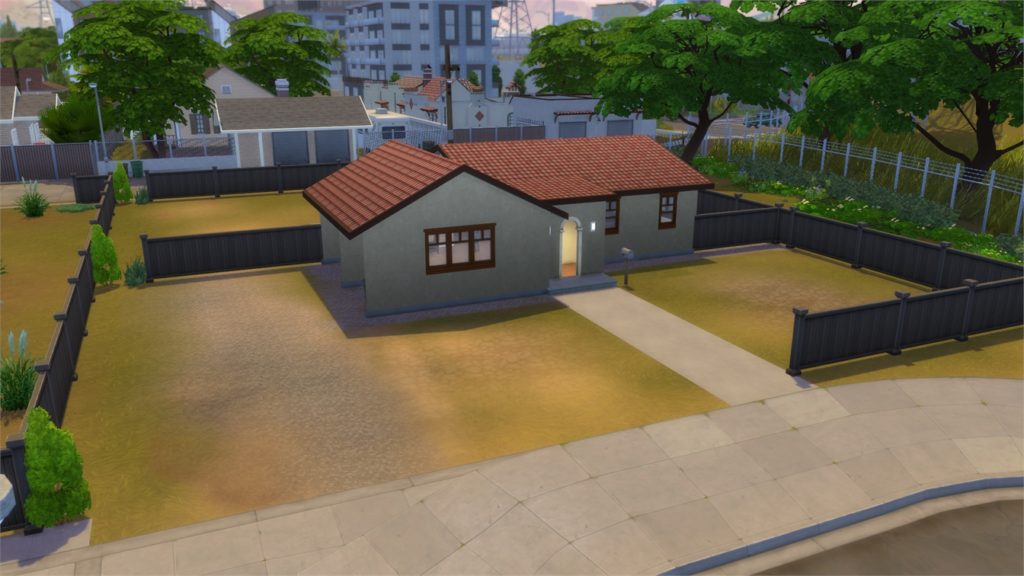
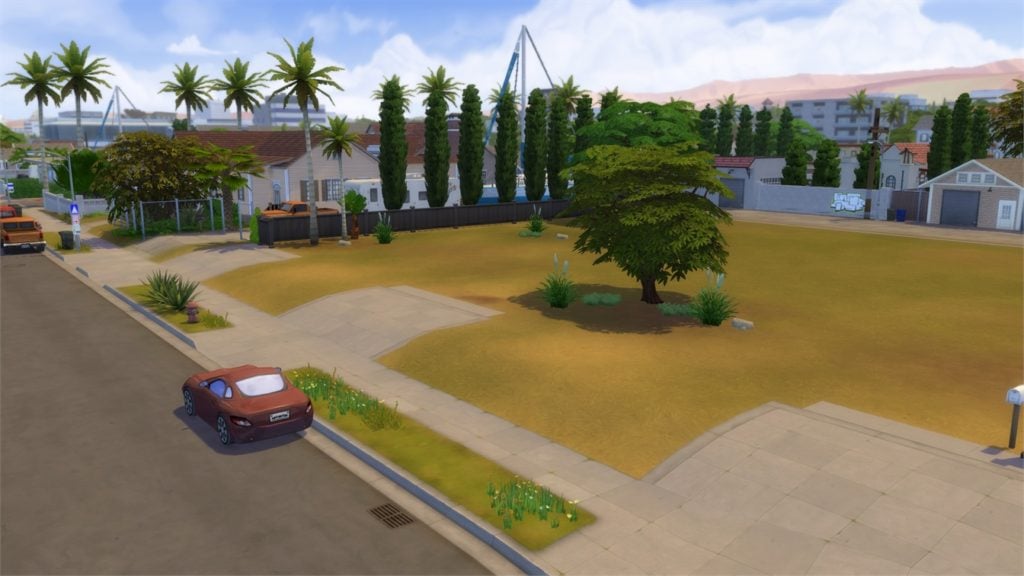
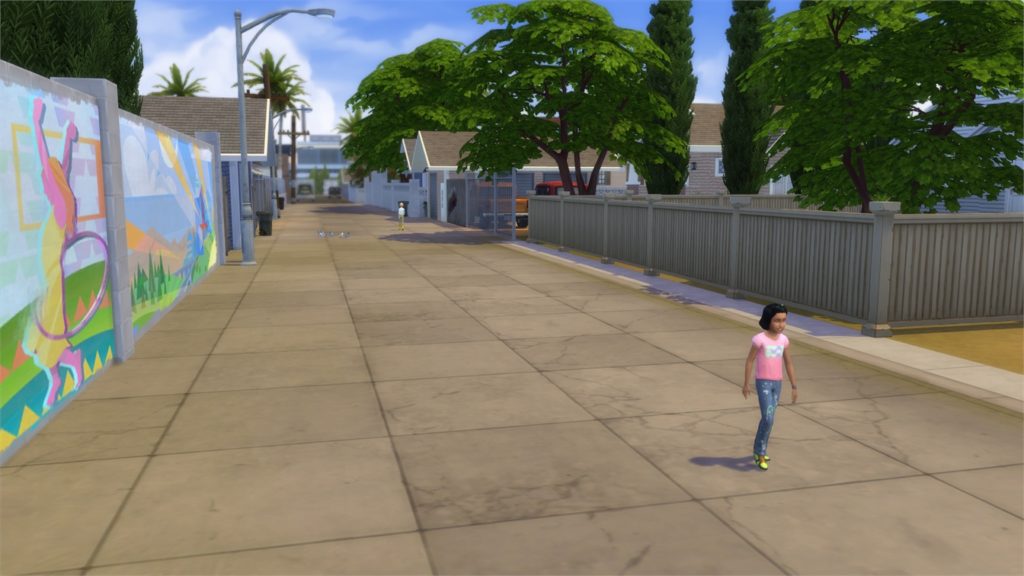
Mirage Park

[ult_hotspot main_img=”id^80508|url^https://simscommunity.info/wp-content/uploads/2018/11/11-19-18_5-50-40-AM.jpg|caption^null|alt^null|title^11-19-18_5-50-40 AM|description^null”][ult_hotspot_items icon_type=”custom” icon_img=”id^39525|url^https://simscommunity.info/wp-content/uploads/2015/09/plumbob2.png|caption^null|alt^null|title^plumbob2|description^null” img_width=”38″ tooltip_custom_color=”rgba(76,76,76,0.01)” tooltip_custom_bg_color=”rgba(255,255,255,0.01)” tooltip_width=”450″ tooltip_position=”right” enable_bubble_arrow=”off” tooltip_continuous_animation=”on” hotspot_position=”42.5764192139738,39.50920245398773″]

The Sims 4 Get Famous: Interactive Del Sol Valley Overview

[/ult_hotspot_items][ult_hotspot_items icon_type=”custom” icon_img=”id^39525|url^https://simscommunity.info/wp-content/uploads/2015/09/plumbob2.png|caption^null|alt^null|title^plumbob2|description^null” img_width=”38″ tooltip_custom_color=”rgba(76,76,76,0.01)” tooltip_custom_bg_color=”rgba(255,255,255,0.01)” tooltip_width=”450″ tooltip_position=”right” enable_bubble_arrow=”off” tooltip_continuous_animation=”on” hotspot_position=”46.39396834061135,16.930598159509202″]

The Sims 4 Get Famous: Interactive Del Sol Valley Overview

[/ult_hotspot_items][ult_hotspot_items icon_type=”custom” icon_img=”id^39525|url^https://simscommunity.info/wp-content/uploads/2015/09/plumbob2.png|caption^null|alt^null|title^plumbob2|description^null” img_width=”38″ tooltip_custom_color=”rgba(76,76,76,0.01)” tooltip_custom_bg_color=”rgba(255,255,255,0.01)” tooltip_width=”450″ tooltip_position=”right” enable_bubble_arrow=”off” tooltip_continuous_animation=”on” hotspot_position=”59.798034934497814,30.182131901840492″]
The Sims 4 Get Famous: Interactive Del Sol Valley Overview

[/ult_hotspot_items][ult_hotspot_items icon_type=”custom” icon_img=”id^39525|url^https://simscommunity.info/wp-content/uploads/2015/09/plumbob2.png|caption^null|alt^null|title^plumbob2|description^null” img_width=”38″ tooltip_custom_color=”rgba(76,76,76,0.01)” tooltip_custom_bg_color=”rgba(255,255,255,0.01)” tooltip_width=”450″ tooltip_position=”right” enable_bubble_arrow=”off” tooltip_continuous_animation=”on” hotspot_position=”44.43572598253275,56.19440184049079″]
The Sims 4 Get Famous: Interactive Del Sol Valley Overview

[/ult_hotspot_items][ult_hotspot_items icon_type=”custom” icon_img=”id^39525|url^https://simscommunity.info/wp-content/uploads/2015/09/plumbob2.png|caption^null|alt^null|title^plumbob2|description^null” img_width=”38″ tooltip_custom_color=”rgba(76,76,76,0.01)” tooltip_custom_bg_color=”rgba(255,255,255,0.01)” tooltip_width=”450″ tooltip_position=”right” enable_bubble_arrow=”off” tooltip_continuous_animation=”on” hotspot_position=”31.55704148471616,30.302914110429448″]
The Sims 4 Get Famous: Interactive Del Sol Valley Overview

[/ult_hotspot_items][/ult_hotspot]

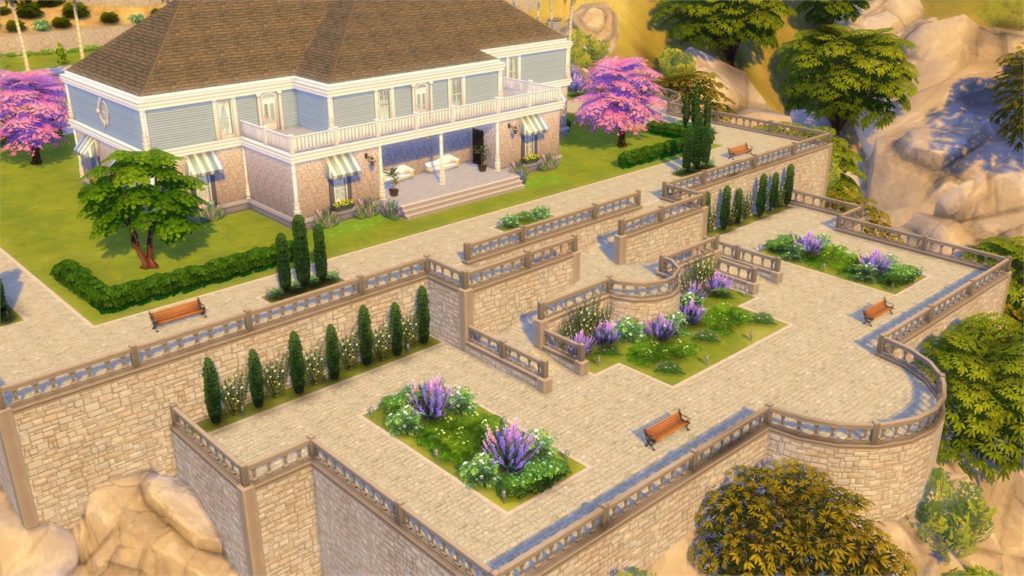
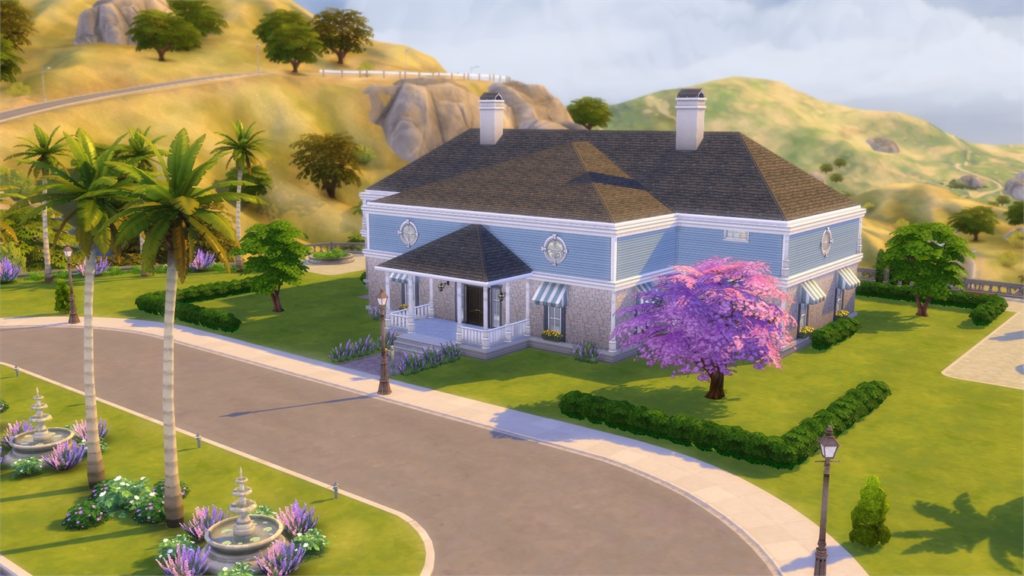
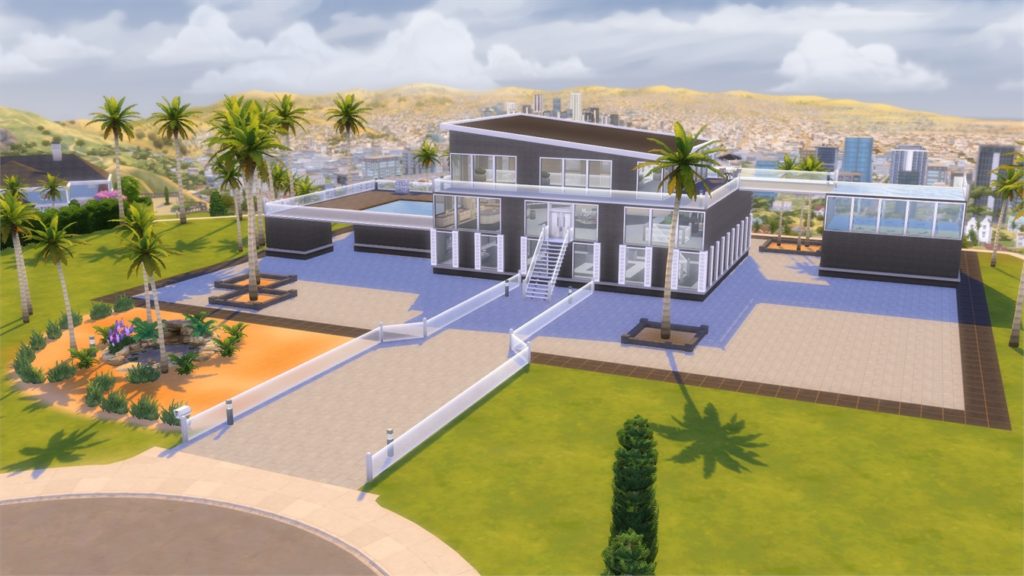
The Pinnacles

[ult_hotspot main_img=”id^80521|url^https://simscommunity.info/wp-content/uploads/2018/11/11-19-18_5-56-15-AM.jpg|caption^null|alt^null|title^11-19-18_5-56-15 AM|description^null”][ult_hotspot_items icon_type=”custom” icon_img=”id^39525|url^https://simscommunity.info/wp-content/uploads/2015/09/plumbob2.png|caption^null|alt^null|title^plumbob2|description^null” img_width=”38″ tooltip_custom_color=”rgba(76,76,76,0.01)” tooltip_custom_bg_color=”rgba(255,255,255,0.01)” tooltip_width=”450″ tooltip_position=”right” enable_bubble_arrow=”off” tooltip_continuous_animation=”on” hotspot_position=”16.815638646288207,49.07783742331288″]
The Sims 4 Get Famous: Interactive Del Sol Valley Overview

[/ult_hotspot_items][ult_hotspot_items icon_type=”custom” icon_img=”id^39525|url^https://simscommunity.info/wp-content/uploads/2015/09/plumbob2.png|caption^null|alt^null|title^plumbob2|description^null” img_width=”38″ tooltip_custom_color=”rgba(76,76,76,0.01)” tooltip_custom_bg_color=”rgba(255,255,255,0.01)” tooltip_width=”450″ tooltip_position=”right” enable_bubble_arrow=”off” tooltip_continuous_animation=”on” hotspot_position=”41.604121179039296,89.93481595092024″]
The Sims 4 Get Famous: Interactive Del Sol Valley Overview

[/ult_hotspot_items][ult_hotspot_items icon_type=”custom” icon_img=”id^39525|url^https://simscommunity.info/wp-content/uploads/2015/09/plumbob2.png|caption^null|alt^null|title^plumbob2|description^null” img_width=”38″ tooltip_custom_color=”rgba(76,76,76,0.01)” tooltip_custom_bg_color=”rgba(255,255,255,0.01)” tooltip_width=”450″ tooltip_position=”right” enable_bubble_arrow=”off” tooltip_continuous_animation=”on” hotspot_position=”49.249454148471614,57.17407975460122″]

The Sims 4 Get Famous: Interactive Del Sol Valley Overview

[/ult_hotspot_items][ult_hotspot_items icon_type=”custom” icon_img=”id^39525|url^https://simscommunity.info/wp-content/uploads/2015/09/plumbob2.png|caption^null|alt^null|title^plumbob2|description^null” img_width=”38″ tooltip_custom_color=”rgba(76,76,76,0.01)” tooltip_custom_bg_color=”rgba(255,255,255,0.01)” tooltip_width=”450″ tooltip_position=”right” enable_bubble_arrow=”off” tooltip_continuous_animation=”on” hotspot_position=”34.838973799126634,62.45015337423313″]
The Sims 4 Get Famous: Interactive Del Sol Valley Overview

[/ult_hotspot_items][ult_hotspot_items icon_type=”custom” icon_img=”id^39525|url^https://simscommunity.info/wp-content/uploads/2015/09/plumbob2.png|caption^null|alt^null|title^plumbob2|description^null” img_width=”38″ tooltip_custom_color=”rgba(76,76,76,0.01)” tooltip_custom_bg_color=”rgba(255,255,255,0.01)” tooltip_width=”450″ tooltip_position=”right” enable_bubble_arrow=”off” tooltip_continuous_animation=”on” hotspot_position=”18.98881004366812,32.390720858895705″]
The Sims 4 Get Famous: Interactive Del Sol Valley Overview

[/ult_hotspot_items][/ult_hotspot]

Starlight Boulevard

[ult_hotspot main_img=”id^80514|url^https://simscommunity.info/wp-content/uploads/2018/11/11-19-18_5-53-40-AM.jpg|caption^null|alt^null|title^11-19-18_5-53-40 AM|description^null”][ult_hotspot_items icon_type=”custom” icon_img=”id^39525|url^https://simscommunity.info/wp-content/uploads/2015/09/plumbob2.png|caption^null|alt^null|title^plumbob2|description^null” img_width=”38″ tooltip_custom_color=”rgba(76,76,76,0.01)” tooltip_custom_bg_color=”rgba(255,255,255,0.01)” tooltip_width=”450″ tooltip_position=”right” enable_bubble_arrow=”off” tooltip_continuous_animation=”on” hotspot_position=”48.44432314410481,68.95513803680981″]
The Sims 4 Get Famous: Interactive Del Sol Valley Overview

[/ult_hotspot_items][ult_hotspot_items icon_type=”custom” icon_img=”id^39525|url^https://simscommunity.info/wp-content/uploads/2015/09/plumbob2.png|caption^null|alt^null|title^plumbob2|description^null” img_width=”38″ tooltip_custom_color=”rgba(76,76,76,0.01)” tooltip_custom_bg_color=”rgba(255,255,255,0.01)” tooltip_width=”450″ tooltip_position=”right” enable_bubble_arrow=”off” tooltip_continuous_animation=”on” hotspot_position=”31.77538209606987,79.99616564417178″]
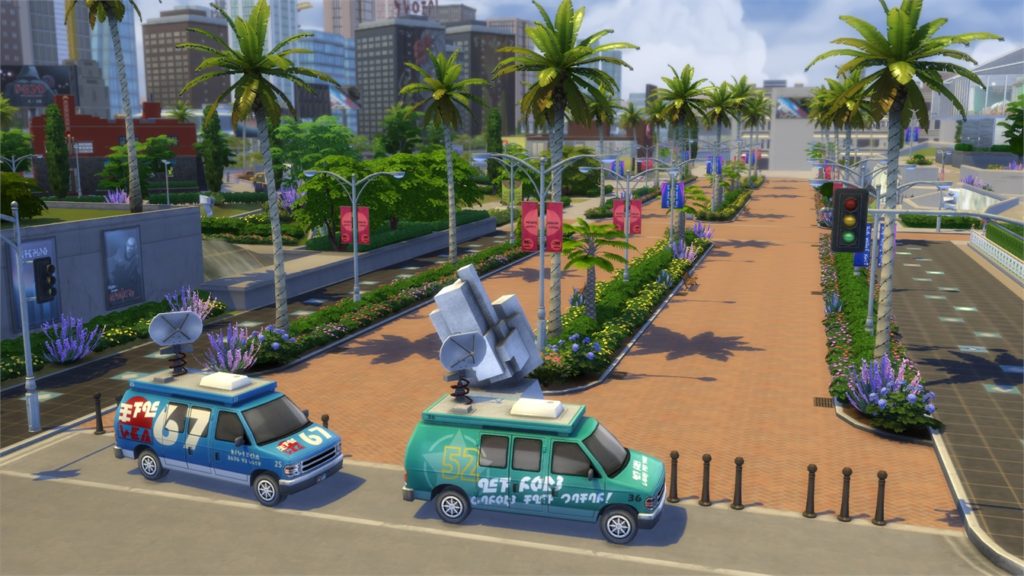
The Sims 4 Get Famous: Interactive Del Sol Valley Overview

[/ult_hotspot_items][ult_hotspot_items icon_type=”custom” icon_img=”id^39525|url^https://simscommunity.info/wp-content/uploads/2015/09/plumbob2.png|caption^null|alt^null|title^plumbob2|description^null” img_width=”38″ tooltip_custom_color=”rgba(76,76,76,0.01)” tooltip_custom_bg_color=”rgba(255,255,255,0.01)” tooltip_width=”450″ tooltip_position=”right” enable_bubble_arrow=”off” tooltip_continuous_animation=”on” hotspot_position=”23.47502729257642,70.18213190184049″]

The Sims 4 Get Famous: Interactive Del Sol Valley Overview

[/ult_hotspot_items][ult_hotspot_items icon_type=”custom” icon_img=”id^39525|url^https://simscommunity.info/wp-content/uploads/2015/09/plumbob2.png|caption^null|alt^null|title^plumbob2|description^null” img_width=”38″ tooltip_custom_color=”rgba(76,76,76,0.01)” tooltip_custom_bg_color=”rgba(255,255,255,0.01)” tooltip_width=”450″ tooltip_position=”right” enable_bubble_arrow=”off” tooltip_continuous_animation=”on” hotspot_position=”36.01937772925764,38.64838957055215″]
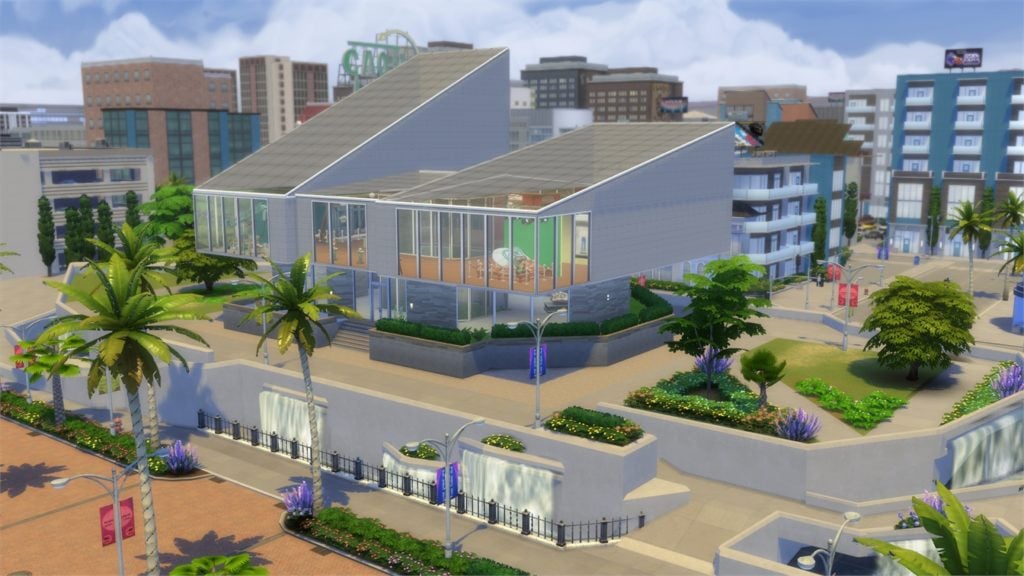
The Sims 4 Get Famous: Interactive Del Sol Valley Overview

[/ult_hotspot_items][ult_hotspot_items icon_type=”custom” icon_img=”id^39525|url^https://simscommunity.info/wp-content/uploads/2015/09/plumbob2.png|caption^null|alt^null|title^plumbob2|description^null” img_width=”38″ tooltip_custom_color=”rgba(76,76,76,0.01)” tooltip_custom_bg_color=”rgba(255,255,255,0.01)” tooltip_width=”450″ tooltip_position=”right” enable_bubble_arrow=”off” tooltip_continuous_animation=”on” hotspot_position=”59.58992903930132,92.63420245398774″]

The Sims 4 Get Famous: Interactive Del Sol Valley Overview

[/ult_hotspot_items][ult_hotspot_items icon_type=”custom” icon_img=”id^39525|url^https://simscommunity.info/wp-content/uploads/2015/09/plumbob2.png|caption^null|alt^null|title^plumbob2|description^null” img_width=”38″ tooltip_custom_color=”rgba(76,76,76,0.01)” tooltip_custom_bg_color=”rgba(255,255,255,0.01)” tooltip_width=”450″ tooltip_position=”right” enable_bubble_arrow=”off” tooltip_continuous_animation=”on” hotspot_position=”56.219295851528386,27.850843558282207″]

The Sims 4 Get Famous: Interactive Del Sol Valley Overview

[/ult_hotspot_items][/ult_hotspot]

Plumbob Pictures

[ult_hotspot main_img=”id^80544|url^https://simscommunity.info/wp-content/uploads/2018/11/11-19-18_1-46-41-PM-1.jpg|caption^null|alt^null|title^11-19-18_1-46-41 PM|description^null”][ult_hotspot_items icon_type=”custom” icon_img=”id^39525|url^https://simscommunity.info/wp-content/uploads/2015/09/plumbob2.png|caption^null|alt^null|title^plumbob2|description^null” img_width=”38″ tooltip_custom_color=”rgba(76,76,76,0.01)” tooltip_custom_bg_color=”rgba(255,255,255,0.01)” tooltip_width=”450″ tooltip_position=”right” enable_bubble_arrow=”off” tooltip_continuous_animation=”on” hotspot_position=”55.403930131004365,58.77108895705522″]

The Sims 4 Get Famous: Interactive Del Sol Valley Overview

[/ult_hotspot_items][ult_hotspot_items icon_type=”custom” icon_img=”id^39525|url^https://simscommunity.info/wp-content/uploads/2015/09/plumbob2.png|caption^null|alt^null|title^plumbob2|description^null” img_width=”38″ tooltip_custom_color=”rgba(76,76,76,0.01)” tooltip_custom_bg_color=”rgba(255,255,255,0.01)” tooltip_width=”450″ tooltip_position=”right” enable_bubble_arrow=”off” tooltip_continuous_animation=”on” hotspot_position=”27.749727074235807,54.10659509202455″]

The Sims 4 Get Famous: Interactive Del Sol Valley Overview

[/ult_hotspot_items][ult_hotspot_items icon_type=”custom” icon_img=”id^39525|url^https://simscommunity.info/wp-content/uploads/2015/09/plumbob2.png|caption^null|alt^null|title^plumbob2|description^null” img_width=”38″ tooltip_custom_color=”rgba(76,76,76,0.01)” tooltip_custom_bg_color=”rgba(255,255,255,0.01)” tooltip_width=”450″ tooltip_position=”right” enable_bubble_arrow=”off” tooltip_continuous_animation=”on” hotspot_position=”58.47093340611353,39.50728527607362″]
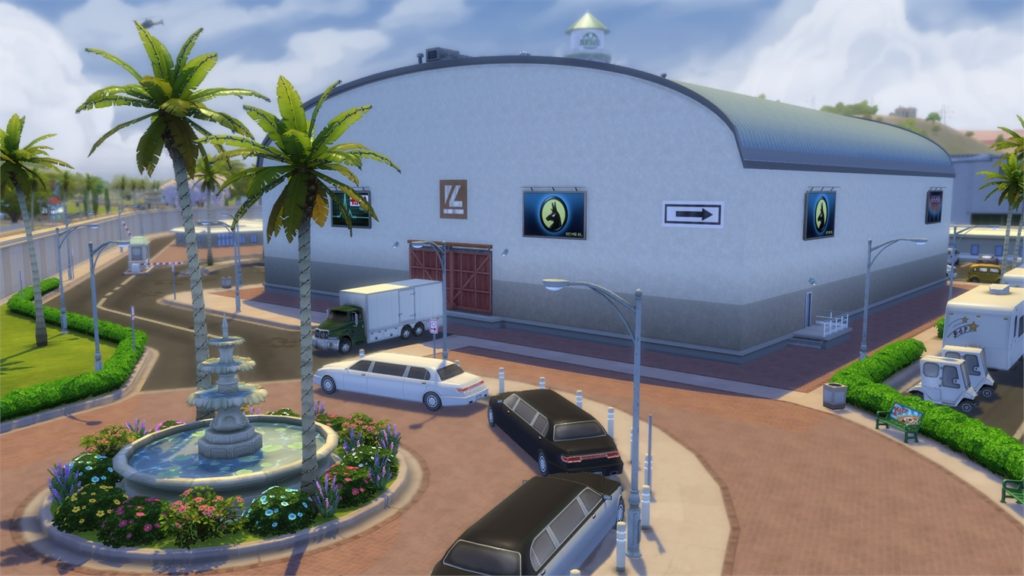
The Sims 4 Get Famous: Interactive Del Sol Valley Overview

[/ult_hotspot_items][/ult_hotspot]

The Sims 4 Get Famous: Create A Sim Overview

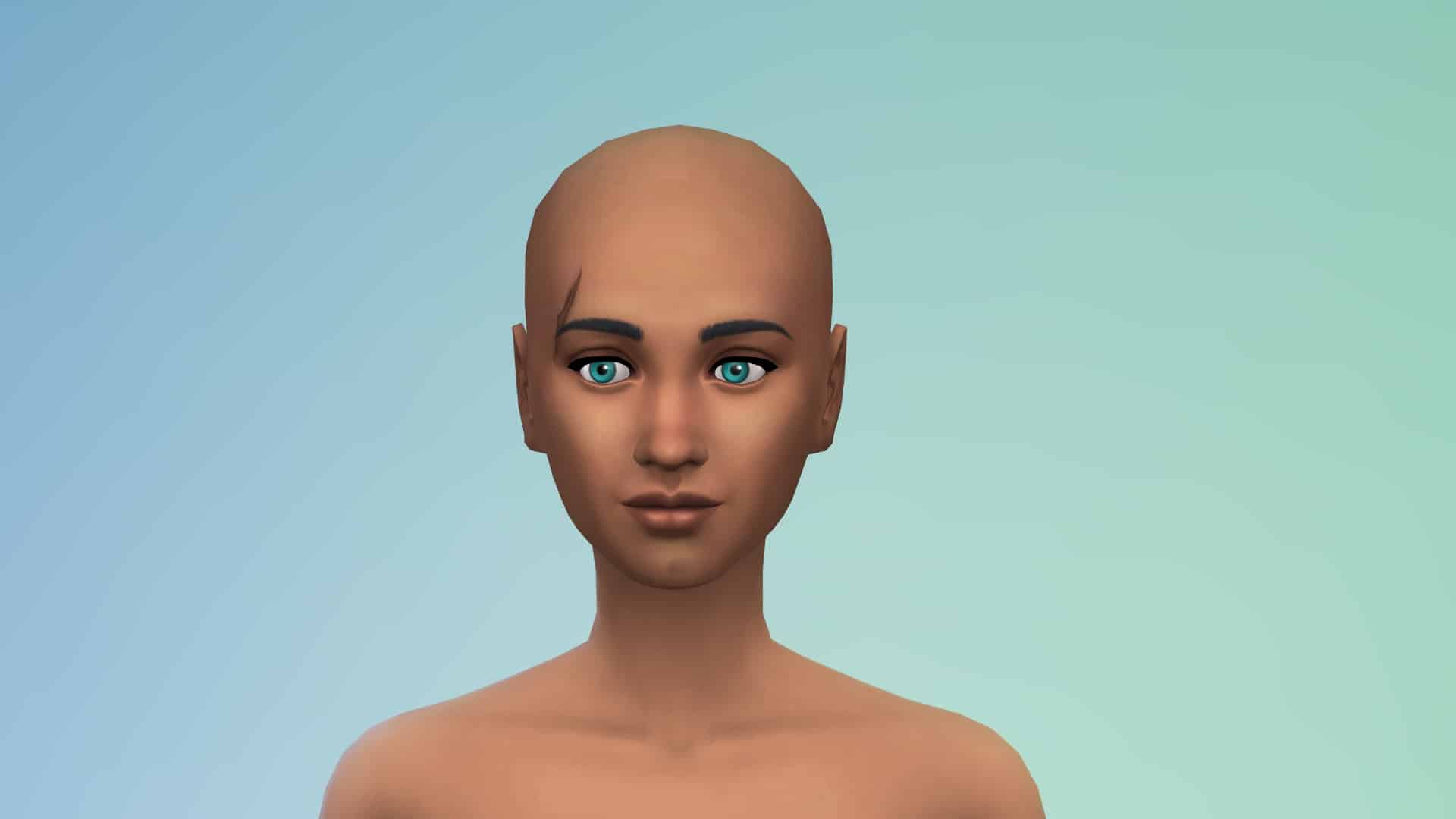
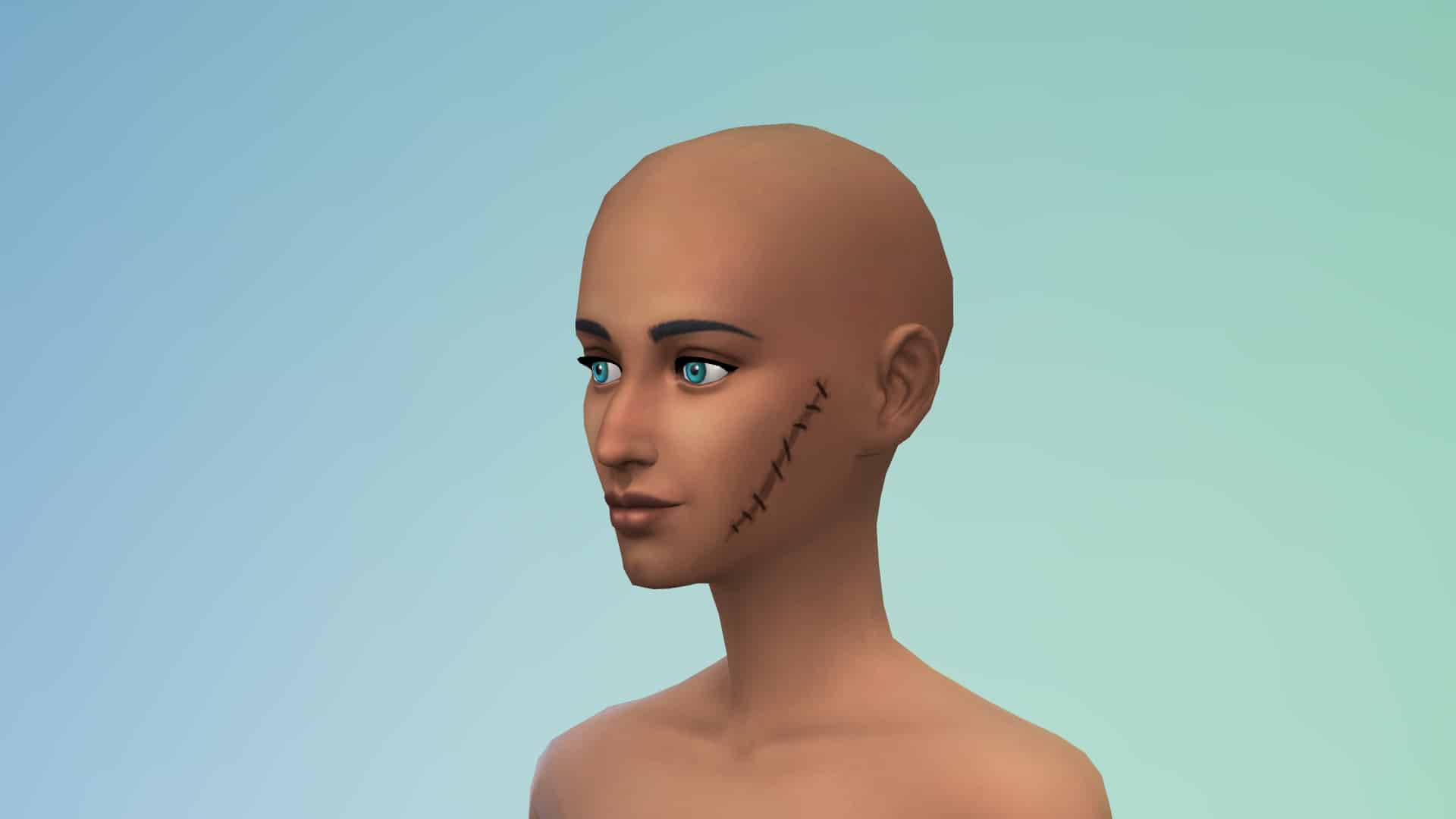
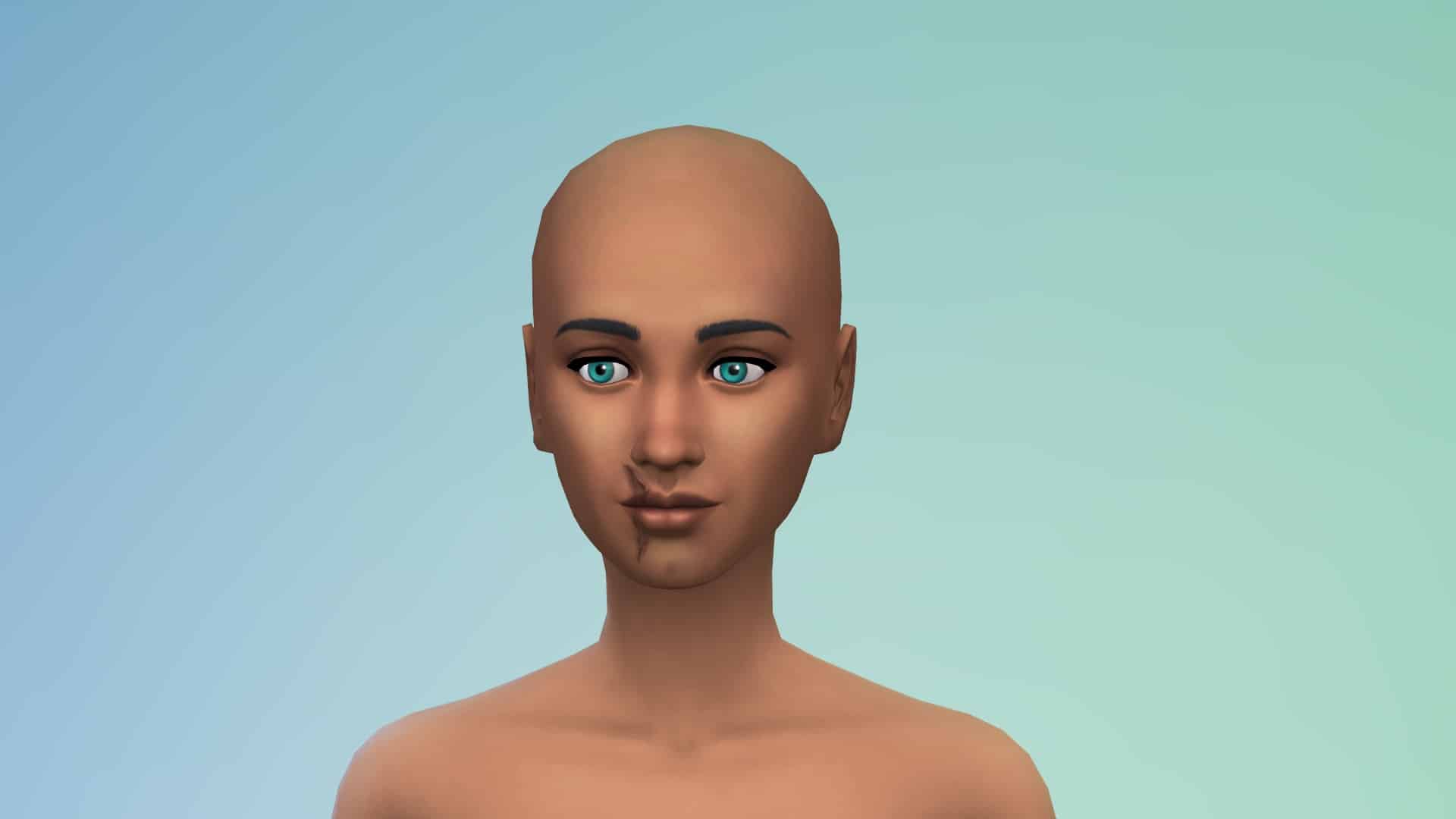
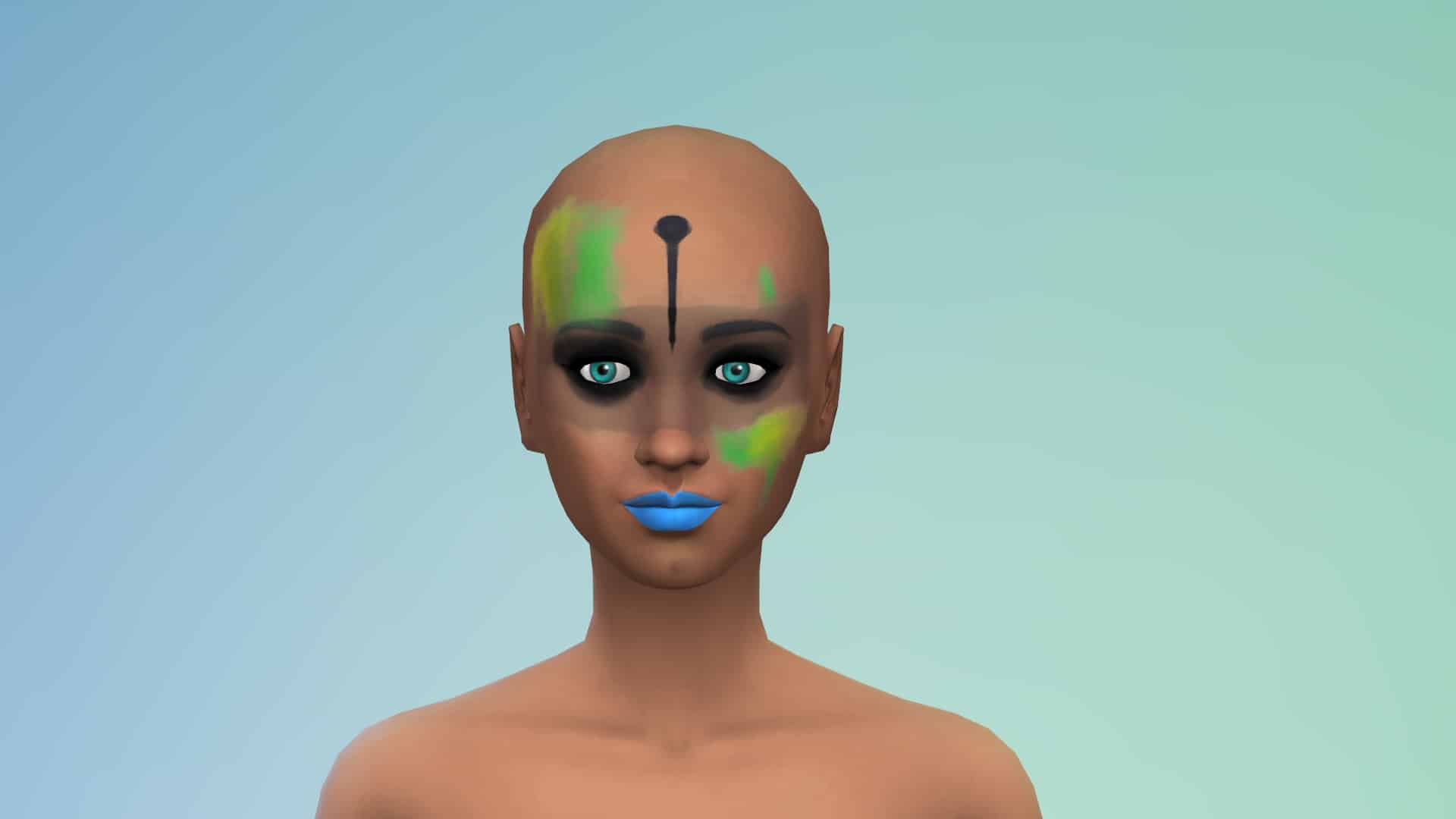
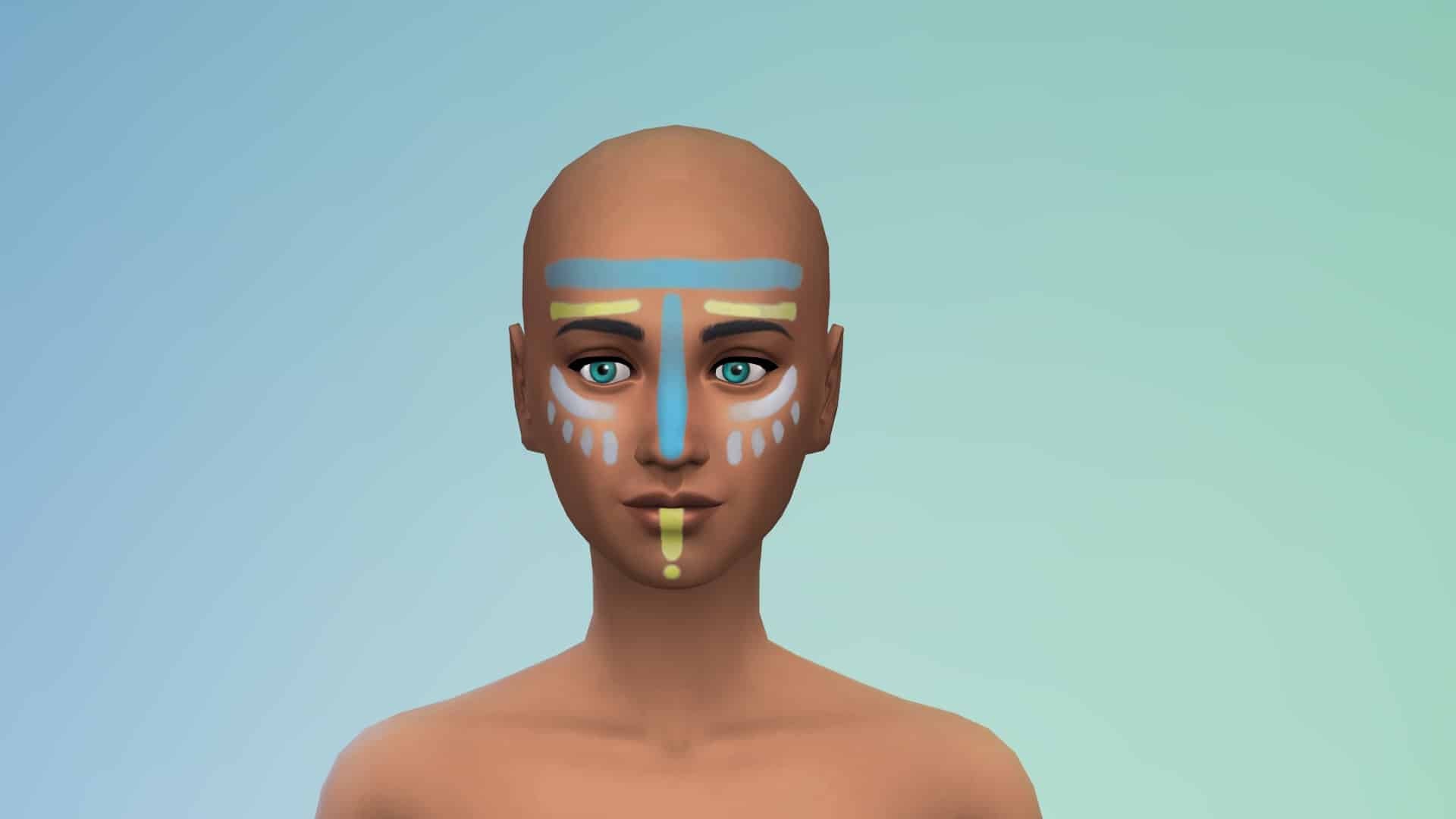
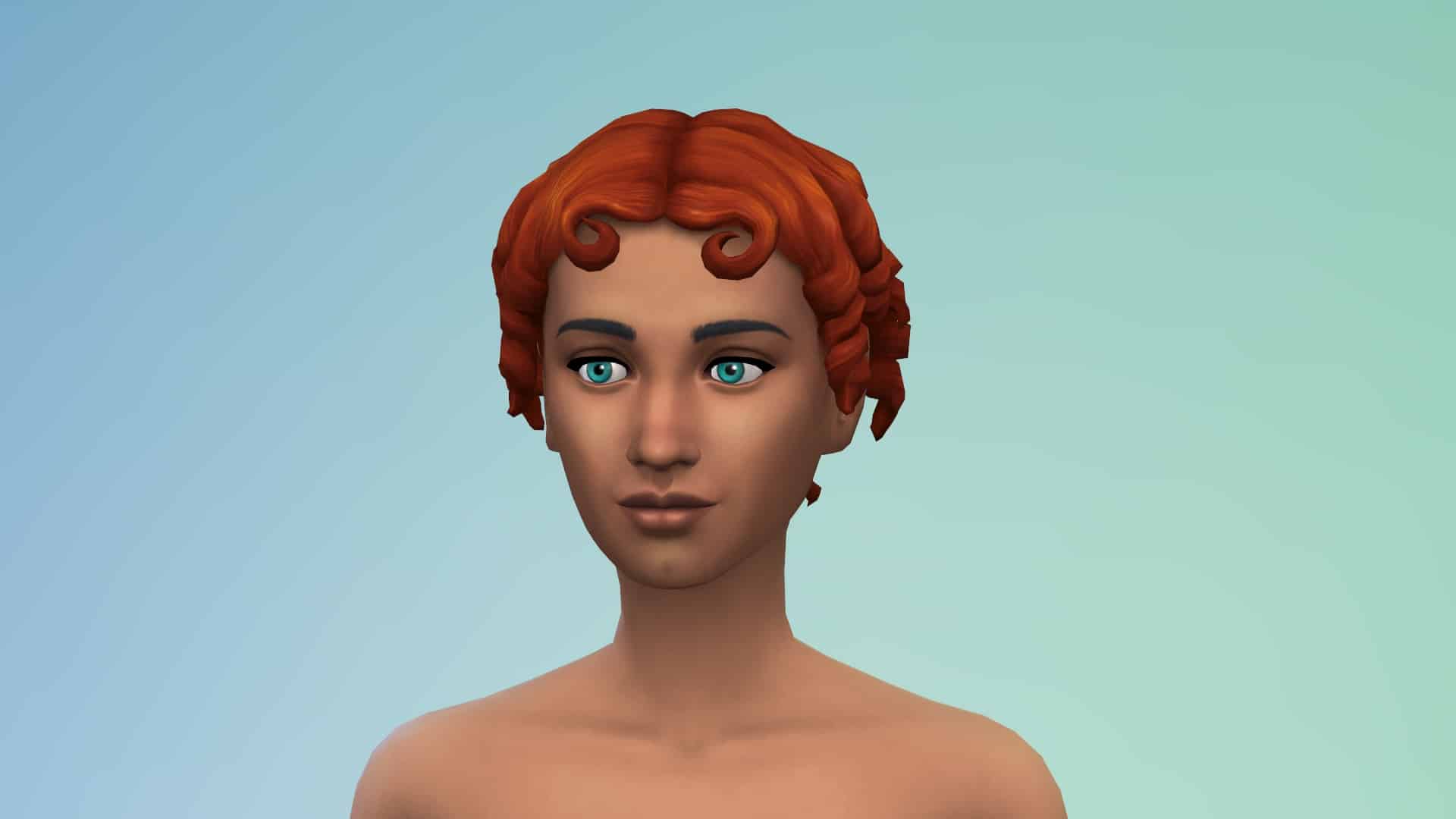
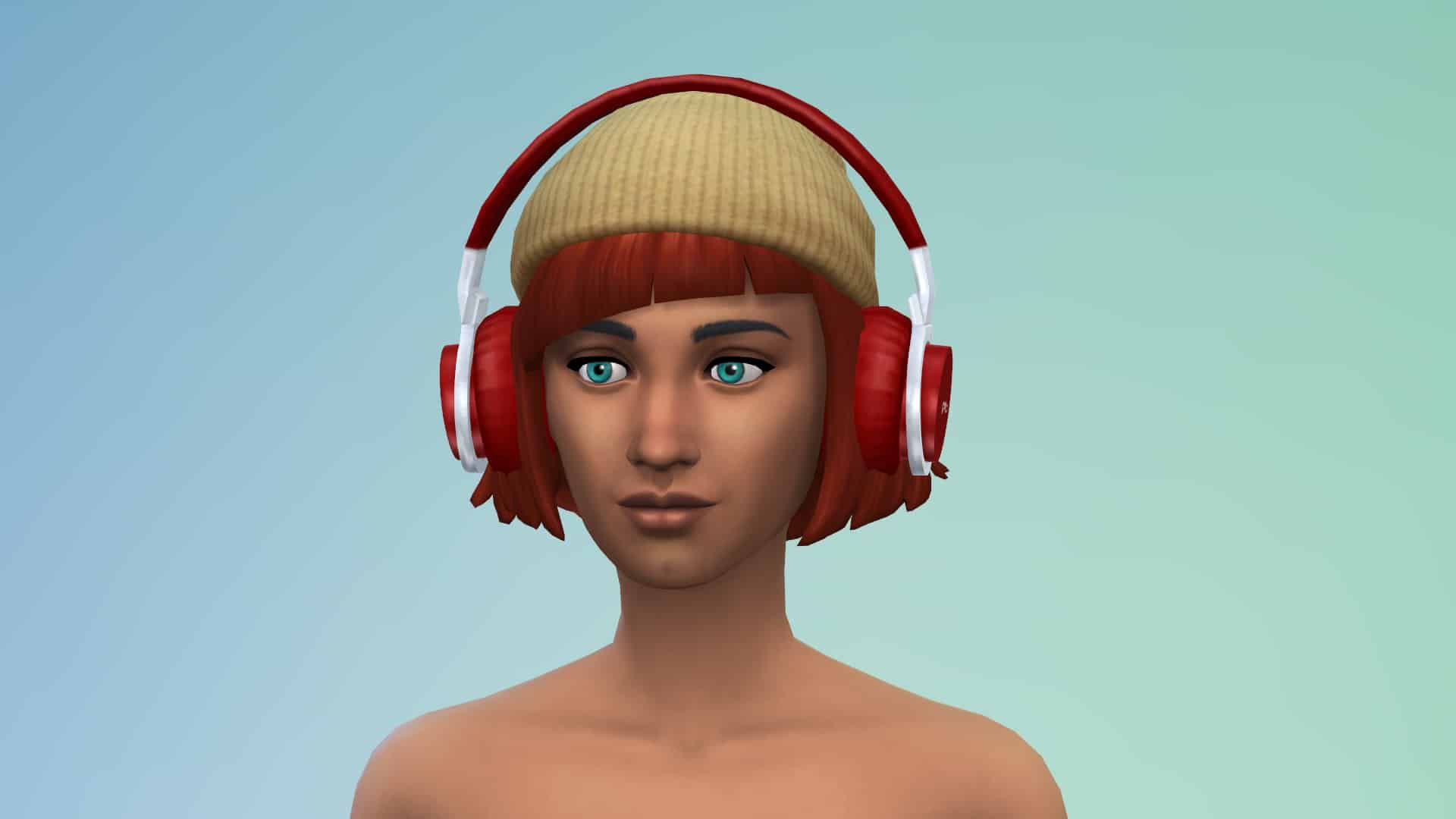
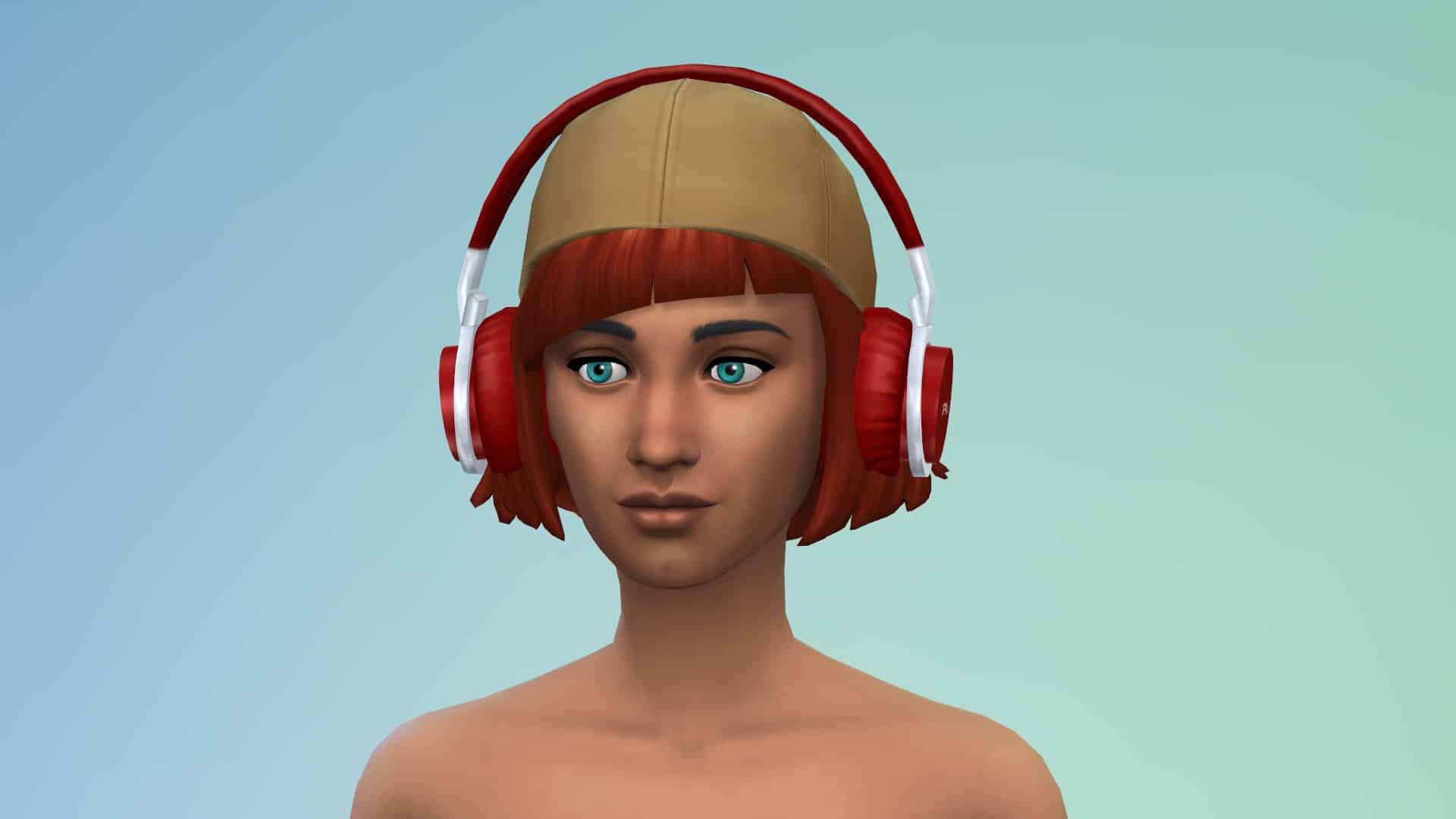
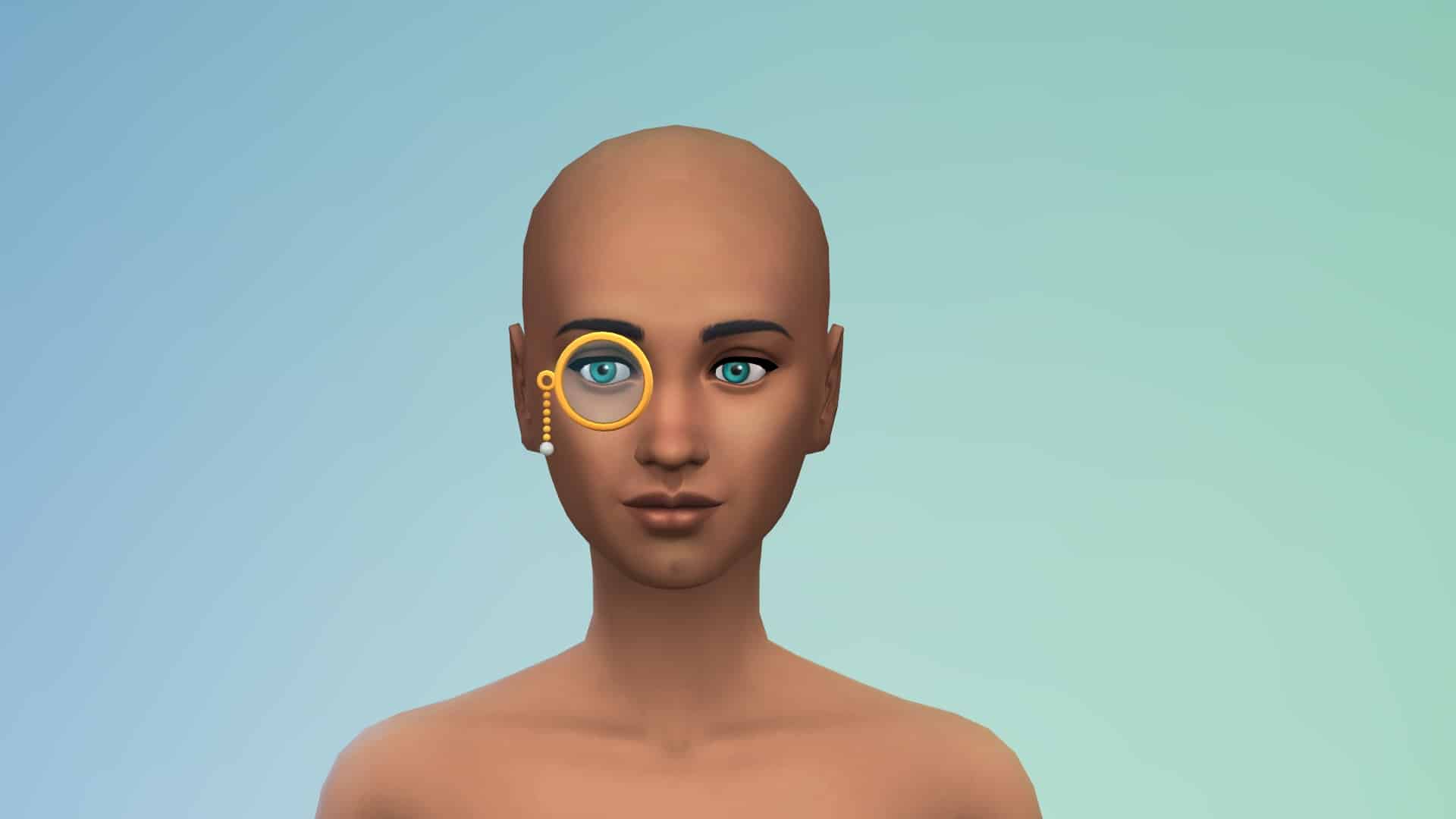
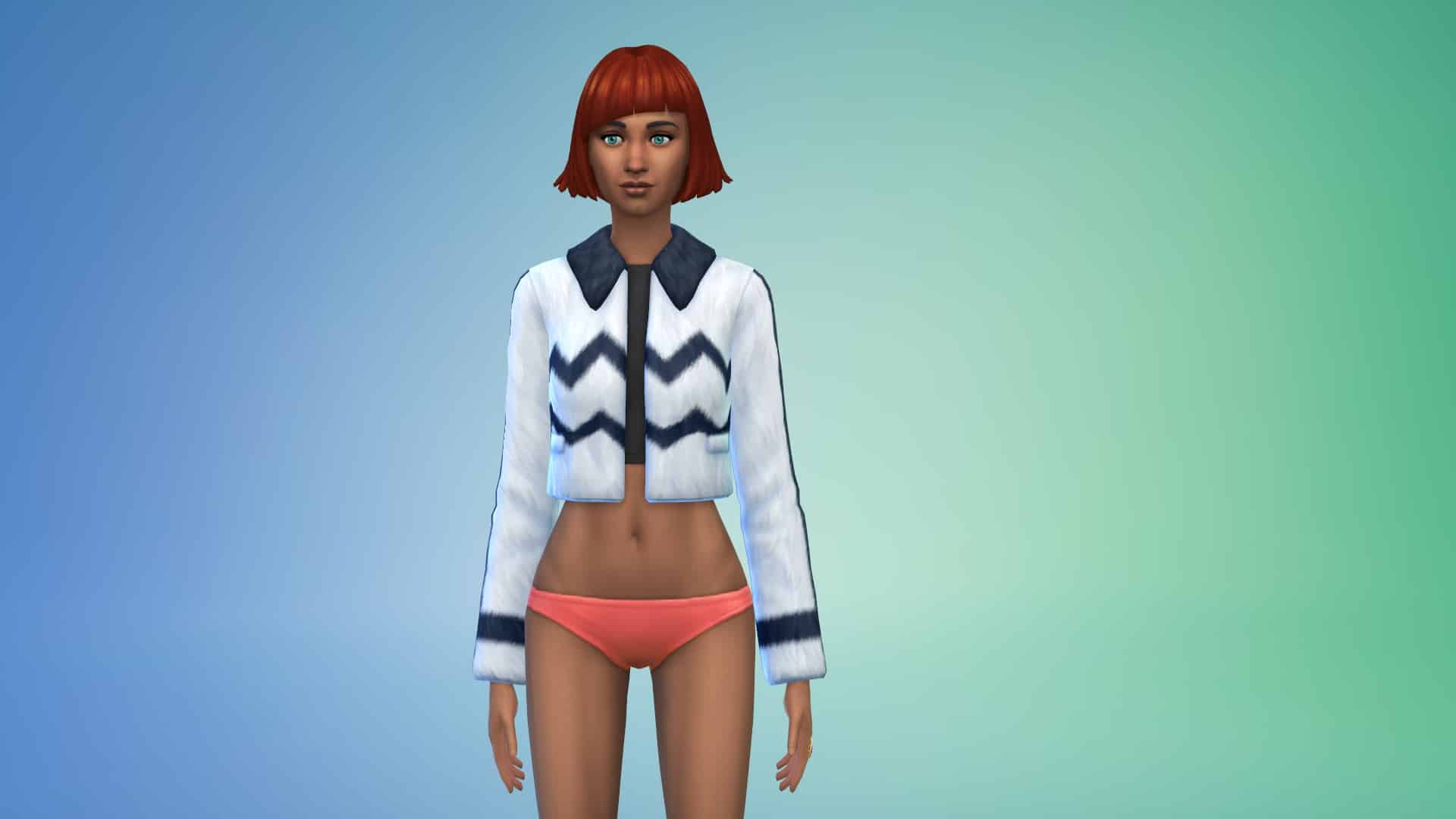
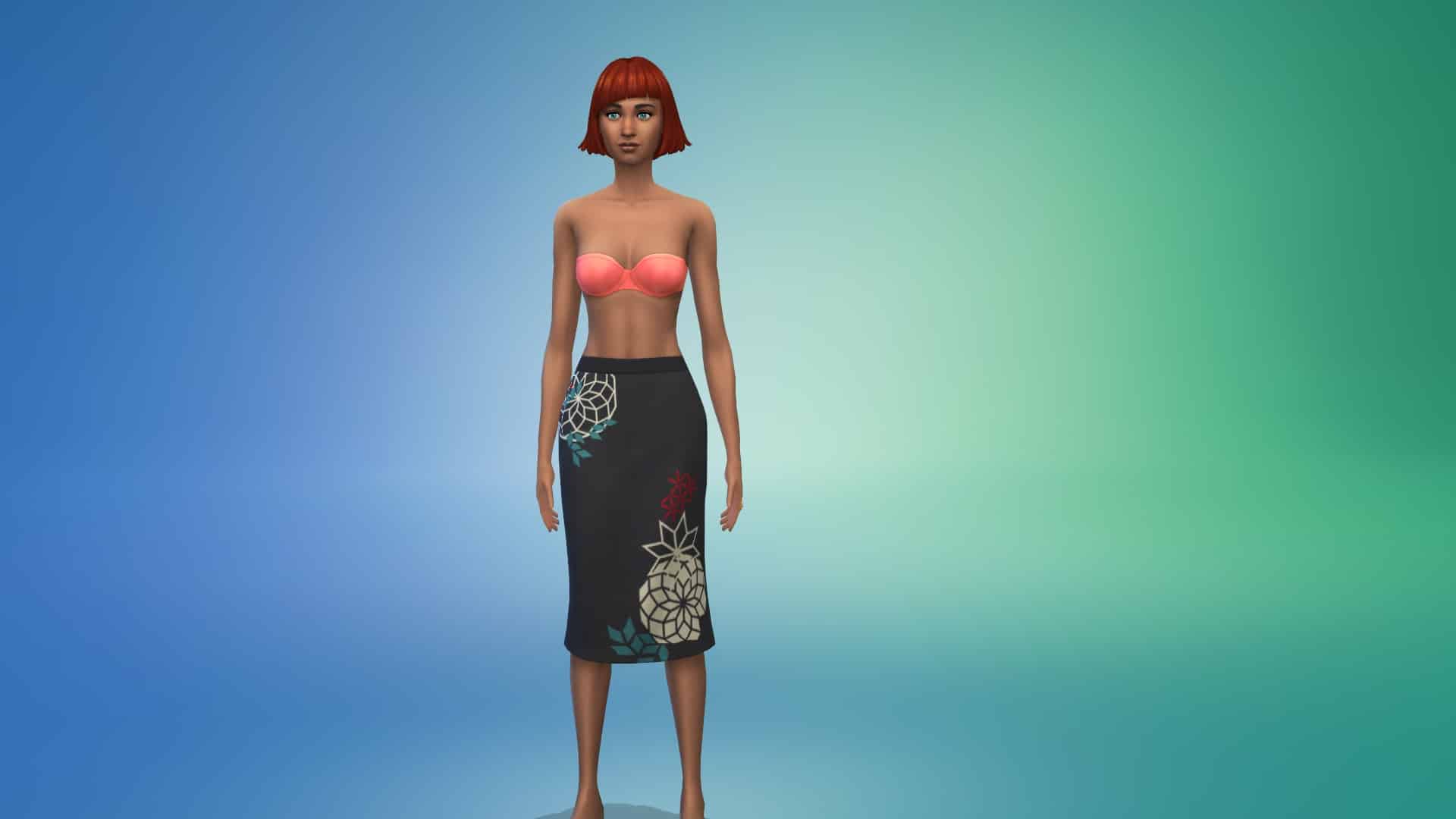
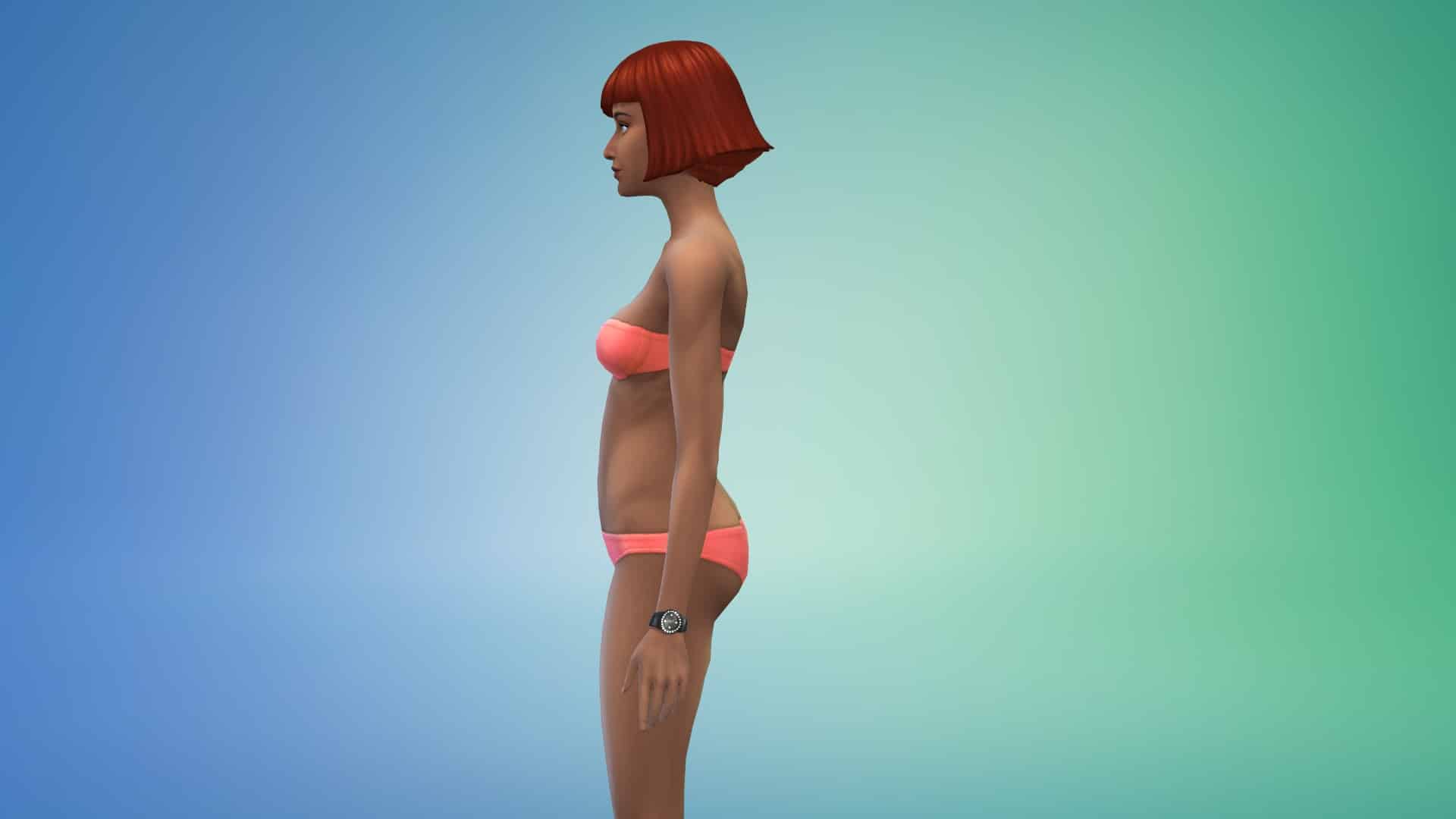
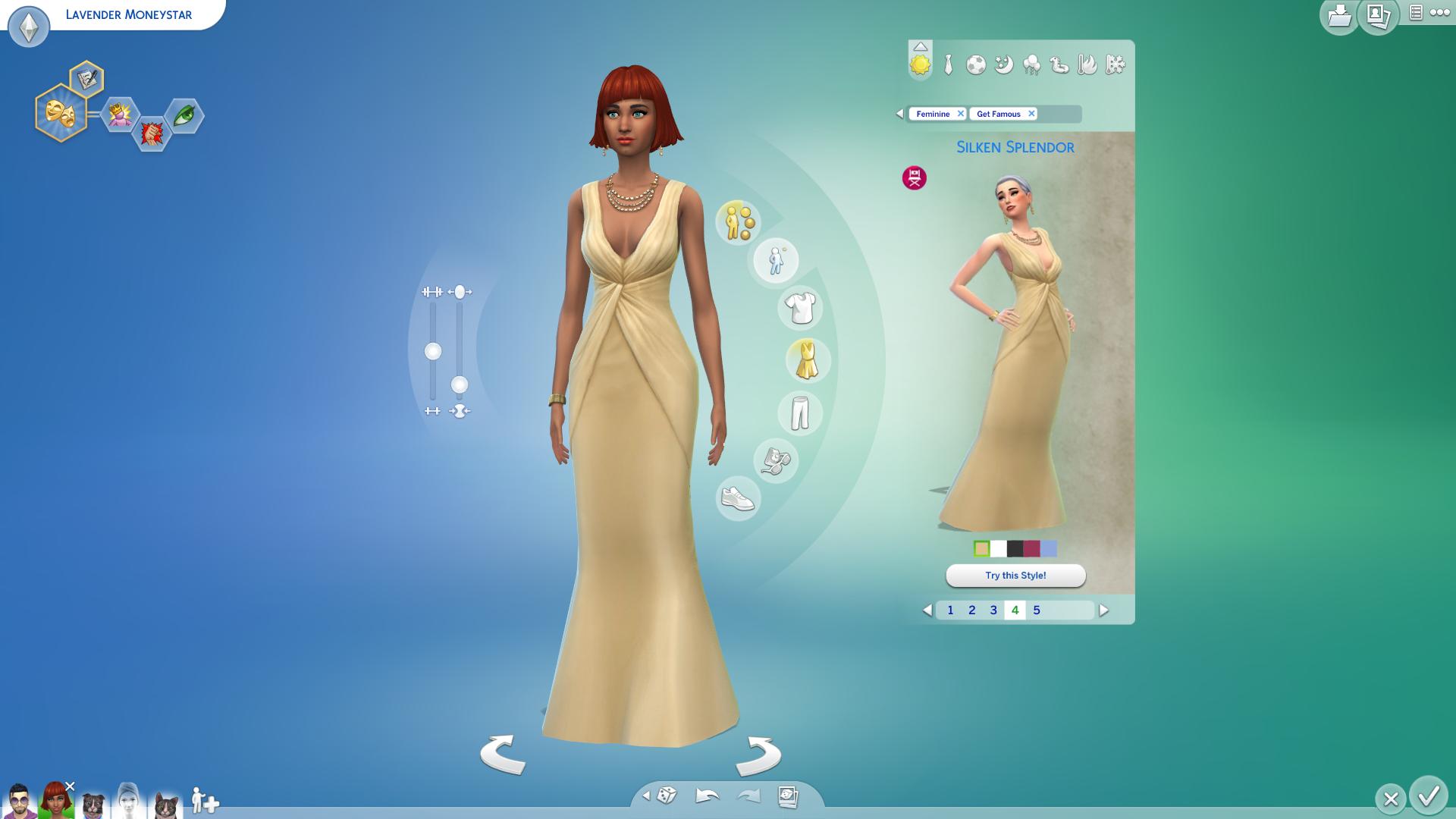
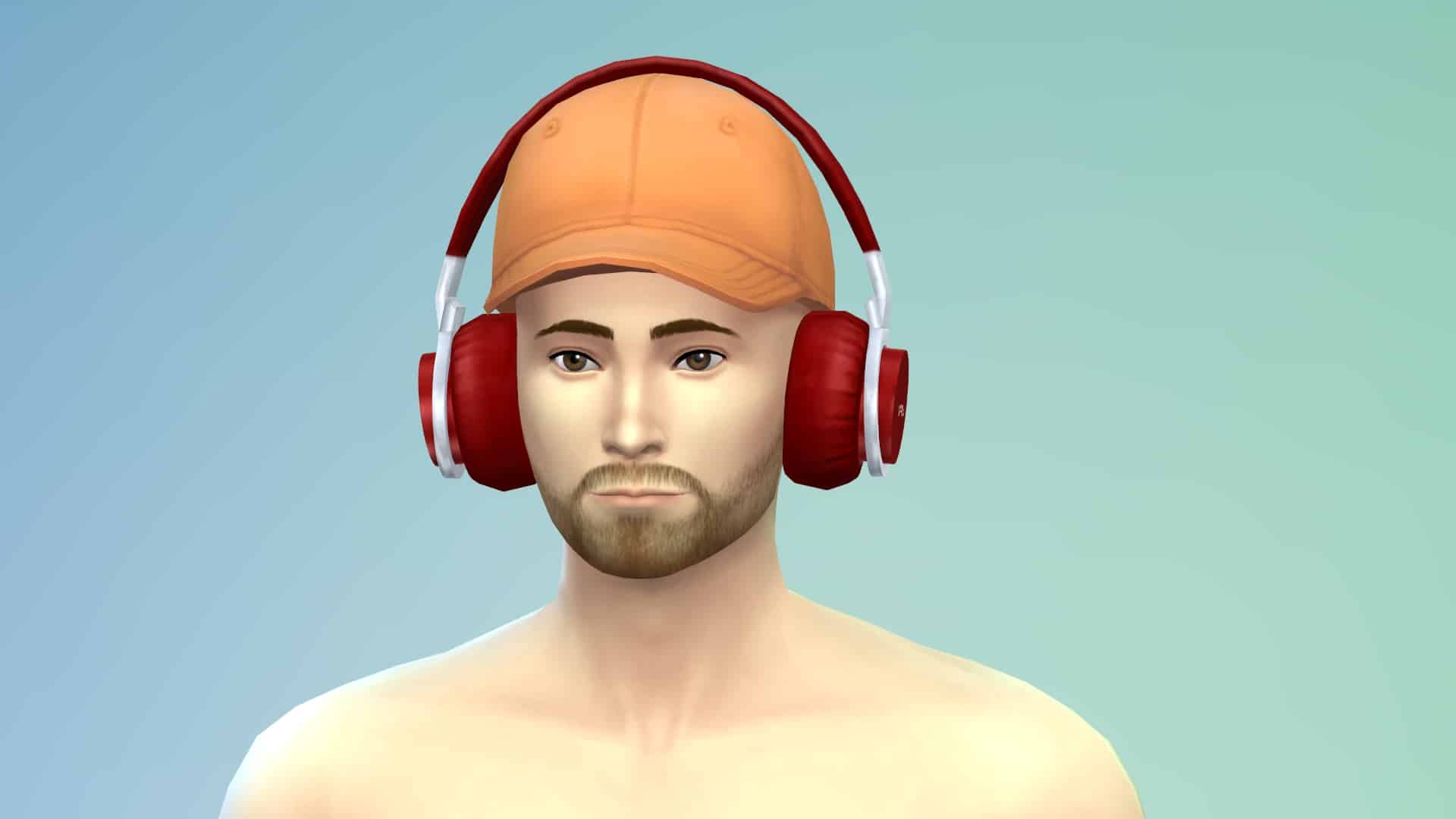
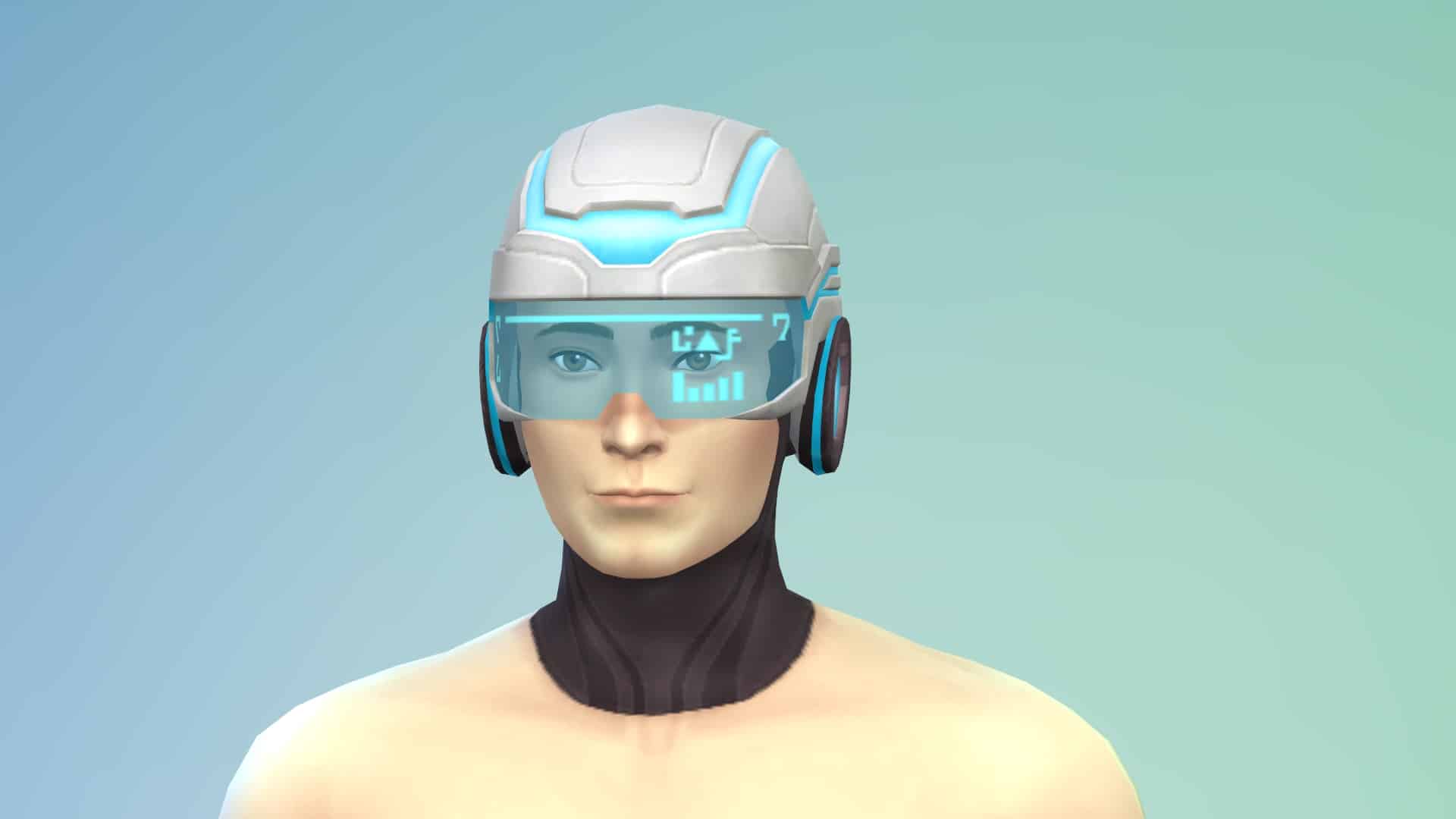
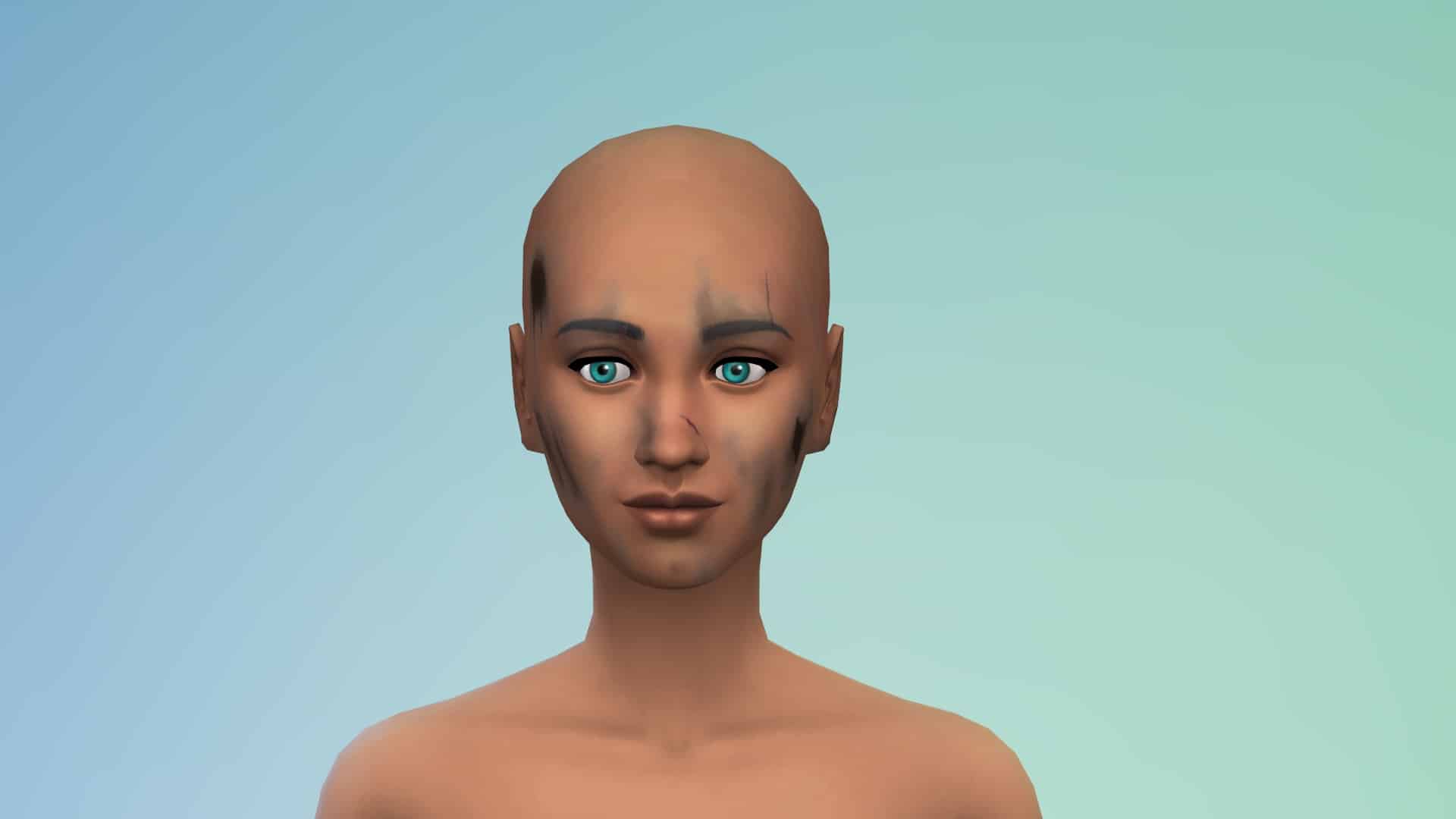
The Sims 4 Get Famous Expansion Pack comes packed with plenty of new items in Create A Sim for Sims of all ages including new face details, hairstyles, clothing and accessories!

Down below you can check out over 180 new items that are included with this pack, along with the styled looks that come in this pack. In the list below you’ll also see some items which have been unlocked through the new Acting Career.

Adult Unisex

Face Details

The Sims 4 Get Famous: Create A Sim OverviewThe Sims 4 Get Famous: Create A Sim OverviewThe Sims 4 Get Famous: Create A Sim OverviewThe Sims 4 Get Famous: Create A Sim OverviewThe Sims 4 Get Famous: Create A Sim OverviewThe Sims 4 Get Famous: Create A Sim OverviewThe Sims 4 Get Famous: Create A Sim OverviewThe Sims 4 Get Famous: Create A Sim OverviewThe Sims 4 Get Famous: Create A Sim OverviewThe Sims 4 Get Famous: Create A Sim OverviewThe Sims 4 Get Famous: Create A Sim OverviewThe Sims 4 Get Famous: Create A Sim OverviewThe Sims 4 Get Famous: Create A Sim OverviewThe Sims 4 Get Famous: Create A Sim OverviewThe Sims 4 Get Famous: Create A Sim OverviewThe Sims 4 Get Famous: Create A Sim OverviewThe Sims 4 Get Famous: Create A Sim OverviewThe Sims 4 Get Famous: Create A Sim OverviewThe Sims 4 Get Famous: Create A Sim OverviewThe Sims 4 Get Famous: Create A Sim OverviewThe Sims 4 Get Famous: Create A Sim OverviewThe Sims 4 Get Famous: Create A Sim OverviewThe Sims 4 Get Famous: Create A Sim OverviewThe Sims 4 Get Famous: Create A Sim OverviewThe Sims 4 Get Famous: Create A Sim Overview

Face Paint

The Sims 4 Get Famous: Create A Sim OverviewThe Sims 4 Get Famous: Create A Sim OverviewThe Sims 4 Get Famous: Create A Sim OverviewThe Sims 4 Get Famous: Create A Sim OverviewThe Sims 4 Get Famous: Create A Sim OverviewThe Sims 4 Get Famous: Create A Sim OverviewThe Sims 4 Get Famous: Create A Sim OverviewThe Sims 4 Get Famous: Create A Sim OverviewThe Sims 4 Get Famous: Create A Sim OverviewThe Sims 4 Get Famous: Create A Sim OverviewThe Sims 4 Get Famous: Create A Sim OverviewThe Sims 4 Get Famous: Create A Sim OverviewThe Sims 4 Get Famous: Create A Sim OverviewThe Sims 4 Get Famous: Create A Sim Overview

Feminine Adult

Hairstyles

The Sims 4 Get Famous: Create A Sim OverviewThe Sims 4 Get Famous: Create A Sim OverviewThe Sims 4 Get Famous: Create A Sim OverviewThe Sims 4 Get Famous: Create A Sim OverviewThe Sims 4 Get Famous: Create A Sim OverviewThe Sims 4 Get Famous: Create A Sim OverviewThe Sims 4 Get Famous: Create A Sim OverviewThe Sims 4 Get Famous: Create A Sim Overview

Headwear

The Sims 4 Get Famous: Create A Sim OverviewThe Sims 4 Get Famous: Create A Sim OverviewThe Sims 4 Get Famous: Create A Sim OverviewThe Sims 4 Get Famous: Create A Sim OverviewThe Sims 4 Get Famous: Create A Sim OverviewThe Sims 4 Get Famous: Create A Sim OverviewThe Sims 4 Get Famous: Create A Sim OverviewThe Sims 4 Get Famous: Create A Sim OverviewThe Sims 4 Get Famous: Create A Sim OverviewThe Sims 4 Get Famous: Create A Sim OverviewThe Sims 4 Get Famous: Create A Sim OverviewThe Sims 4 Get Famous: Create A Sim OverviewThe Sims 4 Get Famous: Create A Sim Overview

Head Accessories

The Sims 4 Get Famous: Create A Sim OverviewThe Sims 4 Get Famous: Create A Sim OverviewThe Sims 4 Get Famous: Create A Sim OverviewThe Sims 4 Get Famous: Create A Sim Overview

Tops

The Sims 4 Get Famous: Create A Sim OverviewThe Sims 4 Get Famous: Create A Sim OverviewThe Sims 4 Get Famous: Create A Sim OverviewThe Sims 4 Get Famous: Create A Sim OverviewThe Sims 4 Get Famous: Create A Sim OverviewThe Sims 4 Get Famous: Create A Sim OverviewThe Sims 4 Get Famous: Create A Sim OverviewThe Sims 4 Get Famous: Create A Sim OverviewThe Sims 4 Get Famous: Create A Sim OverviewThe Sims 4 Get Famous: Create A Sim OverviewThe Sims 4 Get Famous: Create A Sim Overview

Bottoms

The Sims 4 Get Famous: Create A Sim OverviewThe Sims 4 Get Famous: Create A Sim OverviewThe Sims 4 Get Famous: Create A Sim OverviewThe Sims 4 Get Famous: Create A Sim Overview

Outfits

The Sims 4 Get Famous: Create A Sim OverviewThe Sims 4 Get Famous: Create A Sim OverviewThe Sims 4 Get Famous: Create A Sim OverviewThe Sims 4 Get Famous: Create A Sim OverviewThe Sims 4 Get Famous: Create A Sim OverviewThe Sims 4 Get Famous: Create A Sim OverviewThe Sims 4 Get Famous: Create A Sim OverviewThe Sims 4 Get Famous: Create A Sim OverviewThe Sims 4 Get Famous: Create A Sim OverviewThe Sims 4 Get Famous: Create A Sim OverviewThe Sims 4 Get Famous: Create A Sim OverviewThe Sims 4 Get Famous: Create A Sim OverviewThe Sims 4 Get Famous: Create A Sim OverviewThe Sims 4 Get Famous: Create A Sim OverviewThe Sims 4 Get Famous: Create A Sim OverviewThe Sims 4 Get Famous: Create A Sim OverviewThe Sims 4 Get Famous: Create A Sim OverviewThe Sims 4 Get Famous: Create A Sim OverviewThe Sims 4 Get Famous: Create A Sim OverviewThe Sims 4 Get Famous: Create A Sim OverviewThe Sims 4 Get Famous: Create A Sim OverviewThe Sims 4 Get Famous: Create A Sim OverviewThe Sims 4 Get Famous: Create A Sim OverviewThe Sims 4 Get Famous: Create A Sim OverviewThe Sims 4 Get Famous: Create A Sim OverviewThe Sims 4 Get Famous: Create A Sim Overview

Shoes

The Sims 4 Get Famous: Create A Sim OverviewThe Sims 4 Get Famous: Create A Sim OverviewThe Sims 4 Get Famous: Create A Sim OverviewThe Sims 4 Get Famous: Create A Sim OverviewThe Sims 4 Get Famous: Create A Sim Overview

Accessories

The Sims 4 Get Famous: Create A Sim OverviewThe Sims 4 Get Famous: Create A Sim Overview

Styled Looks

The Sims 4 Get Famous: Create A Sim OverviewThe Sims 4 Get Famous: Create A Sim OverviewThe Sims 4 Get Famous: Create A Sim OverviewThe Sims 4 Get Famous: Create A Sim OverviewThe Sims 4 Get Famous: Create A Sim Overview

Masculine Adult

Hairstyles

The Sims 4 Get Famous: Create A Sim OverviewThe Sims 4 Get Famous: Create A Sim OverviewThe Sims 4 Get Famous: Create A Sim OverviewThe Sims 4 Get Famous: Create A Sim OverviewThe Sims 4 Get Famous: Create A Sim Overview

Headwear

The Sims 4 Get Famous: Create A Sim OverviewThe Sims 4 Get Famous: Create A Sim OverviewThe Sims 4 Get Famous: Create A Sim OverviewThe Sims 4 Get Famous: Create A Sim OverviewThe Sims 4 Get Famous: Create A Sim OverviewThe Sims 4 Get Famous: Create A Sim OverviewThe Sims 4 Get Famous: Create A Sim OverviewThe Sims 4 Get Famous: Create A Sim OverviewThe Sims 4 Get Famous: Create A Sim Overview

Head Accessories

The Sims 4 Get Famous: Create A Sim OverviewThe Sims 4 Get Famous: Create A Sim Overview

Tops

The Sims 4 Get Famous: Create A Sim OverviewThe Sims 4 Get Famous: Create A Sim OverviewThe Sims 4 Get Famous: Create A Sim OverviewThe Sims 4 Get Famous: Create A Sim OverviewThe Sims 4 Get Famous: Create A Sim OverviewThe Sims 4 Get Famous: Create A Sim OverviewThe Sims 4 Get Famous: Create A Sim OverviewThe Sims 4 Get Famous: Create A Sim OverviewThe Sims 4 Get Famous: Create A Sim OverviewThe Sims 4 Get Famous: Create A Sim OverviewThe Sims 4 Get Famous: Create A Sim OverviewThe Sims 4 Get Famous: Create A Sim OverviewThe Sims 4 Get Famous: Create A Sim Overview

Bottoms

The Sims 4 Get Famous: Create A Sim OverviewThe Sims 4 Get Famous: Create A Sim OverviewThe Sims 4 Get Famous: Create A Sim OverviewThe Sims 4 Get Famous: Create A Sim OverviewThe Sims 4 Get Famous: Create A Sim OverviewThe Sims 4 Get Famous: Create A Sim OverviewThe Sims 4 Get Famous: Create A Sim Overview

Outfits

The Sims 4 Get Famous: Create A Sim OverviewThe Sims 4 Get Famous: Create A Sim OverviewThe Sims 4 Get Famous: Create A Sim OverviewThe Sims 4 Get Famous: Create A Sim OverviewThe Sims 4 Get Famous: Create A Sim OverviewThe Sims 4 Get Famous: Create A Sim OverviewThe Sims 4 Get Famous: Create A Sim OverviewThe Sims 4 Get Famous: Create A Sim OverviewThe Sims 4 Get Famous: Create A Sim OverviewThe Sims 4 Get Famous: Create A Sim OverviewThe Sims 4 Get Famous: Create A Sim OverviewThe Sims 4 Get Famous: Create A Sim OverviewThe Sims 4 Get Famous: Create A Sim OverviewThe Sims 4 Get Famous: Create A Sim OverviewThe Sims 4 Get Famous: Create A Sim OverviewThe Sims 4 Get Famous: Create A Sim OverviewThe Sims 4 Get Famous: Create A Sim OverviewThe Sims 4 Get Famous: Create A Sim OverviewThe Sims 4 Get Famous: Create A Sim OverviewThe Sims 4 Get Famous: Create A Sim Overview

Shoes

The Sims 4 Get Famous: Create A Sim OverviewThe Sims 4 Get Famous: Create A Sim OverviewThe Sims 4 Get Famous: Create A Sim OverviewThe Sims 4 Get Famous: Create A Sim OverviewThe Sims 4 Get Famous: Create A Sim Overview

Accessories

The Sims 4 Get Famous: Create A Sim OverviewThe Sims 4 Get Famous: Create A Sim OverviewThe Sims 4 Get Famous: Create A Sim Overview

Styled Looks

The Sims 4 Get Famous: Create A Sim OverviewThe Sims 4 Get Famous: Create A Sim OverviewThe Sims 4 Get Famous: Create A Sim OverviewThe Sims 4 Get Famous: Create A Sim OverviewThe Sims 4 Get Famous: Create A Sim Overview

Child Feminine

Tops

The Sims 4 Get Famous: Create A Sim OverviewThe Sims 4 Get Famous: Create A Sim OverviewThe Sims 4 Get Famous: Create A Sim Overview

Outfits

The Sims 4 Get Famous: Create A Sim OverviewThe Sims 4 Get Famous: Create A Sim Overview

Shoes

The Sims 4 Get Famous: Create A Sim OverviewThe Sims 4 Get Famous: Create A Sim Overview

Styled Looks

The Sims 4 Get Famous: Create A Sim OverviewThe Sims 4 Get Famous: Create A Sim OverviewThe Sims 4 Get Famous: Create A Sim Overview

Child Masculine

Tops

The Sims 4 Get Famous: Create A Sim OverviewThe Sims 4 Get Famous: Create A Sim OverviewThe Sims 4 Get Famous: Create A Sim OverviewThe Sims 4 Get Famous: Create A Sim Overview

Shoes

The Sims 4 Get Famous: Create A Sim OverviewThe Sims 4 Get Famous: Create A Sim Overview

Styled Looks

The Sims 4 Get Famous: Create A Sim OverviewThe Sims 4 Get Famous: Create A Sim Overview

Toddlers

Tops

The Sims 4 Get Famous: Create A Sim OverviewThe Sims 4 Get Famous: Create A Sim Overview

Bottoms

The Sims 4 Get Famous: Create A Sim Overview

Styled Looks

The Sims 4 Get Famous: Create A Sim Overview

The Sims 4 Get Famous: Build / Buy Items Overview

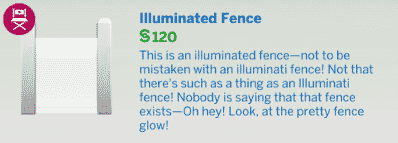
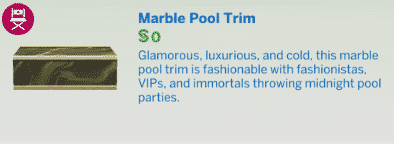
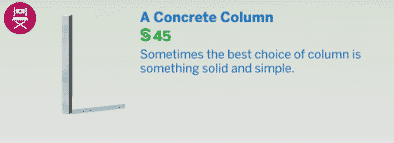
The Sims 4 Get Famous Expansion Pack comes with over 270 new items in Build / Buy Mode! There’s a lot of objects that are included in this pack including new furniture, decor, tech, interactive objects, stage props, wallpapers & floorings, miscellaneous build objects and more!

Down below we’ve included all items and their descriptions of those items that you can check out. Below the list of objects you can also find a list of new styled rooms!

New Items

Styled Rooms

The Sims 4: How to Enable / Disable Whims

You’ve probably noticed something strange and missing in Live Mode after installing The Sims 4’s latest update. Yup, the thought bubbles above your Sim’s thumbnail, also known as Whims, are not automatically disabled from the game.

The Sims 4: How to Enable / Disable Whims

However, the feature wasn’t fully removed from the game – it was just disabled along with the introduction of a new section in Game Options. To bring back Whims, go to Options > Gameplay > Show Whims. Ticking the box will bring back the Whims feature in your game.

The Sims 4: How to Enable / Disable Whims

You’ll be able to play and earn Satisfaction Points once again after enabling this feature. It’s not known why the feature has been automatically disabled in the first place considering that Whims were one of the main ways to earn Satisfaction Points for the Satisfaction Rewards. However, it could be related to the fact that you get a lot more Satisfaction Points by completing Holidays with The Sims 4 Seasons or that the feature just isn’t that played enough to be considered as a mandatory feature that would hog up the User Interface.

The Sims 4: How to Enable / Disable Whims

The Sims 4 Get Famous: Media Production Skill Guide

The Media Production skill is a brand new 5-level skill that comes with The Sims 4 Get Famous. Sims who want to master this skill will be making use of three key objects; the Music Station, the Video Station, and the Drone. For a detailed description of these objects’ features, see our article, The Sims 4 Get Famous: All About Media Production Skill Objects.

This article is about the skill itself and will cover each level of the skill and what features you can unlock by building the skill. As you build the Media Production skill, more features will become available to you on both the Music Station and the Video Station.

Get in the Mood

The ideal emotion for the Media Production skill is the Inspired emotion. Thankfully, becoming Inspired is not difficult at all. Take a thoughtful shower or cloudgaze for a few minutes (with The Sims 4 Outdoor Retreat). If you have the plumbob mood lamps that were given to players who purchased The Sims 3 expansion packs, you can use those to easily make your Sims inspired. Even if you don’t have the mood lamps, any object with an Inspiring aura will do the trick.

Level 1

The Sims 4 Get Famous: Media Production Skill Guide

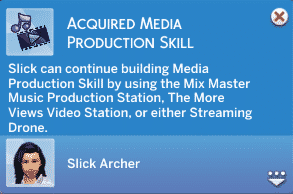
Like all other skills, Sims will reach level one of the Media Production skill as soon as they start learning it. Interact with the Video Station or Music Station to start building this skill. Use this first level to get used to all your new equipment. Play around with the features on the Music and Video Stations to see what your Sim can do with them. Try uploading a few videos or burning a couple of tracks. Get a feel for how everything works while your Sim is still learning the basics of Media Production.

Level 2

The Sims 4 Get Famous: Media Production Skill Guide

At level 2 of the Media Production skill, your Sim will start to open up a few more options to improve the quality of their music and videos. You’ll be able to add transitions to your videos and one new track will be available to you on the Music Station, called Rooba Vay. Your Sim will also have more remix options available to them when creating new tracks on the Music Station. Be careful when adding transitions to your videos! Sometimes they can make the video worse. Continue building the Media Production skill to lower your chances of accidentally ruining a video’s quality while editing it.

Level 3

The Sims 4 Get Famous: Media Production Skill Guide

Reaching Level 3 of the Media Production skill will allow your Sim to add effects to their videos and combine videos with the Video Station. Be careful when adding effects to your videos! Sometimes they can make the video worse. Continue building the Media Production skill to lower your chances of accidentally ruining a video’s quality while editing it.

Although the skill notification doesn’t mention this, your Sim will also open up a new track on the Music Station at level 3, called Yome.

Level 4

The Sims 4 Get Famous: Media Production Skill Guide

Level 4 of this skill doesn’t add any new options to the Video Station, but it offers a big improvement for the Music Station. Your Sim will be able to produce two new tracks on the Music Station, called Looling and Oopella. You’ll also have a much wider array of remix options available to your Sim when creating new tracks.

The Sims 4 Get Famous: Media Production Skill Guide

Level 5

The Sims 4 Get Famous: Media Production Skill Guide

Congratulations on mastering the Media Production skill! While the skill notification doesn’t mention this, mastering this skill opens up two more tracks on the Music Station; Arribay and Plonky Zombray. Your Sim’s skills are so refined that the quality of their music and videos will be much higher, resulting in more fame and better royalties. Your Sim can also add transitions and effects to their videos with a much lower chance of ruining the video’s quality. With the right add-on components and upgrades, your Sim should be able to easily release excellent quality music and videos all the time.

The Sims 4 Get Famous: Media Production Skill Guide

Have you started exploring the Media Production skill yet? Let us know what you think about this new skill in the comments or tell us all about it on social media!

The Sims 4 Get Famous Cheats

Progress your fame and unlock Perks and Quirks with these Sims 4 Get Famous Cheats!

With the help of SrslySims we’ve managed to uncover all of the cheats that come with The Sims 4 Get Famous Expansion Pack. Those include Career Cheats, Skill Cheats, Fame & Reputation Cheats, Perks & Quirks Cheats and more!

Down below you can find the entire list of all of the cheats we’ve uncovered. Please note that these cheats require you to enter the testingcheats true cheat before using them.

Most of these cheats require a SimID. The SimID is a unique identification number which you can discover by using the following cheat:

sims.get_sim_id_by_name <yoursimfirstname> <yoursimlastname>

Once you type in the cheat, in the window below the command bar it will say “Has sim id:” followed by a long number. You only need to know the number that is generated. This is your Sim ID for that sim. If you have other sims in your household you will need their Sim ID as well, as each sim has their very own Sim ID. Down below you’ll find specific cheats which have [SimID] in them. Simply replace that part with the number you’ve unlocked using the cheat above.
Want to see how you can apply these cheats directly in the game? Check out the tutorial video below:

Some of the cheats we’ve listed below still require testing and have been marked with red.

Click here for a full list of cheats in The Sims 4!

Skill Cheats

  • Acting – stats.set_skill_level major_acting [1-10]
  • Media Production – stats.set_skill_level minor_media [1-5]

Get Famous Career Cheats

  • Acting Career – careers.promote actor
  • Drama Club (Kids) – careers.promote dramaclub

Add Fame Points

  • famepoints [value]

Freeze and Start Fame

  • fame.set_freeze_fame
  • fame.set_allow_fame

Fame Perk – Squad

  • fame.add_sim_to_squad [SimID]
  • fame.remove_min_from_squad [SimID]

Trait Cheats

  • Unstoppable Fame (Aspiration Reward Trait) – traits.equip_trait unstoppablefame
  • World Renowned Actor (Aspiration Reward Trait) – traits.equip_trait worldrenownedactor

Sims 4 Perks and Quirks Cheats

  • bucks.unlock_perk [PerkName] true 61441 [SimID]
  • bucks.lock_perk [PerkName] 61441 [SimID]

Down below you can find all of the Perk and Quirk cheats. Simply paste them in the cheat box and replace the [SimID] with the number you’ve received using the cheat we’ve posted in the beginning of this post.

You can also remove any perk or quirk by simply removing the “true” part from the cheats below.

Bad

  • Who’s Bad – bucks.unlock_perk whosbad true 61441 [SimID]
  • Play The Villain – bucks.unlock_perk playthevillain true 61441 [SimID]
  • Feud Bringer – bucks.unlock_perk feudbringer true 61441 [SimID]

Good

  • Giving Back – bucks.unlock_perk givingback true 61441 [SimID]
  • Good Reputation – bucks.unlock_perk GoodReputation_Rally true 61441 [SimID]
  • Star Treatment – bucks.unlock_perk startreatment true 61441 [SimID]

Brand and Influencer

  • Trailblazer – bucks.unlock_perk trailblazer true 61441 [SimID]
  • Lifestyle Brand – bucks.unlock_perk lifestylebrand true 61441 [SimID]
  • All Nighter – bucks.unlock_perk allnighter true 61441 [SimID]
  • Influencer – bucks.unlock_perk influencer true 61441 [SimID]
  • Corporate Partnership – bucks.unlock_perk corporatepartnership true 61441 [SimID]

Career

  • Easy Street -bucks.unlock_perk easystreet true 61441 [SimID]
  • Career Hopper – bucks.unlock_perk careerhopper true 61441 [SimID]
  • Established Name – bucks.unlock_perk establishedname true 61441 [SimID]
  • Celebuserum – bucks.unlock_perk celebuserum true 61441 [SimID]
  • Noticeable – bucks.unlock_perk noticeable true 61441 [SimID]

Fame

  • PR Person – bucks.unlock_perk prperson true 61441 [SimID]
  • Squad – bucks.unlock_perk squad true 61441 [SimID]
  • Fan Favorite – bucks.unlock_perk fanfavorite true 61441 [SimID]
  • Instant Besties – bucks.unlock_perk instantbesties true 61441 [SimID]
  • Networking – bucks.unlock_perk networking true 61441 [SimID]

Quirks

  • Vain Street – bucks.unlock_perk vainstreet true 61442 [SimID]
  • Refined Palate – bucks.unlock_perk refinedpalate true 61442 [SimID]
  • Public Number – bucks.unlock_perk publicnumber true 61442 [SimID]
  • Phone Fanatic – bucks.unlock_perk phonefanatic true 61442 [SimID]
  • Aserious Actor – bucks.unlock_perk aseriousactor true 61442 [SimID]
  • Paparazzi Darling – bucks.unlock_perk paparazzidarling true 61442 [SimID]
  • Brushed With Fame – bucks.unlock_perk brusheswithfame true 61442 [SimID]
  • Emotion Bomb – bucks.unlock_perk emotionbomb true 61442 [SimID]
  • No Touching – bucks.unlock_perk notouching true 61442 [SimID]
  • Fan Mail – bucks.unlock_perk fanmail true 61442 [SimID]
  • Juice Enthusiast – bucks.unlock_perk juiceenthusiast true 61442 [SimID]
  • Stan – bucks.unlock_perk quirks_stan true 61442 [SimID]

Tested Sims 4 Cheats that don’t work

Reputation

  • reputation.set_allow_reputation
  • reputation.show_allow_reputation

Opt-Out Fame

  • fame.set_start_all_sims_opted_out_of_fame

Drama Cheats (Requires testing)

  • drama.run_node [Actor SimID]
  • drama.run_node_with_zone_id [Actor SimID]
  • drama.schedule_node [Actor SimID]
  • drama.show_scheduled_nodes
  • drama.show_active_nodes
  • drama.score_nodes
  • drama.enable_drama_scheduler
  • drama.disable_drama_scheduler
  • drama.show_drama_calendar
  • drama.cancel_scheduled_node
  • drama.cancel_scheduled_node_by_type

Drama Festival? (Requires testing)

  • drama.travel_to_festival_zone
  • drama.show_festival_info
  • drama.print_scoring_info

Bouncer? (Requires testing)

  • bouncer.print_exclusitivity_options

Opt-Out Fame

  • fame.set_start_all_sims_opted_out_of_fame

Drama Cheats (Requires testing)

  • drama.run_node [Actor SimID]
  • drama.run_node_with_zone_id [Actor SimID]
  • drama.schedule_node [Actor SimID]
  • drama.show_scheduled_nodes
  • drama.show_active_nodes
  • drama.score_nodes
  • drama.enable_drama_scheduler
  • drama.disable_drama_scheduler
  • drama.show_drama_calendar
  • drama.cancel_scheduled_node
  • drama.cancel_scheduled_node_by_type

Drama Festival? (Requires testing)

  • drama.travel_to_festival_zone
  • drama.show_festival_info
  • drama.print_scoring_info

Fame Moments

  • fame.force_fame_moments

Lifestyle Brand (Feature doesn’t work – requires testing)

  • fame.turn_off_lifestyle_brand

Fame Bonus

  • fame.award_parent_fame_bonus [Child SimID]
  • child_fame.add_vale [VALUE]

The Sims 4 Get Famous introduces Blind Dates

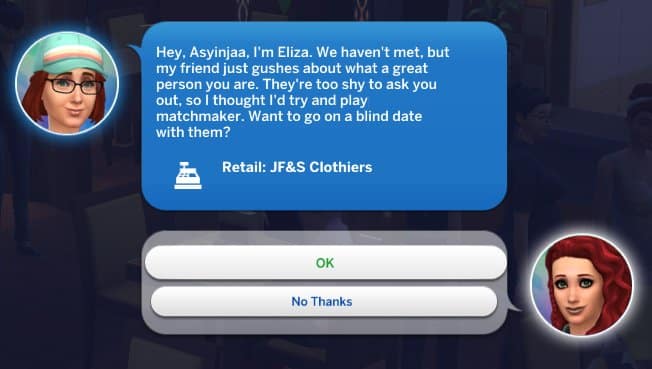
A few simmers have reported on social media that their Sims have gotten an opportunity via phone to join a “Blind Date” with another unknown Sim. These have started happening not with The Sims 4’s latest update but after installing The Sims 4 Get Famous Expansion Pack.

Player @OnyekaOO1 has also shared a screenshot of the notification she received in the game:

The Sims 4 Get Famous introduces Blind Dates

We asked around on Twitter to see if this is truly new with The Sims 4 Get Famous and how does it actually occur in the game. SimGuruGraham explained the entire process and the functionality of Blind Dates:

This is indeed new with Get Famous. You can receive a phone call to go on a blind date if you have Great reputation (or better), or Awful reputation (or worse). Your blind date with will match your Sim’s romantic gender preference, and will have compatible reputations.


Blind Dates are an interesting opportunity to meet a new Sim you’ve never met before considering that you’ll be getting a recommendation from a friend to meet someone new. As Graham explained, the Blind Date that’ll be suggested to you will match your Sim’s gender preference.

The Blind Date opportunity will only show up if your Sim already has a knowledgable reputation – not depending on whether it’s good or bad.

The Sims 4 Get Famous: All About Child Celebrities

In The Sims 4 Get Famous, celebrity status isn’t restricted to adults. Children can be celebrities, too! While there are some limitations on child fame, children aren’t excluded from the celebrity lifestyle. They get most of the same benefits from fame that adults do.

The main way for a child to become famous is by having famous parents. A child born to a celebrity will inherit some of their parent’s fame. Children born to extremely famous parents will be born as a one star celebrity already; however, you will not be able to see their celebrity status until they become children. This applies to adopted children as well. Toddlers and younger Sims will not have any fame stars or fame-related activities to do.

The Sims 4 Get Famous: All About Child Celebrities
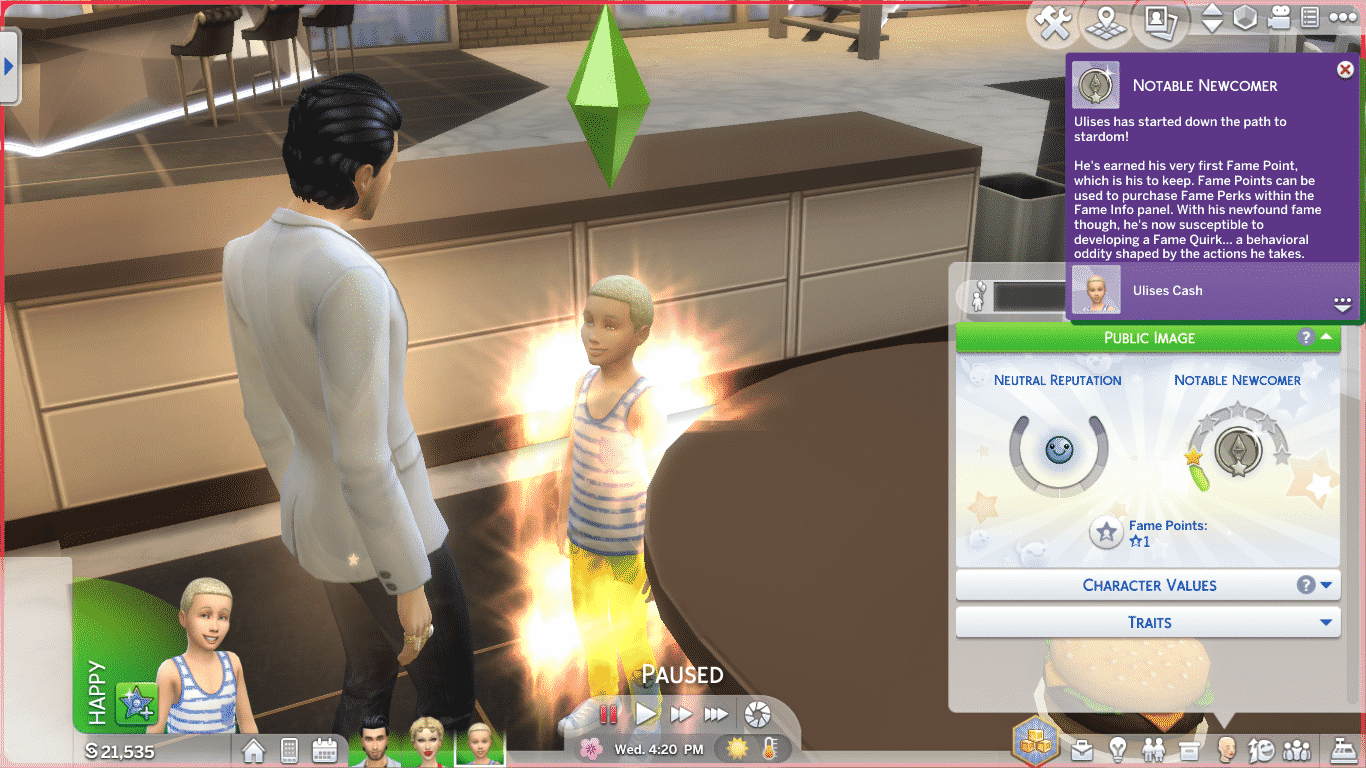
A child of two famous Sims receiving his first celebrity star on his birthday

When a toddler of famous parents grows into a child, they will receive their first celebrity star. They will also receive their first fame point to spend on a perk of their choosing. Celebrity children have access to the same fame perks as adults, but they will not be able to purchase any of the higher-tier perks until they age up. Children are capped out at two stars of fame, but can have a Pristine/Terrible reputation.

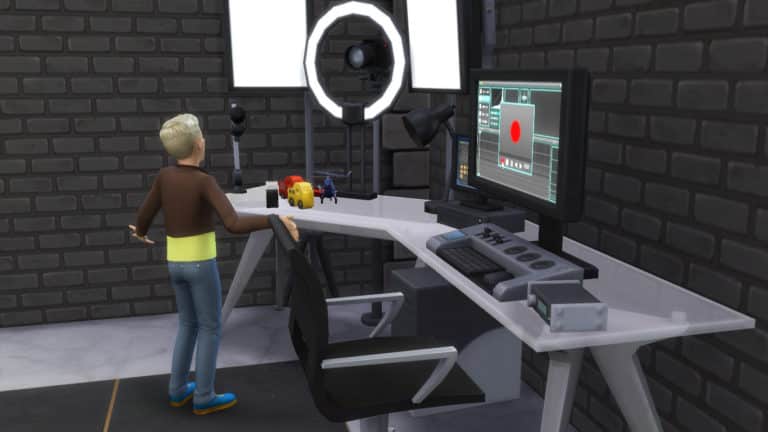
If you’re looking to turn your non-famous Sim child into a star, the best way for a child to build fame is by becoming an Internet vlogger. That’s right, children can record and edit videos with the Video Station, just like adults! The toy review option is a great child-friendly activity for your famous children, but children can record other types of videos as well. Children will gain fame whenever they upload a video. Making videos will also build the Creativity skill.

The Sims 4 Get Famous: All About Child Celebrities
A child celebrity filming a toy review with the Video Station

Another way for children to get noticed as a celebrity is through drama club. Use the phone to sign them up for this after school activity. The drama club functions like an after school job. Children will need to practice acting, build the Creativity skill, and show up to drama club in a positive emotional state to be promoted to the next level of drama club. For more information on drama club, see our article, The Sims 4 Get Famous: Exploring Drama Club.

Know of any other ways for children to become famous? Let us know in the comments or get in touch with us on social media!

The Sims 4 Console turns 1 year today

1

On this day, a year ago, The Sims 4 has launched for Xbox One and PS4 Consoles. The game didn’t initially release with a lot of packs with only 1 Bundle / 3 seperate packs including City Living Expansion Pack, Vampires Game Pack and Vintage Glamour Stuff Pack.

However, in just 1 year The Sims Team managed to release the following packs for the game (in order of release for each pack type):

Expansion Packs

  • The Sims 4 City Living
  • The Sims 4 Get To Work
  • The Sims 4 Cats & Dogs
  • The Sims 4 Get Together
  • The Sims 4 Seasons

Game Packs

  • The Sims 4 Vampires
  • The Sims 4 Dine Out
  • The Sims 4 Parenthood

Stuff Packs

  • The Sims 4 Vintage Glamour Stuff
  • The Sims 4 Perfect Patio Stuff
  • The Sims 4 Cool Kitchen Stuff
  • The Sims 4 Luxury Party Stuff
  • The Sims 4 Romantic Garden Stuff
  • The Sims 4 Backyard Stuff
  • The Sims 4 Toddler Stuff
  • The Sims 4 Kids Room Stuff
  • The Sims 4 Laundry Day Stuff
  • The Sims 4 Spooky Stuff

In just a year The Sims Team managed to release 18 packs for the game, with the following packs still waiting to be released:

Expansion Packs

  • The Sims 4 Get Famous

Game Packs

  • The Sims 4 Outdoor Retreat
  • The Sims 4 Spa Day
  • The Sims 4 Jungle Adventure

Stuff Packs

  • The Sims 4 Movie Hangout Stuff
  • The Sims 4 Bowling Night Stuff
  • The Sims 4 Fitness Stuff
  • The Sims 4 My First Pet Stuff

With 18 packs out and 8 packs still waiting to be released it’s safe to say that in the following months The Sims 4 will entirely catch up with the PC / Mac console. It’s still not known if finishing all the packs previously released would mean faster releases for newer packs in production along with PC / Mac version but it could definitely be the case.

Are you satisfied with all of the packs, updates and adjustments that were made to the console version over the last year? Let us know in the comments!

The Sims 4 Get Famous: All About Media Production Skill Objects

The Media Production skill is a 5 level skill that comes with The Sims 4 Get Famous. It’s tied to three new objects that come with this expansion; the Music Station, the Video Station, and the Drone. The Music Station allows your Sims to produce and remix their own music tracks. The Video Station allows your Sims to film, edit, and upload their own videos. Sims can also use a Drone to capture footage which they can then transfer to the video station for editing.

The Music Station

The Sims 4 Get Famous: All About Media Production Skill Objects

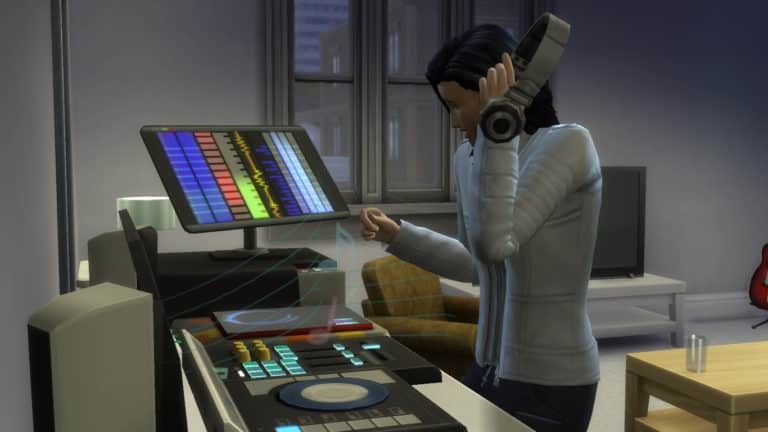
The Music Station is where your Sims can produce, customise, and release their own sick beats to the world. To start creating your own customised music track, select Produce New Track on the music station and pick one of the options.

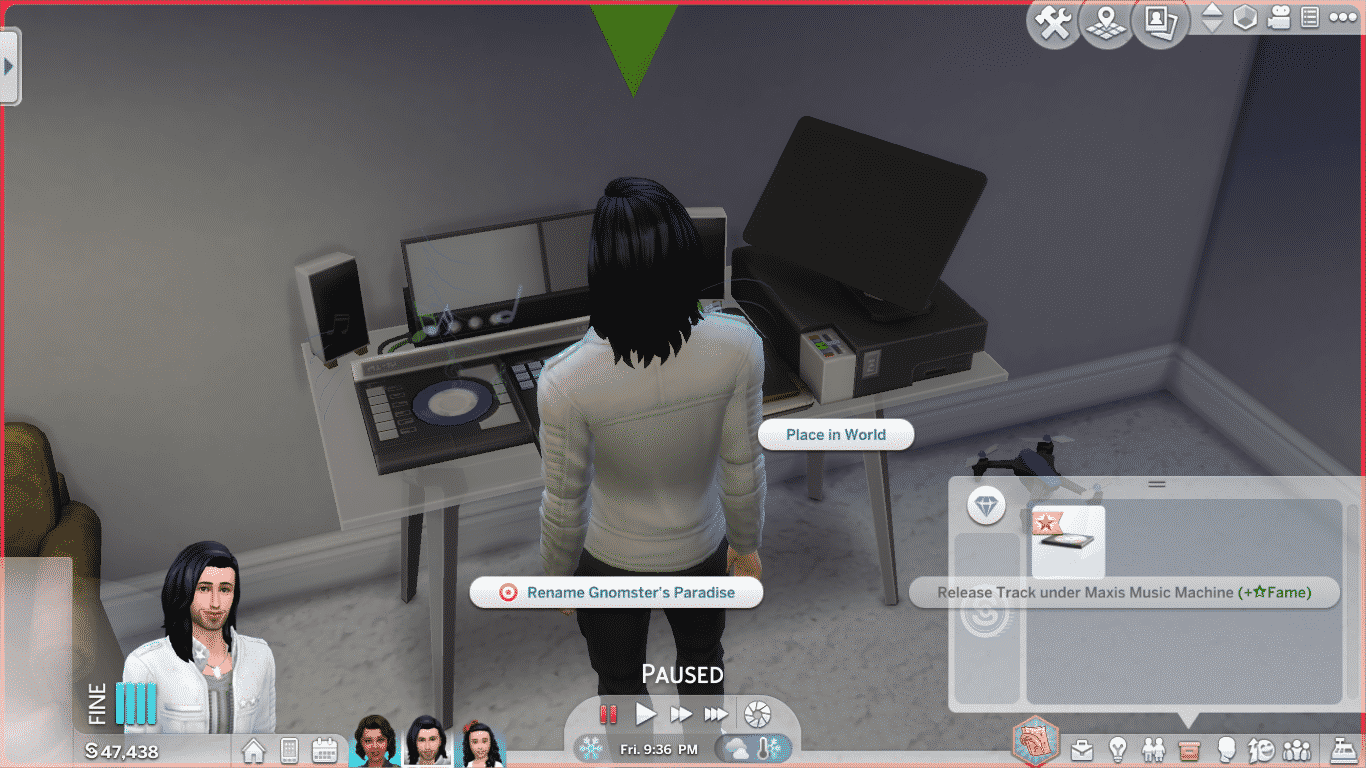
You’ll notice that Remix and Burn Track are both greyed out in the menu until your Sim starts using the Music Station. Your Sim needs to be playing a track to be able to remix and burn it. Once your Sim has a good beat going, you can remix the track to your liking. Toggle whatever musical effects you like on or off to get your sound just right. Build the Media Production skill to open up new tracks and remix options. When you’re satisfied with the way your new track sounds, select Burn Track to put a copy in your Sim’s inventory. You’ll be able to name your track and give it a snappy description.

When your Sim has a finished track in their inventory, you can release it to a streaming service. You can do this from the Music Station or through your Sim’s inventory. In your inventory, you can also rename the track and hover over it to see its quality and other information. Your Sim will gain fame whenever they release a new track and earn daily royalties from it. Releasing a track doesn’t delete it from the inventory. Your Sim gets to keep their copy.

The Sims 4 Get Famous: All About Media Production Skill Objects

If your Sim wants to truly make it big, they can submit their tracks to a record label. There are three record labels to choose from that range from low to high in terms of their standards and reputation. Getting signed with a label will earn your Sim more fame and royalties when they release a track, but they need to be releasing new music every day or their label may drop them.

The Video Station

The Sims 4 Get Famous: All About Media Production Skill Objects

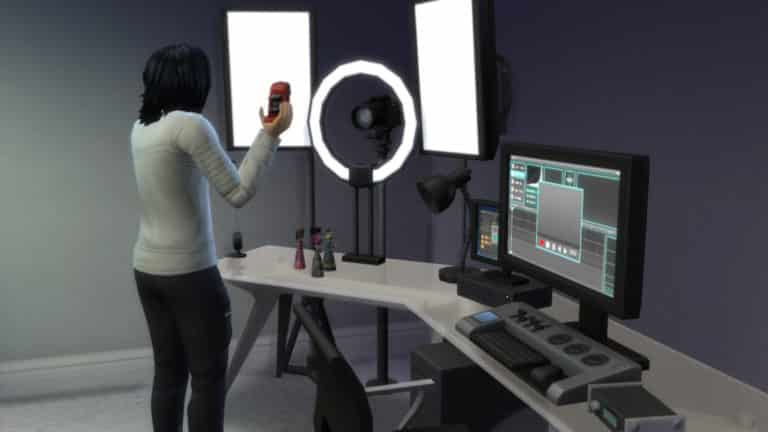
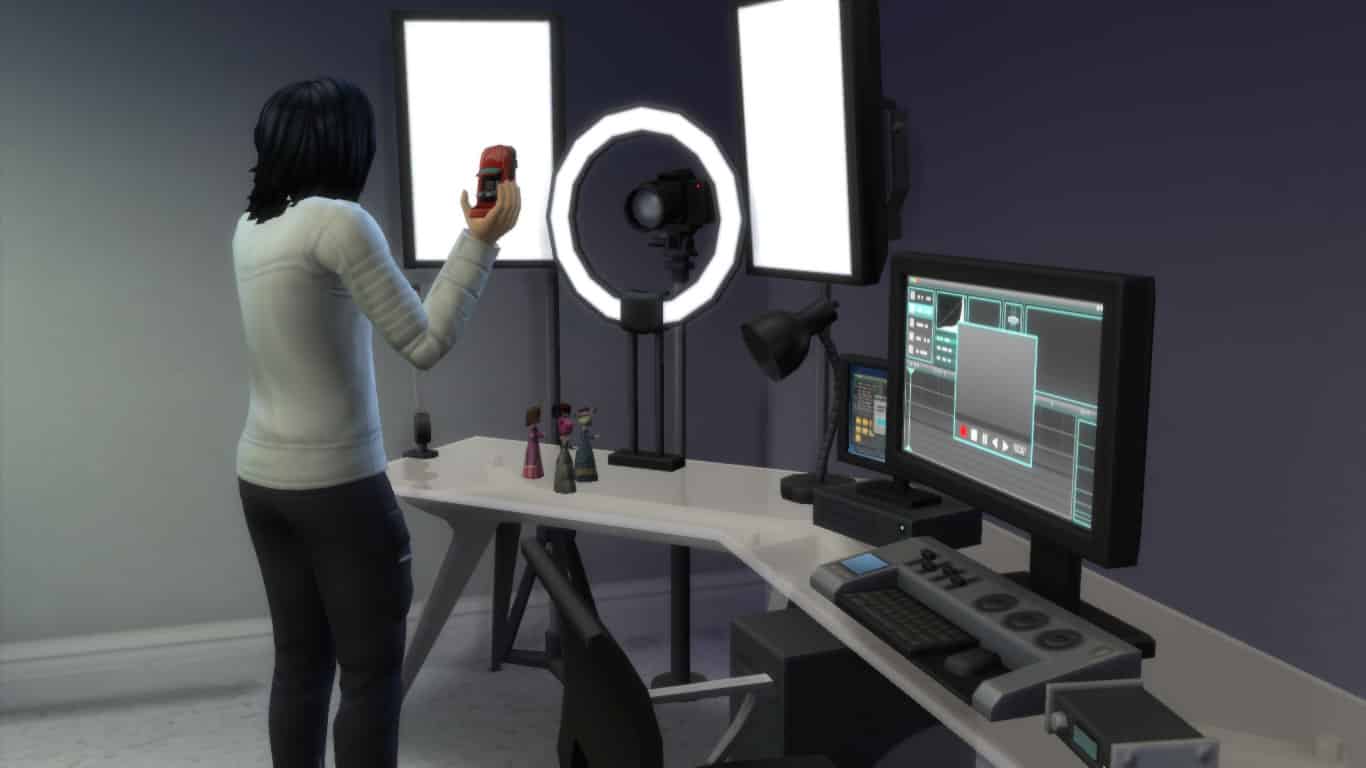
The video station is where your Sim’s dreams of being a famous YouTuber can come to life! Record, edit, and add effects to your videos, then upload them to get views and fame. To get started with the Video Station, record a video using its camera, or record some footage using the drone and transfer it to the Video Station to begin editing it.

On the Video Station, your Sim can film fashion and beauty tips. They can also film product reviews for toys, gadgets, or beauty products. Your Sim can also film emotional vlogs depending on their current emotional state. When you finish filming a video, you’ll be able to name it and give it a description.

Before filming a video, it’s a good idea to study the current trends. Do this by selecting Study Trends on the Video Station. Knowing what kinds of videos are popular right now will help you decide what kind of content will get the most views.

Once you have some footage in the Video Station’s inventory, you can edit it and add effects to improve its quality before you upload it. Click on View Video Inventory and choose the footage you want to edit. New editing options will open up to you as you build the Media Production skill. You’ll eventually be able to add transitions and effects to your videos as well as edit them, but beware! Adding transitions and effects can sometimes make your video worse! Sims with high Media Production skill accidentally ruin their videos less often.

When you’ve finished editing your video, you can upload it. Uploading videos increases your Sim’s fame. They will receive daily royalties depending on the number of views their video gets.

The Sims 4 Get Famous: All About Media Production Skill Objects

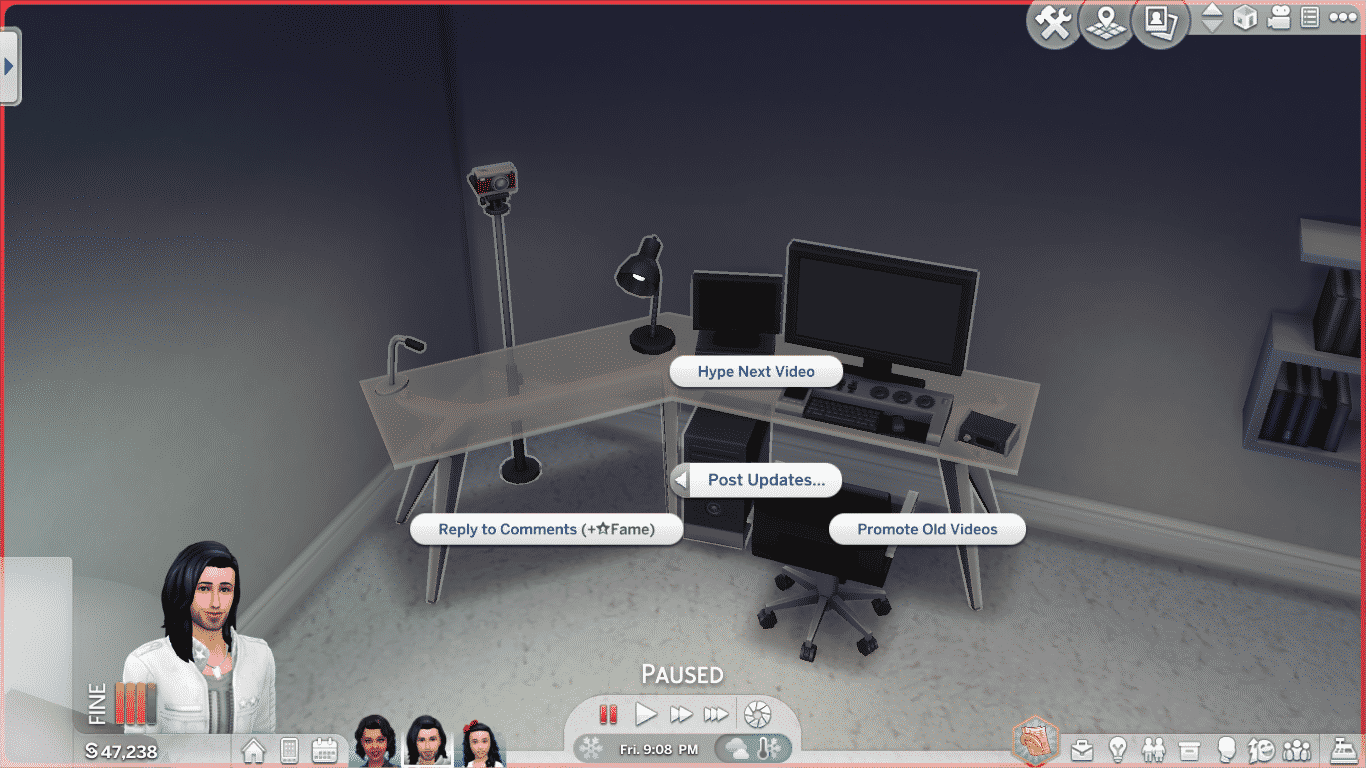
Filming, editing, and uploading videos eats up a lot of time. If your Sim doesn’t have the time to do all that but still wants to keep up their online presence, they can post updates using the Video Station. Select Post Updates on the Video Station to Hype Next Video, Promote Old Videos or Reply to Comments. Replying to comments increases your Sim’s fame and is an easy way to stay in the spotlight even when your Sim is too busy to make new videos.

PSST! Did you know that children can use the Video Station, too? Why not try making your little ones famous by filming and uploading some toy reviews?


Video Station Improvements

There are several improvements you can make to the Video Station to improve the quality of your videos. Some of them are upgrades that require Handiness skill and upgrade parts. Other improvements just cost some simoleons.

Improvements

Adjust Lights: You can change the lighting settings on the Video Station to set the mood for your videos. Choose between Bright White, Cool and Cloudy, Hazy Nightlife, and Warm Sunrise. Adding the Create Light Controller upgrade will open up even more lighting options.

Buy Add-On Components: You can buy a new camera and new lights for the Video Station. The camera costs §525 and the lights cost §235. After buying both of these components, you’ll be able to purchase a third improvement. Buy EVEN MORE LIGHTS for §550.

Upgrades

Create Light Controller

Description: Gives the complete light options
Requirements: Handiness 3, 1 Electronic Upgrade Part

Add Increased Memory

Description: Allows more videos to be stored on the station
Requirements: Handiness 5, 2 Electronic Upgrade Parts, 1 Common Upgrade Part

Install Auto Updater

Description: Makes the More Views Video Station Unbreakable!
Requirements: Handiness 7, 4 Electronic Upgrade Parts, 2 Common Upgrade Parts

The Drone

There are two drones you can buy to help your Sim capture footage for the Video Station; a mid-range and a high-end version. The drone is useful because it gives your Sim the freedom to record videos anywhere. They aren’t stuck standing in front of the Video Station’s camera all the time. Use the drone to capture a variety of footage to transfer to the Video Station.

Select Begin Recording to turn on the drone and have it start recording your Sim. It will follow your Sim wherever they go and film everything your Sim does. Different activities result in different kinds of videos. Consult the Video Station to see what kinds of videos are trending. You can also select Begin Recording of… to have the drone record another Sim in the area.

You can stream with the drone, too! Streaming increases your Sim’s fame. Just like recording, the drone will follow your Sim around and capture footage of everything they do. The only difference is that there won’t be any footage to transfer to the Video Station after. The footage gets broadcast live to your Sim’s followers. You can stream for as long as your drone can hold a charge. Upgrade it to increase its battery life.

The Sims 4 Get Famous: All About Media Production Skill Objects

To see any footage the drone has captured, select Open. The drone is also porta

ble! Put the drone in your Sim’s inventory to take it with you wherever you go! Record festivals, shopping trips, and even your travels on vacation! The world is yours to capture and upload to the world!

You can also record footage of the neighbourhood with the drone. Select Record Neighbourhood Footage to send the drone out on its own to canvas the neighbourhood. When it’s finished capturing footage, it will return to your Sim and shut down. No need to keep track of it while it’s roaming around.

You can even give your drone a name! Aw!

Remember to transfer any footage the drone has captured to the Video Station! You can’t do anything with it while it’s still on the drone. Click on the drone to transfer your footage.

Drone Upgrades

Insert Lithium Battery

Description: Improves the battery life of the Streaming Drone
Requirements: Handiness 3, 1 Electronic Upgrade Part, 2 Common Upgrade Parts

Swap in Reliable Components

Description: Makes the Streaming Drone break less often
Requirements: Handiness 5, 2 Electronic Upgrade Parts, 3 Common Upgrade Parts

Install HD Camera

Description: Improves the quality of videos the Streaming Drone produces
Requirements: Handiness 7, 2 Electronic Upgrade Parts, 4 Common Upgrade Parts

The Media Production skill is easily the most exciting 5-level skill we’ve seen in The Sims 4 so far. With so many options and customisations available on these objects, it feels like a full-blown 10-level skill. I had a lot of fun mixing my own tracks and editing videos with these objects. The drone is quite possibly my new favourite object in The Sims 4. The possibilities are nearly endless if your Sim has a drone with them. I can’t wait to make a famous world traveler who captures footage of their adventures in Selvadorada and Granite Falls!

How have your Sims used the Media Production skill to become famous? Let us know in the comments or tell us on social media!