

Players Beware! The Sims 4 June Patch is Coming June 30th, 2026!
Another month has passed and another major update is planned to hit The Sims 4 on June 30th, 2026. This is another huge laundry list update, featuring 80+ fixes in total, was recently addressed via a laundry list and follow up Q&A from some major players on The Sims Team; Producer Morgan, Gameplay Engineer Carlos, and Game Designer Conor.
What to Expect
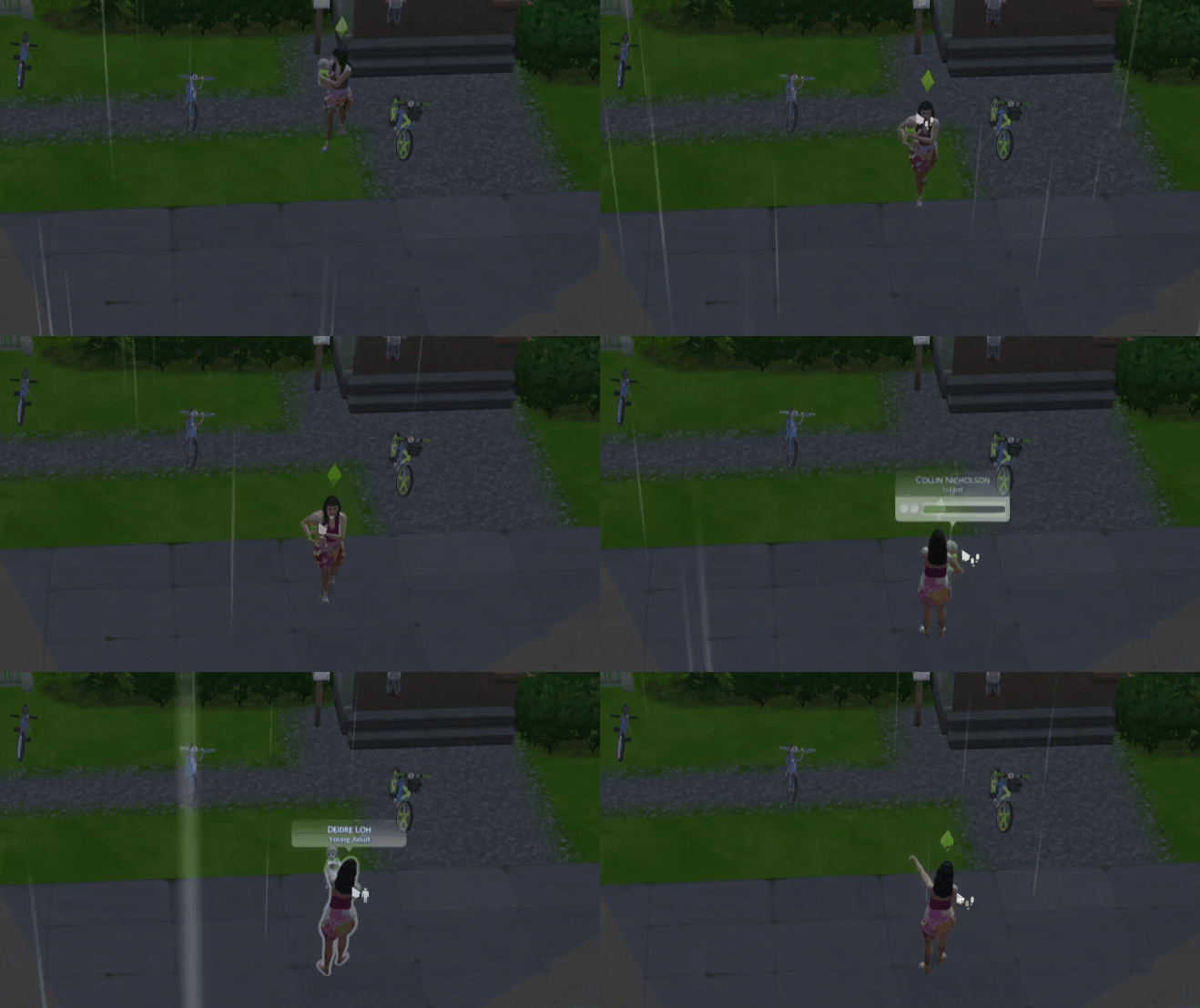
While not all of this patch is centered around these specific laundry list features, a major change coming in this patch is prioritizing player experience and removing features that are overly intrusive or nagging. This includes updates to almost entirely silence random phone calls, especially ones that intend to introduce you to pack features or congratulate you on certain milestones. No more "Congrats on becoming friends with so-and-so" for the 15th time in a save!
Another feature being added as well will allow you to turn off festival notifications in your settings. Because, really, do you need to know about City Living's Spice Festival while you're living out a cottage fantasy in Henford on Bagley?
Other points of note include fixes to doors and windows incorrectly clipping into walls at random, the game getting stuck after clicking on a gallery item thumbnail, and repetitive dynasty joining & leaving notifications when players enter or leave create a sim. For the full list, make sure to read the laundry list from earlier this month here!
The Biggest Changes
Notification Changes (Spam Reduction & Making it Make Sense)
○ Sims will no longer be pestered by Sims they barely know for life advice, festival visits, etc.
○ Phone calls will now be properly silenced when using the "silence phone" feature found on the cell phone UI.
○ Neighborhood Stories phone calls, like Sims asking whether they should have a baby or become friends with someone, will now only trigger when Sims are friends or higher.
○ Multiple repetitive phone calls about changes in Sims relationships have now been removed. One example includes "Hey, I heard you became friends with [SIM]! They're pretty cool!".
○ You will no longer receive notifications asking about earbuds, though they can still be purchased from the computer.
Other Bug Fixes & Changes
○ When moving stacked items/photos/paintings are being moved to the inventory, they should no longer get stuck to the cursor.
○ Updates to the base layers added in the major May update to improve their quality.
Mac Players & Scratch Files
For PC Players in January, Scratch Files were moved from the Sims 4 Documents folder to the AppData folder, and it seems this lessened issues with save corruption and infinite load times. On June 30th, this will also be implemented for Mac players.
Preparing for the Major Sims 4 June Patch
Save Your Save Files!
Most players of legacies, forever save files, and anything long-term are generally aware that updates and mods can really mess with things, especially when those two are combined. If you're not prepared, loading an existing save file without knowing how your mods folder has broken or changed can be semi-catastrophic.
Even outside of updates, due to things like save file corruption, system crashes, file deletion, etc., having back ups of your save files to another area of your PC or an external drive can save you lots of time, headaches, and heartbreaks.
You can follow these steps to back up Sims 4 save files, as well as any other files:
- Go to your save files folder. This will vary depending on your operating system.
- For Windows PC: C:\Users\[USERNAME]\Documents\Electronic Arts\The Sims 4\saves
- For MacOS: Macintosh HD/Users/User/Documents/Electronic Arts/The Sims 4/saves
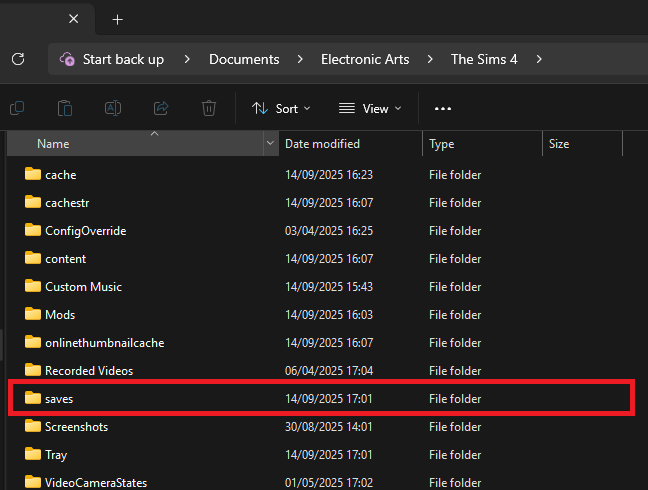
- Copy any save files you want to back up for safe keeping. These will just be numbers so finding them may be slightly difficult, but anything recently played will automatically be at the top. You can also choose to sort files by the date they were last edited, and anything recently saved over should be at the top.
- If you’re not sure, a good practice is to just copy all your saves to a backup folder.
- This can also be done with Your Sims 4 tray files, which are the files that contain the data for anything saved in your library through the Sims 4 Gallery.
- For Windows PC: C:\Users\[USERNAME]\Documents\Electronic Arts\The Sims 4\tray
- For MacOS: Macintosh HD/Users/User/Documents/Electronic Arts/The Sims 4/tray
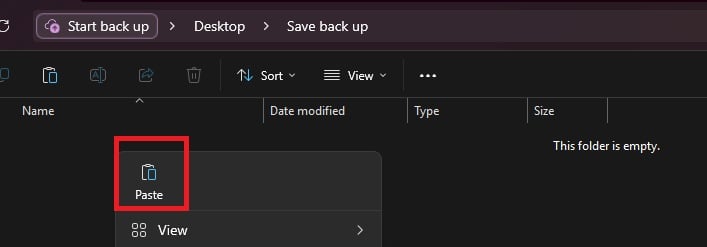
- To back up your files, save them to separate locations. These can be folders on your computer (Like on your desktop or in a separate section of your documents folder), but it is recommended to use separate storage in case of hardware issues. These can include a USB flash drive, external hard drive, a cloud program, etc.
- A good tip is to place them in a folder with the date of the back ups as the folder name.
- If a save needs to be restored to a previous version, you can just copy paste from the folder back into your main Sims 4 Saves folder directly.
Your Mods Folder & The 50/50 Method
The 50/50 method is a way of testing mods and custom content prevalent in games in general, but especially in the Sims community. While it can be helpful after an update, it is often one of the most straight-forwarded but somewhat tedious ways of finding the culprit of a last exception, game crash, or other error happening while playing with mods and custom content.
As per usual, for all updates, make your backups and remove your Mods folder prior to launching your game after it has updated. Another point of note is mod organization, and the need to keep your mods folder neatly organized to make issues easier to find and mods easier to update or replace.
For a more in-depth guide to the 50/50 method, ThatSimsLady has broken it down previously and provided a guide that walks you through it, but here’s a general diagram from Sims After Dark.
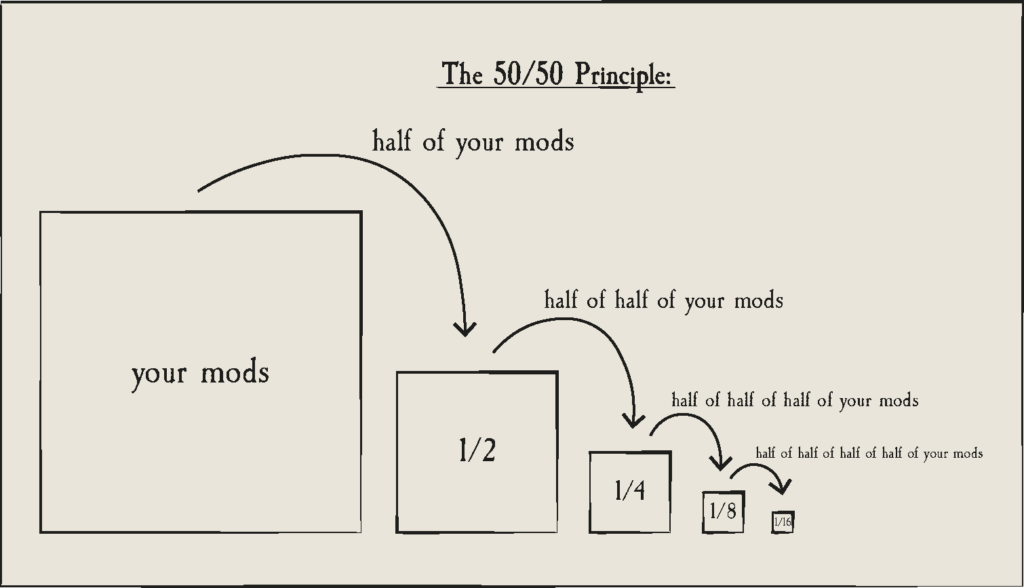
The 50/50 method is where you split your mods folder in half, and then test each section in your game to recreate errors or find bugs. If a folder functions properly and nothing happens that is abnormal, you swap to the next folder. When a folder starts to have issues or creates errors, you then split that folder in half and test both halves, storing folders and the items within them once they have been tested. This continues until you can find the file(s) causing issues that either need to be removed, updated, or replaced due to conflicts.
Gameplay Mods generally add or change features in The Sims 4, and many contain two files; .package and .ts4script files. While not always, these mods are prone to breaking with updates and should be removed and separately tested, or only updated/added back in once the creator has said it is safe.
UI Mods are any mods that change the user interface, like the menus surrounding your screen in Live mode and Build mode, or your columns in Create-A-Sim. The most commonly used UI mods include UI Cheats, More Columns in CAS, and any User Interface Replacement mods. While it is not inherent that they will break, they are usually the first to break during any update.
Also, always delete your thumbcache file. It regenerates every time the game launches, and should always be deleted while changing your mods folder in any way, especially if you're doing the 50/50 method.
It is also recommended to test mods with new updates in a completely fresh save file, to avoid corruption but also since certain updates only work with newer saves.
Other Points of Note for Mod Organization & The 50/50 Method
- A good rule of thumb is to keep all mods separate from custom content. Custom content can break, but it is very unlikely since they often don't change anything about the games functions or features, and instead just add new assets.
- You cannot separate mods from their extra files. If you have two files for a mod, like "MODNAME.package" and "MODNAME.ts4script", those two files must always be in the same folder to function.
- Mod dependencies are larger mods that don't do much on their own, but are required for others to function. Many smaller mods require things like Lot51's Core File, the XML injector, Lumpinou's Mood Pack, and many others that must be tested alongside mods that require them.
- These may also need to be updated on their own.
- Some easy ways to organize your custom content and mods include...
- NOTE: Script mods can only be one folder deep, while custom content can go around five folders deep.
- By Type: You can organize by the type of asset, area of the game, etc., and it really just depends on how detailed you want to go.
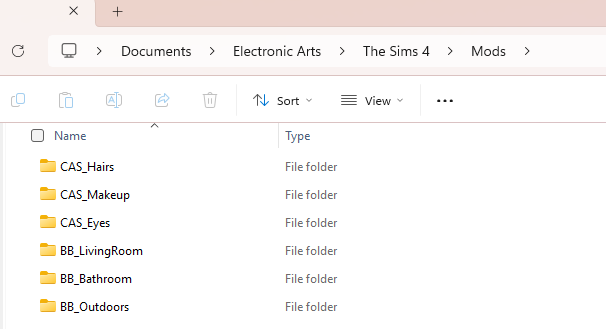
- Ex: Placing hairs in a folder called "Hairs", "CAS_Hairs", "CAS", or even more detailed folders like "Hairs_Infant_Fem" or any variant.
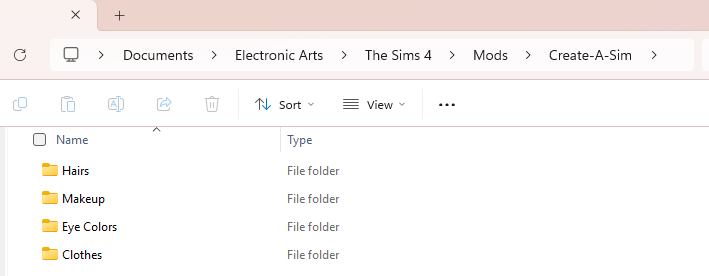
- You can also make an overall "Create-A-Sim" folder, and then add individual folders for things like hair, makeup, etc.
- By Creator: While this can get semi-tricky when creators have collaborations, it can be easier to avoid duplicate mod files by sorting by creator, especially if you have lots of items from a select few.
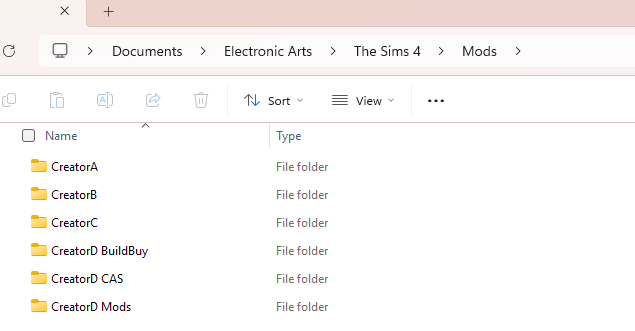
- Ex: "Creator1", "Creator2", "Creator3".
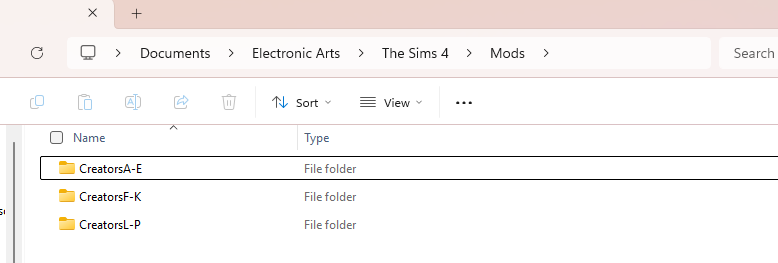
- If you only have a handful of items from a certain creator, you can also alphabetically sort. Like "A-D", and include all creators with names starting with that range of letters.
The biggest point is that your organization method makes sense to you, and you alone! As long as you can find where you put things and troubleshoot your folder, that is all that matters!
Countdown to The Sims 4 June Patch Release
The upcoming Sims 4 June Patch is set to release on June 30th, 2026 at 10AM PT / 7PM CET / 6PM BT across PC, Mac, Xbox and Playstation supported platforms. To make things easier we’ve included a handy countdown below that’ll tell exactly when the latest Patch is available to download.
As per usual, us over at The Sims Community will keep you in the loop on major changes to your favorite life simulation games, including big updates and preparation for them!

6 Comments
should we all make our guesses about how many bugs the game will have tomorrow. XD
People are never happy with anything. If they don’t make updates to fix bugs, everyone complains. If they make updates to fix them, they complain about mods that are broken for a few days and the bugs they’ll cause. If they release DLC, they complain. If they make a Marketplace, they complain. If they just make updates, they complain. So, change your game and don’t read here to complain about everything. If you don’t like the game and everything else about EA anymore, do something else. Don’t read the news and then complain about everything. You don’t like the game and EA’s policies anymore, but you’re still here reading and complaining. It’s not consistent.
shit is real
Thanks for the tips 🙂 Good luck with the update everyone!
I can’t play the game after I enebled my mods. The mainmenu is black. Even after remove muy scriptmod folder and the localthumbcaghe.package.
Reply to Lotje1981
After I removed the folder witch UImods for clean mainmenu’s and the localtumbcahge the mainmenu is normal.
Welcome to Sims Community!
Our community is about connecting people through open and thoughtful conversations. We want our readers to share their views and exchange ideas in a safe space.
In order to do so, we've created a simple set of rules that will improve your experience. Simply put, keep it civil.
Your post will/might be rejected if it contains:
User accounts will/might be blocked if we notice:
So, how can you be a power user?
Thanks for reading our community guidelines. Please note that we're aware of certain issues with Sign In / Log In and Create Account / Email Confirmation issues. We're working behind-the-scenes on a new Account Creation process. Thank you for your patience and remember - freedom of speech is not freedom of reach