The latest free base game update for The Sims 4 gives the outdated cell phone interface a much-needed makeover. The phone menu looks more like an actual smart phone home screen now, with sleek app icons and new app categories to improve organization.
The new app categories are Entertainment, Shopping, Home, Travel, Business, Social, and Camera. It’s pretty easy to find your way around the new layout, especially with the ability to flip back and forth between different apps as you navigate the menus.
If you noticed something new while flipping through the new phone options, your eyes aren’t deceiving you. Sims can now video call people! It’s mostly the same as just calling them the old fashioned way but your Sim will hold their phone in front of them and chat to it, instead.
You can also customize you phone with different skins! Technically, this was always a thing but it wasn’t great. The colours would only show up on the interface. Your phone’s physical appearance wasn’t affected but now you can walk around video calling folks on your hot pink smart phone if you want! More colours have been added and even more will come with the High School Years expansion.
Oh and the Camera app? There’s new selfie poses. Neat!
The Sims 4’s Latest Update is Aging Up Sims Involuntarily!
Sims are being directly hit with the new Patch for The Sims 4!
The latest update has brought in a ton of changes to the game. Along with it – an Aging Glitch that is affecting lots of people’s Save Files!
First reported by absadot on EA AHQ, the issue, describing it as Sims off and on lot are all being aged up automatically. Right after using Create A Sim.(through actions like Change Appearance, Plan Outfit etc)
I can only find reports that this bug was fixed with a previous patch, but it seems with today’s (7/26/22) update it is back. After using CAS in-game, Sims that are off the lot come back and immediately age up. It does not seem to affect sims that are still on the lot when their appearance is being changed. I am playing on the “long” lifespan option and have most add-ons to the game. I am guessing it has something to do with today’s update.
Update: It is not just for Sims that are off the lot, it has also happened with sims on the lot as well.
The report was followed by MANY in the community. From our comments section to players on Twitter – everyone started noticing this weird aging issue:
Big issue here. I opened up a household and played for about 10 minutes and when I got back to my manage household and everyone is aged up. Kids are teens and Young adults are almost elders. None of their birthdays where coming up. What can I do to fix this? I already saved 🙁
The Sims Team’s SimGuruNick has quickly answered that the issue is currently being investigated internally. Guess we’ll have to just wait and see how soon the Hotfix Update for The Sims 4 is out.
Until then, crinrict has posted a handy list of useful tips to get through this:
Do not play any save games that you play on long until EA fixes this bug. Play a new save instead and choose normal length. This is the safest option as there might be more hidden issues with this.
Disable aging on this save. Make sure to load the game through the Load button and then change the setting in your options before loading the household. Make sure the the aging is set to normal and then turn it off.
Play on normal lifespan. The Sims won’t live as long but at least you’re not affected by the bug.
The latest Update for The Sims 4 adds a lot. But it also breaks Mods!
As we all know, with every new patch comes the task of ensuring all of our favourite game mods are kept up to date.
For the most part, ensuring your mods are up-to-date is easy and straightforward. It can sometimes feel a little overwhelming when you have multiple mods from different creators.
However, don’t worry, as we are here with some handy tips and resources to ensure the updating process goes smoothly and stress-free!
Are you new to the world of mods in The Sims 4? Take a look at our Getting Started guide.
Here are some handy guides that will help you make the updating process for mods easy, keep your game running smoothly, and help overcome any issues you may come across.
Bookmark your favourite mods and creators to make it easy to find the mods when updating
Follow mod creators via their social media channels
Join the Discord Server for any mods or creator’s content that you use
Popular Mods
There are a handful of mods that are ones that many players will have in their game. We’ve listed some of the most common and popular ones in a handy list below!
While this is not an extensive list of all the mods that are available for The Sims 4, rest assured that creators will be working hard to make sure their mods are compatible with the latest patch!
Make sure to take a look at the tips and resources above to help troubleshoot any potential issues you may have come across!
Don’t forget, you can let us know if you have experienced any issues or glitches since the latest game update or mods update in the comments below.
Have you come across any issues with mods since updating? Let us know in the Conversation below!
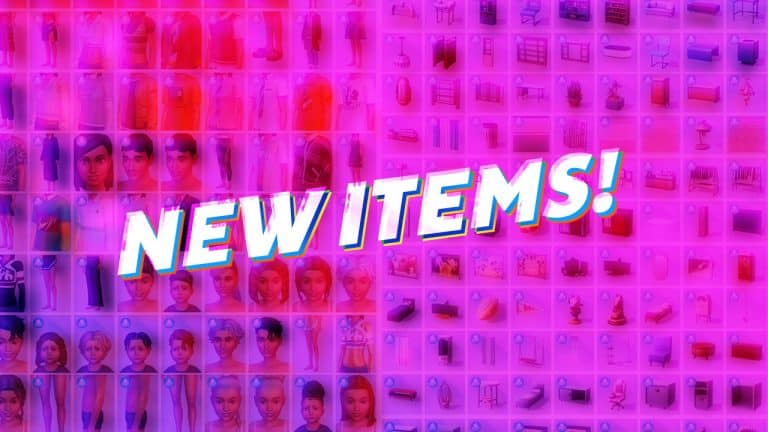
Until then, there is important information that we have to share about The Sims 4 High School Years. With the latest update, the Object Previews in the Main Menu have also been unlocked, allowing you to take a peek into the new objects.
The images down below have all been uncovered by Simmatically! Check out the Previews:
Create A Sim Items
Build Mode Objects
What do you think about the preview of the new items coming to The Sims 4 High School Years? Let us know in the conversation below!
The BIG new Update is here. Check out the Patch Notes!
The EVERYTHING Update
The Sims Team has released a brand new update for The Sims 4 on PC, Mac, Xbox One and PS4! The latest update for The Sims 4 introduces so many things, including:
To download the latest version of The Sims 4, simply open your Origin program and if the game doesn’t update automatically, right click on The Sims 4 and select ”Update”. If you play on Xbox and Playstation, you should Check the Game for Updates in case Automatic Updates are off.
In case you have Mods or Custom Content, the game will automatically disable them for you after first launching The Sims 4 after the update. To re-enable all your Mods and Custom Content, select the Settings option in the Menu and select Settings. Under the ”Other” section you’ll find the ”Enable Custom Content and Mods” option. Check it and restart your game in order for it to take effect!
Update 07/26/2022 PC: 1.90.358.1030 / Mac: 1.90.358.1230 Console: Version 1.61
Hello Simmers!
As summer moves on, it is time to get excited for your teenage dreams and back-to-school adventures with The Sims 4 High School Years Expansion Pack. To get ready for this experience, we have a collection of Base Game updates and bug fixes in this update. There is something for the Sim Creators, Home Builders, and Storytellers alike.
Thank you for the continued support. We truly appreciate it!
The Phone has gone through a bit of an OS update to a sleek, new interface. All of the previous functionality still is there and customizing the background and case color options for each Sims’ phone is easier than ever.
Body Hair is here and no lycanthropy is required. You will find a selection of arm, leg, torso, and back hair now available for all of your teen Sims and older. Find these new options in the Body section of Create a Sim. Proudly show off those distinct mammalian features.
Create a Sim now offers more options to support the Sexual Orientation of the Sims. Located in the “More Details” section of “Customize Gender,” you can now select the gender identities a Sim is romantically attracted to, whether the Sim is exploring romantically, and the type of Sim they are interested in WooHoo or Messing Around with if they are even interested in Woohoo or Messing Around.
If you do not change these settings, your Sim will maintain the default orientation settings known to The Sims, meaning they’ll have no inherent attraction to a specific gender, their attraction can shift through gameplay, and they will WooHoo or Mess Around with any gender.
Check out SimGuruJessica’s deep dive blog about this system to learn the specifics on how each of these options affect the gameplay.
Are you ready to tackle your Sim’s Wants & Fears? This base game update replaces whims and includes a large selection of Wants that your Sims will want to achieve or Fears they want to overcome. This feature is on by default and you can toggle them off in the “Gameplay” options menu.
Builders who feel limited by sharp 90° corners can round out their creativity with this update: Curved Walls are coming to your collection of Build tools! Place and adjust medium, large, and extra large curved rooms. Builders who are familiar with curved decks, fences, and platforms will find familiar controls for these new walls. Some doors and windows fit better than others, so to find the ones that do work well on these walls, use the new “Supports All Curved Walls” and “Supports Large and X-Large Curved Walls” filters within Build Mode.
Bug Fixes
Consoles
On some PlayStation®4 systems, Eco Lifestyle’s Evergreen Harbor had a lot of objects flickering in the environment. We think we have squelched the problem. If you see it, please let us know and provide information about the model of PlayStation and OS version.
On Xbox, interacting with Cottage Living’s Chicken Coop no longer causes the cursor to vanish.
Closing the Notebook interface now hides its controller legend as well.
The Sims 4
Sims can, once again, scoot over to an open side of the bed that is pushed up against the wall.
Sims deliver food reliably to toddlers via the “Grab Serving for <toddler>” interaction.
Throwing a birthday party for a toddler? Sims now can “Compliment the Birthday Sim” to complete the party if that goal appears.
Did you know that your Sims can take care of a Need on their own if you click on the Need in the Needs panel? Give it a whirl! Sims with the Neat Trait now clean themselves when you click on “Hygiene” instead of cleaning their home.
Vault Modular Counter maintains its color underneath the dirt when it gets dirty.
Sims jog once again when using The MotionMonitor Gaming Mat and PrioPerfection Motion Sensor Game Mat.
The “Save” and “Delete” buttons now both appear when mousing over a save slot on the “Save Game” screen.
Sims can ask about these Likes and Dislikes without having their own preferences for them: Décor, Color, Hobbies & Skills, and Music.
Since Sims in the same household know each other already, they no longer have the option to ask about various Likes and Dislikes. “Ask about Career” is the one exception.
When socializing with another Sim, questions related to “Likes and Dislikes” now are grouped together under a category with that name.
Your Sims went on a vacation with another household. You just heard through a Neighborhood Story notification that they adopted! That notification now has the name of that household’s home world rather than the vacation world.
Placing a Lot from the Gallery defaults to its Lot type instead of asking to change to the location’s Lot type.
When you have a window that aligns to the dotted half-tile mark and the window is as wide as its footprint, you now can place another window like that right next to it.
Placing a rounded platform within another room now fills in the floor tiling around the curve.
Placing Dragonfly Swarm and Mosquitos on ponds now results in dragonflies and mosquitoes, respectively. Bzzzzzzz bzzz….
Cars viewed from a distance on low-end computers now look more like cars and less like a newbie woodworking project.
That screen that appears when you can choose which Sim to do something with the active Sim… we adjusted the header so longer text does not overlap with the portrait of your Sim.
That screen also consistently shows the “Everyone” category now when it pops up.
Behind-the-scenes pregnancy tracking has some improvements for better performance and stability. We fixed three types of crashes:
[PS4-only] One sometimes happened on PS4 when saving a Lot to My Library.
One was related to graphics.
And the peskiest one sometimes happened when placing a Retail Lot that had mannequins. Take that, crashes!
Promotion Requirements in the Career panel now has a helpful hover-tip.
The Lot Challenges icon now has a helpful hover-tip.
Cats and Dogs
These curtains now can be placed around windows: Casual Country Curtains, Cozy Country Curtains, and Charming Country Curtains.
Seasons
Gnomes placed from the Inventory no longer continue generating seed packets after the Harvestfest ends.
Island Living
Children make progress for their Outdoor Adventurer badge when they catch fish or frogs.
Discover University
After switching specialization branches in a career, your Sim now earns their well-deserved rewards from that new career.
The button to “Go to Class Early” now appears one hour before University classes start.
Sims go to University classes early when directed to if they are at their campus.
Eco Lifestyle
What, you don’t want to see books among available ingredients for the Juice Fizzing station? Well, okay. Loading ingredients now shows only proper, edible ingredients.
Idle animations for enjoying a fizzy drink while seated at a table now play appropriately.
Sims can wash off the “Dyed In An Explosion!” moodlet with a good shower or bath.
Snowy Escape
Sims in the Salaryperson career can complete the “Host Phone Conference” task consistently.
Drinking the Lifestyle-Go-Poof Potion now actually removes Lifestyles. Go forth and discover your new you!
Sims now correctly gain up to three active Lifestyles.
Mountain Climb Excursions now start instead of automatically canceling. Let’s go conquer those climbs together!
Cottage Living
Specific Chicken Coop variants remain the same color when becoming dirty.
Chickens no longer prevent the Egg Hunt Holiday tradition from completing . Rumor is they were collecting all the decorative eggs for themselves.
Verdant Mushroom Soup now shows up properly when choosing it from the list of recipes to cook with other Sims and grabbing servings.
The color swatches for the long hair with bandana(ymHair_EP11LongBandana) now match the hair color.
Parenthood
Taking anger out on stuffed animal toys now decreases the teen Sim’s Empathy. Meanness has consequences!
Strangerville
Error Code 106:7f97032:aa761f01 no longer happens sometimes when traveling to StrangerVille’s Secret Lab.
Journey to Batuu
The “Hot Tip” mission for Scoundrels now appropriately asks for five information fragments to be collected.
Dream Home Decorator
The capri pants yfBottom_GP10Capri_Solid now appropriately appear as brown when selecting the brown color swatch.
Werewolves
Werewolf and Vampire Sims now exit the appropriate tunnel entrances after choosing to ”Explore Underground Tunnels”.
Tiny Living
The remote control for Murphy Beds now has the appropriate texture.
Bust The Dust
Don’t want to deal with repairing your broken vacuum cleaner yourself? It now has interactions to replace it with a new one or hire a Sim to fix it. Dusty Chaperone Upright Vacuum now sparks when broken.
The Sims 4 High School Years Expansion Pack is just around the corner!
The Pack is bringing lots of new features. There is actually a whole set of features dedicated to Fashion within this Pack. Allowing people to go Thrifting, getting Fame and setting the Fashion Trends and more!
Oh, and there’s also now a whole new set of Fashion Likes and Dislikes, coming exclusively with The Sims 4 High School Years.
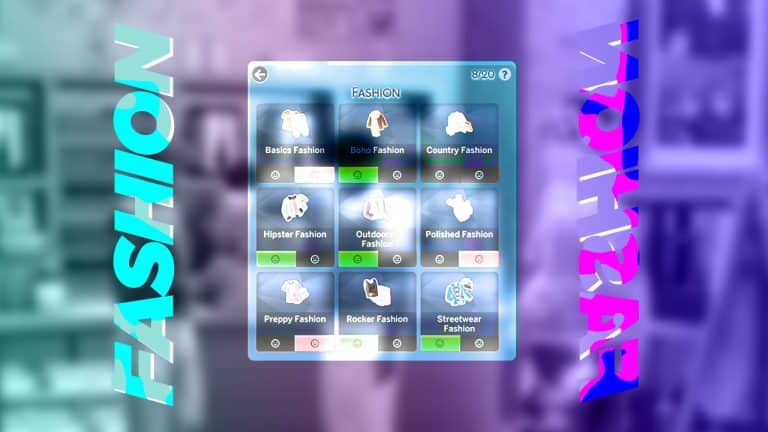
The Sims 4 High School Years is bringing 9 new Fashion Preferences that you can choose to Like or Dislike for your Sim. At least within the scope of the 9 Fashion Categories that High School Years brings!
Those include:
Basics Fashion
BoHo Fashion
Country Fashion
Hipster Fashion
Outdoorsy Fashion
Polished Fashion
Preppy Fashion
Rocker Fashion
Streetwear Fashion
We can speculate that these Preferences will also develop naturally in Live Mode as you develop further your personal style. We do know that there are specific Moodlets that your Sim will get depending on if they’re wearing a Fashion Style that they like or dislike!
However, nothing is certain yet. We’ll keep you posted right here on Sims Community with a Full Guide soon after the Pack drops!
What are your thoughts on the new Fashion Preferences? Let us know in the conversation below!
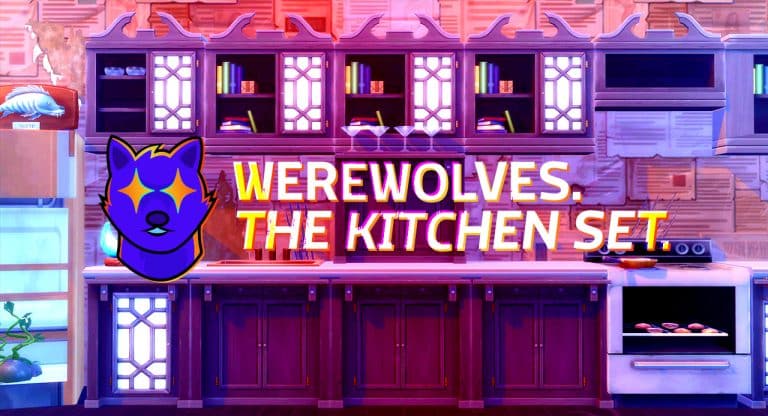
Custom Counters and Cabinets to complete the Werewolf House aesthetic!
Unfortunately, most Expansion Packs and Game Packs don’t come with counters, matching cabinets, or islands. This is because there are five counter types, seven islands, and seven cabinet types in addition to the numerous swatches that need to be created for a single counter, island, or cabinet to be added to the game. Instead of making 1 item, they need to make five or seven items.
Previously, we have received counters in Expansion Packs or Game Packs, but no cabinets and/or islands like in Realm of Magic or the original release of Island Living. With The Sims 4 Werewolves, we received no counters, cabinets, or islands. Comparing the current cabinetry to the style of The Sims 4 Werewolves Game Pack, there just are not any counters that really match the aesthetic for werewolf-themed builds. That’s where LxN comes in!
Using the Worn Secretary Desk, LxN made a whole set of upper and lower counters with enough variety not to get too repetitive but still look cohesive. This kitchen add-on includes nine swatches including rough, peeling swatches and smooth, clean swatches. The tall cabinet has a shelf with cocktail glasses on it. And many of the upper cabinets have glass, ornate doors that are the same as the original desk’s door. Some of the shelves have several books like the original desk.
Below are examples of how the nine different swatches look inside the game and many of the different counter and cabinet versions.
It is impressive the number of unique pieces LxN was able to create out of the Worn Secretary Desk. We love the versatility of these cabinets, especially how great they will look in our Werewolves builds! Hopefully, we’ll see more great Werewolf build/buy add-on sets soon!
You can download the set from LxN’s Tumblr for free.
And yes, it will be functional when High School Years releases!
When The Sims announced their upcoming expansion pack, The Sims 4 High School Years, there was lots of excitement but also a lot of criticism. A lot of players rightfully pointed out that the expansion caters exclusively to the American high school experience. There is nothing that represents anything non-American anywhere in the pack.
This wouldn’t be so bad if we had the freedom to build multiple high schools in multiple worlds. We could use content from other packs to build a Pacific Island school in Sulani and a Japanese school in Mt. Komorebi, for example. Unfortunately, this isn’t the case. We’re going to be limited to just one high school lot in Copperdale. If we want a high school for a different culture, we have to bulldoze the Copperdale high school and rebuild on that lot.
Don’t get me wrong! I’m still so excited for this pack but players do have a valid point when they bring up this topic. I’m playing with multiple teen Sims; some in Mt. Komorebi and some in the more North American worlds and I’m disappointed that I have to pick one or the other. I decided to do my best to bring some variety and culture to the new expansion by building a Japanese high school that would be as accurate as possible while still being functional within the limitations of the High School Years pack.
I have never been to Japan myself so I had to do quite a bit of research for this build but it was a lot of fun to learn new things and apply that knowledge to the game in a creative way. I got to work building on a 64×64 lot so it will be able to be placed on the school lot in Copperdale. I made the school a single-story rectangular building that is very symmetrical with a light, airy, and soothing feel to it. I made sure to remember a large clock and a school bell on the front of the building. The exterior is enclosed inside a concrete courtyard with a tall fence around it.
Inside, I wanted to keep a soothing, minimalistic flow so the interior layout is also symmetrical with a lot of clean lines and neutral tones. The hallways have small compartments for students to remove their shoes and replace them with either indoor sneakers or slippers. These shoe compartments are the closest thing to lockers that you’re likely to find in a high school in Japan. If High School Years requires lockers for the school to function, I will probably just put the bare minimum required somewhere near the shoe compartments.
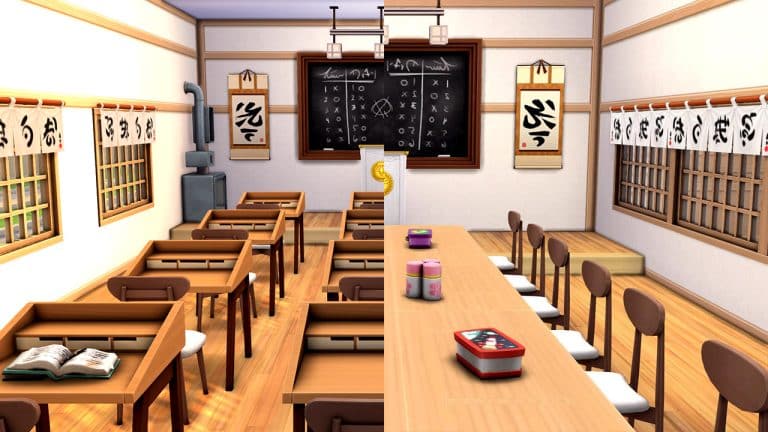
There are two classrooms to comply with the requirement to have two whiteboards. Of course, the classes don’t have the whiteboards yet but they will when the pack comes out. I hope the whiteboards will have a chalkboard-like swatch to suit the Japanese school aesthetic better. The classrooms have a raised platform with a podium where the teacher conducts the lesson and a heater in the class. In fact, every room has a heater in the school because most Japanese schools do not have central heat or air conditioning. The back of the classroom has cubbies for books and bags as well as a cleaning supply closet so the students can clean the classroom after class.
The cafeteria was a tricky thing for me to get around. The high school in Copperdale requires a cafeteria but Japanese schools typically don’t have cafeterias. The students eat at their desks in their homeroom. To get around this, I made a third “classroom” where I tucked the cafeteria kiosk object into what would normally be the class cleaning supply closet. The rest of the classroom looks exactly like the other two classrooms in the school, except the desks are pushed together in the centre with some lunch boxes on the tables. That way, your students can still be social during lunch but they look like they’re eating in a classroom.
Of course, there is an office and washrooms with shower stalls in them. The toilets have bidets and are in small separate rooms from where the sinks are. Why are there shower stalls in the school, you ask? Well, about 60%-70% of Japanese high schools have a pool. Swimming is a popular pastime and is often part of the physical education curriculum, so this high school also has a pool.
The school also has an arts room with musical instruments, an easel, and woodworking table. There is a small library/study area, too, with computers, bookshelves, and chess tables.
I probably didn’t get everything 100% perfect but I did my best to build a Japanese high school that feels authentic and I really love the end result. If you’d like to use this high school in your own game, it’s called Wakaba High School and my ID in the Gallery is SnarkyWitch. It has no modded content but does use quite a bit of pack content.
You can also just click the download button below to save it to your library from your web browser. If you like this build, I’d love it if you clicked the heart button and left a nice comment as well.
We want to know what your favourite part of prom night is!
With The Sims 4 High School Years so close to release, we can’t wait to dive into the whole pack and relive our high school experience, including prom night! While my real life prom night was underwhelming, I’m looking forward to getting a do-over of sorts and having the prom night I always wanted. I am super excited for prom to make a comeback in The Sims!
On that note, we want to hear from our readers! What do you think of prom? Love it? Hate it? Don’t care either way? Is there something you’re most excited about when it comes to prom? Participate in our poll and let us know what’s got you the most hyped for prom in The Sims 4 High School Years!
Because we know it’s hard to choose, we’re letting you pick up to 2 options for this one to make the decision a little easier.
We are covering all the latest News, Tutorials, and of course – Patch Notes for The Sims 4’s Upcoming Update!
Until then, there are some things you need to know in consideration about the update.
First of all – it’s expected to release on July 26th, 2022 – just 2 and a half days before High School Years!
It’s also one of the more groundbreaking updates for The Sims 4, considering the amount of features it brings. Therefore:
What do I need to Prepare for?
The upcoming Update for The Sims 4 on PC and Consoles is one of the bigger ones out there considering the amount of features and changes. We can always account that EA will try its best to deliver the Update, but there can be many mistakes in the process. Especially for your save files!
If you have Mods and Custom Content for The Sims 4 then chances are something might go wrong. Especially with Mods.
Here’s how you can take extra precaution:
Remove / Disable Mods
If you play the game on PC/Mac then this step is a no-brainer. Heavy script mods like MC Command Center, which already have their own version of Story Progression, will definitely conflict with the upcoming Update for The Sims 4 feature. To ensure that your save files don’t get corrupted after the update, remove the Mods you might have installed. Your favorite modders have probably already heard about the upcoming update, so you should expect Mod updates that are compatible with the Mod just shortly after.
When it comes to Custom Content, we’re not entirely sure if anything will break. Yet!
Those who play The Sims 4 on Xbox or Playstation can backup their save files from their console settings. For this you can either use the Console’s Cloud Storage or External Memory. We have a handy tutorial on this specifically for the Playstation Console, but the process should be somewhat the same for Xbox players as well.
Patch Release + Countdown
Just like with previous Patch Releases, this one is expected to come out at 10AM Pacific Time. To make things easier we’ve included a countdown below that counts to the exact moment when the patch should drop.
[janky target_time=”1658854800″ color=”#065bff”]
Are you excited for the Upcoming Update for The Sims 4? Let us know in the Conversation below!
As part of the LGBTQIA+ Mod’s July 10th update, Lumpinou has added two new ways for your Sims to meet other compatible Sims and improved some other aspects of the mod. These are two new features that will improve the ease of finding compatible Sims and bring realism to the game.
Sims can now go on Meet & Mingle! Semi-blind dates. Meet & Mingle! Is a dating app that auto matches your Sim with other compatible Sims. It takes into consideration each sim’s orientation and identity.
Also added was the LGBTQIA+ Hangout Lot Trait. This lot trait was made to spend time with other LGBTQIA+ Sims. It can also be used to help Sims find compatible partners. There are even Special Nights throughout the week for different groups. Each Special Night lasts from 6 pm to 11 pm. Each week, Monday is aro/ace night, Tuesday is W(N)LW night, Wednesday is M(N)LM night, and Thursday is GNC night.
Other improvements were being able to add/remove several Extra Aspects in a row. Also, any Sim that is trans due to being auto-assigned and has had affirming steps should now be assigned “an outfit style and name that will fit them better”
Note: Due to EA adding a sexual orientation system to the base game, Lumpinou posted this on their website:
“This mod will need to be updated to make its own systems work and in hand with those, or rather make those ‘obey’ the settings my mod offers. Since my mod is much more developed than this, the orientation / identity aspects of my mod are not retiring for now.

I will thus be updating my mod to make everything work nicely, and at this stage none of the features of my mod will disappear.”
These new updates add some great new features to an already great mod!
Help a stressed retail worker establish self care in this new permanent scenario!
The latest SDX drop for The Sims 4 has added two new scenarios to the game; one limited-time scenario and one permanent one. The permanent scenario is called In The Moodlet and is all about controlling your Sim’s emotions.
We’re going to walk you through how to complete this scenario!
Getting Started
On the main menu when you select the In The Moodlet scenario, you will see that this is listed as an Easy scenario. This scenario is permanent so there’s no need to start it by a specific date. It’s here to stay in the game forever.
The scenario description states that your Sim works a very stressful retail job and could use some help with their self care. You’ll need to help them control their emotions and find productive outlets to relieve negative emotions. The household requirements are simple; you just need one Young Adult or older Sim. When you start the scenario, your Sim will start out at level one of the part-time Retail career and they will have an easel and the new moodlet lamp in their inventory. Both of these will be helpful to you.
Once again, the goals on the info screen are weirdly vague but once you get in-game, you’ll see that there is a pretty extensive list of specific goals your Sim will need to complete. Your Sim must complete all the goals to finish the scenario:
Get into a positive emotion 1 time
Get into a more intense emotional state
Create 5 emotional paintings
Enable the emotional aura on an emotional object
Calm an angry Sim down
Share Insecurities or tell a Self-Deprecating Joke to another Sim while embarrassed
Take a shower while uncomfortable
Call the Sadness Hotline or Cry It Out while sad
Vent or Complain About Problems to another Sim while tense
We recommend using a Sim with the Creative and Art Lover traits, plus one trait that frequently puts your Sim in a negative emotion such as Gloomy or Hot-Headed. Creative and Art Lover will help with the paintings and the negative trait will help your Sim get into some of those harder-to-achieve negative emotional states easier.
Getting In the Moodlet
I had no idea what the goals were for this scenario until I actually started it so I had to guess at my Sim’s traits. I just quickly slapped some styled looks on a randomized Sim and hopped right into the scenario. I moved her into one of the starter apartments in San Myshuno.
It was very easy to knock out a few of the goals right away. All I had to do was place the moodlet lamp in her apartment and enable the emotional aura on it. Boom. Get into a positive emotion and enable emotional aura goals already done in the first three seconds of gameplay.
Getting into a more intense emotional state proved to be a little trickier. Since my Sim is Self-Assured, I decided to use the Confident emotion to my advantage. I had her brush her teeth and psych herself up in the bathroom; both activities give a Confident moodlet. Then I had her stand in the room with the moodlet lamp to boost the Confident emotion with a Happy moodlet. Nothing. I tried a bunch of different things; filling the house up with plants to further provide a Happy boost to the Confident moodlets, working out to a Plumboomba dance video for an extra Confident moodlet. Finally, I got fed up and just plastered a bunch of expensive wall art with high Environment scores all over the walls. That finally did the trick.
For players who have the Plumbob mood lamp bonus items from purchasing The Sims 3 expansion packs, these will provide you with an added advantage in this scenario. You’ll be able to boost almost any positive emotion you want with the lamps.
But don’t worry if you don’t have the Plumbob lamps. They aren’t necessary to complete the scenario and the scenario itself helps you out by occasionally slapping your Sim with some of the negative emotional moodlets they need to take care of a few of the scenario goals.
Art is Pain
With that out of the way, I got started on the emotional paintings with a Confident painting while she was still feeling Confident. There are five emotional paintings in the game and you’ll need to paint them all for the scenario; Confident, Angry, Flirty, Sad, and Playful. Sims cannot paint an emotional painting unless they are currently in that emotion; however, there are two ways to get around this.
Sims who have completed the Painter Extraordinaire aspiration receive the Expressionistic reward trait, which allows them to paint all the emotional paintings no matter what emotional state they are in. Players who own the Snowy Escape expansion pack may also be able to use the Surge Emotions ability to put their Sim in the desired emotional state to paint the emotional paintings. This ability is acquired by doing meditative tasks for a long period of time, such as painting, reading, hiking, and spa activities.
The positive emotions were not so difficult to achieve. It’s easy to become Playful just by watching the Comedy channel or taking a bubble bath. Brushing your teeth or psyching yourself up in a mirror makes you Confident, and Freshening Up in a mirror makes your Sim Flirty. It’s the negative emotions that aren’t always easy to get into, which is why I recommend a negative trait to help with this.
My Sim was not able to become Angry at all until she got woken up in the middle of the night by her noisy neighbours. Rather than rushing over to pound on the door and yell at them right away, I took the opportunity to start an Angry painting while I had the chance. Erm… did she paint what she wishes she could do to her neighbour’s apartment? Yikes…
Ahem. Anyway, when she did go scold the neighbours, elderly Geeta Rasoya walked out in just a towel. Geeta, you stole the spotlight by dropping dead in my last scenario playthrough. I really don’t even want to know what you were busy doing in this playthrough.
As for the Sad painting? Well, Geeta dying again would have actually been extremely helpful in this playthrough but of course that didn’t happen. Stuff like that never happens when I actually want it to. I had a secret weapon up my sleeve, though. Enter Tragic Clown! Go on. Look at him. Look at the tragedy reflected in his eyes and weep.
Success! With my Sim appropriately Sad by the tragedy of the Tragic Clown, I was able to complete the Sad painting and complete this scenario goal. I also had her call the Sadness Hotline while I had the opportunity to knock out another goal. Call Sadness Hotline is an option on the cell phone that’s only available while your Sim is Sad.
Ugh, People
Most of the rest of the scenario goals revolved around interacting with other Sims. I ended up getting kind of lucky when my game glitched out and the Welcome Wagon event never started but the Bheedas were left standing outside in the hall with their gross fruitcake for days on end. This meant someone was always available to socialize with at any time of the day or night. Weird, but I’ll take it.
My Sim got Embarrassed and Tense moodlets fairly often thanks to the scenario so it wasn’t too difficult to Complain About Problems to Jesminder and Share Insecurities with her. I did feel like kind of a jerk complaining about my problems to a pregnant lady who just passed out in a puddle of her own pee, though. Like maybe she’s got bigger issues than I do, you know?
It wasn’t so easy to calm down an Angry Sim. At least not at first. My first plan of action was to find an Angry Sim stomping around the Spice District and I thought I lucked out when a protest started in the area; protesters are always Angry! But unfortunately, you actually have to succeed in calming down an Angry Sim; just doing the interaction isn’t enough. This never works unless the two Sims are at least Good Friends.
When I hovered over the goal to see if there was another way to complete it, I discovered that this goal can also be completed by calming your own Sim down in a mirror while they’re Angry. That was much easier to do! I just made a bunch of copies of her Angry painting and enabled the emotional aura on all of them to give her a strong Angry décor moodlet. Then I had her calm herself down in the mirror.
Successfully In the Moodlet
As for the goal to shower while Uncomfortable, I completed it by accident. I don’t even remember completing it but apparently I did unintentionally at some point during the scenario. So I finished the scenario in 2 Sim days without any cheats.
The reward for this scenario is 4 potions of every emotional potion available in the game. Once again, thanks… but I’d rather get my 5,000 satisfaction points.
Our Thoughts
The scenario worked fine. I didn’t experience any bugs with it apart from the Welcome Wagon issue which didn’t negatively impact my ability to complete the scenario. Still, it was a pretty dull scenario. For newbie players, it’s extremely helpful for them to learn about the mechanics of the emotions system. For veteran players who already know the emotions system inside out… there isn’t anything of interest for you with this one. The reward isn’t even all that great.
I also have the same gripes with this scenario as I did with the Best Friends Forever scenario; we should get a detailed breakdown of all the goals on the main menu screen so we can plan our household accordingly. If the rewards for every scenario are going to be different from now on, we should also see the rewards on the main menu so we can decide if the reward is worth the time and effort of playing the scenario. If I’m being honest… I’d still rather they go back to giving 5,000 satisfaction points for every scenario. I liked being able to decide which rewards I wanted to buy with my points.
Join a werewolf pack, rise to the top, and form alliances and rivalries with the opposing pack in town!
In The Sims 4: Werewolves, your Sims can befriend and join one of two new werewolf packs in Moonwood Mill; The Wildfangs, and The Moonwood Collective. Each pack has its own set of values and expectations for its members and being a good member of the pack will allow you to rise in their ranks. When you grow powerful enough, you can even challenge the pack’s alpha for dominance. If you win, you become the new alpha of the pack, gaining greater control over the pack’s members.
Let’s dive into everything you need to know about werewolf packs!
Befriending a Pack
You don’t need to be a werewolf to become friendly with a werewolf pack. Just find the leader of the pack and befriend them, then ask them to become a friend of the pack. Becoming a friend to a pack essentially makes you that pack’s ally. You’ll be able to use their hangout to rest, wash up, and use the washroom and you can drop off gifts for the pack at their hangout. You can also hang out with the pack members at the hangout. You’ll get some new friendly socials relating to werewolf packs with the pack members, too.
If you are just starting the game on a fresh save, the Wildfangs pack alpha will be Rory Oaklow. The Moonwood Collective pack alpha will be Kristopher Volkov. If you’ve been playing on that save for a while with Neighbourhood Stories enabled (or the Master Command Centre mod), it’s possible the alpha may have changed. If the alpha of a pack is in the area, you can click on the pack hangout and select Focus Camera on Pack Leader to locate them easily.
Joining a Pack
You must be a werewolf in order to fully join a pack and become a member. You must also already be a friend of the pack.
Ask to join the pack under the Werewolf Pack social options. When you ask to join a pack, you will have to complete three trials in order to be initiated into the pack. The trials are not very difficult; just like having to find motes to convince a Sage to turn you into a spellcaster in the Realm of Magic pack, the werewolf trials are more for storytelling than a serious gameplay challenge.
You’ll be able to choose which three trials you want to do from a larger selection. Both packs offer the same trials to choose from:
Spar with [Alpha Wolf] (Requires Transformation Mastery dormant ability)
At lower werewolf ranks, the three easiest trials to complete are Demonstrate Scavenging, Give an Uncommon or Rare Collectible, and Give Excellent Quality Food. You can purchase the Scavenger ability right away at the Pup rank, which gives you the ability to scavenge collectibles pretty easily. To cook an excellent quality meal, just have your Sim cook a simple level 1 dish while Inspired.
Once you’ve completed three trials, you can officially ask to join the pack and you’ll be a full-fledge member.
While you can be a friend to both packs at the same time, you can only be a member of one pack at a time.
Pack Ranks
Both werewolf packs have a series of ranks members can aspire to. Becoming a higher rank in your werewolf pack will give you seniority over members of a lower rank and unlock new reward objects in Build/Buy. Each pack has different unlockable items.
There are four ranks in each pack, with Omega being the lowest rank and Alpha being the highest, making you that pack’s leader. You can have multiple Omegas, Deltas, and Betas in a werewolf pack but there can only be one Alpha.
Omega
Delta
Beta
Alpha
To rise in the ranks, do activities that align with your pack’s values. We found an easy way to gain ranks quickly is to just contribute everything you find to your pack’s resources but you will still need to make sure you’re doing all of the pack’s required tasks on a regular basis. If you fail to keep up with your pack duties, you will be put on probation and can even be kicked out of the pack for not pulling your weight. Even the Alpha of the pack can be challenged for their spot as leader if the pack thinks they aren’t doing enough to be a good role model for the pack.
You can rise all the way to the rank of Beta by upholding your pack’s values but to become the Alpha, you will have to challenge the current Alpha to a brawl or tug-of-war. If you win the fight, the Alpha gets demoted to a Beta and you become the new Alpha of the pack.
Being the Alpha of a pack gives you greater control over all other pack members. You decide who can join the pack and who needs to leave. You can demote, promote, praise, and reprimand all the other pack members, and you can choose between three different decoration styles for your pack’s hangout (Friendly, Intimidating, and Neutral).
To see your status in your pack, click the werewolf icon in the social groups tab.
The Moonwood Collective
The Moonwood Collective are a civilized group of werewolves who believe in exercising restraint over their animalistic urges. They aim to bridge the gap between humans and werewolves and dispel the harmful myth that werewolves are violent brutes. They want to live peacefully alongside humans and be accepted among them.
Pack Values
Pack Participation:
Contribute to Pack Resources
Give Pack Mate Gifts
Maintain good relationships with your pack mates
Diplomacy:
Be friendly to non-werewolves while in Beast form
Have friendly discussions about werewolves
Use Werewolf Empathy, Werewolf Diplomacy, and The Will to Resist abilities
Try to befriend Greg
Avoid being mean to non-werewolves while in beast form. Do not use Ferocity or Vicious Howl abilities on non-werewolves.
Self-Sufficiency:
Fish, garden, or hunt for your own food
Cook Excellent quality meals
Contribute cooked dishes or harvested goods to Pack Resources
Avoid using Voracious Hunger ability to devour furniture in front of non-werewolves
Rank Rewards
Omega
One bag of Wolfitos delivered weekly
One copy of The Good Boy
New pack-exclusive interactions
Delta
Pack Mentor and Discipline actions can be performed on Omega pack members
Mooncaster Memento object unlocked in Build/Buy
Beta
Pack Mentor and Discipline actions can be performed on Delta and Omega pack members
Surreptitiously Studious Stationery object unlocked in Build/Buy
Alpha
Can promote, demote, kick out, and invite pack members as well as mentor and discipline them
Can willingly step down and bestow the rank of Alpha on another pack member
Can change the decorations on the pack hangout
Moonlit Fable Wall Clock unlocked in Build/Buy
The Wildfangs
The Wildfangs believe that no werewolf should have to hide who they truly are and embrace living their animalistic lives to the fullest. They fully endorse giving in to your beastly nature and running wild and free! Who cares if you scare a few humans in the process? They can get over it. The Wildfangs value self improvement and spreading the wild freedom lycanthropy offers all over the world.
Pack Values
Pack Participation:
Contribute to Pack Resources
Give Pack Mate Gifts
Maintain good relationships with your pack mates
Expand and Explore:
Explore the Moonwood Mill underground tunnel system
Travel to remote locations (secret lots, the cliff in Moonwood Mill, etc)
Use the Mark Territory ability
Meet other occult Sims who are not werewolves
Self-Improvement:
Exercise
Spar with pack mates
Level up your werewolf rank (Pup, Runt, Prime, Veteran, Apex)
Read werewolf books
Unlock dormant abilities
Provoke Greg and fight him
Rank Rewards
Omega
One bag of Jerky Bites delivered weekly
One issue of BARK Magazine
New pack-exclusive interactions
Delta
Pack Mentor and Discipline actions can be performed on Omega pack members
Fury-Fueled Nonconformity Poster object unlocked in Build/Buy
Beta
Pack Mentor and Discipline actions can be performed on Delta and Omega pack members
The World’s Most (In)Accurate Sundial object unlocked in Build/Buy
Alpha
Can promote, demote, kick out, and invite pack members as well as mentor and discipline them
Can willingly step down and bestow the rank of Alpha on another pack member
Can change the decorations on the pack hangout
Rockmeister Syzygy 7000 Guitar unlocked in Build/Buy
Pack Rivalries and Alliances
Even though the Wildfangs and the Moonwood Collective have opposing views and values, they start out with a neutral relationship with each other. Depending on how you choose to interact with members of the other pack, this relationship can change for the better or for the worse.
Being friendly with members of the other pack and fostering good relationships with them will form an alliance between the packs. When the Wildfangs and Moonwood Collective are allies, the pack members will be friendlier towards each other and pack mate gifts can be exchanged between them. If you are the Alpha of your pack, you can have an Alpha-to-Alpha Talk with the other pack’s Alpha to help foster good relations. You can also approach the other pack’s Alpha to break the alliance if you don’t want to be friends with them anymore but beware! Breaking an alliance will start a rivalry!
Using Mean socials to members of the other pack, or breaking a previously-formed alliance will result in a rivalry forming between the two packs. While the Wildfangs and the Moonwood Collective are in a rivalry with each other, the pack members will be mean to each other and become Tense whenever the other pack is around. The Alphas of the two packs can still have an Alpha-to-Alpha Talk to try and bridge the gap between them but it won’t often go well. You can talk to the other Alpha to end the feud if you want to try and foster better relations. If you end the feud, the packs’ status with each other will become Neutral. You’ll need to continue to foster good relations and mend the animosity to improve relations further into an alliance.
Tired of working the market stalls for hours and running to Henford-on-Bagley all the time? Yeah. Us too.
If you’re anything like me, you love to play with creative Sims who make their living through their craft. Whether it’s farming, painting, candle making, or woodworking, there are so many ways to make simoleons pursuing at-home skills and hobbies in The Sims 4.
The only problem is there’s not a whole lot of ways to sell what you’ve made that’s efficient. There are market tables you can start yard sales with but you have to babysit the market table all day long and you might not even sell very much depending on how many Sims show up to your yard sale and how much stock you have to sell. That’s a whole day gone where you could have been taking care of your farm or honing your craft. You could pay a visit to the shop stalls in Henford-on-Bagley but there are some items they won’t buy from you and if your Sim lives in a different world, it breaks the immersion when they have to travel to a totally different part of the world just to sell their goods. And of course, you could just quick-sell through the inventory but that takes away some realism.
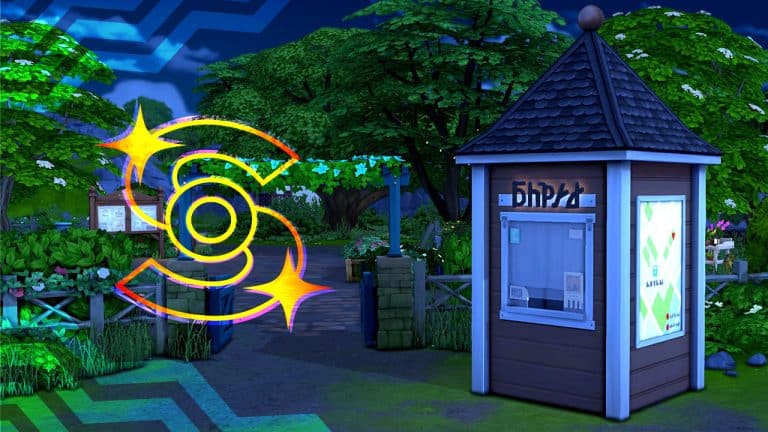
So what’s the solution? Well, the amazing Ravasheen has given us the Drag & Shop Community Kiosk! It requires no NPCs to run the kiosk, it can be placed in any world on any lot, and it’s base game compatible!
The kiosk is open from 9am to 3am but you can SHIFT+Click the kiosk with testingcheats enabled to bring up extra options, including the ability to force the kiosk to open outside regular hours. Sims can both buy and sell at the kiosk. The kiosk sells a much wider variety of items than other shop stalls, like camping, hiking, and jungle supplies, as well as the crafted instruments that aren’t ordinarily available in the Build/Buy catalogue. The kiosk will also purchase just about any craftable or harvestable item that can go in a Sim’s personal inventory.
But it’s not just a quick and easy marketplace! For a small $10 fee, Sims can use the kiosk as a point of map travel which they can do 24/7 even when the kiosk isn’t open. They can haggle prices and even use it as a public bathroom when they really have to go. Their bladder motive needs to be at 25% or less to use the washroom.
If you also use the TOOLmod by TwistedMexi, the kiosk can even be placed off of a lot anywhere you like in the common space. Plop it down anywhere in the area of your Sim’s home and you won’t need to go through a load screen at all to go sell your wares or take up space on your home lot!
I’m definitely going to be using this in my medieval save and for my Sims who own an Old Western ranch in StrangerVille.
The Drag & Shop Community Kiosk is currently in early access for Ravasheen’s patrons but will be made free for everyone on August 9th, 2022!
We are giving away 3 copies of The Sims 4 High School Years. Platform of your choice!
A huge week is ahead of us. It’s almost time for High School!
..don’t worry – we are still talking about The Sims.
Here at Sims Community we are still getting ready for the jolly period of playing Virtual High School. Almost everything is ready for our coverage, so stick around and bookmark The Sims 4 High School Years News for the latest updates on the release!
Okay, enough promo talk. Let’s get to the giveaway, shall we?
The Sims 4 High School Years Flash Giveaway
The rules are simple:
What’s the one thing you like – or dislike, about High School?
Leave your comments down below!
Three random comments will be picked out using random.org. The winner will be announced here in the Comments Section on July 25th at 1PM Pacific Time / 10PM Central European Time.
The comments section closes down on July 25th at 10AM PT / 7PM CET.
Please note:
Be respectful and follow the Sims Community House Rules linked below
Not more than 1 comment!
Your comment might be saved for manual approval. Don’t worry, we will manually approve your comment in a few hours in case you’re waiting!
Make sure you leave your correct information when registering to Sims Community through OpenWeb. Your correct e-mail is needed so we can contact you with the inquiry about your preferred platform for High School Years Expansion Pack code!
Do not share your personal email and data in the conversation!