Home Blog Page 176

The Sims 4 Scenario Playthrough: Making Money

The 2nd November 2021 game patch introduced a new game feature in the form of Scenarios. Throughout this article, we shall be going through a number of different aspects of the Making Money Scenario, as well as looking at a variety of different ways your Sims can make money!

Getting Started

First things first, you will notice on the main menu that you have an extra button. The New Scenario button is where you can choose and start a new scenario.

The Sims 4 Scenario Playthrough: Making Money

From there, you will then be presented with the Challenge Scenarios pop up. Here is where you’ll be able to have a look through all of the available scenarios, as well as further details about each one.

Once you have settled on a scenario you would like to play, you’ll see another pop up. This is the Scenario Selected screen. Here you will find all the information you need about the scenario including the description, any requirements for the scenario as well as potential outcomes. You will also notice that you will be able to choose between starting the scenario in a New Save or an Existing Save. It’s important to remember that you will be starting with a new Household as well.

The Sims 4 Scenario Playthrough: Making Money

For this article, we will of course be looking at the Making Money scenario. While there are currently only two scenarios for players to chose from at the moment, more will be added over time.

You can find more information about Scenarios in the Lessons menu. Just head to the Live Mode drop down menu in Lessons, and Scenarios will be the first one listed.

Let’s Begin our Scenario

With your chosen scenario in place, it’s time to jump into Create A Sim! Don’t forget, you can also import Sims/Households in from The Gallery. This is useful if you want to use a specific Sim or Household you have previously created.

Note: While the Making Money scenario doesn’t contain any Household Requirements, it is worth noting that you’ll see a new icon next to The Gallery icon in the top right of your screen. Here you will find any requirements that you must have as part of the scenario. You can toggle this on and off, and you’ll also be able to see a summary of the scenario too.

The Sims 4 Scenario Playthrough: Making Money

For our article, we will be using the Pancakes Household that I downloaded from The Gallery.

Now, once we move into our chosen house, it’s important to remember that our household funds will be set to zero. With no funds, you’ll need to keep in mind that you will still have household bills to pay for as well as food.

For the purpose of this article, I chose to go with the 20×15 Nookstone lot located in Oasis Springs. While you can chose any lot that you wish to live in (including apartments) starting in a smaller lot will help when it comes to Household bills.

The Sims 4 Scenario Playthrough: Making MoneyLive Mode UI

When loading into Live Mode, you will notice in the top left-hand side of the screen a new icon. This is icon allows you to view details of the scenario that you are currently playing through. Much like the Scenario UI you now find in Create A Sim you can toggle this one on and off as required.

Making the First Simoleons

The first thing I would recommend doing once you have moved your Household into their new home is to explore the area around the lot. Look for Collectibles, harvestable plants and fishing spots. While doing this only provides a small amount of Simoleons each time, it is enough to get started.

The Sims 4 Scenario Playthrough: Making Money

Another straight forward way of making money is ensuring your Sim has a job of some description. Be that that full-time, part-time or as a freelancer, it’s a good way to get a steady amount of money.

As you start to earn some money, your Sims can then branch out into other ways. While you may have to pay out initially to buy a particular object, it may well pay off in the long run.

Other ways of Making Money

  • Painting
  • Fishing
  • Gardening
  • Writing
  • Programming
  • Performing
  • Woodworking
  • Content Creation (Get Famous)
  • Archaeology (Jungle Adventure)
  • Offering Spa Treatments (Spa Day)
  • Odd Jobs
  • Using the Wishing Well (Romantic Garden Stuff)

The Sims 4 Scenario Playthrough: Making Money

Helpful Tips

  • Utilize Public Lots. This is handy if your Sim is a writer or a musician. It will also keep your household outgoings lower.
  • Starting in a smaller lot/apartment will keep your household bills lower.
  • Lights off! Use the Auto-lights option to also keep your Household bills down.
  • Pop-ups, especially career related ones, may reward you with bonus Simoleons depending on the outcome you chose.
  • Keep an eye on what your Sims find while fishing! You may find a Future Cube or two, or maybe even a Digital Sketchpad.
  • Use the perk systems to your advantage. Certain perks may help you along the way!
  • Traits and Aspirations will also play a part, to a point, when it comes to earning money.
  • Skills! The higher your Sims skill level, the more options your Sims will have when it comes to activities for that Skill, as well as higher payouts.
  • Choose a career with a good salary. Acting, Tech Guru, Science and Astronaut careers are known to pay well.
  • University degrees can help your Sims start at a higher career level.
  • Complete Whims to earn Satisfaction Points. Redeem those points in the Reward Store on perks that will help your Sims along the way. (We see you Money Tree!)
  • You can use the  multiselect to sell multiple items at once from your Sims inventory. Don’t forget to check your Sims Household inventory to. No more selling each item individually!

There are a number of different ways that your Sims can earn money in the Making Money Scenario, and these are just some of the many ways you can. There is no right or wrong way as to how you earn those Simoleons throughout the Scenario. You can, if you want, use the Motherlode cheat to complete the scenario quickly. It is really up to you!

The Sims 4 Scenario Playthrough: Making Money

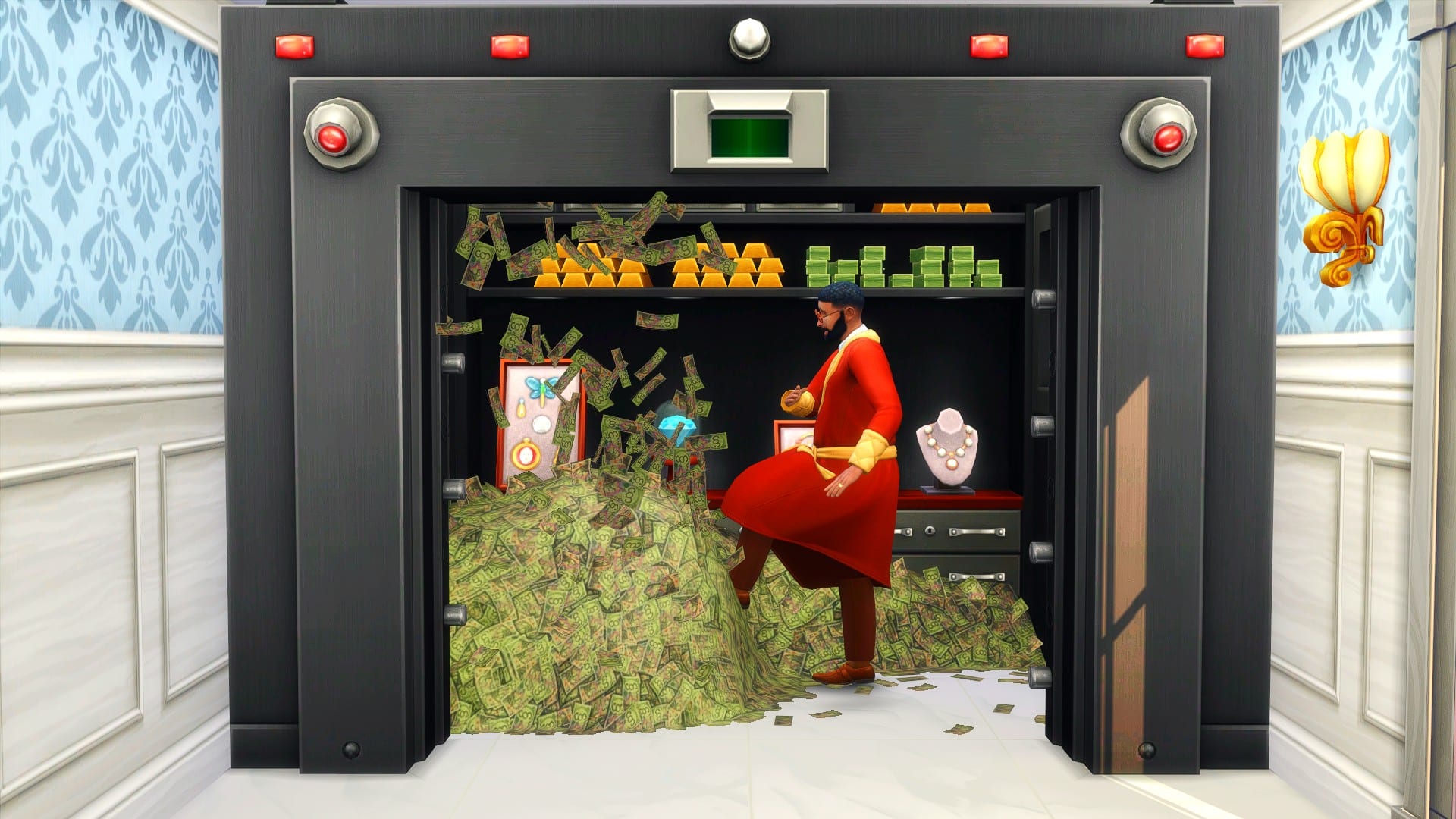
Once you have completed the Making Money Scenario, you will be rewarded with some Satisfaction Points which you can spend in the Reward Store, as well as now having one million Simoleons in your household funds. You will be presented with one final pop up and a notification that gives you an overview of the outcome you achieved, and it also lets you know how long it took to complete the scenario.
The Sims 4 Scenario Playthrough: Making Money

What you do next is up to you! You can continue playing your household like normal or even move onto a new Scenario with a different household!

Let us know what you think of the new Making Money scenario and any ways you plan on making one million Simoleons in the comments below.

The Sims 4: “Too Many Toddlers” Scenario Starts Today!

0

UPDATE: SimGuruDuck has shared a statement saying that the Too Many Toddlers Scenario will be launching soon, and that it will be extended to 2 weeks!

Yesterday we reported on the 3 limited-time scenarios that are coming to The Sims 4. The Sims Team didn’t specify the exact dates of when these Scenarios will begin – up until today thanks to a report from PCGamesN.

This news site reports that The Sims 4 devs shared with them that the Too Many Toddlers Scenario will begin TODAY, and shockingly it will only last for 3 days. We’re not sure why this Scenario is being locked away again after November 6th. Either way, if you wanted to play this Scenario you should expect it to go fully live at around 10AM Pacific Time today!

The Too Many Toddlers scenario launches on November 3 and will be removed as of November 6, the devs have announced in a press release, though if you start the scenario before that end date, you’ll still be able to play it to completion after it’s removed. There are no details yet on how that scenario will play. The devs previously announced that another limited-time scenario called Perfectly Well-Rounded would come shortly after the feature’s launch.

What will the Too Many Toddlers Scenario bring? Check out in the Scenario Preview below:

The Sims 4: “Too Many Toddlers” Scenario Starts Today!

The Sims 4 Scenario Playthrough: Finding Love After a Breakup

In case you missed it, The Sims 4 got a pretty big feature update today! The game now has a brand new Scenarios feature where your Sims can work towards completing specific challenge goals in exchange for satisfaction points to spend in the Rewards Store. I was personally quite excited about this new feature, being a storytelling and challenge enthusiast. I was pleased to see how open-ended the scenarios were. Even though I had a goal to strive towards, the way I achieved those goals was completely up to me.

Today, I’ll be sharing my experience playing through the Finding Love After a Breakup scenario! I’ll also be explaining how to start and work towards the goals of this challenge scenario.

The Sims 4 Scenario Playthrough: Finding Love After a Breakup

When you first start up the game, you’ll see a new Scenarios option in the right sidebar. Click it to see a list of available scenarios! Currently, there are only two scenarios available but more will be added in the future so keep checking back for new scenarios to play! I went ahead and selected the Finding Love After a Breakup option. Currently, you will not be able to start a scenario with an existing household. You can only start a scenario with a new household but the Sim Gurus have said they will be implementing the ability to play scenarios in existing households in the future.

The Sims 4 Scenario Playthrough: Finding Love After a Breakup

When you select your scenario, you’ll get a breakdown of potential scenario outcomes, the household requirements to play that scenario, and a description of the scenario circumstances. For this scenario, it explains that I’ll need to have two adult Sims who are not related to each other and that when I start the scenario, these two Sims will have recently broken up. I’ll be able to choose between three potential outcomes; I can rekindle the dead romance, have the two Sims stay broken up but become friends, or have one Sim move on with someone new.

I already had two Sims in my Gallery I’d made previously that I thought would work well for this scenario; a vampire named Xavier Nightbloom and a spellcaster named Serena Crowe. Both of these Sims have backstories involving being unlucky in love. If you’d like to play with Xavier or Serena, they are both CC free and in my Gallery under the ID SnarkyWitch!

The scenario requirements in the top right of CAS informed me that I now met the household requirements to play this scenario. I had two Sims who weren’t related to each other. I could now start the scenario. I selected a house in Glimmerbrook for them to move into and the scenario began!

When I first started the scenario, I immediately noticed the popup in the top left of the screen with the possible outcomes. I could work towards any one of these goals to complete the scenario. At first, I felt disappointed; I was hoping for more guidance or some kind of step-by-step thing. Something more like the StrangerVille mystery, I suppose. I wasn’t sure how exciting working towards these goals was going to be. I was proven wrong very quickly after I started playing!

When Xavier and Serena started out on the lot, they were both sad from their breakup. They also had a completely negative romance bar and a somewhat negative friendship bar. They also both had the Bitter About Breakup sentiment towards each other. As I started playing with them, I realised very quickly that achieving the goals of this challenge scenario wasn’t as straight-forward as I thought it was going to be.

The Sims 4 Scenario Playthrough: Finding Love After a Breakup

I initially planned to have Xavier and Serena rekindle their dead romance but Xavier and Serena made it very difficult to do that. So difficult, in fact, that I had to switch tactics and work towards one of the other goals, instead. No matter what they said to each other, no matter how many times they tried to apologise or discuss their problems, the conversation would always go sour and they’d end up fighting all over again. Their bitter sentiment towards each other, combined with their breakup moodlets and negative relationship bars made it virtually impossible for them to have a positive exchange with each other. Xavier even ended up with the Hurt sentiment towards Serena after she lost her temper with him and shouted at him autonomously.

The Sims 4 Scenario Playthrough: Finding Love After a Breakup

When the Welcome Wagon showed up to greet them, I was starting to think maybe this wasn’t going to work after all. Maybe getting to know the neighbours would allow me to complete the scenario a different way. So Serena and Xavier invited Minerva, Darrel, Grace, and Tomax into their home.

Since I was pretty sure falling in love with Xavier or becoming his friend weren’t going to happen, that left one option; falling in love with someone else. Luckily for Serena, she and Darrel Charm formed an instant connection. They had a lot more in common than she and Xavier did. They were both spellcasters and Xavier was a vampire. They came from completely different worlds and Serena was starting to see that the more she chatted with Darrel. Xavier definitely noticed how well his ex was getting along with a new guy right in front of him because he disappeared into the bedroom to sulk.

The Sims 4 Scenario Playthrough: Finding Love After a Breakup

By the time the welcome wagon left, Serena had found out a lot about Darrel… including the fact that he was currently engaged to someone else but apparently, he didn’t feel that strongly about his fiancée because he had struck up a bit of romantic banter with Serena. Perhaps Darrel was also looking for a way out of a bad relationship. That would be one more thing he had in common with Serena, anyway.

The Sims 4 Scenario Playthrough: Finding Love After a Breakup

Serena and Darrel’s flirting did not improve the situation in the house. It made it ten times worse. Xavier was extremely upset that she would have the nerve to cozy up with another Sim right in front of him in his own house so soon after their breakup. Was she trying to be cruel and rub salt in the wound?! Serena didn’t see the problem; they were broken up, weren’t they? And she lived here, too. She could do what she wanted with who she wanted.

Things just got more and more tense until Xavier couldn’t take it anymore. He’d had enough of being yanked around by her. It was time for some payback. He was a vampire, he was hungry, and his ex had plenty of plasma. If she was going to play dirty after their breakup, then so was he. He hypnotized Serena and drank her plasma! Yikes! This living arrangement was getting more and more toxic by the second!

The Sims 4 Scenario Playthrough: Finding Love After a Breakup

Serena knew she needed out and fast. It was bad enough living with her ex-boyfriend but living with her vampire ex-boyfriend who had no issues with feeding off her was the last straw! That’s just rude and completely unacceptable! So she left to go see her new love interest, Darrel, at his house. Darrel took pity on Serena and let her sleep and have a shower at his house after hearing all about what happened with her and her ex. At first, his fiancée, Emilia, was perfectly happy to help out a neighbour in need… until she realised her fiancé was being a little bit more than neighbourly with the girl next door.

The Sims 4 Scenario Playthrough: Finding Love After a Breakup

Emilia was, understandably, furious that the man she was about to marry had been snuggling up to some other spellcaster and started following Serena and Darrel around to harass them and yell at them. She made it so unbearable for Darrel and Serena to be in the house that they actually had to take a walk together around Glimmerbrook where no one would bother them in order to have a proper conversation.

The Sims 4 Scenario Playthrough: Finding Love After a Breakup

On their walk, finally free of other people intruding on them, they really bonded and opened up to each other about everything going on in their lives. It became clear to Serena that things with Xavier could never be mended and that Darrel was a better match for her. Darrel also realised that he’d been looking for an excuse to call off his wedding and leave Emilia for a while now and Serena had finally given him a reason to walk away. He told Serena he was going to leave Emilia for her and Serena promised she was done with Xavier once and for all.

They shared a very romantic kiss and that completed the scenario for me! Serena became Soulmates with someone new and was finally able to move on from her ex! When I completed the scenario, I got a popup of the scenario results, including which outcome I achieved and how long it took me to complete the scenario in Sim days. I was grinding to complete this scenario as fast as possible so it only took me 2 Sim days but I could easily see these events unfolding over a longer period of time if I had been balancing the scenario with work, school, hobbies or other aspects of the game. Xavier and Serena also received a hefty 5000 satisfaction points each for all the trouble they went through. Not bad!

The Sims 4 Scenario Playthrough: Finding Love After a Breakup

Once you complete a scenario, you can continue to play that save and enjoy your satisfaction points any way you like. I felt like this story still needed some closure, so I sent Serena home to tell Xavier she was moving in with Darrel and they were over for good. Darrel, meanwhile, went home and called his wedding with Emilia off. Emilia promptly broke up with him and moved out. Serena took her place and all’s well that ends well… sort of.

The Sims 4 Scenario Playthrough: Finding Love After a Breakup

So what are my final thoughts after playing through this scenario? I was pleasantly surprised at how much freedom I had to complete the scenario my way. Not only were there three different ways to complete the scenario but the way the events unfolded in my scenario were unique to my game. Someone else’s scenario could have played out very differently even if they chose the same goal I did. The scenarios really show that The Sims 4 is as limitless as your imagination and I think I will be having a lot of fun playing more of these scenarios in the future!

Did you play this scenario, too? How did things play out for you? Let us know in the comments or come chat with us on social media!


Credit: reshade by sunflowersyrup

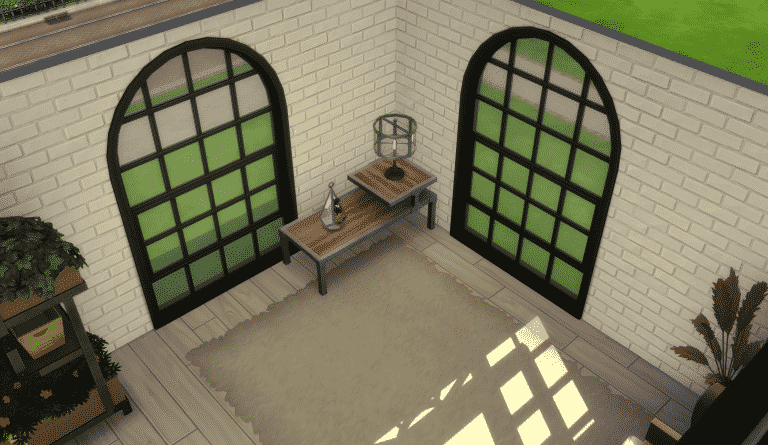
The Sims 4: Get the “Industrial Loft” Window Right Away!

4

In last week’s Maxis Monthly The Sims Team confirmed that they’ll finally be adding the infamous Window from the Industrial Loft Kit Render. Plus, it was shared that it will be coming for free to The Sims 4 Base Game!

The Sims 4: Get the “Industrial Loft” Window Right Away!

They had confirmed that the window will be coming in “late November” however, modders have spotted the window in the game files after today’s update.

@littledica reports finding the Industrial Loft Window in debug:

It’s not certain why The Sims Team is waiting out to officially release the Window fully in Build Mode. Still, there is a method that you can use to get the Window right away in your game without even modding! You will need the latest version of The Sims 4 for this!

Modder @nandoandstitch has uploaded a Room that you can download in The Gallery that features this Window! Simply search for the nandoandstitch Origin ID in The Gallery and download the “New Moschino Window” Room.

Screenshot 2021 11 03 at 00.00.52

After placing down the room on your Lot you are able to use the eyedropper tool and apply the windows onto your lot freely.

11 02 21 114541 PM

There are also some different variants included with this debug Window:

The Sims 4: Get the “Industrial Loft” Window Right Away!

Since this is not officially released yet (and the Window still needs its name and description) you won’t be able to find this through Build Mode until late November. However, this workaround works just fine for now!

11 03 21 120815 AM

The Sims 4 Blooming Rooms Kit: Preview of New Objects

2

The latest update for The Sims 4 has prepared the game for the upcoming release of The Sims 4 Blooming Rooms Kit.

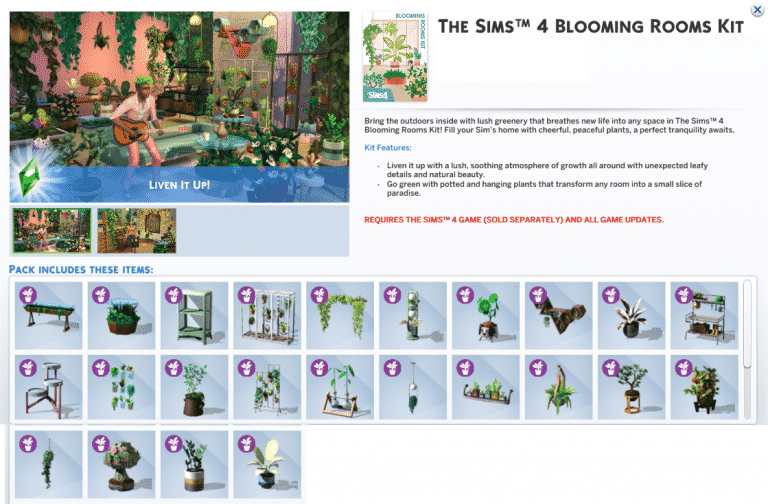
If you’re wondering which objects exactly are coming with the latest Kit you’re in luck. Huge thanks to our reader Anadius who provided us with the following preview of the new objects coming with Blooming Rooms!

You can also check out the welcome message down below:

The Sims 4 Blooming Rooms Kit: Preview of New ObjectsThe Sims 4 Blooming Rooms Kit: Preview of New Objects

Preview of the 3 Upcoming Scenarios for The Sims 4

2

The Sims Team revealed just a week ago that they’ll delivering a new feature called Scenarios to The Sims 4. Today we got an update for the game on PC and Consoles that brought 2 Scenarios, including Making Money and Finding Love After A Breakup.

However, in the game files from the latest Sims 4 Update there are 3 more Scenarios hidden that The Sims Team said to “Unlock” over the next few weeks. Check out the details below!

Too Many Toddlers

Can an overwhelmed Sim figure out how to give a bunch of Toddlers all the attention and care they need to thrive?

Preview of the 3 Upcoming Scenarios for The Sims 4

Surviving the Holidays

Two Sims who hate each other are stuck living together due to a convoluted backstory involving some gnomes and real estate scams, and both are too stubborn to move out. In the spirit of the season will they find a way to mend their differences, or at least find some way to make the situation more bearable to get through the holidays?

Sims will start the Scenario as enemies with grudges against each other.

Preview of the 3 Upcoming Scenarios for The Sims 4

Perfectly Well Rounded

Some Sims are extremely impressive: they’re experts in many topics, they’re well-liked by others, and they’ve followed their dreams unapologetically. It’s not easy to be so well rounded, but it’s a path worth pursuing.

Preview of the 3 Upcoming Scenarios for The Sims 4

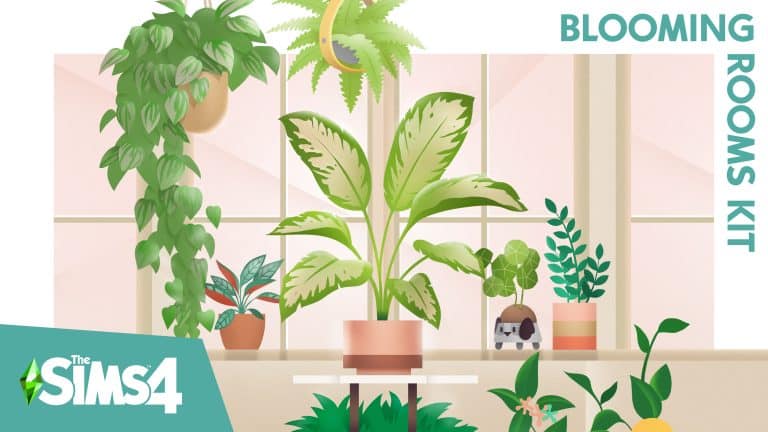
The Sims 4 Blooming Rooms Kit: Official Features + Assets

3

The Sims Team has sent us the official Assets, Description and Key Features for their upcoming Kit for The Sims 4 – Blooming Rooms! Check out what this $4.99 Kit has to offer (releasing November 9th!)

Description + Key Features

Bring the outdoors inside with lush greenery that breathes new life into any space in The Sims™ 4 Blooming Rooms Kit*! Fill your Sim’s home with cheerful, peaceful plants. From dangling vines to decorative propagation stations, a perfect tranquility awaits.

Go Green

Potted and hanging plants transform any room into a small slice of paradise. Vibrant vegetation even takes the place of curtains and wall art. With so many verdant colors, it will feel like living in a literal greenhouse.

Liven It Up

Shelving, tables, and even light fixtures become living decor with the addition of enchanting foliage. Delight in a lush, soothing atmosphere of growth all around with unexpected leafy details and natural beauty.

Assets

Logo

The Sims 4 Blooming Rooms Kit: Official Features + Assets

Boxart

Sims4 SP29 Blooming Rooms PA RetailPack Full RGB 2160x3048

Artwork

Sims4 SP29 Blooming Rooms PA Keyart Master RGB 3840x3840

Screens

The Sims 4 Blooming Rooms Kit: Official Features + AssetsThe Sims 4 Blooming Rooms Kit: Official Features + Assets

The Sims 4 PC & Console: NEW UPDATE + Patch Notes! (November 2nd, 2021)

The Sims 4 PC & Console: NEW UPDATE + Patch Notes! (November 2nd, 2021)

The Sims Team has released a brand new update for The Sims 4 on PC, Mac, Xbox One and PS4!

To download the latest version of The Sims 4, simply open your Origin program and if the game doesn’t update automatically, right click on The Sims 4 and select ”Update”.

In case you have Mods or Custom Content, the game will automatically disable them for you after first launching The Sims 4 after the update. To re-enable all your Mods and Custom Content, select the Settings option in the Menu and select Settings. Under the ”Other” section you’ll find the ”Enable Custom Content and Mods” option. Check it and restart your game in order for it to take effect!

Patch Notes

PC: 1.81.72.1030 / Mac: 1.81.72.1230
Console: Version 1.49

Hello Simmers!

We hope this Game Update finds you well wherever you are in the World.

In this Season of Selves, I can’t help but to introspect. Maybe it is a byproduct of getting older and particularly hitting an age milestone this year, but I’m feeling like the turning of the seasons, the seasons in the sun… so to speak.

We have had an amazing year of content and the team is constantly in the works for new and interesting ways for you all to play the game as well as finding ways to give you more to play with, to play more with life.

In this update we are sharing with you two of the ways that we have thought about that have a pretty different approach to the way we had traditionally delivered non-paid content and features to you all. These two new features are the result of an iterative approach to our feature development as well with the promise of improvements and changes over time as part of that iterative approach to our non-paid content.

It was lovely to speak to you all from the Inside Maxis stream. I still think I should have burned some sage before the live show, but I’m glad you all had a good time!

Thank you again for all your continued support and feedback, we truly appreciate it.

Gracias Totales!

-SimGuruRusskii

WHAT’S NEW?

Scenarios!

As you all saw, or heard from a friend, in our latest Inside Maxis we introduced Scenarios as a new way to play The Sims 4, and starting Today you will be able to experience it.

But what are Scenarios?

Scenarios are situations that will be available in-game where Simmers can choose to participate and work toward an outcome for their Sims. Now the fun part is that there are different outcomes per Scenario and that there are many ways to achieve those outcomes. This means that there is more than one way to complete one Scenario so you as Simmers have multiple options toward the outcome that you want.

Each Scenario has a theme but what happens in said Scenario is up to you as you work toward your desired outcome; you never know how the story will go but only your actions and time will tell. <evil laugh>

In Today’s update we have two Scenarios:

  • Making Money: Money, money, money, money, MOOONNEEEY! <ahem> This Scenario places your Sim in quite the predicament by having their bank account reset after they have moved in a Lot – yup zero Simoleons, nada – the difficulty could increase if your Sim chooses between Unfurnished and Furnished Lots, or if they bulldoze their space. To complete the Scenario you’ll have to earn your way to one million Simoleons. How you get to one million – it can be however you wish, just don’t do anything I wouldn’t do. <wink>
  • Finding Love after a Break Up: Love hurts… love scars. This Scenario places your Sim right after they have broken up with their significant other. Your Sim’s task is to find love either by salvaging that relationship that broke apart, or finding new love with someone else. Which will your Sim choose? It’s your Sim’s time to dream; which Sim will win their heart?

If you choose to partake in either one – or both – remember that in this initial list of Scenarios you will do so with a new Household. And don’t worry! These Households will stay with you after they complete each Scenario.

As SimGuruDuck said in our Inside Maxis, sometimes some Scenarios will be there for a limited time, and some will be updated and tweaked – some will be like a challenge, some may not – but in all we will add more over time and you can expect improvements and/or additions to this system over time as well! I’m looking forward to hearing from you and what your Sims are up to with these.

A Sims Delivery is coming your way in an update near you.

sdx

<Freezer Bunny jumps out of a gift box –  “Ding Dong”>

With this update we are preparing our game to welcome a new system that will allow us to deliver content to the Base Game for all of you as a complementary, more spontaneous little sibling of our regular game updates. Join us in welcoming Sims Delivery Express!

Sims Delivery Express, or SDX for short, will be able to make Sims Deliveries without needing a full game update. But what does this mean? What kind of things are a Sims Delivery? What do you eat with it? Well, let me tell you:

  • A Sims Delivery can be a Create A Sim or a Build Mode asset.
  • A Sims Delivery can be small pockets of gameplay that don’t require a Base Game update to be accessible by you all.
  • A Sims Delivery can also be tiny, little fixes that don’t need a Base Game update to release.
  • A Sims Delivery is always Free.

All this to say that even though some of you – I see you super tech savvy Simmers – will see through today’s update files that Sims Delivery is in existence, this feature will be available for you at a later date. A note for Console players, make sure you have linked your account to EA through the game so that you can be ready to receive Sims Deliveries when they are available; for more information on how to do so, I’ve got you – you can read about it here.

Stay tuned for a future update where I can share more details and facts about Sims Delivery Express.

Do you like Plants?

I like plants, and we like plants. Are you a proud Plant Parent? So are we! Well… some of us are anyway <looks at her dead plants a bit embarrassed>. In this update we’ve made some adjustments on the backend for decorative plants across the Base Game and Packs adding an environment score and a more appropriate price in Build Mode to match their fictional rareness or worth. This change goes hand in hand with a small change to the text related to Environment Gain/Loss in Build Mode assets that display it to be more appropriate with the true intent of that score. Instead of Minor Environment Gain/Loss, it is now called Lot Environment Gain/Loss.

We are hoping this change makes a difference for all of you!

BUG FIXES

Sims 4

  • We fixed an issue that made Toddlers walk with animations that were not quite fitting for a Toddler. I don’t know about you all, but if my Toddler in-game looked like they had a lot of coffee, I would be concerned – and this is coming from the caffeine queen herself. Luckily we were able to solve this issue and they should walk properly now.
  • Noticed the Bonsai Tree was a little… text averse? We did too – we made sure the Bonsai was properly potted and trimmed which solved its text attachment issues, so now its text should be displayed properly in Build Mode.
  • Speaking about text averse, some of the variants for the Mega Stacked Stone wall texture have been fixed in Build Mode as well to display proper text.

Spa Day

  • Over the years, Yoga practices have incorporated a number of equipment choices such as super comfy and hypoallergenic mats, yoga socks, sweat-proof technology clothing and towels, you name it… but what is never OK is practicing Yoga with shoes on. Sims should no longer be practicing Yoga with shoes on, as if.

Industrial Loft

  • The “I Took a Welding Class Once” Double Bed has been adjusted to show Stress and Comfort values as well as a reduced price. I mean, I took a welding class once, but I’m not quite in luxury status yet.

The Sims 4 Fixer Upper: Challenge #1 Showcase

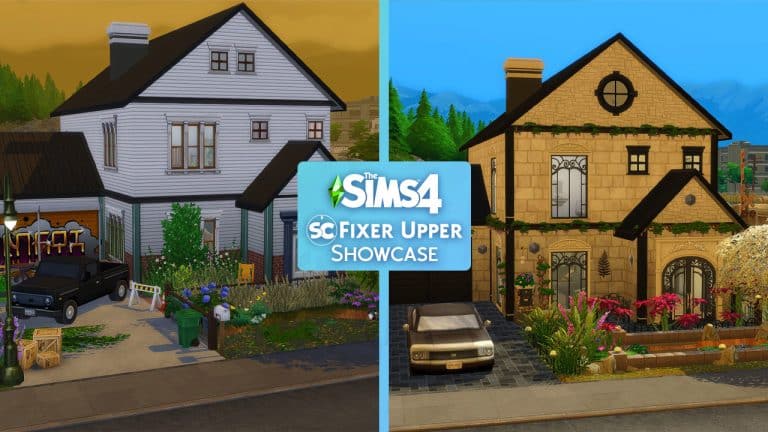
Just over a week ago, we asked the community to help us fix and renovate this family home that we created. Although from the outside it doesn’t look too bad, the inside was in desperate need of a fresh coat of paint and a new lease of life so that it was ready for a new family to move into!

You can read more about Challenge #1 here.

The Sims 4 Fixer Upper: Challenge #1 Showcase

Thank you to everyone who responded to our call for help! There are some brilliant renovations both within and a little over the budget we had set, but here are some of our favourites that were shared to The Gallery!

TKayOls

The Sims 4 Fixer Upper: Challenge #1 Showcase

What I loved about this renovation from TKayOls was the blue theme that runs throughout the home. It’s so simple yet brilliant. The fact the both bedrooms also have their own colour schemes as well was another thing that drew my attention to this renovation!

Click here to view on The Gallery

Ditisbagger

The Sims 4 Fixer Upper: Challenge #1 Showcase

Changing it up from busy town life to a family home by the sea, this Moroccan inspired renovation is beautiful! There are just so many different aspects of this version of our Fixer Upper that I love!

Click here to view on The Gallery

Lilpeacox

The Sims 4 Fixer Upper: Challenge #1 Showcase

I loved this renovation as it has that modern feel but also was very minimalist at the same time. Every item used compliments one another, and the colours work beautifully together throughout the renovation.

Click here to view on The Gallery

MsAllySims

The Sims 4 Fixer Upper: Challenge #1 Showcase

It was the plants and landscaping that caught my attention for this renovation. When I took a closer look, there was something about each and every room I loved. The living area is one of my favourites with the Grand Piano the main piece of the room and then a smaller television/seating area just off to the side which I liked as it was not what I expected.

Click here to view on The Gallery

You can find all the builds featured in this post and many more over on The Gallery by searching the hashtag #SCFixOurBuild.

What would you like to see in our next Fixer Upper build? Let us know in the comments below or over on social media!

The Sims 4: How to Make Money as a Vampire

There are many ways to make money in The Sims 4. Both hobbies and careers can be very lucrative and provide your Sims with plenty of simoleons to live life to the fullest, but I’m more interested in making money in more creative ways. I’m especially interested in making money as an occult Sim. I’ve always found juggling regular hobbies or a career with my Sims’ supernatural lifestyles to be a hassle. I just want to focus on supernatural stuff so I need ways to make money doing things that compliment my Sims’ occult lifestyles.

Today, I’ll be showing you some good ways to make money as a vampire in The Sims 4. Some honest ways and some… questionable ways.

Become a Pipe Organist

The Sims 4: How to Make Money as a Vampire

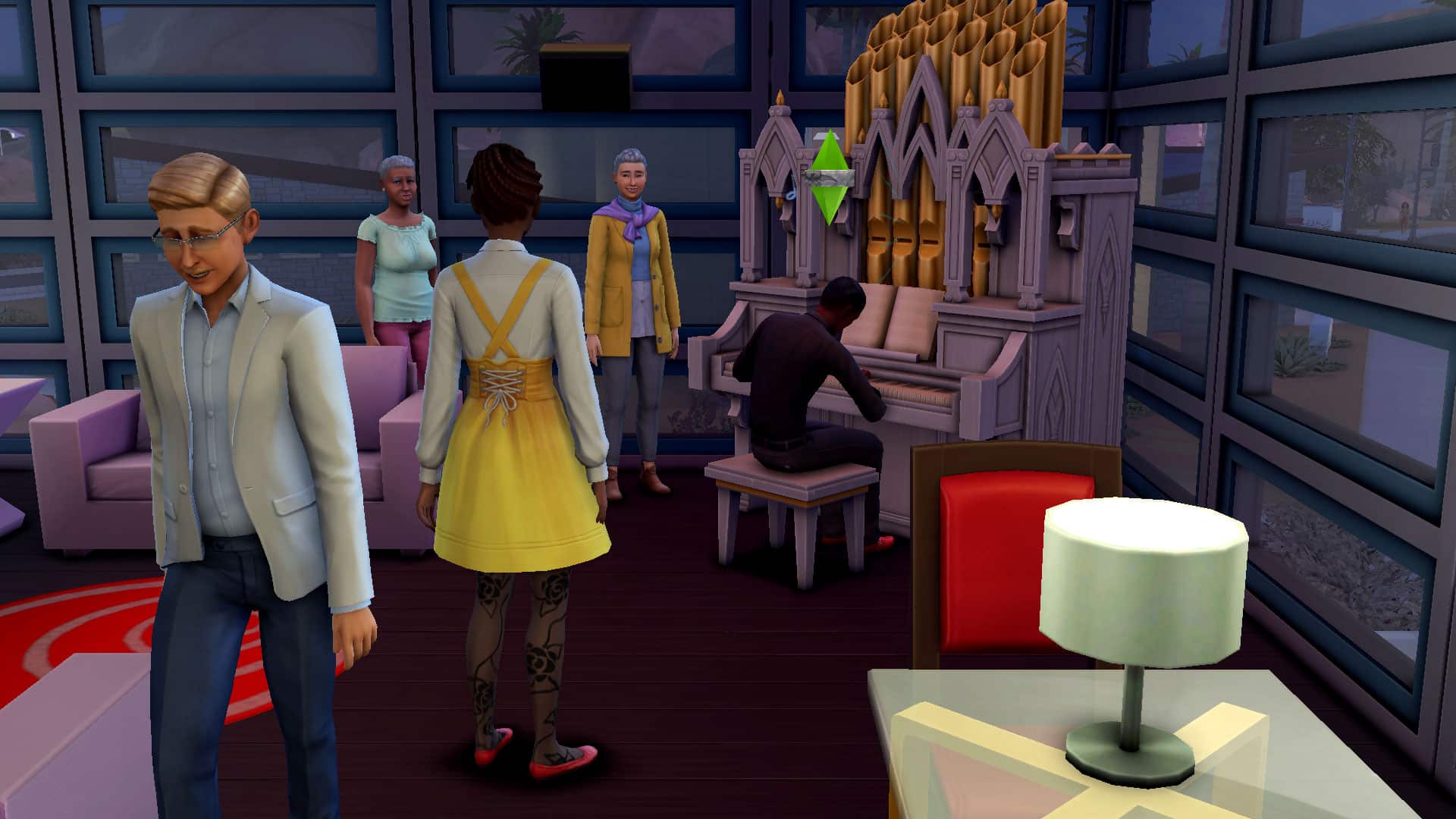
Pipe organs came with the Vampires game pack and offer your vampires a suitably morose way to spend their long nights of immortality. But the pipe organ isn’t just a pointless hobby. It can be a way for your vampires to make money! Just like the piano and other instruments in the game, your Sims can go out to any community lot that has a pipe organ and start practicing. Nearby Sims will stop to watch and if they like what they hear, they’ll shower your Sim in tips. If you have the Get Famous expansion pack, your vampires can even become celebrities performing on the pipe organ for adoring audiences.

The Sims 4: How to Make Money as a Vampire

If you find having to perform every night to make a living tedious, or if your vampire is a recluse who doesn’t want to spend their time mingling amongst mortals, the pipe organ still offers a way to make an income. When your vampire reaches level 8 of the Pipe Organ skill, they can write songs on the Pipe Organ. Writing a song takes quite a long time but what is time to an immortal vampire? Once the song is finished, they can use the mailbox to license it. They’ll receive daily royalty payments from any licensed songs so writing and licensing pipe organ music can be a great way for your vampire to make a steady, daily income.

Sell Vampire Concoctions

The Sims 4: How to Make Money as a Vampire

This method requires a bit more of an investment than the pipe organ. Your vampire Sim will have to master the Vampire Lore skill by reading tomes and spend a lot of time gardening to stock up on ingredients. For the vampire looking for ways to pass time, however, selling vampire drinks can be a great money-making option.

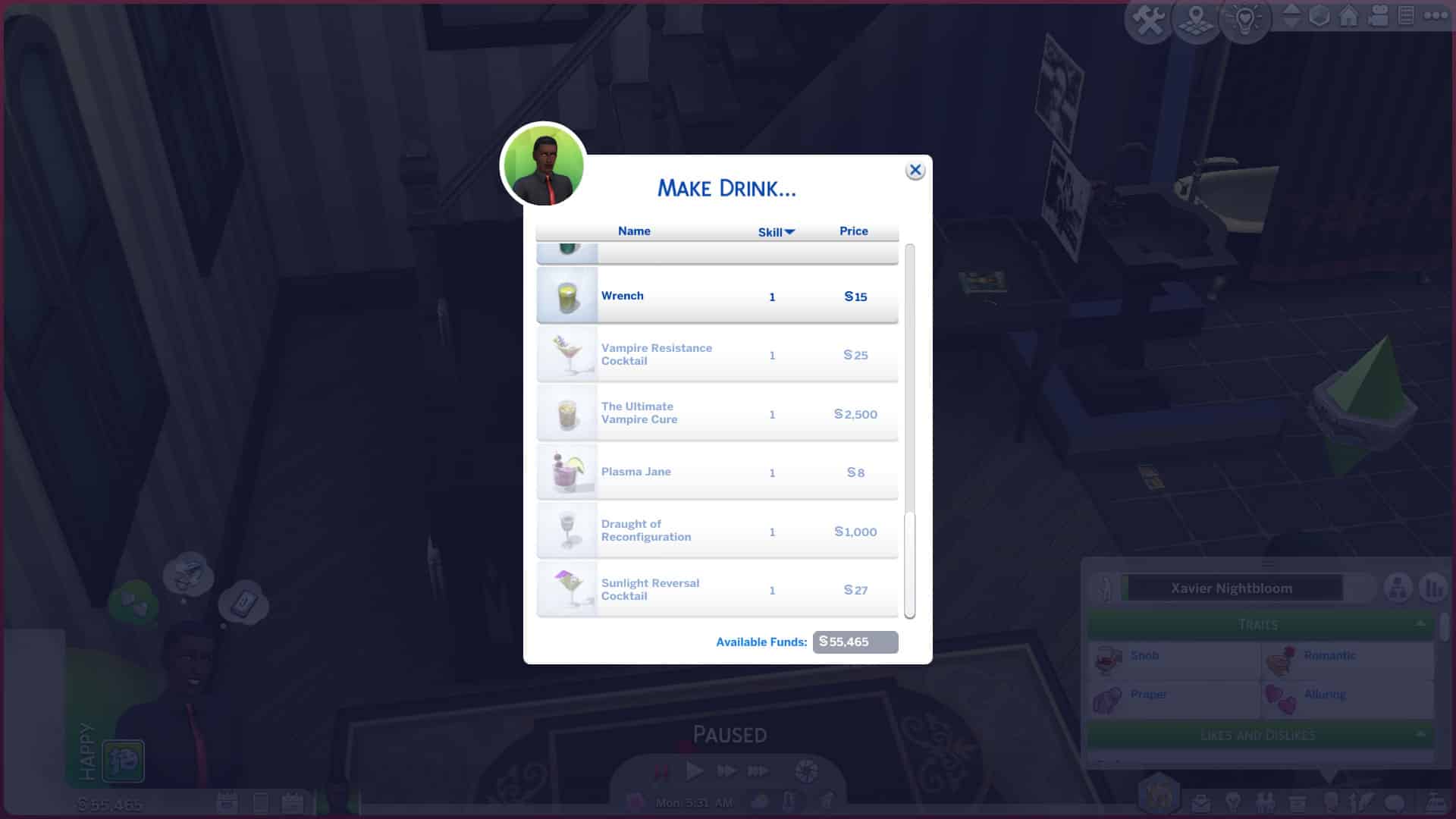
There are several vampire-related drinks that can be mixed up at any bar, but your vampire will have to learn the recipes by learning the Vampire Lore skill. They’ll have to build the skill all the way up to level 15 and max it out to learn all of the special mixology recipes.

The Sims 4: How to Make Money as a Vampire

  • Plasma Jane – A delicious plasma-based drink sure to please vampires… but no one else.
  • Vampire Resistance Cocktail – A protective drink humans can gulp down to make them more resistant to vampire powers.
  • Sunlight Reversal Cocktail – This drink will not only allow your vampire to walk in the sun without the Sun Resistance ability for a period of time, but also replenish their vampire energy while they are out in the daylight!
  • Draught of Reconfiguration – Reset your vampire’s abilities and weaknesses and refund your power points so you can select new ones.
  • The Ultimate Vampire Cure – This very rare and expensive drink will make a vampire human again!

Each recipe requires plasma fruit, wolfsbane, and/or garlic to make, so that’s where gardening comes into play. If you want to sell many of these drinks to make a living off of, you’re going to need a lot of these three ingredients. If your vampire does not have the Full Sun Resistance ability, it’s probably best to give them an indoor garden or only have them garden at night. The Garlic Immunity ability is also recommended. Without it, they’ll find themselves feeling pretty sick and miserable near all the garlic in their garden.

The Sims 4: How to Make Money as a Vampire

Once you have the recipe, ingredients, and required simoleons to craft the drink, your vampire can start mixing up these special brews to sell. No mixology skill is required to make any of the drinks! Just the Vampire Lore skill to learn the recipes.

The Sims 4: How to Make Money as a Vampire

There are several ways to sell the drinks your vampire makes. If you own the Get To Work expansion, they can invest in a retail business. This involved more time, effort, and money, but it can be a good way for your vampire to keep busy. If you own any expansion pack that comes with a market table (Jungle Adventure, City Living, or Eco Lifestyle), your vampire can also sell their drinks at the market table. For base game players, use the cheat bb.showhiddenobjects to find the hidden market table that was part of the Sims Sessions event back in the summer of 2021. Selling at the market tables requires lots of Sims to show up for the yard sales, though, and not a lot of Sims may show up to buy late at night. If your vampire can’t be out during the day, this may not be the best option for them.

The Sims 4: How to Make Money as a Vampire

Of course, the easiest way to sell the drinks is to just quick-sell them directly from your Sim’s inventory.

Or… Just Be Evil

The Sims 4: How to Make Money as a Vampire

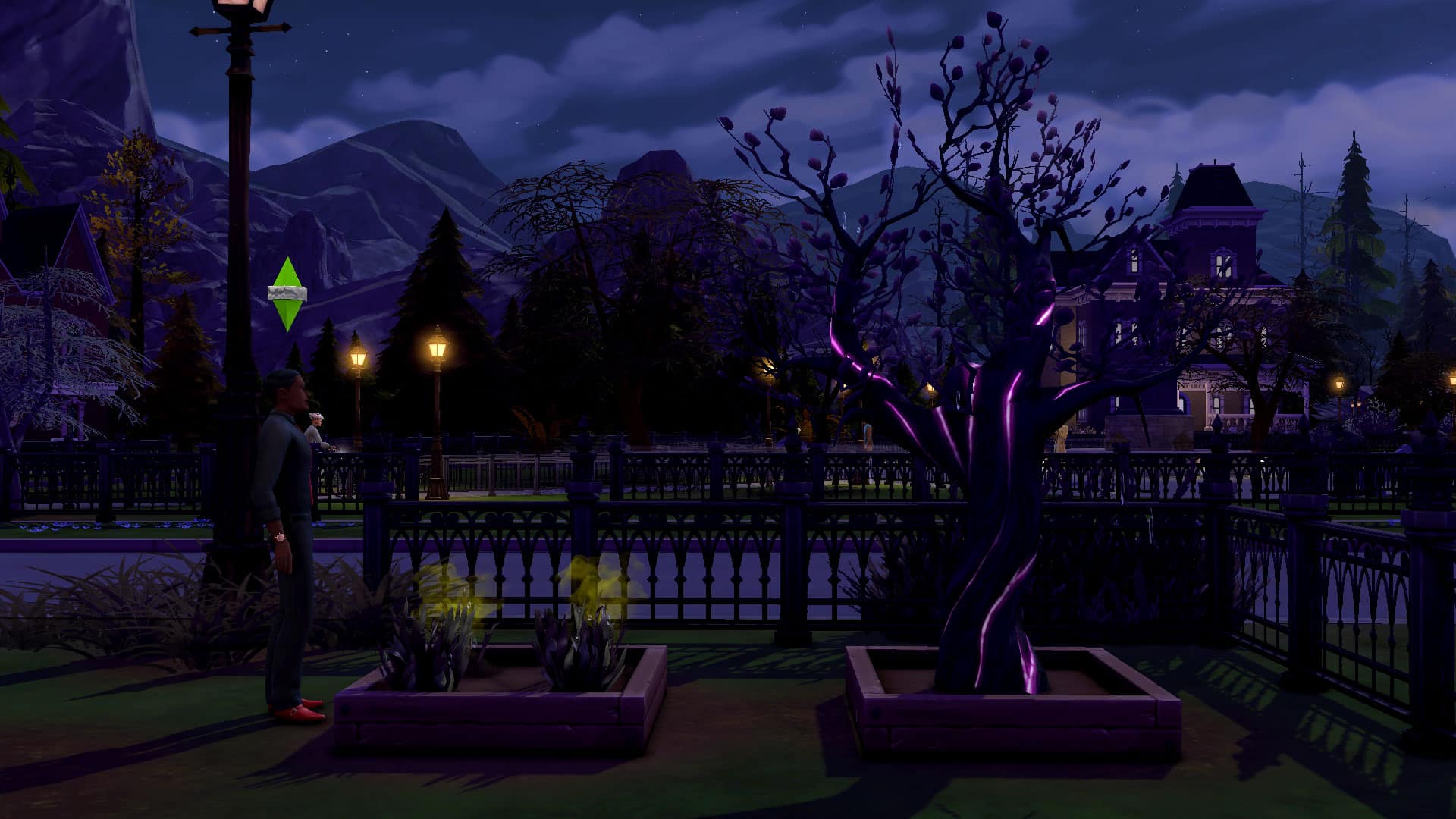
Okay okay, I get it. Becoming a pipe organist and an entrepreneur seems a little too… good for a vampire. I hear you and I agree. What’s the fun in being a boring good vampire? If things like morals and ethics aren’t something you’re concerned about, there is another way for a vampire to make a decent living without lifting a finger.

The Sims 4: How to Make Money as a Vampire

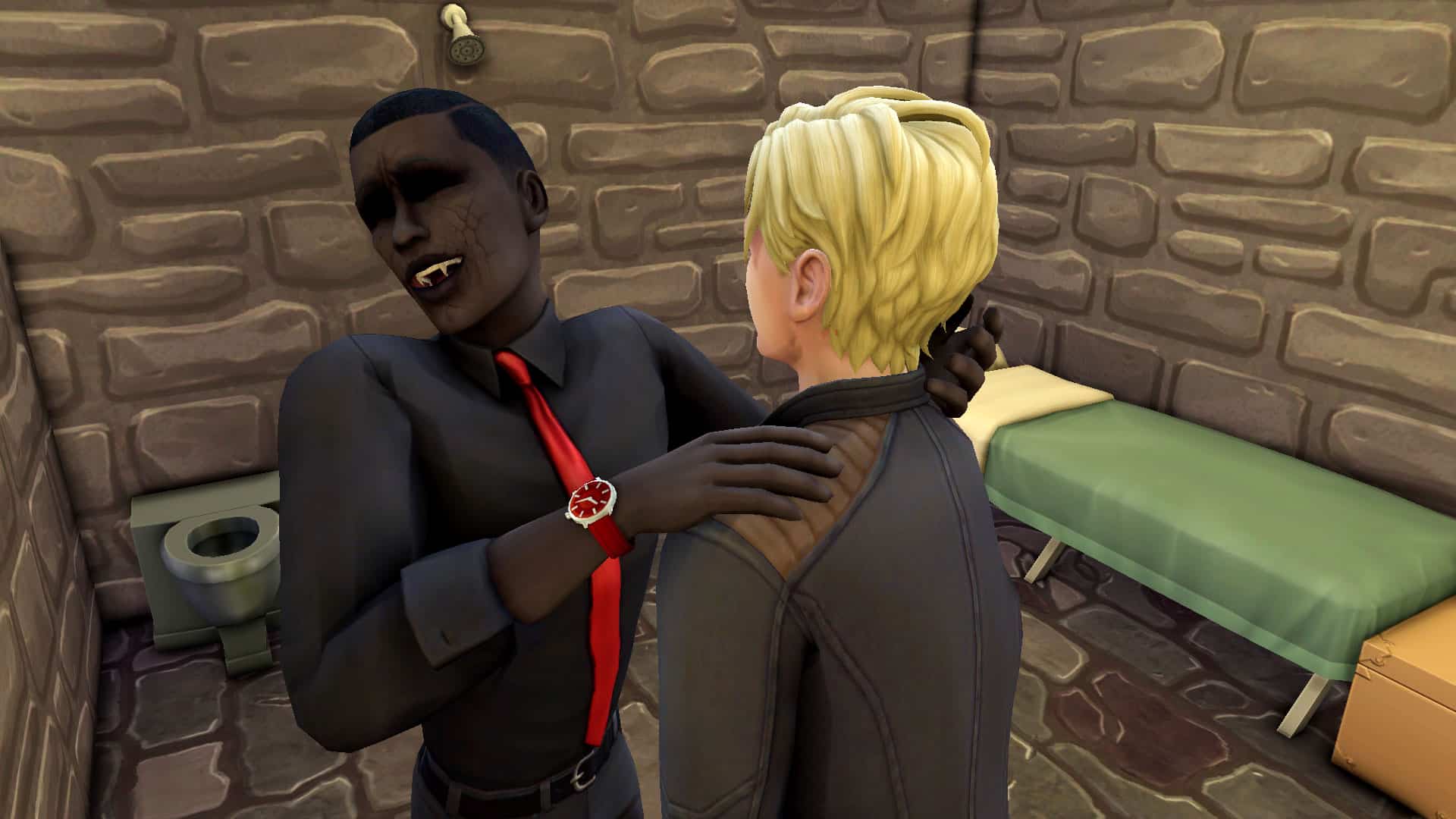
Simply move in a bunch of unsuspecting human Sims and turn them into your prisoners! That’s right. Trap a bunch of poor unfortunate souls in a dungeon and let them make all your money for you. Give them a bed, a cooler, a toilet, a shower, and an object they can make money from. Everything they need to stay alive… and productive. Have them paint, write songs on musical instruments, knit, cross-stitch, make wood carvings, candles, flower arrangements, the list goes on and on. Then sell the fruits of their labour and keep 100% of the profits for yourself.

The Sims 4: How to Make Money as a Vampire

Oh, and the money-making prisoners do come with the added perk of being a constant fresh source of plasma for your vampire. No more prowling the streets at night! Plenty of food in the dungeon!

I hope I’ve given you some inspiration for playing vampires in new and lucrative ways! How do your vampires make a living? Let us know in the comments or come chat with us on social media!


Credit: reshade by sunflowersyrup

The Sims 4: Reviewing the Storytelling Toolkit Mod

When my cowriter, Krista, linked me to this mod the other day, I knew I had to hop in and explore it. I am and always will be a storyteller at heart. It’s what makes me live and breathe for The Sims, so when I saw this Storytelling Toolkit mod by ChippedSim on Tumblr, I really wanted to try it out in my game and give it a test run.

The mod is almost a year old so I wasn’t certain if it would still work but I figured there was no harm in testing it out on a fresh save. I already had the required XML Injector for some other mods so all I had to do was download the files and put them in my Mods folder. Since this is a script mod, it cannot be more than one subfolder deep in the Mods folder.

The Sims 4: Reviewing the Storytelling Toolkit Mod

Once the mod was installed, I quickly made a pair of Sims and jumped into the game to play around with the Storytelling Toolkit. The mod gives you quick access to the headline effects cheat that removes the pesky plumbob and other headline effects, as well as emotions, weather, and seasons. You can change all of these with the click of a button instead of entering a bunch of cheats to set your story scenes the way you want them.

The Sims 4: Reviewing the Storytelling Toolkit Mod

To use the mod, make sure the testingcheatsenabled true cheat is active. This will allow you to Shift+Click your Sims to bring up various cheat options. When the cheat is enabled, Shift+Click any of your Sims and look for the Storytelling Toolkit option. This will allow you to change the season, weather, and your Sims’ emotions. The Misc category will also let you toggle the headline effects on and off.

The Sims 4: Reviewing the Storytelling Toolkit Mod

I decided to set the scene to stage a fight between my two Sims because drama is always part of any good story. To start with, it was a sunny Spring day in Willow Creek and both my Sims were in the Fine emotional state. That’s not very dramatic, though. Let’s fix that with the Storytelling Toolkit and set the scene for a fight. First, I changed the season to Autumn and the weather to rainy. Then I made my female Sim angry and my male Sim bored using the Storytelling Toolkit option. I also turned headline effects off. Now the stage was set!

When you change a Sims’s emotion using the mod, it adds a +5 buff to the Sim. This is usually enough to override any other emotions without sending your Sim into a dangerous emotional state, like Hysterical, Enraged, or Mortified. The buff is permanent until you remove it, which is handy when shooting long scenes. You don’t have to stop and keep reapplying the same buff every couple of Sim hours. To remove a buff you added, just go back into the Storyteller Toolkit options and select Remove Buffs. Only one Storytelling buff can be added to a Sim at a time.

The Sims 4: Reviewing the Storytelling Toolkit Mod

Now that my one Sim was bored and the other was angry, it was easier to stage what I wanted. My female Sim had special angry interactions available that wouldn’t have been there if she was feeling Fine. I had her chew out the other Sim as a downpour started, making for a pretty dramatic moment.

But all good stories have a happy ending, don’t they? Well, maybe some might not agree with that, but I think so. I wanted a happy ending for these Sims. Changing the mood of the scene was as easy as just making the weather sunny again, removing the negative buffs, and adding a Flirty buff to both Sims. Whatever my male Sim said in response to my female Sim must have calmed her down. All of a sudden, she was now flattered by everything he said and the stage was set for a romantic make up scene following their fight. They end up sharing a kiss just as the rain stops and the sun starts shining again. Awww!

Followed by some make up WooHoo… of course!

The Sims 4: Reviewing the Storytelling Toolkit Mod

The Verdict

So what are my final thoughts on the Storytelling Toolkit mod? I think it’s super convenient, easy to use, and saves me a lot of time setting up my scenes! I use custom poses most of the time to tell my stories so I don’t usually need to actually change my Sims’ emotions; they have the expression I want when I pose them but it’s still really useful to have this option. Just recently, I was annoyed that my Sim had a big dopey grin on his face while talking on the phone because the conversation in my story was supposed to be a serious one. I didn’t happen to have any serious phone discussion poses when I was shooting that scene and having this mod would have been really helpful. I could have quickly made my Sim sad or uncomfortable for that phone call.

If you’re a storyteller, I highly recommend this mod! Go and grab it and start telling your stories your way.

COMMUNITY POLL: Best Expansion Pack for The Sims 4

0

2021 is almost coming to an end, and considering that Cottage Living is the last Expansion Pack for The Sims 4 (for this year at least) we thought it would be fun to rank up all of the Expansion Packs released so far!

Down below is a Community Poll with all eleven Expansion Packs for The Sims 4 shown in order by their release date. Since there is already a big number of Expansion Packs released we’ve set an allowance of TWO Packs that you find to be your favorite ones.

The criteria for a “Best” Expansion Pack is unique for each player so just pick whichever Packs you like the most. You can choose your favorite Expansion Pack by selecting one (or two) pack covers below!

[totalpoll id=”103037″]

Sims 4 Custom Rigs: Create Your Own Personalized Pose Rigs!

Learn how to make your poses fit your Sims perfectly by making your own rigs!

Finally! A comprehensive Sims 4 custom rigs tutorial for pose creators! If you’re a pose creator, you’ll understand the struggle of creating a pose for your story only to have it not fit your Sims right because they have a smaller or larger body type than the default EA rigs you used in Blender. I had such a hard time finding a tutorial that was simple and easy to understand to help me import my own rigs into Blender. When someone asked me for a tutorial on this recently, I knew I needed to write one. I wanted to help other pose creators, especially new ones, make poses that fit their Sims perfectly for their stories.

Today, I’ll be showing you how to import your own Sims into Blender to create your poses with. Having Sims 4 custom rigs will allow you to make poses to fit a wide variety of body shapes. The screenshots in this article are from Blender 2.7; however, you can still follow along with this tutorial if you are using Blender 3.3. I will point out any differences between 2.7 and 3.3 whenever necessary.

What You Will Need

  • The Sims 4 Base Game
  • A (mostly) CC-free Sim you want to use as your rig
  • A default EA rig (scroll down and expand the Download Sims 4 Blender Rigs section)
  • The Sim Ripper
  • Blender (either 2.7 or 3.3 will work fine)
  • You should already know how to make custom poses for the game. This is not a tutorial on how to make poses or how to use Blender. I am only focusing on creating custom rigs for the purposes of pose creation. If you don’t know how to make poses, this tutorial will be too advanced for you.

Export Your Sim

Before you start the process of making Sims 4 custom rigs at all, it’s recommended that you go in-game and remove any CC on your Sim that isn’t needed for the pose you’re making. Some CC can cause issues with the rigs later on in Blender. This isn’t always the case but the less CC, the better, just to be on the safe side.

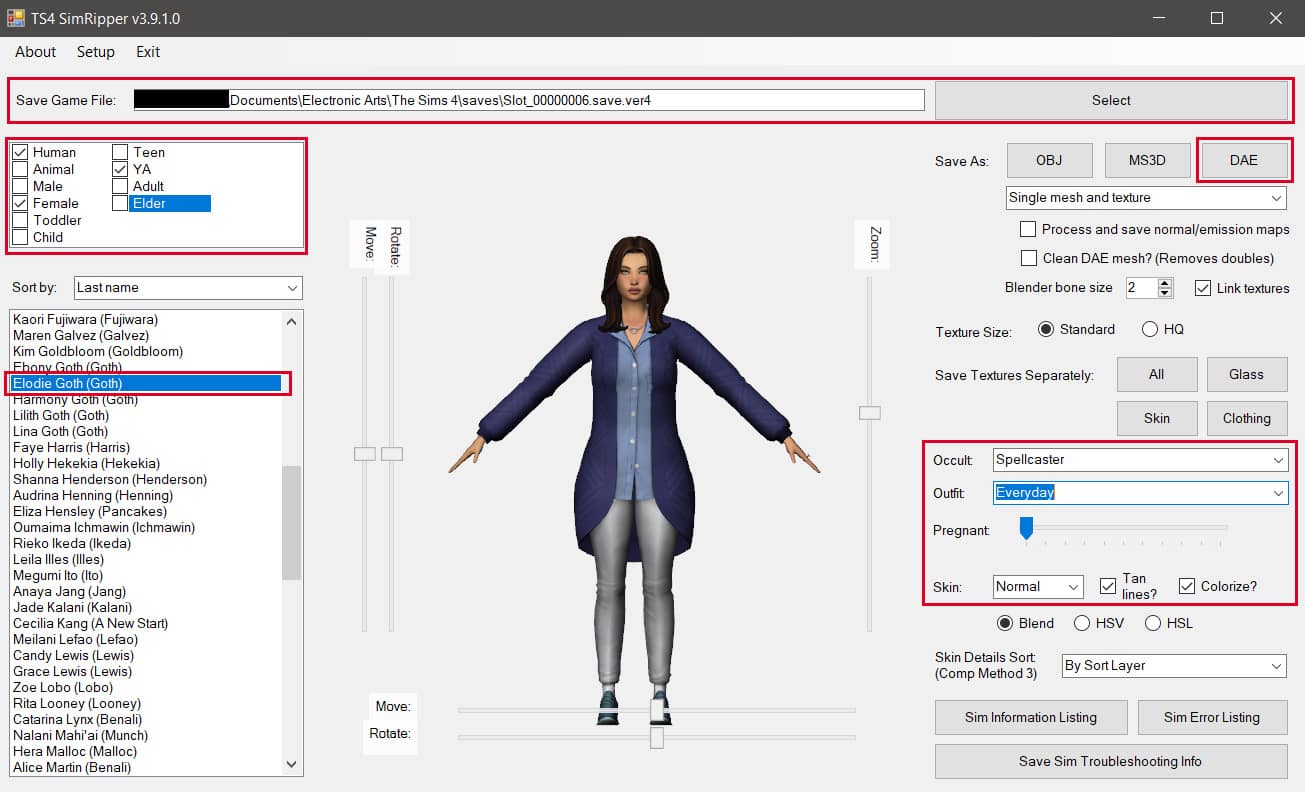
After removing any unnecessary CC from your Sim, save and close the game and open up the Sim Ripper. This program is crucial for making Sims 4 custom rigs. At the top where it says Save Game File, locate the save game you want to export a Sim from and hit Select. Give the program a minute to load all the Sims in that save. It can take quite a while if you have a lot of Sims in that save.

Once the list of Sims loads in the left panel, use the filters in the top left to narrow down the list and help you find your Sim easier. Once you find and select your Sim, be patient. Once again, it takes the Sim Ripper some time to load all the data.

sims 4 custom rigs

Your Sim will appear in the centre with all of their info displayed on the right. You don’t need to worry about most of the stuff displayed here but there are a few settings you might be interested in. I’ll walk you through them now.

  • Occult: If your Sim is an occult with an alternate form, you can switch between their human and occult forms here.
  • Outfit: You can select which of your Sim’s outfits to export here. This is useful when making poses where the Sim is wearing something extravagant like a ballgown and you don’t want limbs to clip through the skirt. You can select that outfit to work with in Blender.
  • Pregnant: This is very useful for maternity poses. Simply slide the slider back and forth to the desired tummy size.
  • Skin: You may not need this for pose purposes but it’s worth mentioning that you can set your Sim’s skin to tanned or sunburned here.

You’re almost ready to create your Sims 4 custom rigs! Select whatever settings here that you think you will need for your pose. When you’re ready, click the DAE button to export the Sim as a .dae file. Save it somewhere you can easily find it. If you get an error message when exporting the .dae file, try temporarily disabling your antivirus shields for a couple minutes. Mine doesn’t get along with the Sim Ripper at all. Always remember to turn your shields back on right after! Antivirus protection is very important!

Create Your Custom Rig in Blender

If you haven’t already, download any of the adult EA rigs from KatVerse’s website. Male or female does not matter; they both use the same rig which is the only thing we’ll be needing. If the Sim you just exported is a child or toddler, then download the rig for that age group. We need the frame of these rigs to create our Sims 4 custom rigs.

Open up the default rig in Blender and delete everything in the Scene panel except for the camera, lights, and the rig. You should only have the internal frame (or armature as it’s called) left.

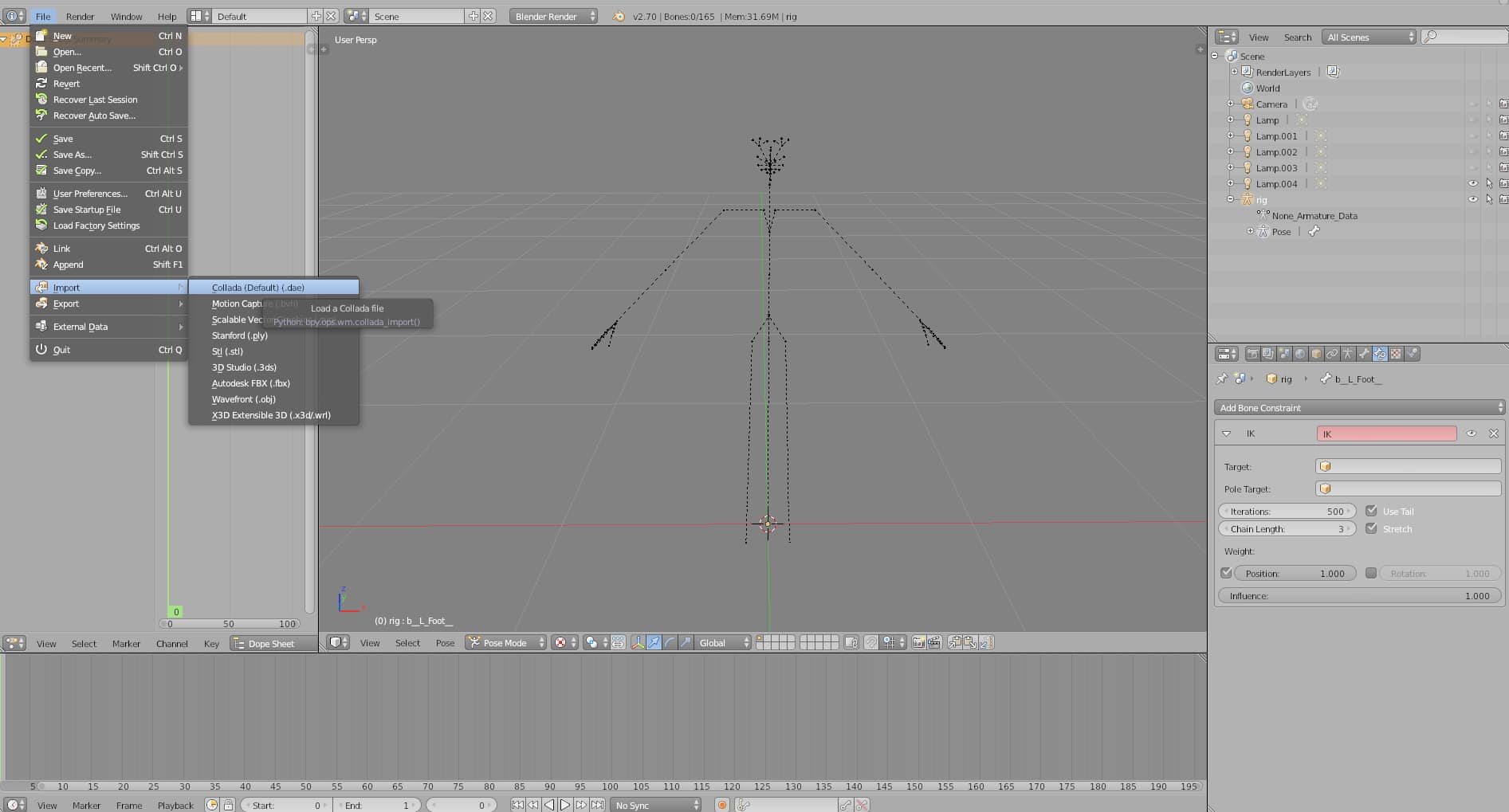
Next, go to File > Import > Collada (Default) (.dae) to import the .dae file you exported earlier. Your Sim should be directly over top of the empty frame we had just a moment ago. Believe it or not, you’re already almost done making your Sims 4 custom rigs!

TUTORIAL: How to Make Custom Rigs for Creating Sims 4 Poses

With the Sim now imported, delete their rig in the Scene panel. Make sure you are deleting the correct rig. You want to delete the rig attached to your Sim, not the original one we had. If you aren’t sure, expand the rigs by clicking the + sign next to them. The rig with your Sim’s name underneath it should be the one you delete. This is an important step. You don’t want multiple armatures attached to your Sims 4 custom rigs.

sims 4 custom rigs
In Blender 3.3, the Object Modifiers tab is located along the side instead of along the top

Your Sim’s name should now show up in the Scene panel by itself. Select your Sim’s name in the Scene panel and then select the Object Modifiers tab below the Scene panel. It’s the icon of a little wrench. Under the Object Modifiers tab, select your rig from the Object dropdown menu. This will anchor your Sim to the rig so when you move the rig, the Sim moves with it. This is crucial for having functional Sims 4 custom rigs.

TUTORIAL: How to Make Custom Rigs for Creating Sims 4 Poses

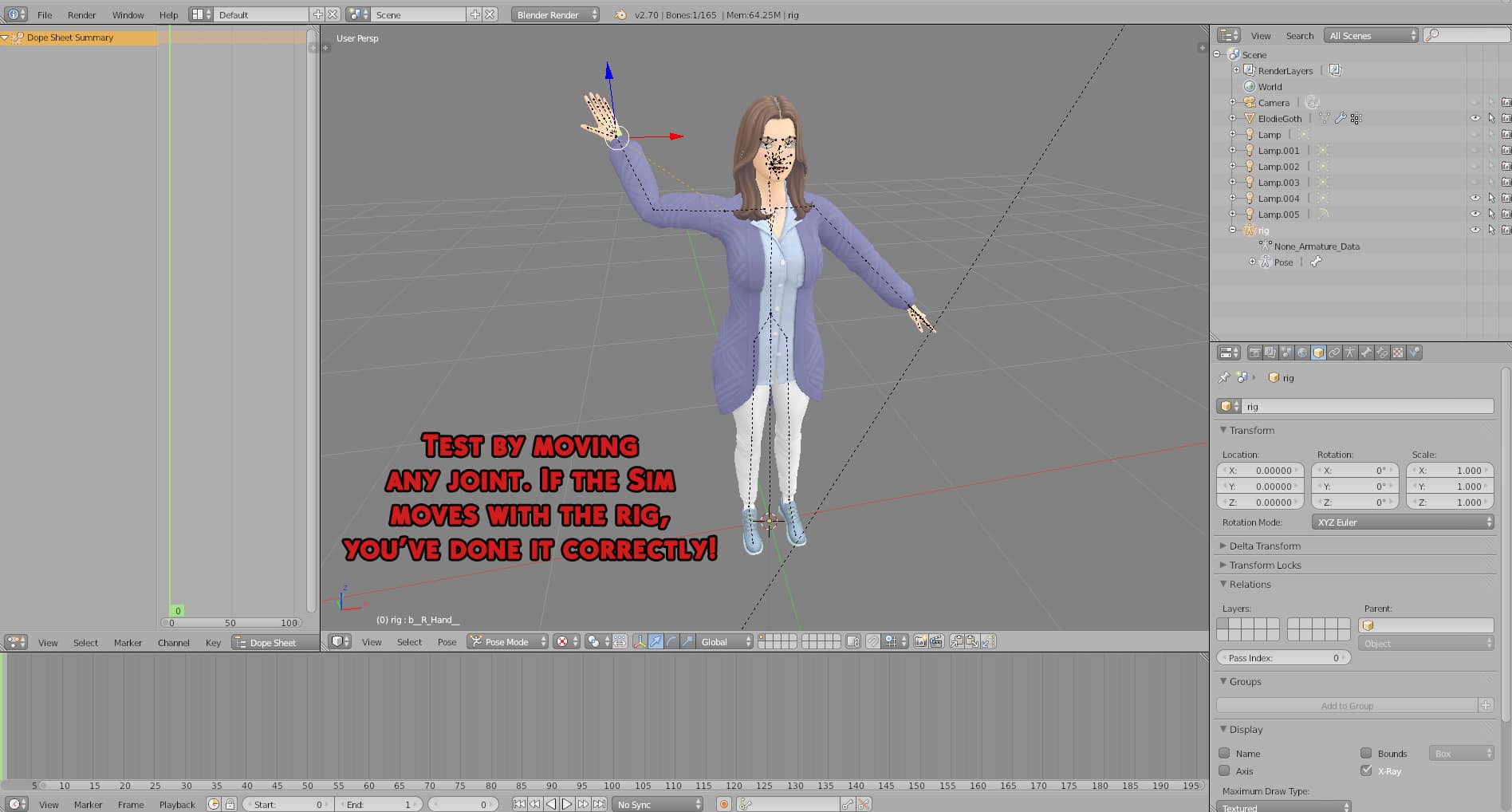
To test that you’ve done this right, move any joint on the rig. If the Sim moves with the rig, you’ve done this step correctly and now have functioning Sims 4 custom rigs to use for your poses!

sims 4 custom rigs

You are basically done but there are a couple things I like to do before saving my Sims 4 custom rigs. These things just save me time later on when I’m making my poses and help me keep things organised in the Scene panel.

First, I like to rename my Sims 4 custom rigs and my Sims. I rename the rig to RIG-SimName and the Sim to OBJ-SimName. This helps me differentiate between the frame and the Sim when I use them for posing in the future. I also make the OBJ-SimName unselectable. You only need to move the frame when making your poses, not the Sim itself. The frame is what creates the pose. The Sim just serves as a visual guide for their body shape. If you’re always accidentally moving the Sim and not the frame, that gets annoying. So make it unselectable by clicking the arrow next to it.

Blender 3.3 Tip: To make something unselectable in the Scene panel, click the funnel shaped icon in the top right corner just above the Scene panel, then choose the arrow icon. This will enable the option to make everything in the Scene panel unselectable the same way you would using Blender 2.7.

TUTORIAL: How to Make Custom Rigs for Creating Sims 4 Poses
You can also click the arrow symbol next to OBJ-SimName to make it unselectable.

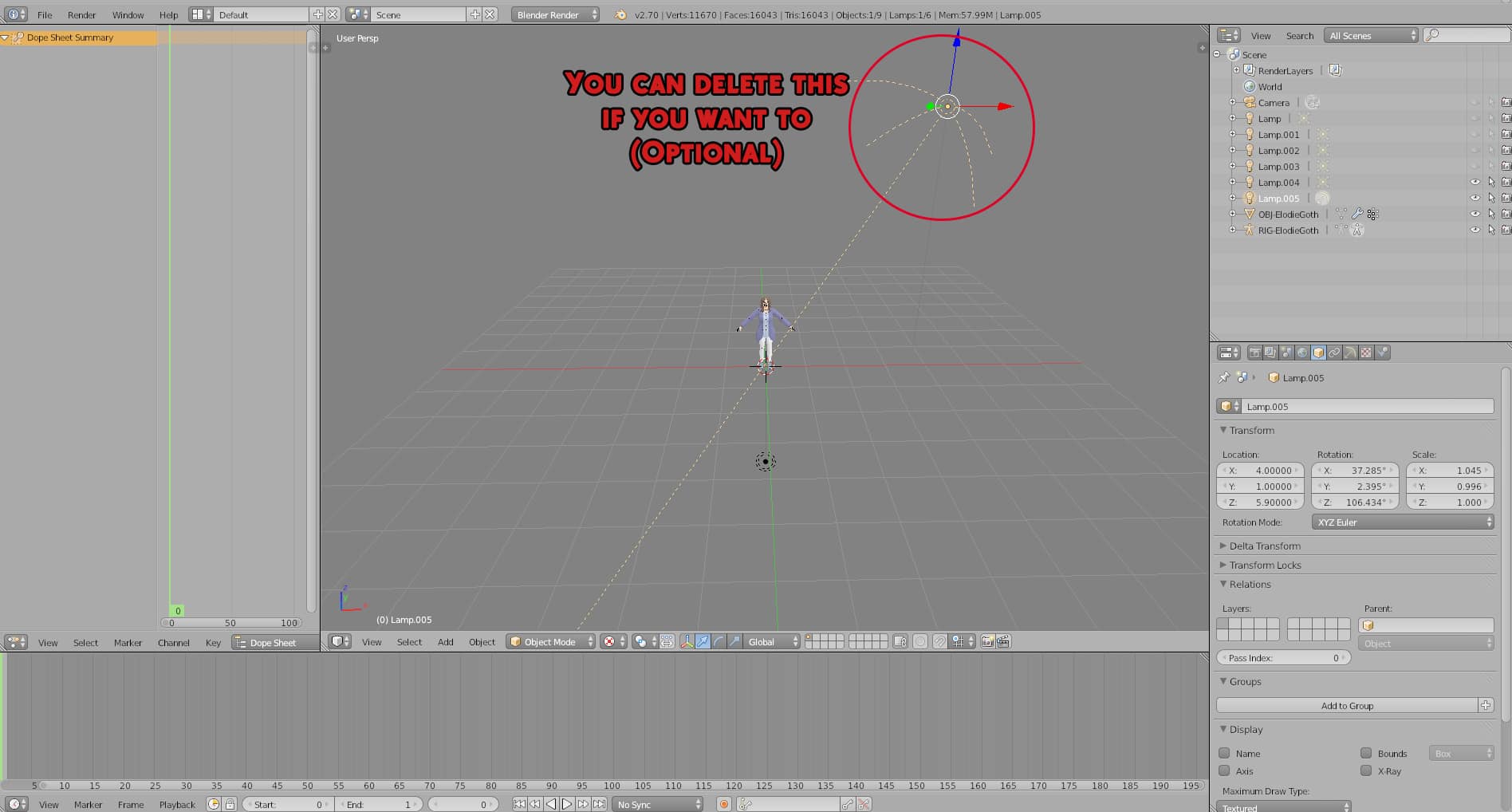
Next, I delete the fan light that gets imported with the .dae file. I just find it really annoying and in the way when using my Sims 4 custom rigs. The existing lights in the scene are a sufficient light source in my opinion. Keep it if you like it but you can delete it if you think it’s annoying, too.

sims 4 custom rigs

And there you go! You now have Sims 4 custom rigs of your own Sims to make sure that your next pose fits them perfectly! I have a folder full of Sims 4 custom rigs of all of my story characters so that I have them on-hand whenever I need to make a pose for them. I hope this tutorial helped you elevate your poses and get them perfect for every Sim, every time!


  • If this tutorial was way over your head and you just want to learn how to make poses to begin with, KatVerse has an entire playlist on YouTube dedicated to the subject. Her tutorials are how I started learning to make poses, so check them out!
  • If you need extra help with any general tools or features of Blender, Surfaced Studio on YouTube is my go-to when I need help navigating specific features of Blender. I recommend starting with his beginner playlist.
  • Special thanks to my friend Jannel, who walked me through the process of creating Sims 4 custom rigs when I was about to pull my hair out over it. Seriously, I could not find a single tutorial that went over this exact process in a simple, easy-to-understand way. That’s why I put together this tutorial; I don’t want other creators to struggle making Sims 4 custom rigs like I did.

Looking for a written tutorial on how to get started making poses? We’ve got you covered!

The Sims 4 Spooky Day Lookbook!

It’s that time of year! Spooky Day is nearly upon us and Simmers will be looking for costume inspiration for their Sims. Krista and I have teamed up again to bring you another lookbook featuring both whimsical and semi-casual costume ideas to get you and your Sims in the mood for a Spooky Party.

Normally, our looks are CC-free but this time we decided to do something a little bit different and incorporate a few of our favourite Maxis Match CC pieces into our looks.

Now let’s get spoopy!

Amicable Acolyte

The Sims 4 Spooky Day Lookbook!

Are you a good witch or a bad witch? Why choose when you can be a little of both? This black and white ensemble tells everyone at your next Spooky Party that you like to embrace both the dark and light side of magic. After all, it requires a careful balance of all three schools of magic to keep the realm from being torn apart.

Hair: Tight Ringlet Curls (Base Game)

Body: Knee-Length Suspenders Dress (Realm of Magic)

Shoes: Curly-Toed Heeled Boots (Spooky Stuff)

Accessories: Wide-Brimmed Witch Hat (Saurus CC) / Earrings & Nails (Base Game) / Leggings (Spooky Stuff)

Makeup: Eyeshadow, Contour, & Highlight (Base Game) / Lips and Eyeliner (Realm of Magic)

Misc: Default Eyes (kellyhb5 CC) / Default Skin (PYXIS CC) / Skin Overlay (AHarris00Britney CC) / 3D Lashes (Kijiko CC)

Dreaming of Harnocks

The Sims 4 Spooky Day Lookbook!

Did your owl get lost on the way to deliver your Harnocks acceptance letter? Yeah. Us too. But if it weren’t for such a terrible mail mixup, we’d definitely be students at Harnocks School of Witchcraft and Wizardry. Right? Okay, maybe we’re just ordinary folk, but we can dream of being magical with this blue, white, and mauve ensemble that tells everyone you wish you were Henry Puffer.

Hair: Side Part Short Afro (Base Game)

Top: Quarter-Sleeved Graphic Shirt (Pufferhead Stuff CC)

Bottom: Ripped Up Jeans (Base Game)

Shoes: Studded Boots with Buckles (Realm of Magic)

Accessories: Wizard Hat & Scarf (Pufferhead Stuff CC) / Glasses & Watch (Base Game)

Misc: Freckles (Base Game) / Default Eyes (kellyhb5 CC) / Default Skin (PYXIS CC) / 3D Lashes (Kijiko CC)

Playing with Fire

The Sims 4 Spooky Day Lookbook!

Who ever told you that faeries were sweet little pixies who went around sprinkling faerie dust on children and dancing on rose petals? Show everyone at your next Spooky Party that the Faire Folke are anything but sweet and cuddly. Woe to the unfortunate soul who wanders blindly into the Land of Fae. He just might be playing with fire… and he’s likely to get burned.

Hair: Island Flowers (Island Living)

Body: Faerie Costume (Spooky Stuff)

Shoes: Strappy Heels (Base Game)

Accessories: Necklace (Pufferhead Stuff CC) / Leggings (Spooky Stuff) / Nails (Base Game)

Makeup: Face Paint (Spooky Stuff) / Lips (Realm of Magic)

Misc: Default Eyes (kellyhb5 CC) / Default Skin (PYXIS CC) / Skin Overlay (AHarris00Britney CC) / 3D Lashes (Kijiko CC)

Vampire Princess

The Sims 4 Spooky Day Lookbook!

While she may look pretty in pink, don’t let the Vampire Princess’s look fool you! 

Hair: Pulled Back Plaits and Floral Slide (Holiday Celebration – Base Game)

Body: Pink Princess Dress (Vampires)

Shoes: Basic Ballet Shoes (Base Game)

Accessories: Heart Earrings (Base Game)

Makeup: Black & Pink Nails (Base Game)

Scary but Cute!

The Sims 4 Spooky Day Lookbook!

Who said toddlers can’t join in with the Spooky Day fun? He may look cute and cuddly but equally at the same time can be quite scary (of course in an adorable way!)

Hair: Side Parted (Base Game)

Body: Bear Hoodie (Toddler Stuff) & Knee Patch Joggers (Eco Lifestyle)

Shoes: Bear Paws (Base Game)

Spellcaster in Orange

The Sims 4 Spooky Day Lookbook!

Mysterious, serious and fun at the same time. This Spellcaster inspired look is bound to have your Sims seeing orange! 

Hair: Long Wavy Hair (Discover University)

Body: Hex Dress (Llazyneiph CC)

Shoes: Platform Heels (Discover University)

Accessories: Witches Hat, Cobweb Tights and Spider Necklace (Spooky Stuff)

Makeup: Eyeshadow, Blush and Lipstick (MAC Cosmetics – Base Game) Eyeliner and Nails (Base Game)


Credits

This post was a collaboration between Krista and SnarkyWitch!

Don’t forget to show us your Spooky Day looks over on social media!

The Sims 4: Let’s Build A Haunted House

Halloween is just a matter of days away, and I thought it would be fun to build a Haunted House. I knew that this wasn’t going to be something easy or as straight forward as I imagined because of what I had in mind for it to look like. I knew that this was something different for me to build, and I was ready for the challenge. Sometimes you just need to change it up and build something outside your comfort zone.

I set about choosing a lot to build my Haunted House. I wanted something that wasn’t too big but not too small. I settled on a 30×20 lot in Newcrest for the time being. It took a few attempts to get a rough shell, but eventually I came up with one that seemed to work. Added a bit of initial terrain manipulation and went from there.

The Sims 4: Let’s Build A Haunted House

At this point I wasn’t overly happy with the roofs. I tried several different combinations and nothing seemed to work how I wanted it to do so. Roofs in The Sims 4 has always been something I’ve struggled with, but I guess I was too used to just using Auto Roofs in the past. Regardless of how they looked at the time, I knew I could come back to them later on.

Slowly but surely the exterior was starting to come together. I ended up spending around an hour tweaking the roof and finding something that worked better than what I first placed down. While I still had a few changes that need to be made, I wanted to leave those until I started to focus on landscaping.

The Sims 4: Let’s Build A Haunted House

Interior

Even though I was looking forward to furnishing my Haunted House, I was worried that it wouldn’t turn out the way I was hoping it would. I was planning to utilize The Sims 4 Get Together, Vampires and Realm of Magic as well as The Sims 4 Paranormal as they obviously have a good selection of items that work perfectly for a Haunted House. While it seems like a quick win with the packs mentioned, I wanted this to be a Haunted House where Sims would be living on a day-to-day basis. This also meant that I would be utilizing the Haunted House Lot Type that came with The Sims 4 Paranormal.

As for the rooms in general, I wanted to try my best to keep them simple but with more of a Victorian feel. I used a lot of darker swatches for the items, with the odd ‘pop’ of colour here and there. I tried to keep the more vibrant colours in either the wall coverings or selected items.

I also used a lot of the Wall Decals from The Sims 4 Vampires Game Pack, as they added another level of detail to the build. While there are Sims currently living here, it helped show the wear and tare from over the years.

Take a look at the gallery below to see how each of the rooms turned out. Click on the individual image to enlarge it.

Landscaping

This was the one part of the build I knew I would have lots of fun with, especially with the DEBUG items too. I wanted to make the run-up to the house it’s self feel rundown, spooky and a little cluttered at the same time. Something that I knew would be easy to achieve given the number of objects I could use.

However, what I forgot to take into consideration was the fact I had used Terrain Manipulation and for a moment I was wondering why all my items were floating. Suddenly I remembered and had to rethink how I wanted to do this. After some experimenting and placing probably a few too many plants, I had something that I actually liked. It wasn’t what I originally set out to make, but I was happy with it.

The Sims 4: Let’s Build A Haunted House

Final Thoughts

While there was a lot of trial and error, a lot of moments when things weren’t working out how I wanted or just not going well at all, I think I can say I’m happy with how it turned out in the end. There are definitely things I would change and add if I was to continue with this build or make another version of it. Maybe add a basement or secret rooms.

My biggest challenge with this Haunted House would have been the roof. I mentioned early on in this post that it is something I usually struggle with, and I think it turned out okay in the end. The Terrain Manipulation is another tool that I don’t use very often and still need to work a little more on building my confidence when I do use them.

Overall, I can say I had fun and challenged myself with this build a long the way. I deliberately didn’t set myself a budget for this build, as I knew I would go way over it if I did. Either way, I can’t wait to move my Sims in to experience what it’s like to live in a Haunted House. Who knows, they may even get to meet Bonehilda too!

This lot is available to download from The Gallery!

  • Build Name – The Haunted House
  • Gallery ID – LeeksEverywhere

Let us know what kind of Haunted House you would create in game in the comments below, and don’t forget to tag us if you download this build from The Gallery!

Why not take a look at our Haunted House Community Showcase here for even more spooky builds!

Credits

Reshade – Compass by Intramoon