When The Sims 4 Star Wars: Journey to Batuu Game Pack was revealed back in August 2020, the announcement was met with some very mixed reviews throughout the community. I’ll admit, even I was somewhat confused and sceptical about the collaboration and the reveal. Fast-forward to the Game Pack’s release and like many other players, I played through the pack and the story. However, I’ve not really touched the pack since.
While I’ve been trying to change up my gameplay recently, I’ve been doing my best to explore features and packs I haven’t used for a while. The Sims 4 Star Wars: Journey to Batuu is one of these.
Prior to jumping back into The Sims 4 Journey to Batuu, my own opinion of the pack was that I neither loved it nor hated it. It was just another Game Pack in my collection. It was there if I wanted to use it, be it for gameplay, building or creating Sims.
After choosing a household to play with, it was time to travel to Batuu. As I hadn’t chosen an Aspiration, both Bob and Eliza were automatically given the Hope VS Order Aspiration to complete. While I could change it, I decided to keep it and work through the various aspects of the aspiration.
Black Spire Outpost
The home of the Millennium Falcon, Oga’s Cantina, Dok-Ondar’s Den of Antiquities and more. I set about having Bob and Eliza do a bit of sightseeing and getting to know the locals before heading off to complete their Aspiration Milestones.
Resistance Encampment
Hidden away amongst the forest and cliffs, you will find the Resistance Encampment. I didn’t really spend a lot of time here initially, as I just needed to visit the area to complete a couple of the Aspiration Milestones.
I do have to say that the camp looks gorgeous at night though!
First Order District
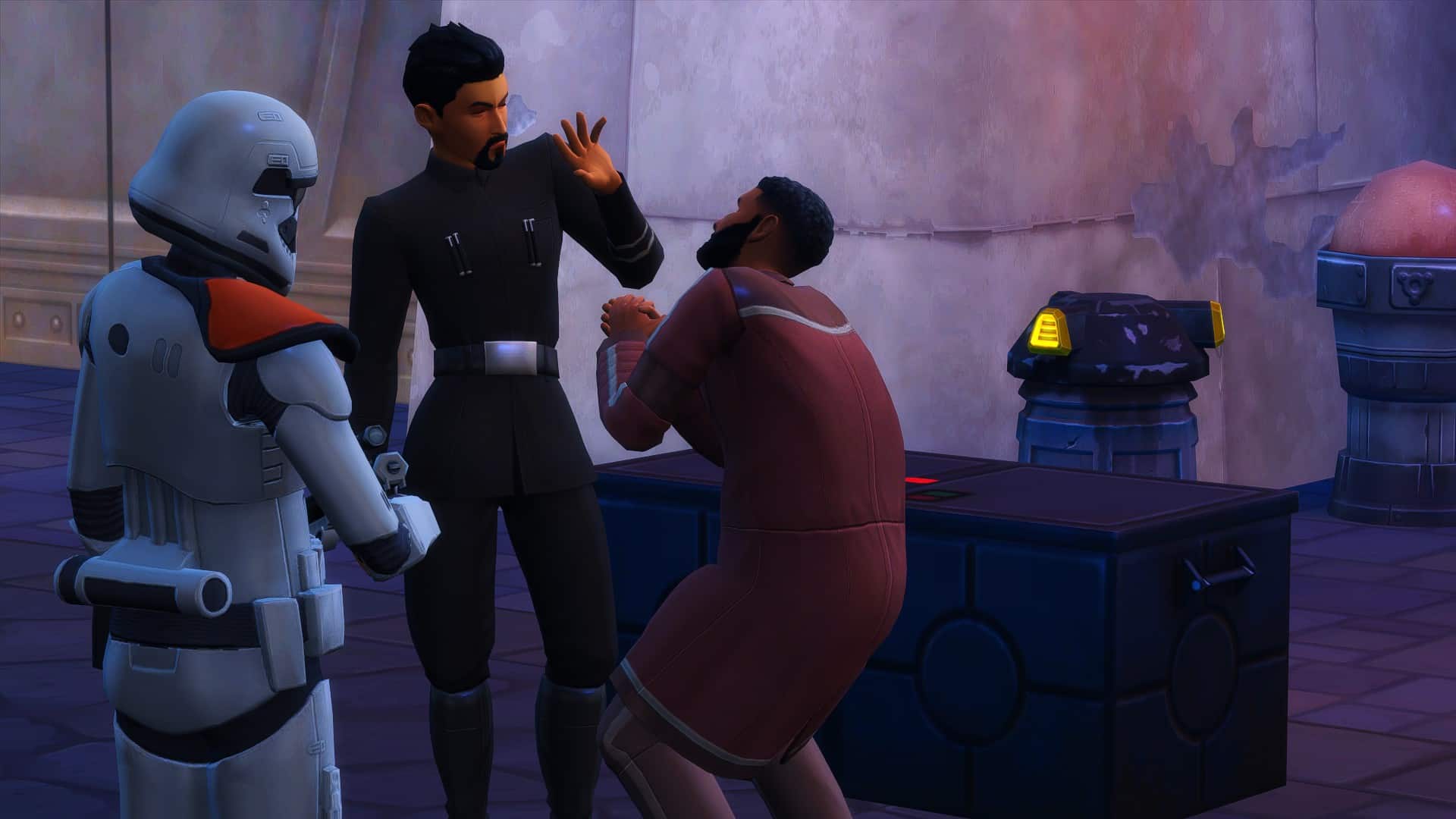
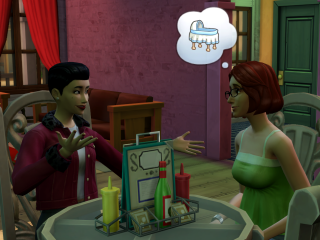
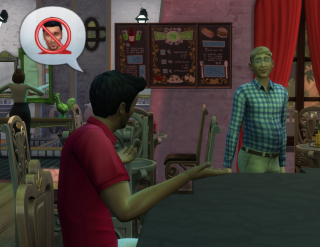
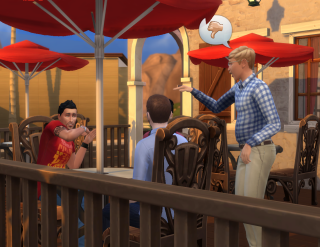
Things got a little interesting for the Pancakes when they visited the First Order District. While Bob decided to be sneaky and hack some supply crates, Eliza somehow ended up be questioned by First Order officers. While I’m still unsure how that happened, as I wasn’t playing her character at the time, it did make me wonder what she did to get in trouble with the First Order. Luckily, she was okay and only a little dazed after a slight disagreement with a second Officer.
After exploring each of the different areas. I sent my Sims home before then returning a few Sim days later. While the first trip to Batuu was fascinating, I needed both Bob and Eliza to keep their day jobs for when they properly returned from Batuu.
The Second Visit to Batuu
This time I worked more on Bob and Eliza’s individual Aspirations, with Bob leaning more towards assisting the Resistance and Eliza helping the First Order. I spent a few hours making their way through the Milestones before completing both. While there were times I found myself getting frustrated with what was happening in game, eventually things were coming together.
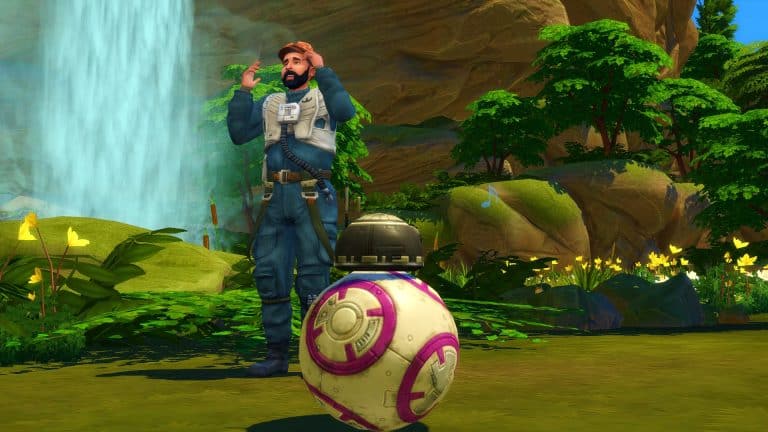
Bob was enjoying his time hanging out in the Resistance Encampment and occasionally helping out on various missions. I also had him work on his Lightsaber training and even found a Droid friend to go on different adventures with Bob.
Eliza on the other hand was learning the ranks over at the First Order, getting to know her colleagues and even stopped to have a chat with Kylo Ren. She soon found that he was a man of very few words and that she needed to chose her words more carefully in future!
My Thoughts Now
I think it is safe to say that I am still in the middle with the pack. Even though it has been fun revisiting The Sims 4 Star Wars: Journey to Batuu, it is probably one of those packs I will jump into every now and then for the gameplay side of things as well as occasionally using some of the Create A Sim options and the odd object or two from Build/Buy.
Do I think it was the right kind of release for The Sims 4? Again, I’m not too sure. Even though it has been over a year since the Game Pack launched, my original thoughts about the pack remain unchanged. I will say that it was a pack that was unexpected in regard to the theme and out of the ordinary compared to other packs but on the other hand it was something different to explore.
I do feel that The Sims 4 Star Wars: Journey to Batuu will always be a pack where you either love it or hate it. My own opinion about the pack may change over time depending on what other releases we see during however long is left of The Sims 4 era, but for now I will continue to sit in the middle with the pack.
If you’ve been playing The Sims 4 for a while, you’ve probably had more than a few moments where you’ve sat in front of your computer screen or TV and went “… What?” Moments like these aren’t unusual for Sims games in general. Some would argue they’re part of what gives the series its charm and we might be inclined to agree with that… sometimes. Other times, we’re left more confused than amused.
Here are just some of the many issues and/or bugs that have made us scratch our heads countless times.
Simulation Lag
While I personally don’t experience this in my game at all, enough people complain about this to warrant it being included in this article. Simulation lag is different from frame rate lag. With frame rate lag, the whole game seems to skip, jump, or stutter. It’s very visually obvious when your game is lagging. Simulation lag is a delay in well… simulation. This means that Sims stand around staring vaguely into space for several minutes after you issue a command. Career and school notifications pop up hours late. Sims get stuck at school or work. While your game appears to be running smoothly, it’s apparent that the simulation aspect is running behind.
There are multiple factors that contribute to this problem. One factor is just that the game’s coding is not as clean as it should be. Another factor is your hardware. A PS4, XBox One, or a cheap multipurpose laptop will experience more simulation lag than a PS5, Xbox Series X, or a custom built gaming desktop. This is because the hardware just doesn’t have the processing power The Sims 4 requires of it.
So how do you fix the problem? Well, a quick band-aid solution is just to pause the game for a few minutes when you notice simulation lag happening. This gives the game a chance to play catch up and can temporarily help get things back on track. However, you’ll need to keep doing this every time it happens. To cut down on simulation lag in the first place, avoid things that demand a lot of processing power. Play with small households on small lots and avoid visiting crowded, extravagant community lots or throwing large social events. All of these things put a lot of strain on your system if it’s already struggling with simulation lag. If you’re a PC player who uses mods, there is also a Simulation Lag Fix mod that’s currently being updated and maintained by SrslySims. Not everyone reports improvement while using the mod but some people do notice a difference so it might be worth trying.
If none of these solutions help you and you’ve also repaired the game, cleaned out your Mods folder, and deleted your cache files, it might be time to upgrade your hardware.
Lag in Build Mode
This is something I do experience on occasion, but strangely, it doesn’t happen all the time. Many players report extreme lag every time they go into Build/Buy. The game will stutter and freeze up for several minutes sometimes after entering Build/Buy. In some cases, the game continues to lag until they leave Build/Buy.
There isn’t a whole lot that can resolve this issue. It’s a problem with the coding on The Sims Team’s end; however, the more items the game has to load in Build/Buy, the worse the lag is. If you own every single pack and kit or if you have a lot of Build/Buy custom content in your game, the lag in Build/Buy can get really bad to the point of not even being able to navigate Build/Buy at all. To cut down on this issue, disable or uninstall packs you don’t frequently use and purge your custom content. You really don’t need 10,000 pieces of Build/Buy CC. Trust me.
Water Obsession
Avid players of The Sims 4 have probably noticed that Sims are a little… obsessed with water. Not just swimming and taking baths (although they love those a little too much, too) but drinking water. Every waking moment of every day that you are not actively controlling them, Sims will run to the sink to drink glass after glass of water constantly. All. Day. Long. They will do nothing but stand at the sink drinking water forever unless you force them to do something else. This problem is worse on lots where there aren’t a lot of activities to distract them from the sink. The Sims Team claims to have patched this problem but the patch did not work. We are still plagued by empty glasses of water littering every surface of our homes.
So how do we fix the problem ourselves? We can turn autonomy off in the game settings. This will stop your own Sims from getting water constantly but it will stop them from doing everything else on their own, too. You’ll have to micromanage their every action because they won’t do anything autonomously anymore, not even care for their basic needs. This also won’t stop guests from constantly chugging water when they visit. It’s really not an ideal solution, especially if you play with large households and rely on autonomy to keep everyone’s needs met. Another method would be to make sure you have a lot of distracting activities in the home to deter them from hovering over the sink. Computers, TVs, swimming pools, any object that Sims are attracted to like moths to a flame, put them in the house. With any luck, your Sims will prefer to “troll teh forums” or binge watch every episode of Game of Llamas instead. But this won’t completely stop them from getting water. It will just reduce the frequency.
Of course, if you are a PC user who likes to use mods, you have more options. MCCC’s Tuner functionality can stop this behaviour on your lot. So can this mod, which is what I personally use since MC Tuner does not always work for me.
Corrupted Onsen
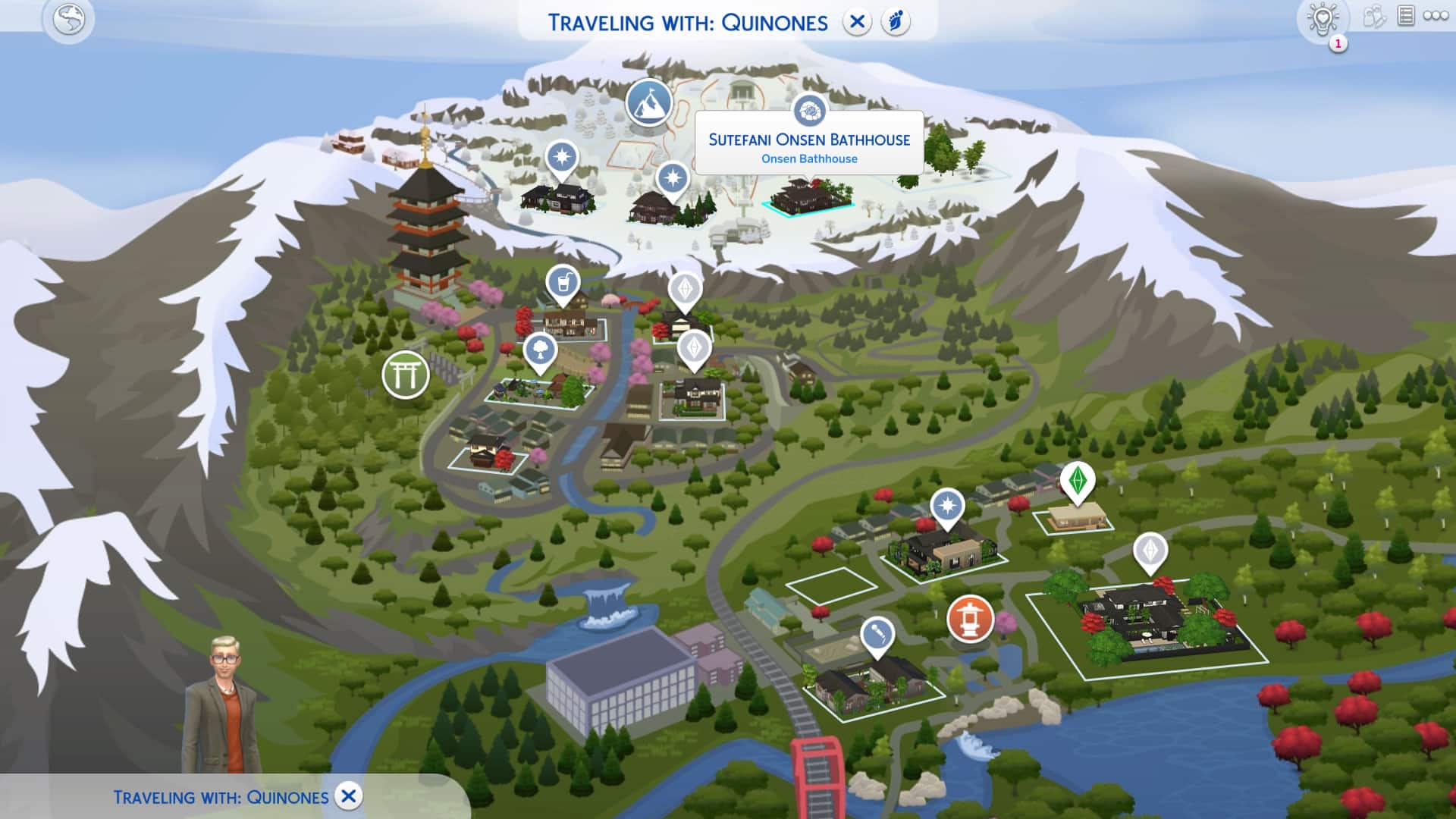
This is probably one of the most frustrating things on this list. I wouldn’t even call it a “quirk.” It’s a bug. A completely game-breaking one that has been broken for ages. This is a perfect storm that creates a domino effect making about half of Snowy Escape’s content unplayable.
So, what’s the root issue? The onsen lot is corrupted. If you travel there, your Sim will wind up in the area but not on any lot. When you try to go back to Map mode and re-enter the lot properly, you can’t load the lot. You get kicked back out to the world selection screen. In fact, you can’t enter any lot with any household on that save anymore. You’re stuck in an infinite loop of getting booted back to the world selection screen every time you try to load anything.
So where does the domino effect come in? Well, the onsen is connected to a huge portion of this expansion pack. The onsen being corrupted means that Sims can’t go on mountain excursions. The mountain excursion event requires you to start at the onsen. Because the mountain excursion event is broken, Sims can’t access the upper portions of the mountain at all; the only way to get to these locations is through a mountain excursion. And since Sims can’t access the top of Mt. Komorebi, the Extreme Sports Enthusiast aspiration is broken because you can’t complete the goal to reach the top of Mt. Komorebi on a mountain excursion.
So that’s a venue, a social event, three hidden locations, and an aspiration that are broken because the onsen is corrupted. The worst part? There’s no fix. You have to just avoid visiting the onsen and avoid the mountain excursion event and aspiration. Basically, avoid playing with half the content you paid for.
Why hasn’t this been fixed, yet? Well it’s not affecting every player. That makes it difficult for The Sims Team to pinpoint what exactly causes this glitch to happen. For example, on my fresh save, I don’t have this issue but on my long-running SuperSim save, I do.
Placing Lots in Map Mode
Have you ever noticed that it takes MUCH longer to place down a lot from the Gallery while in Map Mode than it would if you were loaded onto the lot? Yeah, us too. And many times, some things on the lot disappear when placed from Map Mode.
This isn’t a huge annoyance since it’s easy to get around. Just load onto the lot in Build/Buy first before placing down the lot you want. It takes a few extra seconds to load the lot but otherwise, it’s not a huge hindrance to building up your worlds. Still, it’d be nice if placing lots from Map Mode could be optimized better since it is a feature of the game.
The Debug Labyrinth
Outdoor Décor
Avid builders will know all about the hidden debug and live edit menus that give you access to thousands of objects not available in the regular Build/Buy catalogue. If you’re not familiar with these hidden menus, you can read up on them here. If you are familiar with these menus, you’ll know first-hand how tedious they are to navigate. Thousands of amazing items… all named ** DEBUG ** so it’s impossible to search for what you need. These hidden menus have virtually no organisation and many limitations, like no swatch options and no cloning abilities. It’s kind of a huge, jumbled mess to sort through.
Players have gotten around this by gathering up collections of these items and uploading them to the Gallery as rooms, so if you’re looking for something specific, you can probably find it in one of these collections on the Gallery.
For mod users, TwistedMexi also has a mod called Better Build/Buy which sorts the debug catalogue properly. Many players find it extremely helpful for navigating the debug menus.
Sit Before Using the Computer
Have you ever run into an issue where Sims just refuse to use the computer no matter how many times you direct them to do so? The action immediately drops from their queue and they don’t do anything. This happens a lot with builds that use the moveobjects cheat to create custom desk setups but it can sometimes happen with a plain old EA desk and computer, too.
Luckily, this is easy to fix. Just tell your Sim to sit in the chair in front of the computer, first, then tell them to use the computer. Why does this happen on occasion? Why does telling them to sit first work? We don’t really know but at least it’s a quick solution for whenever you do run into this problem.
Ghostly Phone Calls
We’ve all experienced this in the game. We get a call from dear old grandpa, telling us about a sick rave happening at the abandoned ruins in Windenburg and you guys should totally go check it out together! The problem? Dear old gramps is dead. You’re being invited out to a rave by a ghost.
This isn’t actually a glitch. It qualifies as a quirk. The game treats ghosts the same way it treats living Sims so even after your Sims pass on, they still have cell service in the afterlife, apparently. Legacy players constantly get overwhelmed with phone calls from dead relatives asking them out to the bar, the club, or congratulating them on a new job, baby, or marriage. While most Simmers certainly don’t mind a bit of weird, quirky gameplay, we think this is just a tad creepy.
The only way to stop this from happening is to find the headstone or urn of all the dead Sims that your household knows and release their spirits to the netherworld. Or just go hit up the nightclub with grandpa. He’s probably bored in the afterlife, he could use a night out.
Missing Headstones
So you’ve decided to rid yourself of these nosy, intrusive ghosts calling you at all hours of the day and night but you’ve got one problem; their headstone or urn is nowhere to be found. You can’t find a way to release their spirit to the netherworld.
If you’ve already searched the lot where they died (usually their home) and can’t find any trace of a headstone or urn anywhere, you’re out of luck. You’ll just have to wait until the ghost fades away on its own after a period of time. This can take quite a while. Sometimes an entire generation or more.
But if you’re a mod user, once again, mods can come to your rescue. LittleMsSam has a mod that can generate a tombstone or urn for any ghost in the game, allowing you to release their spirit for good… or just fill up the family cemetery with cool tombstones, we’re not judging.
Occult Children and CAS do NOT Get Along
If you play with occult Sims a lot, you might have noticed some issues with occult toddlers and children, particularly mermaids and spellcasters.
Spellcaster toddlers and children do not keep the same eye colour, especially if you use one of the unnatural eye colours like purple. Every time you enter or exit CAS, their eyes will default to brown or red. It drove me so batty when I was raising a pair of spellcaster twins with purple eyes that I spent several hours experimenting with them to see if there was anything at all I could do to prevent their eyes from changing all the time. I couldn’t find any help for this anywhere.
The solution I managed to come up with works about 9 times out of 10. I don’t know why it works or why it still occasionally fails but the problem is mostly resolved now. To stop their eyes from changing when you exit CAS, make sure the child/toddler is the active Sim in CAS and that they are in their first everyday outfit. Then change their eyes to the colour they are supposed to be and immediately exit CAS without doing anything else. They must be in their first everyday outfit and they cannot have anything else changed after changing the eyes. This should cause the eyes to stay their intended colour when you exit CAS, at least most of the time.
To prevent their eyes from changing when entering CAS, avoid entering CAS with them if at all possible. If you play with mods, use MCCC to edit other household members separately if you need to edit any other Sims in the house at all. This will avoid bringing the toddler or child into CAS and prevent their eyes from changing. When you absolutely must edit the toddler or child, edit them separately, too. Ensure they are in their first everyday outfit and that changing their eyes is the last thing you do before leaving CAS.
For mermaid children and toddlers, it’s their skin details that don’t stick. Freckles, beauty marks, or anything of that nature will disappear every time you leave CAS with them. I still haven’t found a fix for this but you can try the fix I use for spellcasters and see if it helps for you.
What other quirky or annoying things do you notice about The Sims 4? There’s plenty more than what we’ve covered in this article.
Ravasheen is probably one of the Simming community’s most beloved modders and it’s not hard to see why. She’s always pushing the boundaries of the game to bring players unique and inventive content that enhance our playing experience. She’s made countless mods that have really impressed me but this one might be her most ambitious project to date! Ravasheen has just released a retail system mod that does not rely on Get To Work! The entire mod is 100% base game compatible! Players can both manage and visit retail stores with this mod even if they don’t own Get To Work.
The best part? This mod is compatible with any lot type! Run a business from home or have a retail store alongside a café, a gym, a veterinary office, anything you want! All of these venue types will function normally alongside the retail aspect. You don’t even have to own the lot to set up a retail store on it!
Today, I’ll be walking you through the features of the Saleabration Retail System mod!
Getting Started
Of course, you will have to install the mod, first. You can get it from Ravasheen’s website. The current version is in early access for patrons only but will be released to the public on December 8th, 2021. If you need help with installing mods, check out our article Getting Started With Mods and CC.
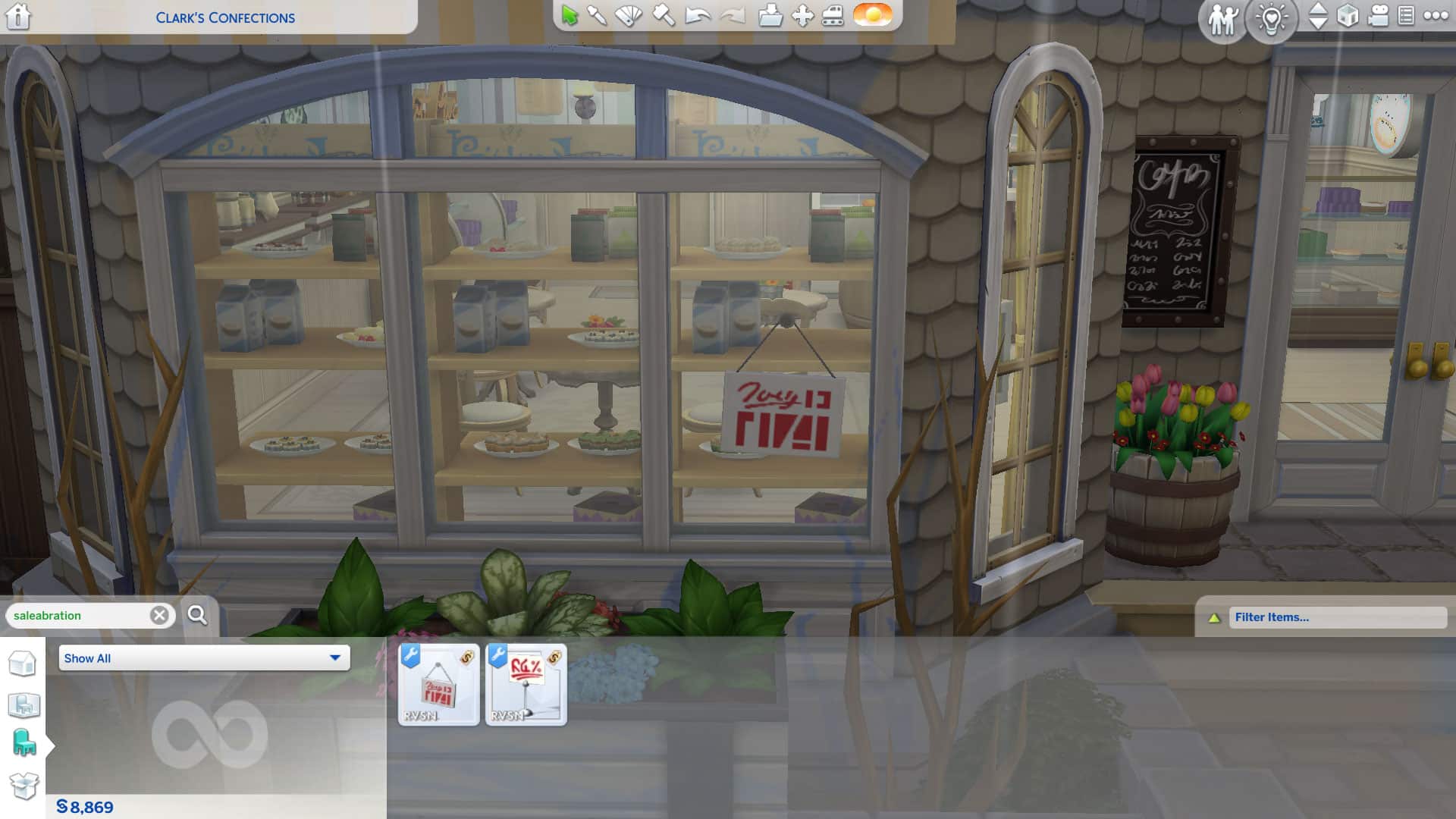
Once the mod is installed correctly, all you have to do is load up the game and go into Build/Buy. Searching the term “saleabration” in the search bar will bring up the two custom objects that come with this mod; the Open for Business Controller Sign and the For Sale Mini Retail Sign. You can also use the search term “retail,” but if you own Get To Work, many other objects will show up as well. Since I own Get To Work, I prefer to use the “saleabration” search term to only bring up those two objects.
Open for Business Controller Sign
This is the object you will want to use if you want to manage your own retail store. Simply purchase it from the catalogue and place it on any wall or window. I like to put it on windows since that’s usually where stores put their open/closed signs. Now your lot is almost ready to become a retail business!
TS4 x64 2021 11 19 12 57 30
TS4 x64 2021 11 19 13 02 32
Click the sign to bring up the option to Create Unique Retail Business. You’ll be able to give your business a name and description here but if you’re impatient and just want to jump right into running your business, Ravasheen has added lots of adorable pre-written names and descriptions that will auto-fill these fields when this popup appears. Click the checkmark when you’re ready. You can always go back and edit your business name and description later so don’t stress too much about getting it perfect the first time.
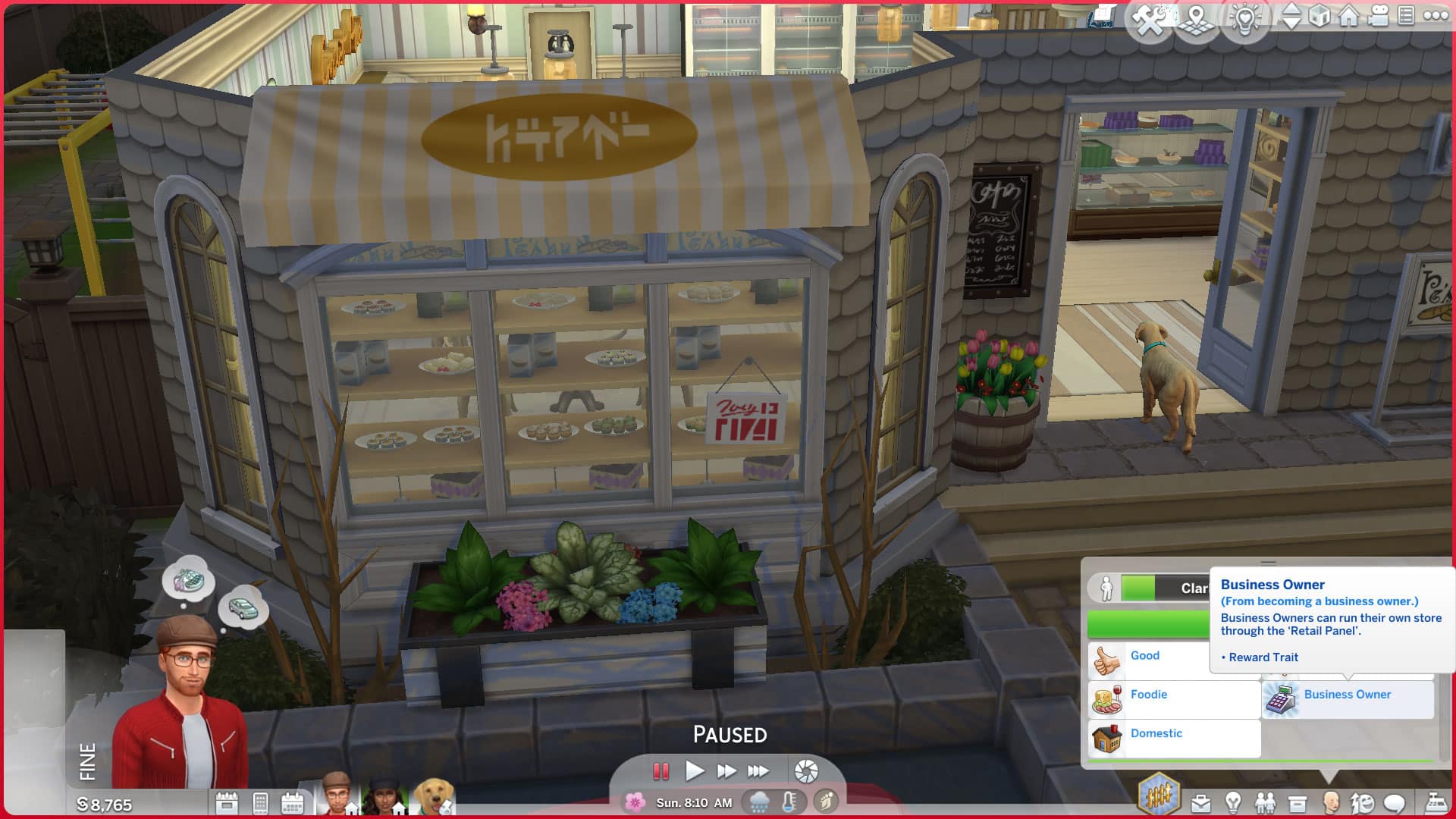
The Sim you had active while creating your retail business will automatically be assigned the Business Owner trait, giving them the ability to open and close the store and set prices on things in the store. Only the Sim who owns the business can open and close the store but if you give the Business Owner trait to other Sims in the household, they will be able to help manage the store by setting prices. You can also Shift+Click the controller sign and enable retail interactions for other Sims.
TS4 x64 2021 11 19 13 03 29
TS4 x64 2021 11 19 13 45 44
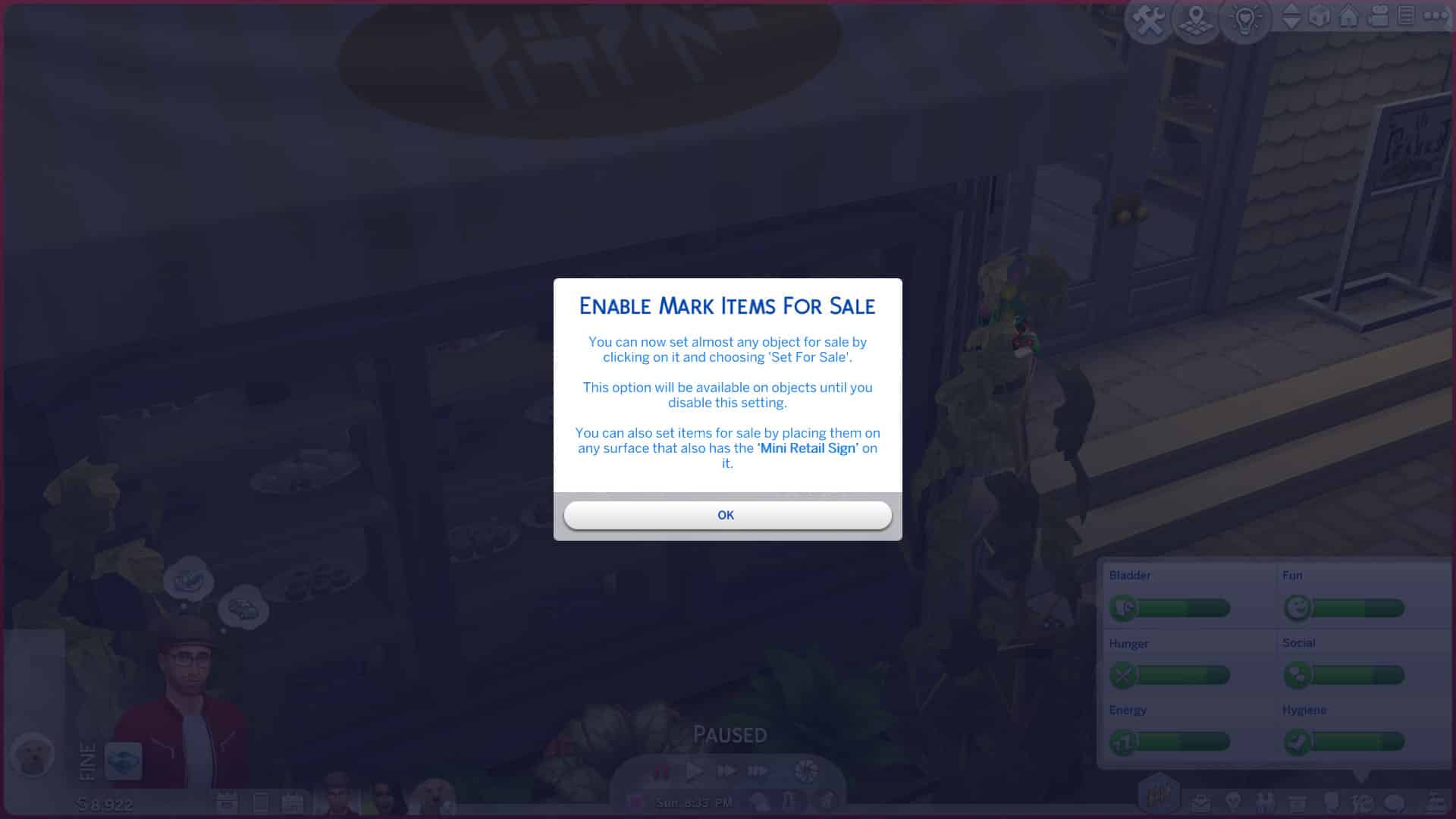
After setting up your store, you’ll see new options come up on the controller sign when you click it. You can Edit Store Information which is how you can edit your store’s name and description. You can also Enable Set Items for Sale. This is what will allow you to mark items for sale in your store. You’ll get a popup explaining what this does but we’re going to explain it here for you! You cannot set items for sale until you enable this on the sign. This is because you can set almost anything in the game for sale and having that “Mark For Sale” option pop up on absolutely everything all the time would be extremely annoying. Instead, you can toggle this ability on and off. While this setting is enabled, you can click on just about anything you want to set it for sale. This works with Maxis items and should also work with most CC items. When you are finished setting all your items for sale, click the sign again to disable this setting.
Once an item is marked for sale, it will stay for sale until you click the item and select Set Not for Sale on it. By default, you will be selling your items at 0% markup. To change this, click on any item that has been set for sale and choose Price > Mark Up Prices. You can go all the way up to 75% markup. This can be adjusted later at any time as well. You can also assign sales to items which will sell them at a discount until you end the sale on that item. You will have to do this for each individual item for sale in your store.
TS4 x64 2021 11 19 13 06 43
TS4 x64 2021 11 19 13 06 50
One thing to note here is that some craftables, like food, cannot be set for sale using this method but worry not! Ravasheen has made sure we can sell our crafted goods too! This is where the For Sale Mini Retail Sign comes into play!
For Sale Mini Retail Sign
The mini sign can be used to quickly set all items slotted to a surface for sale. The mini sign is most useful for quickly setting items for sale on unowned lots that you don’t want to personally manage but it can also be useful for managing your own store, especially if you’re running a bakery or something like that where you sell food items.
The mini sign is very easy to use! Just place all the items you want on a surface and then place the mini sign on the same surface. All the items slotted to that surface will instantly be set for sale! The mini sign is just a tool for setting up your retail lot. Once you place it down on a surface, you can delete it if you want to. All the items set for sale will remain for sale even after deleting the sign.
Any food items or floral arrangements you’ve set for sale will no longer spoil! As long as they stay set for sale, they will stay fresh forever, so there is no need to replace any spoiled food at your business. You won’t be disappointed when you walk into a store full of spoiled goods as a customer, either.
After using the mini sign to set all your perishables for sale, they can be clicked on to mark up the prices or have discounts applied to them the same way any other object set for sale. You can also set them as Not for Sale the same way you can with other objects for sale. The mini sign can set any slottable item for sale, not just food! So if you have a large table full of clutter items and don’t want to individually click on all of them to set them for sale, you can just pop the mini sign onto the table to set everything on the table for sale at once.
The mini sign makes setting lots of small items for sale very fast and easy on any lot, regardless of whether you own the lot or not!
Running Your Own Business
After setting up your business, you’re ready to open up your store! Just click the controller sign to open the business and an Open for Business event will start! There is no time limit on the event. You can keep the business open as long as you want. There are no time restrictions on when you can open your business, either. The only thing you need to keep in mind is that the business owner must be awake and on the lot to be able to open the business. They won’t be able to if they are asleep or away at work.
While the business is open, customers will come to the business to browse the items available for sale. If you’re running a business from home, make sure the doors to your living space are locked to everyone but the household to ensure customers don’t wander into your home. Also make sure that customers have door access to the store part of your home lot. If you lock the door, they won’t be able to enter. Customers will spend some time browsing the different options in the store until they either decide to buy something or leave without purchasing anything. A sale is not guaranteed. There are various factors that determine whether or not a Sim will decide to make a purchase but one of the larger factors is price. You’ll have to balance your markup with your customers’ needs. If a lot of customers are leaving your business without making a purchase, try lowering your markup or starting a sale on some items.
The business owner can also help make some sales. Ravasheen intended for her retail system to be more hands-off than the Get To Work system. Those who own Get To Work will know you have to constantly be interacting with customers trying to convince them to buy something. This isn’t necessary while using Ravasheen’s retail system but you can still make sales pitches to customers if you want. Your Sim will also autonomously show off items in the store to customers about once every hour while the store is open. When I tried a sales pitch on a customer, the interaction didn’t go over well but she still ended up making a purchase, so don’t be scared of making sales pitches. Failing them doesn’t necessarily ruin your chances of making a sale. Since Ravasheen’s retail system doesn’t demand your Sim’s constant attention, they’re free to do other things and take care of their needs while the store is open. My Sim spent some time training his dog while customers browsed his bakery.
TS4 x64 2021 11 19 13 09 55
TS4 x64 2021 11 19 13 23 04
When a customer makes a purchase, you’ll get a notification telling you who purchased the item, what item they purchased, and the price they paid for the item. Purchased items do not disappear and therefore never need to be restocked! When an item is purchased, it creates a copy of the item in the customer’s inventory, leaving the original on the shelf. This is super handy for unowned lots where you just want to browse as a customer but it’s also convenient for busy Sims who don’t have time to restock their wares all the time. You won’t receive the funds from any purchased items until you’ve closed the store so don’t worry if you don’t see any simoleons being deposited after making sales. All the money you’ve earned that day will be deposited when you close the store.
While the business is open, you can hover your mouse over the controller sign at any time to see how the business is doing. You’ll get a breakdown of how many customers have visited the store and how many of those customers made a purchase. You’ll also see how much money you’ve made so far that day. When you’re ready to close the store, click the controller sign to close the business. Any profits you made that day will be deposited and you’ll get a popup breaking down all of your sales for the day. Since items do not need to be restocked, Ravasheen has implemented a restocking fee to balance out the mechanics and make things a little more realistic. The money you made that day will be your total sales minus the restocking fee. In the future, Ravasheen plans to implement some features and rewards that will allow you to reduce the restocking fee but for now, the restocking fee is set to about 50%.
One other thing to keep in mind with managing your own retail business is that you cannot have a social event while your business is open. Opening the business starts an event which is what triggers customers to start showing up. You cannot have two events running at the same time so you can’t throw a party while your business is open. You will have to close the business to be able to host a social event there.
And that’s pretty much all you need to know about managing your own retail business! It’s a lot easier than Get To Work’s clunky system that requires you to transfer funds, spend hours restocking, babysit your customers, and makes it a hassle for you to live at your business. Ordinarily, you’d have to purchase an empty lot as your home lot and just stay at your business 24/7 to “live” there but there’s no need for that workaround with Ravasheen’s retail mod. Your home can be your business!
Just set up your business with the controller sign, set all your items for sale, and open your store for business! It really is that simple and again, this isn’t limited to residential lots. This works on any lot type!
Businesses on Unowned Lots
If you want to turn your café, gym, vet office, or anything else into a retail store, that’s 100% doable, too! And it’s actually even easier to set up than managing an owned business. Yes, you can even use this retail system in apartments and on actual retail lots from Get To Work. It doesn’t conflict with anything at all. However, this retail system and Get To Work’s retail system will function independently of each other. There’s no integration between the two.
All you need to do is set out any items you wish to sell on that lot in Build/Buy and place the mini retail sign on any surface with items you want to sell. All the items on the surface will instantly be set for sale. Delete the sign when you’re done if you want to (or don’t if you like them)! And you’re done! Your Sims will now be able to visit that lot and purchase whatever’s been set for sale there. This will not interfere with any other activities going on on the lot. If you set books for sale at a library, Sims will still be able to do everything they’d be able to do on a library lot. If you set items for sale on a café or nightclub lot, any baristas, bartenders, and DJs will still show up and do their jobs. Sims will still order drinks and dance and all of that good stuff. Adding retail functionality to an unowned venue will not impact the venue’s function in any way.
If you’d like to take a more hands-on approach to running an unowned venue lot, you can do that, too! Purchase the retail controller sign from Build/Buy and place it anywhere on a wall or window at the venue, then while visiting the lot with your Sim, Shift+Click the controller sign to enable retail interactions on it and assign your Sim the Business Owner trait. You can now set and manage prices, open and close the store, and interact with customers just like you could on an owned retail lot. This can be a fun way for your Sims to manage a business on a venue they can’t own, like a gym or café.
Our Thoughts
Ravasheen has successfully taken an overly-complicated, clunky, counterintuitive retail system and simplified it so that it’s more intuitive and much more versatile. In fact, it’s so versatile, it doesn’t even need Get To Work at all. It’s completely base game compatible. We found it was not only easier for us to set up our own business but it opened up gameplay options that Get To Work doesn’t allow for. For example, we could have a business on a residential lot without any hassle at all. We could even sell items on other venue types that our Sims can’t own. This let us manage these properties as if we did own them. Ravasheen’s retail system can be as hands-off or hands-on as you like, which gives it a lot more flexibility.
In her livestream walkthrough, Ravasheen did say that she was looking forward to updating the mod to add more features. Things like allowing us to hire employees, giving us some type of reward system for successfully managing a business, and giving us an option to restock our goods are all on her list of things to add in the future. This is fantastic because these are the only things I was going to suggest to improve this mod further. As a player who loves to craft my own things to sell, it’s important for me to be able to continue crafting items to restock my store. While I was using this mod with my bakery, my bakery owner really didn’t need to bake at all because he never needed to restock anything. That took away some important gameplay involved with running a bakery so I’m really happy that restocking will be an option for this mod in the future. I also missed being able to purchase business perks that reduced my restocking costs and gave my business other boosts.
Other than that, the Saleabration Retail System is a vast improvement over Get To Work. I loved that I could properly run a business from home. I loved not needing to transfer my funds from my household to my business and vice versa all the time. I loved not having to babysit my customers and practically beg them for every single sale. I loved the functionality on unowned lots and other venue types. This mod is pretty much everything the retail system from Get To Work should have been.
If you’re tired of dealing with Get To Work’s retail system or if you don’t own Get To Work but would like to have a retail system in your game, definitely add this mod to your collection. I can’t recommend it enough.
The Sims Team covered a lot of topics during their yesterday’s Inside Maxis Livestream. During the stream the team did a complete showcase of Neighborhood Stories for The Sims 4 in-game.
For the first iteration we’re getting two new Aspirations and Reward Traits, ability to influence neighborhood Sims to perform certain interactions and more which has been showcased below.
As explained in the reveal blog for The Sims 4 Neighborhood Stories, this feature will expanded with more autonomous behavior for Neighborhood Sims as well as more settings to control this feature.
Just a few weeks ago it was revealed by The Sims that The Sims 4 is getting a “sister companion” to Base Game Updates called Sims Delivery Express.
Throughout Sims Delivery Express releases you can expect minor additions such as content in CAS, Build/Buy, minor Gameplay and Fixes.
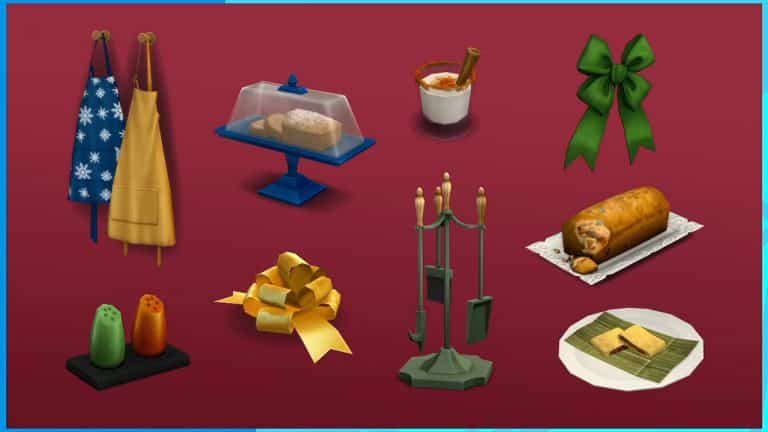
For the first round of Sims Delivery Express it’s been revealed that a new Hairstyle will be released (day after the Base Game Update, which is December 1st). Just a week after that the team revealed that they’ll be releasing Tasty Treats and Festive Touches Build / Buy content through Sims Delivery Express.
During the latest Inside Maxis Livestream the team touched on the Hot Topic of the Pronouns Update for The Sims 4. They revealed that they’ll be sharing information about the Pronouns Update progress during their first ever Inside Maxis Livestream for 2022!
This past May we opened up about our pursuit for non-binary language in The Sims. Since then we researched global language characteristics connected with consultants and collected data on areas where change may be needed.
Although there is a path ahead of us, before we’re able to update the game we’d like to give you a look behind the scenes and show you where we are in the process.
In January 2022 during the first Inside Maxis of the new year we’re hosting a fireside chat with members of our development team where we will share an update, including the research completed to date, more on our partnership with our external experts and the work-in-progress wireframes. Make sure to tune in!
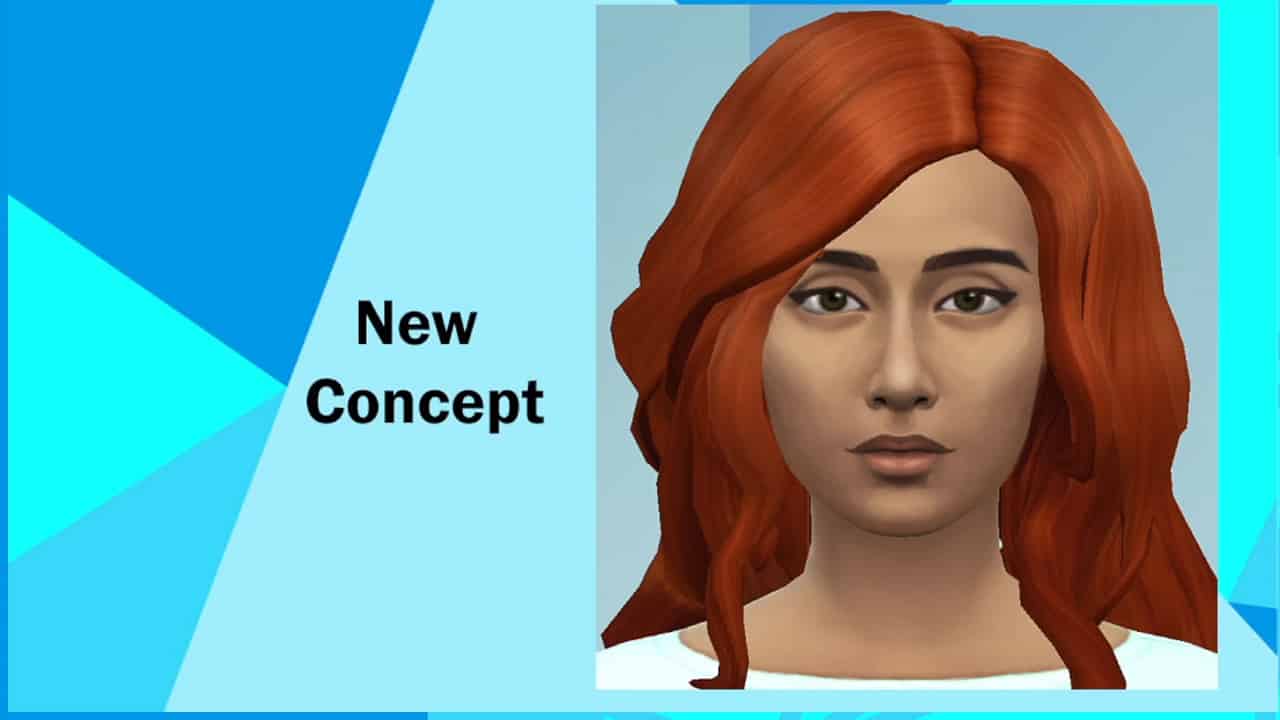
UPDATE: SimGuruRusskii has stated the following regarding these Concept Looks:
Heya, I wanted to make a note about the NPC concepts. These are base concepts, so we purposely made them without makeup and a base pose… so like I said in the livestream, all is subject to change and I’m looking forward to share as we go along =)
During the latest Inside Maxis Livestream for The Sims 4, The Sims Team has revealed their current progress for the upcoming NPC Overhaul Update!
In case you don’t remember, it was revealed back in August that the main characters in The Sims 4 will be getting Personality and Visual Changes, as well as their Lore.
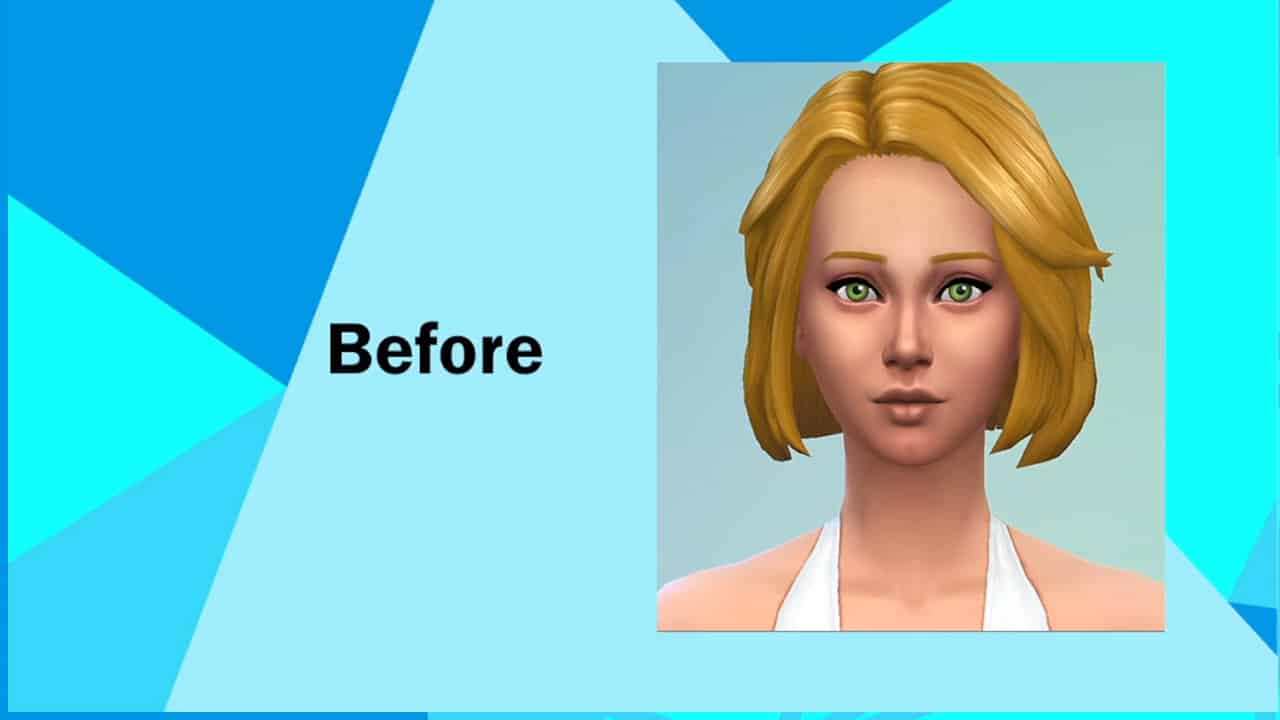
Today, the team has shown their current Concept progress for Visual changes. They’ve showcased the Before and Afters for The Goths and Caliente Household.
Check out the new planned looks for Mortimer and Bella Goth, as well as Dina and Nina Caliente!
npc3
npc4
npc1
npc2
npc5
npc6
npc7
npc8
You can check out the full replay and the part where The Sims Team showcased the NPC Overhauls down below!
TheSims.com just revealed that the next update for The Sims 4 is STORY PROGRESSION! Learn more below:
Hello, Simmers! I’m Nate, a designer for The Sims 4.
I joined the team during development of Island Living and have worked on several releases since then. Some accomplishments I’m proud of are: Professor Sims in Discover University (SimGuruMorgan and I made those happen together), the Onsen venue in Snowy Escape (it was surprisingly hard to prevent Servos from merrily wading to their doom in the hot spring), and the cows and llamas in Cottage Living!
Today, I want to give you all a behind-the-scenes look into the latest thing I’ve been a part of: Neighborhood Stories, which arrives on November, 30, 2021!
Neighborhood Stories
The Sims 4 has so much that your Sims can see and do, leading to interesting, and often unexpected, life moments. All these life moments add up to something very important: life change at an individual level. My team and I have been exploring ways to carry that same kind of life change to the whole world of The Sims 4 through Neighborhood Stories.
Neighborhood Stories are a set of gameplay moments that all revolve around a single purpose: bring more life to Neighbor Sims that live outside the active household. (“Neighbor Sims” refers to most of the non-player character (NPC) Sims in the game, not just ones who live on the same street as your household. Neighbor Sims excludes special NPCs such as Grim Reaper.)
There’s a lot we want to do to add more life to Neighbor Sims, so we’re rolling it out over more than one release.
This first release focuses on Sims connected to your household: coworkers they’ve gotten to know, friends they’ve met at the Gym or Library… maybe that one Sim who welcomed them to the neighborhood with fruitcake, which seems like a bold move, but to each their own, I guess.
In the same way that your Sims change as they move through life, these Neighbor Sims are getting some new life changes of their own such as choosing a new career or having a baby.
Future updates will build on this with more life changes for a wider range of Sims. Find additional info in the “What’s Next?” section near the end of this post, but for now let’s get a closer look at what’s in this release.
What’s the Neighborhood Stories Gameplay?
Neighborhood Stories begins with gameplay divided between life changes that your Sims can influence Neighbor Sims to consider, things Neighbor Sims autonomously consider, and some that fall into both categories.
Whether they consider a life change autonomously or under influence from your Sims, Neighbor Sims ultimately decide to initiate life changes themselves. That means these changes happen without any need to switch to another household.
“What if I don’t want Sims to autonomously change?” — That’s okay! Everyone has a unique vision for their Sims, and some of you have poured lots of time and love into multi-household/multi-generation saves! All along, we’ve worked with the explicit goal: you choose how Neighborhood Stories affect your game. The two ways this happens are:
You direct one of your Sims to influence a Neighbor Sim to consider a life change, or…
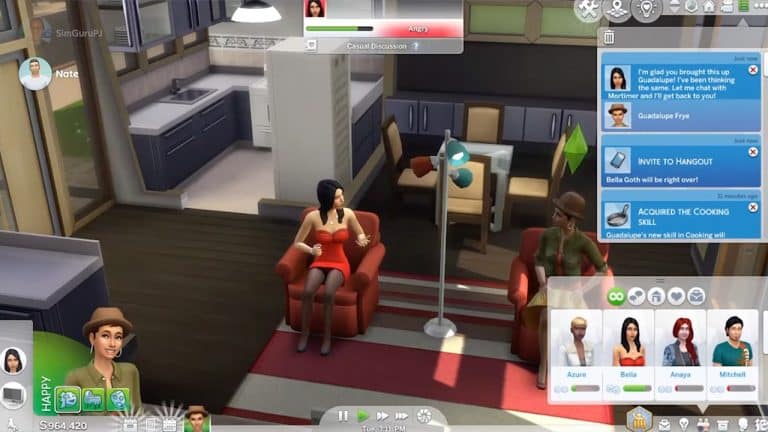
…a Neighbor Sim autonomously considering a life change will always call one of your Sims to ask for input before taking any action. You choose the outcome by directing your Sim to say “Yes,” “No,” or leaving it up to the Neighbor Sim to decide.
Our intent is to empower you to decide if a life change makes sense in the story your Sims are living out, or to leave that decision up to the Neighbor Sim altogether.
Remember, these life changes actually happen, so they won’t occur instantly. Neighbor Sims will keep your Sim posted with updates.
Here’s the full list of life changes:
Autonomous or Active Sim Influenced Life Changes
Neighbor Sims may consider these life changes independently, or your Sims can try to convince them to:
Change their current Career to a different one.
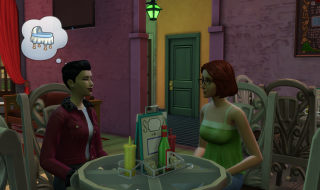
Have a baby with their partner, if they are in a relationship where either Sim can become pregnant.
Hang out with other Sims to form or deepen Friendly relationships
Autonomous-only Life Changes
Neighbor Sims can only undergo these life changes independently, but they’ll check with a Sim in the active household beforehand. They just need a little confidence boost! (Or to be let down easily. Don’t worry, they’ll understand!)
Try to get promoted in their current Career.
Accept a marriage proposal, if they are already Engaged to another Sim. Neighbor Sims will not autonomously get married for now.
Active Sim Influenced Life Changes
Your Sims can do these things to cause life changes for Neighbor Sims:
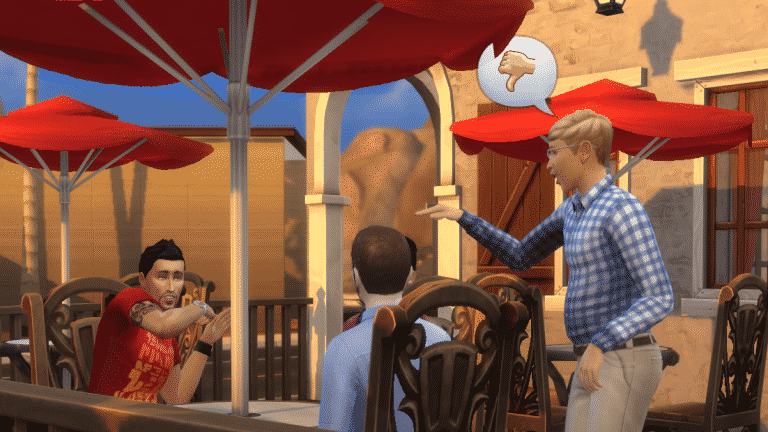
Trash talk one Sim to another, which will greatly reduce the relationship between those two Neighbor Sims.
Try to get two grown-up Sims, or two Teen Sims, to form a Romantic relationship.
Try to convince a Sim in a relationship to dump/divorce their Romantic partner
Encourage an unemployed Neighbor Sim to find a job
New Aspirations
To celebrate these new and improved gameplay moments, we’re adding two new Aspirations:
Neighborhood Confidante is for Sims who aspire to be a helpful and positive presence in the lives of Neighbor Sims. Making friends and guiding others toward life changes will earn the new Confidante trait, which increases the chance of conversations being pleasant. Ever had a conversation turn Boring or Awkward in the middle of a party? Confidante Sims are less susceptible to these mood killers.
Villainous Valentine is for Sims who aspire to destroy the love lives of all Sims, including their own. Have your Sim break up with someone! Have them break up other couples! Sims that walk this deviant path will earn the new Twisted Heart trait, which makes all Sad and Embarrassed moodlets decay faster and provides a little bonus Social when performing Mean or Mischief socials. Twisted Heart Sims simply DGAFB, which as we all know, stands for “Don’t Give A Freezer Bunny”.
All this new and improved gameplay is available to everyone as part of the base game. It doesn’t require any additional content to fully experience. Everything here also works with existing saves, no new game required.
How Do I See The New Gameplay?
Neighborhood Stories will be part of the base game update arriving November 30, 2021. Keep an eye out here for more details on that update. Once you have that, your Sims need to form at least one friendship outside the household.
For autonomous life changes, Neighbor Sims consider them depending on factors like Traits, meaning not all Sims will consider every life change. You’ll need to wait for Neighbor Sims to consider a change, but having Sims with more friends at higher relationship levels will increase the chances for life changes to happen. We’ve really tried to balance Neighbor Sim life changes happening at an interesting pace, without being too spammy or repetitive.
For life changes that your Sims can try to influence, here’s a breakdown:
To have your Sim influence positive change in Neighbor Sim’s lives, look for these new and updated Friendly socials. (Very useful to Sims with the new Neighborhood Confidante Aspiration.)
Ask <Sim Name> to Pursue Dream Job
Discuss Expanding the Family
Other Sims… > Talk Up Another Sim
Other Sims… > Hook Up With
To have your Sim try to harm Neighbor Sim’s relationships, look for these updated Mean socials. (Very useful to Sims with the new Villainous Valentine Aspiration.)
Other Sims… > Trash Another Sim
Other Sims… > Break Up With
What’s Coming In The Future?
Let’s talk about the future of Neighborhood Stories by returning to the main goal: bring more life to Neighbor Sims that live outside the active household. In a future update, we will realize that goal more broadly with the following:
Life changes for all Neighbor Sims, with or without relationships in the active household. Just because my Sims don’t know anyone in a particular other household doesn’t mean that household isn’t also changing.
Gameplay settings to tune life changes Neighbor Sims can and cannot have.
Controls are layered, allowing a mix and match of rules down to individual households.
Neighborhood Stories settings are on a per-save basis.
Those familiar with The Sims 3 are probably reminded of Story Progression. Both Story Progression and Neighborhood Stories allow Sims all over the game to experience life changes. However, I want to highlight two key differences:
Story Progression is one giant system that can only be turned on or off, leaving many players feeling like they must choose between a chaotic world and a boring one. Neighborhood Stories adds the rich gameplay settings I mentioned above, alleviating this issue while solving for the goal: you choose how Neighborhood Stories affects your game.
Story Progression can affect a wide range of factors in The Sims 3. At the start, Neighborhood Stories will have a much smaller range of life changes. This is because most of the work we’re doing now is on the underlying systems that drive these life changes, plus the gameplay settings we just talked about. That means better tools to create better gameplay, but first we have to do the work!
Whew, that was a lot! I hope this provided a good look at Neighborhood Stories now, and that you are just as excited as I am for what’s to come!
Until next time,
Nate
P.S. – Some of this gameplay leverages content that previously was specific to packs. We’ve chosen to do this in cases where the gameplay is a great fit for Neighborhood Stories and we saw opportunities to deepen and improve it for the game overall. Here’s the full list:
Have a baby with their partner
The autonomous version of this life change originates from Eco Lifestyle. We have added support for Sentiments and the Sim-influenced version is all new.
Accept a marriage proposal
Originates from Eco Lifestyle. Added support for Sentiments.
Form or deepen Friendly relationships
Originates from Get Together. Added more dynamic outcomes: if your Sim encourages a friend to hang out with someone they already despise, they won’t like that! On the other hand, if they form a new friendship, then they may also gain positive Sentiments toward your Sim.
Trash talk one Sim to another
Originates from Get Together. Added more dynamic outcomes: Sims will not take kindly to trash talk about their friends. Added special moodlets for Mean or Evil Sims.
Try to get two Sims to form a Romantic relationship
Originates from Get Together. Added more dynamic outcomes: Neighbor Sims won’t pair up with Sims whose traits conflict, such as Good / Evil, and the active Sim has clearer responses to all possible outcomes.
Try to convince a Sim in a relationship to dump/divorce their Romantic partner
Originates from Get Together. Added more dynamic outcomes: Relationship strength between Sims matters and a failed attempt to break up a relationship might backfire with a negative Sentiment from one or both partners!
Whether you are brand new to The Sims 4, have been playing for a short time or are a returning player, it can sometimes be difficult to know what to do or where to start. With so many different features and possibilities to explore, it can almost feel a little overwhelming.
This guide will cover a number of different topics relating to the Base Game, as well as direct you to a number of helpful resources for you to refer to both now and in the future.
Getting Started
There is really no right or wrong way when it comes to playing The Sims 4! The way that you play is truly up to you. Want to tell stories? Go for it! Just want to build? Sure, why not! Just hit the New Game button and jump in!
Playing With Life & Storytelling
Whether you have chosen to create your own Sims or play with one of the pre-made families, it’s completely up to you. Whether it is just one Sim you are starting with or maybe even a small family, you choose how your Sims’ will live their lives.
You can start a family, get a job, become a master painter and so much more which will help you get started in game. Of course, you may already have an idea of a story you’d like to create or even recreate using The Sims 4.
How you play The Sims 4 is really up to you! Make your Sims live their wildest dreams or maybe their worst nightmares. There are so many things your Sims can do in the Base Game when you are just getting started.
Creating Sims
When you first begin to play The Sims 4, you may have chosen to stick with a pre-made household. In fact, it’s natural to do so while you begin to explore and get used to the different features in game.
Creating your own Sim can seem a little confusing to start with but after experimenting and clicking through the different outfit categories, assigning Likes & Dislikes, Traits, Aspirations and even changing your Sims’ voice and walk style you’ll be on your way to creating your own households in no time.
Not sure what kind of Sim you want to create? Why not use the Story Quiz to help influence your Sims life. With ten multiple choice questions, they will help shape your Sims’ future. You may find your Sim will start off with more starting funds or higher in a particular career. With so many different options, it will help you guide your Sim through what lays ahead for them.
Scenarios, Challenges and Achievements
Looking for a way to change up your gameplay? There are plenty of ways you can do this! You could play through one of the Scenarios or take a look at completing one of the many in-game achievements.
Want to find more challenges for The Sims 4? Click here!
Building
When it comes to building, we all start somewhere. There is nothing wrong with starting with a simple square house and expanding from there! It takes time to learn the different features of Build/Buy Mode, and there is no harm in experimenting at all.
If you aren’t sure where to start or are looking for a tutorial to guide you through, there are plenty of resources out there. YouTube is filled with numerous different tutorials from a variety of different Simms and there is everything from videos for getting started to more specific building tutorials and more!
Click here to check out our building tutorials master list and here to view building tutorials on YouTube.
Don’t forget, that The Sims 4 Base game comes with several worlds for you to play and build in! Willow Creek and Oasis Springs come with a number of pre-built lots and households, community lots and empty lots, whereas Newcrest comes as a completely blank world that you can fill up any way you want!
Additional Content
There are a variety of different ways that you can expand your The Sims 4 experience. Whether that is by purchasing packs or adding mods and custom content to your game.
Downloadable Content
The Sims 4 has numerous ways you can expand your gameplay experience in the form of packs. There are four different types of packs, each offering something different. These can be purchased via Origin or Steam if you play on PC/Mac or on The Microsoft Store or PlayStation Store depending on the console you are using.
Expansion Packs: These packs are the big, juicy, meaty packs that come with the most content. They often (but not always) come with a new full-size world, as well as a very large amount of new gameplay centred around a broad theme that appeals to a large number of people, such as tropical islands, active careers and shopping, seasons, and university. They also come with hundreds of new Build/Buy items and dozens of new CAS items. The downside is that they are the most expensive packs, at $40 USD.
Game Packs: Game packs are like mini-expansions. They are also primarily gameplay-focused, but are typically themed around more niche interests, like supernatural-themed gameplay, vacations, and family dynamics. They usually (but not always) come with a mini-world of about 5 lots and plenty of new Build/Buy and CAS items. These packs are more moderately priced at $20 USD.
Stuff Packs: Unlike expansions and game packs, stuff packs are pretty much what they’re called; just packs of stuff. They are more focused on bringing a small handful of new objects and CAS items to the game than gameplay, but all stuff packs do come with one or two new objects that offer some unique gameplay. Stuff packs are the smallest of all the packs and come with a dozen or so new items, and a few new CAS pieces. They do not come with new worlds or a significant amount of new gameplay. Stuff Packs are priced at $10 USD.
Kits: The most recent additional content type launched in early 2021. The new Kits add smaller more niche pieces of content and are usually focused on Create A Sim, Build/Buy Mode or Gameplay content rather than a mixture of the three. These Kits are priced at $5 USD.
With so many different packs that you can choose from, we have come up with a super handy guide that covers everything you need to know about the different packs.
It’s important to remember that currently, custom content and mods are only available for players on PC and MAC. Unfortunately, they’re not available for players on Xbox or PlayStation at this time.
The world of custom content (often referred to as just CC) and mods can seem scary at first. You’ll probably have a number of questions, including how do I add mods and custom content to my game? Where do I find and download mods and custom content? What are some recommended creators or must have mods in my game? These are completely normal questions. In fact, adding mods and custom content into your game is incredibly straight forward.
Click the image below to check out our Getting Started guide for mods and custom content for The Sims 4.
The guide covers a number of important points including how to install mods and custom content, how to keep your mods folder up to date, what to do when there is a game patch as well as a number of helpful resources.
The Gallery
The Gallery is a brilliant place to find a variety of creations by fellow players. Be it Households, Lots or Rooms, there are millions of creations from players from all platforms. This is also where you will find your Library for when you save your own creations before sharing them with the community.
Click here to take a look at our helpful guide that breaks down the different features of The Gallery
The Community
Sticking with the theme of community, The Sims franchise as a whole has a vast community sharing their stories and creations on different social media platforms. You’ll find many Simmers sharing content of Twitter, Tubmlr (also known as Simblr), Instagram (also known as Simstagram), Facebook, YouTube, TikTok, Forums, Blogs and sites just like us here on Sims Community.
While this is not something that you have to do, sometimes it is nice to find ways to connect with other plays and share what is happening in your own game as well as keeping up to date with the latest news and information from The Sims!
Want to connect with more players? Come and join in the conversation on our Discord by clicking the image above!
Cheats
From time to time, you may need a little help by using cheats. Now, you may have heard the words Rosebud and Motherlode being talked about before, or maybe even Testing Cheats or Move Objects. These are the most common cheats that many players will have heard of, but there are so many more! Some cheats will affect your Sims’ skill levels, allow you to buy any lot for free, and remove the Plumbob from above your Sims’ heads.
Below is a handy video from Carl’s Sim Guides where he covers all aspects of cheats, how to enable cheats on both PC, Mac and Console and what effect they have on your game! You can also find a ma
You can also find a master list of cheats for the Base Game and a number of packs here.
With plenty of ways to Play With Life, The Sims 4 offers a variety of ways for players to do so. Getting started is easy and with the handy points that have been covered in this guide, you’ll find plenty of ways to expand on your own experience in game, create stories, memories and more!
The Sims Team is doing the last official Inside Maxis Livestream for this year!
The livestream is set to begin today, November 23rd at 11AM Pacific Time. The team confirmed the following topics and things they’ll be covering during the livestream, including:
Conversation with Stefan Cooke regarding The Sims 4 Modern Menswear Kit
The Sims 4 Hot Topics
Preview of the upcoming update for The Sims 4
To make things simple we’ve included a countdown below that counts to the exact moment to the beginning of the stream. We’ll also be doing an entire coverage of this livestream in case you miss out on the stream so stay tuned!
[janky target_time=”1637694000″ color=”#065bff”]
new Twitch.Player(“twitch-embed”, {
channel: “thesims”
});
We had a lot of fun creating and sharing our first Fixer Upper build challenge that we are back with a new one!
Now, if you missed our first challenge, you can take a look at what was involved by clicking here. Alternatively, you can also take a look at the challenge showcase featuring a number of brilliant renovations of our build here.
This time we are heading to the Daisy Hovel lot which can usually be found in Willow Creek. Known as a frequently used starter home for many players, this lot in particular has seen better days in recent years.
Your task will be to renovate Daisy Hovel and modernize it. It must be suitable for one or two Young Adult/Adult Sims who are moving into their first home.
Are you up to the challenge?
Build Gallery
TS4 x64 2021 11 19 18 14 07
TS4 x64 2021 11 19 18 17 03
TS4 x64 2021 11 19 18 17 16
TS4 x64 2021 11 19 18 18 07
TS4 x64 2021 11 19 18 17 54
TS4 x64 2021 11 19 18 18 21
Challenge Guidelines
Total Lot Value of §55,000
Must be placed on any available 30×20 Lot you have free in your game
You can not change any of the existing internal or external walls. You may add additional walls/basement if you wish
It must be modernized and a suitable first home for one or two Sims
You can use any packs you own, but please do not use any Custom Content
T.O.O.L & DEBUG allowed
Have fun and get creative!
Note: While you may delete items already on the lot for additional Simoleons in your budget, the total lot value once you have finished renovating this lot must be $55,000 or less.
Once you have renovated our Fixer Upper Build, upload it to The Gallery and use the hashtag #SCDaisyHovel as we will be showcasing some of our favourites in a future article!
Showcase
To have the chance of being included in the showcase for this Fixer Upper challenge, make sure you upload your version of the build by Monday 29th November 2021 at 6pm GMT.
We can’t wait to see how you fix our build! Be sure to tag us on social media, so we can see any videos or screenshots you share!
Note:This build is not a part of our monthly Sims Community Challenges. To find out more about the Sims Community Challenges click here.
The Sims Team has announced their latest Expansion Pack Trial for The Sims 4!
The Sims 4 Island Living Expansion Pack has just gone on a Free Weekend Trial. Compared to previous Expansion Pack Trials this one is further extended until Tuesday – meaning that you have unil November 23rd to try out the Pack!
Like previous Expansion Pack Trials this one is exclusive to the Origin Platform. The Free Island Living EP Trial is set to end at 10AM Pacific Time.
You can obtain the Trial Copy of The Sims 4 Island Living from Origin!
Here’s everything you need to know about the trial:
Frequently Asked Questions
ABOUT THE TRIAL
When does The Sims 4 Island Living Trial take place?
The Sims 4 Island Living Trial will be available between the following dates and times:
Start:
November 19 2021
10:00AM PST / 18:00 UTC
End:
November 23, 2021
10:00AM PST / 18:00 UTC
During this time, you will be able to play as much Island Living as you like.
What do I need to know about the Island Living Trial?
There are a few prerequisites to using the Island Living Trial.
You must:
Have the most up to date version of The Sims 4 installed on your PC/Mac
Have the most up to date version of Origin installed on your PC/Mac. EA app is not currently supported by the Island Living trial.
Claim the Island Living Trial through the Origin client, Origin.com or from The Sims 4 Main Menu.
What can I use in The Sims 4 Island Living Expansion Pack during the Trial?
You will be able to use every part of Island Living including the island paradise of Sulani where you can soak in the local culture and traditions, take to the beaches to build a sandcastle, meet mermaids, and swim with dolphins found in the glistening waters surrounding the islands. If you are more of a creative Simmer then all of the pack content is available to you in CAS and Build mode.
SUPPORTED PLATFORMS & ENVIRONMENTS
Can I run The Sims 4 Island Living Expansion Pack Trial on my PC/Mac?
If you have the latest version of Origin and your PC or Mac meets The Sims 4 minimum and recommended system requirements then you can take part in the Island Living Trial
Can I play The Sims 4 Island Living Expansion Pack Trial on PlayStation or Xbox consoles?
Currently our DLC Trials are only compatible with the Origin client for PC and Mac.
Can I play The Sims 4 Island Living Expansion Pack Trial with an EA Play subscription?
Yes. If you have an active EA Play or EA Play Pro subscription for PC, you can download The Sims 4 from Origin, claim the Island Living Trial and play with the pack content.
Can I play The Sims 4 lsland Living Expansion Pack Trial with The Sims 4 Legacy Edition?
No, The Sims 4 Legacy Edition does not support pack Trials. You must have the latest version of The Sims 4 and Origin to take part in the Trial.
Can I play The Sims 4 Island Living Expansion Pack Trial with The Sims 4 Trial?
Yes. If you do not currently own The Sims 4 and haven’t previously used The Sims 4 Trial, you can claim the 48 hour trial from Origin and the Island Living Trial and try out everything in one go.
SAVE FILES
Why does it ask me to Restart The Sims 4 when switching between Trial Saves and my existing Saves?
The Sims 4 will ask you if you want to restart your game so that it can include or exclude the Island Living Trial from your current session.
Selecting to restart when going back to a non-trial save will keep the Island Living Trial on your PC/Mac for when you want to come back to the trial later. When you want to play with Island Living again, load a saved game or start a new trial save and you’ll be asked to restart the game so that Island Living can be included in your session for as long as the trial is available.
Can I use my saves with the Trial?
Yes. If you want to put Island Living into saved games you have already created, you can. Simply select your Save from the LOAD screen on the Main Menu and when asked if you want to PLAY WITH TRIAL? Select Yes, Start as New Trial Save. Once you do that, The Sims 4 will make a copy of your save to use with the trial and lets you save your progress without affecting your original saved game files.
I created a new Trial save based on my existing save, how do I tell the difference?
If you load an existing save while using the Island Living Trial, we will copy your save and rename it for you so that it can be identified as a Trial save. Once you have loaded your save, you can hit Save to finish applying the Trial to your save game. If you do not save your session, you will still have a Trial save but it will not use Island Living and you will be able to use the save without the Trial content.
What happens to my Trial Saved Games when the trial ends?
Your saves created while using the Island Living Trial will still be available after the trial ends. If you choose to add Island Living to your collection, you will be able to pick up where your saves left off.
AFTER THE TRIAL
The Trial has ended. Now what?
Island Living will stay installed on your machine and if you purchase Island Living, you will be ready to start playing with your content straight away.
If you have decided that you do want to remove Island Living Trial from your PC/Mac follow these quick steps.
PC Steps
Find your The Sims 4 installation directory (Default C:Program Files (x86)Origin GamesThe Sims 4)
Look for a directory called EP07
Select the directory, Right Click and select Delete
This will move Island Living to your Recycle Bin
Right click on Recycle Bin and select Empty Recycle Bin to free up disk space
If you decide to purchase Island Living in the future, you will need to re-download the pack from Origin or EA app.
Mac Steps
Find your The Sims 4 Packs directory (usually located in the same place as The Sims 4.app, which is located in ~/Applications by default)
Look for a directory called EP07
Select the directory, Right Click and select Move to Trash
This will move Island Living to your Trash
Right Click on the Trash, and select Empty Trash to free up disk space
If you decide to purchase Island Living in the future, you will need to re-download the pack from Origin
Many video games and products are going under huge sale offers, and games like The Sims 4 are no exception!
Like every year we’ve created a handy list of all the discounts from several official retail websites where you can purchase games. Platforms like Steam, Origin, Playstation and Microsoft Stores have all started rolling out their Black Friday Deals.
Without further ado, let’s see those discounts!
Origin Sale
Origin is currently having a huge sale on many EA games and franchises – including The Sims 4! Down below are all the Origin offers for these games.
The Sims 4 Base Game – Deluxe Party Edition – 88% off
The Sims 4 Plus Cats & Dogs Bundle – 50% off
The Sims 4 Cats & Dogs Plus My First Pet Stuff Bundle – 50% off
The Sims 4 Cottage Living – 38% off
The Sims 4 Seasons – 50% off
The Sims 4 City Living – 50% off
The Sims 4 Get Famous – 50% off
The Sims 4 Island Living – 50% off
The Sims 4 Get Together – 50% off
The Sims 4 Eco Lifestyle – 50% off
The Sims 4 Get to Work – 50% off
The Sims 4 Snowy Escape – 50% off
Microsoft Store
The Microsoft Store has started with their Black Friday Sale! Unlike with the Playstation Sale, the Microsoft Store sale covers more packs and pack types!
The Microsoft Store Sale is expected to last until the end of November. Here are all of their deals:
The Sims 4 Base Game – 88% off
The Sims 4 Plus Cats & Dogs Bundle – 50% off
The Sims 4 Cats & Dogs Plus My First Pet Stuff Bundle – 50% off
The Sims 4 Expansion Packs – 50% off
The Sims 4 Cottage Living Expansion Pack – 25% off
The Sims 4 Game Packs – 25% off
The Sims 4 Stuff Packs – 25% off
Amazon
The deals over at Amazon are almost identical as from the official platforms we’ve listed above. However if you want to check out the catalogue yourself you can do so here!
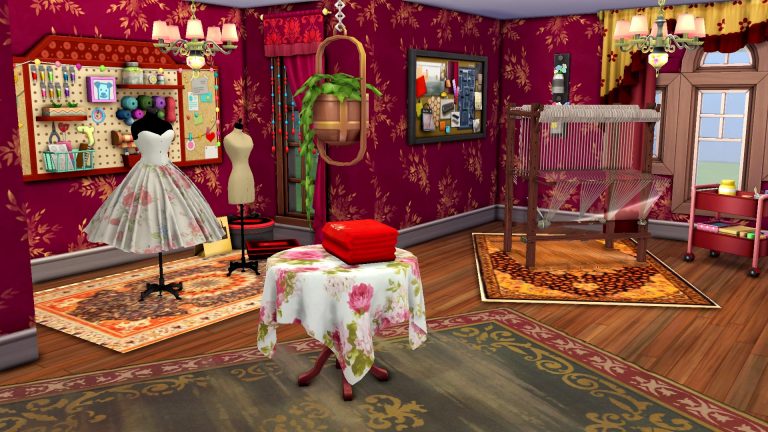
A while ago, I wrote a walkthrough of PiedPiper’s amazing Functional Loom Mod. I was so inspired by this mod that I felt compelled to build with it. This mod offers so much functionality for retail businesses and really any lot because of all the incredible decorations it comes with. While a whole retail store was a bit too much for me to take on, I really wanted to showcase this mod in a smaller build so I decided to create a textiles workshop using just some of PiedPiper’s awesome content.
Of course, the textiles workshop would feature the loom that comes with the mod. Sims need a way to be able to weave all of the clothes and décor that the mod comes with. But I felt that the loom paired perfectly with the knitting and cross stitch baskets from Nifty Knitting Stuff and Cottage Living so I really went all-in with stuff from these packs. Paranormal Stuff was a big influence as well. The floral wallpaper and beaded curtains felt perfect for the cozy vibe I was going for.
I started with creating the shape of the room. I wanted the decorative mannequins that come with the mod to have their own focal point in a small nook of the room. I then decorated this area with a rug from the mod as well as a few clothing bags and boxes in the corner. On the wall behind it, I put the craft board from Nifty Knitting Stuff. Sadly, when I went to upload this room to the Gallery, the mannequins were the only things that disappeared so the Gallery version does not feature them. I replaced them with the Get To Work mannequins which are wearing some gorgeous custom dresses from this mod, instead. They look amazing wearing those custom dresses. I wanted to show off the decorative mannequins in this article, however, just to show you my original design concept.
I placed the loom at a flattering angle in another corner, accented with another custom rug to draw the eye to it. I also popped in the Nifty Knitting craft tray on rollers for easy access to supplies while weaving. To fill up the rest of the space, I used mostly Nifty Knitting desks and accent tables as well as wall décor to really give it that artsy and crafty vibe. Many of the Nifty Knitting Stuff items have lots of shelves and cubbies with yarn, fabrics, and other crafting tools in them. These were perfect for my textiles workshop. Wherever there was open shelving, I used the custom fabric bolts and clothing bags and boxes to give the space a haphazard feel to it. I wanted the room to look like it was in frequent use by a creative Sim whose ideas explode everywhere onto every surface.
In another corner of the room, I put a rocking chair and the knitting basket with custom clothing hanging on the wall behind it. There are a few dresses and a suit, as well as scarves hanging from hooks on the other side of the door. To give the centre of the room a bit of a focal point instead of just empty space, I covered a round dining table with a custom tablecloth and displayed some embroidered custom towels on it. I hung a ceiling plant from Paranormal Stuff over it to draw more attention to it.
I absolutely loved the finished product. It came out exactly as I envisioned it and really looks like a messy but cheerful arts and crafts space for creating lovely textile art and clothing.
If you’d like to grab this room for yourself, it’s called Woven Wonders Workshop and my ID is SnarkyWitch! Remember to tick the box that says Show Custom Content! This room requires the Functional Loom Mod by PiedPiper and uses a lot of custom content from that mod!
And if you can’t use mods, check out our whole Let’s Build series! The vast majority of our builds are 100% CC-free and some use limited packs! In fact, CC builds from us are pretty rare but every once in a while, we do get inspired by talented creators and really want to show off their work in our own creations.
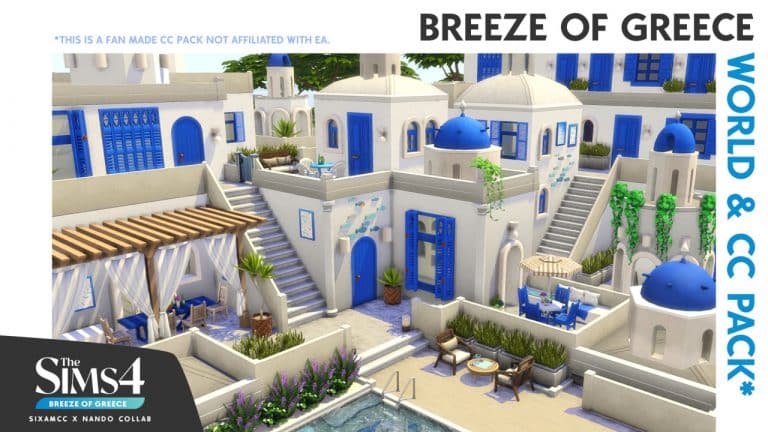
Grab your suitcase Simmers as we are jetting off to Simtorini!
Nando and SixamCC have joined together to create the beautiful Breeze of Greece World Mod and Custom Content Pack. The two part collaboration pack is perfect for Sims wanting to escape their everyday lives and relax in the beautiful scenery of Simtorini.
SixamCCon the other hand created a variety of Greek inspired items to help bring your Sims’ Simtorini vacations alive! You might recognize SixamCC’s name as they are the creator of the Hotel Bedroom CC Pack, Charming Chalet CC Pack as well as smaller object packs packs such as the Birker Series and Artiu Series.
Features
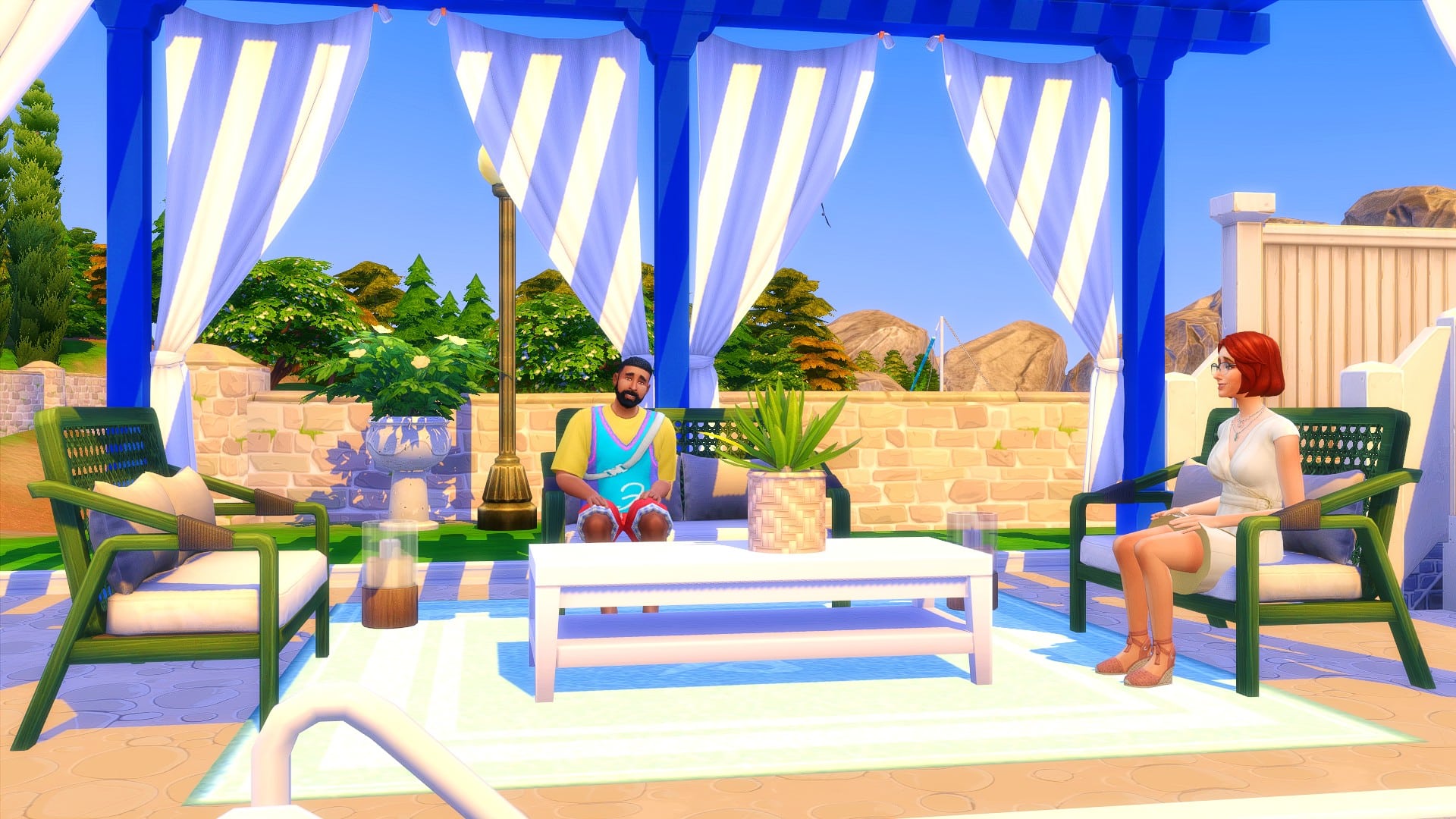
The world of Simtorini replaces the world of Granite Falls from The Sims Outdoor Retreat. It transforms the world into a scenic and romantic getaway inspired by Santorini. Your Sims will be able to experience everything Simtorini has to offer, including fabulous food from the food carts and enjoying a variety of entertainment in the local plaza.
Requirements
To experience everything that the Breeze of Greece World Mod and Custom Content pack has to offer, you will need to own The Sims 4 Get Together and Discover University expansion packs and The Sims 4 Outdoor Retreat Game Pack.
Items Overview
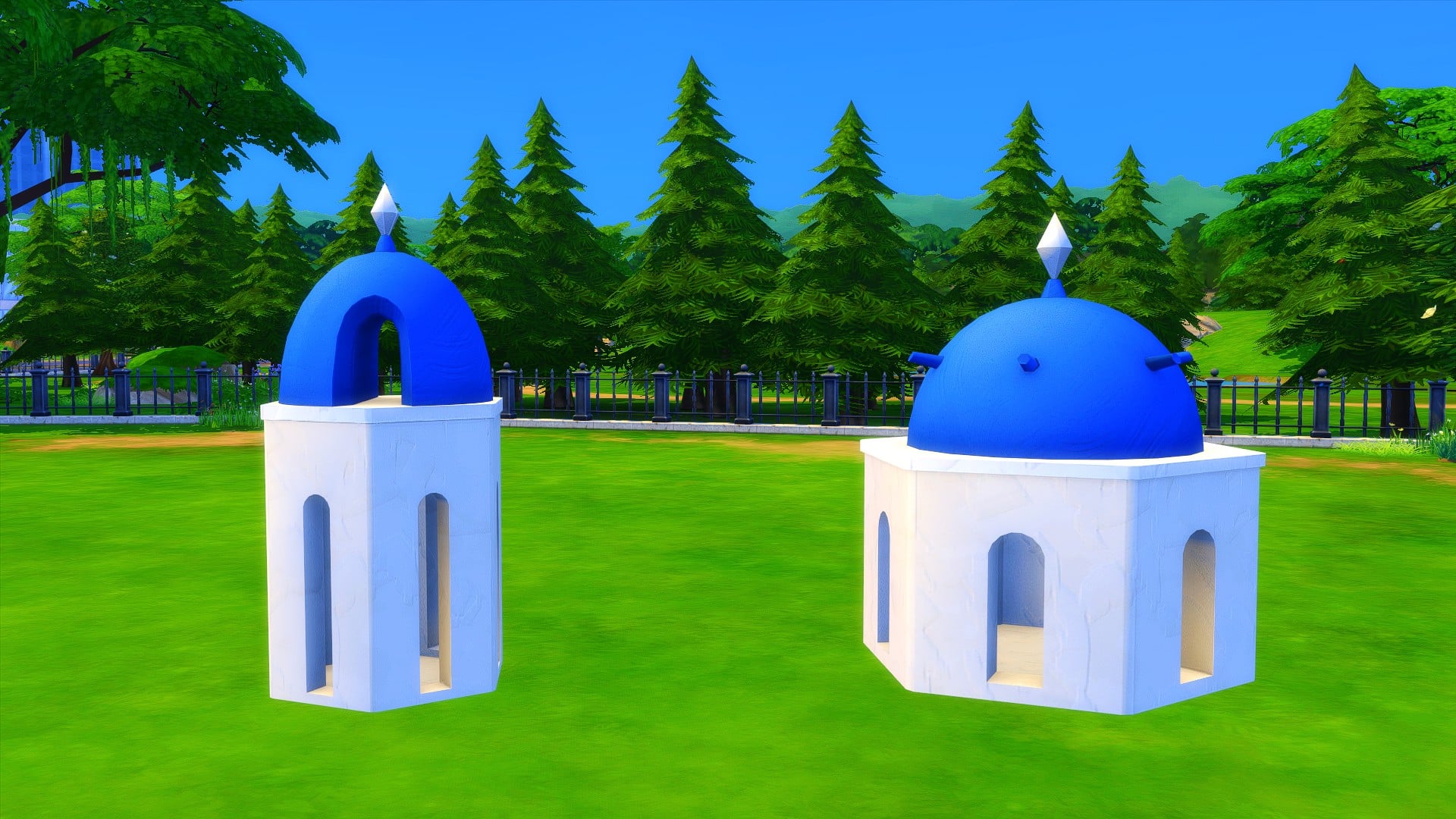
With over forty new objects spanning both Build and Buy Mode, spanning a variety of neutral and colourful swatches, the Breeze of Greece Custom Content Pack has everything you need to create your own Simtorini!
Objects
TS4 x64 2021 11 17 13 49 46
TS4 x64 2021 11 17 13 51 19
TS4 x64 2021 11 17 13 54 46
TS4 x64 2021 11 17 13 57 43
TS4 x64 2021 11 17 14 00 04
TS4 x64 2021 11 17 14 00 53
TS4 x64 2021 11 17 21 09 27
Build Mode
TS4 x64 2021 11 17 13 47 00
TS4 x64 2021 11 17 13 51 58
World Overview
You will still have the same six lots with the same lot sizes as if you were playing in Granite Falls as normal. So there is no need to worry about changing lot sizes or lot placements. When you first load into Simtorini, you will need to remove any existing lots you had so that you can create your own Simtorini. Every Simtorini will be different and unique for each player, depending on how you decide to place and create your lots.
Even though the world of Simtorini doesn’t come with any new lots as such, you have the freedom to build your own Simtorini inspired lots or add some from The Gallery.
SixamCC has also created the Simtorini Resort that you can add into your own game right now. The lot also utilizes a number of the new objects from the Breeze of Greece Custom Content Pack as well!
To find out more about the Simtorini Resort, click here!
The Plaza is where your Sims will spend a lot of time while in Simtorini if they are not staying in their vacation home. Get to know other holidaymakers, try the local delicacies and take part in any events.
Of course, there are plenty of other locations to explore while you are on vacation too! You’ll also find a number of details that help bring Simtorini to life!
TS4 x64 2021 11 17 11 32 13
TS4 x64 2021 11 17 13 21 53
TS4 x64 2021 11 17 13 19 42
TS4 x64 2021 11 17 13 19 09
TS4 x64 2021 11 17 13 22 48
TS4 x64 2021 11 17 13 20 14
How to Download
The Sims 4 Breeze of Greece World Mod and Custom Content Pack is available for download right now. It is currently in Early Access and will be entering Public Release shortly.
Follow the links below to download the two different parts of the pack.