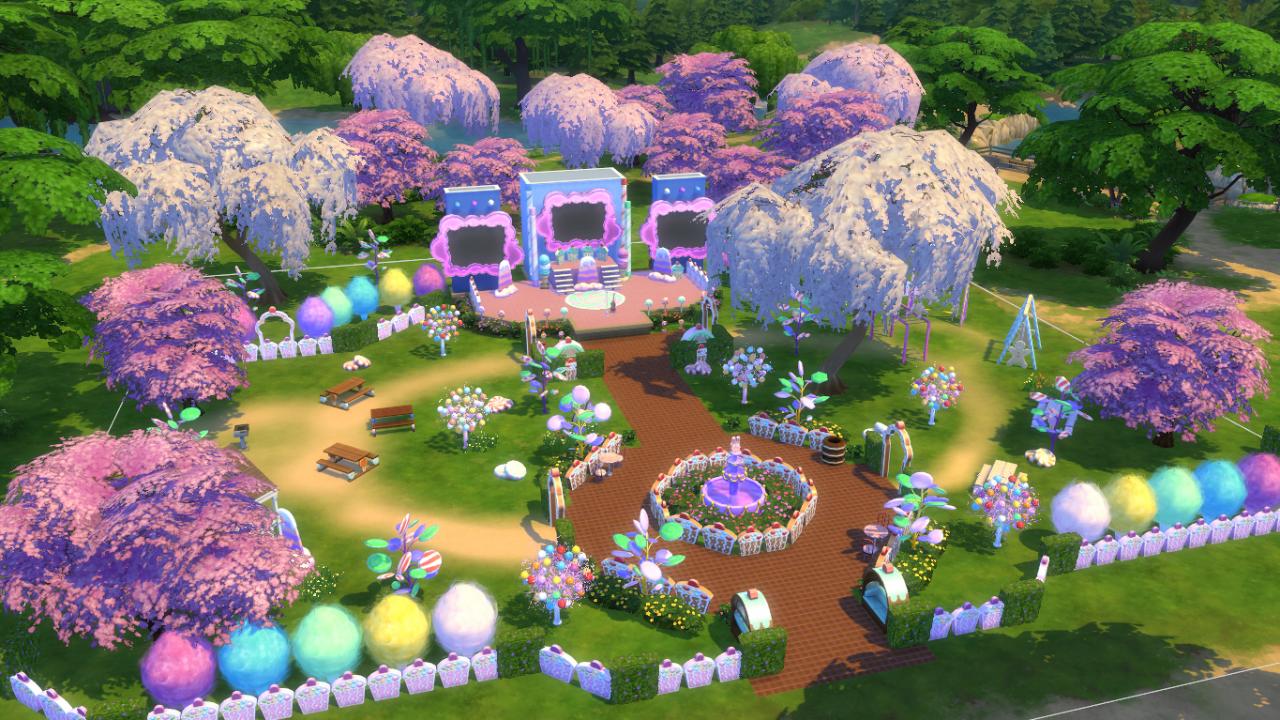
The amazing recreation of a 10-year old Limited Stuff Pack is now available for everyone!
A couple of weeks ago history was made. At least in my eyes. All with the announcement from the Custom Content creator Littledica about the community project to bring The Sims 3 Katy Perry Sweet Treats Stuff Pack into The Sims 4!
The Custom Content Collection released by the creator has been in the Early Access period for 3 weeks now. Which means that as of today, everyone who plays The Sims 4 on PC and Mac can momentarily download this Custom Content collection.
If you’re wondering what’s included with The Sims 4 Katy Perry Sweet Treats CC, we have an extensive Overview of the CC Pack. Yup, that also includes the official Lots and Sims featured in the promotional images from the creators!
This Community CC Stuff Pack has been made in collaboration between Littledica, who initiated the project and designed most of the items. With the help of other community members such as:
LuddySimmer created the art for some of the objects (bed candy drawing, bookcase drawing ecc) the pack promotional material and designed some new items concept art.
Simmatically did the album covers in simlish for the stack of CDs object
Ravasheen created the tuning (the code) of some of the objects including the Functional candy jars with new candy, the Kitty Purry and gingerbread man statue working as toys that you can talk to and made the microphone functional
The Custom Content Pack is now available to download right away from the creator’s Patreon Page. Simply select the .zip file of your choice and extract the contents to Documents > Electronic Arts > The Sims 4 > Mods folder. Also, ensure you have Mods and CC enabled in your Game Options!
Will you be able to overcome all the obstacles and turn this Wedding into a success story?
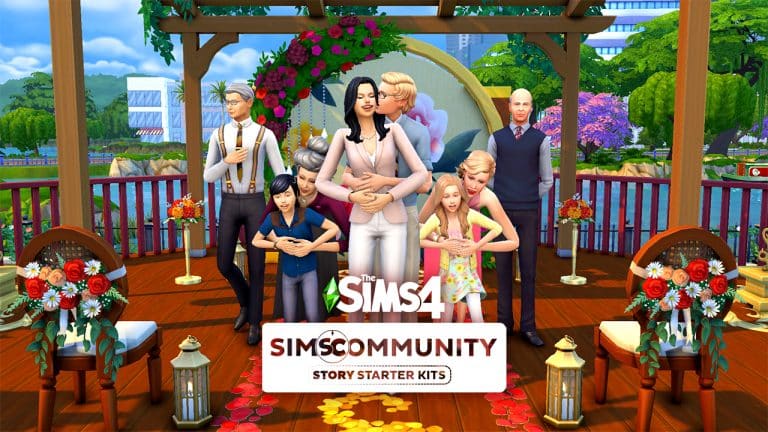
Welcome to our seventh entry in our Story Starter Kits series! If you missed all the info on Story Starter Kits, you can read more about what they are and how they work in our introductory article!
This month, we’re bringing you a newly engaged couple who can’t wait to plan their wedding… if they can wrestle control back from their overbearing families.
Backseat Wedding Planners
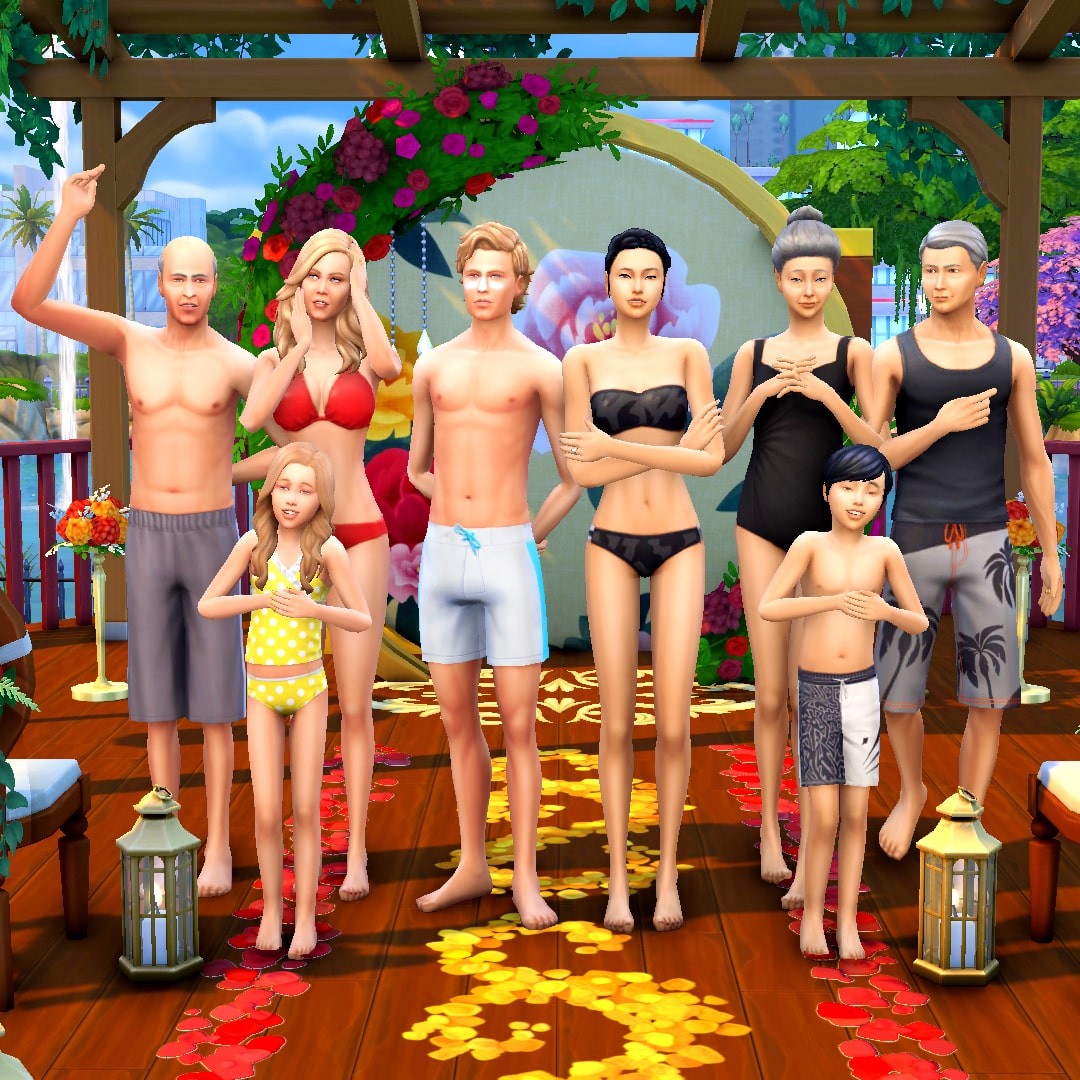
Hugh and Hao have been fierce rivals in the competitive world of business for many years now. Despite the rivalry, they’ve always gotten along just fine in their professional relationship so when a possible merger was put on the table, Hugh and Hao weren’t so quick to dismiss the idea. Merging their highly successful companies together could give them the funds and resources they needed to acquire smaller businesses and ultimately take a large portion of the market for themselves but the shareholders weren’t convinced it was a viable long-term move. After all, Hugh and Hao are elderly and about to retire. Who will run such a huge company in the future?
That’s when they came up with a brilliant idea: Hao’s daughter, Jun, and Hugh’s son, Sean, were both being prepared to take over their parents’ companies. They each had intimate knowledge of the inner workings of their respective companies. Together, they could co-run the merged company, but a strictly professional relationship could prove flimsy over time. They needed to cement Jun and Sean as lifelong partners to make such a risky business move work. A marriage between the two would surely accomplish that! Well… if Jun and Sean ended up liking each other, of course.
To their parents’ delight, Jun and Sean did like each other from the moment they were introduced. In fact, they fell completely in love with no extra encouragement from anyone. When Sean proposed to Jun, business strategy was the furthest thing from his mind. He knew Jun was the person he wanted to raise a family and grow old with. Jun felt the same about Sean and accepted his proposal without a moment’s hesitation. She knew she’d found her forever partner, too.
Both families were thrilled with the news but the warm fuzzy feelings eroded fast when the wedding planning got underway. Two very different cultures clashed; Jun’s parents insisted upon a traditional Chinese wedding with a formal tea ceremony. Sean’s parents wanted a big, flashy, North American style wedding. Jun’s mother, Meng, wanted to make the cake and food for the wedding but Sean’s mother, Elsie, wanted to go with the most expensive catering business in town that routinely did celebrity weddings. Elsie insisted she be the one to design Jun’s wedding gown and the whole wedding party’s attire; her vision was high end couture. Meng was appalled by Elsie’s tacky taste. To make matters worse, Sean’s little sister, Delilah, has made it her mission to be the most badly behaved brat in existence; she’s always been spoiled and is jealous of all the attention her brother’s getting. And Jun’s brother, Jian, keeps trying to sneak his Nintendo Switch into all the wedding events.
Sean and Jun don’t even feel like this is their wedding anymore. It’s become a war between tradition and spectacle, not a celebration of love. They still want to get married but neither of them want to walk down the aisle in the middle of all this conflict. That’s no way to begin a marriage. Can the soon-to-be-newlyweds talk sense into their squabbling families and take back control of their own wedding or would they be better off eloping at City Hall?
Other Info:
Sean Jameson
Age: Young Adult
Traits: Ambitious, Family Oriented, Outgoing, Domestic
Packs Used: Get Famous, My Wedding Stories, Romantic Garden Stuff, Vintage Glamour Stuff
Household Notes:
Since this story kit does not come with a residential lot, the Jamesons and Chens have a total of $2,000,000. You can split them off into two households with $1,000,000 each to purchase any nice home of your choosing.
In Perfect Unity
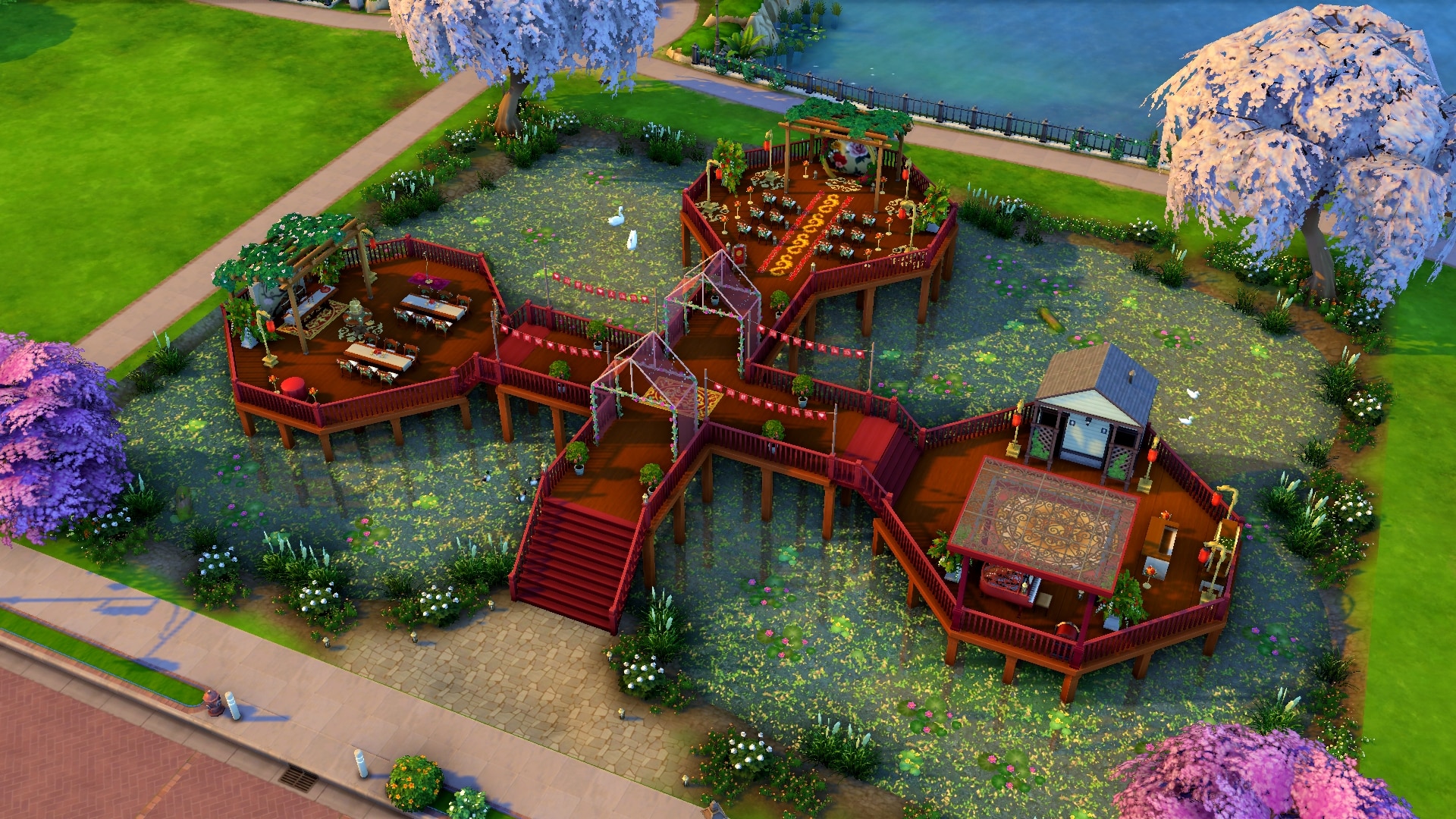
This serene, tranquil wedding venue sits on a two-tiered deck overlooking a natural pond brimming with picturesque wildlife. Red and gold flowers and décor create a rich, colourful atmosphere to say your vows and three distinct platforms for each portion of your special day create a sense of harmony and unity. This kind of peace and balance is the ideal way to get a lifelong marriage off to the right start.
Lot Info:
Lot Type: Wedding Venue
Price: §67,636
Size: 50×40
Beds: 0
Baths: 1
Lot Traits: Convivial
Packs Used: Get Famous, My Wedding Stories
Your Story Starter Kit is waiting for you! Get The Household and The Lot by downloading them from the official Gallery Website linked on the buttons below. Or, follow SnarkyWitch in the Gallery and look for Backseat Wedding Planners and In Perfect Unity!
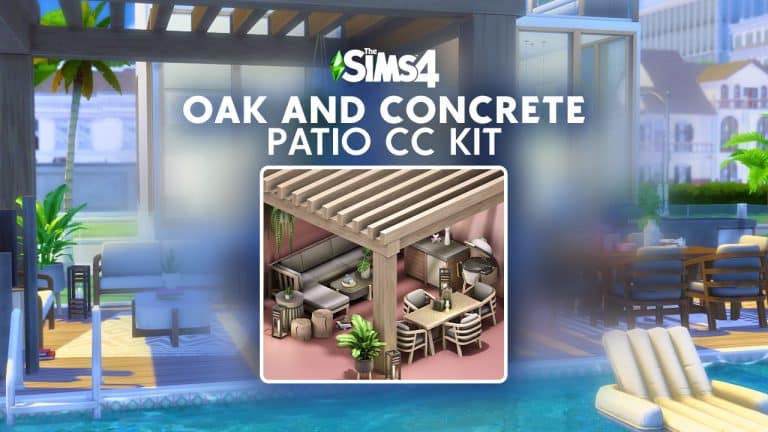
Today we’re showcasing a new CC patio set for your Sims’ homes! Or any lot type, in fact! The Oak and Concrete Patio Kit was created by S-imagination and comes with a total of 26 objects to add a trendy industrial look to your patios.
What really stood out to us about this kit is that all items are base game compatible, including the heat lamp and sectional sofa! Players who don’t own Dine Out or Dream Home Decorator can still download and enjoy the heat lamp and sectional seating that comes with this CC patio kit.
As the title suggests, the Oak and Concrete Patio Kit is a collection of patio furnishings made from oak and concrete. There are many different swatches to customise the shade of both the wood and concrete of all the objects and there is lots of trendy décor to supplement the furniture. There are a wide variety of different plants, candles, sculptures, and other clutter, such as magazines with a wide-brimmed hat on top of them and a pitcher serving set.
As you can see from the photos taken by S-imagination, there are a lot of ways to use these items to decorate the perfect patio for your Sims! You can download the set for free from S-imagination’s Patreon by clicking the download button below!
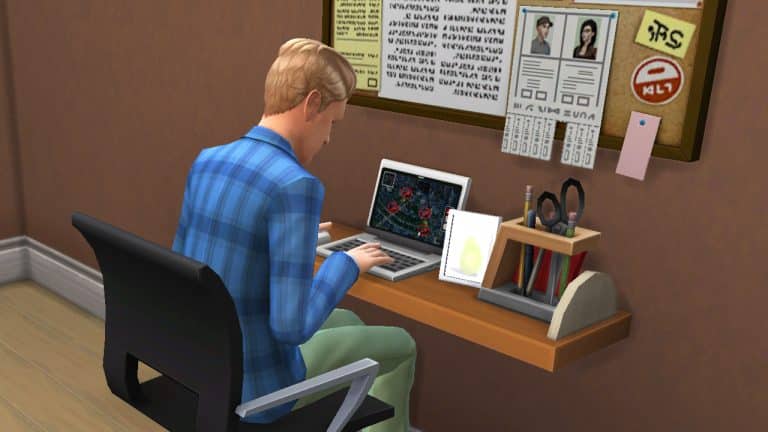
Hi Simmers! I’m here today with a bite sized mini-tutorial for you today that’s going to walk you through how to build your own custom desk setup using some build cheats and shelves. This setup is completely functional and requires no custom content or mods. You can use any combination of computer/chair/desk/shelving you like but I’ll be using base game objects to show that this can be done with just the base game.
For console players, you can safely use these build cheats without disabling your trophies/achievements.
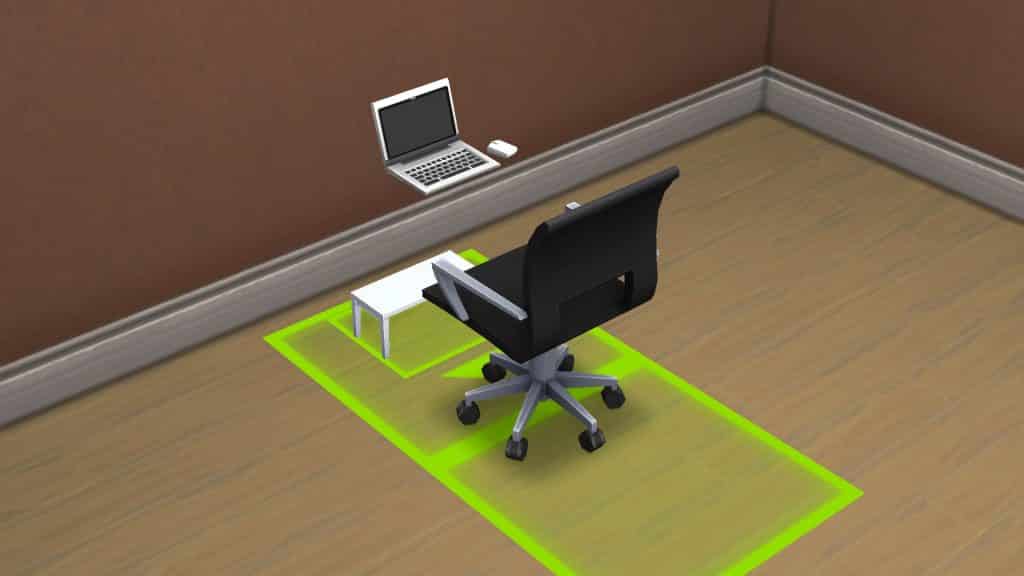
To start, find a desk, desk chair, and computer you like and place them against a wall, snapping the computer and chair to the desk like normal.
Enter the cheat bb.moveobjects on
Select the desk and press the [ key to size the desk down to its smallest size. For consoles, press both triggers and left on the d-pad.
Choose a wall shelf you like and press Alt while placing to match it to the height of the computer. For consoles, toggle between full tile, half tile, and free placement with L2/LT. You may need to move the original desk forward so the computer rests on the shelf. You can also do this with Alt/LT/L2. Make sure you’re moving the desk, not the chair or computer.
To cover up the small desk underneath, you can either pull it forward to hide it in the wall or size down small cabinets/decor to cover it up. I chose to hide it in the wall.
Decorate the rest of the shelf and surrounding area however you like! You now have a custom desk setup that looks unique and saves some space.
This setup is functional but has a small catch; you need to tell your Sim to sit first, then use the computer.
Bring your unique vision to life by making your own custom poses!
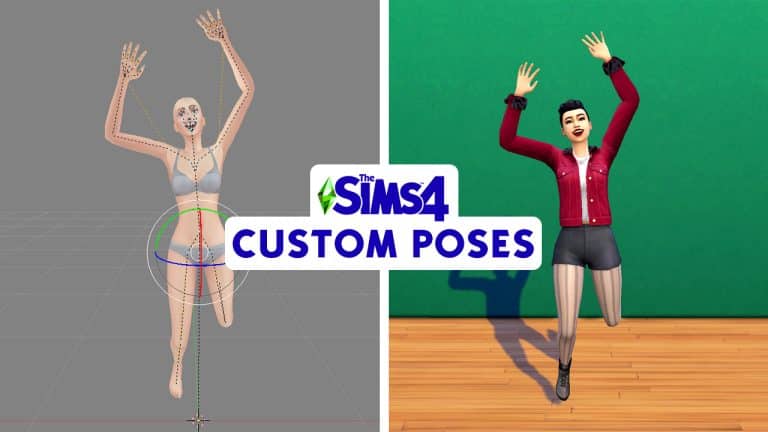
Have you ever wanted to learn how to make your own custom poses for The Sims 4? Today, I’m going to show you how to make a simple pose for a single Sim. Making single Sim poses is a good way to get started before you start tackling more complicated poses with multiple Sims. This tutorial should be relatively easy for a beginner to follow but I still recommend taking some time to familiarize yourself with the basic controls of all the programs we’ll be using, first.
I’m going to give a brief rundown of some of the more common Blender controls you’ll be using but this isn’t an exhaustive list of tools by any means. It’s just enough to let you follow along with the tutorial.
HotKeys
A – Select/deselect all points
CTRL+4/6/2/8(Numpad) – Pan left, right, down, and up
Hold Scroll Wheel + Move Mouse – Rotate the view angle freely
Right Click – Select a single point
SHIFT+ Right Click – Select multiple points
Right Click + Drag – Freely move a point in any direction
Right Click + G – Allows you to freely move a point just by moving the mouse. Ideal for facial expressions.
CTRL+Z – Undoes the last action. Can be used again and again to undo the last several actions.
Tools
Move – Moves the selected points along a horizontal or vertical axis
Rotate – Rotates the selected points
Pivot Centre – You will pretty much always be using either Median Point or Individual Origins. For the purpose of this tutorial, always have the pivot centre set to Median Point unless I instruct you to switch to Individual Origins.
Object Interaction Mode – Always make sure this is set to Pose Mode. The only time you’d use Object Mode while making poses is when saving group poses. We won’t be going over that in this tutorial.
If all that looks like mumbo jumbo to you, don’t worry! It will begin to make more sense as you go through the rest of the tutorial. Just keep these hotkeys and tools in mind and refer back to them whenever you need to.
Posing the Body
Open up your EA rig you downloaded in Blender. We’ll be using an adult female rig but you can use an adult male rig if you like. There’s not much difference between the two.
Now it’s all up to you and how you want to pose your Sim. I’m going to make this Sim jumping in the air excitedly waving both arms. You can pose your Sim however you like but I recommend something simple to start with. To pose your Sim, you will be selecting different points on the rig (the dots connecting the dashed lines) and either using the Move or Rotate tools to move them to the position you want. Generally speaking, you’ll be using the Rotate tool much more often than the Move tool. The Move tool is good for moving the entire rig up, down, or side to side. The Rotate tool is what will move the individual limbs.
Screenshot 1999
Screenshot 2000
To rotate a point, select the point with the Rotate tool selected. Then click on the blue, red, or green circles to rotate it in that direction. To move a point, select the point with the Move tool selected and drag it along the red, blue, or green lines.
To move the entire rig, make sure all points are selected by hitting A twice before you use the Move tool. To rotate the entire rig, do the same before you use the Rotate tool but make sure your Pivot Point is still set to Median Point. If the Pivot Point is set to Individual Origins, you’ll end up with a contorted, scary looking pretzel Sim.
To freely move a point in any direction outside of the rotation wheel or horizontal/vertical axis, you can select it and then drag it in any direction. This can be useful sometimes but more of a pain than anything else at other times. Still, feel free to play around with it and find what’s easiest for you.
Move points freely in any direction by selecting the point and dragging it
Spend some time playing around with the different points and moving them in different ways (even strange ways that look wonky). You can always hit CTRL+Z to undo a mistake so don’t worry about messing things up. Just explore how the different body parts move and get a feel for rotating limbs in different ways. The more you do this, the more you’ll begin to understand how to move the joints in a way that looks realistic. It’s just time, practice, and experience. You can also look at reference pictures online and study how each individual muscle moves to create that position. You’ll find that even a simple wave utilizes much more than just the arm muscles. In fact, the entire body shifts to make such a movement. You’ll need to practice how to replicate this in Blender by rotating multiple parts of the body.
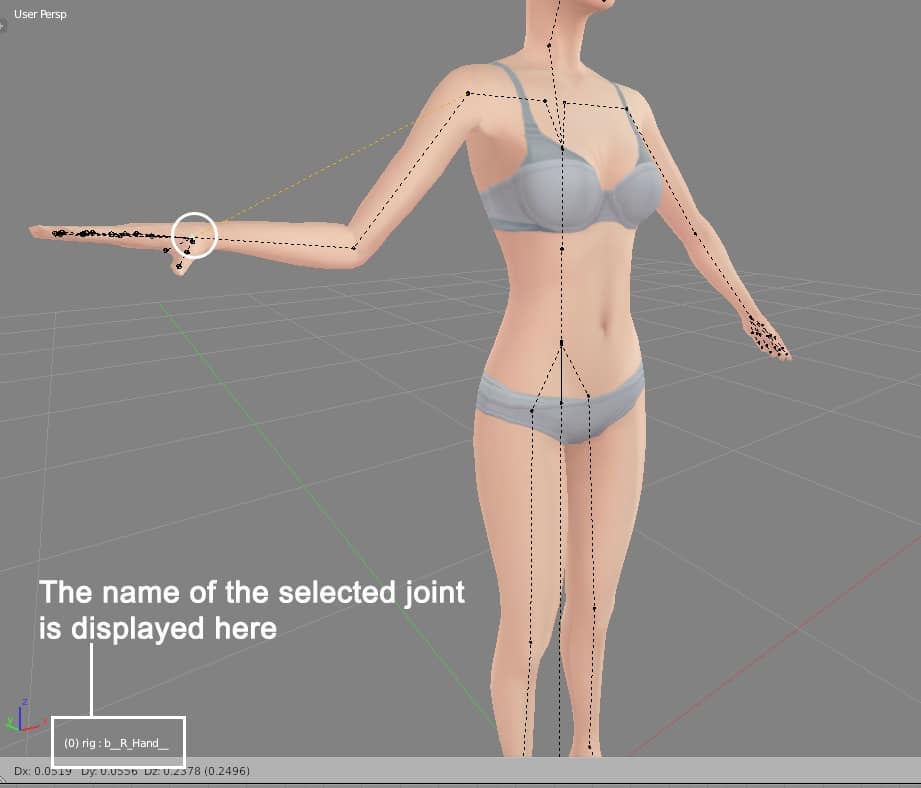
You’ll notice as you select different points, you’ll see the name of it in the bottom left corner of the view screen. This is a good way to tell which part of the body you have selected, especially when you’re selecting points in a tight area with a lot of other points nearby, like the hands or head.
To create my pose, I selected all points, then used the Move tool to raise the Sim slightly in the air. Then I used the Rotate tool wherever I wanted to rotate a limb until I had my Sim in the position that I wanted. Notice how I’ve made many adjustments to different parts of the body, not just the arms and legs. The Sim is leaning back slightly. I did this by rotating the spine points. She also has her shoulders raised. I did this by rotating the clavicle points. Her body leans to one side slightly and her head is tilted a bit, too. All of these smaller micro-adjustments are what will make your pose look lifelike and not stiff or robotic.
Creating the Facial Expression
Chances are, you’ll want your Sim to have some kind of expression on their face so they don’t look like an emotionless robot. The good news is facial expressions are (mostly) much more simple than posing the rest of the body. This is because a lot of it can be done by freely moving the face points with Right Click + G.
The best areas to use the G shortcut are the lips, eyebrows, and the squint points (located on each cheek). Select the point by right clicking, then hit G to freely move it any way you want just by moving your mouse around. You can make your Sim look happy, sad, angry, surprised, scared, etc, just by moving the lips, squint points, and eyebrows.
But what if you want to open your Sim’s mouth or close their eyes or have them looking in a different direction? You can do all of that, too, just with some different tools.
To open your Sim’s mouth, find the jaw point located in the back of the head and use the Rotate tool to rotate it to an open position.
To open or close the eyelids, first make sure your pivot point is set to Individual Origins. Then search for “lid” in the scene panel, as shown in the image below. Select b_L_UpLid and b_R_UpLid (left and right upper lids) simultaneously by holding SHIFT while right-clicking. Then move your mouse curser back to the view panel (where your Sim is) and press R twice. Then just drag the eyelids down to close the eyes and left-click to confirm. To make a Sim wink, do the same thing with just one eyelid selected.
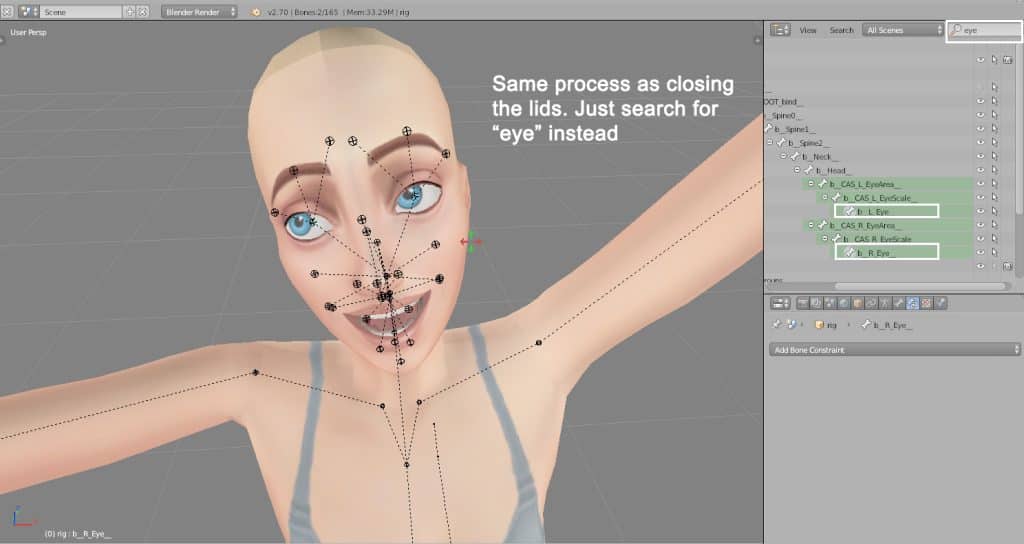
To change the direction of the eyeballs, first make sure your pivot point is set to Individual Origins. Then search for “eye” in the scene panel. Select b_L_Eye and b_R_Eye (left and right eyes) simultaneously by holding SHIFT while right-clicking. Then move your mouse curser back to the view panel and press R twice. Then just drag the eyes to whatever position you want and left-click to confirm.
Finalizing Your Pose
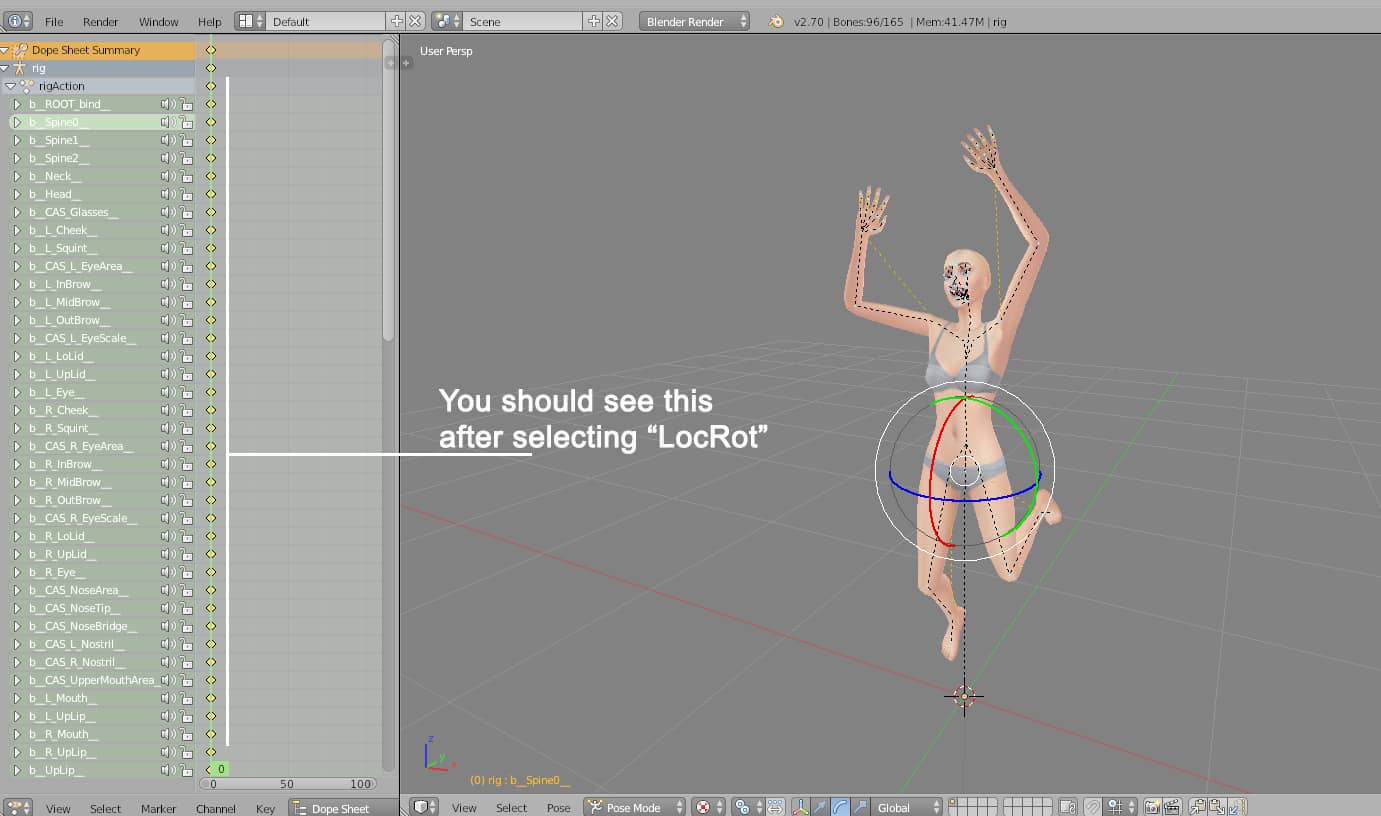
When you’re satisfied with the pose you’ve created, hit A twice to select all points, then hit I (not L) and select LocRot. This will lock all the joints in place. You should see a long list of joint names highlighted in green show up in the left hand panel when you do this. If nothing shows up or if only a few joint names show up, you did not lock the joints correctly. Try again by making sure all points are selected before you LocRot the joints.
Screenshot 1982
Screenshot 1983
After locking in the joint rotations, save it as a .blend file anywhere you can easily find it on your computer. Then close Blender and open up Sims 4 Studio.
Enter your creator name and choose Animation > Clip Pack. Name the .package file something easily recognisable and save it to your Mods folder. Once you’ve named and saved the .package file, the clip pack screen will open up for you to edit. In the Pose Pack tab, enter the name and description of your pose pack in the provided fields. I’m working on a waving pose pack so I put in those details.
Switch to the Clips tab and hit Import at the bottom. Find the pose you just made and import that. The name should change from Blank Clip to whatever you named your .blend file when you saved it. Then hit Save! It’s time to test your pose!
Screenshot 1987
Screenshot 1989
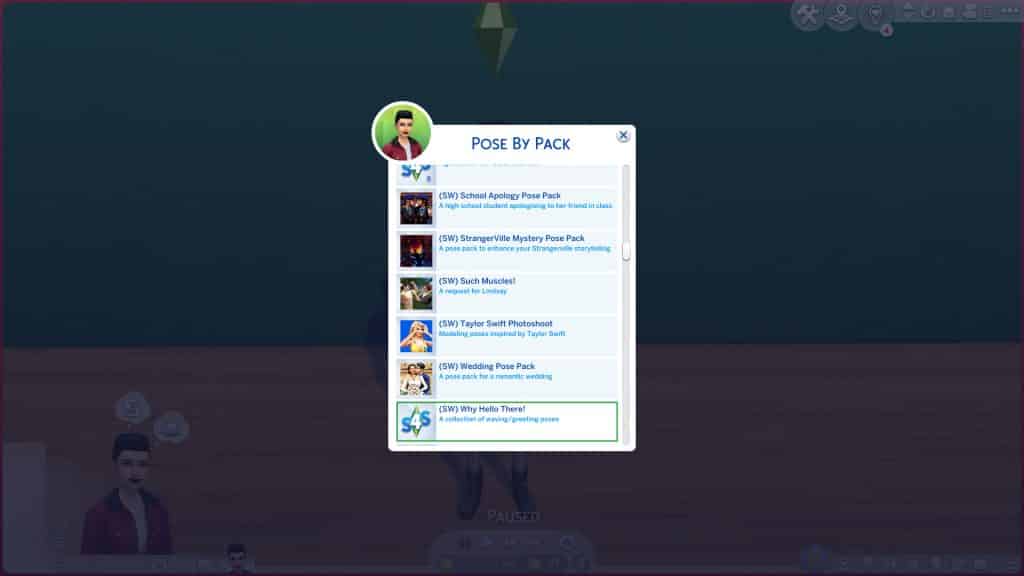
Close Sims 4 Studio and open up The Sims 4. I will assume you already know how to use poses if you are learning how to create your own so I won’t go over how to use Pose Player or the Teleporter here. Teleport a Sim where you want them to pose and find your pose pack you just created in Pose Player.
If your Sim does the pose properly, congratulations! You made your first custom pose! Make sure to take a screenshot for the thumbnail. If the Sim did not pose correctly, open your .blend file again and make sure you locked all the joints correctly and that you were in Pose Mode when you made the pose.
The Finishing Touch
All that’s left to do is create the thumbnail! To do that, open up the picture you took in-game of your pose and open it in any photo editor you like. I’m using Photoshop CS6 but whatever you want to use is fine as long as it can crop and resize images.
Pose thumbnails must be 64×64 pixels and a .png image file. Crop your screenshot with a 1:1 ratio (a perfect square), then resize it to 64×64 pixels. I also recommend sharpening the image a little before saving. Save it and open up your pose pack again in Sims 4 Studio.
On the Clips tab, hit Import next to the blank thumbnail and select your thumbnail you just saved. If you have multiple poses in your pose pack, you’ll need to make individual thumbnails for each of them and import them into each clip.
Screenshot 1992
Screenshot 1994
When you are finished adding thumbnails to your individual poses, pick your favourite thumbnail out of the bunch and import it on the Pose Pack tab. This is the thumbnail for the entire pose pack that people will see when scrolling through their list of pose packs.
More Resources
If you’re more of a visual learner and don’t follow written tutorials well, Katverse has a whole range of pose tutorials on her YouTube channel. She is the Queen of Poses and I actually learned how to make poses by watching her tutorials! She will also teach you how to make poses with more than one Sim, poses with objects and accessories and all kinds of neat tricks to help make posing easier for you. So check out her full playlist on her website!
Although Simmers were thrilled to be able to follow their pregnant Sims to the hospital to give birth on an active lot for the first time in the franchise’s history when Get To Work came out, the actual childbirth process remains rather… cartoonish. Some Simmers might go so far as to say the huge birthing contraption in the game is more terrifying than the real deal!
Now the goofy manner of childbirth makes sense given the game’s efforts to appeal to a younger audience but there are those who feel that realistic childbirth is nothing taboo at all and that kids don’t need to be sheltered from a natural part of life. If you’re a PC player who feels this way, you’ll be very interested to know there is a mod out there to bring a more realistic version of childbirth to The Sims 4.
The Realistic Childbirth mod by PandaSama allows your Sims to give birth naturally as well as deliver via c-section, complete with epidurals, heartwarming moodlets, companion Sims who will join your Sim for the birth, and more!
We’re going to walk you through the whole mod and all its features!
Getting Started
Before anything, you will need to install the mod, first. Make sure script mods are enabled in your game settings, then download and unzip the mod from PandaSama’s Patreon. Place the two files into your Mods folder and make sure it is no more than one subfolder deep inside the Mods folder. And that’s it! The mod is installed! If you are new to mods and CC and need more help, see our article Getting Started with Mods and CC.
The Realistic Childbirth mod requires the Get To Work expansion pack and is currently free for the public to download!
Preparing for Delivery
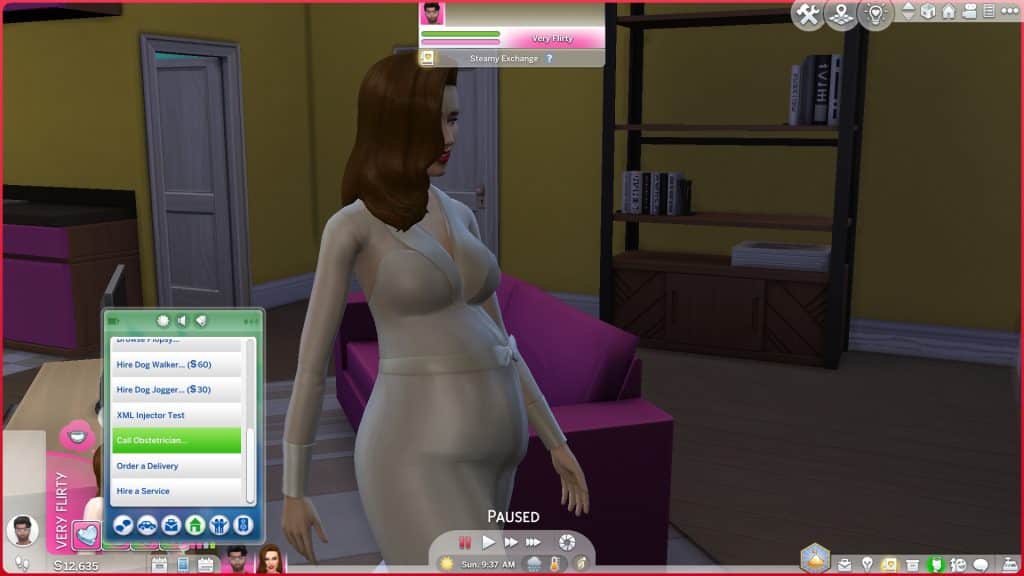
Before your Sim goes into labour, you will have to call your obstetrician and choose what type of birth you would like to have. Call Obstetrician is an option on the Cell Phone under the Household tab.
When you call your obstetrician, you’ll get an information menu going over all the different types of births you can have. Click on any of them to read more about what that birth type will entail. You can back out of it and choose something else if you don’t like the process for that type of birth.
TS4 x64 2022 04 20 14 34 49
TS4 x64 2022 04 20 14 35 26
TS4 x64 2022 04 20 14 35 41
TS4 x64 2022 04 20 14 35 54
There are three different styles of birth your Sims can choose from:
Surgery Table: This is the standard EA childbirth process. You go in, get into that birthing contraption and voila! You have your baby with no fuss or pain or anything.
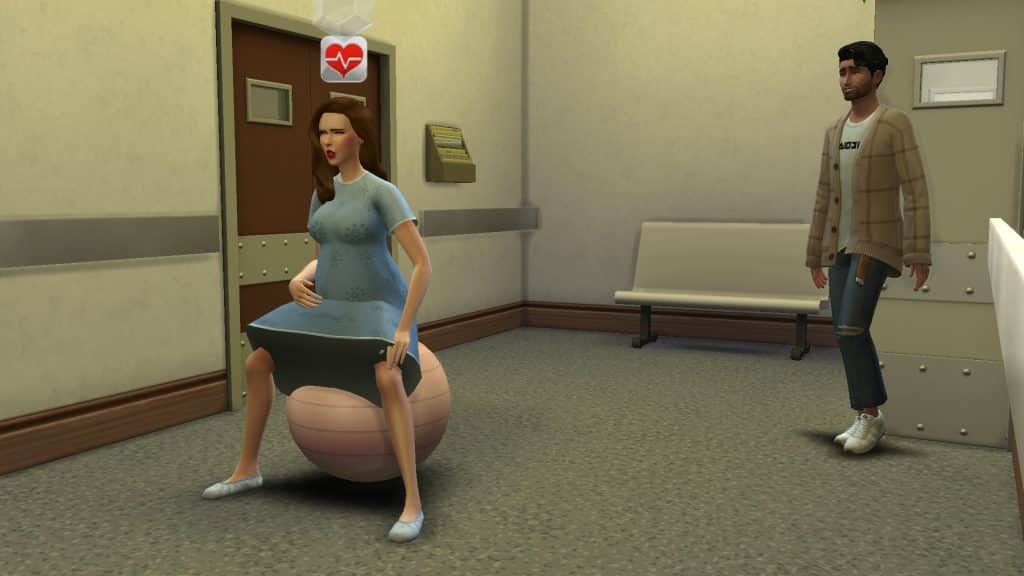
Natural Birth: This is the old fashioned way of giving birth and just like in real life, the process can take anywhere from a few hours to several days. Your Sim will arrive at the hospital in early labour and will have to wait it out until they’re 10cm dilated. In the meantime, they can take walks and use an exercise ball to try and encourage active labour to start sooner.
C-Section: The c-section option is great if you want a realistic birth experience but don’t want to spend days at the hospital. Your Sim will arrive at the hospital, receive an epidural, and as soon as it kicks in, they’ll be prepped to have their baby surgically delivered.
If you change your mind later, you can always call your obstetrician again anytime before labour starts to change your preferred childbirth method.
If you would like someone to accompany your Sim when they give birth, you can ask any Sim that your Sim is close with to be their companion during the birth. That companion will be present during the birth and watch your Sim deliver the baby.
Natural Birth
If you selected natural birth as your preferred birthing method, you will receive a little notification to greet you when you arrive at the hospital which explains that you will give birth once you’re 10cm dilated. This may take a couple hours or several days; your Sim and their companion (if they chose to have one at the birth) will just need to be patient and wait things out.
While your Sim is waiting out the early labour process, there are a couple things they can do to encourage active labour to start sooner. They can take a walk around the hospital, or they can do pre-birthing exercises on a yoga ball to try and speed things along. To have a yoga ball at the hospital to exercise with, you will need to enter the cheat bb.enablefreebuild at the hospital and select the CC yoga ball that comes with this mod from the hospital items menu in Build/Buy. Place it anywhere in the hospital and have your pregnant Sim exercise with it. The yoga ball comes with its own custom animations.
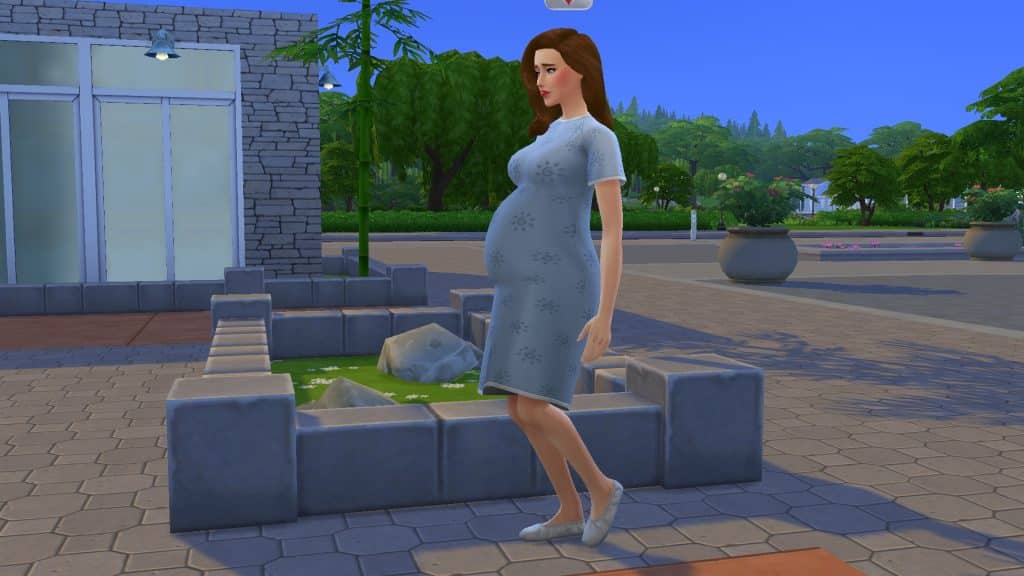
To take a walk, simply click on your pregnant Sim and select Take A Walk. They will walk around the inside and outside of the hospital for a while. Even when doing these activities, it can still take quite a long time for your Sim to be fully dilated and give birth. Our Sim was there for over 24 in-game hours in total but some natural births can take even longer.
During the early labour process, your Sim’s water may break, leaving a puddle on the ground and an uncomfortable moodlet that lasts for a few hours. At around 6cm dilated, they will get a moodlet saying that the contractions are getting closer together and more intense. The moodlet advises that now would be a good time to ask for an epidural if your Sim plans to have one.
TS4 x64 2022 04 20 15 01 40
TS4 x64 2022 04 20 14 44 45
TS4 x64 2022 04 20 15 05 51
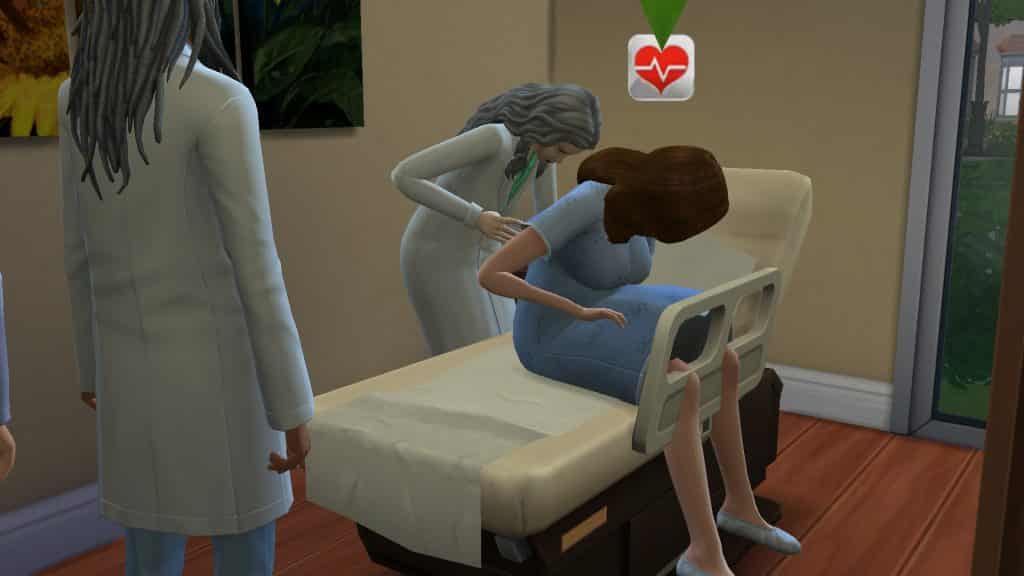
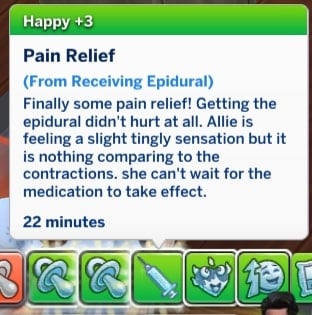
Your Sim does not need to get an epidural but they can choose to receive one for pain relief. To receive an epidural, click on an exam bed and choose Ask for Epidural, then select the doctor that you would like to have administer the epidural. Beware! The epidural does not always take properly! Sometimes it doesn’t fully set in and your Sim only becomes numb on one side but still feeling pain. Yep, this an another highly realistic aspect of this mod. When this happens, you can click on the exam bed again to ask to have the epidural redone but that’s no guarantee the second one will work, either. When the epidural does go smoothly, your Sim will get a strong happy moodlet talking about the pain relief.
TS4 x64 2022 04 20 14 14 58
TS4 x64 2022 04 20 14 16 55
At any time during the early labour process, you can also click on an exam bed to have your Sim’s dilation checked. A doctor will come over to see how far your Sim is dilated and you’ll receive a notification informing you how many centimetres your Sim is dilated.
At 9cm dilated, your Sim will get a very strong uncomfortable moodlet talking about unbearable pain (if they did not get an epidural or if their epidural didn’t set in correctly). You can continue to walk around and use the exercise ball to get to 10cm sooner. At 10cm dilated, your Sim is finally ready to give birth! Click on any doctor in the hospital and select Give Birth.
TS4 x64 2022 04 20 15 16 21
TS4 x64 2022 04 20 15 19 44
Your Sim and their companion will make their way over to the Get To Work surgery table in the operating room. If your Sim floats awkwardly in the air above it for a moment, don’t worry! The surgery table is about to magically transform into a birthing bed! Neat! Once the doctor and companion are both with the pregnant Sim in the delivery room, your Sim will start pushing with encouragement from both the doctor and their companion if they chose to have one.
The actual delivery won’t take longer than an hour or two. When the baby is born, you’ll be prompted to name the new family member and the doctor will give the baby to the new parent for skin-on-skin contact. Both the Sim who delivered and the companion will receive powerful happy moodlets from the birth.
TS4 x64 2022 04 20 15 20 42
TS4 x64 2022 04 20 15 22 22
C-Section
If you chose to have a C-section delivery, you’ll have a much quicker and smoother experience at the hospital. When your Sim arrives at the hospital with their (optional) companion, you’ll get a little notification welcoming you to the hospital and instructing you on how to proceed with the delivery.
Unlike the natural birth option, there’s no need to wait for your Sim to be 10cm dilated. As soon as you arrive at the hospital, click on any exam bed to ask for an epidural. A doctor will come over and administer one. Then just lie back and wait for the epidural to kick in. It won’t take any longer than a few minutes to take full effect. You’ll be informed when the epidural has taken effect via your Sim’s moodlets.
TS4 x64 2022 04 20 15 31 25
TS4 x64 2022 04 20 15 31 55
Once the epidural has kicked in, click on the surgery table to have your baby delivered! Your Sim and companion will head over to the surgery table with the doctor and once everyone is in the operating room, a sheet will be put up between the delivering Sim and the doctor and the surgical delivery will start! The companion may feel a bit woozy while watching the procedure but the surgery won’t take long at all and soon enough, the doctor will be removing the baby and giving it to the parents to bond. Both the delivering Sim and the companion will get powerful happy moodlets from the birth.
TS4 x64 2022 04 20 15 33 05
TS4 x64 2022 04 20 15 34 28
TS4 x64 2022 04 20 15 33 34
TS4 x64 2022 04 20 15 34 46
TS4 x64 2022 04 20 15 35 26
Other Info
There’s no need to select your birthing method and companion again for every pregnancy. The companion and birthing method you initially chose for your Sim’s first pregnancy will be remembered by default. However, you can still call the obstetrician again to change the birthing method for future pregnancies. You can also ask your initial companion to not be involved in future births and ask a different Sim, instead.
If your Sim and their companion do not live together, your Sim can call them and ask them to come to the hospital for the delivery. Just click the Social option on your Sim when they are at the hospital and choose which Sim you’d like them to call.
When a Sim gives birth to twins or triplets, only the first baby to be born will be given to the parents for skin-on-skin contact but rest assured, the other little ones will be waiting for your Sims at home, happy and healthy as can be!
Sims will gain a significant amount of weight after giving birth. Hey, you said you wanted a realistic birth experience, didn’t you? Well, you got it!
Make sure you do not have any CC surgery tables with this mod. They will not work with this mod. You must only use the Get To Work surgery table.
Our Thoughts
We were really impressed with this mod! We understand this level of realism may not be every Simmer’s preference and that’s perfectly fine, but for Simmers who do want that realistic childbirth experience, this is really going to take their gameplay to another level. The animations are very smooth and well-done and we appreciate having different options for different types of births. In the real world, each birth experience is different. The different moodlets Sims can have and the differing efficacy of the epidural really helps to tell that unique story.
We’d love to see home births with midwives and water births added to this mod in the future for even more ways to customize our Sims’ birthing experience but even in its current form, this mod is really well thought-out. We had a great time playing with it and this is definitely staying in my Mods folder for good. I honestly don’t think I could go back to those weird Maxis births after experiencing this mod. I’m so much more emotionally invested in the whole childbirth process.
We are taking it back to basics with a good old shell and screenshot challenge!
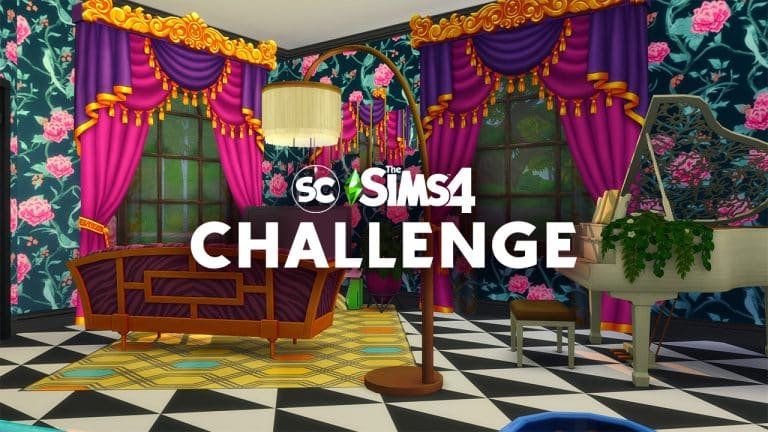
Inspired by the recently released The Sims 4 Décor to the Max Kit, we want you to take your our room shell to the next level by decorating it to the Max! Go all out with colour or keep it simple by sticking to a few colours, the choice is up to you!
Part One
Download our room shell from The Gallery and decorate our room shell.
Downloading The Shell
You will need to head over to The Gallery and use the information below to find the challenge shell and add it into your game.
Lot Name: SC Max Decor Shell
Gallery ID: LeeksEverywhere
Challenge Rules
You have a budget of $72,000 including the value of the lot
No Custom Content
You can use DEBUG items and T.O.O.L
You are allowed to change the windows, doors, wall paint and flooring
You are not allowed to change the original layout of the shell.
Have fun and be creative!
As always, the shell is Base Game friendly, and you are allowed to use any packs that you own.
We can’t wait to see how creative you can be with our shell. Don’t be afraid to think outside the box either when you are decorating!
Part Two
Take a screenshot of your room shell and use the information below to submit your entry. You only need to share your screenshot to one of the social media platforms.
Entries that do not include the hashtag will not be included.
One entry per person.
Twitter – upload your screenshot to Twitter using the hashtag #SCMaxDecor Discord – head over to our Discord server and visit the Sims Community Challenges Channel, which you can find under the Announcements & News category. Upload your screenshot along with the caption #SCMaxDecor
Click the button below to join The Sims Community Discord
Closing date for entries: Sunday 1st May 2022 at 10am PST/6pm GMT/ 7PM CET. The Spotlight post will be released a few days after entries have closed.
If you have any questions, feel free to ask them in the comments below, or head over to our The Sims Community Challengechannel on our Discord server! If you aren’t a member of our Discord Server, you can click here to join.
Good luck, have fun, and we can’t wait to see your entries!
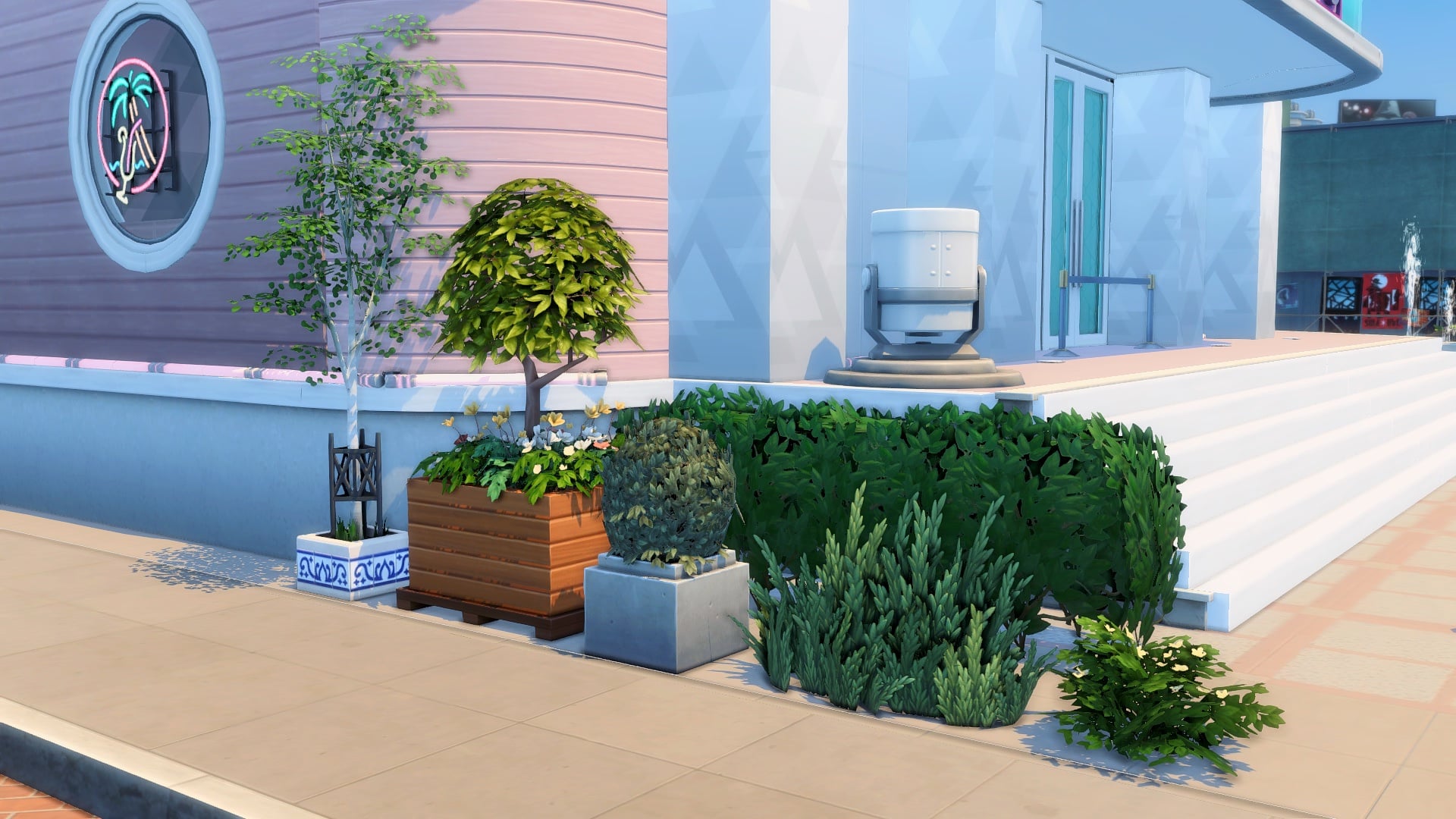
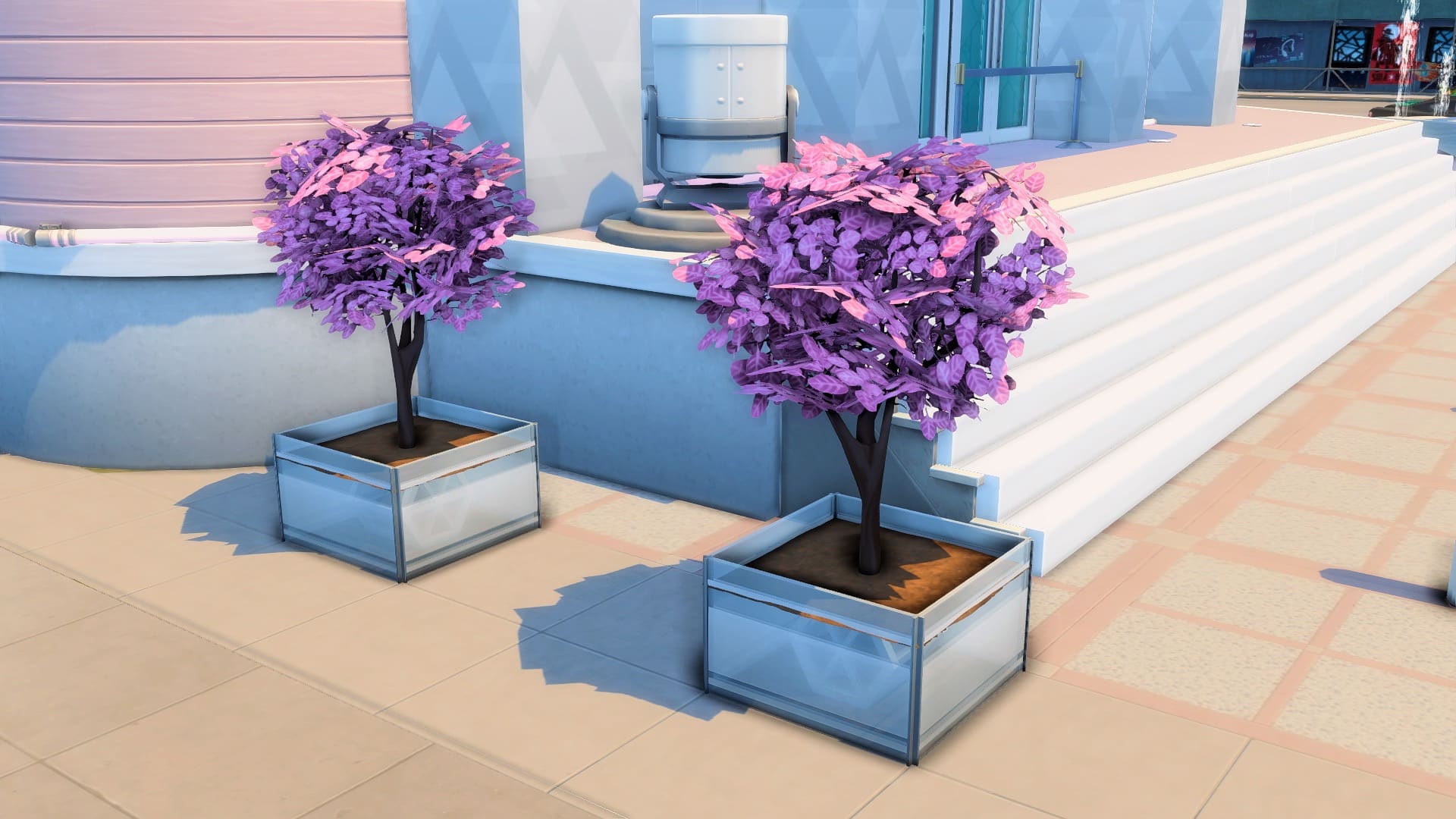
When it comes to landscaping an urban commercial lot, your options seem limited with planter boxes. The Sims has a few options in the indoor plants category but the swatches can be too out there. Outdoor plants on the other hand look better in more naturalistic landscaping for homes but seem out of place in a concrete-laden lot.
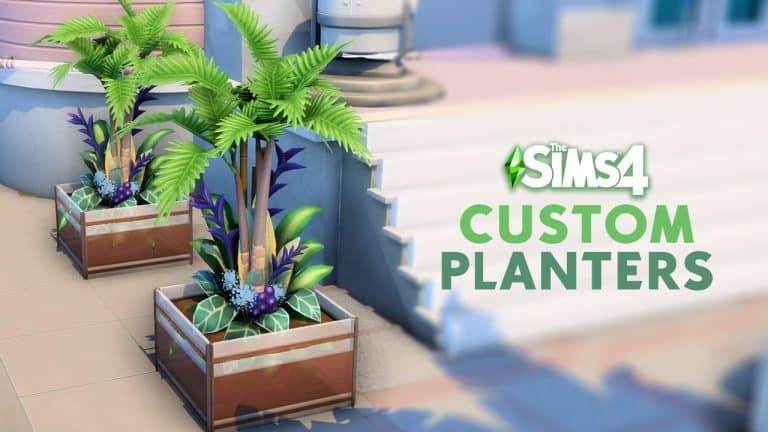
But what if you turned your indoor potted plants into planter boxes? With all the indoor plant options and swatches in the game, you could replace your boring planters with these versatile and modern designs that complement any type of build.
Don’t forget to type in the cheat ‘bb.moveobjects’ before getting started!
Draw a 1×1 fenced room with any of these half-wall trims from Get Famous or Dine Out. They come in different styles and swatches you could choose from. If you have neither of those packs, you could trade them for half-walls instead. Next, delete the tile in the room.
This is the most essential item for this to work: the In-Ground Garden Patch from Cottage Living. Use this to cover up the top of the fence. Size it down two times with the ‘[’ key and elevate it five times with ‘Ctrl+9’.
4
5
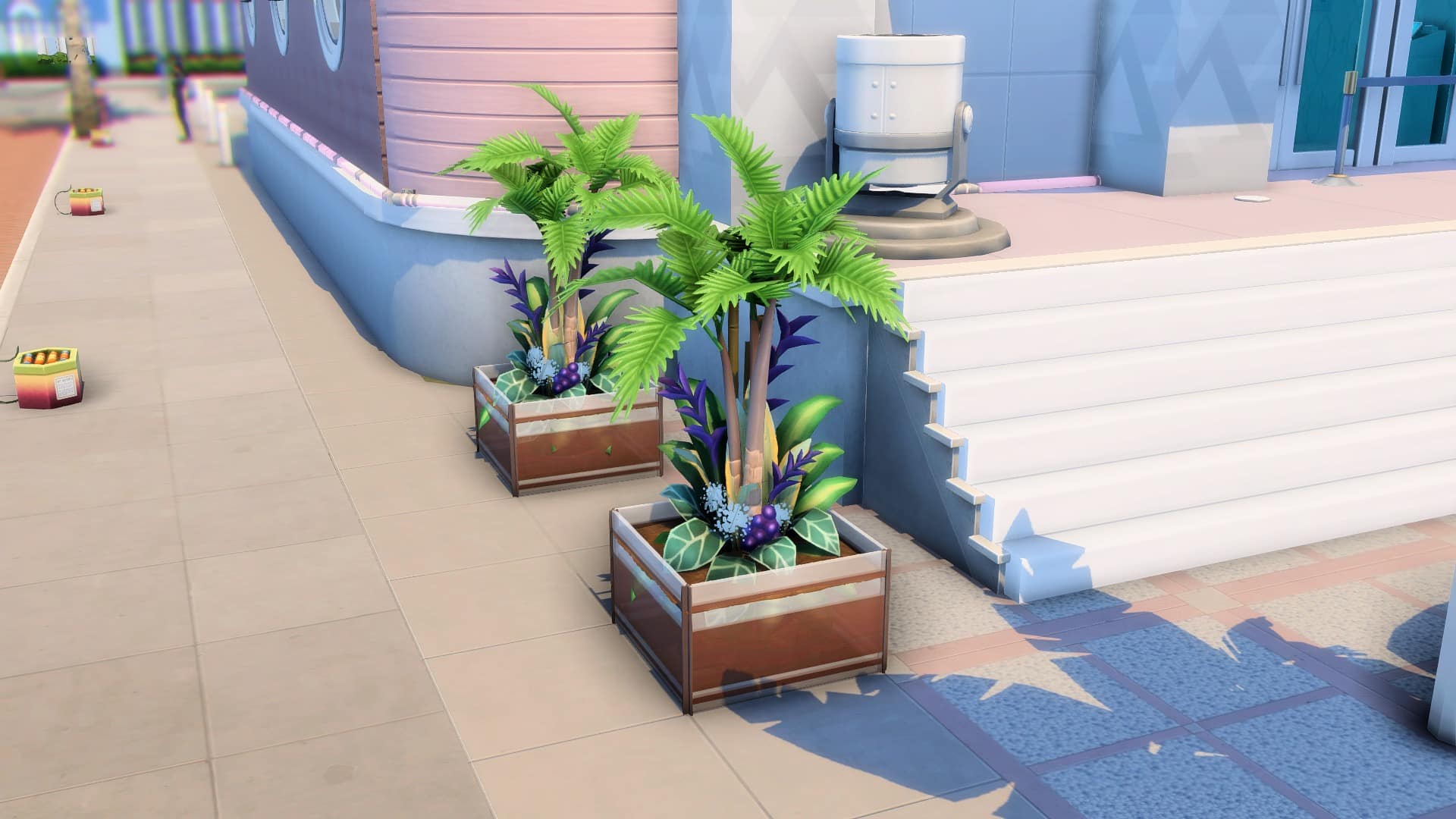
Now you can place and combine indoor plants in this planter box! Choose plants that have low or small pots so the soil patch can cover them.
Here are some planters that you can make:
Bear in mind that these indoor plants would look the same all year-round. If you have Seasons, the weather will not change your plants’ color. On the upside, their permanent vibrant color is better for themed builds!
Other than giving you more landscaping options, this trick lets you use those hideous and cartoonish plastic plants that you ignore. Try the Potted Gumdrop from Perfect Patio for a simple look. Or combine The Exotic Fronds from Dine Out with The Palm Reader’s Palm Tree from Paranormal for an exotic tropical vibe.
This article is a guest contribution written by MAIA makes! You can check out her YouTube Short visually showcasing this written tutorial here!
The Plant-A-Sim Scenario is getting Tweaks and Improvements!
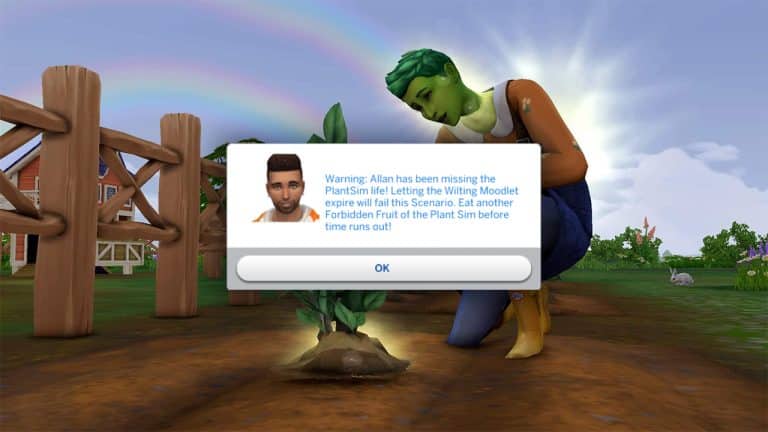
Just last week The Sims 4 has gotten a new Sims Delivery Express drop, featuring a brand new hairstyle and a whole new Plant-A-Sim Scenario in the game.
We did a full playthrough and tutorial of the PlantSims Scenario for The Sims 4. Our author SnarkyWitch has come to several small obstacles throughout their gameplay that were rather interesting and added in to the challenge. However, it was still deemed as an Intermediate Scenario rather than what The Sims Team labelled it as just “Easy”. Especially since there were many steps involved into it!
@Mattnetic, one of the Principal Designers working on The Sims 4 has just wrote out a new Tweet, explaining the new work that they’ve done to improve this Scenario, including:
Don’t worry Plant-A-Simmers, I’m hearing your feedback on The Sims 4 Scenario! Looking into Just-in-Time messaging for those who “forget” to go back into plant Sim with 4 hours left. Adjusting difficulty label from Easy to Intermediate and a few more fixes.
We’re not sure when the new Scenario Update is dropping but we’re hoping soon. Stay tuned on our website for the updates on this Scenario and more!
While so many creators and Simmers have moved on to focus on The Sims 4 exclusively, one modder stayed behind to continue pouring all their love and devotion into previous Sims titles. The result? Some of the most amazing mods for The Sims 2 and 3 that previously were thought to be impossible, all still being updated and supported by their creator.
That creator is LazyDuchess. Many Simmers who still enjoy The Sims 2 and The Sims 3 will probably know about LazyDuchess. They are the modder behind some ground-breaking mods like story progression for The Sims 2. We wanted to shine a spotlight on this talented creator who continues to show love to some of The Sims franchise’s earlier titles but we wanted to go deeper than just the mods. Who is LazyDuchess? What is their creative process? What motivates them as a creator?
We had the great privilege to sit down with LazyDuchess and conduct an interview. We wanted to know not just about their work on The Sims 2 and 3 but also about what got them interested in modding games in the first place. We wanted to go way back and get a glimpse into LazyDuchess’ creative journey and process. LazyDuchess was a wonderful interviewee and gave us very insightful answers!
Stay tuned until the end of the interview where we’ll be showcasing some of LazyDuchess’ favourite mods they’ve worked on!
Interview with LazyDuchess
How long have you been modding video games?
I’ve been modding games for a loong time, I started with Counter-Strike 1.6 way back in I believe 2009 or 2010. It was mostly player or weapon reskins of the quality you would expect from a 9 year old, and I used to show them to all of my friends and they went crazy over it. This motivated me to eventually move on to games like GTA, as these two games were basically all I played with my friends back then
What initially motivated you to start modding The Sims?
I simply just love the game, so wanting to improve it even further was a no brainer for me as someone who is super into game development, coding and modding. It was the perfect outlet for me to put my skills to use, and the games had a lot of issues deemed unfixable by the community like the Firstborn Syndrome that I really wanted to tackle to really challenge my knowledge and improve my favorite game all at the same time. Getting the Sims 2 UC back when it was given out for free by EA was also a huge factor, it felt like rediscovering why I love games so much, it’s definitely a timeless classic.
A lot of modders have since moved on to The Sims 4 but you continue to focus on creating new content for The Sims 2 and 3. What draws you back to these timeless classics?
I had actually started modding The Sims with TS4, way back in 2015 or 2016, although I didn’t really publish anything. I gave it a fair chance, but it wasn’t good or complete enough to me, coming from TS3 and TS2, so I just went back to what was comfortable to me and kept me consistently engaged and haven’t really looked back since. TS2 has excellent family and generational play, there is a ton of love put into each interaction and I think has the most complex and real feeling Sims, and that’s exactly what I want from a Sims game. TS3 has way too many issues – trying to fix them is a fun challenge on its own – but it’s also so ambitious and to me offers a pretty fresh take on the series with the more RPG-like elements, opportunities and the open world. To me they’re both great games as they do their own thing pretty well.
Where do you look to for inspiration when brainstorming new mods?
Most of what I do usually comes naturally, like I’ll be playing TS2 and come across something I think could be improved like nannies being awful at their jobs, personality points being tied to signs, lack of Story Progression. My friends also give me good ideas and I’m also always looking to try things people have deemed impossible in the past.
What has been your most challenging but rewarding project to date?
My height mod for TS2, for sure. It’s something I wouldn’t even have considered possible not that long ago, but with all the disassembly and reverse engineering I’ve been doing on TS2 it finally became achievable. It’s a culmination of everything I’ve been doing up until that point.
Other than testing your mods, do you still play The Sims in your free time? What’s your favourite way to play The Sims?
I do! (Not very much the past few weeks though, admittedly). I love making a couple families of unique Sims I can come up with and playing rotationally, checking up on them regularly with SP enabled. I have a very laidback playstyle but I tend to restart like 2 generations in.
What are some of your favourite mods for The Sims 2 or 3?
It’s hard to pick a few. For The Sims 2, Nopke has a ton of great mods like SkyFix and more sliders that are absolutely essential, there’s TwoJeff’s ACR to spice up the gameplay and have autonomous romance which I always play with. BartekStu has also been making amazing mods, like the Food Overhaul that makes food work with ingredients in a similar way to TS3. TS3 obviously everything NRaas is a must have, Story Progression especially IMO. Simler is also constantly updating his GameplaySystems core mod which fixes a TON of EA mistakes and makes for overall a way better gameplay experience that’s still Maxis like.
How did you come to choose the name LazyDuchess as your online handle? Is there a story behind it?
My name comes from LGR, formerly known as Lazy Game Reviews! He’s my fave Youtuber, Duke Nukem is a staple of his channel so I combined those and ended up with Lazy Duke -> Lazy Duchess. Not very original at all I’m aware :p
Is there anyone you’d like to collab with in the future?
I’d love to collab with LittleDica – he’s a good friend and so amazingly talented.
What advice would you give to any aspiring modders for The Sims series who are just starting out?
The best advice I can give is to learn to code a little beforehand, in a more relaxed language like Javascript or even Python. Script modding for both TS3 and TS2 is pretty hard and different compared to TS4 and kind of its own challenge, but wrapping your head around Object Oriented design and how programming works in general can help immensely.
If you were stranded on a deserted island (that conveniently had electricity for some unknown reason) and could only have one expansion pack each from The Sims 2 and 3 with you, which ones would you choose?
I can barely remember what it’s like to play TS2 without all EPs. I think I’d pick Nightlife, as it added so much I can’t imagine playing without nowadays, and TS3 definitely without a doubt Seasons.
LazyDuchess Showcase
LazyDuchess pointed us to some of their mods that they’re most proud of and we’re excited to showcase them!
Although LazyDuchess considers this an experimental mod, we are still incredibly impressed with it nonetheless. Height differences in The Sims 2 is something that was previously thought to be impossible until LazyDuchess decided to redefine what’s possible. It just goes to show that impossible is just a limitation we place on ourselves. We’re excited to see how this mod develops further in the future.
This mod is truly a marvel in modding. It’s a modded launcher that allows you to customize so many different things about your playing experience. You can generate high quality lot “imposters” (basically the lots you see around your active lot in Live Mode), fix the dreaded firstborn syndrome where all firstborn children will have the same genetics on every playthrough, choose which expansions you do or don’t want to play with, and even allow the game to use up to 4GB of RAM instead of 2GB.
The shadow extender mod for The Sims 3 will really help make your Sims 3 worlds come alive. This mod fixes the fuzzy, faded shadows that get cast from world objects and makes them appear nice and crisp with no strange-looking fade effect. You can see the before and after in the screenshots above. This fix really makes the whole world feel more crisp and realistic.
We had such a great time chatting with LazyDuchess and we look forward to seeing all their future projects!
You can find LazyDuchess and their work on the following platforms:
Personal lives are being affected. And destroyed. All over illegal The Sims 4 Custom Content.
Please note that this story is still in development. Until then, be careful when downloading CC / Mods. Keep things fair. Don’t ruin this for actual talented people who are trying to make a living. Lastly – don’t steal personal information, threaten and harass people.
I also want to remind you that no one from The Sims Team is responsible for this situation getting out of control. Do not harass and set expectations from the developers and people working on this franchise. There are multiple factors involved in this situation. This situation has just recently been brought up to attention at this scale and cannot be resolved overnight.
In the meantime, please be respectful to everyone who wants to do right by this franchise and this community. Supporters of creators, the creators themselves, the Sims team, reporters and other rightful groups who are on the frontline of all of this. We just want to make this community a safer, better and more welcoming space than what it is right now. Thank you!
Custom Content. Mods. They’ve been around for as long as video games have existed. It’s no surprise that the biggest life simulation game that lets you create and build anything allows for custom creations and gameplay modifications. After all, this has been the staple of The Sims Community since the first day The Sims 1 was released.
Will Wright, the creator of The Sims, SimCity and Spore has always been a huge advocate for the CC / Mods community. And even gave a lengthy interview about it for TechTV in 2001.
Video Games simply wouldn’t have the longetivity that they have right now without amazing creators that keep making the franchise more interesting on a daily basis.
I might’ve started this article a bit dramatically from what you’re usually used to reading here on Sims Community, but it definitely fits the situation that players and modders are dealing with at the moment.
The Sims 4 and Custom Content
The Sims 4 has a huge community of Modders and Custom Content Creators. Some of them even make a living out of it through Patreon / Early Access and tipping platforms that support their passion to keep on creating new content for the game. This is all rightfully so, considering that the game simply wouldn’t last for this long if it wasn’t for passionate CC creators and Modders who break the vanilla mold of The Sims 4.
The first Custom Content Pieces for the game started out way back when The Sims 4 Create A Sim Demo was released, allowing for players to create their custom T-Shirt Prints and even dabble with custom meshes and designs that create a whole new clothing piece.
This all started back in July 2014 – just two months before The Sims 4 Base Game would officially be released.
Fast forward to 2022 and we have Custom Content creators who create entirely new CC Sets both for Create A Sim and Build Mode – sometimes that even look better than the official content we get in The Sims 4!
The Modding Community has also gotten extremely creative with new ideas to rewrite the existing code that’s in The Sims 4 and create something different. From gameplay improvements to new game mechanics created from different parts of The Sims 4 game code. Yes, to even new animations that make the game realistic and lifelike to players who prefer to play the game that way.
Both communities, along with creators that upload their creations to The Gallery, go hand-in-hand in making The Sims 4 a sandbox game that it is today.
EA’s stance on Custom Content and Mods
Electronic Arts and Maxis have always been indirectly supporting Mods and Custom Content for their games. Luckily, The Sims 4 is no different.
The game has its own Mods folder in the Documents settings that allows for players to paste any .package or .ts4script created by a CC / Mod creator and play with the unofficial content in their games. Sure, there’s always been a silent rule from EA to never promote custom content creations on their socials often as the 3rd party community always has unexpected creations that include stuff that’s way above the 12+ rating that The Sims 4 has in most countries. At the time of writing this I was mostly thinking about WickedWhims and the Extreme Violence Mod that I must stress out, are not for anyone below the age of 18.
The Sims 4 even has its own settings in the Game Options that allow you to enable / disable CC and Mods. Even more so, Maxis has started embracing the CC community by hiring talented creators to create custom stuff for their game. From makeup and clothing to new furniture.
The Sims Team seems to have still continued this tradition, with the latest collaboration being with ComplexSims. The creator brought new robes as well as durags and bonnets to Create A Sim just 2 months ago!
Some creators have taken the opportunity of Custom Content and Mods to turn it into their career, with Early Access releases and exclusive periods for their supporters.
This method has been used widely since 2017 when creators started utilizing the Patreon platform more and more. EA’s Terms of Service regulate that User Generated Content is still in sole property of EA, considering that .package and .ts4script files are all appropriated for their product. Which in this case is The Sims 4.
Your UGC
You are responsible for your UGC. You may not upload UGC that infringes a third party’s intellectual property rights or that violates the law, this Agreement or a third party’s right of privacy or right of publicity.
EA may, in its sole discretion, remove, edit or disable UGC for any reason, including if EA reasonably determines that UGC violates this Agreement. EA does not assume any responsibility or liability for UGC, for removing it, or not removing it or other Content. EA does not pre-screen all UGC and does not endorse or approve any UGC available on EA Services.
When you contribute UGC, you grant to EA, its licensors and licensees a non-exclusive, perpetual, transferable, worldwide, sublicensable license to use, host, store, reproduce, modify, create derivative works, publicly perform, publicly display or otherwise transmit and communicate the UGC, or any portion of it, in any manner or form and in any medium or forum, whether now known or later devised, without notice, payment or attribution of any kind to you or any third party. You also grant to all other users who can access and use your UGC on an EA Service the right to use, copy, modify, display, perform, create derivative works from, and otherwise communicate and distribute your UGC on or through the relevant EA Service without further notice, attribution or compensation to you.
In November 2017 the Global Community Manager for The Sims who worked at that time – SimGuruDrake, has clarified what CC creators and Modders are allowed to do when releasing their content. At least when it comes to temporary monetization.
Maxis and EA has granted permission through this latest (and only statement so far) from November 2017 for creators to earn money through Early Access periods. The only catch is that creators need to make their content available and free for everyone after the period of 2-3 weeks.
CC/Mods Locked Behind Paywalls – Creators cannot lock content they make using our game behind a paywall. While we do not police this content (there is no way we would create a team simply to monitor this) we do take reports sent to us seriously and action accordingly.
Patreon – We understand that folks who make CC / Mods for others to enjoy are doing it in their free time and may desire to offset costs to create the content by using this service. As long as the content is still made available FOR FREE we do not mind these types of pages. Folks who have a Patreon page are welcome to provide folks with “early access” incentives for their content but it should be made available to the general public within 2-3 weeks of it being given to folks early.
So what’s the problem then?
Throughout the last few months (and even years) more and more creators have started extending the trial periods from maximum 21 days to a month, two months – and sometimes never making their content available for the public. Unless they pay for their stuff.
I first started doing an article on this topic a few months ago when mack3030 published their Anti-Permpaywall Directory, including a list of .package files made by creators who never released their stuff to the public.
As if violating EA’s Terms of Service wasn’t enough, a certain group of Custom Content Creators who don’t release their content to the public have started putting “trackers” in their CC downloads. All to find out who is avoiding their permanent paywall. Which, I should remind you again, is against Terms of Service.
Player and creator ladysimmer94 has pointed out the new issues and concerns that mack3030 raised a few months ago about the recent incidents. Where real people got harassed, doxxed and bullied. All for downloading content that should be free for everyone.
We don’t want to contribute to any additional harassment or disturbing stories shared by many community members who have been affected by this – however, if you want to know the full story and how to protect yourself from these awful people, you can check out the Anti-Permpaywall Directory linked below. With real stories. Real people, and real lives almost ruined.
Creator simbelene has posted a thread on their tumblr, including information on how these creators were tricking other people and collecting personal information. All illegally. All while trying to destroy their personal lives.
The Reddit thread linked below also explains perfectly the situation that’s going on. Including real people affected and a list of creators who practice doxxing and stealing personal information.
We will continue to develop this story if new information surface. We’d like to remind all the players out there to keep things fair, be careful when downloading CC and Mods, and not ruin the wonderful community that we have.
Also, if you are one of the people who puts your content behind permanent paywalls, destroys personal lives and ruins an amazing experience that is this game and the community – please seek professional help and stay out of people’s personal lives!
Hey Simmers! We want to hear from you again! Occult Sims or supernatural Sims have been a beloved addition to The Sims series since its first incarnation. We were first introduced to witches and wizards in The Sims Makin’ Magic and its popularity has led to many more supernatural-themed add-on packs for the game in later installments.
The Sims 4 has a fair few occult Sims seven years into its run and we want to know which one is your favourite. Which occult Sim is the most loved by the fan base? You get to decide! You can only pick one, however, so make sure you give it some thought before casting your vote. You’ve only got one shot to tell the world which occult type is the best in The Sims 4.
Are you ready, Simmers? It’s time to decide which occult Sim is the community’s favourite!
It’s been a while since I’ve been so inspired by something new The Sims 4 has added and who would have thought it would be a scenario that came in an SDX drop? I’ve been obsessed with the new Plant-A-Sim scenario, playing through it multiple times and developing a story for my Sim along the way.
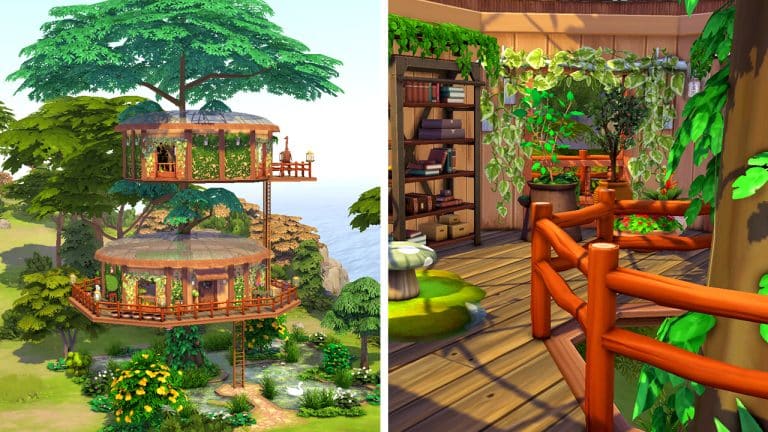
But a PlantSim living in a regular old house feels… weird. I had to fix that. The new scenario inspired me to build a home for a family of PlantSims nestled in the treetops. PlantSims should live amongst plants, after all! Let’s take a tour of this unique PlantSim home!
The home consists of two huts on different levels nestled within the branches of a very tall tree. A set of ladders connects each level, allowing our PlantSims to climb up and down to the different levels of the home. Below the treehouse, a large natural pool offers our PlantSims a way to keep their Water motive filled any time of the year. Yes, even in the frigid winter, thanks to the Geothermal lot trait I’ve added.
Since PlantSims do not need to eat regular food or use the toilet, this home does not have a kitchen or a bathroom but there is a BBQ and a WooHoo bush on the lot so your younger “PlantSims” can still eat and relieve themselves. The first level of the home is the living space with comfortable seating and non-electronic activities to enjoy, like books, chess, yoga, meditation, and gardening. Oh, didn’t we mention? This home is definitely Off-The-Grid. Plenty of garden pots on the wraparound balcony will allow your PlantSims to absorb solar energy to fill their Hunger motive even when the sun isn’t shining. When the sun is shining, the glass roofs prove very helpful! Open windows and large open archways let in the fresh air and natural light.
TS4 x64 2022 04 15 13 55 21
TS4 x64 2022 04 15 13 55 33
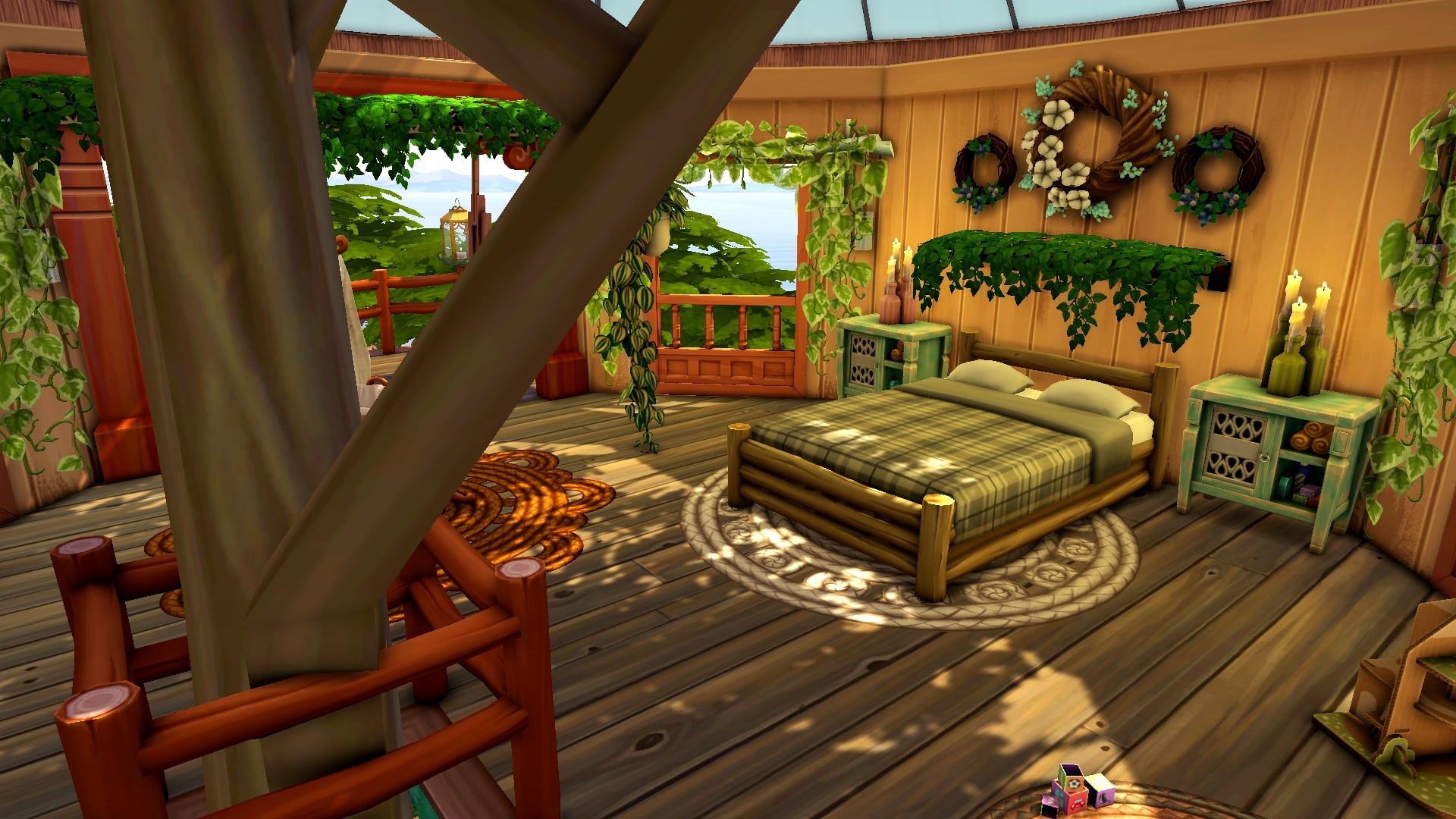
The hut on the upper level is the bedroom where the whole family sleeps. There is a double bed for two adult PlantSims, a bunk with a toddler bed on the bottom for a child/teen and a toddler, and a bassinet for a baby. There are toys to keep both toddlers and children happy, which is a good thing because I definitely recommend keeping your toddlers upstairs until they’re big enough to climb the ladders.
TS4 x64 2022 04 15 13 57 02
TS4 x64 2022 04 15 13 57 20
TS4 x64 2022 04 15 13 57 50
While this unique home wouldn’t be the best fit for a regular human Sim, it’s the perfect place for a PlantSim to live comfortably. It’s got everything a PlantSim could ever want; glass roofs to photosynthesize, a large pool to stay hydrated that stays warm all year round, and lots of garden plots to grow plants that can provide solar energy when the sun can’t.
Yes, a PlantSim (or several) could have a very happy life here, indeed.
You can download this home by clicking the download button below! Or search the ID SnarkyWitch in the Gallery and look for PlantSim Treetop Home! 100% CC-free!
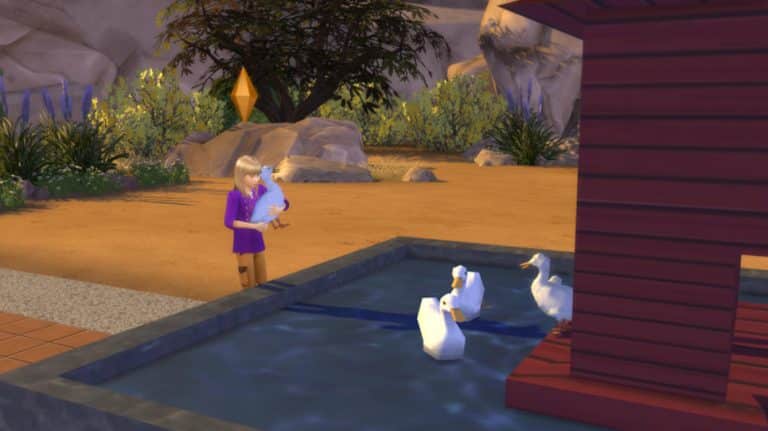
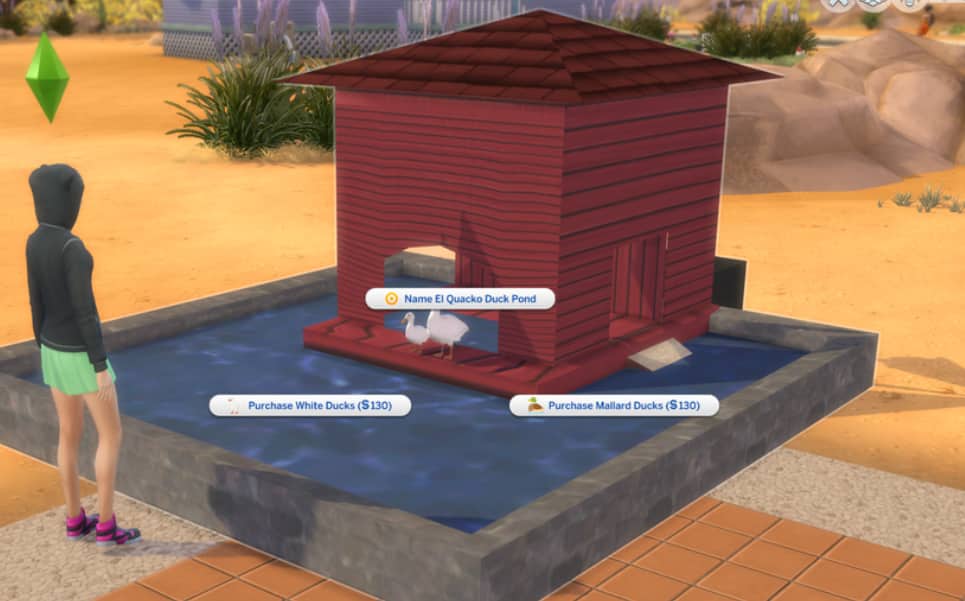
We’ve covered PiedPiper’s amazing creations before and she’s back at it with yet another cool new way for Simmers to harvest their own craftables! PiedPiper has revealed that they are working on a functional duck pond for The Sims 4!
The duck pond is still in very early stages of development but PiedPiper has shared some progress pictures with us and described some of the features that are being worked on.
Screenshot 1968
Screenshot 1969
The mod will be base game compatible and Sims will be able to raise, care for, and collect eggs from their pet ducks which swim in a little pond object you can buy in Build/Buy. Players will be able to purchase white ducks or mallard ducks for their ponds, socialize with their ducks, and even pick them up and hug them! Ducks will lay eggs when well-cared for. Sims will need to make sure to stay on top of feeding their ducks and keeping their pond clean or the ducks may die from neglect.
Screenshot 1970
Screenshot 1971
PiedPiper shares a lot more details in their Patreon post where they go over all the features being worked on and also some issues they are working on fixing before the public release. We’ll keep you updated on the progress of this mod as PiedPiper shares more about it!
In the meantime, if you’re a VIP patron of PiedPiper’s, you can help them test the duck pond by downloading the early alpha access below.