Find the best Sims 4 Sale Deals and Sims 3 DLC offers right here!
Electronic Arts has just announced a brand new Sims 4 Sale, exclusively on EA App (Windows), Origin (Mac) and Steam platforms. The EA Publisher Sale covers a wide variety of EA video game titles, but in this post we’ll be focusing exclusively on Sims 4 Deals. Featuring The Sims 3 Sale on Packs and DLC. Let’s get started!
Table of Contents
The Sims 4 Sale: All the DLC Deals!
There are almost all Expansions, Game Packs and Stuff Packs to choose from in this Sims 4 Sale. The only exception would be the newly released Sims 4 Growing Together Expansion, which isn’t included in the sale at all. We could expect the pack to go on a discount in one of the future sales!
Most of The Sims 4 Expansion Packs are 50% off! The only exceptions are Growing Together (not included in the sale) and High School Years, which is 38% off.
The Sims 4 Game Pack Deals
You can find all The Sims 4 Game Packs discounted for 30% off! That also includes last year’s Werewolves and My Wedding Stories Game Packs.
Stuff Pack Discounts
The same 30% off discount applies to all of The Sims 4 Stuff Packs!
The Sims 4 Premade Bundles Deals
And lastly, all three Sims 4 Premade Bundles are 20% off. That includes Decorator’s Dreams, Everyday Sims and Pet Lovers Bundle
The Sims 4 Sale (on EA App and Origin only)
EA App and Origin Sale: Sims 4 Deals Availability
The Sims 4 Deals that you see above are only available on EA App, Origin and Steam. You’ll be able to take advantage of these offers from May 15th until May 28th at 10AM PT / 7PM CET. Additional discounts on EA App’s “Build a Bundle” feature are not applied for this sale.
The Sims 3 Sale
…But wait, we’re not done just yet! There’s a seperate sale on all of The Sims 3 Packs and most of the DLC content. Yeah, Roaring Heights (World DLC) has again been excluded from a Sims Sale!
Anyways, let’s break down The Sims 3 Deals that you can get on EA App, Origin and Steam:
The Sims 3 Expansion Packs – 50% off
The Sims 3 Stuff Packs – 50% off
The Sims 3 Worlds – 50% off (excluding Roaring Heights)
The Sims 3 Collector’s Bundle (Steam) is 76% off!
And lastly, if you’ve been looking for a fresh start with The Sims 3 – there’s an exciting Bundle offer waiting for you on Steam!
The Sims 3 Collector’s Bundle, which includes all of Sims 3 Expansions and Stuff Packs can be purchased for 76% off. Note that this Bundle doesn’t contain the Base Game.
What are your thoughts on the latest Sims 4 Sale and Sims 3 Deals? Join the conversation below and stay tuned for more Sims 4 News and Updates!
Looking to start fresh? Check out these Base Game Sims 4 Family Homes!
With the recently released The Sims 4 Growing Together, we wanted to take a look at some fantastic Sims 4 family homes! Be it big or small, modern or retro, what ever the theme, size or style there are plenty of creations to chose from on The Gallery!
Now, here at Sims Community, the Team and I love seeing the amazing creations from our talented community! Be it individual Sims, households, builds or stories, there are many incredible creations just waiting to be found!
We searched The Gallery for our favourite Sims 4 Family Homes. The only criteria for our search and this Gallery Spotlight was that they must be from the Base Game! After spending time looking through our search results, we narrowed it down to our top eight family homes!
Let’s take a closer look at our favourite The Sims 4 family homes!
Perfect Cottage
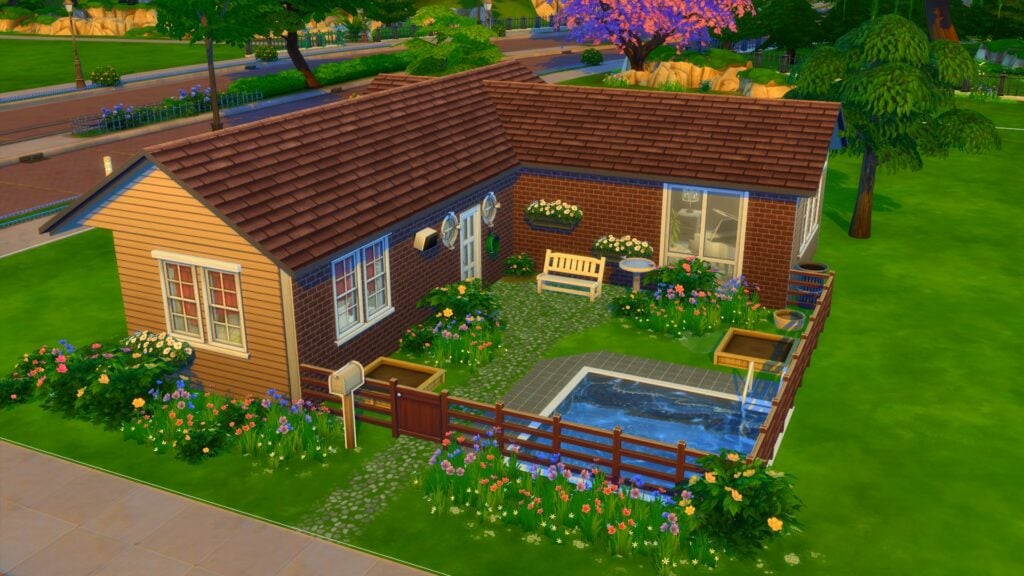
Perfect Cottage by Audrey7621First Floor & Outdoor Space
This beautiful cottage is the perfect home for a young family. Featuring two bedrooms and a bathroom, plenty of outdoor space and a small pool!
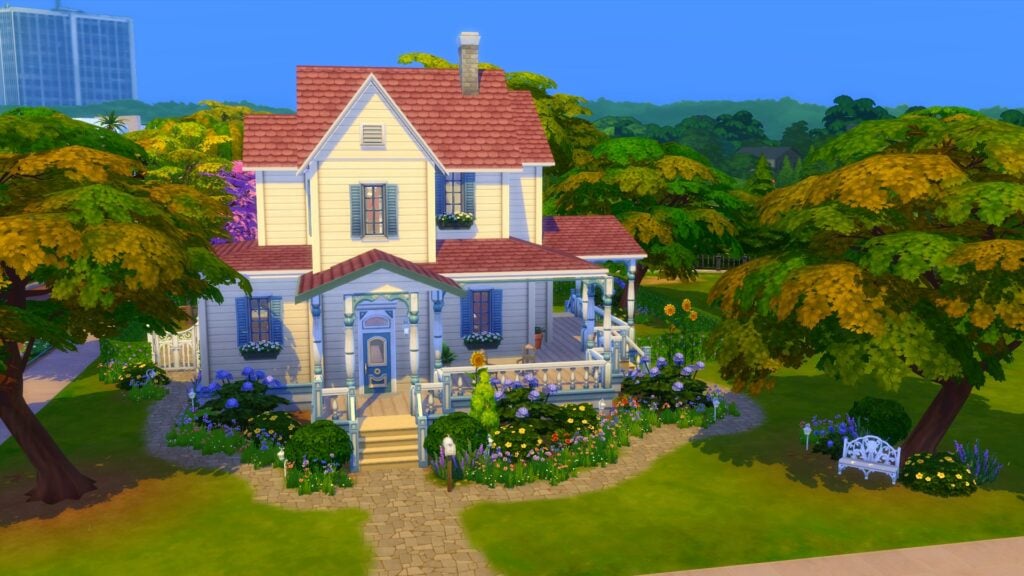
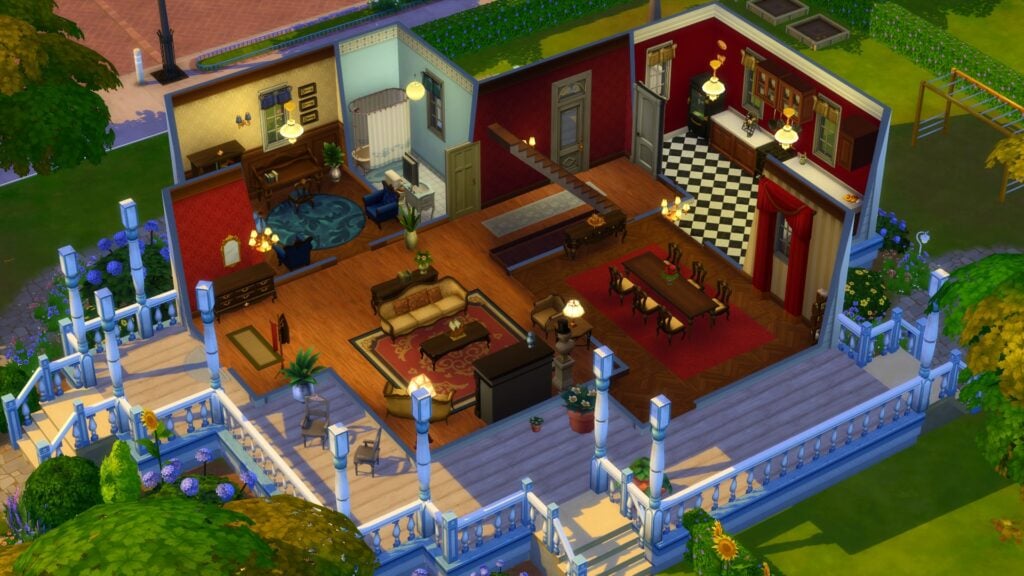
Fairfield Gardens by ruthless_kkGround FloorFirst Floor
A spacious farmhouse family home features 4 bedrooms and 4 bathrooms. With plenty of space both indoors and outdoors for a larger family or even a family looking for more space in general!
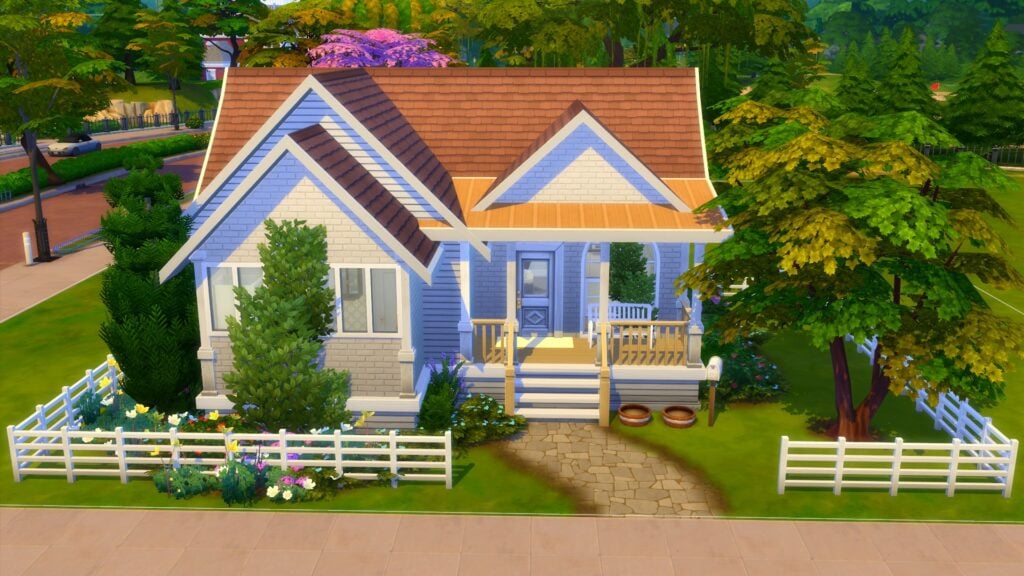
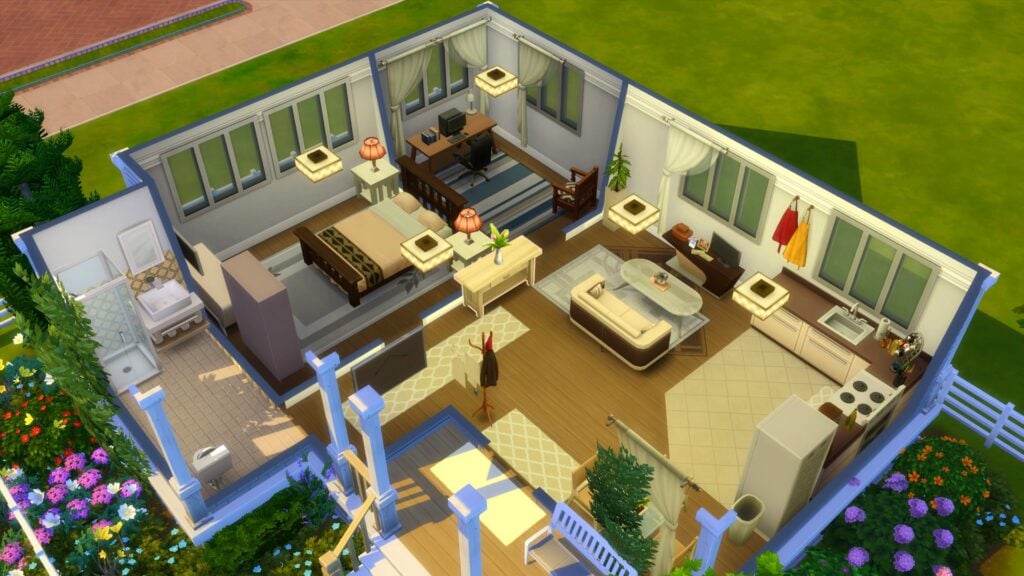
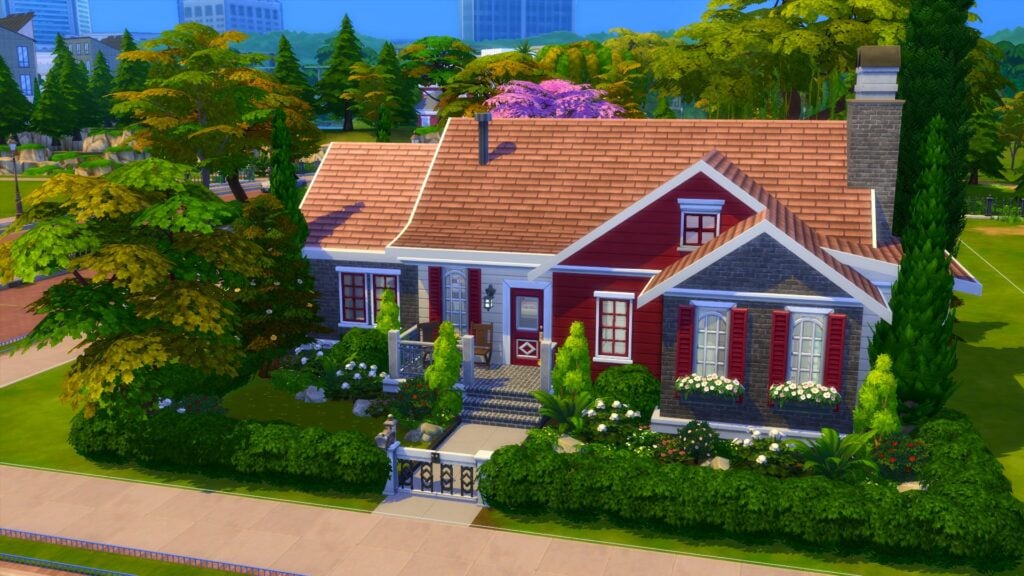
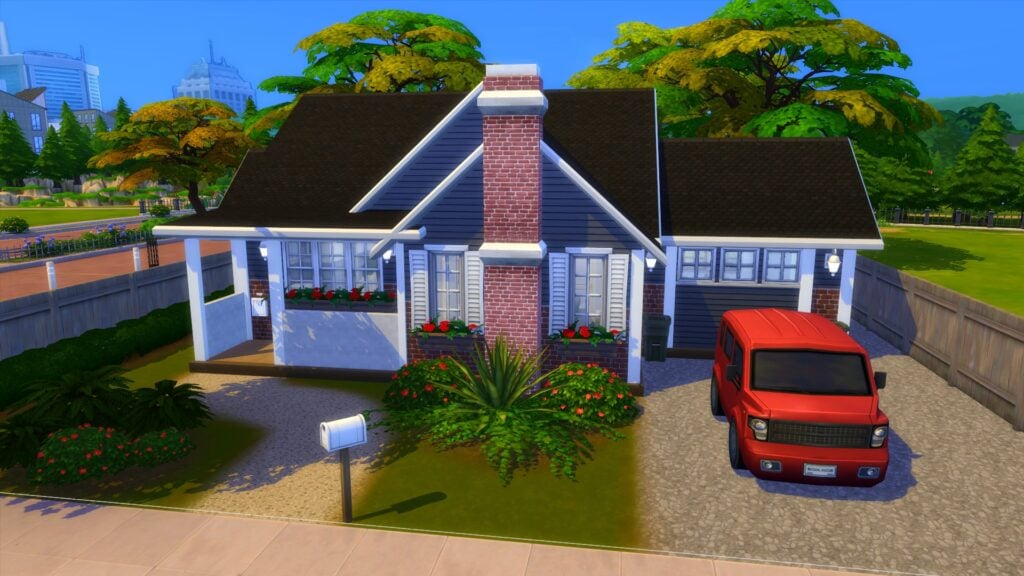
This Sunny Beach House might be small but offers plenty of space for a new young family! Featuring two bedrooms (one of which currently doubles as an office space) and one bathroom, this is the perfect home for a new family.
Family Dream by Daniel_SimFansDEFirst FloorSecond FloorPatio & Pool Area
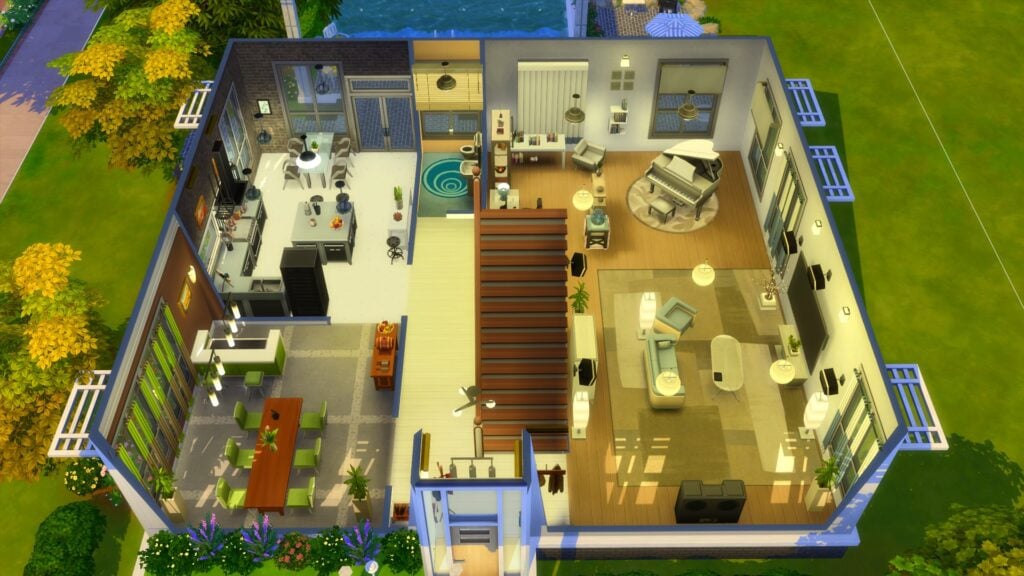
The dream family home! With plenty of space for the whole family with three bedrooms and bathrooms, this modern family home is brilliant for Sims looking to move into something a little bigger.
We’re halfway through our spotlight on The Sims 4 family homes! Are you ready for more?
Fosters Cottage
TSFosters Cottage by flubber32c4Ground FloorFirst FloorPatio & Pool Space
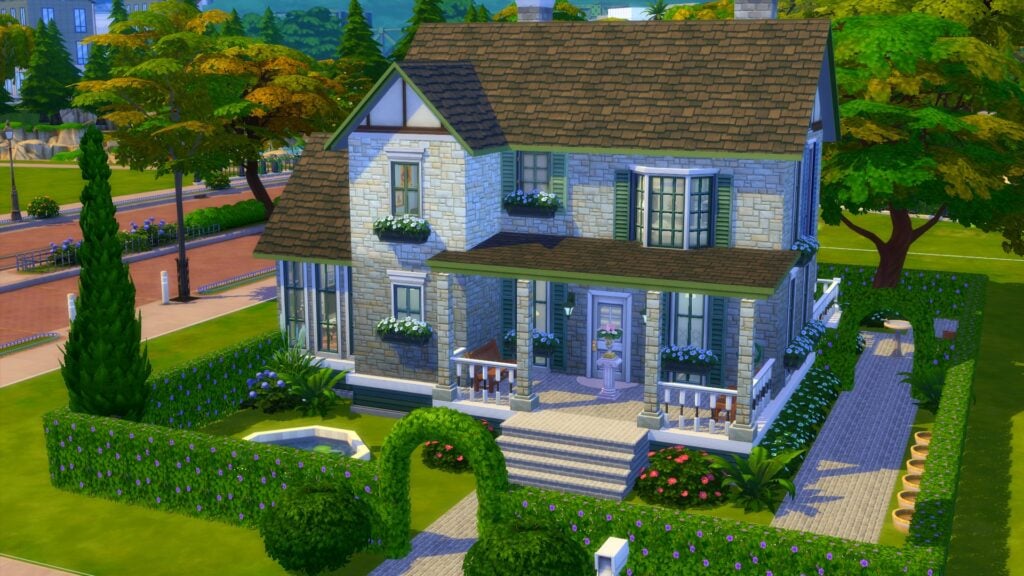
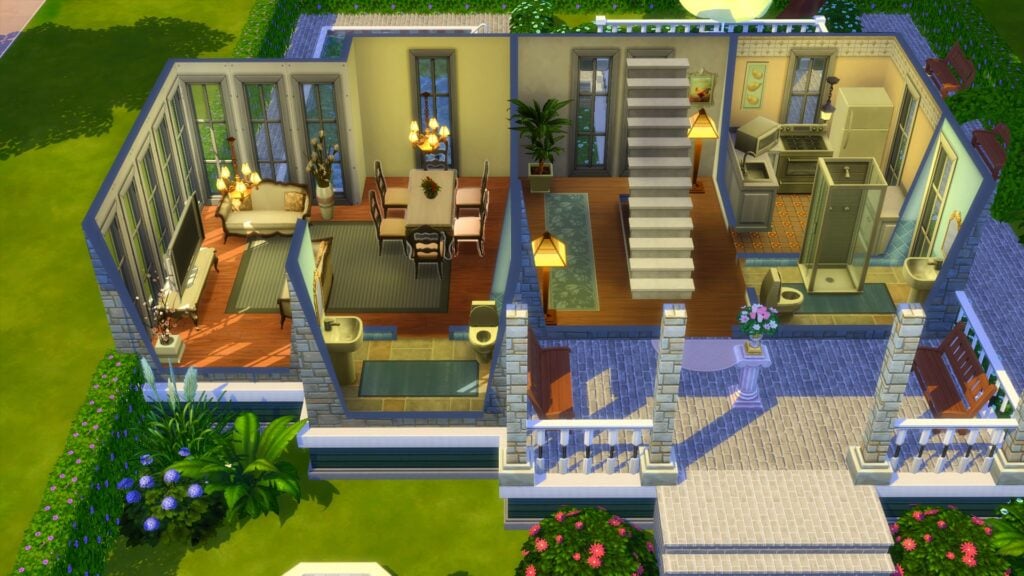
A cute family cottage. Originally belonging to Flubber32c4’s Henry and Elisabeth Foster. This two bedroom and three bathroom home has everything your family needs, including an outdoor pool that the family can enjoy during the Summer season!
Base Game Family Home by SimlicyGround FloorOutdoor Space
A cosy Sims 4 family home with three bedrooms and one bathroom. Perfect for any kind of family or even as a home that is kept in the family for generations! With a large outdoor space with plenty of room for activities and gardening, this is one beautiful family home!
This family home features everything your Sims need! With three bedrooms, and two bathrooms, a spacious living area as well as a large garden and driveway space, this starter home is the ideal home for a new Sims family!
The Sims 1 Intro House by Itamar_nettoGround Floor and Outdoor PoolFirst Floor
Throw it back to this family home from the original The Sims game. More importantly, from the intro trailer! Now it has been reimagined for The Sims 4! With three bedrooms and bathrooms, this home offers plenty to your household with so much space both indoors and out!
That’s all for our Base Game Sims 4 Family Homes showcase. What other lot types would you like to see us shine the spotlight on? Let us know in the comments below!
As always, be sure to stay tuned to Sims Community for all the latest news and information from The Sims franchise!
Store your Sims’ personal mementos in The Sims 4 Keepsake Boxes!
With the release of the Growing Together Expansion Pack, The Sims 4 Keepsake Boxes were added as a great way to preserve memories and to pass down important mementos from generation to generation. The storage space and ability to ponder the meaning of family help create more dimension for generational gameplay. Perfect for family and legacy players!
Table of Contents
Sims 4 Keepsake Boxes
The Growing Together Expansion Pack adds three different Sims 4 Keepsake Boxes that are available for purchase from Build/Buy Mode. Each The Sims 4 Keepsake Box cost between §100 and §400. They function as a non-shared inventory to store all your Sim’s favorite mementos!
Cheapskate Keepsake Box
Cheapskate Industries has done it again! Now providing a budget-friendly way to keep all of your family memories safe. This small plastic container may be missing the frills of a pricier box, but it’s what’s on the inside that counts.
This box requires an Elder Sim to Designate Keepsake Box before use. Doing so will allow household sims to change existing family dynamics and place items within its inventory.
Purchase Price: §100
Basic Keepsake Box
This basic box is just that- basic! This is the perfect middle-of-the-road container for housing all of your family memories and secrets.
This box requires an Elder Sim to Designate Keepsake Box before use. Doing so will allow household sims to change existing family dynamics and place items within its inventory.
Purchase Price: §240
Truly Ornate Keepsake Box
House your most precious knickknacks and memories in ultimate luxury. This truly elegant box is a statement piece that’s sure to draw attention, providing the perfect excuse to show off!
This box requires an Elder Sim to Designate Keepsake Box before use. Doing so will allow household sims to change existing family dynamics and place items within its inventory.
Purchase Price: §400
Designate a Sims 4 Keepsake Box
Before a Sim is able to use Sims 4 Keepsake Boxes, the Keepsake box needs to be dedicated to this Sim. Only one Keepsake Box can belong to a Sim. As the game says, “An Elder Sim can only do this once, so choose a Keepsake Box wisely!”
Entrusting An Elder Sim’s Most Precious Belongings
Elder Sims are able to Entrust their The Sims 4 Keepsake Boxes to another family member or friend. Once it is passed down to another person, the Elder can no longer interact with the Keepsake Box and also cannot dedicate a new Keepsake Box. Choose wisely when entrusting a Keepsake Box to another Sim!
Ponder the Meaning of Family: Sims 4 Keepsake Box Interactions
After a keepsake box has been dedicated, the elder (or the person the keepsake box has been entrusted to) can use it to “Ponder the Meaning of Family”. These interactions are not autonomous and require time before the Sim ponders again.
This allows the Sim to ponder the following concepts:
Family Means Being Together
Ponder Family Means Being Together and receive a Close Family Dynamic the next time the Sim speaks with any family member or spouse. This means that they will seek out and enjoy spending time with that family member or spouse more often.
Family Isn’t Everything
Ponder Family Isn’t Everything to receive the Distant Family Dynamic the next time the Sim speaks with any family member or spouse. The Distant Family Dynamic causes Sims not to autonomously interact with the other Sim.
Nobody Knows What Family Means
Ponder Nobody Knows What Family Means to remove any existing Family Dynamic between the Sim and any family or member or spouse they speak to next. This means that the two Sims will no longer have a Family Dynamic, thus allowing them to adopt a new one.
Family Isn’t Always About Getting Along
Ponder Family Isn’t Always About Getting Along to receive a Difficult Family Dynamic when the Sim next speaks with a parent, child, sibling, grandparent, or grandchild.
Family Means High Expectations
Ponder Family Means High Expectations to receive a Strict Family Dynamic the next time the Sim speaks with a parent, child, grandparent, or grandchild. This Family Dynamic creates a more obedient relationship between a Sim Parent/Grandparent and child/grandchild. If the child/grandchild breaks the rules, they will feel guilty.
Family Means Doting and Adoration
Ponder Family Means Doting & Adoration to receive a Permissive Family Dynamic the next time the Sim speaks with a parent, child, grandparent, or grandchild. With the Permissive Family Dynamic, older family member will be more likely to let the younger family member get away with more, spoil, and shower with affection.
Family Means Unconditional Support
Ponder Family Means Unconditional Support to receive the Supportive Family Dynamic the next time the Sim speaks with a parent, child, grandparent, grandchild, aunt, uncle, niece, or nephew. With the Supportive Family Dynamic, older Sims will autonomously comfort and support younger Sim family members.
Family Means Having Fun Together
Ponder Family Means Having Fun Together to receive the Jokesters Family Dynamic the next time the Sim speaks with any family member or spouse. The Jokesters Family Dynamic will causes Sims to laugh more around their family member.
The Sims 4 Keepsake Boxes: Black Photos Bug
As of May 2023, there is a bug that happens whenever a photo is placed in a not-shared inventory. All photos placed in this type of inventory (including keepsake boxes) will turn black with no way to recover them. For this reason, we don’t recommend using keepsake boxes to store photographs.
The keepsake boxes can safely be used to store other family heirlooms and trinkets, such as marriage licenses, birth and adoption certificates, baby print keepsakes, school drawings, and tooth fairy certificates.
Matthew J. Fahey (Mattneticon Twitter), Principal Designer for The Sims, stated in a tweet that the Black Photo Bug had been fixed and would be delivered on a later date.
Naw, that’s been all fixed up. TBD for release date on it though for when the fix goes live. I mean…like I know the date but I can’t say yet for …reasons…
Learn how to manage households and worlds in Life By You!
The Life By You dev team has been hard at work giving us regular Life By You news! If you haven’t been keeping up with everything the Life By You team has been sharing, don’t worry! We’re here to catch you up on all the most important details. If you’ve been curious about how world management and household management will work in Life by You, you’re in luck because that’s exactly what the Life By You team recently went over on their YouTube channel, which you should totally subscribe to if you haven’t already, by the way!
Let’s get into everything that was shown off in some of Life By You’s latest informational videos!
Table of Contents
Life By You News
It’s really exciting to see a development team being so transparent with its players right from the beginning, before early access even begins. All the Life By You news being shared shows so much respect for the players. The Life By You team has been giving us daily information on some of the features we can expect to see in early access, as well as walking us through original features and answering our questions about how those features work in the game. It helps build the excitement for September but also allows us to make an informed purchase when the game is available. This is a model that all development companies could learn from and replicate.
With that said, let’s dive into the nitty gritty about how to manage households and world in Life By You!
Household Management
https://youtu.be/3QS7PuhpCgU
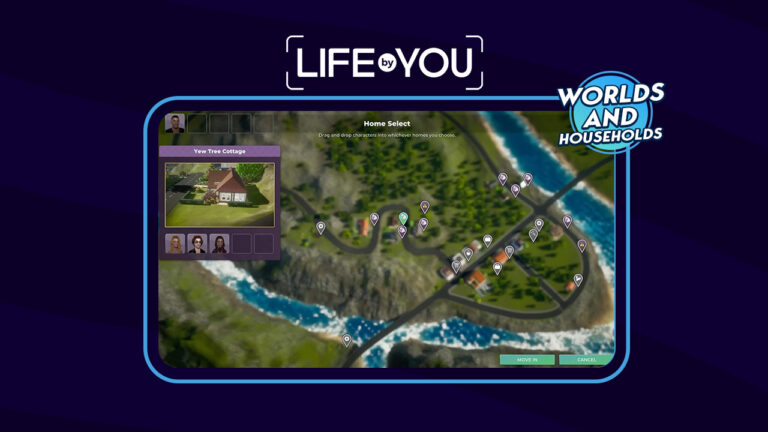
Senior Game Designer for Life By You, Gabriel, walked us through how managing a household works in Life By You. He showed players how humans can be easily dragged and dropped between households right from the home screen. He also displayed how you can save specific humans to our library to use in a different game save if you want to, and you can do this while actively playing the household.
Players will also be able to easily add children, grandparents, boyfriend and girlfriends and more to a household with the click of a button. However, the most exciting aspect of managing a household in our opinion is how players can switch between households with a single mouse click without having to go through a loading screen or a menu. This Life By You news is something many life simulation players have been dreaming of for a long time!
World Management
https://youtu.be/SI61h4L5fxo
Of course, micro-managing so many humans on an individual household level can get tedious fast. The Life By You team has addressed this by showing off the game’s Human Editor. This is a powerful tool that will allow players to edit anyone in their town at any time quickly and easily.
The above video shows off how you can use the Human Editor to quickly find and select anyone in your world to play with at any time. Not only that, but players can edit almost anything about that human from this menu. Select any human from the list and change their name, job, money, XP, and more! You can even delete humans you don’t like and add randomly generated humans to the world through this editor. Don’t worry; you can still create your own humans in the Character Editor if you want greater control.
This latest Life By You news is super exciting and even though we’re already being spoiled with so much information, we’re already chomping at the bit for even more news as we get closer to early access on September 12th, 2023.
Never miss out on the latest Life By You news by keeping up with our Life By You category!
Choose between different Themes for the next Sims 4 Kits releases and let us know your vote!
EA has announced today exciting news for all simmers out there who love The Sims 4 Kits. You get to be in charge for the theme of an upcoming Sims 4 Kit release!
That’s right! The Sims Team is players choose between different two different themes for CAS and Build. Check out what Maxis has to say about this interesting opportunity:
Sul Sul Simmers! We want to hear from you! We’re astonished by the incredible ways you express yourselves in The Sims™ 4, and with this vote, we’re letting you, the community, determine which themes will inspire Kits for an upcoming release.
There will only be one round of voting, so make sure to get your decisions in! We have two exciting thematic options to choose from for both Create a Sim and Build Buy Kits.
Voting will begin on May 11 at 10:00 am PST at the link here. You have until May 21 at 7:00 pm PST to cast your votes. The winning themes will appear in a future Kits release.
The choice is yours!
You can cast your vote in the official survey linked above! Now, let’s look into the Sims 4 Kit themes that you can vote for:
Sims 4 Kits Vote: CAS Theme Options
The Sims Team has presented two themes for Create A Sim Kit vote. Down below are proposed Sims 4 Kits themes for Rainbow Core Style and Goth Fashion.
Please note that images presented below are not representative of final objects in game.
Rainbow Core Style
It’s light, it’s bright, it’s rainbow core! It’s a playful aesthetic featuring nostalgic, youthful designs, and pops of color. Give your inner child a big hug and dress your Sims in a rainbow of colorful, bright, patterns. (Image not representative of final in game objects)
Goth Fashion
Do you grow nauseous at the sight of a bright pink sweater? Perfect. Embrace your dark side and vote for goth fashion. Style your Sim in shades of black from head to toe. They are sure to stand out from the crowd with modern mesh and lace detail, dark dramatic makeup, and edgy accessories.
Proposed Sims 4 Build Kits
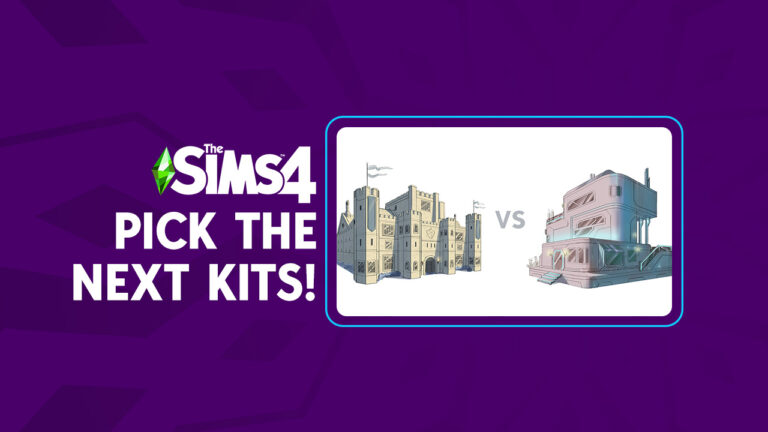
There are two Build Kits themes that The Sims Team are proposing in the latter part of the Kit vote. Here you can choose between Medieval or Futuristic Sims 4 Kits items. Remember, you can only pick one!
Let’s see the features:
Medieval Castle
Place your moat, I mean vote, for medieval castle if you’re looking to keep out those nosey neighbors. Build a fortress with an array of elements including brick walls, battlements and leaded glass windows set in old stone! It’s your very own castle in a kingdom far, far away. (Image not representative of final in game objects)
High Tech Futurism
“You can have tomorrow, today!” Place your vote for high tech futurism, if you’re inspired by out of this world architecture featuring sleek metal exteriors and glowing accents that make a perfect home base for any Sims visiting from another planet.
You’ll be able to pick the next two Kits for The Sims 4 from May 11th up until May 21st at 7PM PST.
Which Sims 4 Kits Themes did you vote for?
We’re interested in knowing which themes did our readers choose! Down below we have a simple Community Poll to see which options you’ve chosen!
Please note that this is *not* the official poll that determines the next Sims 4 Kits. This is just a fun voting poll to see what the community voted!
[totalpoll id=”140076″]
Which Sims 4 Kit themes are you hoping will win the vote? Stay tuned to the latest Sims 4 Kits News to be the first to know the results!
Three Packs for The Sims 4 are FREE for the next 7 days on Epic Games.
EA and Maxis have just released a limited, FREE Bundle for The Sims 4 on Epic Games. In case you don’t know what the bundle deal is all about, don’t worry. We’ll explain all the details of this PC Bundle for you right here.
The Sims 4 Daring Lifestyle Bundle consists of 3 Packs, including:
The just released Sims 4 Daring Lifestyle Bundle is exclusive only to the Epic Games Store. In case you’re not familiar with it – it’s a different platform and launcher created by a different game development company. For you to claim The Sims 4 Daring Lifestyle you’ll need to download the Epic Games Launcher (PC / Mac). Don’t forget to grab your free copy of The Sims 4 Base Game on Epic too!
After you do so, you’ll be able to link all the Packs you’ve claimed from Epic Launcher to EA App. We have an in-depth tutorial that will help you guide through this process. This method only completely works for Windows PC players. There’s a workaround for Mac players, but it involves waiting for EA App to be released on MacOS.
Sims 4 Free Bundle: Deal Availability
There’s only a limited time for you to grab The Sims 4 Daring Lifestyle Bundle for free! The deal is available from May 11th (8AM PT / 5PM CET) until May 18th at the same time zones. Simply search for the Bundle on Epic Games Store and select the “Get” to claim the Bundle and its Pack contents. You’ll have it yours to keep on the platform forever!
Have you claimed The Sims 4 Daring Lifestyle or did you already have these Packs covered? Join the conversation below and stay tuned for more Sims 4 News!
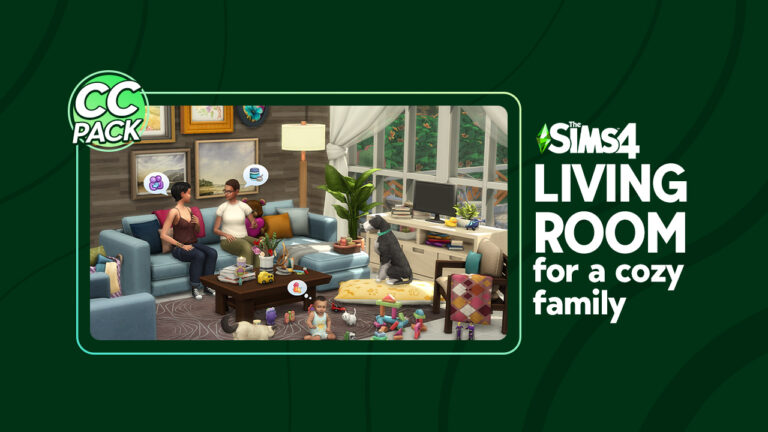
Living Room For A Cozy Family CC PACK by SixamCC x OshinSims Pack Artwork
Full of warm colours including shades of soft grey, cream and beige, this collection comes with a variety of new objects you can use. From new sofas, coffee tables, carpets and more as well as new toys for toddlers and infants to play with, there is something for every Sim! Of course, we can’t forget our four legged friends either, they also have several new objects too!
Regardless of how your Sims plan on spending their time in their living rooms, you’ll have plenty of ways to create the ultimate space using this new collaborative custom content pack!
Table of Contents
When you first look at this The Sims 4 Living Room CC pack from SixamCC and OshinSims, you think, how can I incorporate these objects into my game? What kind of cosy family living rooms can I create? There are a number of questions that come to mind,
What is included with this custom content collection?
Total items: 23 New objects!
Lighting: Floor Lamp
Comfort: 3 Arm Chairs, Love Seat and, Sectional Sofa
Surface: Coffee Table and TV Stand
Kids: 2 Stackable Functional Toys and Infant Rattle
Decorative: 2 Plants, Blanket Basket, Sofa Cushions, Sofa Blankets, Books (also works as a bookshelf), Rug, Paintings and, Books with Candle
Pets: 2 Dog Beds and Food Bowl (Requires The Sims 4 Cats & Dogs)
While this The Sims 4 Living Room CC Set is Base Game compatible, however, the Pet objects do require The Sims 4 Cats & Dogs expansion pack.
An example living room space from SixamCC and OshinSims of the new custom content collaboration
The Sims 4 Living Room for a Cozy Family Gallery
We’ve compiled a gallery showcasing all the new items, including every swatch of each object that you can check out below!
Image gallery of The Sims 4 Living Room for a Cozy Family
How do I download this CC pack?
The recently released Living Room for a Cozy Family from SixamCC and OshinSims is available to download right for free from both Patreon and CurseForge!
If you are using CurseForge for your Mods and Custom Content, simply search for SixamCC or Living Room for a Cozy Familyin the search bar and you’ll be able to download and install this Sims 4 Living Room CC set there!
Creator Video Walkthrough
OshinSims took to YouTube to share a walkthrough of this The Sims 4 Living Room CC collaboration with SixamCC. She goes into detail about the custom content pack and everything that comes with it!
Our Thoughts
This Sims 4 Living Room CC collaboration between SixamCC and OshinSims is the perfect addition to your collections! Not only is it beautiful in the range of objects that come with the pack, but the sheer number of swatches some of the items come in is incredible! That’s not to mention the attention to detail in each object, too! Can we take a moment to appreciate the textures on some of these objects too!
The possibilities of using this pack alongside in game content are endless and blend in seamlessly together! From a cozy living room perfect for a movie night to one that is functional for all the family regardless of the activity! What ever the concept idea for your living room is, these new objects will work wonderfully.
So, if you are looking for a new custom content pack to add to your collection that gives you the ultimate cozy feel, then this is just the thing you are looking for!
Want to know more about the latest Sims 4 Custom Content? Stay up to date here!
Power through the dreaded Brain Block to be productive again!
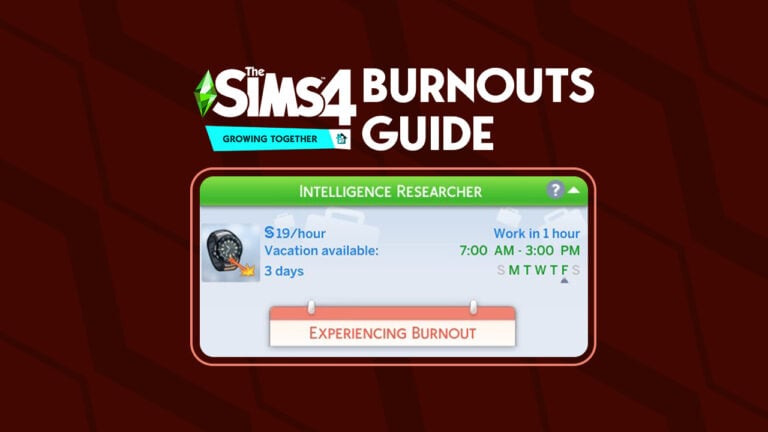
Bella is experiencing a burnout, reflected in her Career Panel
Sims 4 burnouts are seriously no joke! They can happen to the most productive of Sims. In fact, they’re extremely likely to happen to productive Sims. Burnouts can stop a Sim in their tracks and make them unable to complete tasks until they’ve had a chance to unwind and relax a little. Just like in real life, our Sims need breaks and a variety of activities to enjoy now, too, in The Sims 4 Growing Together.
Table of Contents
Sims 4 Burnouts Warning
Sims who have been hyper focused on either creative activities or mental activities for a long period of time are at risk of experiencing a burnout. You’ll know your Sim is in danger of burning out by their moodlets. If they have a Dazed moodlet from a Mental or Creative Fog, that’s a warning to the player that their Sim needs a break before they experience a full-on burnout.
At this point, there is still time to avoid a burnout. If your Sim is experiencing a Mental Fog, have them do creative activities for a while, instead. If they’re in a Creative Fog, have them focus on some mentally stimulating activities for a bit. You can also just let your Sim take a break from these activities entirely. Send them on a weekend getaway, treat them to a spa day, or just have them do any number of other relaxing activities. If your Sim gets the break they need when they first warn you they’re feeling run down, they can successfully avoid burning out.
Sims will get a milestone for having their first burnout
But beware! Not heeding this initial warning will result in Sims 4 burnouts! A burned out Sim will struggle with their career performance, promotions, skill gain, and Fun and Energy motive gain. You’ll know your Sim has burned out by an orange notification. It will also show that they’re in the middle of a burnout in their career panel.
Sims who experience Sims 4 burnouts for the first time will get a milestone to reflect this event in their life.
Mental Fog
Sims in a mental fog need to do creative tasks
Sims who spend a lot of time invested in mental tasks will eventually experience a mental burnout if they don’t get breaks now and then. While a Sim is experiencing a mental burnout, they’ll struggle to have Fun, especially when doing mental tasks, their Energy levels will deplete faster, they’ll struggle to improve work performance at work, and they won’t be able to gain promotions. It will be harder for them to build skills, too.
Sims who are in the midst of mental Sims 4 burnouts will recover over time but you can help them recover faster by allowing them to indulge in more creative activities and giving them plenty of down time to relax. Let them unplug from mental pursuits for a while and let them take a break. Your Sim will bounce back to their usual productive selves soon enough.
But if you continue to push your Sim to perform mental tasks while they’re burned out, their condition will worsen. Their burnout will escalate into a full blown Brain Block.
Creative Fog
Sims in a creative fog need to do mental tasks
Sims who spend a lot of their time pursuing creative activities can get burned out, too. If they’ve been doing nothing but creative tasks for too long, eventually, their inspiration will run dry and they’ll lose the will to create. They won’t have Fun doing the creative things they used to love, and their career, skill gain, and Energy will suffer, too. Creatively burned out Sims can’t get promotions, either.
Sims who are experiencing creative Sims 4 burnouts will recover eventually but giving them the opportunity to explore mentally stimulating activities will speed up their recovery significantly. You can also just have them take a step back from everything and just rest and relax for a while. If given more mentally stimulating things to do or given enough time to rest and recuperate, your creative Sims will want to create again.
However, be careful not to push your Sim while having creative Sims 4 burnouts; their burnout could get worse and become a total Brain Block.
Brain Block
A brain block is a more severe form of burnout
If a burned out Sim continues to push themselves without getting a break, their burnout will become a complete and total Brain Block.
A Brain Block is an even worse form of Sims 4 burnouts. It negatively impacts career performance, promotions, Fun gain, Energy gain, and skill gain to an even greater degree. If your Sim has a Brain Block, they are really struggling to function. They desperately need to do different activities and/or relax because they aren’t going to be productive at all in this state.
Conquer Burnouts
The good news is that it’s relatively easy to avoid Sims 4 burnouts! Pay attention to your Sim’s moodlets and when you see that Dazed moodlet from a Creative Fog or a Mental Fog, switch up their activities or give them a break. Your Sim will recover before they ever get to the point of burning out.
If your Sim is already burned out or in a dreaded Brain Block, the same rules apply. Creatively burned out Sims will benefit from mental tasks and mentally burned out Sims will benefit from creative tasks. All burned out Sims will also recover with rest and relaxation, no matter the type of burnout they’re having. It will just take them longer to recover, depending on how bad their burnout has become.
Looking for more ways to challenge yourself with The Sims 4 Growing Together? Why not try playing with our latest Story Starter Kit?
Lumpinou has released a Sims 4 milestones mod that adds so much more depth to The Sims 4 Growing Together‘s existing milestones system. While the expansion pack’s new milestones feature was well-received by Simmers, they were also quick to point out that the milestone system could be improved in various ways. For example, the game does not distinguish between divorces and break-ups and Sims don’t get milestones for some important events, such as getting a new sibling or their parents splitting up.
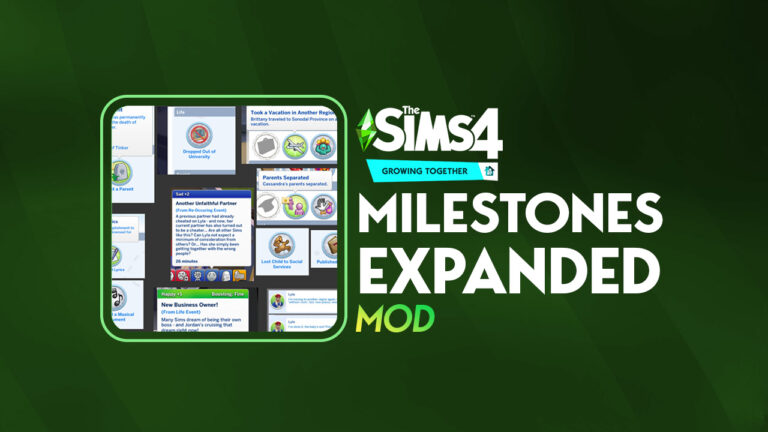
Of course, a modder has solved these problems! Lumpinou’s Milestones Expanded mod adds over 50 new custom milestones across multiple DLC packs and adds more detail and depth to some of the game’s existing milestones! It also adds custom moodlets related to many milestones and Social Bunny posts related to milestones!
Table of Contents
This Sims 4 Milestones Mod is a Must Have!
Lumpinou’s improvements to the milestones system makes the lives of your Sims feel even more in-depth and meaningful. While it’s clear that EA’s milestones system is a great addition to the game, it really needed some extra detail in quite a few areas. The fact that Lumpinou not only added more milestones and edited existing milestones, but also went to the effort of including moodlets and Social Bunny posts shows their dedication to making a great game feature even better!
New Milestones
This Sims 4 milestones mod adds over 50 new milestones to the game. So many important moments that EA neglected to include as milestones are now represented. Dropping out of university, moving to a new world, taking vacations, getting a new sibling, having your parents split up and so much more is now commemorated as milestones for your Sims!
Check out the full list of new milestones Lumpinou has added to the game below! Some milestones are exclusive to certain packs. Players can remove milestones from individual packs that they don’t own. Also, some milestones are designed to work with Lumpinou’s WooHoo Wellness mod. Some milestones are still being worked on, as indicated in the following list.
In addition to adding SO many more milestones to the game, this Sims 4 milestones mod also makes improvements to some existing milestones. Certain important milestones like getting married and the birth of a child now record the lot where this milestone took place!
Sims can also ask other Sims about their milestones. If they are close enough friends, your Sim will find out all of that Sim’s past experiences. If they aren’t close, the other Sim will be pretty annoyed with you for being nosy, though.
It’s a small tweak in this Sims 4 milestones mod but a nice one that we feel makes these important life moments even more special and meaningful!
New Moodlets
Milestones are not just life records in an info panel. They’re a part of your Sim’s life and they have shaped the way they are now, which this Sims 4 milestones mod reflects perfectly. Depending on whether your Sim has experienced a certain milestone for the first time, or if they’ve experienced the milestone previously, they may get different moodlets related to that milestone.
For example, your Sim may become very sad if they’ve been cheated on more than once and their moodlets will reflect that they have yet another unfaithful partner. Meanwhile, a Sim giving birth for the first time may get a moodlet that reflects both the excitement and anxiety of this monumental moment in their life.
Special Statuses
As if this Sims 4 milestones mod doesn’t have enough improvements in it already, Lumpinou has also taken the liberty of adding some special relationship bits to certain Sims related to milestones. This is probably one of our personal favourite features of this mod.
Sims who have their very first kiss or woohoo together will get a mutual relationship bit in their Sim Profile that reflects that this Sim was their Very First Kiss or their Very First WooHoo. The first born child of a family also gets a special status signifying their importance in the household.
We think this is a really cool way for this Sims 4 milestones mod to keep track of a Sim’s first important experience with another Sim!
Social Bunny Posts
But all of that is still not all this amazing Sims 4 milestones mod does! Players who own The Sims 4High School Years expansion pack will enjoy additional features of this mod relating to the Social Bunny app!
Sims will be able to post about those important milestone moments on Social Bunny. Considering how boring and repetitive the Social Bunny posts get after about ten minutes of using it, anything that adds some variety to this game feature is a welcomed change!
This Sims 4 milestones mod does not require High School Years in order to function; however, Social Bunny features will not be available to players who don’t have the expansion.
Download the Milestones Expanded Mod
The Milestones Expanded mod by Lumpinou has left early access and is now freely available to everyone on their Patreon! As always, make sure to read all the download instructions carefully before installing.
This Sims 4 milestones mod requires The Sims 4 Growing Together expansion pack.
Unlock, Equip, Transform, CHEAT! This is the full list of Sims 4 Werewolf Cheats.
Need to setup characters for a story? Or do you just want to cheat ahead? No need to look anywhere else, we’ve got you covered with the most important Sims 4 Werewolves Cheats right here!
In order to use the Sims 4 Werewolves Cheats, you’ll need to do a few steps first:
Open the command console.
Windows PC – Ctrl + Shift + C
MacOS – Ctrl + Shift + C
PlayStation – L1 + R1 + L2 + R2 (Hold all 4 buttons together)
Xbox – LB + RB + LT + RT (Hold all 4 buttons together)
Enter the TestingCheats True (or TestingCheats On) cheat into the command console.
While the sim is selected, enter in your werewolf cheat.
Looking for more Quick Cheats for The Sims 4? Catch up here!
Sims 4 Werewolf Creation Cheats
Forget to make your Sim a werewolf? Or just want to skip the werebies part of transforming, there’s a cheat to make your Sim a werewolf. In comparison, if you’re tired of being a werewolf or just simply want to skip the process,
Make your Sim a werewolf
traits.equip_trait trait_occultwerewolf
Turn a werewolf into a regular Sim
traits.remove_trait trait_occultwerewolf
Sims 4 Werewolves Cheats: Rank Progression
The following are two miscellaenous cheats that will come in handy when playing with werewolves. The first is to complete the current aspiration. This works for all aspirations, but works great for werewolf ones as well! The second is a cheat to add XP to a werewolf. These XP help rank a werewolf up within the Werewolf Ranks.
Completes Current Werewolf Asperation
aspirations.complete_current_milestone
Add XP to Werewolf Progression
stats.set_stat rankedStatistic_Werewolf_Progression X [Change the ‘X’ to the amount of XP you want added]
These are also numerous Sims 4 werewolves cheats for new traits that are available in game. Some are visible, but others are hidden. These cheats add the traits to the current Sim selected. If you would like to remove traits instead of add them, replace traits.equip_trait with traits.remove_trait within the cheat.
Temperaments are abilities that Werewolves unlock and purchase over time. But, with Sims 4 Werewolves cheats, a werewolf doesn’t need to worry about rank or if a temperament is unlocked yet. To add a temperament, traits.equip_trait needs to be used. But if you want to remove the temperament, replace traits.equip_trait with traits.remove_trait.
Sentiments are temporary feelings that Sims have for another sim after certain interactions. In order for these to work, you need to enter the following information BEFORE the cheat.
modifyrelationship [Sim 1 full name] [Sim 2 full name] [X]
The X is the number that you want to change within the relationship. For example: modifyrelationship Bob Pancakes Eliza Pancakes 30 sentimentTrack_Bitter_ST_GrudgeAgainstPackB
Here are the following Sims 4 Werewolves Cheats that will add new Sentiments between your Sims:
Hurt by Pack
sentimentTrack_Hurt_ST_HurtByPackmate
Abandoned Pack
sentimentTrack_Guilty_ST_AbandonedPack
Fated Mates
sentimentTrack_Enamored_ST_FatedMates
Grudge Against The Moonwood Collective
sentimentTrack_Bitter_ST_GrudgeAgainstPackA
Wolfy Warmth
sentimentTrack_Close_ST_WolfyWarmth
Full Moon First Kiss
sentimentTrack_Enamored_LT_FullMoonFirstKiss
Grudge Against The Wildfangs
sentimentTrack_Bitter_ST_GrudgeAgainstPackB
Lycan Bond
sentimentTrack_Close_LT_LycanBond
Fated to Wed
sentimentTrack_Enamored_LT_FatedToWed
Furious Pack Rivalry
sentimentTrack_Furious_ST_PackRivalry
Fate Defied
sentimentTrack_Guilty_LT_FateDefied
Big Sad Wolf
sentimentTrack_Guilty_ST_BigSadWolf
Cheats Mods*
*Disclaimer: The following is a mod. Unfortunately, they are only available on PC/Mac.
Werewolf Cheats by Carl is a great mod that lets you add Temperaments and Perks without typing cheats. To access the cheats, turn testing cheats on (testingcheats true). Then, shift click a sim and click on Carl’s Werewolf Cheats. This opens up a pie menu of options including both add and remove Temperaments and Perks.
Yup. Job insecurity is now a thing in The Sims 4 Growing Together.
Sims 4 layoffs from the Growing Together expansion might seem like a strange addition to the game. After all, The Sims 4 has been more focused on the good aspects of life than the bad during its eight year run. The Sims Team has always leaned heavily into fantasy and escapism which makes sense given that the overall state of the world right now is kind of a dumpster fire. Players naturally want a perfect, happy utopia to escape into and forget about the many problems that they face in the real world.
However, Growing Together seems to embrace both the good and the bad parts of life in equal measure. From midlife crises, difficult and distant family dynamics, and the potential for low confidence as a child to turn into low self-esteem as a teen, this expansion really encapsulates life during all of its highs and lows. Sims 4 layoffs are just another way Sims can experience some of the more difficult aspects of life.
Table of Contents
The Sims 4 Layoffs Guide
No matter how great your Sim’s career is going, don’t get too comfortable. A layoff could always be just around the corner. Layoffs can happen to any Sim with a full-time career at any time. Your Sim’s work performance is not necessarily indicative of whether they’ll experience a layoff period or not. It’s largely random, just like real life. Hard working, dedicated people get laid off due to reasons outside their control all the time in the real world. It’s no different in The Sims.
When your Sim’s workplace is going through a layoff period, you’ll be notified about it. The game will let you know that your Sim’s job could be in jeopardy. During the layoff period, your Sim will have frequent Tense moodlets from the uncertainty of not knowing whether their job is safe or not. These Tense moodlets may make it more difficult to complete work tasks and be in a good mood at work. In turn, this may make it more difficult for them to keep their job.
The layoff period usually lasts for about three in-game days. At the end of the layoff period, you’ll get a notification either telling you that your Sim has been laid off, or that they were lucky and managed to make it through the layoff period with their job still intact.
Keeping Your Job
Although the initial Sims 4 layoffs notification encourages you to put in extra effort at work to keep your job, this doesn’t necessarily guarantee that your Sim will avoid being laid off. That being said, it’s still a good idea to try. During the layoff period, you should focus intently on your Sim’s career. Make sure they always complete their work tasks before every shift and keep up with skill building. Try to combat those Tense moodlets with small but powerful things to help boost their mood before work, like brushing their teeth and gussying up in a mirror. Don’t forget to have them Work Hard while at work, too.
Still, even with all your best efforts, it is possible to get laid off anyway. If your Sim still gets laid off even after throwing everything they have into their work, just know you didn’t necessarily do anything wrong. That’s just the way the Sims 4 layoffs cookie crumbles sometimes.
I Got Laid Off. Now What?
So your Sim drew the short straw in the precarious game of Sims 4 layoffs. They got laid off and are officially unemployed. Now what?
There are some benefits and drawbacks to getting laid off. The obvious drawback is that the career your Sim spent their whole life working so hard to succeed at has been ripped away from them. Many “years” of their life are now down the drain. They won’t be able to get their old job back, either. At least not right away. Sims cannot join a career if they’ve recently been laid off from that career.
However, the Sims 4 layoffs feature does offer some helpful advice about how to get back on your feet. Sims who’ve recently been laid off can Make Looking For Work Post on the computer under the Career options. Doing so will give you a notification suggesting a new career path your Sim is well suited to based on their traits and skills. It’s up to you whether you want to join the suggested career, but it’s a nice way to get some direction if you’re struggling with what to do next.
Of course, The Sims 4 layoffs offer endless opportunities for Sims. Why not take the layoff as an opportunity to travel for a while? Or go back to university if you own the Discover University pack? Maybe start your own business where you’re your own boss and no one can lay you off again! There’s always a silver lining in every storm cloud!
Disable Career Layoffs Option
…Or, if you don’t want to deal with Sims 4 layoffs at all, you can disable them in the Game Options, under Pack Settings:
We could have had so much more in The Sims 4 Growing Together…
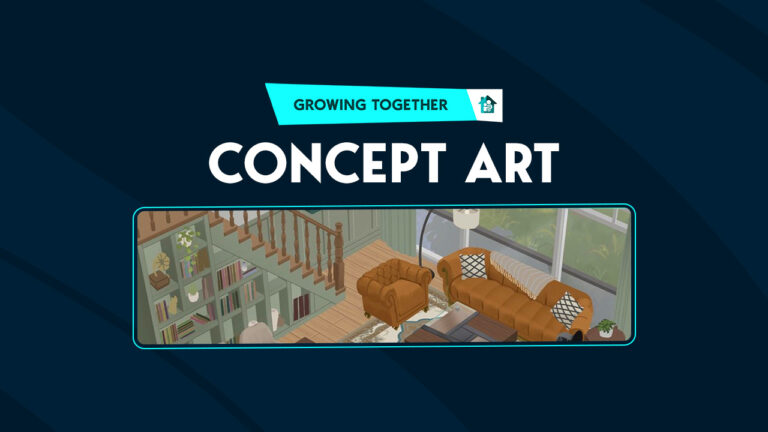
A concept artist hired by EA has posted Sims 4 unreleased objects from the Growing Together expansion pack on their professional website. Yuxing Art has revealed three images containing six room views from The Sims 4 Growing Together that ultimately, did not make the cut for the final expansion release. The concept art gives us a glimpse into some of the early design concepts the developers were considering in the initial planning stages of the expansion pack. Let’s take a detailed look at each room design, shall we?
Table of Contents
The Sims 4 Unreleased Objects
Yuxing Art showcased six different room views as early concept art for The Sims 4 Growing Together. There appears to be a patio, a kitchen, a sunroom, a living room with a small dining area, a front entrance or mud room, and a bathroom.
Please remember that the following images are explorational concept art only. The items depicted in these images were intended to help give the developers a sense of direction for the pack and were not necessarily planned items for The Sims 4 Growing Together.
This patio concept design is adorable and we are a bit sad that the pictured gable and the small tree in a stone planter were not included in the final pack. The kitchen makes us even more wistful for what might have been. The circular rug, all the open shelving underneath the countertops, a fridge covered in children’s drawings, and storage shelves built into the staircase all catch our eye and make us yearn for these things even more.
While the self-contained terrarium with the tree growing inside is a beautiful object, we can see why these sorts of Sims 4 unreleased objects didn’t actually get made for the Growing Together expansion pack. Simmers can easily create enclosed garden spaces like this using walls with floor-to-ceiling windows so it doesn’t actually add anything new to the Build/Buy catalogue. Still, it’s hard not to drool over the those staircases with built-in bookshelves. Not to mention the cast iron wood burning fireplace.
It’s nice to see a fair few objects here that actually did make it into the final Sims 4 Growing Together release! Players will no doubt recognise the shower/tub combo with the adjustable shelf, the towels hanging on the walls, and some of the light fixtures, as well as the bathroom floor tile. The sink is a recognisable object from the pack, too. That “leeb, leefuh, lurve” sign on the wall, the welcome mat, the basket of toilet paper roll, and the wicker basket umbrella stand are all things we really wish had made the final cut, though. Sadly, they remain Sims 4 unreleased objects.
What Might Have Been…
It’s hard to look at these Sims 4 unreleased objects and not lament the fact that they didn’t make it into the final release of the games. Some of these items would have been total game changers for builders, especially if they were usable and not just decorative. Like the staircases with bookshelves built into them. Those would have been such great space savers in small family homes if Sims could store, purchase, and read books from a bookshelf built into their staircase.
But again, it’s important to remember that concept art is just that; a concept. It’s quite normal for all video games to begin with exploratory concept art that contains items not released with the finished game. The Sims 4 unreleased objects from the above concept art is no different.
Thank you to @PattonKieran on Twitter for the tip about this concept art!
Want to see what we did get for The Sims 4 Growing Together’s Build/Buy catalogue? Check out all the objects!
Claim The Sims 4 Daring Lifestyle Bundle for free on PC and link your Epic Games account!
ARTICLE UPDATE: The Sims 4 Daring Lifestyle Free Bundle Deal has just wrapped up on Epic Games Store. You’re no longer able to claim the bundle from this platform.
Interested in getting Sims 4 Packs for free? We’ll take you through an easy tutorial get a free Game Pack, Stuff Pack and a Kit!
We’ve discovered a couple of days ago that EA and Maxis are releasing an exclusive Bundle for The Sims 4 on Epic Games Store. The bundle, titled The Sims 4 Daring Lifestyle consists of Jungle Adventure Game Pack, Luxury Party Stuff and Fashion Street Kit. Through May 11th to May 18th 2023, you’ll be able to claim Sims 4 Daring Lifestyle and have it yours to keep.
However, what makes this deal exclusive is that this unique bundle is available to claim only through the Epic Games Launcher. Still, if you’re a PC player who has access to a Windows computer, you’ll be able to get these Sims 4 Packs for free.
This method will require for you to have both the EA App and Epic Games launchers installed. You’ll also need to Sign Up on the Epic Games website.
Claim Sims 4 Packs for free on PC: Jungle Adventure, Luxury Party and Fashion Street
Now that you’ve signed up and installed the Epic Games launcher, it’s time to claim The Sims 4 Daring Lifestyle! You’ll be able to do so from May 11 – May 18. During this seven day period all you have to do is visit the game page and get these Sims 4 packs for free.
The EA Desktop App allows you to link EA games from Epic Games launcher to the EA App. Luckily there’s a quick tutorial that will help you navigate this linking process:
Epic Games will install your game and let you know when it’s ready to play.
With this solution you can have The Sims 4 Fashion Street, Jungle Adventure and Luxury Party in your EA App Library. This gives you the opportunity to download and manage any of these packs from the EA App.
What makes this deal exclusive for PC is the fact that EA App only works on Windows for now. Even though the Epic Games launcher is both PC and Mac.
The waiting game for Mac players
If you’re playing on Mac, you can claim The Sims 4 Daring Lifestyle and wait for the EA App to becomes available. We know that the solution is not perfect. But, the waiting game could pay off if you want to get these sims 4 packs for free.
The Sims 4 Daring Lifestyle Bundle
What about The Sims 4 for Steam?
ARTICLE UPDATE: There seems to be a workaround that allows you to link Sims 4 Daring Lifestyle Packs with Steam! Huge thanks to @Crinrict for the find!
It’s important to note that this workaround requires you to connect the accounts through EA App. This will allow for you to play the games through Steam!
I already have The Sims 4 on Steam and here’s how I can claim the free bundle from Epic Games and play it through my Steam or EA App:
1. You have downloaded The Sims 4 from Steam and have also installed and logged in to the EA App (If you haven’t downloaded it yet, please download it first and make sure your Steam and EA accounts are linked)
2. Go to Epic Games and Buy The Sims 4 at Epic Games (Free)
3. Claim the Free Bundle at Epic Games
4. Click Launch The Sims 4 in your Epic Games Library (This will automatically open the EA App on your PC)
Note:
After the EA App opens you will get a notification to link your Epic Games account with the EA App and yes just link it.
You will also get a notification that you have to “get the game“, don’t panic! This notification is because The Sims 4 base game on your EA App has already been linked to your Steam account, just close the notification.
5. Download all the free packs that you got from Epic Games through your EA App (Click on Manage add-ons and download all the free packs)
6. Run the game from EA App or Steam and enjoy playing The Sims 4 with your free bundle
If you have The Sims 4 or any EA game in your Steam Library, you unfortunately won’t be able to link your games. In any case this won’t be allowed due to Steam not having an option to link with other game launchers. Linking launchers is only allowed between EA App and Epic Games.
The following content was written prior to the finding.
EA_Solaire has shared a useful list of available platforms for linking:
Epic and EA app:
As long as your EA account and Epic account are linked together, you should have access your DLC owned from both Epic and the EA app.
Steam and Epic:
If you are playing through Steam, you will not be able to access DLC owned through Epic.
If you play through Epic, you will not be able to access DLC owned through Steam.
Steam and the EA app:
If you purchase DLC through Steam, you will not be able to transfer your DLC to the EA app- you will need to use the base game version in Steam.
If your DLC is owned through the EA app, you should have access your DLC through Steam- you will need to own the base game through Steam and be sure your accounts are linked together.
Is this method to get Sims 4 Packs for free safe?
In short – yes. You should have proper access to all of your Sims 4 DLC content after linking the EA App and Epic Games.
However, a couple of moments ago EA has updated their statement about linking game launchers. Stating that this method of cross launcher DLC compatibility isn’t “officially supported” by EA. The disclaimer was probably added later on to avoid any confusion or additional error reports.
You should still be able to link The Sims 4 Daring Lifestyle Bundle. If you want to prepare extra carefully, we advise that you check out our article on how to ensure a healthy Sims 4 game!
What do you think about this solution? Let us know if you were able to successfully claim these three Sims 4 Packs for free in the comments below!
You can stay up to date on all the latest Sims 4 information right here!
What you need to know about The Sims 4 Childhood Confidence Feature from Growing Together!
We all know that growing up can be difficult and for our younger Sims, it’s no different!
The Sims 4 Growing Together adds a new feature on Childhood Confidence. Now, all of our Sims have a confidence level, however, for our younger Sims, it starts off at a neutral level. Over time, as they progress through childhood, that confidence level can become higher or lower. Of course, this means their Self-Esteem could be impacted later in life.
Fear not, as we’ve got you covered with everything you need to know about this new Sims 4 Childhood Confidence feature! From what is childhood confidence to reward traits, how to manage confidence levels, and more, you’ll find everything you need to know right here!
Atlas gaining confidence when learning to ride a bike.
Table of Contents
What is Childhood Confidence?
A child Sim’s confidence level can increase or decrease depending on skill gain, school performance, positive and negative socialization, succeeding or failing or skill-based activities, confident or embarrassed moods, and more. Caregivers criticizing or praising a child’s behaviour also impacts their confidence levels.
How do I know what my Child Sim’s Confidence Level is?
Your Sim’s confidence level can be found under the Simology tab for your Sim. It will be displayed as a temporary trait.
A child Sim’s confidence level can be found under the Simology tab
The Levels of Childhood Confidence
There are three different levels of confidence that your child Sims can experience. These are High Confidence, Neutral Confidence, and Low Confidence.
[table id=110 /]
Reward Traits & Buffs
When your child Sims age up, they can potentially earn one of two new Reward Traits! These ultimately will be awarded to Sims who age up with either High Confidence or Low Confidence.
[table id=111 /]
You’ll see one of these two Reward Traits apply when your Sim becomes a Teenager.
Childhood Confidence Reward Traits
You’ll also notice, that depending on the task or interaction that your child Sim is experiencing, a variety of Buffs. These can vary depending on their confidence level and can range from more uncomfortable and embarrassing Buffs to more positive and motivating Buffs for higher confidence levels.
How can I manage my Child’s Confidence?
There are a number of ways that you can help influence your child Sim’s confidence levels. As mentioned in the Lessons section for The Sims 4 Childhood Confidence, confidence can either be positively or negatively affected in numerous ways.
Here are some examples of how you can influence a child Sim’s confidence level.
[table id=113 /]
While these are just some of the many ways you can influence confidence levels, there are so many more in the game to discover!
Don’t forget, Milestones and Aspirations are another great way to help your child Sim’s confidence levels.
Atlas enjoying some time in his treehouse
Ultimately, you can manage your Child Sims confidence level by completing everyday interactions, Milestones, Aspirations, and more without even realizing you are doing so. Of course, just make sure to keep an eye on their level if they are about to level up. This is more so if you are wanting to obtain one of the two Rewards Traits that we mentioned earlier in this overview.
Want to know more about Milestones in The Sims 4? You can find this and more guides right here. As always, stay tuned to Sims Community for all the latest from The Sims franchise!
Put baby teeth under a child’s pillow to get a visit from the tooth fairy!
The Sims 4 loose teeth is a new feature that comes with the Growing Together expansion pack. Child Sims can lose their baby teeth and place them under their pillow at night to receive a reward from the tooth fairy (and her molar bear assistant) when they wake up. This feature was temporarily disabled while The Sims Team worked on squashing some bugs with the feature. It has since been re-enabled in the latest game patch so your child Sims can once again lose their baby teeth.
We’re going to walk you through every aspect of this adorable feature for children!
Table of Contents
The Sims 4 Loose Teeth: Wiggle Wiggle Wiggle!
Losing baby teeth is exclusive to the child life stage in The Sims 4 Growing Together. Child Sims might wake up in the morning to discover they have a loose tooth! The Sims 4 loose teeth can be wiggled to help them fall out faster or, if your child Sim is brave enough, they can just yank the tooth right out!
You’ll receive a notification when your child Sim has a loose tooth. While the tooth is loose, they will have an Uncomfortable moodlet; having a loose tooth can cause some soreness around that area of the mouth, after all. The moodlet only has a strength of +1 so it’s not too hard to deal with. It’s quite easy to override this moodlet with more positive moodlets to keep your child Sim in a positive emotional state.
A child Sim wiggling her loose tooth
Clicking on your child Sim will display two new options: Wiggle Loose Tooth and Pull Out Loose Tooth. Wiggling The Sims 4 loose teeth will help the tooth fall out faster, but it does give your child Sim an extra +1 Uncomfortable moodlet for a while. The other option is to pull out the loose tooth. Having your child Sim yank the tooth out will remove the tooth immediately but it causes your child Sim to gain a +2 Uncomfortable moodlet for the next 3 in-game hours. Combined with the other Uncomfortable moodlets, this can be a little harder to deal with for a bit.
The Tooth Fairy Has Arrived!
You’ll get another notification when your child Sim’s loose tooth has fallen out. Don’t bother looking in the inventory for it. It doesn’t actually appear anywhere but loosing a tooth unlocks a new interaction on beds: Place Tooth Under Pillow and Sleep.
This child woke up to a gift from the tooth fairy!
Before your child Sim goes to bed that night, they can place their Sims 4 loose teeth under their pillow before they go to sleep. When they wake up in the morning, they’ll receive a small amount of simoleons and a special tooth fairy-themed wall poster or decal to decorate their room with. The exact amount of simoleons varies slightly but it’s usually around §80.
We tested this a few times with different times of the day and naps vs. sleeping. The tooth fairy will only come during the night while your child Sim is sleeping under the bed covers, not just napping. So if you were thinking your child Sim could catch a quick cat nap in the middle of the day to get their tooth fairy rewards sooner… sorry. Not gonna happen.
A child with a gap in her teeth after losing a baby tooth
After your child Sim loses their Sims 4 loose teeth, they’ll have a gap in their teeth but don’t worry; it’ll fill out again on its own in a couple of in-game days.
Milestones and Mementos
Tooth Fairy certificate and tooth fairy rewards
Losing your first baby tooth is a big deal for kids. Naturally, The Sims 4 loose teeth feature makes sure it’s a memorable moment, both through physical keepsakes and recorded milestones.
When your child Sim loses tooth for the first time, they’ll receive an adorable tooth fairy certificate in their inventory that can be displayed on a wall. Hovering over it will reveal a tooltip stating which Sim the certificate is for. They’ll also get the Lost First Tooth milestone.
Lost First Tooth milestone
These things only happen after losing their first baby tooth. You won’t be flooded with repetitive milestones and certificates every single time your child Sim loses a tooth. They’re likely to lose several baby teeth before they grow into teenagers.
Looking for more Growing Together gameplay for children? Learn how to ride a bike!