Rugged and sophisticated facial hair styles for your masculine Sims!
While The Sims 4 has great customization in some respects, in other respects, it falls pretty flat. Especially when it comes to masculine Sims. The clothing selection for masculine frames is sorely lacking compared to the selection for feminine frames and the facial hair section of CAS seems to be an afterthought. We rarely get new facial hair in packs and updates.
So we thought we’d go facial hair hunting in the CC world and gather up a handful of some of our favourites for you!
Or maybe you’re looking for a more rugged, Viking-inspired look? Look no further than the Ragnar collection, guaranteed to turn any Sim into a force to be reckoned with!
This slick stubble collection is perfect for just about any style or occasion. No matter where your Sims are going or what vibe they want to exude, the Asher, Carter, or Jack has what they need to pull any look together.
Sideburns are sorely needed for our masculine Sims and here’s a set of three to help enhance existing hairstyles! The sideburns come in three lengths with both straight and angled edges to pull off a variety of different looks.
Tell your own personalized stories with Custom Poses!
Sims 4 custom poses serve a variety of uses. Storytellers use them to depict scenes that they ordinarily wouldn’t be able to using the in-game animations. Custom content creators find them useful for modeling their creations, and CAS enthusiasts love them for showing off their Sims in the best possible light in the Gallery.
If you’re wondering how to use Sims 4 custom poses, wonder no more! We have the ultimate guide to poses right here. We’re going to walk you through how to use in-game poses, CAS poses, and Gallery poses.
Everything we’re going to show you is installed the same way; through the Mods folder. If you’re new to installing mods and CC and need more detailed instructions on how to install poses, see our article Getting Started with Mods and CC.
Table of Contents
In-Game Poses
All in-game poses require the Pose Player. None of your poses will work without it so make sure you download and install that first before doing anything else. You are also going to need the Sim Teleporter, especially for poses involving more than one Sim.
Once those are installed, you can start looking for poses! TS4 Poses on tumblr is by far the best pose finds blog out there. If you need any pose for anything at all, you can bet it’s going to be there. It’s a fantastic resource so check it often!
When you’re looking for Sims 4 custom poses, make sure you read the description carefully! Don’t just go blindly downloading things without paying close attention to what you’re downloading. Many pose sets require objects and accessories to look right in your game. For example, you may need a specific CC car for a pose with Sims sitting in or on a car, or you might need to download a CAS accessory if the Sims are holding something in their hands. Always read the description and download any required extras.
Find the Sim Teleporter object in Build/Buy and place it down
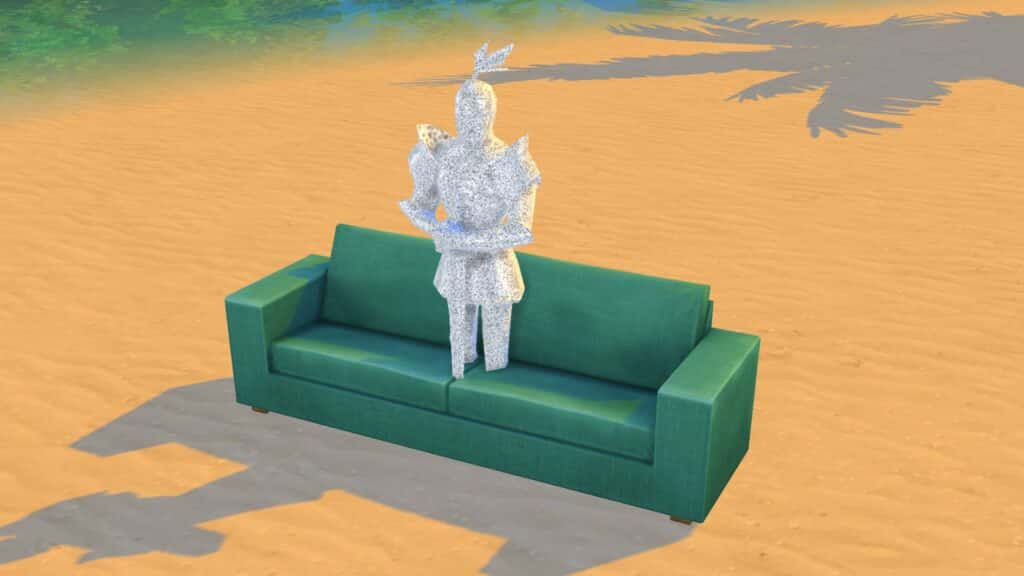
After installing your Sims 4 custom poses and anything else they require, start the game and go into Build/Buy while playing a household. Search “teleporter” and select the Sim Teleporter object. It looks like a big suit of armour. Place the teleporter own wherever you want your Sim to pose.
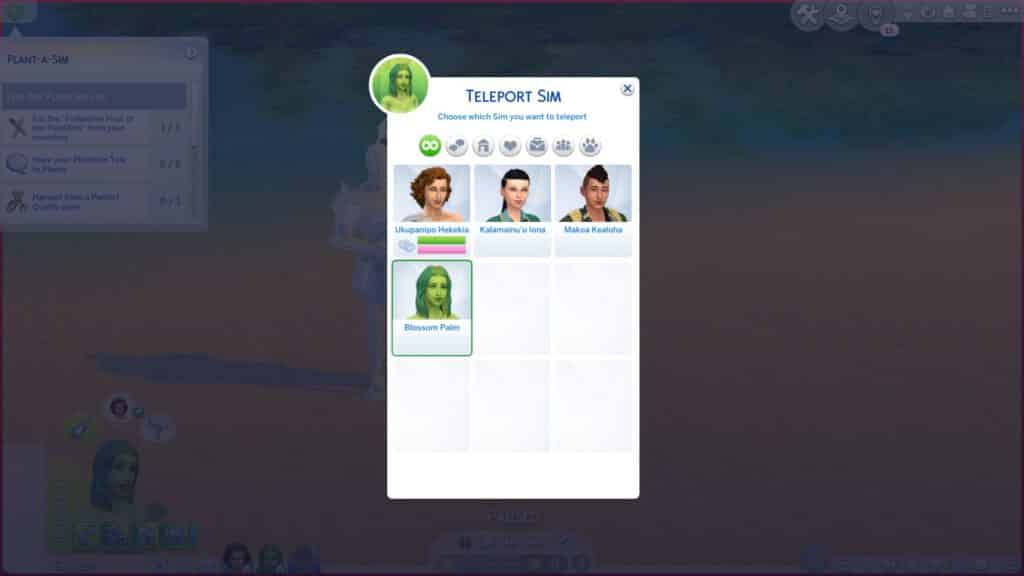
Teleport Sim selection screen
For poses with 2 or more Sims, place enough teleporters for each Sim in the pose directly on top of each other.
Sims who have been teleported to the same spot for a couple pose
If a pose requires an object, the teleporters almost always go directly in the centre of the object but check the creator’s description to see if they’ve included any special instructions for their pose.
Teleporters in the middle of a couch for a couple pose that uses this object
Go into Live Mode and click on the Sim Teleporter to teleport any Sim or pet you want to that spot. Teleport Sim brings up all Sims currently on the lot. Summon Sim brings up all Sims in the world. The summon option is useful for quickly posing Sims that aren’t in your active household. If there are multiple Sims in the pose, all the Sims will be standing inside each other but don’t worry; this is normal.
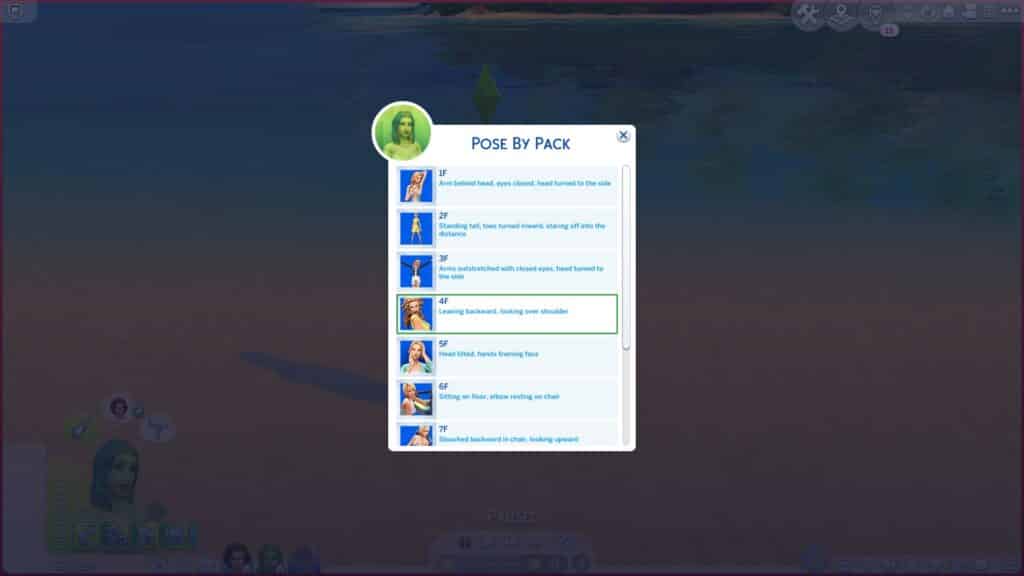
Choose Pose by Pack on your Sim and find the pose pack you want in the list
When all Sims have been teleported to the same spot, pause the game. Select each Sim, go to Pose by Pack and scroll down the list to find the pose pack you want to use. Each Sim in the pose has their own clip you need to select. For example, a pose with two Sims will have two clips listed; one for each Sim. Creators will usually clearly label which pose and which Sim a clip is for. Thumbnails help players distinguish this as well.
Select the clip for the pose you want from the list
Assign all the corresponding clips in the pose to the correct Sims and unpause the game. Give the Sims a second to move into their Sims 4 custom poses. Sometimes they like to do a random idle animation before they pose. And voila! You have your Sims in a nice pose for picture taking! To have Sims stop posing, you can either cancel the action in their queue or click them and select Stop Posing.
A pose for a single Sim
One thing to remember when using in-game Sims 4 custom poses is that poses cannot be used outside of their intended age group! A pose for a toddler can’t be used for a child. A child pose can’t be used for an adult. You will get scary results if you try to do this. Here’s a quick breakdown:
All adult Sims 4 custom poses can be used for teens-elders
Male poses can be used with female Sims and vice versa
Child poses can only be used with children
Toddler Sims 4 custom poses can only be used with toddlers
Pet poses can only be used for that size and species of pet. Large dogs, small dogs, cats, puppies, and kittens are all separate types of poses and cannot be used interchangeably
Mermaid Sims 4 custom poses can only be used with mermaids
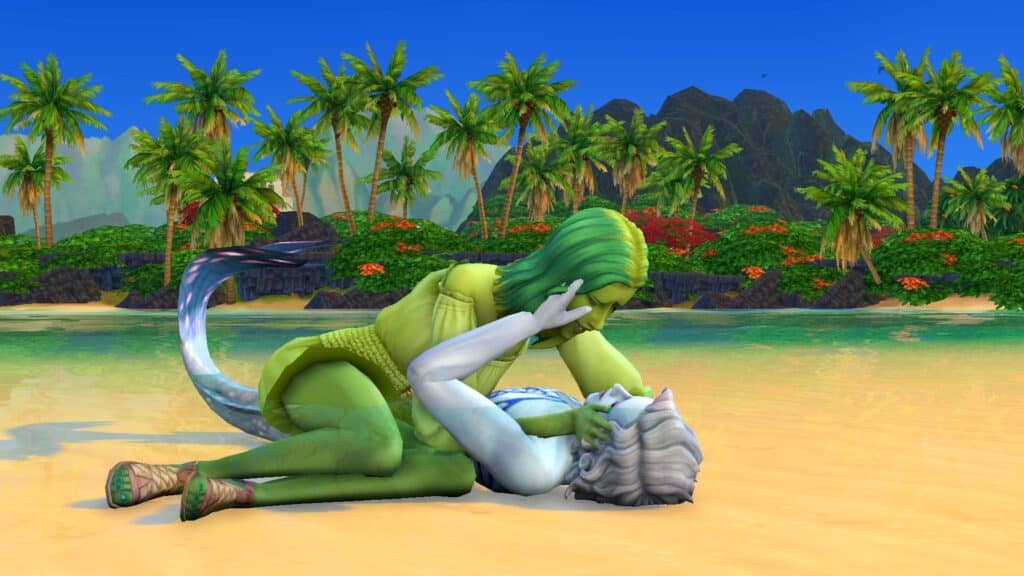
A couple pose for a human and a mermaid
Another thing to remember is that Sims 4 custom poses will never 100% perfectly fit with every Sim’s body type. If you have a larger Sim and the pose you’re using is meant for an average-sized Sim, you will experience clipping and it may not look right. Try searching for plus size poses specifically, as there are creators who make poses that fit larger body types.
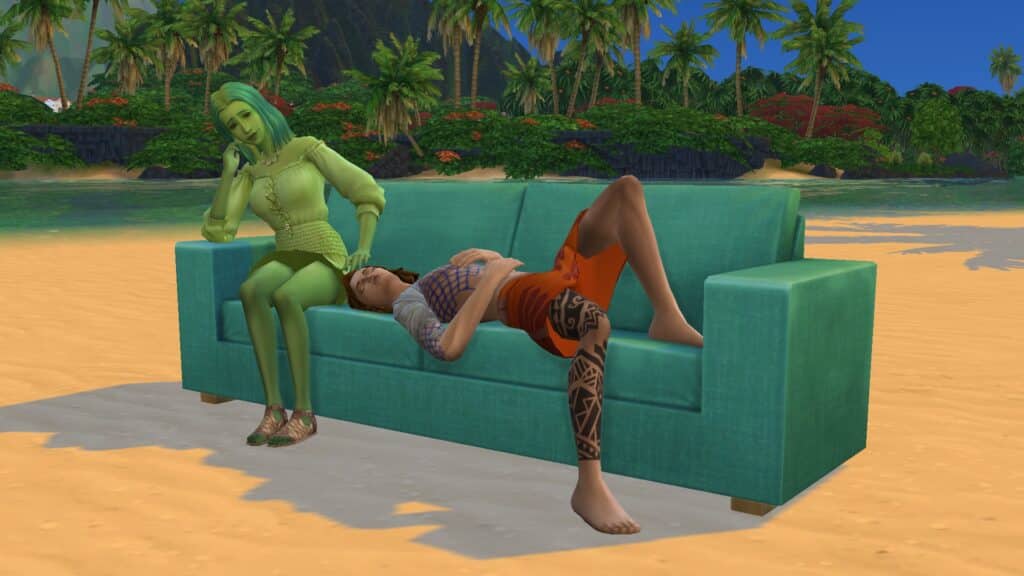
A couple pose for a couch
Some pose packs are actually animations instead of still poses but they work exactly the same as still poses. Use them the same way you would use any other pose pack.
CAS Poses
CAS Sims 4 custom poses are good for modelling your lookbooks. You never need to leave CAS to get cute posed shots of your Sims but they work differently than in-game poses.
CAS poses override the existing animations that play when you click on a trait in CAS. For example, instead of the angry animation that usually plays when you select the Hot-Headed trait for your Sim, they will do the custom pose, instead.
Because CAS Sims 4 custom poses are overrides, you cannot have more than one CAS pose for the same trait installed at the same time! When you look for CAS poses, pay close attention to what trait that pose overrides. If you already have a CAS pose that overrides the same trait, you will have to remove it before you install the new one.
Once you have some CAS Sims 4 custom poses installed, using them is very easy! Just select the trait associated with that pose in CAS and your Sim will pose! Now you can take pictures for your lookbook or anything else you’d like.
Gallery Poses
A lot of avid Sim and pet creators don’t like the default poses Sims have in the Gallery; they don’t really have much personality. Custom gallery Sims 4 custom poses can make your households stand out from the crowd and the best part is they don’t flag your household as modded (as long as the household itself is CC-free, of course).
The downside to Gallery Sims 4 custom poses is they can be kind of a pain to use. To make your life easier, you should download the No Randomization mod, especially if you’re trying to pose multiple Sims in a household.
Just like CAS poses, Gallery Sims 4 custom poses are overrides, so you cannot have more than one custom Gallery pose overriding the same default Gallery pose! Since it’s not always easy to tell which default poses a Gallery pose overrides, I recommend saving yourself headaches by only using one Gallery pose set at a time.
Once you have the Gallery pose you want installed, create your household in CAS like normal and then save it to upload to the Gallery. Before you upload, click the camera icon underneath the household to select a new random pose for the Sims in the household. The game will randomly select a pose for each household member so you will have to just keep clicking until the poses eventually match up with each other. Without the recommended No Randomization mod, this can take a very long time. The more Sims in the household you’re trying to pose together, the worse it is so I really recommend that mod.
You cannot use a Gallery pose that doesn’t match the number of Sims/pets in your household and their genders/ages exactly. So for example, if you download a Gallery pose for two male adult Sims and a toddler, no other household setup will work with that pose. Your household must only consist of two male adults and one toddler.
Other Resources
We hope this guide to using Sims 4 custom poses has been helpful! Here are a couple other things we recommend checking out!
How to Make Your Own Custom Poses – If you want to learn how to make in-game poses yourself, our guide for beginners will show you how!
TOOL Mod – The TOOL mod can be really helpful for nudging Sims who posed in the wrong spot back to their proper place or adjusting the placement of multiple posed Sims at once. You can also pose Sims off of a lot using TOOL.
MCCC – This mod has a lot of useful features you can use alongside poses, such as teleporting Sims to an exact spot off of a lot or quickly changing outfits without having to break a pose or wait for your Sim to spin into the outfit you want. You can also make occult Sims switch to their occult form. This is especially useful for mermaid poses.
Tell me what you want, what’cha really really want!
If you’re a 90s baby like me, you probably remember the time when the whole world was obsessed with The Spice Girls. Whether you loved them or hated them, they were everywhere! On TV, on billboards, on magazine covers, even on bubble gum wrappers! They even had their own line of Barbie dolls and a hit movie called Spice World!
Yeah, they were kind of a big deal in the 90s and, being nine years old at the time, I was naturally just as obsessed with them as everybody else. I had the Baby Spice Barbie doll, Spice Girls posters all over my bedroom walls and I begged my mom to let me watch the Spice World movie.
So when Emma and Mel B made a surprise appearance on season four of Netflix’s reality series, The Circle, it reawakened my nostalgia for everything Spice Girls. I suddenly wanted to experience The Spice Girls all over again and what does a Simmer do when they become obsessed with something? They recreate it in The Sims! Obviously!
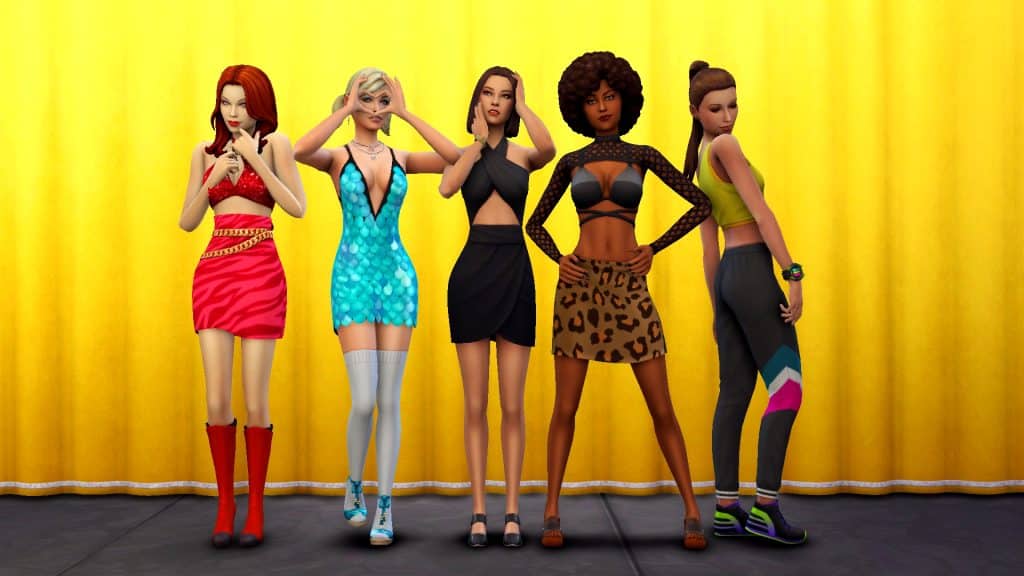
That’s right. Get ready to spice up your life because The Spice Girls are back for their reunion tour! At least in The Sims 4.
Baby Spice (Emma)
Traits:
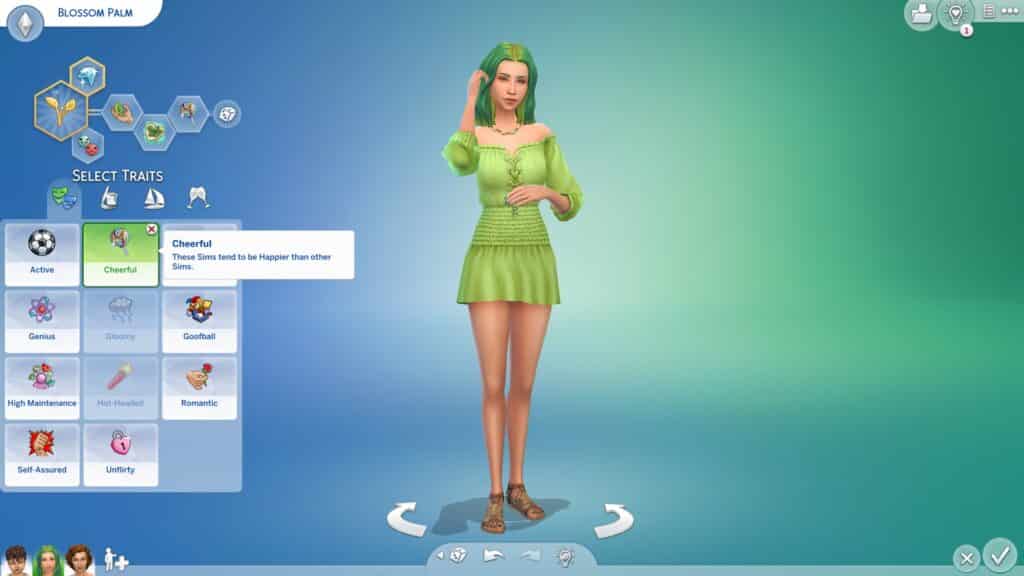
Cheerful
Childish
Outgoing
Gregarious
Aspiration:
Friend of the World
Scary Spice (Mel B)
Traits:
Self-Assured
Erratic
Goofball
Gregarious
Aspiration:
Party Animal
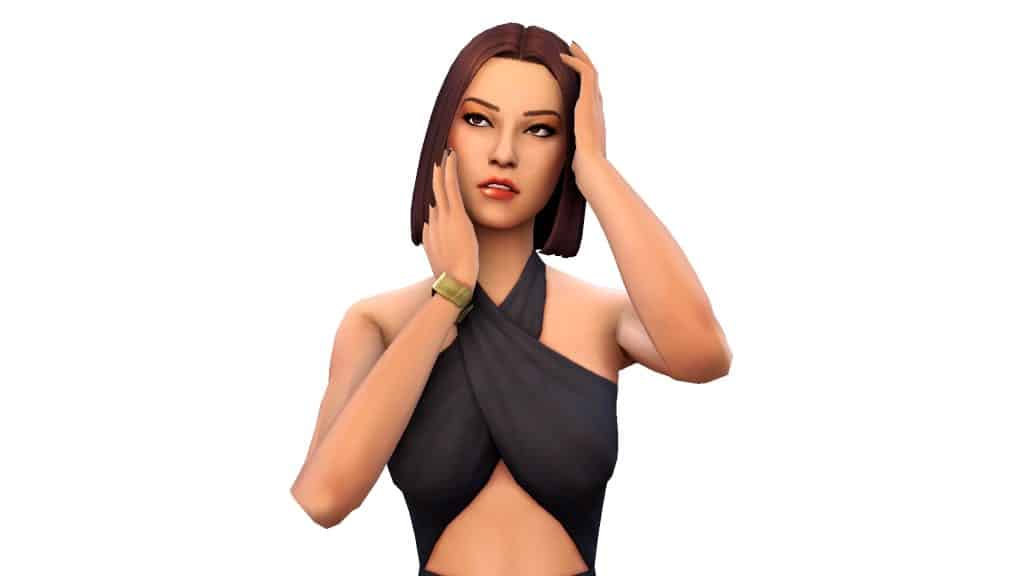
Posh Spice (Victoria)
Traits:
High Maintenance
Romantic
Perfectionist
Gregarious
Aspiration:
Leader of the Pack
Sporty Spice (Mel C)
Traits:
Active
Adventurous
Loves the Outdoors
Fast Metabolism
Aspiration:
Bodybuilder
Ginger Spice (Geri)
Traits:
Hot-Headed
Self Absorbed
Jealous
Gregarious
Aspiration:
World Famous Celebrity
So if you need a dose of nostalgia in your game, The Spice Girls are ready and waiting for you! There are two versions in the Gallery; one with CC and one without CC so everyone can enjoy The Spice Girls!
The CC version of The Spice Girls has a link to the CC list in the Gallery description but don’t worry if you can’t use CC! The CC-free version of the girls doesn’t look very different from the CC version. I use minimal CC on my Sims and the CC version of The Spice Girls is no exception!
Both versions have base game styled looks for the other outfit categories to cut down on DLC packs and to prevent the girls from walking around in totally crazy hot/cold weather outfits and such.
Did you know there is a ghost occult life state in the Sims 4 base game? Ghosts have been a part of the Sims franchise since the first installment of the series way back in 2000 but they’ve gone through a lot of developments since then.
Sadly, ghosts seem to be a step backward from their Sims 3 predecessors but that doesn’t mean ghosts in The Sims 4 don’t have some gameplay of their own.
Here’s everything you need to know about playing as a ghost in The Sims 4!
Can you play as a ghost in the Sims 4?
Of course, the most obvious way to become a ghost in the Sims 4 is to kill a Sim through any in-game means but this requires some effort, at least if you want to be able to play as a ghost. First, you’ll have to make sure there are at least two teen or older Sims in the household before you kill off one of your Sims. If you kill the only Sim in a single Sim household, you’ll get a game over and have to go back to the world select screen to play as another family. If you kill a Sim with only children or younger Sims left in the house, social services will remove them and you’ll still get a game over screen. You could have your new family purchase the lot with the tombstone on it but it’s easier to not have to do all that in the first place.
When a Sim dies, they become a ghost but they leave your household and turn into an NPC ghost that periodically visits whatever lot their tombstone is on. In order to make the ghost playable, you’ll need to wait for the ghost to spawn. Keep an eye on their tombstone at around midnight each night. They won’t appear every night but they will usually show up once every couple of nights.
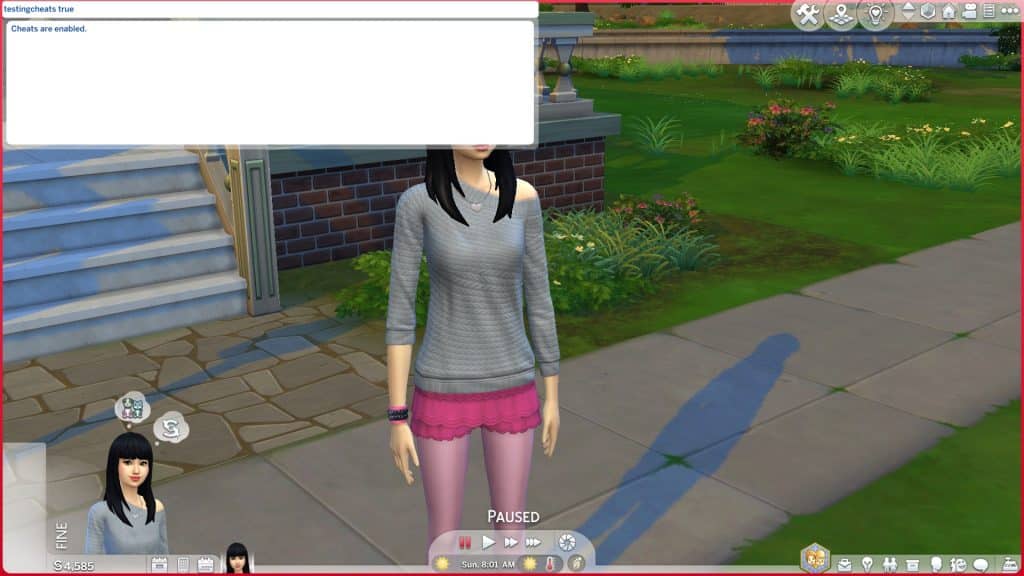
Once the ghost is on the lot, your Sim will have to befriend them. Asking a ghost to move in requires a maxed out friendship bar. The option to ask them to join the household won’t appear under the Friendly socials until you have a full friendship bar. If you’re impatient and don’t want to bother building up a relationship with a Sims 4 ghost, you can always use the cheat testingcheats true and then Shift+Click the tombstone to immediately add the ghost to your household.
Or, if you really just want to jump in the game and play with a ghost immediately, you can always grab a ghost off the Gallery.
Ghost Characteristics
An uncomfortable ghost
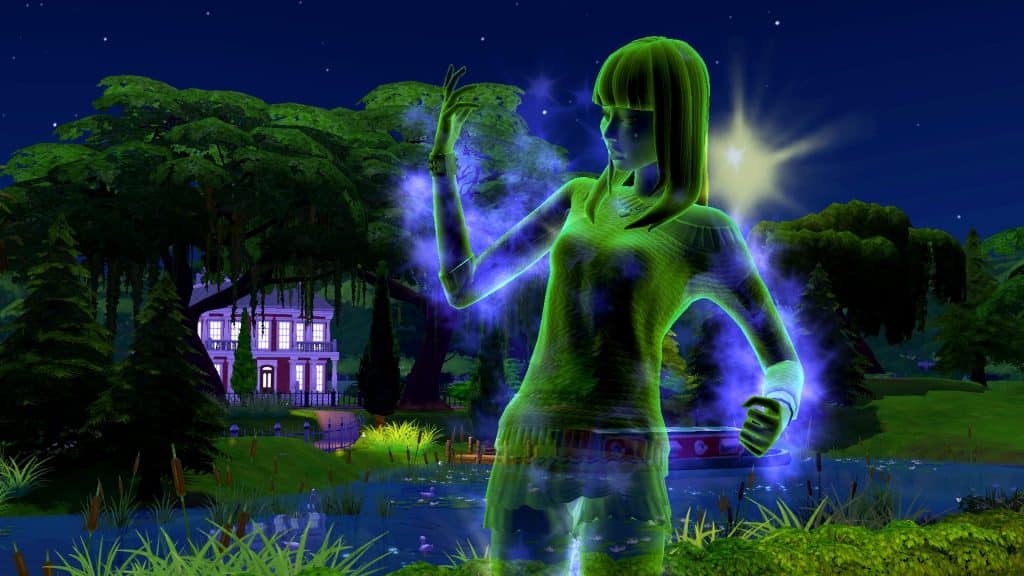
Ghosts change colour according to what their current emotional state is. You can always tell how a ghost is feeling just by looking at them. Their colour will correspond with the different emotion colours:
Grey – Fine/Bored
Happy – Green
Blue – Confident
Navy Blue – Sad
Turquoise – Inspired
Red – Angry
Yellow – Embarrassed
Purple – Focused
Magenta – Playful
Uncomfortable – Orange
Tense – Light Orange
Dark Purple – Scared
The Sims 4 Ghosts will have different special effects depending on the manner in which they died. They may also display unique autonomous behaviours depending on how they died. Ghosts who died particularly gruesome deaths are generally a nuisance to everyone around them. Not every type of ghost will display special effects or behaviours but there are a lot of them that do:
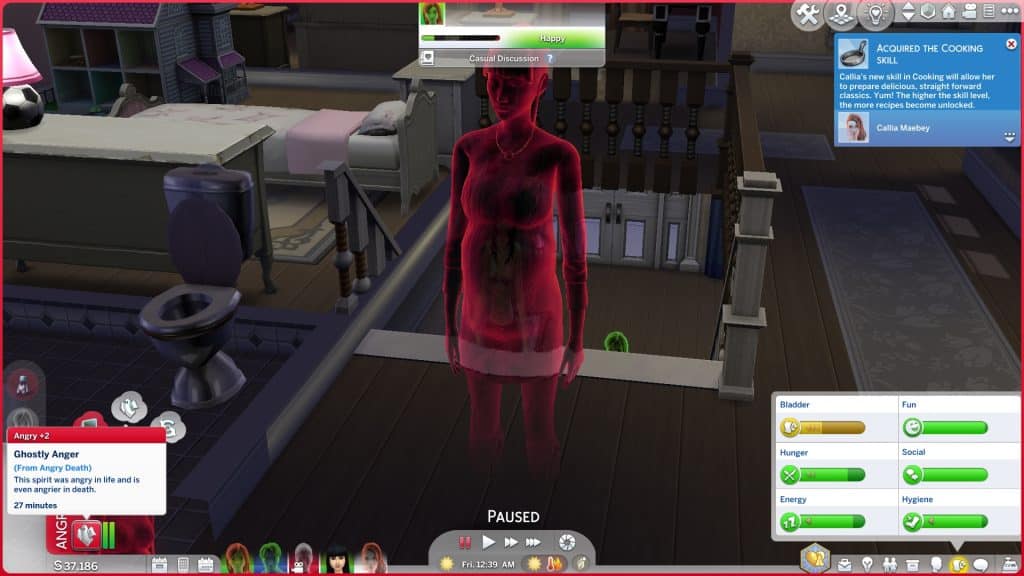
A ghost who died from anger is more prone to feeling angry
Fire – Flame effect flicker on their ghost, will start random fires throughout the house and can be directed to start fires themselves if you’re playing as them.
Drowning – Dripping water effect on their ghost. Will leave puddles of water behind everywhere.
Electrocution – Crackling electricity effect. Will break objects around the house constantly and has the ability to shock Sims
Anger – Rippling effect. Prone to random outbursts of rage, making all nearby Sims angry, too.
Cowplant – Will try to kill the plants in your garden by causing them to decay in health.
Starvation – Frequently raids the fridge for stuff to eat. They will eat everything in your fridge so if you have a ghost who died by starvation and your fridge is mysteriously empty… you know why.
Old Age/Overexertion – These ghosts are by far the nicest ghosts to have occupying your lot. They just sleep a lot so the worst they’ll do is hog your bed.
Flies – Will frequently bat at the flies buzzing around them.
Murphy Bed – Terrified of Murphy Beds and will frequently lecture other Sims on the dangers of them. Can also possess Sims to rob them of their energy.
Rabid Rodent Fever – This is one of the funniest ghosts. They literally come back as a giant rodent frothing at the mouth.
Mother Plant – These ghosts have purple spores floating around them and their needs never decay.
Freezing – These ghosts have a cloud of condensation following them around, like a Sim exhaling in cold weather. They also shiver and rub their arms frequently. They can also cool down a Sim who is too hot.
Overheating – Frequently act like they’re too hot, fanning themselves and wiping their brow. They can also warm up a Sim who is too cold.
Pufferfish Poisoning – They have a pufferfish swimming around inside their chest.
Spellcaster Overload – Have rays of light and sparkles around them and can be dueled by other Sims.
Killer Chicken – Have an evil chicken head with glowing eyes floating around inside their chest.
Vending Machine – These ghosts have a spinning pop can inside their torso that sprays pop everywhere.
Poison – These ghosts have a green stink cloud following them around.
Sauna – Will absorb puddles on the ground. Useful if you also have a Death by Drowning ghost trying to flood your house.
Laughter – These ghosts are just Playful often and will make nearby Sims Playful, too.
Embarrassment – These ghosts frequently recount the embarrassing nature of their death and become embarrassed all over again. For eternity. How relatable.
Sunlight – These ghosts have a sunburst inside their chest.
Beetles – These ghosts will never get scared in a Haunted House.
Understandably, ghosts never age in The Sims 4 and cannot die again while they are still a ghost. In fact, they are frozen at the point of their death in every respect… meaning they cannot reproduce. That’s right, Simmers. Unfortunately, no cute ghost babies like The Sims 3. We’re disappointed about it, too. The only way to have a ghost have a baby is to turn a pregnant Sim into a ghost (via cheats since pregnant Sims cannot die) but your ghost Sim will still give birth to a very much alive, non-ghost baby.
A ghost giving birth to a regular baby
Even though they don’t age, ghosts do have a lifespan of sorts. They only have so much time on earth before their spirit fades away to the netherworld. This is usually around 100 Sim days or so, typically a full generation when playing on a normal lifespan. You’ll receive a notification when a ghost is going to return to the netherworld soon.
If a ghost is visiting you at night to cause trouble and you’re tired of it, you can click on their tombstone to release their spirit to the netherworld. This will delete the ghost from existence and your Sims will never be bothered by them again. On the flip side, if you’ve grown attached to your nightly ghost visitor and don’t want their spirit to fade over time, you can click their tombstone and strengthen their connection to the physical world.
Playing as a Ghost in the Sims 4
A ghost passing through a living Sim
The Sims 4 kind of treats ghosts the same as regular Sims, which is a bit… unfortunate. This means that your playable ghosts still need to take care of their motives and they will keep inviting their living friends and relatives out for coffee and stuff as if they never died. Yeah. It’s weird.
But ghosts do have some unique interactions and abilities that living Sims do not.
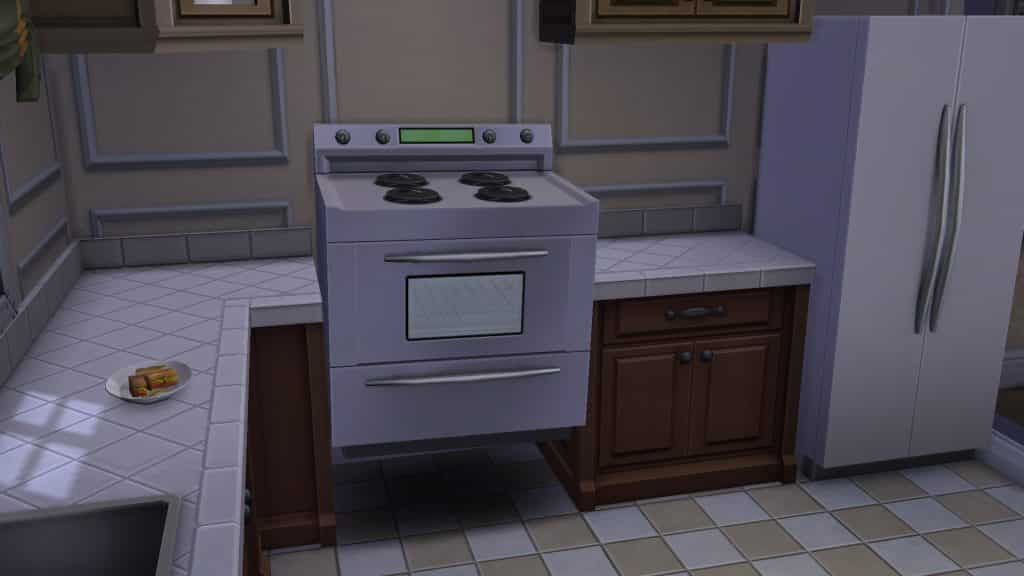
A ghost possessing a stove
Possess – Ghosts can possess almost any object in the game. It’s just a fun classic ghost thing they can do. They will jump inside the object, causing it to levitate for a few minutes. Any nearby living Sims who witness an object being possessed will become scared.
Possess to Break – Ghosts do this a lot autonomously but you can also direct them to do it. Possess to break is available on some breakable objects, mostly plumbing. After the ghost possesses it, the object will break and need to be repaired.
Ghostly Repair – Ghosts can do a ghostly repair on objects, which is very helpful considering they are usually the cause of the broken objects in the house. They seem to only be able to repair plumbing objects this way.
Ghost Scare – Ghosts can sneak up on living Sims and scare them. The living Sim will be quite shaken for a time afterward.
Pass Through – This is under the Mischief social category. Ghost Sims can fly through a living Sim which will scare them at first but then the living Sim will encourage the ghost to do it again once they realise hey… this is kinda cool!
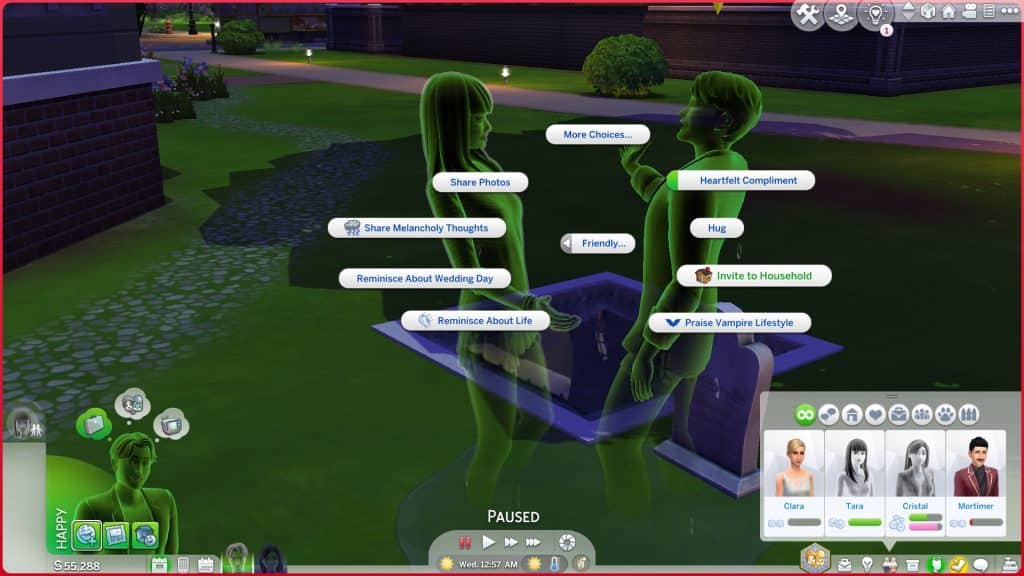
Reminisce About Life – Ghosts can reminisce about being mortal with other ghosts.
Mourn Past Life – Ghosts can mourn for their past lives at their grave.
Return to the Netherworld – If you’ve grown tired of playing with your ghost and just want to retire them, you can have your ghost return to the netherworld by clicking on their tombstone. Be very sure you want to do this! Returning to the netherworld deletes the ghost so once it’s done, the ghost is gone forever.
Ghosts can also hover and float around instead of walking. They can pass through walls and objects but the player can’t really control what path a ghost will choose to take to get somewhere. They will sometimes still choose to use doors if it’s not more convenient to pass through a wall.
How to bring a ghost back to life in the Sims 4?
If you want your ghost Sim to return to the world of the living, there are several ways you can accomplish this; however, resurrection has been glitched for some time now. Many players report that the resurrection action cancels itself on the ghost when attempting to revive them, but it does work some of the time. Currently, we’re not quite sure what causes it to work for some players and not others. We have done it multiple times in our own game and experienced both failure and success seemingly at random.
Ambrosia
A ghost eating ambrosia
Ambrosia is a level 10 Gourmet Cooking recipe but your Sims must also be level 10 in Cooking in order to unlock it. It requires a death flower, angelfish, and a Potion of Youth to make. Angelfish can be caught in Willow Creek and Potions of Youth can be purchased from the Rewards Store for 1,500 satisfaction points. See our guide on how to obtain a death flower.
If a ghost eats a plate of ambrosia, they will be brought back to life.
The Book of Life
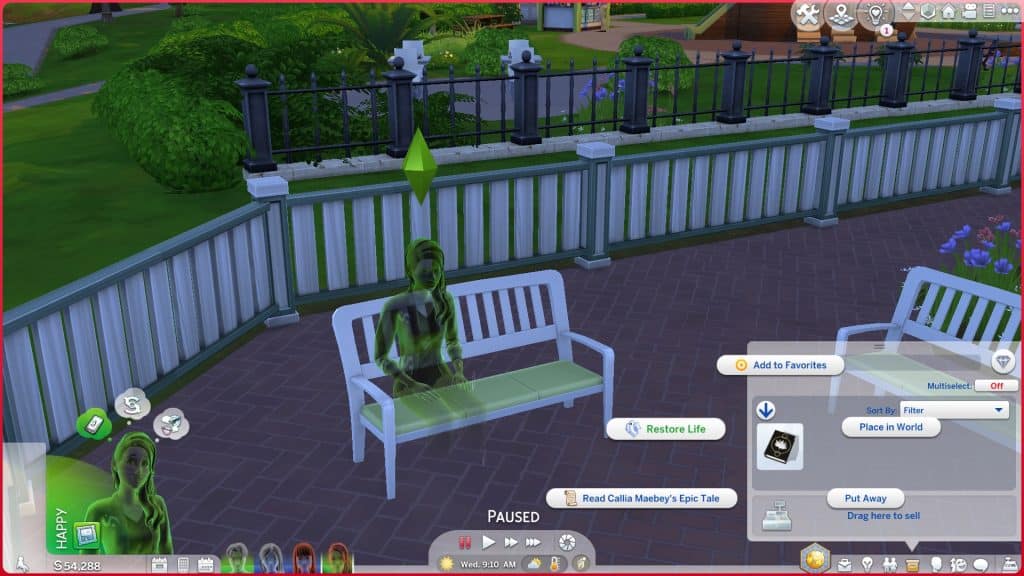
Sims who have completed the Bestselling Author aspiration will gain the Poetic trait, which allows them to write the Book of Life. Once the Book of Life has been written, it can be bound to a living Sim. When the Sim dies, they will be able to come back to life by reading the Book of Life.
The Book of Life will only resurrect the Sim it was bound to. Since it cannot be bound to a ghost Sim, the Book of Life won’t be of any use to a Sim who is already dead. This is very much a preventative measure that requires forethought in case something ever happens to a living Sim.
The Wishing Well
The wishing well comes with the Romantic Garden Stuff pack and can be used to resurrect a dead Sim. Ghost Sims can wish for life at the well for $1 but a resurrection is not always guaranteed. There is a range of different outcomes. Positive outcomes include being gifted a plate of ambrosia or just magically resurrecting the Sim on the spot. Negative outcomes include flat-out ignoring the wish or even sending your ghost Sim back to the netherworld, never to be seen again!
To increase your chances of a good outcome, give the maximum offering of $5,000 to the well before making your wish and don’t attempt to wish if the face above the well is mischievous, angry, or shrouded under a hood.
You can cheat the well outcomes by using the testingcheats true cheat and Shift+Clicking the well to force positive or overwhelmingly positive outcomes.
Have you ever wanted to know how builders do things such as make objects larger or smaller, rotate and move objects freely outside of the grid, and elevate items to place them on surfaces that normally don’t have object slots, like the tops of fridges and microwaves?
We’re going to show you how on both PC and consoles!
Resize Objects
PC
Enter the cheat bb.moveobjects on
With an object selected, use the [ and ] keys to scale the object larger or smaller.
Console
Enter the cheat bb.moveobjects on. This cheat won’t disable your trophies/achievements.
With an object selected, use the left/right directional buttons to scale the object larger or smaller.
Move Objects Outside the Grid
PC
With an object selected, hold the Alt key to freely place objects.
To rotate freely, drag the mouse in the direction you wish to rotate while holding Alt.
Console
With an object selected, press L2 (PS4) or LT (Xbox) twice to toggle to free placement. This button toggles between full, half, and free tile placement.
To rotate freely, press L1+R1 (PS4) or LB+RB (Xbox) with an object selected, then use the right analog stick to rotate.
Elevate Objects
PC
Enter the cheat bb.moveobjects on
With an object selected, use the 0 and 9 keys to raise or lower the height of an object.
Console
Enter the cheat bb.moveobjects on. This cheat won’t disable your trophies/achievements.
With an object selected, press L2+R2 (PS4) or LT+RT (Xbox) and use the up/down directional buttons to raise or lower the height of an object.
We love learning new build tricks from the amazingly talented community so whenever we come across something that helped us enhance our builds, we want to share it with all of you!
When we came across this reddit post by MyaShmya showing us how to make extravagant wall displays using arches and platforms, we just had to try it ourselves! MyaShmya shows us how to make a really beautiful castle or estate garden display in their video tutorial but we wanted to see what other styles and variations we could come up with using this same basic technique.
The concept is simple but very clever! All you need to do is raise a small room with arches onto a platform and then decorate it however you like! We’re going to walk you through what we did to come up with two very different designs with the same build trick.
First, we opened up the cheat console and entered the bb.moveobjects on cheat. It’s not specified to do this in the video but we always find having it enabled helpful when building. It prevents objects from getting deleted if you decide you want to restructure something halfway through.
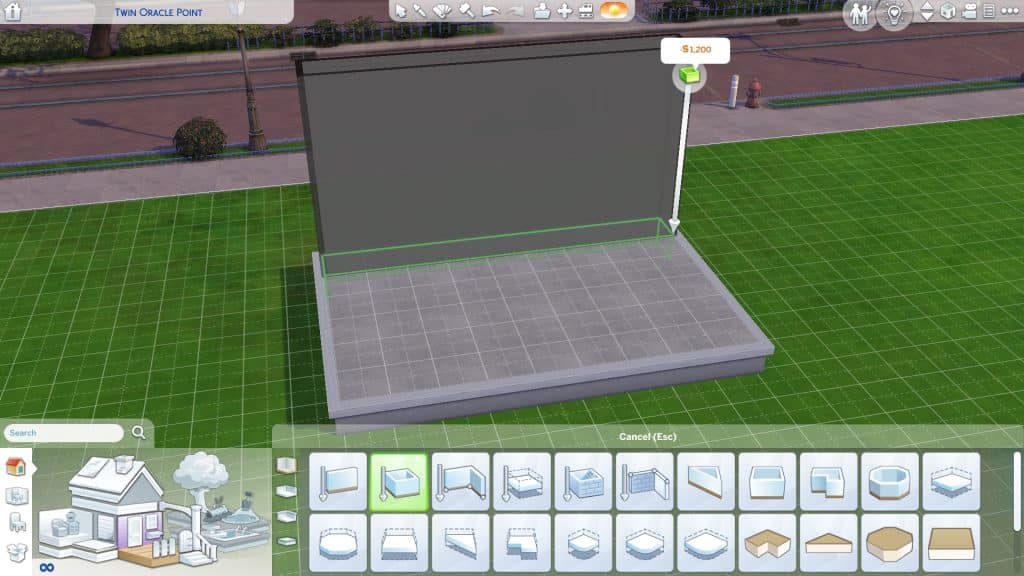
Next, we built a basic square room and created a smaller room along one side, just one tile wide.
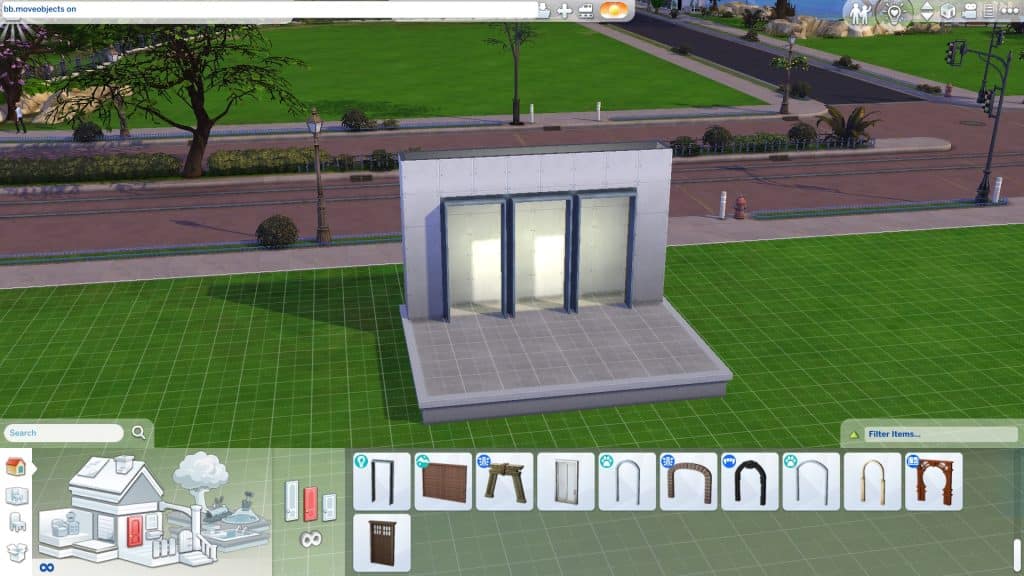
For our first design, we wanted to go with a modern look but weren’t completely sure exactly what we wanted so we ended up playing around with different arch styles for a while. In the end, we settled on some base game square arches.
Then we selected the smaller room and clicked the up arrow 3 times to raise the room up onto a platform. Make sure your wall height is taller than the arch you chose. The arch needs space to move upwards.
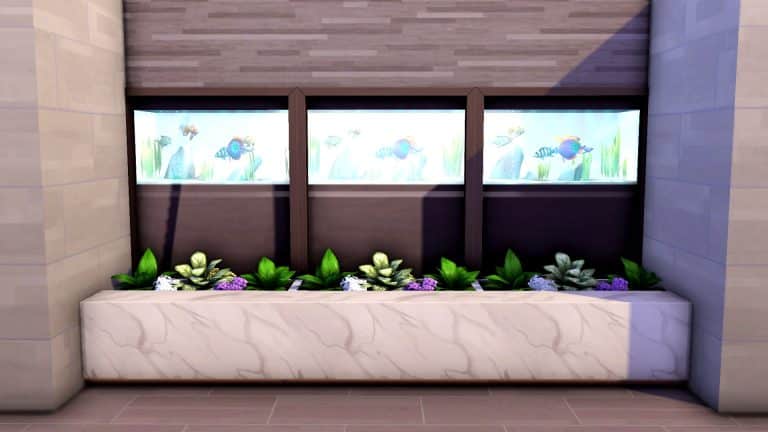
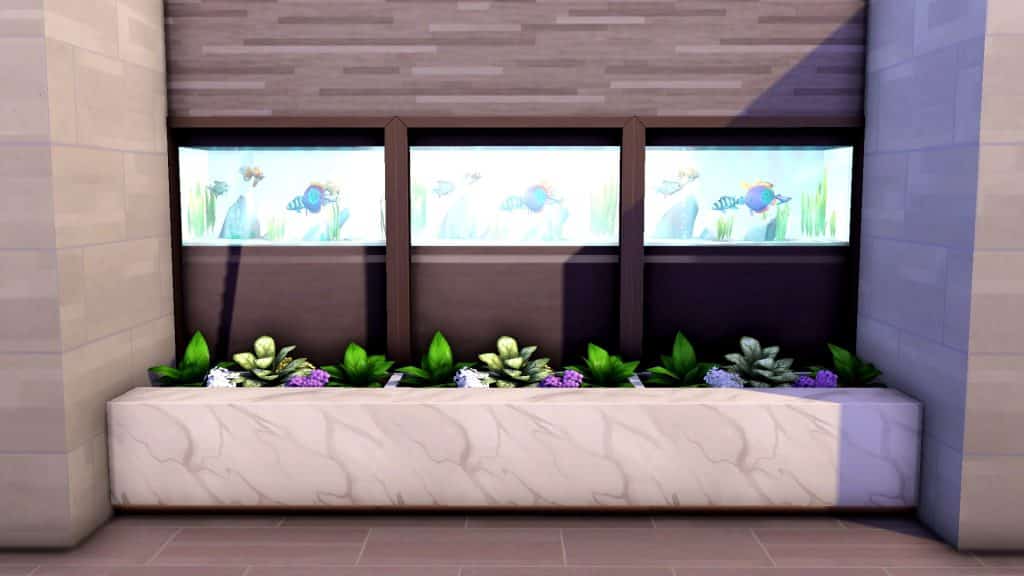
We decided that the Spa Day aquarium would look great tucked neatly behind these arches and we were right! Once that was complete, it was time to decorate the rest of the area and make everything look all nice and seamless. We added some succulent planters in front to hide the gap and give the display more depth, then gave the planters a more seamless look by placing the Dine Out marble accent tables in front of them. We pulled out the side walls to give the planters and accent tables a clean, built-in look and then added wallpaper and flooring to complete the area.
Our second variation was a crumbling temple display, perfect for a Selvadorada build! Once again, we built a small room up against a larger room, added archways, and then raised the small room onto a platform. Then we put some old temple décor behind the arches, like a skeleton guard and some pottery. We put some mossy stone benches from Romantic Garden Stuff against the archways to hide the gap and added creeping vegetation and foliage to give the whole area a wild, overgrown look, like an ancient building being reclaimed by nature. To top it off, we put in some lanterns so the place would have an eerie glow at night.
Thanks to MyaShmya’s handy video tutorial, we can create all kinds of creative and unique wall displays to add depth and detail to our builds with no mods or custom content necessary at all. Try it yourself and see what kind of amazing displays you can come up with!
While we are waiting for the official confirmation of The Sims 4 version of werewolves, it might be good to reminisce on the previous versions of this fan-favorite life stage, since every game in the franchise had them in one form or another.
The Sims 1
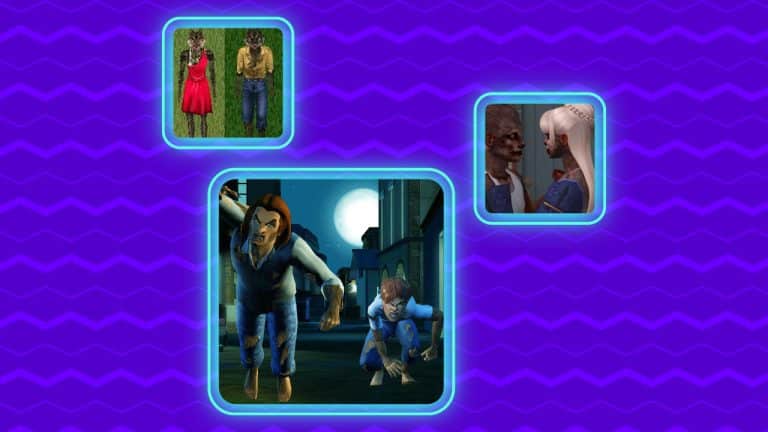
It all started at the beginning, with The Sims: Makin’ Magic, the first supernatural Sims expansion. Werewolves we just a result of a “Beauty or Beast” spell and they functioned like every other Sim – same needs, same interactions, same everything, just hairy. They had fur covering their entire body, with a dress for girl werewolves and pants for boys.
The Sims 2
After the purely cosmetic appearance in The Sims 1, the next game in the franchise had much more developed werewolves, and occults in general. Werewolves came out with the Pets expansion, alongside dogs and wolves.
Since it wasn’t possible to start playing as a werewolf, you had to become one. To do so, your sim had to become friends with the cursed wolf with glowing yellow eyes, known as the Pack leader. The wolf in question comes usually at night and it helps if you have a lot of trees and bushes on your lot. Of course, if you don’t feel like waiting, a more straightforward solution comes in the form of “boolprop testingcheatsenabled true” cheat, that summons the pack leader and saves you and your sims from waiting.
Once you are friends, the wolf will bite your sim and that’s it. After that, every night, your sim becomes a werewolf from 8 pm to 6 am and functions as a regular sim, until the personality of werewolf sims, slowly changes in a couple of days, turning into 0 Neatness, 10 Outgoing, 10 Activeness, 10 Playfulness, and 0 Niceness.
Werewolf sim can summon wolves or “savage” another Sim, turning them into werewolves and continue spreading the curse. If by any chance, you don’t feel like doing so, a fortune-telling matchmaker can cure Lycanthropy (werewolfness) with the Lycanthropic-B potion. A friendly witch could do the same thing wither own homemade potion.
Being a werewolf came with many perks like being able to train dogs faster and fighting off burglars! The downside was that the sim walks and talks like a werewolf and the wolf form can’t be modified, so you are stuck with a regularly dressed sim, but now with excessive amount of body hair.
The Sims 3
The Sims 3 brought werewolves with the Supernatural expansion. This time, you could start playing as a werewolf or become one pretty easily during gameplay.
Werewolves live 1.5 times longer than regular humans and they could transform into their werewolf form whenever, just by clicking on them. The only exception was the night of the full moon when they are forced to do so and they scare unassuming sims in the vicinity.
In my humble opinion, The Sims 3 had the best and the most complex occults and werewolves at that point. There was a lot of stuff to be done, either if your sim is a lone wolf or a pack animal with leadership inclinations. For example, you can go “hunting” for collectibles alone or in a pack. Of course, there is a greater chance of getting something more valuable in a pack than solo. Also, the interaction with the other occults were pretty hilarious – playing fetch with witch’s wands or tag with fairies.
We shouldn’t forget that the kids and toddlers were included in the lifestyle, as they showed signs of lycanthropy early on. They could practice hunting by catching bugs and howling.
Having in mind all the other versions of The Sims werewolves, and The Sims 4 itself, I can only speculate the Werewolves pack will function something like the Vampire one. With two forms and some kind of skill that goes with field experience, but at this point, we’ll just have to wait and see!
The Sims 4 has a wide variety of cheats players can use to tweak the game to their liking, all of which are available on both PC/Mac and consoles. The catch? Many of these cheats are locked on console until you enable them.
We’re going to show console players how to access all the same cheats PC players use.
Before enabling cheats on console, make sure you really want to do this! Enabling cheats will permanently disable trophies/achievements on that save!
With the game open, press all 4 back triggers at the same time to open the cheat console. On PS4, this will be L1+L2+R1+R2. On Xbox, it will be LT+LB+RT+RB.
Enter the cheat testingcheats true and press X (PS4) or A (Xbox) to confirm.
You will get a popup asking you if you are sure you want to enable cheats on this save. Confirm again.
You will now see the message “Cheats are enabled” and can now use all advanced cheats PC players use!
Close the cheat console by pressing all four back triggers again. You can reopen it whenever you want to enter a new cheat.
Money cheats, skill cheats, free real estate cheats, and much more can now all be used on console after enabling cheats. In addition to being able to use more cheats, you also have access to hidden debug options on your Sims and the mailbox. To access these advanced options, press X+O (PS4) or A+B (Xbox) with a Sim or the mailbox highlighted.
Safe Cheats
There are some cheats on console that aren’t locked behind testingcheats and won’t disable your trophies/achievements:
bb.moveobjects on – Removes placement restrictions in Build/Buy
bb.showhiddenobjects – Unlocks hidden items in the Buy catalogue
bb.showliveeditobjects – Unlocks hidden world décor in the Buy catalogue
bb.enablefreebuild – Allows editing of special lots
bb.ignoregameplayunlocksentitlement – Unlocks locked Build/Buy items, like career reward objects
headlineeffects off/on – Toggles the plumbob, skill bar, and other overhead effects on or off
cas.fulleditmode – Allows you to change physical features and traits in CAS whenever you want
traits.equip_trait TraitName – Adds the specified trait to the selected Sim
traits.remove_trait TraitName – Removes the specified trait from the selected Sim
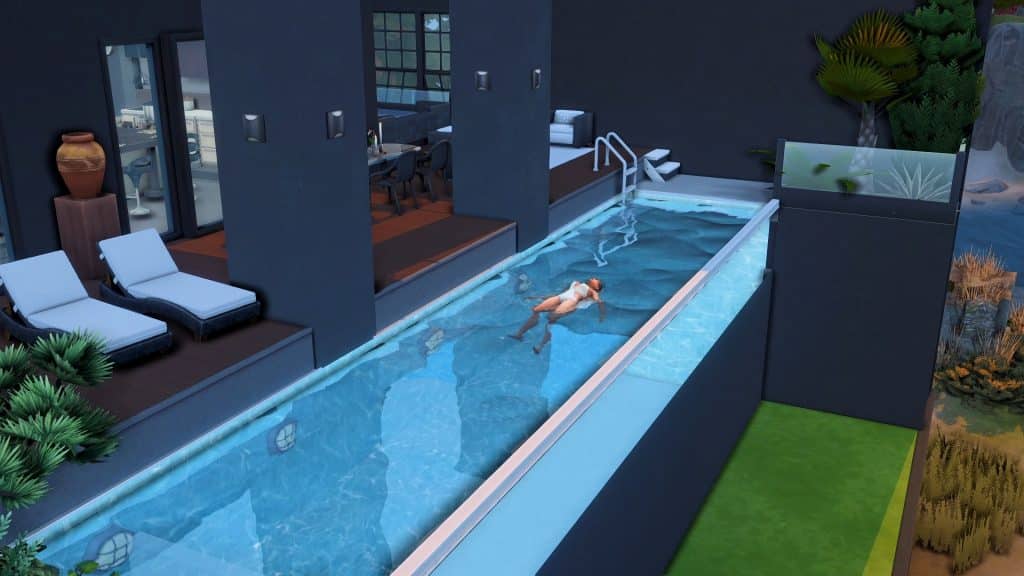
Infinity pools are swimming pools with water flowing over the edges on at least one side. From a swimmer’s point of view, it looks like an endless body of water with a gorgeous view on the other side. With its sleek cutting-edge design, it can be a luxurious addition to any residential or pool lot.
The best part is you’ll only need Base game for any infinity pool you wanna make!
As usual, make sure your ‘bb.moveobjects’ cheat is on.
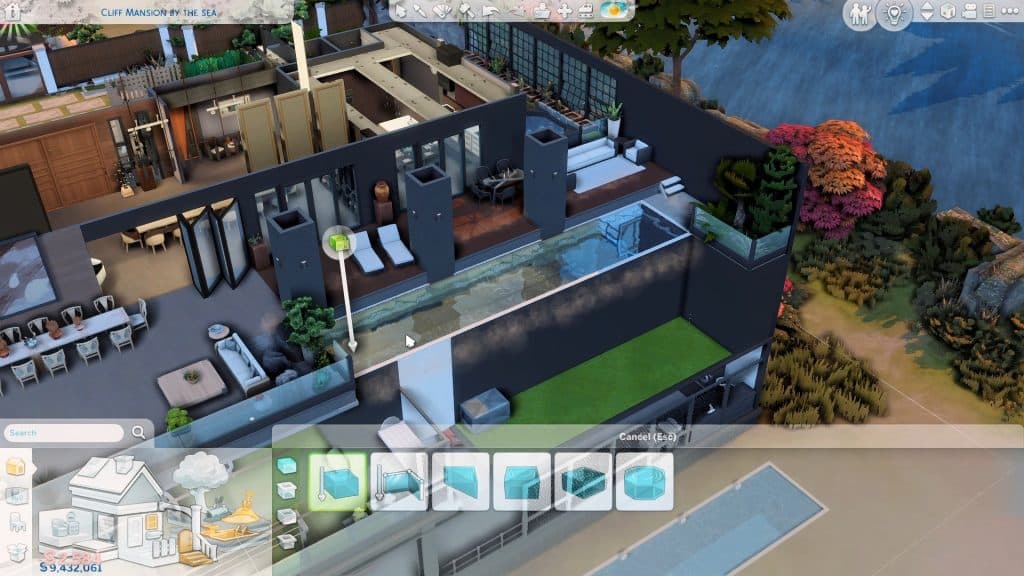
First off, build a pool on the upper floor. This trick will only work if your pool is surrounded by walls and is treated as a separate room. Note that this is absolutely different and new compared to the invisible foundation hack that you use on swimming pools on the ground floor or on the basement. With above-ground pools, you can make multi-level pools with water cascading from top to bottom.
To make a side seamlessly transparent, place and size down any window with the ‘[’ key. Now move it freely by holding Alt. This would make a hole in your pool wall that gives the appearance of a glass wall. Fill out a whole side or only a part of it with these sized-down windows until it suits you.
You can opt to use shorter windows which gives an illusion of a shallow pool.
On the other hand, you can go all out on tall floor-to-ceiling windows for deeper and bigger pools that are perfect for your mega mansions and hotels. However, you may need the T.O.O.L. mod to minimize and hide the sized-down windows.
It’s optional to add the Smooth Keeper low fence from Base game if you want to outline your pool.
And that’s basically it! Just decorate and let your Sim swim away to infinity and beyond.
This article has been written by MAIA Makes! You can check out her YouTube Short as well for visual guidance.
The biggest speculative piece on The Sims 5 I’ve done so far. You’ve been warned!
Before I begin with this post, I’d like to put a gentle reminder and notice out there that nothing is official as of yet. The usual information that we deliver in News Reports like these are usually based on the Maxis Careers website.
Now that we have the disclaimer out of the way – let’s start speculating!
The fact that EA and Maxis are working on a next generation Sims Game (our codename being The Sims 5) is no secret. EA’s CEO Andrew Wilson confirmed it, the Careers listings hinted at it, and Maxis reassured the future and the next generation with their official blog post.
With the official rebrand of the Maxis Studio that’s behind The Sims Franchise and SimCity, there’s also been a confirmation and reassurance that Maxis is growing. Into 4 different development locations, as well as off-site around the world. The blog post also came with a confirmation that Maxis will be working on both The Sims 4 and the next generation Sims Game – simultaneously.
As we look towards our future, continuing to create entertaining and unexpected content for The Sims 4 for years to come while also building the future of The Sims franchise, we want to hear from all kinds of voices.
Since the blog post in April the Maxis Careers website had been constantly up-to-date with new job opportunities.
Animation Job Listings
The latest wave of job opportunities that just recently surfaced on the website are related to the Animations field of game development. Specifically, there are 4 new Animation job opportunity roles listed on the website, including:
Animator II
Animator
2x Animator (Contract)
All of these new job opportunities include similar job descriptions. We focused primarily on the on the Animator role, what the Maxis team is looking for and for what.
As an Animator, your primary role will be to create and iterate on animation content to support both visual targets and prototyping in a pre-production environment. You will be creating and modifying human character animations that express a wide range of emotions and personality. You have skills in both traditional keyframe and motion capture animation workflows. Your secondary role will be to test new animation tools and provide rig feedback. You have knowledge in Maya, Unreal, and motion capture workflows. You will receive direction and feedback directly from Senior Animators and the Animation Director.
Key things to know about the introduction of this job opportunity:
The game is in a pre-production environment
Human character animations will be developed, portraying a wide range of different personalities and emotions
Exceptional skill creating keyframe animation with a primary emphasis on full body character acting.
Bonus: Experience in the Simulation genre of games
Comfortable creating entertaining acting performances for reference for your animations or others.
Experience working with motion capture processes
The Animator role went a bit more into the specifics of what the pre-production environment for this game is looking for:
Create expressive keyframe character animation that portrays multiple emotions in a variety of aesthetic acting styles.
Use both Maya and in-house experimental tools to implement animated characters and objects.
Excel in a pre-production environment that involves multi-tasking, innovating, and adaptability.
Iterate on animation content in multiple states for supporting prototypes.
Have an expert and demonstrable understanding of the traditional “Principles of Animation” and human anatomy in motion.
Bonus: Animation Experience in the latest version of Unreal Engine
So, what does this all mean?
The talks about the pre-production stage means that The Sims 5 is still in the second phase of development. Pre-Production means that many different prototypes for the game are being made, concept arts are being converted and realized into a 3D environment and the team is being planned out and put together.
In case you don’t know, there are 4 stages of AAA Video Game development:
Concept – creating an initial vision of the game through art, drawings, drawing board meetings
Pre-Production (putting together a full team for production, creating prototypes, finding the bare bones of what makes the game – a game)
Production (Full game development with a put-together team, creating prototypes into features, delivering animations and objects, realizing environments etc)
Post-Production (Delivering the game into a playable state)
Seperated into Alpha, Beta and Gold – final release
Approximate time seperation of how long each stage takes. Note that this visual doesn’t have to be the golden rule, especially in 2022.
I’ve closely followed the behind the scenes of the next generation Sims Game through the Maxis Careers website for years now. It’s rumored that Maxis has started doing Concept Art and creating an initial vision of the game in late 2018. The concept stage of The Sims 5 seems to be done already, years ago.
With many Senior roles already being assigned throughout the last few years, it means that Maxis today has a team of leaders ready to hire new folks to work on the game.
The listing of 4 new Animation roles has revealed that all the upcoming Animators will now receive direction and feedback directly from Senior Animators and the Animation Director.
So, if I’ve already speculated so far ahead, I can also speculate on the fact that The Sims 5 is in its final stages of Pre-Production. If Maxis is hiring 4 animators to create full blown Animations, possibly for their prototypes, it could mean that they want to see how Sims / Characters act in environments that have already been prototyped. Because, you can’t see how Sims are reacting to environments / between each other without prototypes of said environments, their surroundings, and objects and characters.
That sounds so confusing, right? Well yeah, that’s what Video Game development is all about. When The Sims 4 was in its Pre-Production stage, the team already had a vision of Willow Creek believe it or not. They also had an initial vision of the environments, art style and characters.
However, they didn’t have any animations and Sim behaviors. They were just…standing.
Maxis is more comfortable talking about the next generation Sims Game. The careers listings is expanding rapidly. This could all mean that soon™ the game will be ready to enter its full Production stage.
How soon is that? I have no clue. But it’s great to see the game finally getting new waves of people working on it. And that Maxis has taken a new approach of hiring people from all walks of life. After all, their rebrand wouldn’t be for nothing…right?
Set the expectations accordingly
Keep in mind that, as years go by, so do video game development methods and strategies. This is a speculation post after all!
The next generation Sims Game could be years in advance still. It could be announced next year. We have no idea as, once again, this is all speculation.
However, it’s worth noting that The Sims 4 is still going strong, and promises to deliver years of new content for the game. We at least have something to look forward to while looking forward to the next big thing!
Keep your PlantSims forever and open up new CAS and gameplay options for them!
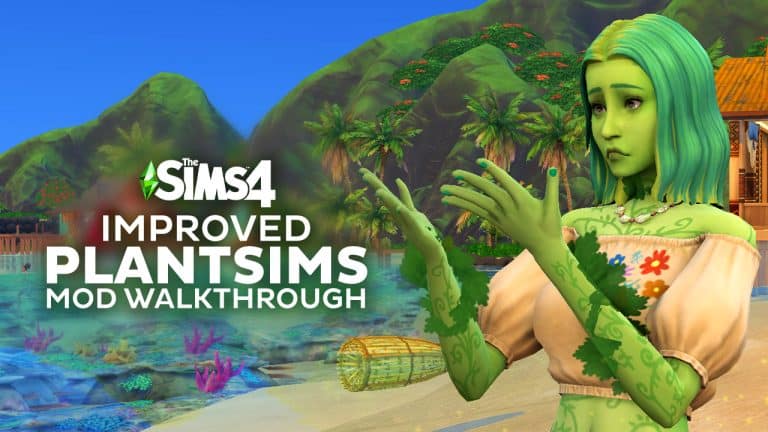
Before you ask, no, I will not stop talking about PlantSims. I’m obsessed, okay? For those of you who are still as obsessed with PlantSims as I am, a new mod that has just gone public aims to make PlantSims in The Sims 4 better. The PlantSim Lives mod by SrslySims enhances the PlantSim life state and makes PlantSims feel more like a real occult type.
We’re going to walk you through the whole mod and show you all the new functionality your PlantSims will have with this mod!
The PlantSim Lives mod is base game compatible and free for everyone to download. You can get it on SrslySims’ Patreon!
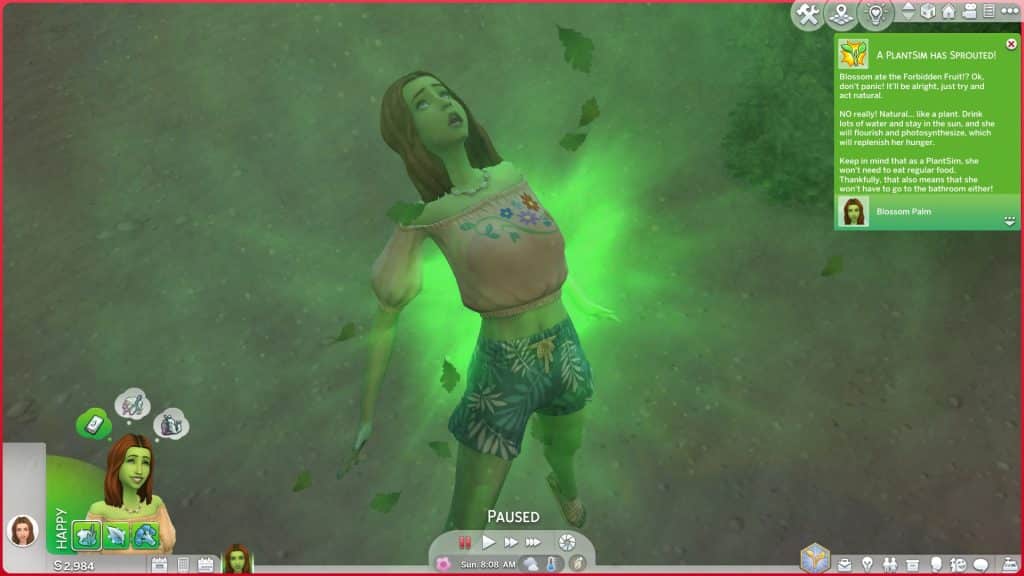
There are now three ways to become a PlantSim which all involve consuming the Forbidden Fruit of the PlantSim. The first method is to simply start the in-game Plant-A-Sim Scenario. Your Sim will begin the scenario with a Forbidden Fruit in their inventory which they can eat to become a PlantSim. This mod is fully compatible with the scenario if you want to use the mod alongside the scenario.
The second method is via the Rewards Store. For 500 satisfaction points, you can purchase the new PlantSim reward, which will give you a Forbidden Fruit in your Sim’s inventory.
And the third method is through finding the Sylvan Glade secret world! Explore the mysterious tree in Willow Creek and when your Sim arrives at the Sylvan Glade, they’ll have a Forbidden Fruit in their inventory.
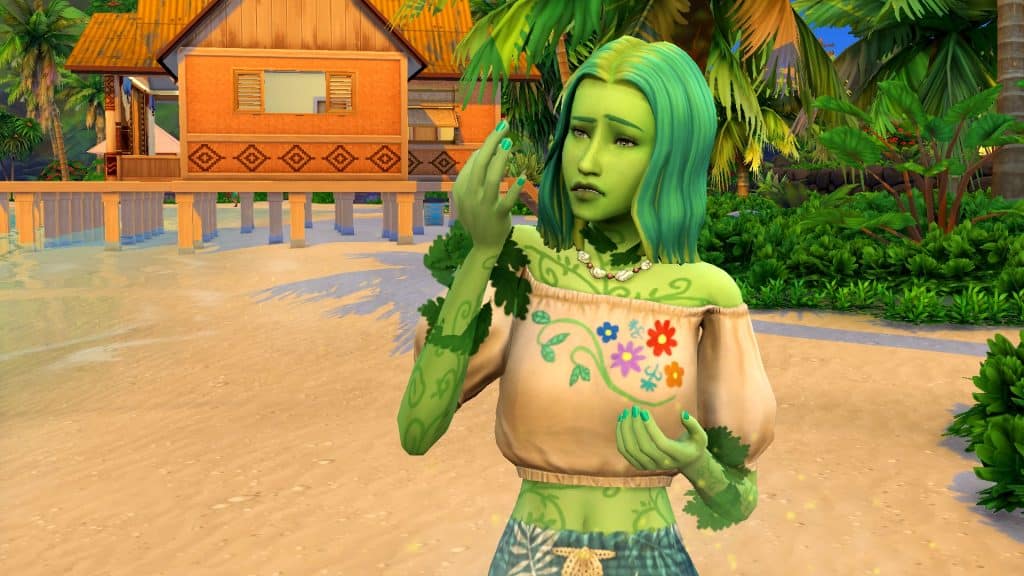
When your Sim becomes a PlantSim, they will gain a new PlantSim trait that is permanent! That’s right! Your PlantSims no longer need to keep eating Forbidden Fruit every 5 days to remain a PlantSim. Once they become a PlantSim, they will remain a PlantSim forever!
But don’t worry; if you ever change your mind and don’t want your Sim to be a PlantSim anymore, you can undo it by purchasing the Plantophic-C reward from the Rewards Store for 500 satisfaction points. Drink the Plantophic-C item in your Sim’s inventory to become a human again.
PlantSim CAS Improvements
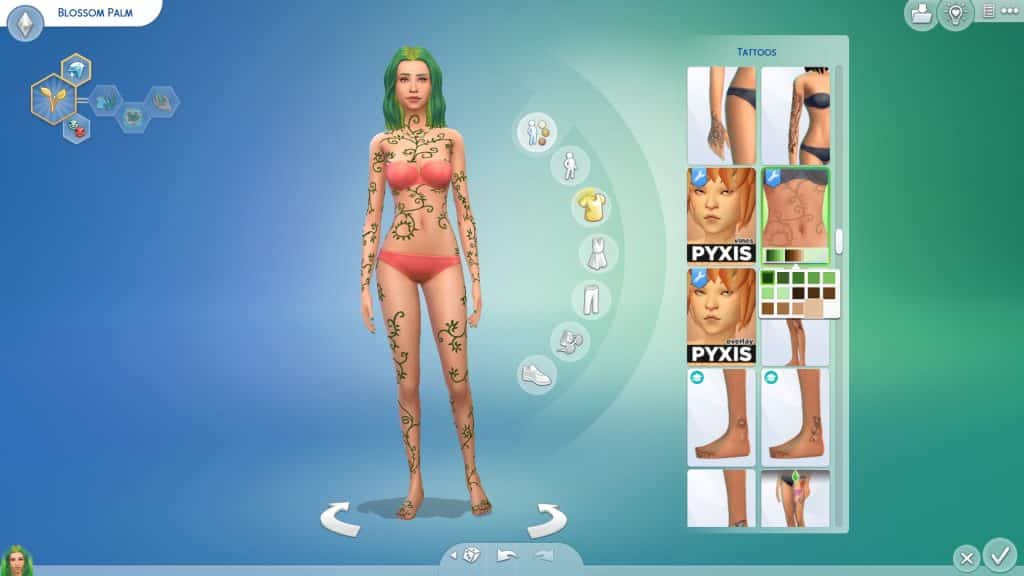
Why did EA force all our PlantSims to have the same short spiky hairstyle? We may never know but with the PlantSim Lives mod, our PlantSims can be more unique and sport any hairstyle you want them to! When they transform into a PlantSim, they will keep the same hair they had before. This will allow you to go into CAS with them and change the hair to anything you like.
In addition to having customisable hair, SrslySims has also added some PlantSim-themed tattoos to give your PlantSims a more natural, earthy look. There is a full body tattoo of vines wrapping themselves around the Sim’s body as well as a small flower tattoo for the back of the neck. Both tattoos come in varying shades of green and brown and have multiple opacity levels.
PlantSim Gameplay
PlantSims can do everything they could do before, like photosynthesize in the sun and fill their water motive by swimming, baths/showers, or drinking water but SrslySims has added some fun extras for PlantSims as well to further enhance your PlantSim gameplay.
For players with Seasons installed, keeping your PlantSim healthy can be difficult sometimes. When it’s rainy or cloudy, PlantSims can’t photosynthesize, which means they can’t eat and can starve! SrslySims has given us a way for PlantSims to take care of their motives even when the weather isn’t cooperating.
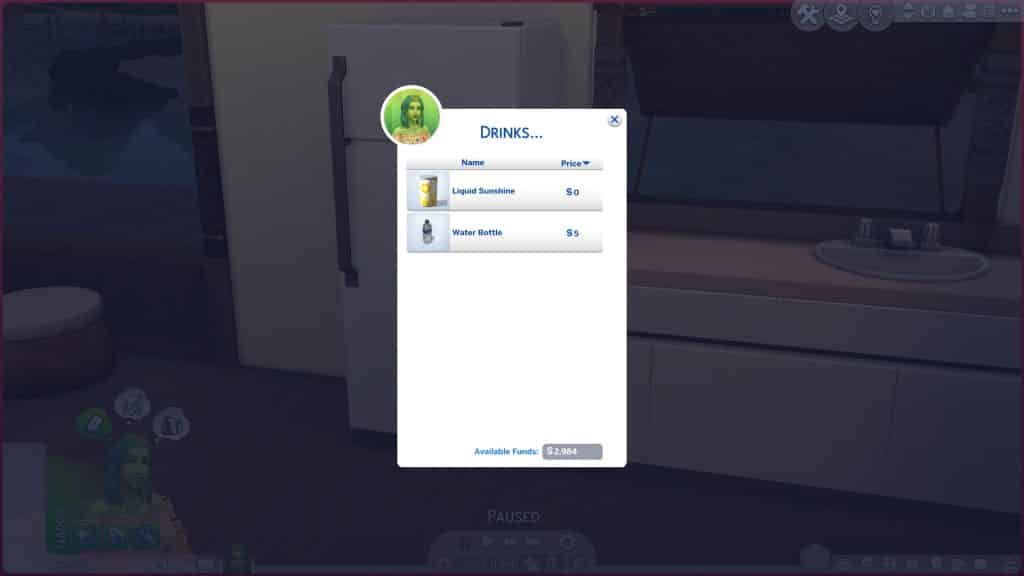
There’s a new menu option on fridges for PlantSims with some special drinks and recipes made especially for them. If you also use SrslySims’ Complete Cooking Overhaul, the PlantSim option will be under the occult recipes. In the drinks category, PlantSims can grab a can of Liquid Sunshine to fill their Hunger bar when they can’t get their nutrients directly from the sun itself. If your PlantSim is having a tough time with their Water motive, they can also grab bottled water from this menu.
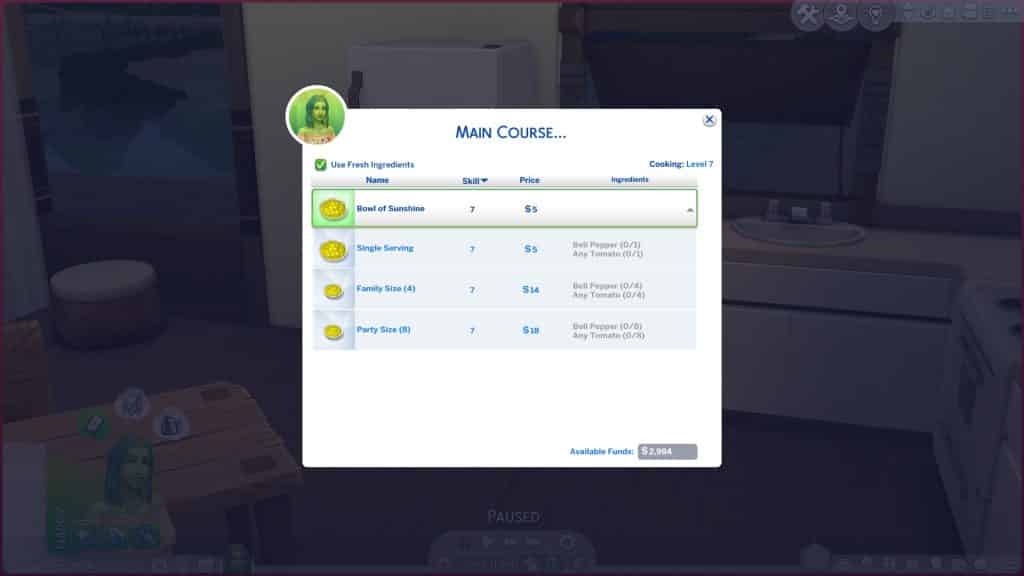
While PlantSims generally don’t need to eat, they do have access to one special PlantSim recipe; a Bowl of Sunshine. This recipe requires Cooking level 7 to make and comes in single, family, and party sized portions. The optional ingredients for it are bell peppers and tomatoes. PlantSims can eat this to fill their Hunger motive when they can’t photosynthesize.
PlantSims also have new socials to make their conversations with other Sims more interesting! They have new friendly, funny, and romantic socials available as well as a self-interaction to go on a nature walk!
Friendly | Complain About Aphids – A PlantSim when sad/stressed/uncomfortable will get this new interaction.
Friendly | Complement Foliage – Any sim can complement a PlantSim.
Friendly | Discuss Gardening Tips – PlantSims can talk about gardening tips with other PlantSims.
Friendly | Enthuse About PlantSims – Any sim can enthuse about PlantSims to a PlantSim.
Friendly | Talk About Nature – Any PlantSim can talk to any other sim about nature.
Funny | Joke About Devils Lettuce – Any PlantSim can tell a joke to another sim.
Romantic | Complement Aroma – Any PlantSim can complement another PlantSim.
Self Interaction | Go on a Nature Walk – Any PlantSim can click on themselves to go on a nature walk.
SrslySims says on her Patreon that she plans to add more to this list in the future and also recommends these additional PlantSim interactions by Triplis, which are fully compatible with this mod.
Other Tweaks
PlantSims have two unique Maxis animations. One is their photosynthesis animation where they glow and do a cute little “oh yeah!” motion. The other is the one where they sprout leaves on their arms and they pick one off in bewilderment. Both animations are adorable but they were both excessive. Your PlantSims would do this every couple of in-game minutes.
SrslySims has lowered the frequency of these idle animations so PlantSims will only do these things once every few hours instead of literally constantly. We still get all the cute PlantSim animations; they’re just not totally overwhelming anymore.
Our Thoughts
This mod is a complete game changer for anyone who likes playing with PlantSims! It pretty much has everything to make PlantSims feel like a proper, fleshed out occult like in previous Sims games. PlantSims have more customization options in CAS, special recipes to help them stay full no matter the weather, new socials and self-interactions, new ways to both become a PlantSim and reverse it, and did we mention PlantSims are a permanent life state now?
We cannot recommend this mod enough if you enjoy playing with PlantSims in The Sims 4. In fact, we’d consider it a must-have mod. I don’t think I could ever play with PlantSims again without this mod.
Feminine CC Clothing Collection for the Season ahead!
As a Simmer who lives in a country with icy, snowy winters that last a good six months of the year, I am more than ready to say goodbye to the cold and embrace summer! Of course, it’s still a bit early to be breaking out the swimsuits and beach towels so until the warm weather actually arrives, I’ll be enjoying the beach with my Sims.
And with this amazing beachwear CC set by Sentate, you can live the beach life with your Sims, too!
The Sentate April 2022 Collection sports a total of 8 different CAS pieces for adult female Sims that’s perfect for the swimwear and hot weather clothing categories! The pieces are all Maxis Match and base game compatible.
The full set includes:
1 bikini top
1 bikini bottom
5 full body outfits ranging from dresses to three piece swimsuits
1 pair of shoes
Each item in the collection has 25 solid colour swatches, plus 5 additional patterned swatches for a total of 30 swatches for every item. All the swatches match between all items so you can create a perfectly seamless look or play around with different combinations of patterns and colours.
We were very excited about this collection so we decided to jump in game and show off every item in three of the different swatches available for you. We were not disappointed at all. The quality and detail of all the clothes is lovely. I’m especially a fan of the sheer mini dress over the bikini and the hanging beads off the end of the one piece swimsuit and bikini bottom.
Long Sleeved Dress
Three Piece Swimsuit with Wrap Skirt
Puffy Sleeve Mini-Dress
One Piece Swimsuit
Sheer Mini-Dress Layered over Bikini
Bikini Top
Bikini Bottom
High Wedge Shoes
Clearly, everything in this collection looks amazing with literally hundreds of different colour combinations you can mix and match, but that isn’t even the best part. We actually saved the best for last because we wanted to draw attention to this part.
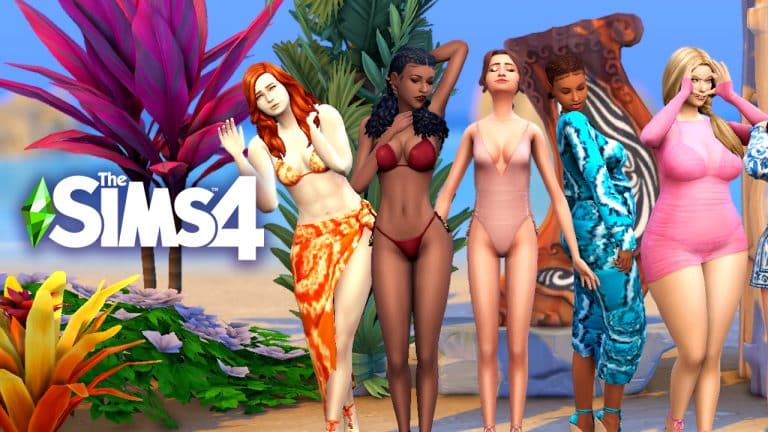
Everything looks good on all body types! That’s right! Plus size Sims and super muscular Sims, Sims with and without curves can all look absolutely beautiful in every single piece in this collection. There is no weird stretching or distortion anywhere on any of the clothing pieces for bigger Sims, Sims with bulkier frames, or Sims with an extremely petite build.
Here’s a picture we took of different Sims modeling every piece in the set in our personal favourite swatches for each piece. You can see they all have extremely varied body types and all of them look amazing in these clothes. Everything that looks good on petite hourglass figures looks just as beautiful and flattering on other body types as well. We are SO here for this kind of representation and body positivity in the custom content world!
There’s absolutely no way it’s anything else…right?
ARTICLE UPDATE: Player @_WolfieSimmer_ has noticed another revealing Translation. This time it comes from Danish, with a “Planning to Grow Fangs” rough translation. From Google Translate. Hey, it’s good enough to at least add another checklist to the list of Werewolf hints, right?
During the Roadmap reveal The Sims Team has already dropped some clues in the video. Sure, we have a fulll Moon over the night sky with lots of “Awoooo” wolf sounds in the background. We’ve all seen (and heard it).
But in case you haven’t, here’s the scene in question:
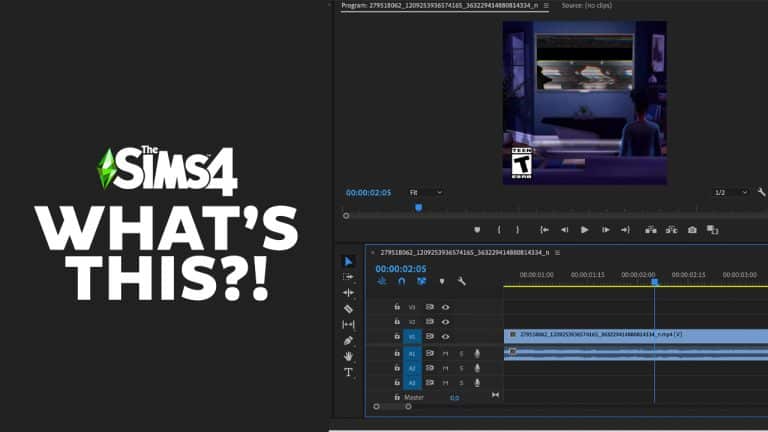
However, there is one frame. Just ONE frame. That could heavily hint at Werewolves. And it’s very hard to spot. You all saw this beautiful Sim flirting with the camera, right?
Well, right before this frame, there is only ONE frame that shows the Sim in, what appears to be, a Werewolf state.
We were first notified about this by our reader @georgialoveoo12 with a screenshot provided from the Roadmap teaser. I didn’t even know that a frame like this was in the reveal, so I had to dissect the teaser in Adobe Premiere, a video editing tool.
At 2:05, by a split second, there’s a frame that shows the Sim in question with glowing eyes and different facial structure:
Here’s that same frame up close:
Player @viniaguiar18 also made an excellent point, saying that there are different translations of the Game Pack teaser tag from different languages.
Here’s how they sound:
According to Simmers, the game pack hint on the website in other languages also suggest that it will be about werewolves. A few examples:
Unleash the Beast?! I mean, there’s no other way that it’s anything but Werewolves at this point.
Nothing is official as of yet, so note that we could be wrong. Although at this point, the chances are slim that the theory about Werewolves is incorrect.
What do you think? Let us know in the comments below and stay tuned for updates on Sims Community!
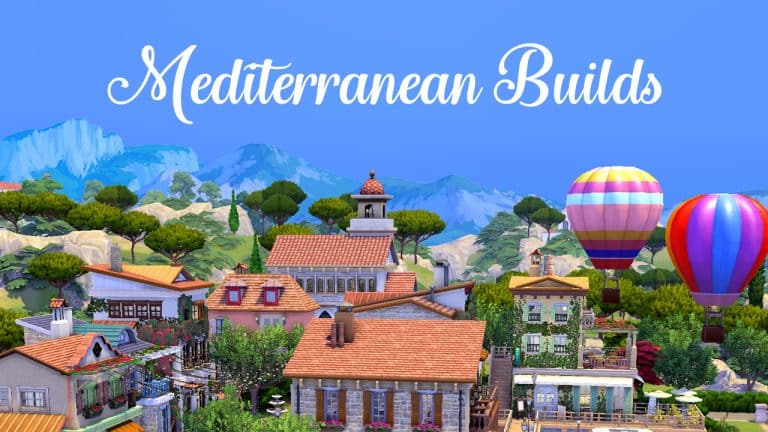
If you still can’t get over how beautiful the world of Tartosa is, you’re in luck because today, we’re showcasing five amazing Mediterranean builds from the community that are perfect for your Sims looking to settle down in Tartosa!
We scoured the Gallery looking for some of the most stunning and creative builds out there that complimented Tartosa’s Mediterranean seaside vibe. Of course, there is never any shortage of talent and creativity in The Sims fandom but it wasn’t as easy to find Mediterranean builds as we thought. We noticed with some amusement that there is a wide variety of uh… interesting interpretations of the #mediterranean hashtag on the Gallery.
Creative spellings aside, let’s get into the creative builds!
6875 Rue D’Espagne
Creator: kingram3095
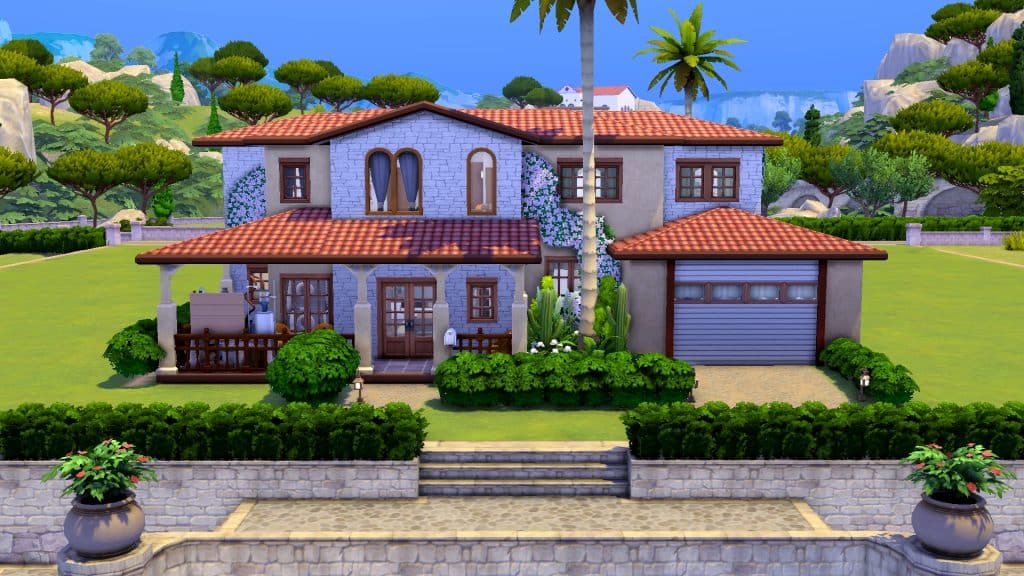
This charming Spanish villa is perfect for a Tartosa suburb. The stucco and brick paired with arched windows and flowers growing up the side of the home gives off a warm, inviting feel. The inside of this home comes fully furnished and decorated. It’s a great home for a large family with both children and toddlers!
This quaint home with shuttered windows and a faux iron balcony give us a cozy, romantic vibe. Interior decorators will love this house because the interior is an empty shell so you can really let your inner designer go wild turning this home into the perfect place for your Sims to live. The balconies and back patio are fully furnished, however, so your Sims will be able to put their feet up and relax while you’re busy renovating their new space.
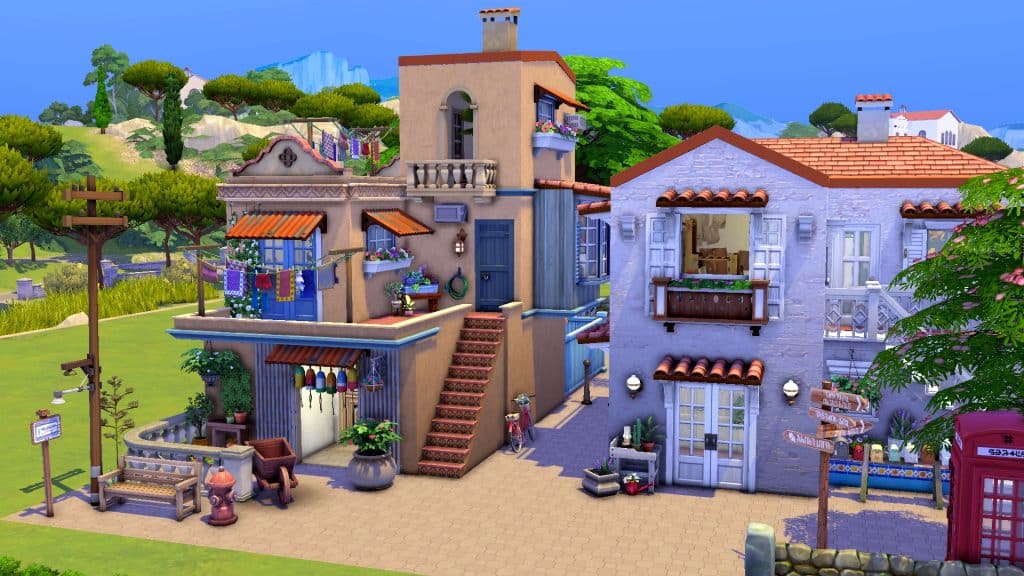
This build looks like a scene straight out of Mamma Mia and we’re in love! We can’t get over the small details that really bring this seaside village to life! The bicycle leaning against the wall in the alley, the clothes drying on the line on the balcony, the telephone box, and street signs all make this look like a place that’s bustling with activity. The buildings are fully furnished and decorated, too. How picturesque!
This grand estate has a slightly modern feel to it but still boasts many classic elements of Mediterranean architecture. The creeping foliage up the walls, arched front entryway, awnings over the windows and terracotta roof fit perfectly in Tartosa and we love the courtyard style driveway with the fountain in the centre. This high-end, fully furnished home has plenty of space for a large family of Sims and is set up to accommodate children and toddlers, too.
We were completely blown away by the scale and detail of this build! This is an entire Mediterranean village on one large lot and everywhere you look, there’s a thousand things to see! The covered bridge over the pond is beautiful and romantic. So are the docks where a boat waits patiently for passengers next to a restaurant’s patio. The hot air balloons are such a charming addition to the area, too. You could really have a whole community of Sims here inside their own little slice of paradise. It has everything your Sims could want, from living spaces to community areas and even a chapel up on the hill! Personally, I never want to leave and I don’t have to because every square inch of this lot is furnished and decorated to the nines!
Do you want new Occults or Improvements on the current ones? Time to vote in our Community Poll!
Lately, occult Sims have been a hot topic in the community. The Plant-A-Sim scenario has revived a new interest in PlantSims getting some improvements. It’s also been a while since we’ve gotten a pack that comes with a new occult type. The last one was Discover University which came with Servos. That was three years ago back in 2019.
We know there’s a lot of different occults Simmers want to see in the game but we want to know what the community’s most wished for occult is. We’ve put together a poll with some old favourites and some new ideas to ask you for your opinion!
Well? What are you waiting for? You get two picks. VOTE!
This is a community poll run by fans of the game. It is not an official EA/Maxis poll. The results will have no impact on the game; it’s just for fun.