As the saying goes: “When a door closes, a window opens”… right?
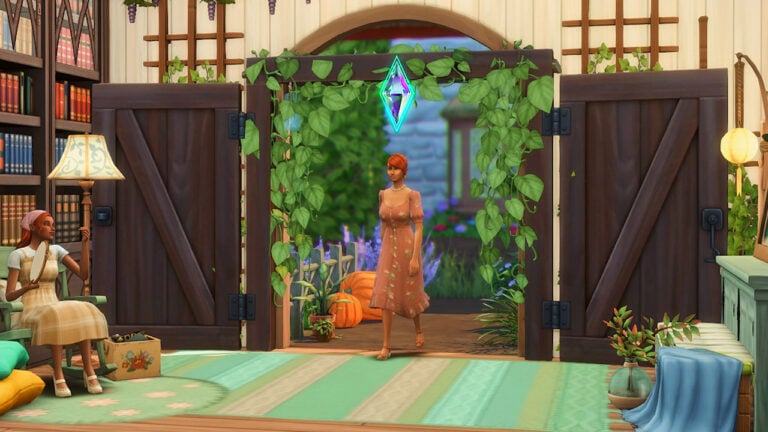
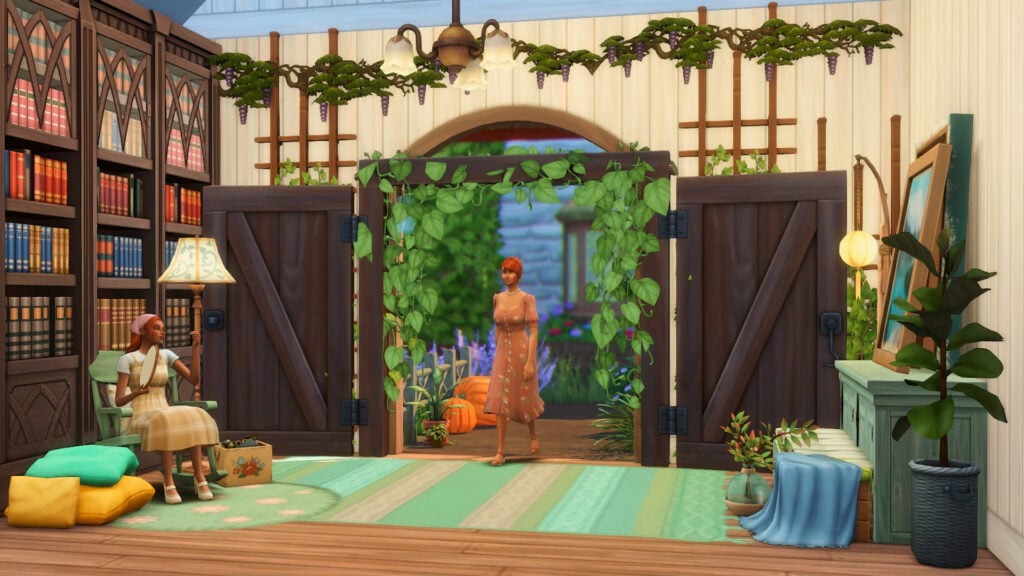
Despite the wide selection of doors in the Sims 4, there’s still some need for doorways with *that* cottagecore vibe. It should be the kind of doorway that whenever your Sim enters the house, they’re transported to a fairy-like room filled with plants and cozy nooks.
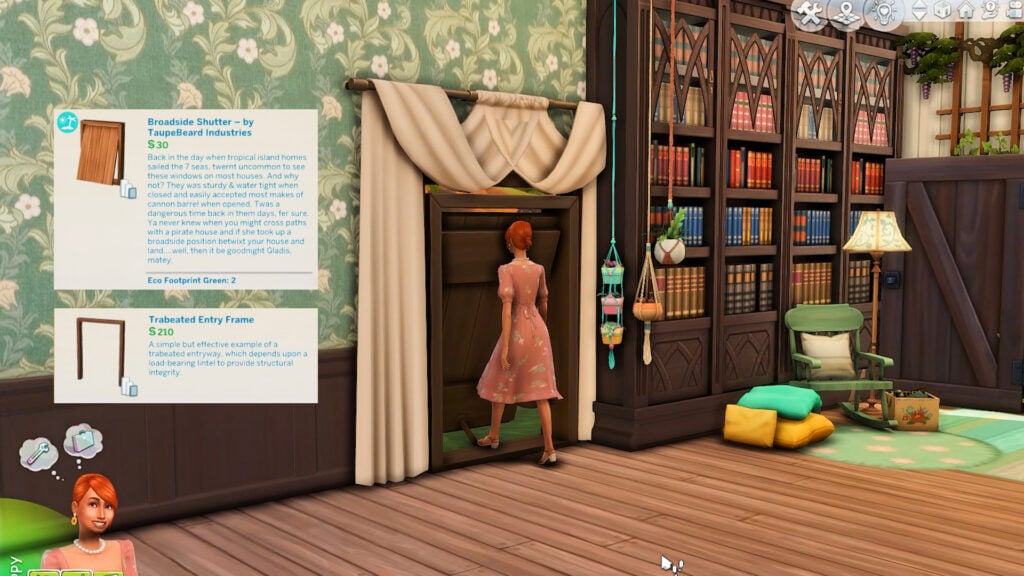
Nope, it’s not an item from Cottage Living. It’s just the Hay There! Shuttered Window from The Sims 4 Horse Ranch. Read on to learn how to transform it into a doorway for your next build!
Before doing any building, make sure that the bb.moveobjects cheat is turned on.
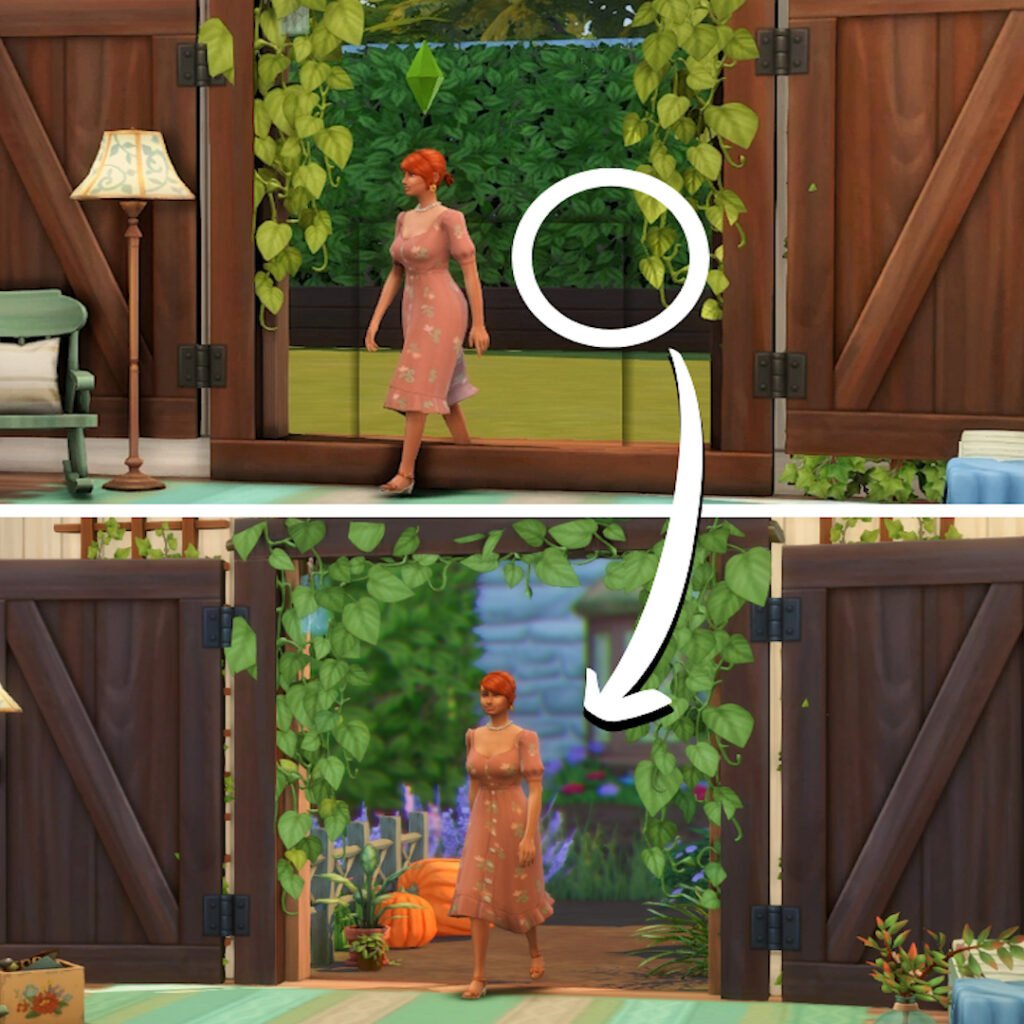
The final result of The Sims 4 Cottagecore Doorway!
Choose your Building Skill level
Easy Method: Layering
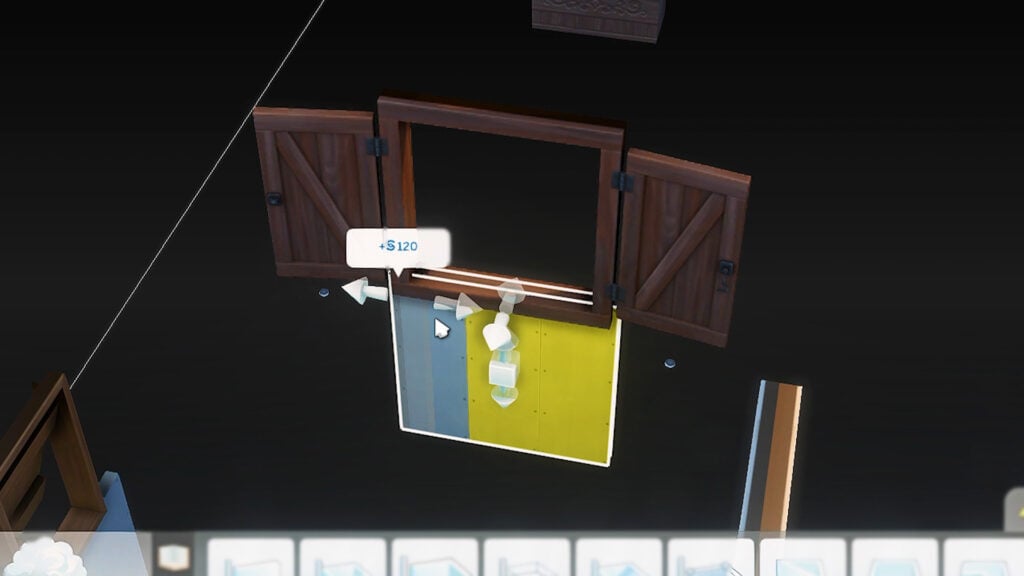
The fastest way to build this is to size up the window and put an archway on top of it. To do this, increase the window size by clicking the ‘]’ key.
Grab this medium-height archway from Cats and Dogs in a matching color since its cutout has the right proportions for this window. Cover the top part with this hanging plant curtain from Blooming Rooms Kit.
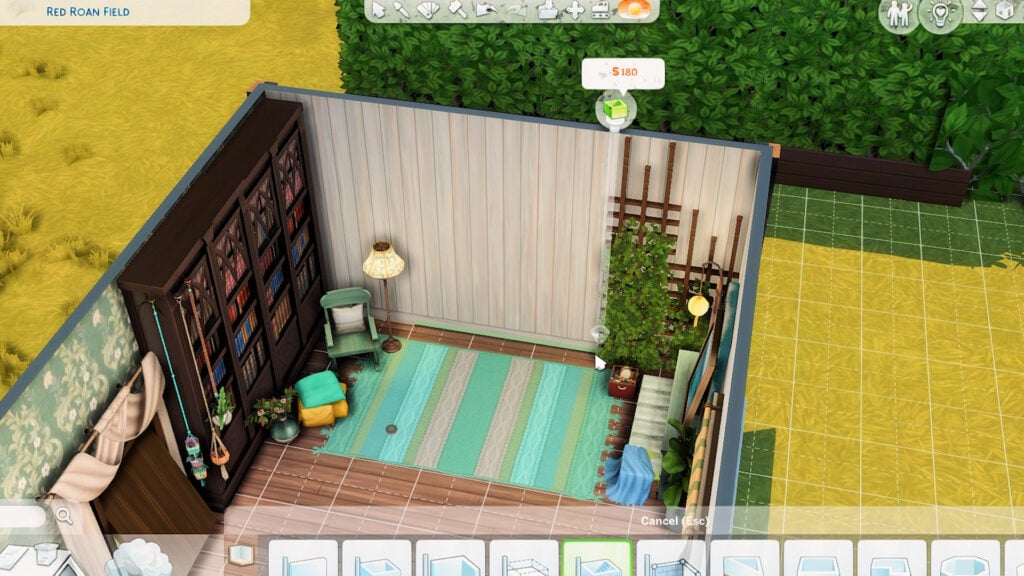
Tip: If the menu for medium-height doorways and windows is disabled since you’re building on small height, add an extra floor wherever on your lot and select medium height for that floor. Once you got your desired items from the build menu, delete the extra floor if you don’t need it anymore. (Same thing works for tall-height doors and windows!)
And that’s basically it! BUT…
There’s this black shadow that appears on the inside of the room that came from the outline of the original-sized window. Don’t worry because it doesn’t show up on the exterior.
But if that bothers you or if you built this doorway indoors, read through the next part and hone your building skills with this hack.
Expert Method: Basement Hack
The following steps may be tedious but this will get rid of that weird black outline on your doorway. This alternative involves building a wall in the basement or on the lower floor directly underneath the wall you’re working on. Fret not since you can delete it afterward.
Now grab your window, size it up with the ‘]’ key, and place it on that wall below. Put it in the topmost part of that wall. If it still doesn’t reach your desired height on the floor above, raise the item with Ctrl+9.
Once satisfied with its placement, delete the wall below by holding Ctrl while tracing the wall. Be careful not to just click and delete the wall as that will also remove your window!
Now on the main floor that you’re working on, place this medium height archway from Cats and Dogs in a similar swatch with the window. Again, cover the top part with this plant curtain if you like.
And now you have a nice entryway without any weird shadows.
Note: Since the window is in a different room, its lighting will be different (outdoor lighting). If you need it to have indoor lighting, create a room on the lower level around the window and add lights inside that room.
Try it with other items!
This doorway trick works with any window in the Sims 4, even with windows with complicated shapes. Check out this open shutter window from Jungle Adventure paired with a Base Game archway.
Even a closed window can work as a doorway since it won’t block your Sims’ path. It looks weird (because of some clipping issues), but this Island Living window framed with a Base Game archway can work on certain builds.
Video Tutorial
Here’s a real quick tutorial to see how it’s made in real-time:
What are your thoughts on our latest The Sims 4 Build Hack tutorial? Let us know in the comments down below!
Showcase your Sims and their living spaces with the Back to School Challenge!
It’s that time of year again, so why not get creative with this too cool for school The Sims 4 Challenge?
This Sims Community Challenge is slightly different to those we’ve done in the past. In fact, there are two ways to take part in this Sims 4 Challenge! So whether you are a Builder or more of a Create A Sim player, there is something for everyone!
Keep reading to find out more about both parts of our back to school challenge!
Table of Contents
The Sims 4 Challenge Details
The aim of this Sims 4 Challenge is to have fun. With two different ways to take part, we want players to unleash their creative side regardless of which challenge option you wish to take part in. You can, if you wish, take part in both the build and Create a Sim parts of the challenge.
While the overall task for each of these The Sims 4 Challenge options is straightforward, there are still a handful of rules that need to be followed.
Firstly, let’s have a closer look at the Create A Sim Challenge!
Back to School CAS Challenge
Imagine, it’s your Sim’s first day back at school, college or university. What would their outfit of the day be?
Would your Sim be wearing something that shows their personality and interests? Maybe they wanted to dress to impress? Alternatively, just a nice chill and comfortable outfit for their first day. Whatever the inspiration behind the look is, we want to see it!
Challenge Guidelines
Create your ultimate first day back at school look!
Sim must be Teen, Young Adult or Older
No Custom Content, you can only use the packs that you own.
Aspirations, Traits, Likes and dislikes etc are optional.
Next up is more about the Dream Dorm Room!
Dream Dorm Room Challenge
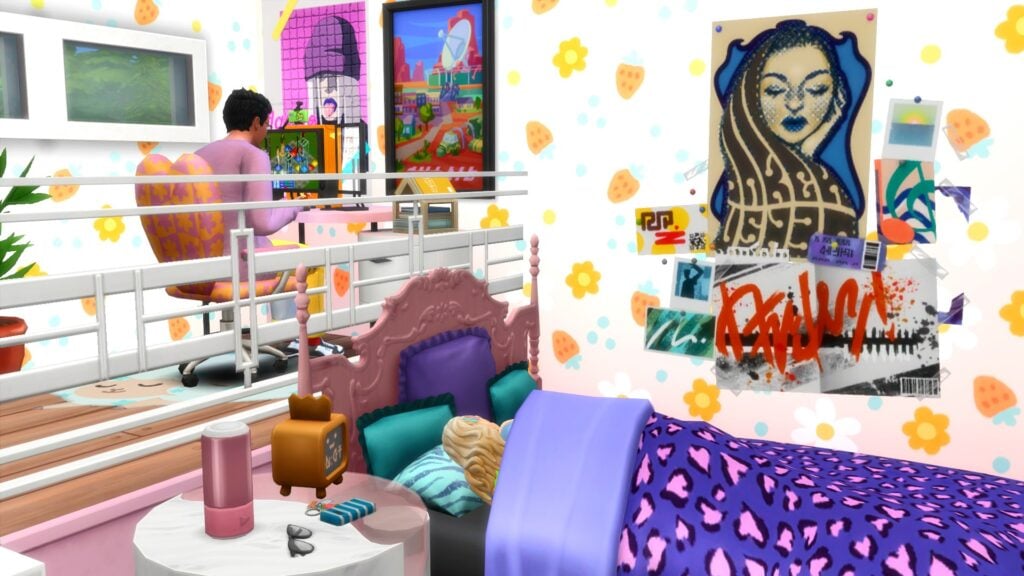
For the build aspect of this Back to School Sims 4 Challenge, we want players to create their dream bedroom/dorm room!
Sounds easy right? Well, yes and no!
Part One: Obtaining the Shell
Firstly, you will need to download our pre-made Back to School shell from The Gallery. From there, you will have $11,000 to spend on creating your dream room! This amount also includes the cost of the lot.
You can download our Base Game-friendly challenge shell from The Gallery using the information below:
Gallery ID: LeeksEverywhere
Lot Name: SC Dream Dorm Room Shell
Part Two: Get Creative!
So, the secondary part of this challenge is where the real fun begins! It simply means, let your imagination run wild when creating your room. Be it your dream high school bedroom or dorm room at university, whatever the inspiration behind it, we want to see it transformed into The Sims 4!
Just keep in mind you have an overall budget of $11,000 (this includes the initial cost of the lot) to create your dream room!
Frequently Asked Questions
You can use any packs that you currently own
T.O.O.L & DEBUG are allowed, however, custom content is not.
You can not change the placement of the original internal or external wall. You may add extra walls/fences if needed.
You can change the stairs and placement of them
You can not change the height of the platform
Created your Back to School look or Dream Dorm Room? Find out how to submit your entries!
How to Submit Your Entries
You can take part in just one part of the challenge or both aspects of the challenge. Once you’ve completed the parts you wish to take part in, simply follow the instructions below to share your The Sims 4 Challenge creations!
Twitter – Upload your image to Twitter using the hashtag #SCBack2School! Feel free to tag Sims Community in your posts too!
Discord – Head over to our Discord server and head to the SC Challenge Channel. You can find this under the Announcements & News category. Make sure to upload your image with the caption #SCBack2School! Any images without the hashtag will not be included in the showcase post.
Click the button below to join The Sims Community Discord
Please note, that there is no giveaway for this Sims Community Challenge.
Closing Date
The closing date for entries will be Tuesday, September, 19th 2023 at 10 am PST/6 pm BST/7 PM CET. A spotlight post will be released shortly after entries have closed.
Are you looking for more The Sims 4 challenge? We’ve got you covered in our dedicated Challenge area!
Poses used in this post for the Create a Sim looks were created by Katverse
Everything new (and returning) to The Sims 4 in today’s update!
A new Sims 4 patch is here and with it comes some new and returning features to the game! Players booting up their games for the first time after updating today might not notice anything different at first, but there are actually some incredibly useful organization tools available in Build/Buy now, along with lots of new and improved Gallery features that have been re-introduced, which should make creators very happy indeed!
Table of Contents
Sims 4 Update September 2023
The Sims 4 patch added new ways to sort through the rapidly growing kit collection in Build/Buy. This game patch also brought back some beloved and much-missed Gallery features with many improvements to their functionality. Check out what’s new!
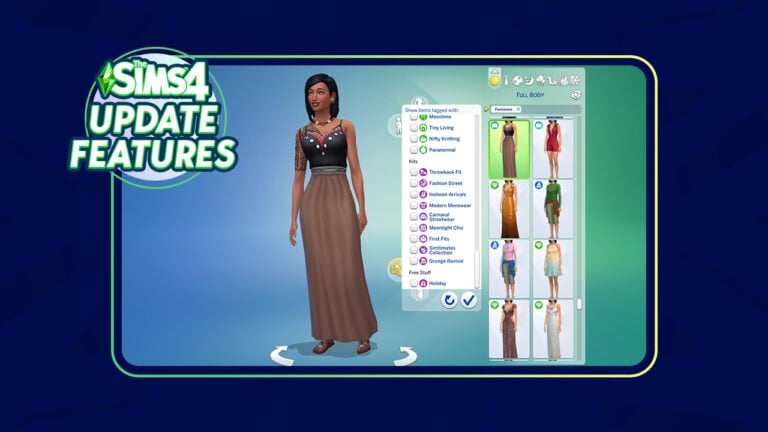
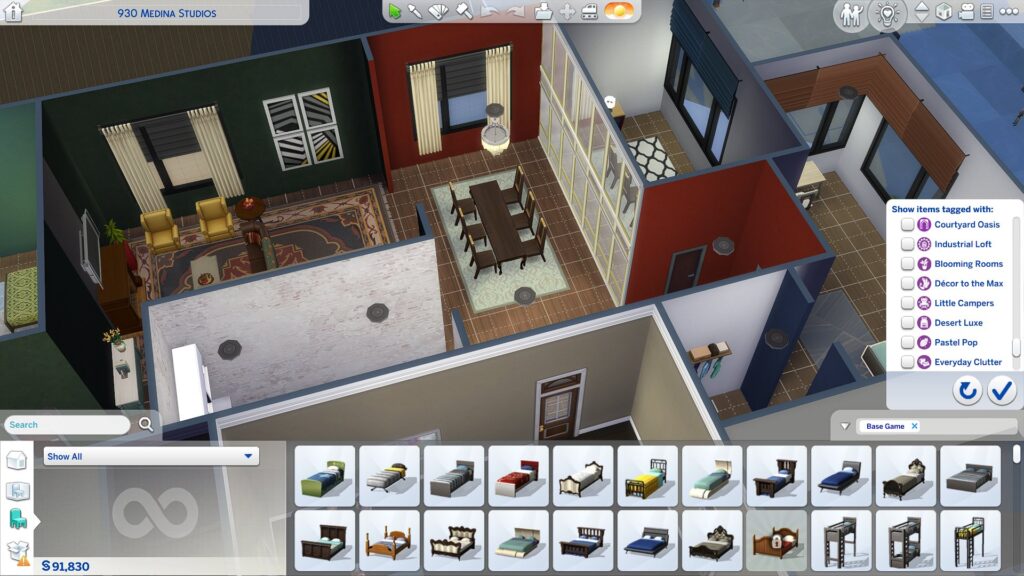
Filter by Kit in Build/Buy and CAS
When kits were first introduced to the game, they were all lumped under one broad filter in Build/Buy, called Kits. This was fine at first, since we didn’t have very many kits for The Sims 4, yet. However, when the Poolside Splash and Modern Luxe kits launch later this week, The Sims 4 will have a total of 25 kits, with more planned for release in the coming year. This has caused that broad Kits filter to become bloated and cluttered, defeating the purpose of having a filter at all.
Builders and CAS enthusiasts who were frustrated with this broad, cluttered Kits filter will be happy to know that they can now filter for individual kits in Build/Buy and CAS, the same way they can filter for stuff packs, game packs, and expansions.
Gallery Additions
The Gallery was gutted several updates ago due to stability issues. At the time, The Sims Team promised that the Gallery would eventually receive all of its original features plus more again once they had cleaned up said features. It looks like they are beginning to deliver on that promise starting with today’s Sims 4 update!
Trending hashtags are available in the Gallery once again and downloads and favourites should display properly instead of always displaying 1.
The search function in the Gallery has also been improved and players should have no problems finding what they searched for anymore. In addition to that, the search function has returned to an and system instead of an or system. Basically what this means is that when you search for multiple words, the Gallery will show you things that contain both words rather than either one word or another that you searched for. So if you search “cats dogs” in the Gallery, you will find things with both “cats” and “dogs” in the name instead of just “cats” or “dogs.”
The Gallery will also search for words that are similar to what you searched for now. For example, searching the word “cat” will bring up results with both “cat” and “cats.”
For player who enjoyed browsing the Gallery while not in the game, commenting on Gallery uploads via web browser has also been re-enabled.
Gone are the days of frequent, frustrating Gallery maintenance periods! The Sims Team made some backend improvements that will allow them to deliver timely updates to the Gallery without disrupting Gallery services for players!
Some other general bug fixes regarding the Gallery include no longer seeing duplicate Gallery uploads, no longer not being able to view an upload after reporting a comment on it, fixing the Hide Reported Content setting in the game options, and favourited Gallery items being reflected properly.
Bug Fixes
Kit filters and Gallery improvements aren’t the only changes made in today’s Sims 4 update. This patch also brings handful of bug fixes for both the base game and packs/kits. For a full breakdown of all the bug fixes, check out the patch notes!
Full list of items coming with the new Sims 4 Kits!
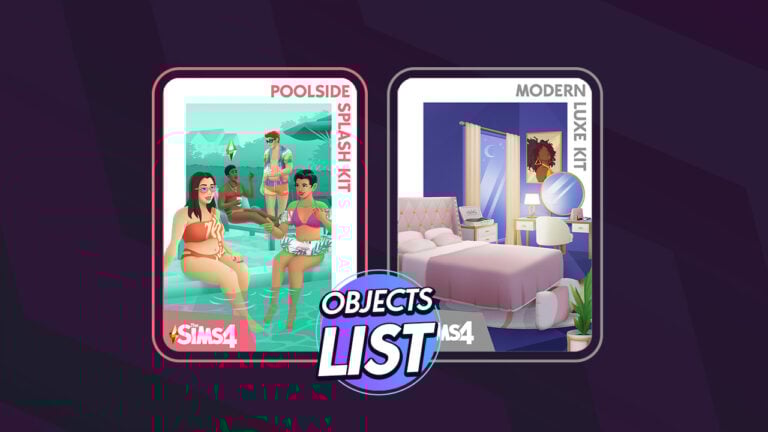
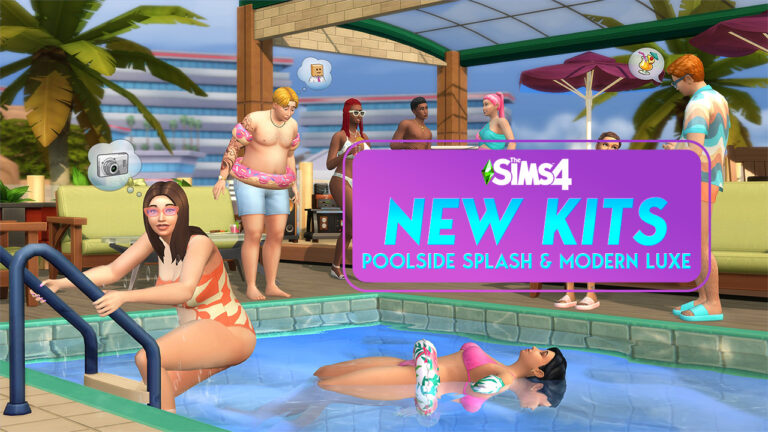
We know you were wondering about the list of Sims 4 Kits items. We have the full overview of objects from Modern Luxe and Poolside Splash Kits!
Maxis is releasing two new Kits for The Sims 4 in just two days on September 7th, 2023. The two Kits that are priced $4.99USD each are titled The Sims 4 Modern Luxe and Poolside Splash Kits. These Kits bring new items in Create A Sim (Poolside Splash) to accessorize your Sims’ pool adventures. If you’re looking for new Build Items, the collaboration with Xureila in Sims 4 Modern Luxe will leave you in awe!
Thanks to insightful findings by our reader we have a full list of Sims 4 Kits items and features. Without further ado let’s dig in!
Table of Contents
The Sims 4 Modern Luxe Kit Objects and Features
The Modern Luxe Kit introduces 28 new items in Build Mode. You’ll find different Curtains, vanity decor and functional items like the bed, vanity table and the record player.
Find the full list of Sims 4 Kits Items from Modern Luxe below:
Treat yourself to luxurious modern furniture that says “I made it” with The Sims 4 Modern Luxe Kit. You’ve worked hard; it’s time to celebrate how far you’ve come! With this kit we’re leaving frugal in the past and choosing elegant art, sophisticated decor, and cushy comfort.
Kit Features
Bedroom Bliss – Design a stylish and inviting space with high-end pieces like a lavish bed with a tufted headooard, a vanity, a plush rug, and other decadent details.
Signs of Success – Upgrade your lifestyle with a little extravagance. Make a statement with luxury items like a TV disguised as wall art, designer handbags, sculptures, and a functional record plaver.
Player @Simmatically has also found within The Sims 4 Update files more information about the Vanity Table.
In case you don’t know, The Sims 4 Vintage Glamour Stuff Pack had introduced a Vanity Table as one of the new gameplay items. The latest Sims 4 Modern Luxe Kit Vanity Table now uses gameplay from The Sims 4 Base Game, as the latest update has transferred the vanity table from Vintage Glamour (SP) to Base Game content.
Functional Record Player
The record player that can be seen in the previews is confirmed to be functional. You’ll be able to enjoy some of your favorite Sims 4 Radio Stations in a new spot!
Creator EnglishSimmer has posted an excellent video on Twitter of the animation that you should be expecting in Sims 4 Modern Luxe Kit.
The Sims 4 Poolside Splash Kit: CAS Items and Features
There are 29 Create A Sim items that you’ll find in The Sims 4 Poolside Splash Kit!
From sunglasses to floaties, check out the list of Sims 4 Kits Items in this set:
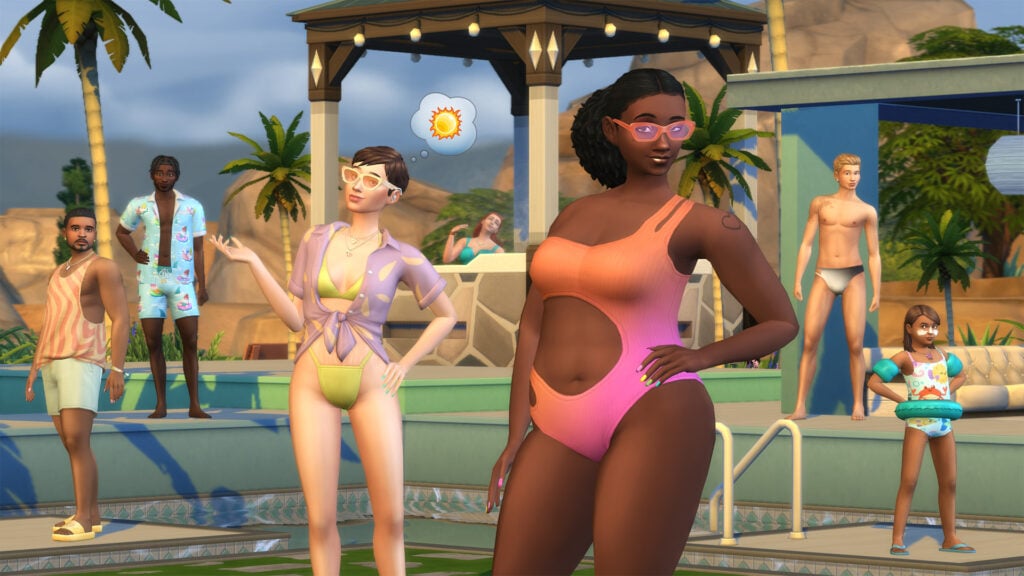
Turn heads at the pool with bright and playful swimwear from The Sims 4 Poolside Splash Kit. The colortul patterns and trendy cuts of this collection were designed to complement a variety of skin tones and body types.
Kit Features
Vivacious and Vibrant – Whether your Sim is looking to get flirty in the hot tub or party by the pool, these lively looks will help them stand out. Mix and match for uniquely dazzling results.
Aquatic Accessories – Complete your poolside ensemble with stylish shades, rainbow nails sandals, fabulous floaties, and more! Indulge your sense of fun.
The floaties in The Sims 4 Poolside Splash Kit seem to be full body accessory. However, we’ll know for sure as we get closer to the release date of these Kits on September 7th.
What are your thoughts on the new Sims 4 Kits items? Let us know your opinions in the comments below and stay tuned on Thursday for full Sims 4 Kits Overviews!
The update is out on Desktop and Consoles! Find the Patch Notes here.
The ? Update
EA and Maxis have released a brand new The Sims 4 Update today for PC, Mac, Xbox and Playstation platforms! The new update contents and features are soon to be revealed…
You can download the latest Sims 4 Update by checking for a Patch through the EA App. Or Origin if you play on Mac. If you have Automatic Updates enabled the update will automatically download through your client program. In case your EA App is not working properly ensure you’ve cleared your app cache!
If you play The Sims 4 on Xbox Series and Playstation 4 and 5 you can request a new update by checking for updates under The Sims 4 game in the Main Menu. If you’ve enabled automatic updates the Patch should download right away.
In case you have Mods or Custom Content, the game will automatically disable them for you after first launching The Sims 4 after the update. To re-enable all your Mods and Custom Content, select the Settings option in the Menu and select Settings. Under the ”Other” section you’ll find the ”Enable Custom Content and Mods” option. Check it and restart your game in order for it to take effect!
This Sims 4 update brings with it a number of fixes to the Gallery which require a game update to bring to you all as well as information on what features and fixes we have been able to release through Gallery Server updates. It also comes with a new feature you’ll find in Create-a-Sim and Build Mode. And of course, more bug fixes.
Let’s take a look what’s coming with this update.
What’s New?
The Filters in Build Mode and Create-a-Sim have been expanded to allow filtering of individual Kits rather than only being able to filter by all Kits.
Some Gallery features and fixes are able to be released directly to you, more frequently, without a game update. Another benefit of the new Gallery is that we no-longer require maintenance down time to release those updates. This means that some features could appear and bug fixes could be fixed at any time. We have added a new section to the release notes called Gallery Server where we explain updates and fixes we have been able to release this way and you might have already seen in your visit to the Gallery.
Sims 4 Bug Fixes
Base Game
Duplicate items should not appear in the Gallery when scrolling through the creations anymore. This won’t affect duplicates if someone has uploaded the same item multiple times, so no need to check your settings.
Reporting a comment on the Gallery will no longer hide the entire upload from your view but will hide the comment from your view as intended; the comment continues through the reporting system to be reviewed and actioned where needed.
Reported Comments in the Gallery will not display if you enable the Hide Reported Content setting in Game Options > Other
Favoriting items in the Gallery should correctly reflect with the green heart icon even if you restart The Sims 4 or delete your local files.
Parenting can be tough, but having Baby Envy when the other parent brags about your baby shouldn’t be one of the reasons it’s tough.
Console
Simmers using a controller will be able to use Free Cam and zoom the camera in and out without increasing and decreasing the game speed.
While you are in Free Cam, click in the left stick on your controller to confirm the controls layout.
Gallery Server
Trending Hashtags have been reenabled and should help you find new and interesting content.
Downloads and Favorite counts should count higher than 1 now, in fact it should be accurate as well.
Searching for Gallery creations by EA Account ID should return the results you were expecting.
Searching by Item Name should feel more like it used to when using multiple words. We have returned to AND operators instead of OR operators.
This means if you search for the words Cat Dog, you will get results where Cat and Dog appear in the Item name, not results where only Cat or Dog was used.
You will also see results that are not an exact to the word you searched, for example Cat will show items that used the word Cat or Cats included in the name.
City Living
Those Sims pursuing the creative book writing route can now get published, if it’s good enough, by being able to use the mailbox to Submit book copy to literary digest. And don’t worry, mailboxes included in Snowy Escape are accepting publication requests too.
Growing Together
Fundamental skills should no longer reset to skill level 1 after being maxed out.
Sims no longer wait patiently for their turn enjoying the splash pad and water emitters as everyone plays in the water one Sim at a time, now groups of Sims can all Play in Water Together.
High School Years
While in Game Options > Music > Alternative you might have noticed the track called corook by the artist sims. This has been updated to correctly list the track as sims by the artist corook. If you didn’t notice it, it’s too late to check now.
Horse Ranch
When your adult Sims are on a horse and go reins down, the reins will no longer move in unexpected and honestly confusing ways.
Realm of Magic
Morgyn Ember will start to use their preferred They/Them pronouns in new game saves if The Sims 4 is set to English.
My Wedding Stories
yfShoes_GP11WedgeHeels_SolidMauve are now correctly tagged as sandals instead of heels. But don’t worry, they do still have a heel on them.
Simtimates Collection
Your footwear choice no longer matches the colors of the full body outfit yfBody_SP38ShirtOpenBra even if your Sim is lounging in some bunny slippers.
Female Sims with a masculine body frame should find comfort with a better fitting ymTop_SP38BraSheer.
The Sims 4 Update: Kit Filter Preview
The new update has finally brought proper filters for seperate Kits releases for The Sims 4. You can now search for seperate Kits in the Kit section of the filter. In both CAS and Build!
The first screens and features for The Sims 4 Poolside Splash and Modern Luxe Kits are here!
Today is the day for the full reveal of the new Sims 4 Kits – Modern Luxe and Poolside Splash! Just yesterday we had a full leak of the new Kits covers, featuring a new Build and new Create A Sim items Kit.
The full reveal of the new Kits is also followed by a new Sims 4 Update that we’ll be covering today on Sims Community. Anyways, let’s take a look at what’s new with Modern Luxe and Poolside Splash!
Table of Contents
Looking for a full list of Sims 4 Kits Items included in Modern Luxe and Poolside Splash? We got you covered!
Release Date and First Info
The two new Kits for The Sims 4 are set to release on September 7th, 2023 at 10AM PT / 7PM CET. You’ll be able to purchase Poolside Splash and Modern Luxe Kits for $4.99USD each, or a price equivalent to your local currency.
Both Kits will be available on September 7th across PC, Mac, Xbox and Playstation supported platforms.
Poolside Splash is a new Sims 4 Create A Sim Kit, bringing new floaties, swimwear and comfortable accessories for swimming. Take a first look at the features:
Become the Life of the Pool Party
The Sims 4 Poolside Splash Kit empowers Sims to turn heads at the pool with bright and playful swimwear that compliments a variety of skin tones and body types.
Dive into the plethora of patterns, colors and trendy cuts of this collection that celebrate your Sim’s unique style. Whether your Sim is looking to get flirty in the hot tub or be the life of the party by the pool, these lively looks will surely make your Sim stand out.
Sims can even dip their toes into the world of aquatic accessories, perfecting their poolside ensemble with stylish shades, rainbow nails, sandals, fabulous floaties and more. Mix and match all of these pieces for dazzling results that indulge in your sense of fun as you bask in the sun.
The Sims 4 Modern Luxe Kit
The Sims 4 Kits only get better when they’re done together! The Sims 4 Modern Luxe Kit is done in collaboration with Sims creator Xureila. This Build Kit offers new art pieces, comfortable bed and pillows, as well as fashionable clutter that will decor up your space!
Learn more about Modern Luxe below:
Live in the Luxury Your Sims Deserve
It’s time to sit back and treat your Sim to a life of luxury. They’ve worked hard and it’s time to celebrate how far they’ve come. With The Sims 4 Modern Luxe Kit, your Sim can say “I made it,” through elegant art, sophisticated décor and cushy comfort. Leave frugality in the past and showcase your Sims’ signs of success.
Embrace your creative side and design a stylish and inviting space filled to the brim with high-end pieces like TV’s disguised as wall art, designer handbags, sculptures and a functional record player.
Xureila collaborated with our developers and art director to create this Kit. “This entire experience has been amazing! I really enjoyed working with The Sims team,” said Xureila. “From my vision board of the design to choosing the style and colors of the furniture, it was surreal seeing my ideas come to life. This is truly a dream come true! I drew inspiration from Black artists who showcased the luxurious lifestyle of Black individuals. This ultimately served as the primary influence for the project. I mixed in my own personal tastes and interests to create the final product.”
As your Sims relax in their space, wind down the evening in a state of bedroom bliss. With a lavish bed and tufted headboard, vanity, plush rug and other decadent details, discover that an evening in has never felt so good.
The creator that got to work on Sims 4 Modern Luxe also confirmed that the “wall art” that you see above (the colorful painting) is actually a functional new TV!
I’m guessing the new TV will have an off screensaver mode that will make the TV look like a painting. We’ll get to see more soon for sure!
Thoughts on the new Sims 4 Kits?
What do you think about the new delivery of Sims 4 Kits? Will you be purchasing one, two or none of the new releases? Let us know in the conversation below!
As always, we’ll have more information to share (including object previews) very soon on Sims Community. Stay tuned for Sims 4 Kits News!
Take control of your game with a mod that allows you to cheat with a single mouse click!
If you’re an avid Sims player, you’ve probably used some cheats before. Maybe you’ve used a lot of cheats. Did you know the UI Cheats Extension for The Sims 4 makes cheating faster and easier? It’s true! The UI Cheats Extension Mod is a very powerful mod that will allow players to cheat all kinds of things in their games by just clicking different areas of the UI instead of having to type out long, complicated cheats in the cheat console! We’re going to show you just how much you can accomplish using the UI Cheats Sims 4 mod by weerbesu!
Guide to The Sims 4 UI Cheats Extension Mod
UI Cheats Extension Mod: How to Install UI Cheats for The Sims 4
Unfortunately, the UI Cheats Extension Mod for The Sims 4 is not hosted on CurseForge so you will have to manually install it into your Mods folder. To do this, download the mod from weerbesu’s Patreon, then unzip the files and place them no further than one subfolder deep in your Mods folder. The UI Cheats Sims 4 mod is a script mod. Script mods cannot be more than one subfolder deep in the Mods folder or the game will not be able to read them.
If you’re a beginner mod user and need more help with installing the UI Cheats Sims 4 mod, check out our beginner’s guide to mods and CC!
How To Use the UI Cheats Mod
Once you have the UI Cheats Sims 4 mod installed correctly, you’ll be ready to cheat just about anything you want with a simple click of your mouse! Most of the mod’s cheat options can be accessed by right-clicking on different parts of the UI. UI stands for User Interface. The User Interface (UI) is all of the game’s info panels and tools. Basically, everything that isn’t part of the world’s environment. Things like portraits, motives, Sim info panels, and menus are all part of the UI.
It can be a challenge knowing where to click and what to cheat using the UI Cheats Sims 4 mod, so we’re going to break down most of the cheats we think you’ll find helpful in your game and how you can access them with the UI Cheats Sims 4 mod.
If you’re ever unsure of how to cheat something with the UI Cheats Sims 4 mods, a good general rule of thumb is to try clicking and/or right clicking on the part of the UI you want to cheat and seeing what you can do! For example, if you want to add simoleons to the household funds, right-click where the household funds are displayed.
How to Cheat Achievements
If you’re a trophy collector, trying to collect all the achievements for The Sims 4 can be a hassle. Some achievements are glitched and won’t complete even after satisfying the requirements. Other achievements are always resetting themselves. You can solve this pesky problem with the UI Cheats Extension Mod!
To unlock an achievement, just open the achievements menu and right-click on any achievement to unlock it!
How to Cheat Aspirations
Getting ahead in an aspiration is no problem for the UI Cheats mod. Just right-click on whatever aspiration goal you want to complete and ta-da! All done and your Sim will get the satisfaction points for it. This is also a great way to easily complete aspirations to resolve game glitches that might prevent you from finishing an aspiration.
Make Buying and Selling Easier
Have you ever wanted to buy groceries in bulk or sell all your inventory items in bulk? It’s a pain, right? All that clicking is annoying. The UI Cheats Sims 4 mod solves that problem for you. You can buy and sell large quantities of items faster by right-clicking the right and left arrow button next to the number of items to increase or decrease the amount by 10 instead of 1. So it only takes 10 clicks of the mouse to sell 100 items instead of 100 clicks.
Cheat Your Career and Education
There are lots of career and education cheats at your fingertips with the UI Cheats Sims 4 mod, so we’ll list them all for you. Become a straight A university student or max out your career in just a few clicks!
Career Title Bar or Job Icon: Right-click on the green Career Title Bar or Job Icon to promote, demote, change the career branch, or select another level within the current branch.
Task Completion: Right-click on any promotion task, daily task, prep task, or work-from-home assignment to instantly complete it.
Work and School Performance: To alter work and school performance, right-click on the work/school performance bar to set a value between -100 and 100.
Work Reputation: To change work reputation, right-click the work reputation bar and set the value between -100 and 100.
Change University GPA: Right-click on the degree icon or the Course Schedule title bar to change your Sim’s GPA.
Suspension/Probation Text: Right-click on the suspension/probation text as a get-out of suspension/probation-free card!
Change University Course Grade: Right-click on an individual University Course icon to change the Sim’s grade from between 0 and 100.
Complete Collections with Cheats
Collectors rejoice! The UI Cheats Sims 4 mod can solve all your collection woes! Simply open the collection panel and right-click on any missing collectible to spawn it in your Sim’s inventory. This is an awesome cheat for recovering lost collection progress, especially if you no longer have the collectible to put in your inventory again.
Easier Social Events
Have you ever struggled to finish a social event or holiday at gold level, missing out on those sweet rewards you wanted? Maybe you completed an event goal but for some reason, the game doesn’t register it, making the social event impossible to complete. That’s not a problem with the UI Cheats Sims 4 mod!
Right-click on any social event goal to complete them instantly! For holidays, just right-click on any tradition you want to complete.
Control Time and Weather
With packs like Seasons and Eco Lifestyle, the UI Cheats Extension Mod for The Sims 4 comes with plenty of ways to cheat the season, weather, and eco footprint with just a mouse click. Even if you only have the base game, you can use powerful time controls to skip ahead to a specific time!
Time Machine: Right-click the in-game clock at the bottom of your screen and enter a time between 0 and 23.
Weather Stone: Change the weather by right-clicking the weather icon and changing the weather.
Changing Seasons: Hate winter? Change the season by right-clicking the season icon and choosing a different season.
Eco Footprint: If you want to change how the eco-footprint affects your game without fighting the system, right-click the eco-footprint icon to change it from -500 to 500.
Money Cheats and Moodlet Cheats
The UI Cheats Sims 4 mod also allows you to cheat your household funds without having to type in any cheat codes. Give your Sims a quick top-up of $1,000 or set the household funds to whatever you want! You can also add galactic credits and bits and pieces! And if your Sim has an annoying moodlet you wish would go away, right-click it and POOF! It’s gone!
Gain $1,000: Left-click the money counter.
Set Household Funds: Right-click on the money counter (This includes Simoleons, Galactic Credits, bits, and pieces).
Moodlet Removal Service: Right-click pesky moodlets to remove them immediately!
Get Rid of Annoying NAPs
Eco Lifestyle is a really unique expansion pack with many great gameplay features, including Neighbourhood Action Plans. The only problem with them? Sometimes an NAP gets enacted that is a headache to deal with, like the dreaded Sharing is Caring NAP. How are you supposed to run a business in a neighbourhood where everyone is allowed to walk in and steal whatever they want?! You can’t even do anything about it if your Sim doesn’t live in that neighbourhood!
The Sims 4 UI Cheats Extension Mod is a lifesaver when it comes to helping with annoying NAPs. Click on any voting board or mailbox to view the currently active NAPs and right-click on the NAP giving you grief to instantly repeal it.
Cheat Your Sim’s Needs
Sometimes, our Sims could use a little help putting a pep in their step. We all could use a little help with that once in a while, right? Luckily, our Sims can keep going longer with the UI Cheats Sims 4 mod! The rest of us will sadly have to rely on coffee.
Here’s all the ways you can use the mod to easily refresh your Sims’ motives! If your Sim is an occult type, you can control their power/talent points, rank, and temperaments, too!
Needs Bars: Left click on any of the needs bars to change it to that position.
Needs Pars: Right click on any of the needs bars to set a specific value from -100 to 100.
Occults: Right click on the progress bar to change the occult’s rank.
Power Point/Talent Point Counter for Occults: Right click to set it.
Spellcaster Curses or Werewolf Temperaments: They can be removed by right-clicking the icon.
Instantly Fill All Needs: Right click on needs panel icon to fill all needs of a selected sim.
Cheat Business Perks and Ratings
All new businesses could use a helping hand getting off the ground and the UI Cheats Sims 4 mod is the perfect way to help get your Sim’s business up and running! Unlock business perks, improve your star rating, and add more perk points! Some perk cheats also work for occults and clubs!
Retail Store/Restaurant/Vet Clinic Perk Point Counter: Right Click to set.
Star Rating: Right-click to change.
Unlock Perks: Right-click on a perk to unlock or lock it. This works for Retail Stores, Restaurants, Vet Clinics, Clubs, Vampires, Spellcasters, Werewolves (dormant ability as well), and Celebrities (quirks included).
Cheat Sims Relationships
Have your eye on a certain special Sim but they don’t seem interested in your Sim at all? Cheat the relationship just by right-clicking on them in Live Mode or in the relationship panel! You can add and remove sentiments easily, too.
Relationship Between Two Sims: It can be changed from -100 to 100 in both friendship and romance by right-clicking on the other Sim.
Relationship Bits: Right-click on the green Relationships title bar. This will add one or more relationship bits. Right-click the Relationship Bits Icon to remove it.
Sentiments: Right-click the title bar to add one or more sentiments and right-click a sentiment to remove it. You can also set its value from 0 to 100.
Instantly Unlock Reward Traits and Potions
Want a quick and easy way to gain reward traits and potions without the hassle of saving up satisfaction points? The UI Cheats Sims 4 mod can help you out with that! Just right-click on any reward trait or potion to give it to your Sim!
Cheat Your Sim’s Info
There are so many things you can cheat when it comes to your Sim’s general information. The UI Cheats Sims 4 mod can help you cheat your Sim’s age, traits, lifestyles, university degree, fame and reputation, and so much more!
Progress Bar: Add or subtract the number of days that have passed with the current age stage by right-clicking it.
Traits: Right-click the title bar to add one or more traits or on the trait itself to remove it.
Lifestyles: Right-click the title bar to add one or more lifestyles or on a lifestyle to remove it.
Discover University: Remove Servo Behavior Module or University Degrees by right-clicking on them.
Character Values: These can be set between -100 and 100 by right-clicking the icon.
Fame and Reputation: Alter these by right-clicking and selecting a rank.
Fame Point Counter: Set the amount by right-clicking.
Batuu Faction Reputation Bar: This allows you to select a rank by right-clicking the bar.
Green NAP Title Bar: Opens the NAP Voting Panel for the current Neighborhood (Even if your Sim lives elsewhere!) by right-clicking it.
Influence Point Counter: Another counter that you can right-click to alter.
How to Cheat Skills
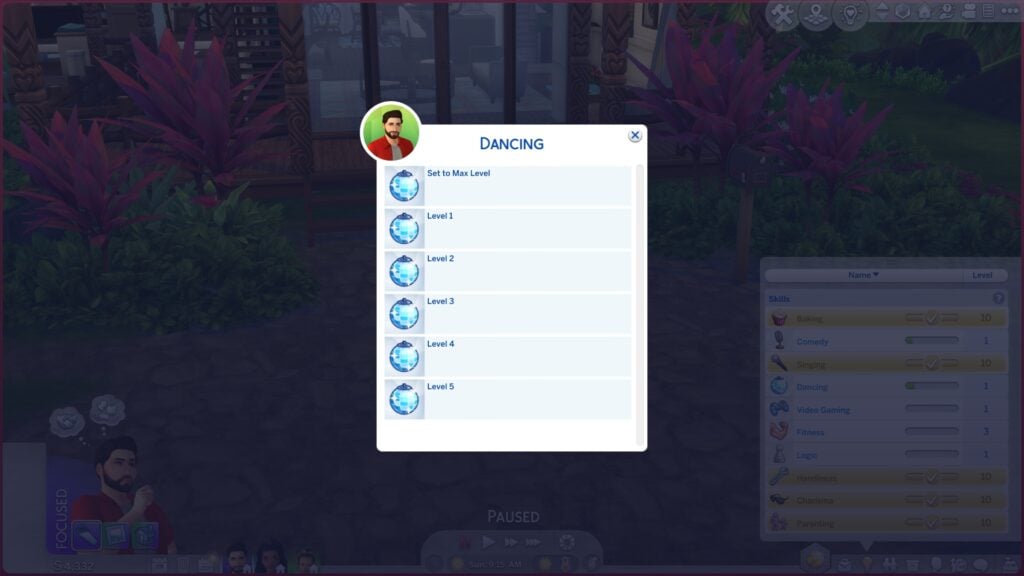
Looking for a fast and easy way to cheat skills? It doesn’t get any easier than the UI Cheats Sims 4 mod! Just right-click on any skill in your Sim’s skill panel and set what level you want your Sim to be in that skill.
Have More Control Over Clubs
The UI Cheats Sims 4 mod can also make managing clubs and university organisations easier. A simple right-click is all it takes to add more club points and organisation experience, or finish organisation tasks!
Club Perk Point Counter: Right-click to set.
University Organisation Experience Bar: Right-click to select rank
University Organisation Task: Right-click to complete.
Spellcaster Spellbook Cheats
For spellcasters, the UI Cheats Sims 4 mod has a pretty handy function. Want your spellcaster to learn all the spells and potions? Just open up their spellbook and right-click on any spell or potion to instantly unlock it! It’s just like… well, magic!
Milestone Cheats
Milestones are one of the newest cheats to be added to the UI Cheats Sims 4 mod! Milestones came with Growing Together and adding or removing them from Sims can be a pain without this mod. The mod makes adding and removing milestones really easy so you can give your Sims custom memories that you want them to have, or remove silly memories you don’t want them reminiscing on.
All you have to do is right-click on your Sim’s milestones panel and you can select any milestone to add to your Sim. You can also remove specific milestones and change the location or Sim associated with a milestone by right-clicking a specific milestone.
The Power of Cheats at Your Fingertips!
There are even more cheats you can use with the UI Cheats Sims 4 mod and weerbesu is adding new ways to cheat with his mod all the time, so it’s worth checking back with his Patreon page regularly! You never know what new cheats you’ll find out about!
Looking for more ways you can cheat both with and without mods? Check out our ultimate cheats library!
The cover art for Poolside Splash and Modern Luxe Kits has leaked!
Hold up Simmers, we’re coming in with some hot tea! A few days ago we reported about the new Sims 4 Kits being leaked online, which included The Sims 4 Poolside Splash and Modern Luxe Kits.
And now both have been confirmed with a new leak, found originally by @RavenAngel888. The leak includes a first look at the Cover Art for the Poolside Splash and Modern Luxe Kits. Note that these aren’t just any leaks, they’re a full-blown explosion of vibes and aesthetics, giving us the first preview into the new upcoming Kits. Let’s take a deeper dive and see what each cover art is promising.
Sims 4 Poolside Splash Kit
Cover of the new Sims 4 Kits – Poolside Splash
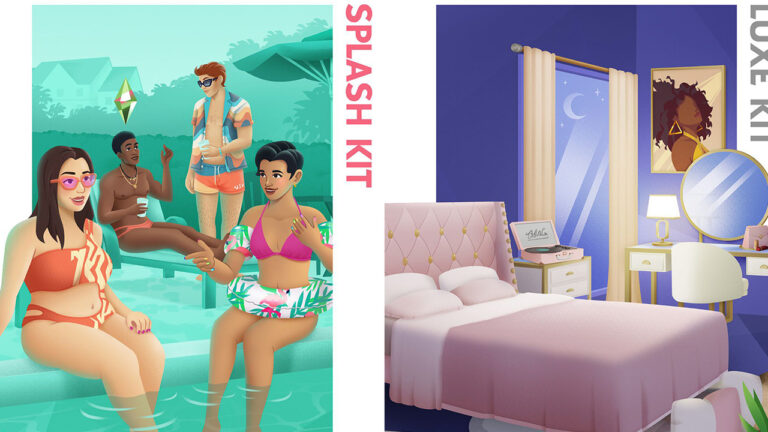
Let’s talk more about Poolside Splash because we can’t get enough of this pastel dream! First off, Poolside Splash is giving us major “Summer Goals” vibes. The cover features Sims lounging by a chic pool, sunglasses on, drinks in hand, living their best Sim life.
This cover art is every summer Instagram aesthetic wrapped into one fabulous package, the pastel dream we didn’t know we needed! We can already imagine the pool parties and BBQs that are going to level up with this Kit!
What Can We Expect From Sims 4 Poolside Splash?
Now, while the official details have not yet surfaced, we can’t help but to speculate on the goodies that might come with this kit. Given the chic poolside theme, we’re hoping to see a variety of pool floats included in this Kit. Fingers crossed for some cute pool outfits as well!
Sims 4 Modern Luxe Kit
Cover of the new Sims 4 Kits – Modern Luxe
On the other hand, the Modern Luxe cover art screams luxury. We’re talking chic counter-tops, gold accents, and furniture that looks like it was designed by someone who understands the meaning of ‘treat yourself’. The cover art gives off elevated sophistication with its rich purple palette. From the artwork on the wall to the chic bedding, it’s like stepping into a whole new luxury lifestyle!
What Can We Expect From Sims 4 Modern Luxe?
While we’re waiting for the official details, let’s get into some educated guesses about what this kit might offer. Given the plush setting on the cover, we’re thinking vanity tables with high-end cosmetics, and hey, why not throw in lounge furniture for the perfect selfie pose?
So, When’s the Drop?
There we have it! Two new Sims 4 Kit Covers leaked, confirming the previously rumored Kit names. As of now, the official release date is still a mystery, but some rumors are already rising up.
With the Twitter Community fired up, it is rumored that the Kits might possibly drop this week, but we’ll just have to wait and see. What is sure is that as new information arises, we’ll keep you updated here on Sims Community. Stay tuned for The Sims 4 Kits News!
So, we guess there’s only one thing to ask: which side are you? Team Poolside Splash or Modern Luxe? Let us know in the comments below!
How to Easily Create an Infant and Toddler Pool in the Sims 4
Hey Simmers! As you know, this year we got blessed with the cutest new feature—Sim Infants! From that point, all of our gameplay started revolving around baby giggles and dirty diapers. And summer is no exception, so we’re all out here scratching our heads on how to keep the little ones cool in the Sim sun. Well, one of our talented community members Storm Design might have a solution with her Sims 4 Infants pool!
We’re gonna say it: Sims players make the game 10x better! And Storm Design’s great guide is the perfect example. It’s the ultimate how-to for a perfect family pool day that even includes the tiniest members of your Sim family. This guide will show you how to make a pool that’s not just Insta-worthy but also baby-proofed! So without further to do, let’s jump in!
The Sims 4 Infants Pool Tutorial
What You’ll Need for the Infants Pool
One thing we value in guides is simplicity, and this case is no different. Before we make waves, here’s a mini checklist you’ll need to bring to the table:
Sims 4 Base Game Up and Running: First things first, this is base game compatible, so just ensure that your Sims 4 game is up-to-date and running smoothly.
Basic Understanding of Build Mode Tools: You don’t have to be an expert in building to nail this guide, so a basic understanding of build tools will be just enough.
A Residential Lot Thirsty for Pools: Got an empty space in your Sim’s backyard that’s just begging for a makeover? Perfect, you’re set to go!
Optional, But Cool to Have: Check out our Top 10 Pool Building Tips, a good guide to have for those players just starting up!
Step 1: Choosing the Perfect Location
Location, location, location! Navigate to your residential lot and scope out the prime spot for your Sims’ dream pool. You’re going to want to have enough room to put the main adult pool that will contain a “separate” zone for the kiddos.
So, make sure you pick a spot where you can do both without cramping your Sim’s style. Keep an eye out for a perfect corner or open space that blends in with your overall aesthetic. You want your Sims 4 Infants pool to feel like a natural extension of your home, not like a pool from another Sim neighborhood.
Step 2: Designing the Pool Layout
Grab your construction hats Simmers, because it’s building time! First things first, fire up the pool tool in build mode and start creating your perfect pool. Lay out your pool’s shape, making it as grand or cozy as you want it.
We did mention a “separate” space for the kiddos, so here’s the deal: when creating your pool, it’s important to leave an empty space of terrain in the middle reserved for the little ones. This space will later on act as the actual “pool” for your Sim Infants and Toddlers.
Pro TIP: Create a walk-in section by drawing a couple of squares on the side of the center square. Think of these as your VIP entrances to your Sims 4 Infants pool.
Step 3: Kid-Proofing Your Pool
Let’s dive deeper into build mode for this one. Locate the Flatten to Height Terrain tool in your build mode and focus it on the center of your space in the middle reserved for the little ones. This tool is what’s actually going to allow us to create the Sims 4 Infants pool.
Next, hold down your Ctrl (⌘) key and tap the square bracket key ([) twice. One, two and boom! You’ve just lowered the terrain a bit and created the setting for your pool. Just make sure your entrance to the pool isn’t lowered too much and you’re good to go!
Pro TIP: A good piece of advice is to test if your infants and toddlers can enter the area of the pool. This way you’ll make sure you don’t run into a scenario where you have the perfect pool an infant can’t enter.
Step 4: Adding the Water
Only one more step until your fabulous Sims 4 infants pool! Head back to build mode and grab the water tool to create your pool dupee. The trick is that your Infants pool is actually a pond.
Go ahead and fill up the empty space you saved, but don’t forget to fill the entrance you made for the pool as well. And just like that—BAM—you’ve created a family pool that’s got something for everyone. A perfect pool that is a universal Sim delight! Now let’s talk final touches, shall we?
Pro TIP: Too make your Sims 4 Infants pool has that extra pop, get back to build mode and recolor the pool and pond until you find the perfect blend.
Final Touches: Happy Splashing!
Wanna make this even more awesome? Elevate your infants pool with this custom Sims 4 Poolside Lounge Pack! This stylish pack will serve as a perfect add-on for your newly created infants pool, I mean look at it, talk about fabulous!
There you have it! A pool that’s made and fun for all ages. This Sims 4 Infants pool is the perfect way to make sure your entire Sim family can kick back and relax in those scorching summer days. Ready to dive in? We want to see your epic Sims 4 infants pool setups. Share your pics in the comments and let’s get this pool party stared!
We’re giving away five copies of The Sims 4 Cottage Living. PC and Consoles!
We’ve heard that your western animal friends from The Sims 4 Horse Ranch Expansion might need some friends. Don’t worry, we’re here to help with a Sims 4 Cottage Living Giveaway!
In case you haven’t heard, The Sims 4 Series is turning nine years today. We’re planning a couple of surprises here on Sims Community to keep the party going, starting with Cottage Living.
Find out the rules of this giveaway and how you can enter down below. Don’t forget – there’s a limited time set for you to enter it!
Sims 4 Cottage Living Giveaway Info
Entry Point
The rules for entering this Sims 4 Cottage Living giveaway are very simple. We’ve listed a short question down below that you’ll be needing to answer in the comments section. The anniversary of The Sims 4 Base Game has got us feeling pretty excited, which is why we’re asking you:
How long have you been playing The Sims 4?
That’s all there is to it! Simply write your answer in the comments section down below and we’ll choose five lucky winners!
Your comment and comment number will be used to draw 5 random winners on the random.org website. If you haven’t registered on our conversation system already, you can do so by clicking the Sign Up button below.
Giveaway Duration
We’ll have The Sims 4 Cottage Living Giveaway open for a couple of days! You’ll have a chance to leave your comment until September 10th, 2023 at 10AM CET / 7PM PT. That’s when we’ll be closing down the conversation.
The chosen winners will be announced shortly after in the conversations below on September 13th, 2023 at 10AM CET. Make sure you check for the winners pinned in the conversations, not in the article!
To make sure you’re in the loop with the giveaway’s length in your local time zone, we’ve added a handy countdown below. As soon as the timer turns zero we’ll be locking up the Sims 4 Cottage Living Giveaway from further entry!
Countdown Timer
[janky target_time=”1694365200″ color=”#0aa6b6″]
Giveaway Rules
There are a few simple rules that you need to follow and keep in mind before entering our contest. We want to make sure that everyone has a fair chance of winning The Sims 4 Cottage Living, which is why we’ve set out these fair reminders:
Sims 4 Cottage Living Giveaway Rules:
Be respectful and follow the Sims Community House Rules linked below.
You need to be a member of Sims Community in order to leave a comment! The Sign Up button can be found right above the comments setion.
Not more than 1 comment per person!
There is low chance that your comment might be saved for manual approval. Don’t worry, we will manually approve your comment in throughout 24 hours after your submission.
Make sure you leave your correct information when registering to Sims Community through OpenWeb. Your correct e-mail is needed so we can contact you with a platform inquiry. Since this Sims 4 Cottage Living Giveaway is for PC, Mac, Xbox and Playstation players, the winner gets to choose their platform of their choice.
Expect the Giveaway Code to be delivered up to 5 work days after the winners have been announced.
Do not share your personal email and data in the conversation! Let’s keep it fun.
That’s all there is to it! You can enter The Sims 4 Cottage Living Giveaway by answering the question above. The place to leave your comment can be found right below!
Have you ever wanted to create and share your own SimLit, but don’t know where to start? Well, we’ve got you covered with everything you need to know to get started!
SimLit has been a popular form of player created content stemming from The Sims franchise for a number of years. With players using the game to tell stories back in the days of the original The Sims game, spin-offs and right the way through to The Sims 4 era!
Table of Contents
What is SimLit?
Now, you might be wondering what exactly is SimLit? Simply SimLit is the shortened version of Sim Literature, which ultimately means Sims Stories. This usually comes in the form of written media and incorporates in-game screenshots to help bring the story alive.
Creating Your Own The Sims 4 Stories
There are two different kinds of Sims 4 Stories, that which is Story Driven and the other being Sim Driven. Story Driven is where your story inspires the gameplay, whereas Sim Driven is when the game directs the story. Naturally, this also raises questions as to how you go ahead writing your Sims 4 stories, and there is no right or wrong way about how you go about the process.
If you’ve got an idea that you want to tell through The Sims or even let the game inspire your storytelling, then go for it!
Here are a few things to consider when you’re looking to start your own SimLit:
Writing Platform
SimLit Title
SimLit Style – Multiple Chapters, Graphic Novel, Short Story etc
Photo Editing Program
Schedule – daily, weekly, monthly?
Social Media
While this is not a definitive list of things to consider, these are some good starting points!
Ideas & Inspiration
The fuel behind your SimLit can come from a number of places. It can be from something you’ve seen or read that inspires you, an idea that has almost given you that lightbulb kind of moment, or maybe even a song or lyric that has sparked your imagination.
Regardless of where the source of inspiration or ideas has originated from, you’ll more than likely be looking for a way to document those as you plan out your Sims 4 Stories.
You may also have ideas for outfits, locations, builds/backgrounds, events, clubs, custom content or no custom content, mods and more that can also aide in the telling of your stories.
Word Document/Notebook
There’s nothing wrong with making notes in either a Word document or notebook. Both are quick and easy ways to jot down ideas on the go.
Notion
Notion is another great tool that allows you to fully customize your notebook the way you want by using a mixture of text, images, widgets and more!
Example of a Blank Notion Notebook
Notion is available for free on via Browsers, as a downloadable app on your PC/Mac and on Mobile Devices. Better still, you can access Notion on multiple devices and access all your content with no issues!
Family Tree
Edit: Since this guide was originally published, the Plum Tree App Team has shared that they will be closing down in the near future. To find out more, as well as some alternatives players can use for creating a Family Tree click here.
If you are planning a story spanning multiple generations, documenting a generation’s challenge, or simply wanting to keep track of your families, then creating a family tree could come in handy for you!
Plum Tree App is one of the most popular and frequently used Family Tree apps within the community.
The Harrigan Family via Plum Tree App
Find out everything you need to know and get started with your own Family Tree right now over on Plum Tree App!
Create a more structured and thought out plan when it comes to creating your Sims 4 Stories by using a Sim Planner. Well, Yellow Llama Co might just be what you are looking for!
The Sims Planners by Yellow Llama Co come in a range of different styles and are perfect companions for a number of different play styles. Better still, you can choose to use a physical copy or digital version, both of which are handy to refer to on the go!
Yellow Lllama Co
Interested and want to discover more about Sim Planners? Check out the Yellow Llama Co site!
Now that you’ve got a place to keep your ideas and inspiration, it’s time to have a look at some of the places you can host your SimLit.
Where to host your Sims 4 Stories
There is a variety of places where you can create and share your content. Most of which are all free to do so and offer a number of ways to customize your experience.
WordPress & Blogger
Both WordPress and Blogger are popular options for writers! Not only offer you a great deal of customization, they also offer you more in-depth tools and a bigger insight into post editing and site traffic. While you can start both of these for free, you can, if you wish, take it to the next level by looking at hosting, premium themes and advanced tools to create a truly unique SimLit experience.
Tumblr
Also known as Simblr within the community, Tumblr offers you a range of ways to share your Sims 4 Stories as well as tools for scheduling multiple posts, customizable Tumblr site themes and more!
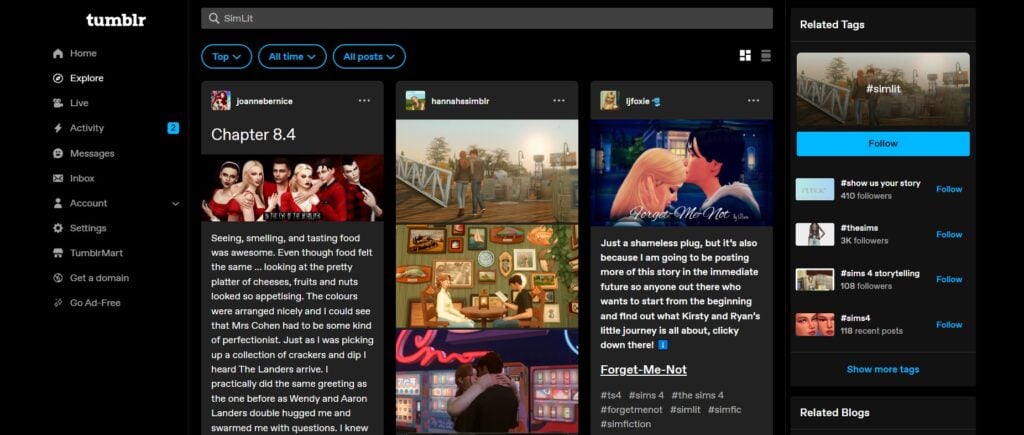
Tumblr: SimLit Search Example
Additionally, Tumblr is a great place to also discover SimLit writers too!
Social Media
As well as using Social Media to share and promote content, you can also use various features across the platforms to share your Sims 4 Stories. Be using the album feature on Facebook, posting your story directly onto X, using Instagram (aka Simstagram) to tell your story, there are plenty of options you can use right at your fingertips.
Social Media is also a great place to discover more Simmers and SimLit writers!
By no means, are these the only places you can host your Sims 4 Stories, they are, however, the most common places many SimLit writers tend to use when getting started. You can also share your content on multiple platforms as well if you wish to help reach an even bigger audience!
What Next?
By now you’ve probably got a good idea as to what you want to create and write as well as where you will be planning on sharing your stories. You’ve got plenty of notes written down and maybe even the first rough draft, if not more, ready to go.
Before you jump in to the next stage, have you got your title ready? Created some kind of title image and/or branding for your Sims 4 Stories? Have you thought about the places you want to promote your SimLit?
While you don’t need an answer right away to these questions, they are useful points to consider before you publish your Sims 4 Stories.
Of course, this also leads us onto editing photos, finding and using poses!
Photo Editing
This may seem like a more difficult aspect of creating your when in fact it can be simple, straightforward and fun!
While many people would automatically think of PhotoShop being an option for photo editing, there are actually a number of alternatives writers may find better suited to their needs.
Here are a selection of photo editing apps and software you can consider to help get you started!
One way to help bring your storytelling to life is through the use of poses. While custom poses are only available for PC and Mac players, using the default in game poses on console can still bring your story alive.
Important: New to Poses or Not sure how to use custom poses? Check out this helpful walkthrough here.
Now, if you are looking for poses, there are two ways you can go about finding the perfect ones.
Firstly, on Curseforge, you can search the Poses and Animations section. Here you will find a variety of different poses for single Sims and groups of Sims, those that focus more so on facial expressions and even family photo style poses.
There are so many talent custom pose creators out there that create such a variety of poses. There is something for every kind of story out there, just waiting to be discovered!
ReShade
Another way to enhance your screenshots is through the use of ReShade. These ReShade presets alter your graphics overall look and can help bring your stories to life even more.
To find out more about ReShade, follow our getting started walkthrough here.
Sharing Your Content
Now that we’ve covered the basics of creating your own Sims 4 Stories, it’s time to share them to the community!
When you are ready, it’s time to publish your SimLit creation on your chosen platform(s). It’s natural to feel nervous, however it’s exciting too! Don’t forget to use and check out tags/searches such as SimLit and Sims Stories when sharing your content too!
Additional Resources
Looking for some more handy and useful guides to help you on your Sims 4 Stories, journey? We’ve got you covered!
There are so many talented and creative Sims 4 Story writers in the game’s community! Whether you are ready to dive in and start your own SimLit or you just want to read.
Take a look at a few examples of SimLit from writers within The Sims Community:
With so many ways that you can tell your stories through The Sims, you’ll never be out of ideas! As someone just starting out, there will be some trial and error until you find what works best for you and your stories, and that is all natural.
SimLit is a great way to express and tell such a range of stories and better still you can use any of The Sims games to do so!
Are you looking to start writing your own Sims 4 Stories? Maybe you have been writing your own for some time now however, before you leave this post, we have one question for you that we’d love for you to share your answers.
What is something you wish you knew or someone had told you before you started creating your stories in The Sims?
Let us know in the comments below and as always, stay tuned to Sims Community for all the latest from The Sims franchise!
Make almost any object in the game bigger or smaller without any mods!
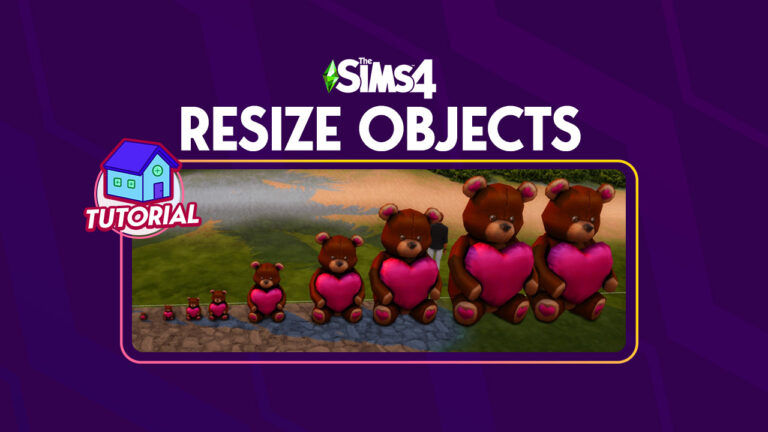
The same bear at its smallest size, gradually increasing in scale
If you’ve ever wished you could make an object bigger or smaller while building, you’ll be happy to know that The Sims 4 resize objects ability exists in the game! The best part? It requires no mods, just one simple cheat that both PC and console players can use! We’ll teach you how to scale objects on both PC and console!
Table of Contents
The Sims 4 Resize Objects: PC and Mac
If you’re a PC or Mac player, you can scale objects with just one cheat and a few keyboard shortcuts.
First, press CTRL+SHIFT+C to open up the cheat console. Then type in the cheat bb.moveobjects on and hit Enter to activate the cheat.
Using the moveobjects cheat
Once moveobjects on (commonly referred to as MOO) is enabled, you’ll be able to scale objects! Make sure you’re in Build/Buy and select the object you want to resize. With the object selected, just use the square bracket keys on your keyboard to make the object larger or smaller. The [ key makes the object smaller. The ] key makes the object larger.
If you’re on a Mac and having trouble resizing objects using the square bracket keys, try pressing Command, Alt, or Shift at the same time. Some Mac users report that just the square bracket keys don’t work for them; however, different Mac users report different keys that need to be pressed at the same time. So see if Command, Alt, or Shift works for you when using the square bracket keys to resize objects.
Resize Objects: PS4 and PS5
Making objects bigger or smaller on PS4 and PS5 is also very easy! You will need to press all four back buttons on your controller at the same time to bring up the cheat console, then type in bb.moveobjects on and hit X to confirm the cheat. Don’t worry about disabling your trophies! The MOO cheat doesn’t require you to enable testingcheats to use, so your trophies are safe!
Once MOO is activated, you can make almost any object bigger or smaller. Make sure you’re in Build/Buy and select the object you want to scale. Then press L2+R2 at the same time and use the left and right directional buttons to scale the object up or down. The left directional button makes the object smaller. The right directional button makes the object larger.
Resize Objects: Xbox One and Xbox Series X
You can scale objects on Xbox One and Xbox Series X, too! You will need to press all four back triggers on your controller at the same time to bring up the cheat console, then type in bb.moveobjects on and hit A to confirm the cheat. Don’t worry about disabling your achievements! The MOO cheat doesn’t require you to enable testingcheats to use, so your achievements are safe!
Once MOO is activated, you can make almost any object bigger or smaller. Make sure you’re in Build/Buy and select the object you want to scale. Then press both back triggers at the same time and use the left and right directional buttons to scale the object up or down. The left directional button makes the object smaller. The right directional button makes the object larger.
How to Make the Most of Resizing Objects!
Yep, you can make objects this big (and bigger)! Why? Who knows, but you can!
Now that you know how to scale objects, you might be wondering why you need to make an object larger or smaller in the first place! Of course, there are extreme examples. Theoretically, you could make the tiniest teddy bear ever and hide it somewhere in a build just for fun. You could also make a really massive teddy bear that takes up a whole lot just for the amusement of it, but there are definitely more practical uses for this cheat, too.
Size comparison between toy car before and after resizing it to be full-size.
For example, if you didn’t feel like using the bb.showhiddenobjects and bb.showliveeditobjects cheats to find full-size cars to put in the garage or driveway, you could just grab a toy car from the kids’ décor section and size it up to a full-size vehicle! You’ll sacrifice some texture quality this way; the larger you make an object, the more stretched its texture becomes, but it’s definitely an option!
This infant crib is still functional with a scaled down canopy over it
On the other hand, you could scale objects down to fit nicely as a decorative accent in a home. The more packs you own, the more options you’ll have when it comes to scaling objects in order to expand your decorating skills. For example, you can scale down the My Wedding Stories canopy to fit perfectly above an infant crib for a delicate and sweet touch to a nursery.
There are many more ways to implement the scale objects cheat into your builds so get creative with it and experiment with what you can achieve!
A Sims 4 Developer is sceptical about big Pack Updates!
It’s been a while since we’ve heard about Sims 4 Pack Refreshes. The first (and so far only) Pack Refresh for Spa Day came out exactly two years ago. In case you’ve been out of the loop about what Pack Refreshes are, here’s a short event timeline that you might’ve missed out.
Table of Contents
The Sims 4 Pack Refreshes: What are they?
The concept of a Sims 4 Pack Refresh was first introduced in an official Community Survey from EA back in January 2020. The survey had listed all of the Expansion Packs and Game Packs released at the time – asking the player to choose which pack would they like to see get updated with more content and features.
There were options ranging from Get to Work to Island Living for Sims 4 Expansion Packs, as well as Outdoor Retreat to Realm of Magic for Sims 4 Game Packs.
We didn’t hear much after the survey was closed for a while. And then, EA and Maxis have made a surprise announcement of The Sims 4 Spa Day Game Pack Refresh in September 2021. The Sims 4 Spa Day Pack Update came with new Aspirations and Traits, New CAS and Build Items as well as meaningful new gameplay. It also introduced the addition of Customizable Nails to The Sims 4 Base Game.
Are we getting another Sims 4 Pack Refresh?
SimGuruAsh, the official developer for The Sims 4 has shared her perspective about more Sims 4 Pack Refreshes in the future. Although they’re sceptical about Pack Updates going as big as Sims 4 Spa Day, they are hoping for general refreshes to update packs.
So what does this mean? My opinion is that we won’t be seeing another grand update for a Sims 4 Pack like Spa Day. We’re well underway to learn more about the development of The Sims 5, and The Sims Team seems to be dedicated to bringing new Packs and Kits, rather than updating old content.
If we ever do see a Pack Update like the one for Sims 4 Spa Day, it probably won’t add new features to every aspect of the Pack’s contents. Spa Day had a big Pack Update which followed a branding change (Key Features, Assets and more) as well as gameplay improvements. It’s the first Sims 4 Pack Update of this scale, and probably the last in The Sims 4 Series.
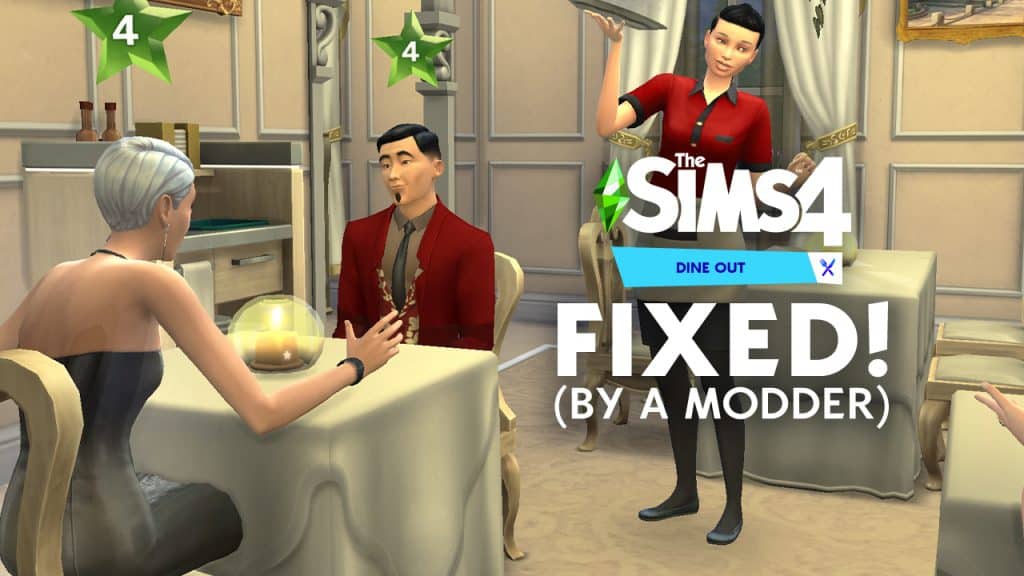
There are still a few packs in The Sims 4 Catalogue that the community thinks they deserve another chance. Especially packs like Dine Out, which have troubling gameplay for a few years now.
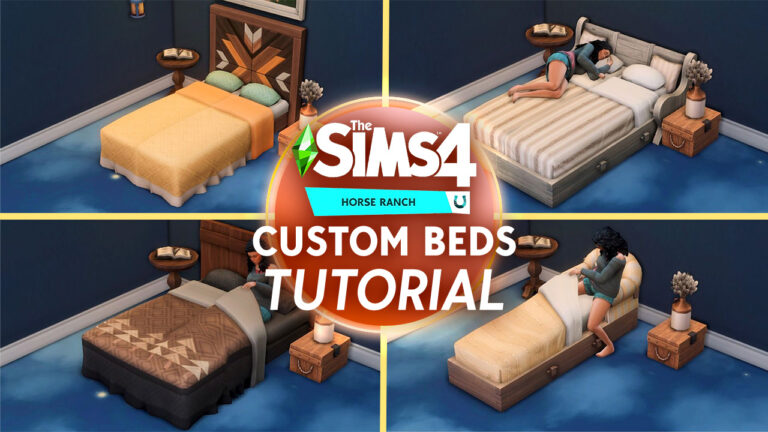
Who says we can’t have more bed swatches with just The Sims 4 Horse Ranch?
We’ve made pull-out beds and round beds without any mods or custom content in the Sims 4. So let’s experiment with the new items from Horse Ranch to create even more custom-made beds! Find it all out in this Sims 4 Build Hack Tutorial.
Just to be sure, turn onbb.moveobjects for all of these build hacks to work.
The Sims 4 Build Hack: Custom-Made Beds
Geometric Headboard
The new pack came with this gorgeous wall decor with quite a lot of swatches which is perfect for a headboard.
Start by placing a 2 single beds of the same swatch either with a short headboard or without any headboards at all. You can press Shift+F5 for a more precise quarter tile placement. Then simply place the wall decor behind the two beds.
Hold Alt to move the beds closer to each other and to hide their original headboards. Make sure to close off the gap between the beds.
Look at all these custom-made beds to choose from! You can mix and match the beddings with the headboard. Bonus tip: try to match the bed’s wooden side rail with the wall decor’s wooden swatch.
The Sims 4 Build Hack for Beds: Various Design Options
Pillow Option
What’s even better than just a bed? More pillows! And you can find them with this wooden bench.
Do the same technique as above by scooching two single beds with the same swatch together. Then, place the wooden bench with a similar wood swatch with the beds’ side rail.
Use Shift+F5 or hold Alt to adjust the beds to hide their small headboards. Get them closer to each other and remove the gap in between to imitate a double bed.
It’s that simple! Custom-made beds with fluffy pillows is always a cozy option. Try out different styles with this bench-bed combo:
Note: Putting together 2 singles beds will not have the functions of a double bed (i.e. woohoo, talking to another Sim while relaxing, etc.), however both beds will still be functional. But if you really need an actual double bed for your build, then this next tip is for you!
Wooden Bedpost
The new wooden shutters are everything that a Sims builder could dream of – the swatches, the style, plus it just completes the outside of every build! Now let’s use it in the interior of your bedroom.
Start by placing a bed with a low headboard or without a headboard at all.
Now you need to toggle Shift+F5 for in-between tile placement. Grab the right shutter and add 2 of them to the right of the bed. Do the same with the left shutter but on the left side of the bed.
Hold Alt and push back the bed to the shutters to hide its headboard.
You’re done! These custom-made beds would be a great solution whenever their beddings are perfect but their headboard don’t match the vibe of your room.
Sims 4 Build Hack: Comfy Cushion Singles
Now if you wanna spice up your single beds, we’ll be using this plushy armchair that comes in various colors and patterns.
It’s as easy as just placing it behind your bed. Just use Alt placement if you need to adjust the bed.
Custom-made beds like these can be done with any armchair. It’s just so convenient that this chair from Horse Ranch matches the bed swatches too!
Basically, you can intersect any object with a bed to jazz it up. Just make sure you don’t add any object near or on the middle of the bed to make it functional!
Video Tutorial
If you want to see how to create custom-made beds so you can do it yourself, enjoy this quick and easy tutorial:
What do you think about this Sims 4 Build Hack? Let us know in the comments below!
We now know the names of The Sims 4 Kits that are releasing soon!
We’re approaching the end of The Sims 4’s Summer Roadmap lineup. After the big release of The Sims 4 Horse Ranch Expansion, the second paid DLC off the list are the new Sims 4 Kits. We’re still waiting for EA and Maxis to make any official announcements about the Kits.
However, it didn’t take much for players to find clues about the next DLC releases, revealing the names of the new Sims 4 Kits.
Table of Contents
Roadmap Info
The Take The Reins Sims 4 Season of releases will last until the end of September 2023. The Sims Team hinted the potential Kit content in their Roadmap imagery that you can see below:
See the pair of Swimwear Shorts and a modern Chair?
Now, we know the names of the two new Kits coming for the game thanks to some insightful community members.
New Sims 4 Kits: Poolside Splash and Modern Luxe
The first clue about the new Sims 4 Kit came from an error on TheSims.com website. Spotted first by @TheHenfordHen, the web page for The Sims 4 Bathroom Clutter Kit accidentally wrote out the name of the Kit that yet has to be released.
The Sims 4 Poolside Splash Kit is one of the new Sims 4 Kits
The confirmation about another The Sims 4 Kit that’s coming out this season comes from creator @Simmattically. The player reports that The Sims 4 Modern Luxe is the title of this Build Kit:
It seems we’re still a few days away from the release of the new Sims 4 Kits. EA and Maxis usually release CAS and Build Kits along on the same day, so we could be seeing that for these Kits as well.
Poolside Splash and Modern Luxe Kits are likely to be announced in the coming days, with a release day shortly after. Both are expected to be retailed at $4.99USD, or a price equivalent to your local currency.
What are you expecting to see from the new Sims 4 Kits? Let us know in the conversation down below and stay tuned for more Sims 4 Kits News!